Shadcn Blocks
Browse all 758 shadcn/ui blocks across Marketing, Application, Ecommerce, Portfolio, and Components. Search, filter, then copy, paste, and ship.


Modern SaaS About: Leadership Team
A two part header with a credibility wordmark strip above a five up row of leadership portraits, each with a name and role, to put real faces behind the product.
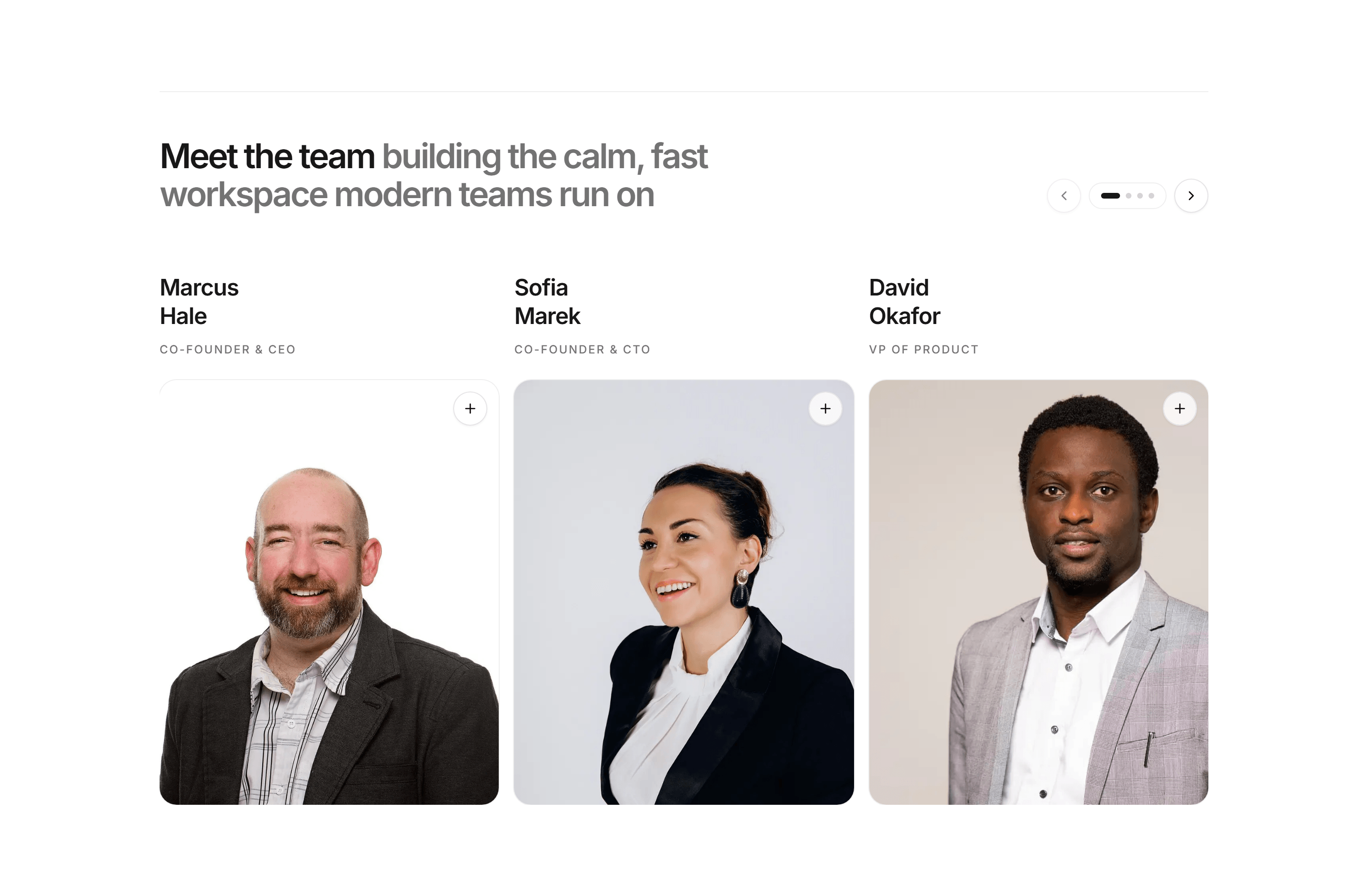
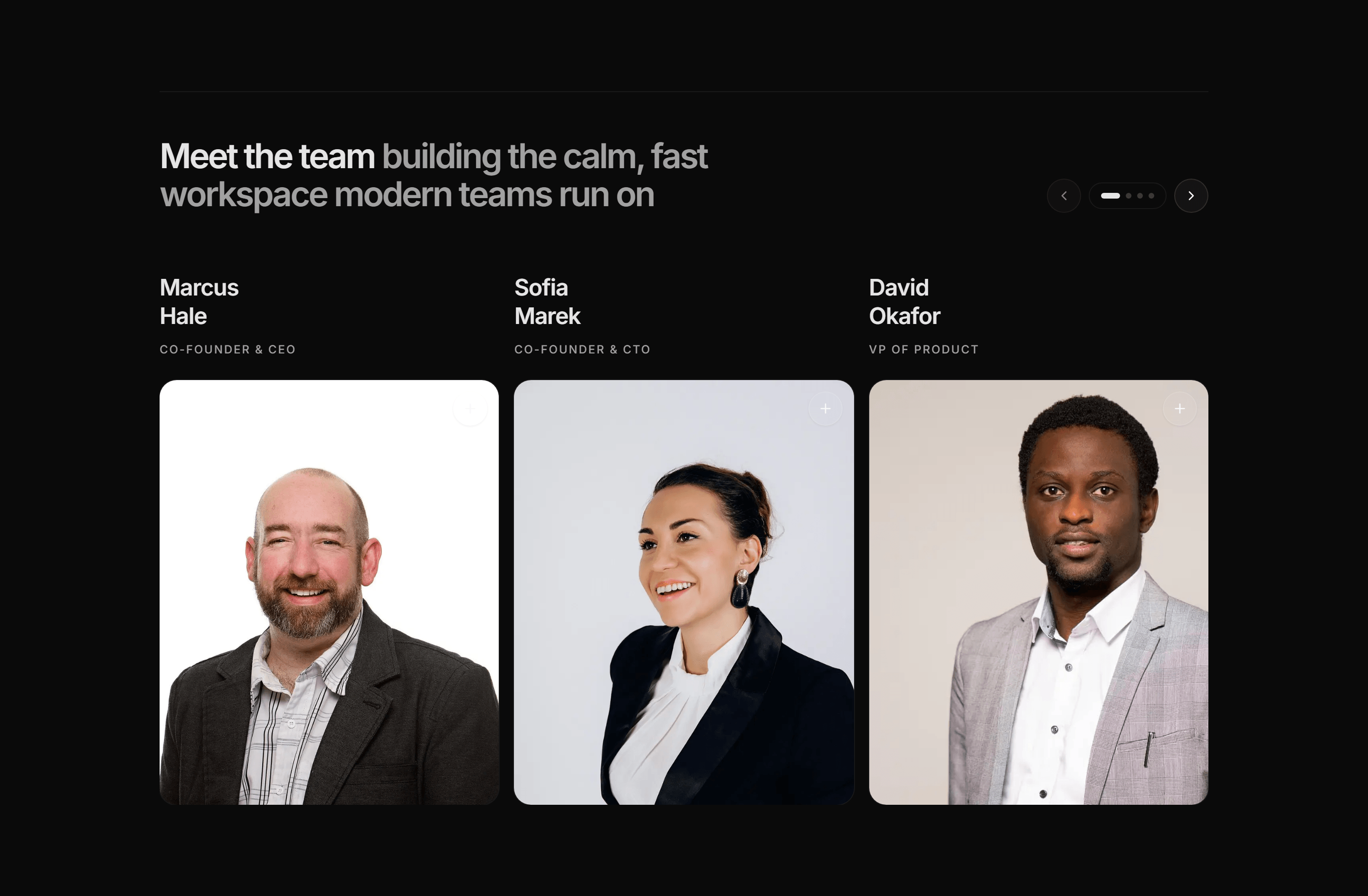
Modern SaaS About: Meet the Team
A swipeable carousel of team profile cards with names, roles, and portraits, each opening a short bio in a dialog.
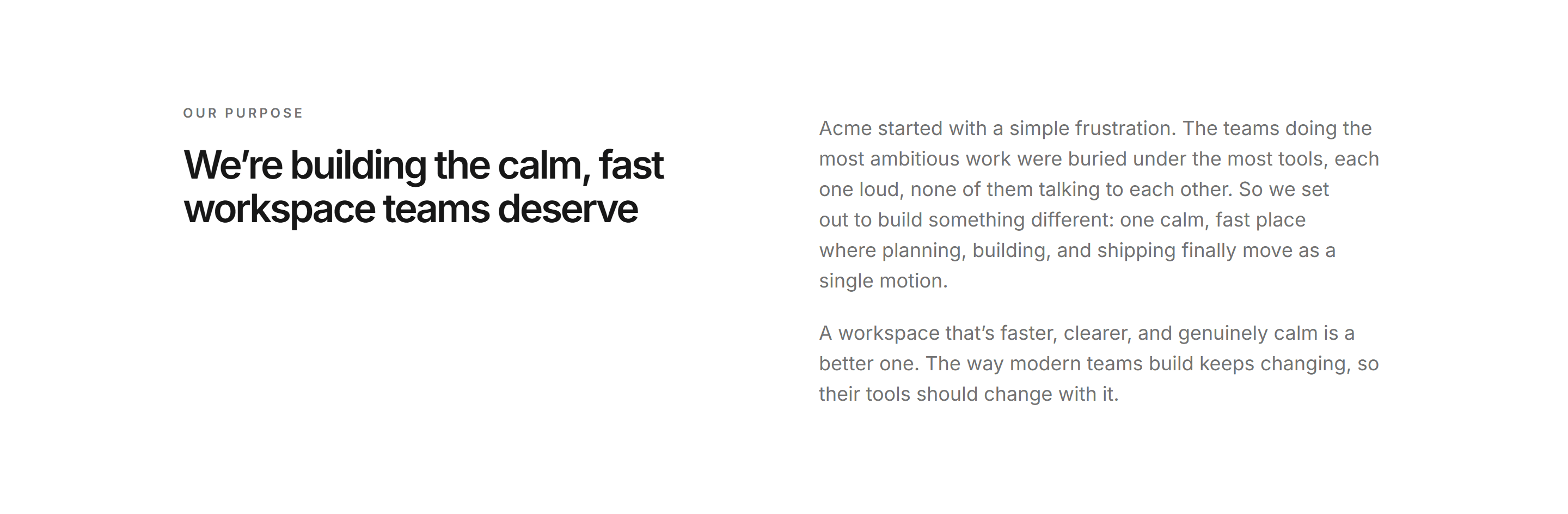
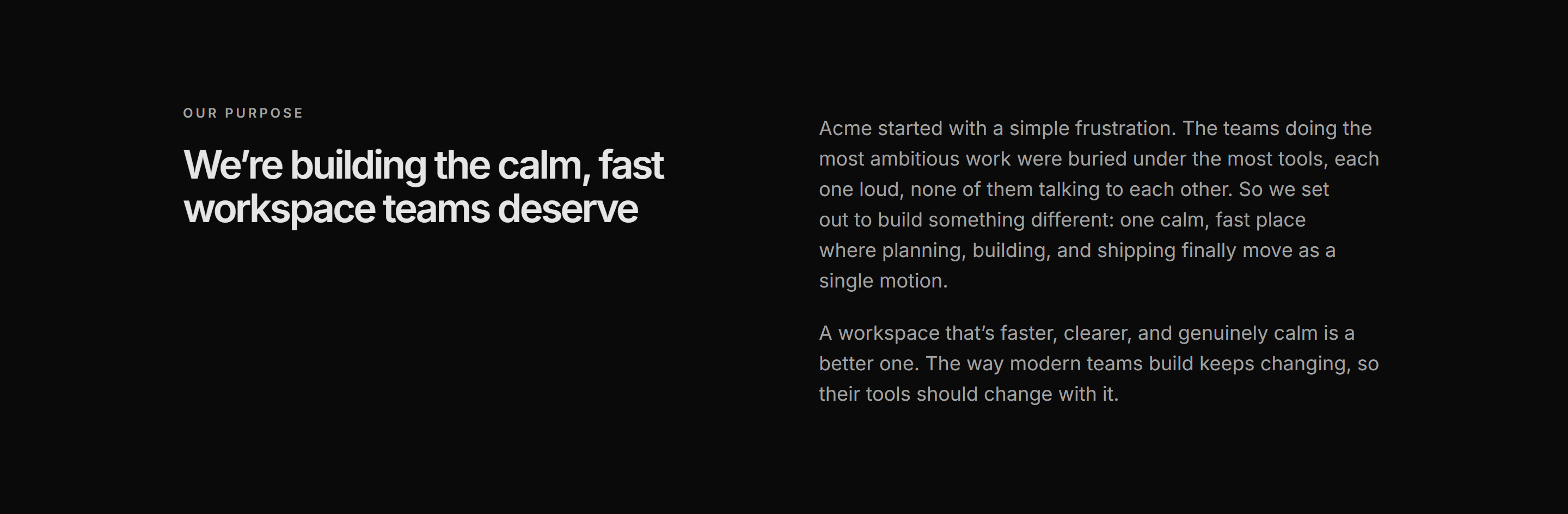
Modern SaaS About: Our Purpose
An editorial about section with no imagery: an uppercase eyebrow and large headline on the left beside a two paragraph purpose statement on the right.
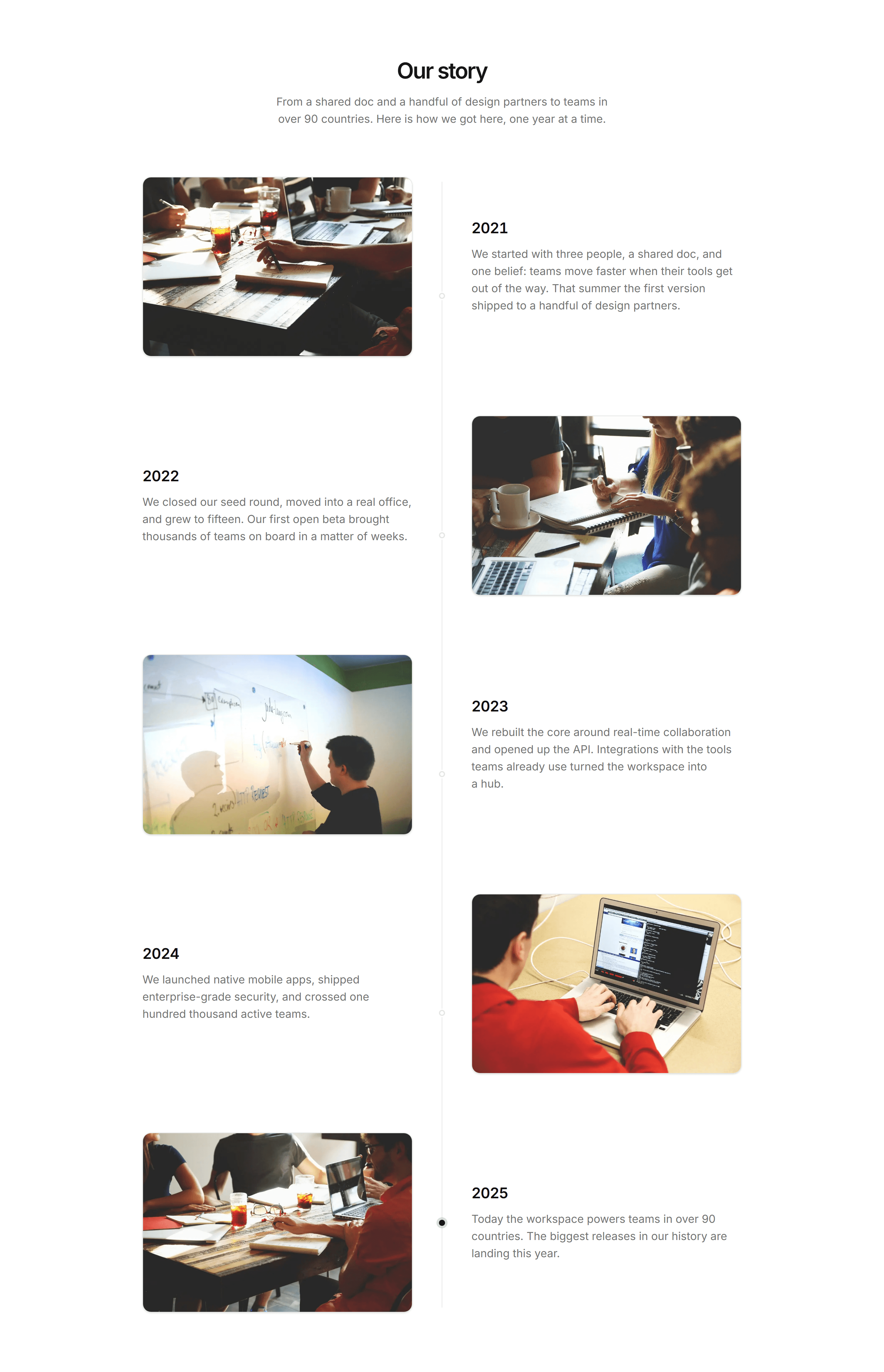
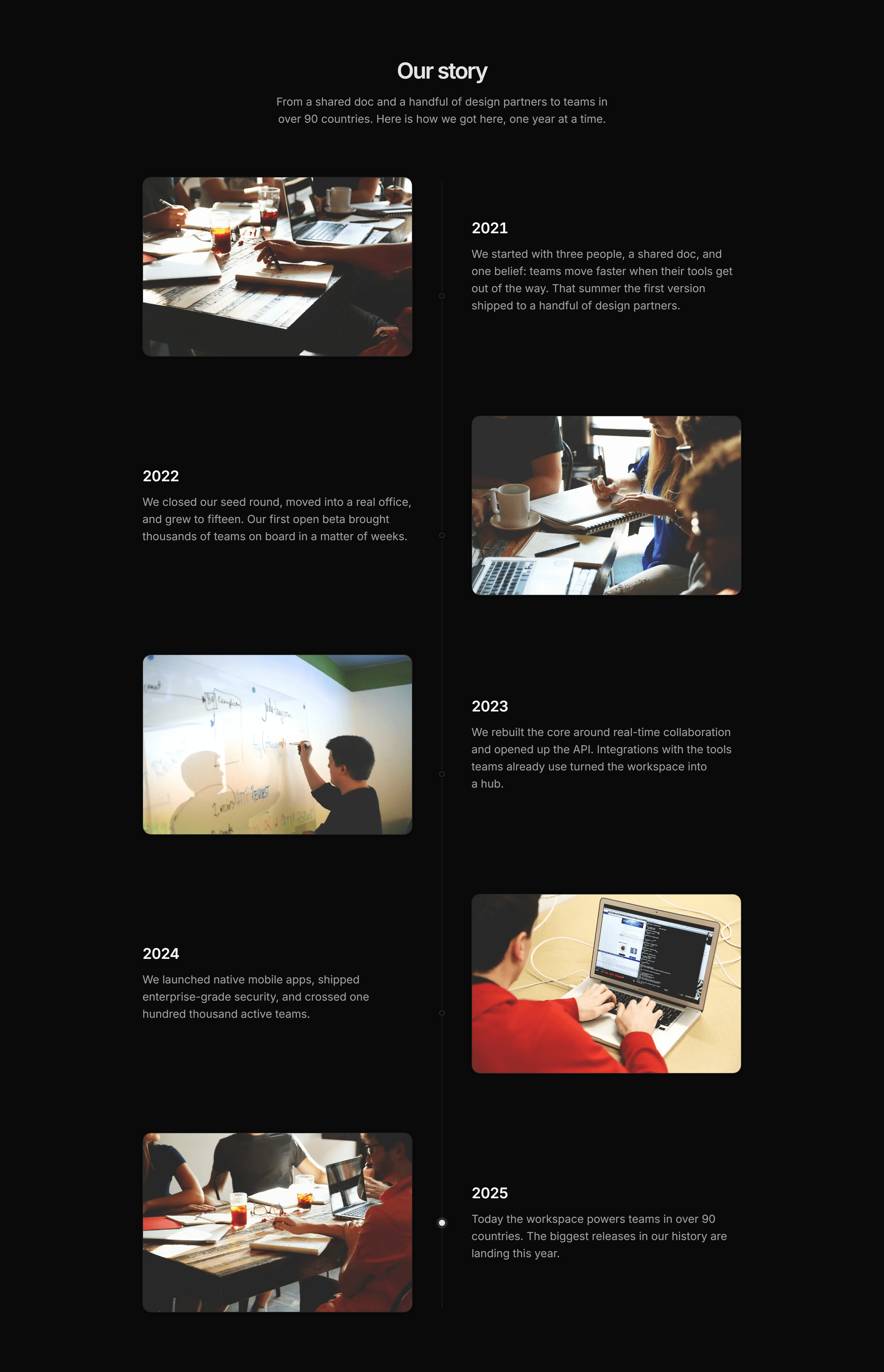
Modern SaaS About: Story Timeline
A vertical 'Our story' timeline of company milestones, alternating a photo with the year and a short paragraph beside a center rail, with the most recent year highlighted.
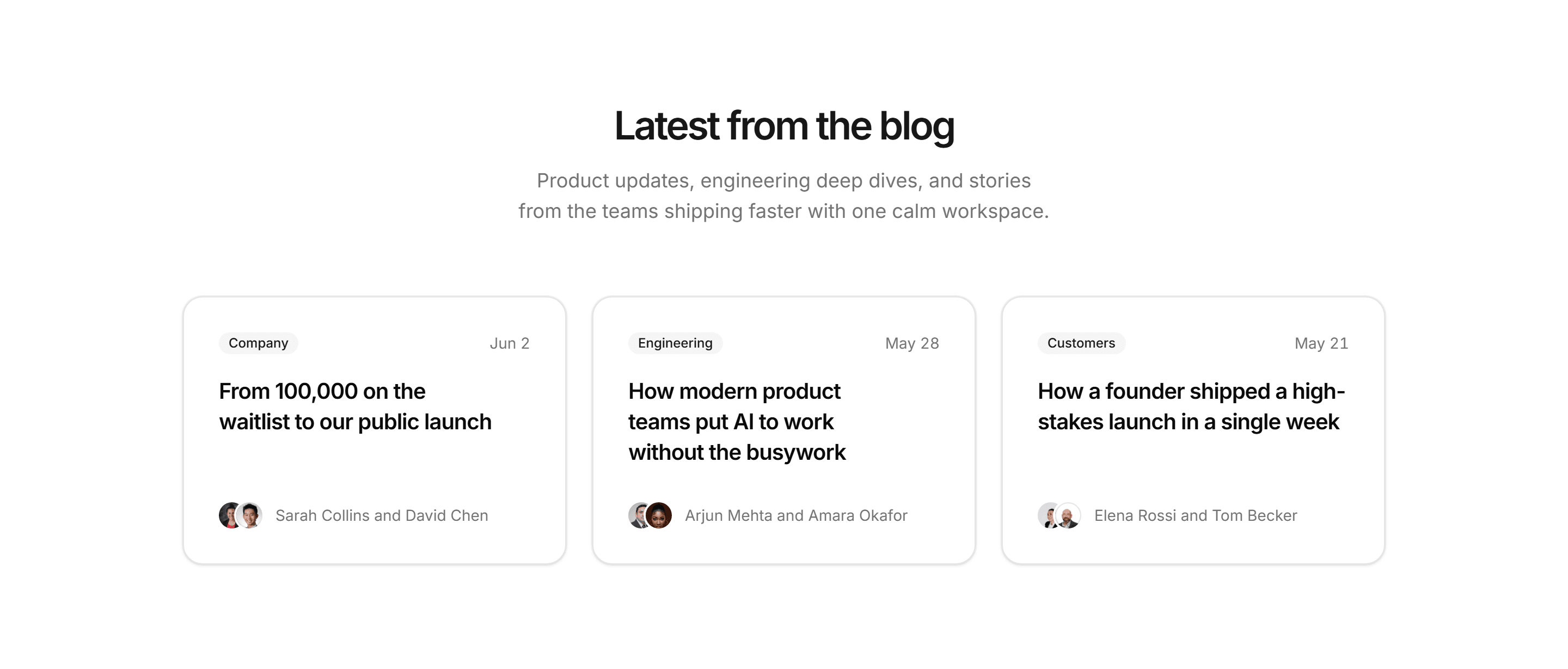
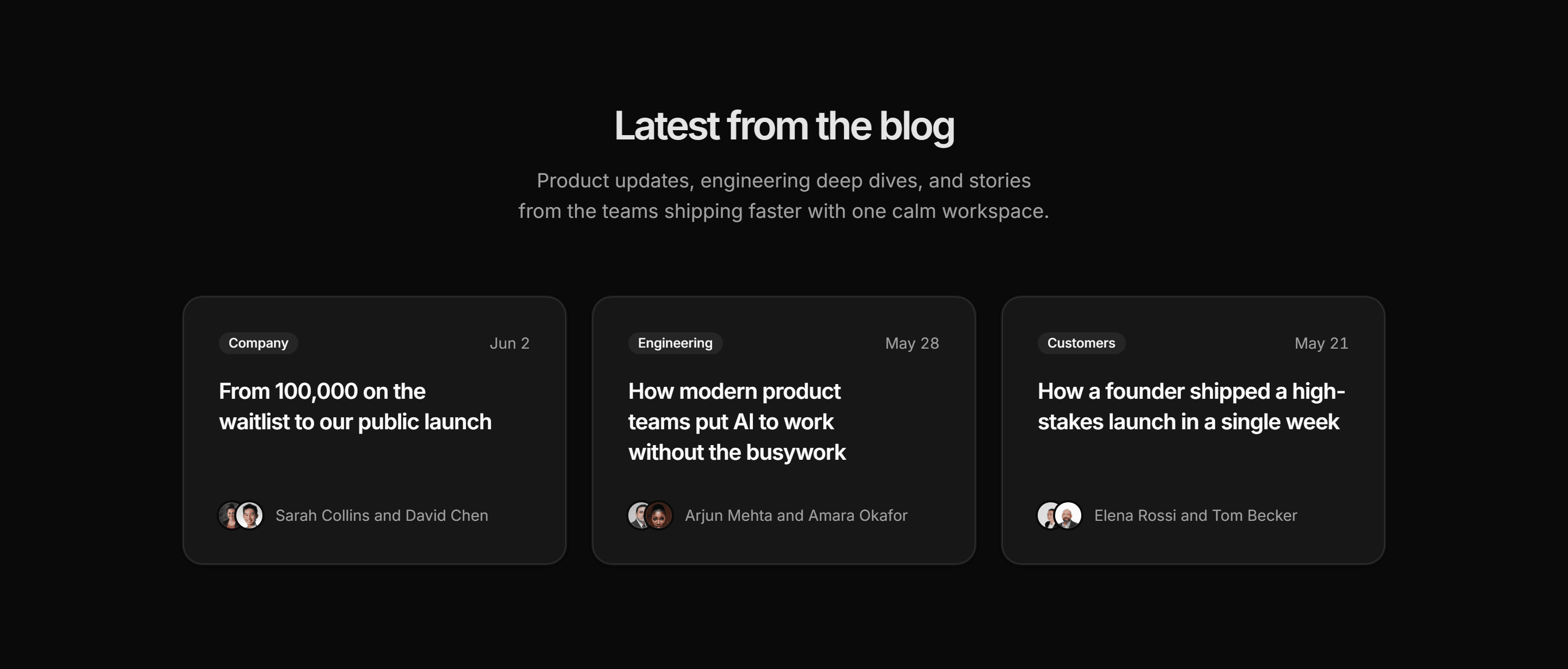
Modern SaaS Blog: Article Card Grid
A three up grid of blog post cards, each pairing a category badge and date with the post title and a stacked author byline.
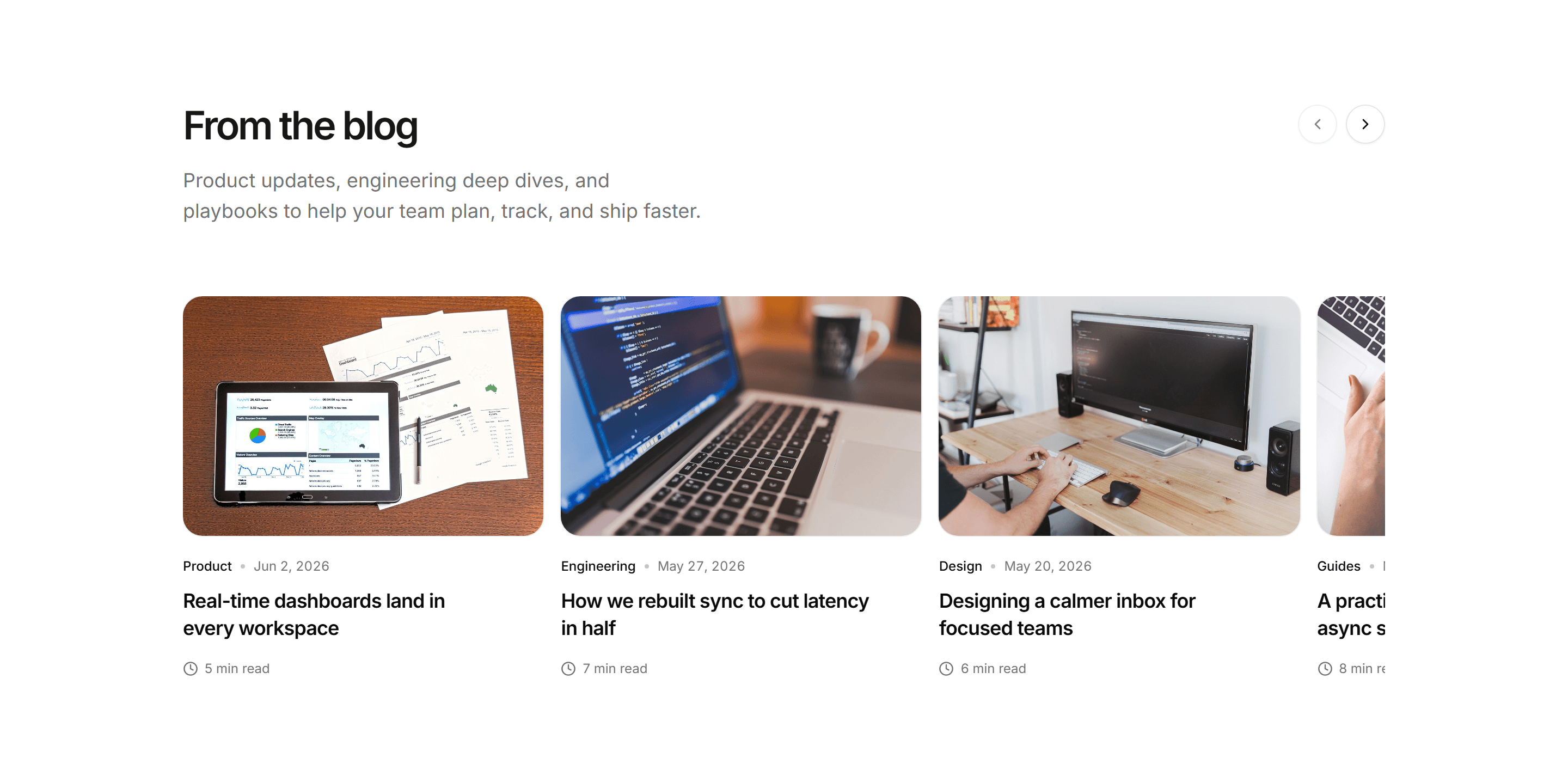
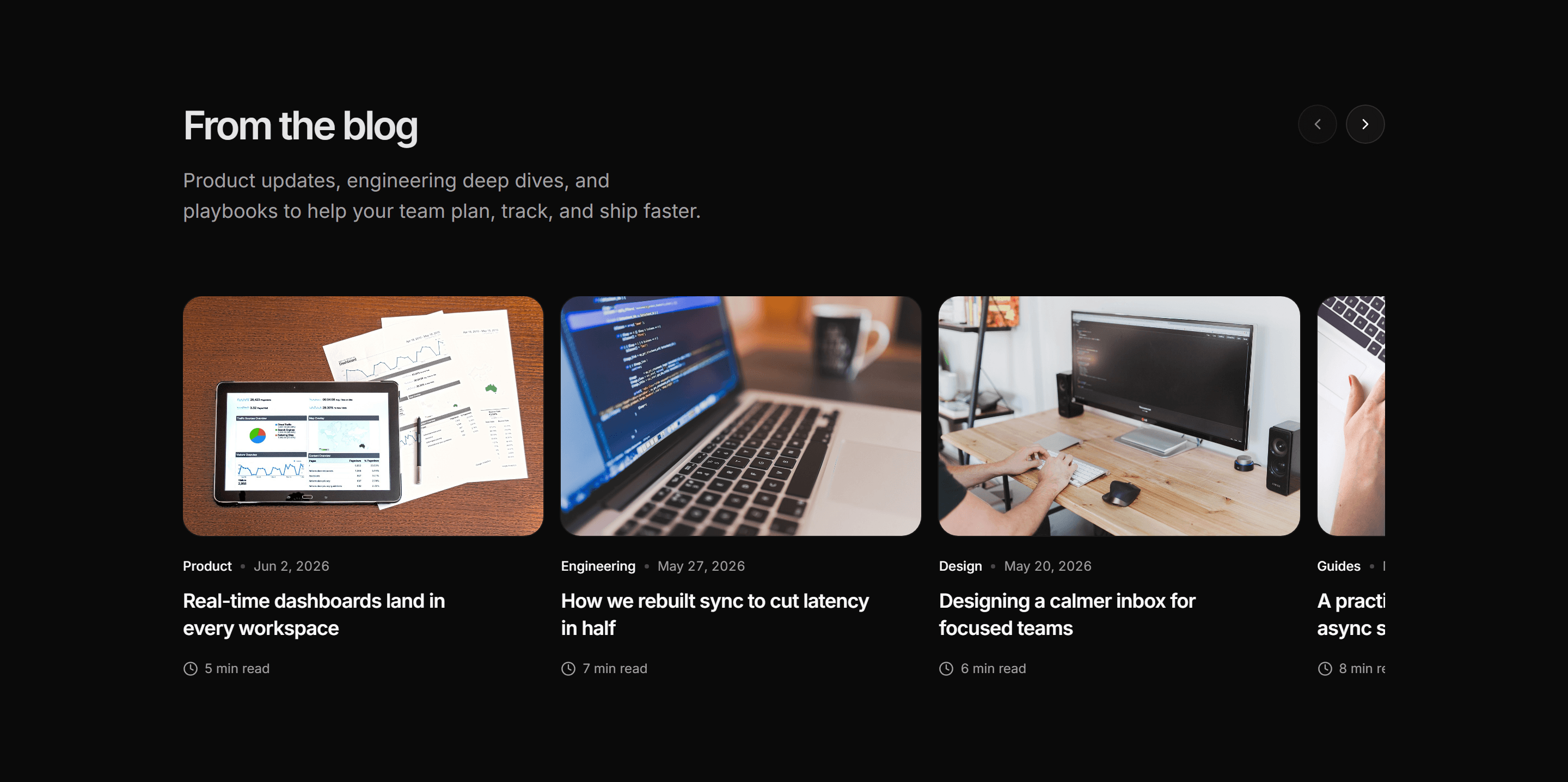
Modern SaaS Blog: Card Carousel
A swipeable carousel of blog post cards, each pairing a cover image with a category, date, two line title, and read time.
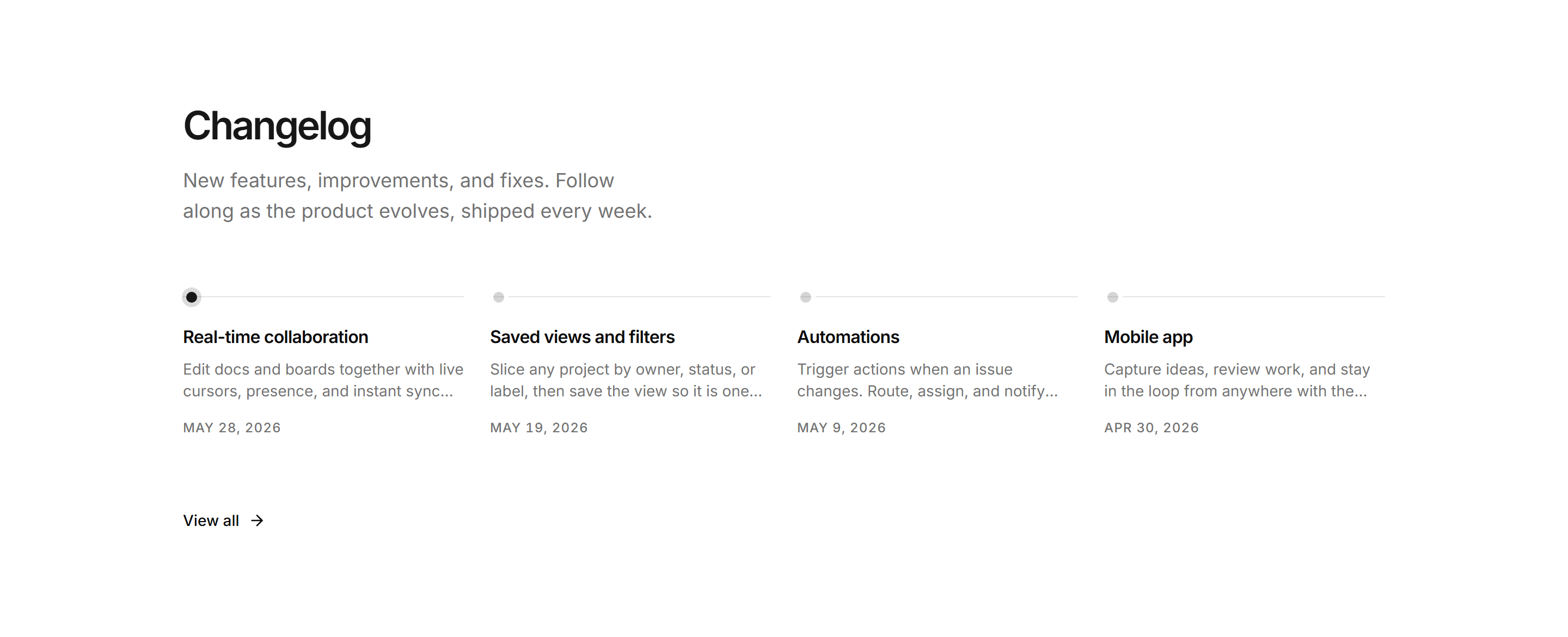
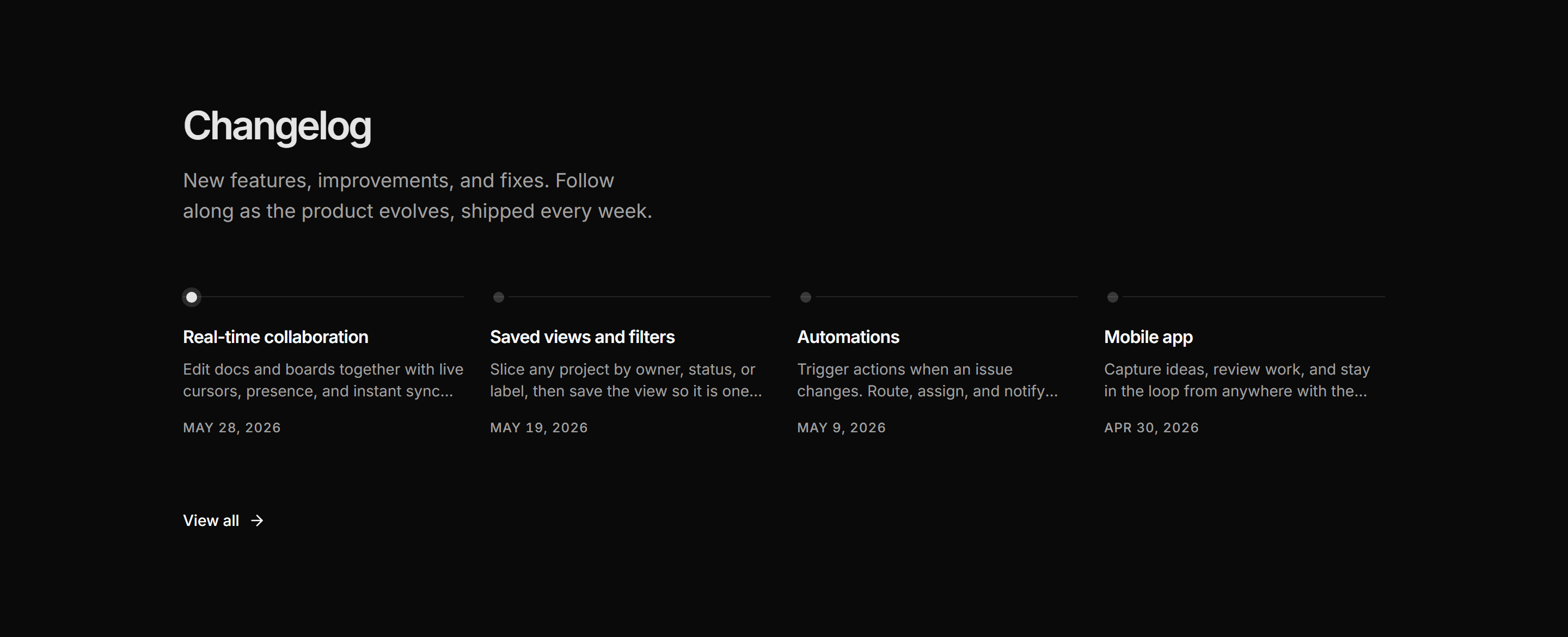
Modern SaaS Changelog: Horizontal Timeline
A Linear style changelog: a bold heading above a horizontal rail of recent releases, each with a dot, title, two line summary, and date. The newest entry is highlighted.
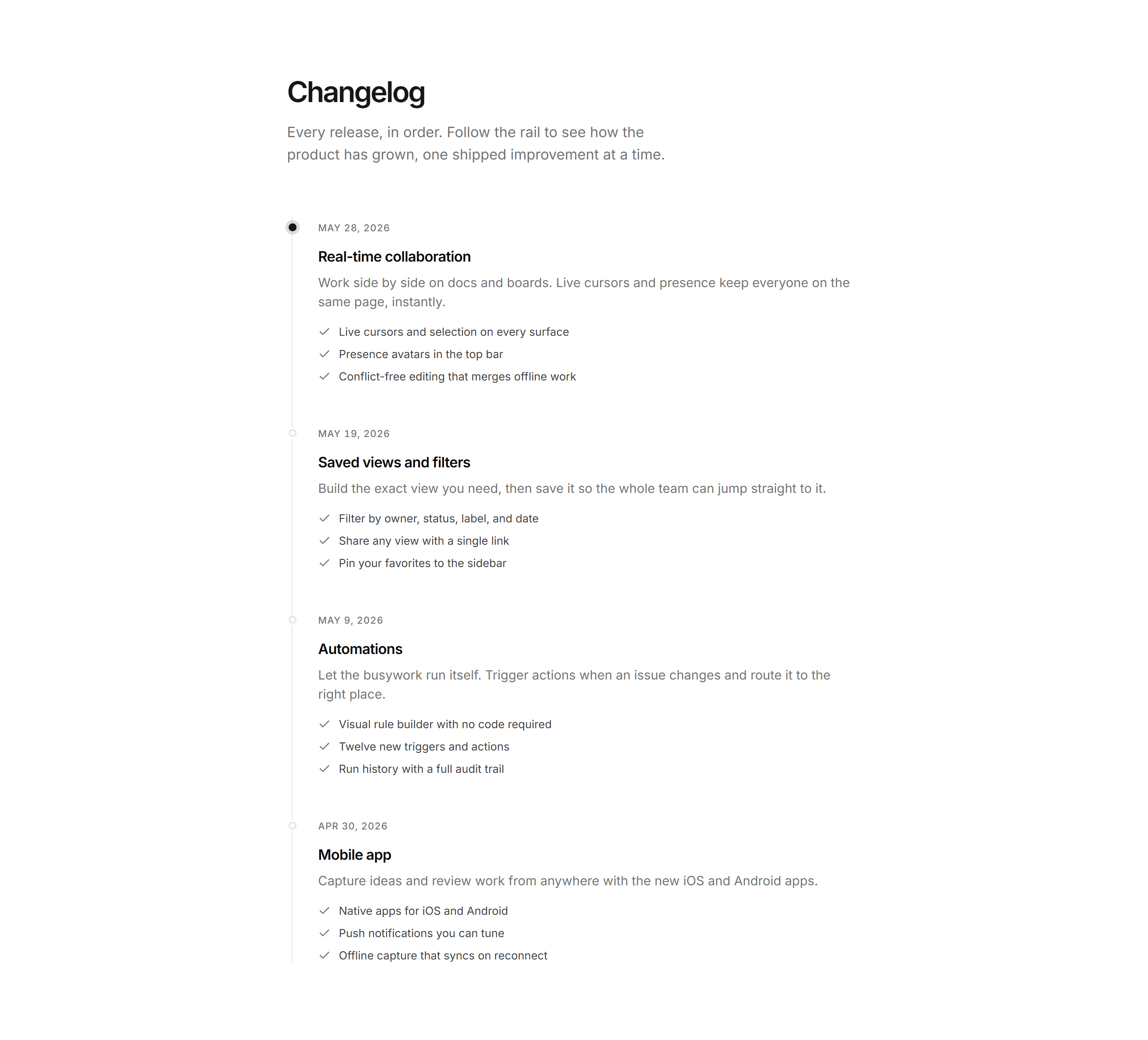
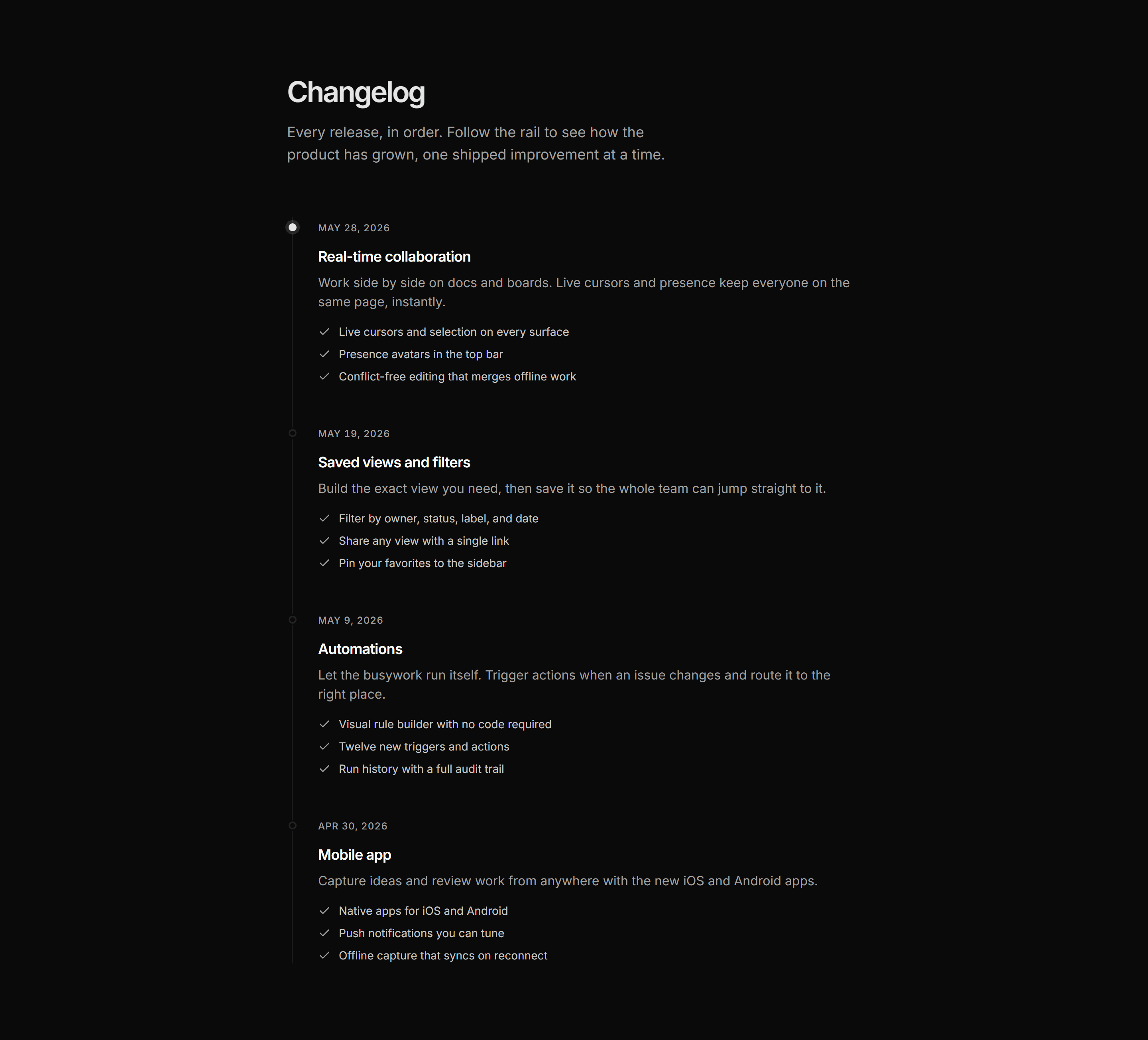
Modern SaaS Changelog: Vertical Timeline
A vertical changelog feed: a single rail of releases, each with a dot, date, title, summary, and a bulleted list of what changed. The newest release is highlighted.
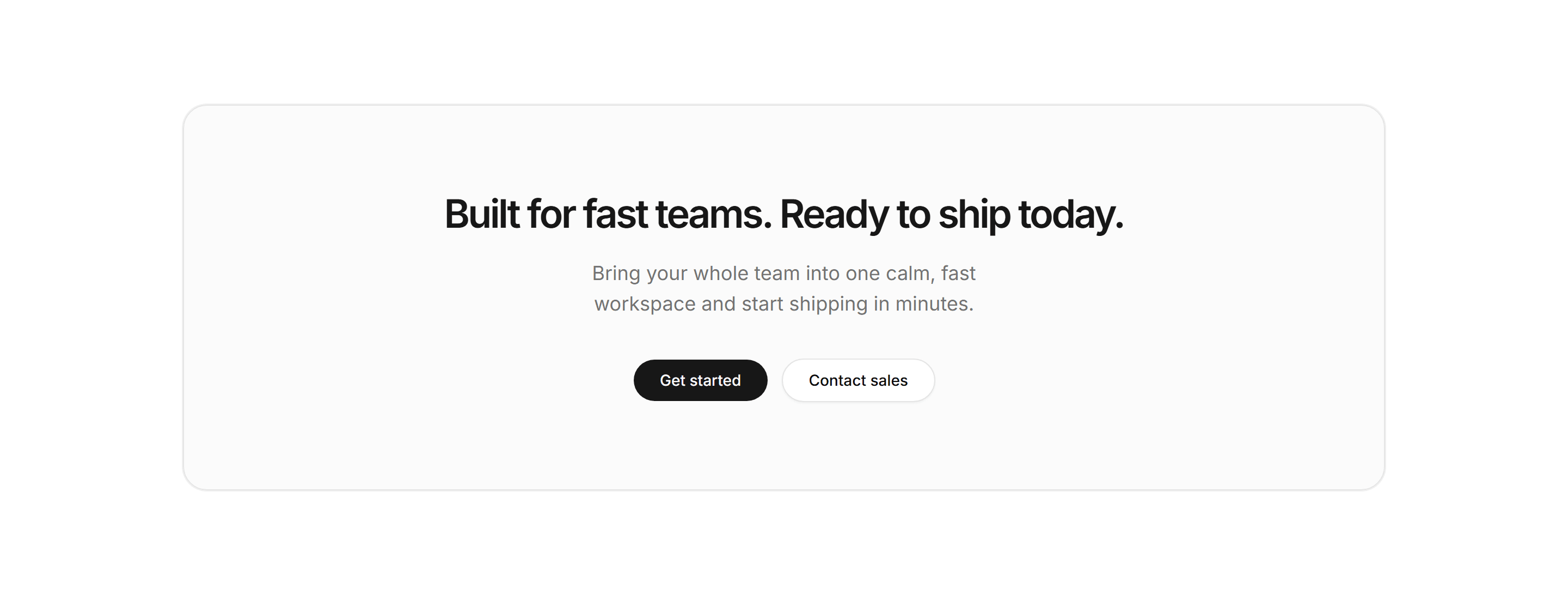

Modern SaaS CTA: Centered Callout
A simple, centered closing CTA on a soft bordered panel: a bold headline and short lede over two pill buttons.
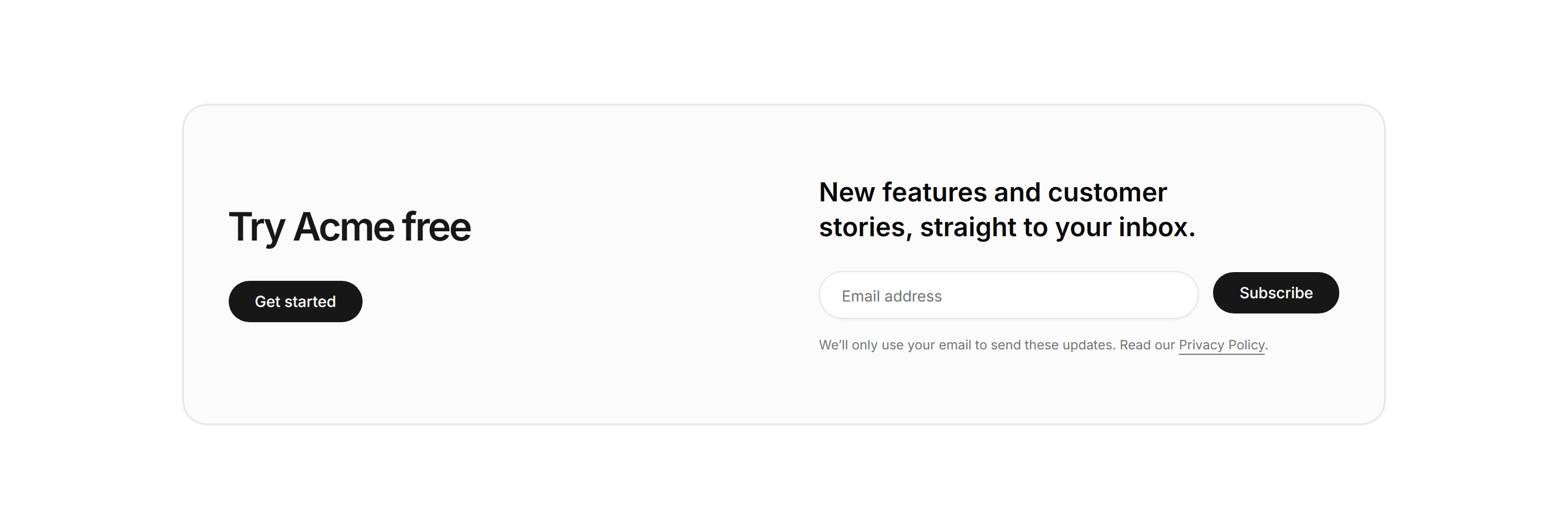
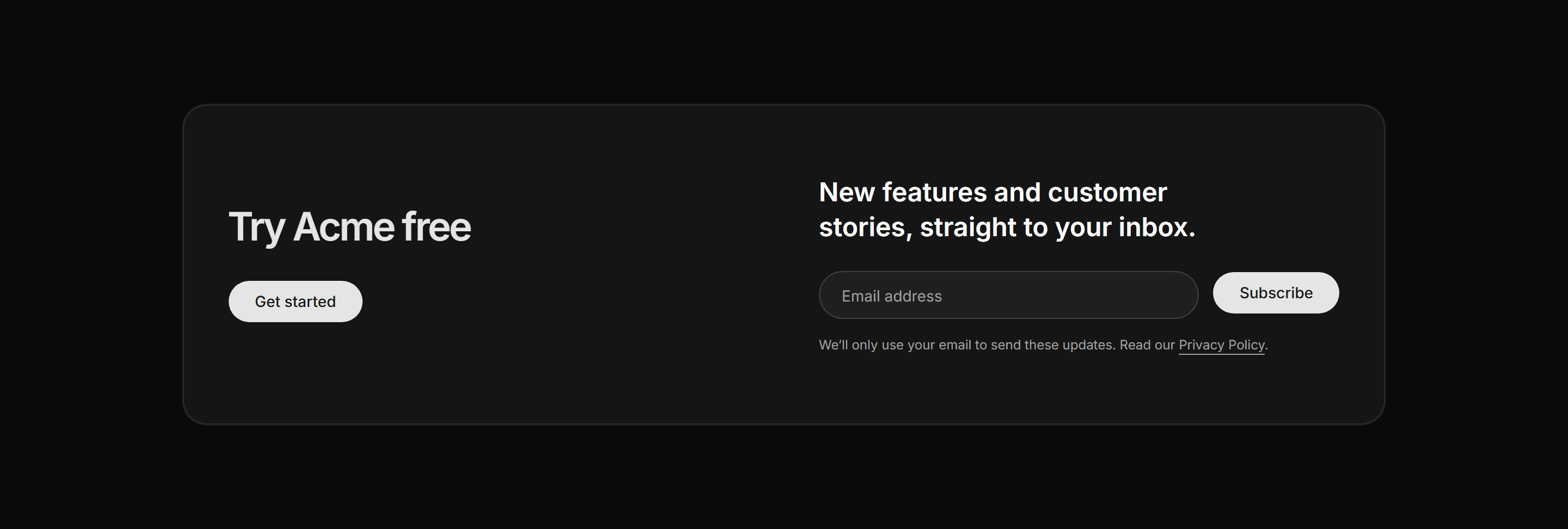
Modern SaaS CTA: Split Signup
A split CTA on a soft bordered panel: a headline and pill button beside a newsletter signup with an email field, submit button, and privacy note.
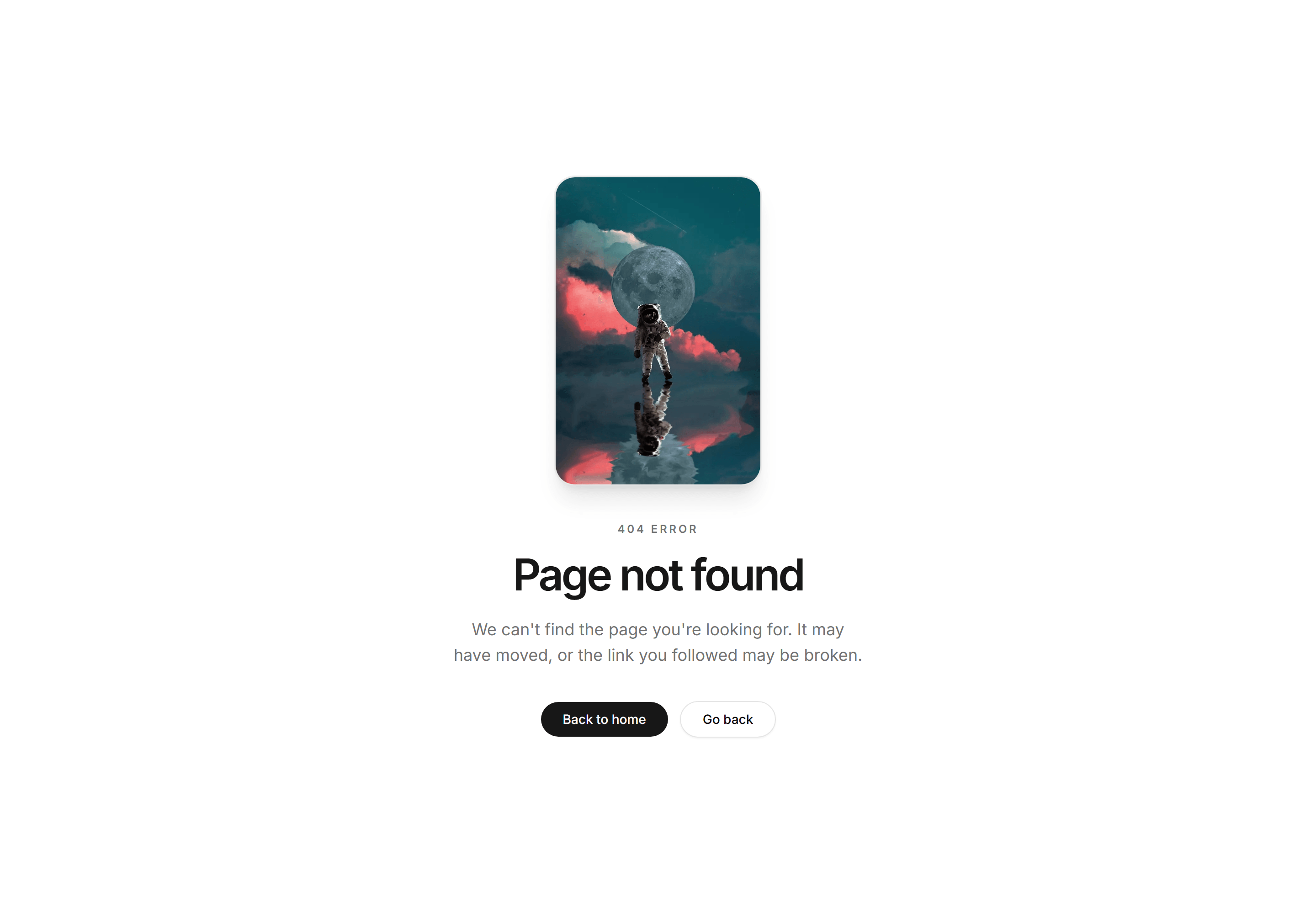
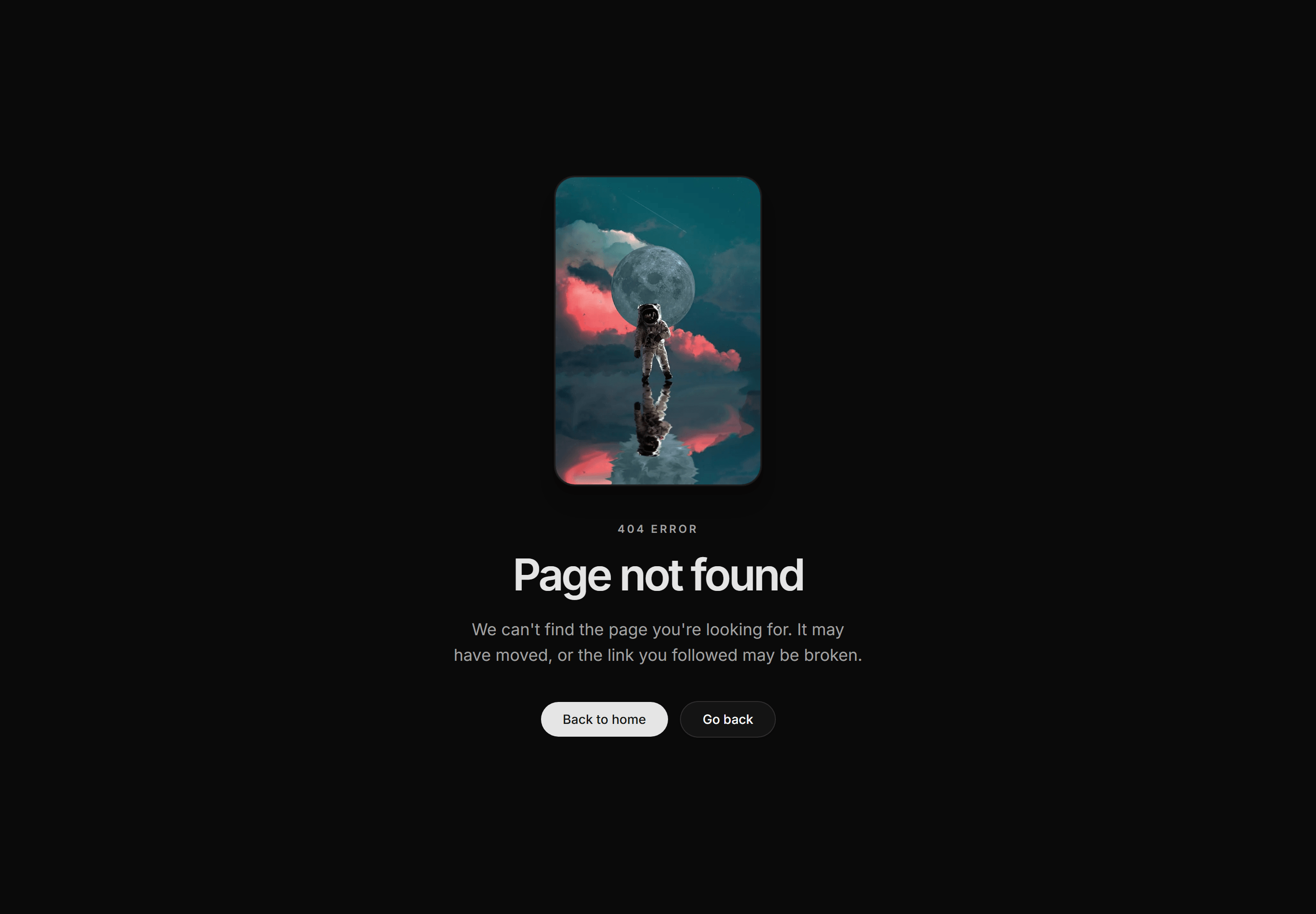
Modern SaaS Error Page: Centered Astronaut
A centered 404 screen: a framed astronaut adrift over a soft glow above a bold headline, a short lede, and pill CTAs to head home or go back.
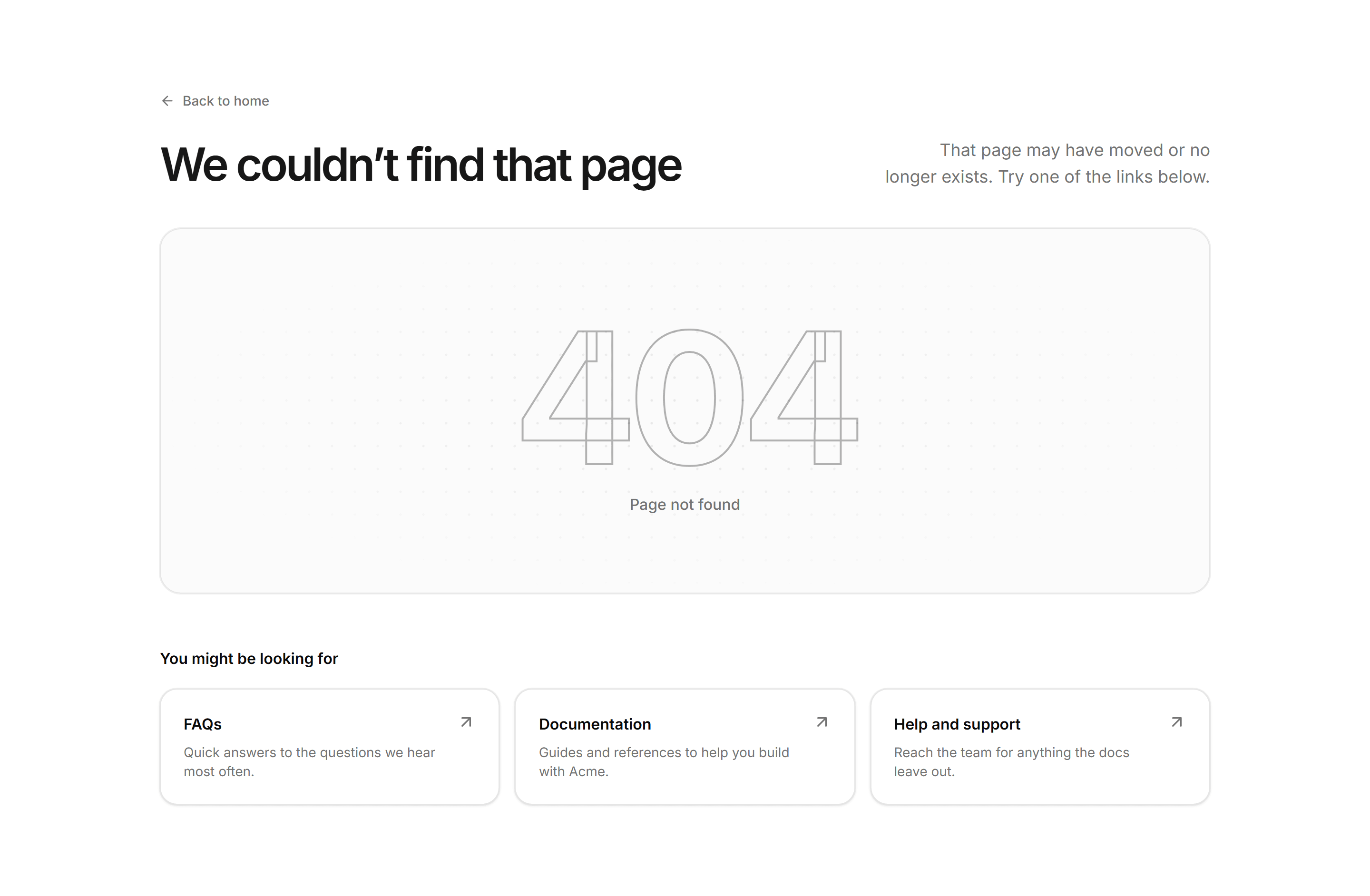
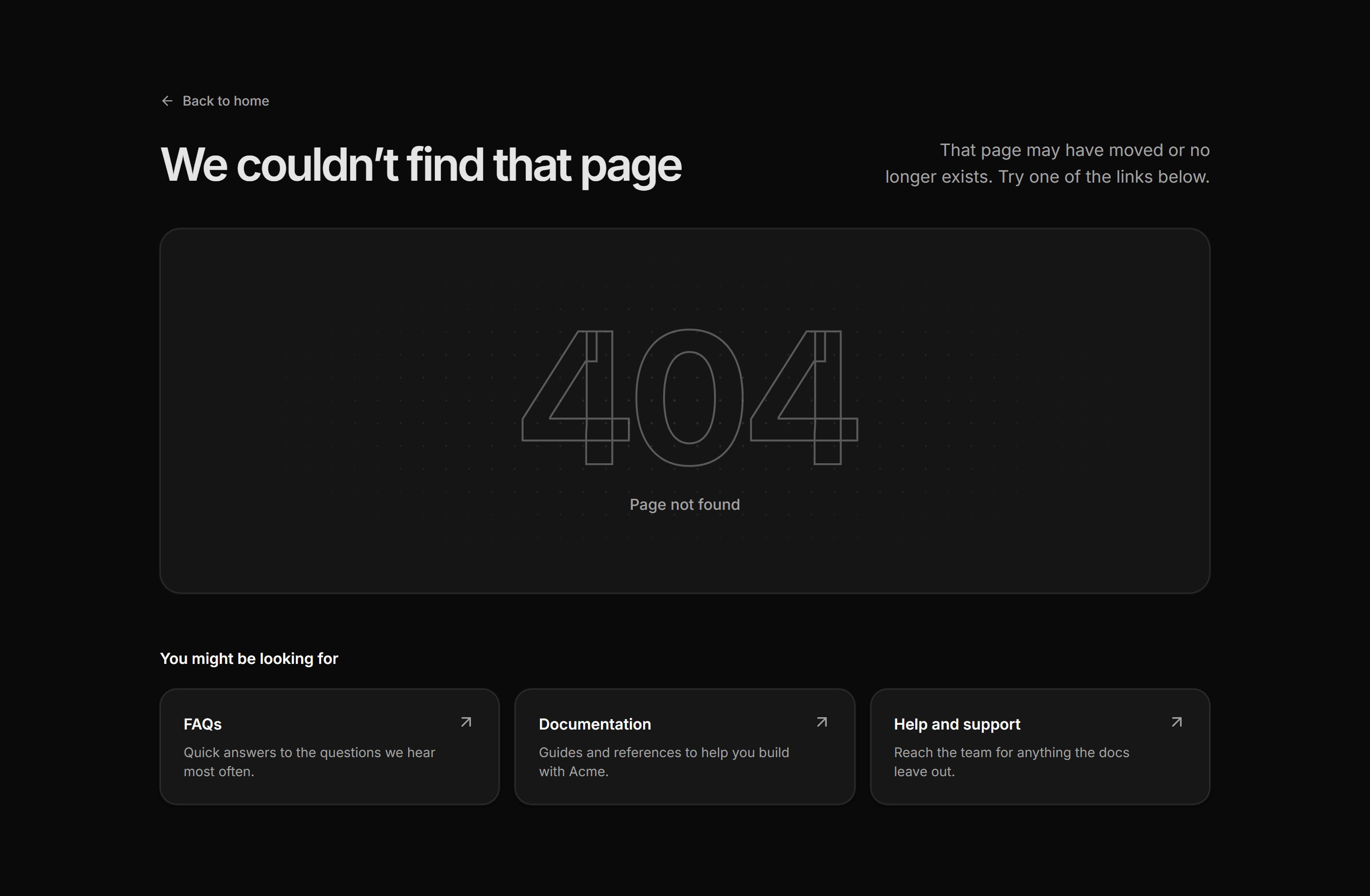
Modern SaaS Error Page: Split With Links
A 404 page with a split header, a giant outlined number over a dotted grid, and a row of helpful link cards to get visitors back on track.
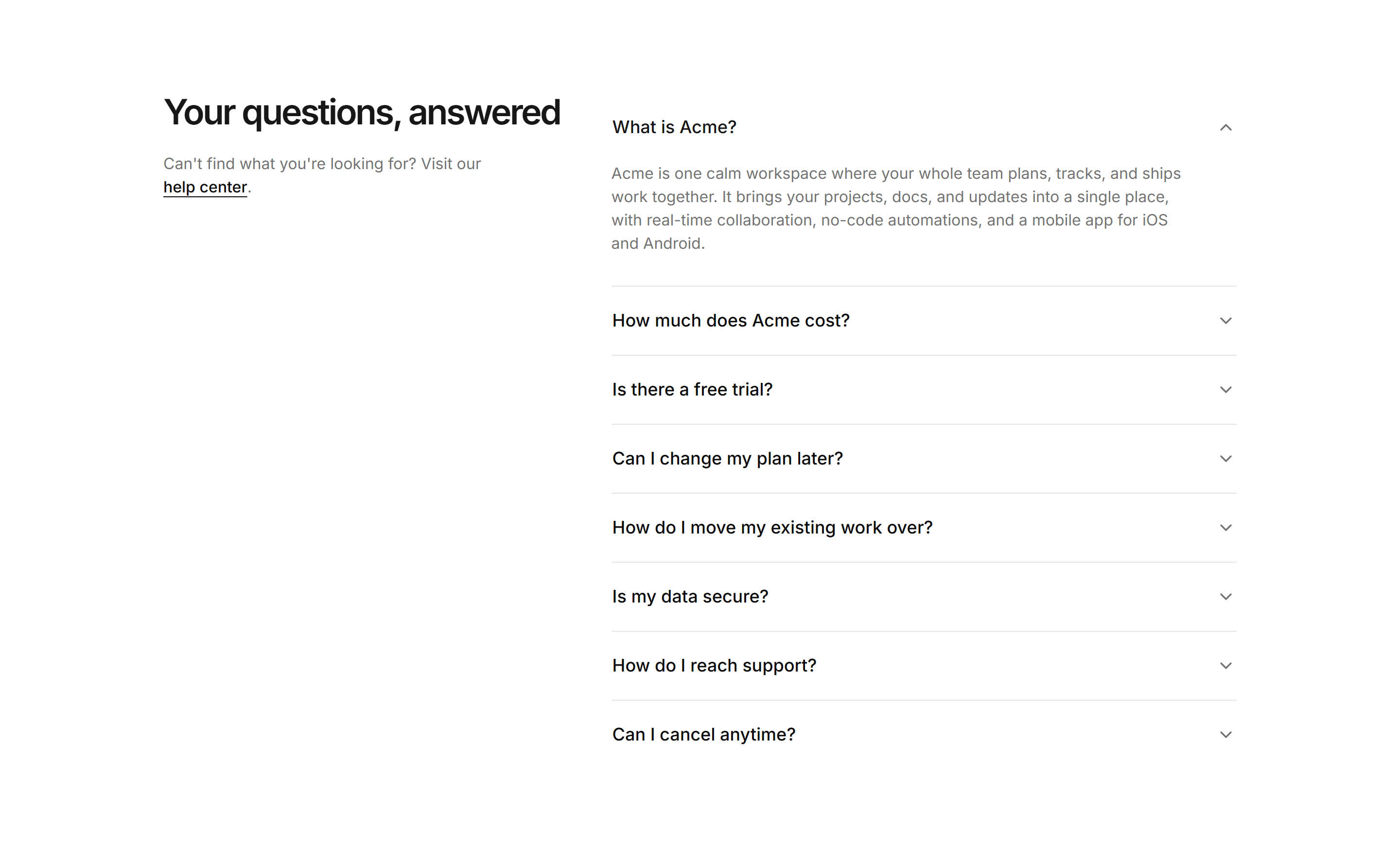
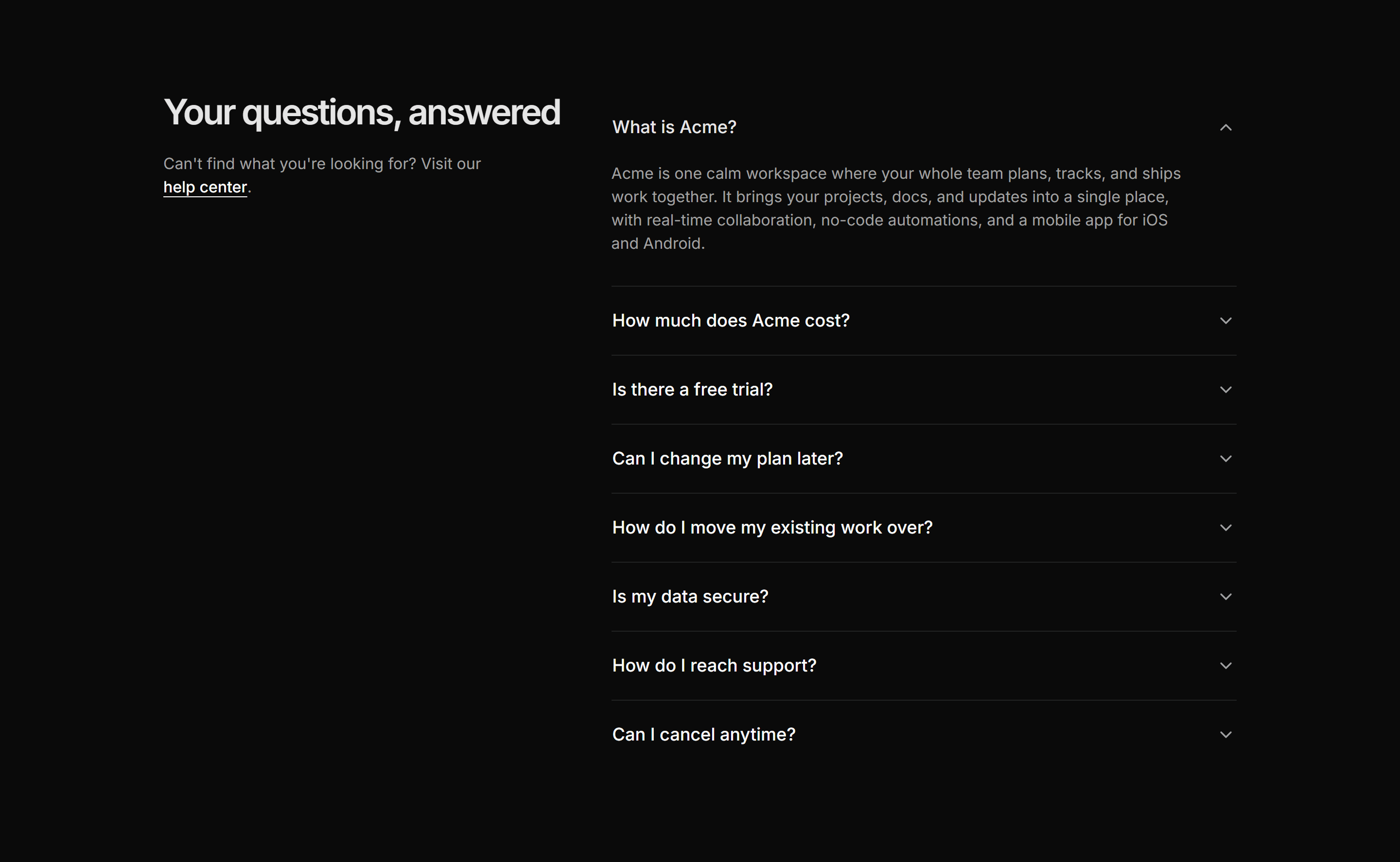
Modern SaaS FAQ: Split With Aside
A two-column FAQ: a sticky heading and help link beside a flat, single-open accordion of answers.
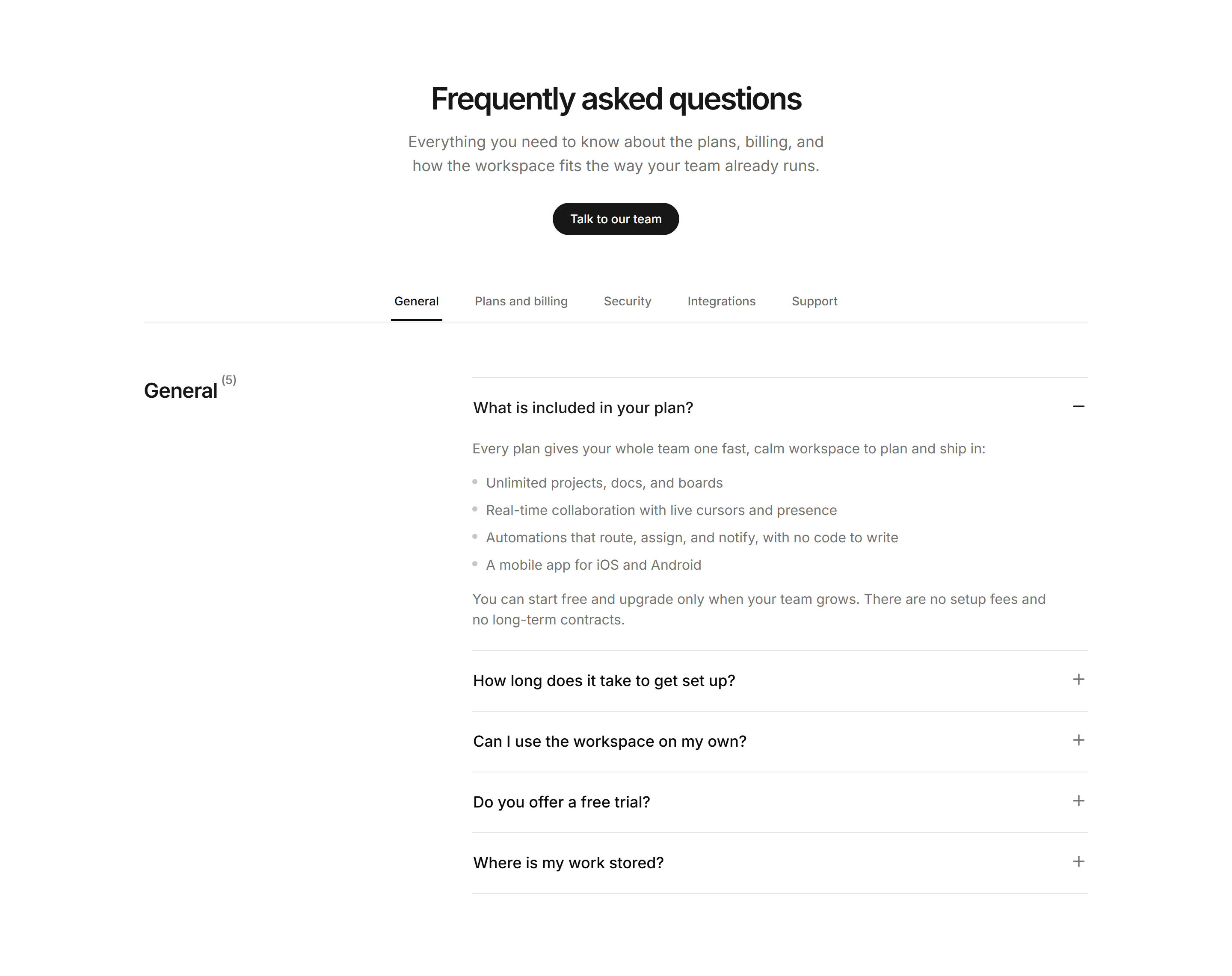
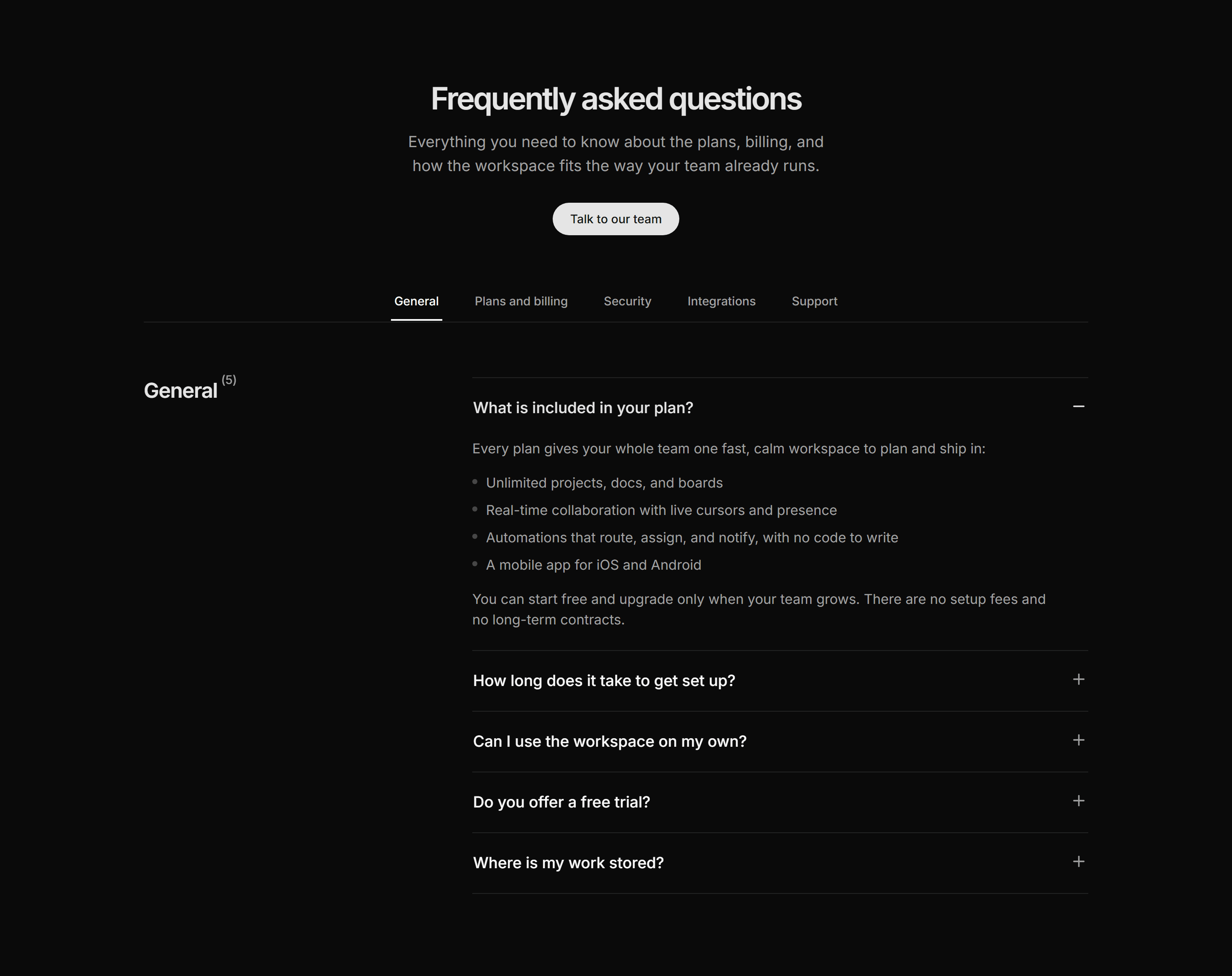
Modern SaaS FAQ: Tabbed Categories
A categorized FAQ: a centered headline and pill CTA above category tabs, then the active category and its count beside a single-open accordion of answers.
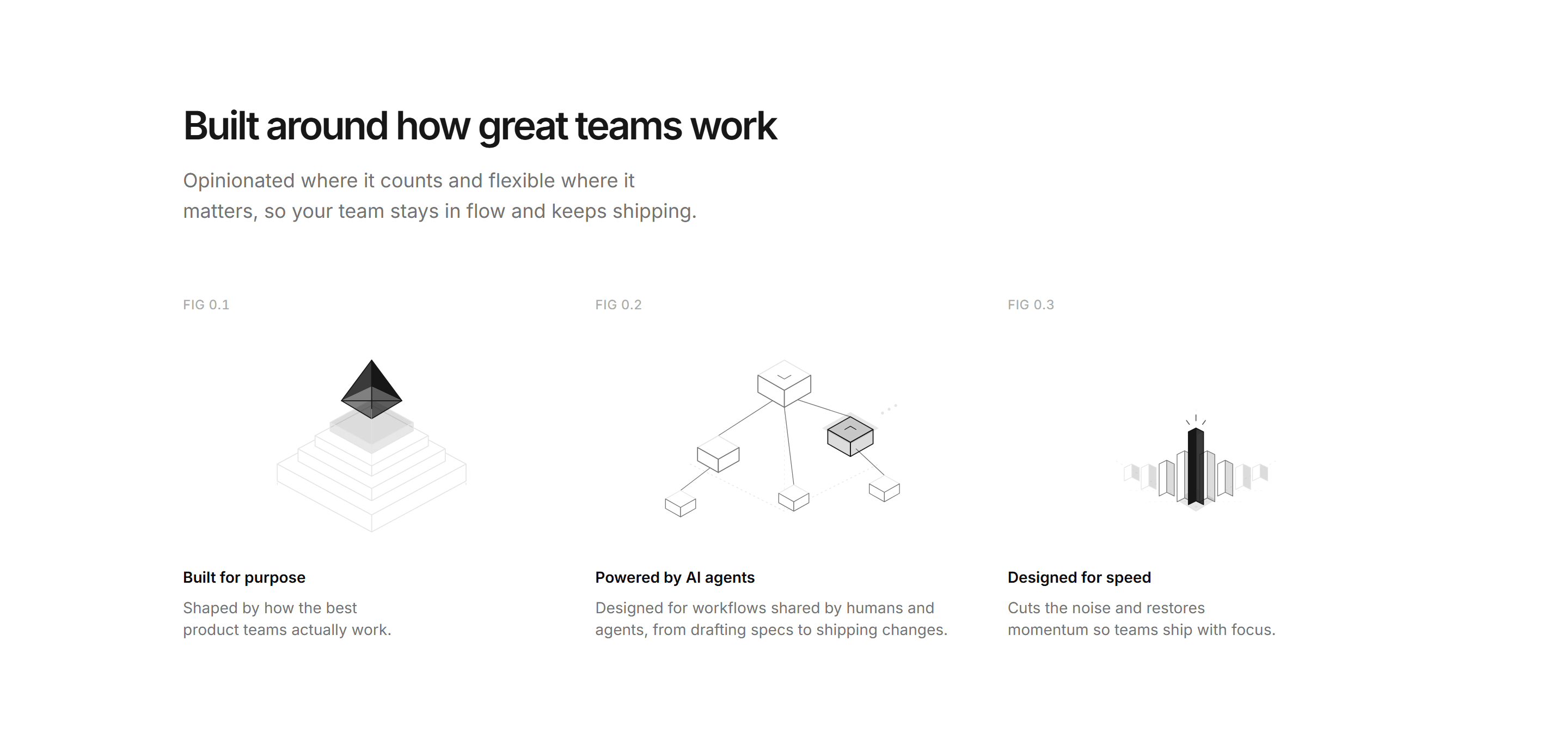
Modern SaaS Feature: Benefits Isometric
Three benefit columns, each with a centered isometric SVG illustration, a FIG tag, label, and short paragraph. A clean, minimal way to frame product principles.
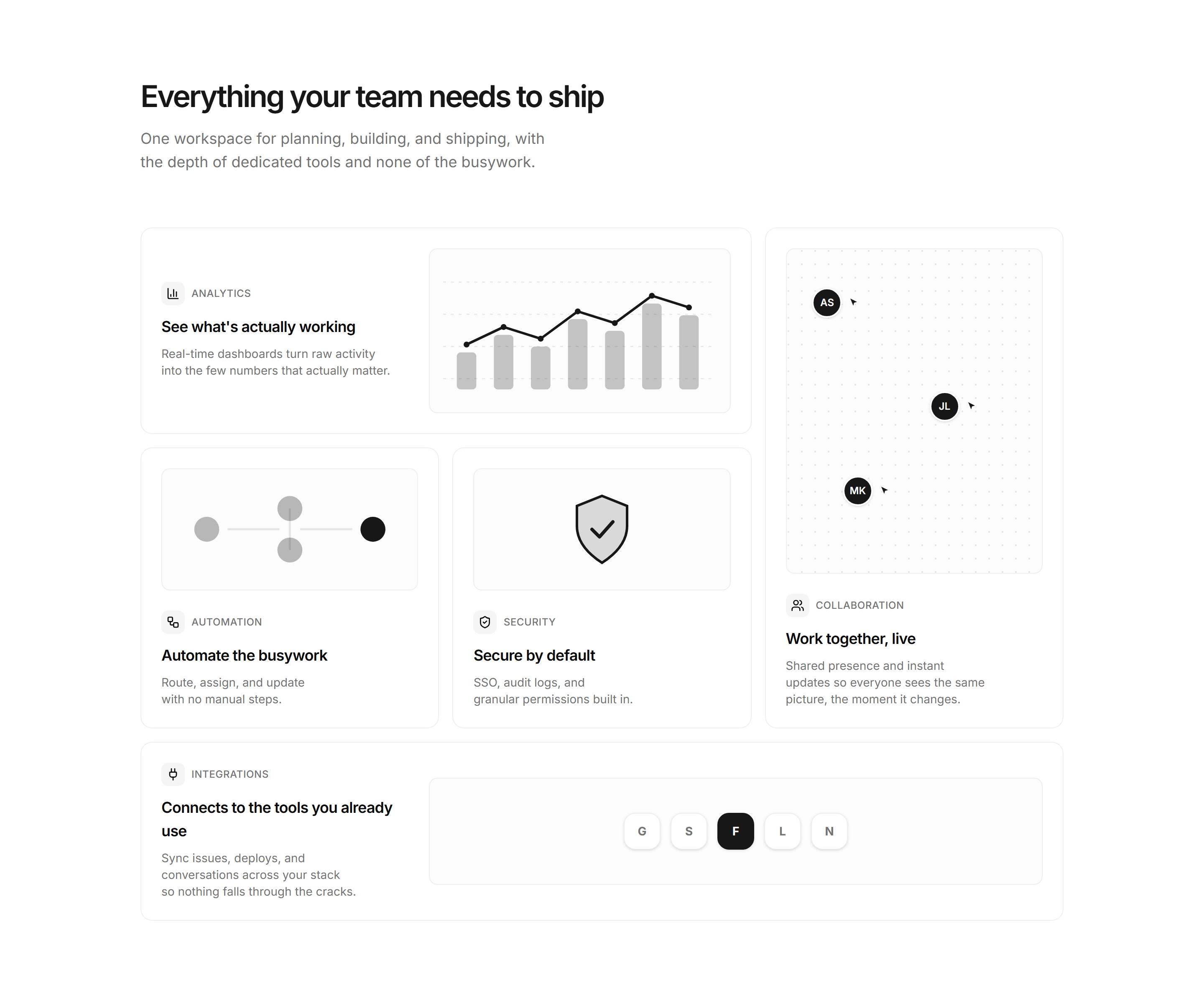
Modern SaaS Feature: Bento Grid
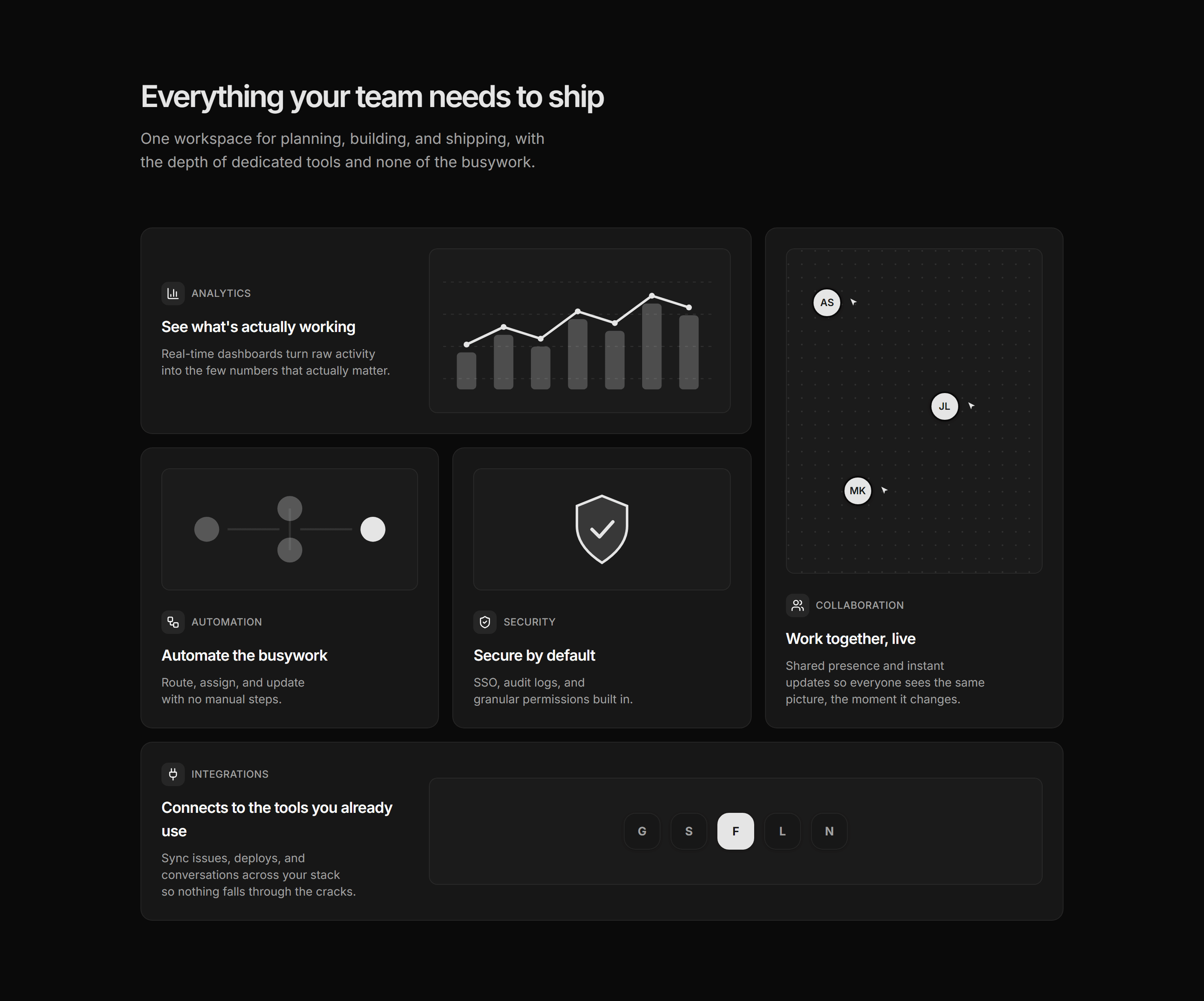
An asymmetric bento feature grid with a custom SVG illustration in every cell: analytics, collaboration, automation, security, and integrations. A clean, minimal overview.
Modern SaaS Feature: Product Showcase
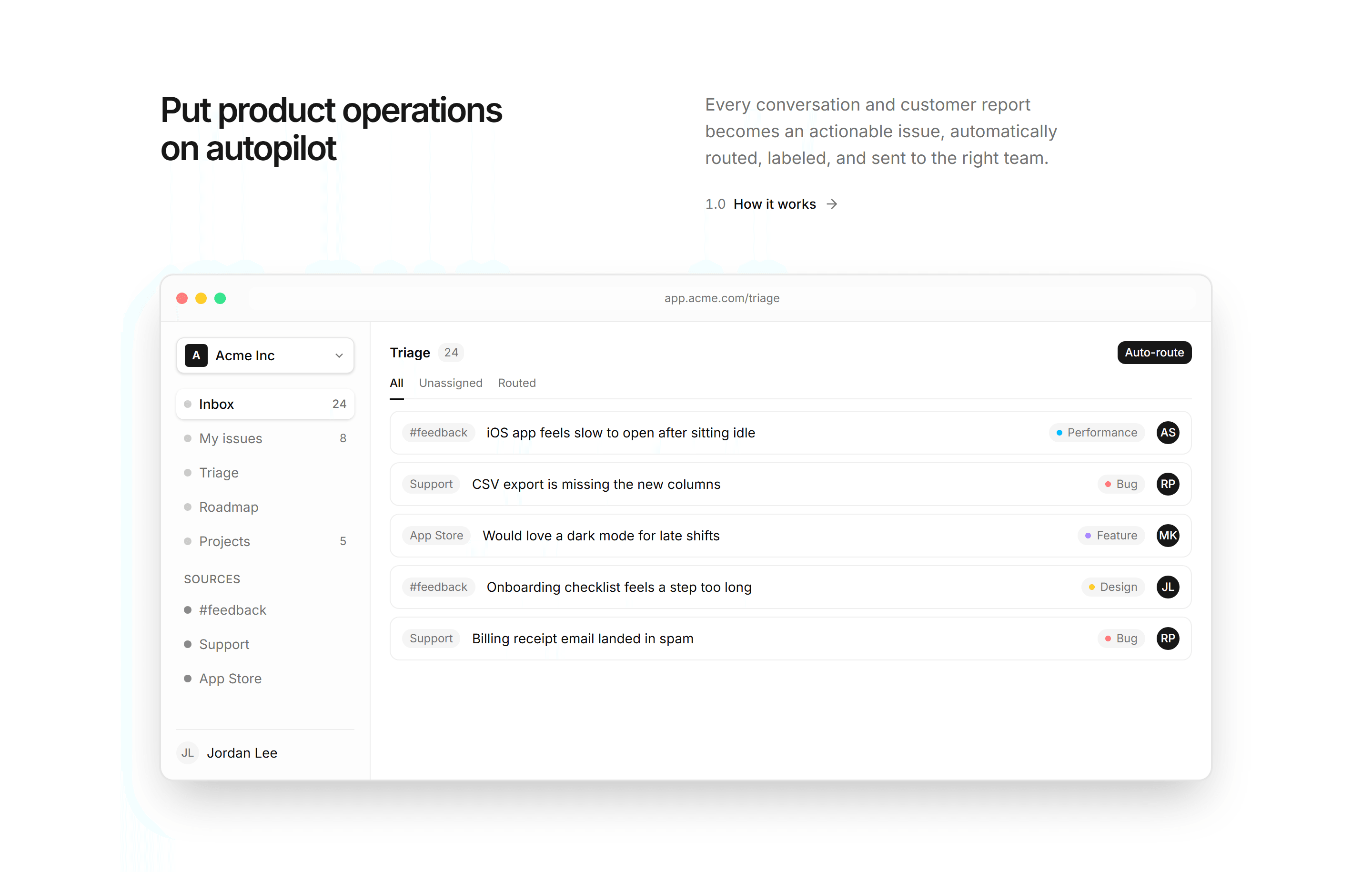
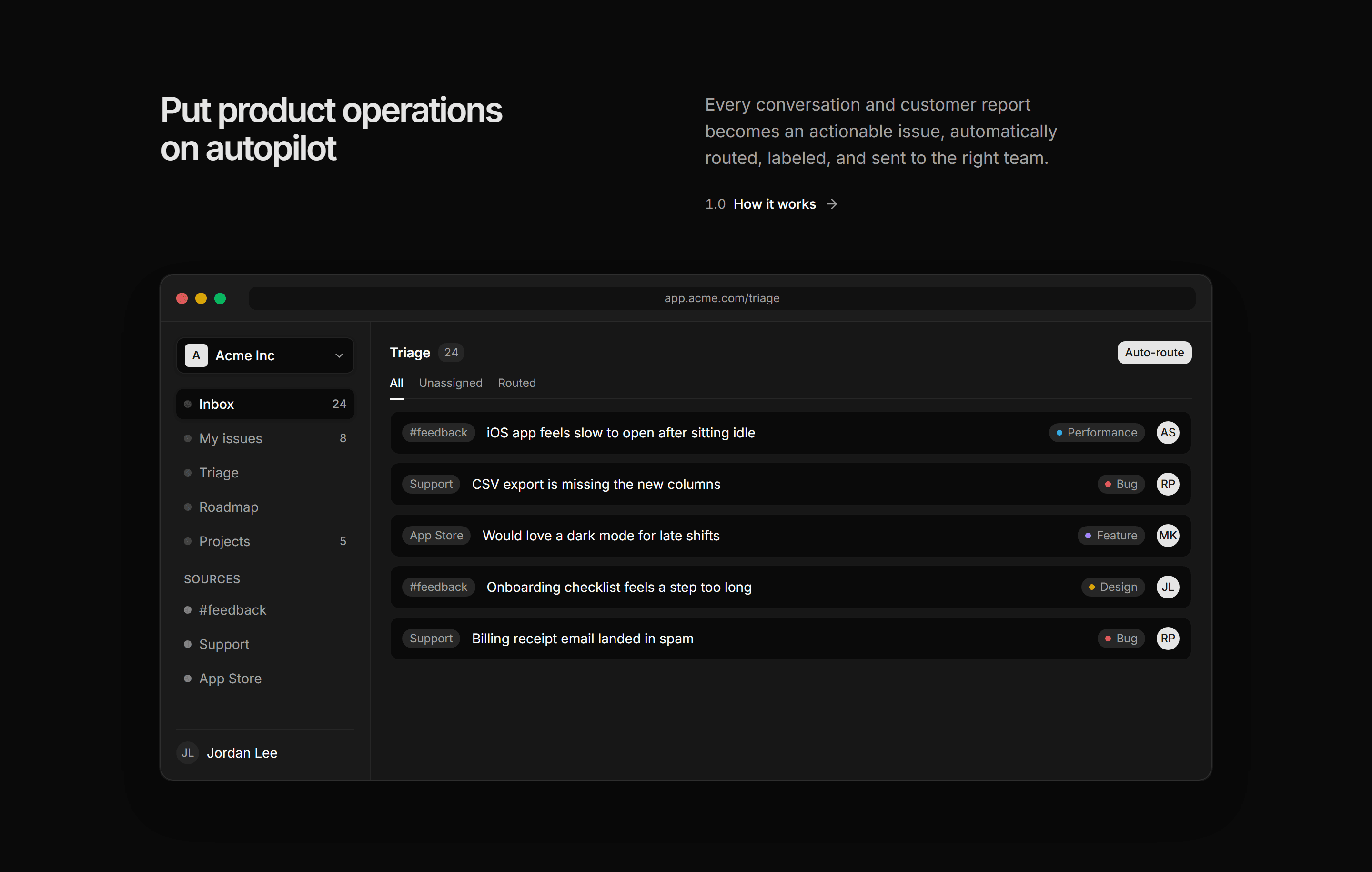
A split header over an app window mockup: a triage inbox where incoming feedback is auto-routed into labeled, assigned issues. Shows the product in action.
Modern SaaS Footer: Brand Watermark
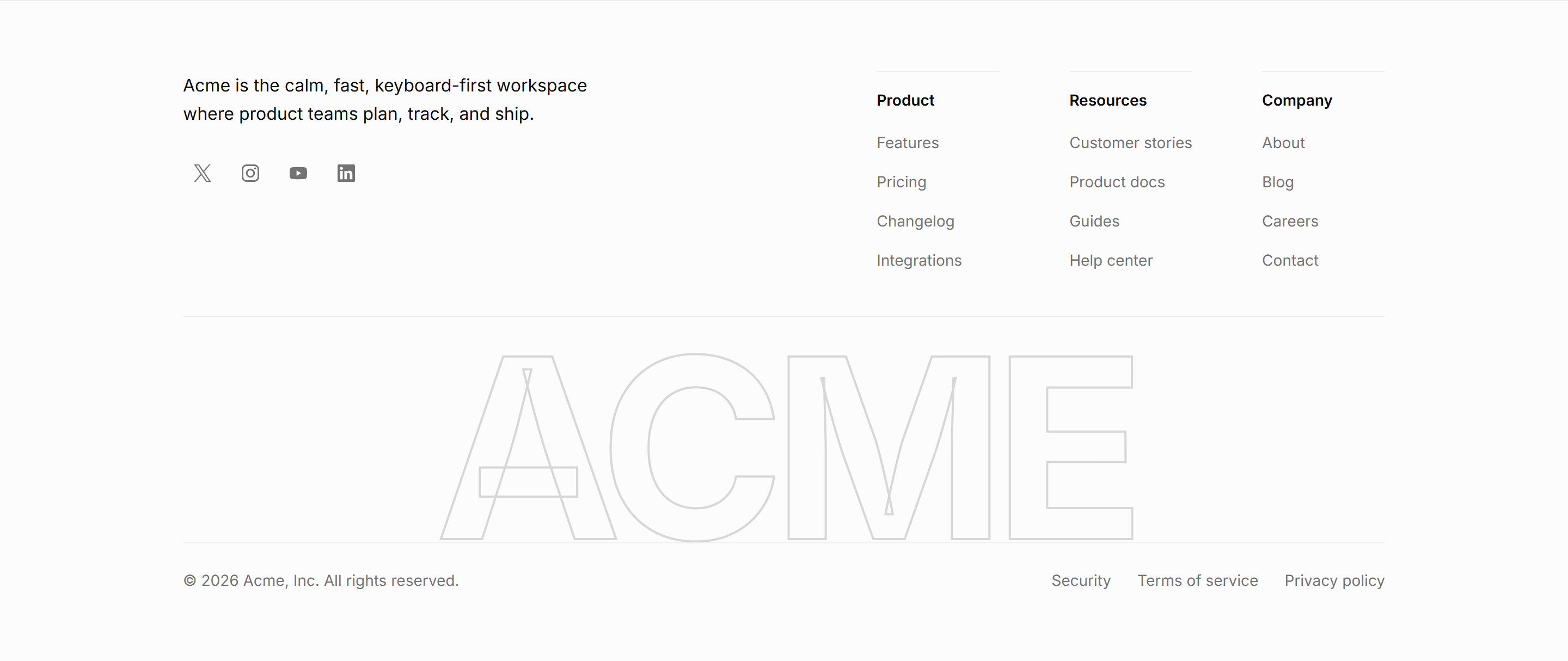
A full width footer with a brand line, social buttons, and link columns, over a giant outlined brand wordmark above a legal bottom bar.
Modern SaaS Footer: Simple
A simple footer: a brand mark and tagline beside columns of navigation links, over a bottom bar with a copyright line and social icons.
Modern SaaS Hero: Centered With Backdrop
A minimal centered hero, headline, lede, and two CTAs, set over a full bleed backdrop with matching light and dark images and a sticky oval navbar.
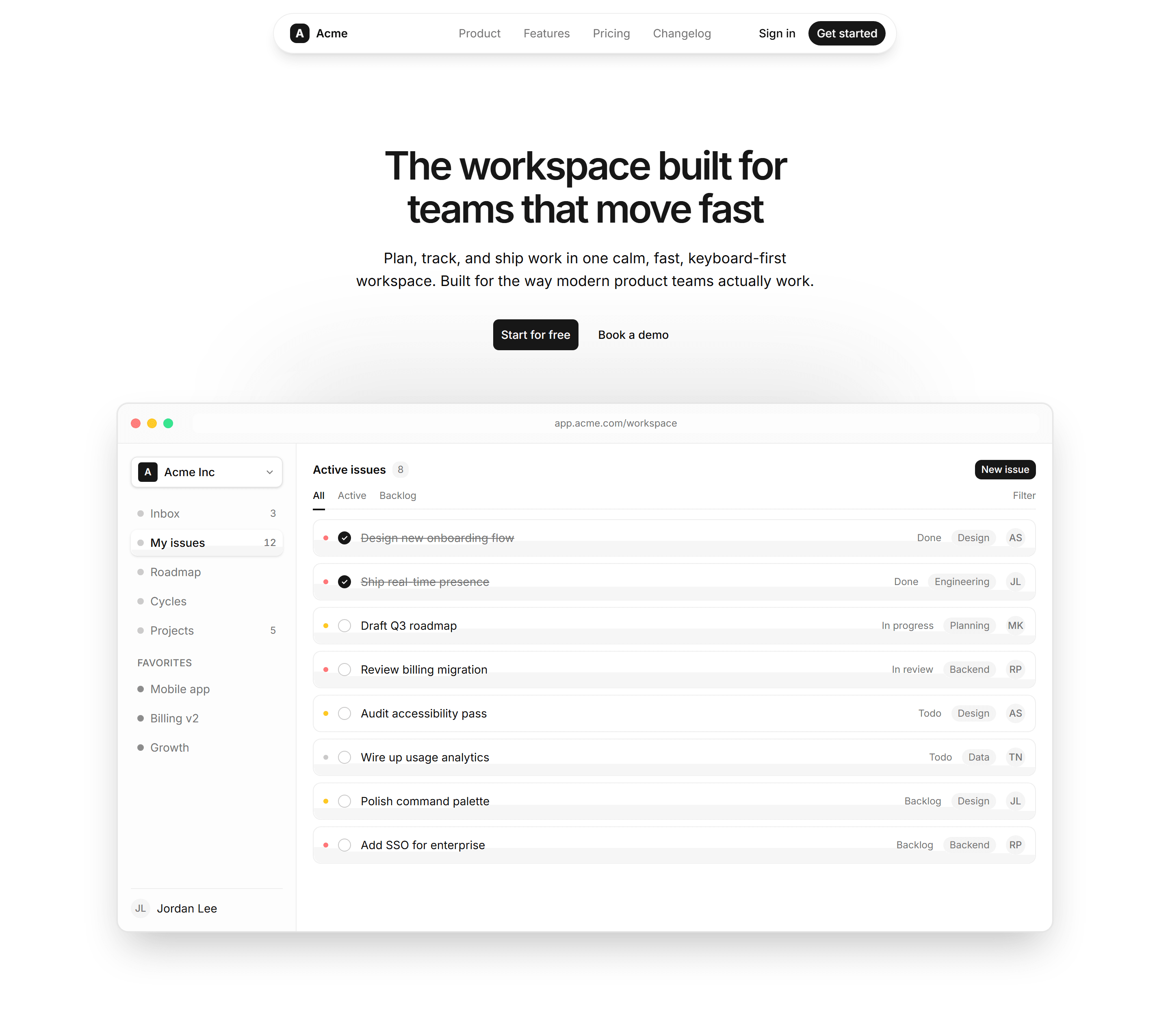
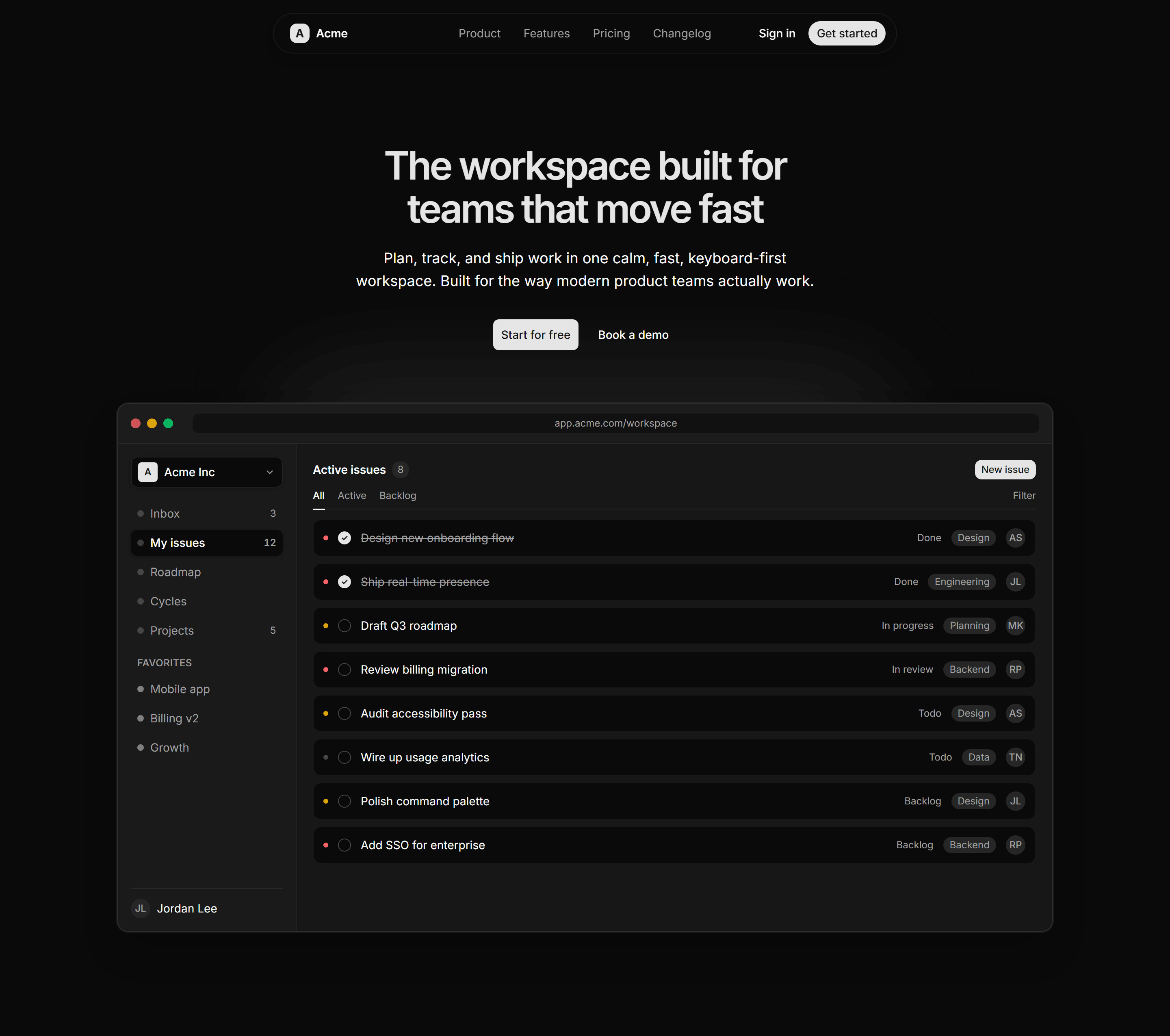
Modern SaaS Hero: Centered With Product Image
A centered hero with a bold headline, lede, and dual CTAs above a sleek app window mockup, topped by a sticky oval navbar. A clean, modern opener for product launches.
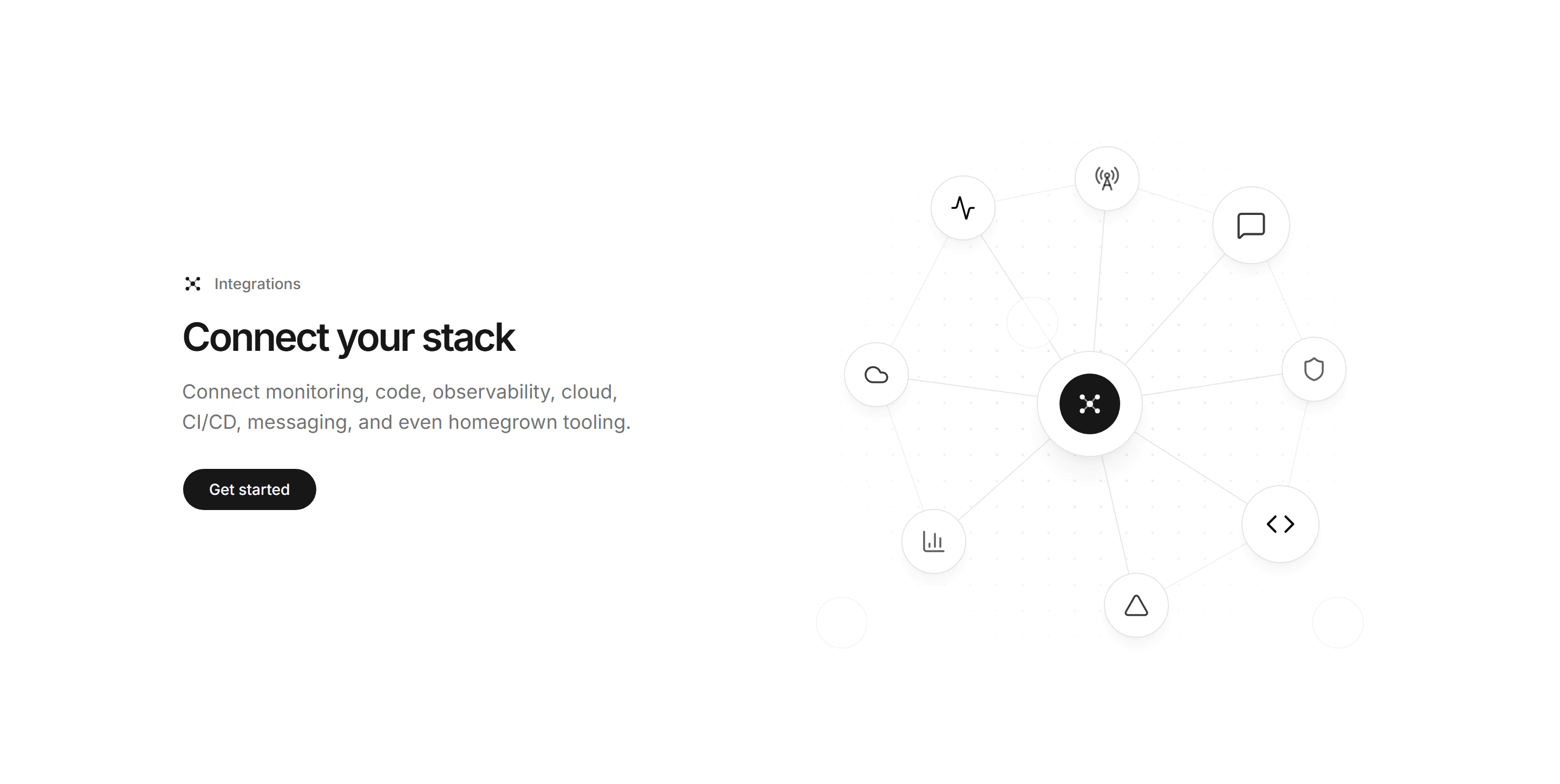
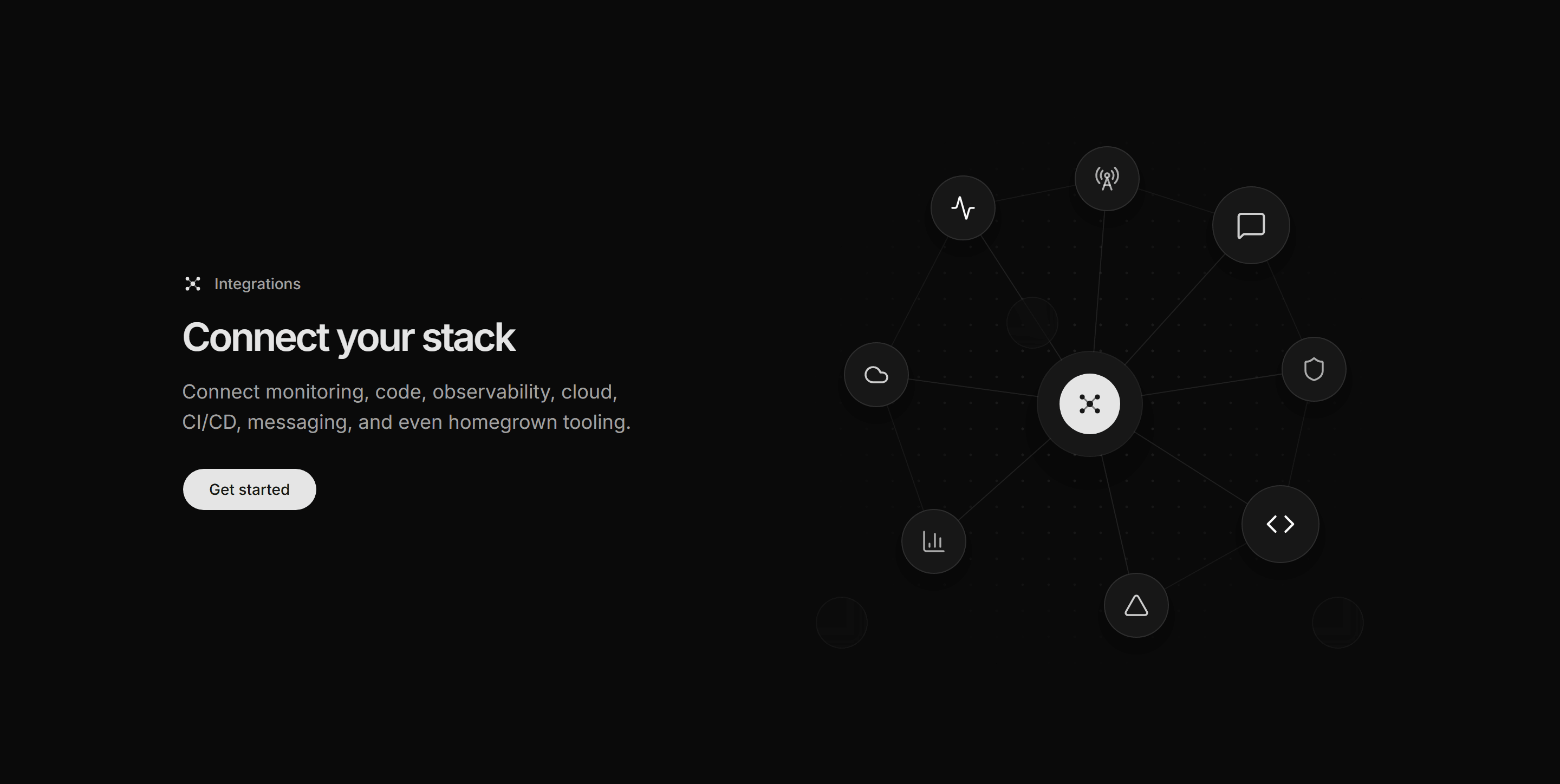
Modern SaaS Integration: Connect Your Stack
A copy rail beside a constellation graph that fans connector lines from a central product node out to a ring of integration nodes over a fading dotted grid.
Modern SaaS Logo Cloud: Dual Marquee
A logo cloud with two rows of customer logos scrolling in opposite directions. A seamless, pure CSS marquee for social proof on a landing page.

Modern SaaS Logo Cloud: Simple Grid
A simple, static logo cloud: an eyebrow line above a centered, wrapping row of customer logos. Clean, no motion social proof for a Modern SaaS landing page.

Modern SaaS Navbar: Centered Oval
A sticky, pill shaped glass navbar with a logo, optically centered links, and dual CTAs. A clean, modern header for a Modern SaaS landing page.

Modern SaaS Navbar: Standard Sticky
A full width sticky header with a bottom border, logo, inline links, and CTAs. Links collapse into a mobile sheet menu. A clean, dependable Modern SaaS header.
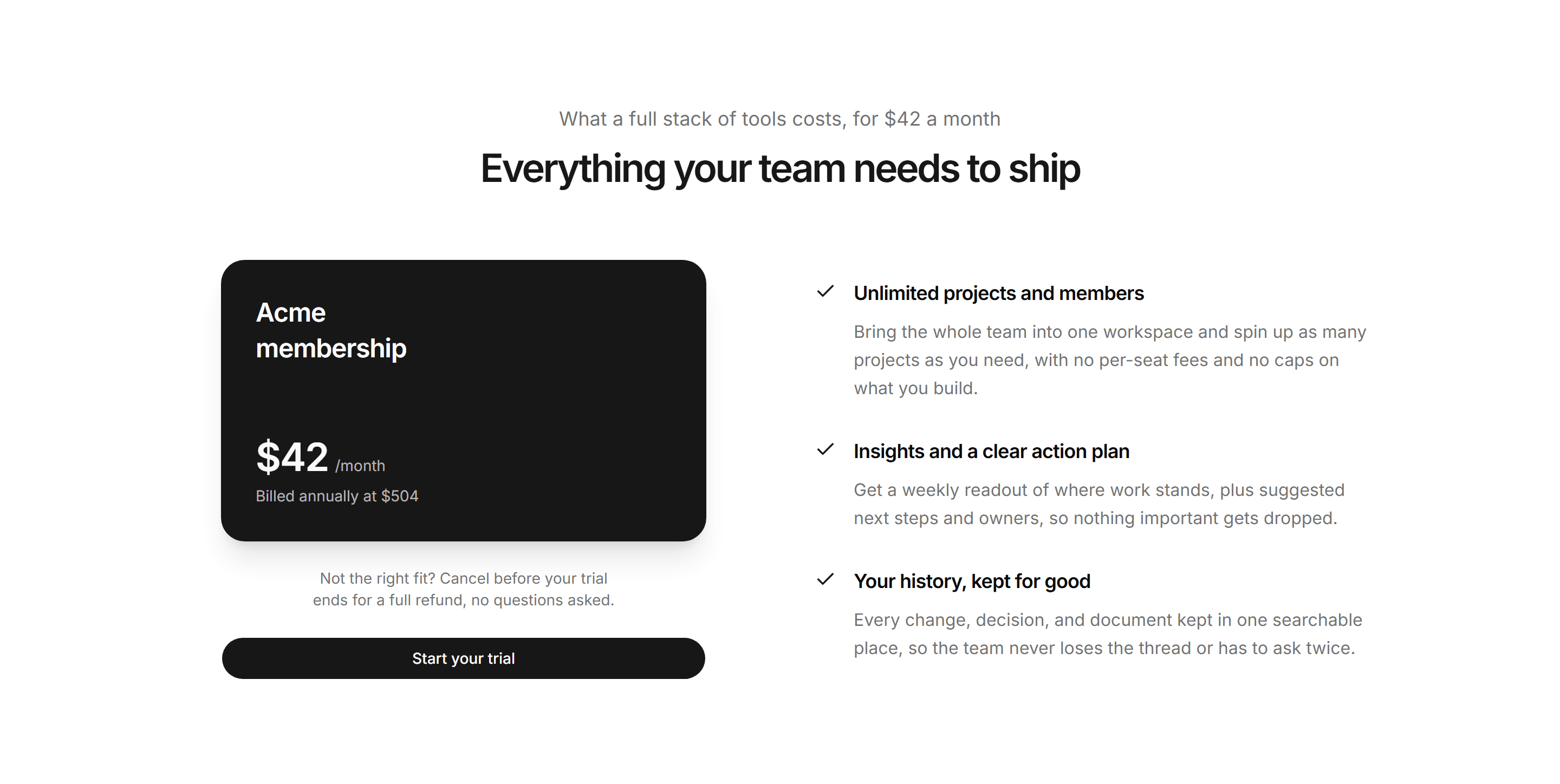
Modern SaaS Pricing: Membership
A single membership plan: a price card with an annual note and refund line beside a checked list of what the plan includes.
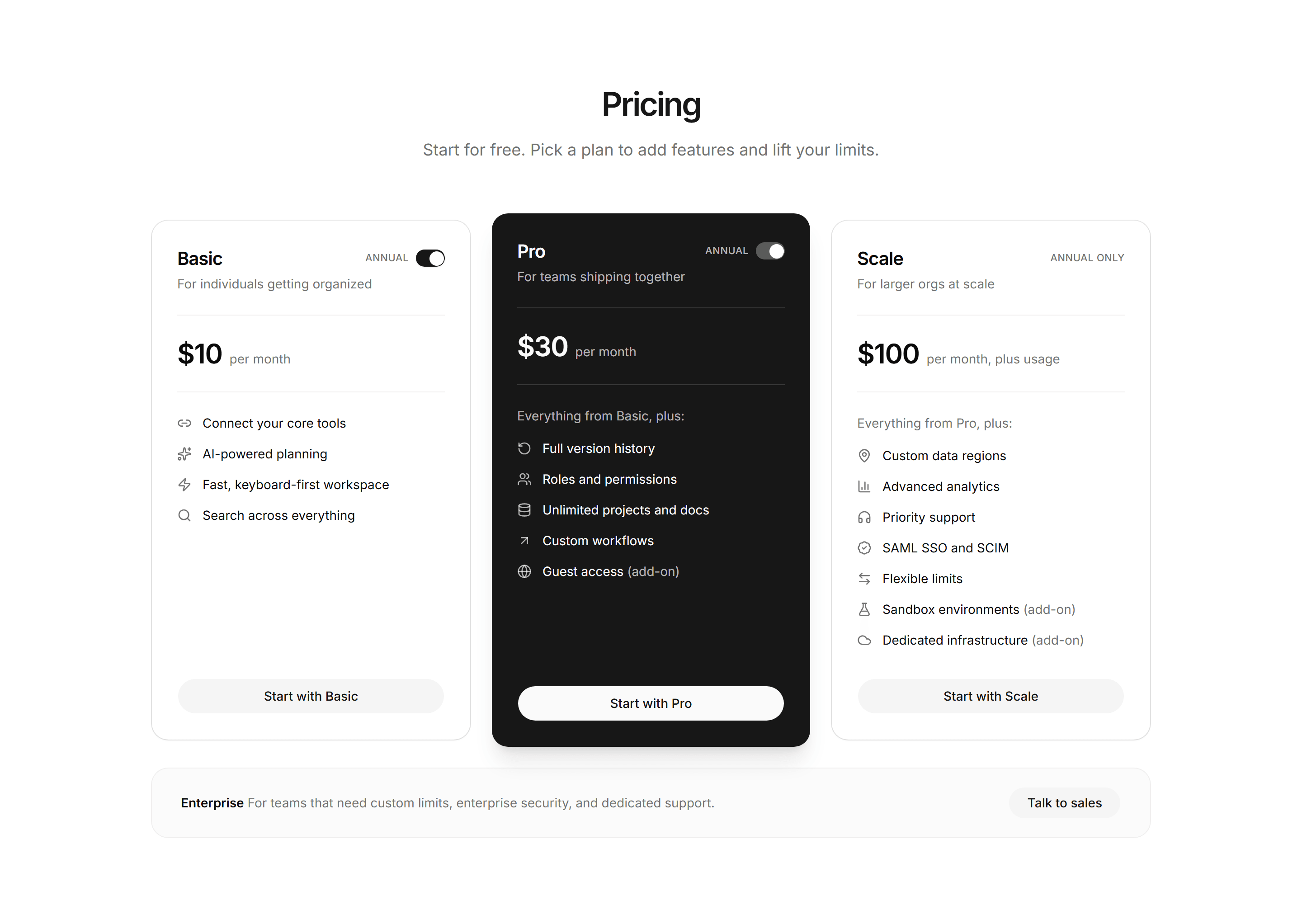
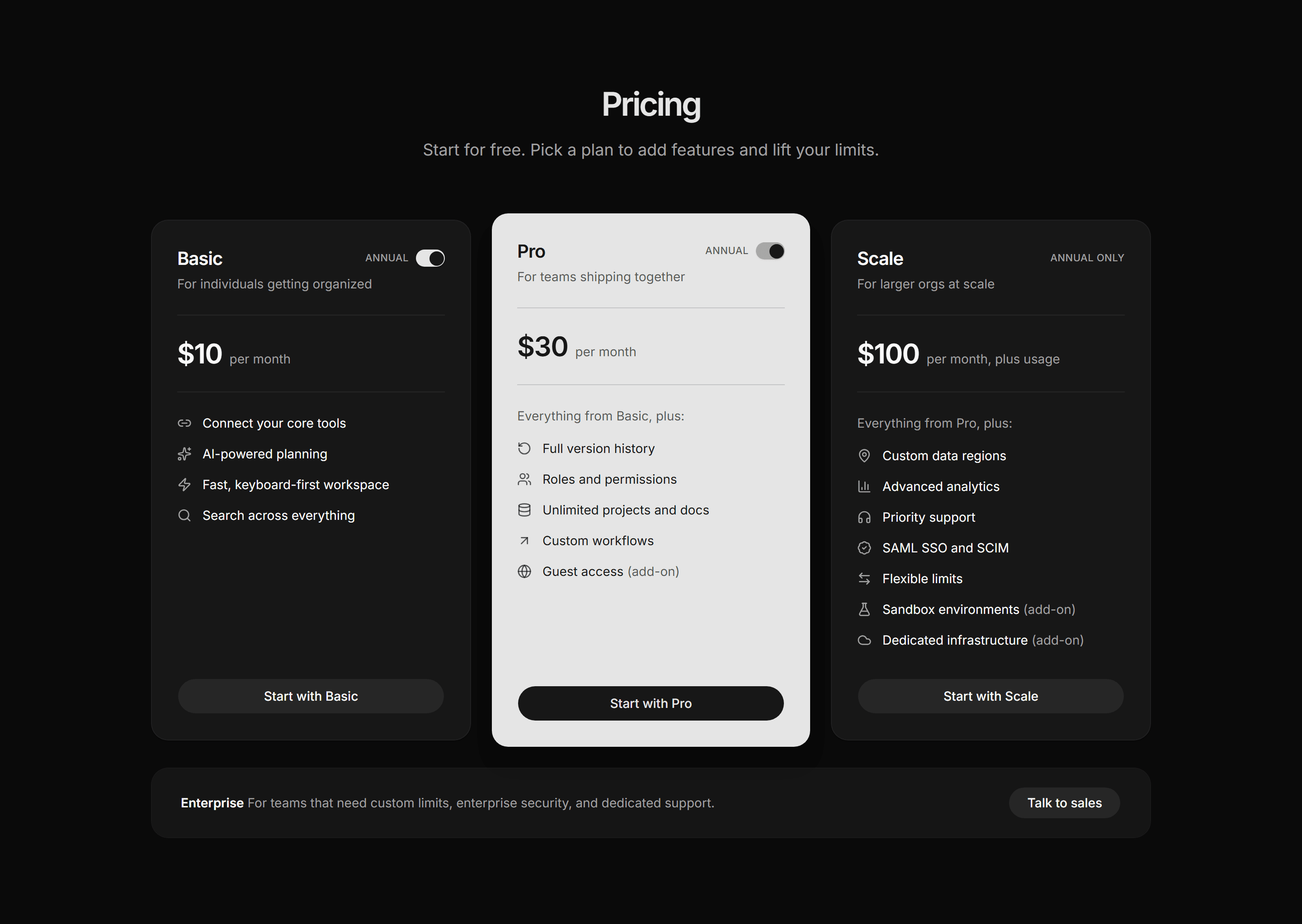
Modern SaaS Pricing: Three Tier
A three tier pricing section with a featured plan, per card annual billing toggles, icon feature lists, and an enterprise banner.
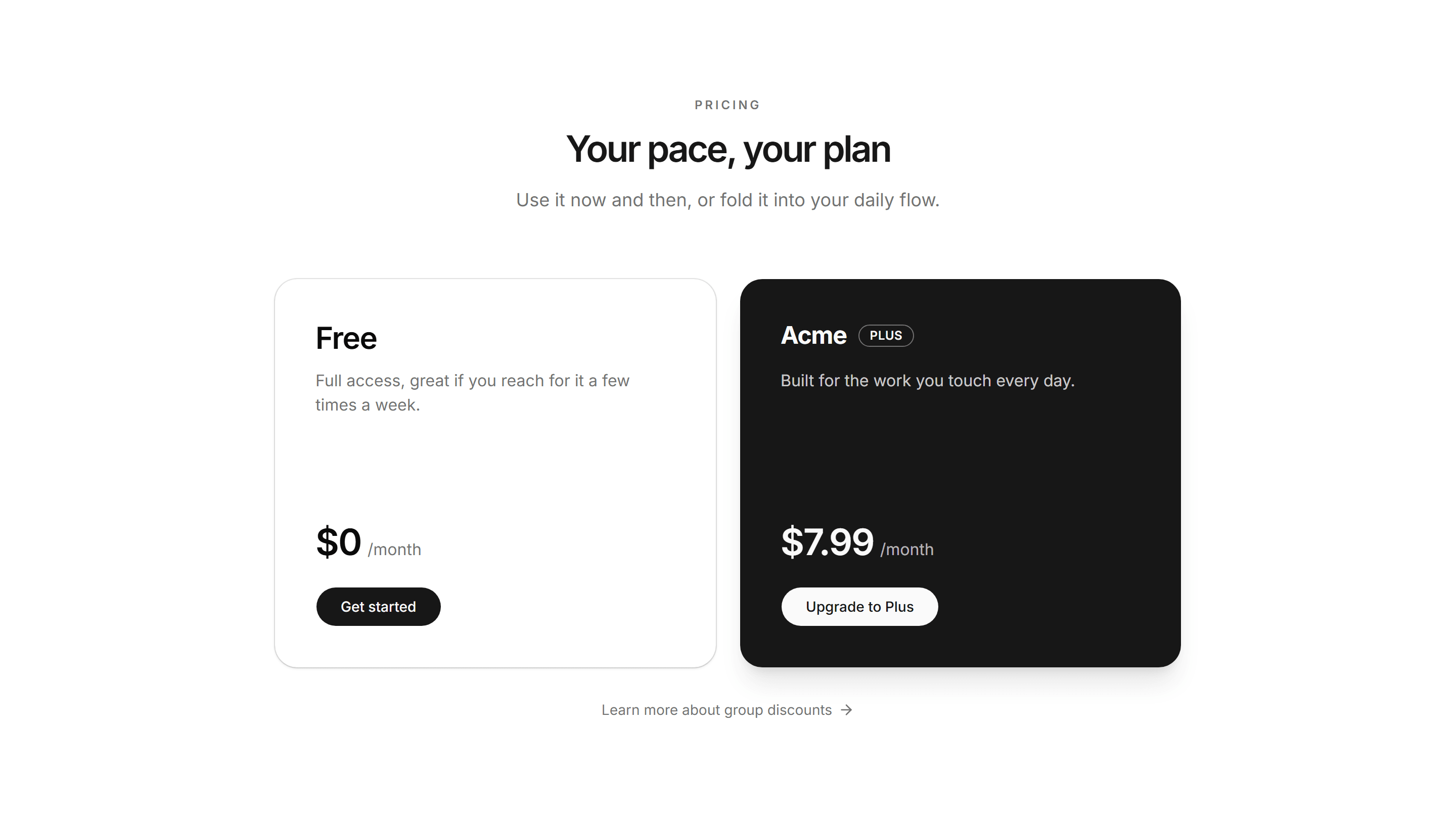
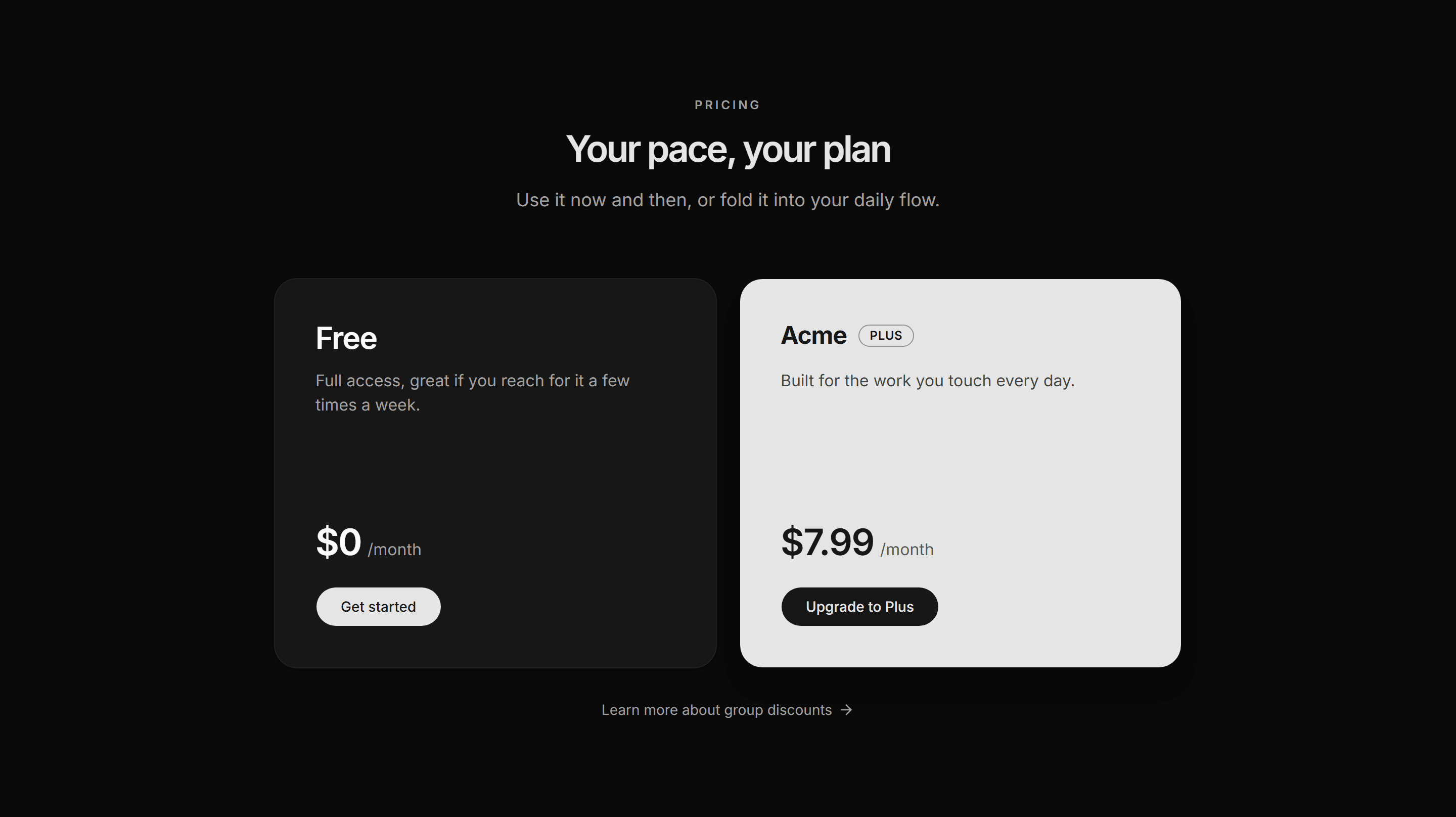
Modern SaaS Pricing: Two Plans
Two large plan cards side by side, a light free tier and an inverted paid tier, each with a price and CTA, over a group discounts link.
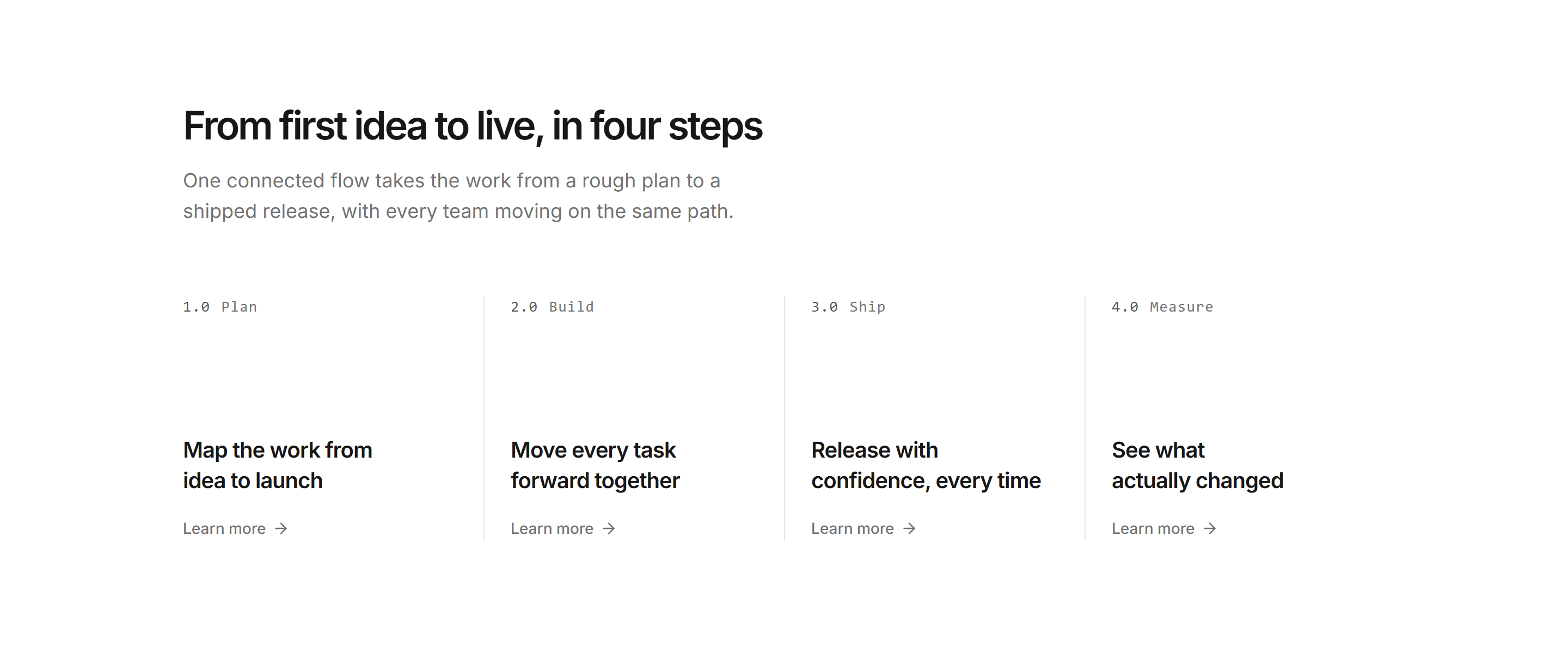
Modern SaaS Process Flow: Numbered Steps
A horizontal row of numbered steps, each pinning a label to the top and dropping a two line heading and a learn more link to the foot. A quiet, editorial flow.
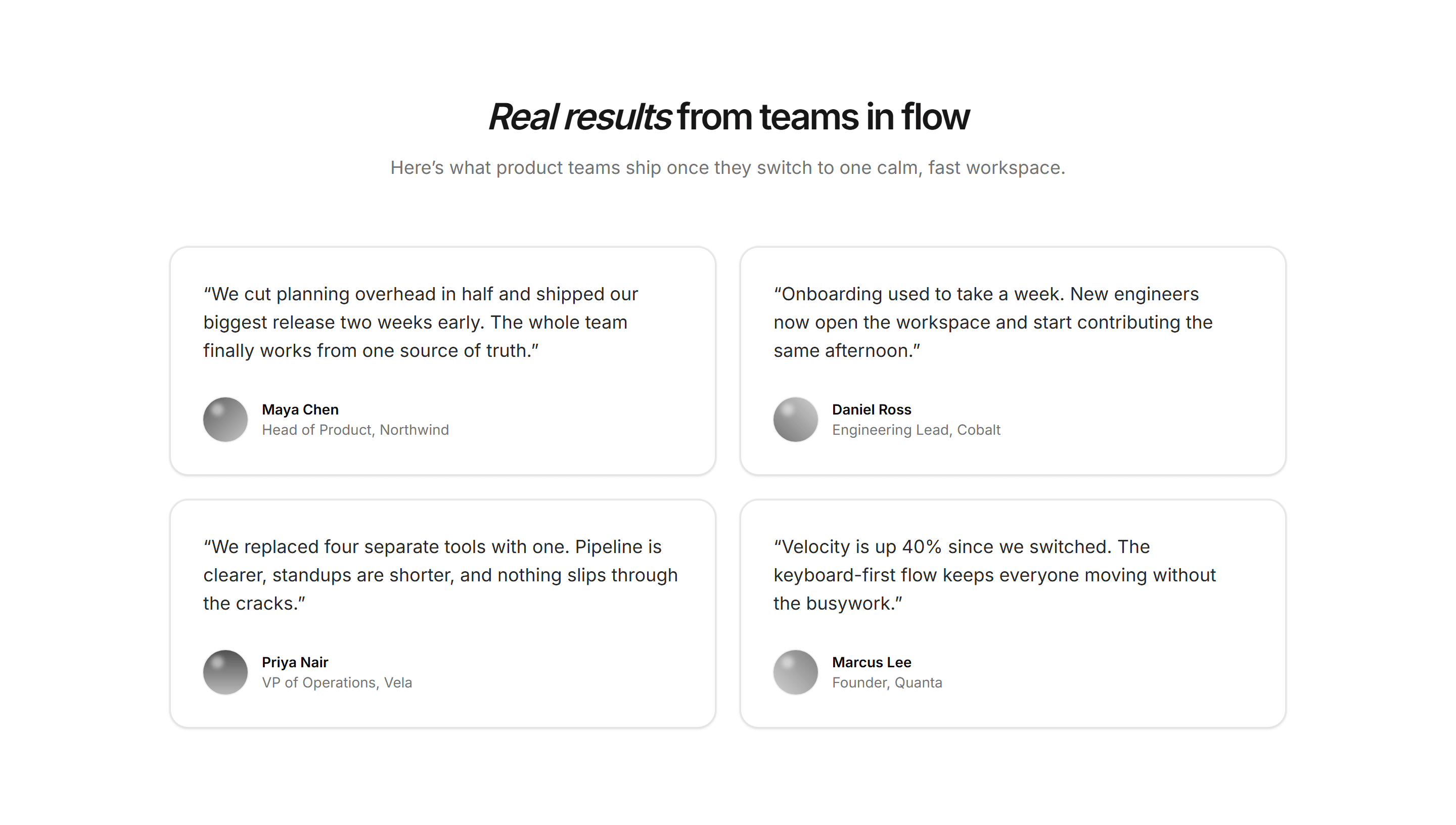
Modern SaaS Testimonial: Quote Card Grid
A two column grid of testimonial cards, each pairing a customer quote with an avatar, name, and role.
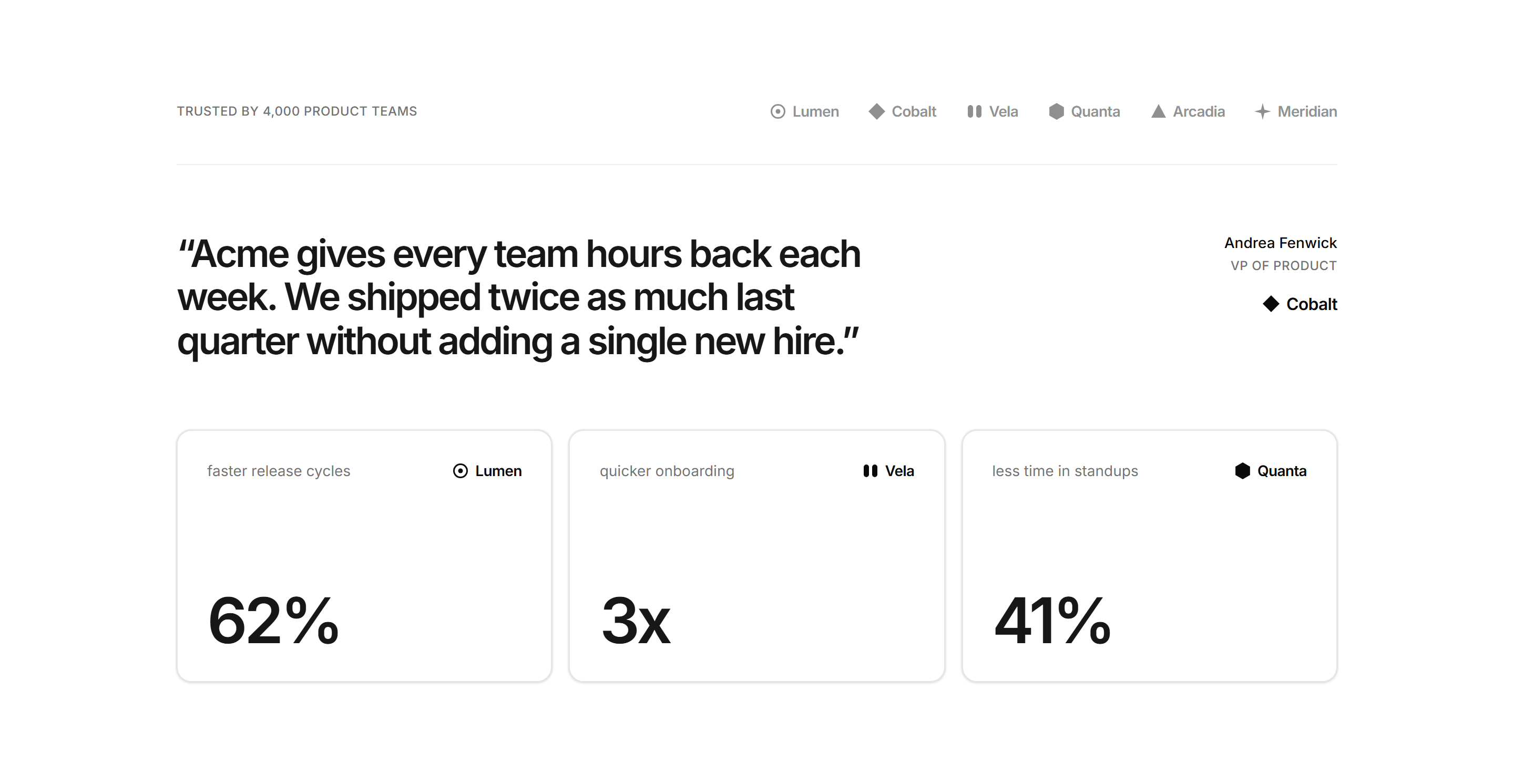
Modern SaaS Testimonial: Spotlight With Stats
A customer logo bar, one oversized pull quote with its attribution, and three metric cards that back the quote with hard numbers. A focused proof point for a landing page.
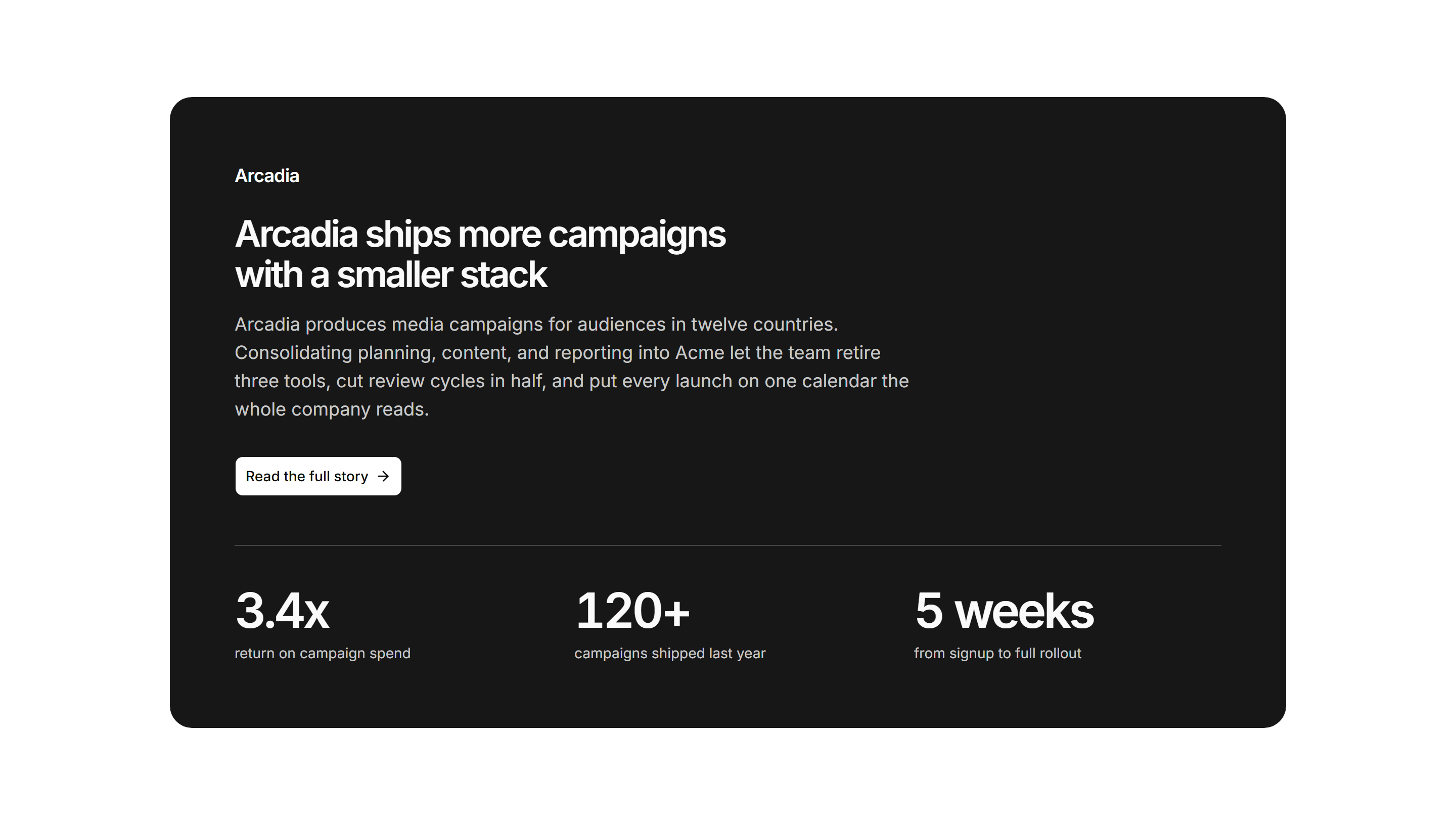
Marketing Pro Case Study: Dark Panel Feature
Featured story in a solid primary panel with inverted wordmark, summary, and three metrics.
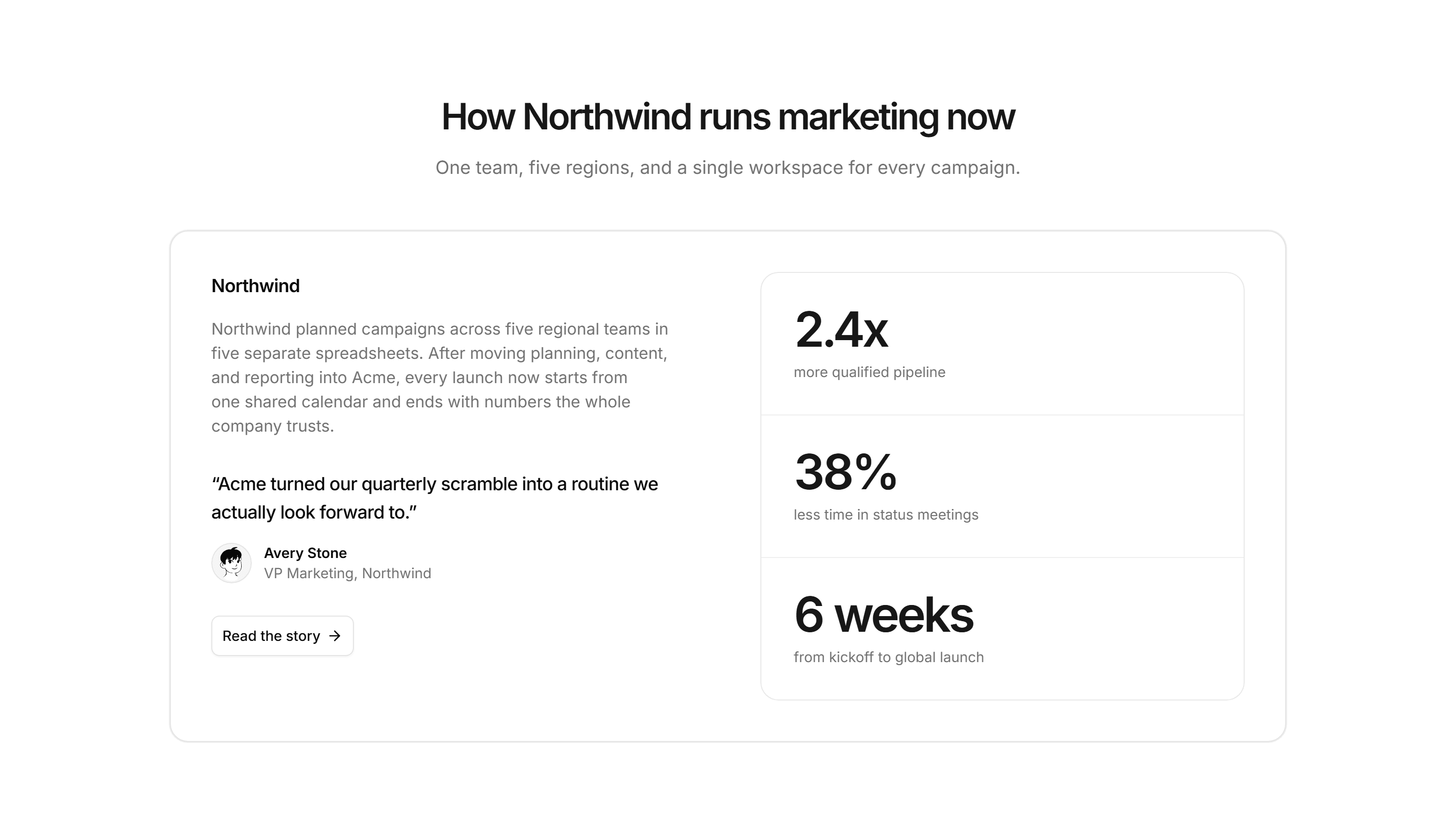
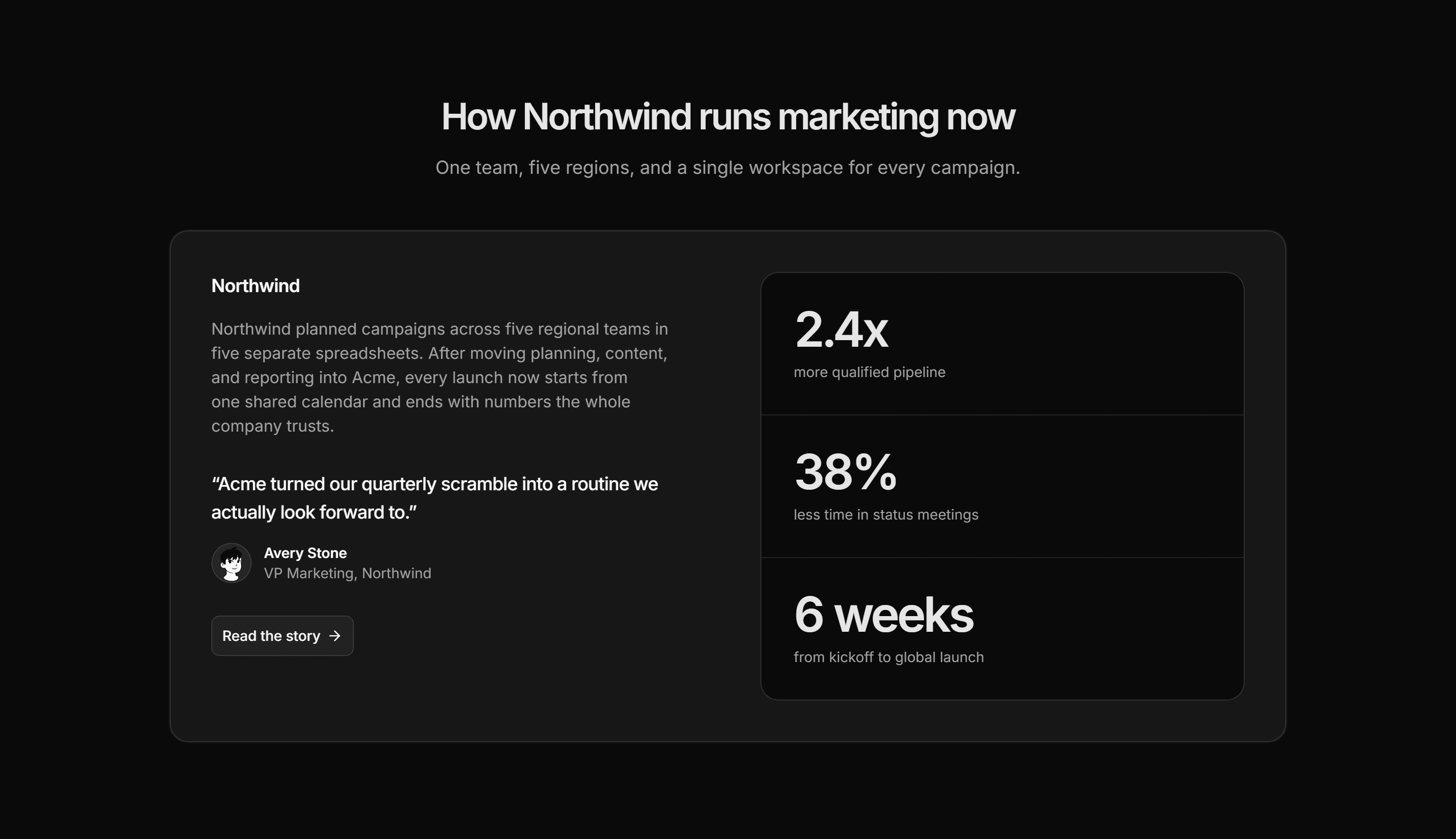
Marketing Pro Case Study: Featured Story
Centered heading over a story card pairing narrative and quote with a rail of three metrics.
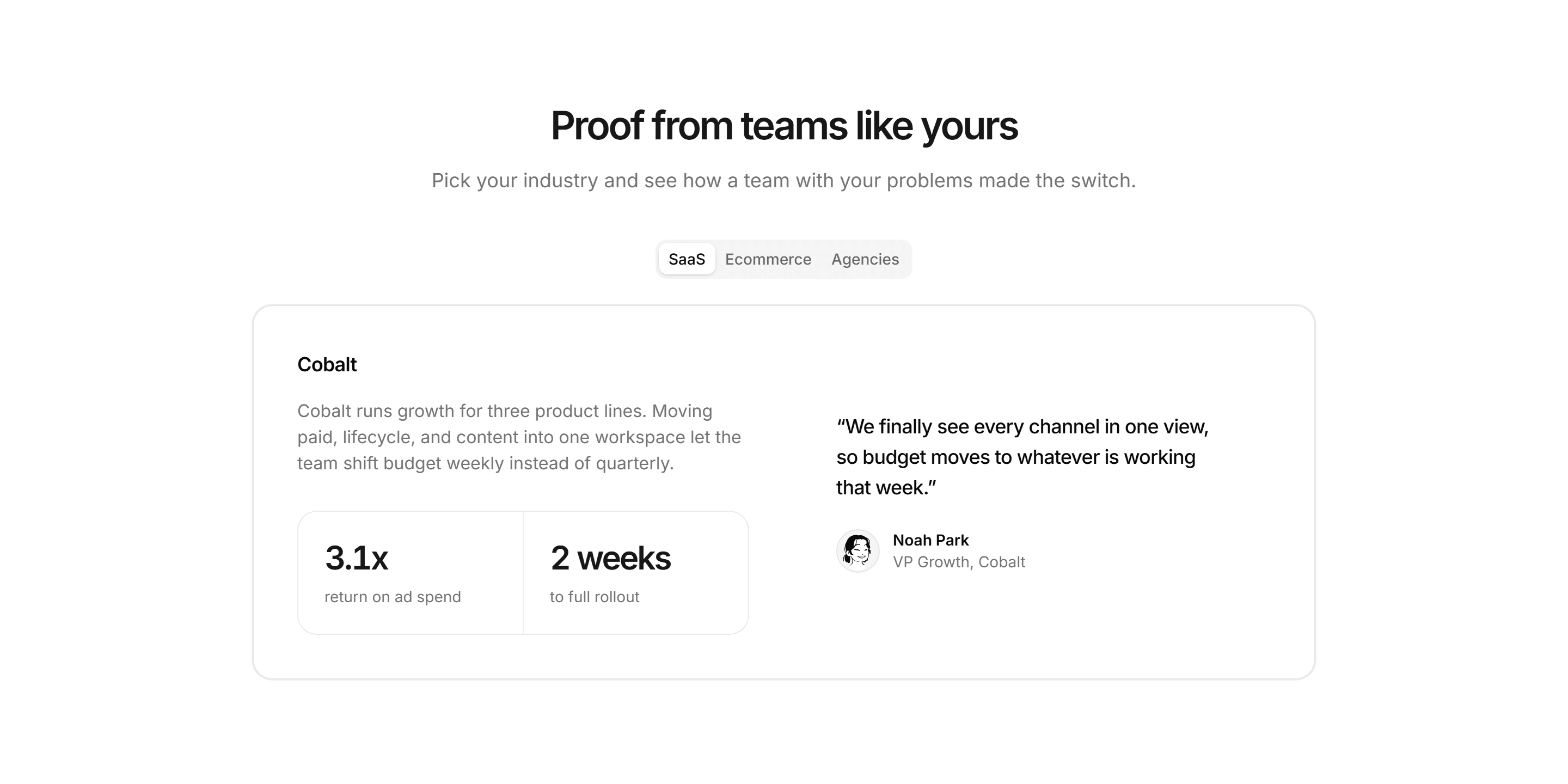
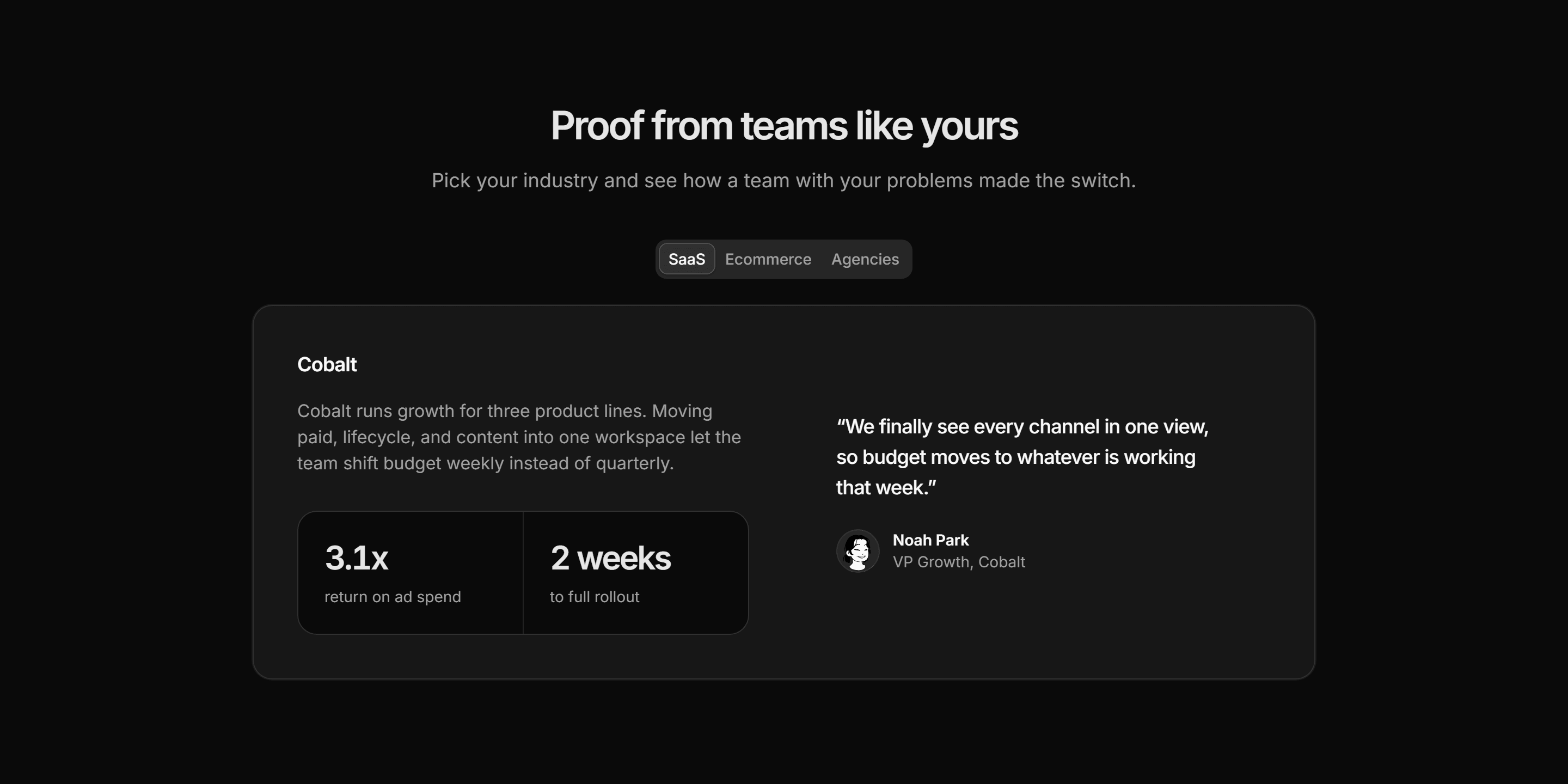
Marketing Pro Case Study: Industry Tabs
Industry tabs where each panel shows one story card with metrics and a customer quote.
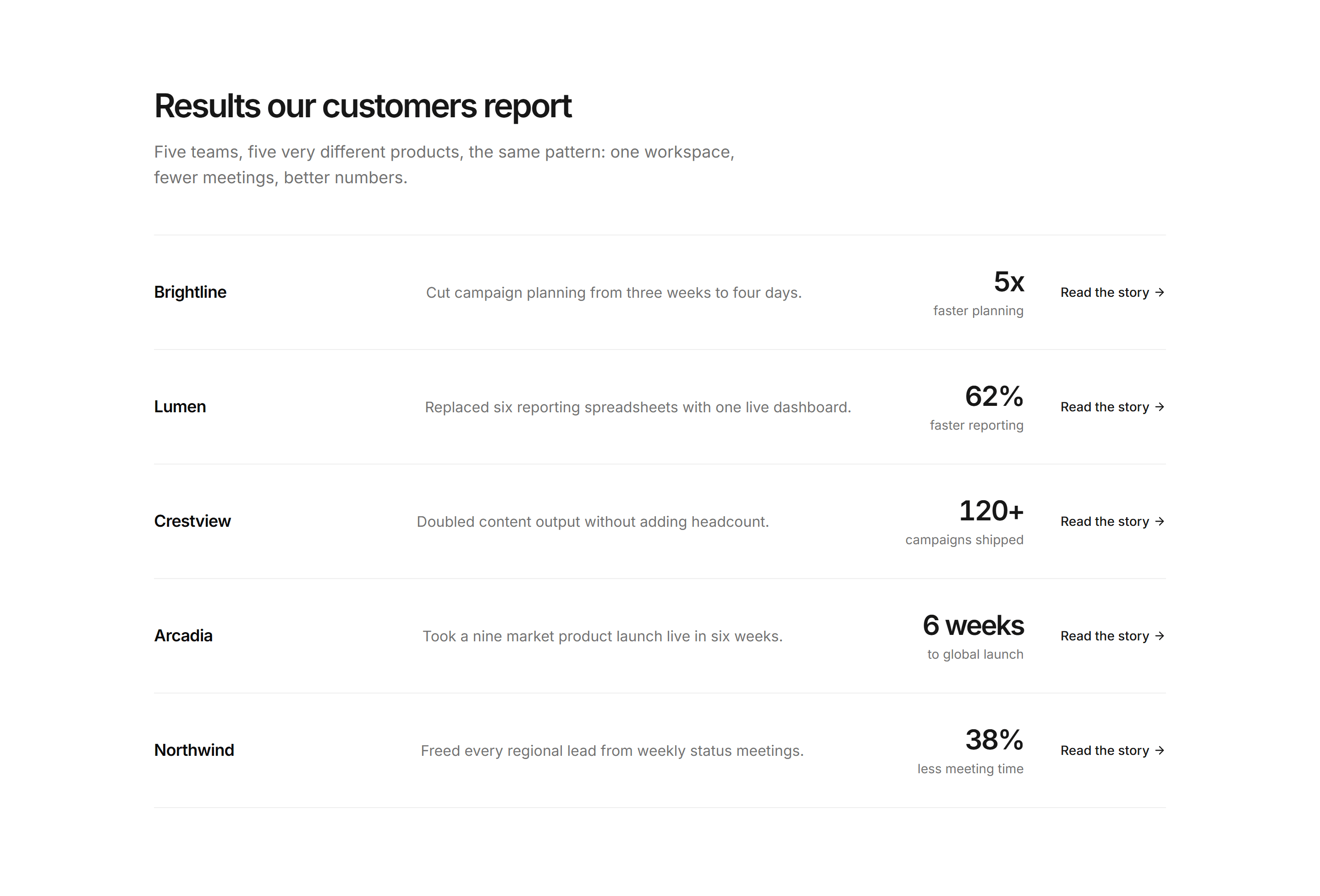
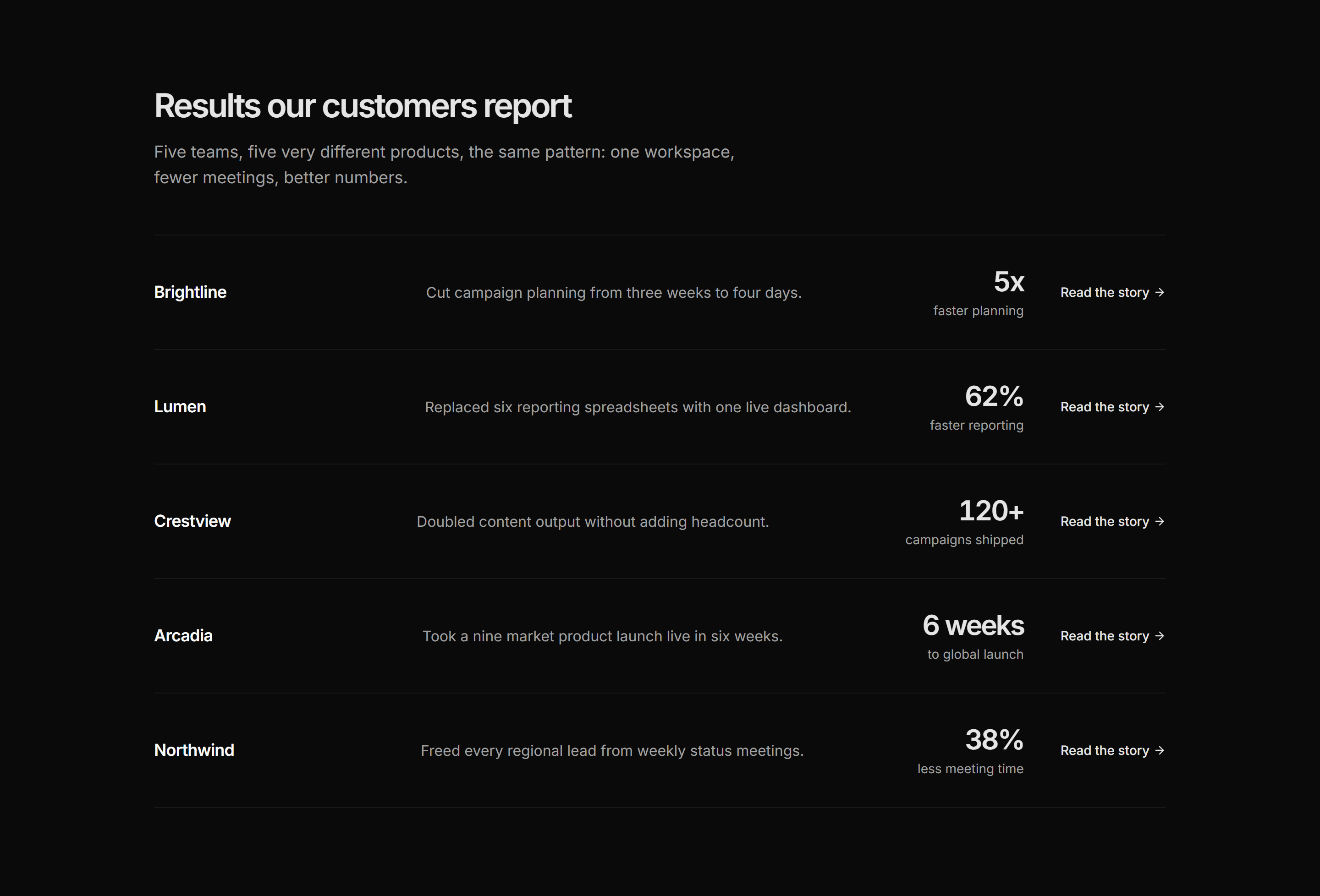
Marketing Pro Case Study: Logo Rows With Results
Stacked divided rows pairing a wordmark and outcome with a bold metric and story link.
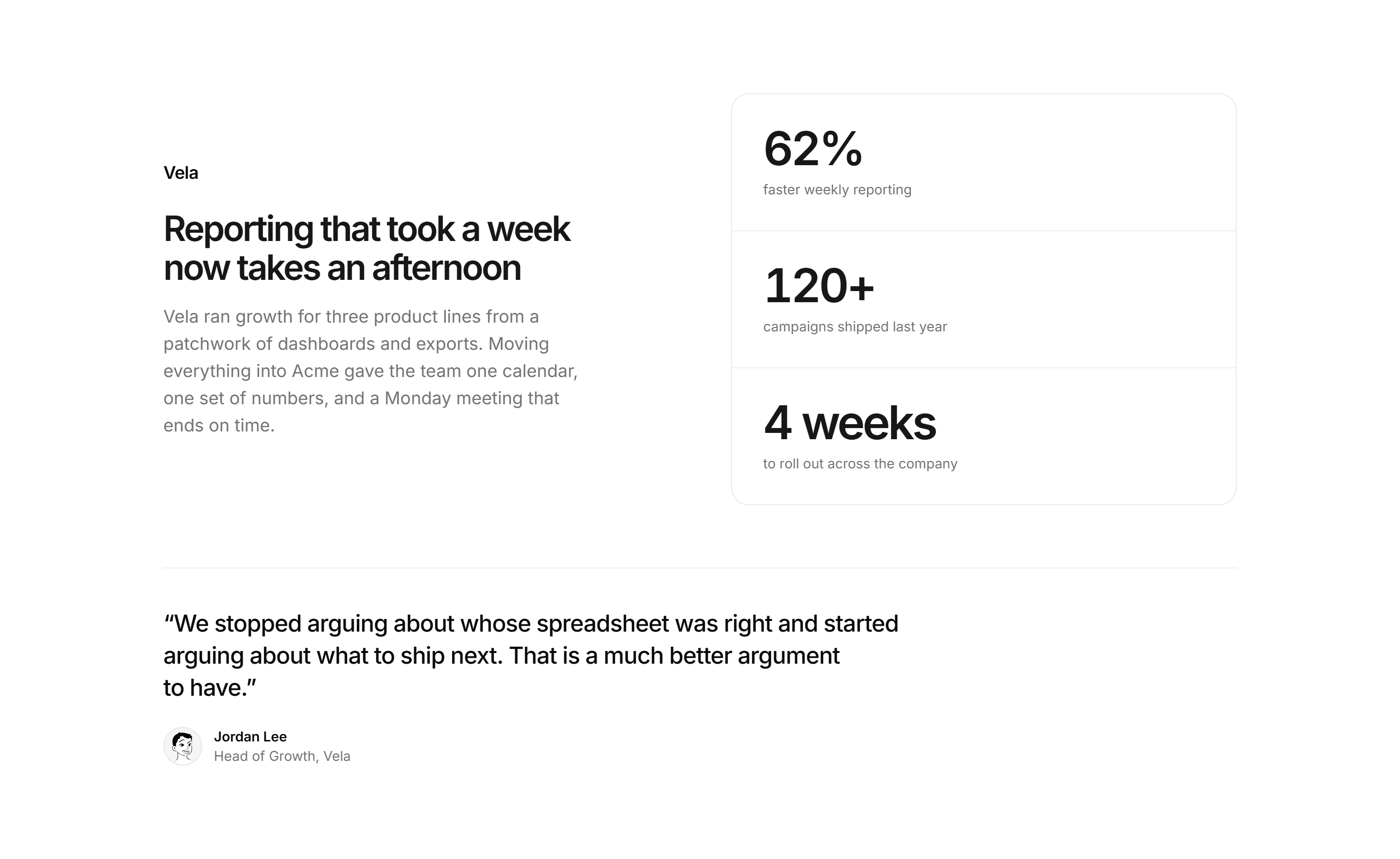
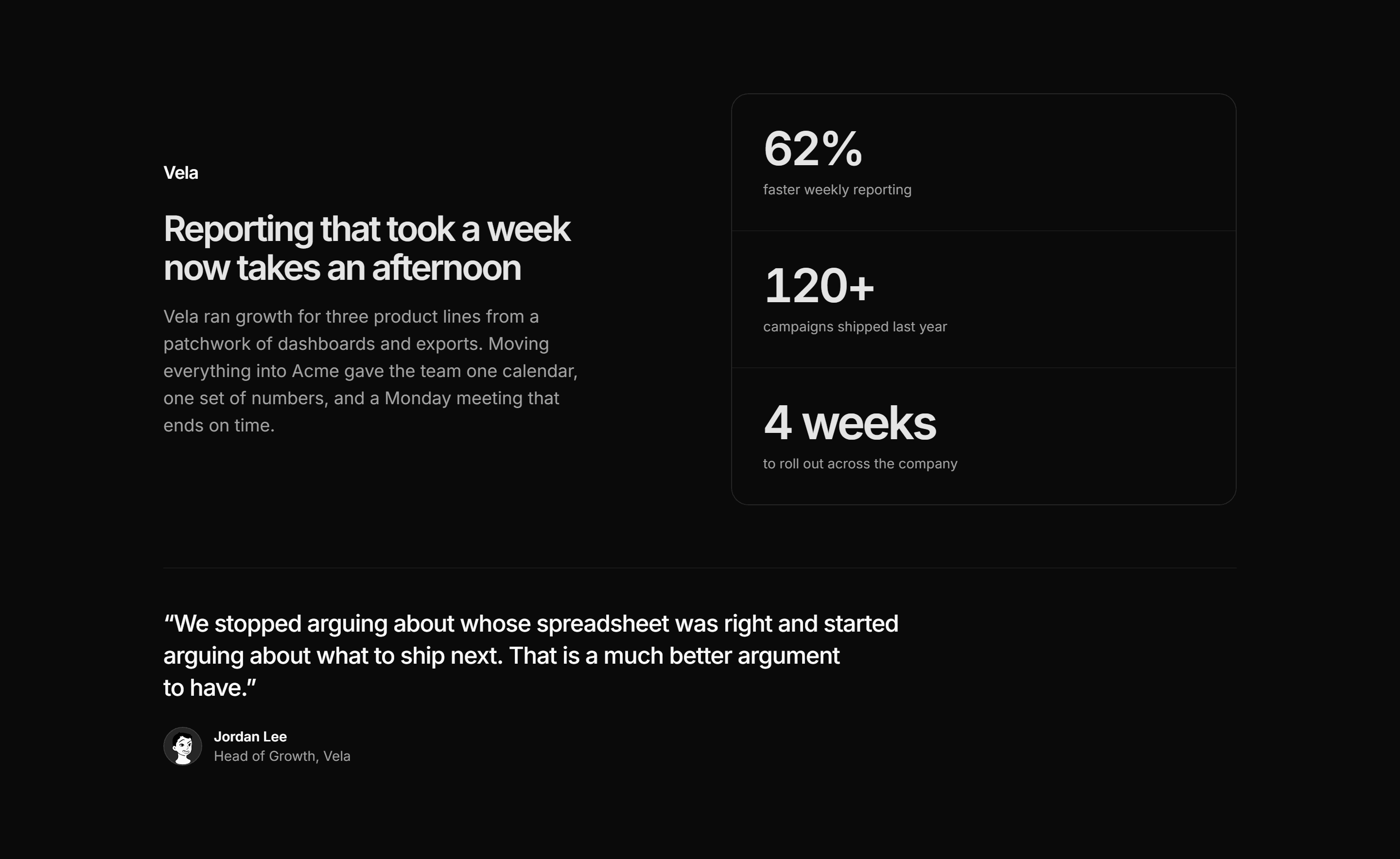
Marketing Pro Case Study: Metrics Spotlight
Company narrative beside a divided stat rail with a wide customer quote underneath.
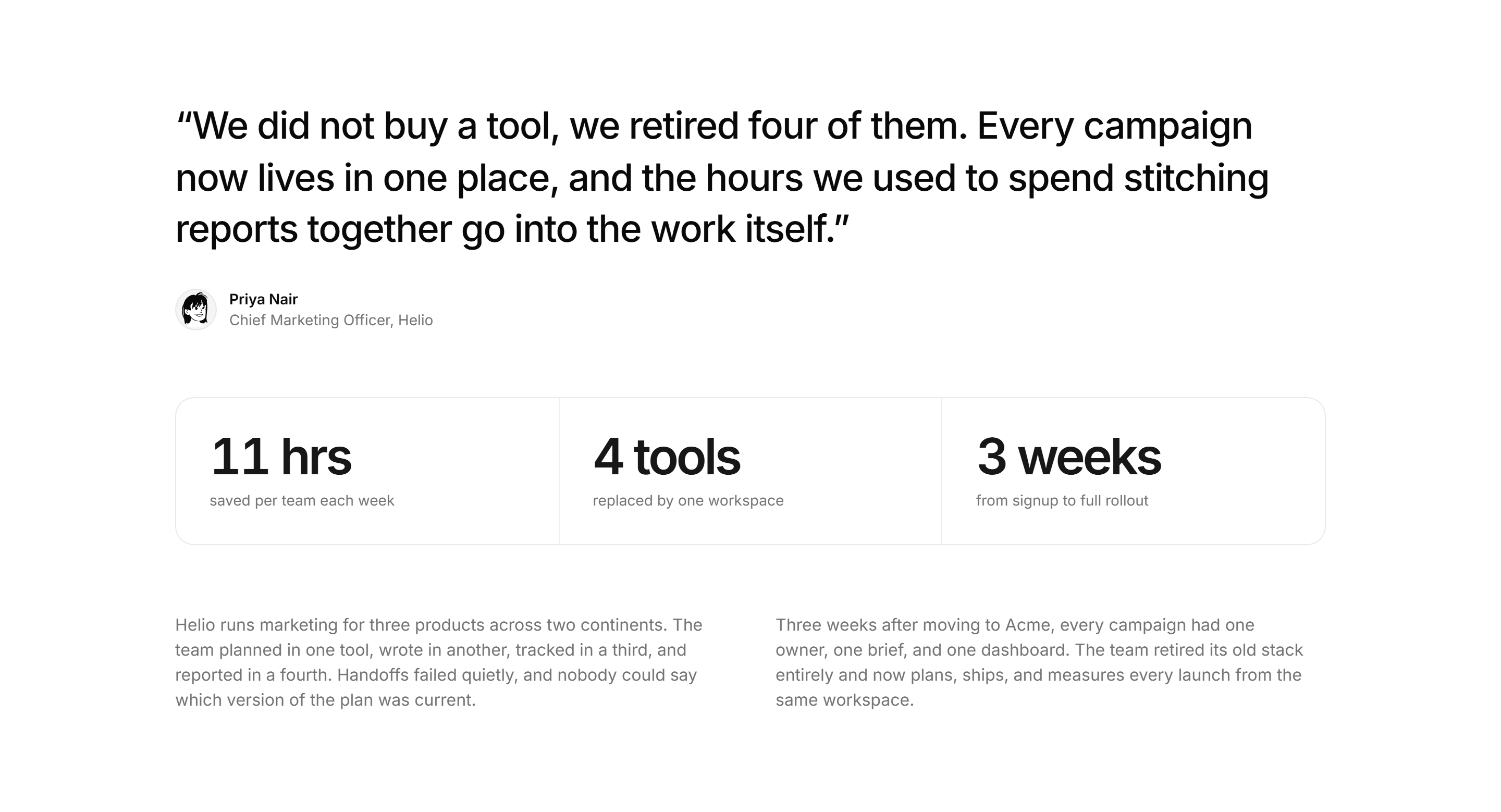
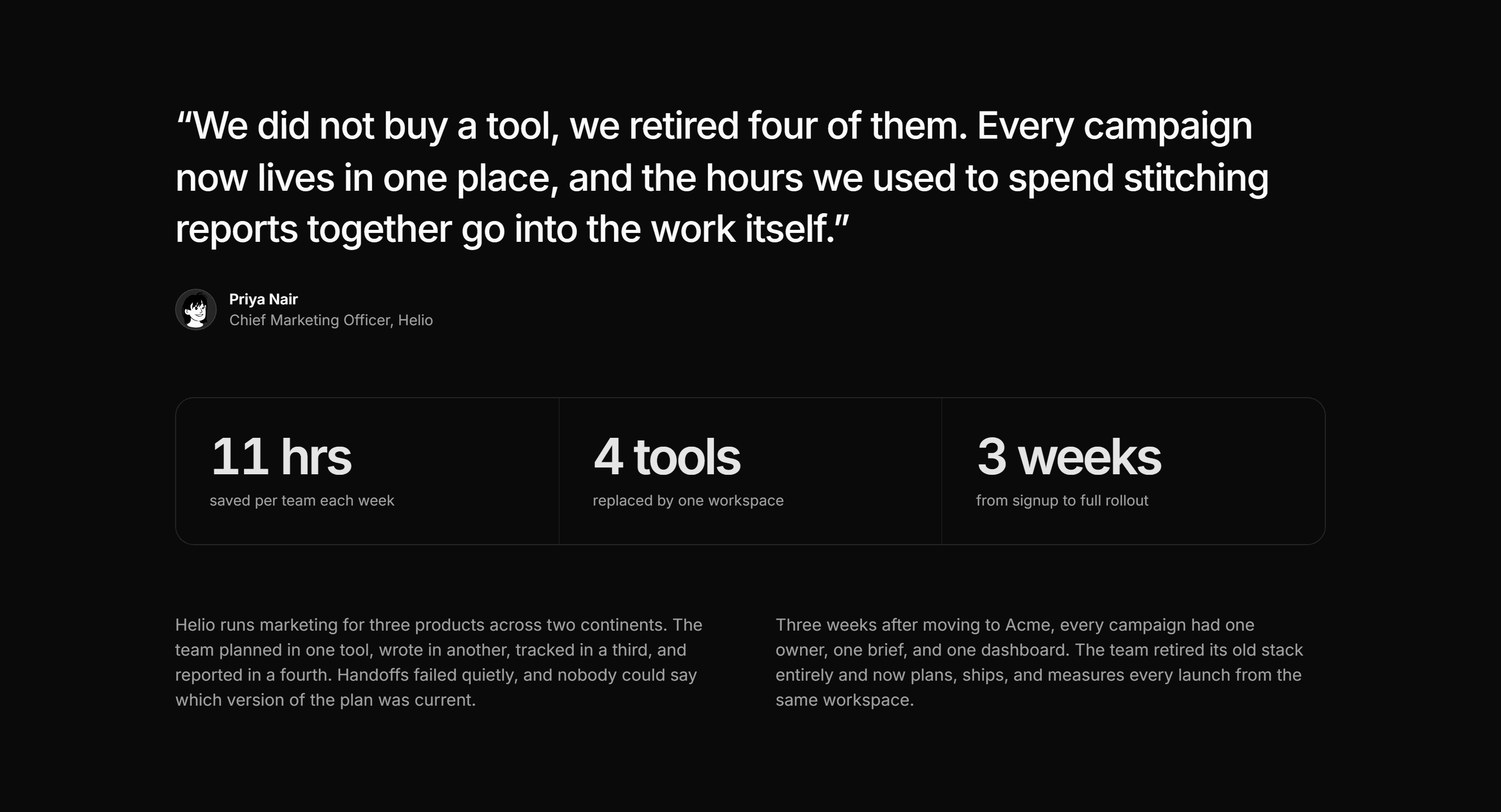
Marketing Pro Case Study: Quote Led Story
Oversized opening quote above a three stat row and two short narrative paragraphs.
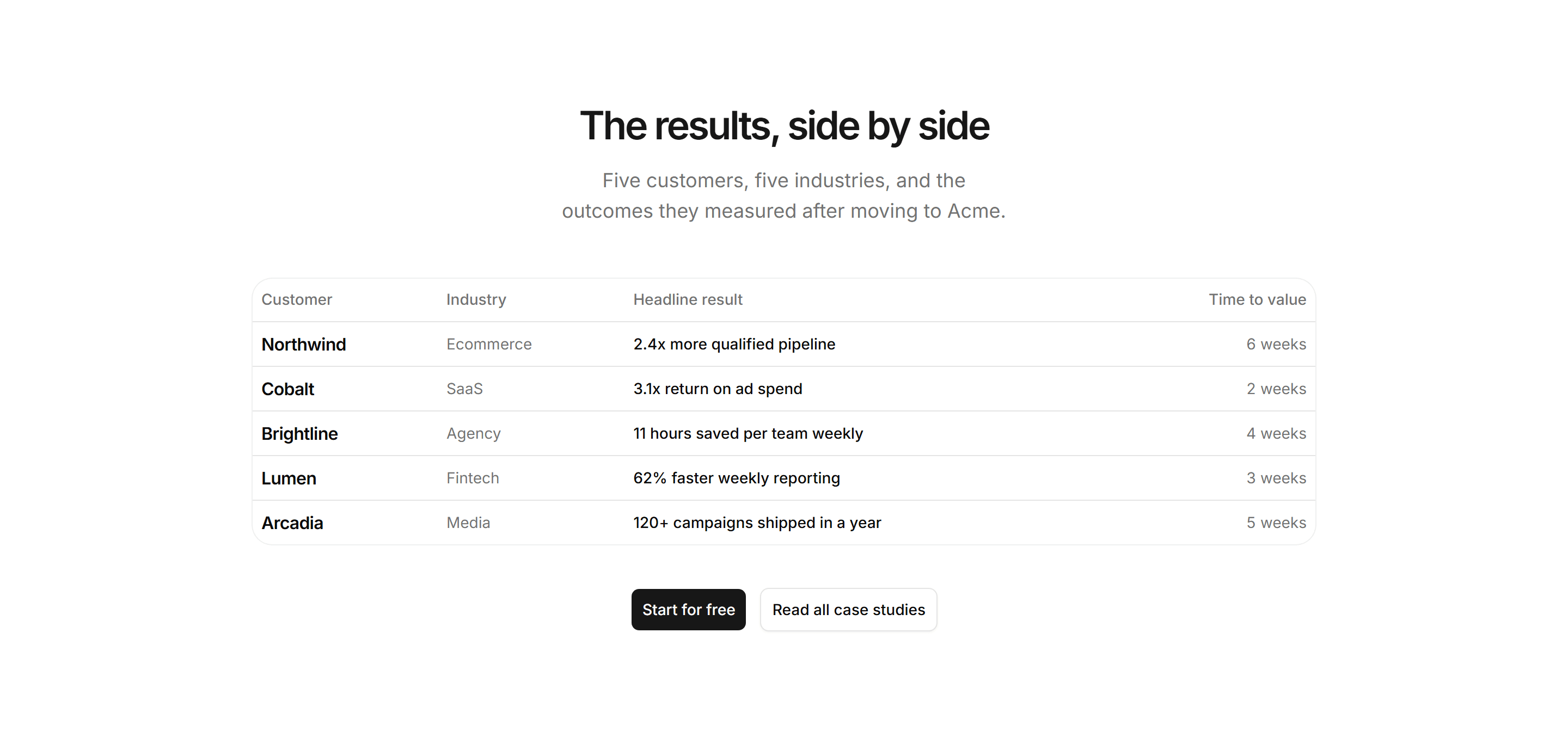
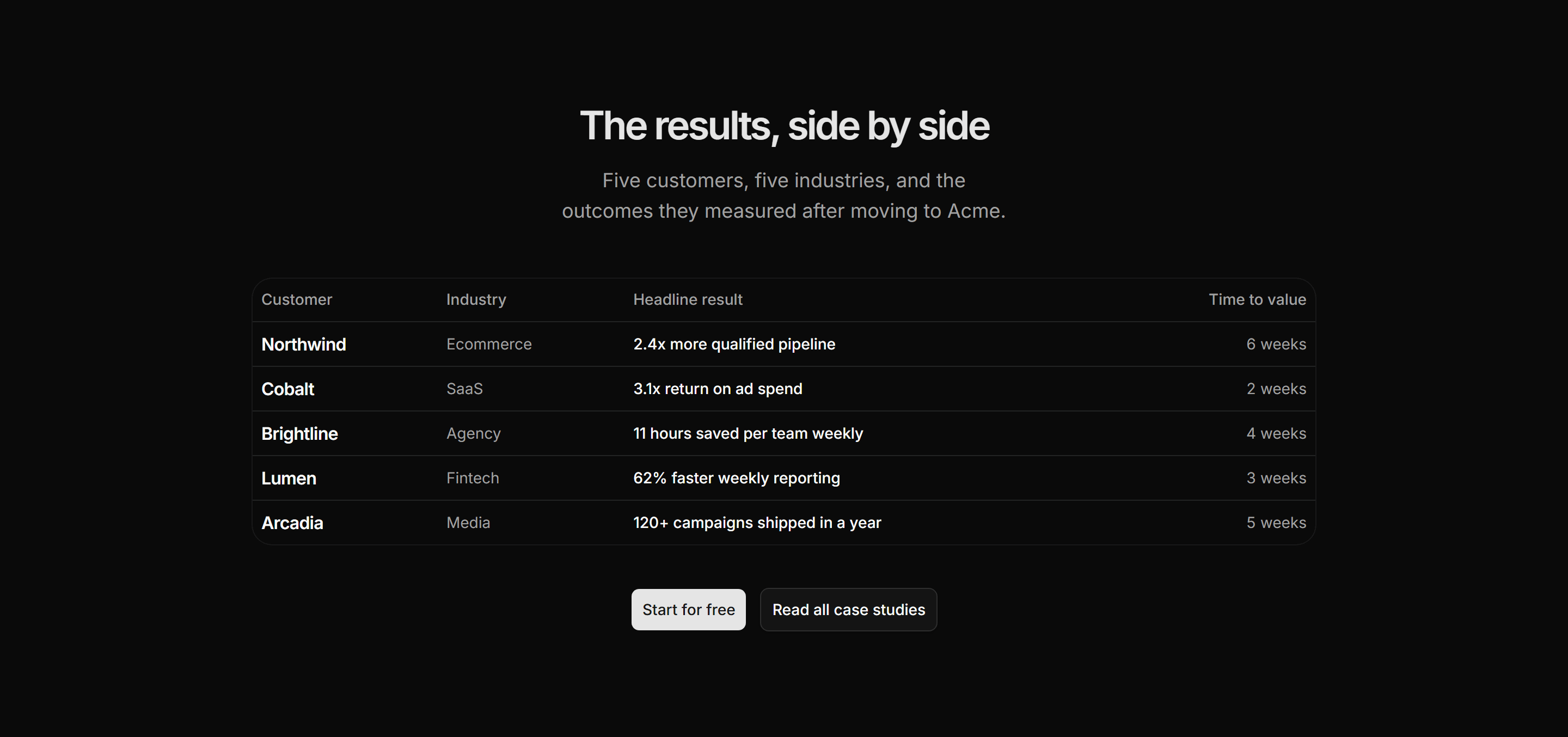
Marketing Pro Case Study: Results Table
Clean table of customers, industries, results, and time to value with CTA buttons below.
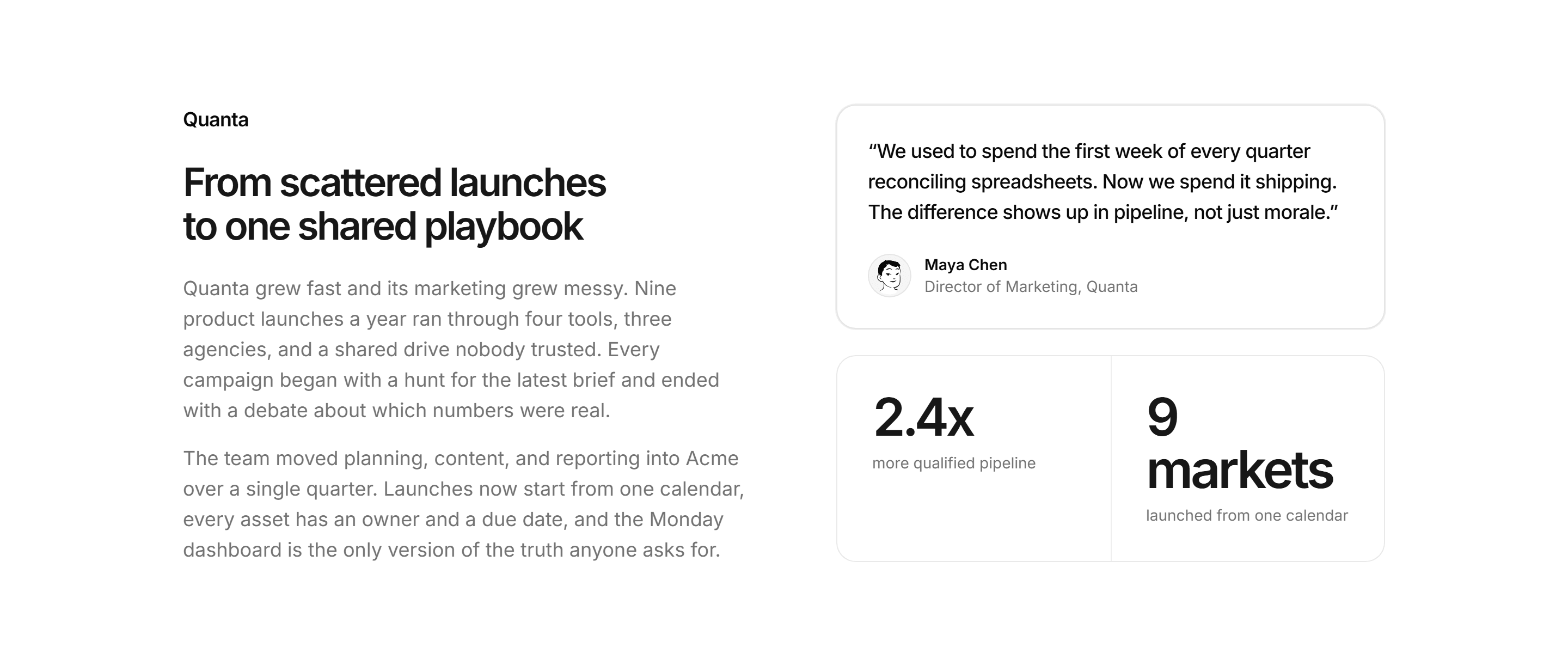
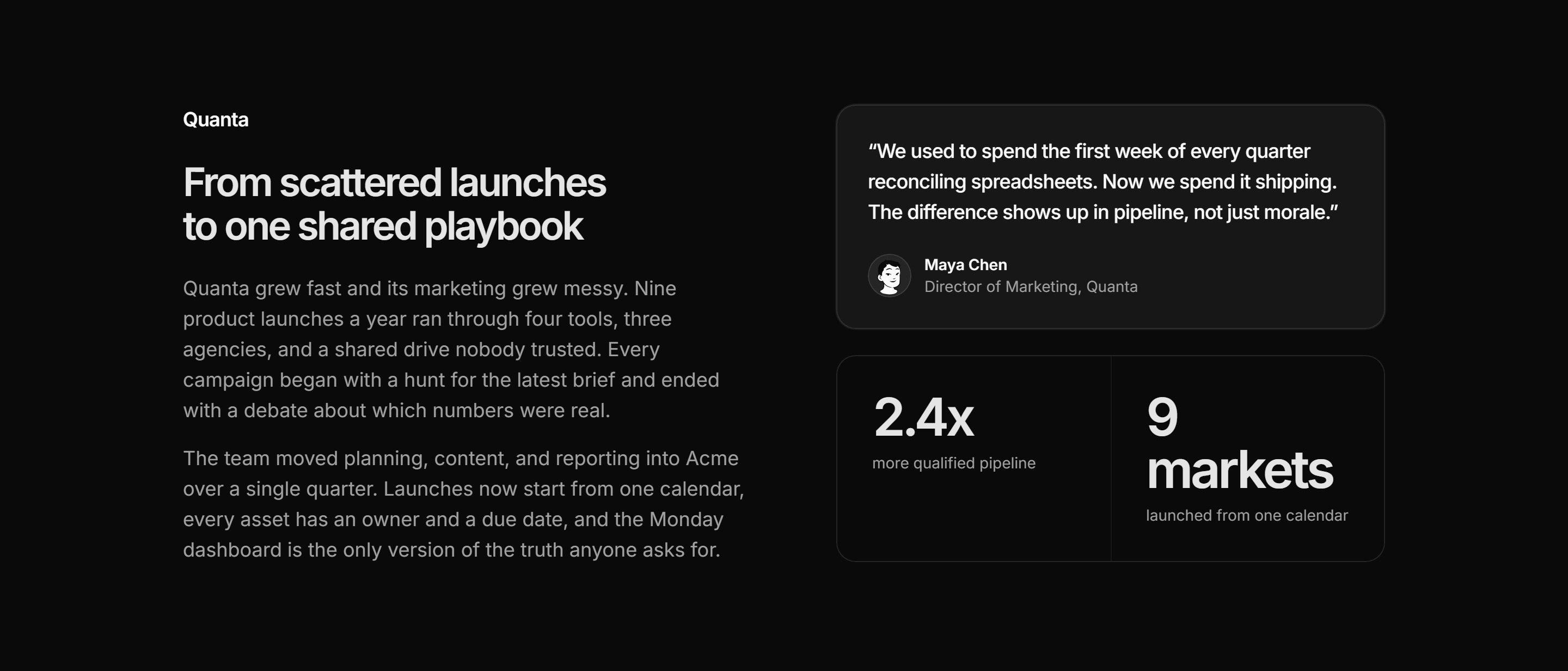
Marketing Pro Case Study: Split With Quote
Two paragraph story beside a right rail holding a quote card and two key stats.
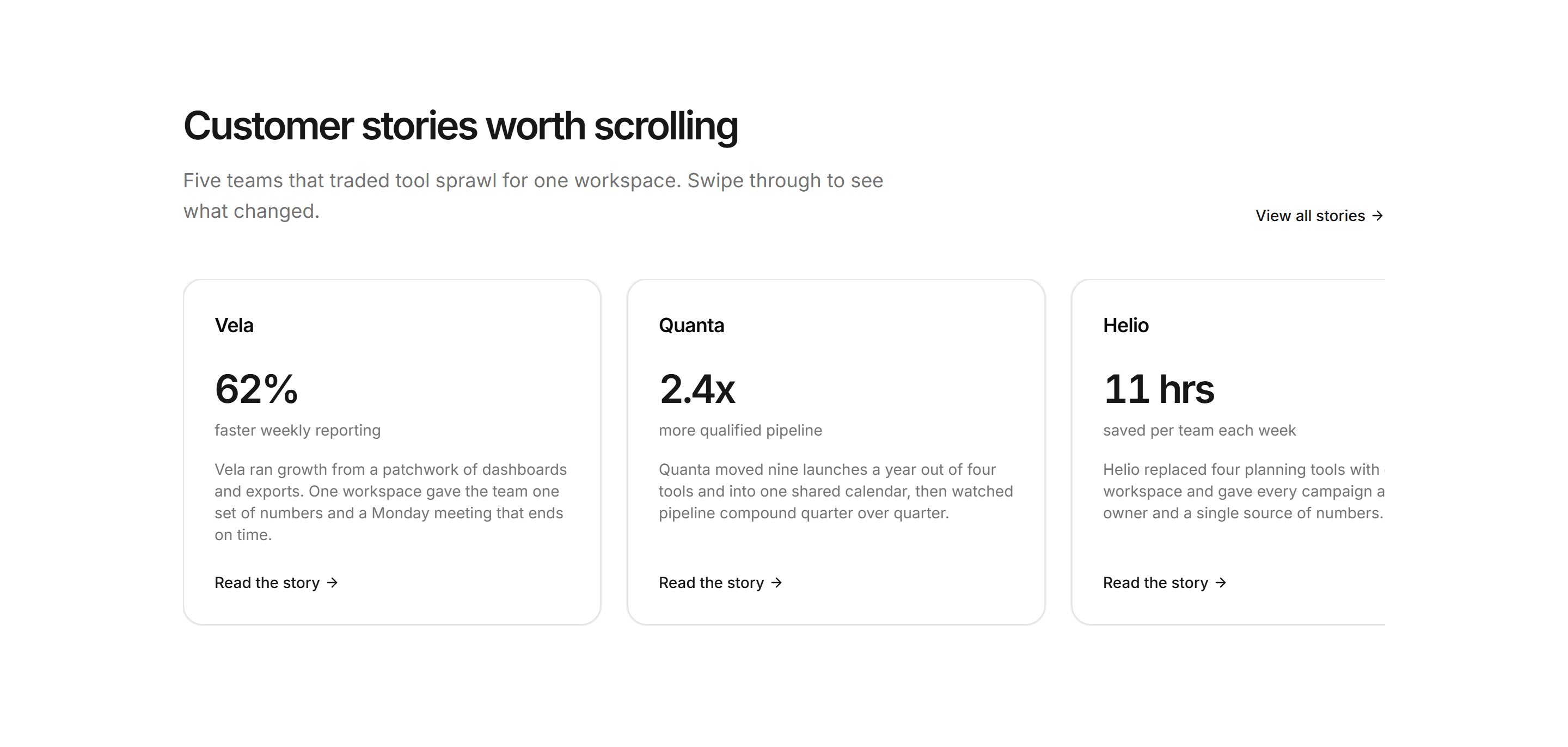
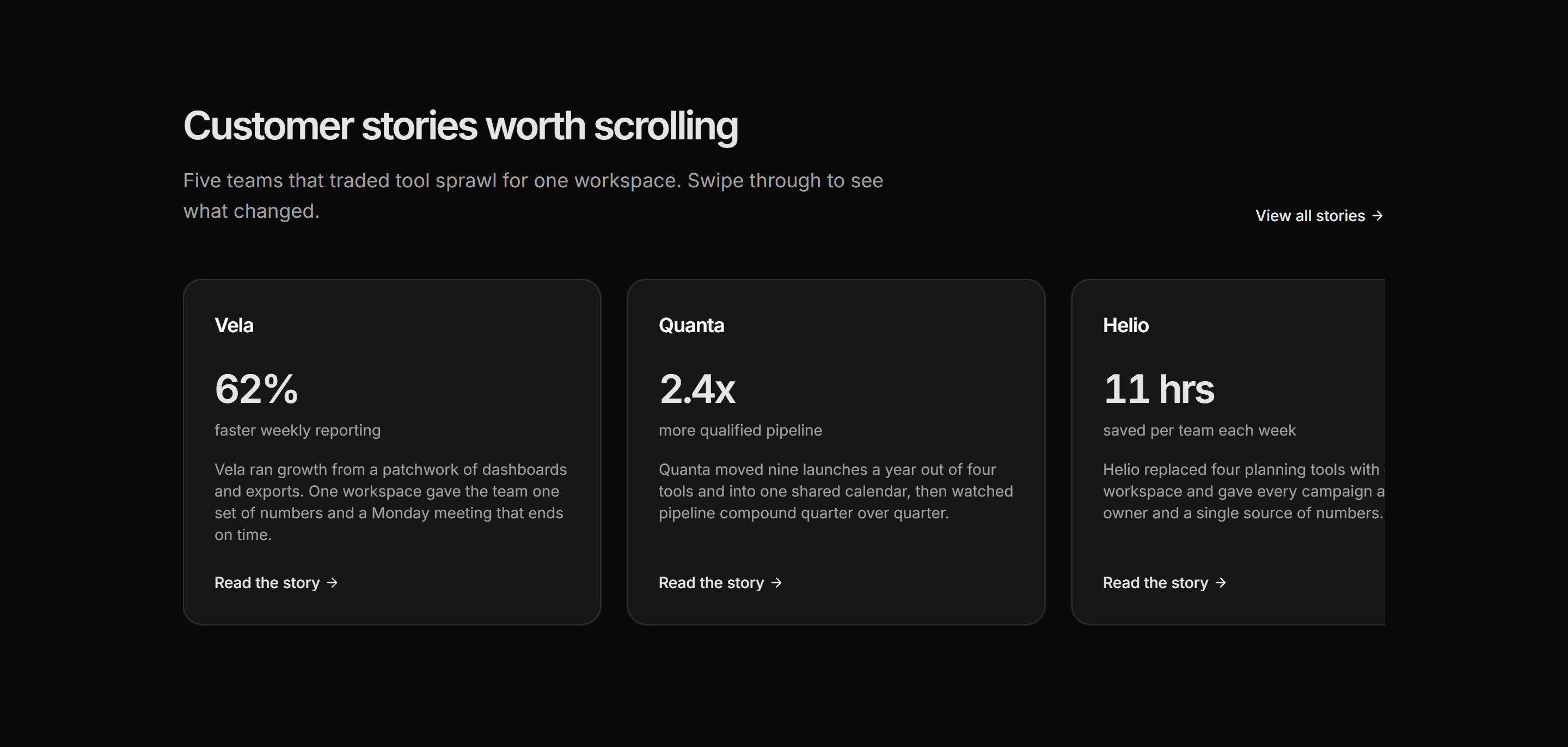
Marketing Pro Case Study: Story Carousel
Horizontally scrollable snap row of story cards with wordmarks, metrics, and summaries.
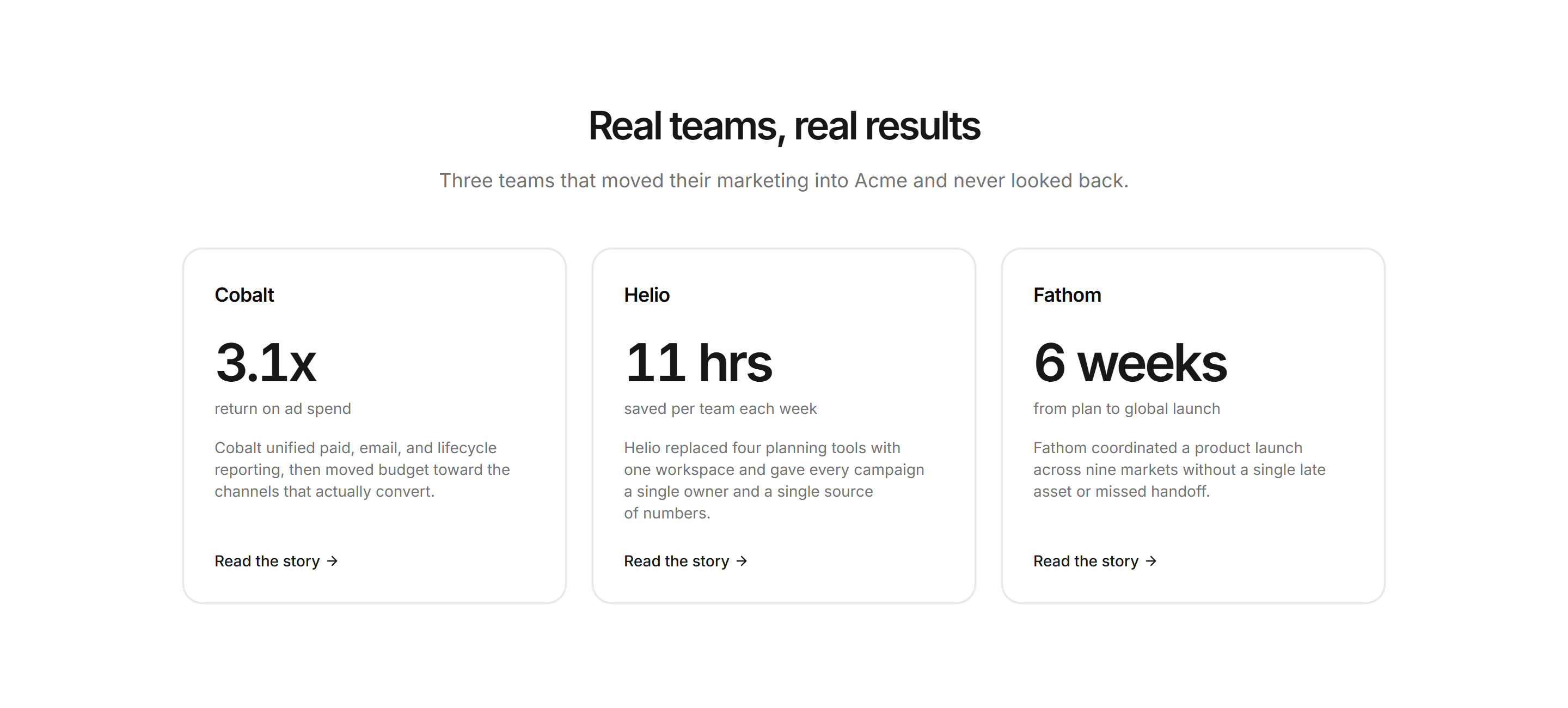
Marketing Pro Case Study: Story Grid
Three story cards each showing a wordmark, a bold result, a summary, and a read link.
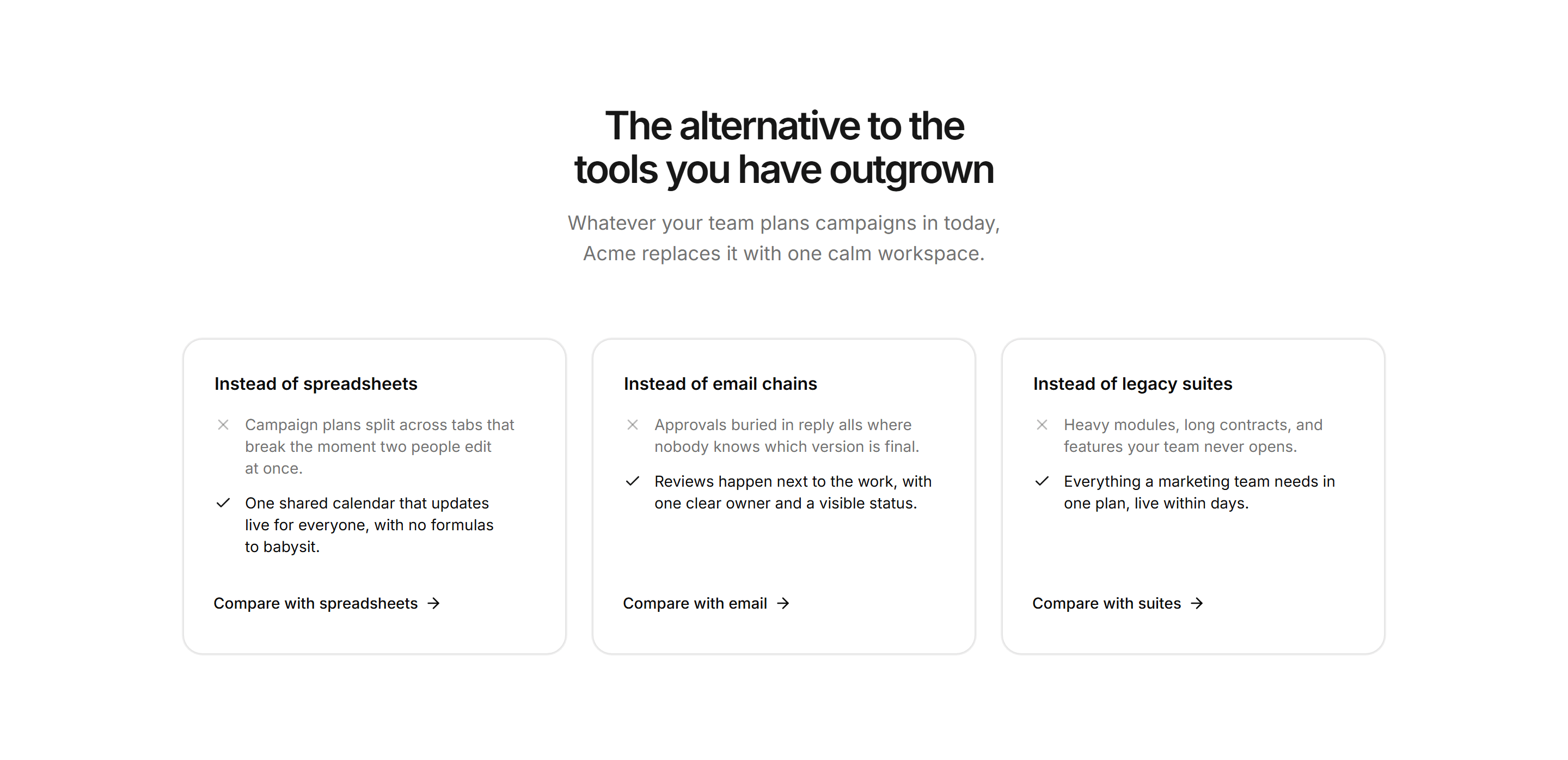
Marketing Pro Comparison: Alternative Cards
Three cards positioning the product as the alternative to spreadsheets, email, and suites.
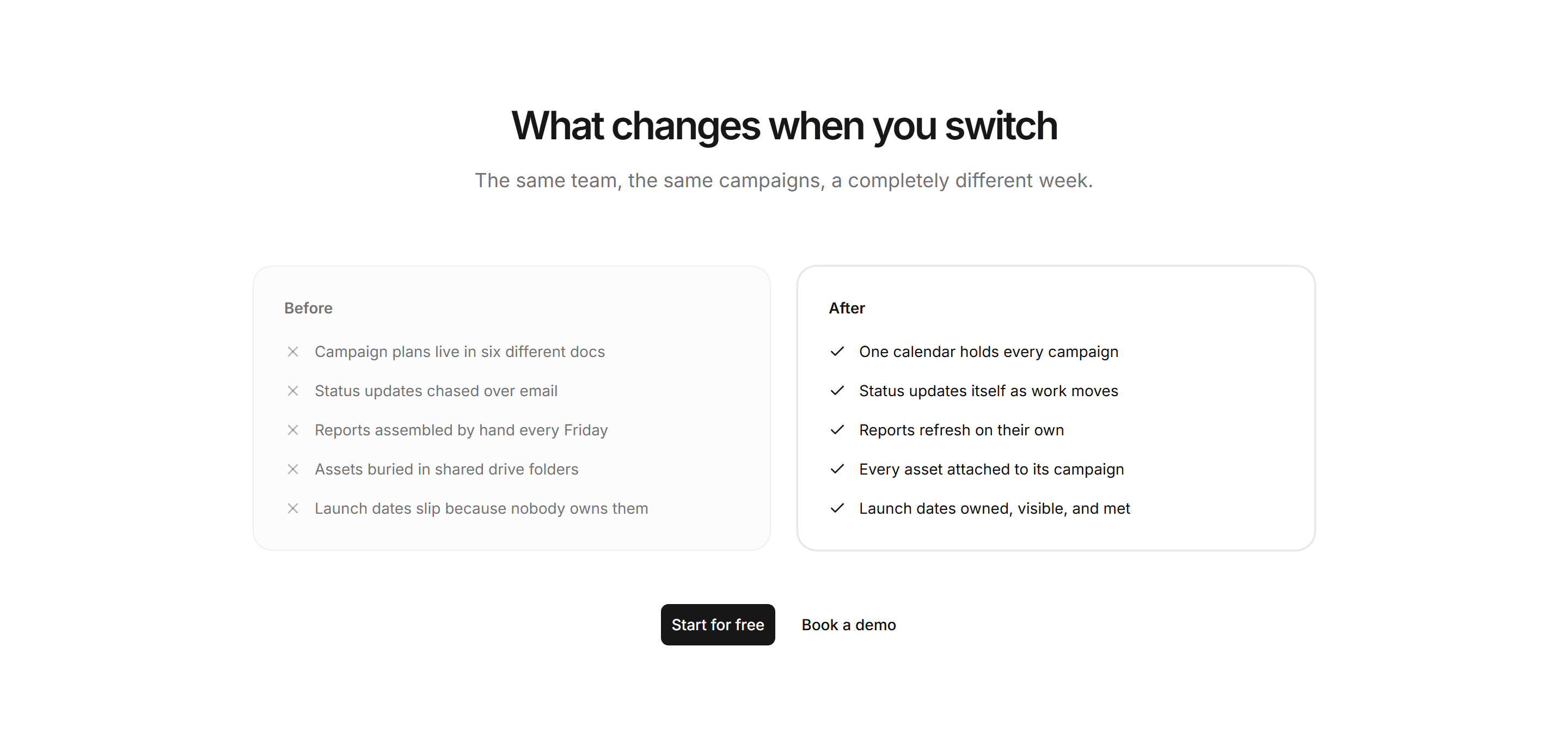
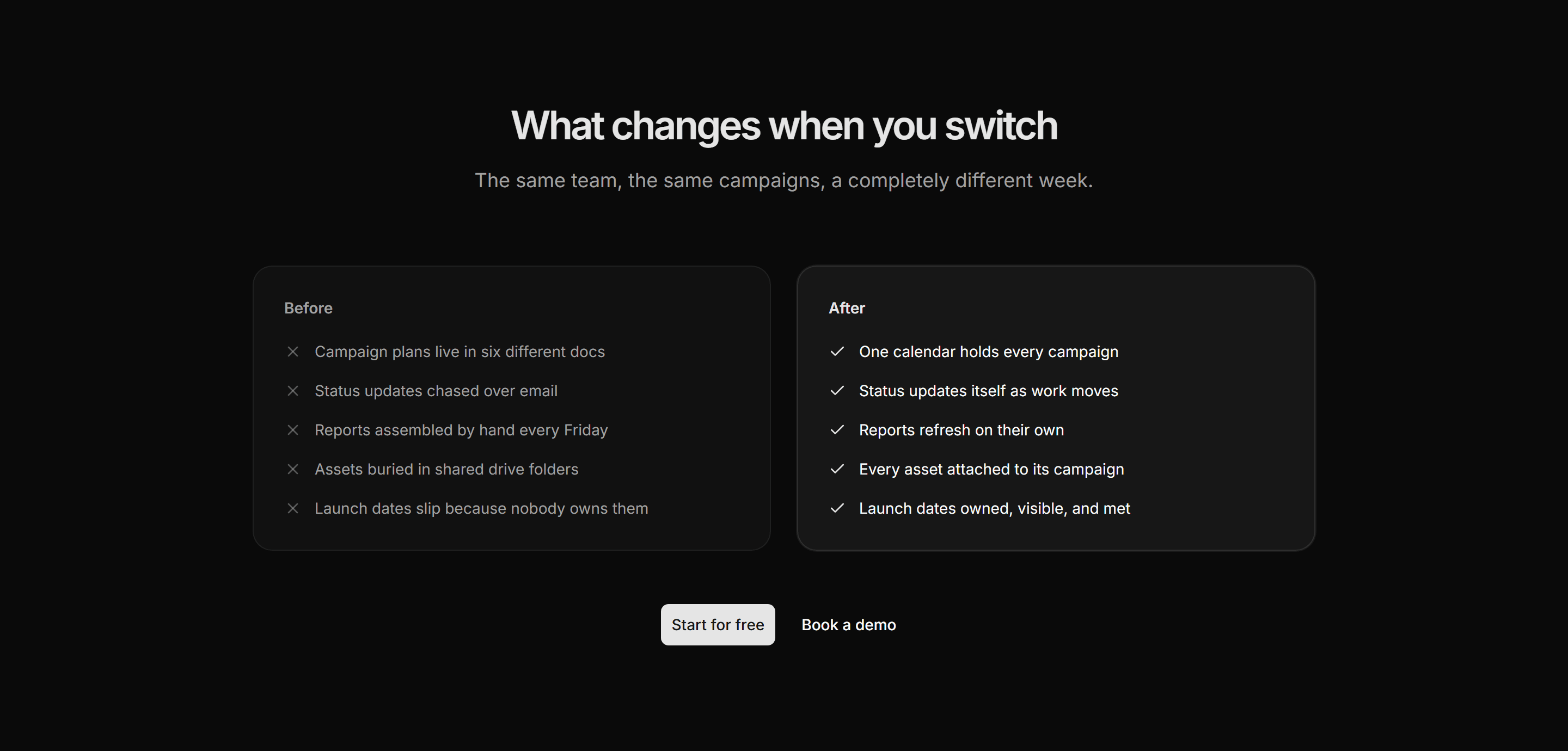
Marketing Pro Comparison: Before and After
Before and after cards listing the same workflow as crossed off pains and checked wins.
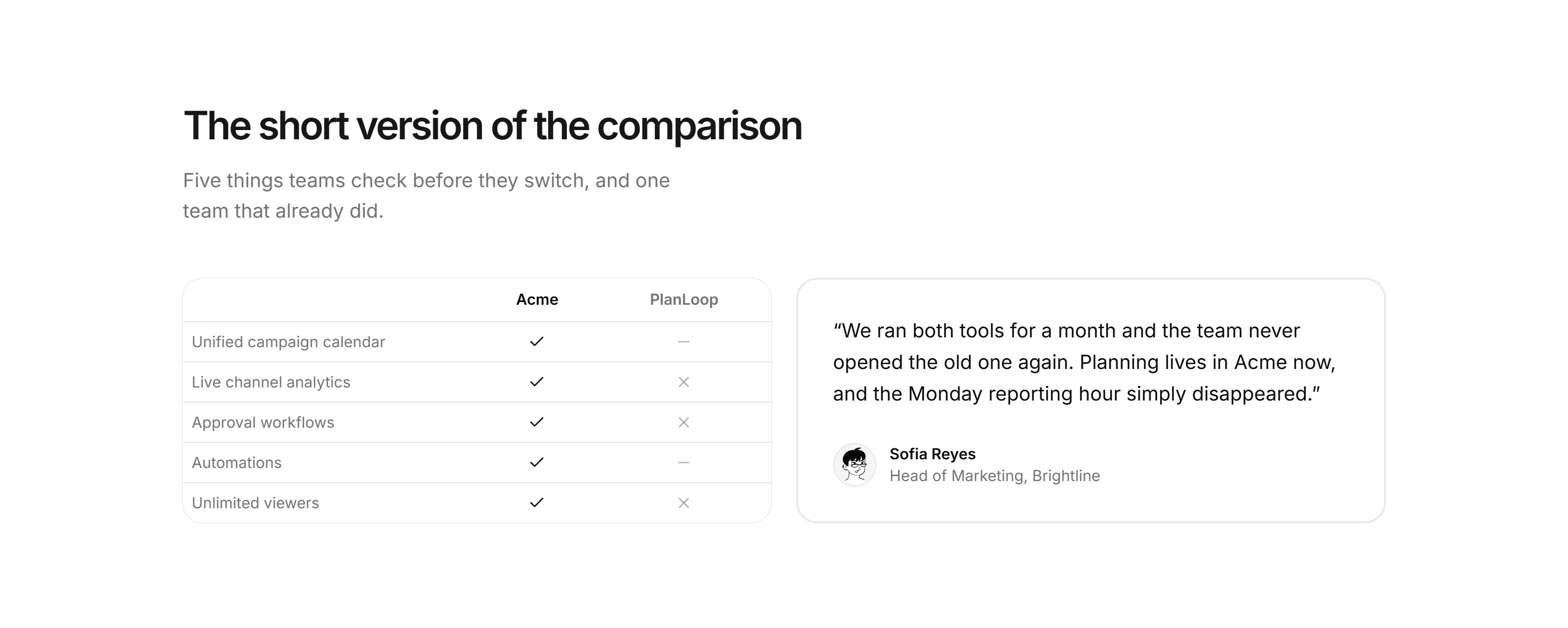
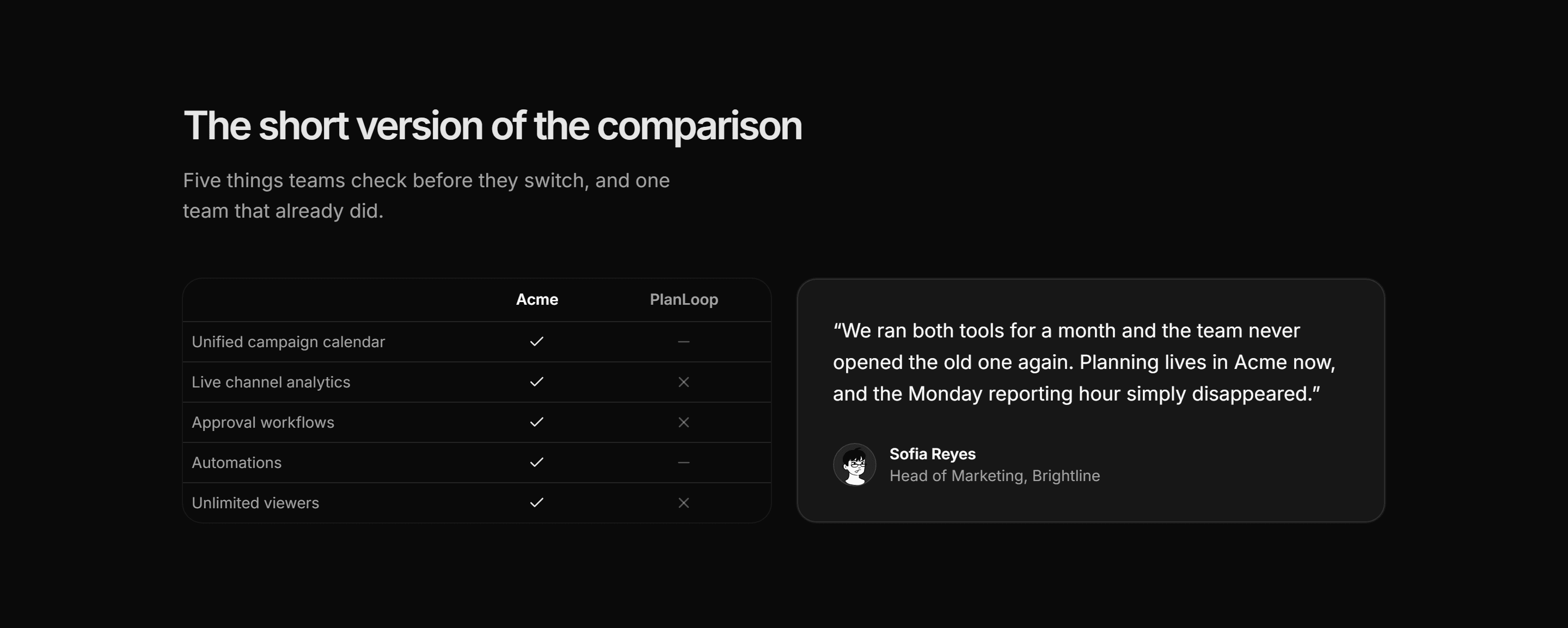
Marketing Pro Comparison: Comparison with Quote
Compact five row comparison table beside a quote card from a customer who switched.
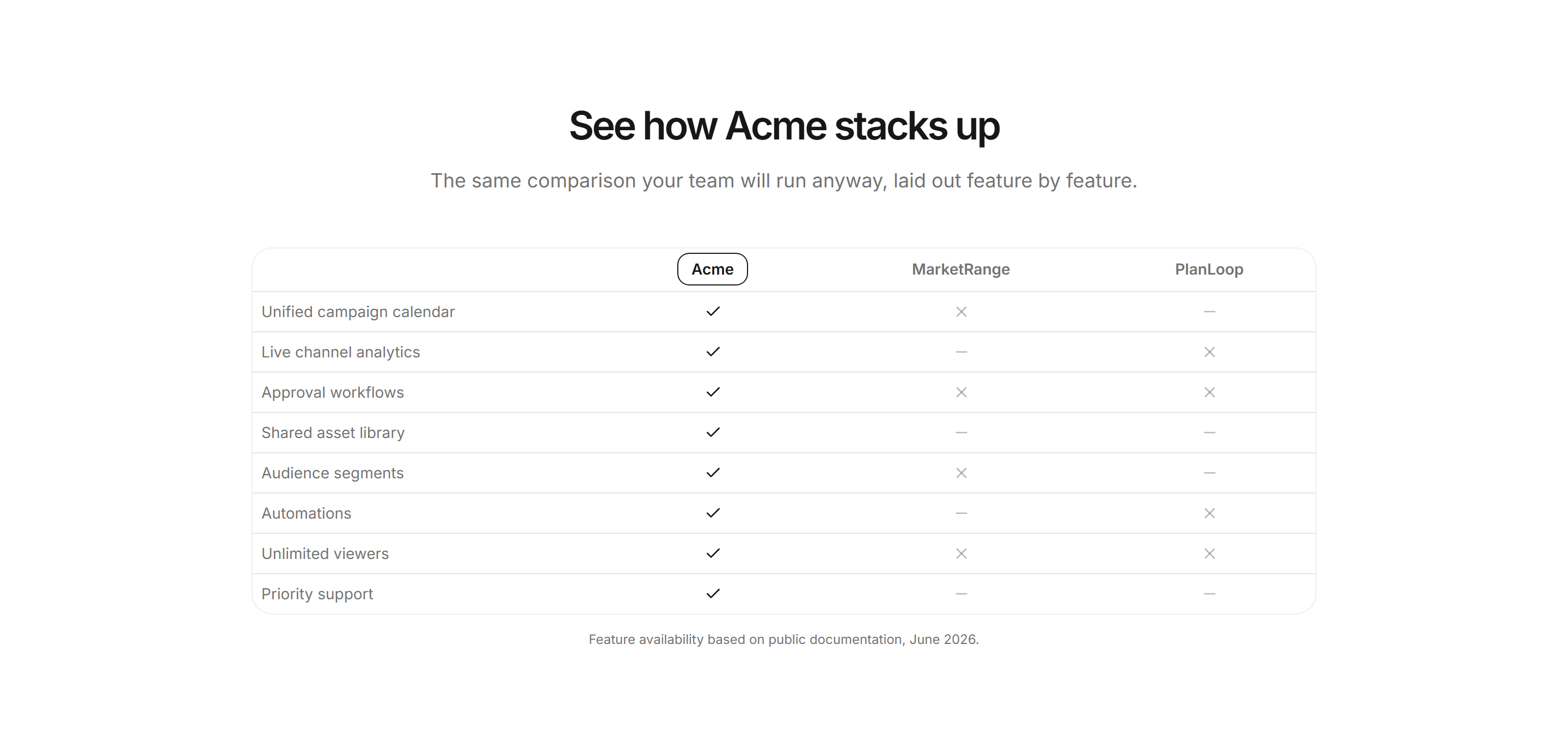
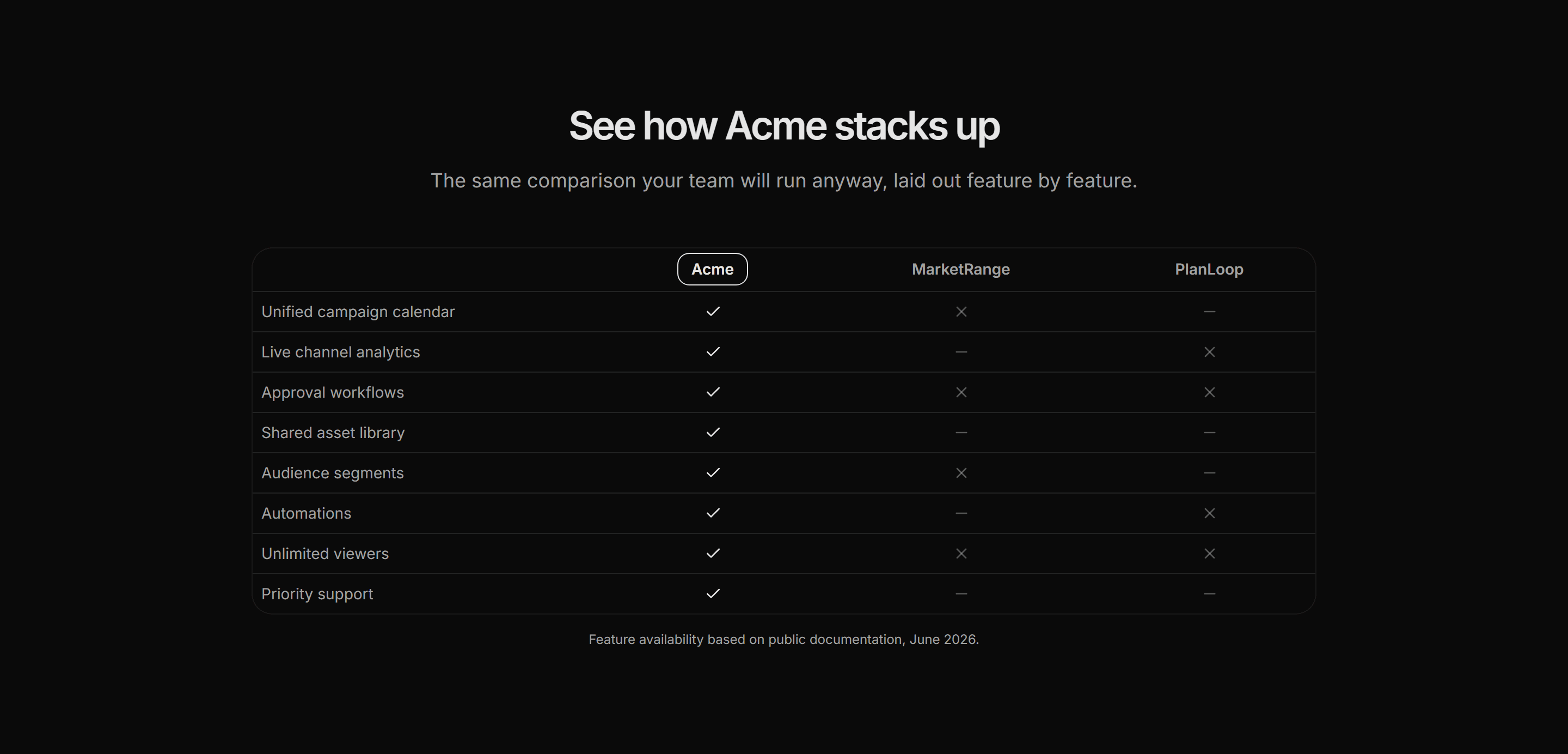
Marketing Pro Comparison: Competitor Table
Feature table comparing the product against two competitors with check, partial, and no marks.
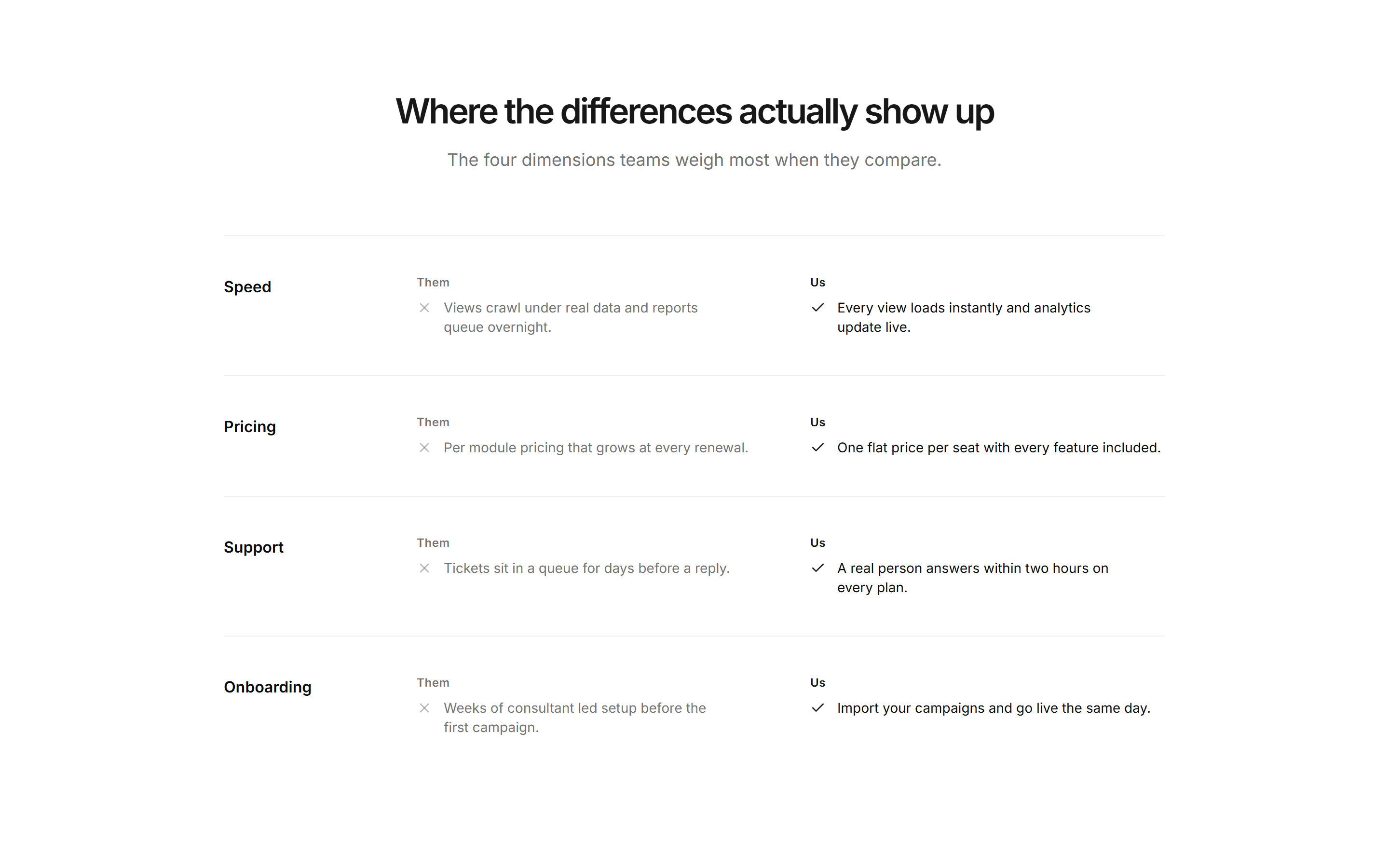
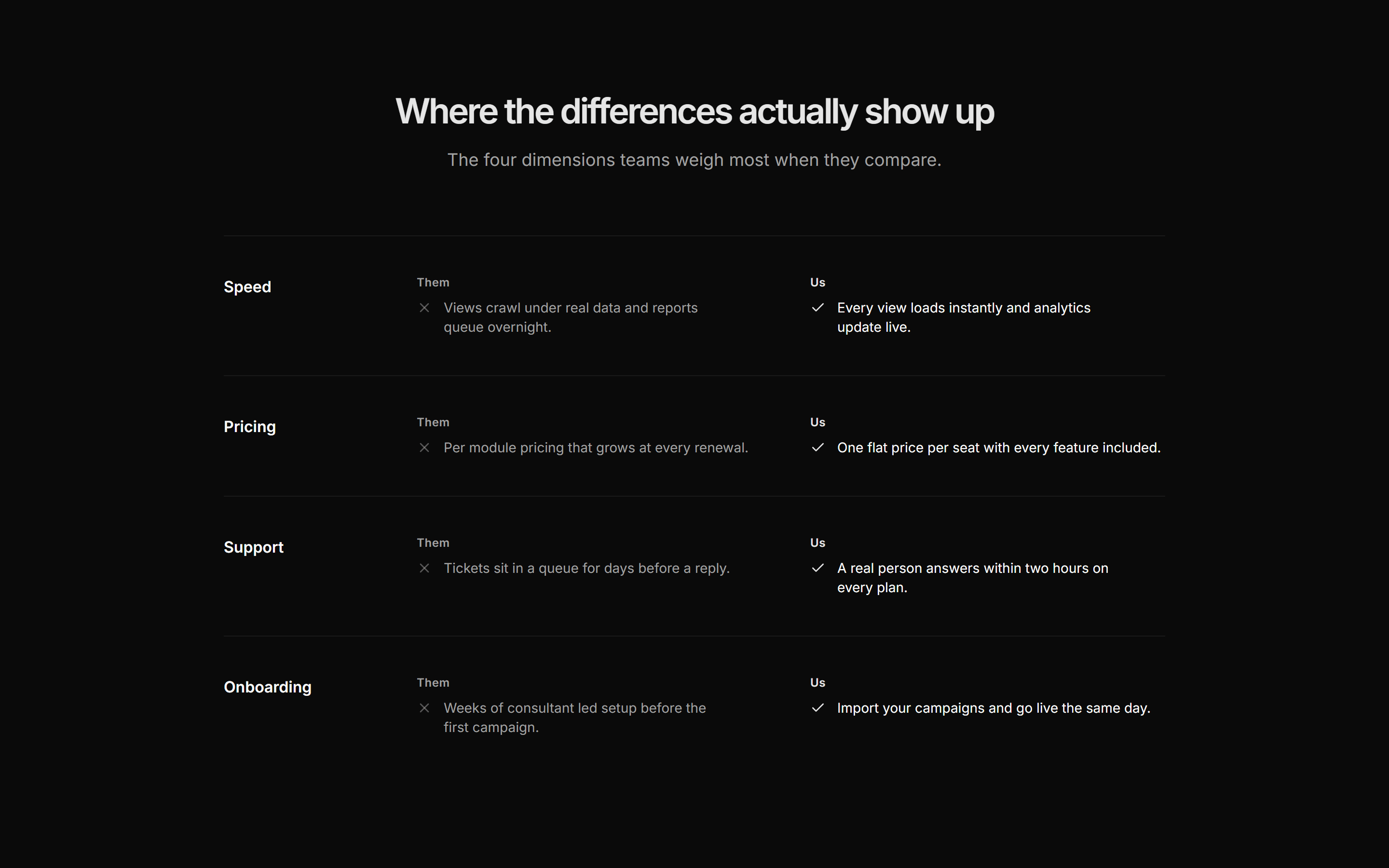
Marketing Pro Comparison: Dimension Rows
Stacked full width rows comparing Them and Us copy across four buying dimensions.
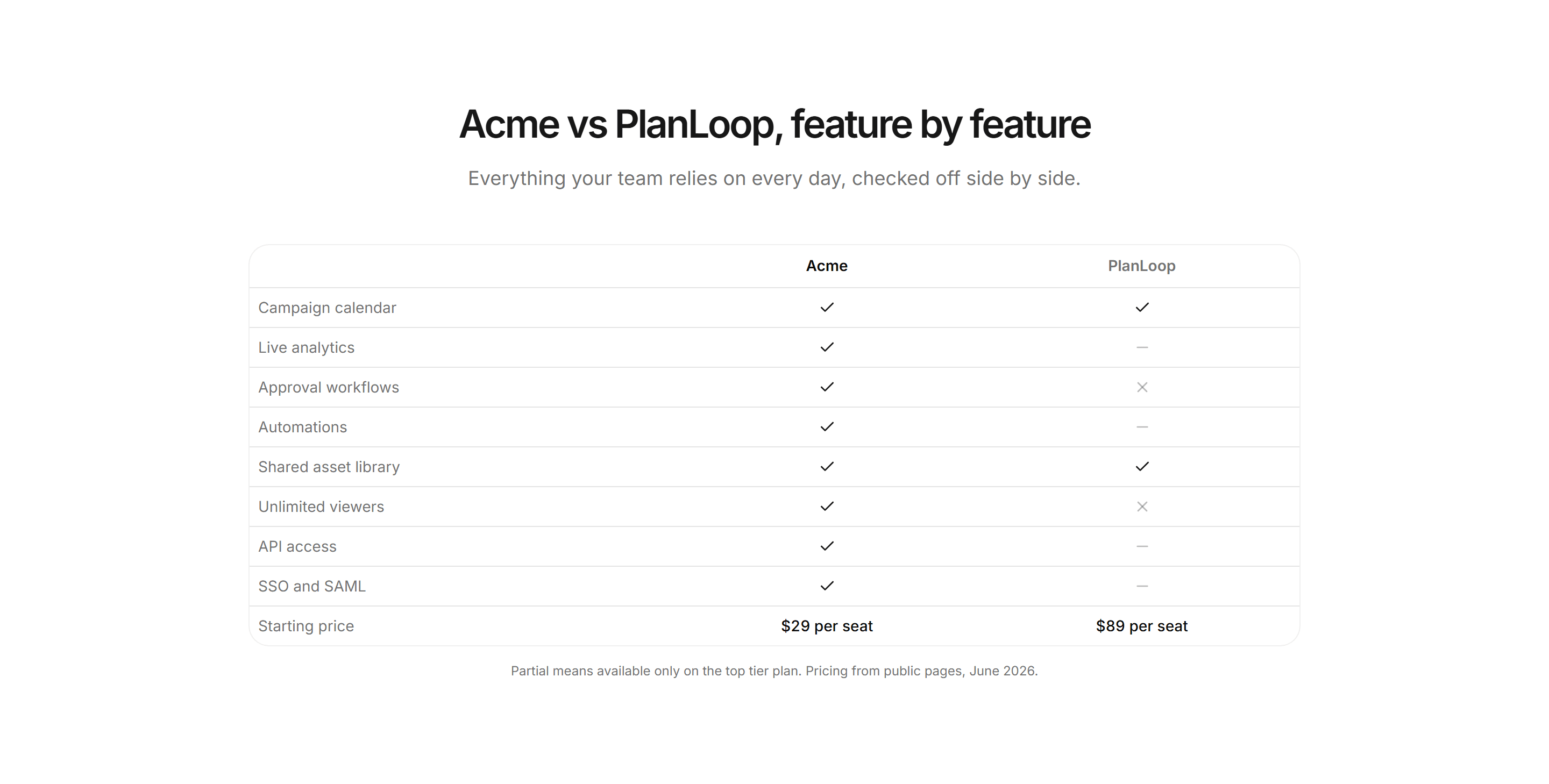
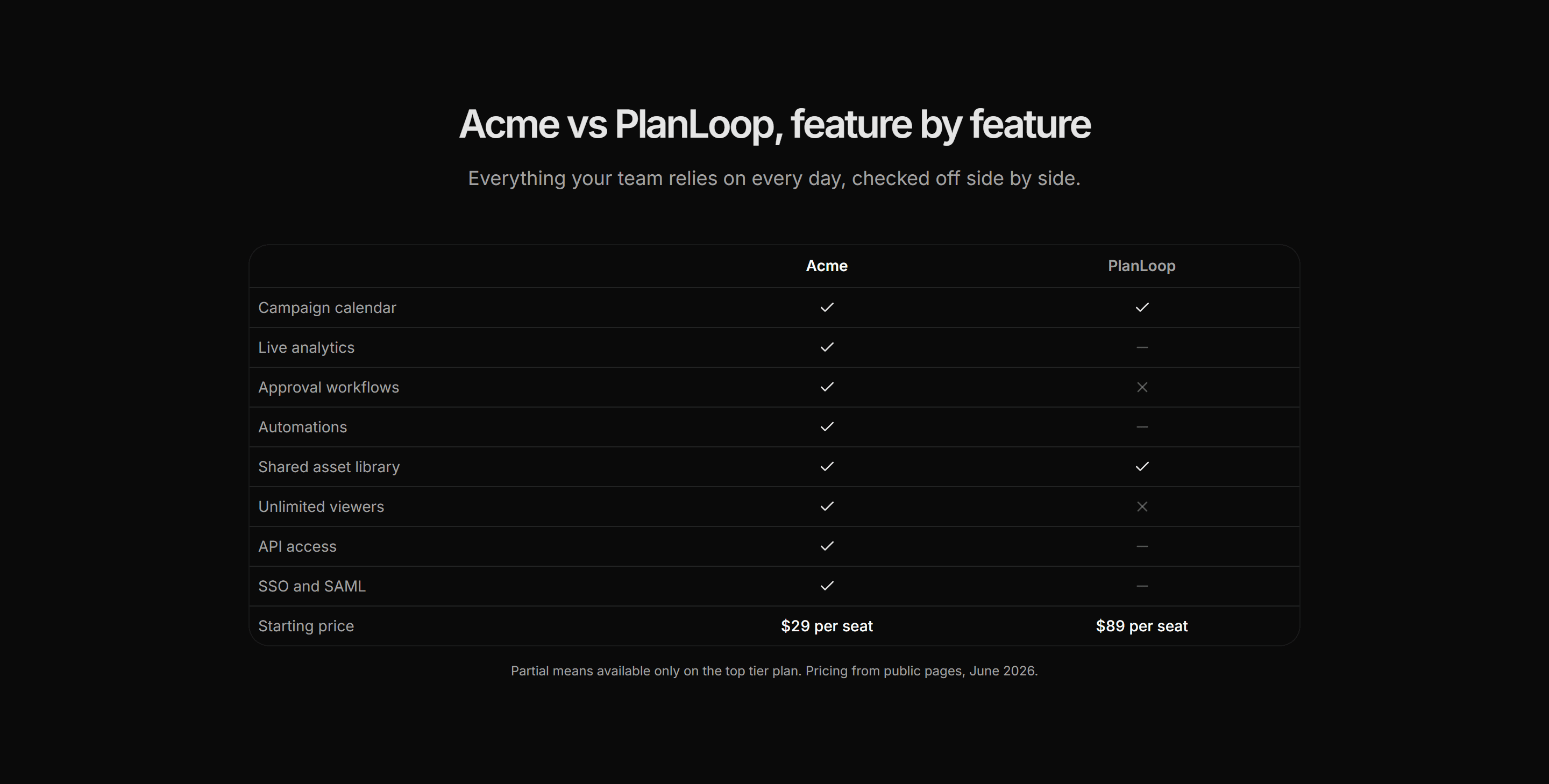
Marketing Pro Comparison: Feature Checklist Table
Two column checklist table comparing features and pricing against a single competitor.
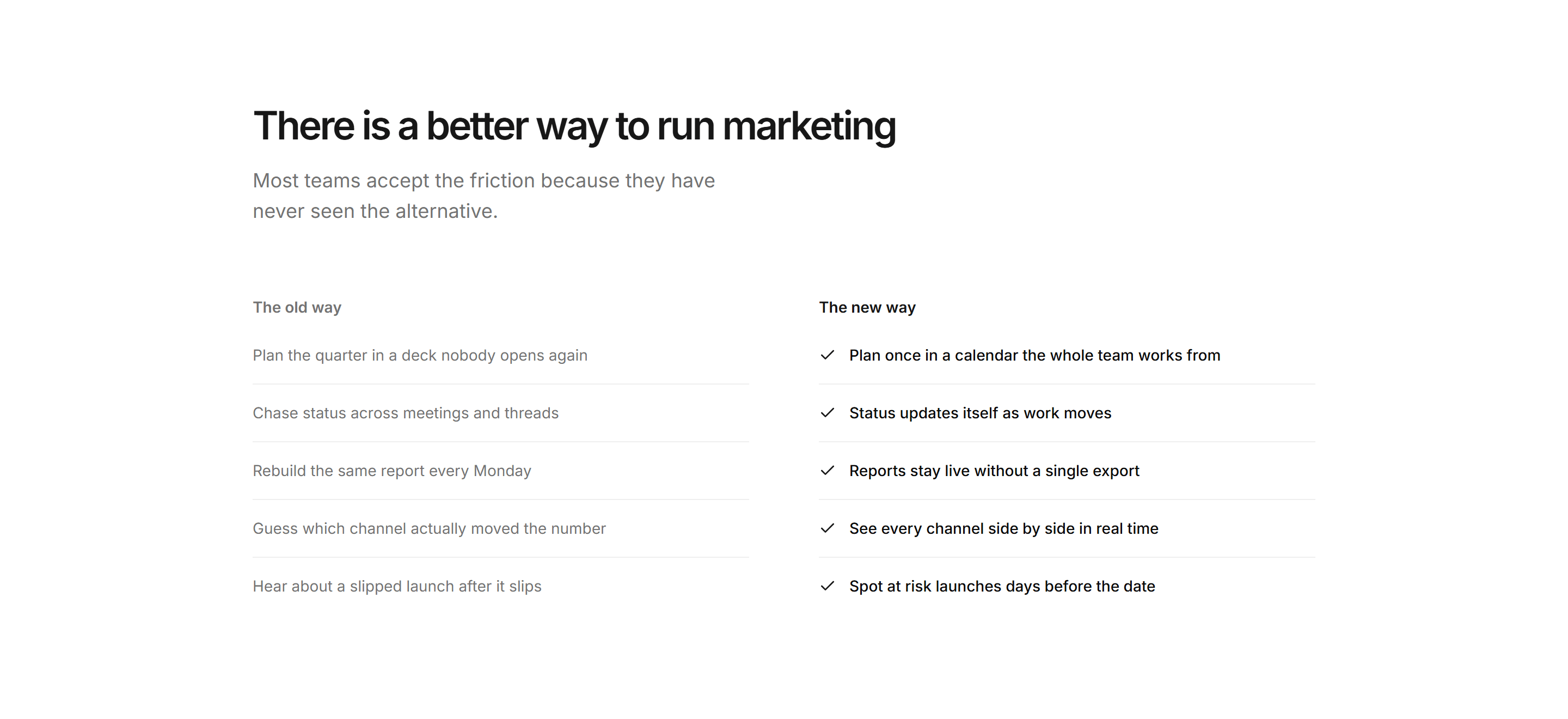
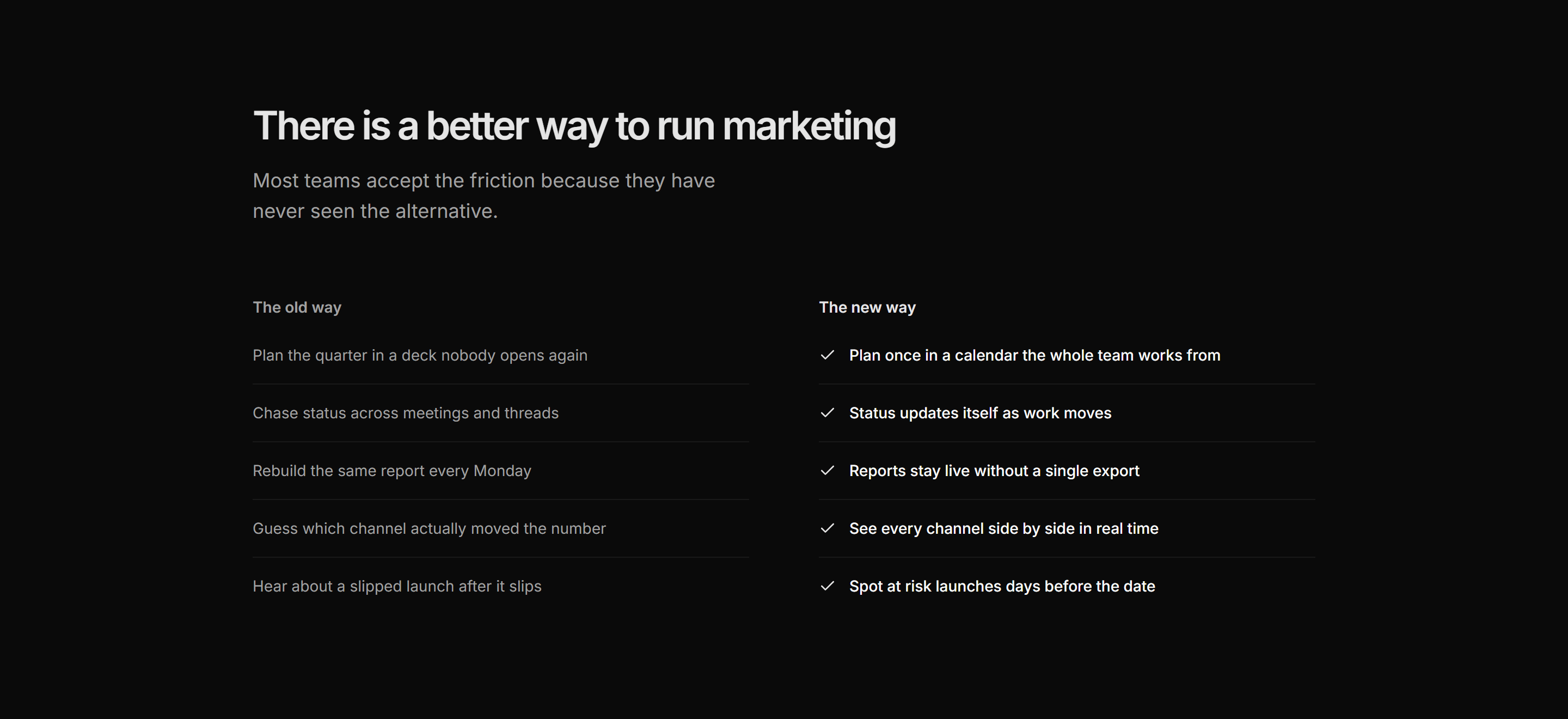
Marketing Pro Comparison: Old Way New Way
Editorial split contrasting a muted old way list with a confident checked new way list.
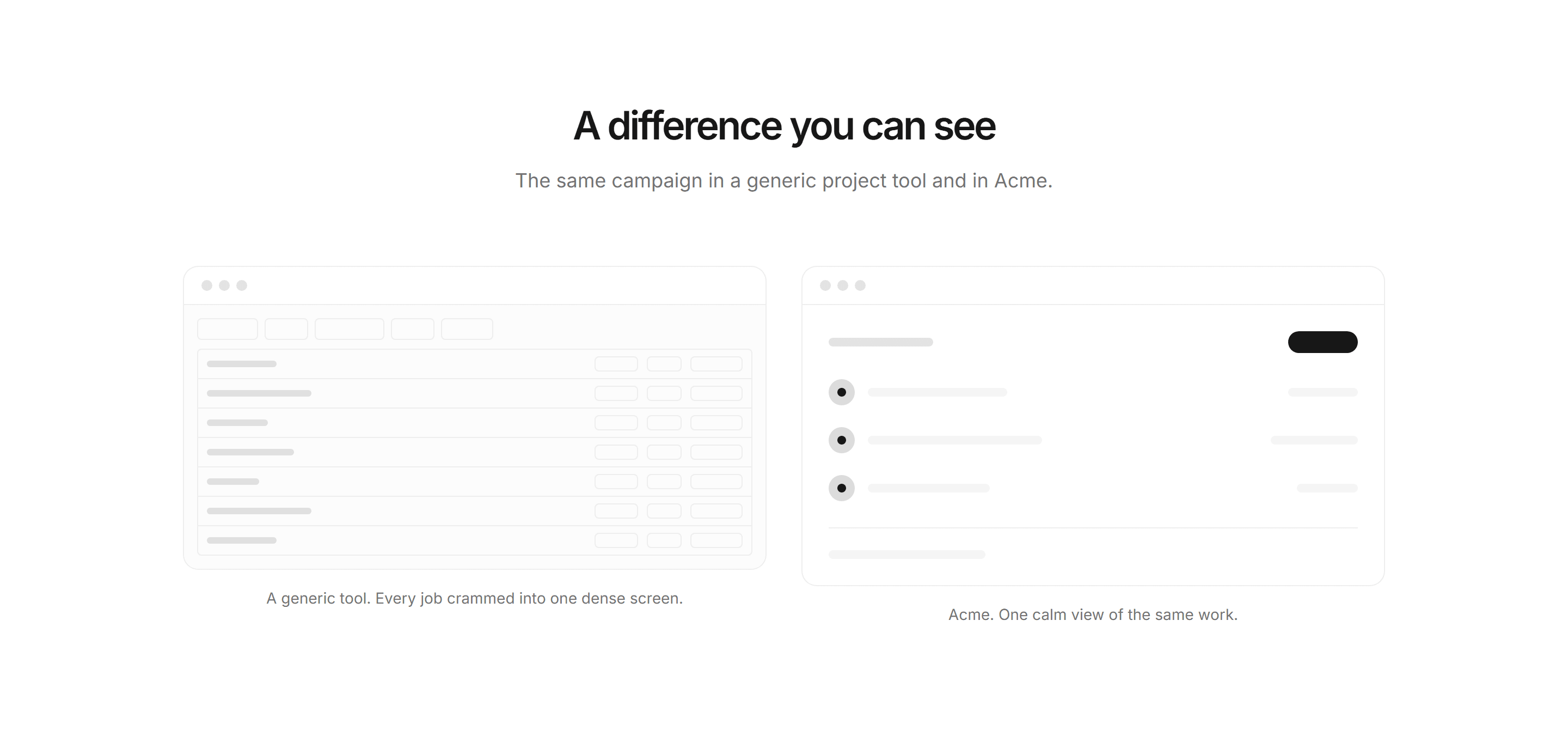
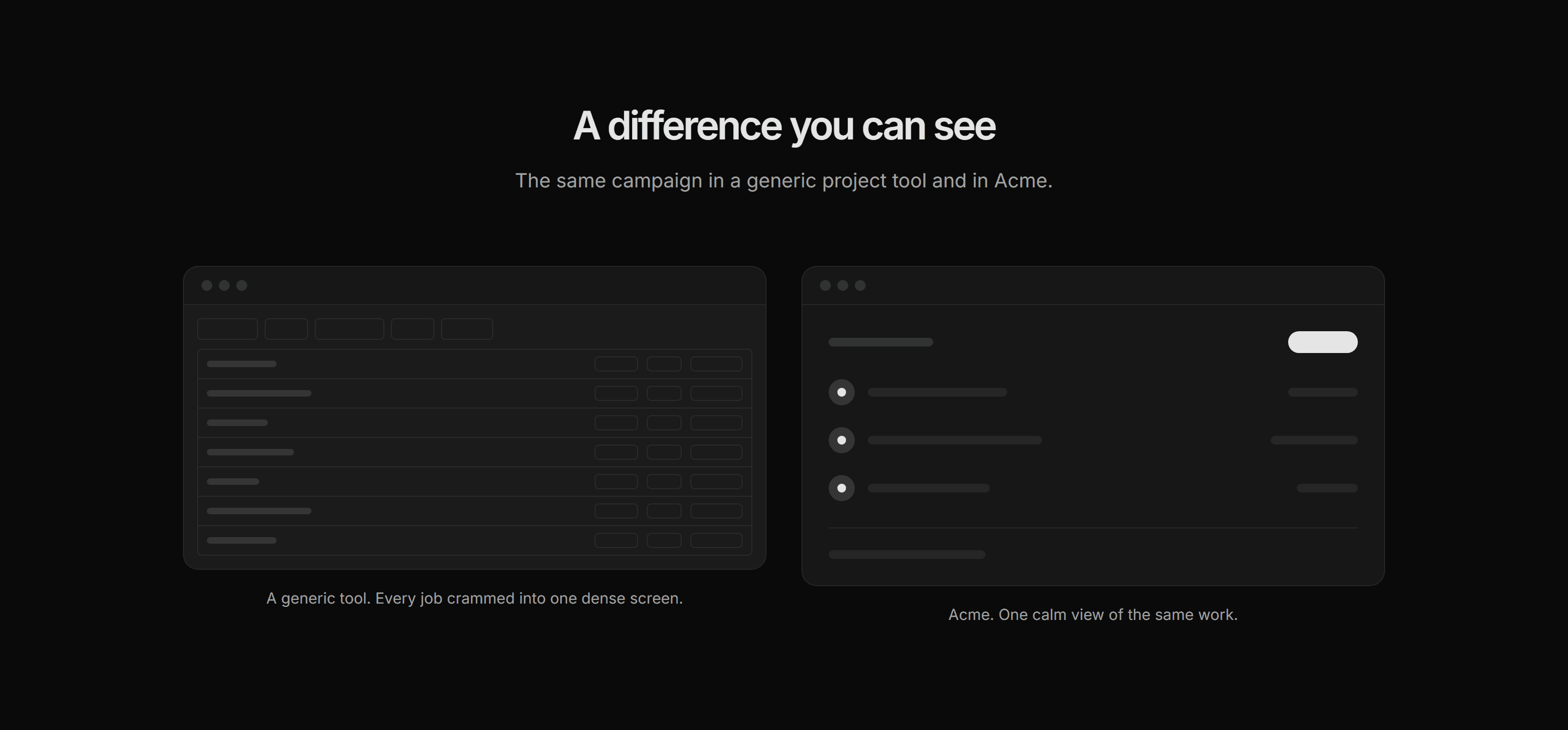
Marketing Pro Comparison: Side by Side Mockups
Two window mockups contrasting a cluttered generic tool with the calm product, captioned.
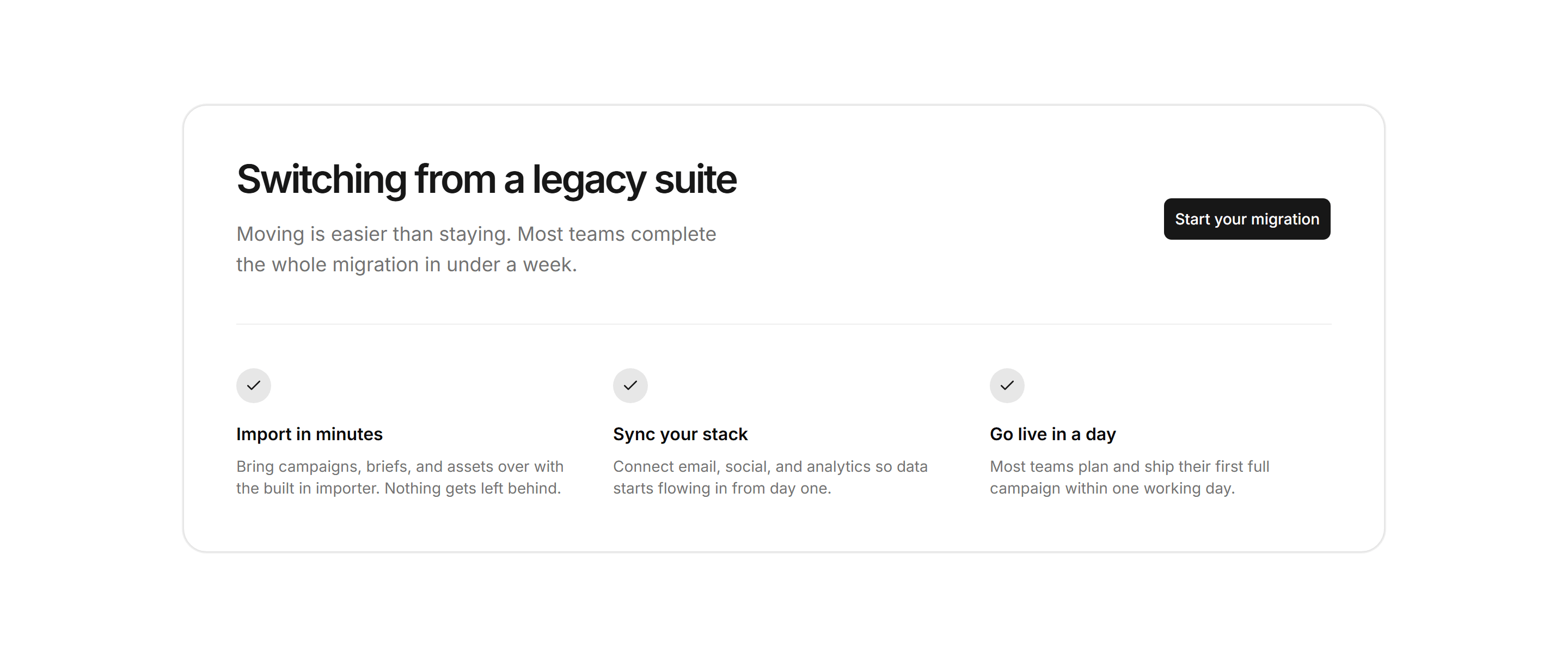
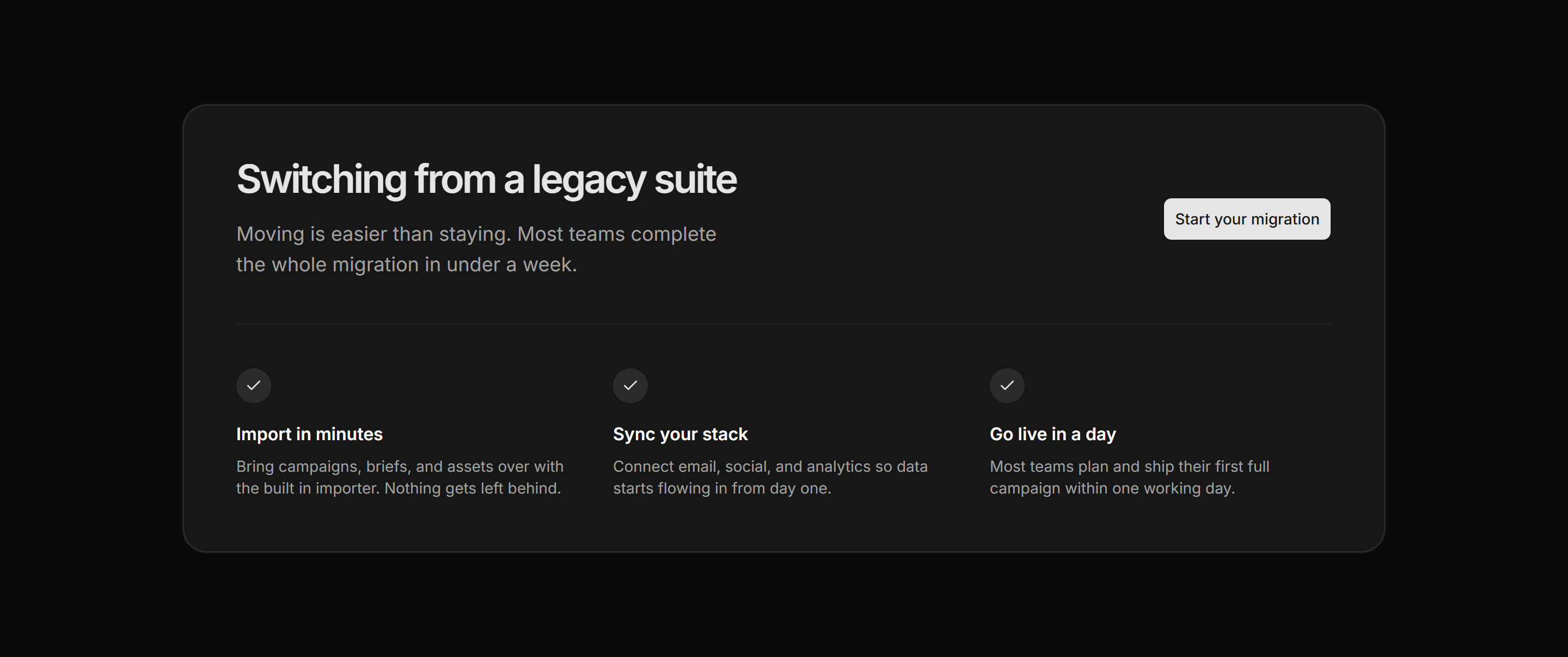
Marketing Pro Comparison: Switch Banner
Migration banner card with a heading, one call to action, and three checked steps below.
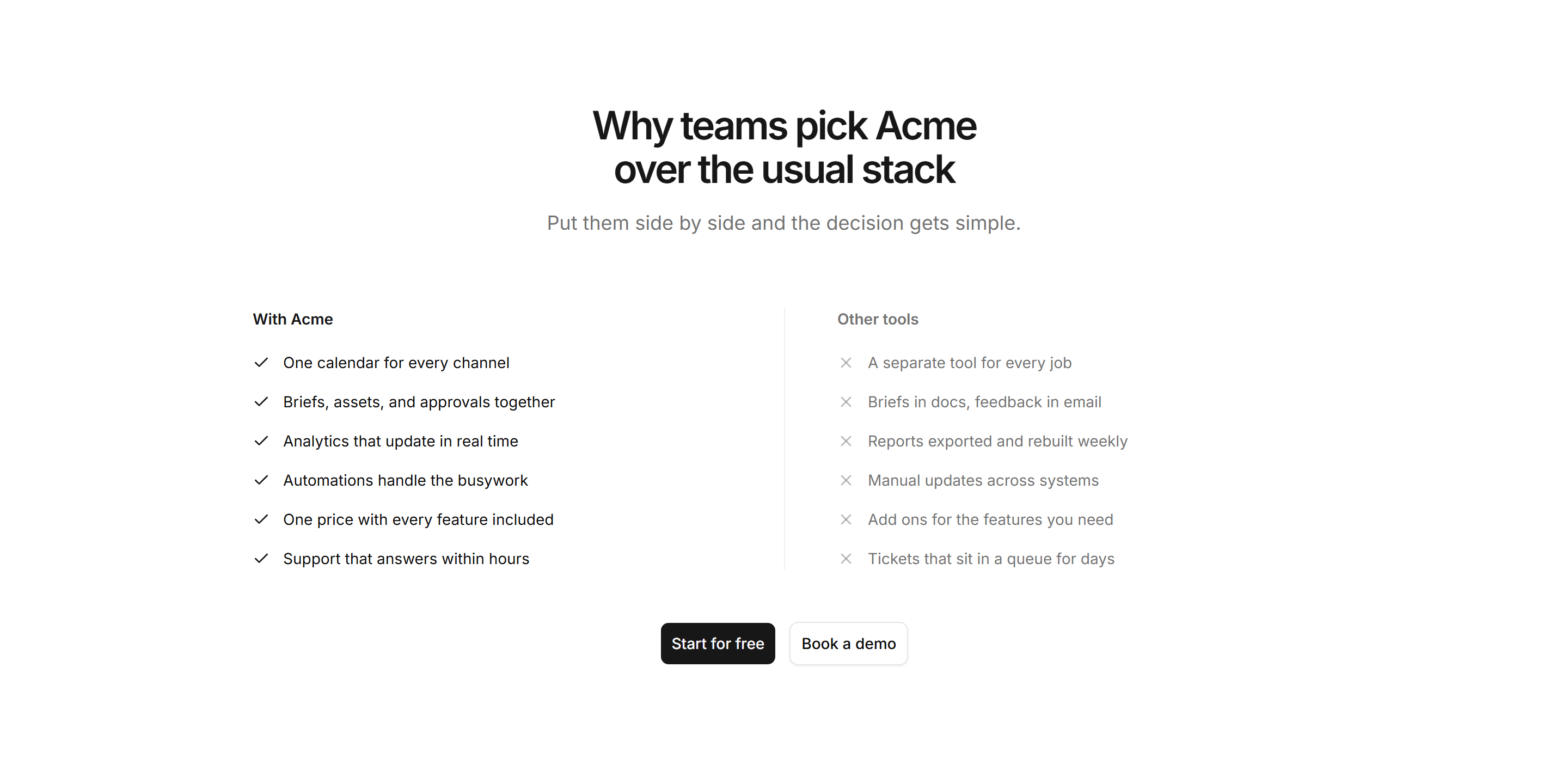
Marketing Pro Comparison: Us vs Them Split
Divided two column list pairing checked product strengths with crossed out competitor gaps.


Marketing Pro CTA: Banner With Avatars
Card banner with headline, overlapping avatar row, and a single primary button.
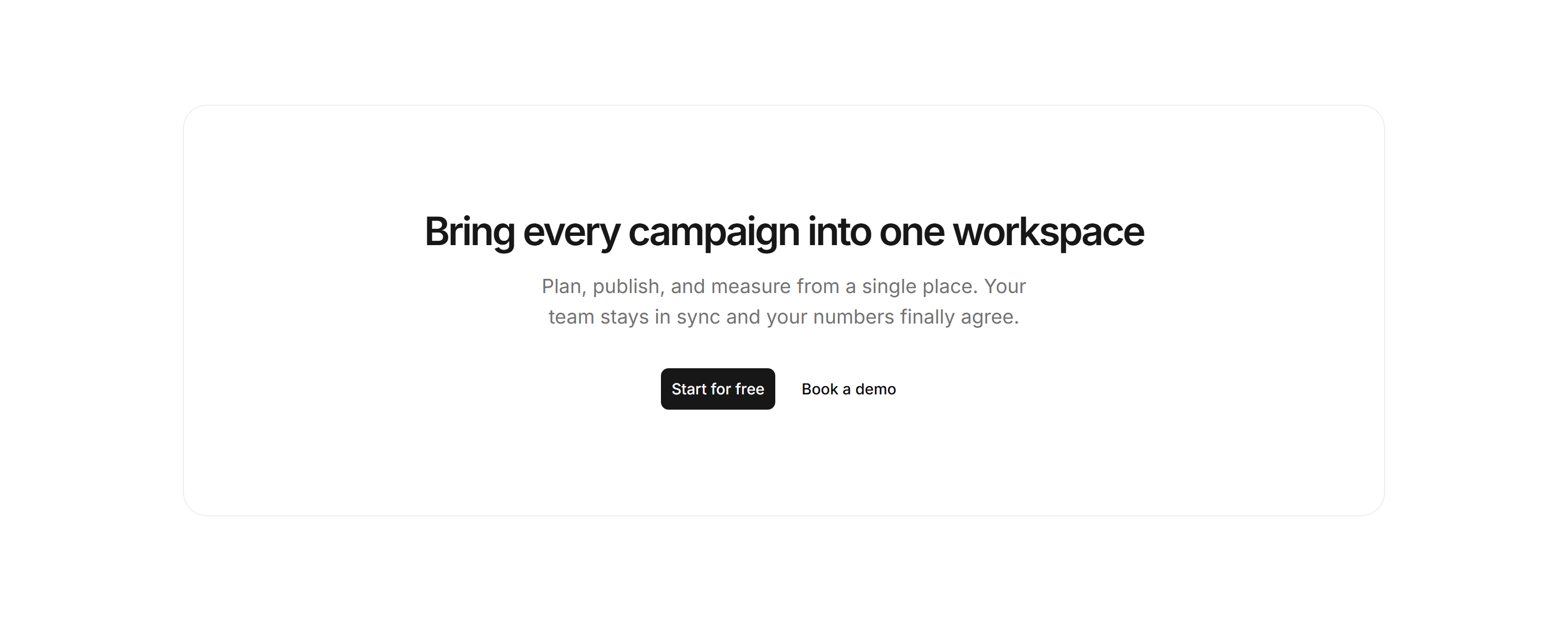
Marketing Pro CTA: Bordered Inset
Centered headline and buttons inside a large rounded border inset.


Marketing Pro CTA: Full Bleed Band
Full width primary band with headline, supporting line, and one inverted button.


Marketing Pro CTA: Minimal Inline
Slim ruled strip pairing a short headline with a single arrow text link.
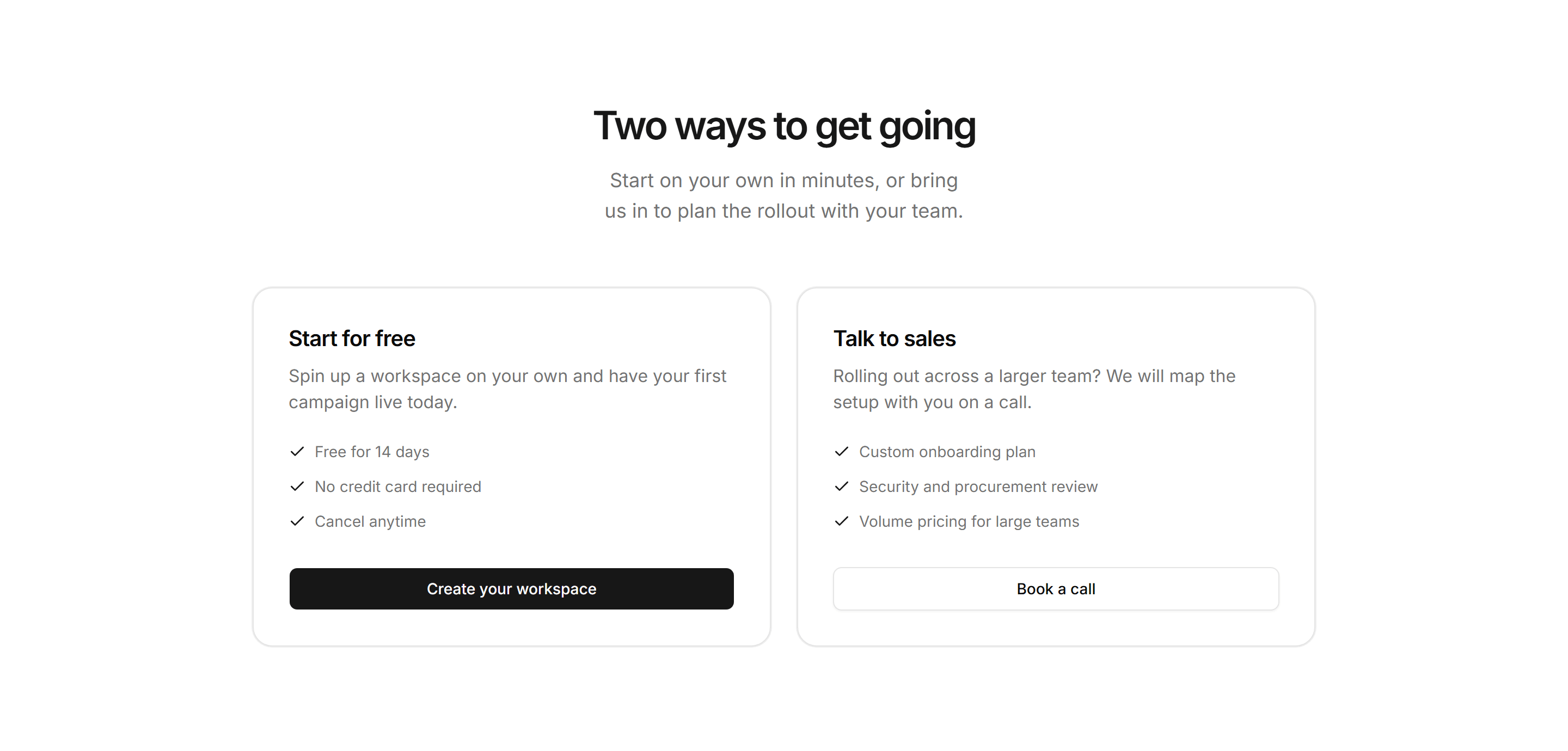
Marketing Pro CTA: Side By Side Cards
Two matched cards offering free trial and sales paths with checklists and buttons.
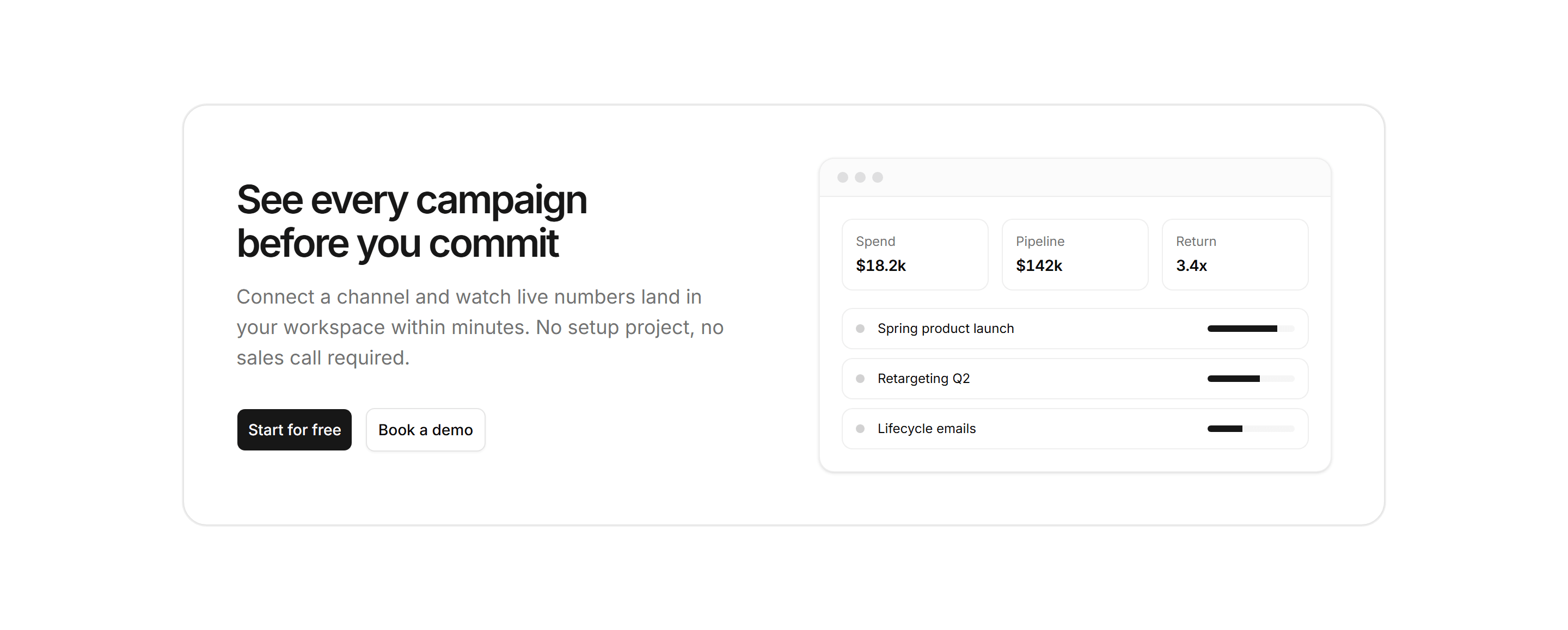
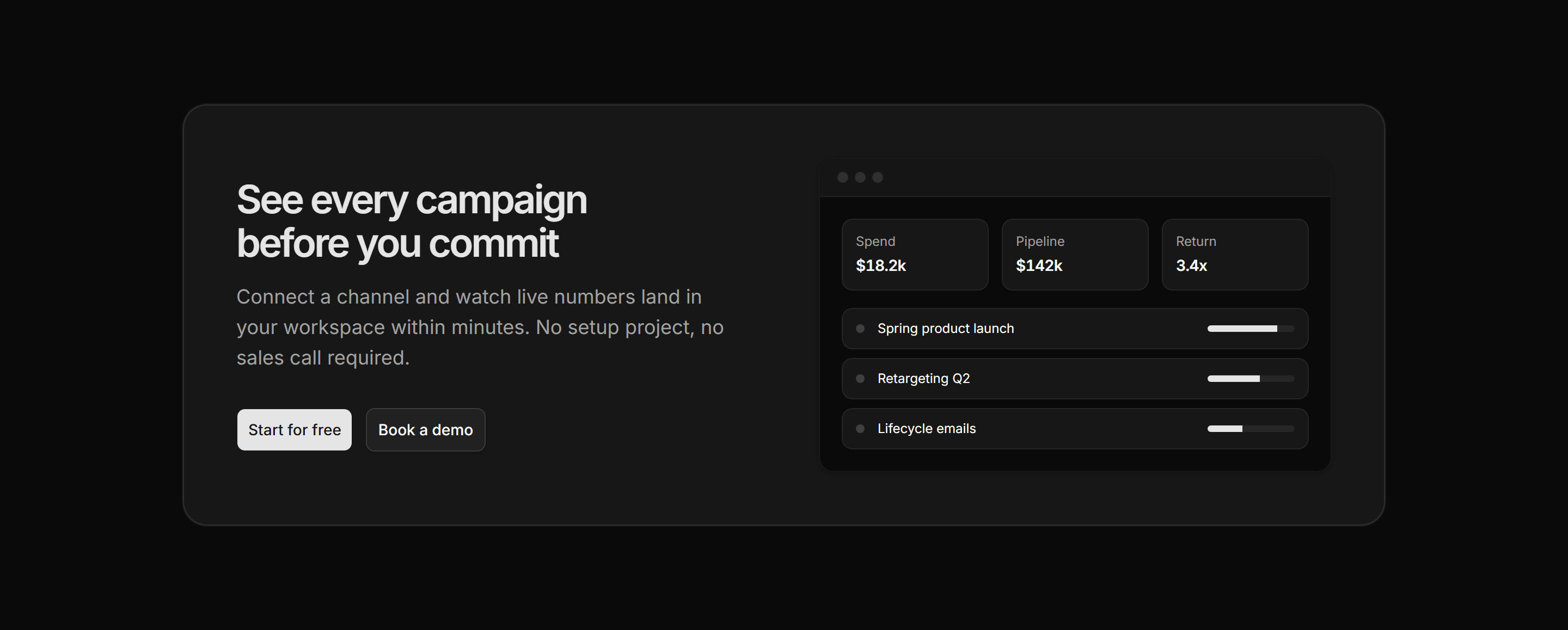
Marketing Pro CTA: Split With Mockup
Card split pairing CTA copy and buttons with a metrics dashboard mockup.
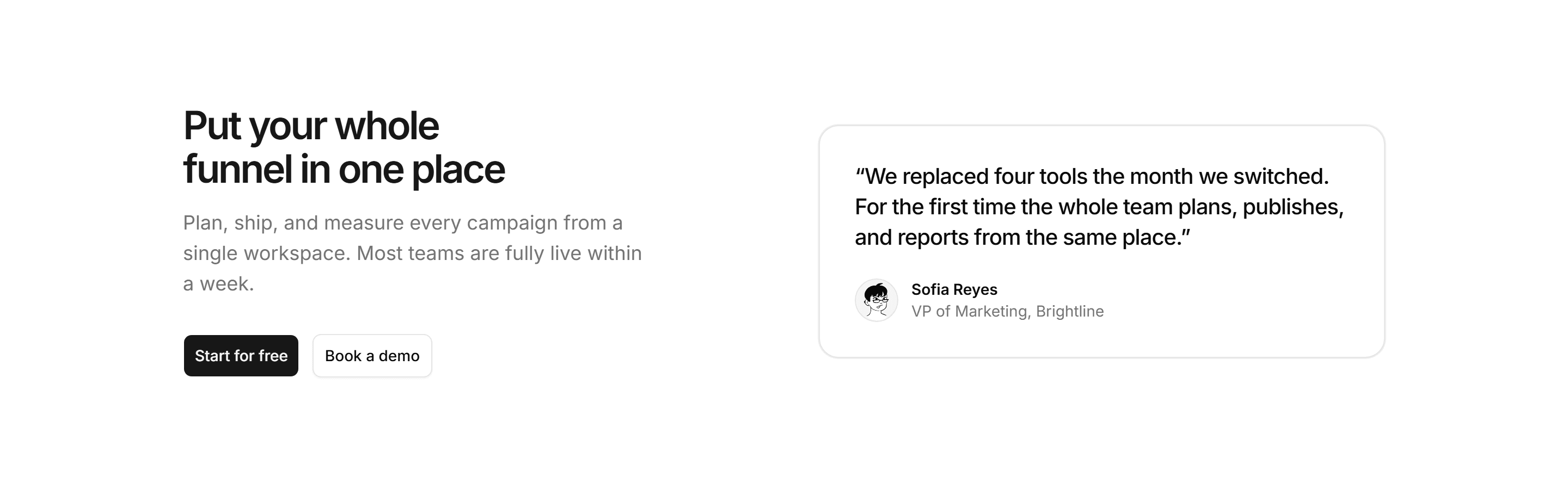
Marketing Pro CTA: Split With Quote
CTA copy and buttons beside a customer quote card with a matching avatar.


Marketing Pro CTA: With App Badges
Centered mobile pitch with App Store and Google Play download buttons.
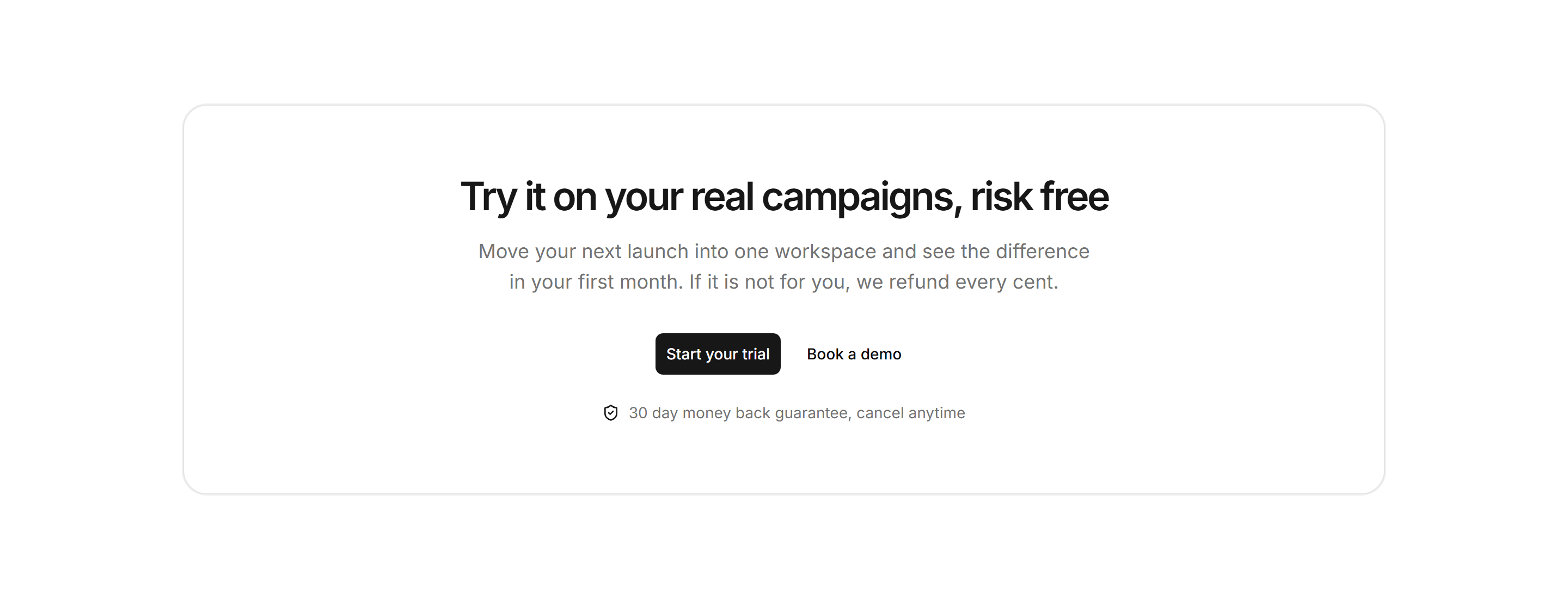
Marketing Pro CTA: With Guarantee
Centered card CTA with buttons and a money back guarantee reassurance line.
Marketing Pro CTA: With Stats
Centered CTA copy and buttons above a divided grid of three proof stats.
Marketing Pro FAQ: Accordion With Links
Accordion beside a bordered card of documentation, community, and support links.
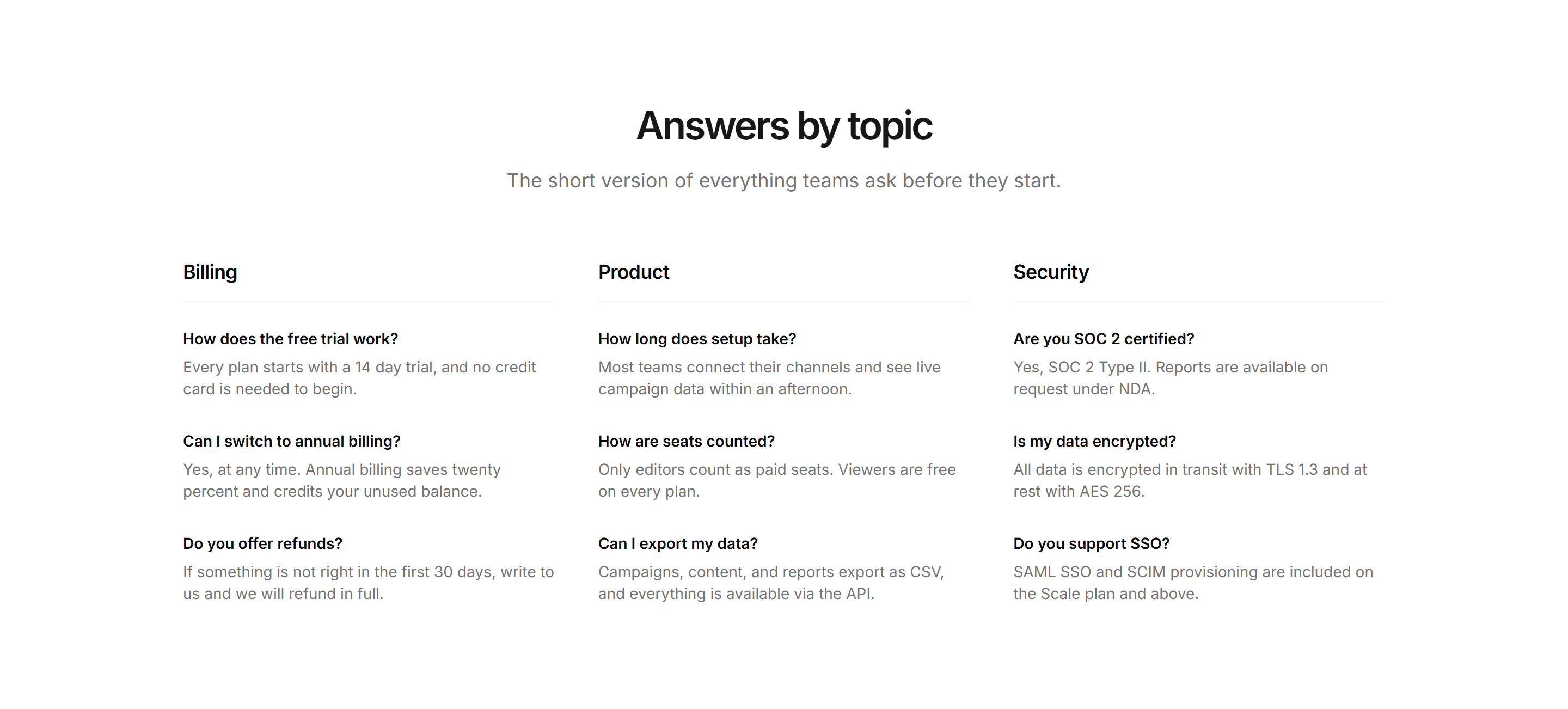
Marketing Pro FAQ: Category Columns
Three topic columns for billing, product, and security with short plain text answers.
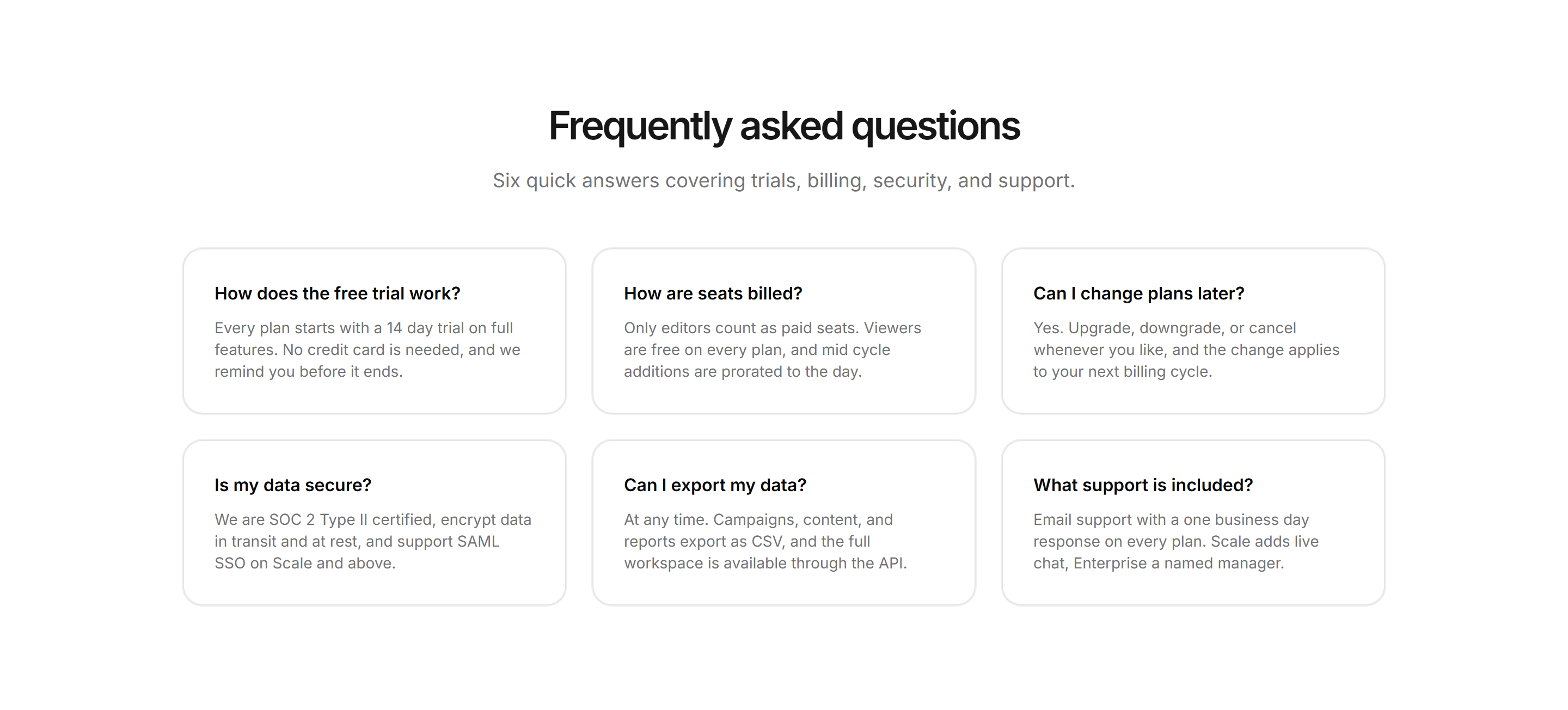
Marketing Pro FAQ: FAQ Cards Grid
Six bordered cards in a responsive grid, each pairing one question with a short answer.
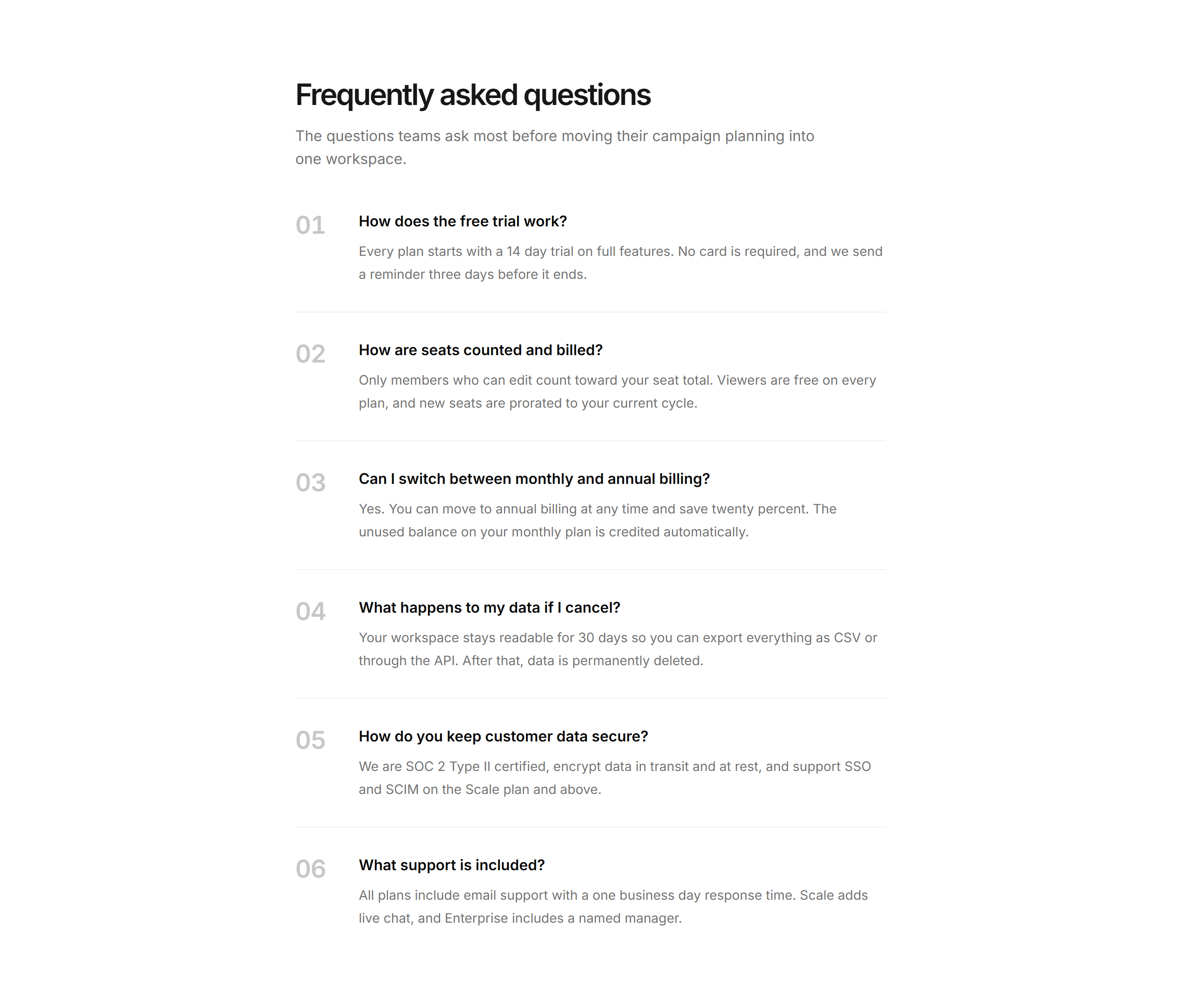
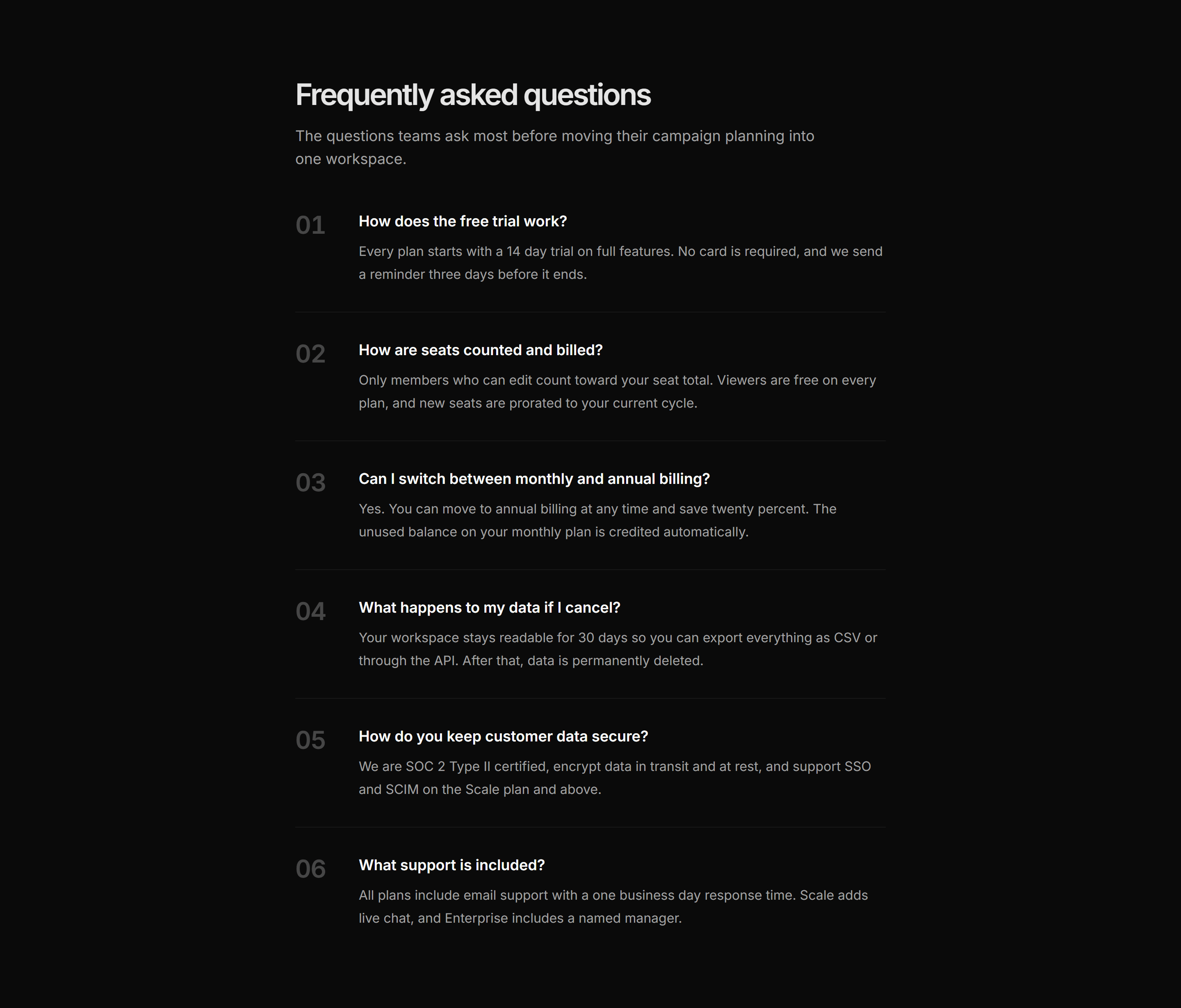
Marketing Pro FAQ: Numbered List
Editorial Q&A list with large muted numerals beside each question and hairline dividers.
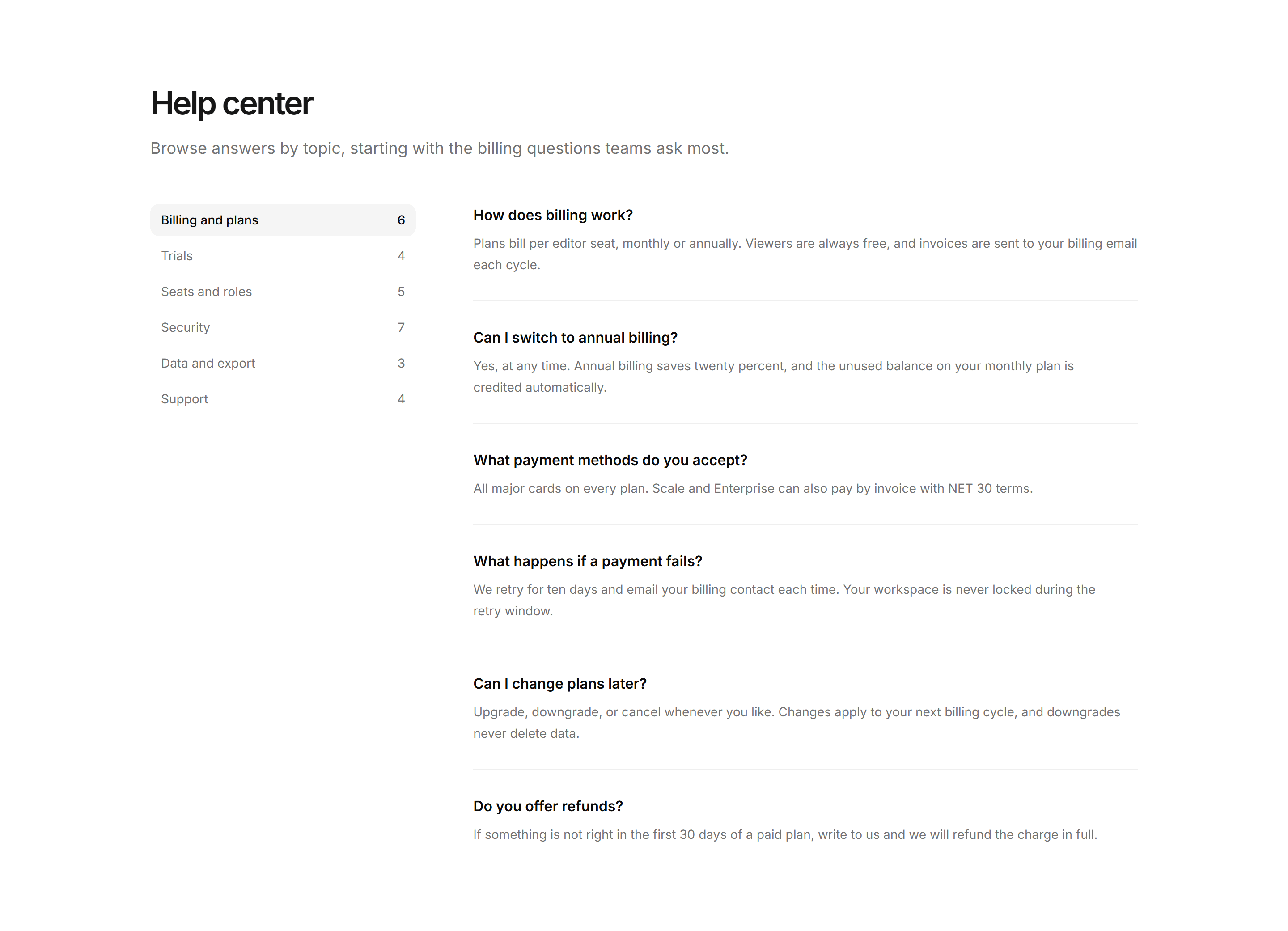
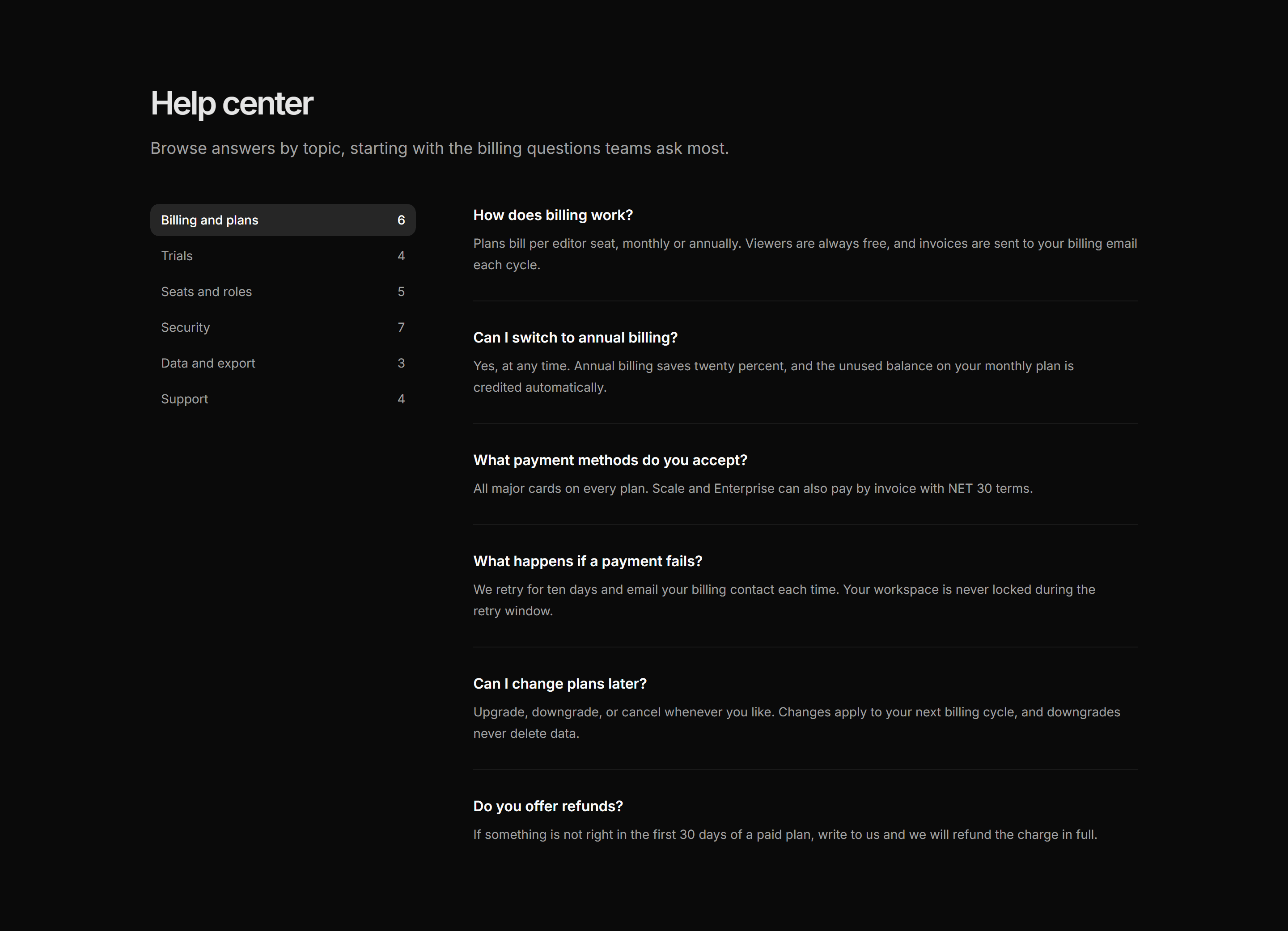
Marketing Pro FAQ: Sidebar Topics
Static topic list with counts beside a flat divided list of billing questions.
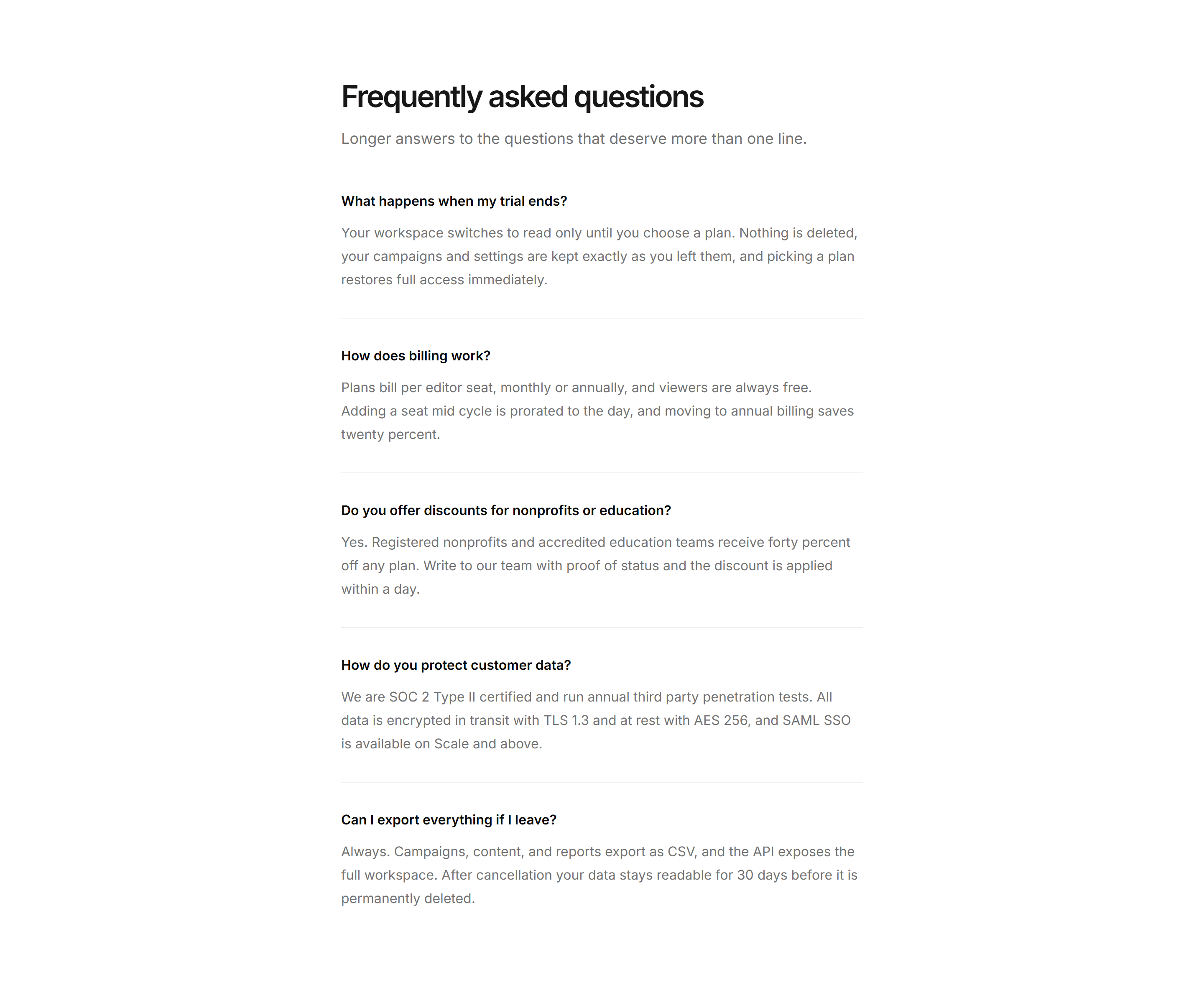
Marketing Pro FAQ: Single Column Prose
Narrow centered column of stacked Q&As in calm prose separated by hairlines.
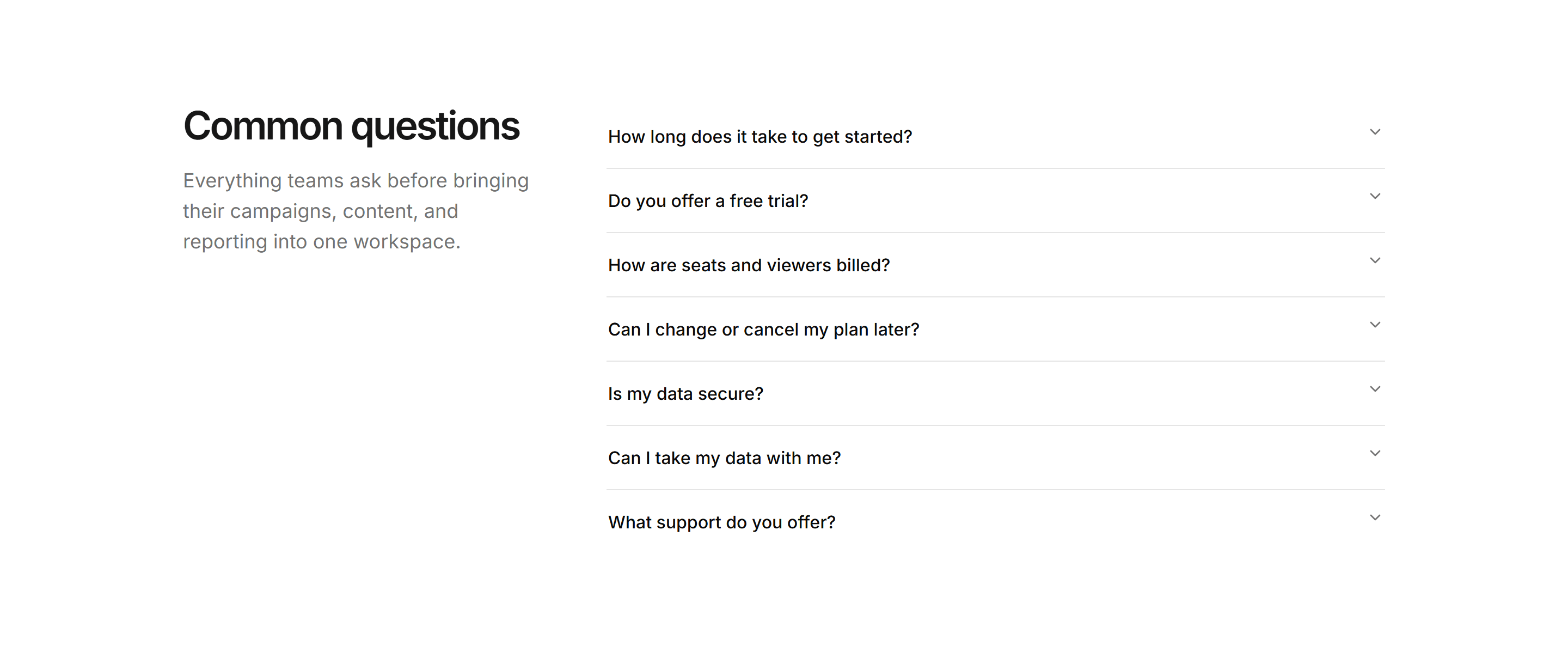
Marketing Pro FAQ: Split Headline Accordion
Sticky heading and lede in the left third with the accordion filling the right two thirds.
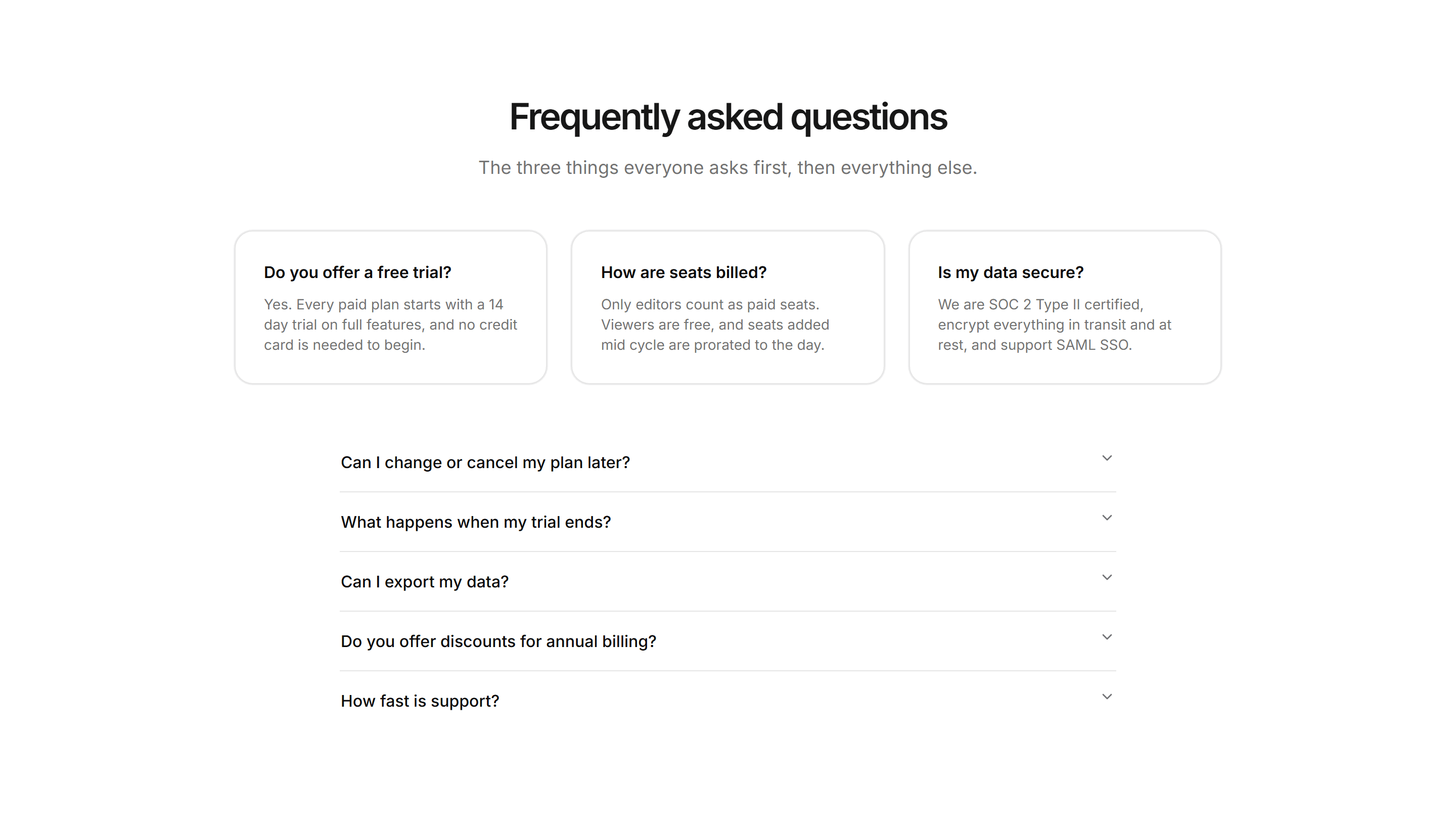
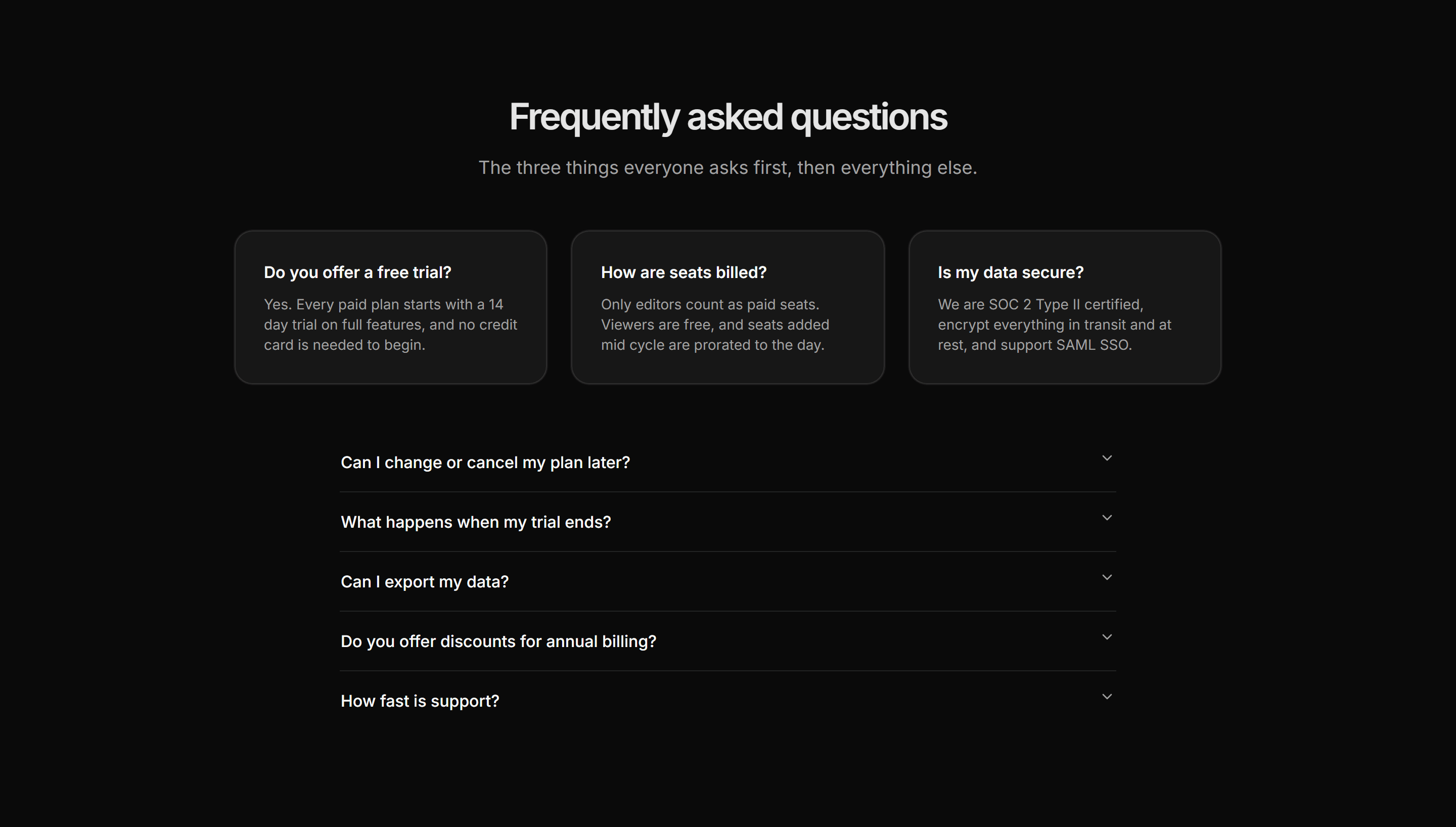
Marketing Pro FAQ: Top Questions Plus All
Three featured question cards above an accordion holding the remaining answers.
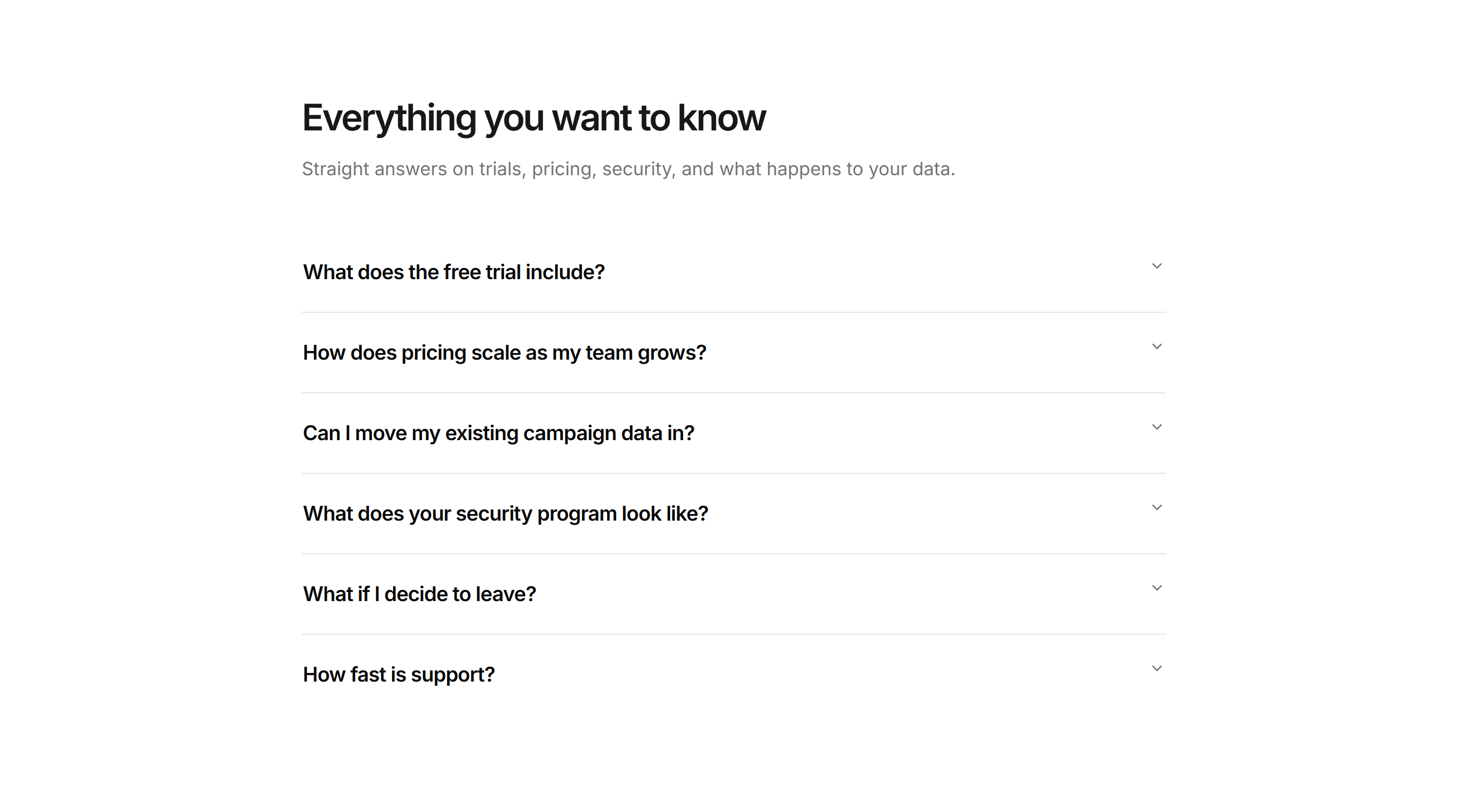
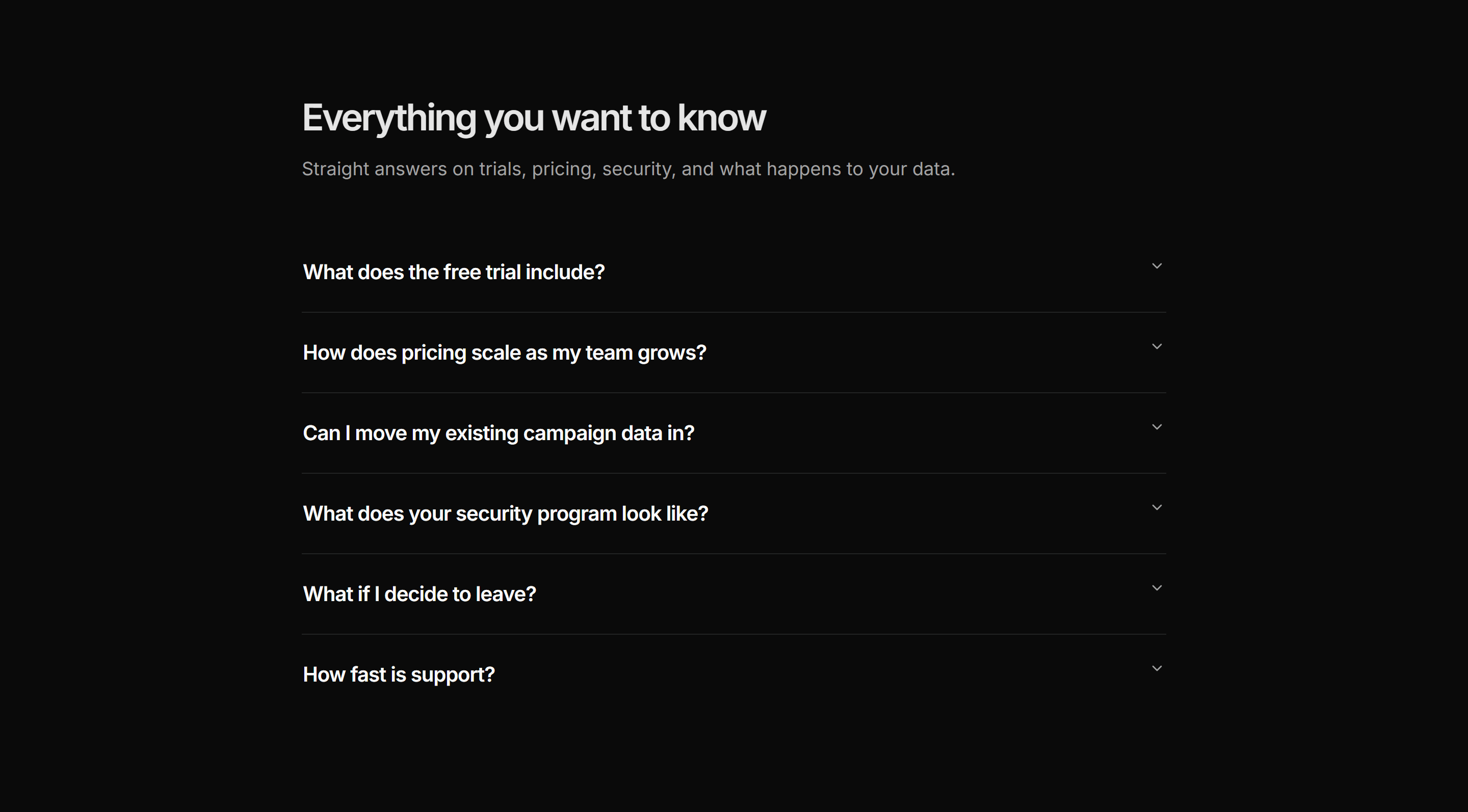
Marketing Pro FAQ: Wide Accordion Bold
Full width accordion with oversized question typography for confident scanning.
Marketing Pro FAQ: With CTA Banner
Centered accordion above a slim bordered contact band with an outline support button.
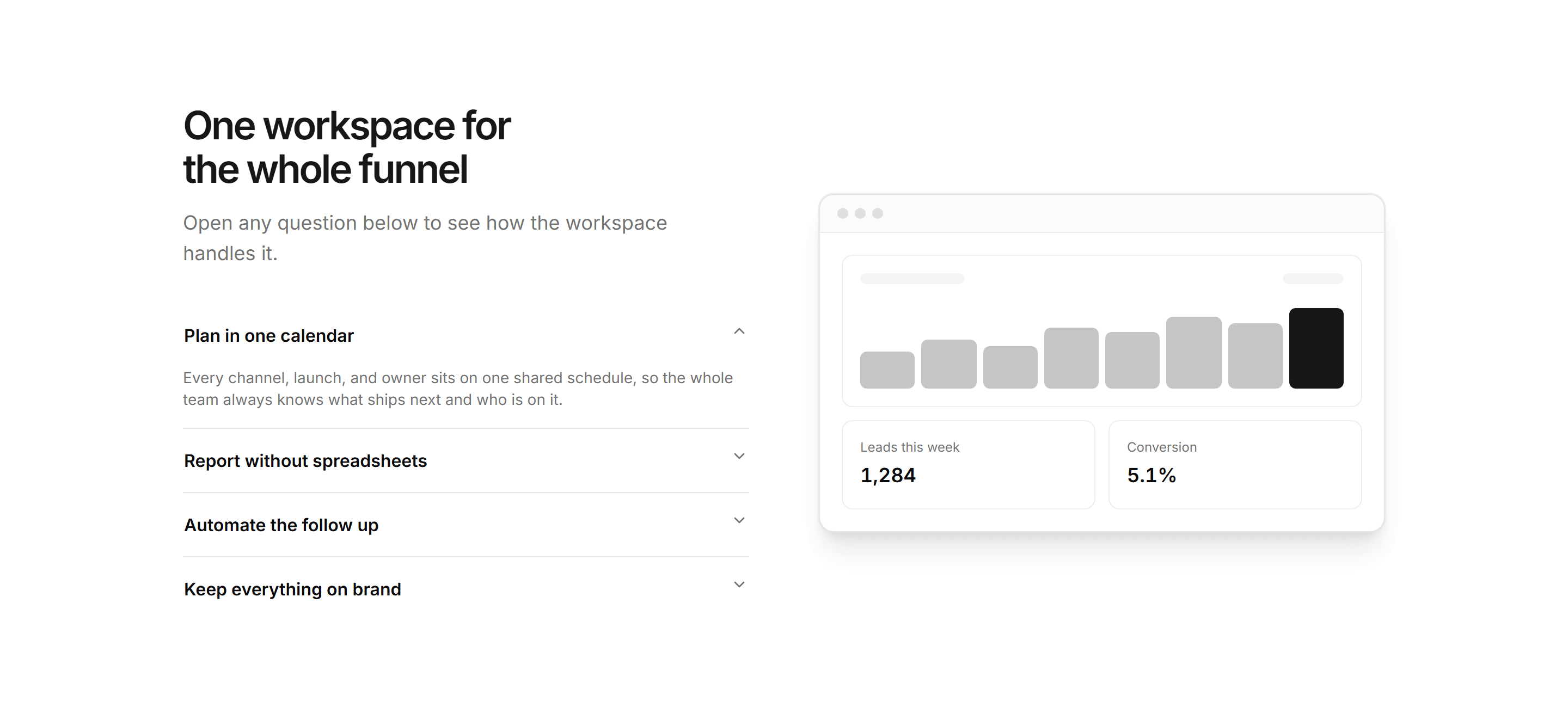
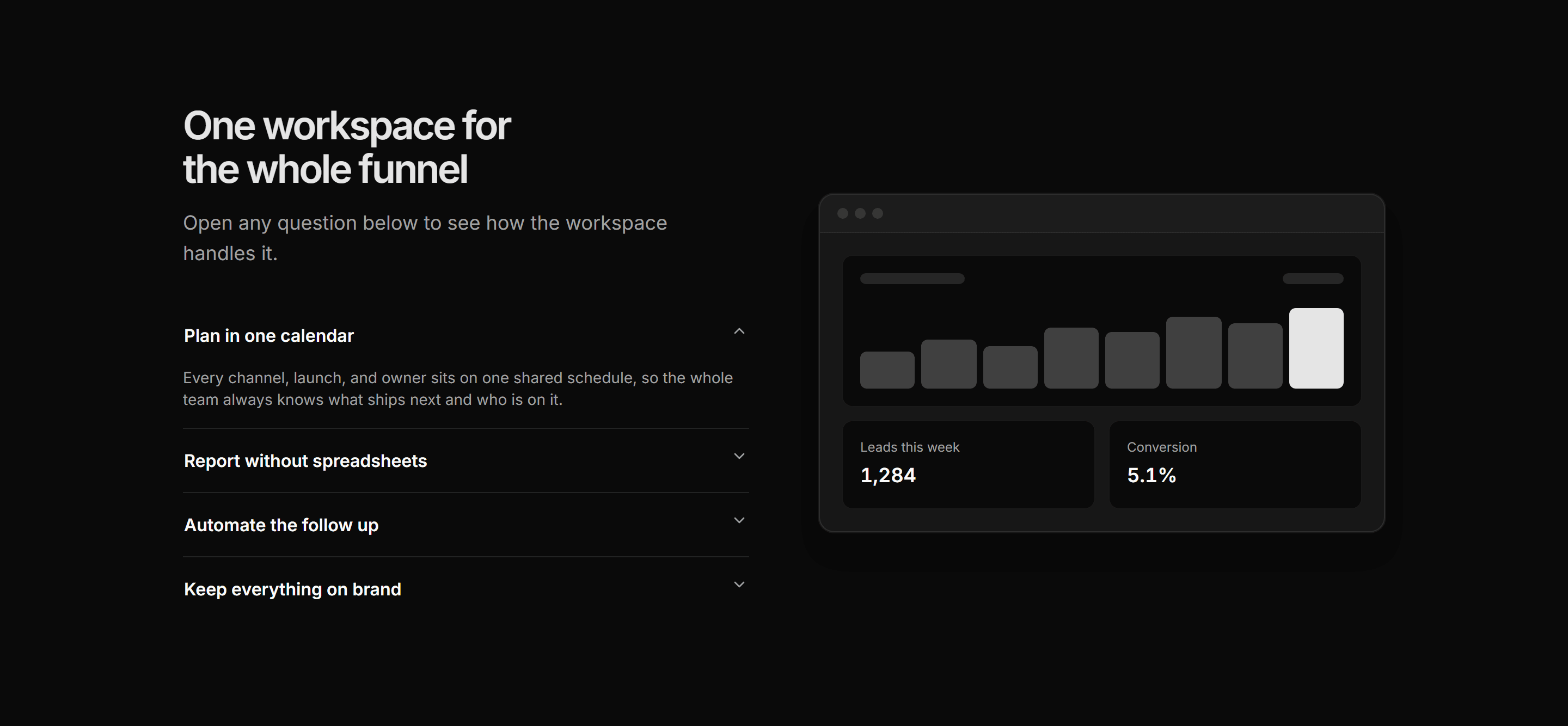
Marketing Pro Feature: Accordion With Preview
Single open accordion of features paired with an analytics preview window.
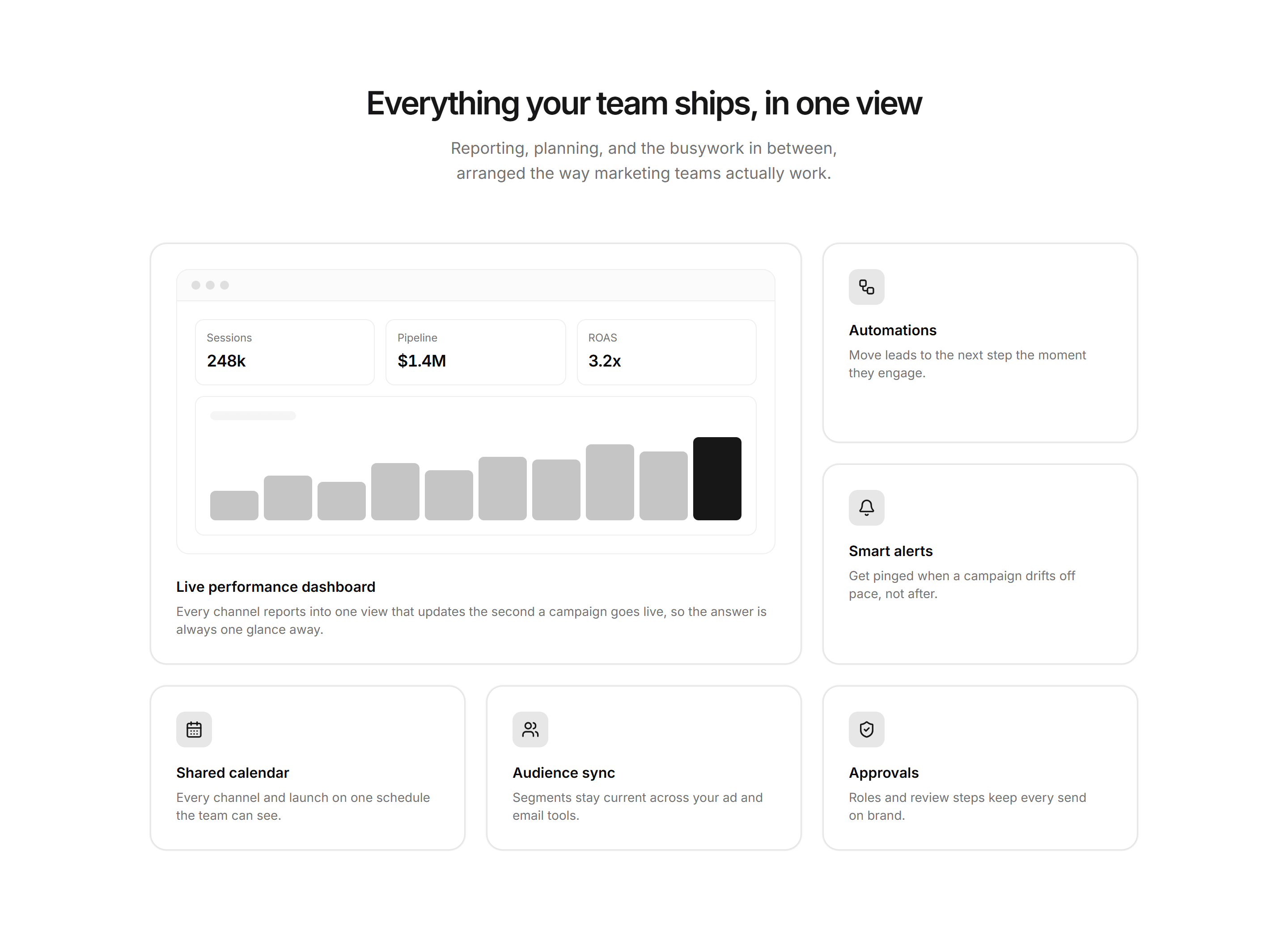
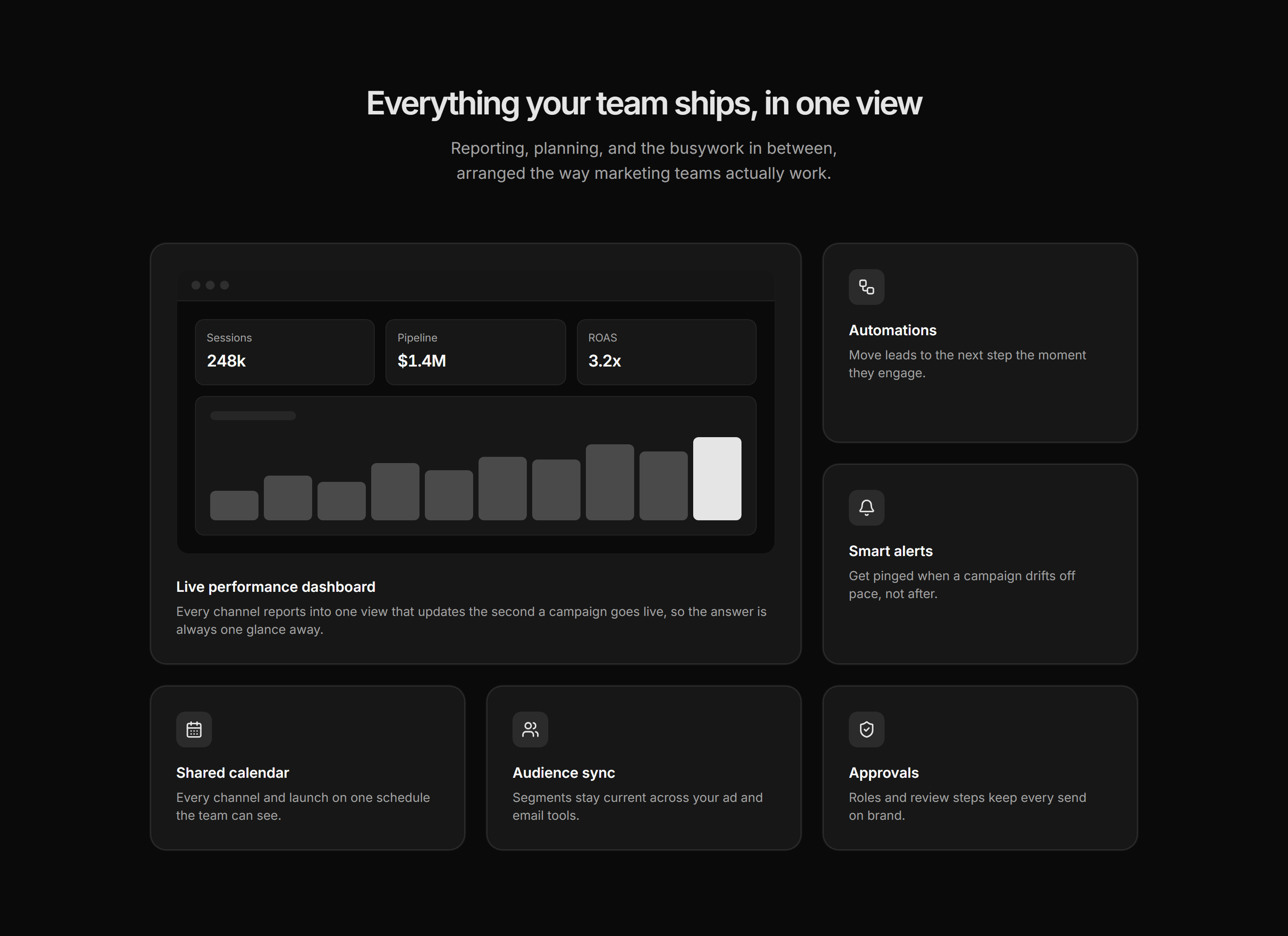
Marketing Pro Feature: Bento Grid
Centered intro above a bento of one large dashboard card and five smaller icon tiles.
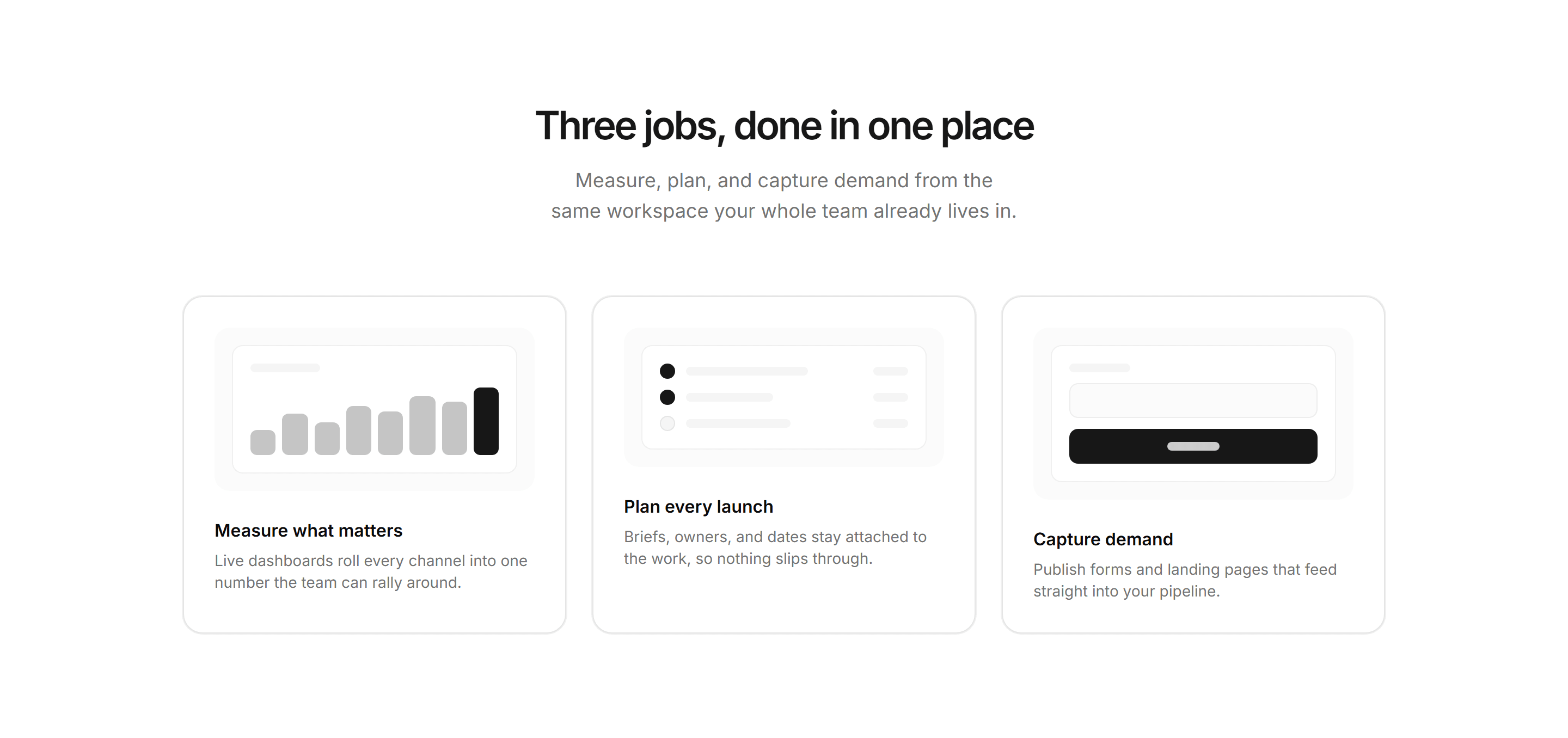
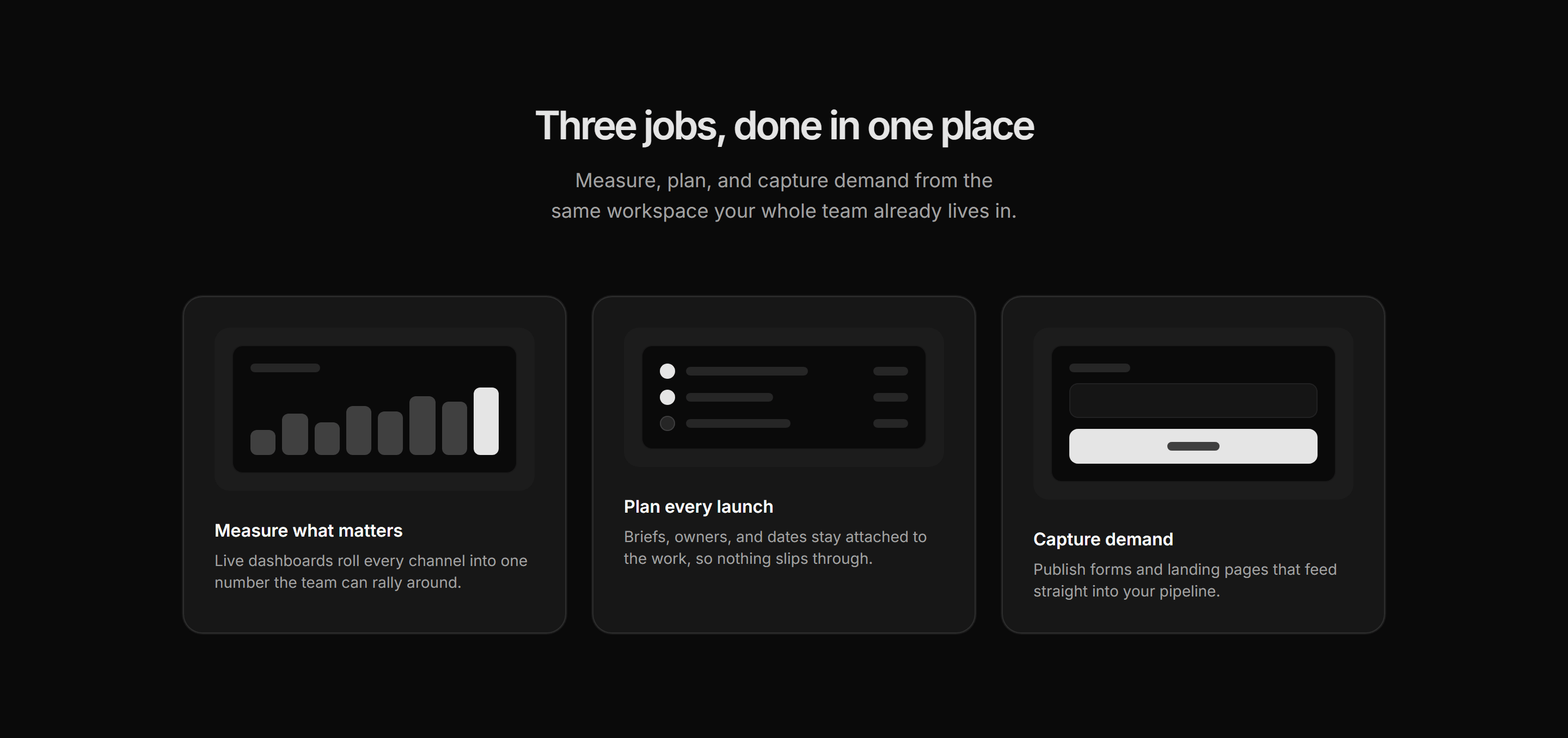
Marketing Pro Feature: Cards With Mockups
Three feature cards, each topped with a small chart, list, or form mockup.
Marketing Pro Feature: Centered Rows
Narrow centered column of four icon feature rows separated by dividers.
Marketing Pro Feature: Compact Two Column
Centered heading over a tight two column list of eight checkmarked essentials.


Marketing Pro Feature: Icon Grid Six
Centered heading over a three column grid of six icon led feature blurbs.
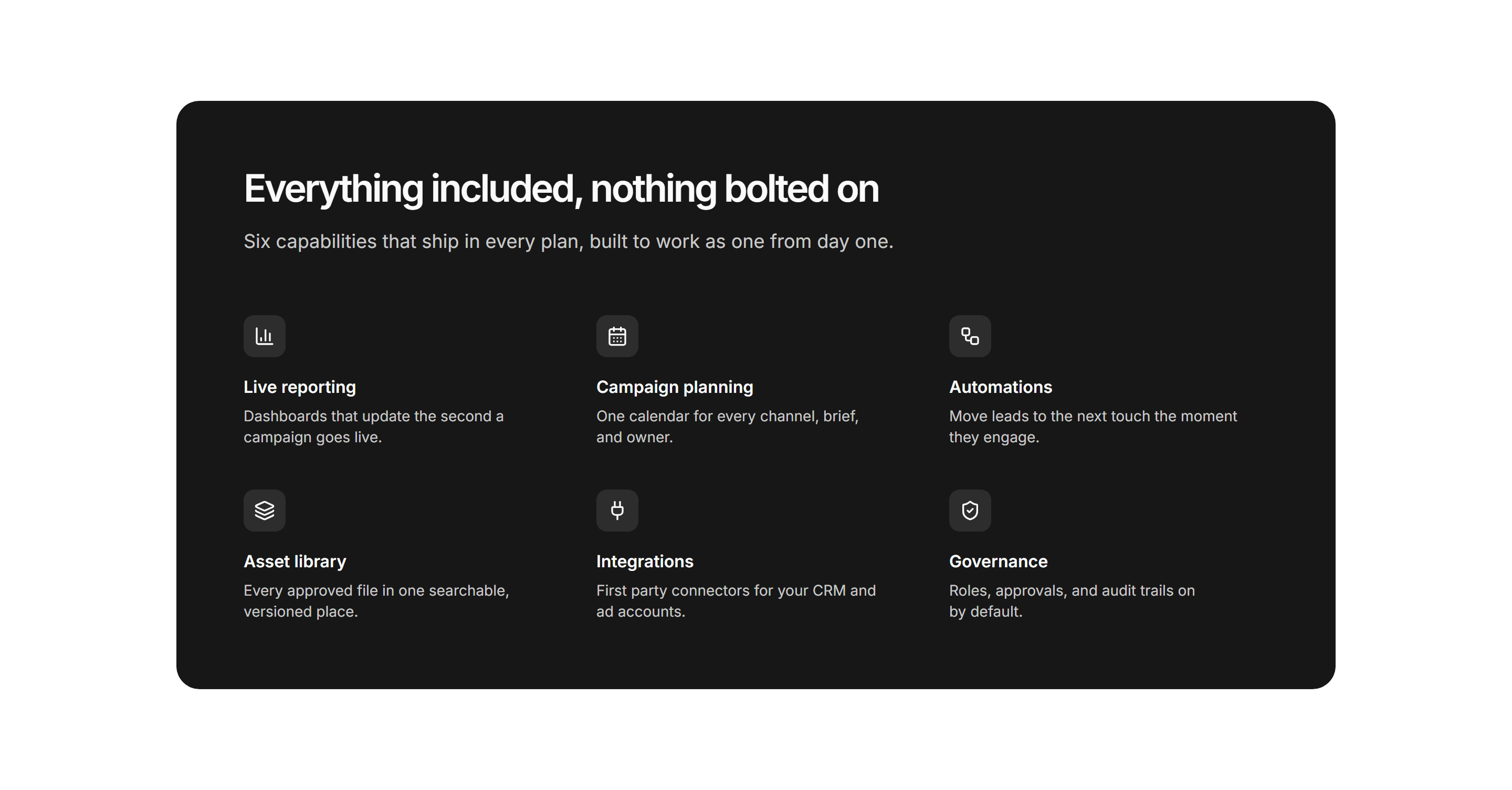
Marketing Pro Feature: Solid Panel Grid
Solid primary panel holding a heading and a six tile icon feature grid.
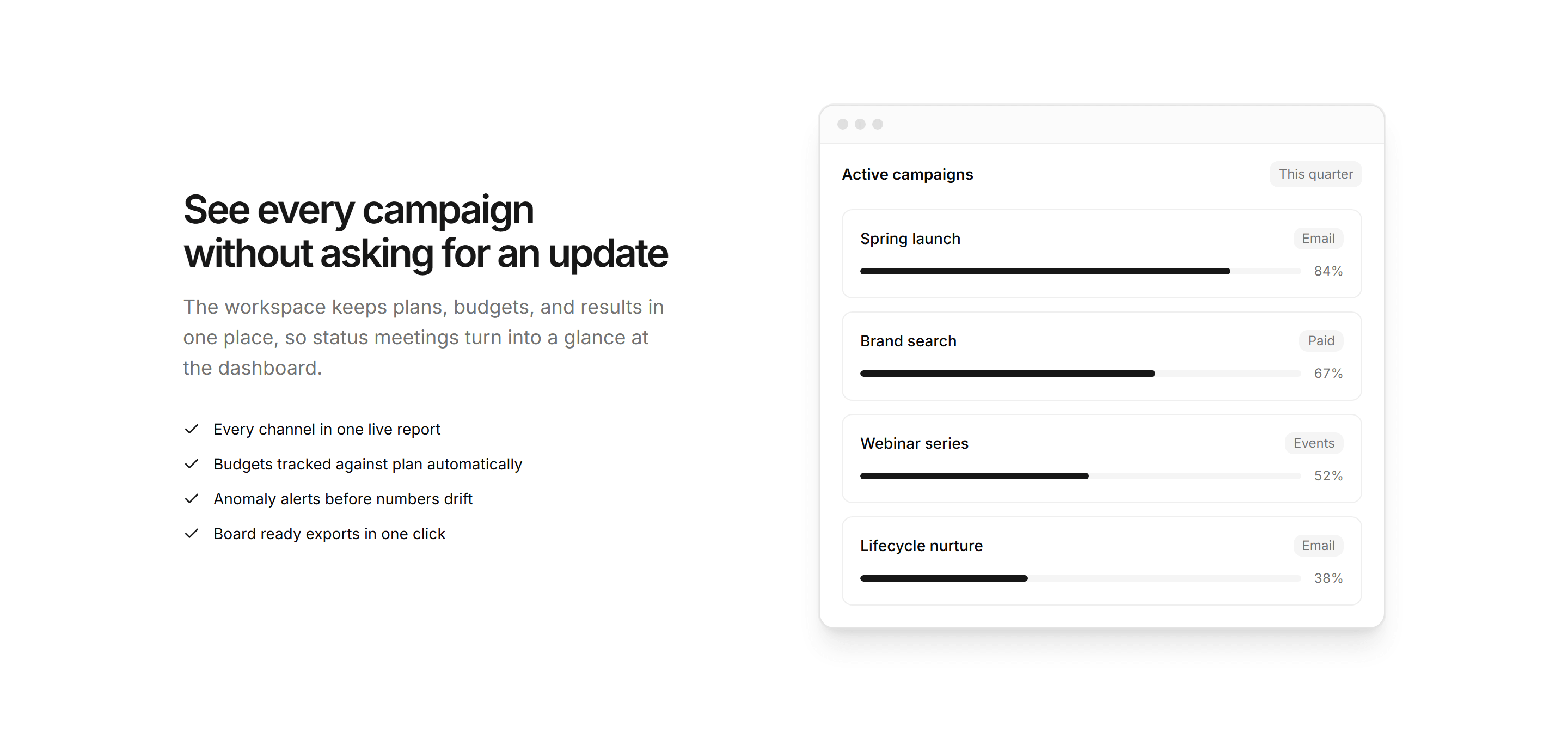
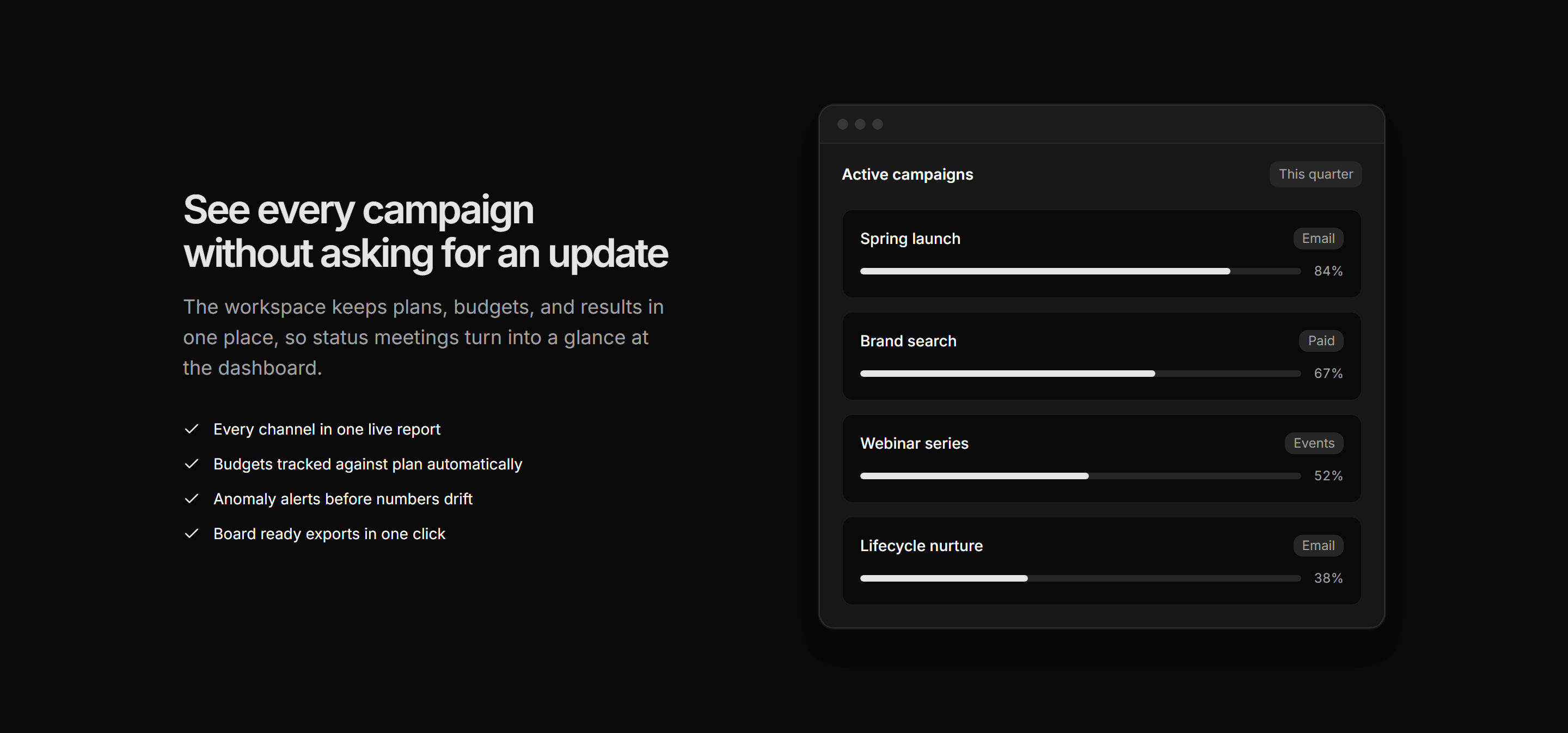
Marketing Pro Feature: Split With App Window
Heading and checklist beside a campaign window mockup with live progress bars.
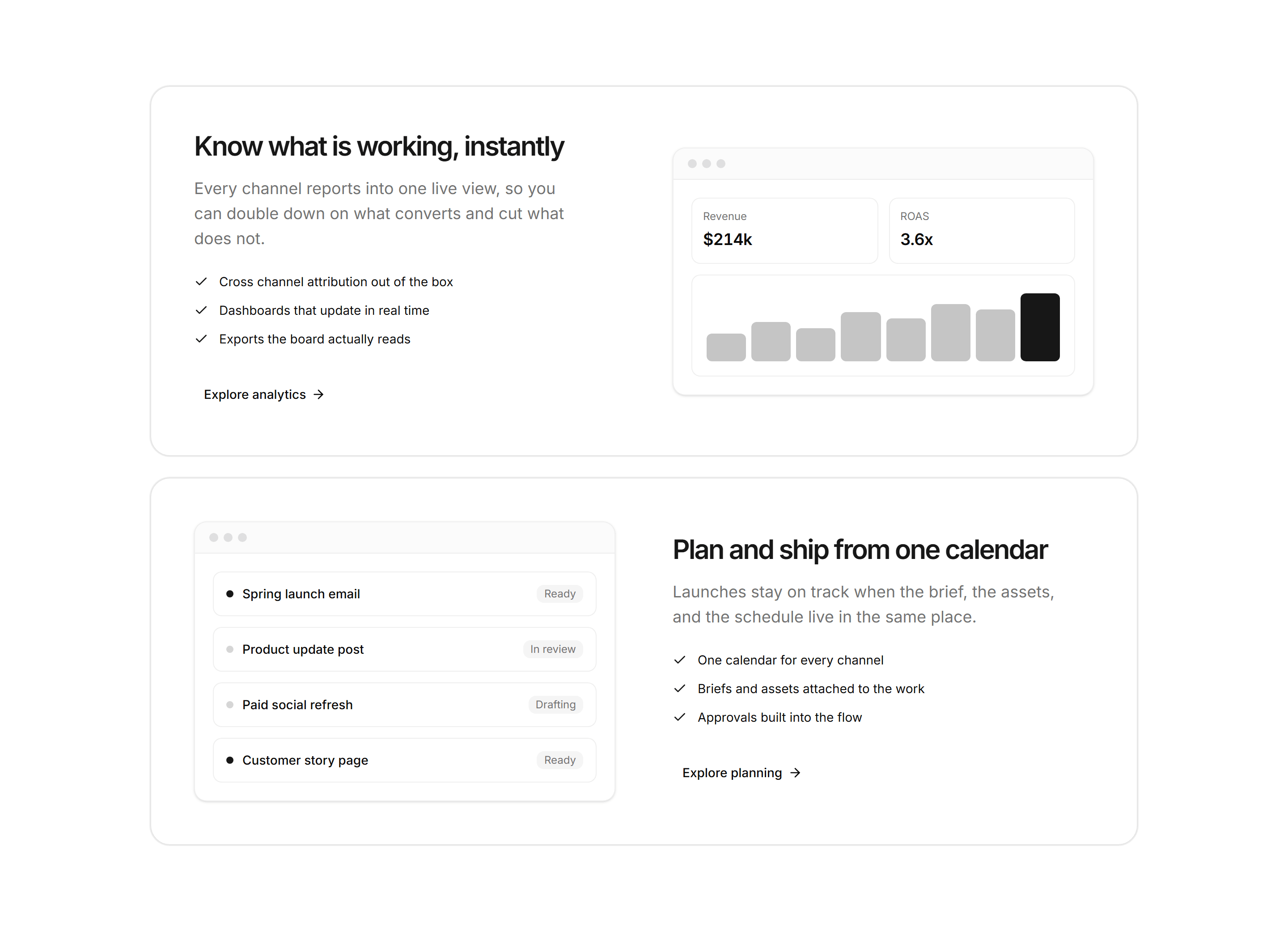
Marketing Pro Feature: Stacked Panels
Two stacked split panels pairing copy and checklists with app window mockups.
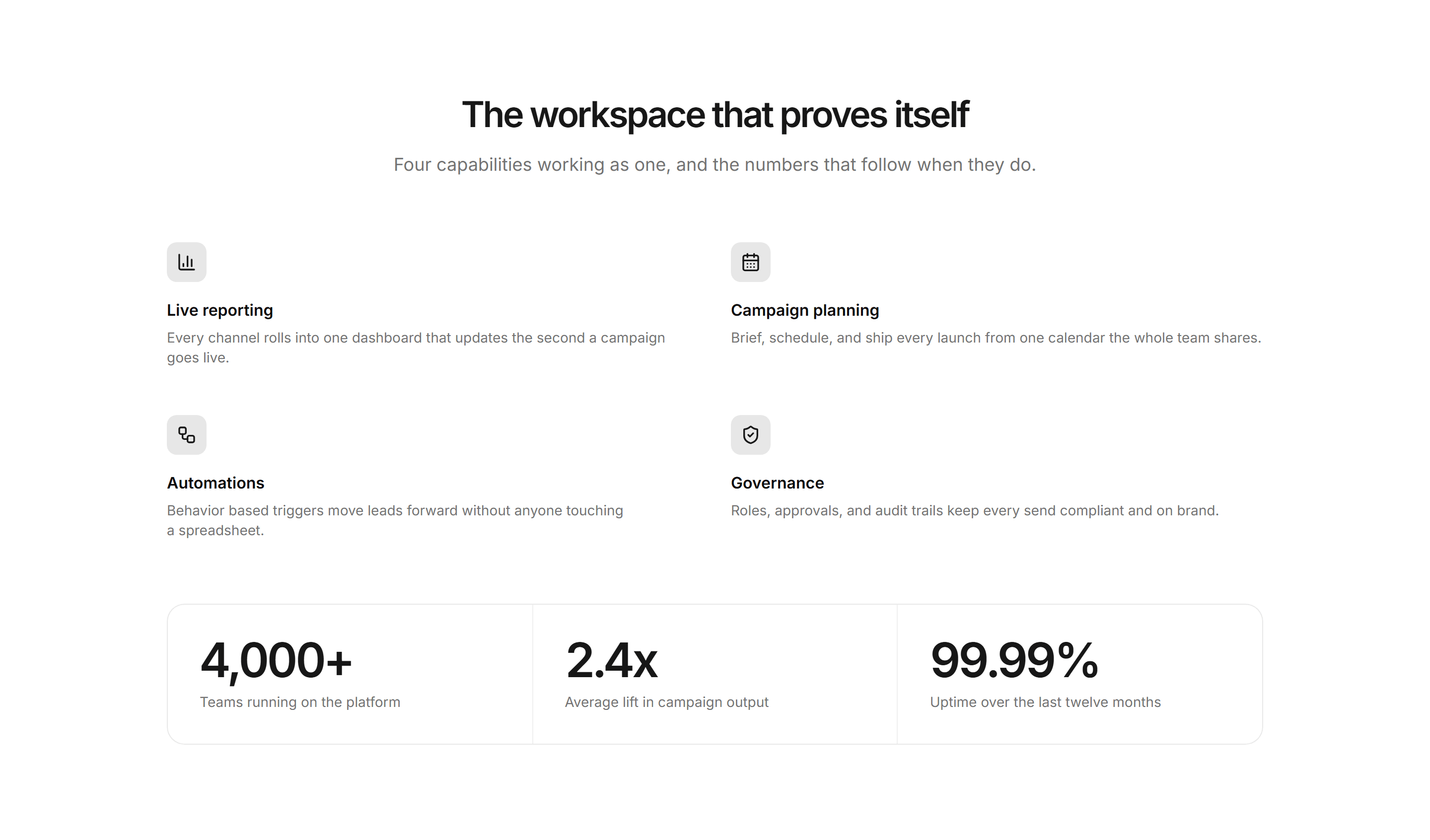
Marketing Pro Feature: With Stat Band
Icon feature grid capped by a divided band of three headline stats.
Marketing Pro Footer: Brand Blurb Columns
Brand blurb and social icons beside three columns of product links.


Marketing Pro Footer: Centered Logo Links
Centered logo over a single row of links, social icons, and a copyright line.
Marketing Pro Footer: Dark Solid
Solid primary footer with brand blurb, socials, and four link columns.
Marketing Pro Footer: Five Column With Tagline
Brand name and tagline beside four link columns above a legal bar.
Marketing Pro Footer: Legal Heavy
Link columns over a dense legal block with disclaimers and compliance badges.


Marketing Pro Footer: Minimal Inline Links
One slim row with copyright, inline nav links, and small social icons.


Marketing Pro Footer: Newsletter Centered
Centered newsletter signup above a row of nav links and a copyright line.
Marketing Pro Footer: With App Badges
Three link columns plus iOS and Android download buttons above a brand bar.
Marketing Pro Footer: With Contact Info
Link columns alongside address, email, and phone contact details.
Marketing Pro Footer: With Status And Locale
Four link columns with a bottom bar showing system status and a language picker.


Marketing Pro Hero: Centered Minimal
A typography only hero with a centered headline, lede, single CTA, and a muted trust line.
Marketing Pro Hero: Centered With Feature Pills
A centered headline, lede, and dual CTAs above a wrapped row of bordered icon feature pills.
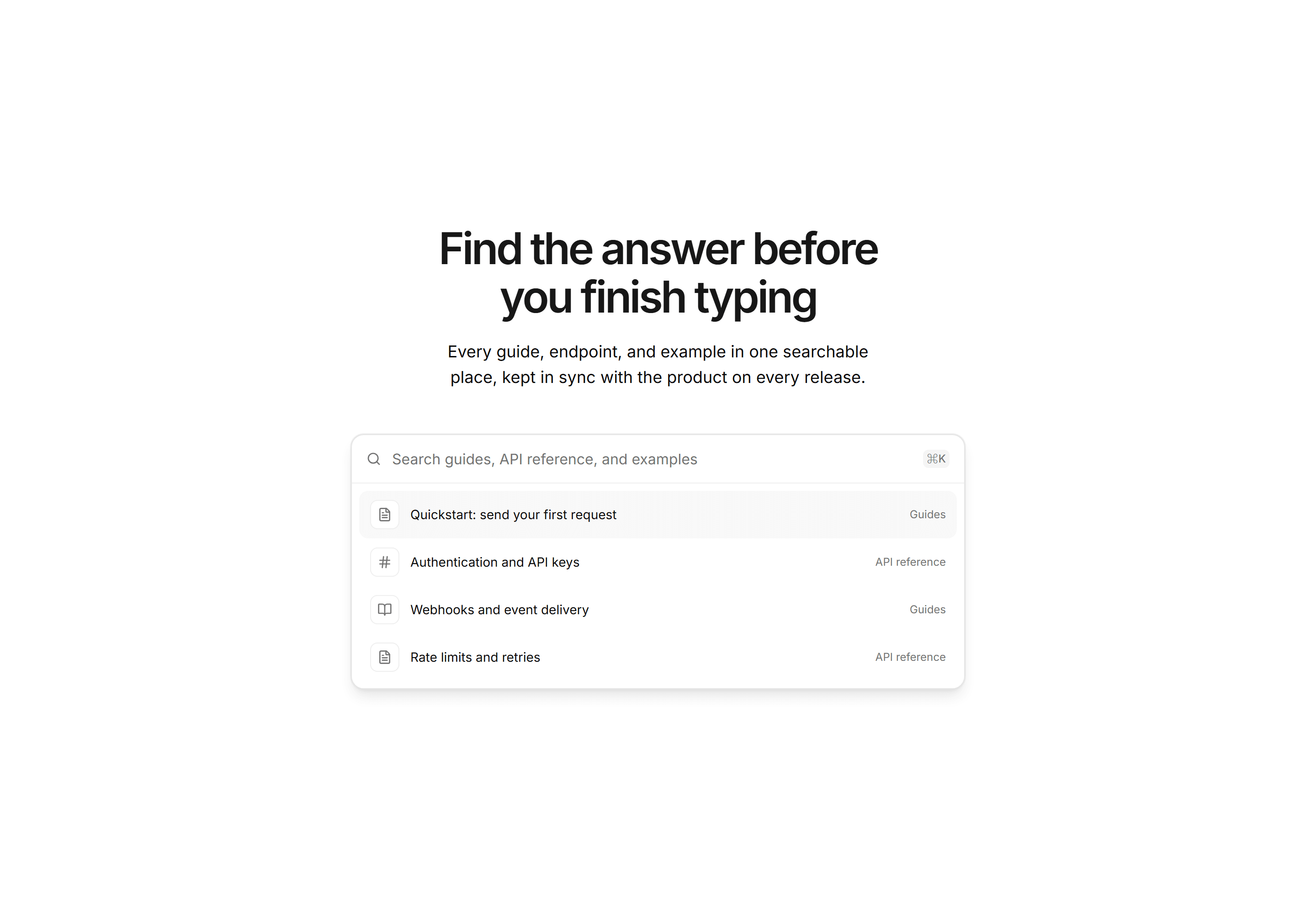
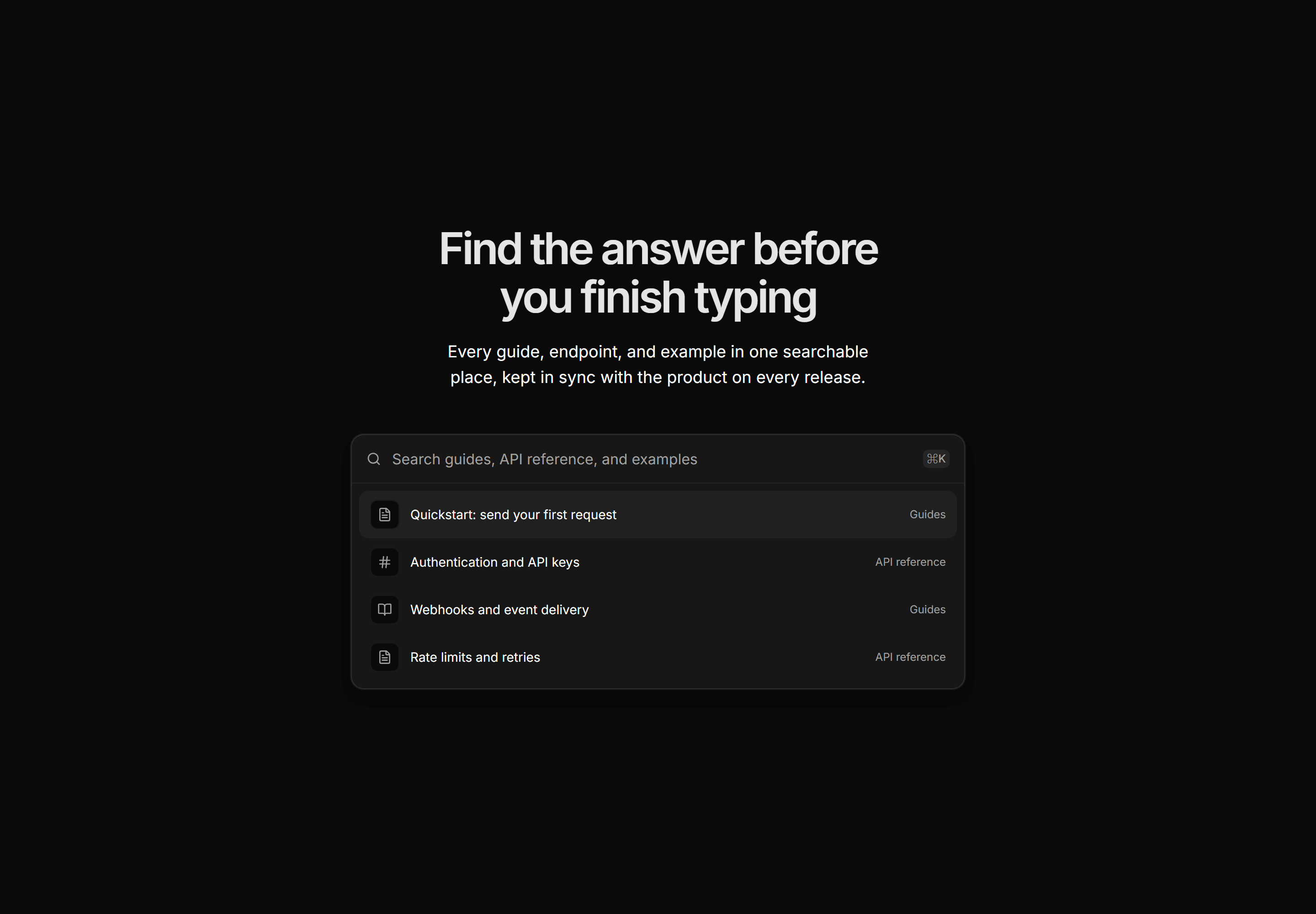
Marketing Pro Hero: Centered With Search
A docs hero with centered copy above a command bar search mockup with suggestion rows.
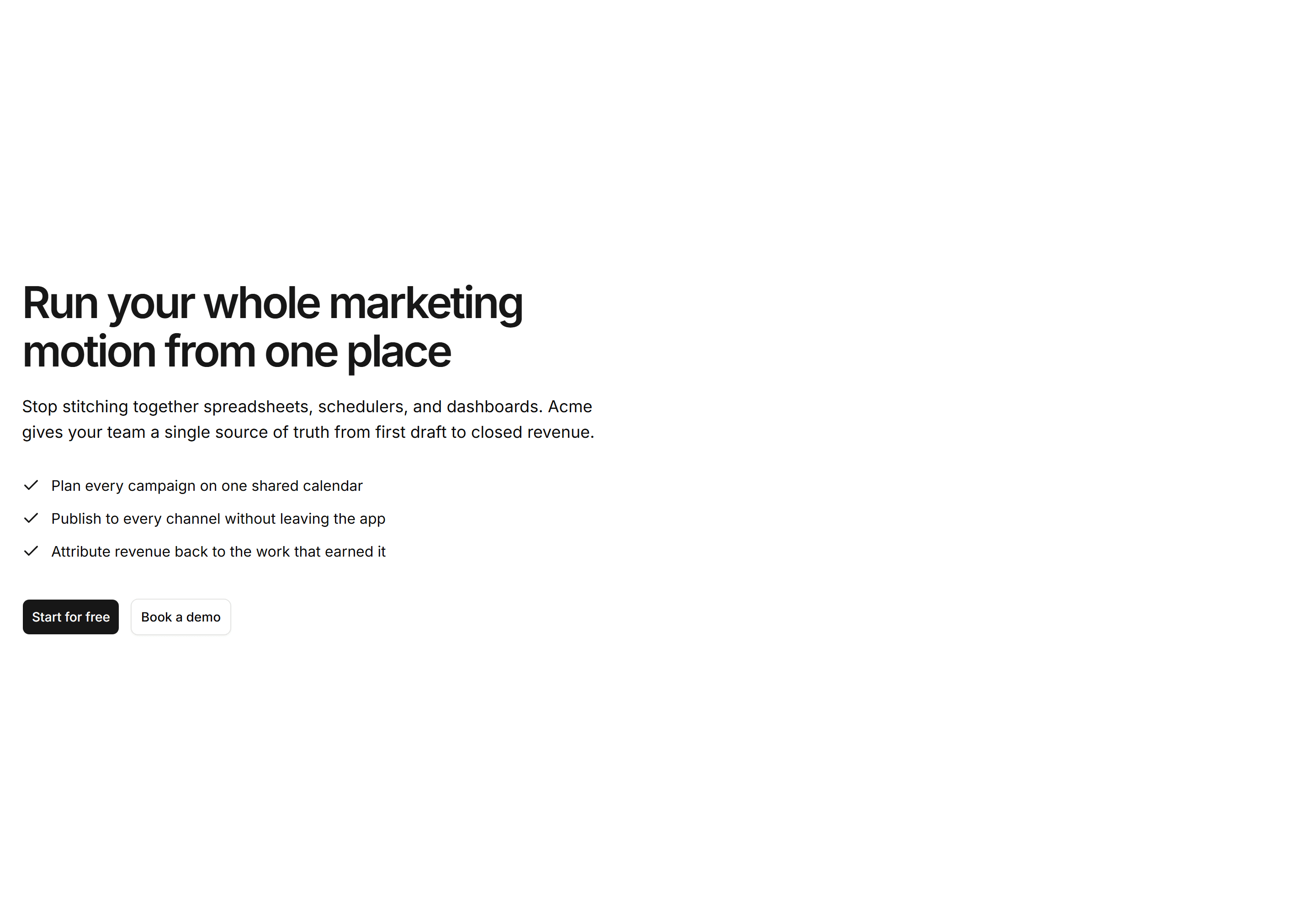
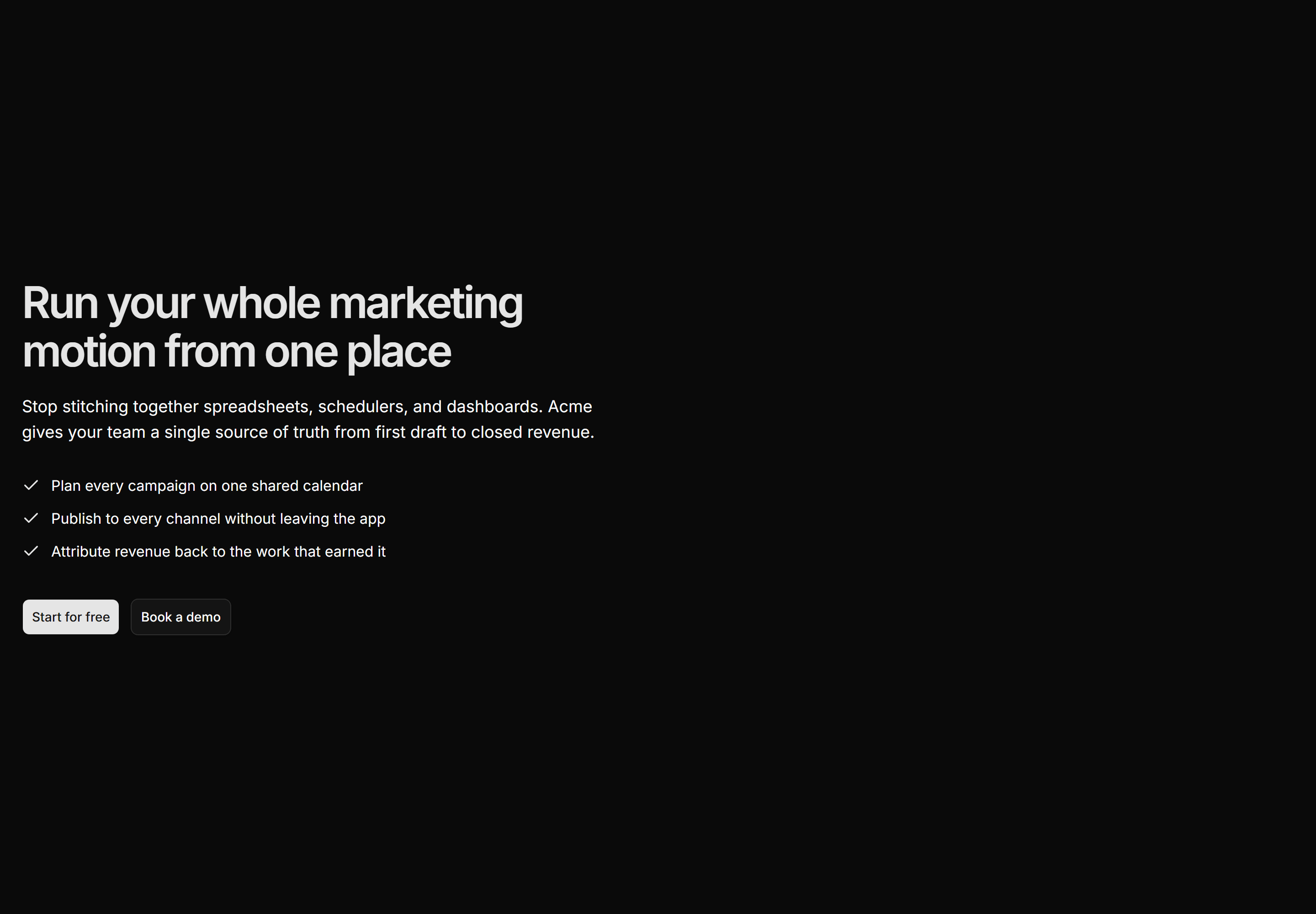
Marketing Pro Hero: Left Aligned With Checklist
A left aligned headline, lede, three check items, and dual CTAs that own the left edge.
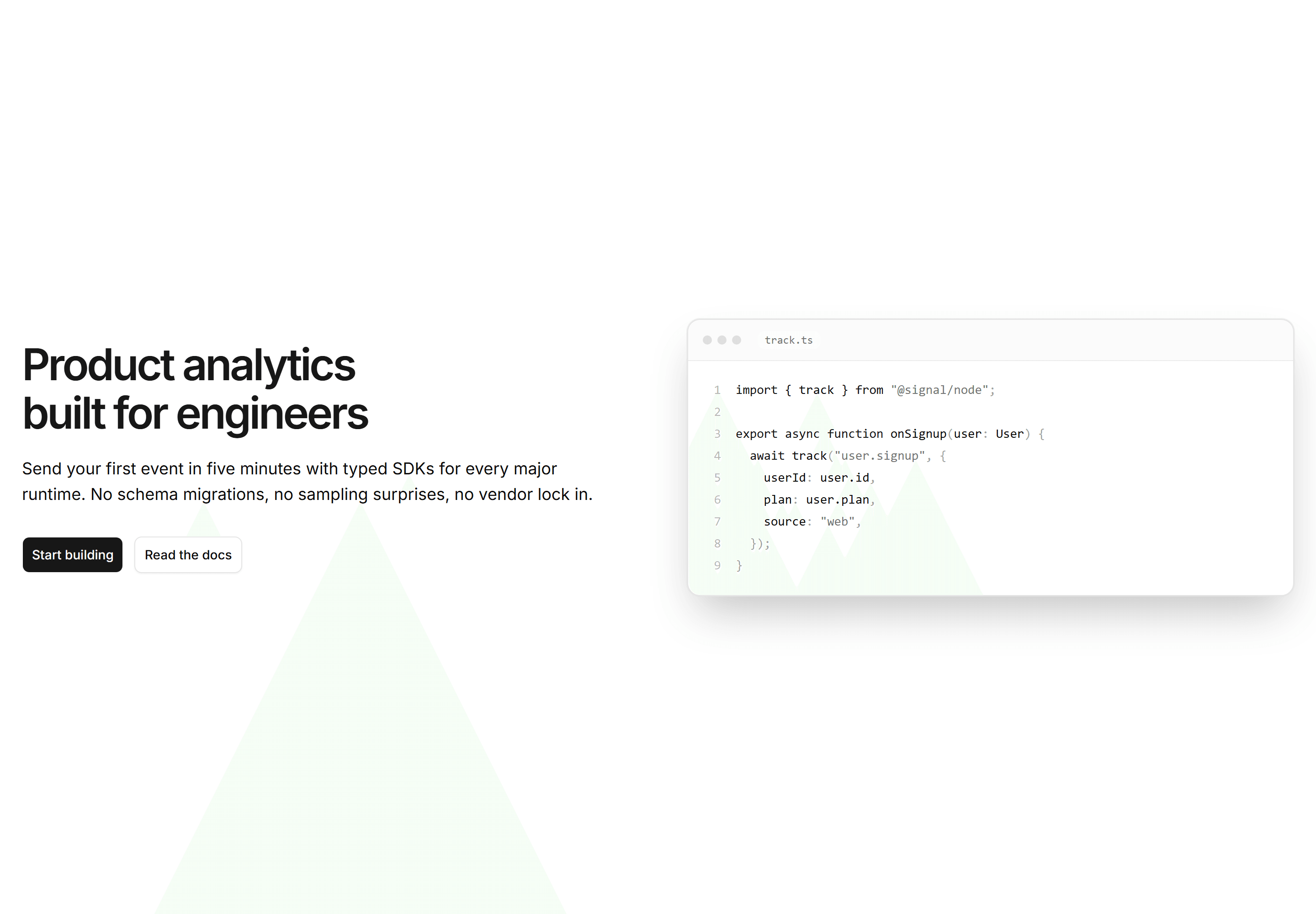
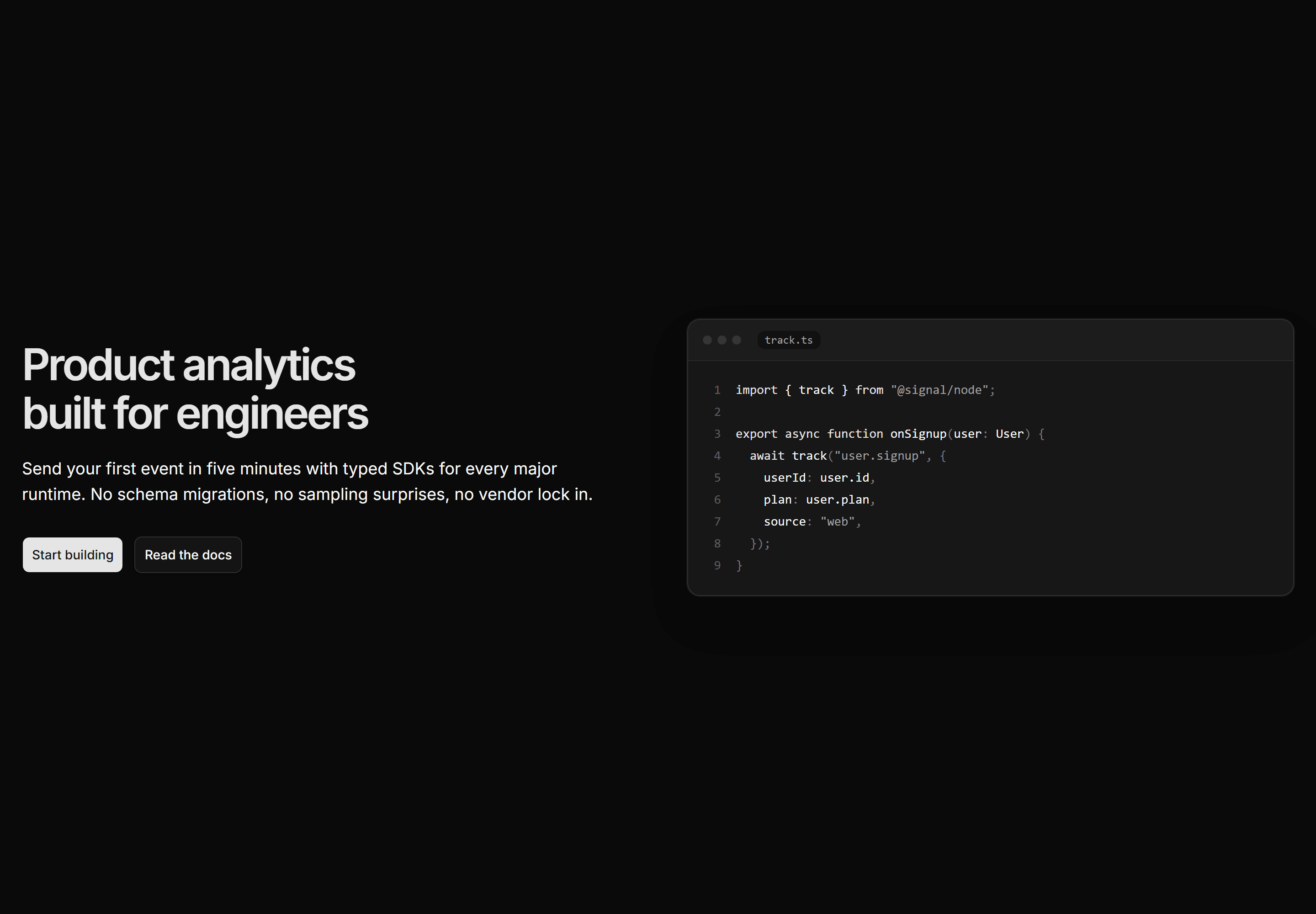
Marketing Pro Hero: Split With Code
A split hero with headline, lede, and CTAs beside a token colored code editor window mockup.
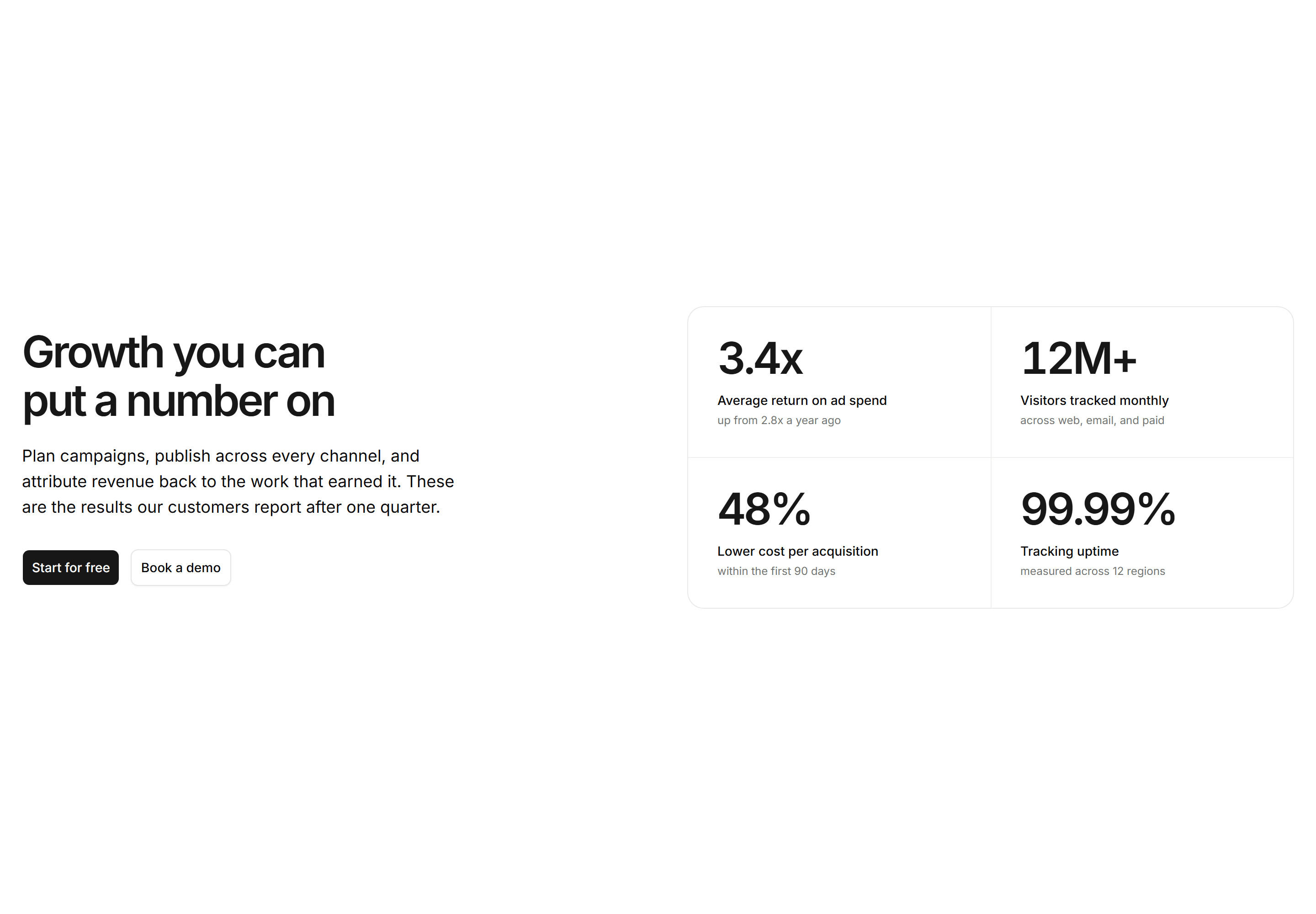
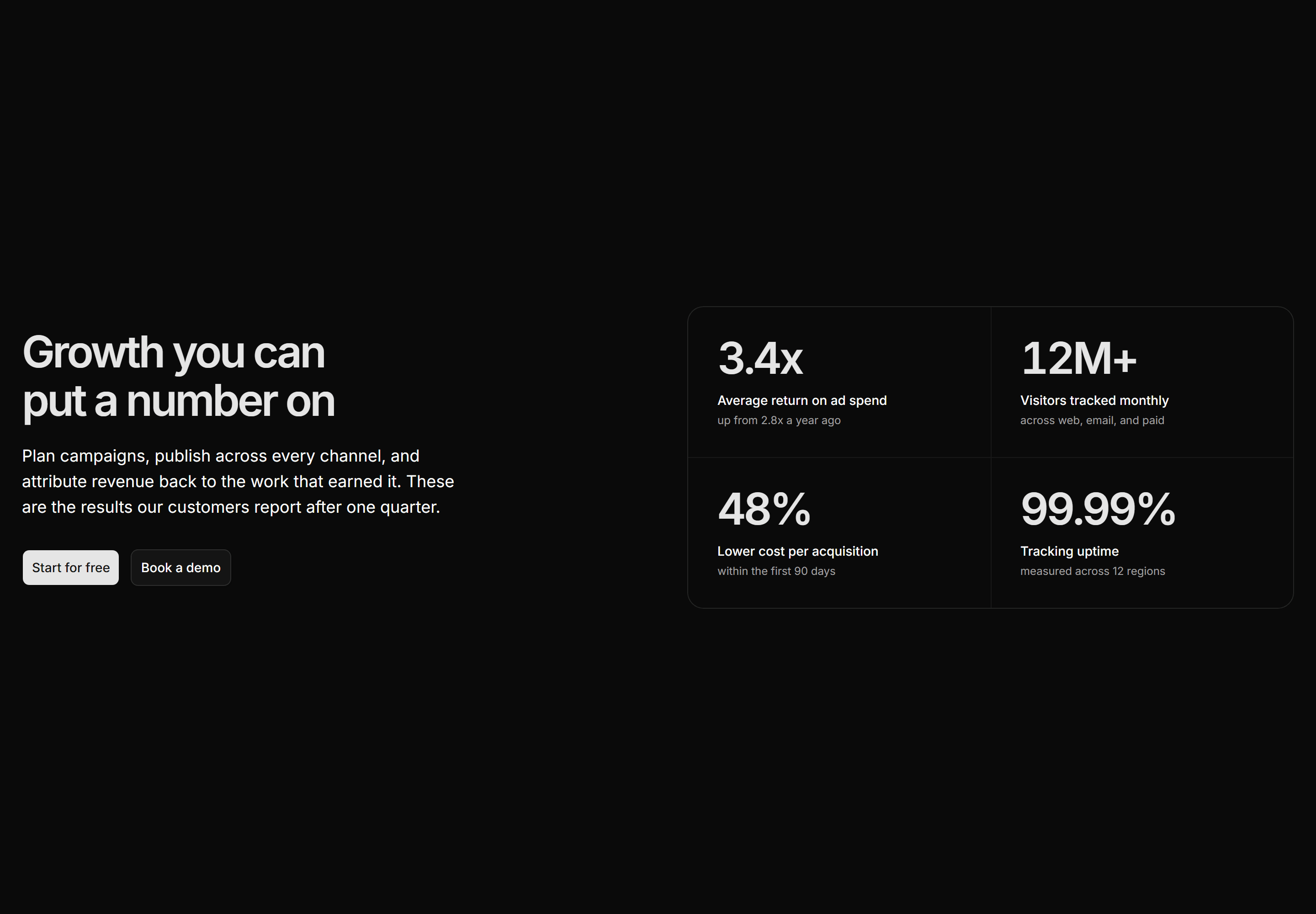
Marketing Pro Hero: Split With Metrics
A split hero with copy and dual CTAs beside a divided panel of four large KPI tiles.
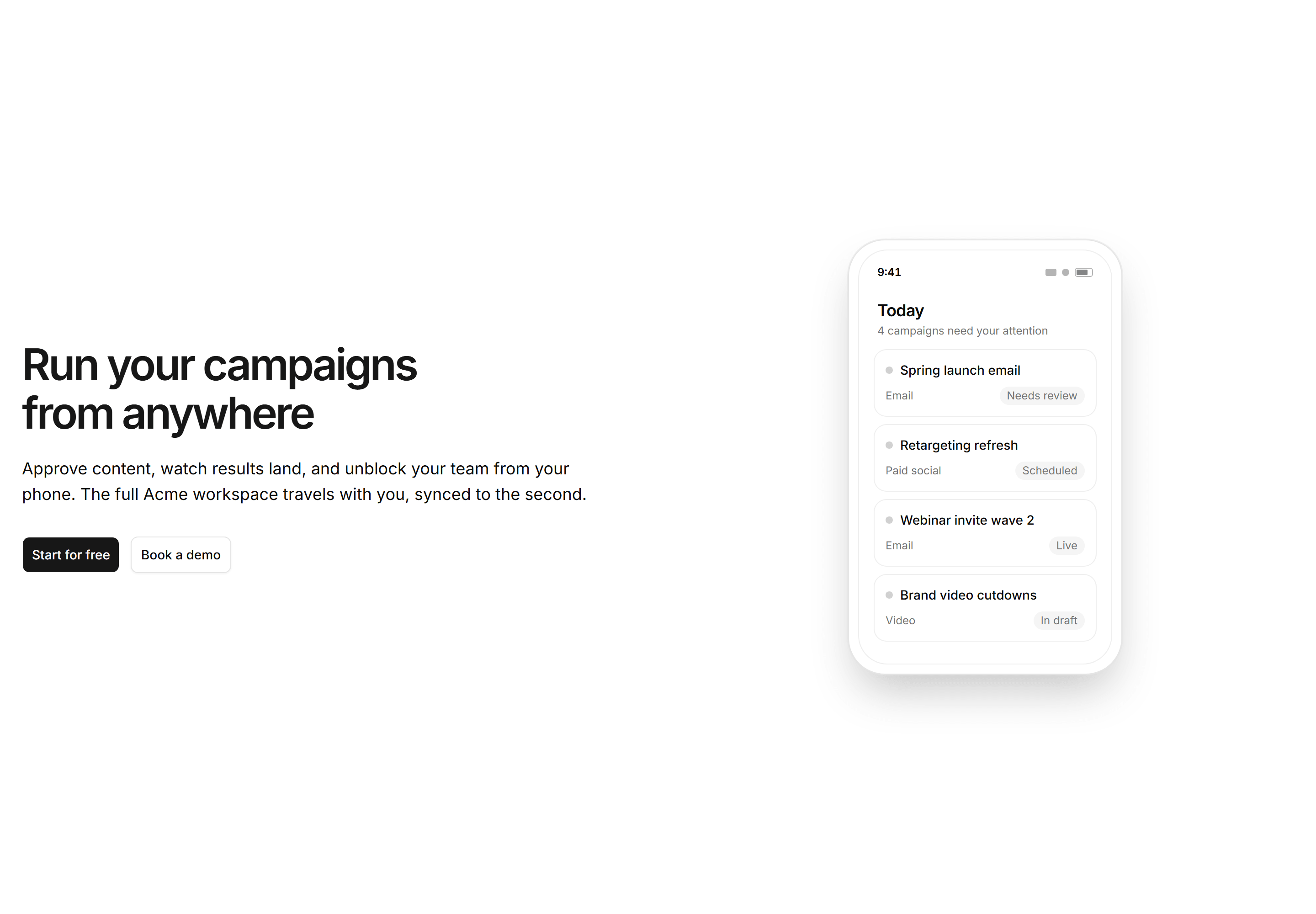
Marketing Pro Hero: Split With Mobile App
A split hero with copy and dual CTAs beside a phone mockup of the product mobile app.
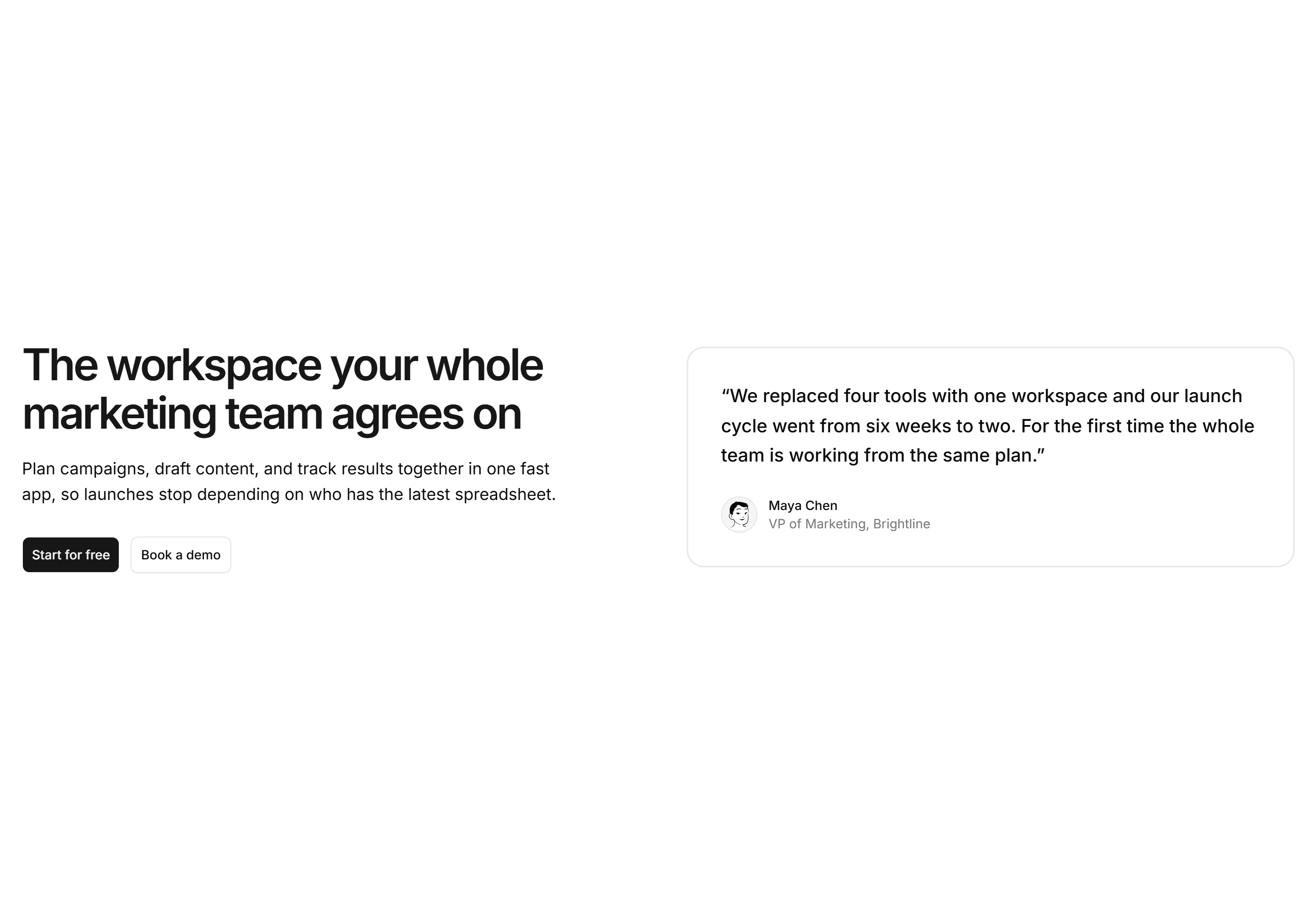
Marketing Pro Hero: Split With Testimonial
A split hero with headline, lede, and dual CTAs beside a single customer quote card.


Marketing Pro Hero: With Avatar Rating
A centered hero with dual CTAs above overlapping avatars, five stars, and a team count line.
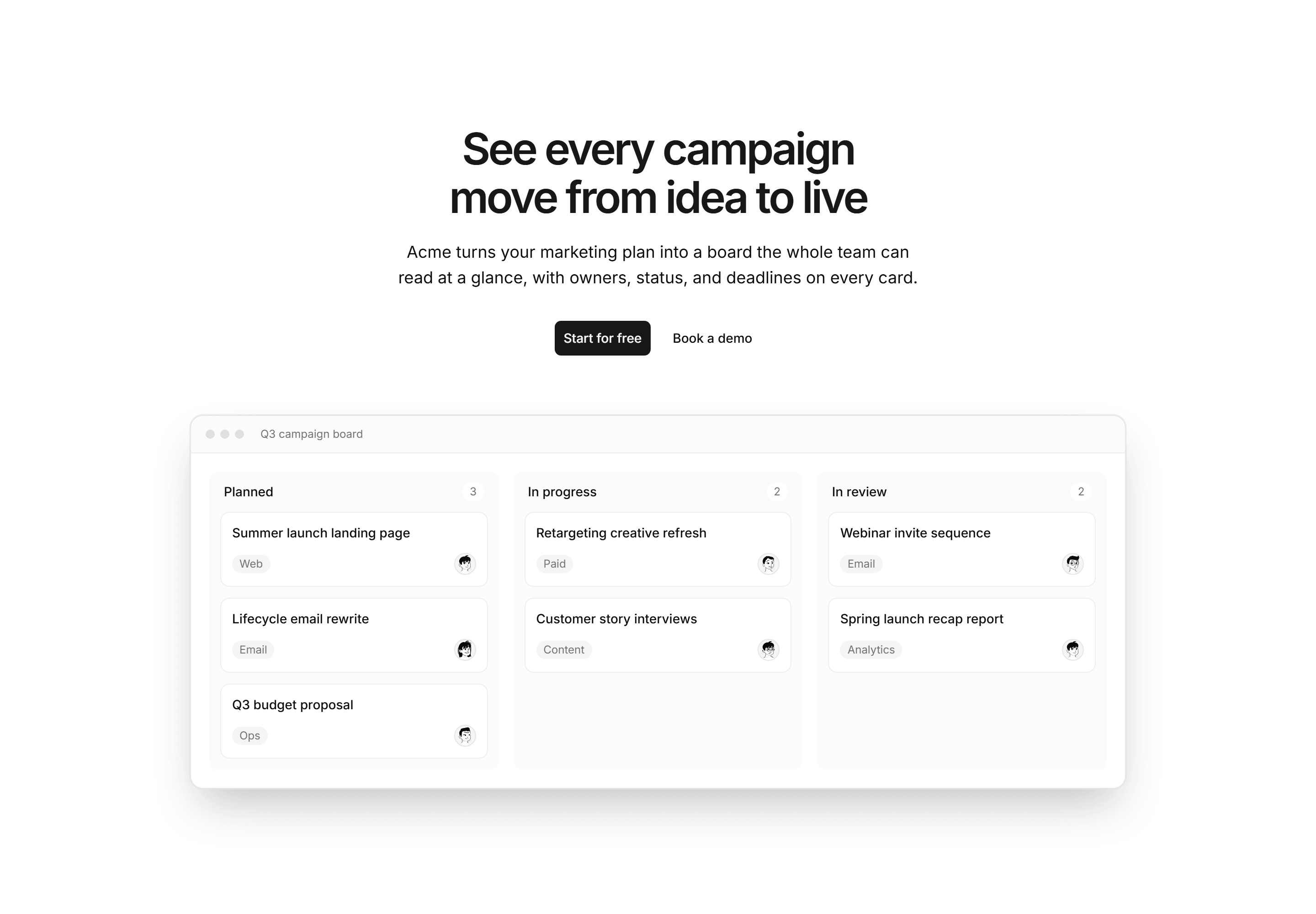
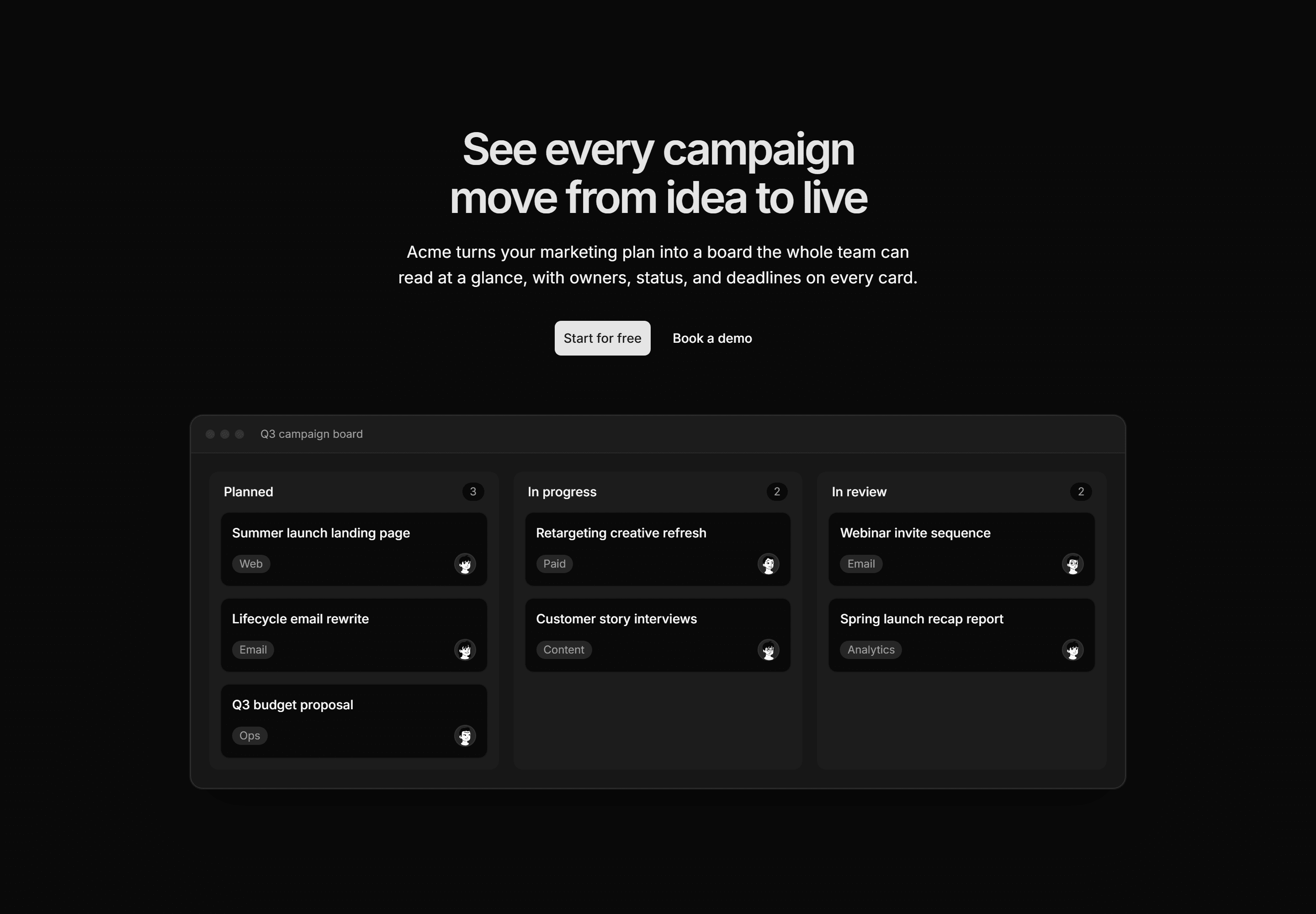
Marketing Pro Hero: With Kanban Preview
A centered hero with copy and CTAs above a wide kanban board mockup of campaign tasks.
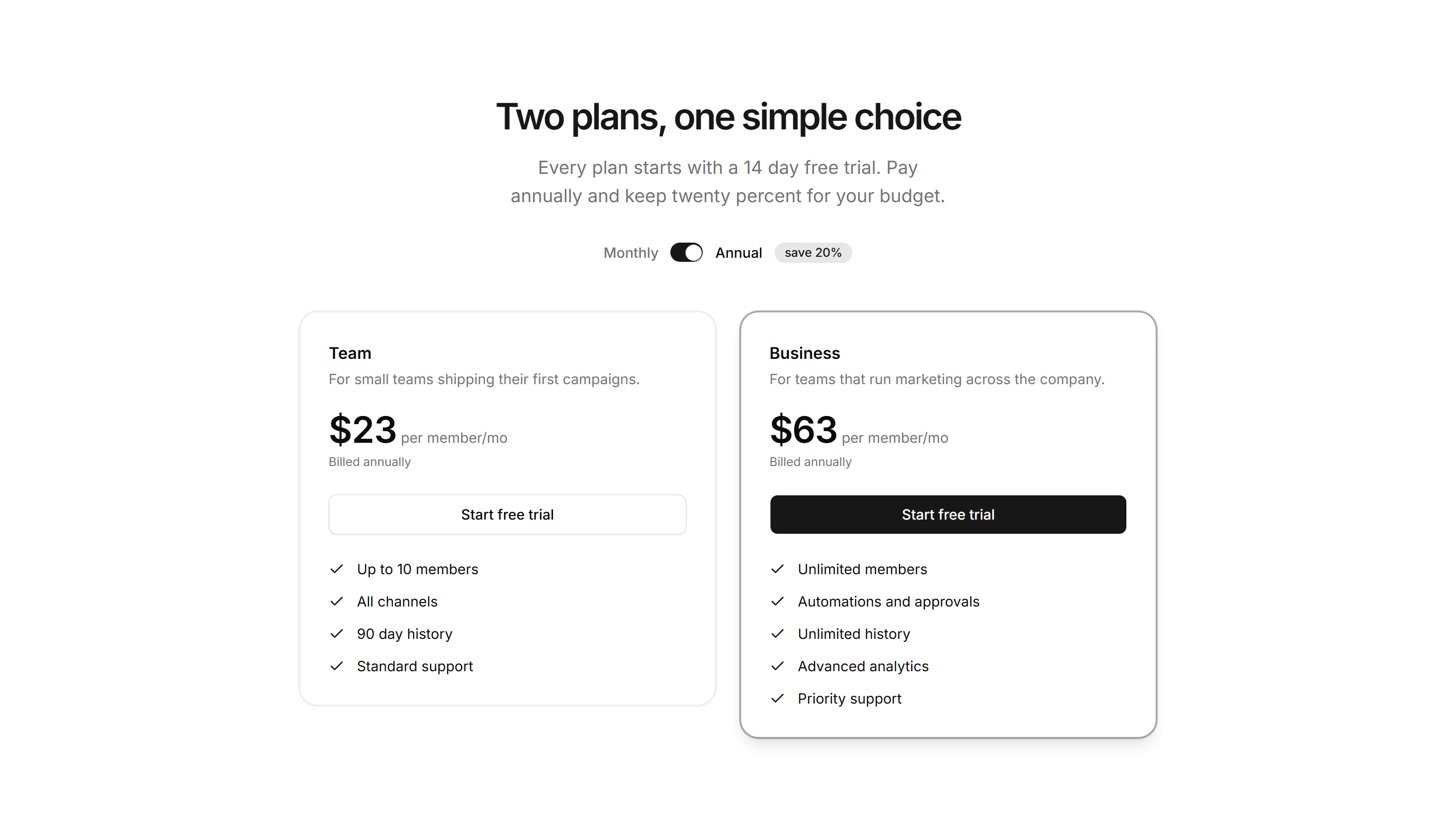
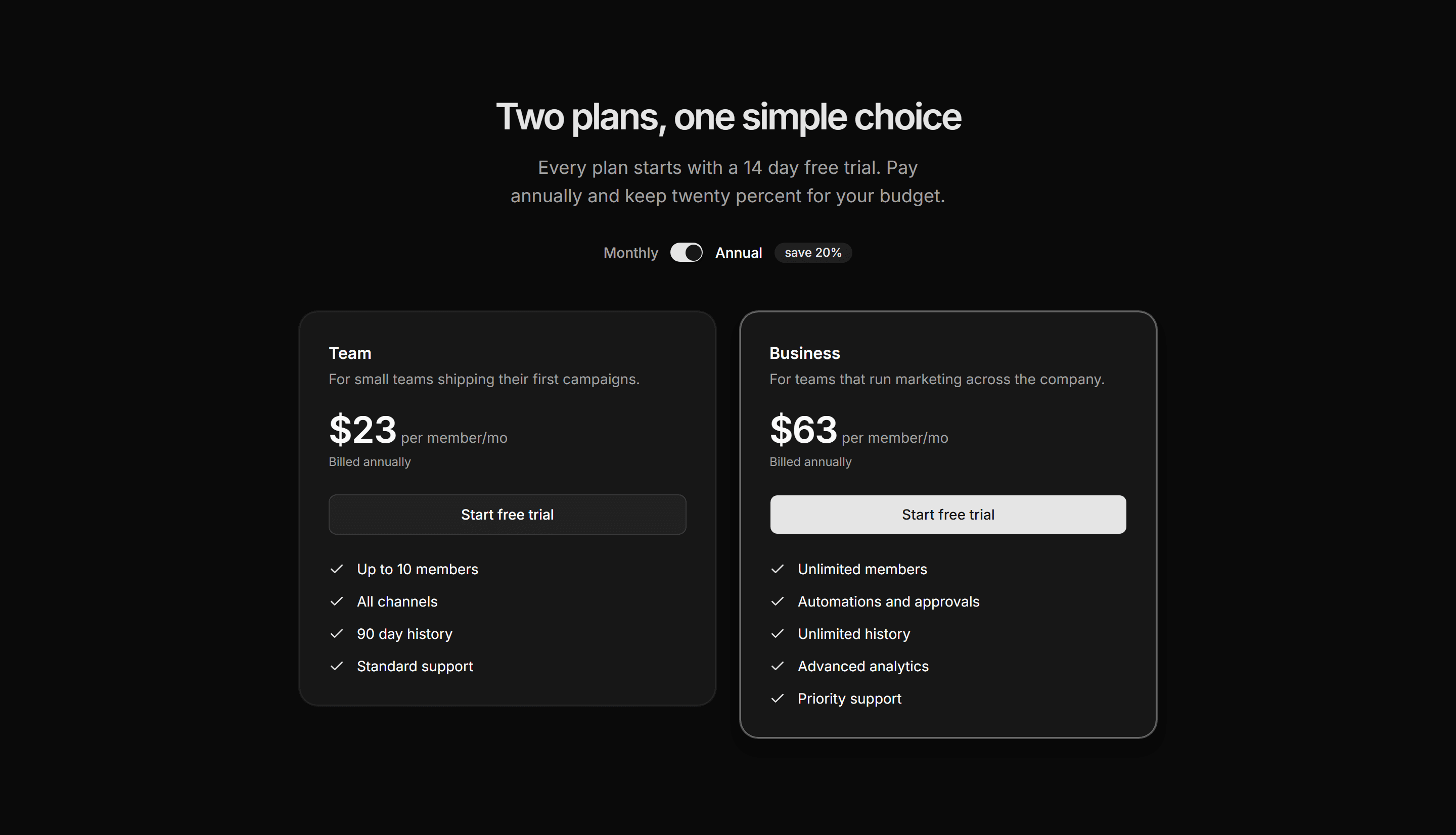
Marketing Pro Pricing: Annual Toggle Two Tier
Two plan cards under a monthly and annual switch that updates prices with a savings badge.
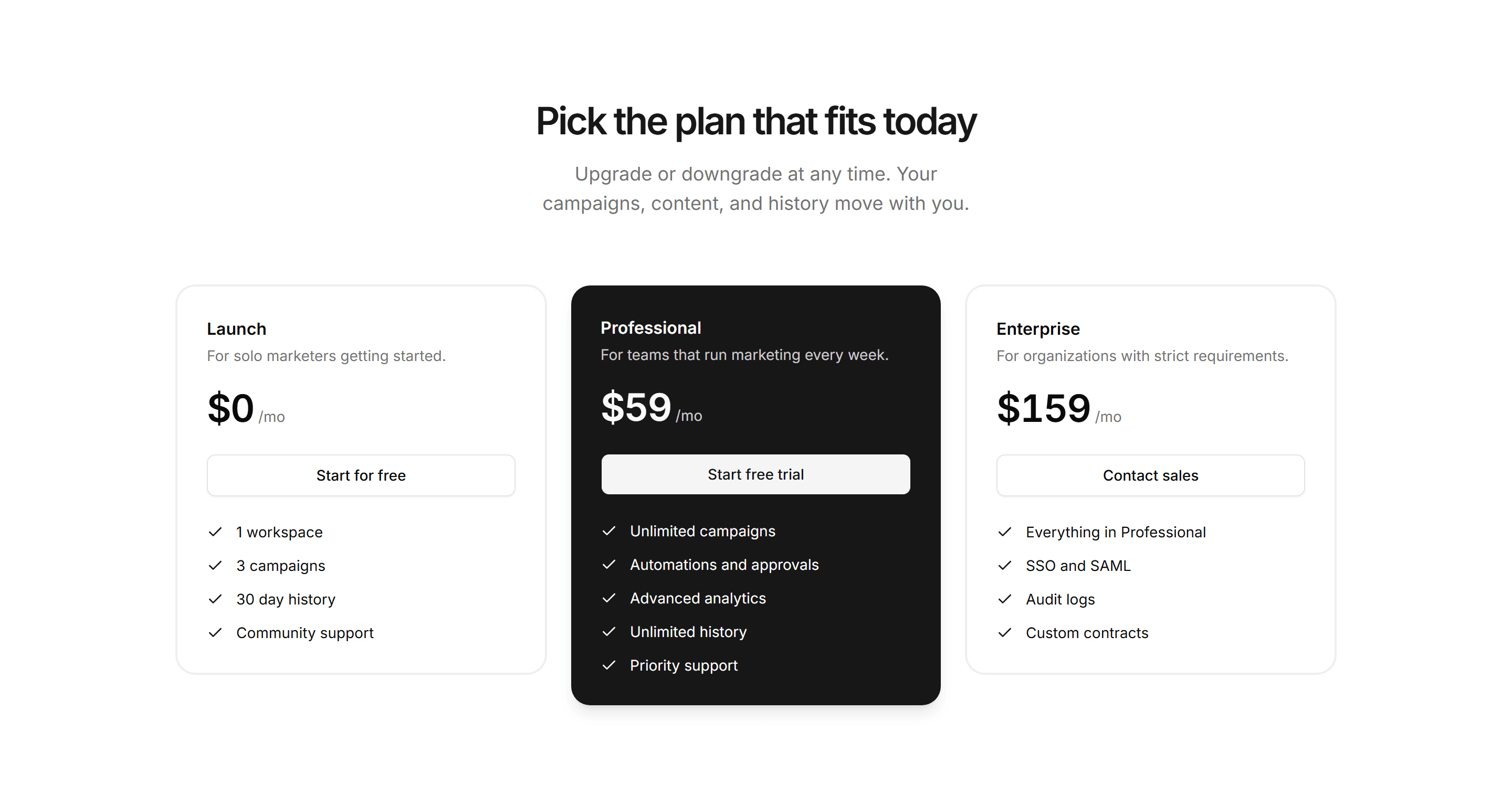
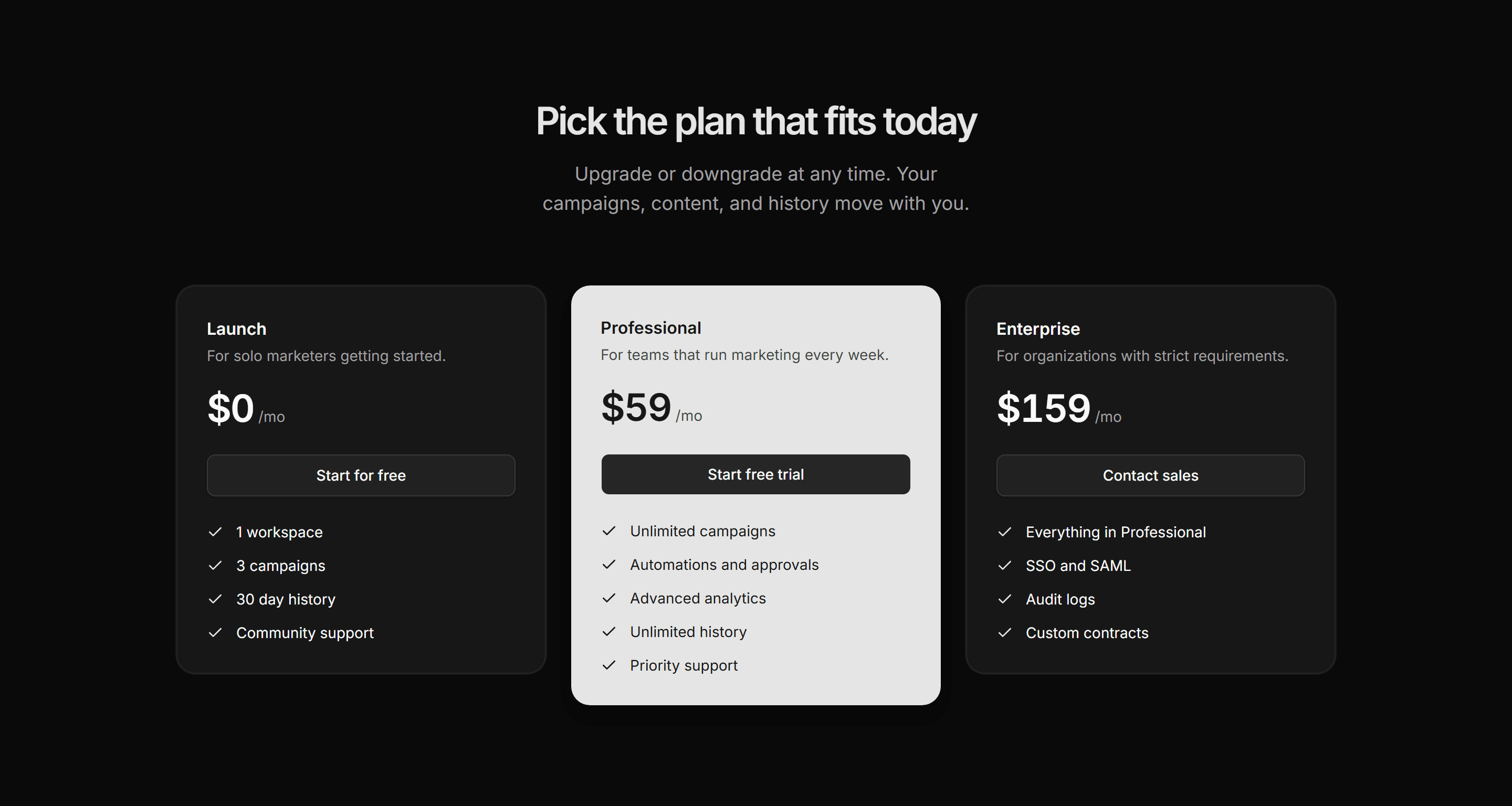
Marketing Pro Pricing: Dark Featured Tier
Three pricing tiers where the featured middle plan sits on a solid primary panel.
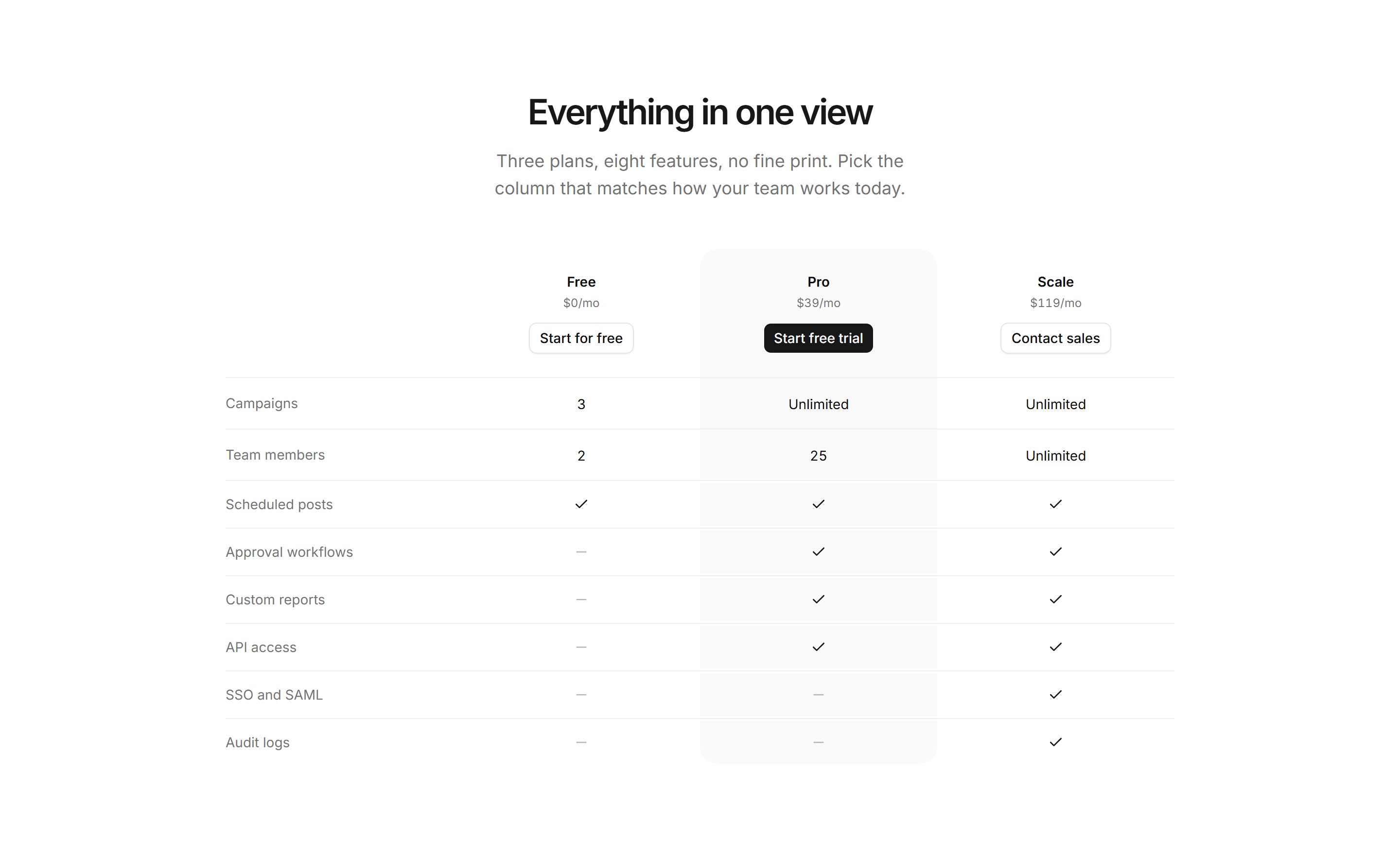
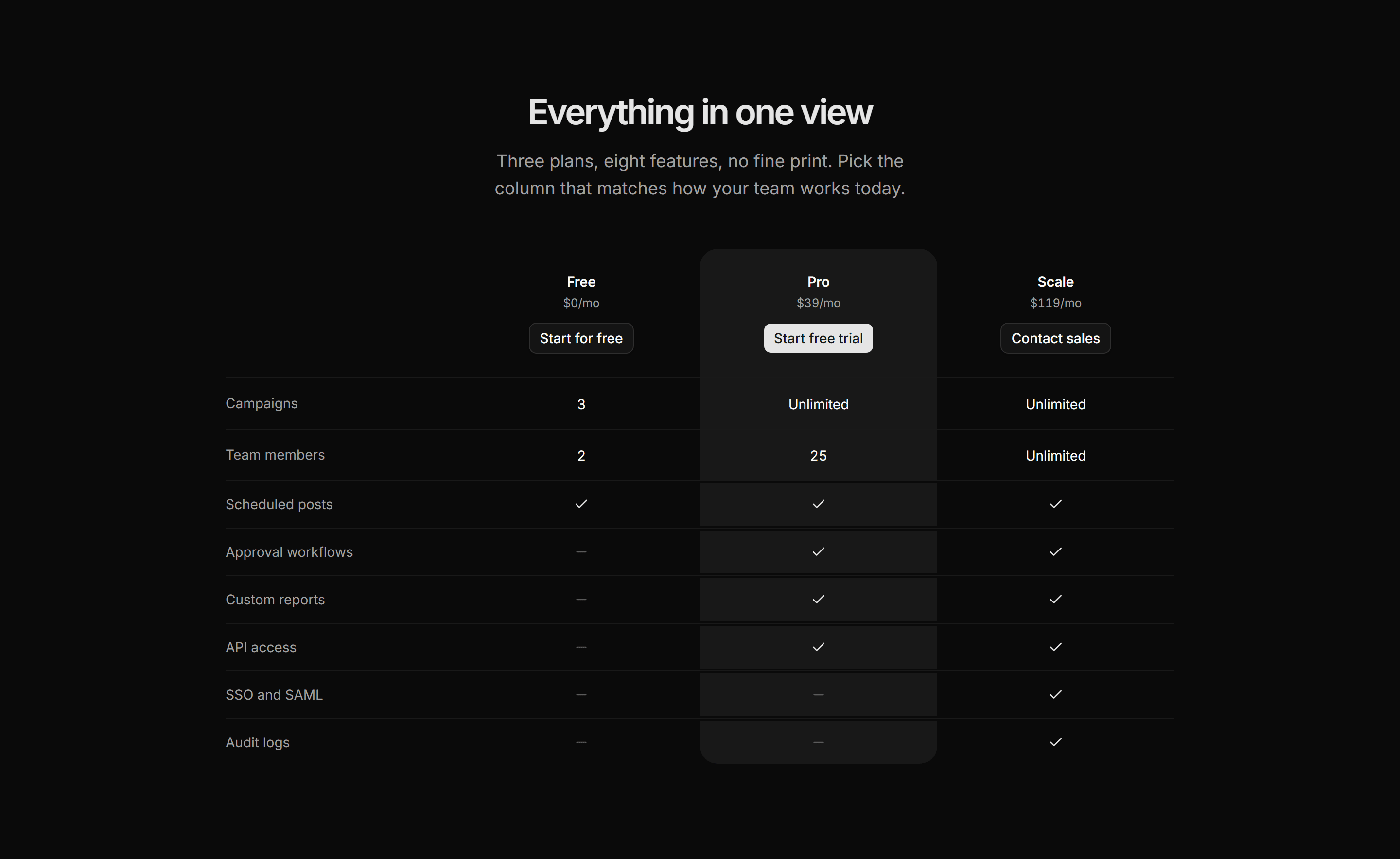
Marketing Pro Pricing: Feature Matrix Compact
Plan headers with CTAs above a compact feature matrix that shades the middle column.
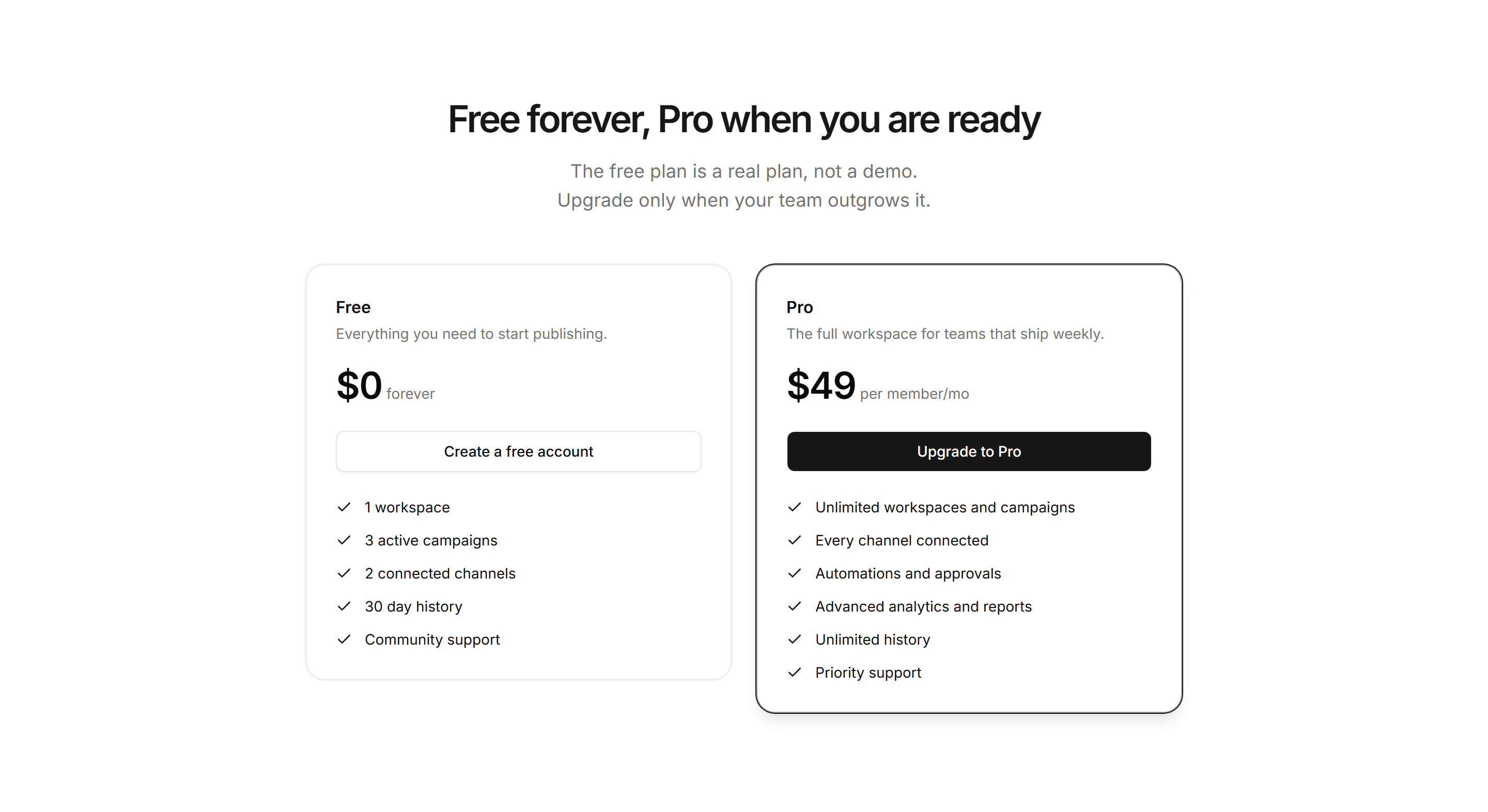
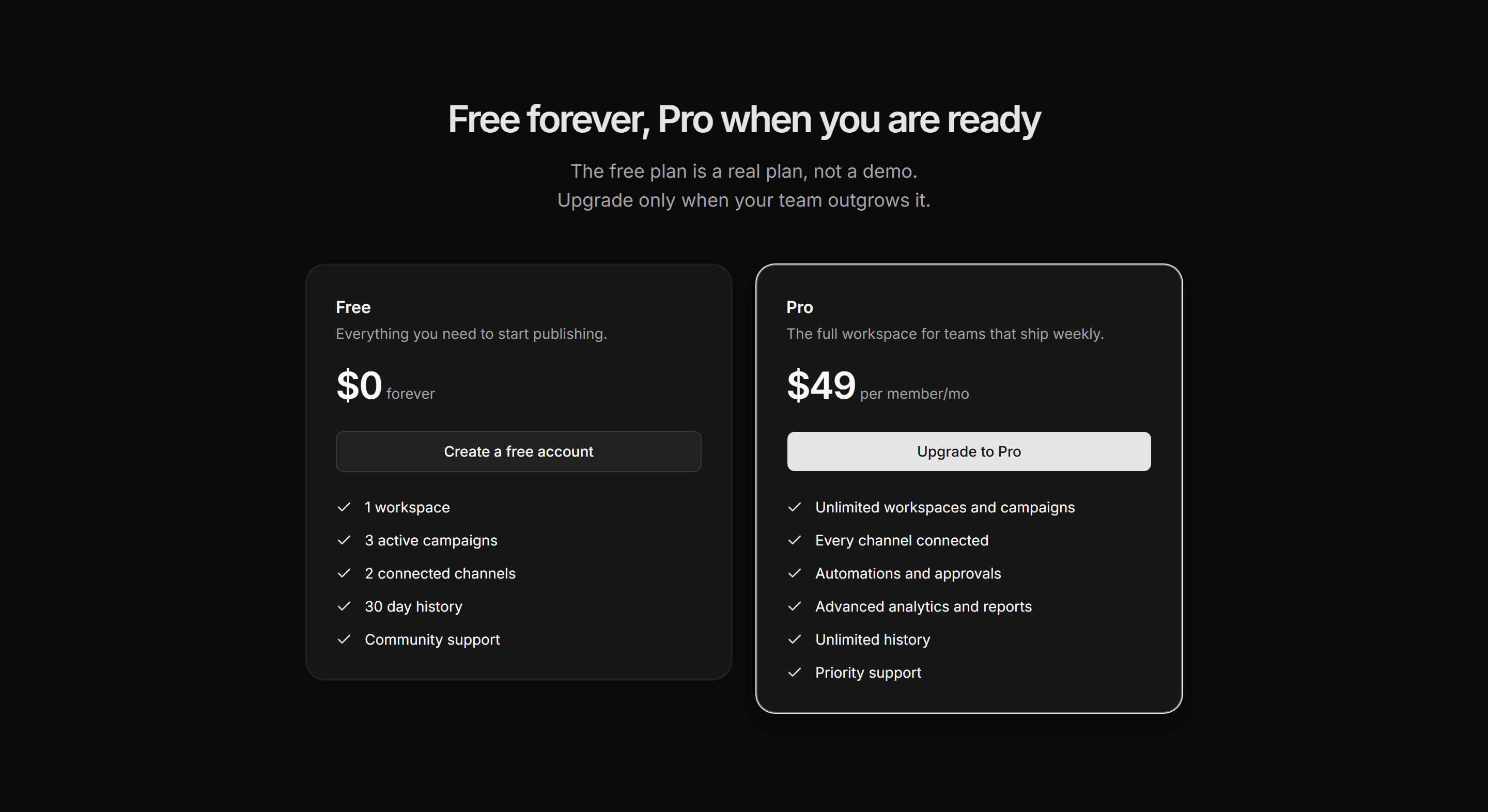
Marketing Pro Pricing: Free vs Pro
Free and Pro columns with their own feature lists and CTAs, with Pro framed by a primary ring.
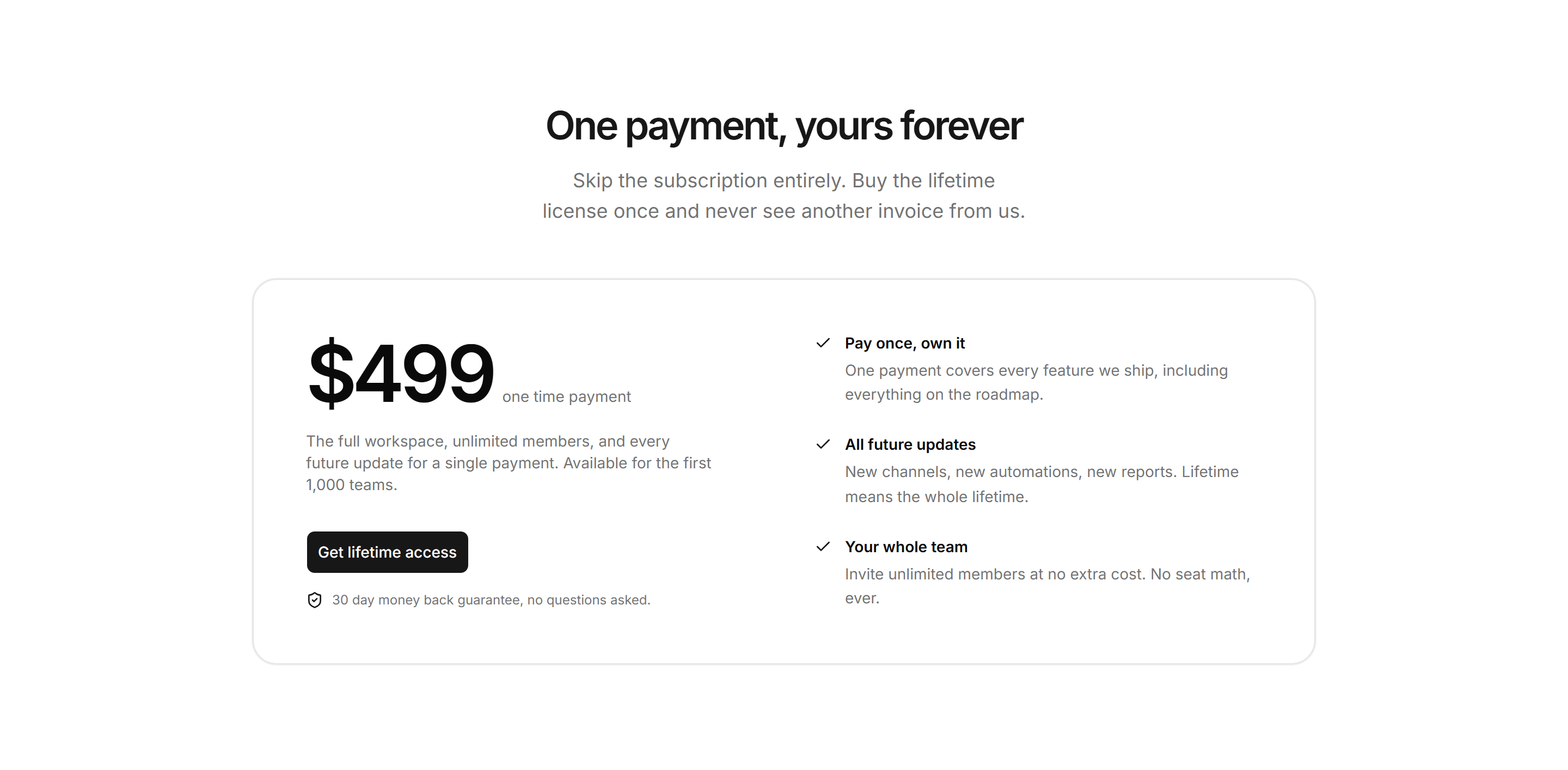
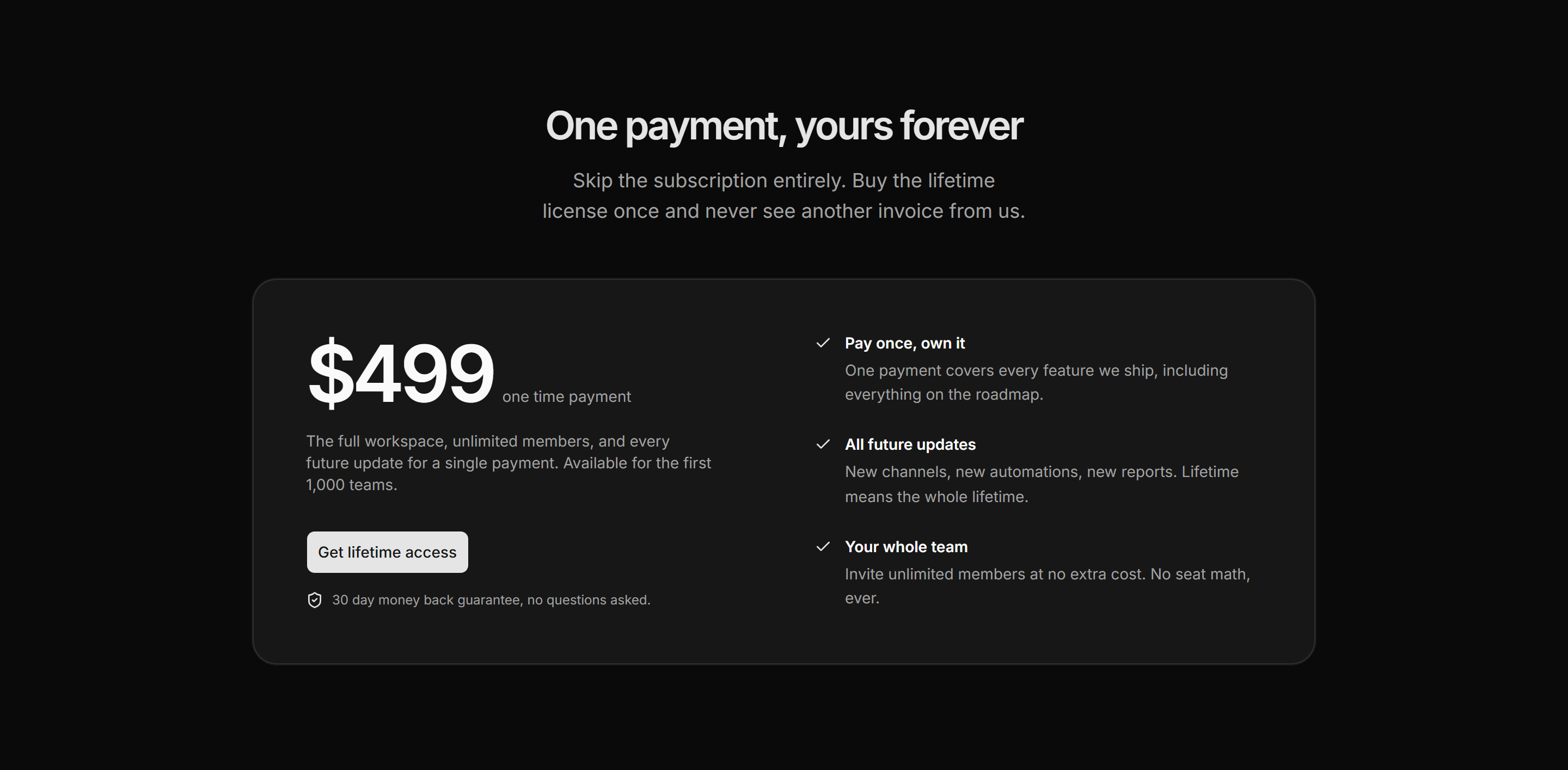
Marketing Pro Pricing: Lifetime Deal
A wide panel with a one time price, three value bullets, a guarantee note, and a strong CTA.
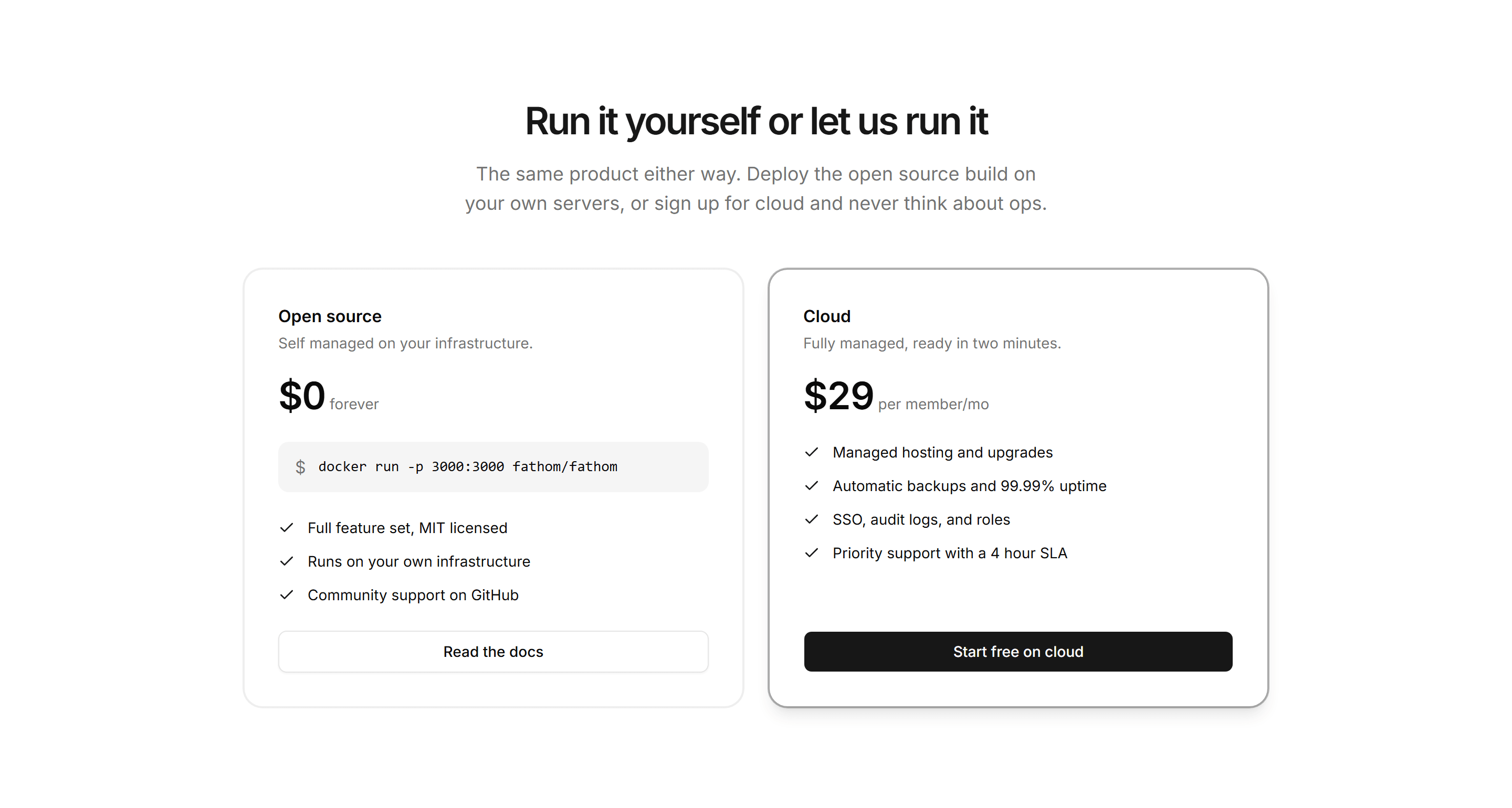
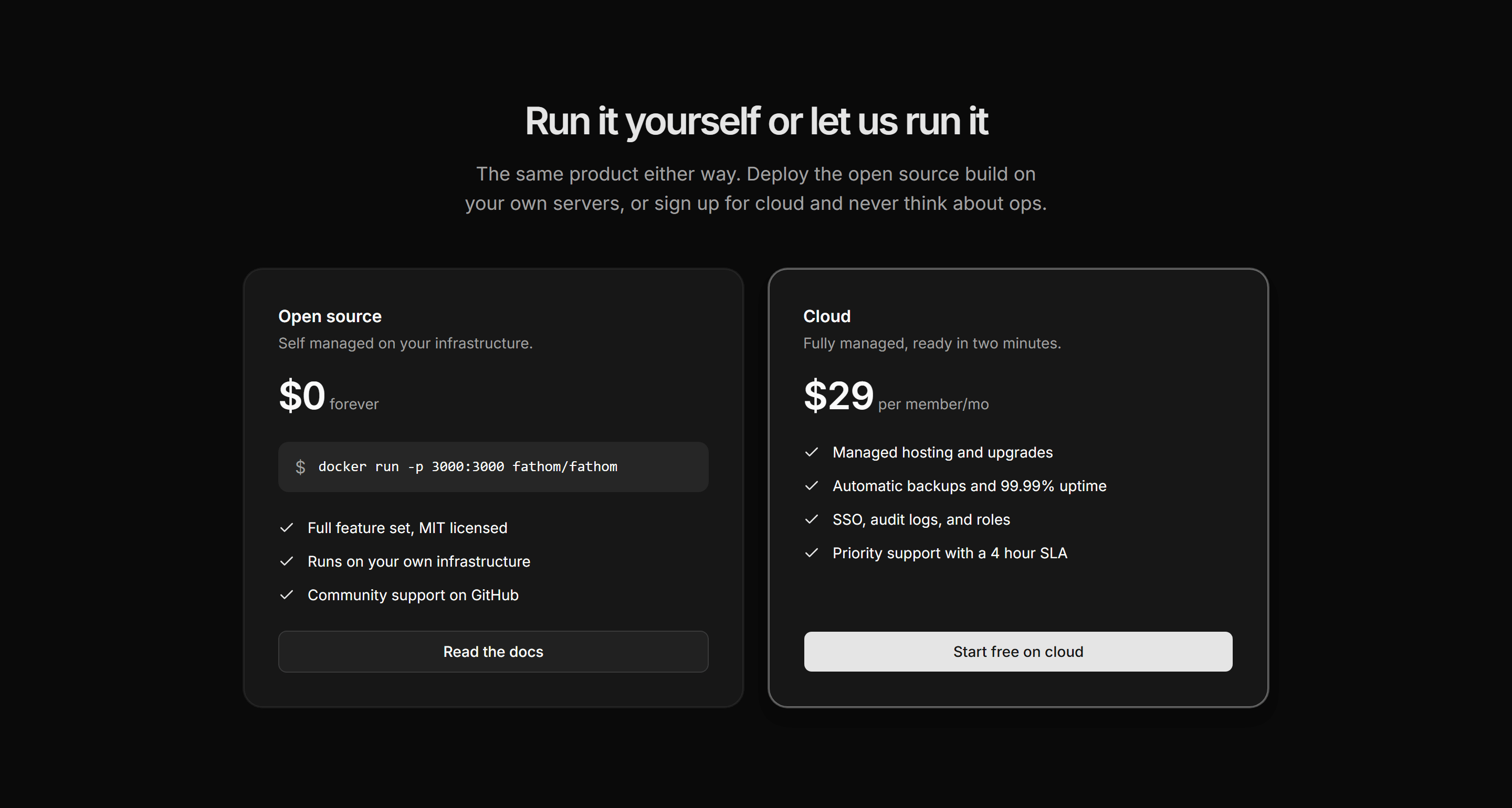
Marketing Pro Pricing: Open Source vs Cloud
A free self hosted panel with an install command beside a paid managed cloud plan.
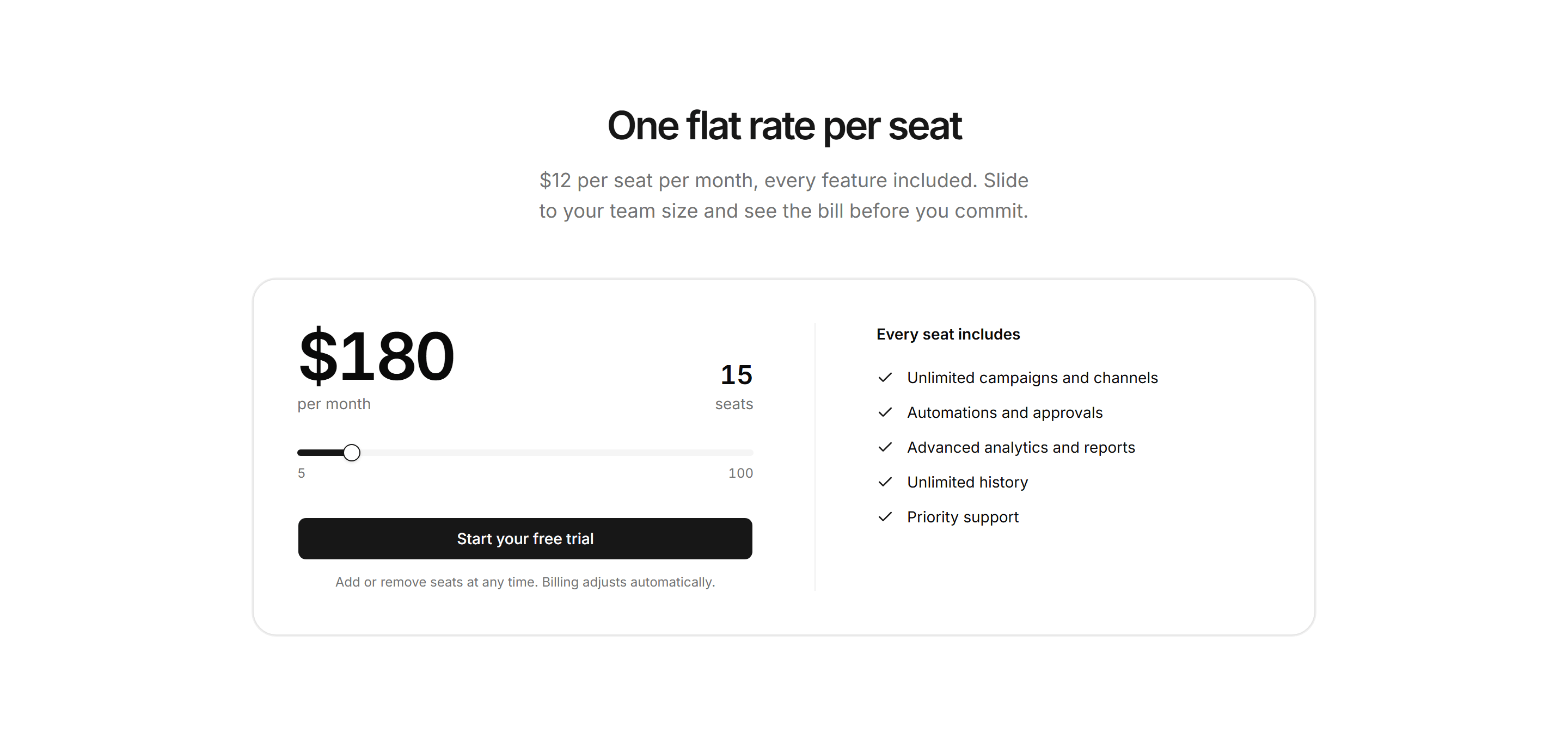
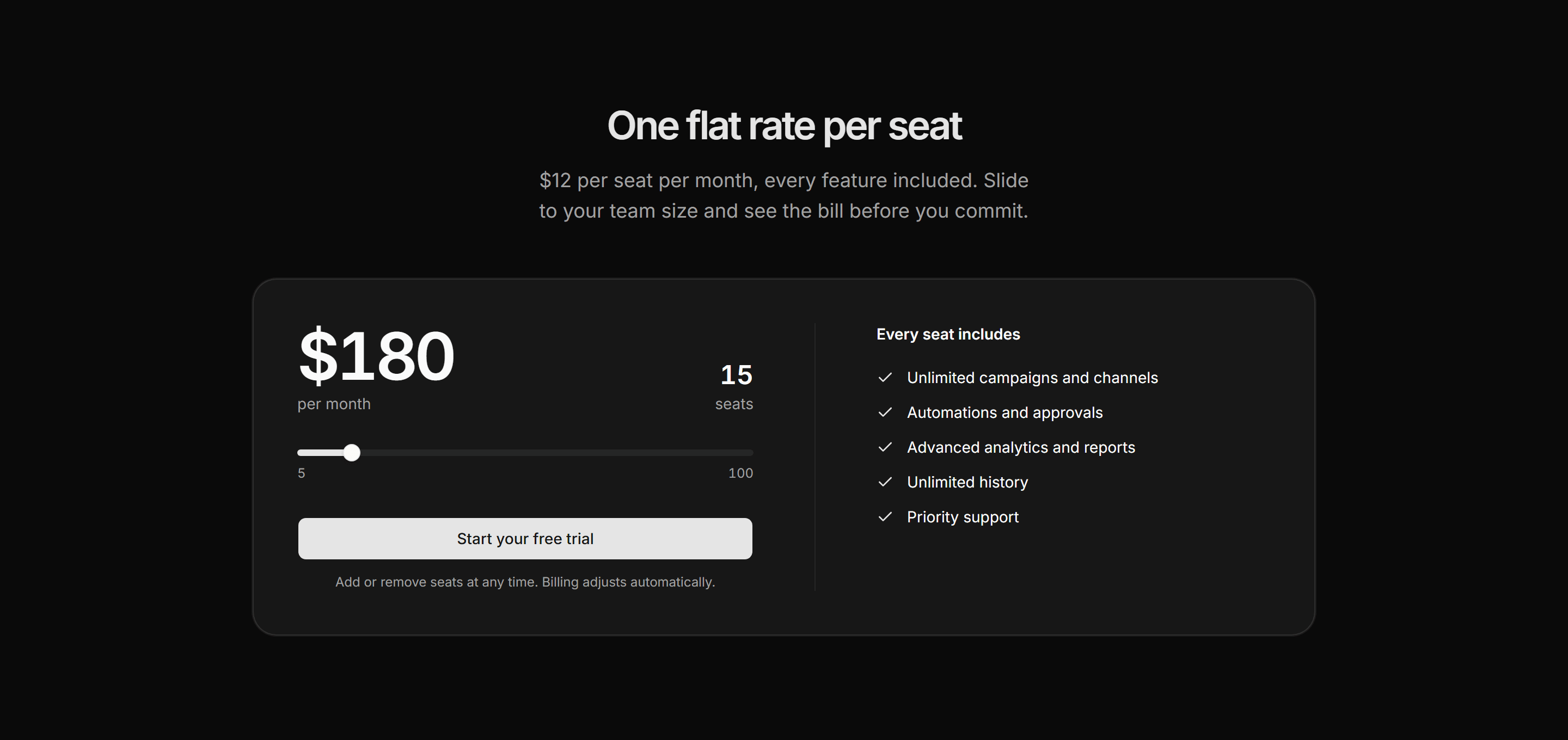
Marketing Pro Pricing: Per Seat Calculator
A seat slider that totals a flat per seat rate beside the included feature list.
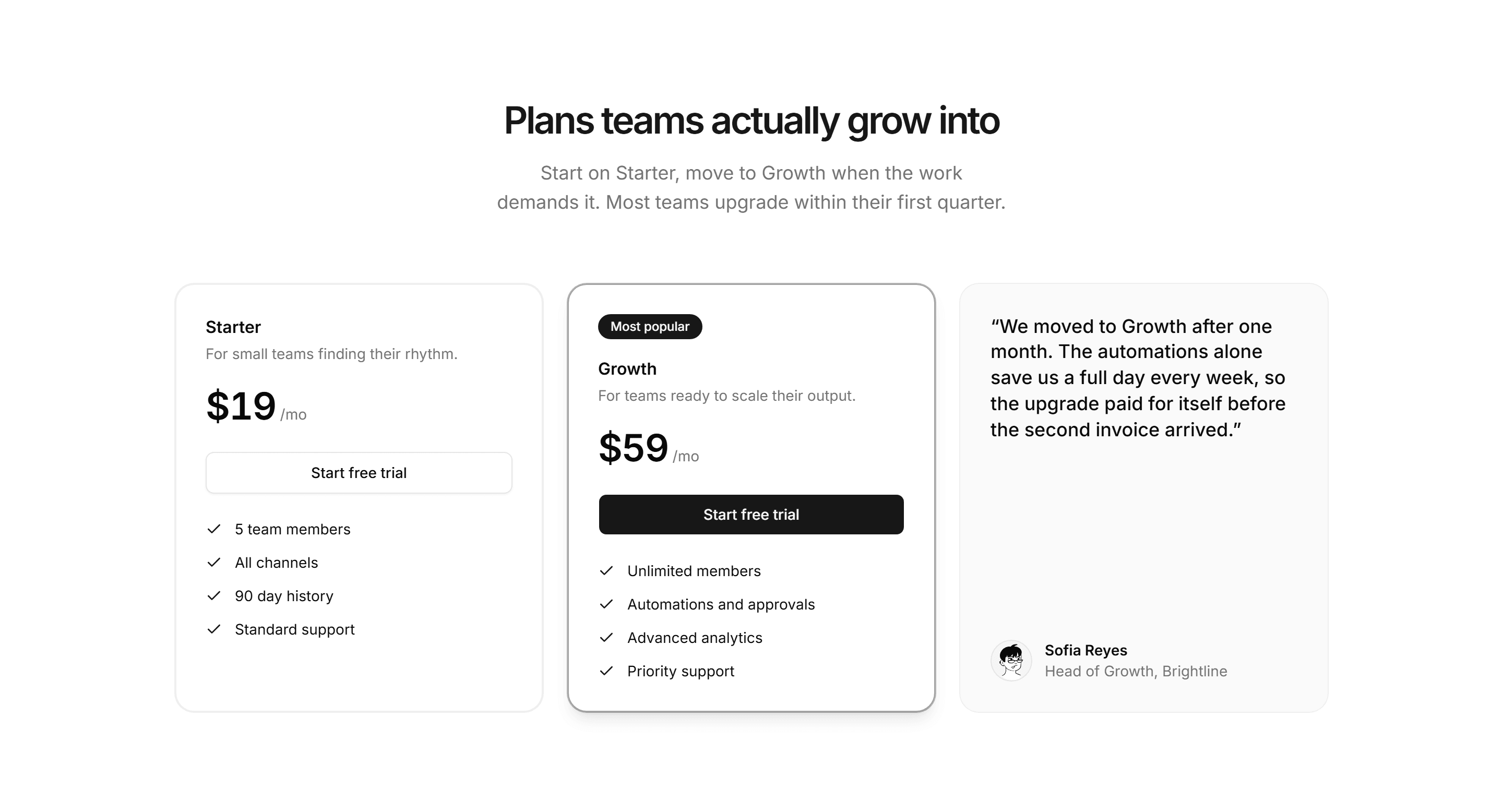
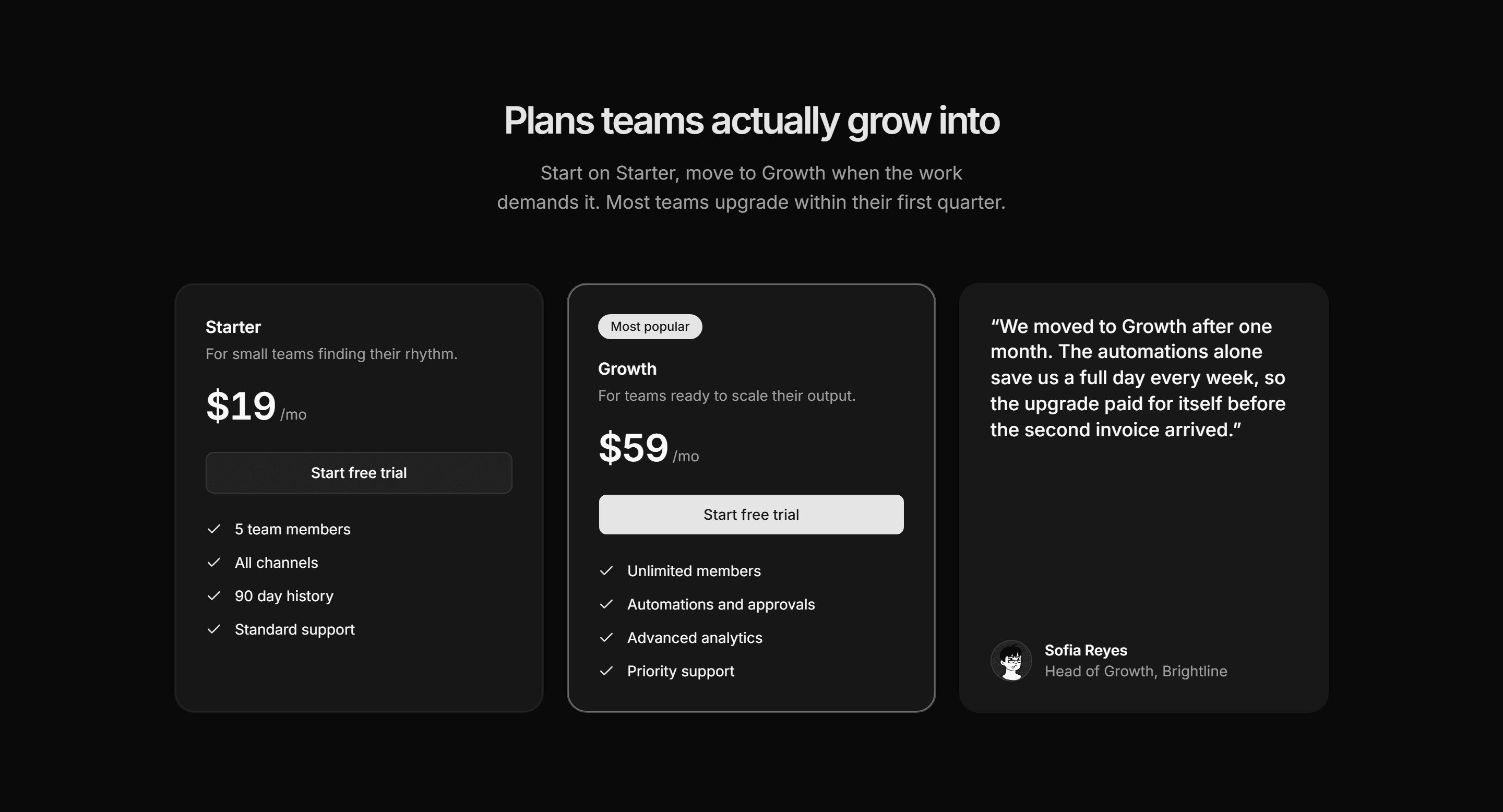
Marketing Pro Pricing: Pricing With Testimonial
Two plan cards beside a customer quote card that endorses the upgrade.
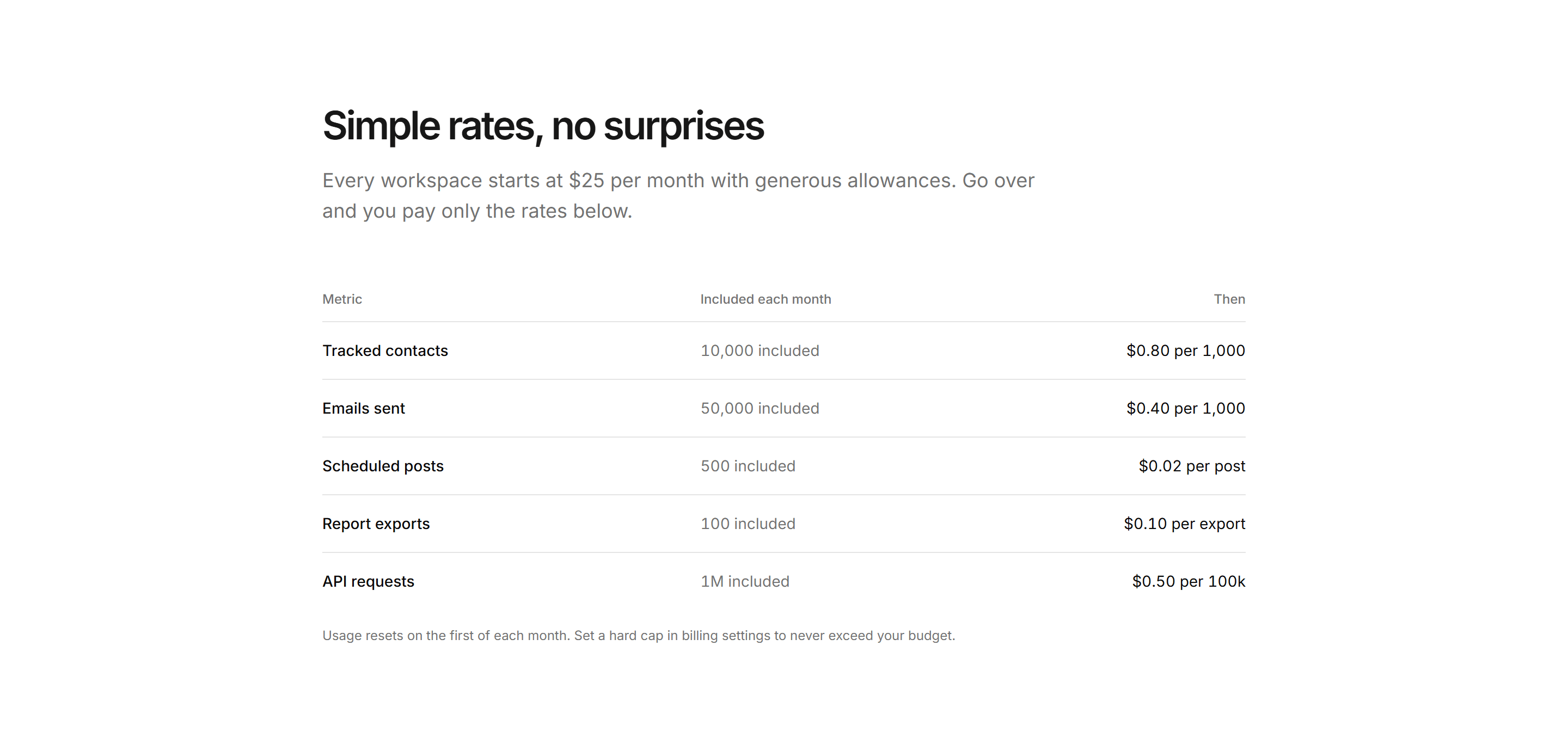
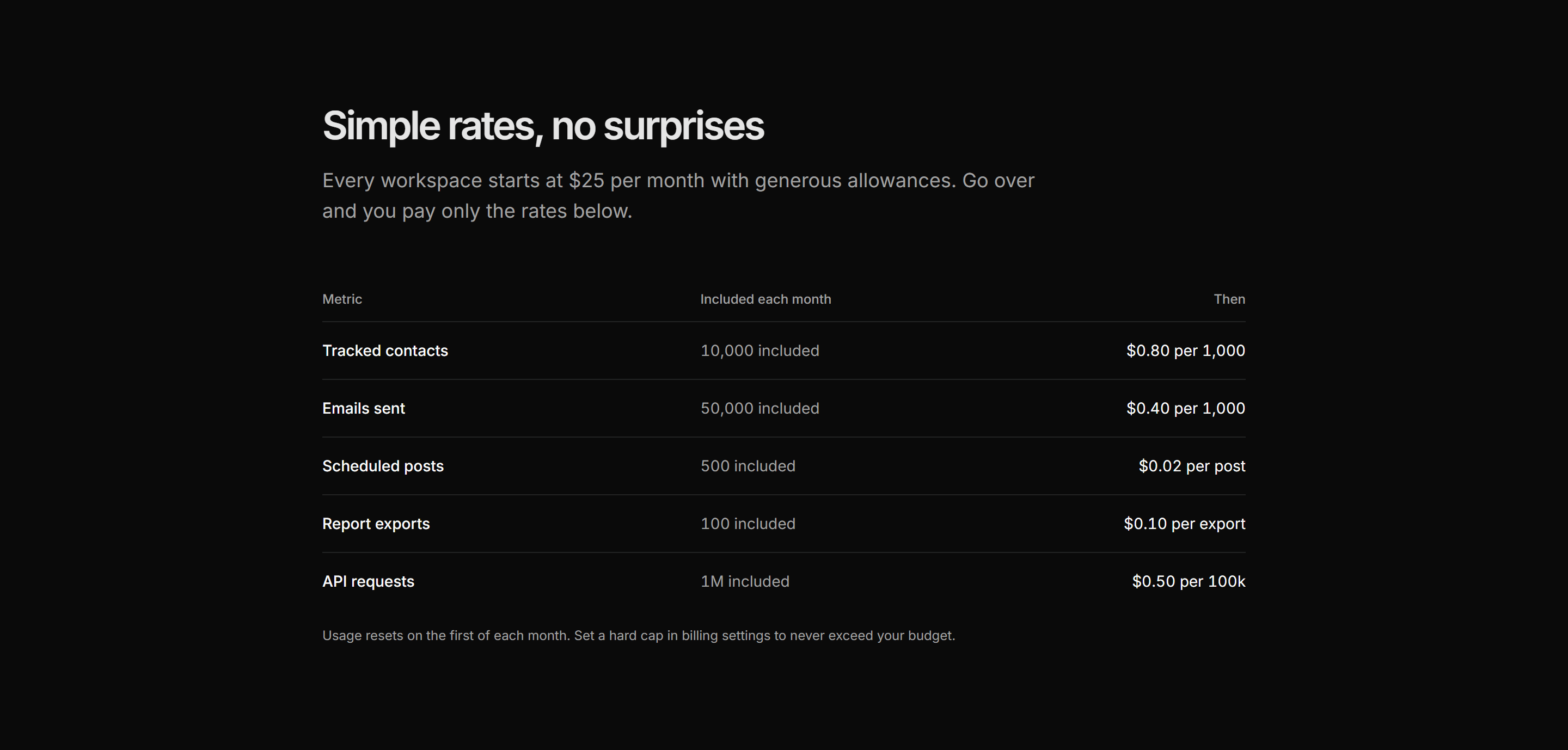
Marketing Pro Pricing: Simple Rate Table
A minimal rate table listing each metric, its included allowance, and the overage price.
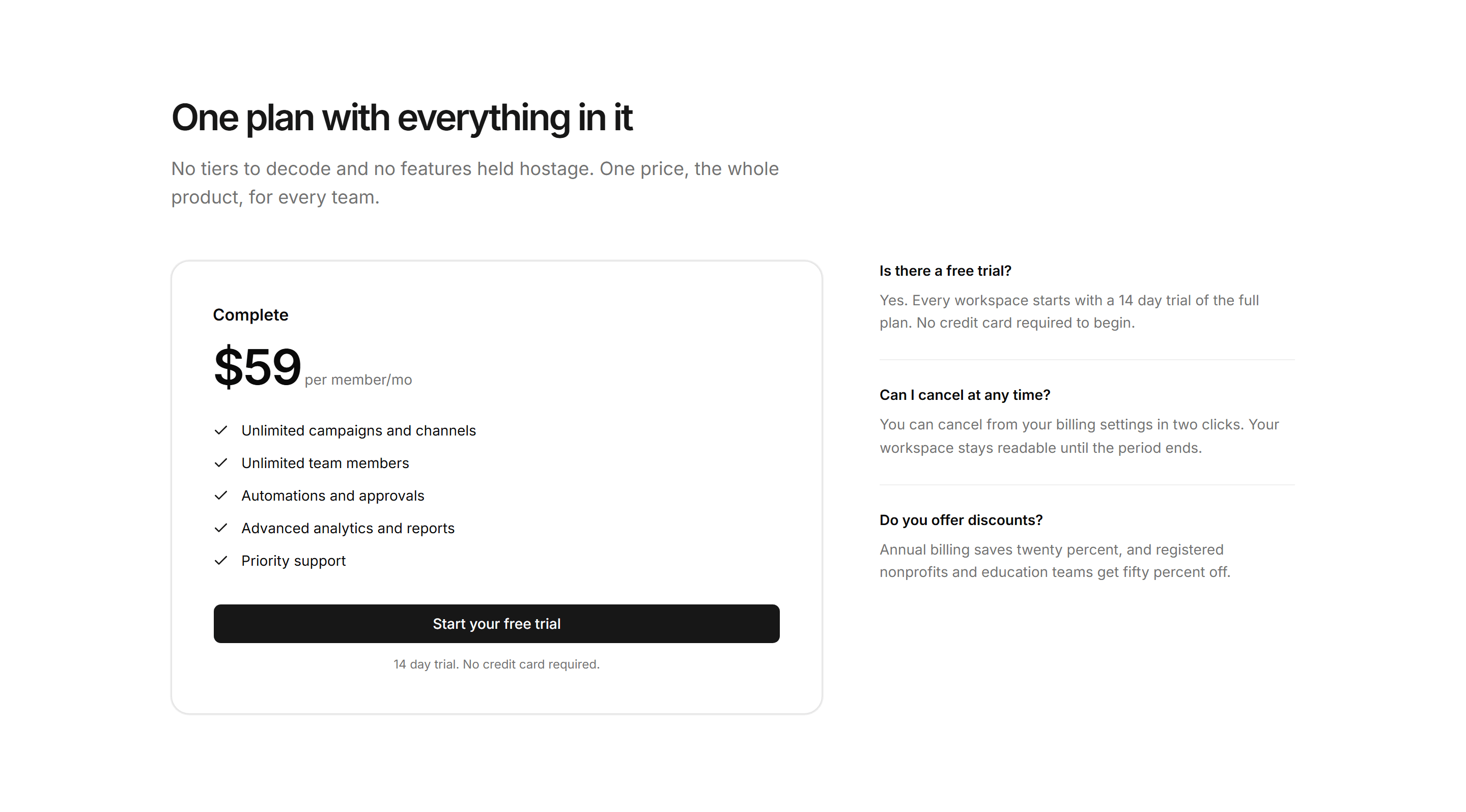
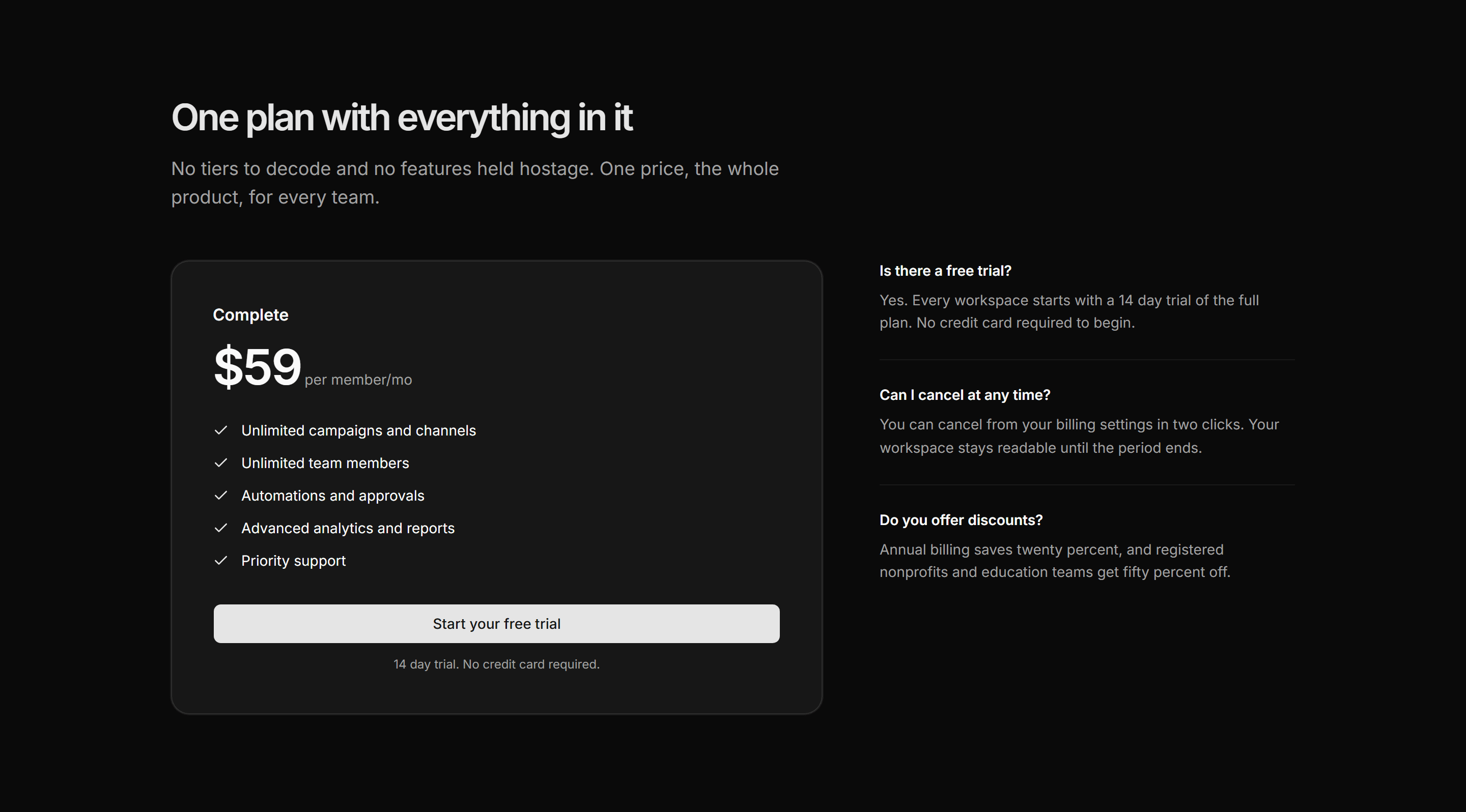
Marketing Pro Pricing: Single Plan With FAQ
A single full plan price card beside a divided list of three short pricing questions.
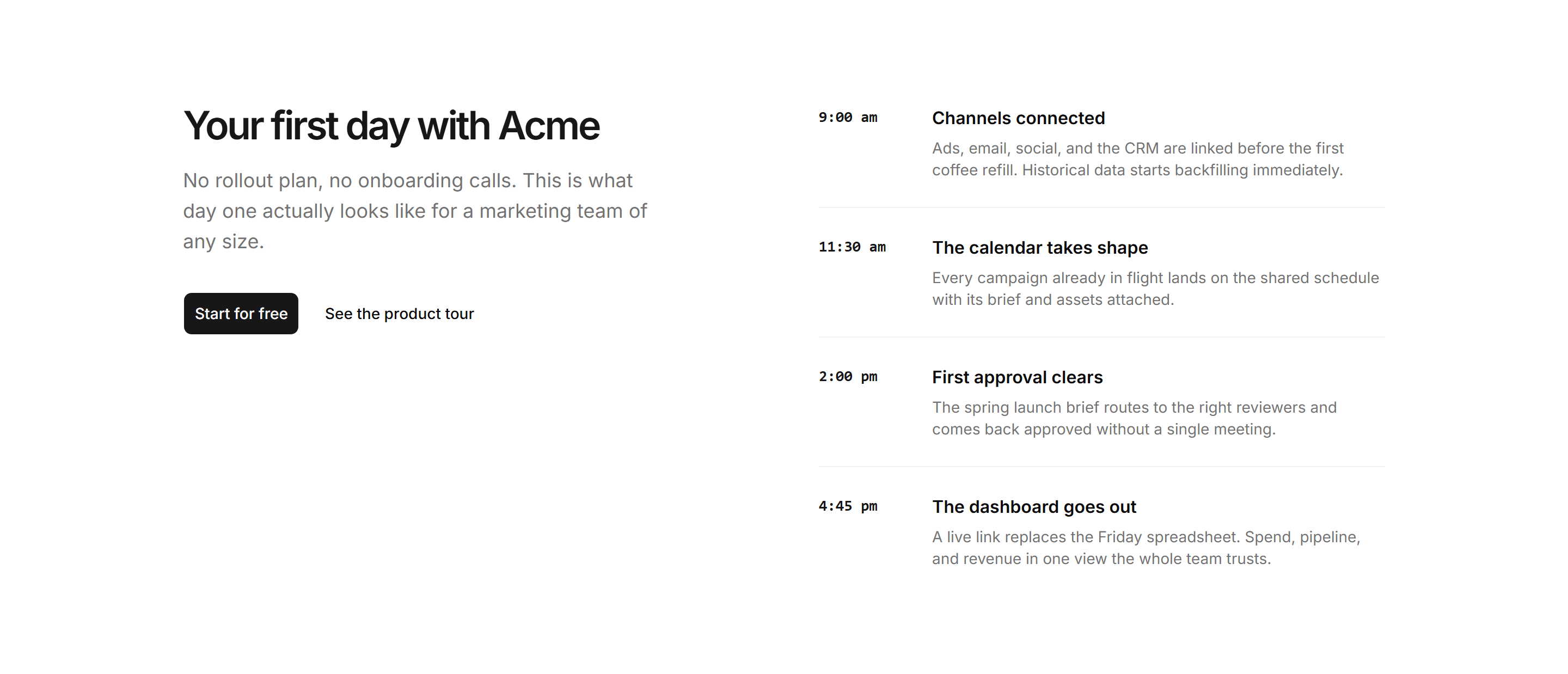
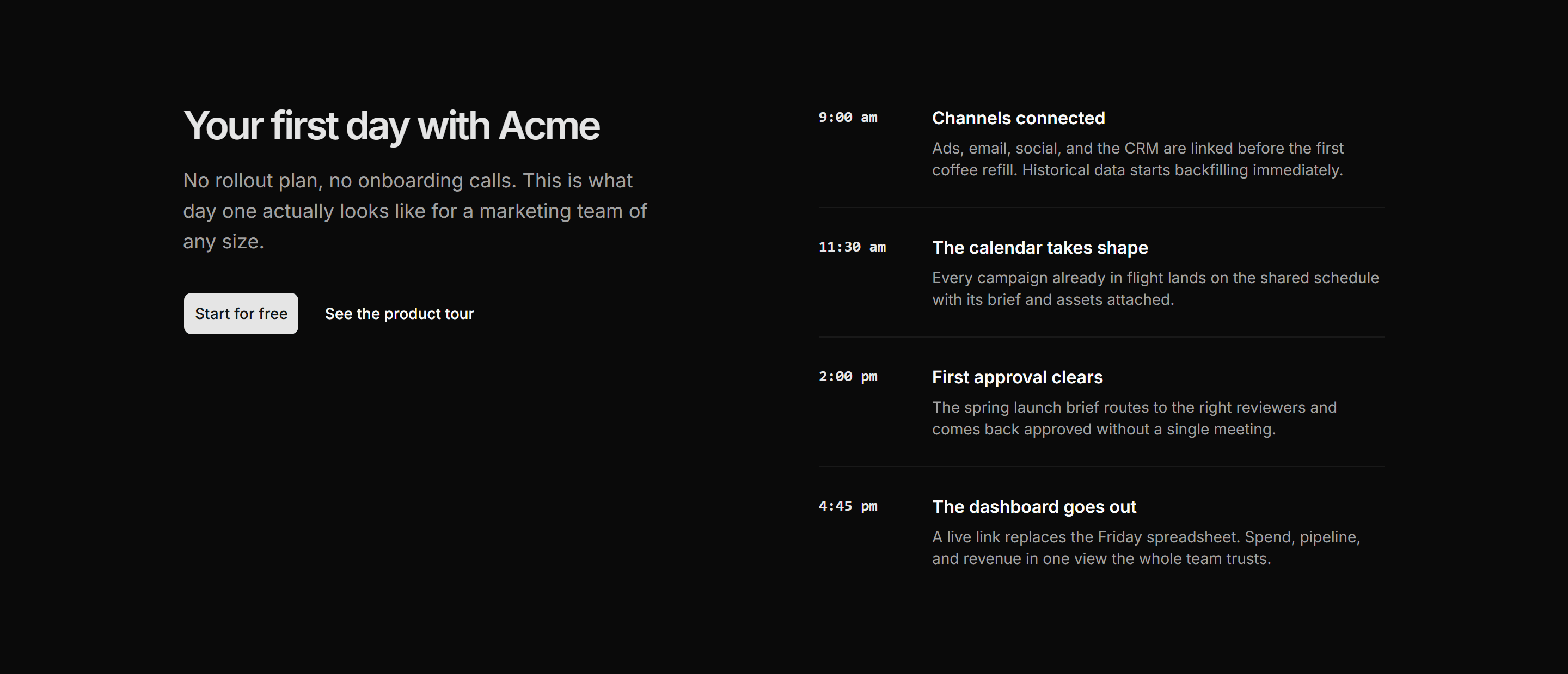
Marketing Pro How It Work: Day One Timeline
Intro copy beside a first day timeline of product moments keyed by monospaced times.
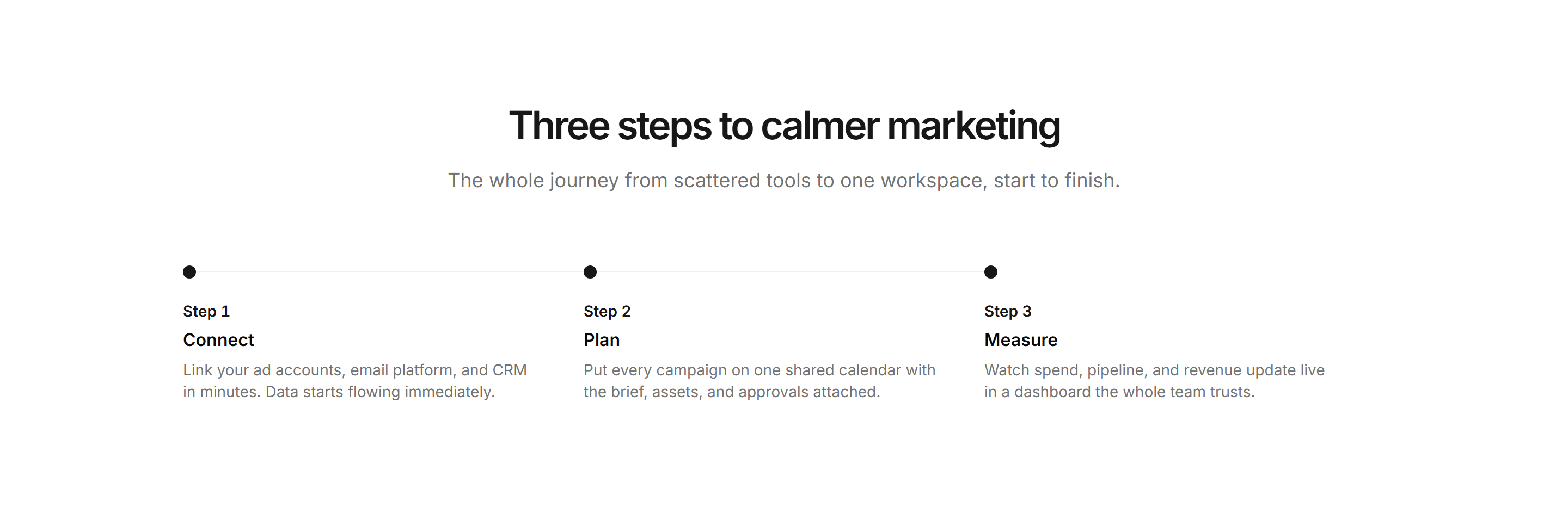
Marketing Pro How It Work: Horizontal Connected
Three steps in a row joined by a thin connector line with a dot marking each step.
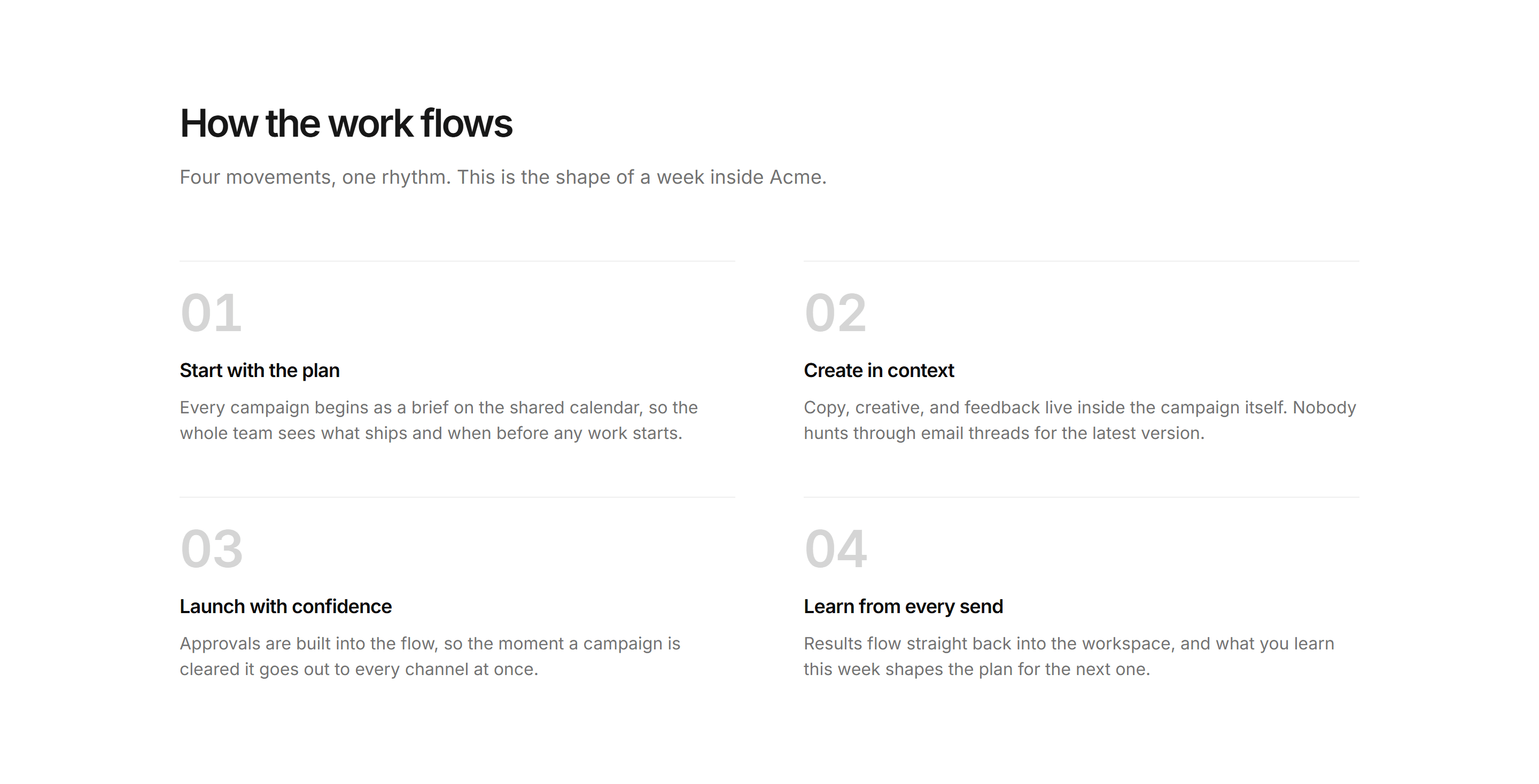
Marketing Pro How It Work: Numbered Editorial
Four oversized numbered steps in a two column editorial grid with top borders.
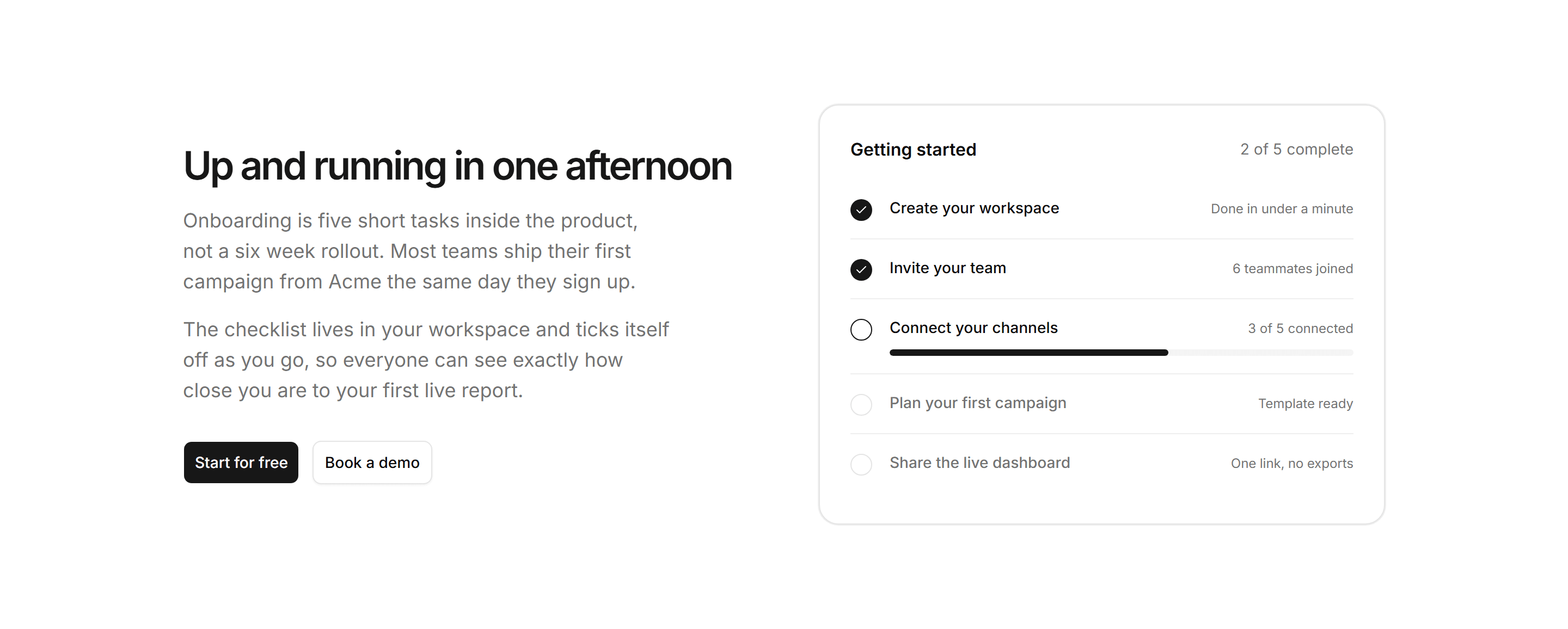
Marketing Pro How It Work: Onboarding Checklist
Copy about a one afternoon setup beside a bordered checklist card with a progress bar.
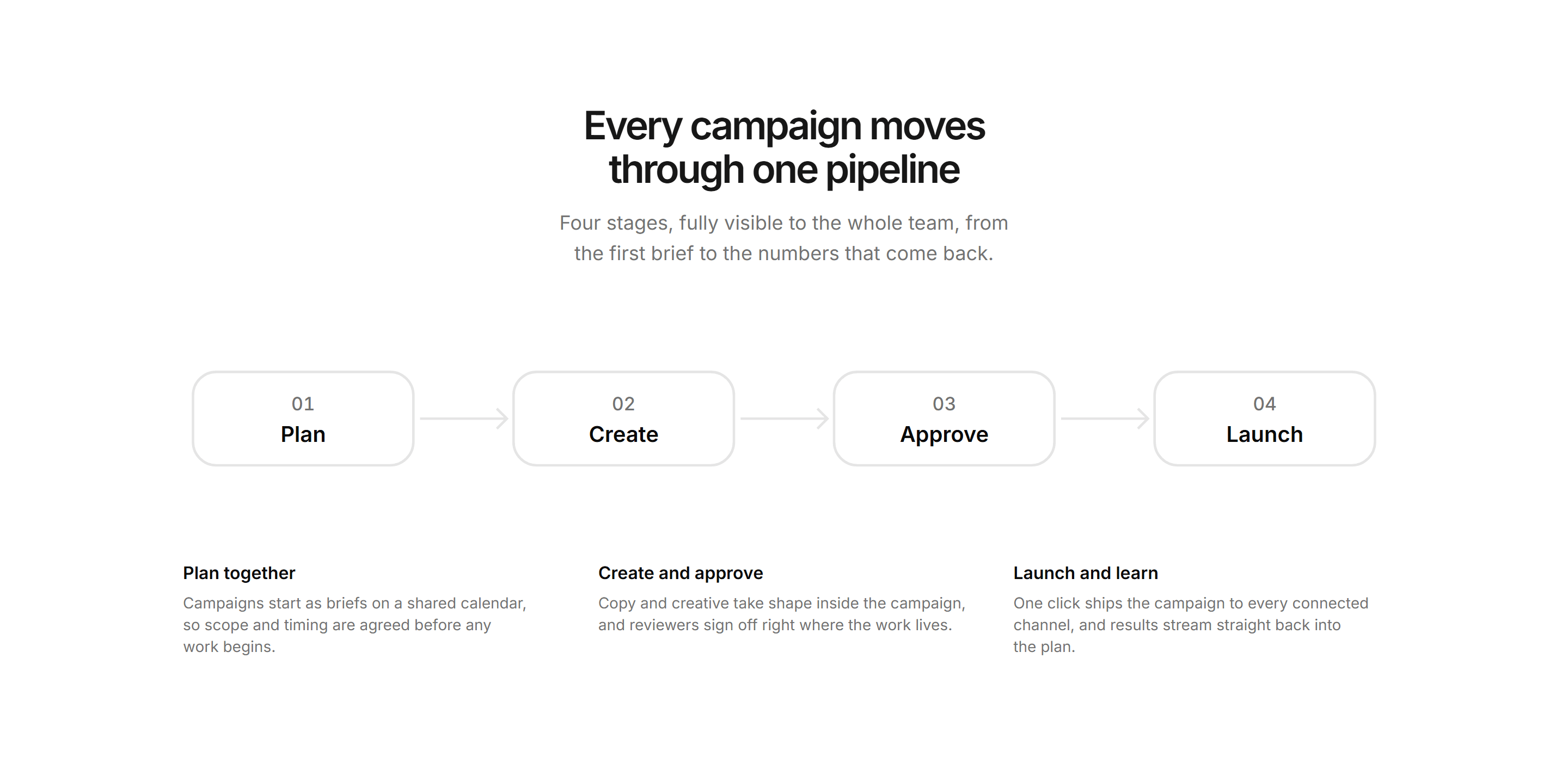
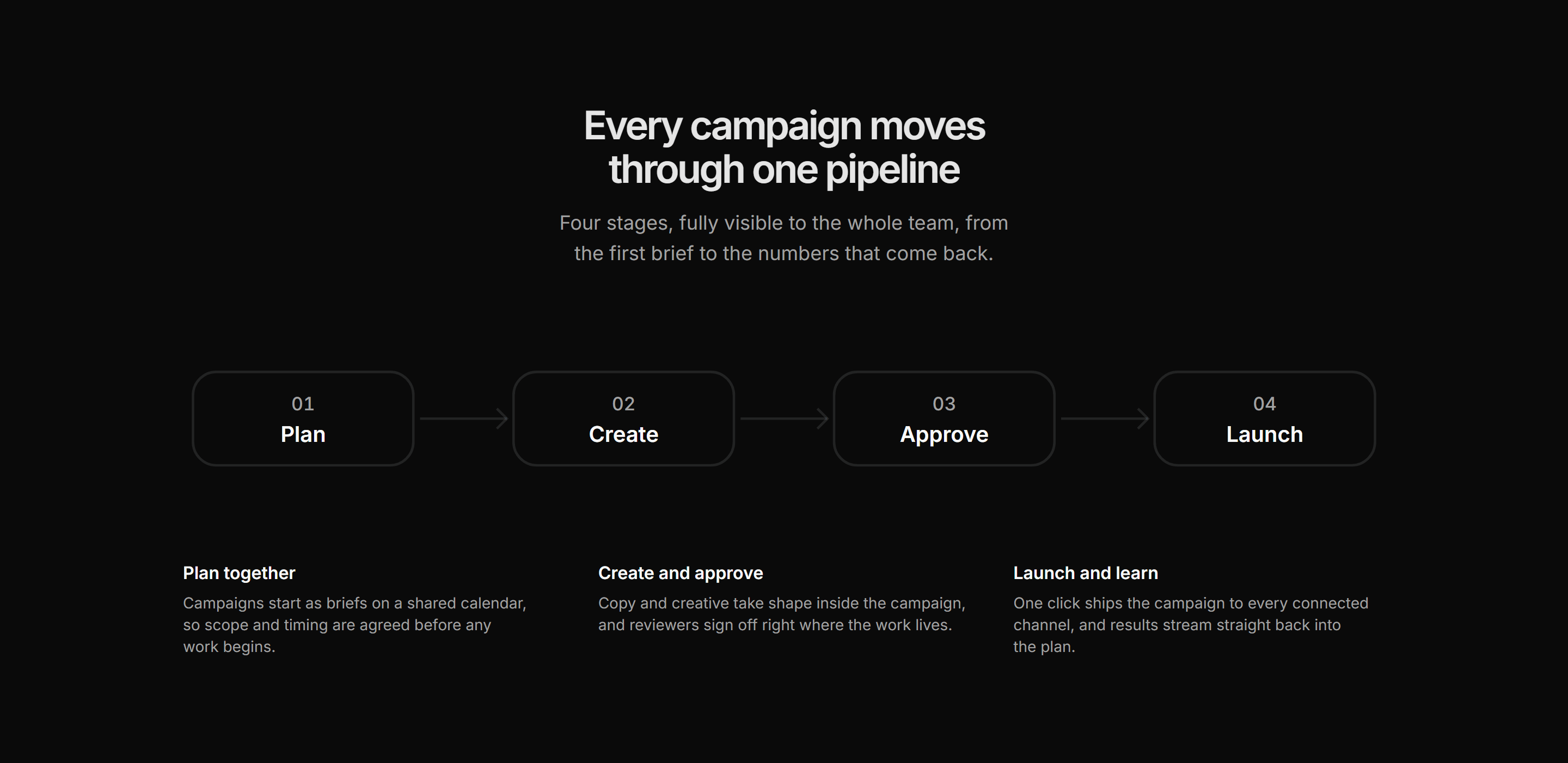
Marketing Pro How It Work: Pipeline Flow
Inline SVG flow of four pipeline stages above a three column row explaining them.
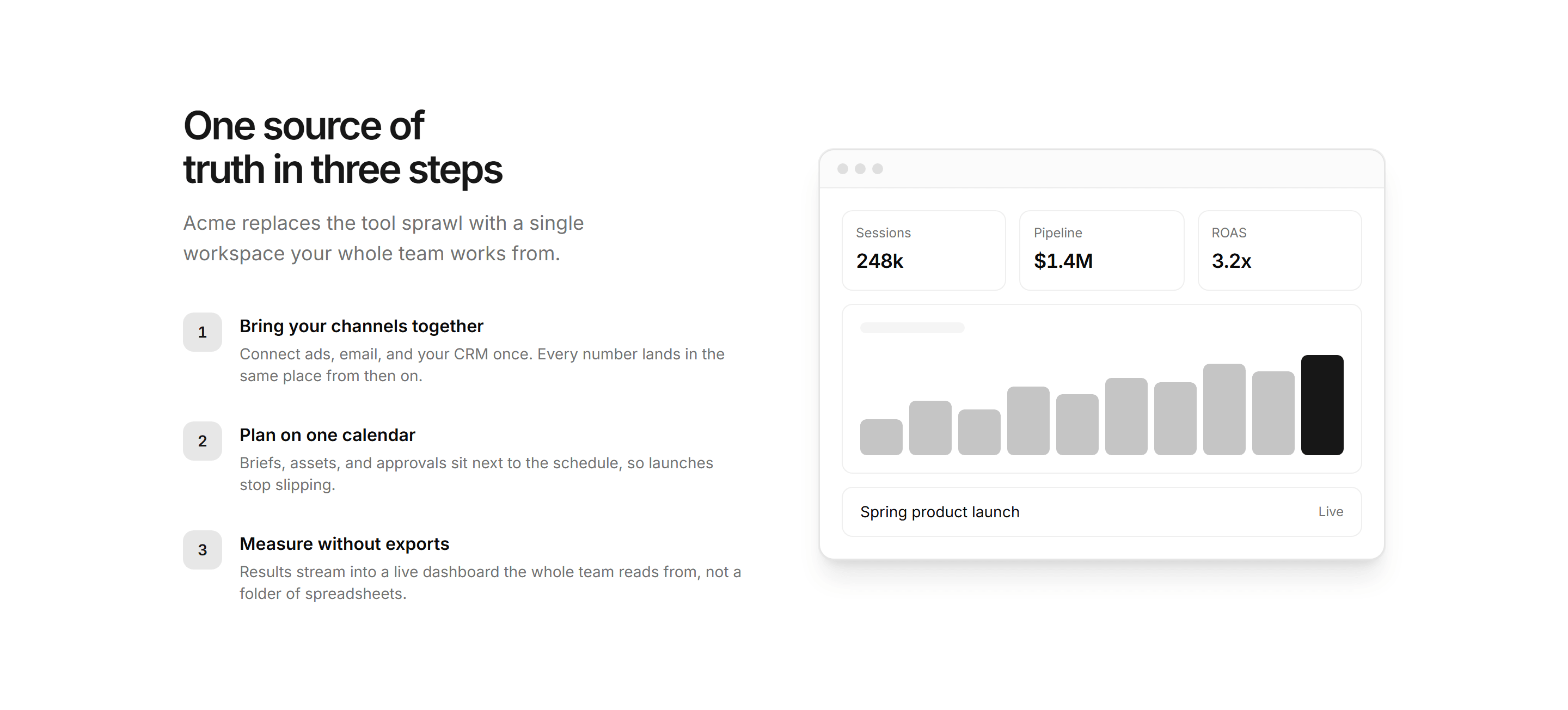
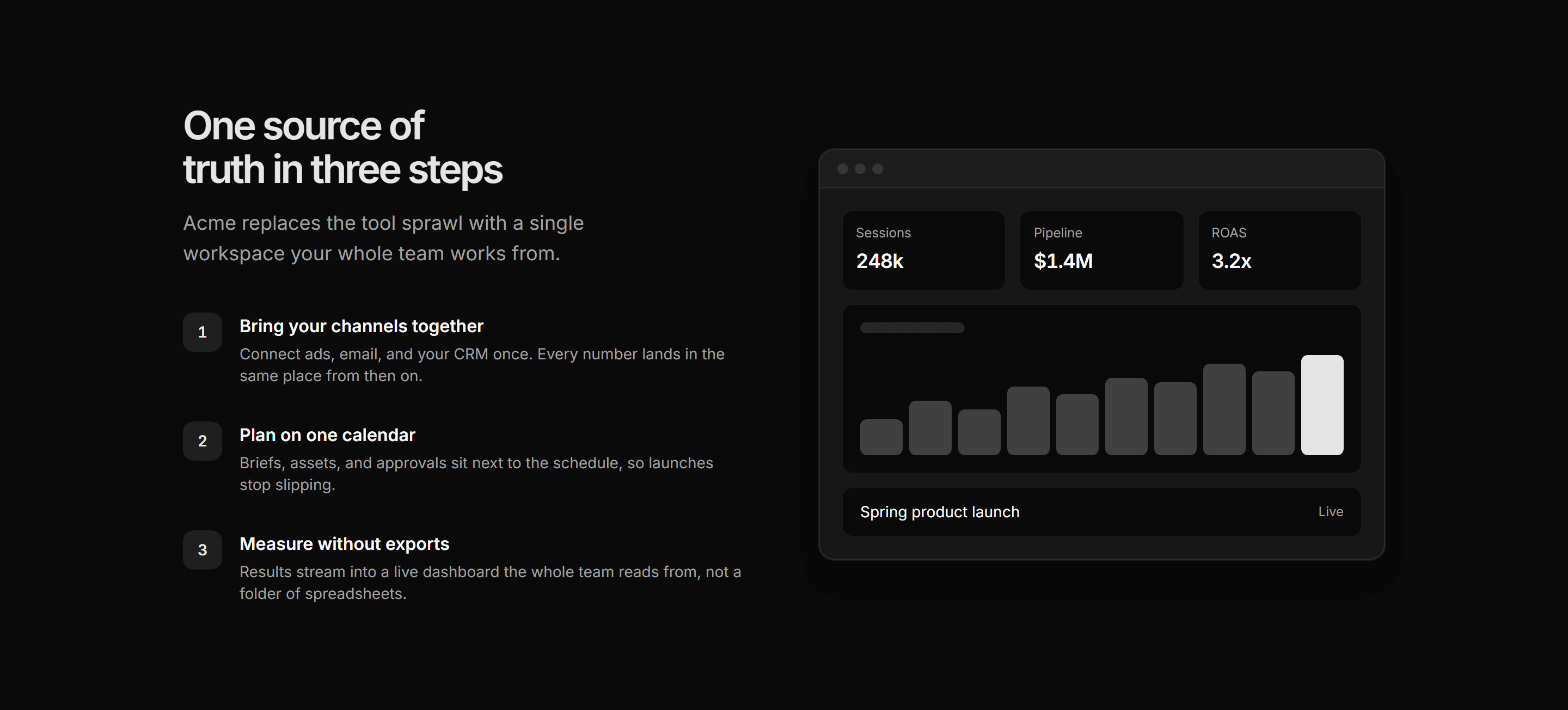
Marketing Pro How It Work: Split Steps With Mockup
Three numbered steps beside an app window mockup showing live metrics and a chart.
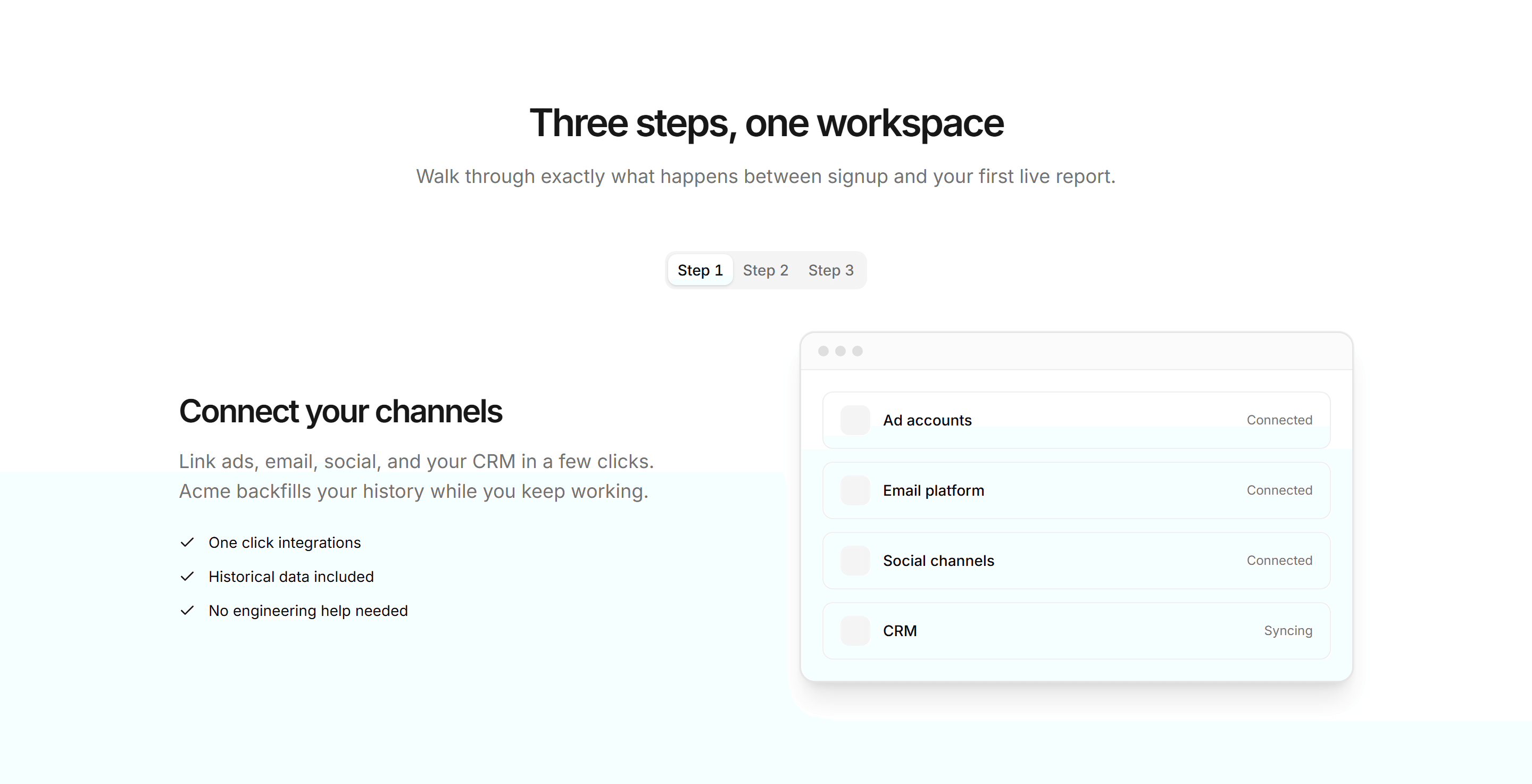
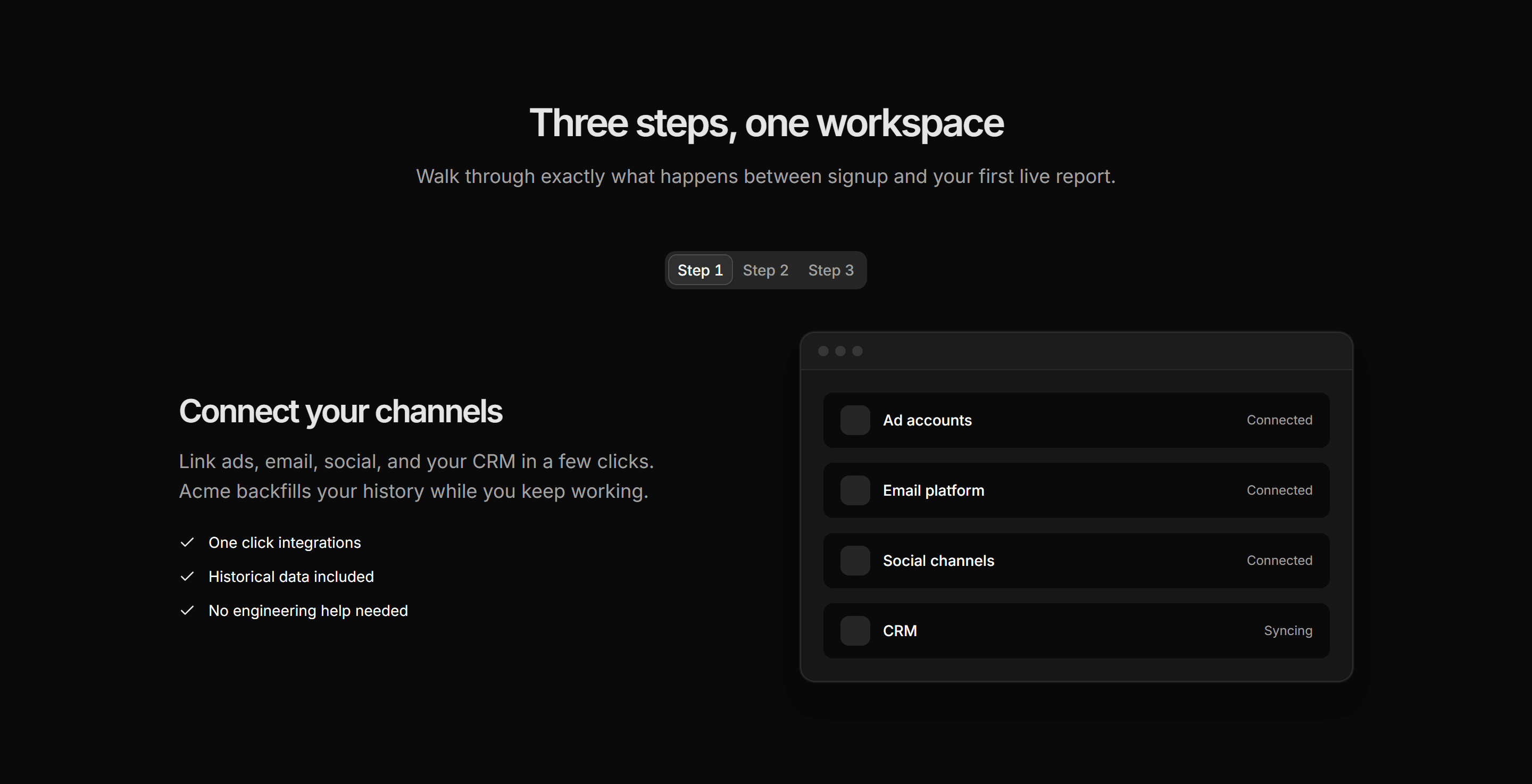
Marketing Pro How It Work: Step Tabs
Tabs labeled Step 1 to 3 where each panel pairs step copy with a small app mockup.
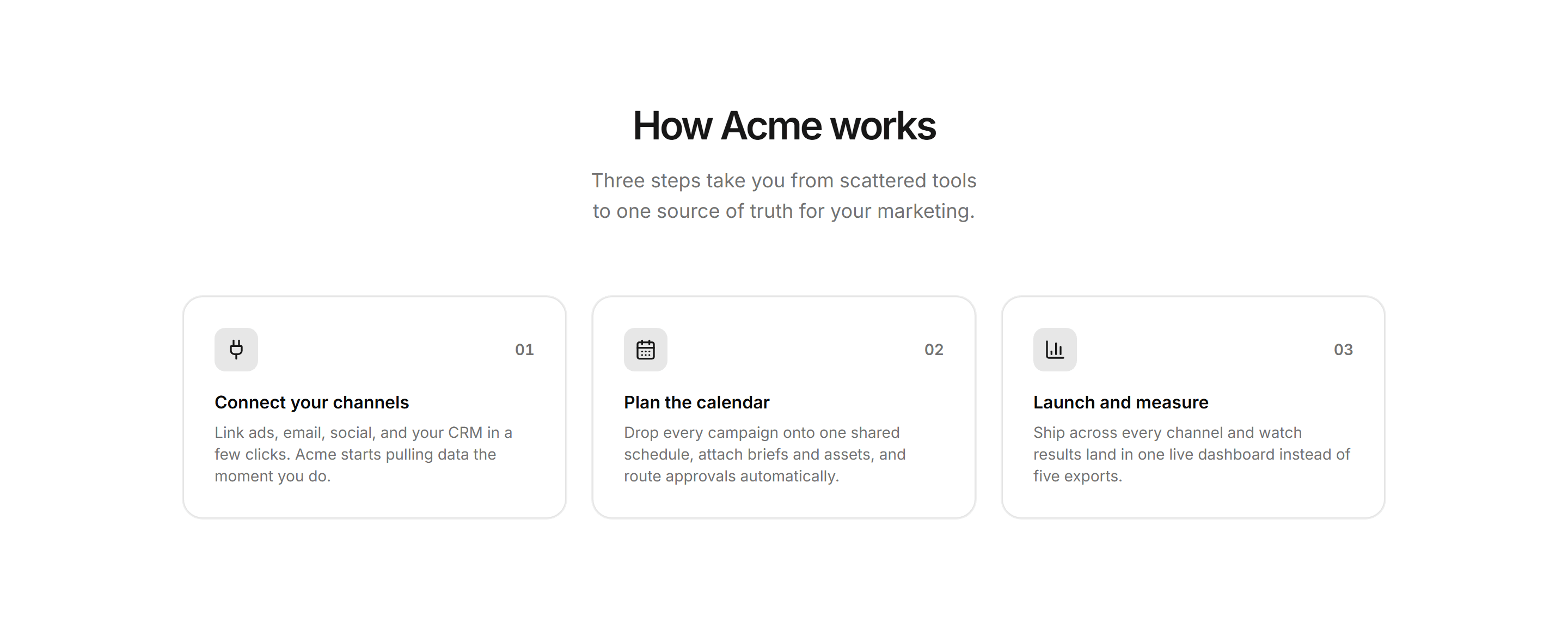
Marketing Pro How It Work: Three Step Cards
Centered heading above three step cards, each pairing an icon and number with short copy.
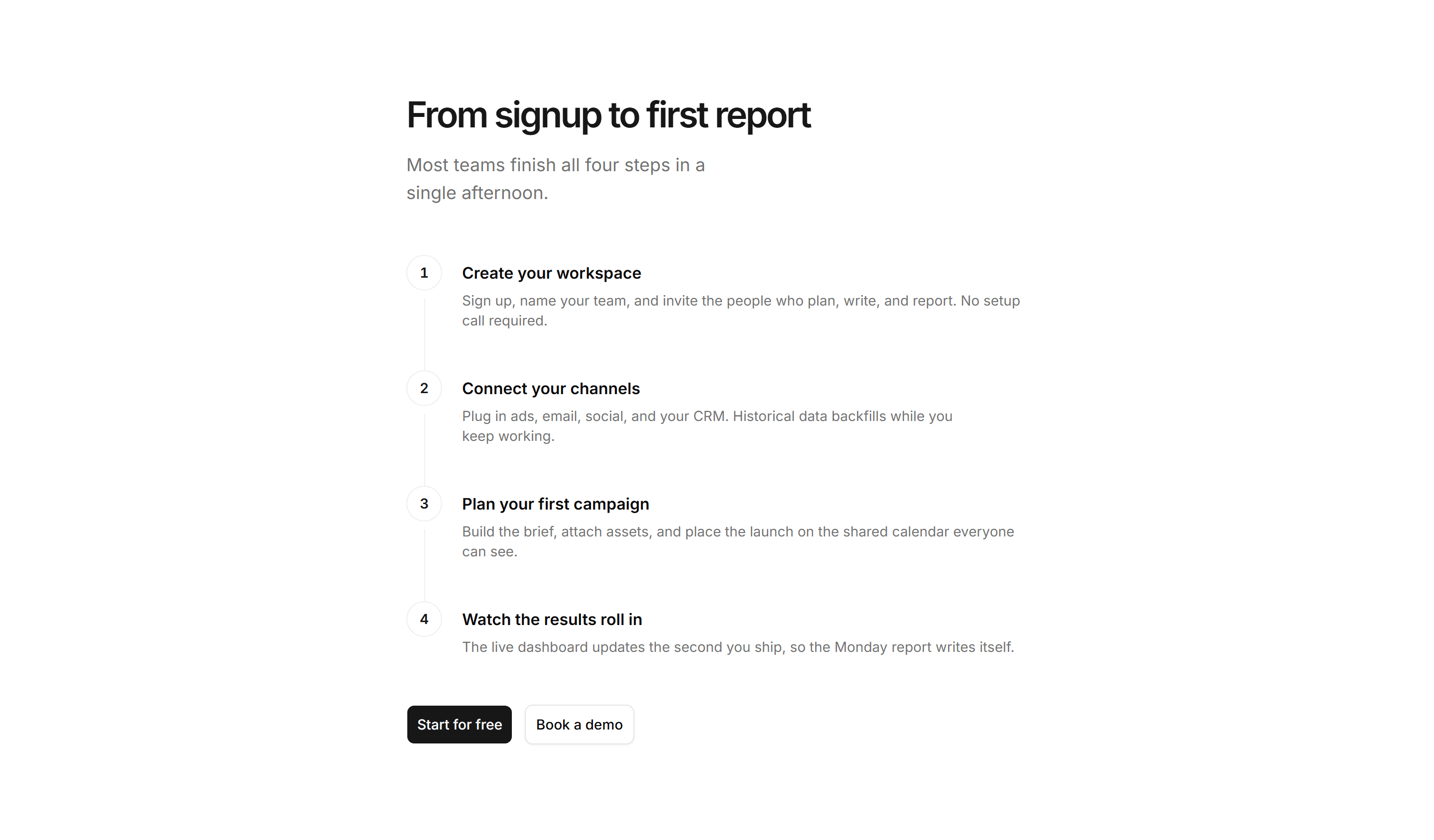
Marketing Pro How It Work: Vertical Timeline
Narrow vertical timeline of four numbered steps joined by a line, with buttons below.
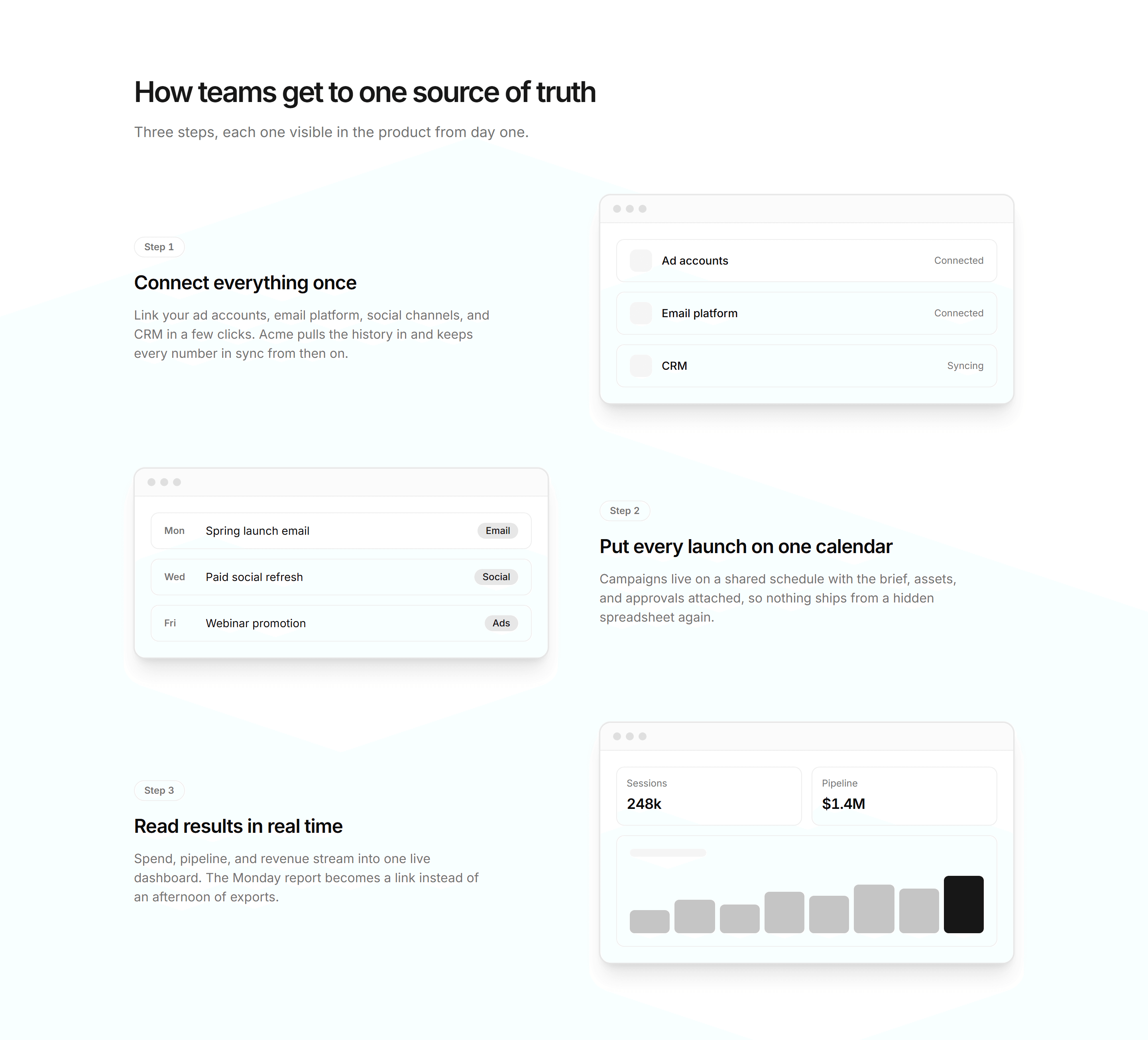
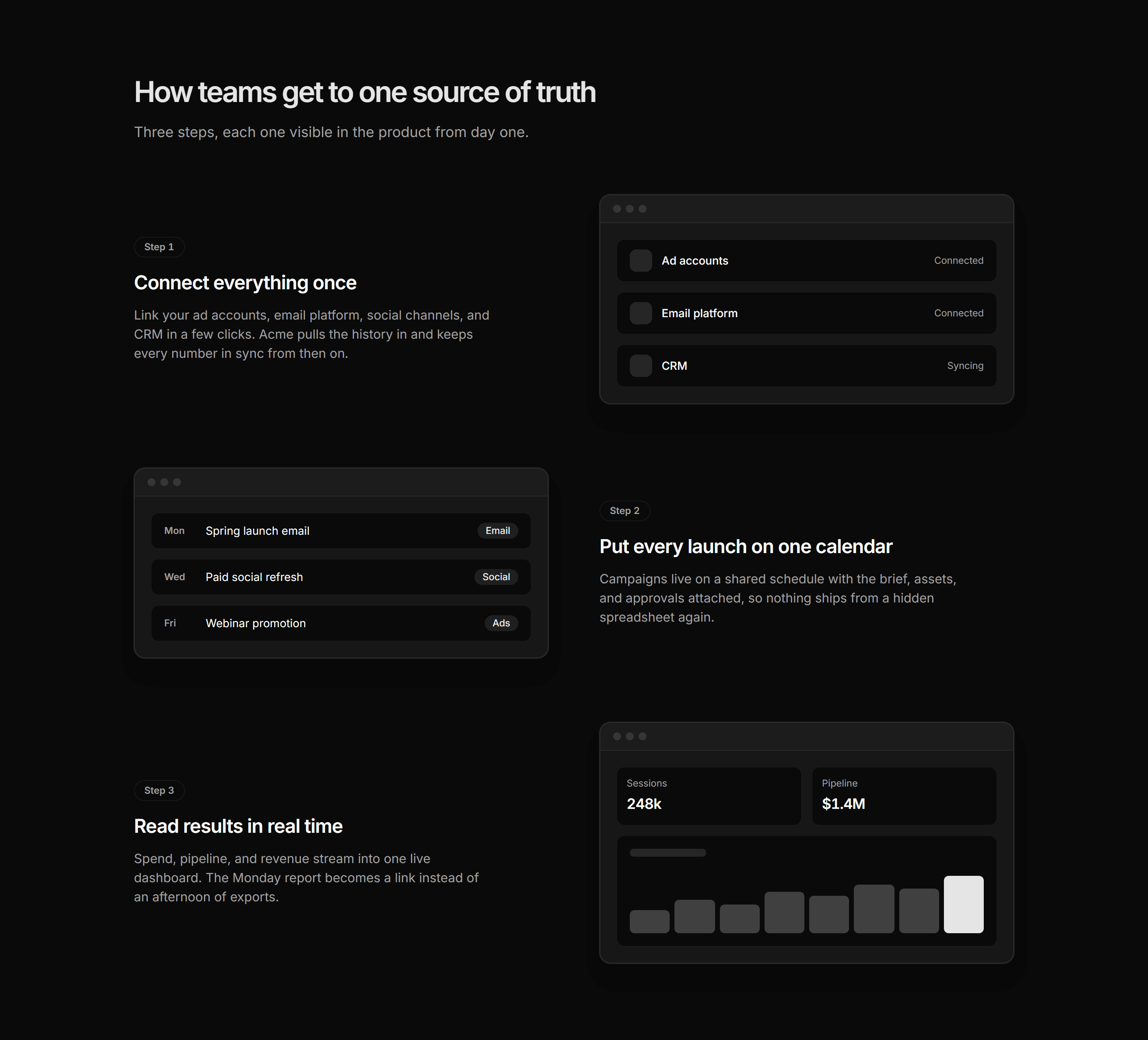
Marketing Pro How It Work: Zigzag Steps
Alternating rows of step copy and app mockups, each tagged with a bordered step badge.
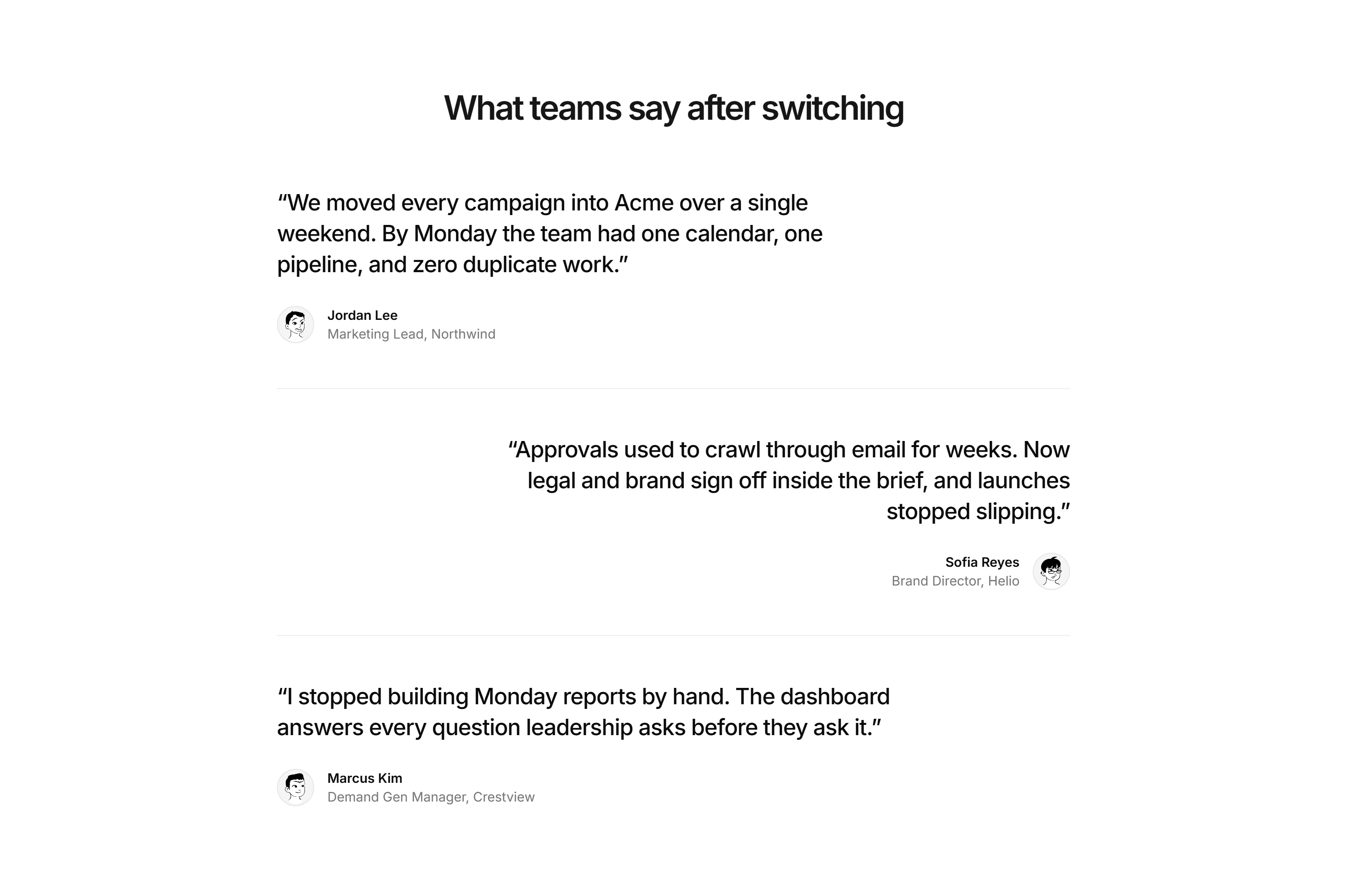
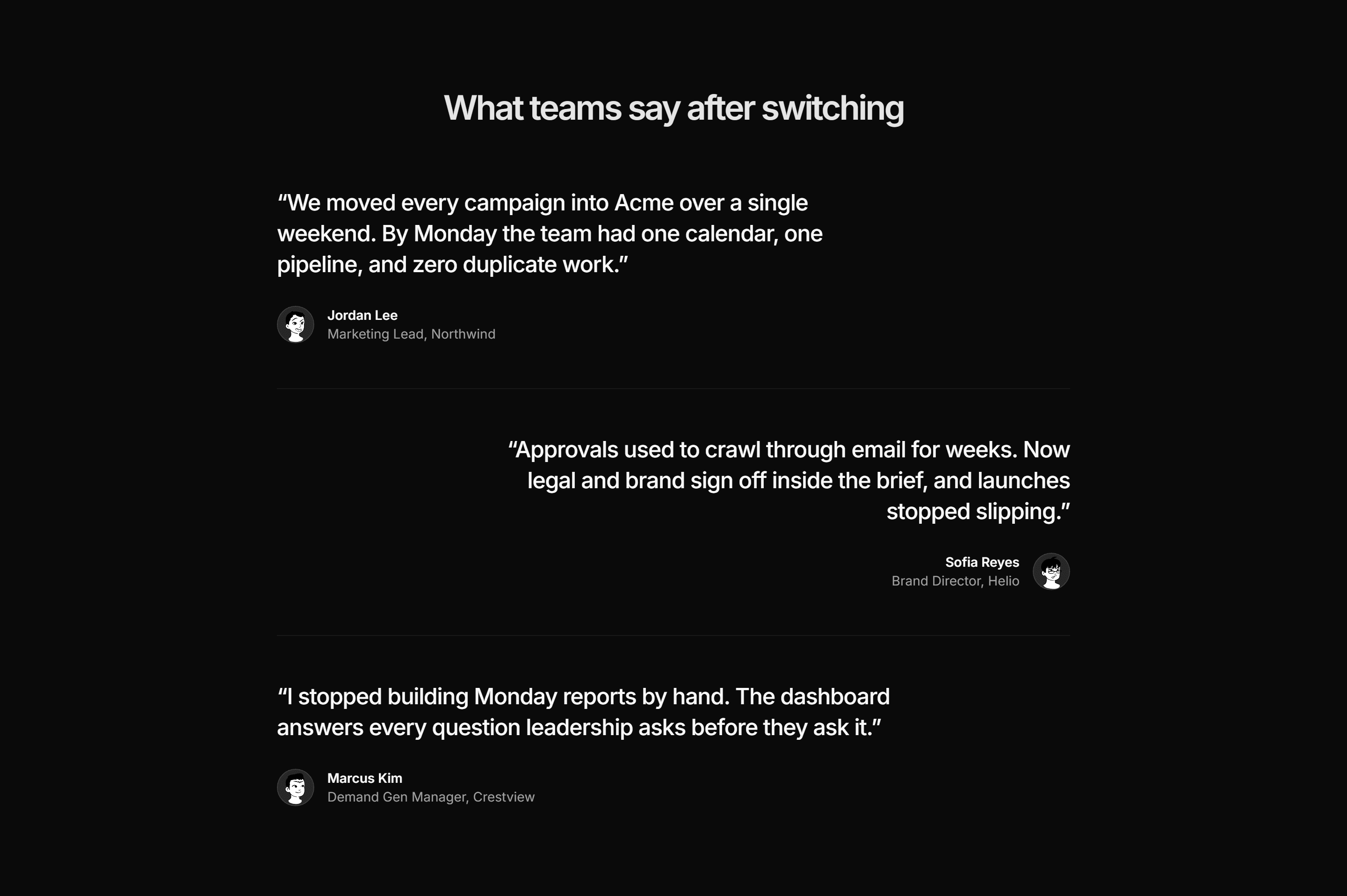
Marketing Pro Testimonial: Alternating Quotes
Large quotes with avatars that alternate left and right alignment in a divided stack.


Marketing Pro Testimonial: Avatar Strip With Quote
A centered row of ten overlapping avatars above one quote, five stars, and a review count.
Marketing Pro Testimonial: Dark Panel Quote
One featured quote inside a solid primary panel with avatar attribution at the bottom.
Marketing Pro Testimonial: Logos And Quotes Grid
A grid that alternates customer quote cards with company wordmark tiles under a heading.
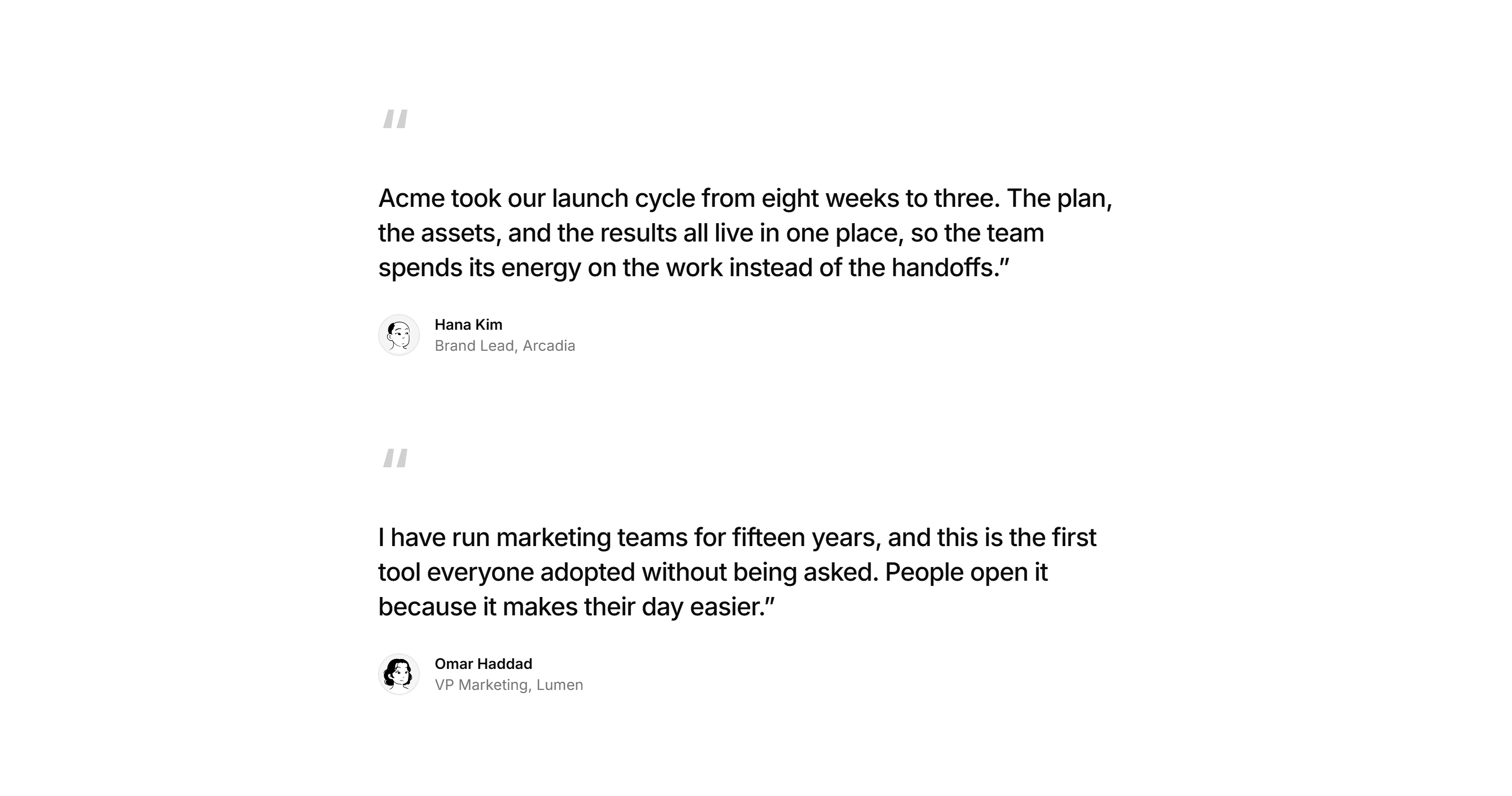
Marketing Pro Testimonial: Pull Quotes Stack
An editorial stack of two big pull quotes with oversized quote marks and attributions.
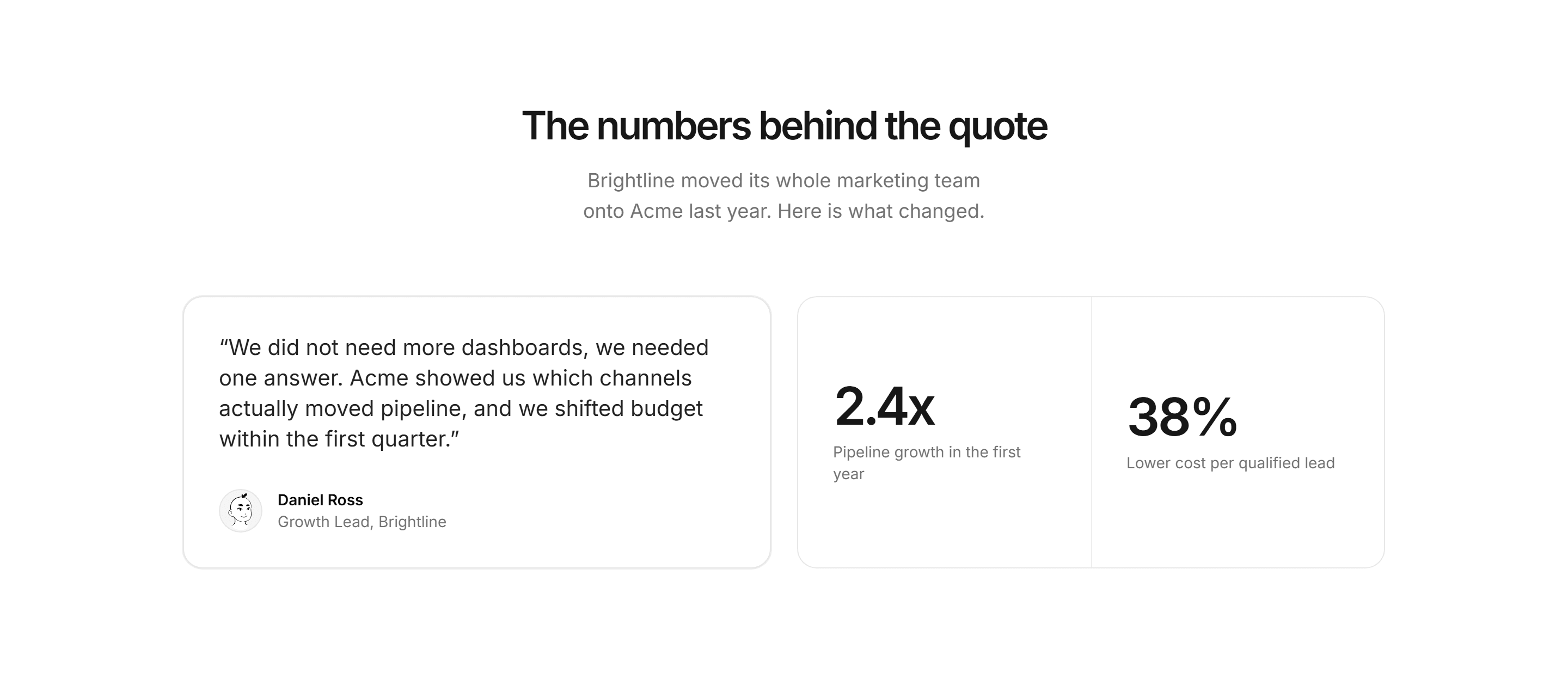
Marketing Pro Testimonial: Quote With Metrics
A featured customer quote card beside a divided grid of two big result numbers.
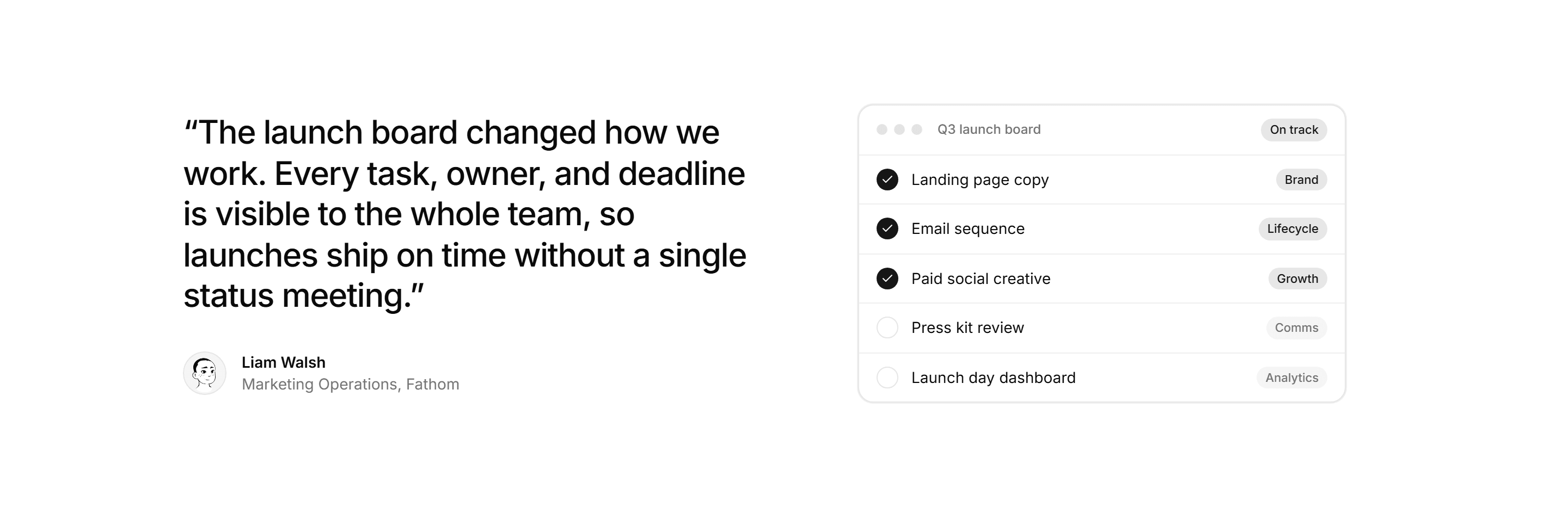
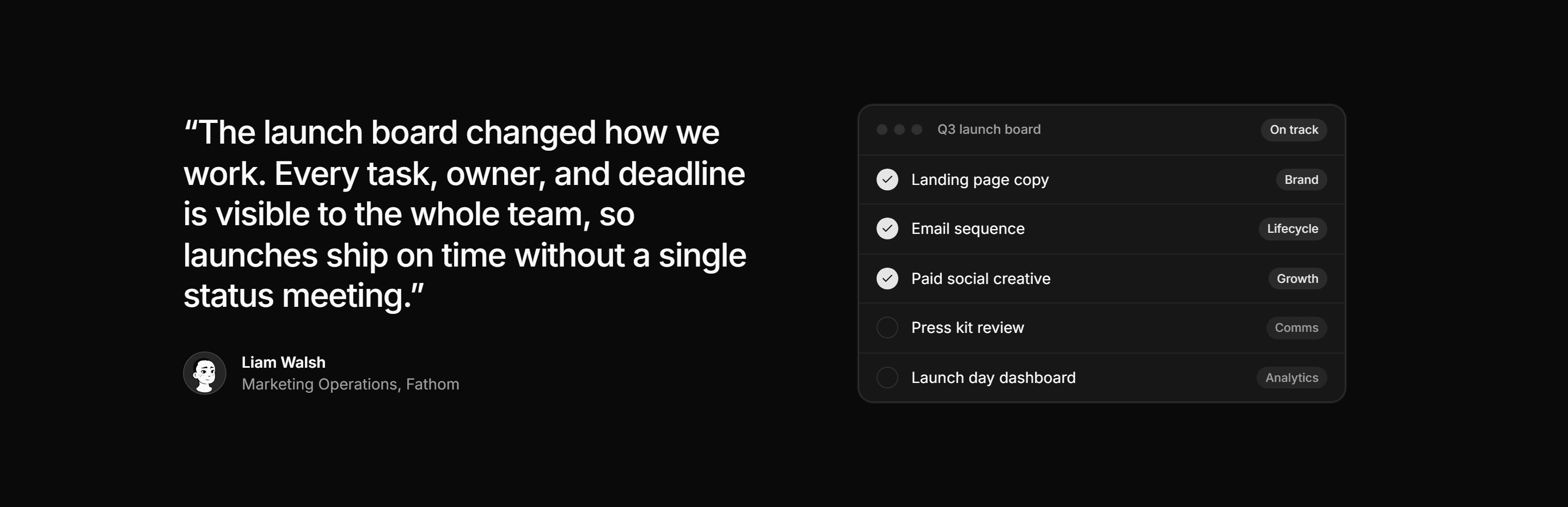
Marketing Pro Testimonial: Quote With Product Shot
A large quote and attribution beside a launch checklist mockup of the product.
Marketing Pro Testimonial: Single Quote Banner
One large centered quote with an avatar, name, and role stacked beneath it.
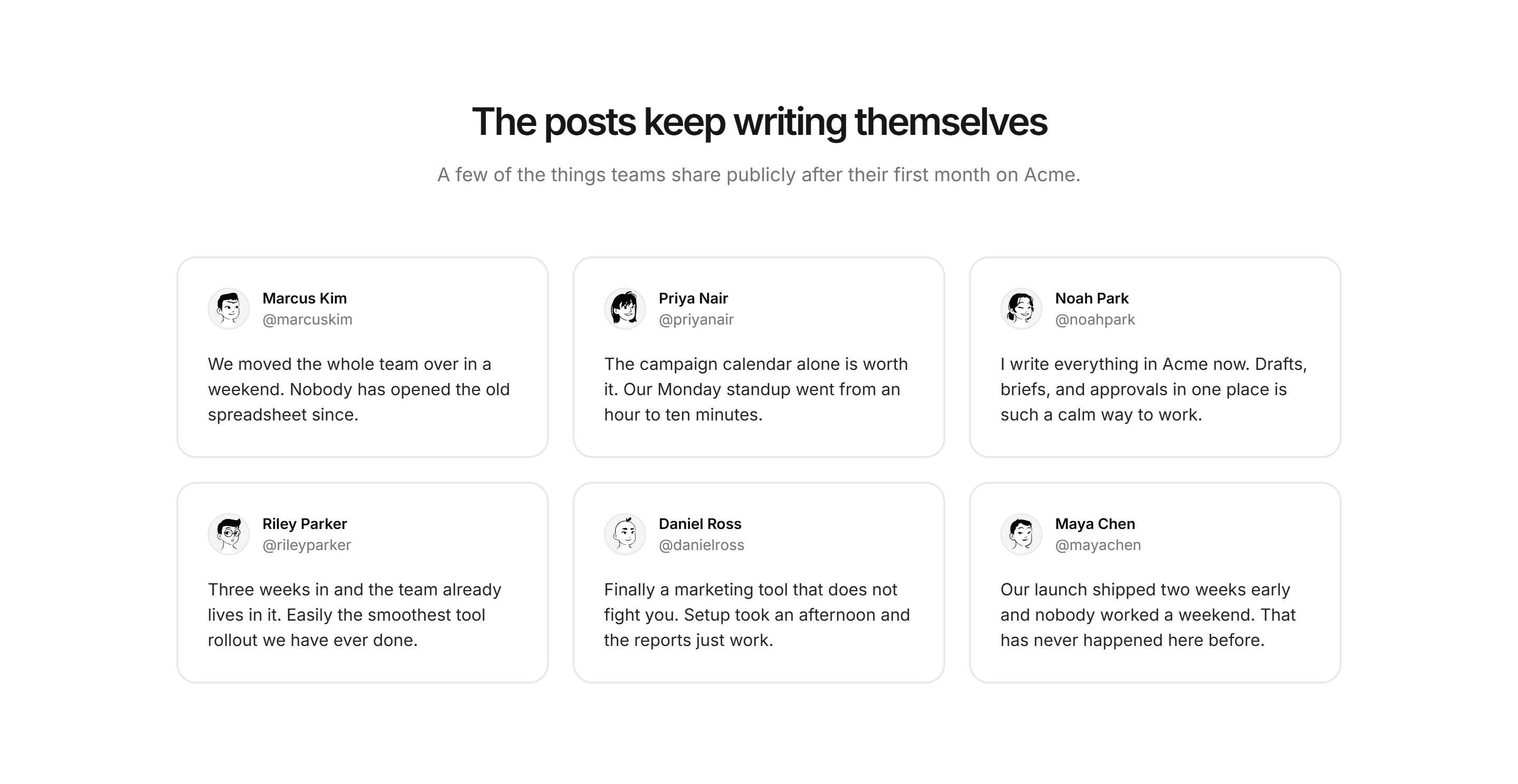
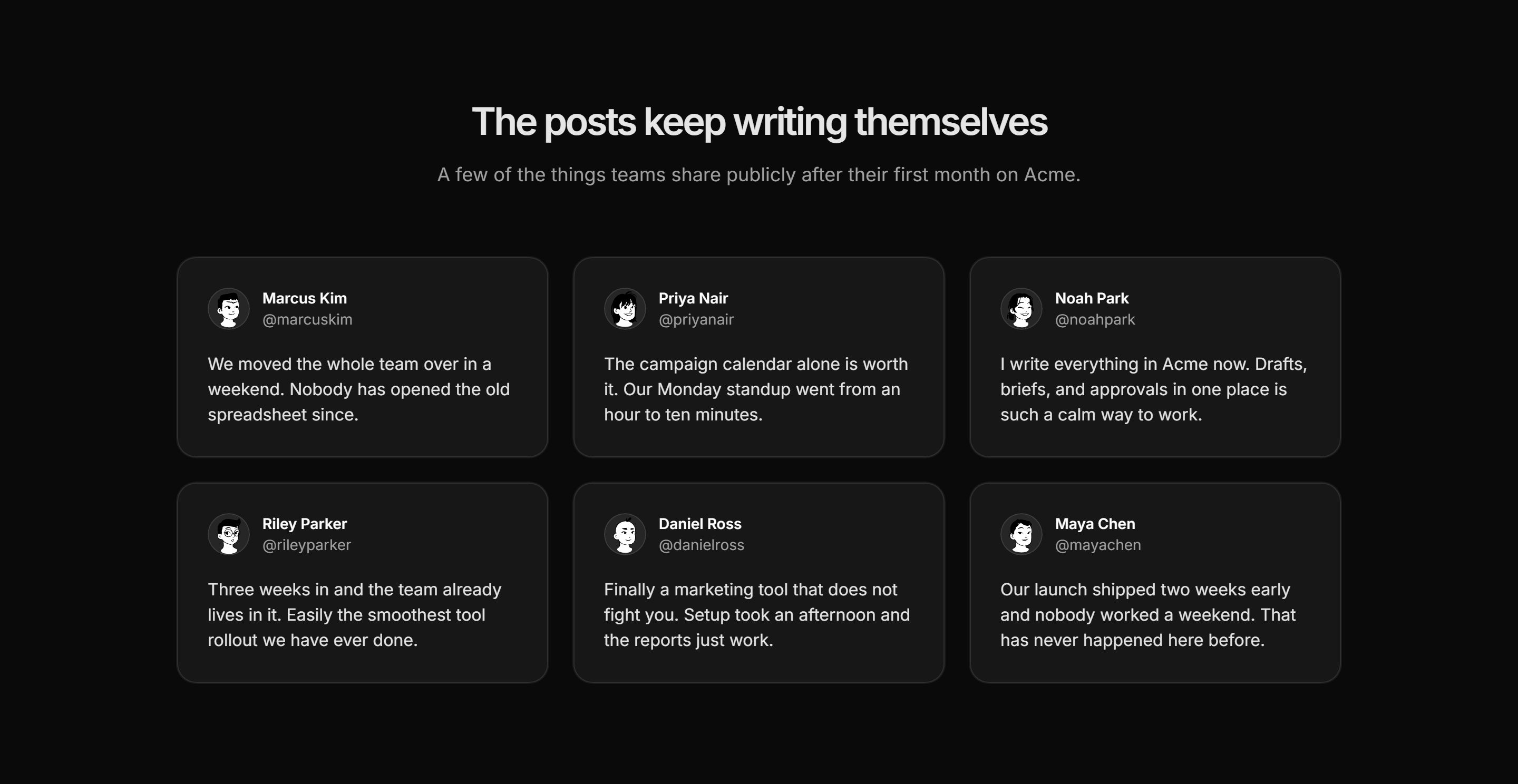
Marketing Pro Testimonial: Social Cards
A grid of six social post style cards with avatars, handles, and casual praise.
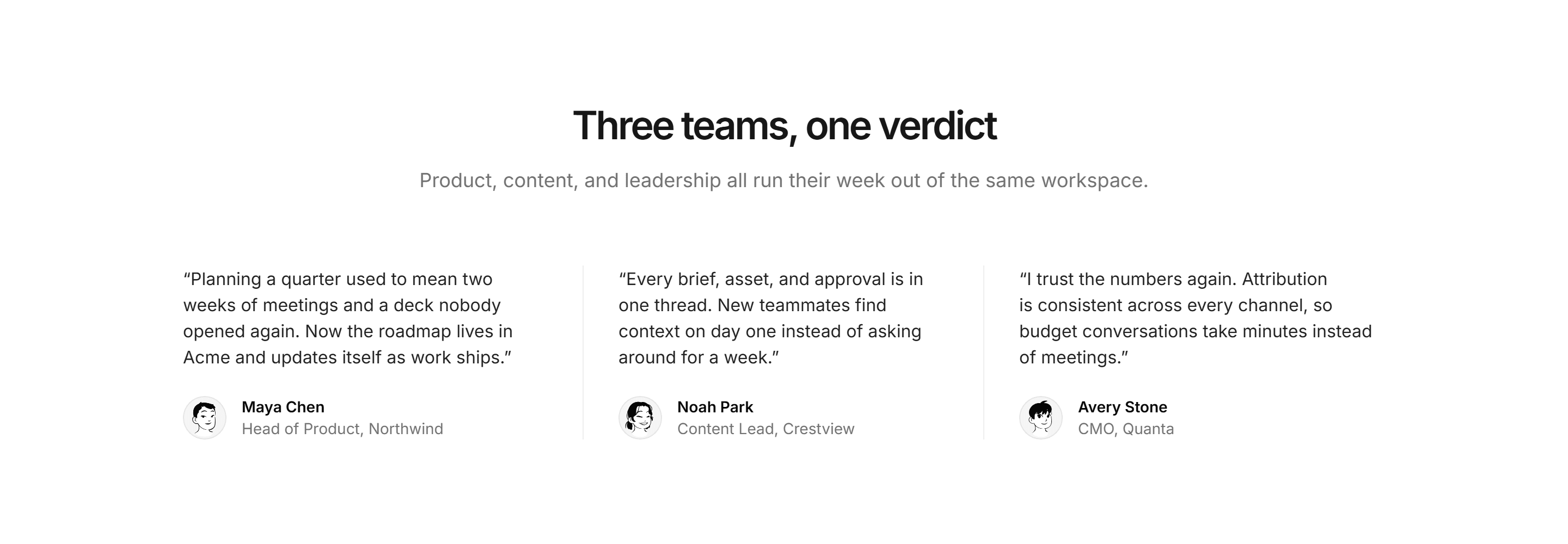
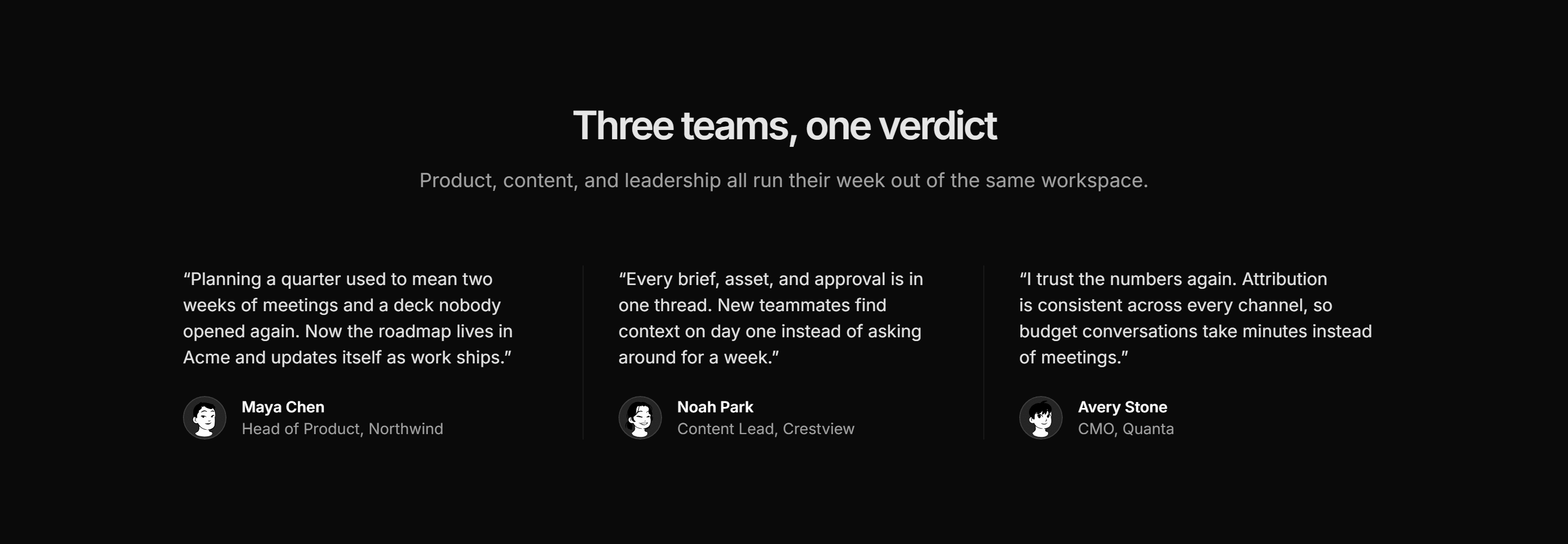
Marketing Pro Testimonial: Three Column Quotes
Three customer quotes in divided columns under a centered heading and lede.
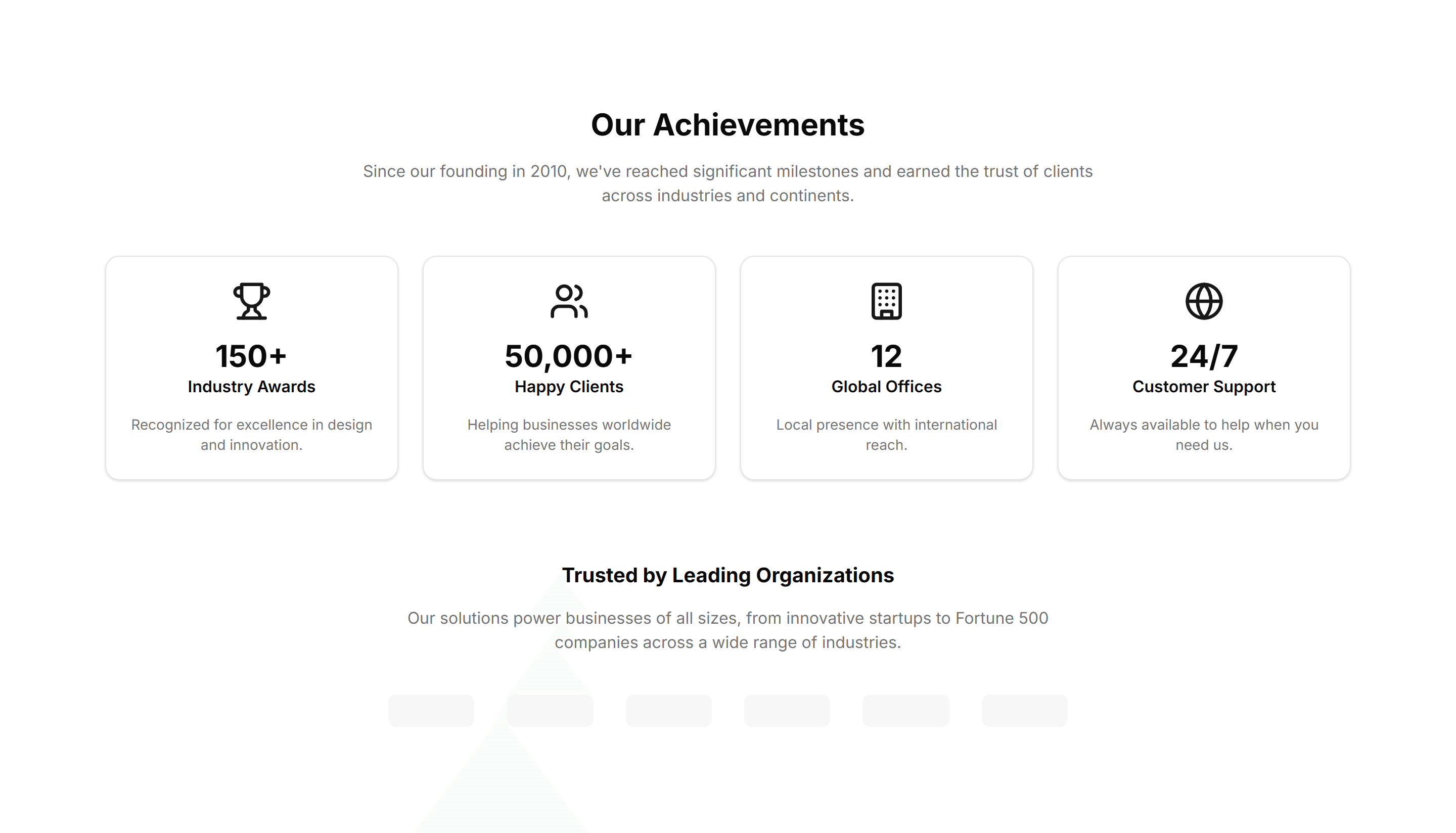
Marketing (Legacy) About Section: Achievements
A grid of awards and milestones with icons and short captions. Use it on an about page to prove credibility and show what your team has earned.
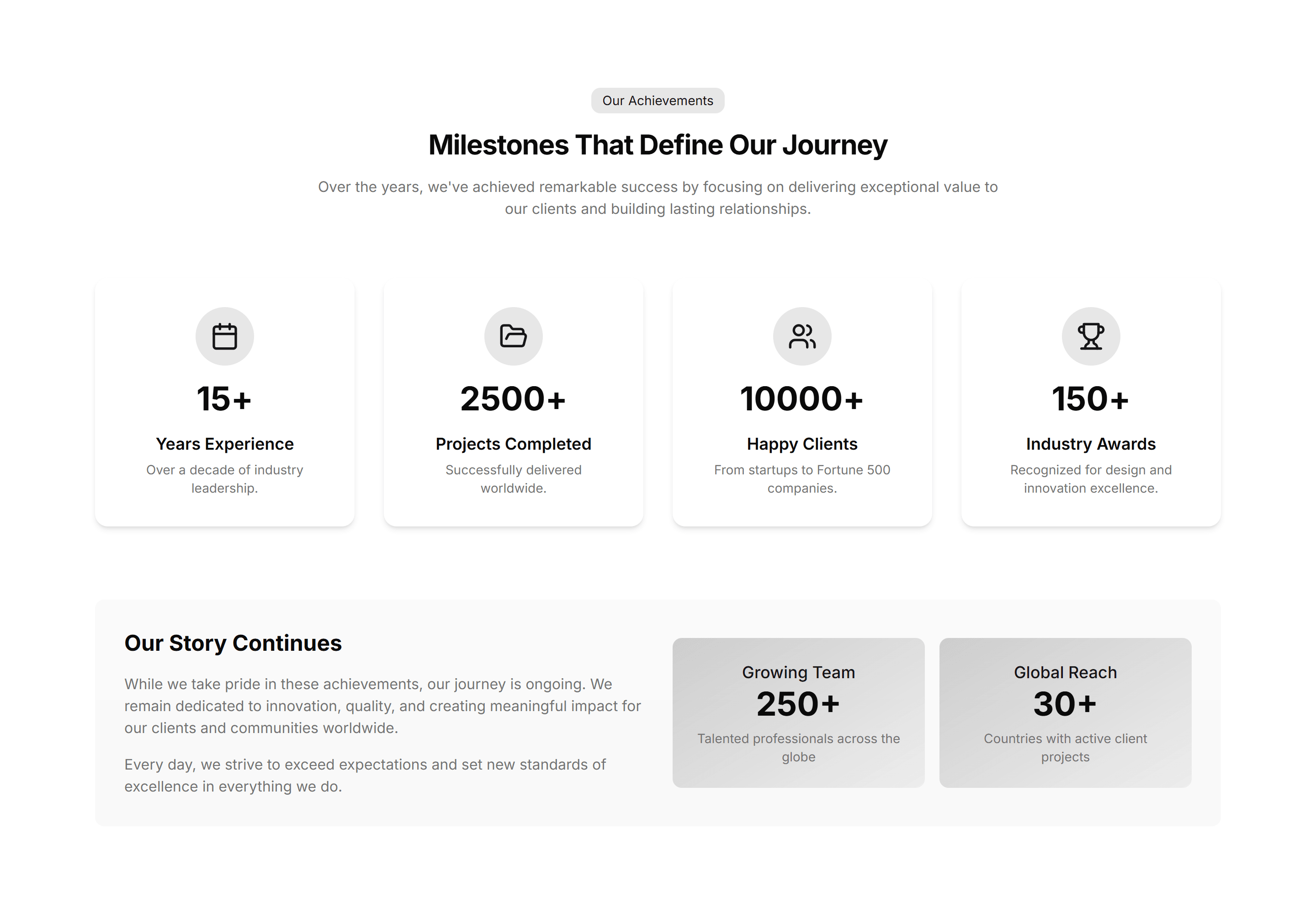
Marketing (Legacy) About Section: Animated Stats
Headline metrics that count up as they scroll into view. Drop it on an about page to make growth, users, and revenue feel alive and concrete.
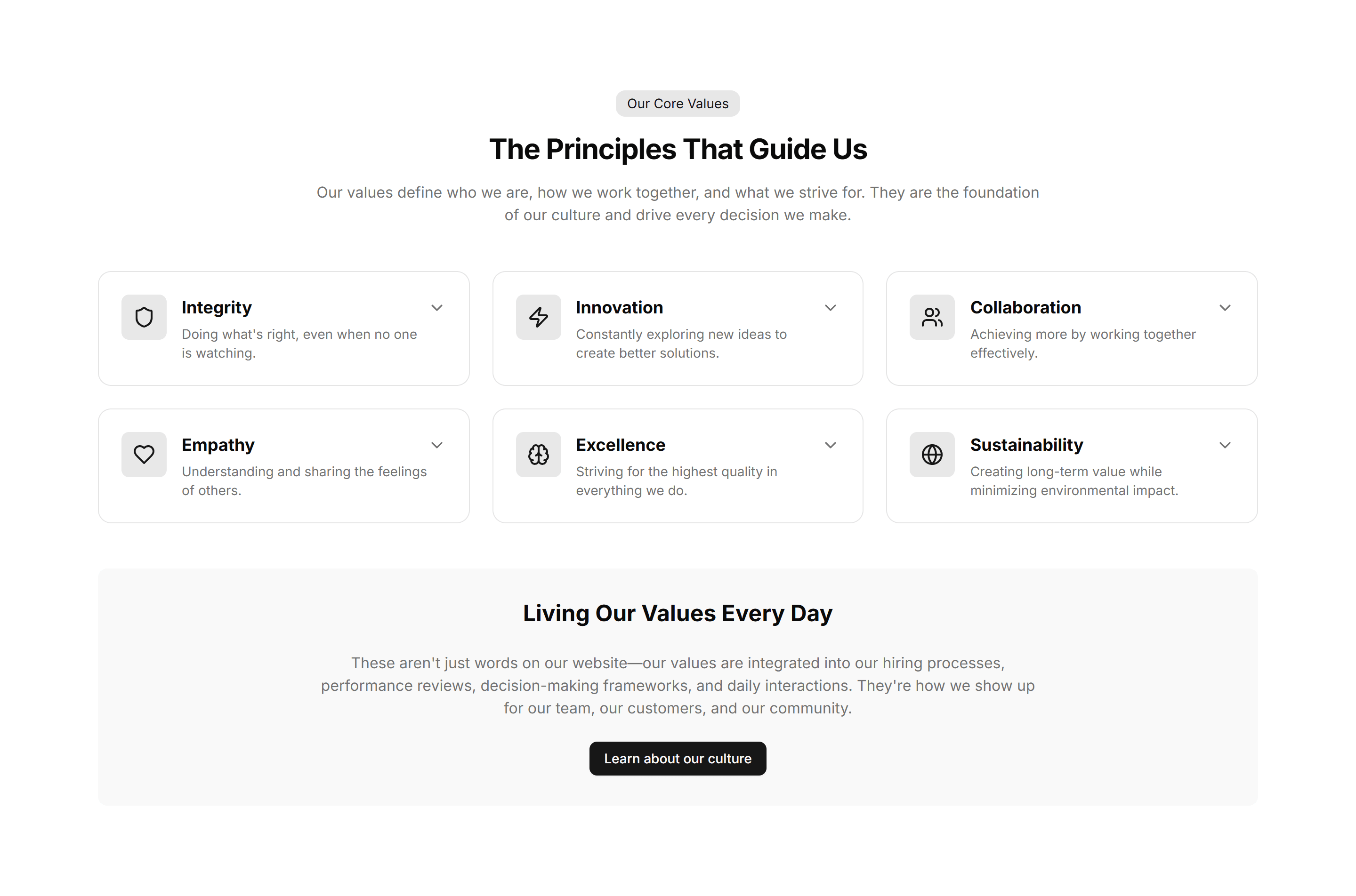
Marketing (Legacy) About Section: Brand Values
A row of value cards pairing an icon with a short principle. Use it to spell out what your brand stands for and how the team makes decisions.
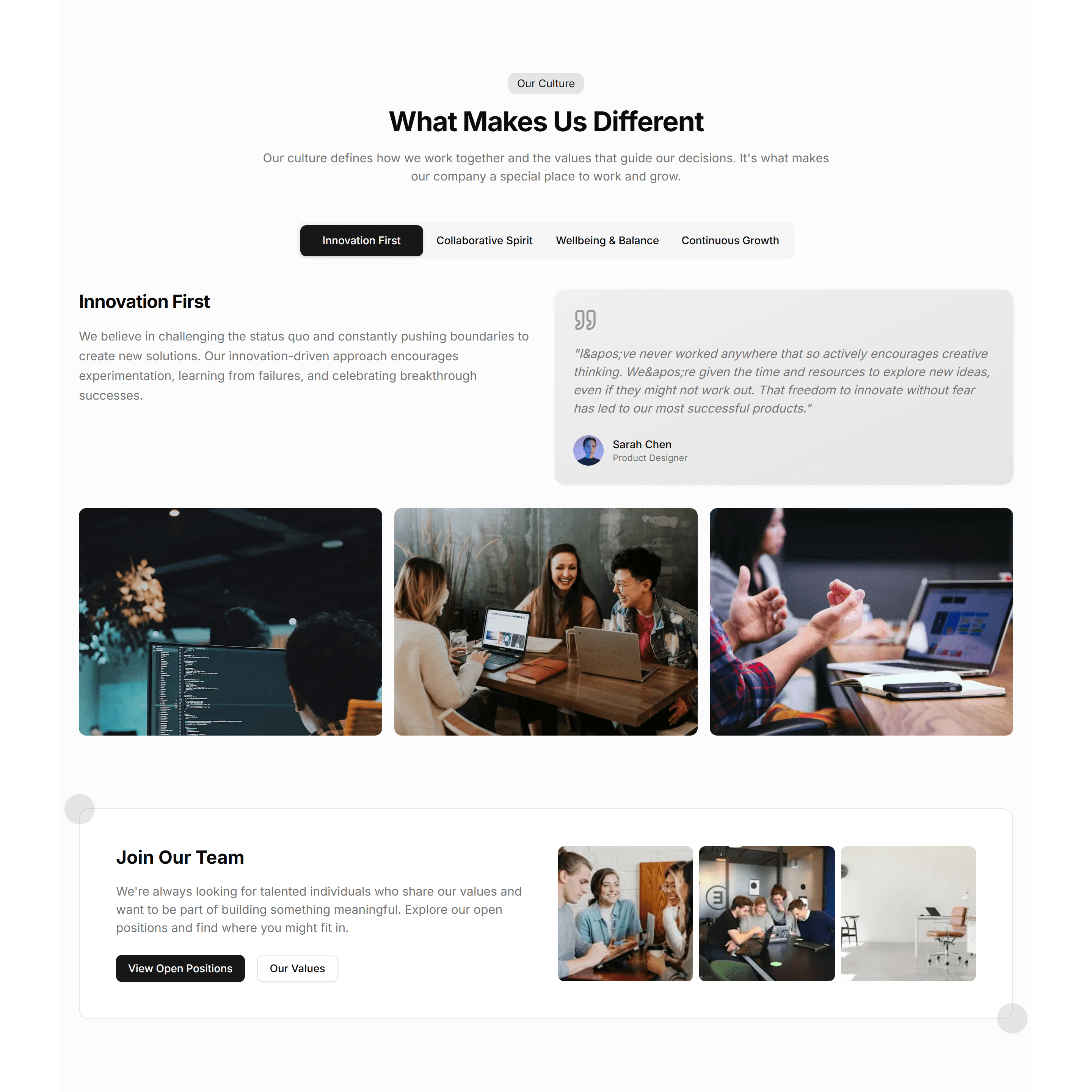
Marketing (Legacy) About Section: Company Culture
Photos and short blurbs that show how the team works and what daily life feels like. Use it on a careers or about page to attract good people.
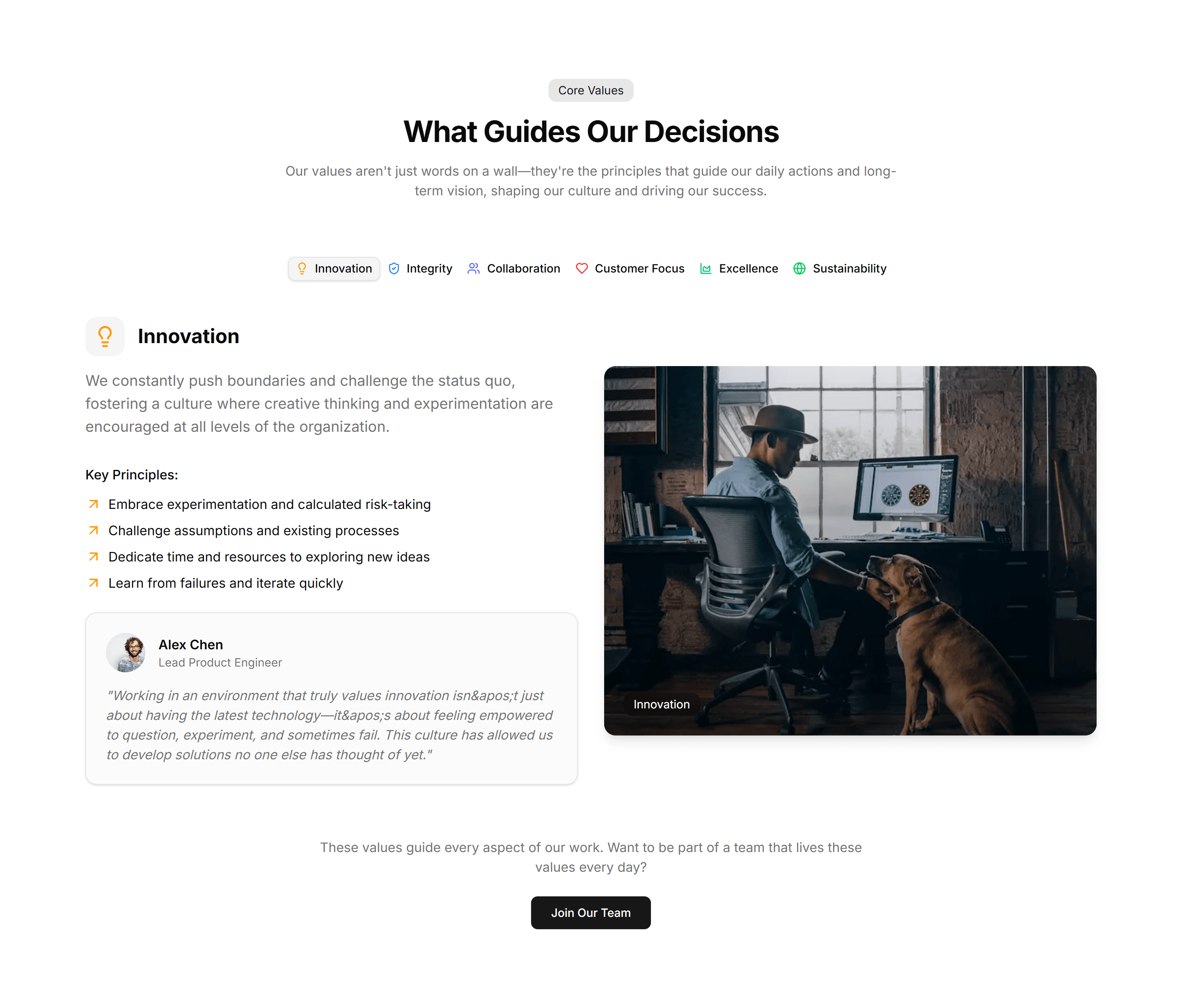
Marketing (Legacy) About Section: Company Values
A clean grid of core values, each with an icon, title, and sentence. Use it to explain the beliefs that guide how your company operates daily.
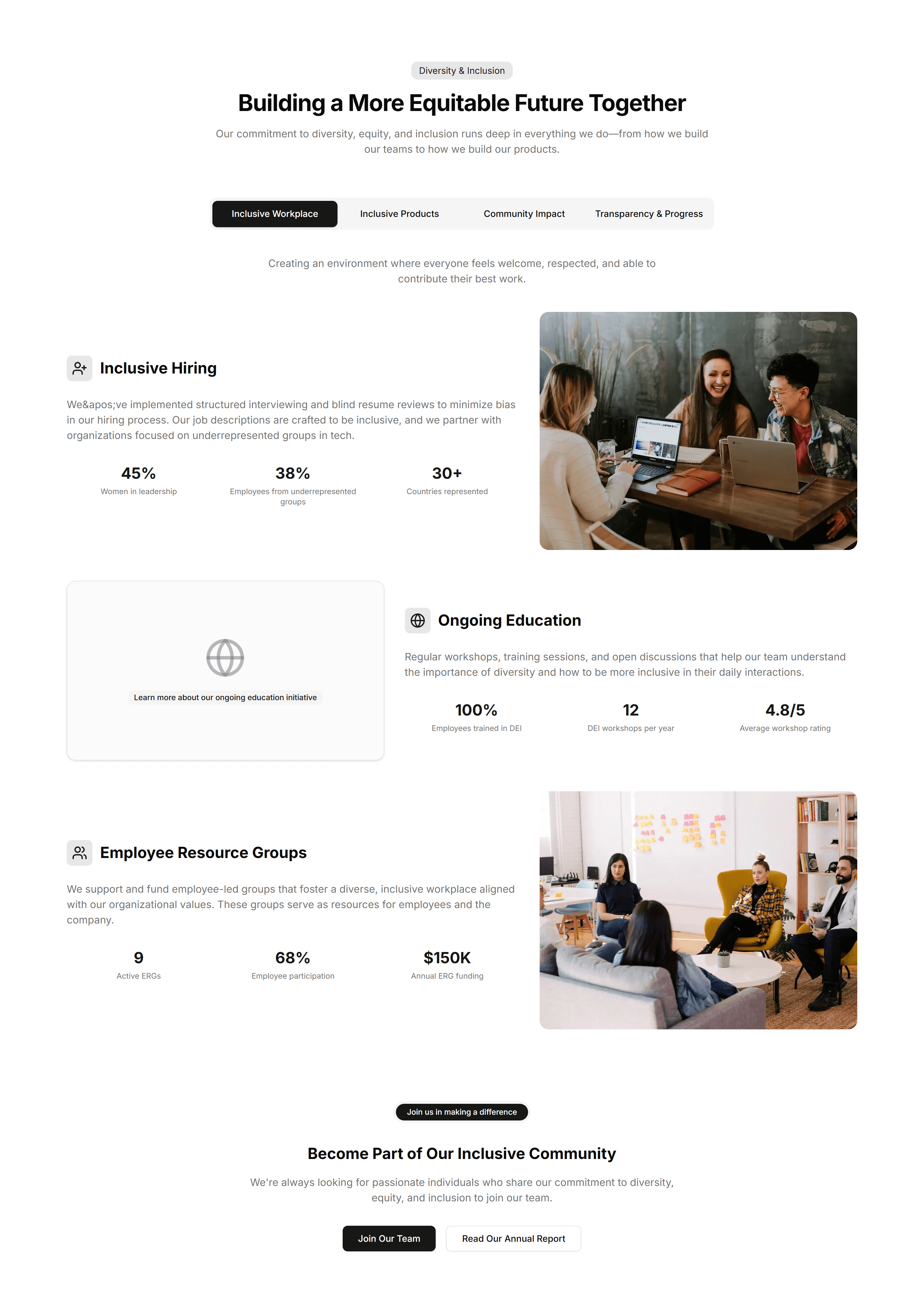
Marketing (Legacy) About Section: Diversity & Inclusion
A section pairing a statement on belonging with supporting stats and imagery. Use it to show how your company invests in people and fairness.
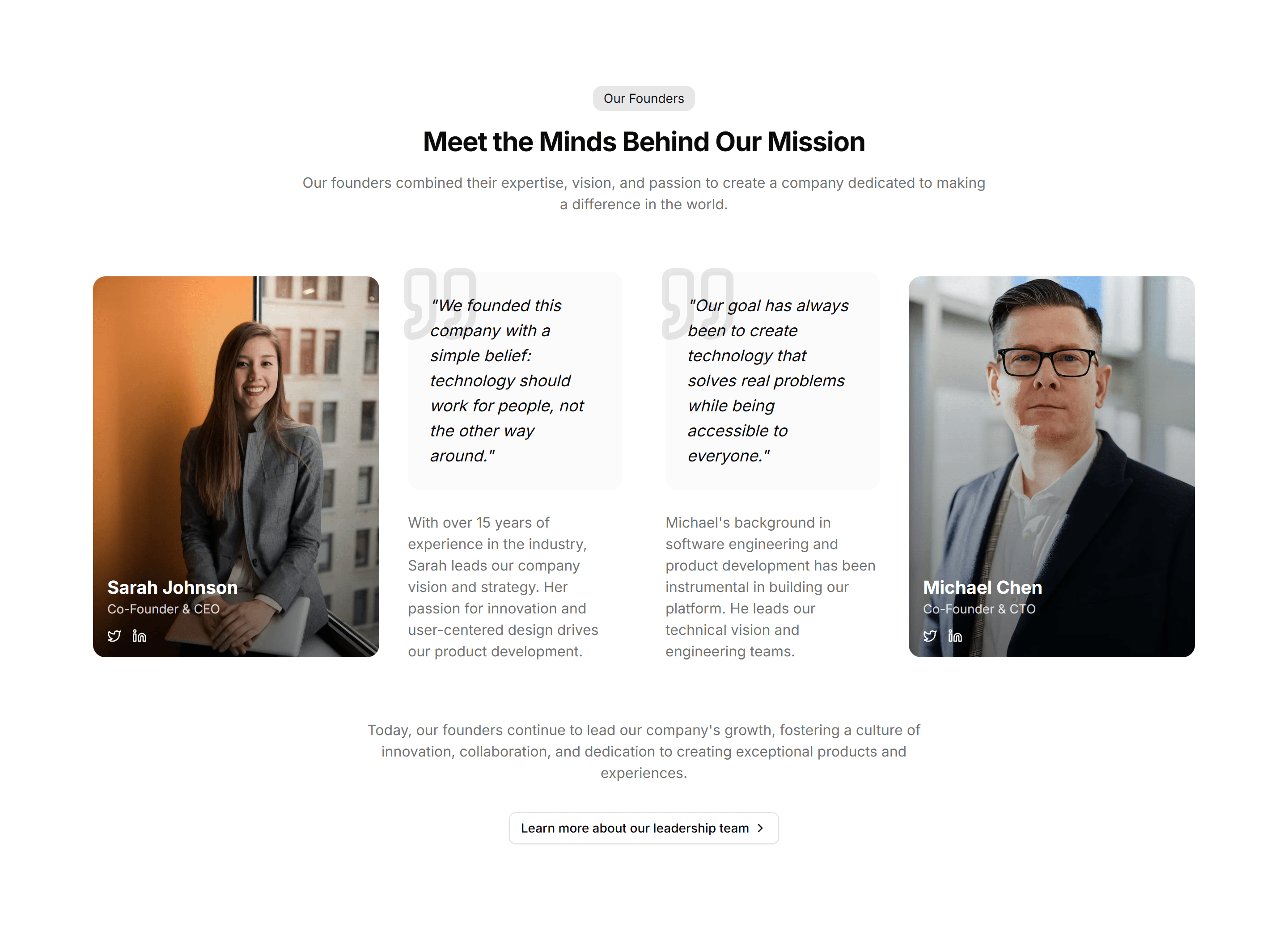
Marketing (Legacy) About Section: Founders
Portrait cards of the founders with names, roles, and a short bio. Use it on an about page to put faces and a personal story behind the company.
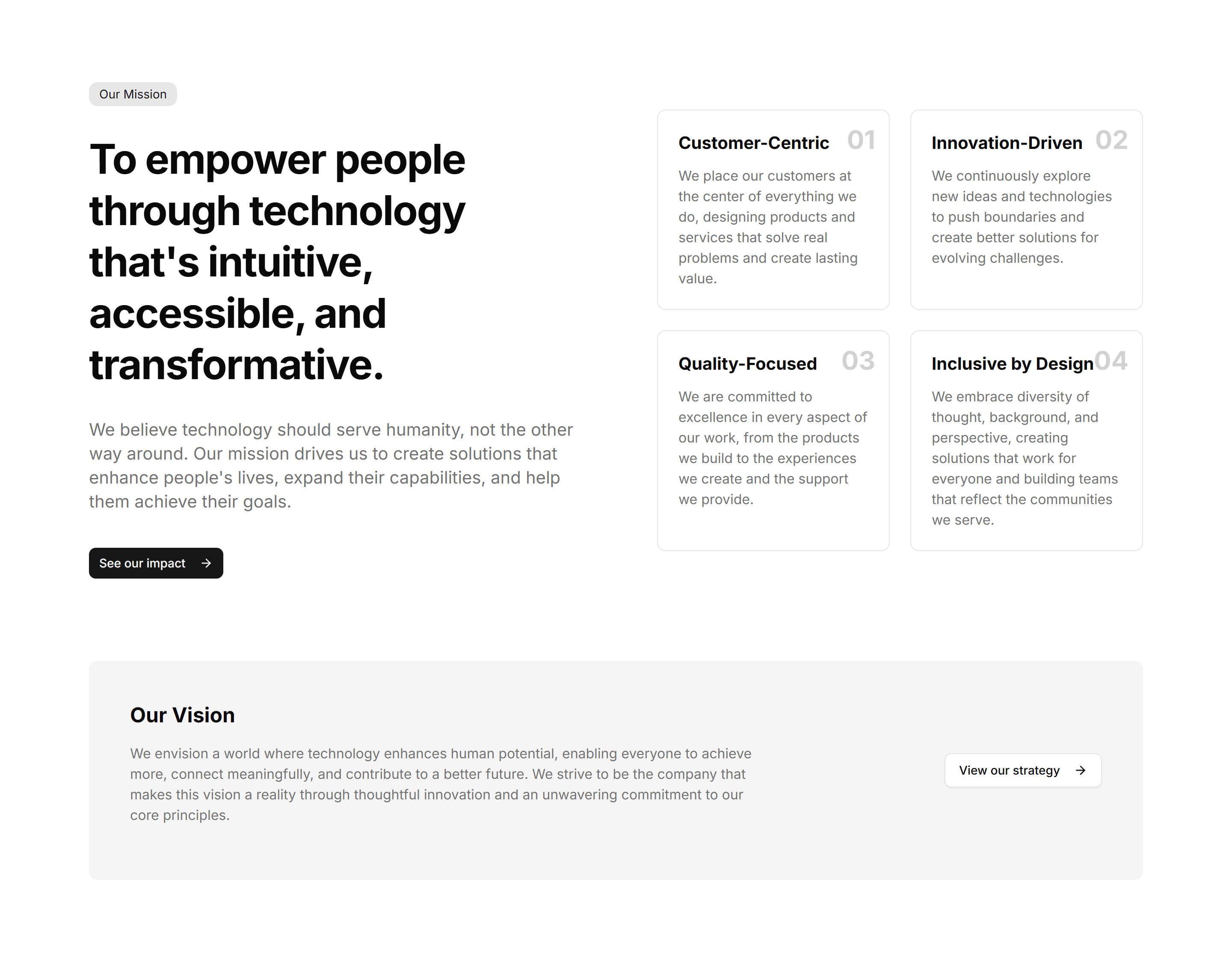
Marketing (Legacy) About Section: Mission Statement
A bold single statement of purpose framed as a centered headline. Use it at the top of an about page to anchor everything in one clear idea.
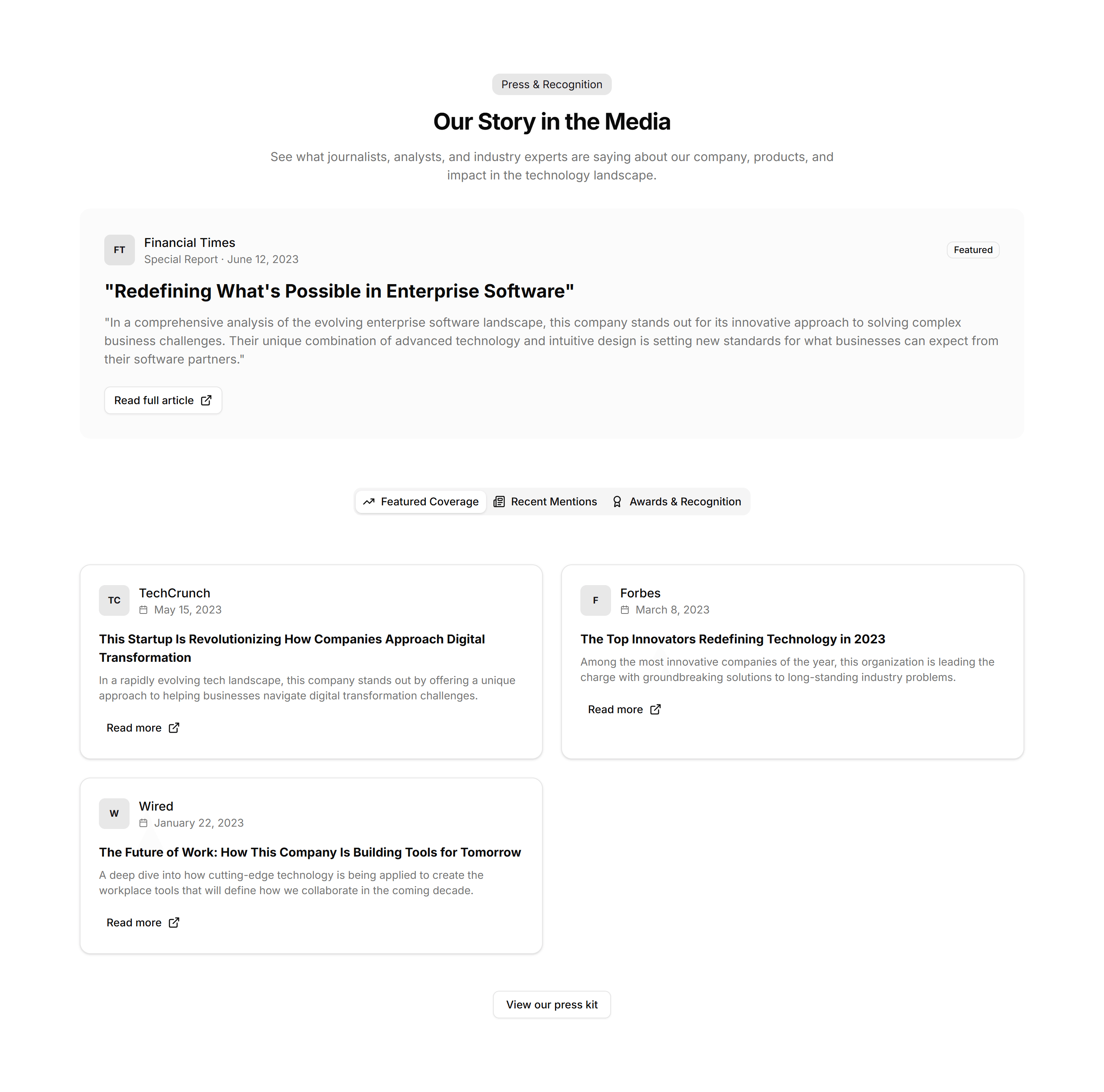
Marketing (Legacy) About Section: Press & Recognitions
A strip of publication logos and pull quotes that show where you have been featured. Use it on an about page to borrow trust from known names.
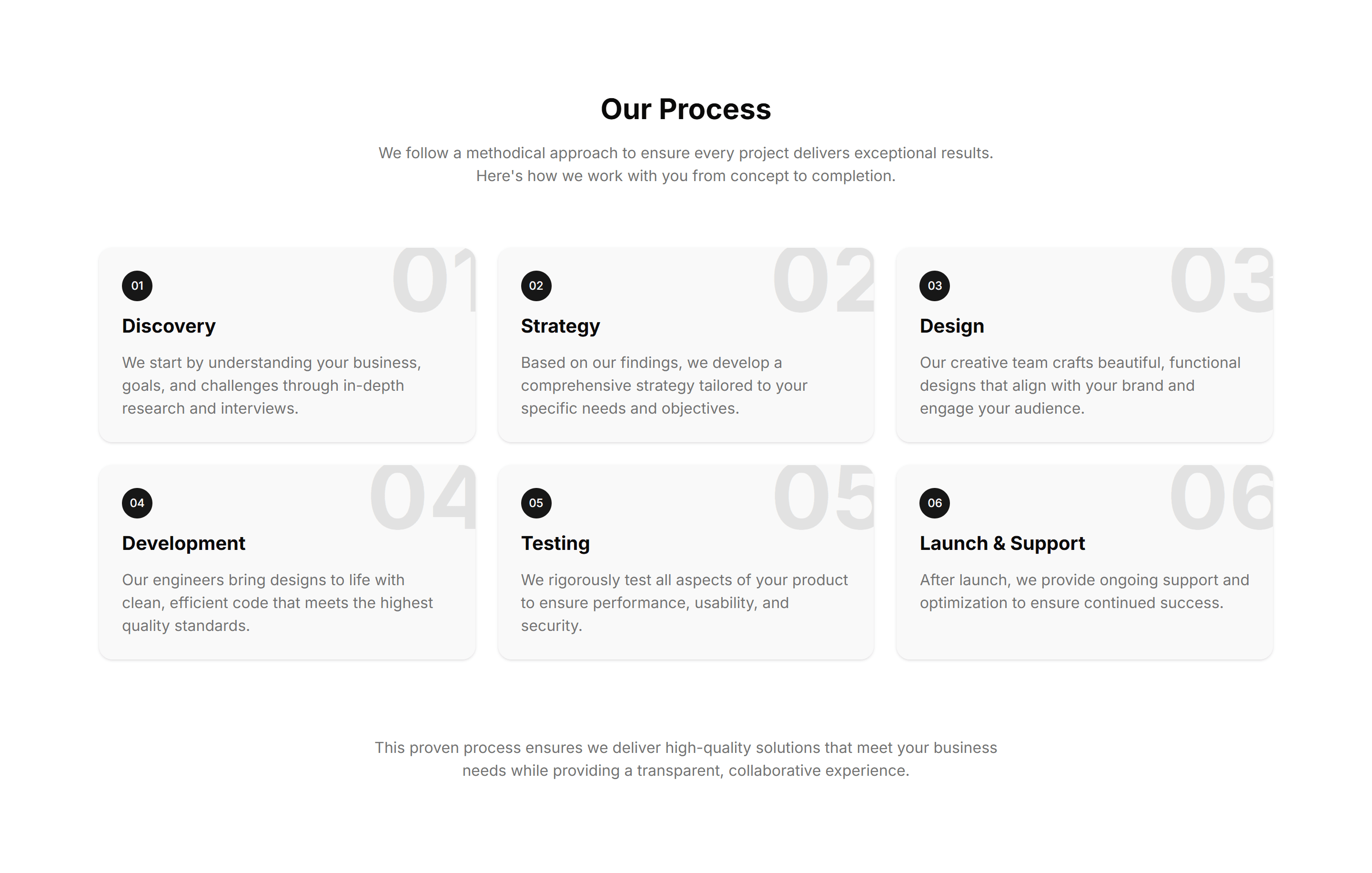
Marketing (Legacy) About Section: Process
Numbered steps that walk through how you work, from first contact to final delivery. Use it on an about or services page to set expectations.
Marketing (Legacy) About Section: Simple
A minimal about block with a heading and a paragraph of company background. Use it when you want to introduce the business without extra clutter.
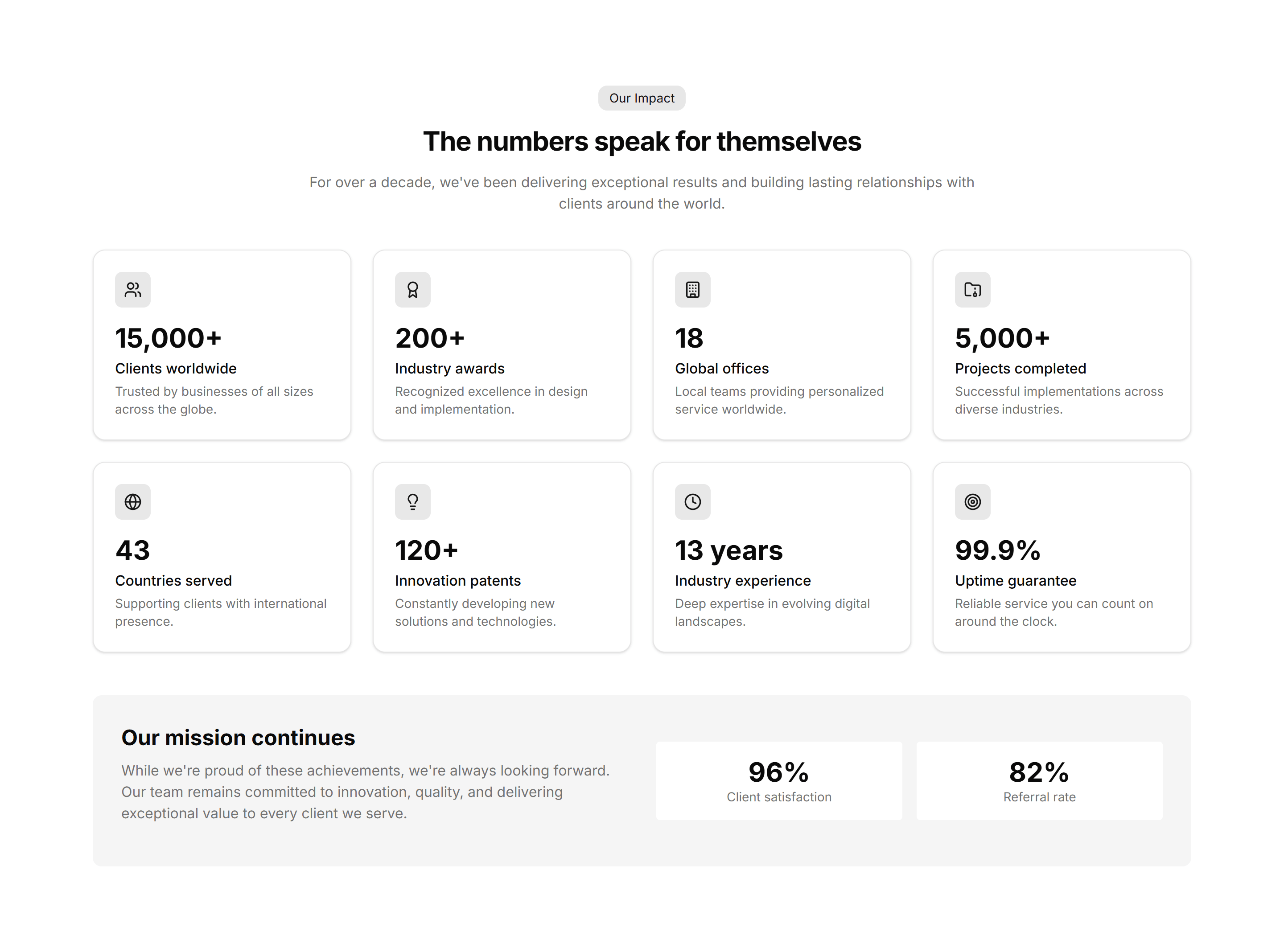
Marketing (Legacy) About Section: Stats Grid
A tidy grid of key numbers with labels for users, revenue, or reach. Use it on an about page to back up your story with solid figures, fast.
Marketing (Legacy) About Section: Tabs
Tabbed panels that split your story into mission, team, and history. Use it on an about page to pack a lot of context into one compact space.
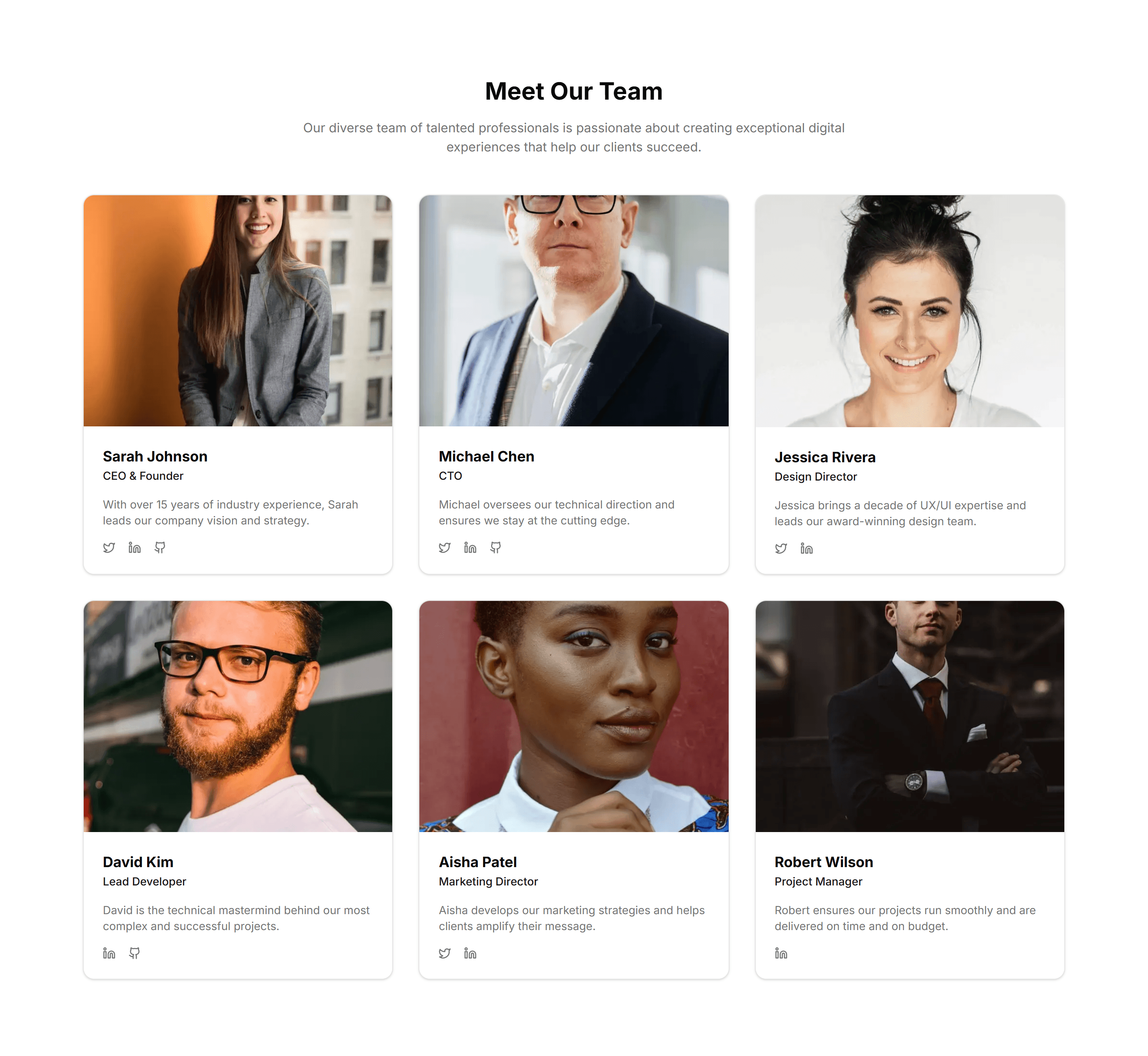
Marketing (Legacy) About Section: Team Grid
A responsive grid of headshots with names, titles, and social links. Use it on an about page to introduce the real people behind your product.
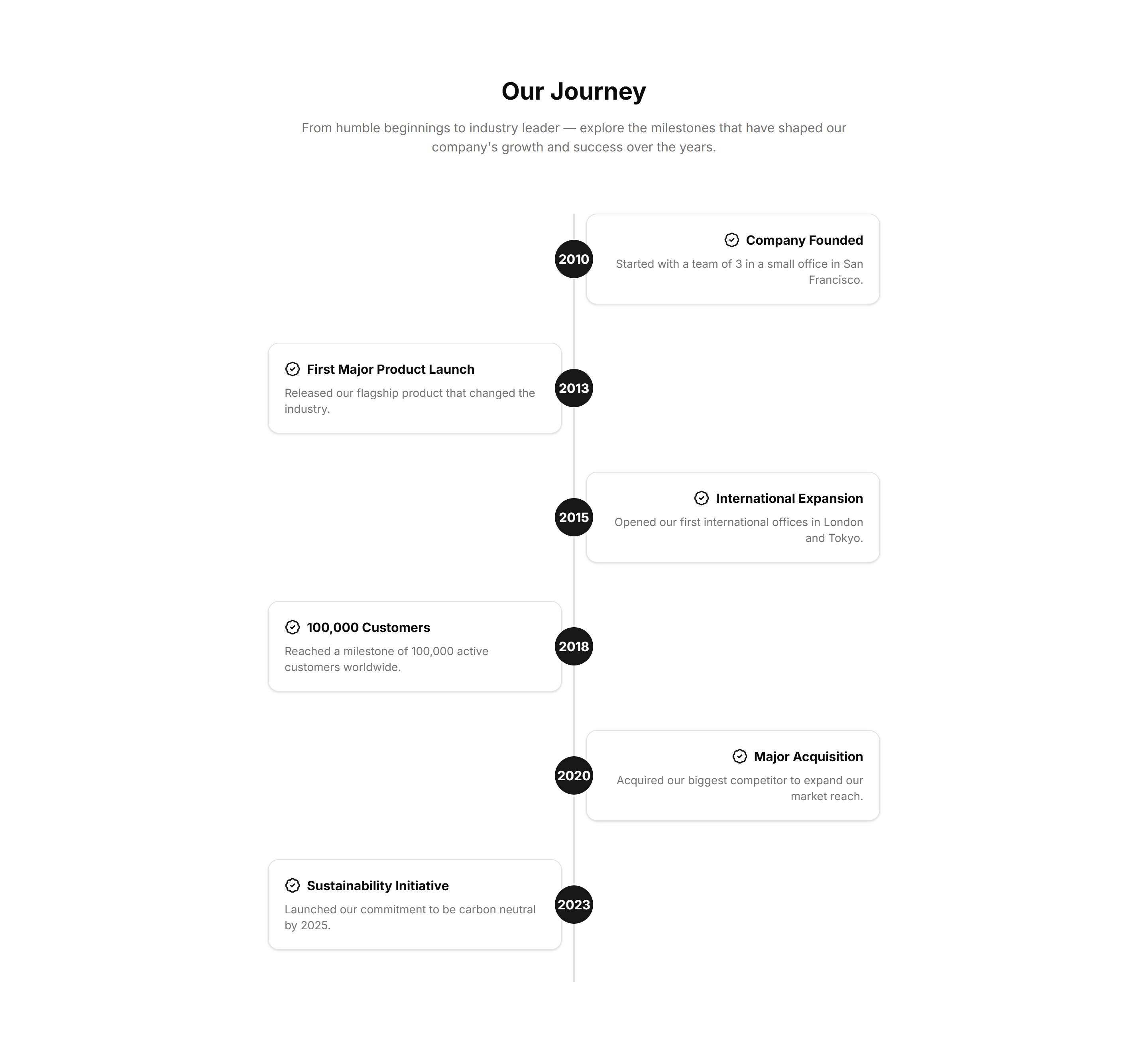
Marketing (Legacy) About Section: Timeline
A vertical list of dated milestones marking how the company grew. Use it on an about page to walk visitors through your story, year by year.
Marketing (Legacy) About Section: Two Column
A split layout with company text on one side and an image on the other. Use it on an about page to balance a short story with a clear visual.
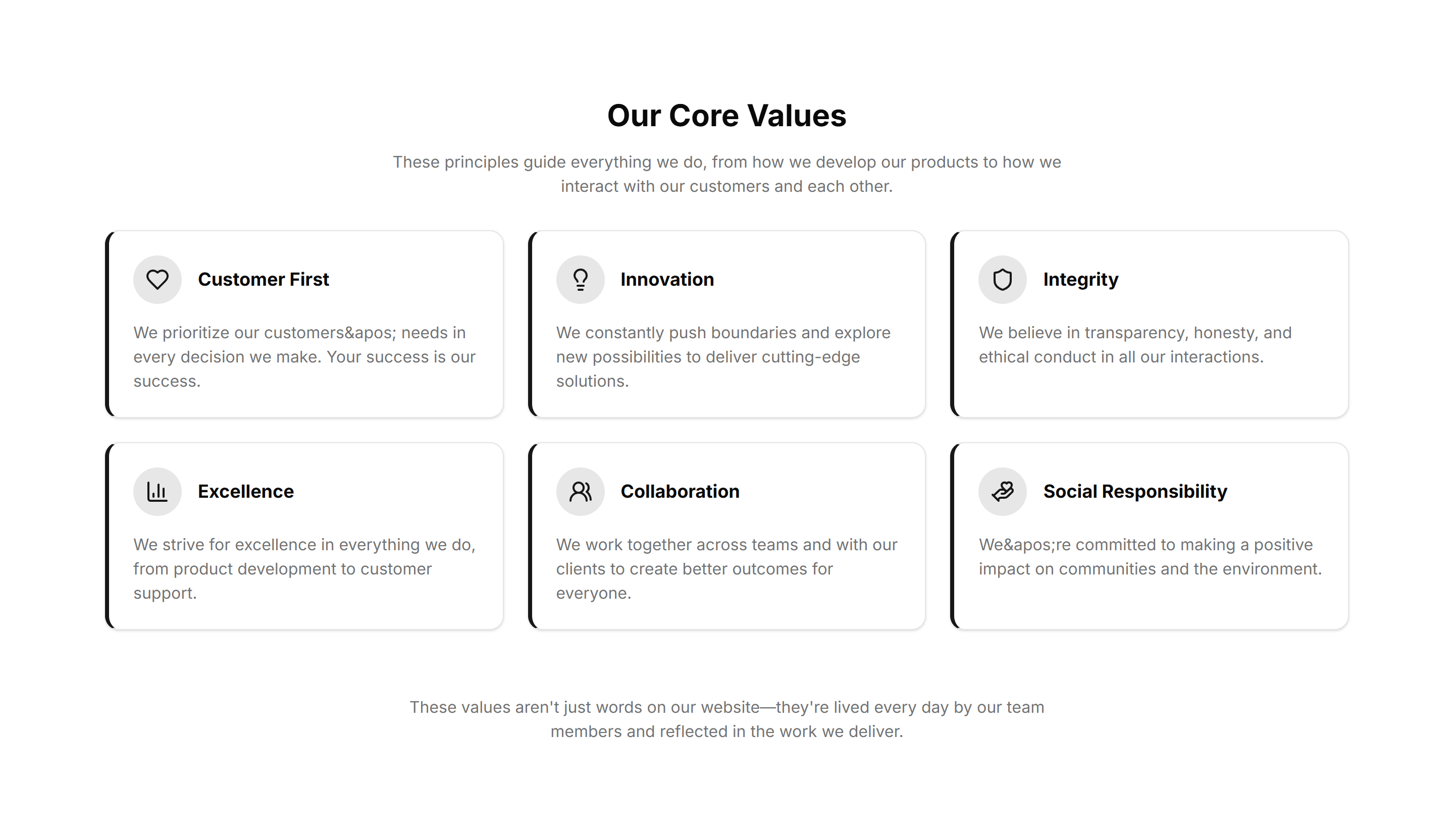
Marketing (Legacy) About Section: Values
A set of value cards each holding an icon, title, and one line. Use it on an about page to share the principles your team works by every day.
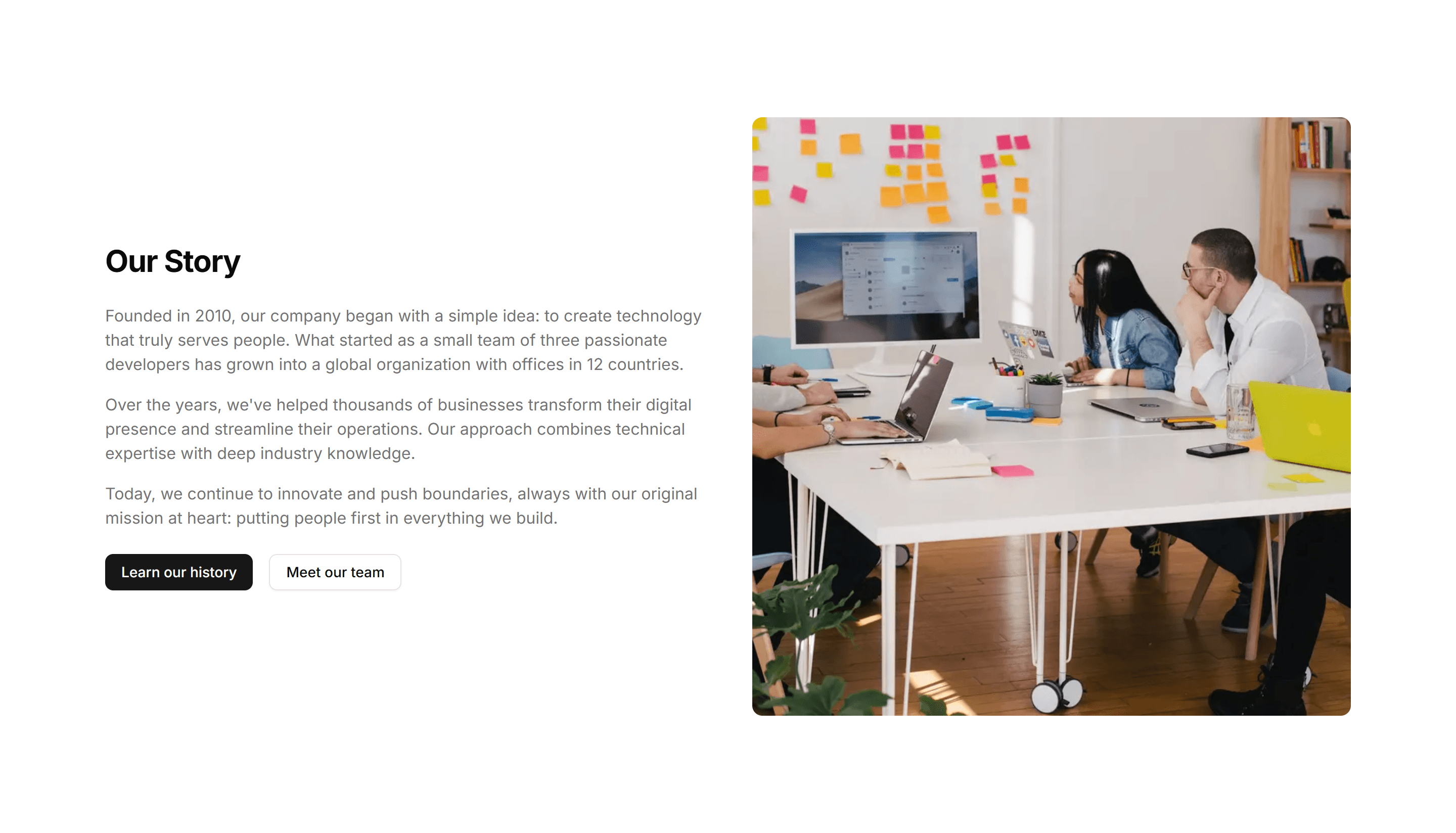
Marketing (Legacy) About Section: With Image
An about block pairing a paragraph of background with a large photo. Use it to introduce the company while a real image builds warmth and trust.
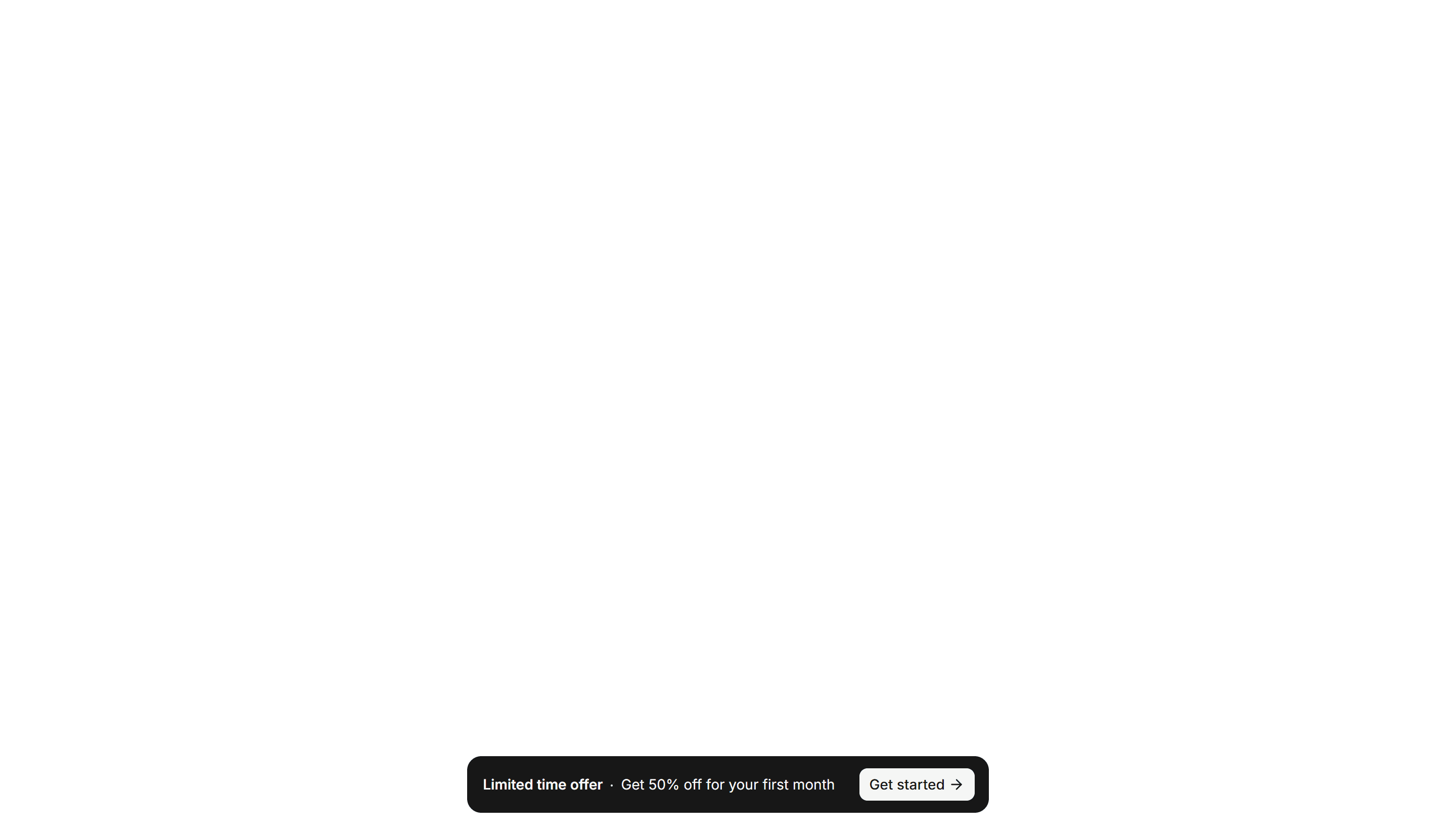
Marketing (Legacy) Announcement Banner: Floating
A banner that floats above page content with rounded corners and a dismiss button. Announce a promotion or update without pushing the layout down.
Marketing (Legacy) Announcement Banner: Simple Centered
A slim bar with centered text and a single dismiss control. Share a short notice like free shipping or a new feature across the top of any page.
Marketing (Legacy) Announcement Banner: With Action
A banner pairing a short message with a button so readers can act at once. Use it to drive signups, trial starts, or a link to a new release.
Marketing (Legacy) Announcement Banner: With Countdown
A banner with a live countdown timer beside the message. Build urgency for a sale, webinar, or deadline and prompt visitors to act before time runs out.
Marketing (Legacy) Announcement Banner: With Image
A banner that places a thumbnail or icon next to the headline and link. Spotlight a product, event, or article with a visual that draws the eye.
Marketing (Legacy) Announcement Banner: With Social Proof
A banner showing user counts, ratings, or avatars next to the message. Build instant trust at the top of a page and nudge new visitors to convert.
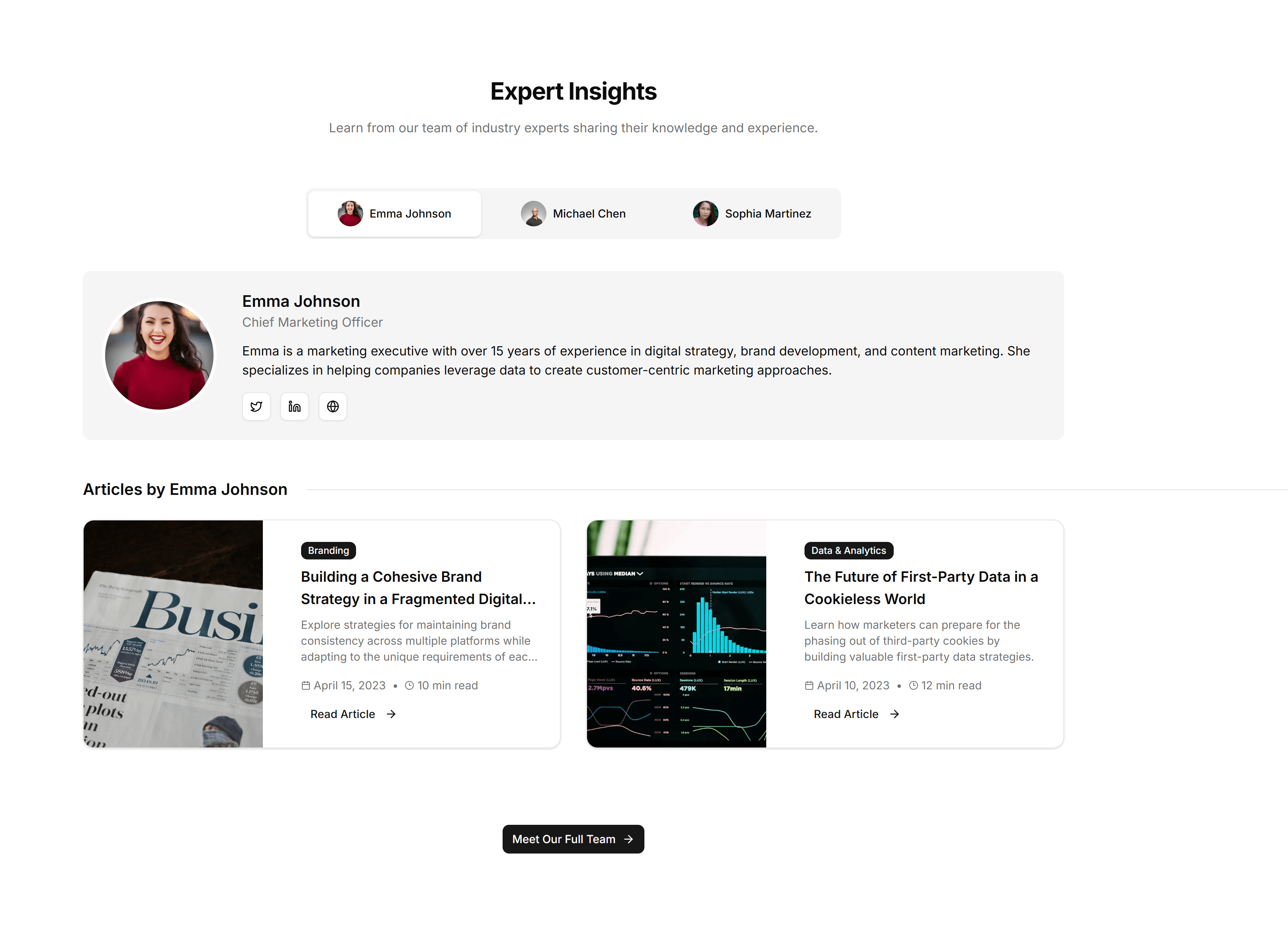
Marketing (Legacy) Blog Section: Author Spotlight
A profile block pairing an author photo, bio, and their latest posts. Use it to build trust on a blog and surface more writing from one voice.
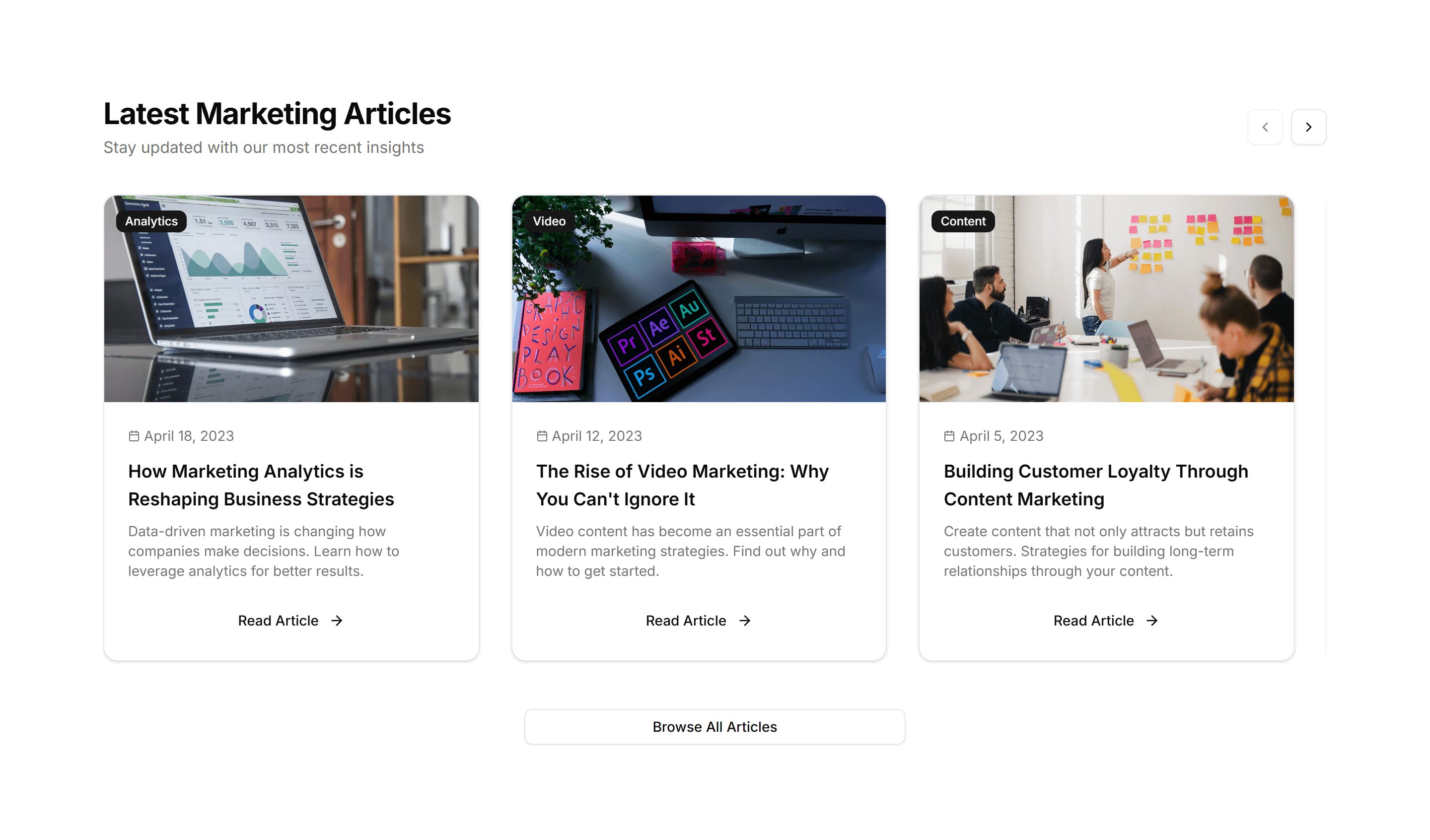
Marketing (Legacy) Blog Section: Carousel
A horizontal slider of article cards with cover images and titles. Use it to feature recent or popular posts in a compact strip readers can swipe.
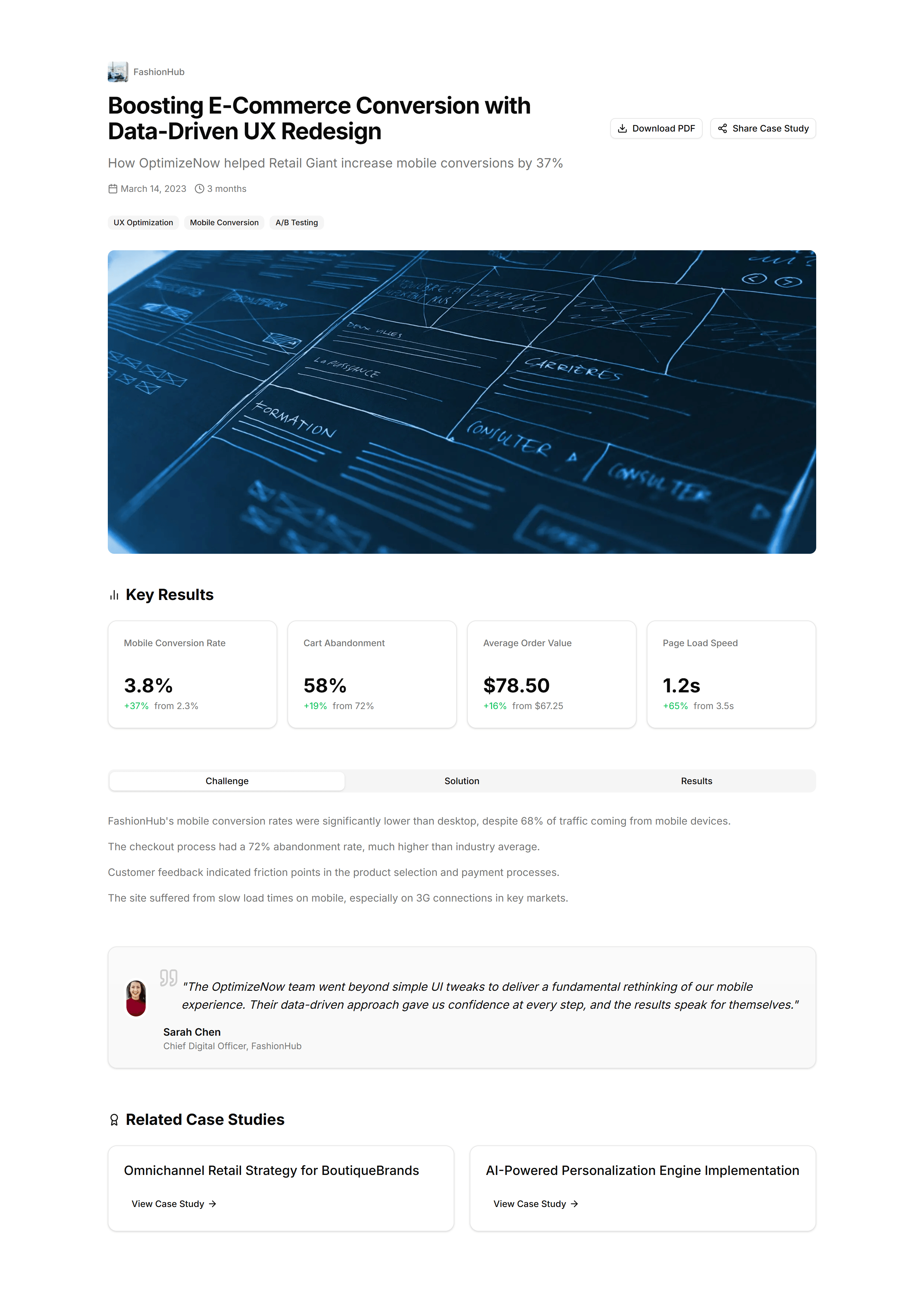
Marketing (Legacy) Blog Section: Case Study Showcase
A grid of case study cards with logos, results, and short summaries. Use it to present customer stories and proof on a results focused blog page.
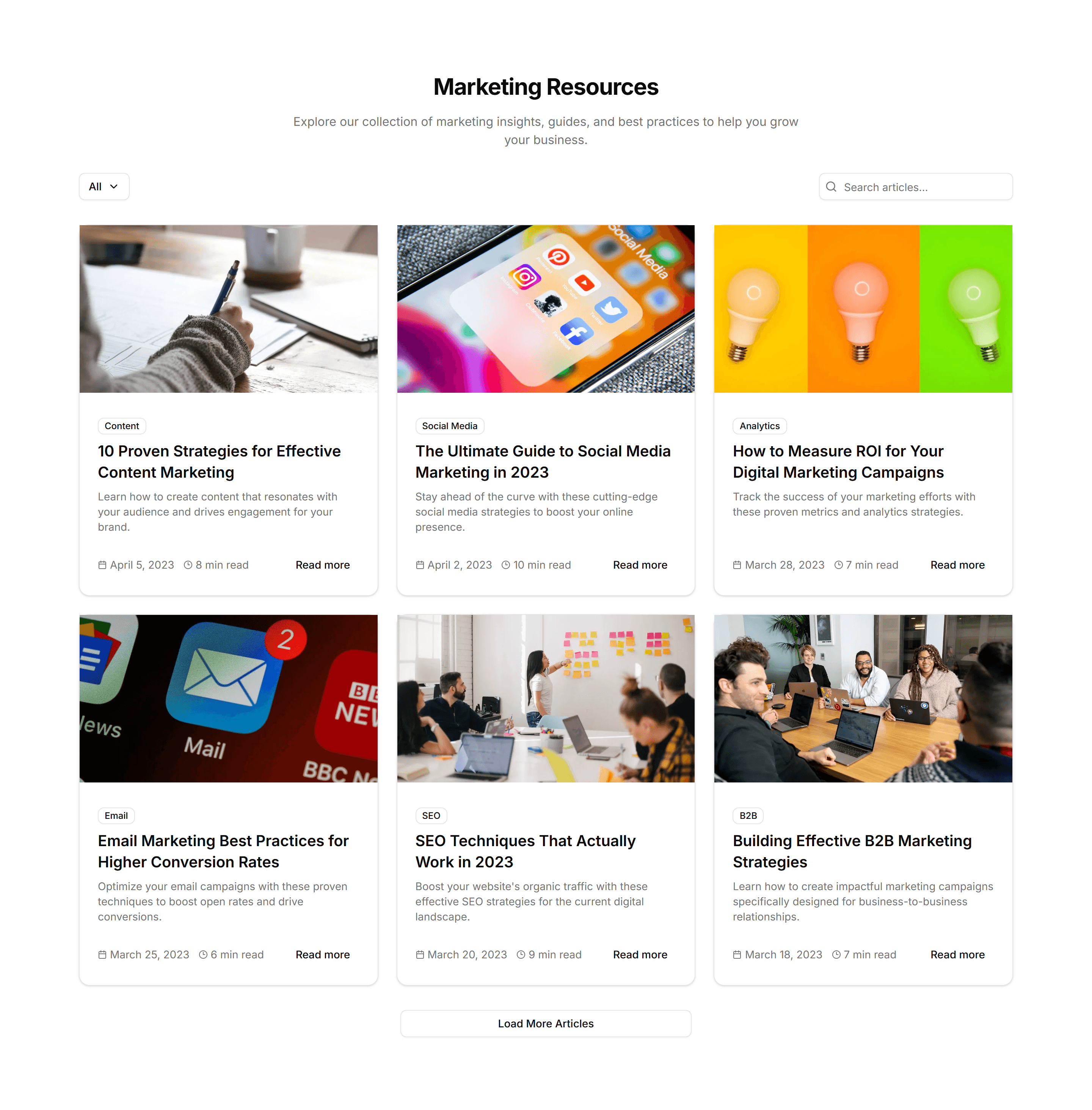
Marketing (Legacy) Blog Section: Category Filter
A post grid paired with category tabs that filter the visible articles. Use it to help readers narrow a busy blog down to the topics they want.
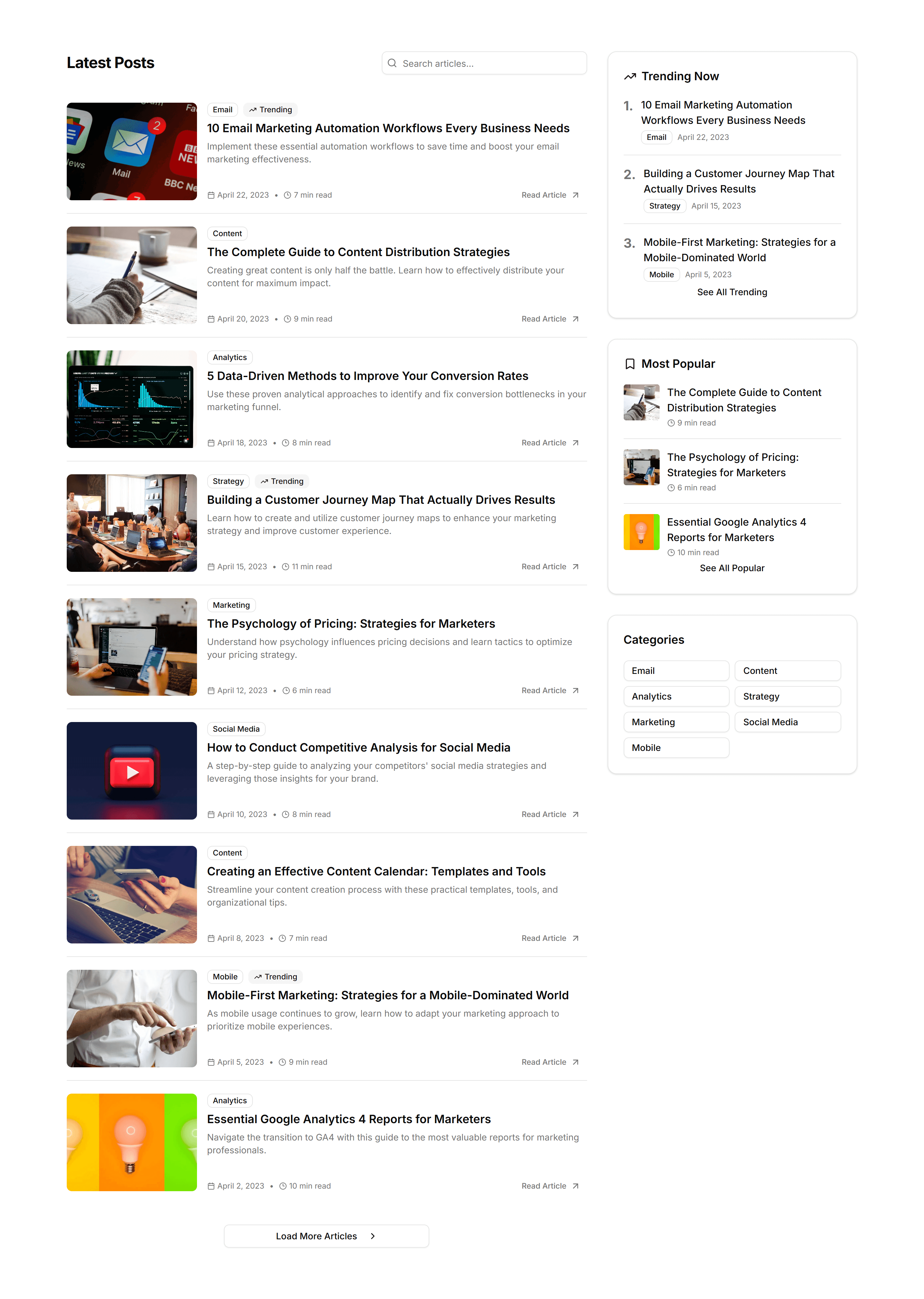
Marketing (Legacy) Blog Section: Compact List
A dense vertical list of posts with titles, dates, and short excerpts. Use it to show many articles in little space on an index or archive page.
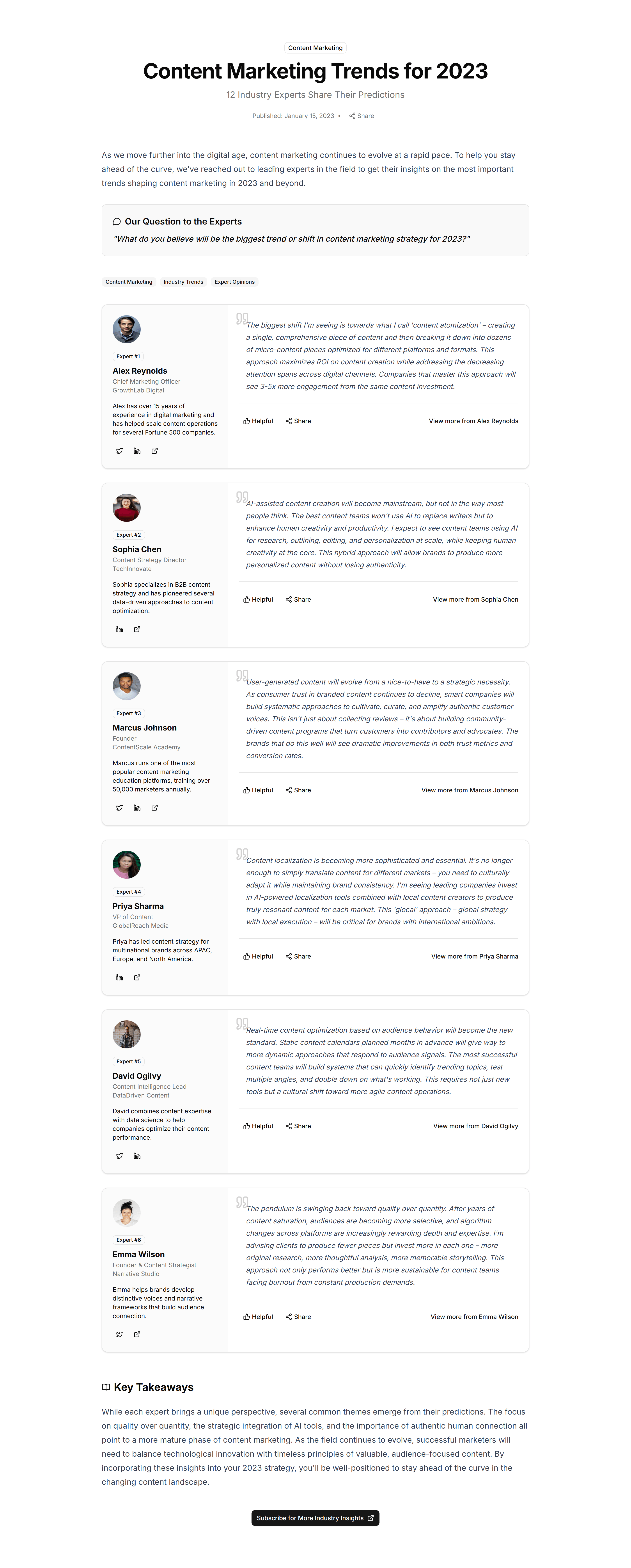
Marketing (Legacy) Blog Section: Expert Roundup
A grid collecting quotes and headshots from several contributors. Use it to package an opinion roundup or panel feature into one shareable post.
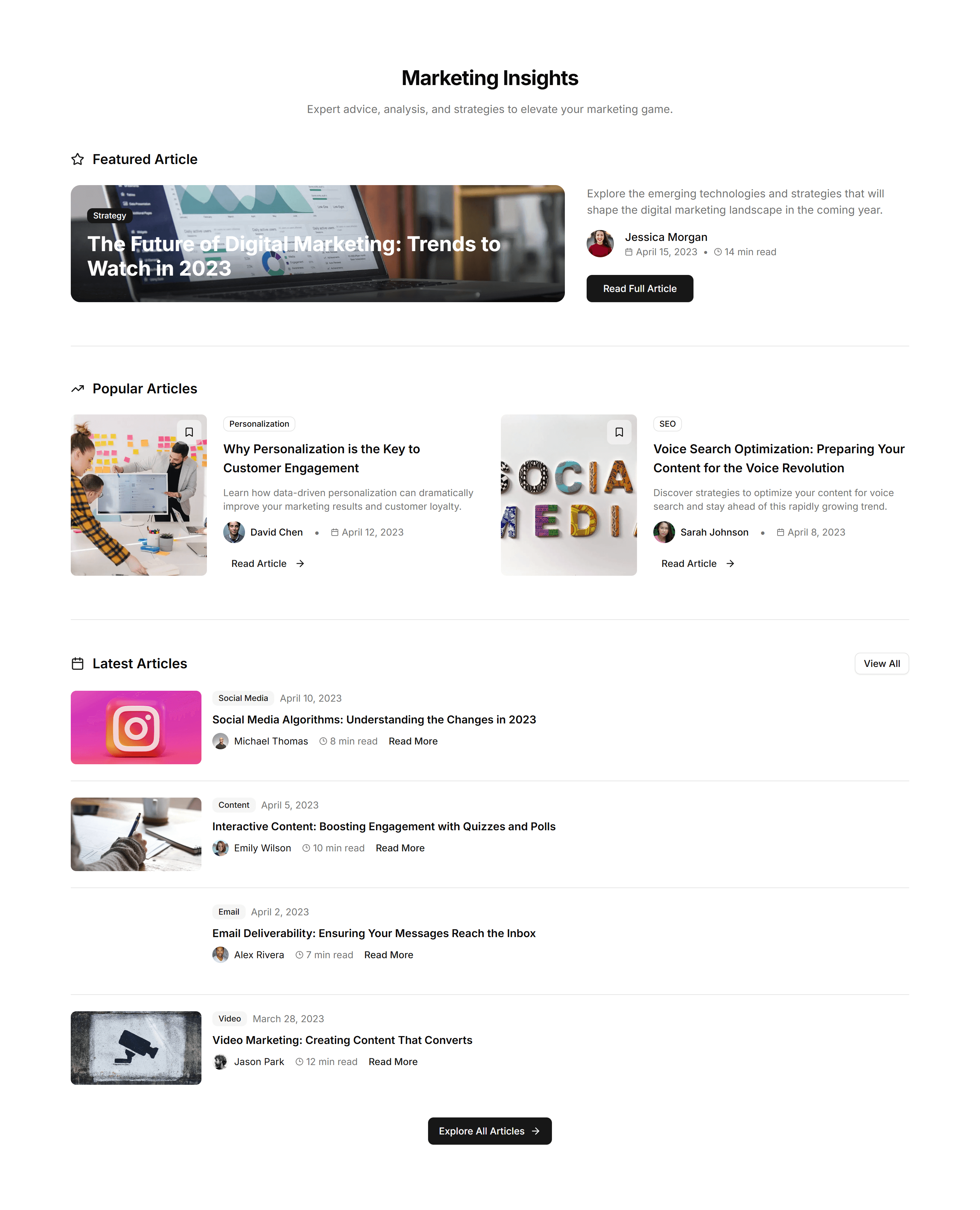
Marketing (Legacy) Blog Section: Featured List
A list led by one large featured article above smaller stacked posts. Use it to spotlight your top story while listing the rest of the feed.
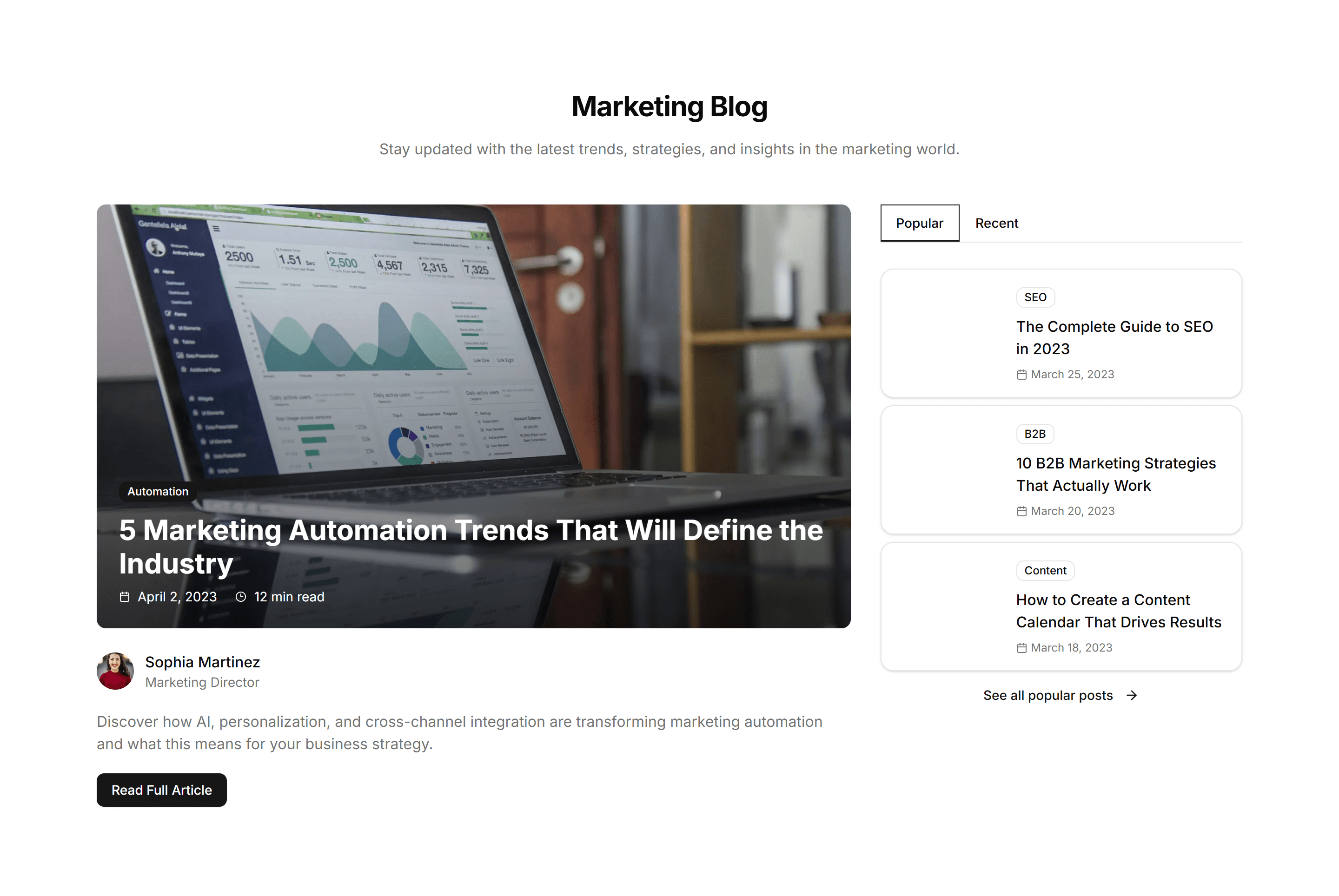
Marketing (Legacy) Blog Section: Featured With Sidebar
A two column layout with a main article feed beside a sidebar of links. Use it for a blog home that mixes posts with categories and promos here.

Marketing (Legacy) Blog Section: Hero Focus
A full width hero centered on a single article with a large cover image. Use it to launch a flagship post and pull readers straight into it.
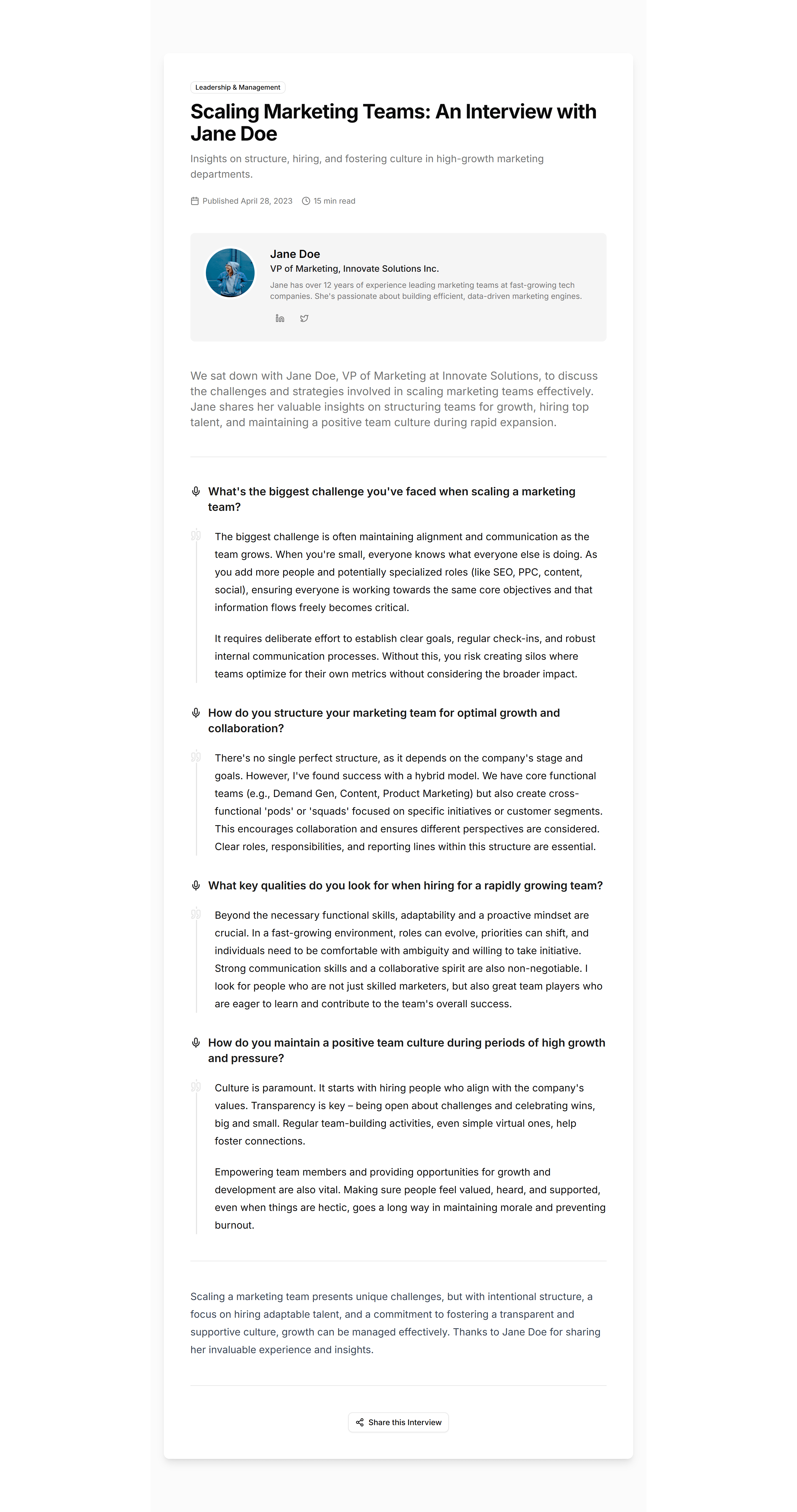
Marketing (Legacy) Blog Section: Interview Format
A question and answer layout with a guest portrait and intro. Use it to publish interviews in a clear, readable format on an editorial blog.
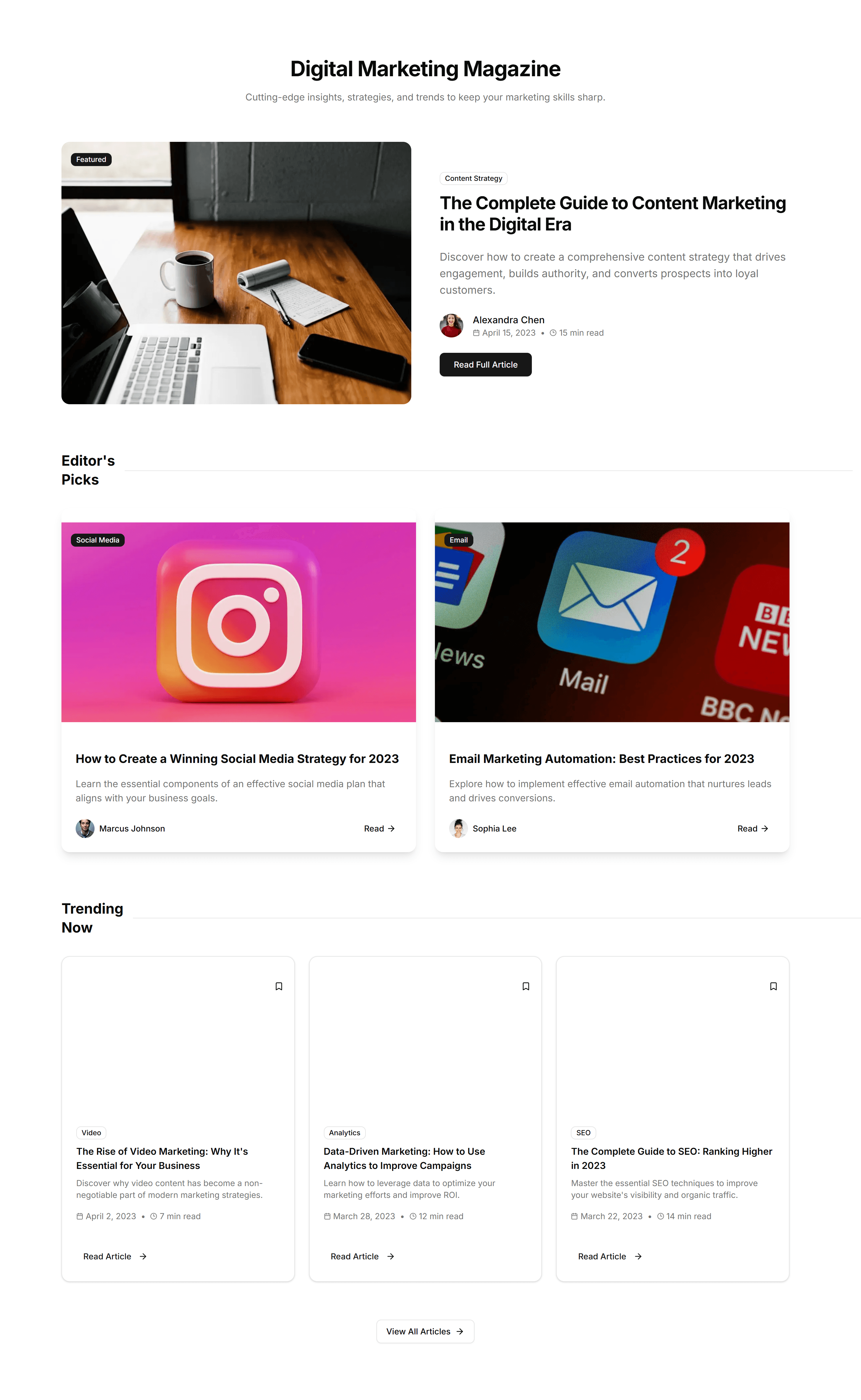
Marketing (Legacy) Blog Section: Magazine Layout
An editorial grid that mixes large and small story cards across columns. Use it to give a content heavy blog the dense feel of a print magazine.
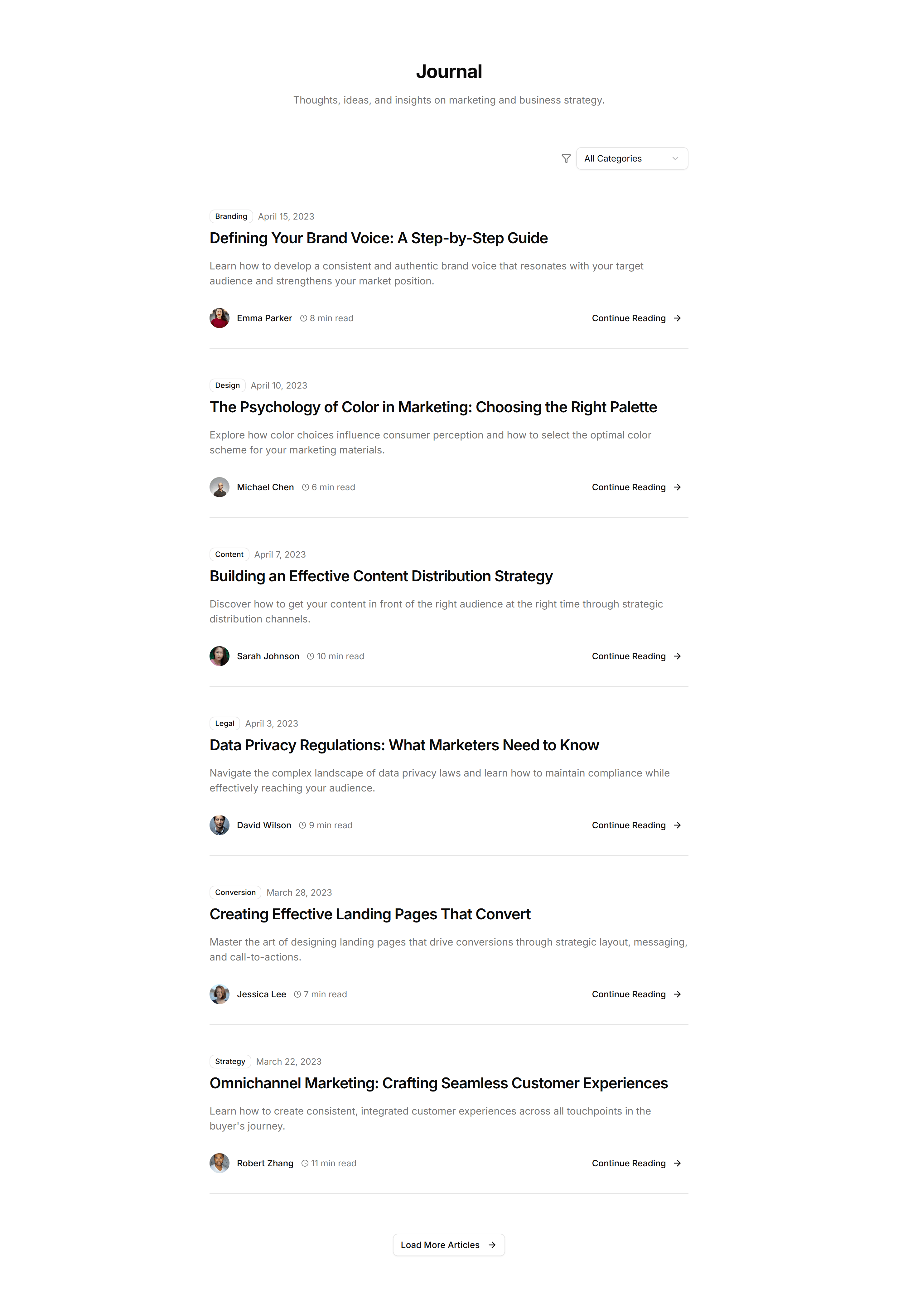
Marketing (Legacy) Blog Section: Minimal Blog
A clean list of post titles, dates, and excerpts set in plenty of space. Use it for a writing focused blog where the words carry the whole page.
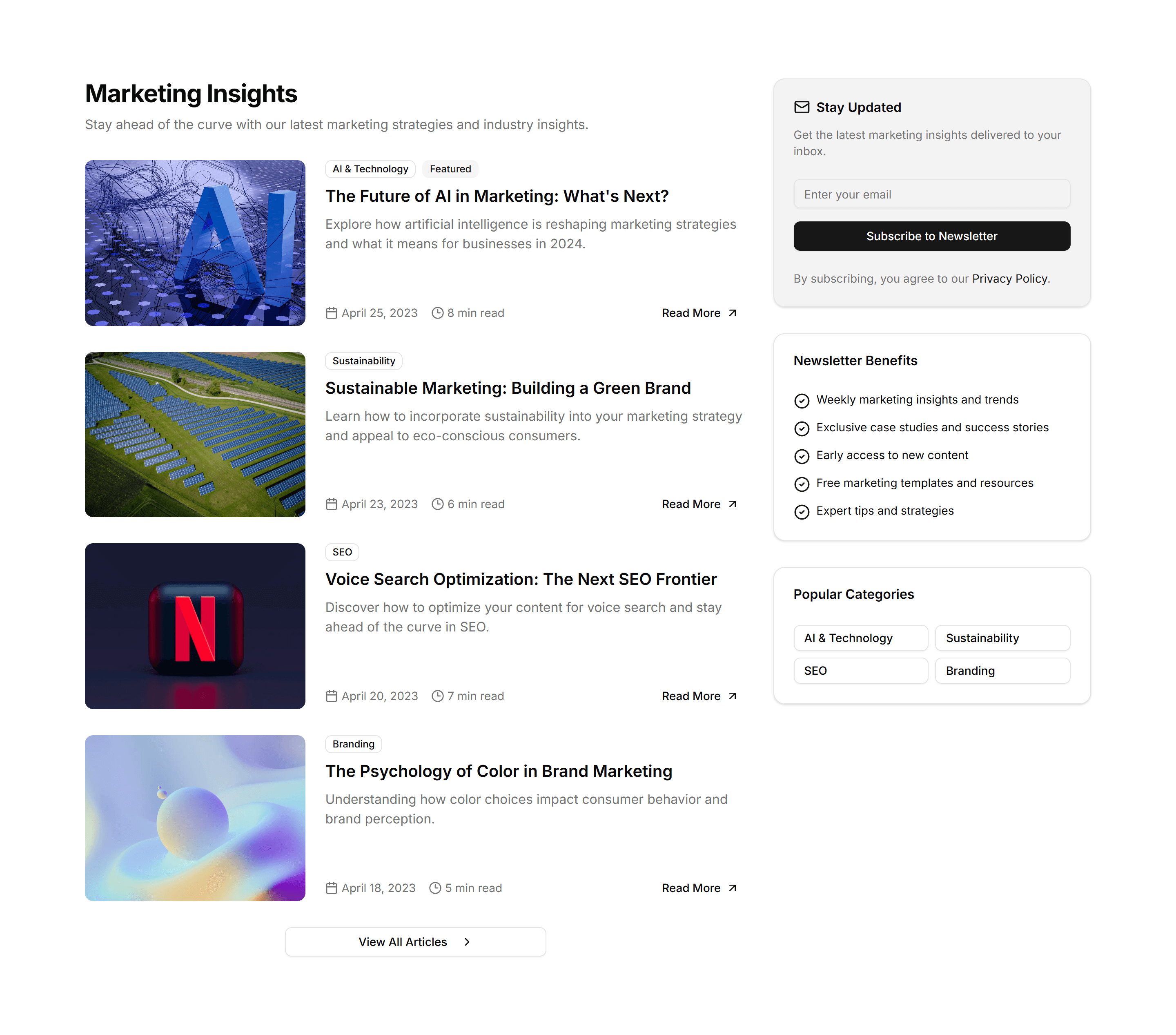
Marketing (Legacy) Blog Section: Newsletter Blog
An article feed combined with an email signup form and short prompt. Use it to grow a subscriber list while showcasing your most recent posts.
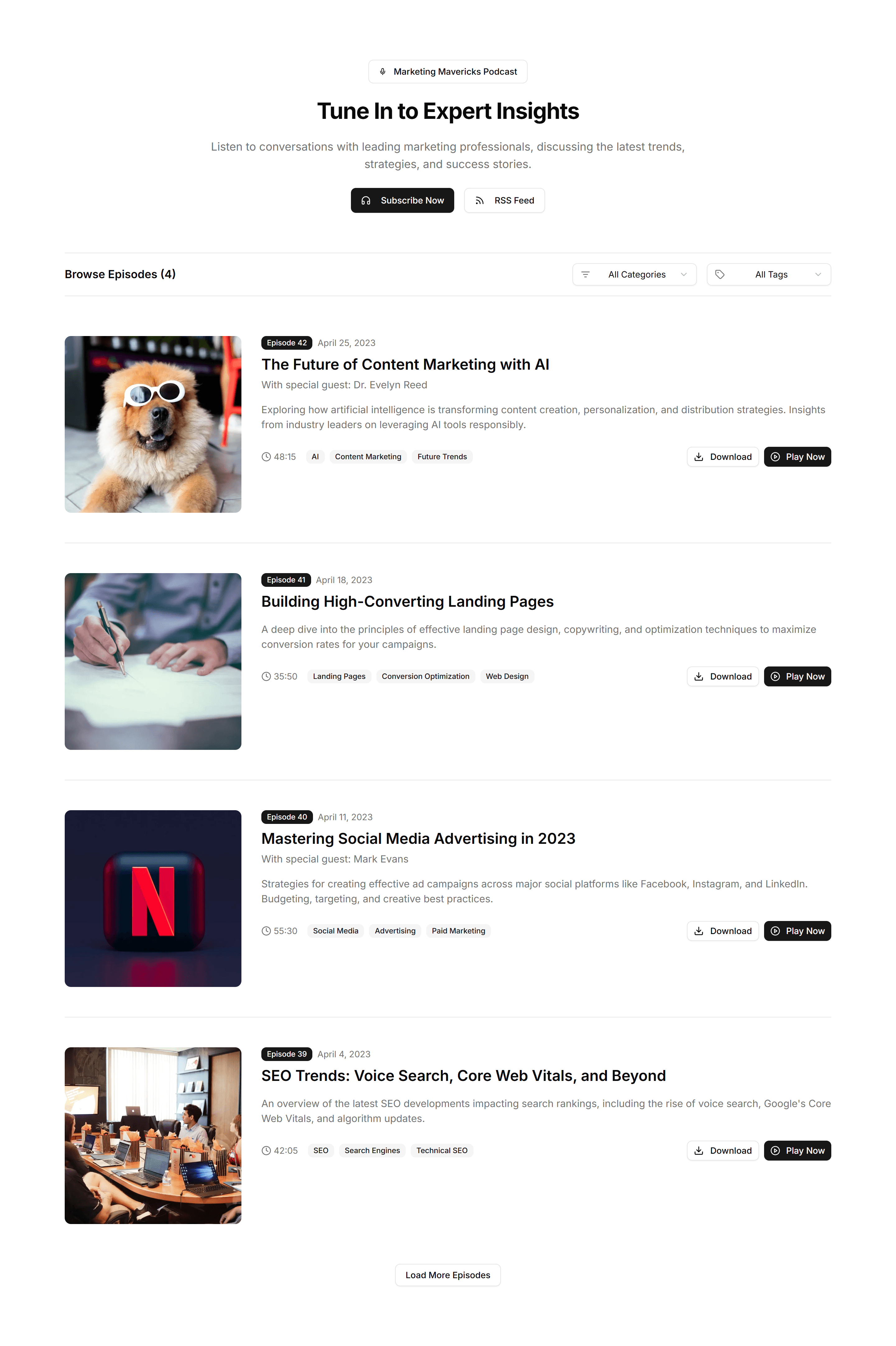
Marketing (Legacy) Blog Section: Podcast List
A list of episode cards with cover art, titles, and play controls. Use it to publish a podcast feed where listeners browse and start episodes.
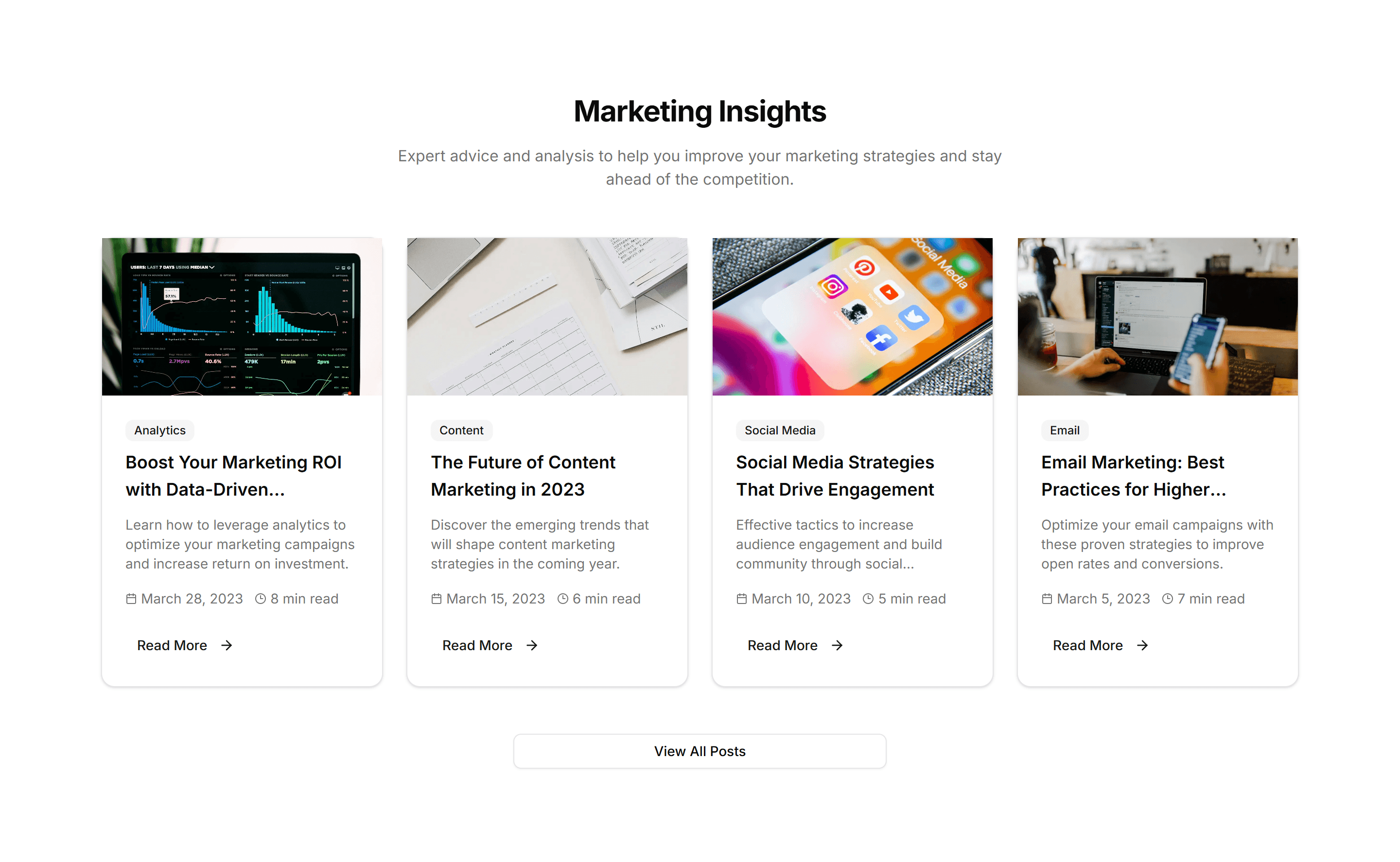
Marketing (Legacy) Blog Section: Simple Grid
An even grid of article cards with cover images, titles, and dates. Use it as a clean, flexible blog index that scales to any number of posts.
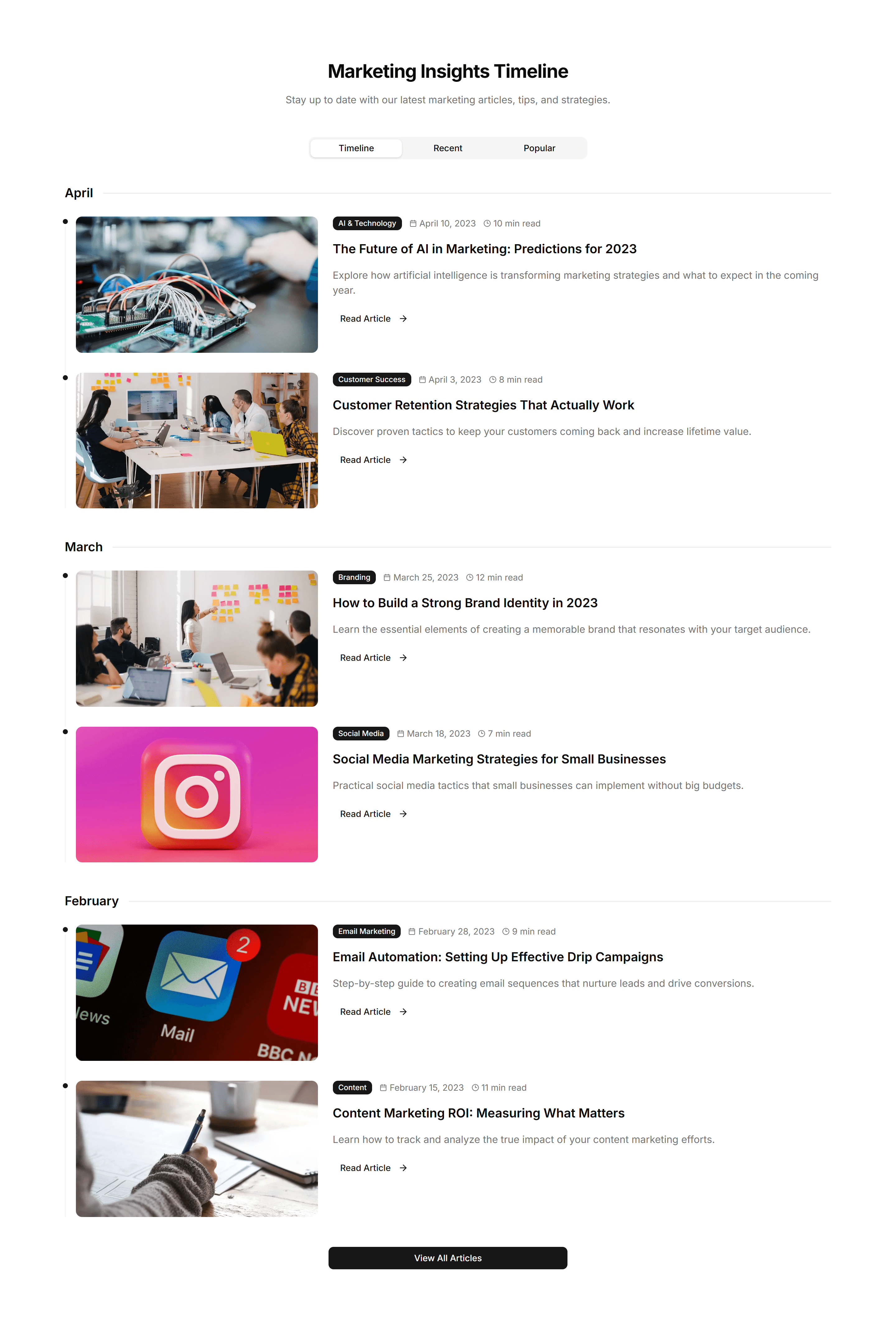
Marketing (Legacy) Blog Section: Timeline Blog
A vertical timeline that orders posts by date with markers and dots. Use it for a changelog, release notes, or a chronological story archive.
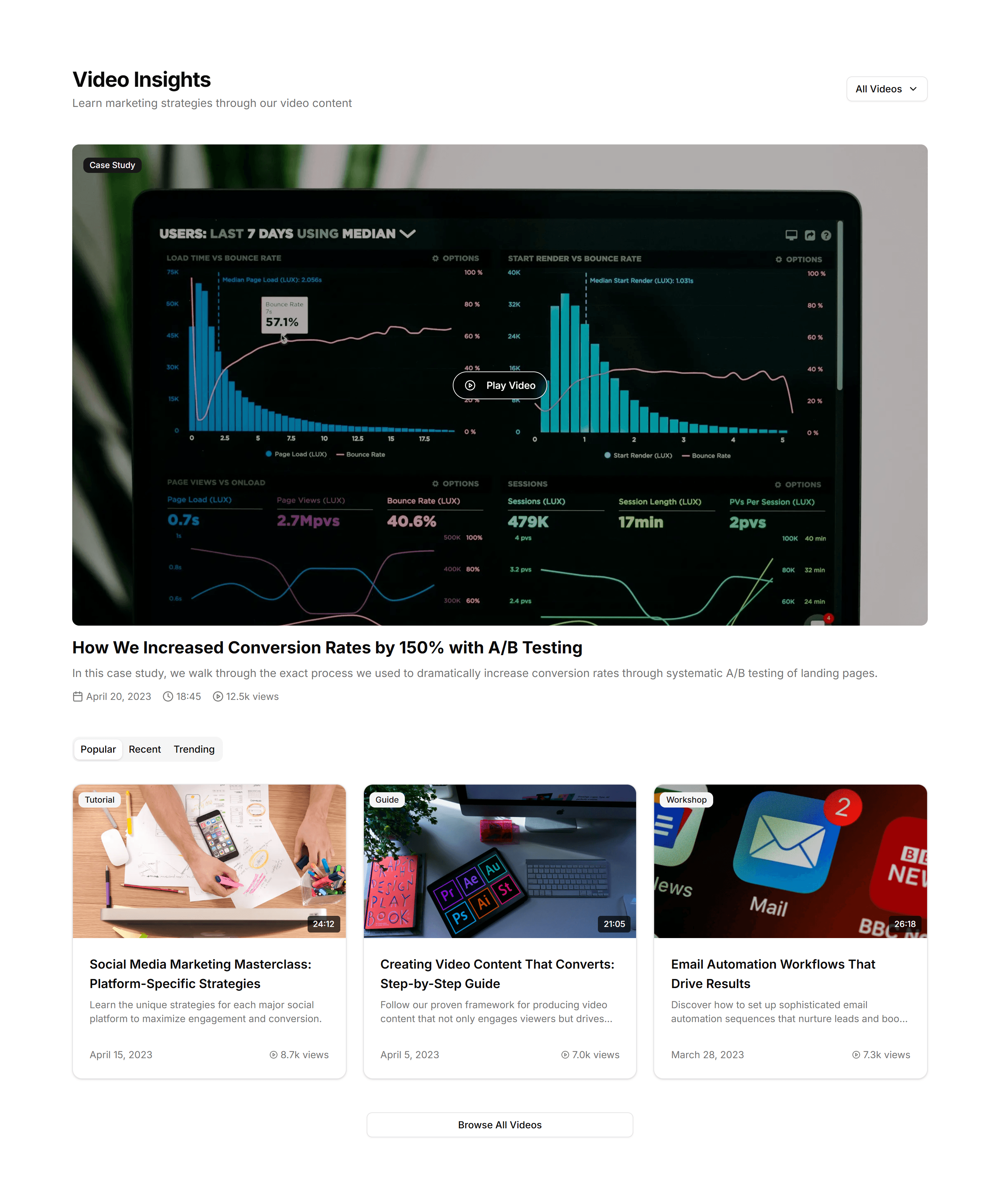
Marketing (Legacy) Blog Section: Video Blog
A grid of video cards with thumbnails, durations, and titles. Use it to run a video first blog where each card opens a clip or full episode.
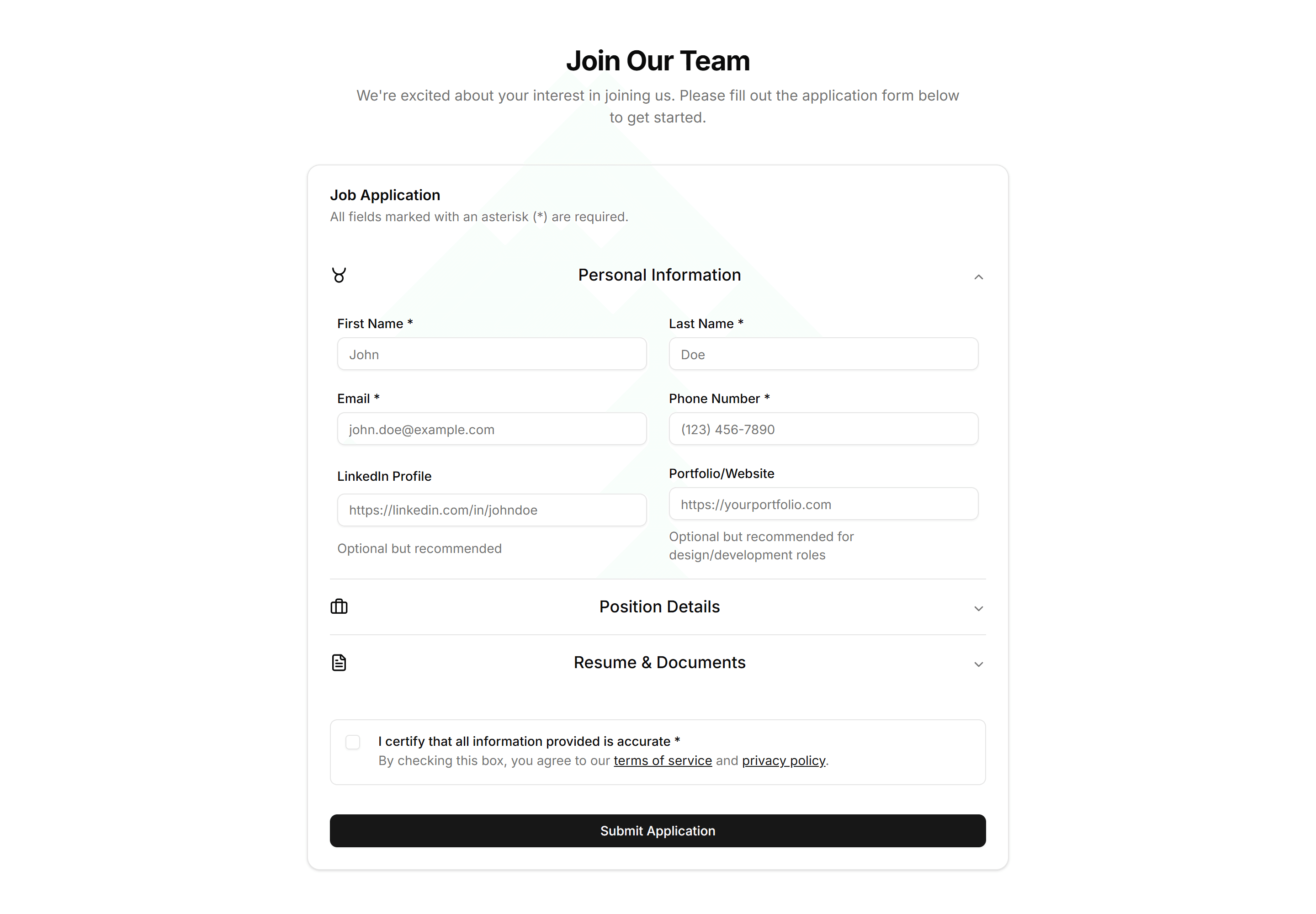
Marketing (Legacy) Career: Application Form
A job application form with fields for contact details, resume upload, and a cover letter. Lets candidates apply directly from your careers page.
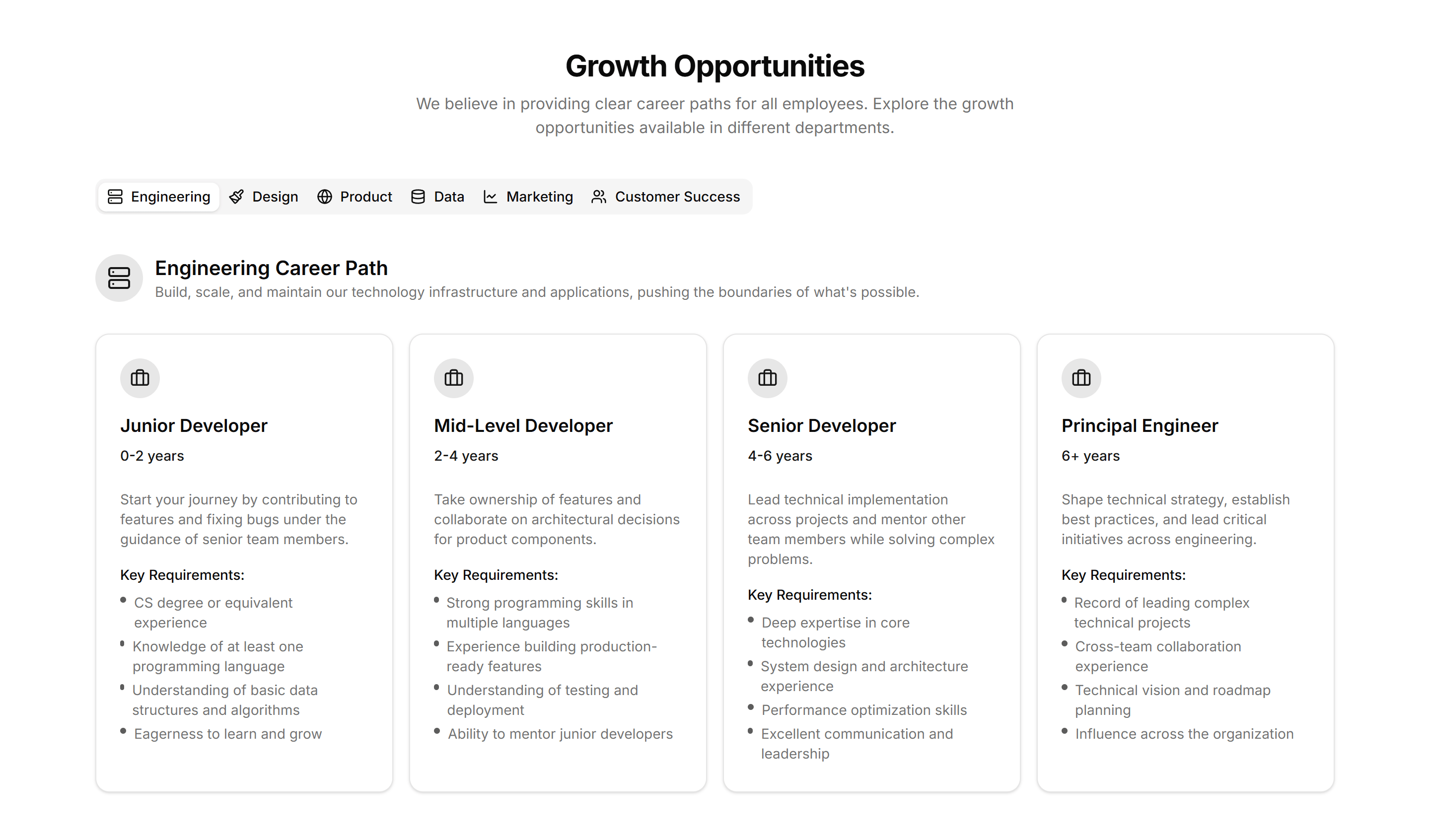
Marketing (Legacy) Career: Career Path
A career path layout showing role progression, levels, and growth milestones. Helps applicants picture how they advance after joining your team.
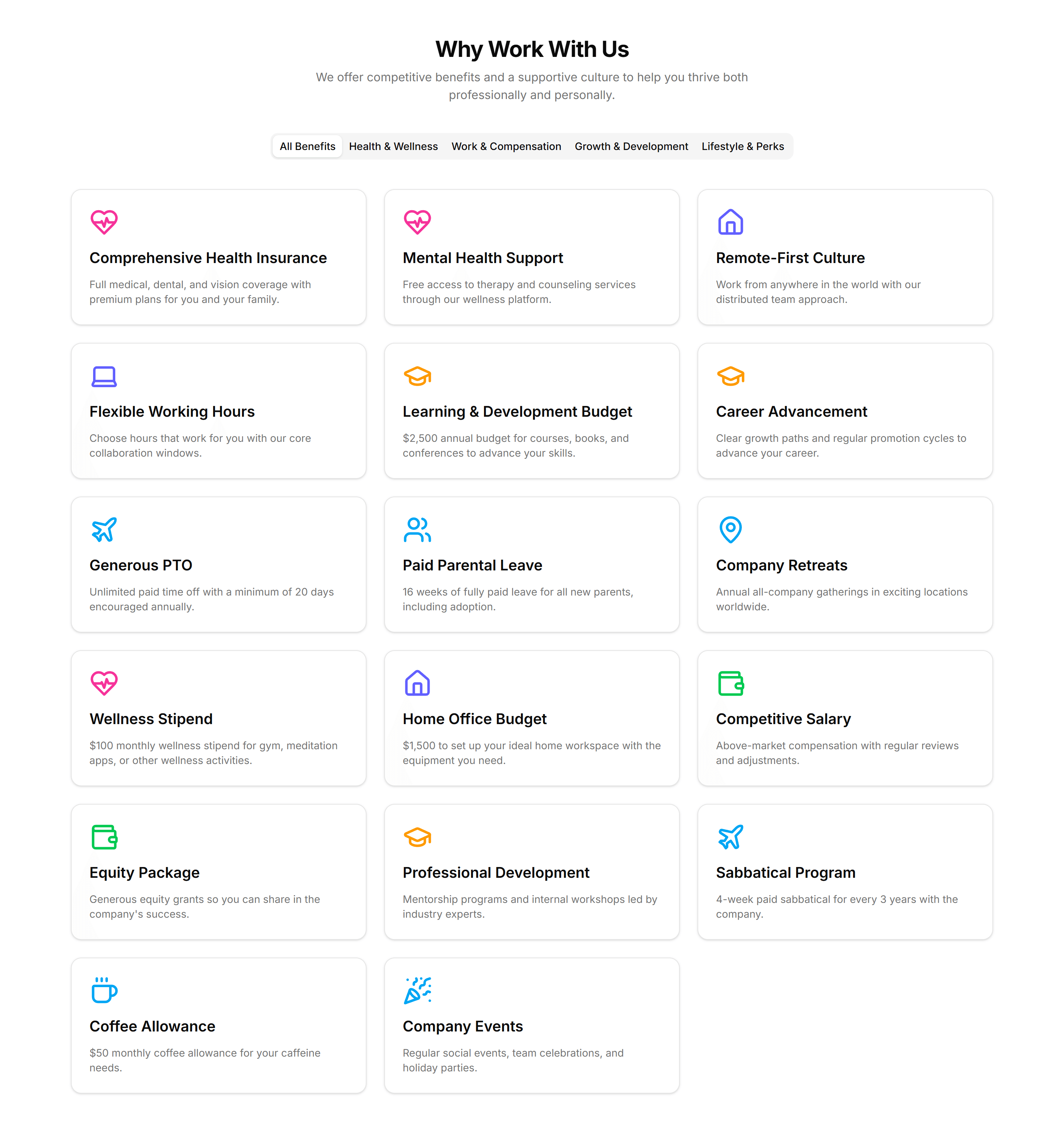
Marketing (Legacy) Career: Company Benefits
A company benefits section with icons and short blurbs for perks like health, time off, and remote work. Reassures candidates as they read open roles.
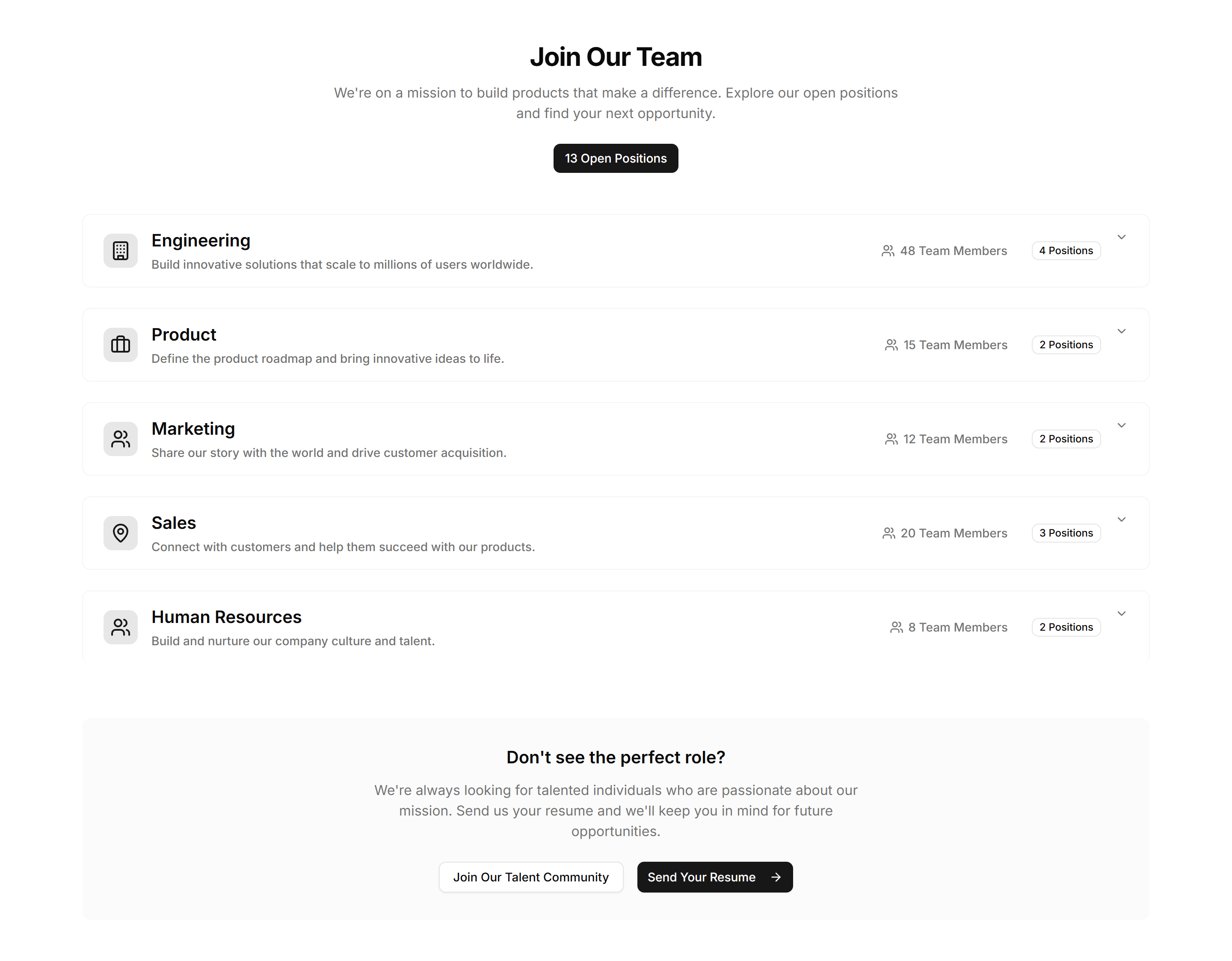
Marketing (Legacy) Career: Department Positions
A list of open positions grouped by department, each with a title and location. Helps candidates find the right team and apply to the matching role.
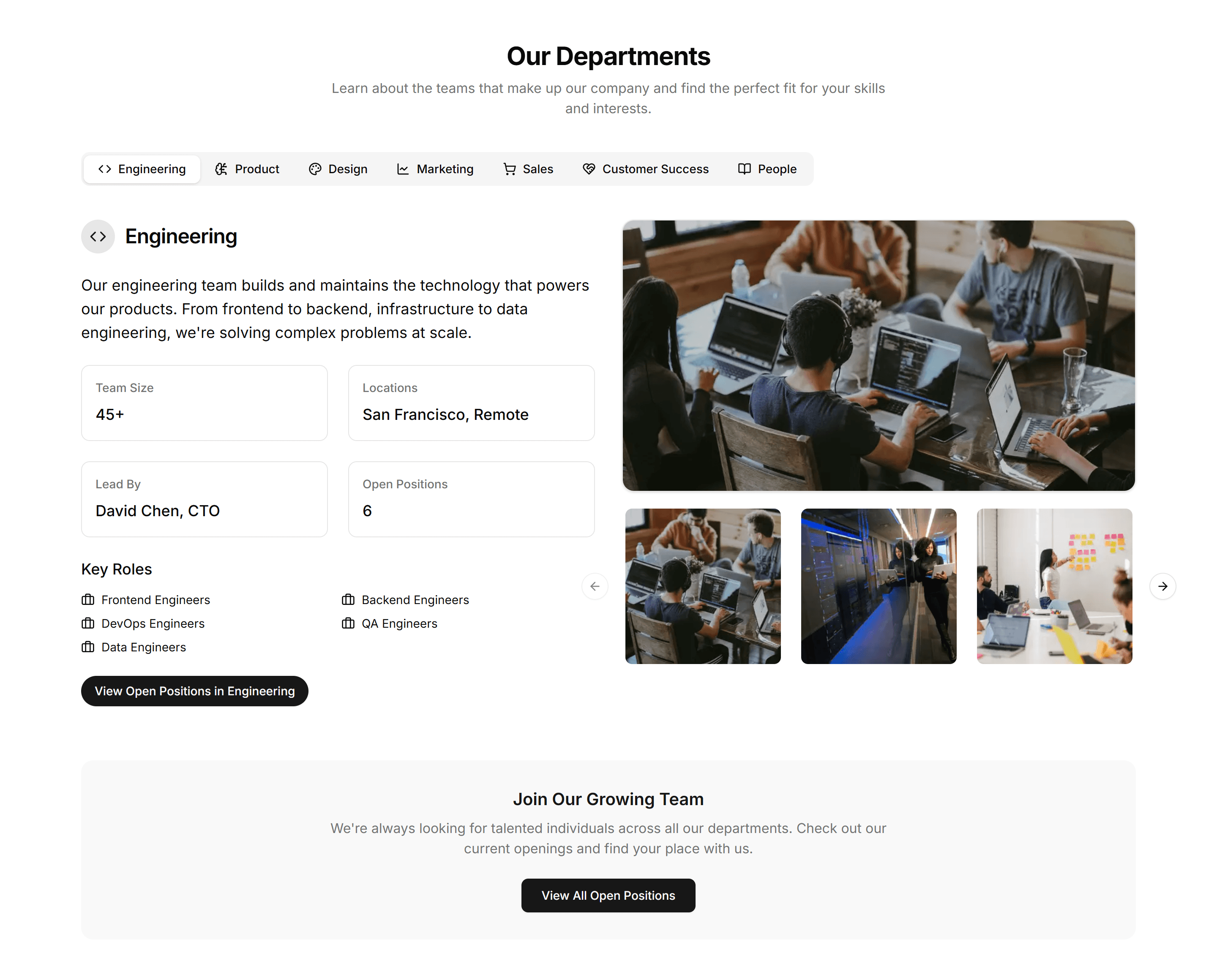
Marketing (Legacy) Career: Department Showcase
A department showcase with cards describing each team, its focus, and people. Helps candidates understand where they fit before browsing open roles.
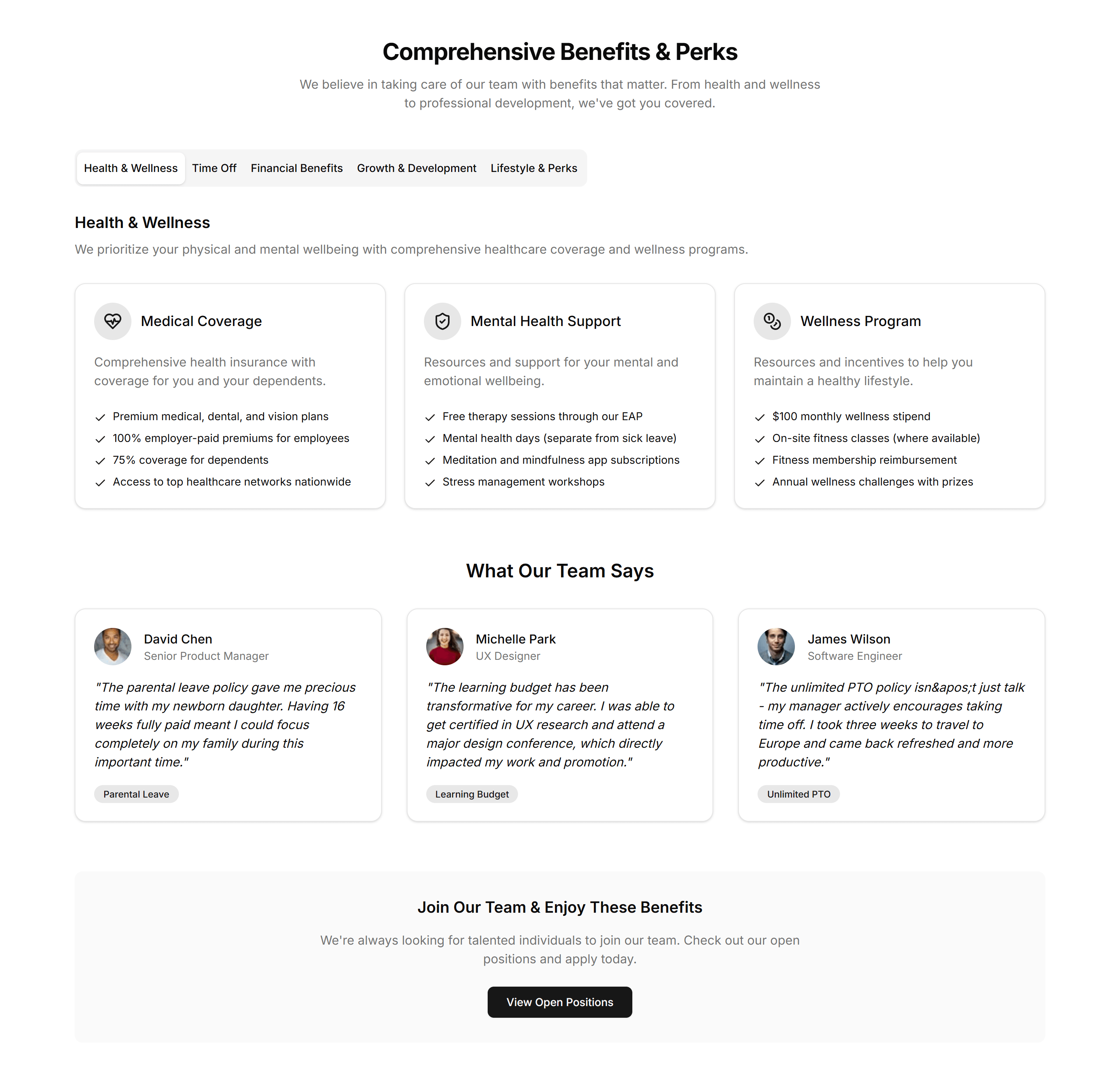
Marketing (Legacy) Career: Employee Benefits
An employee benefits grid covering insurance, learning budgets, and flexible hours. Shows candidates the full package while they consider applying.
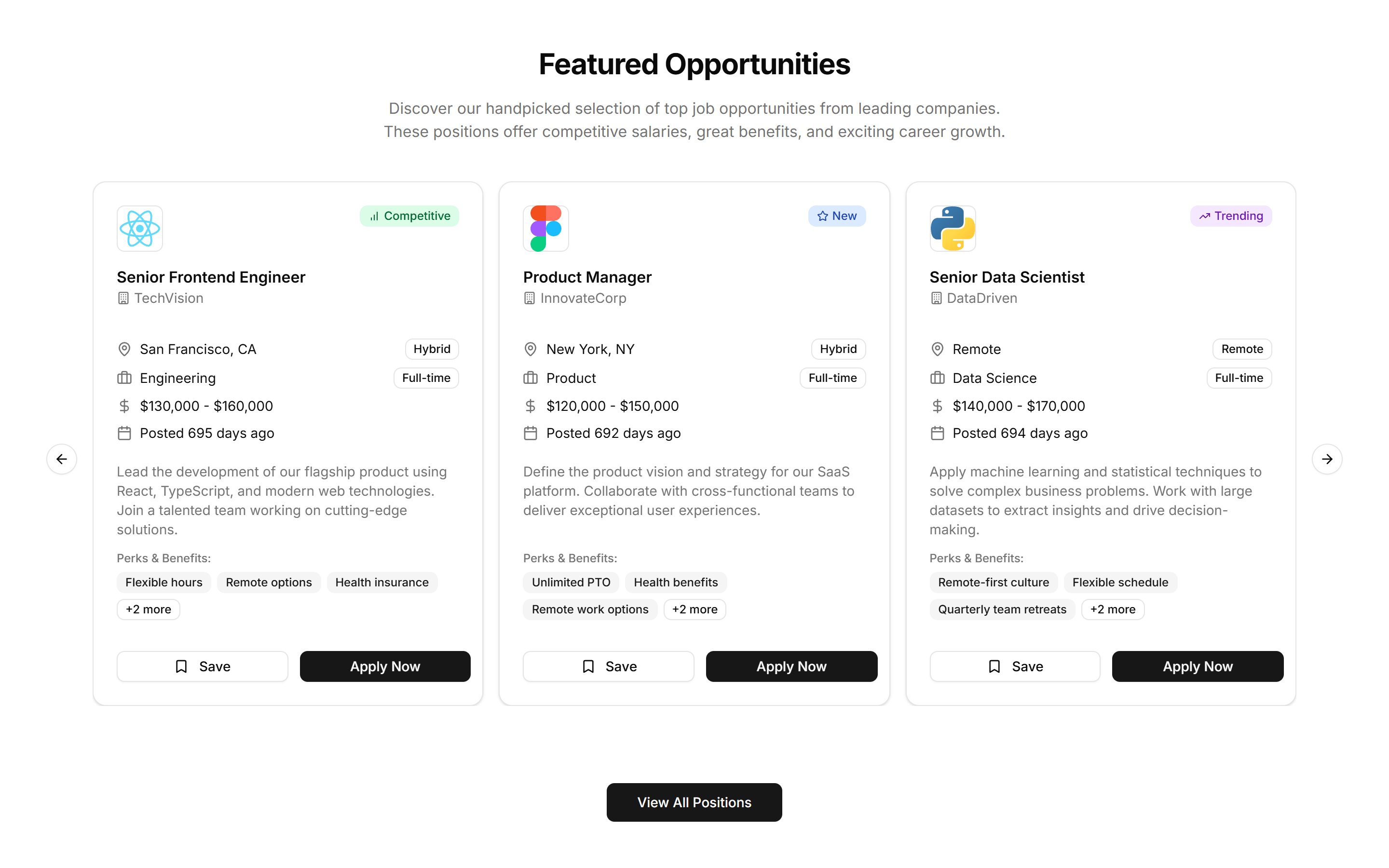
Marketing (Legacy) Career: Featured Job Slider
A horizontal slider of featured job cards with title, team, and location. Spotlights priority roles you want candidates to notice on the careers page.
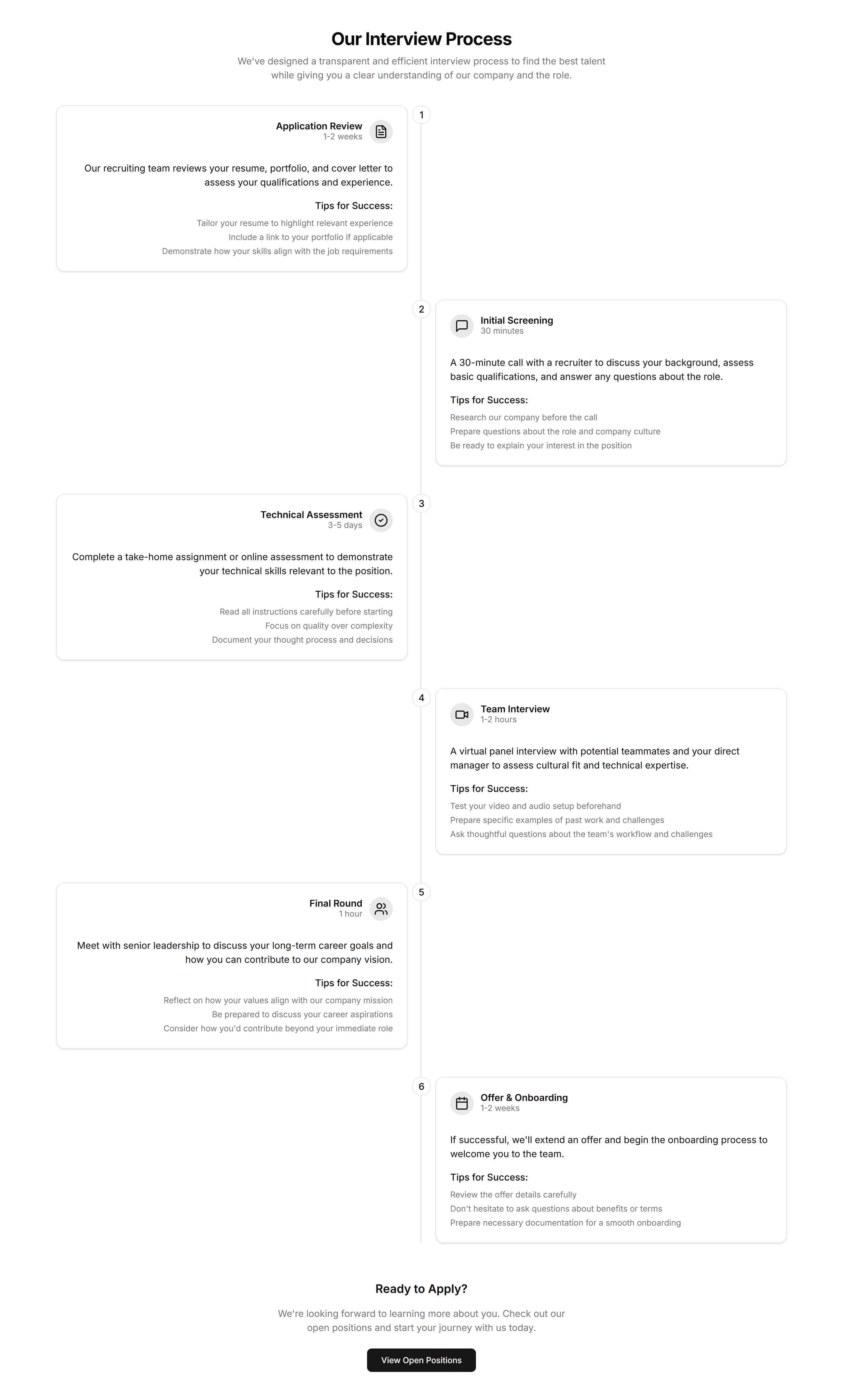
Marketing (Legacy) Career: Interview Process
A step by step interview process timeline running from first application to final offer. Sets expectations so candidates know what each hiring stage involves.
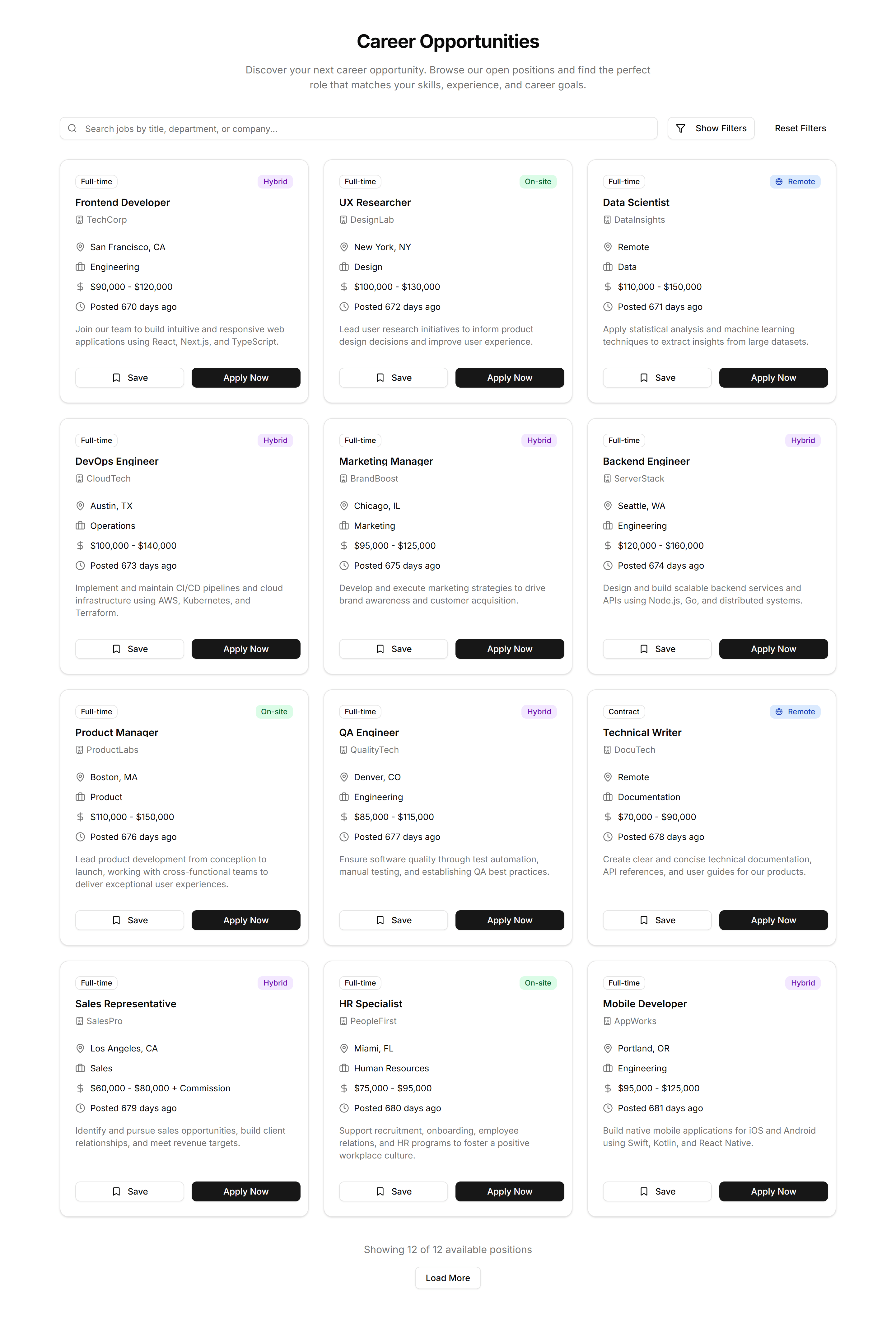
Marketing (Legacy) Career: Job Board
A searchable job board with filters for team, location, and type. Lets candidates scan every open role and apply to the one that fits them best.
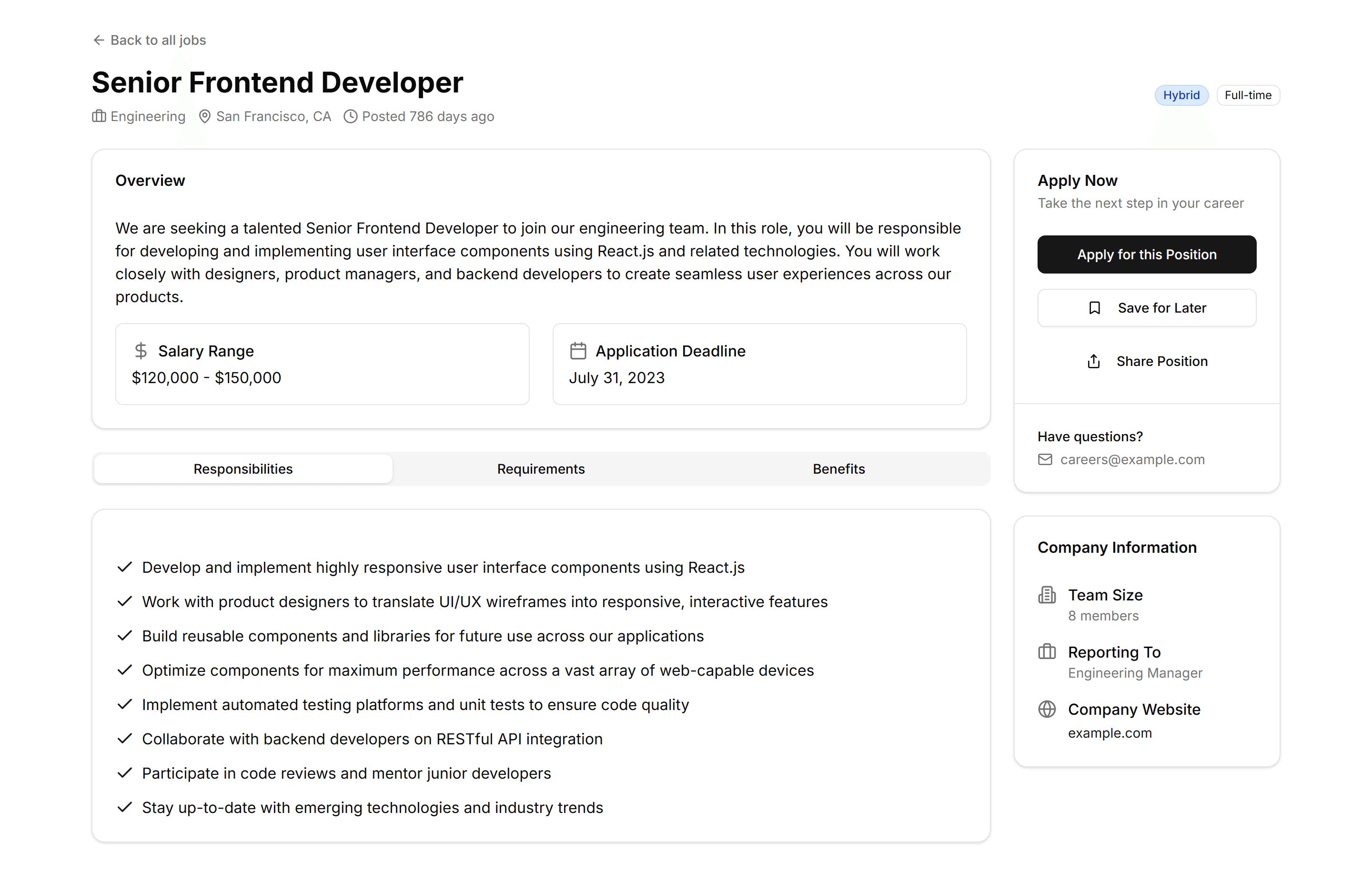
Marketing (Legacy) Career: Job Details
A single job details page with description, responsibilities, and an apply button. Gives candidates everything they need to decide and submit.
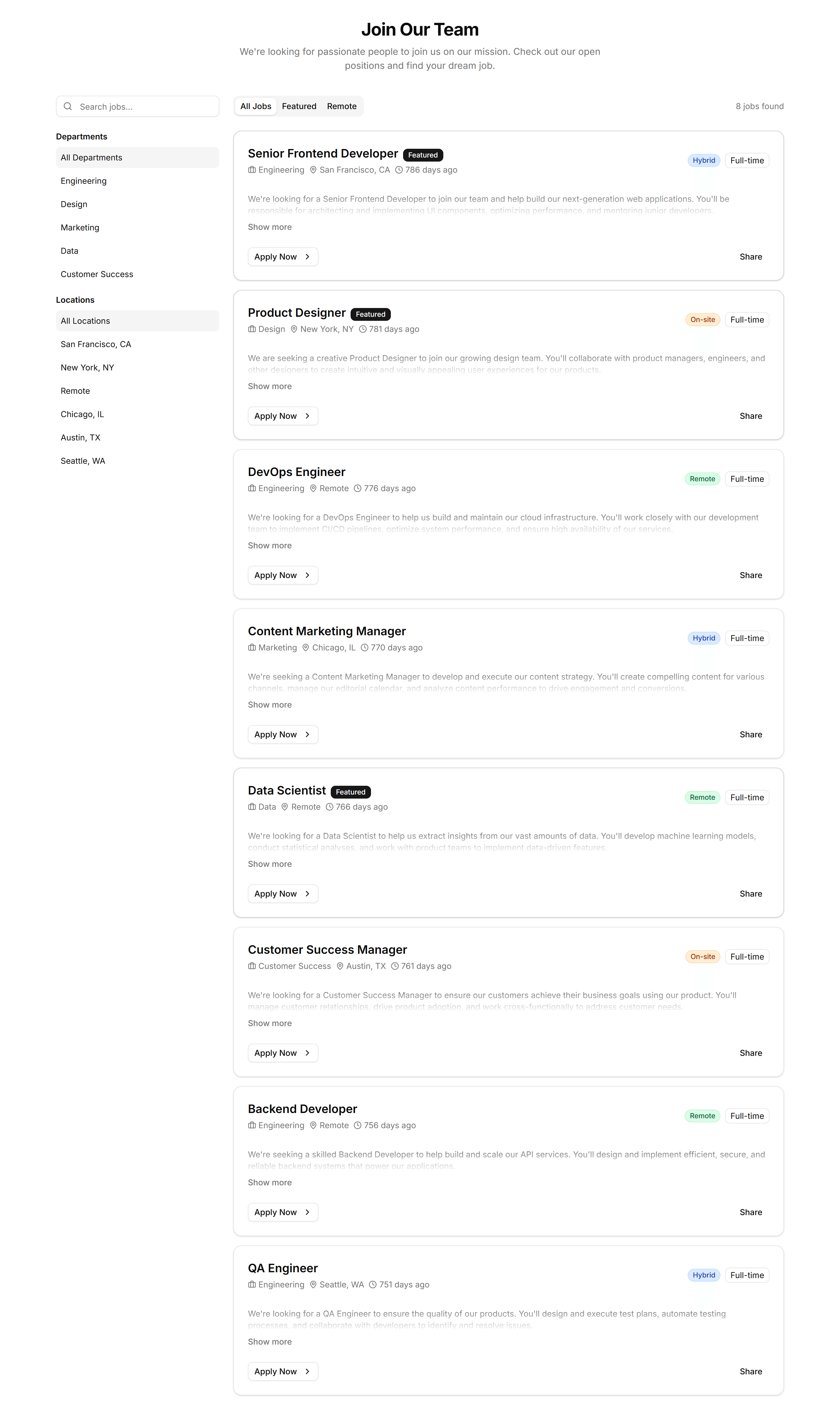
Marketing (Legacy) Career: Job Listings
A clean list of job listings with title, location, and a quick apply link. Helps candidates skim available roles and pick one to pursue today.
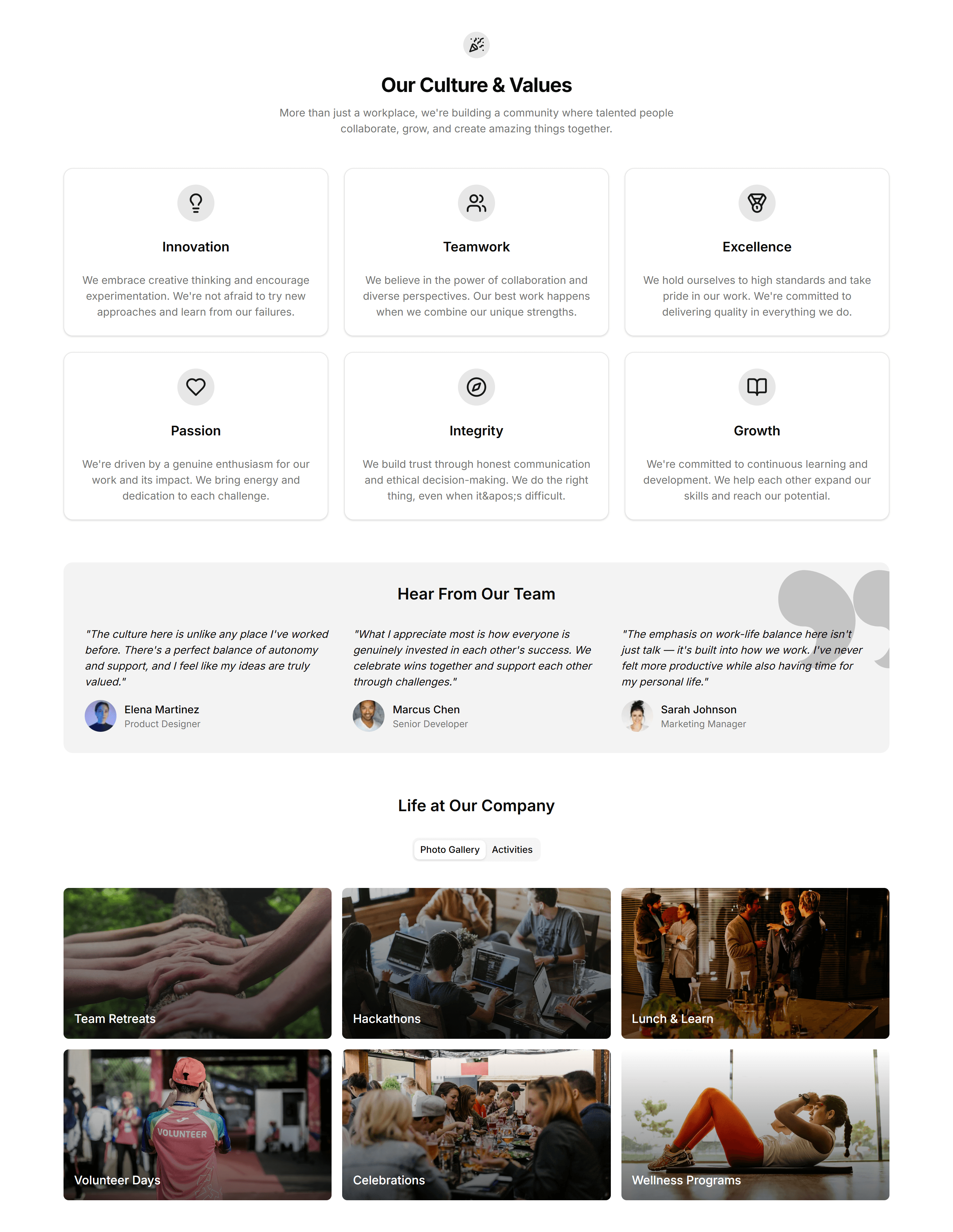
Marketing (Legacy) Career: Workplace Culture
A workplace culture section with photos and short stories about daily life. Gives candidates a feel for the team before they decide to apply.
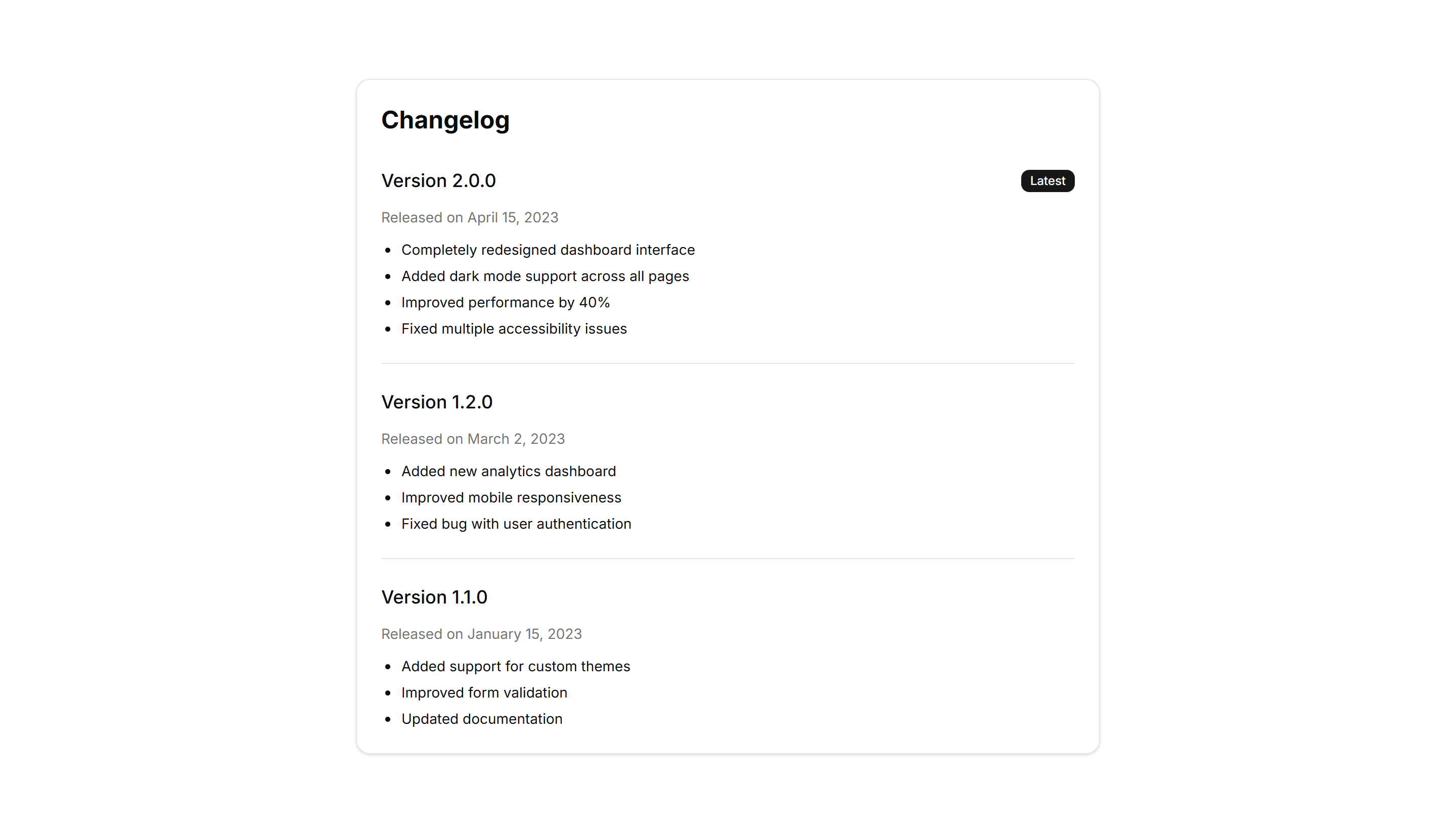
Marketing (Legacy) Changelog: Basic Changelog
A straightforward changelog list with version numbers, dates, and bullet points. Use it to post release notes when you want clarity over visual flourish.
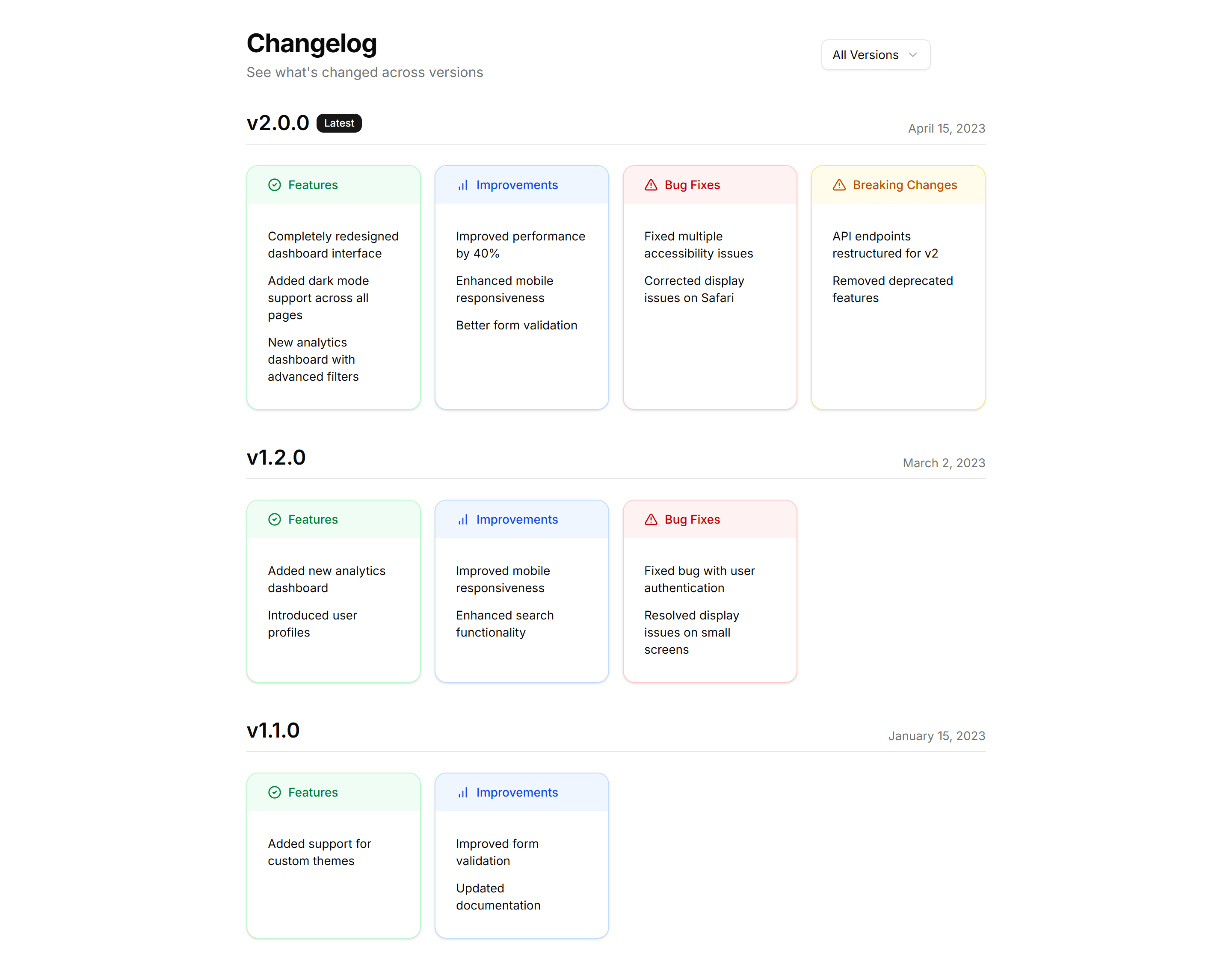
Marketing (Legacy) Changelog: Categorized Changelog
Release notes split into Added, Fixed, and Changed sections under each version. Helps readers scan a busy update and jump to the changes they care about.
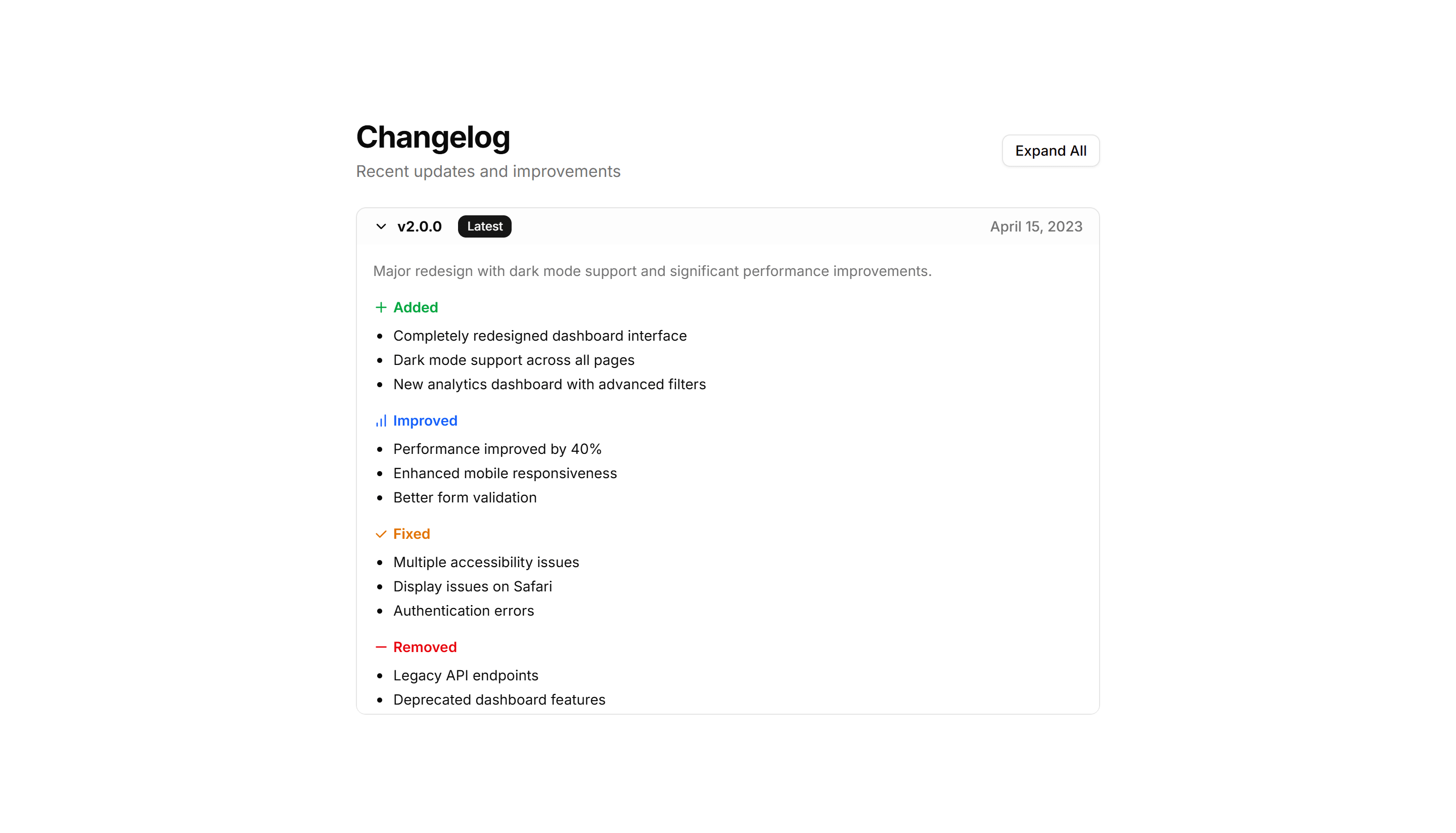
Marketing (Legacy) Changelog: Compact Changelog
A dense changelog that packs many versions into a tight column. Ideal when you ship often and want the full history visible without heavy scrolling.
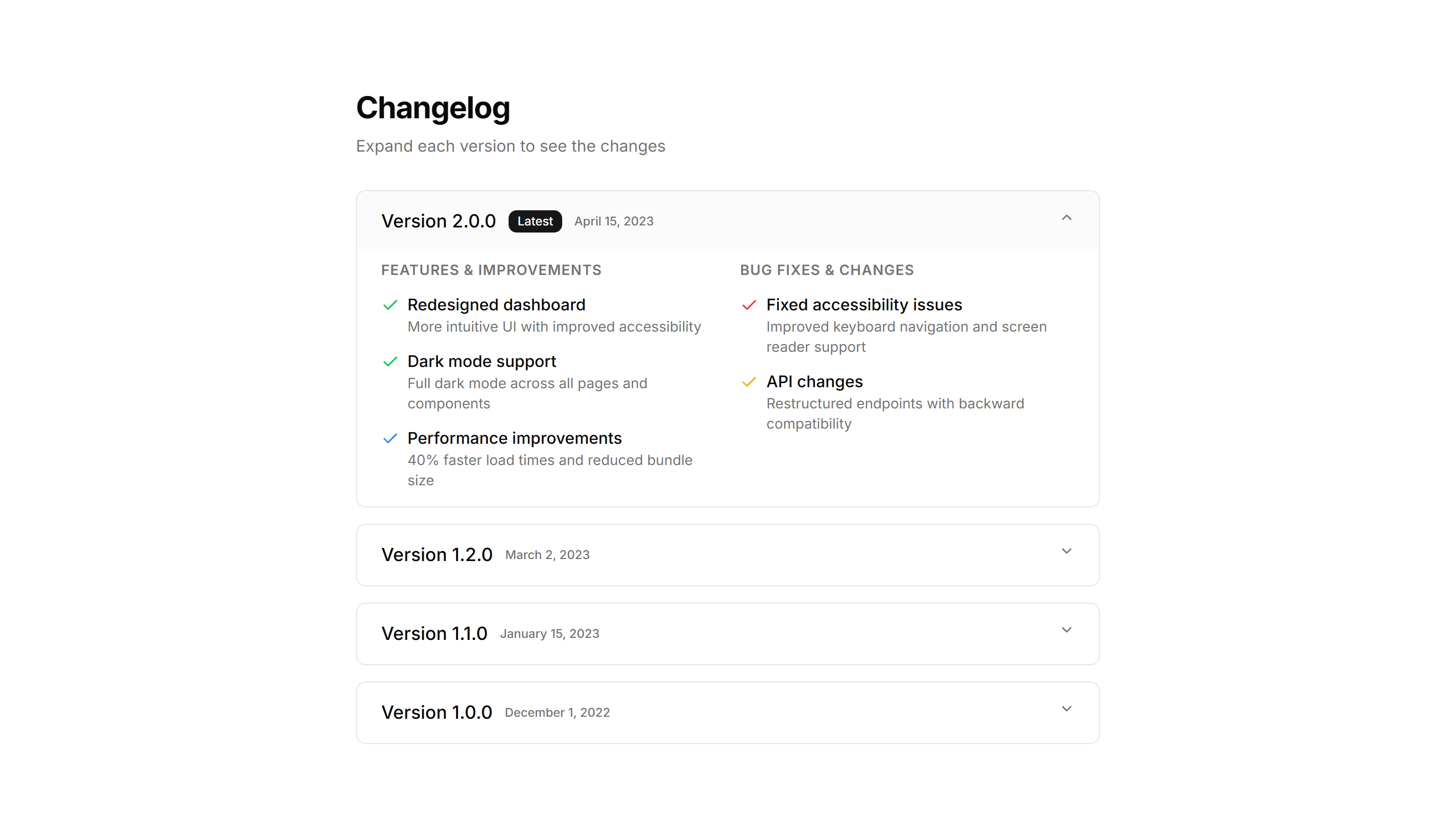
Marketing (Legacy) Changelog: Expandable Changelog
Collapsed version entries that open on click to reveal full details. Keeps a long release history short while letting readers drill into any update.
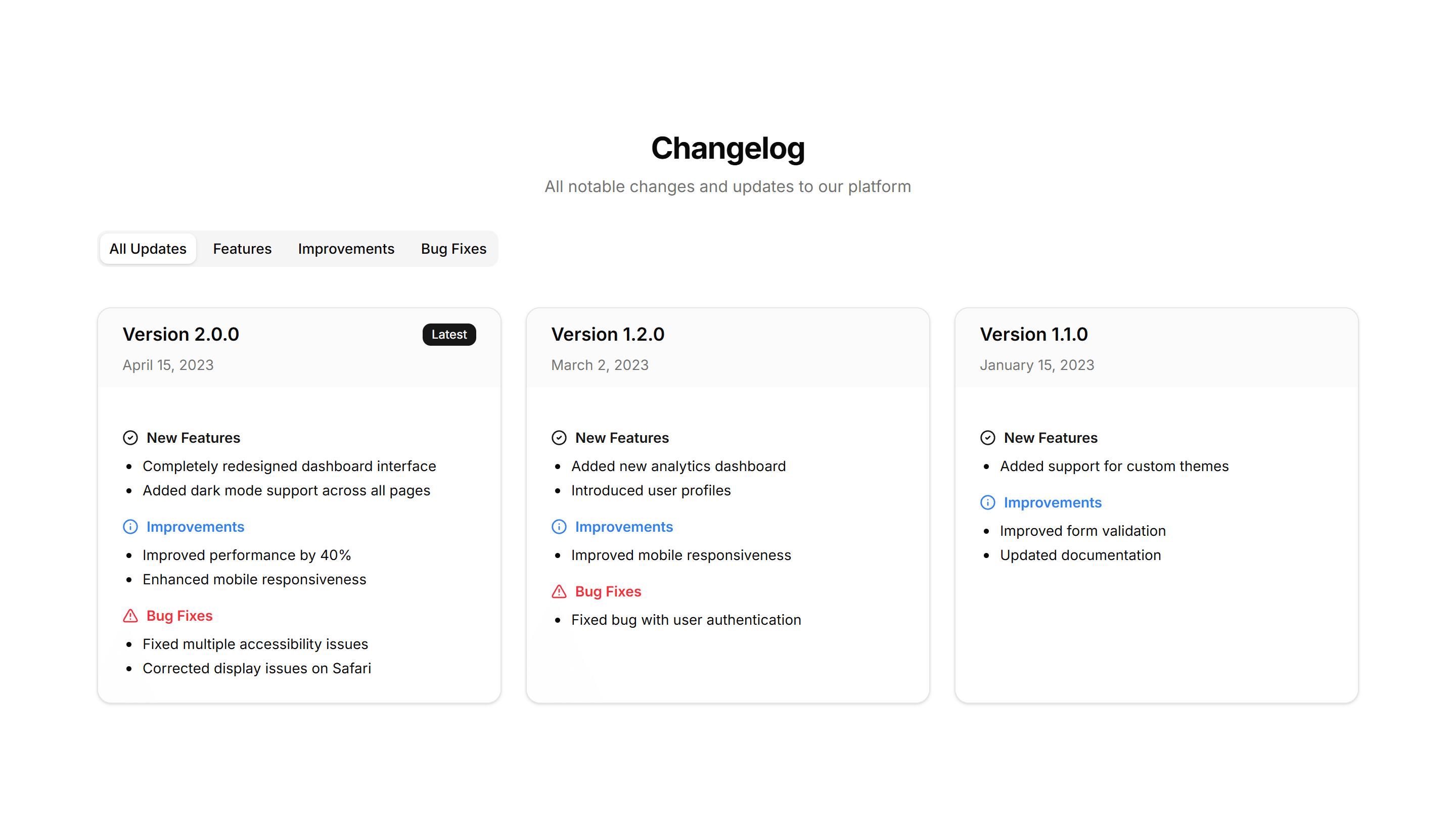
Marketing (Legacy) Changelog: Grid Changelog
Release entries laid out as cards in a responsive grid. Use it to show recent updates side by side with badges, dates, and short summaries at a glance.
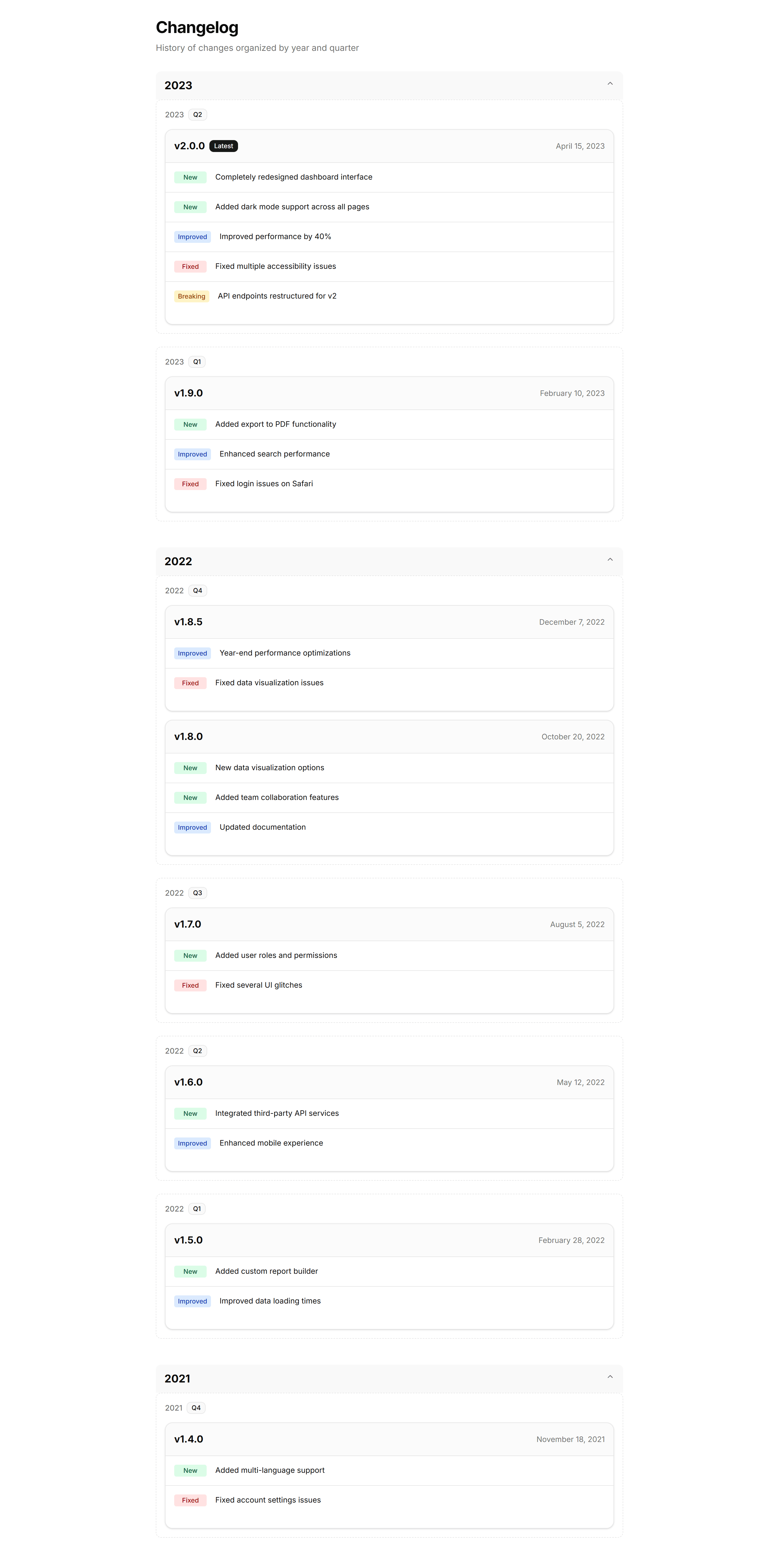
Marketing (Legacy) Changelog: Grouped Changelog
Updates clustered by month or release so related entries sit together. Good for products with frequent shipping where context across versions matters.
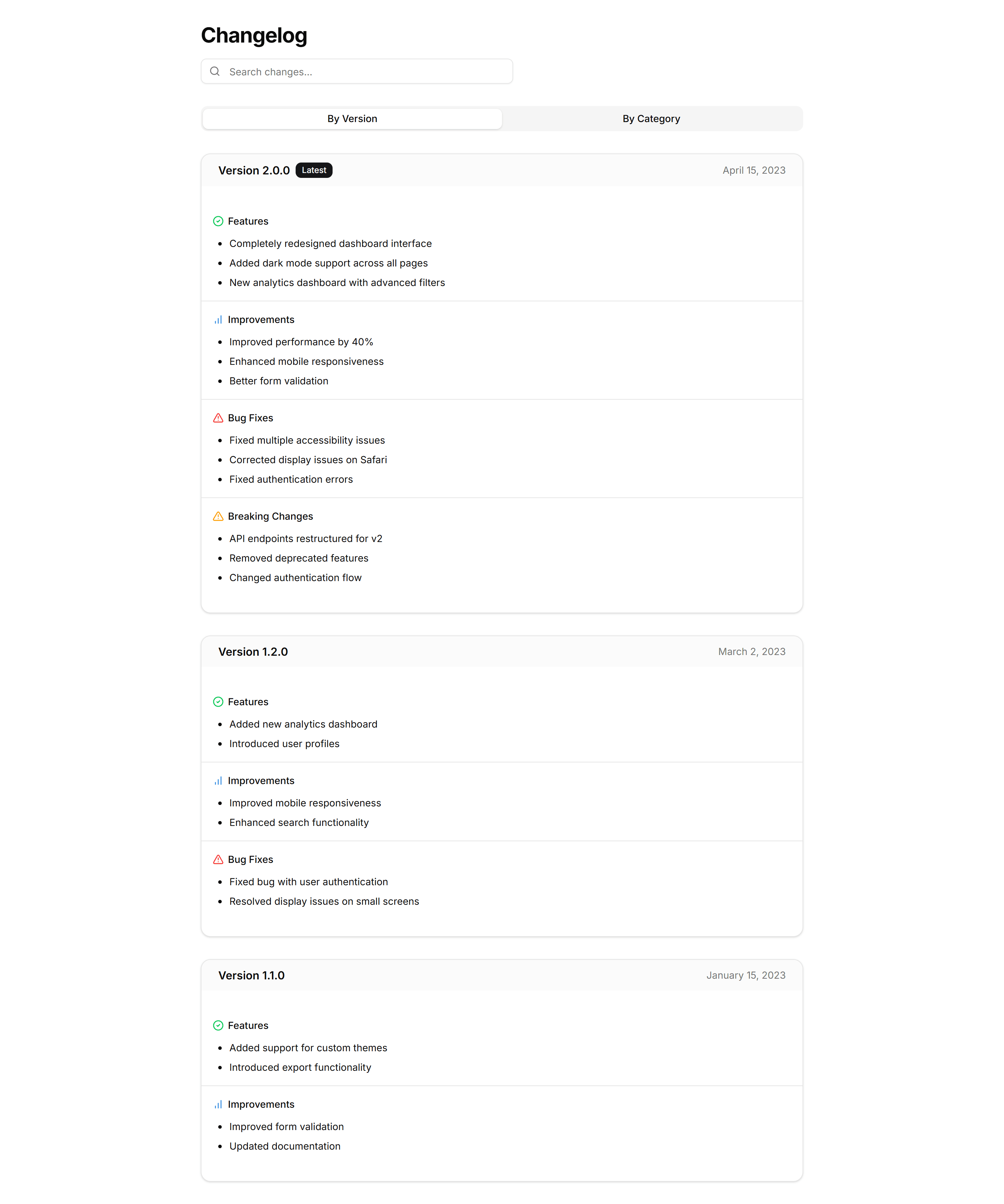
Marketing (Legacy) Changelog: Interactive Changelog
A changelog with filters and clickable entries that reveal more detail. Lets visitors explore updates by type and focus on the releases that matter.
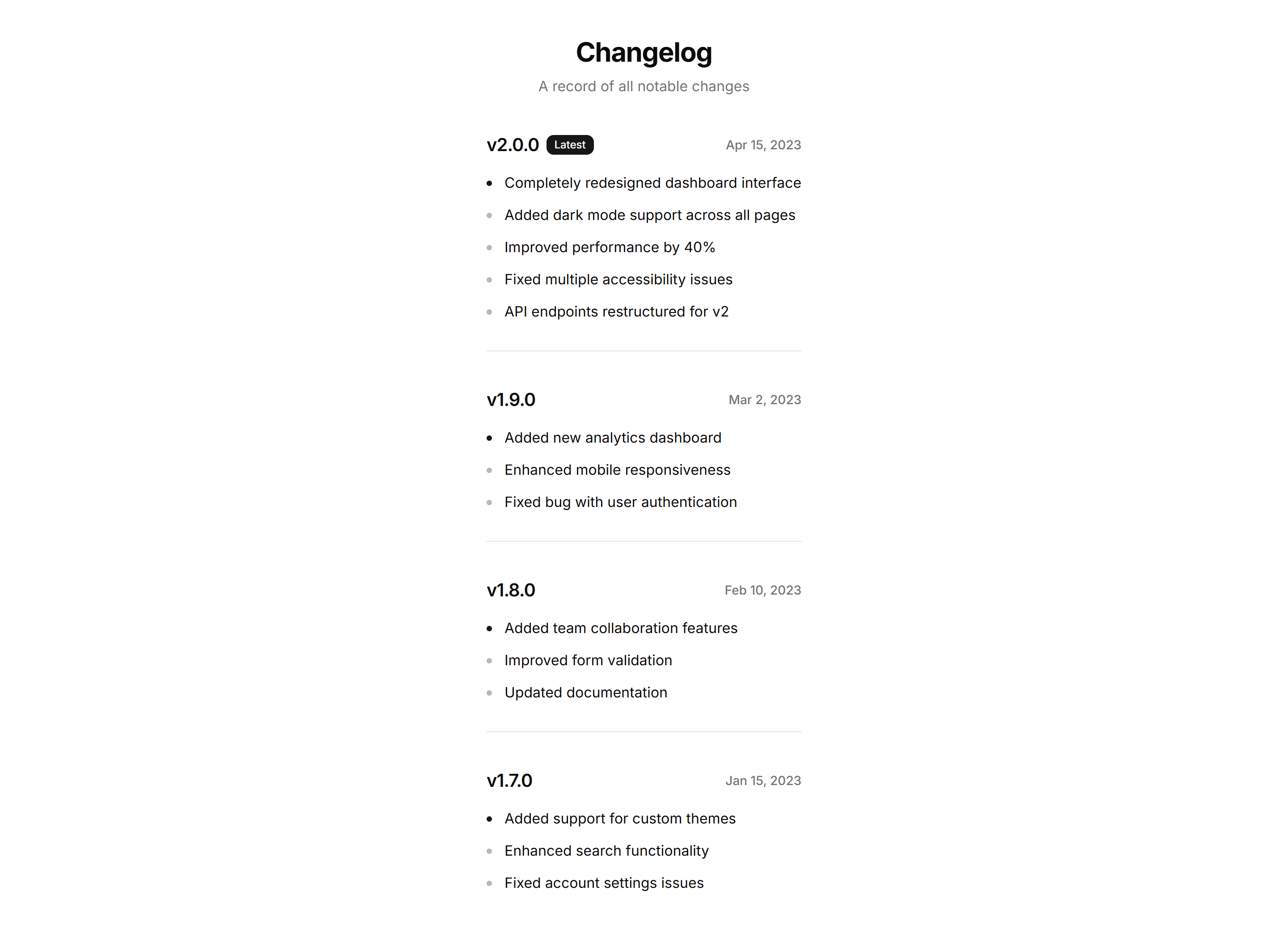
Marketing (Legacy) Changelog: Minimalist Changelog
A pared back changelog with just dates, versions, and one line per change. Use it when you want updates to feel quiet and stay out of the way.
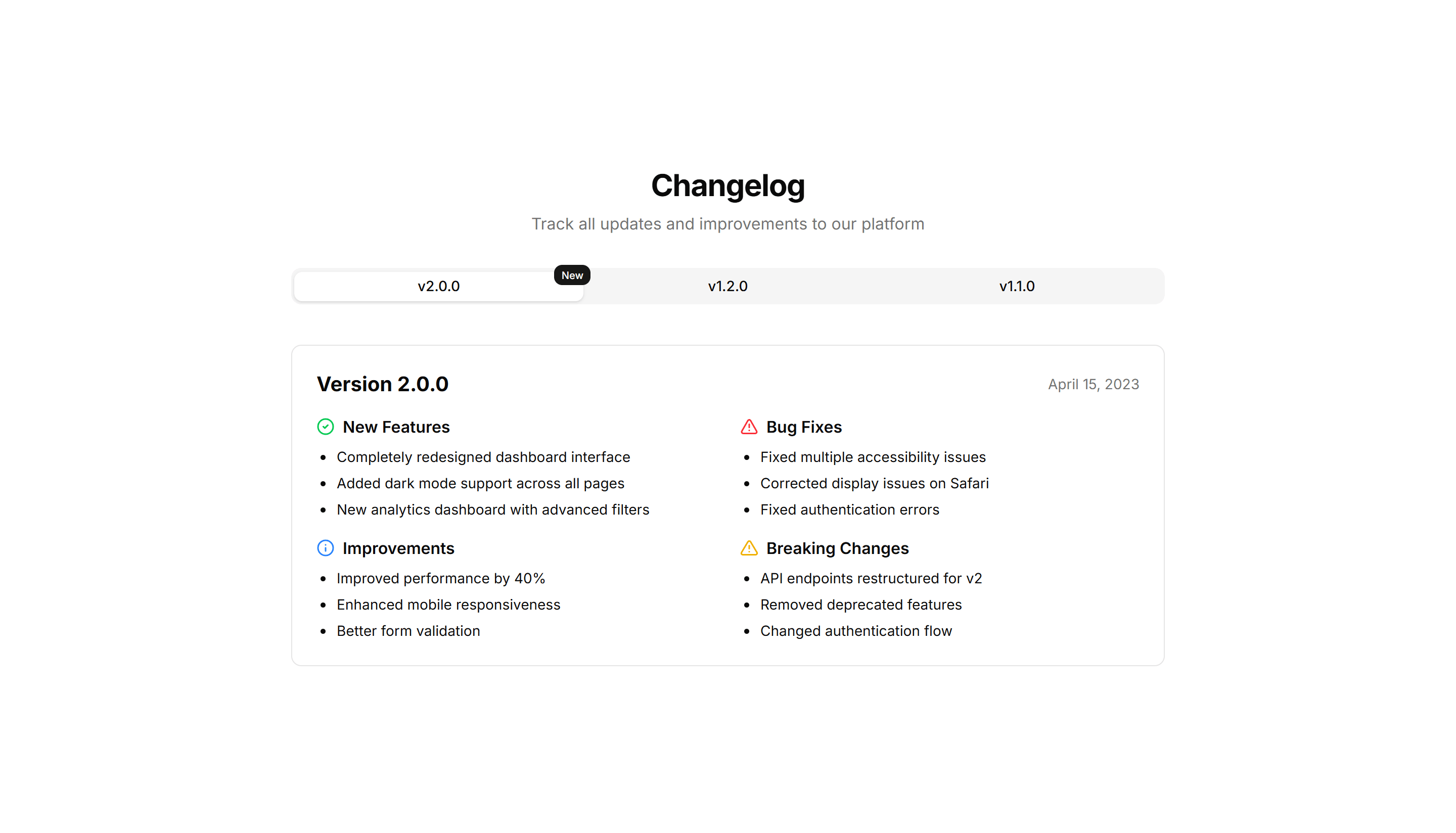
Marketing (Legacy) Changelog: Tabbed Changelog
Release notes organized into tabs by version or category. Lets readers switch between updates without scrolling, keeping each release neatly contained.
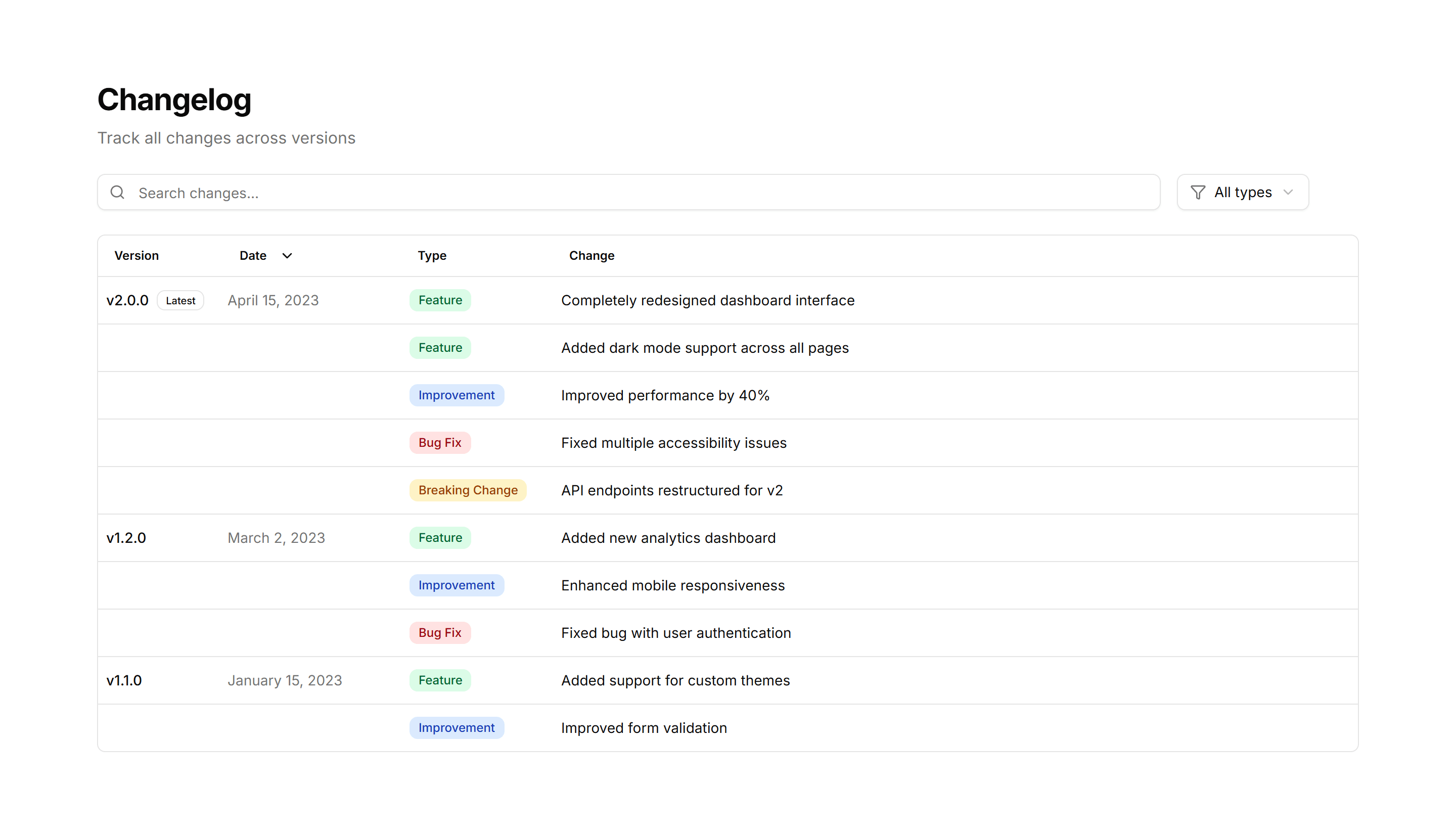
Marketing (Legacy) Changelog: Table Changelog
A changelog rendered as a table with columns for version, date, and notes. Use it when readers need to scan and compare many releases quickly.
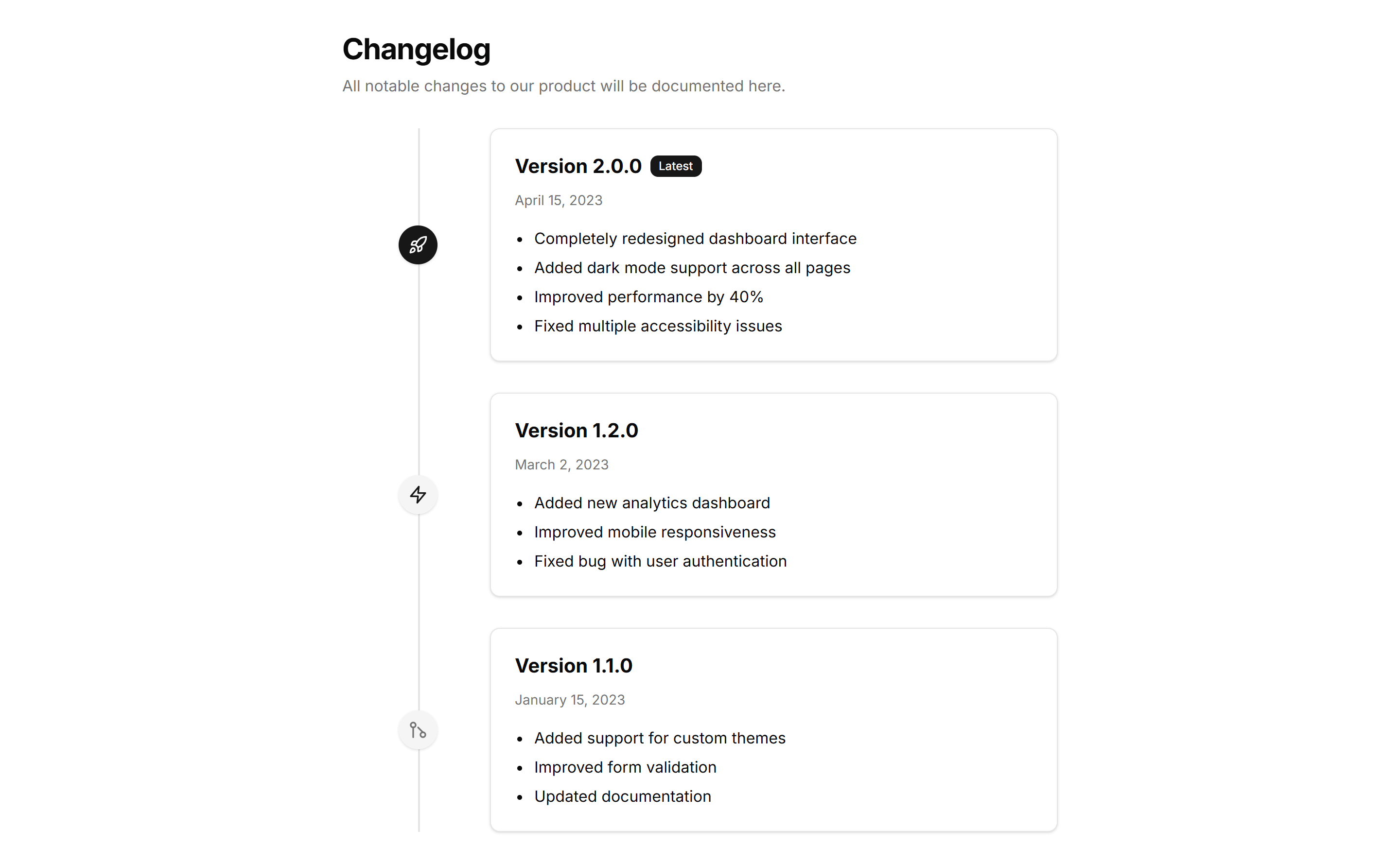
Marketing (Legacy) Changelog: Timeline Changelog
A vertical timeline that plots releases in order with dates and notes. Use it to tell the story of a product as it grows version over version.
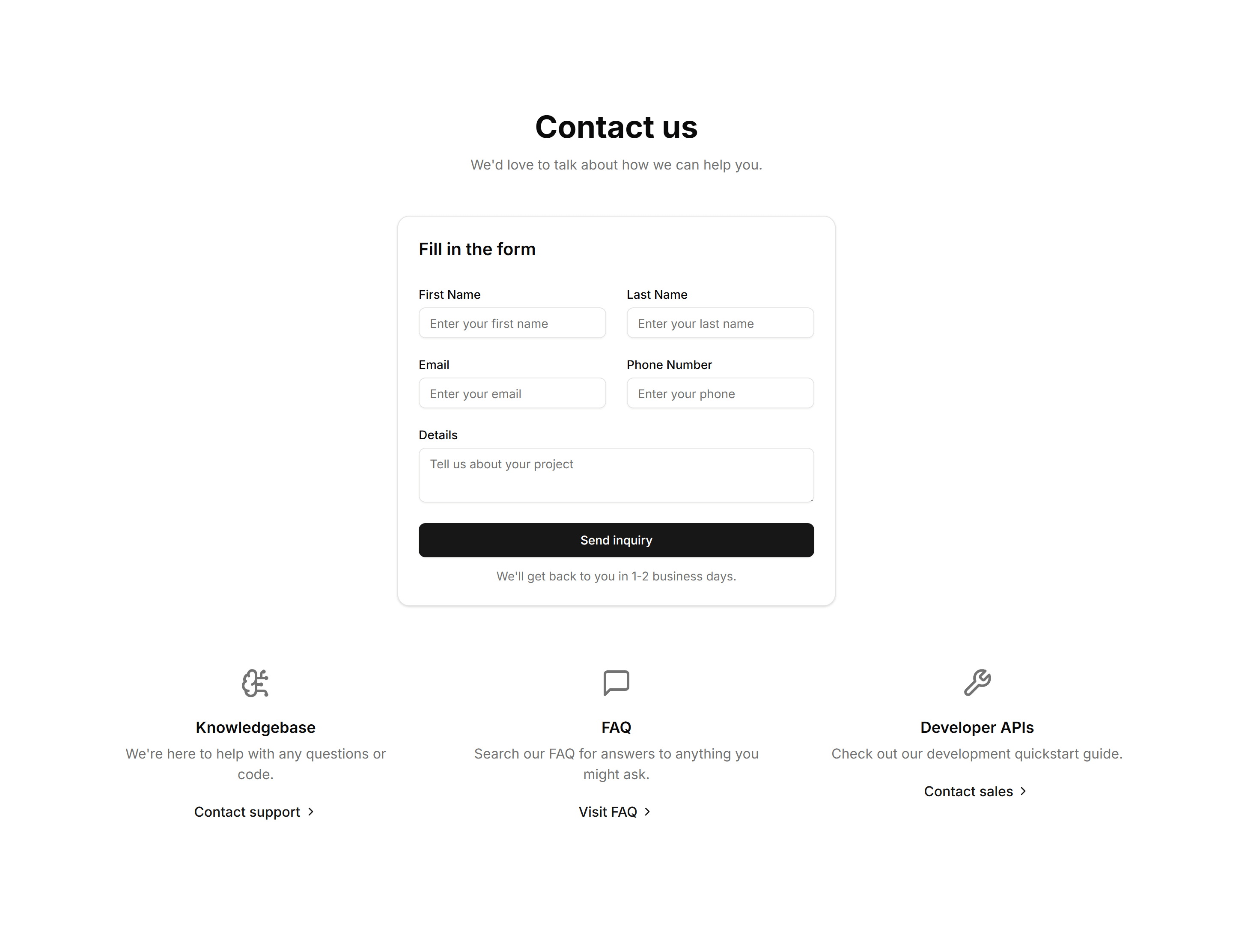
Marketing (Legacy) Contact Section: Center Aligned
A center aligned contact form with heading, supporting text, and stacked fields. Drops onto a simple contact page so visitors can send a message fast.
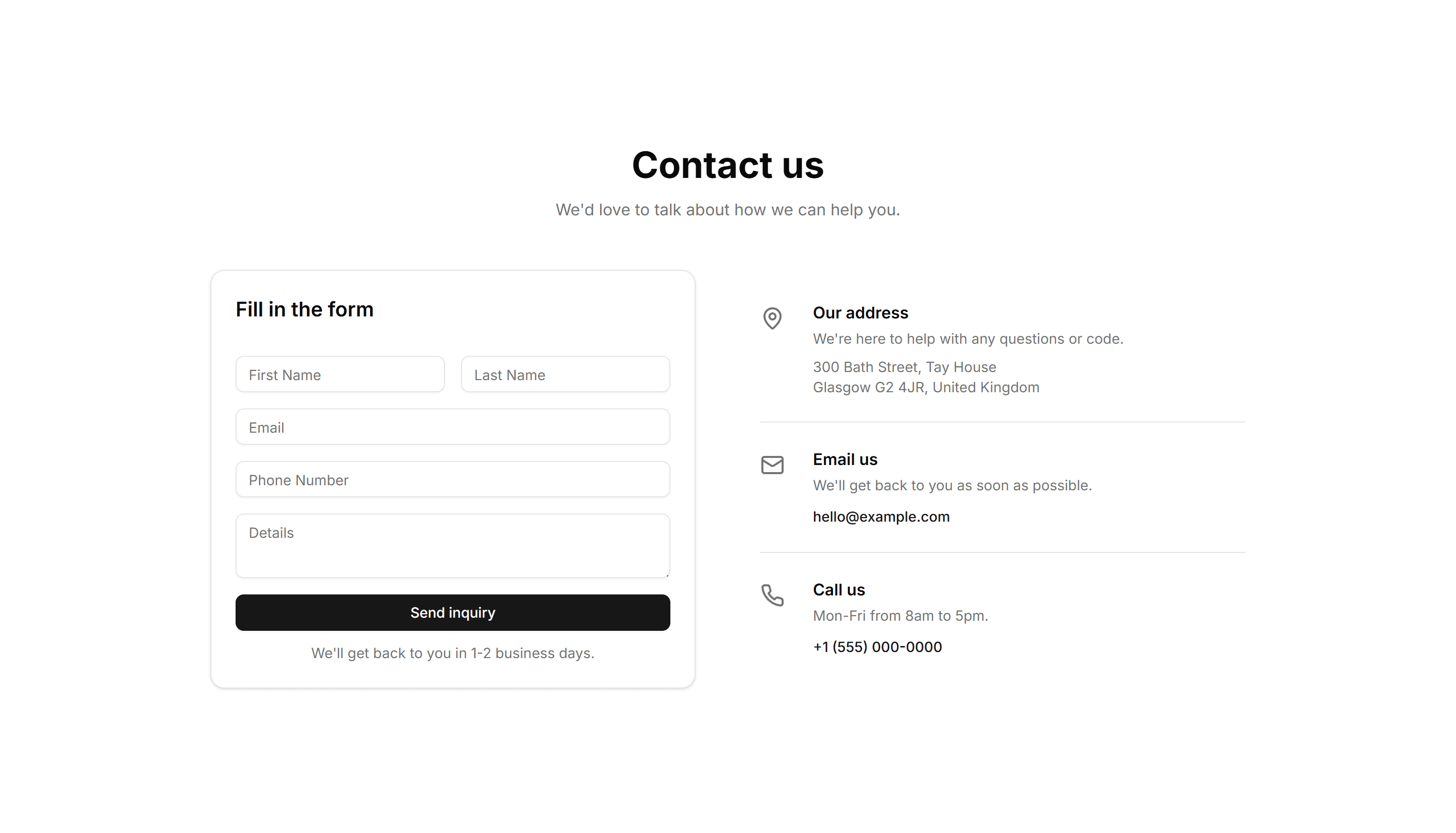
Marketing (Legacy) Contact Section: Split With Details
A split layout pairing a contact form with a column of details like email, phone, and hours. Use it when people need a quick way to reach the right team.
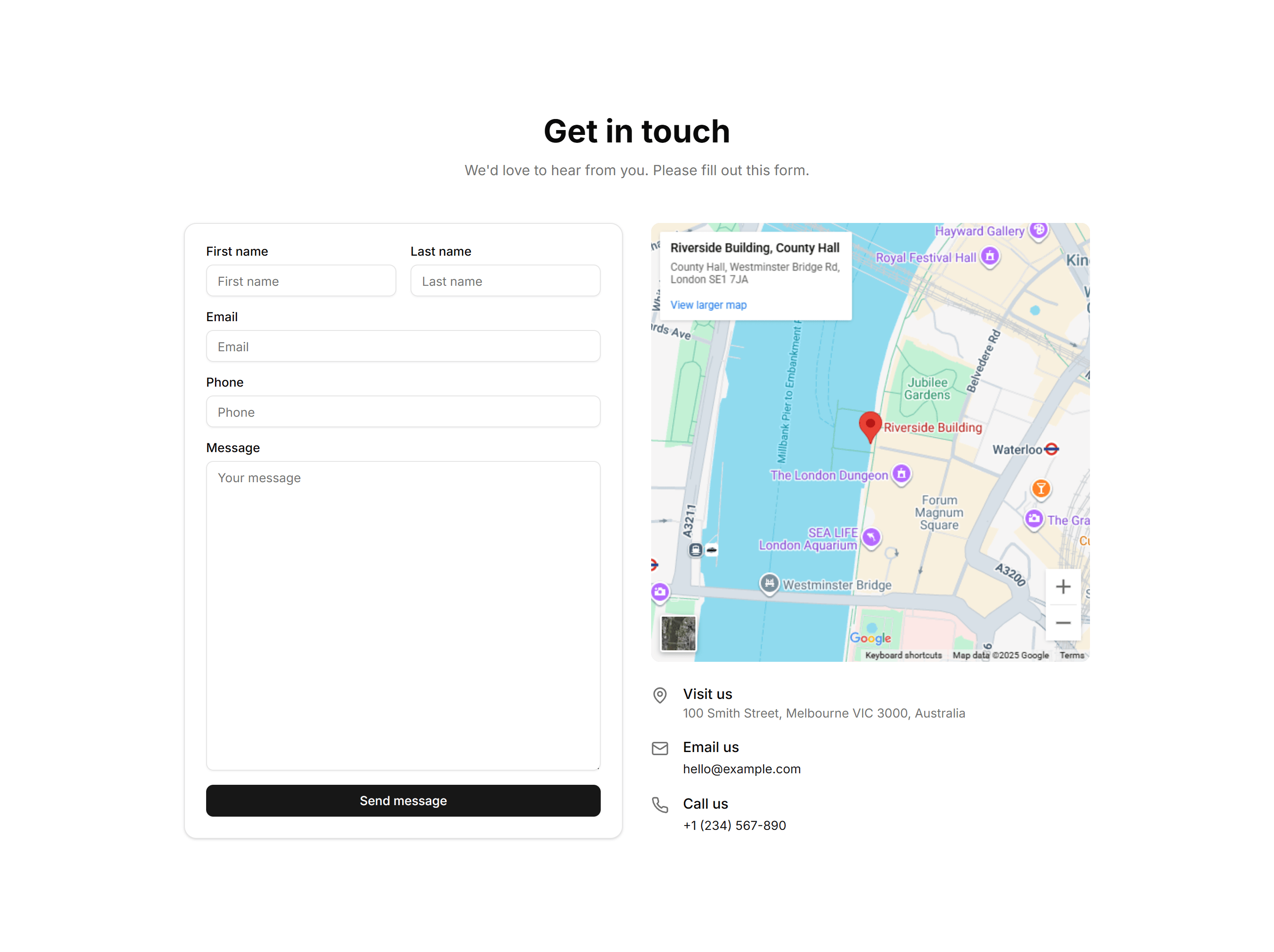
Marketing (Legacy) Contact Section: With Map
A contact section that places a form beside an embedded map of your location. Ideal for a storefront or office that wants visitors to find and reach it.

Marketing (Legacy) CTA Section: Awards CTA
A call to action that pairs award badges and recognition logos with a signup prompt. Builds trust before the click on a landing or pricing page.

Marketing (Legacy) CTA Section: Banner With Background
A full width banner with a background image, headline, and button. Anchors a campaign message across the top or bottom of any marketing page.
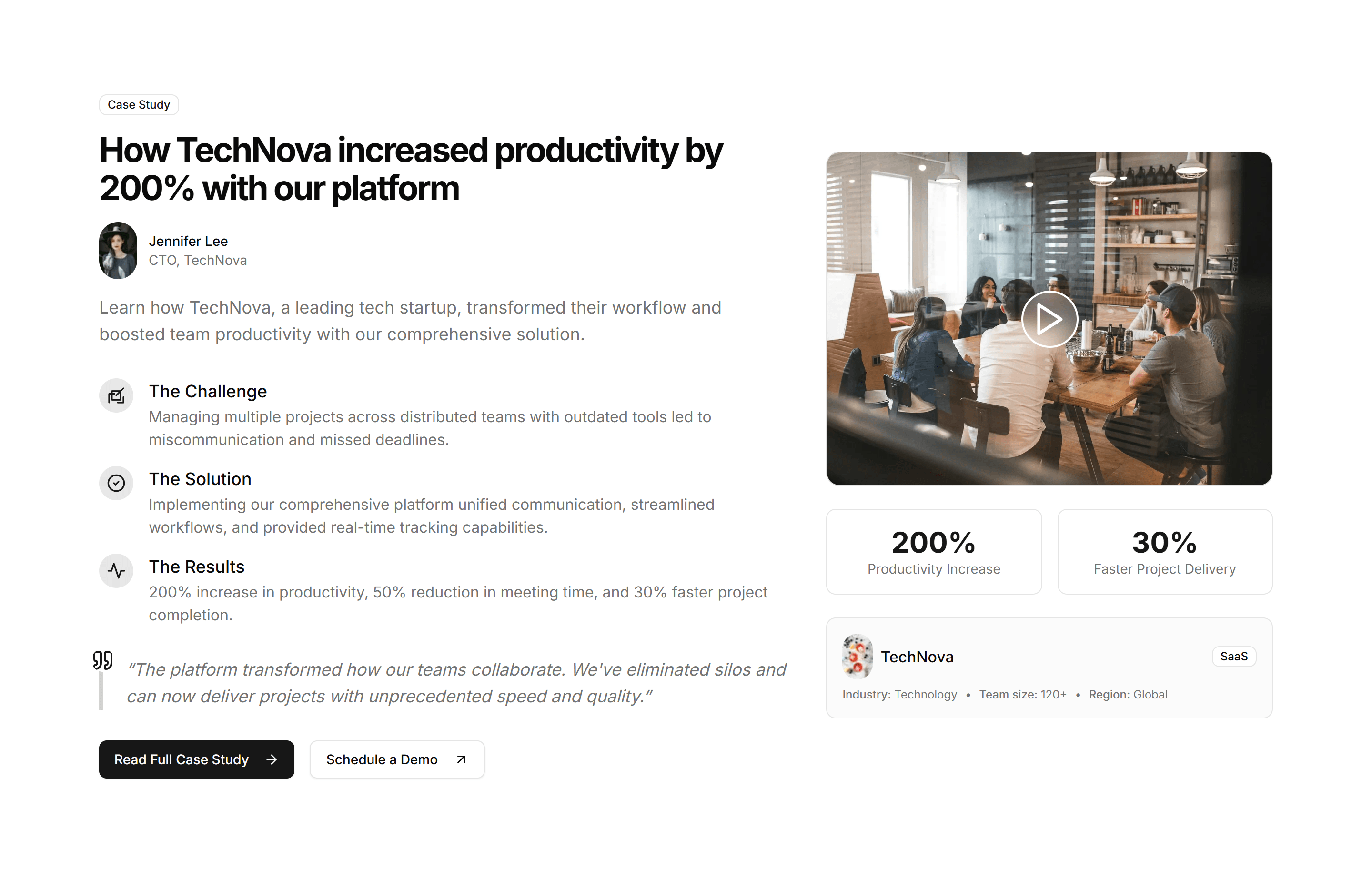
Marketing (Legacy) CTA Section: Case Study CTA
A call to action framed around a customer story with a headline result and link. Use it after proof points to push readers toward booking a demo.
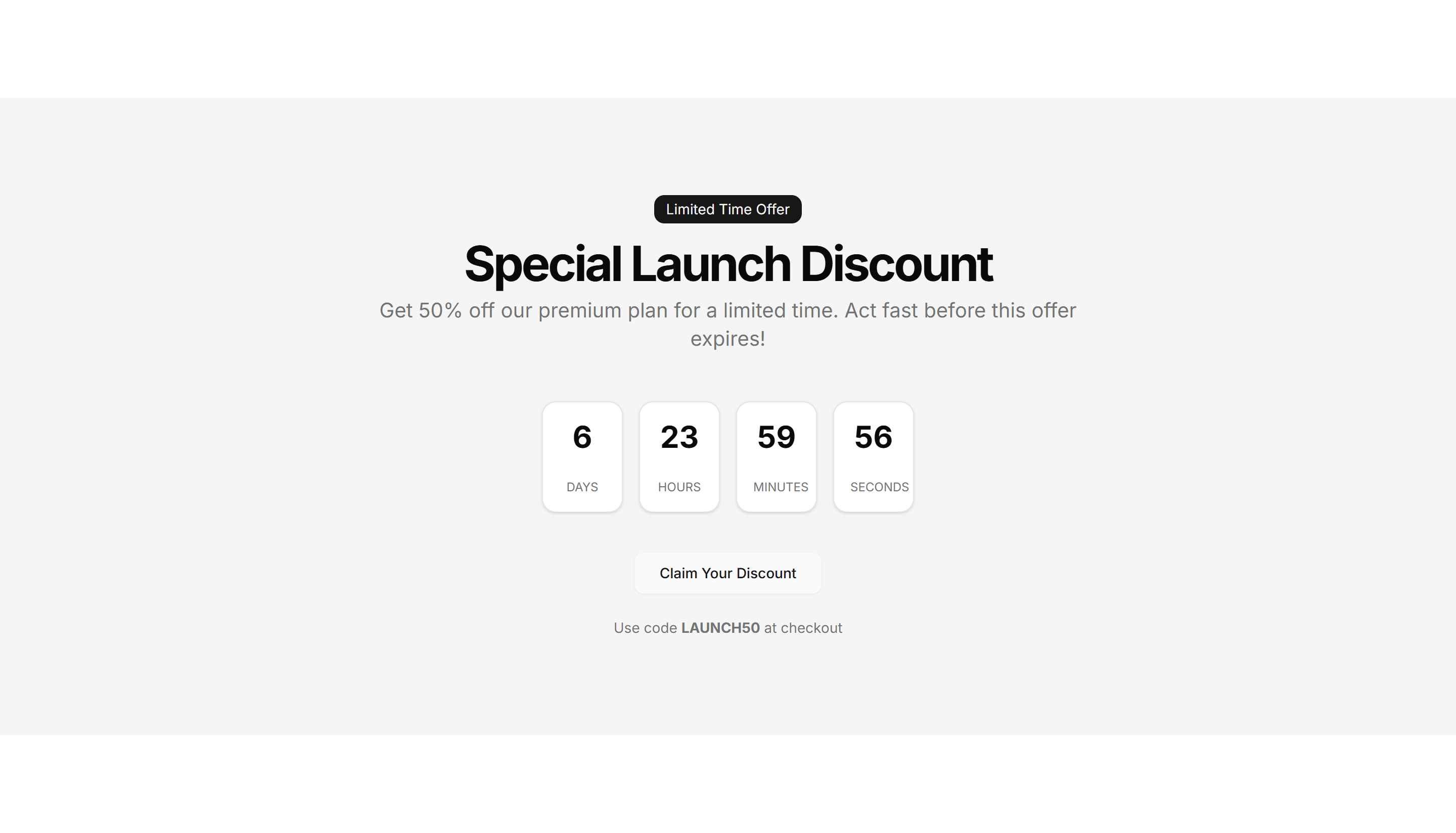
Marketing (Legacy) CTA Section: Countdown Timer
A call to action with a live countdown clock beside a headline and button. Drives urgency for a sale, launch, or webinar registration deadline.
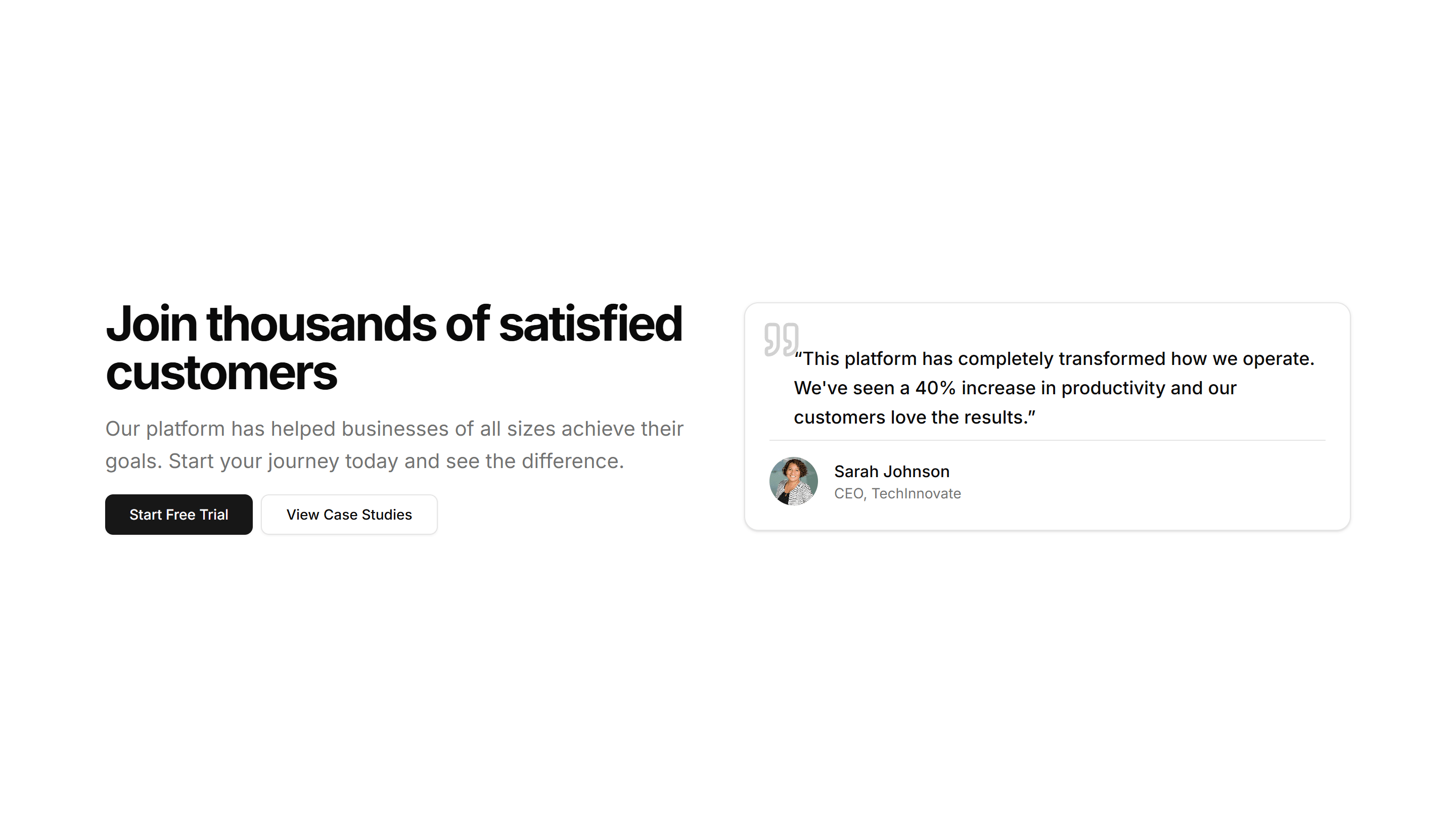
Marketing (Legacy) CTA Section: CTA With Testimonial
A call to action that places a customer quote and avatar right next to a signup button. Reinforces social proof at the moment a visitor decides.
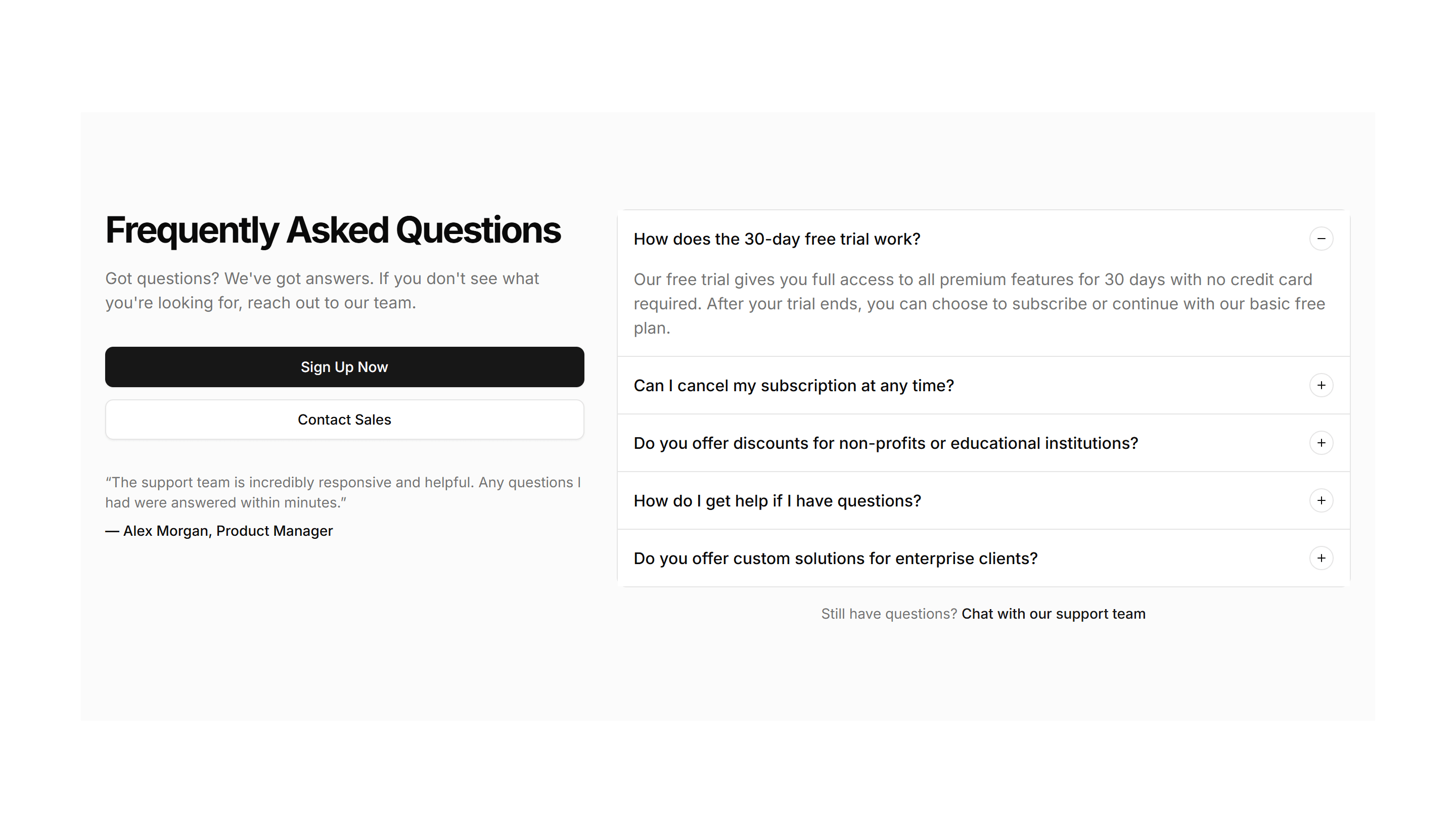
Marketing (Legacy) CTA Section: FAQ CTA
A short FAQ list paired with a closing prompt and button. Answers the last objections and nudges readers to convert at the end of a long page.
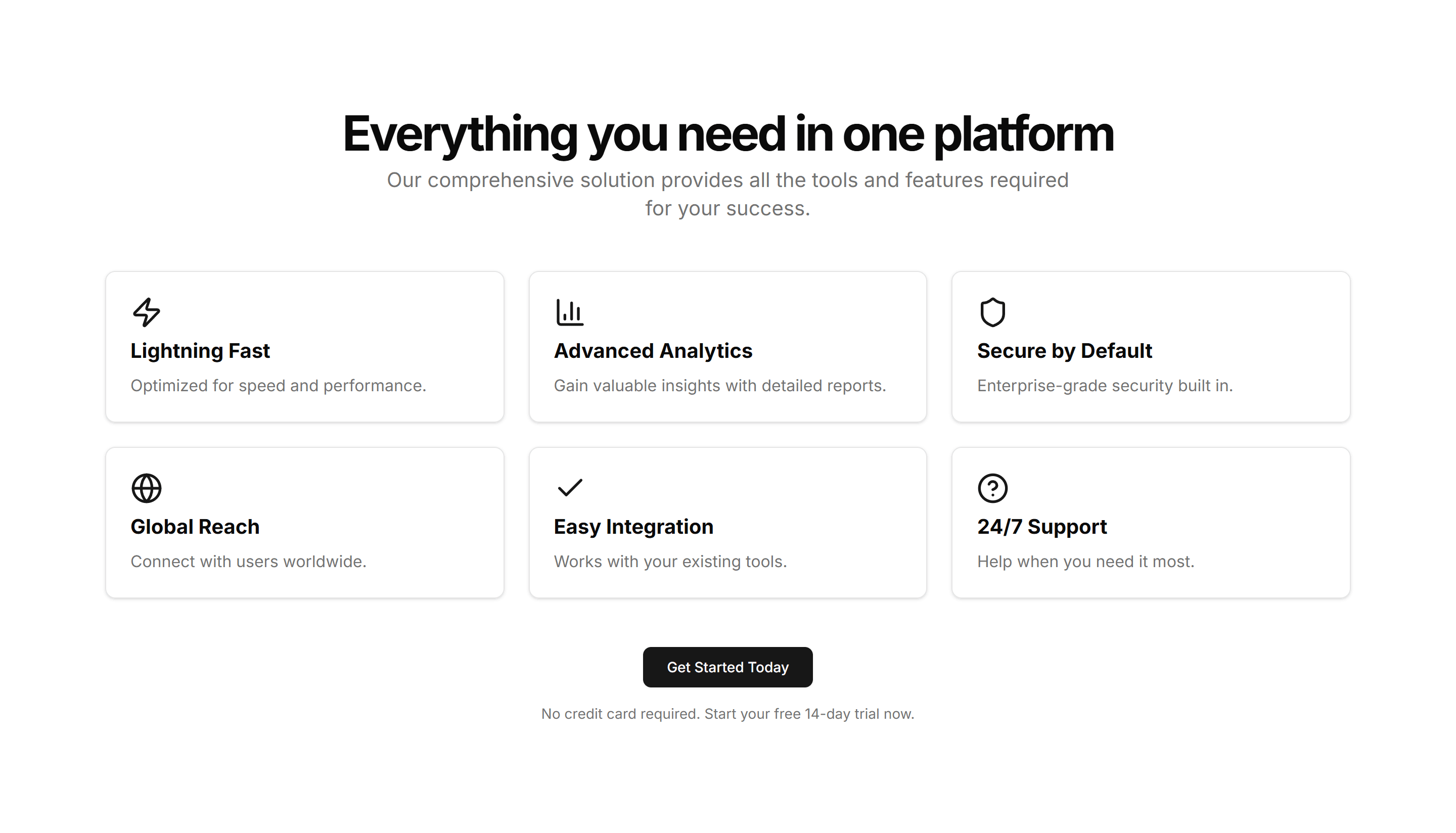
Marketing (Legacy) CTA Section: Feature Grid
A call to action backed by a grid of feature highlights with icons. Recaps the value of a product before inviting visitors to start a free trial.
Marketing (Legacy) CTA Section: Gradient CTA
A centered call to action set on a vivid gradient panel with a headline and button. A bright closing section for a homepage or feature page.

Marketing (Legacy) CTA Section: Image With Text
A call to action that sets an image beside a headline, body copy, and button. Use it to show a product shot while inviting the visitor to act.
Marketing (Legacy) CTA Section: Integrations CTA
A call to action surrounded by logos of supported tools and platforms. Reassures teams about compatibility before they sign up and connect apps.
Marketing (Legacy) CTA Section: Newsletter Form
A signup section with an email input and subscribe button under a short pitch. Collects leads for a newsletter, waitlist, or product updates.
Marketing (Legacy) CTA Section: Quick Contact CTA
A compact contact prompt with a short form or button to reach the team. Drops into a footer or sidebar so visitors can get in touch fast.
Marketing (Legacy) CTA Section: Simple Centered
A centered call to action with a headline, supporting line, and button. A clean closing section to end a landing page and prompt the next step.
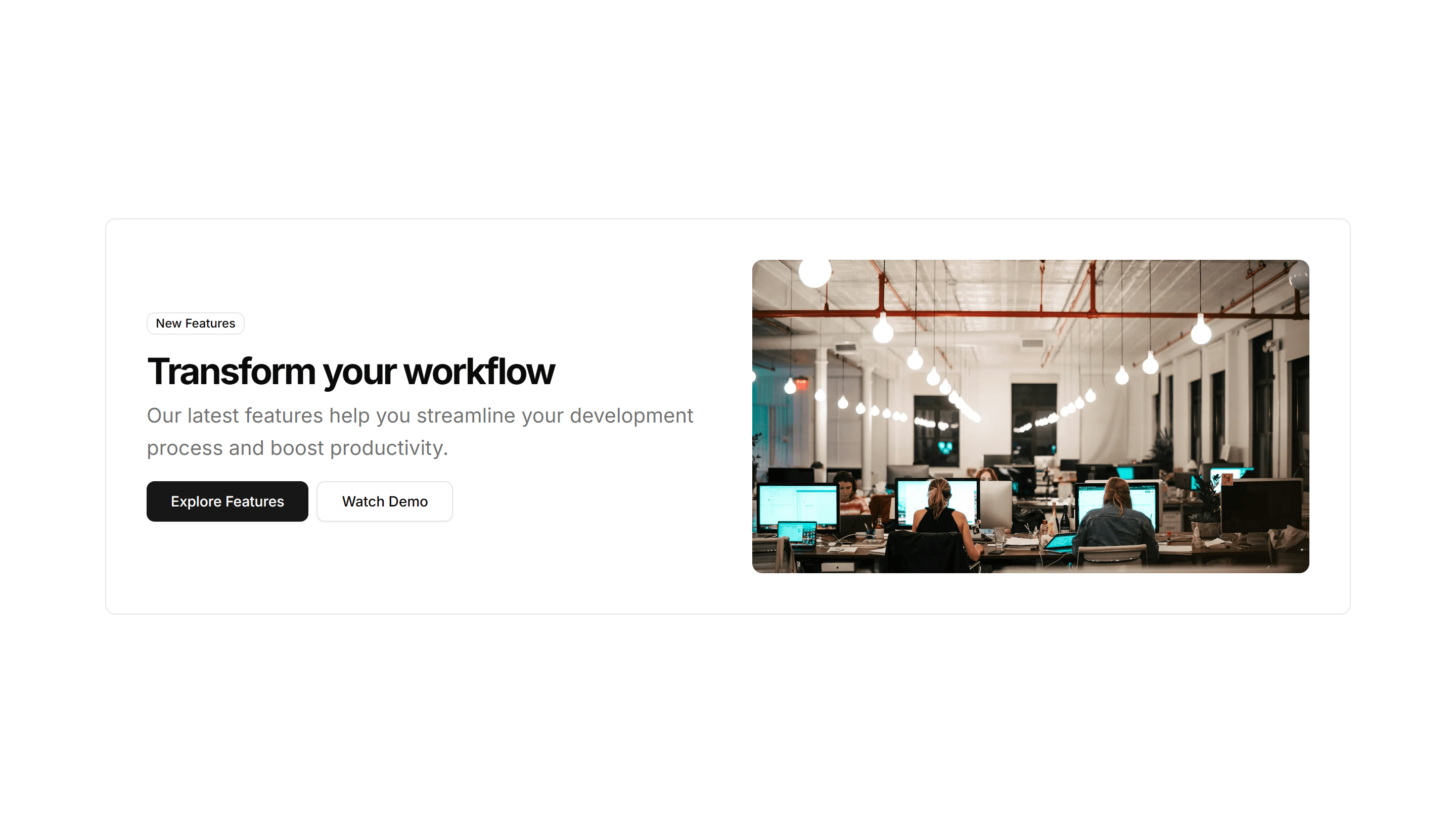
Marketing (Legacy) CTA Section: Split With Image
A two column call to action with copy on one side and an image on the other. Balances message and visual to invite a signup or demo request.
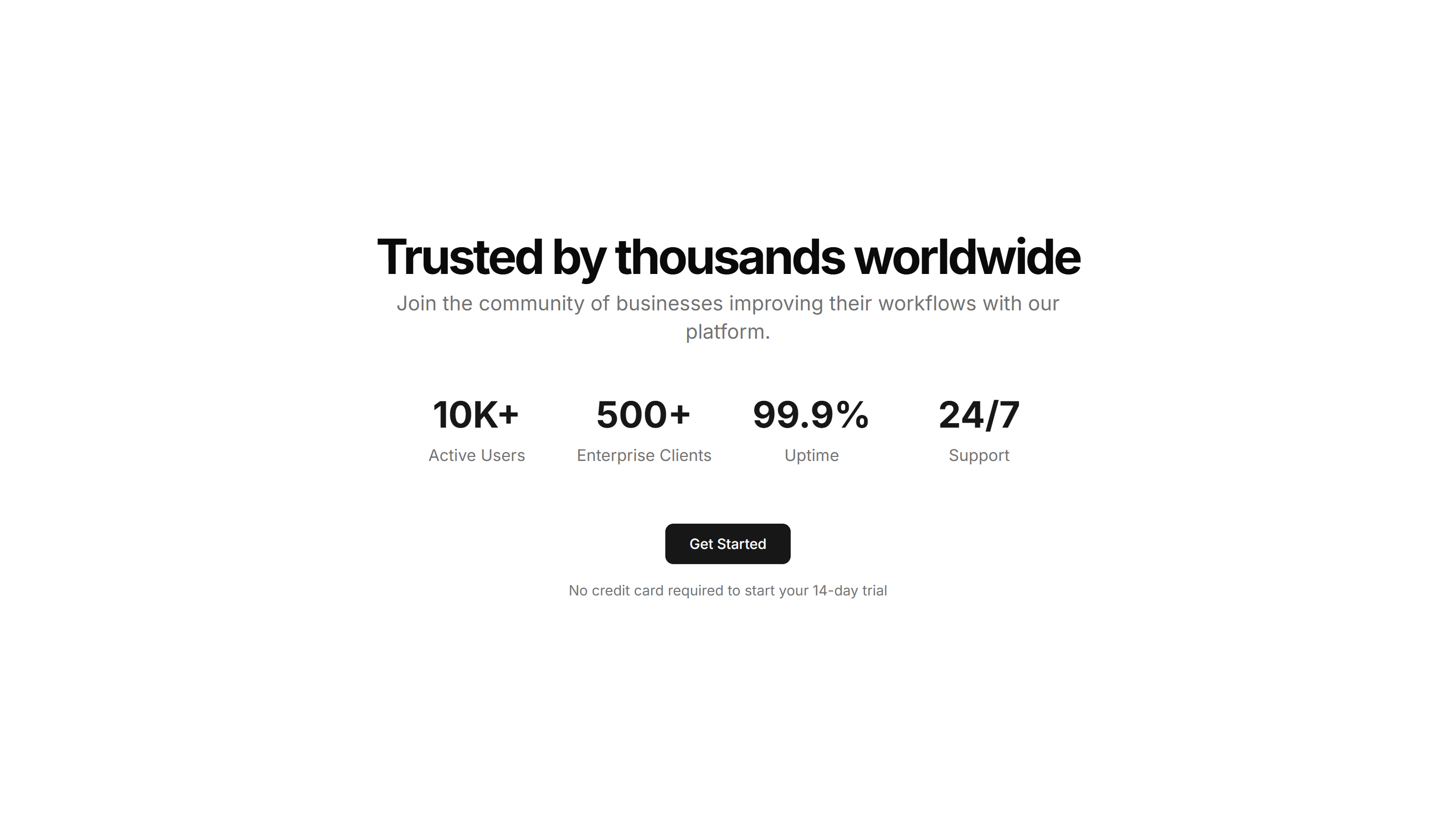
Marketing (Legacy) CTA Section: Stats CTA
A call to action that leads with key metrics like users or uptime, then a button. Uses hard numbers to convince visitors before they commit.
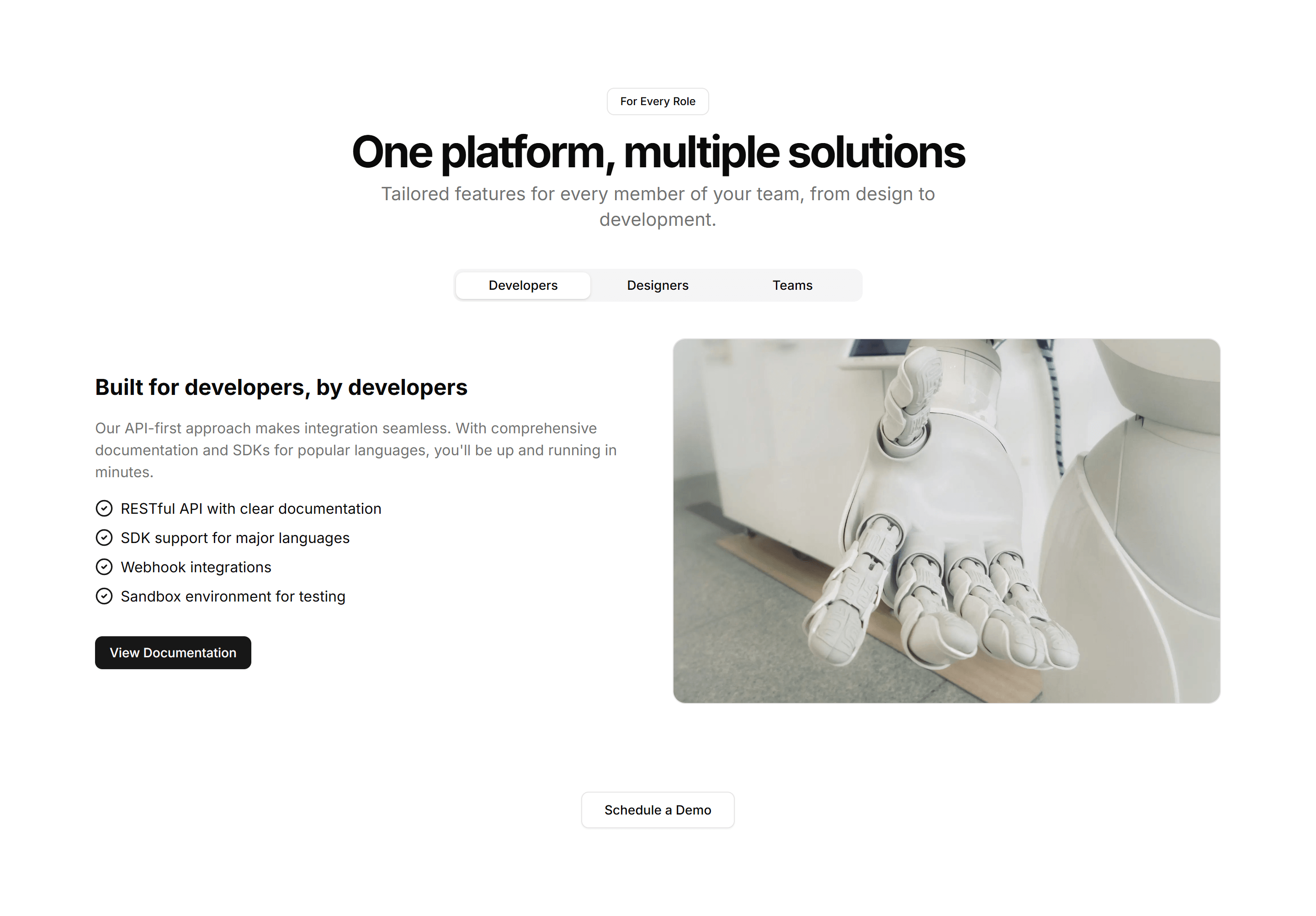
Marketing (Legacy) CTA Section: Tab CTA
A call to action with tabbed content that swaps messages by audience or use case. Lets visitors pick a path before clicking the matching button.
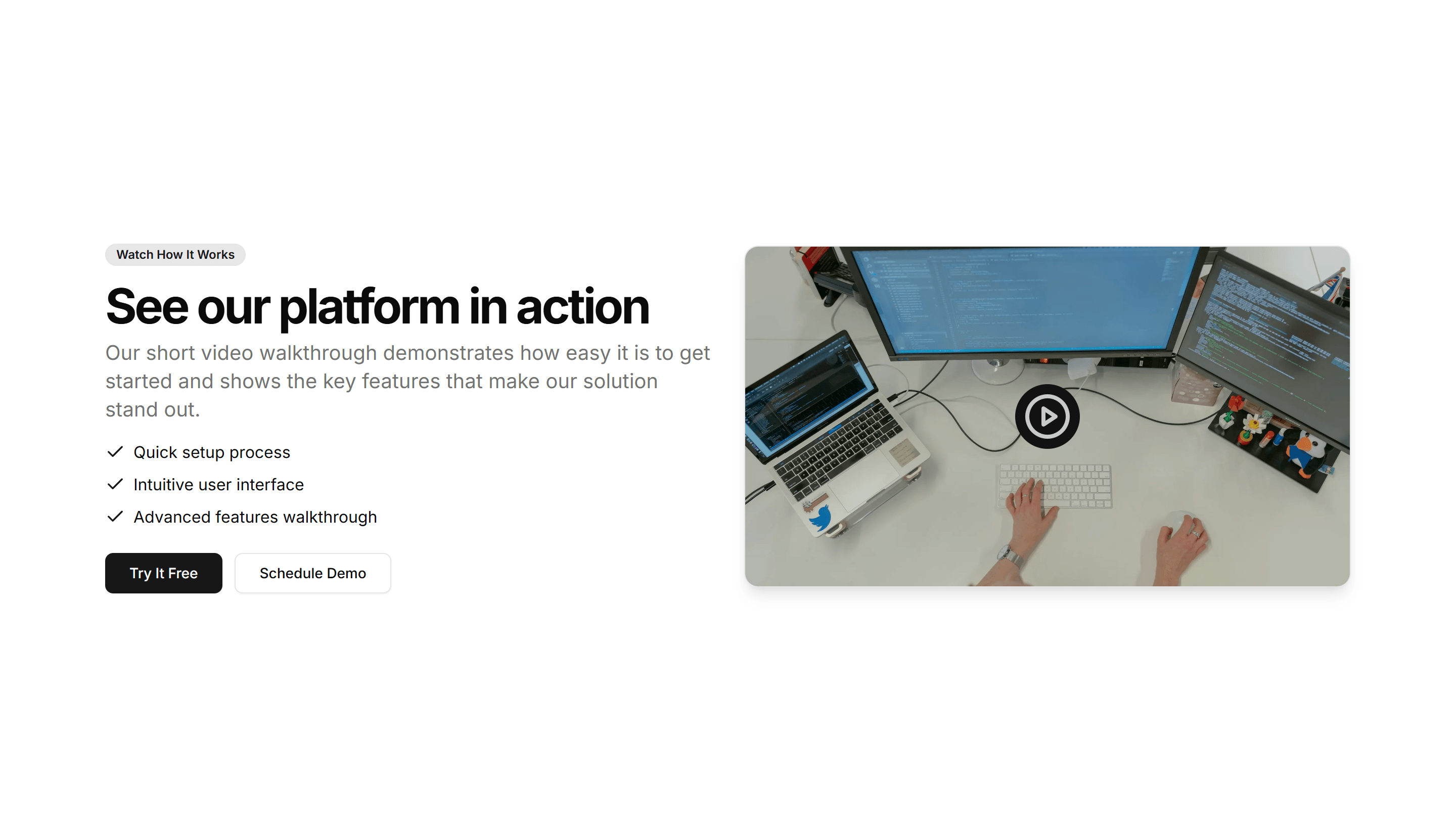
Marketing (Legacy) CTA Section: Video CTA
A call to action built around an embedded video with a headline and button. Plays a quick demo or pitch, then invites the viewer to start now.
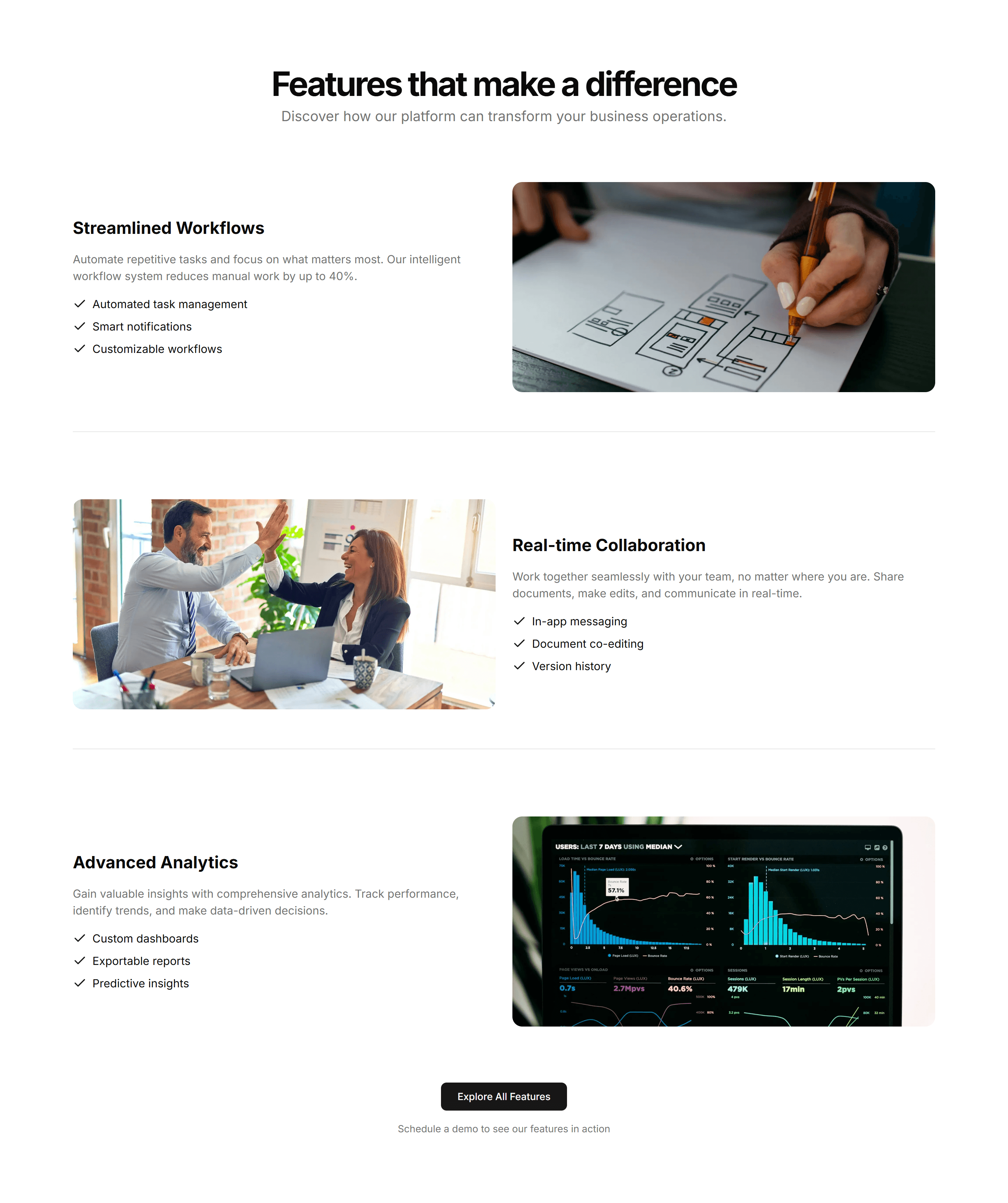
Marketing (Legacy) CTA Section: Zigzag CTA
A call to action with alternating text and image rows that lead into a button. Walks readers through benefits before the final closing prompt.
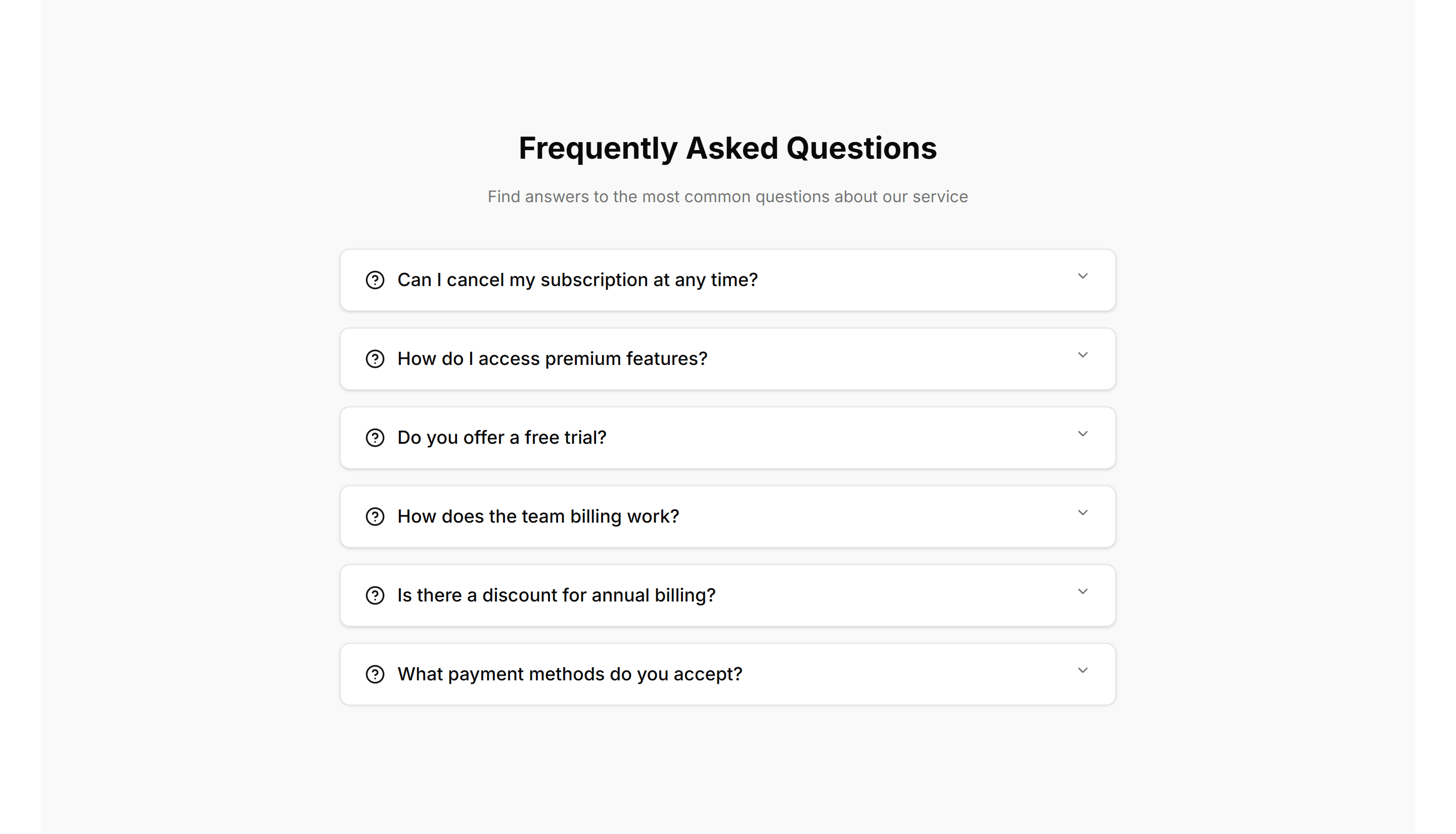
Marketing (Legacy) FAQ Section: Accordion With Background
An accordion FAQ set against a tinted background panel. Each question expands to reveal its answer, keeping long lists of details tidy and easy to scan.
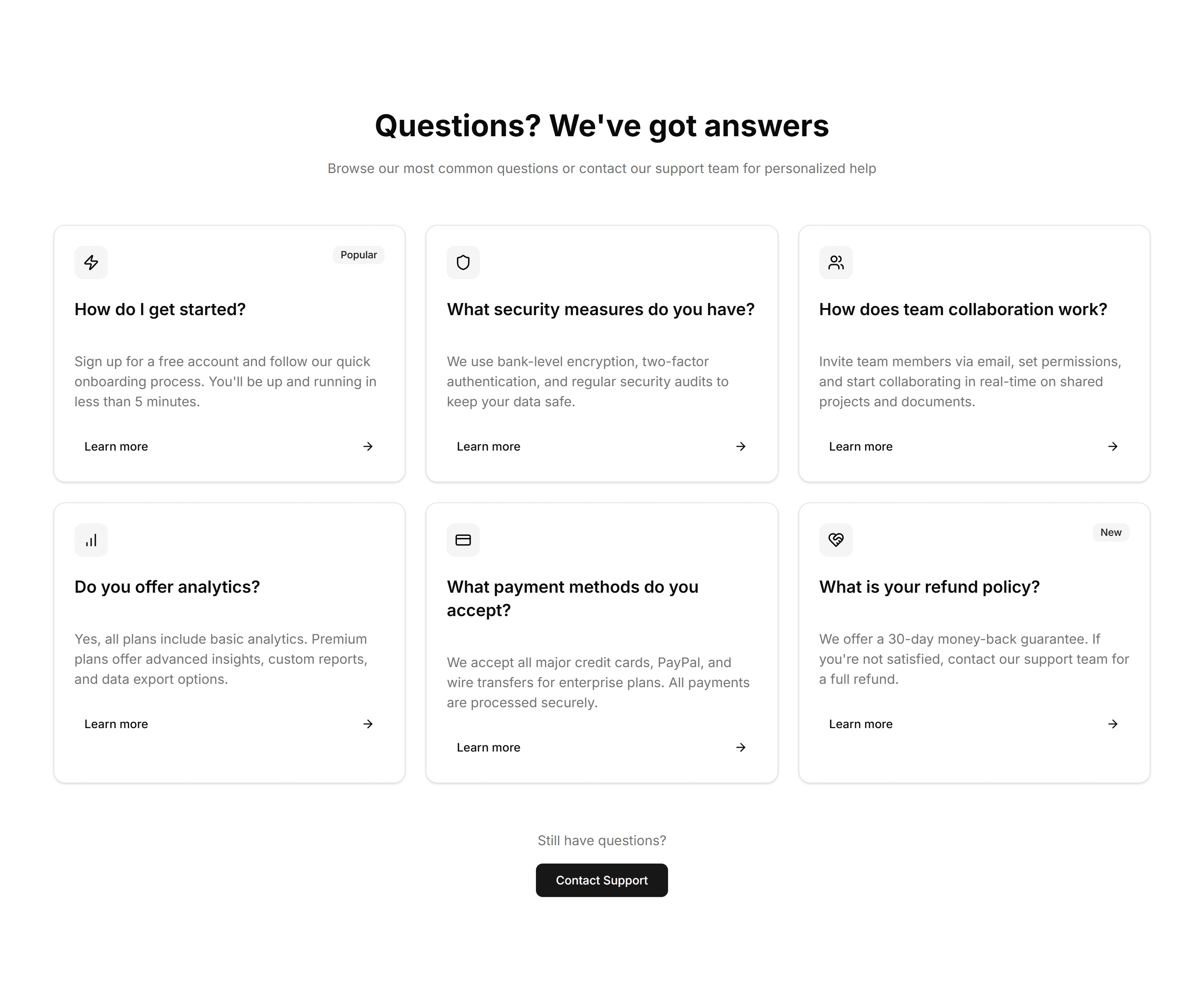
Marketing (Legacy) FAQ Section: Card Grid
A grid of question cards, each holding one query and its answer inline. Lays out frequent questions clearly so visitors find what they need at a glance.
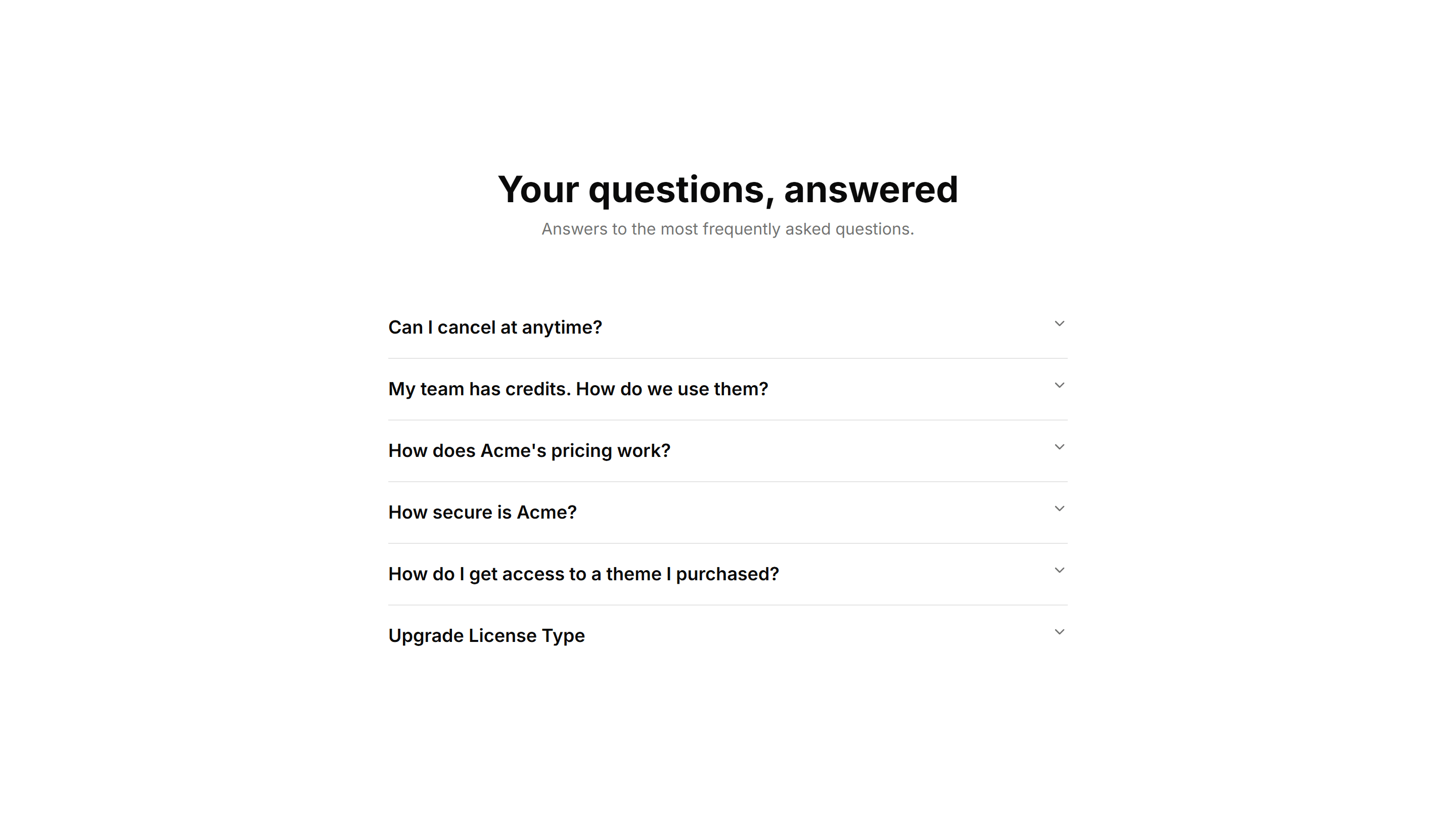
Marketing (Legacy) FAQ Section: Center Aligned
A centered FAQ column with a heading and stacked accordion items. Keeps focus on the questions and works well as a standalone support section on any page.
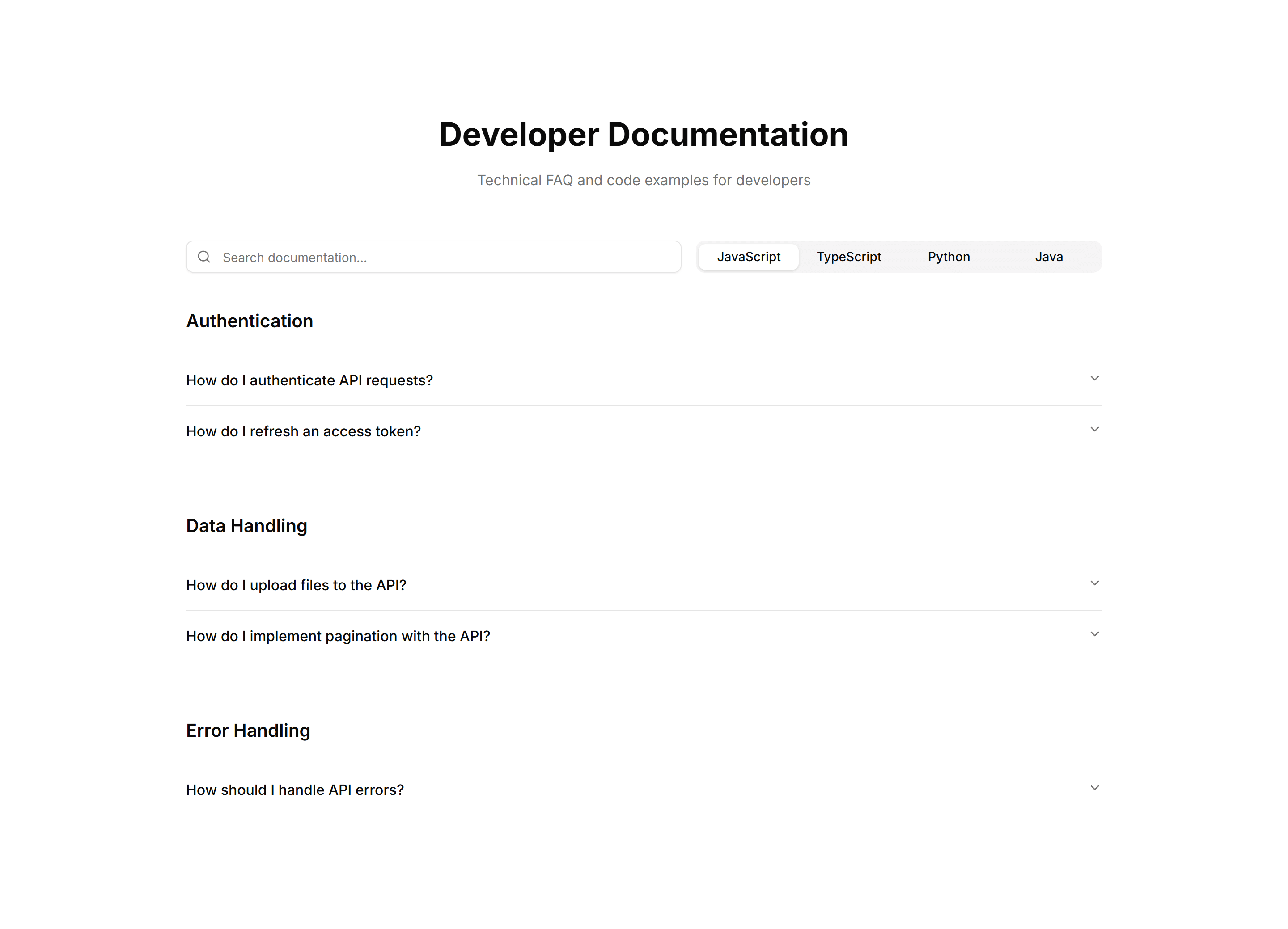
Marketing (Legacy) FAQ Section: Code Snippets
An FAQ layout with formatted code blocks inside answers. Built for developer docs where responses need syntax examples, commands, or configuration shown.
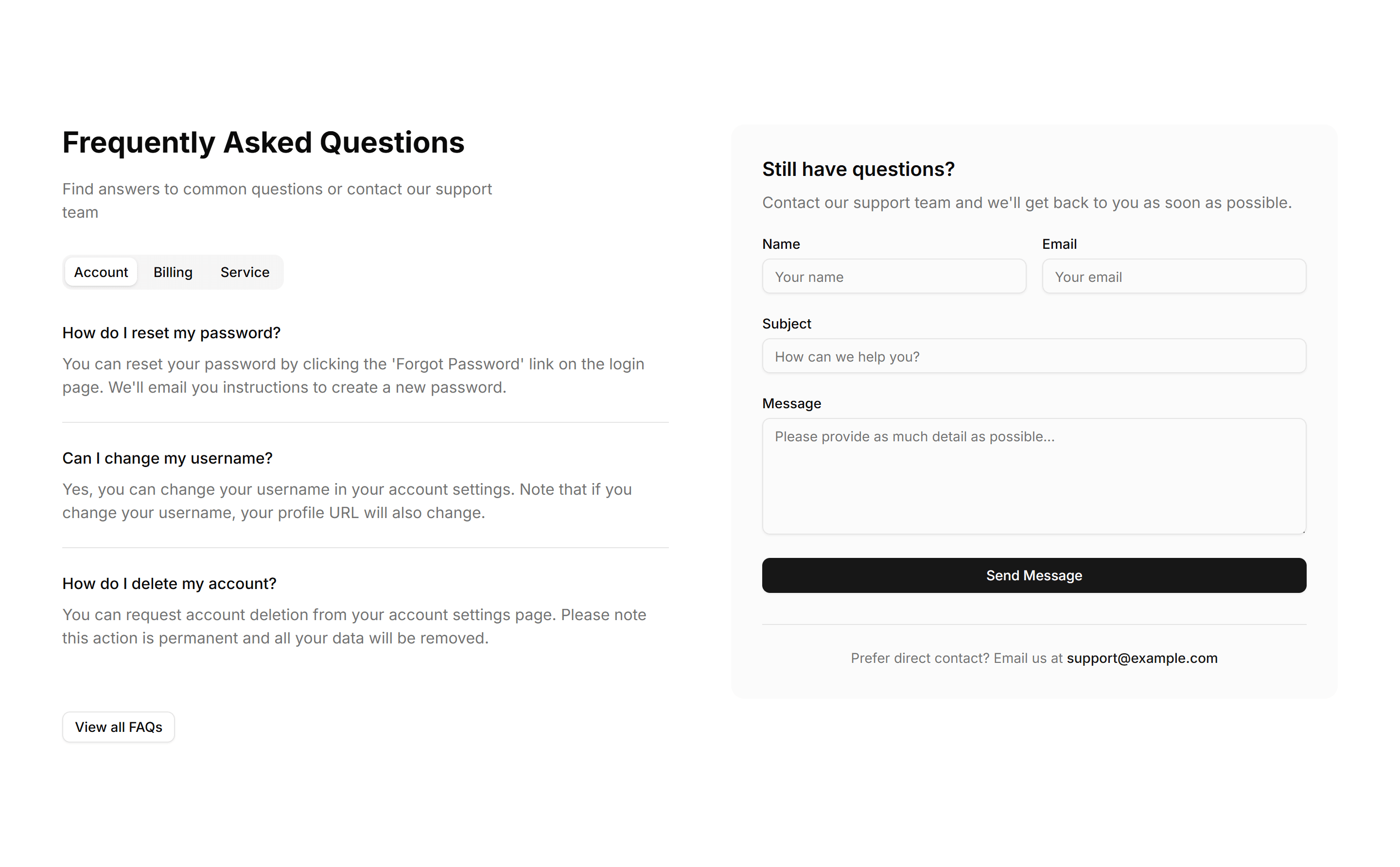
Marketing (Legacy) FAQ Section: Contact Form
An FAQ section paired with a contact form, so visitors read common answers and reach out when their question is not covered, all within one tidy section.
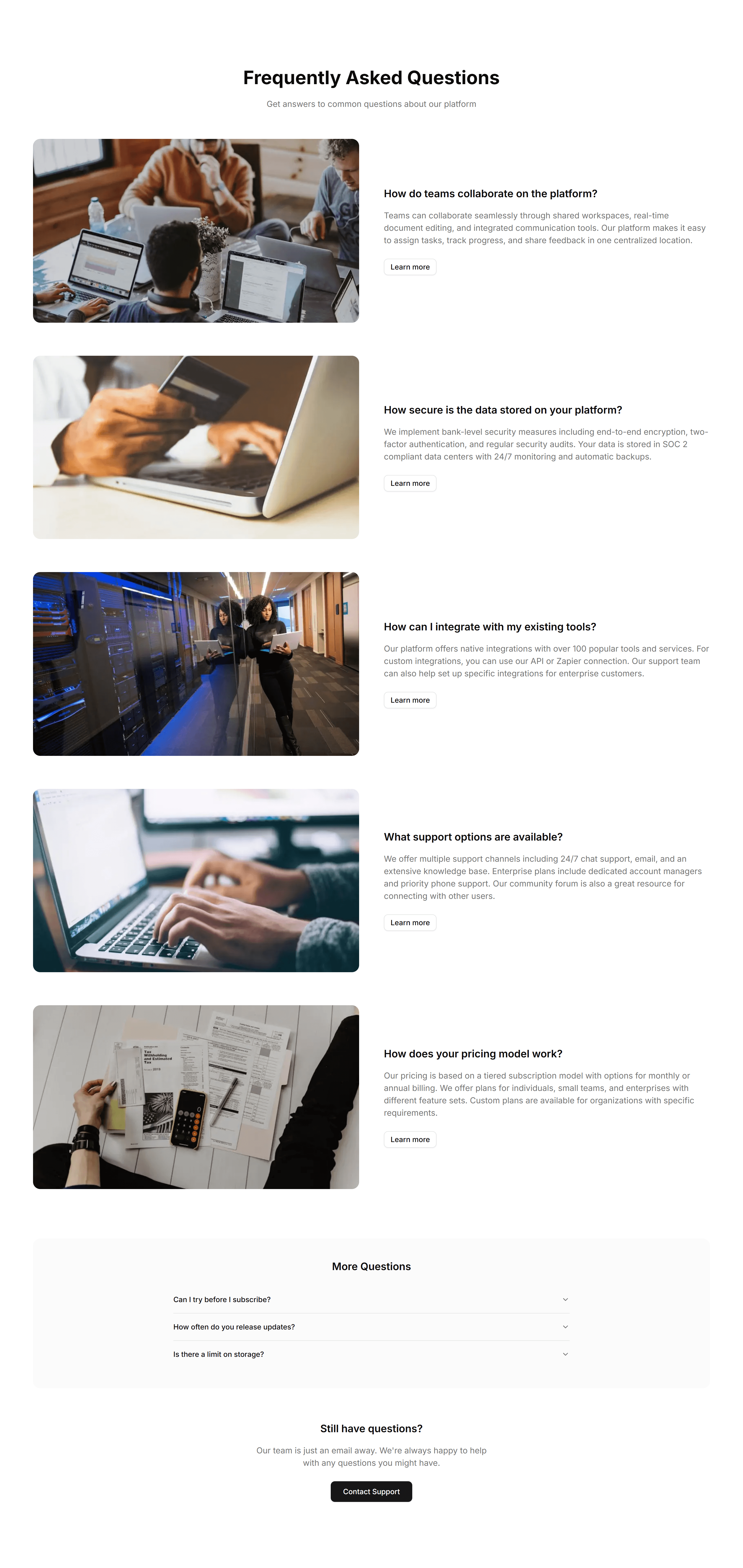
Marketing (Legacy) FAQ Section: Image Illustrated
An FAQ section with a supporting illustration beside the question list. Adds visual context and warmth to a help area while answers stay easy to read.
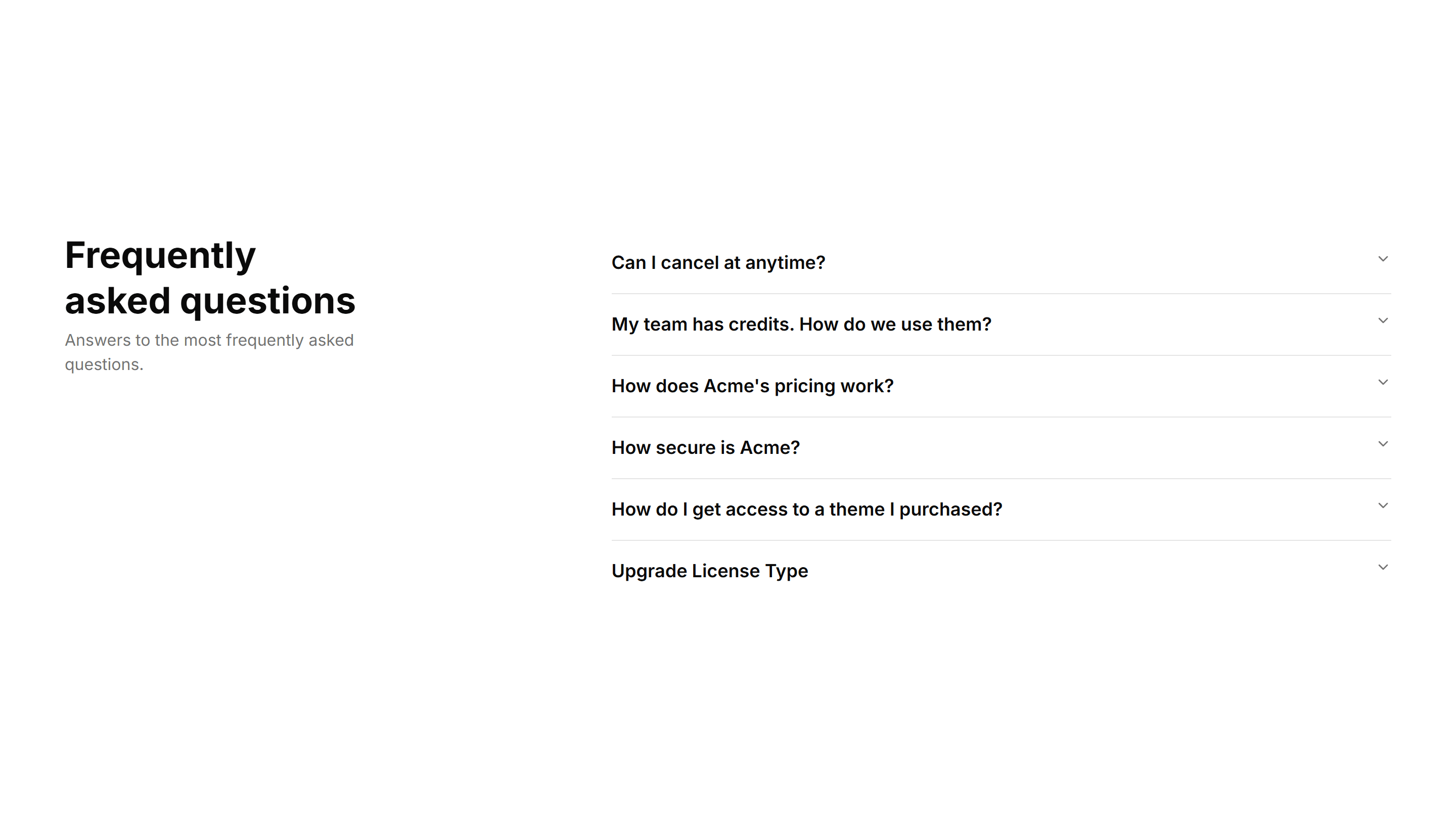
Marketing (Legacy) FAQ Section: Right Aligned
A two column FAQ with the heading and intro on the left and accordion items on the right. Balances explanation and detail across a wide support section.
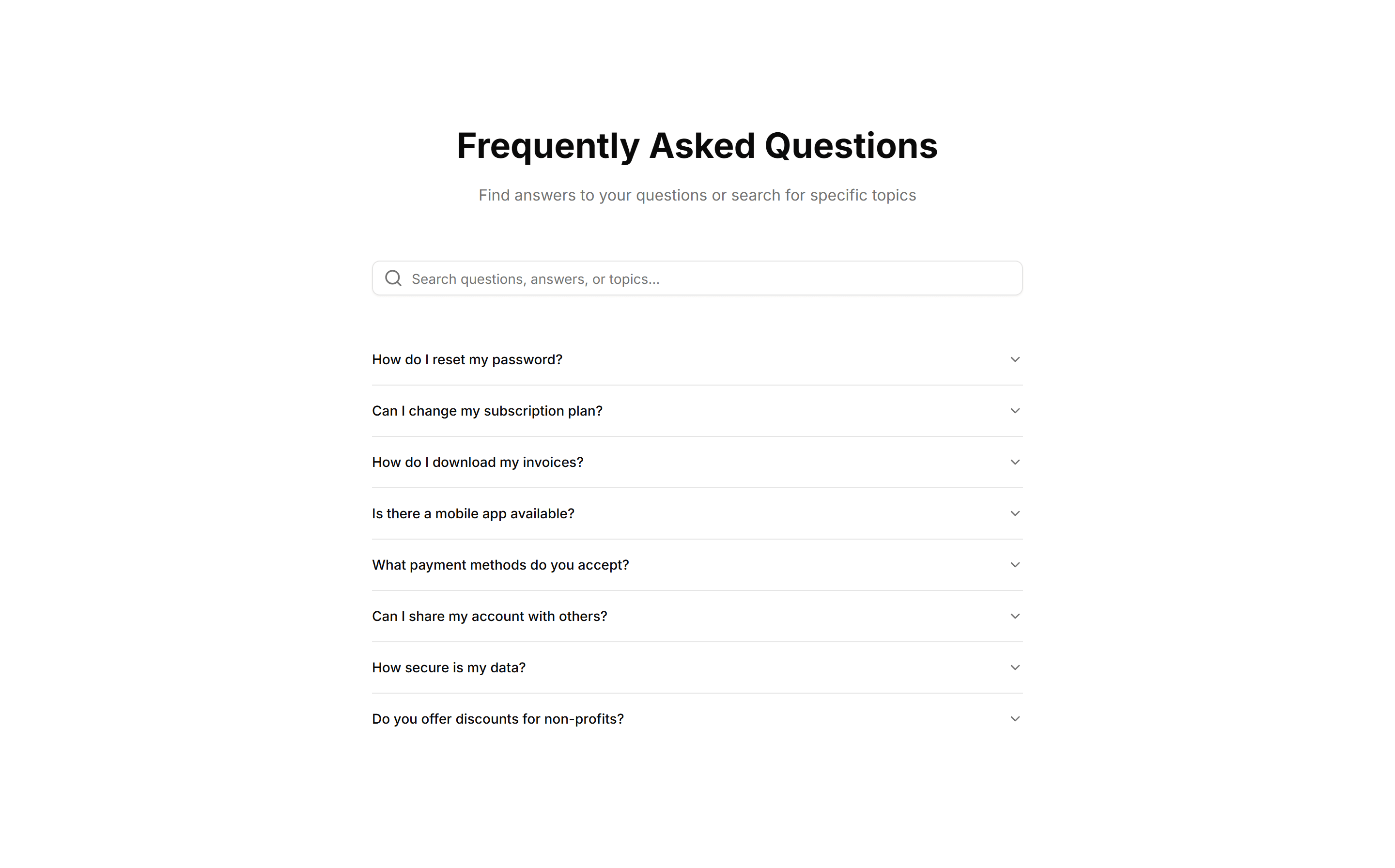
Marketing (Legacy) FAQ Section: Search Filter
An FAQ section with a search field that filters questions as you type. Helps visitors jump straight to the answer they want across a long question list.
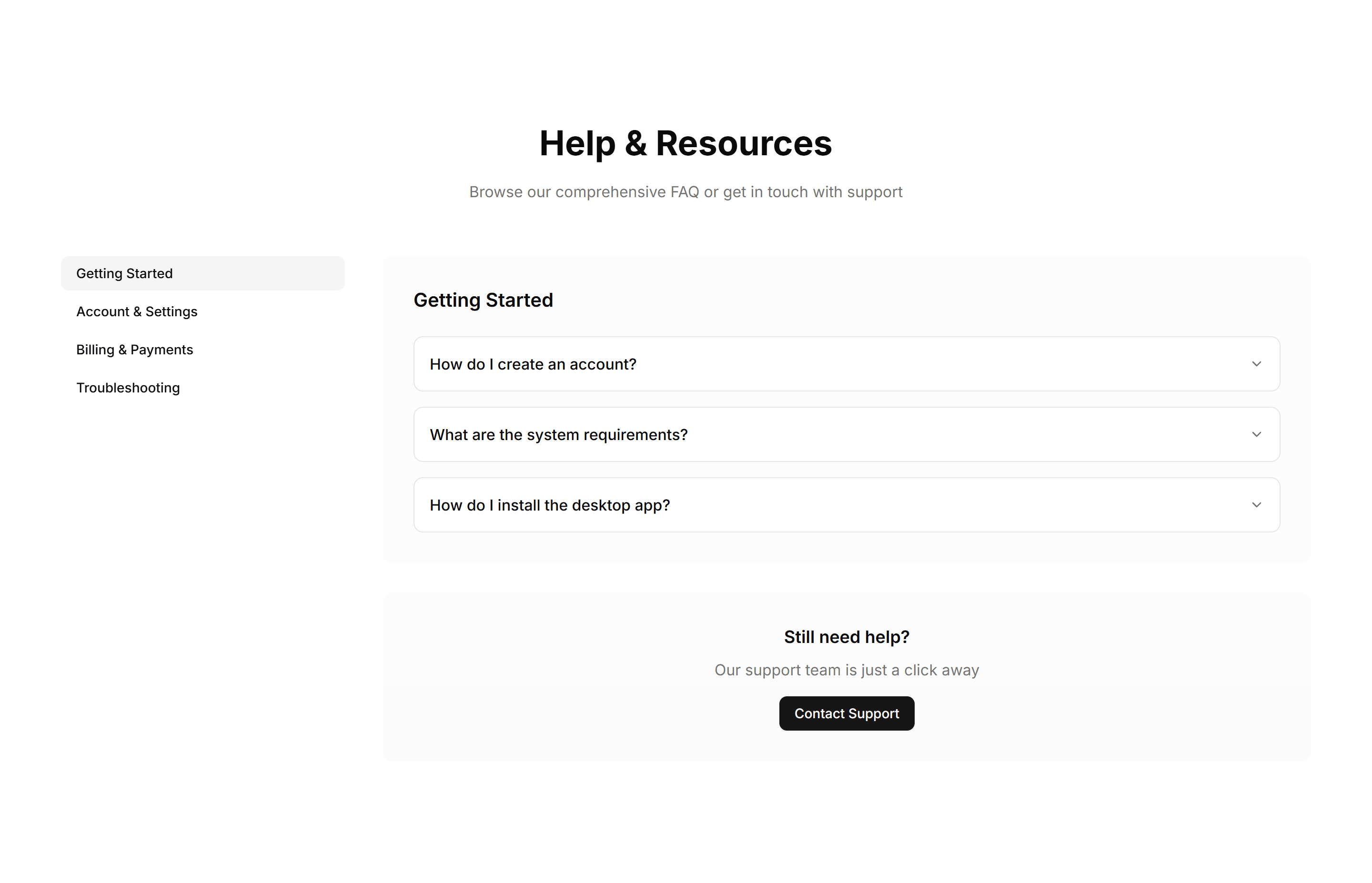
Marketing (Legacy) FAQ Section: Sidebar Navigation
An FAQ layout with a sidebar of categories beside the answers. Lets visitors switch topics quickly and keeps large help sections organized and navigable.
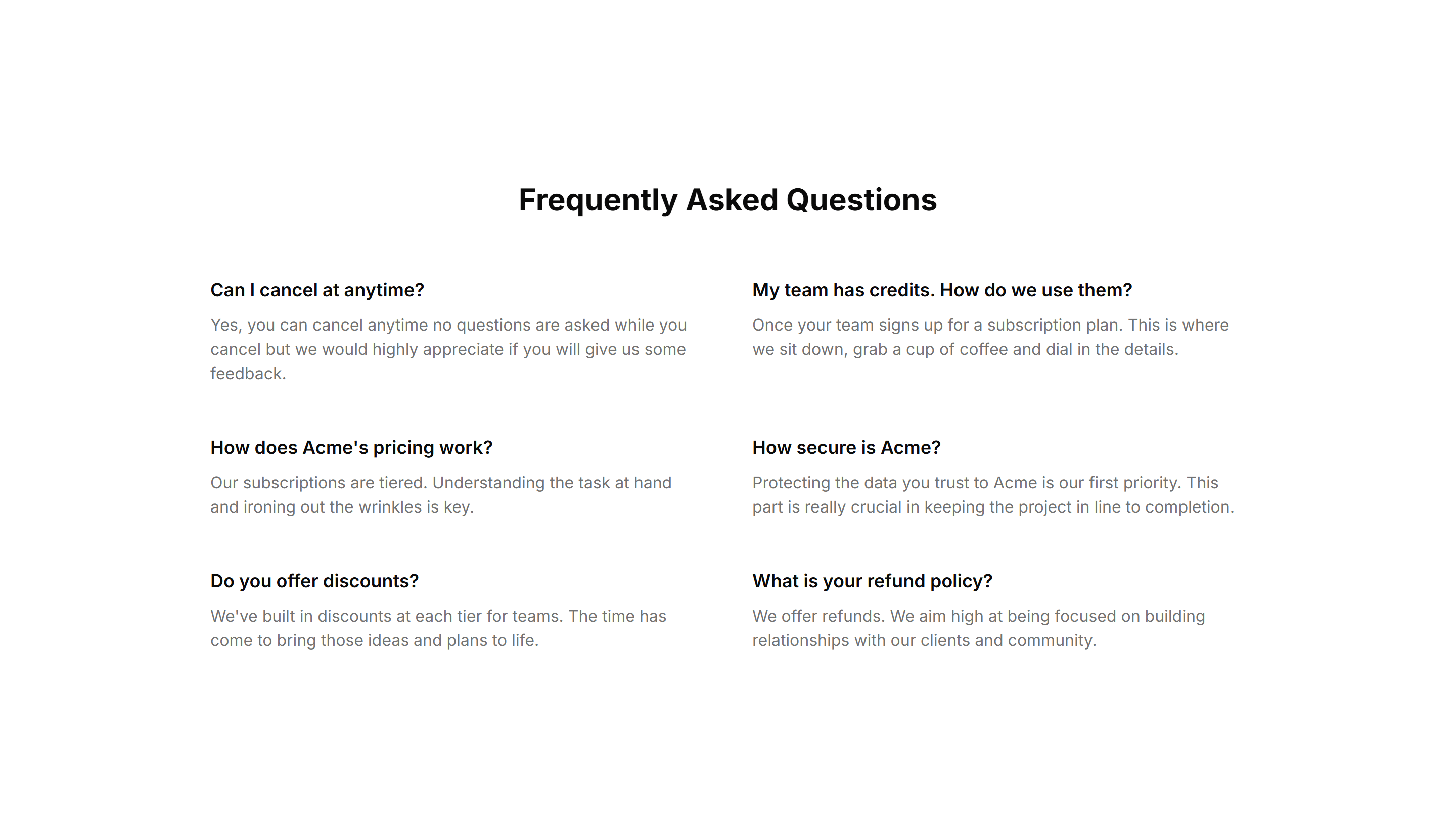
Marketing (Legacy) FAQ Section: Simple 2 Cols Grid
A plain two column grid of questions and answers. A compact way to cover many topics at once, ideal for a quick reference block near a page footer.

Marketing (Legacy) FAQ Section: Simple With Divider And Icon
A clean FAQ list with an icon by each question and dividers between rows. Keeps a long set of answers readable and clearly separated on any support page.
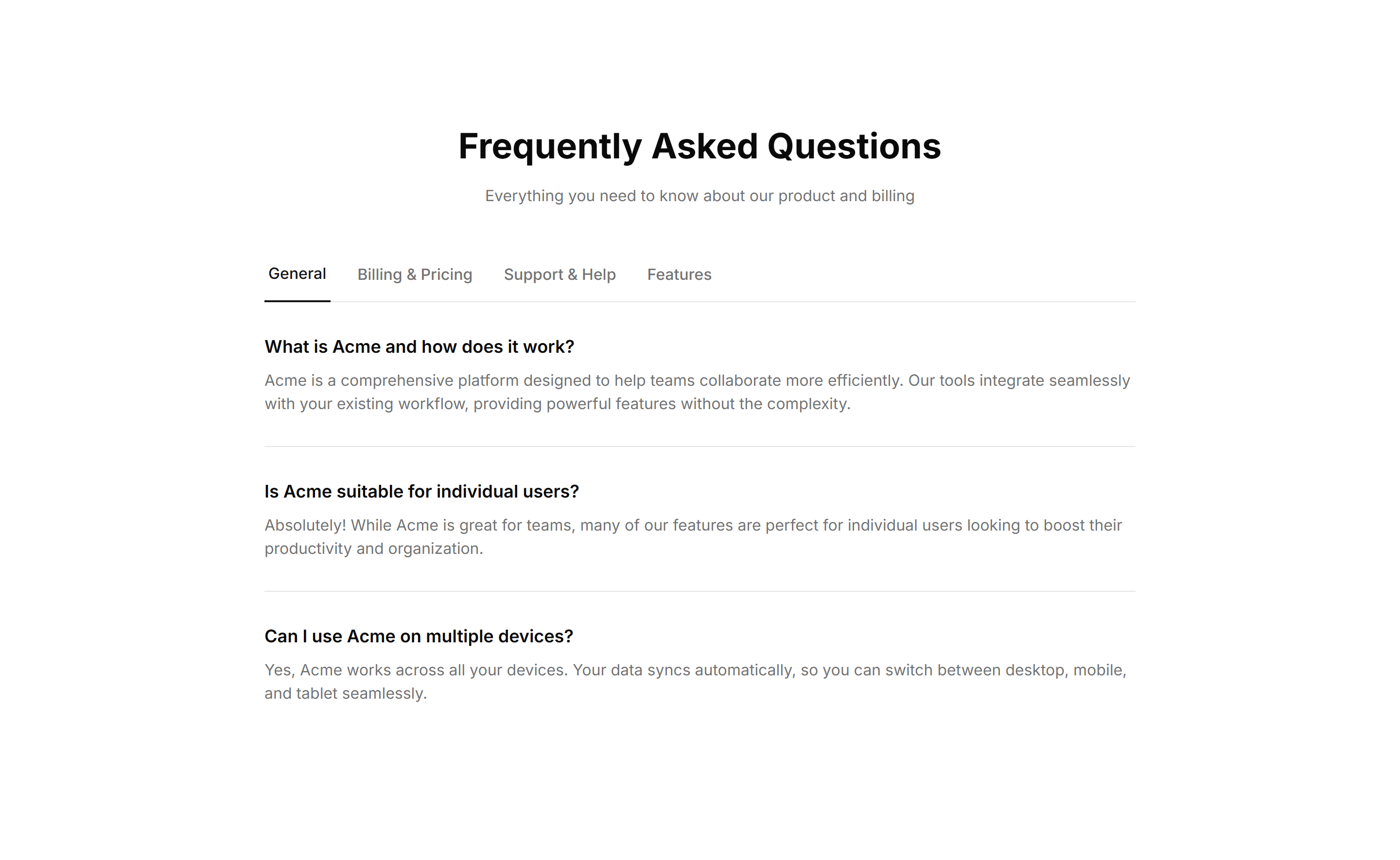
Marketing (Legacy) FAQ Section: Tabbed Categories
An FAQ section with tabs that group questions by category. Visitors pick a topic and see only relevant answers, keeping a broad help area uncluttered.
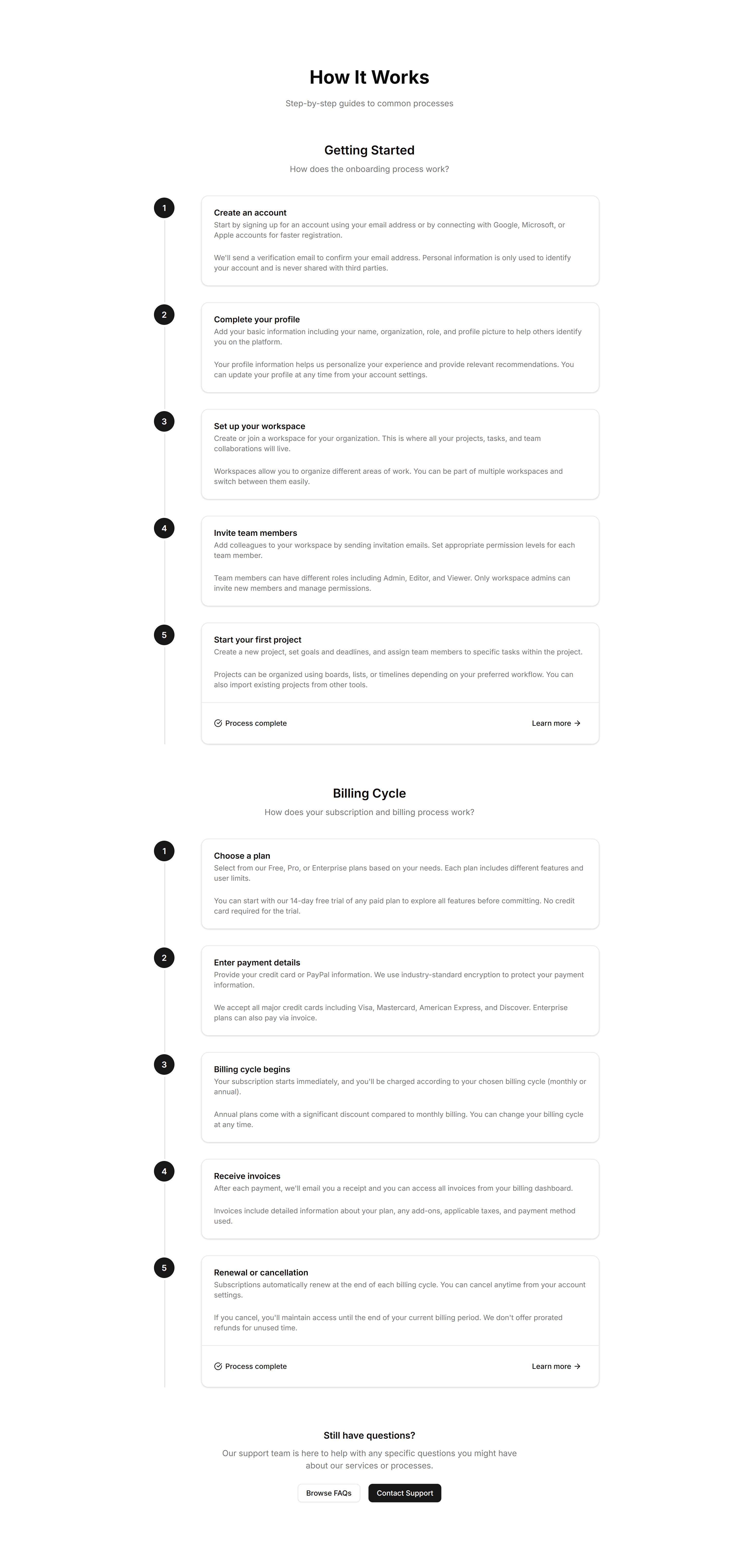
Marketing (Legacy) FAQ Section: Timeline FAQ
An FAQ laid out as a vertical timeline, walking visitors through questions in order. Suited to onboarding or step by step guides where sequence matters.
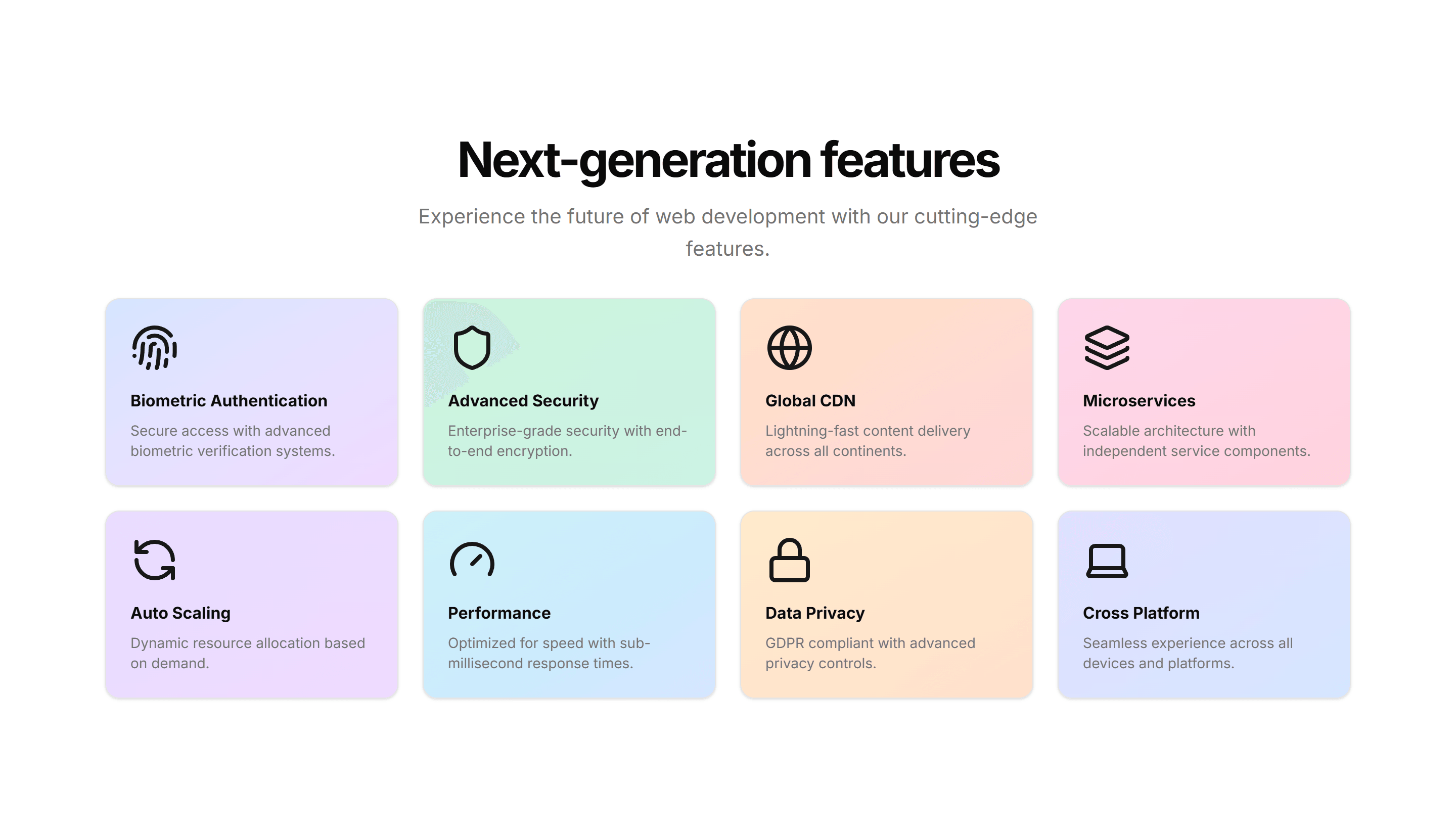
Marketing (Legacy) Feature Section: 3D Cards
Feature cards that tilt in 3D as the cursor moves, each holding an icon, title, and copy. Adds depth to a landing page when you want highlights to feel tactile.
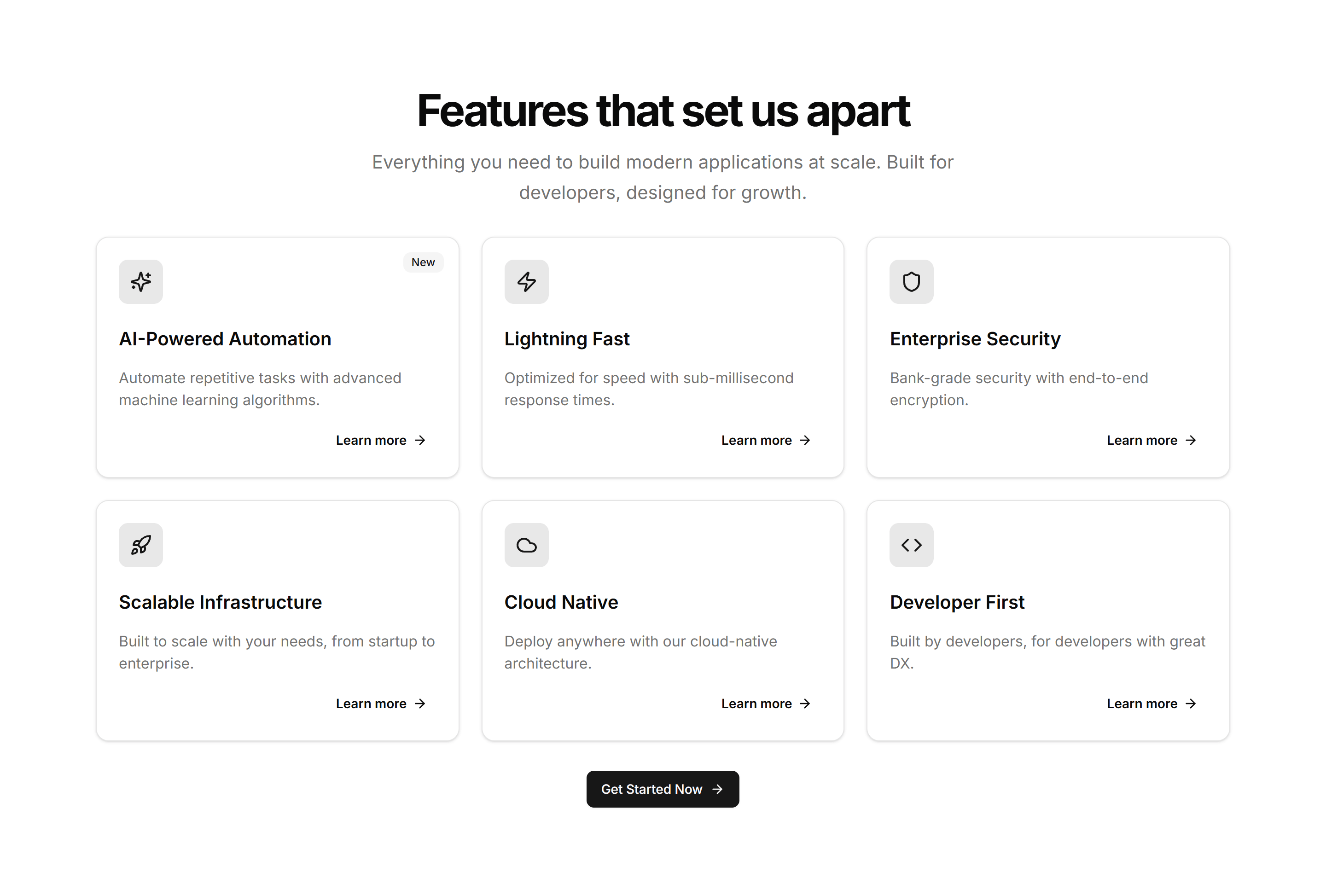
Marketing (Legacy) Feature Section: Card Grid
A tidy grid of feature cards, each with an icon, heading, and short description. Lays out several product capabilities at once for a clean overview section.
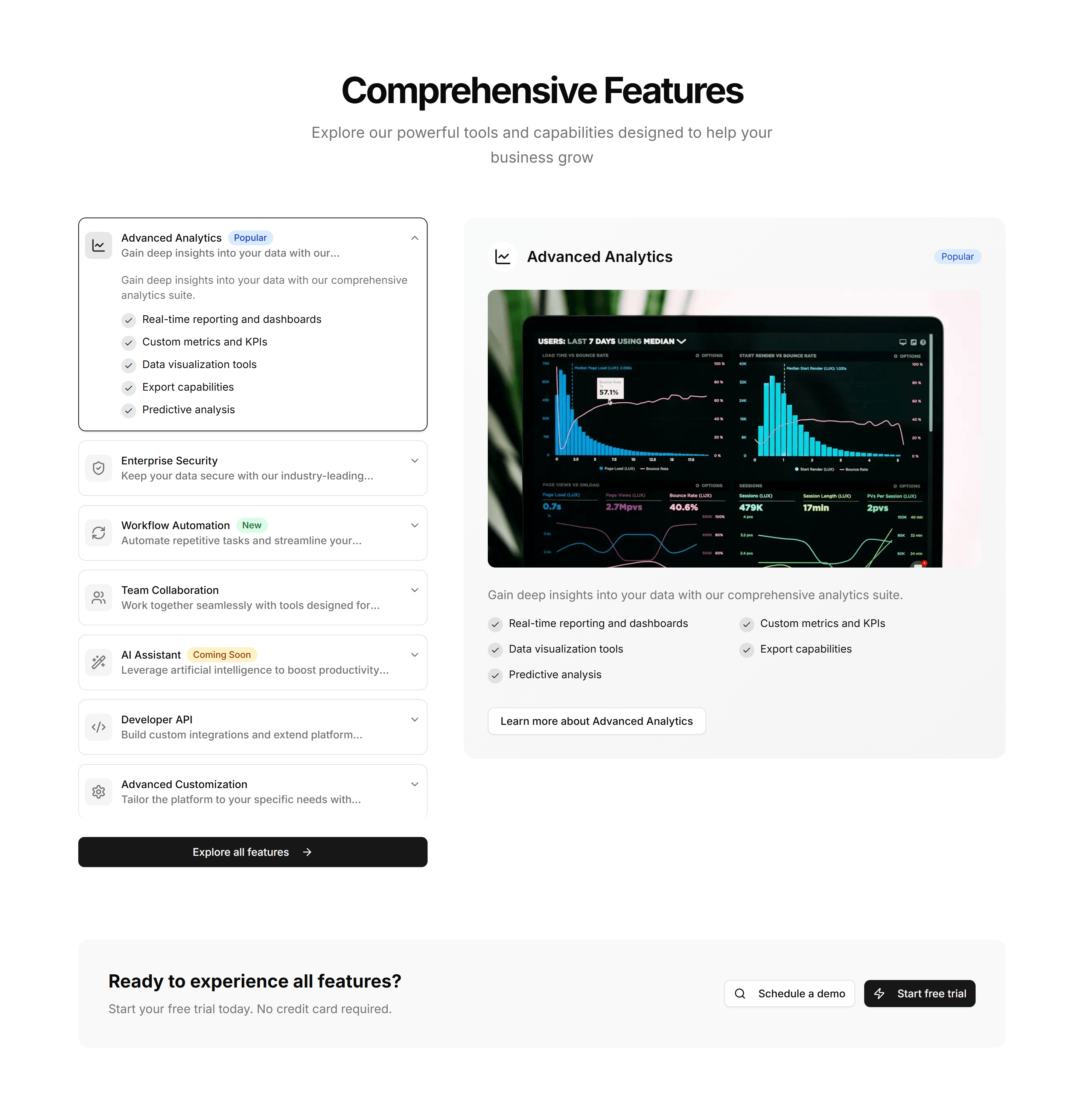
Marketing (Legacy) Feature Section: Feature Accordion
Stacked feature panels that expand on click to reveal detail and a paired visual. Lets visitors drill into one capability at a time without crowding the page.
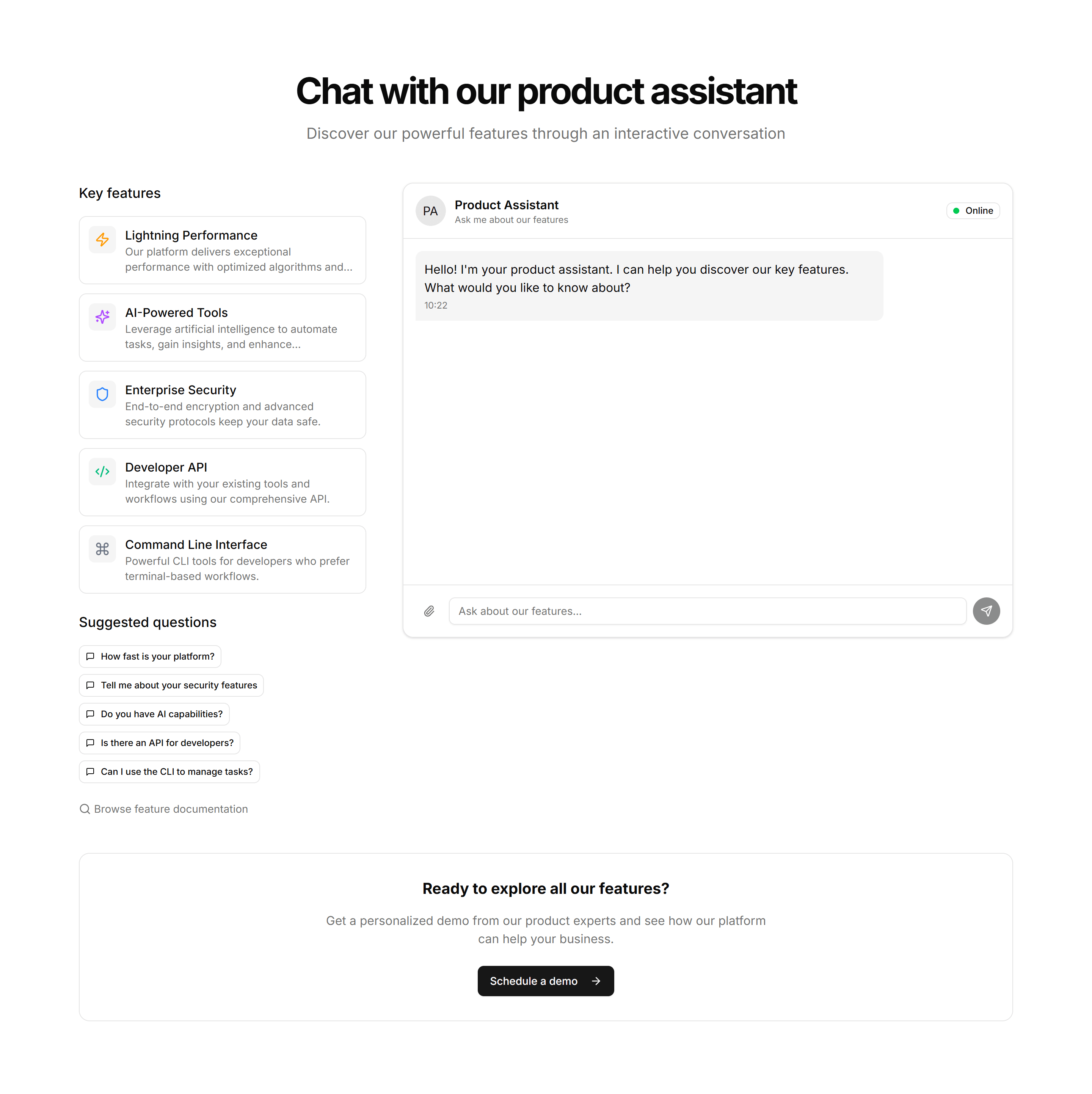
Marketing (Legacy) Feature Section: Feature Chat
A feature section styled as a chat thread, pairing message bubbles with copy. Built to show a messaging or support product talking in real conversation.
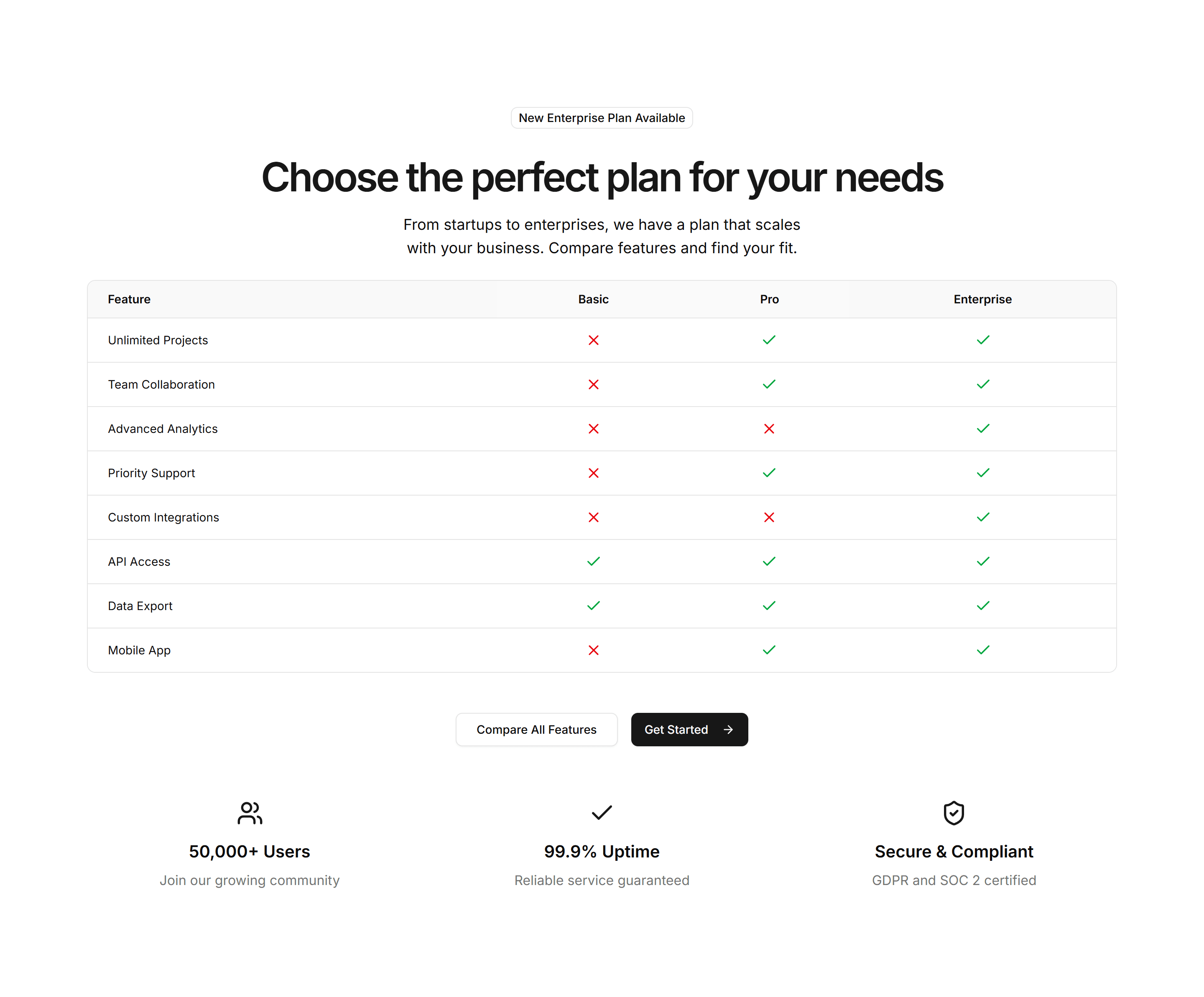
Marketing (Legacy) Feature Section: Feature Comparison
Sets two options side by side with checkmarks and notes per row. Use it to contrast your product against an alternative and make the better choice obvious.
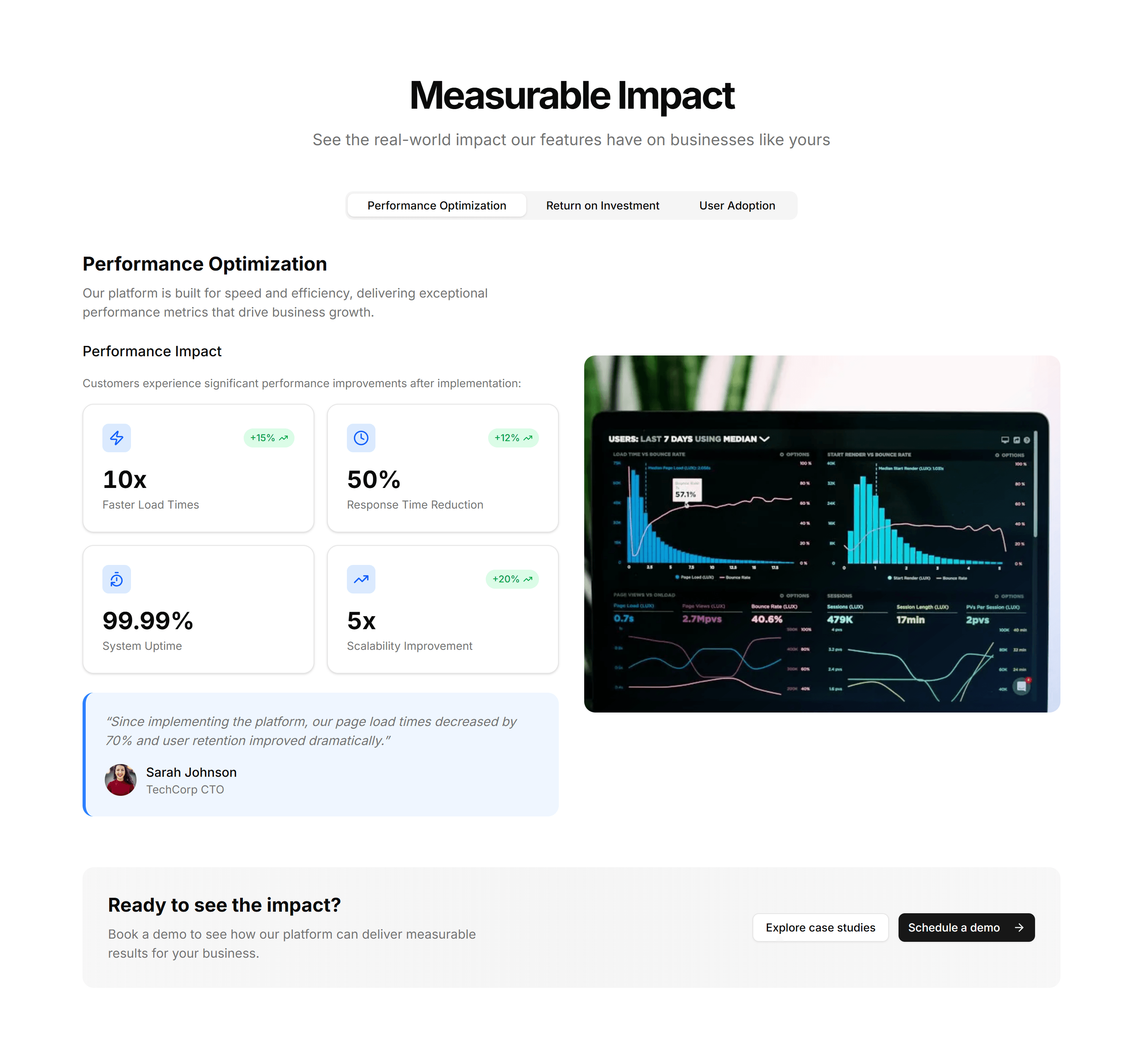
Marketing (Legacy) Feature Section: Feature Stats
Feature copy paired with bold metrics like uptime, users, or speed. Backs your claims with numbers and builds trust on a homepage or product overview.
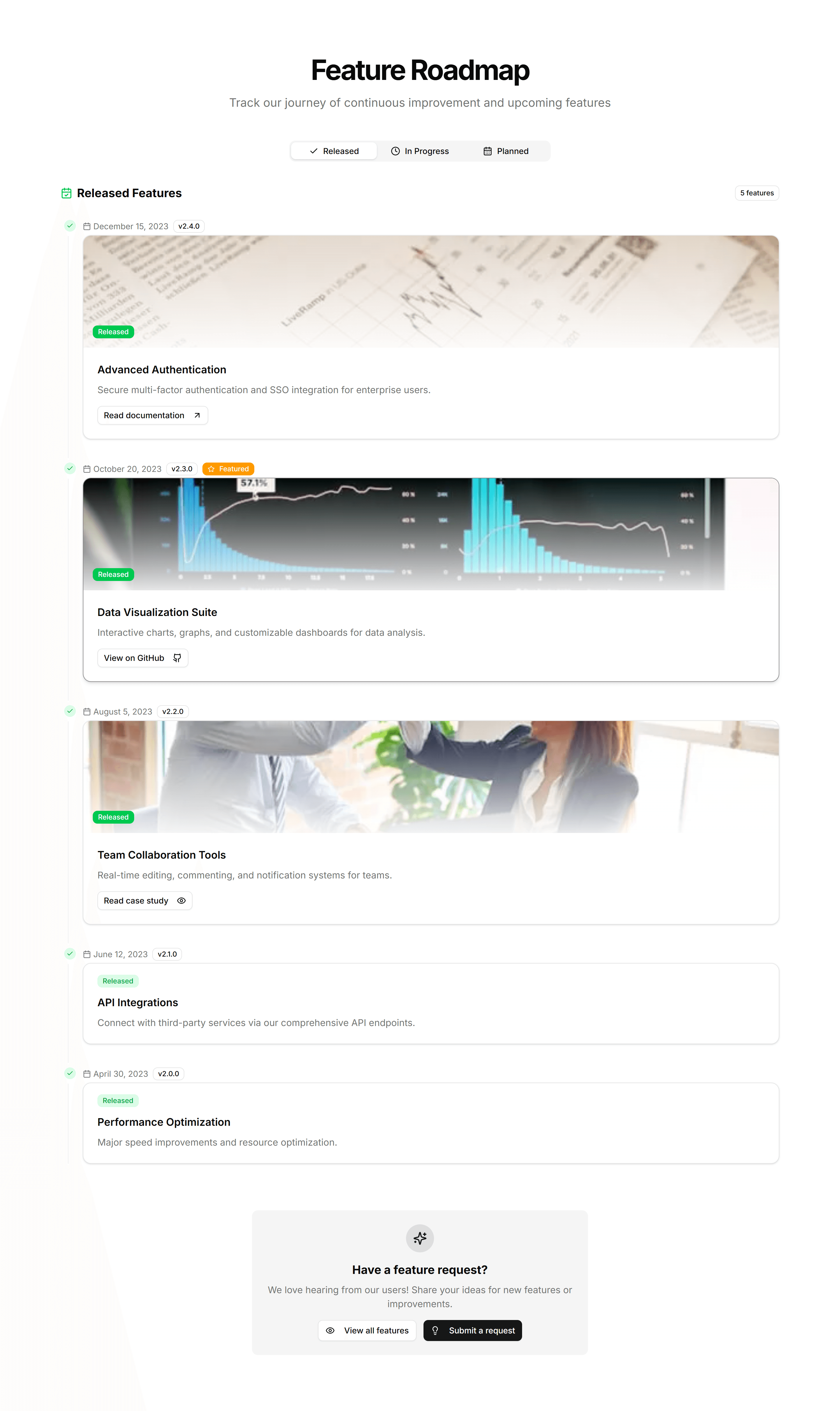
Marketing (Legacy) Feature Section: Feature Timeline
A vertical timeline that walks through features or milestones in sequence. Ideal for telling how a product flow works or how your story unfolded over time.
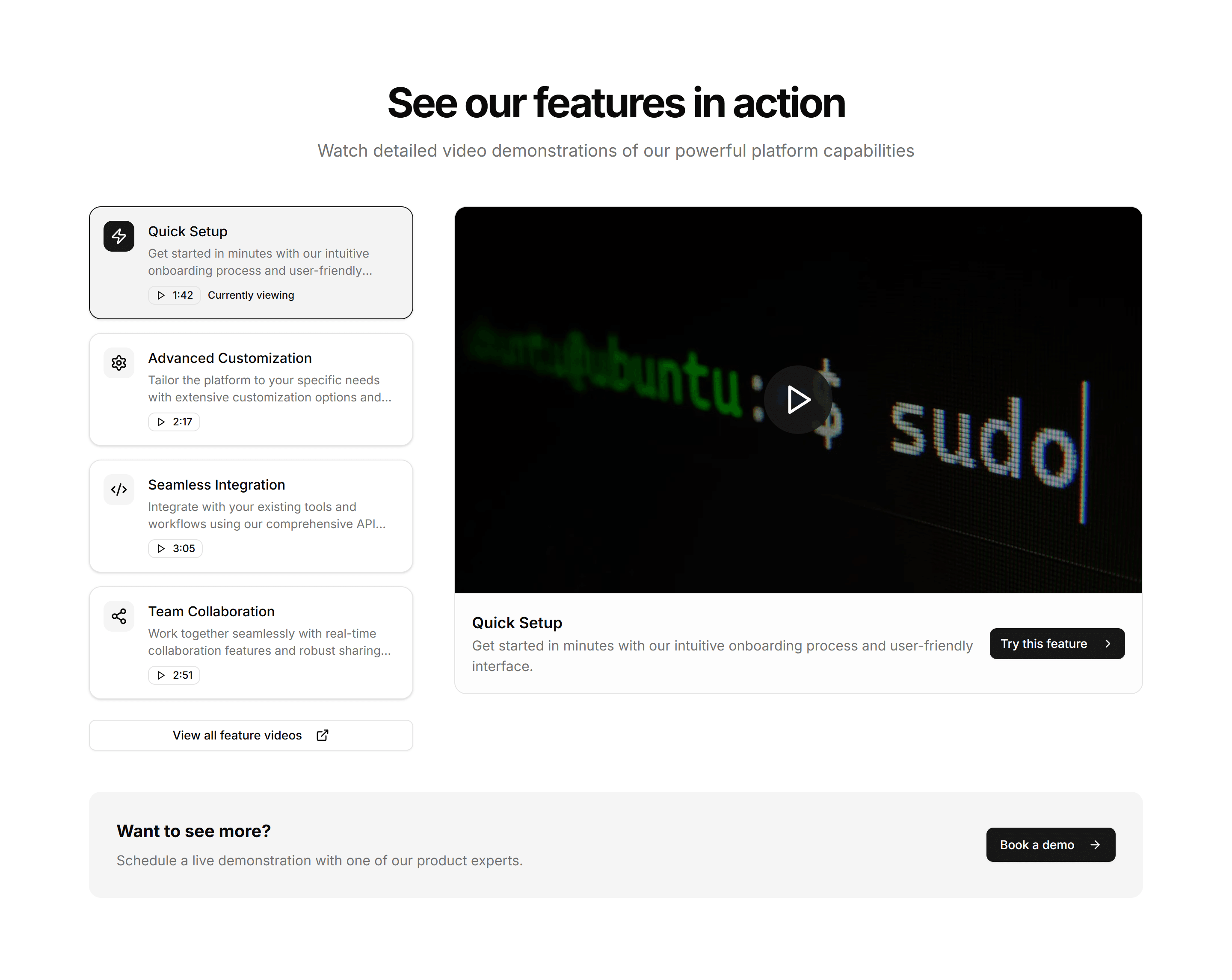
Marketing (Legacy) Feature Section: Feature Videos
A feature layout built around short video clips, each captioned with a benefit. Best when a moving demo explains the value faster than text alone could.
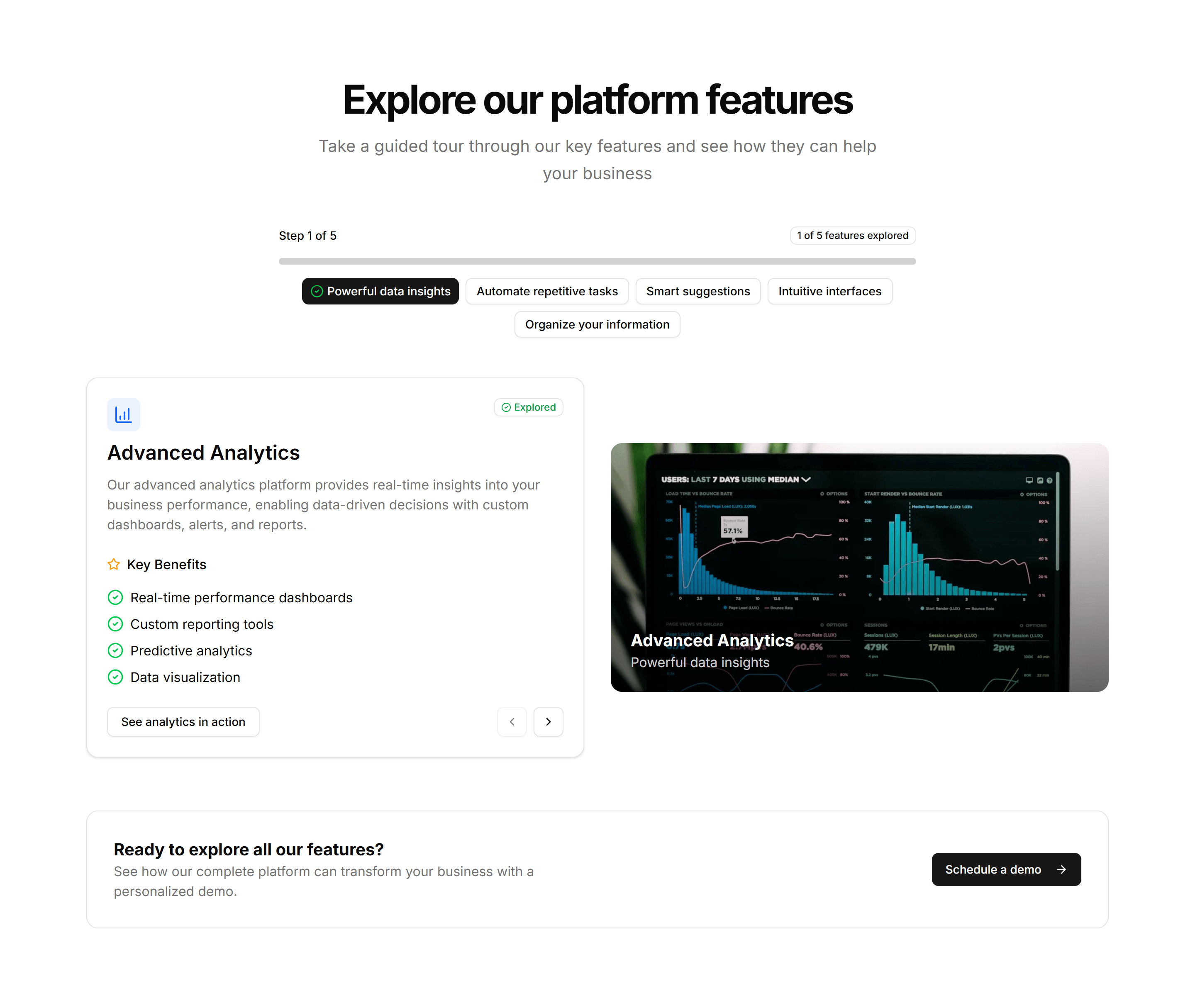
Marketing (Legacy) Feature Section: Feature Wizard
A guided, multi step layout that reveals features as the visitor advances. Useful for onboarding copy or walking through a setup flow one screen at a time.
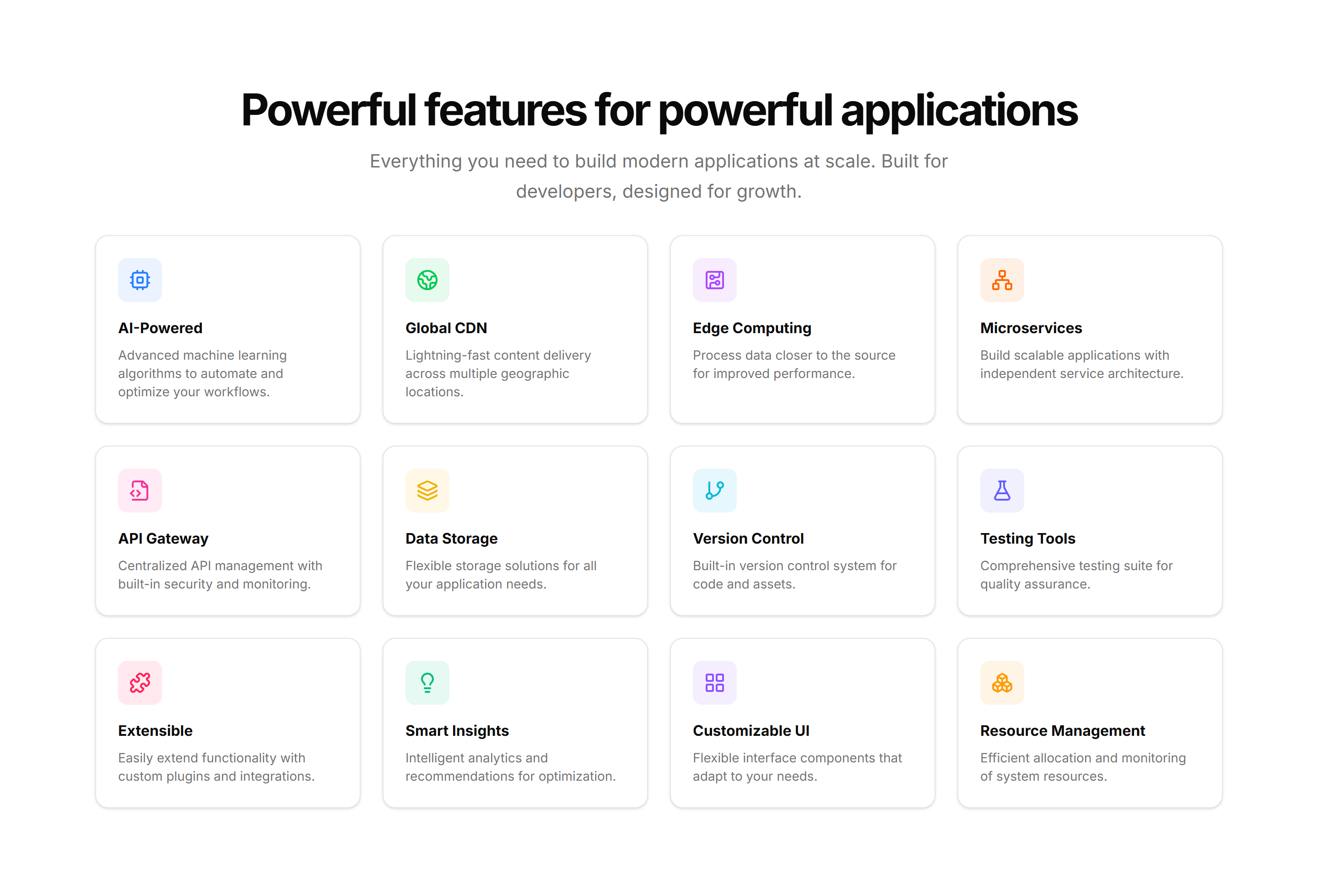
Marketing (Legacy) Feature Section: Grid Hover
A feature grid where each cell reveals more copy and a glow on hover. Keeps the section compact at rest, then rewards visitors who explore each capability.
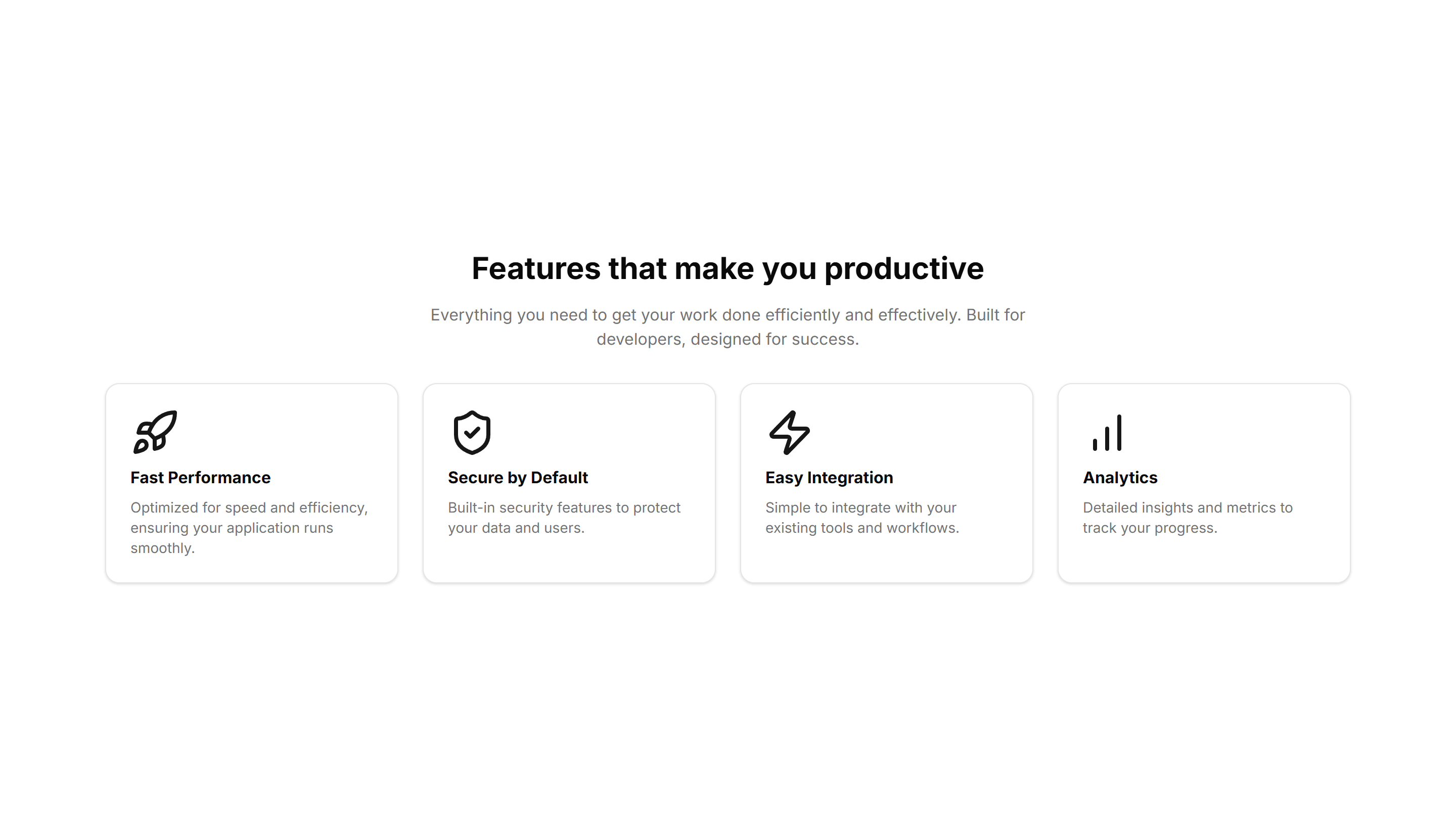
Marketing (Legacy) Feature Section: Simple
A clean feature section with a heading, supporting text, and a short list of points. Reach for it when you want clarity over decoration on a marketing page.
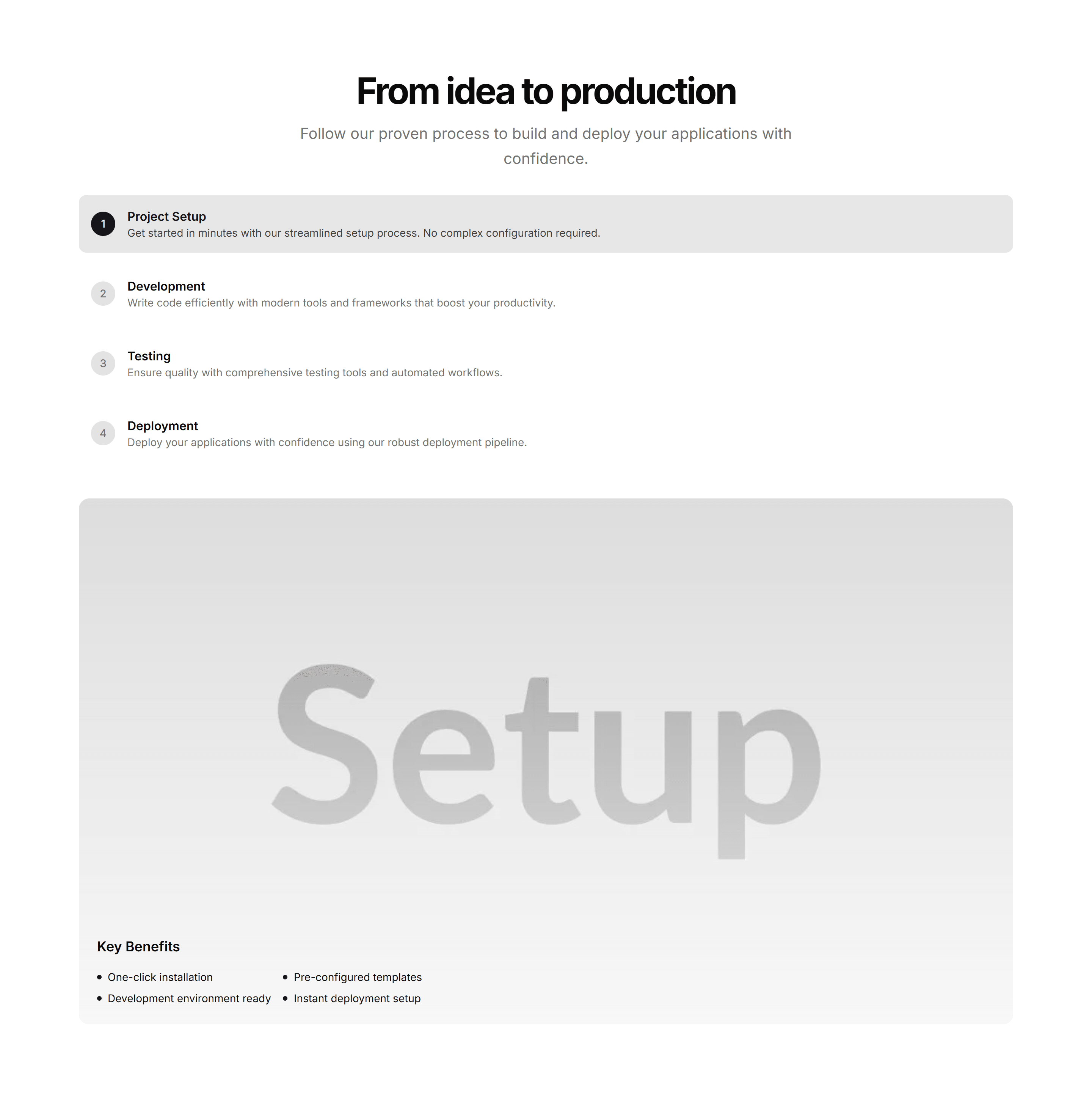
Marketing (Legacy) Feature Section: Steps
Numbered steps that lay out how your product works from start to finish. Drop it on a homepage to turn a process into an easy three or four part story.
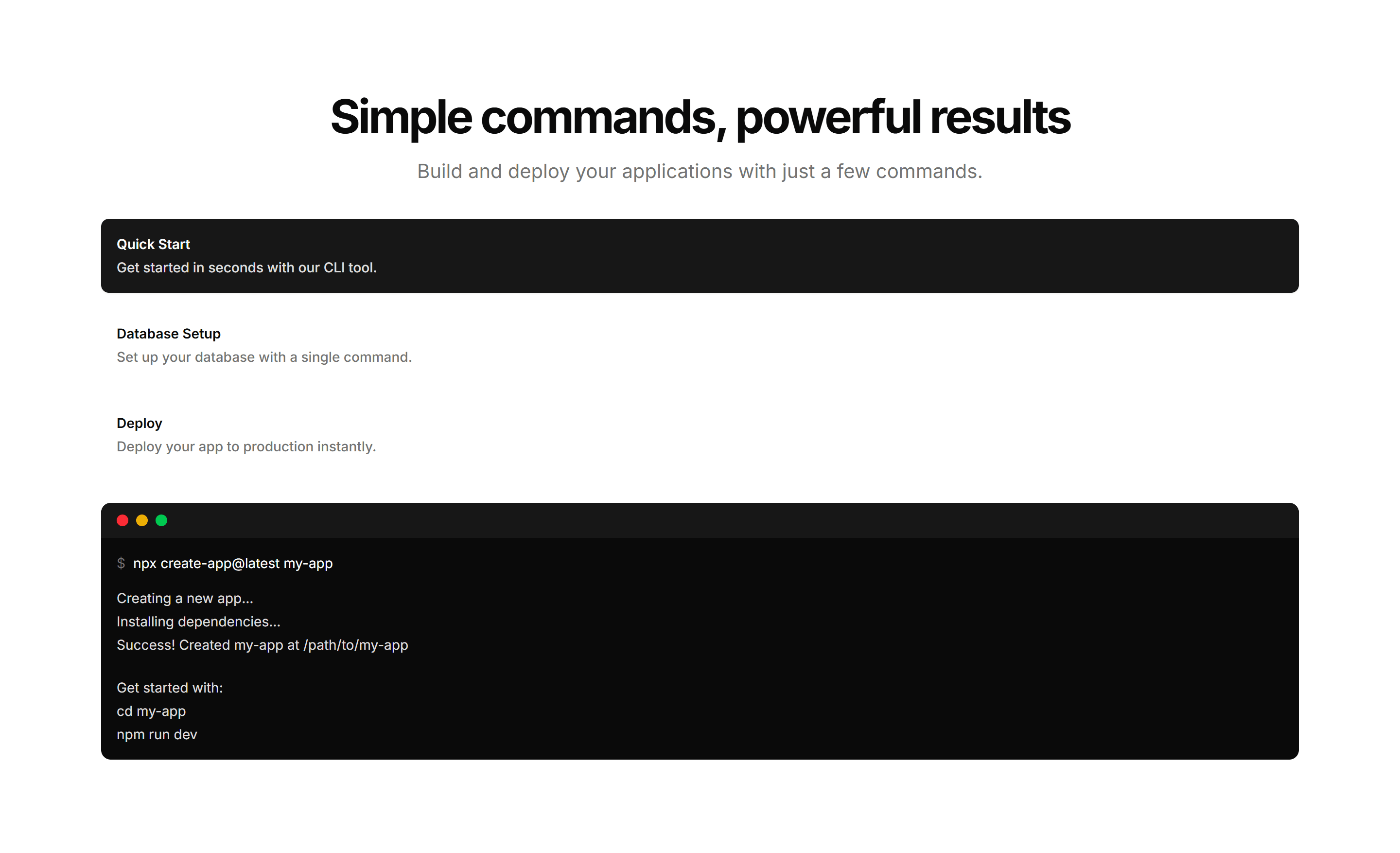
Marketing (Legacy) Feature Section: Terminal
A feature section featuring a mock terminal with typed commands and output. Built for developer tools where showing real CLI usage sells the value fast.
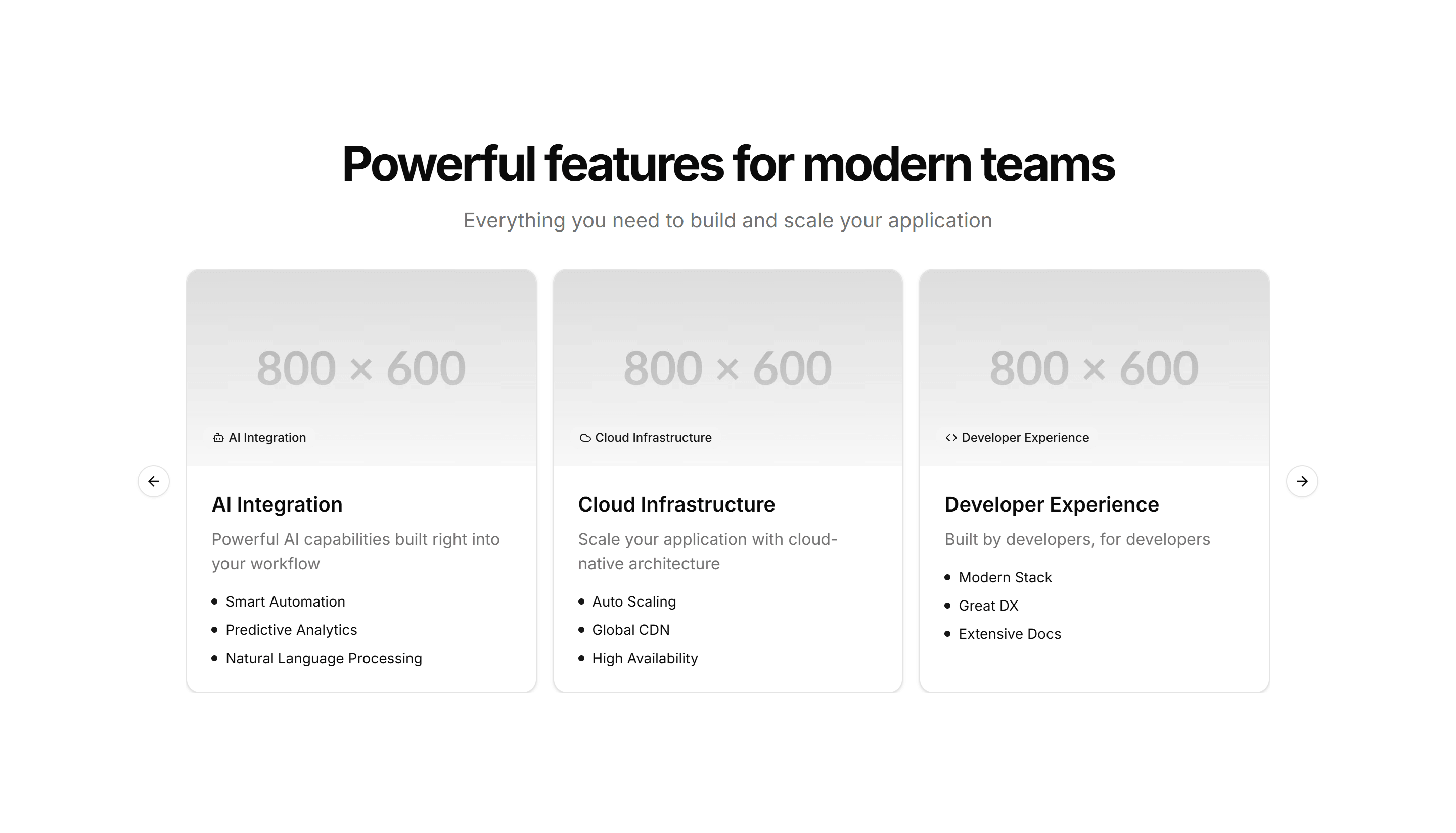
Marketing (Legacy) Feature Section: With Carousel
Feature highlights in a swipeable carousel, one slide per capability with copy and a visual. Fits many features into a small space without a long scroll.
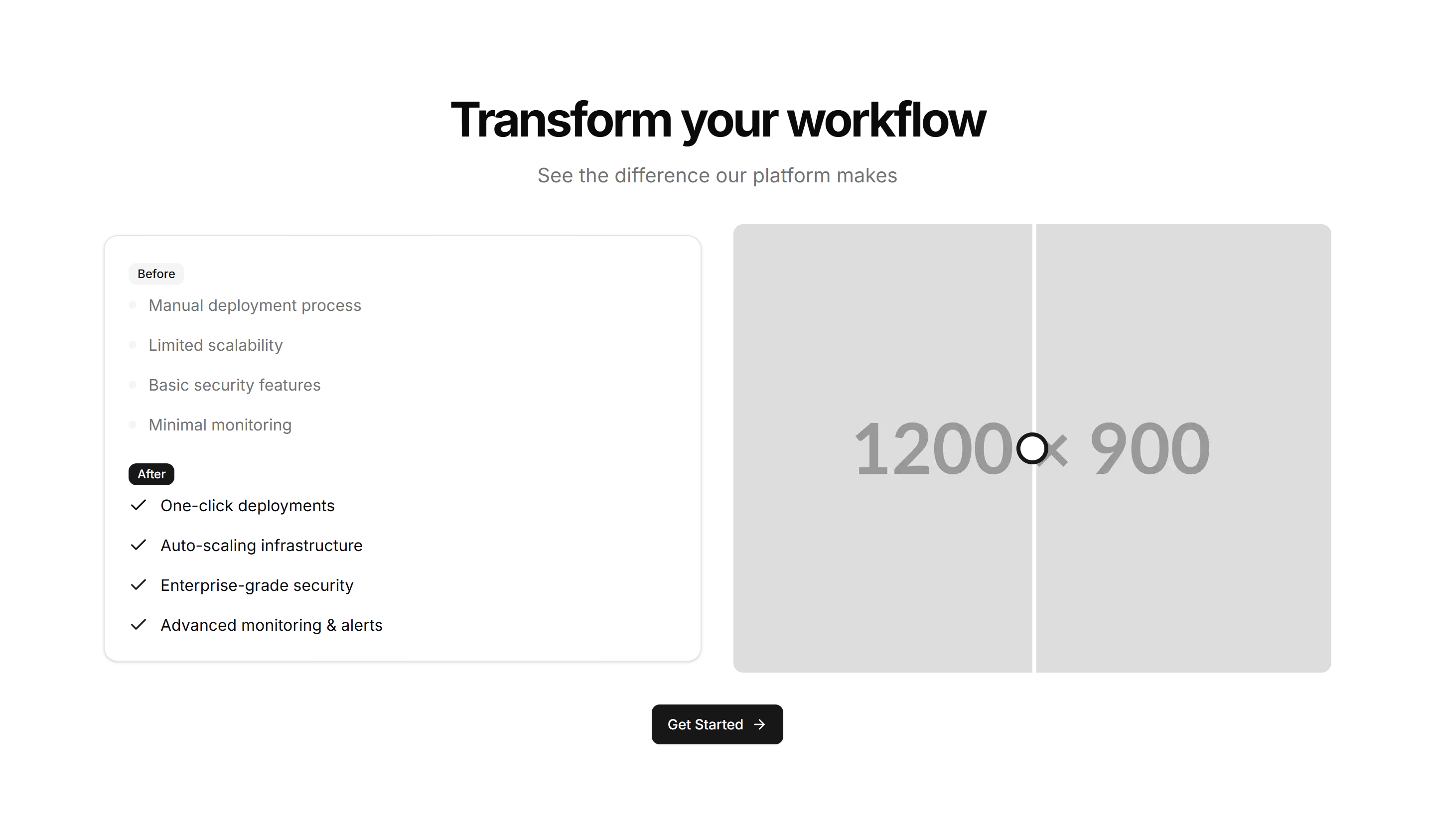
Marketing (Legacy) Feature Section: With Comparison
A feature block that places before and after states next to each other. Use it to show the change your product brings and let the difference speak plainly.
Marketing (Legacy) Feature Section: With Images
Alternating rows of feature copy beside supporting images. A reliable pattern for explaining several capabilities while keeping the page lively and balanced.
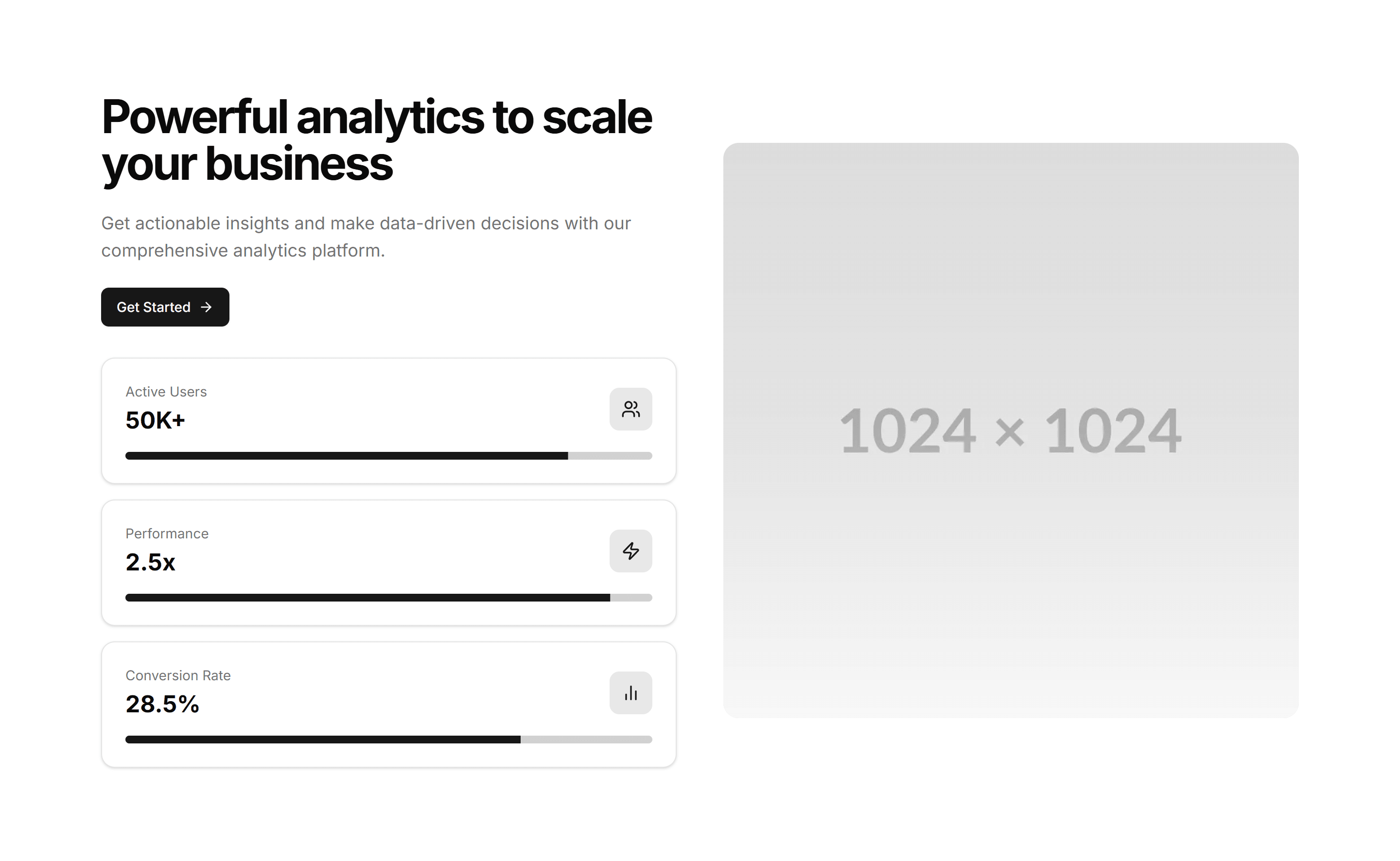
Marketing (Legacy) Feature Section: With Stats
Feature descriptions interleaved with headline numbers and labels. Pairs the what with the proof so visitors trust the results on a product or pricing page.
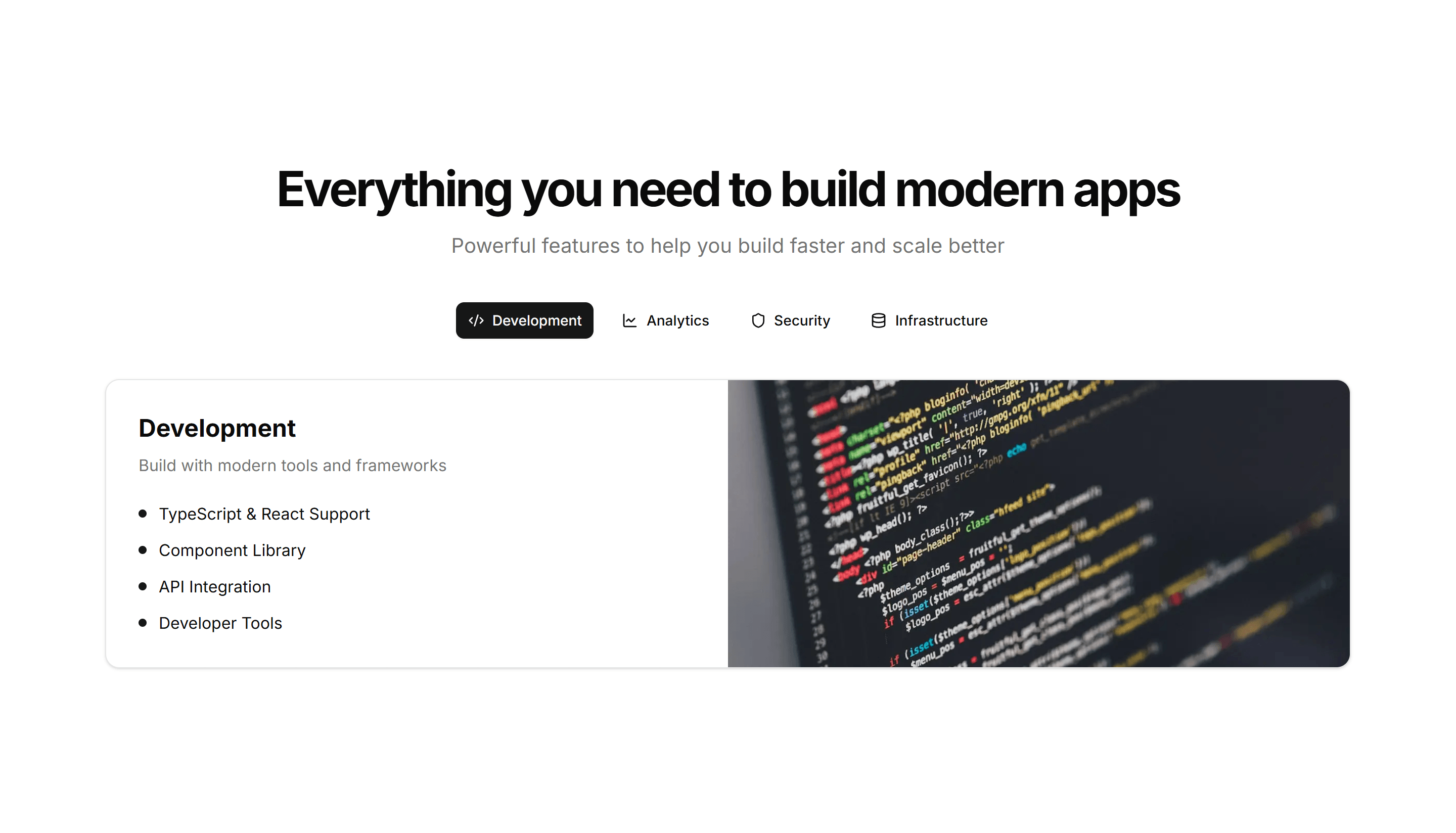
Marketing (Legacy) Feature Section: With Tabs
Tabbed feature panels that swap content and visuals as visitors switch tabs. Organizes many capabilities into one compact, tidy section that stays readable.
Marketing (Legacy) Footer: Logo Cloud
A footer with a row of partner and customer logos above the navigation links. Adds social proof and brand trust at the bottom of a landing page.
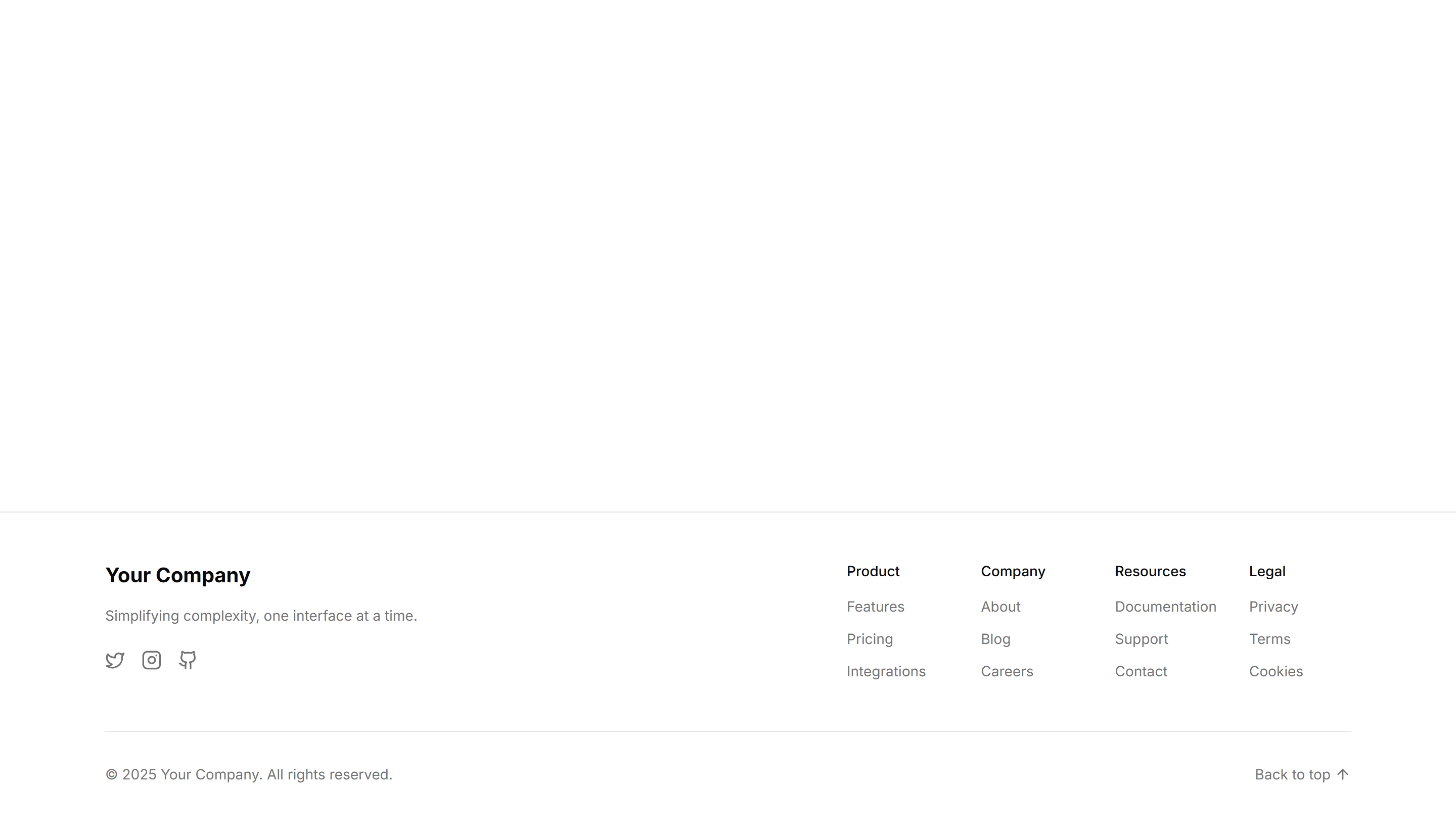
Marketing (Legacy) Footer: Minimal
A compact footer with a single line of copyright text and a few essential links. Keeps the bottom of an app or docs page quiet and out of the way.
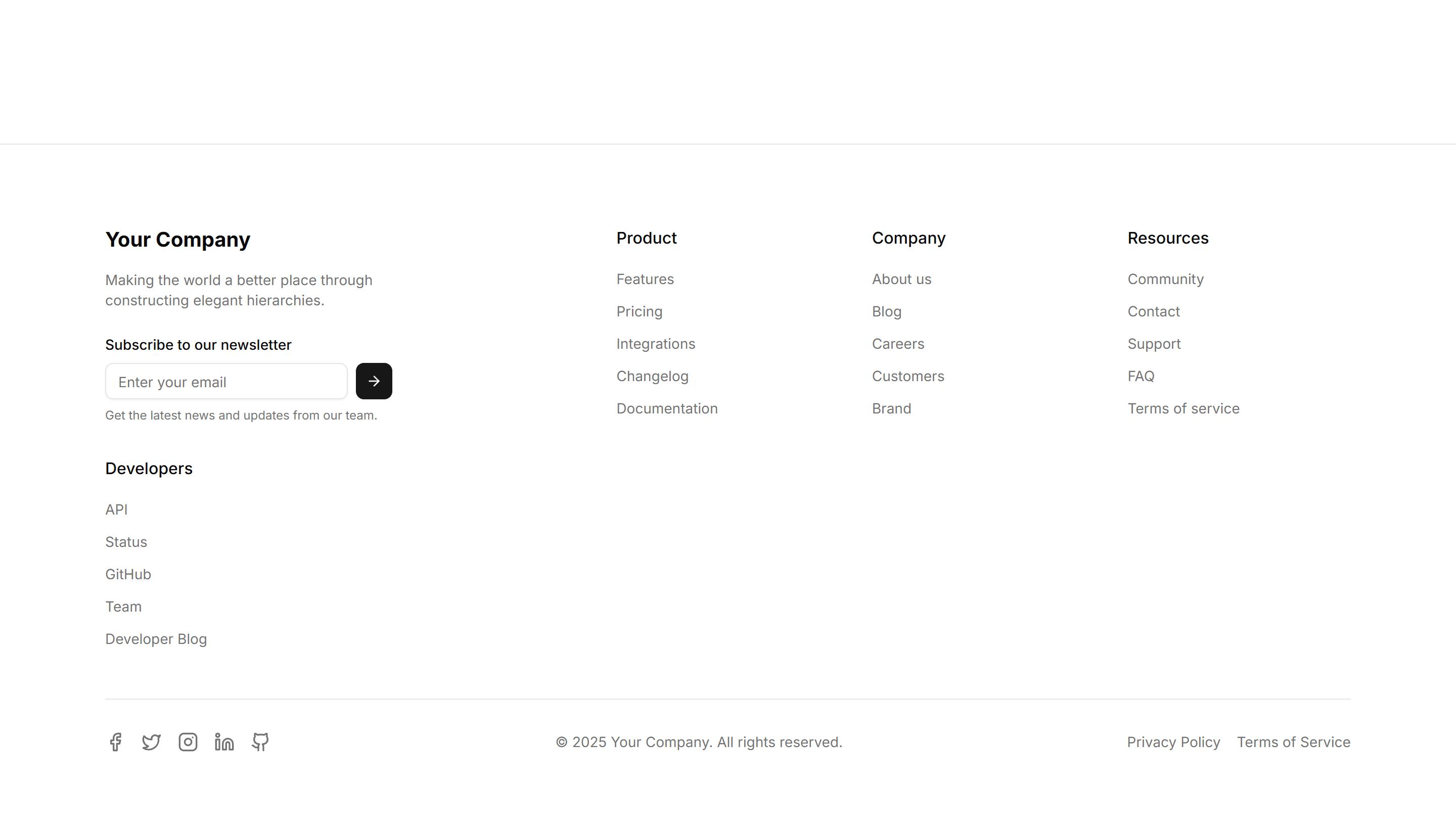
Marketing (Legacy) Footer: Multi Column
A footer split into grouped link columns for products, company, and resources. Organizes deep site navigation on a large marketing or app homepage.
Marketing (Legacy) Footer: Simple
A footer pairing a logo and short tagline with a tidy row of page links. Rounds off a small business or portfolio site without crowding the layout.
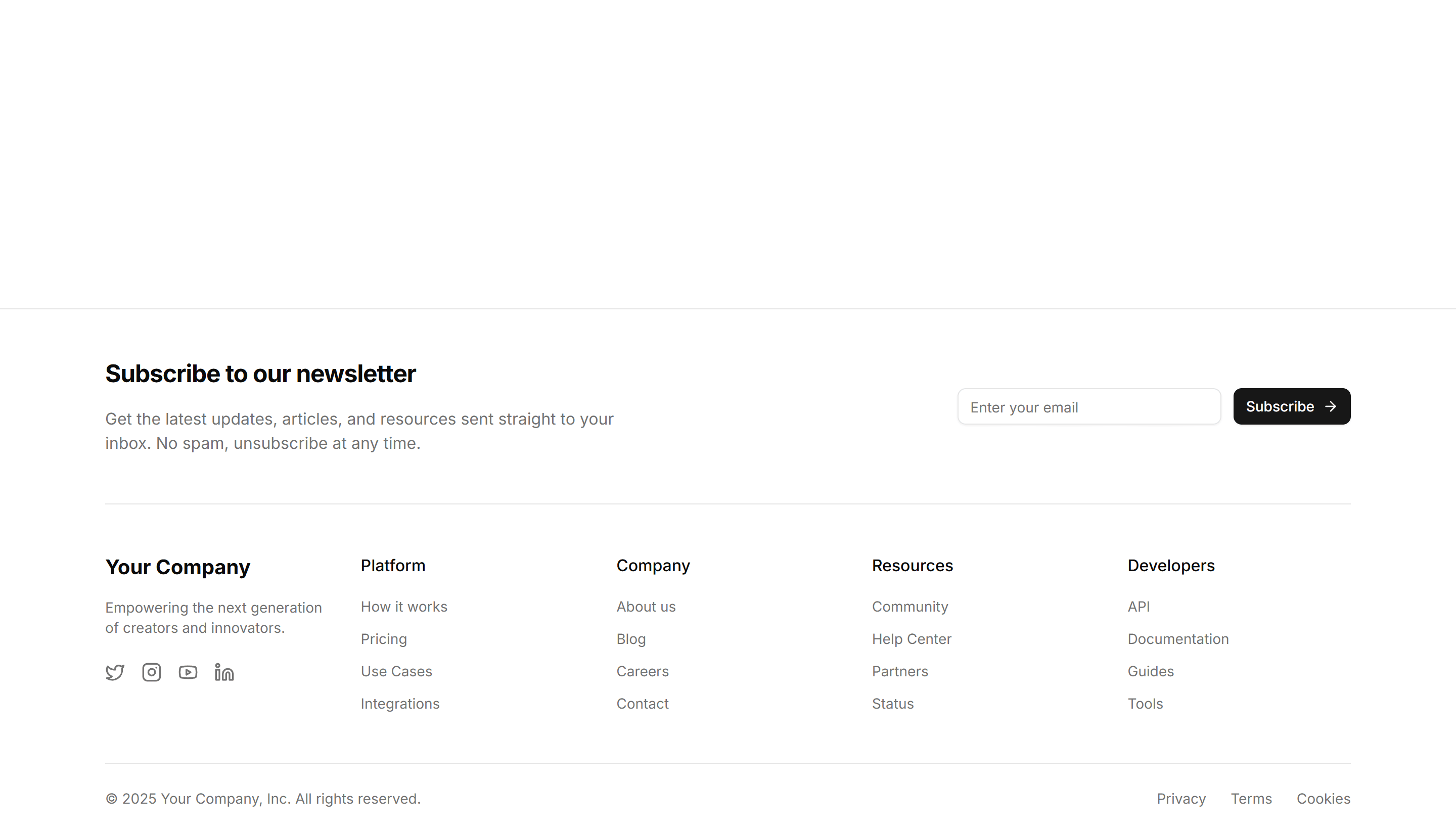
Marketing (Legacy) Footer: Subscribe
A footer with an email newsletter form beside the usual navigation links. Captures signups while visitors are leaving the bottom of your site.
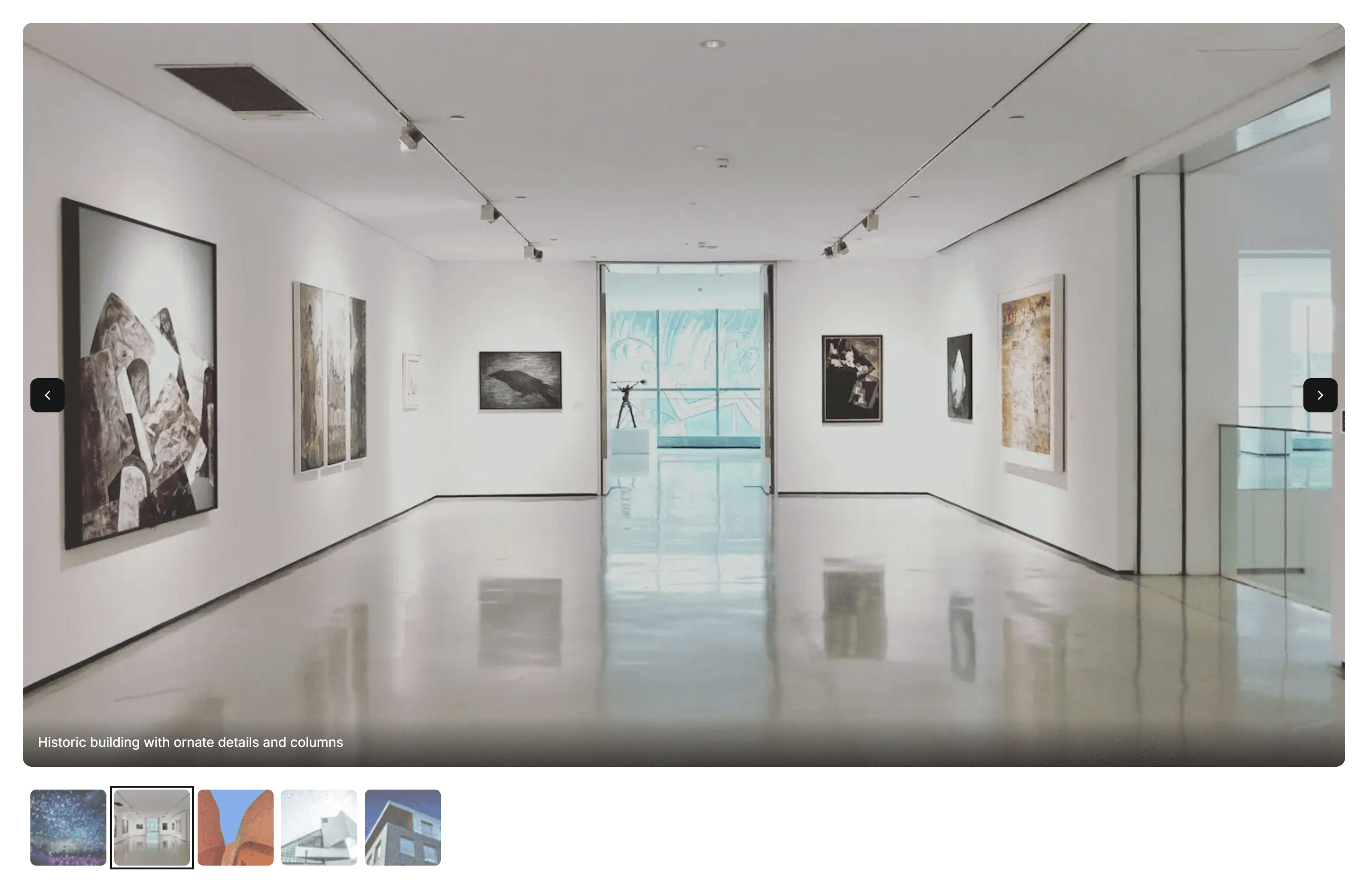
Marketing (Legacy) Gallery: Carousel Gallery
A swipeable carousel that steps through images one at a time. Use it to feature product shots or photos in a compact space on any landing page.
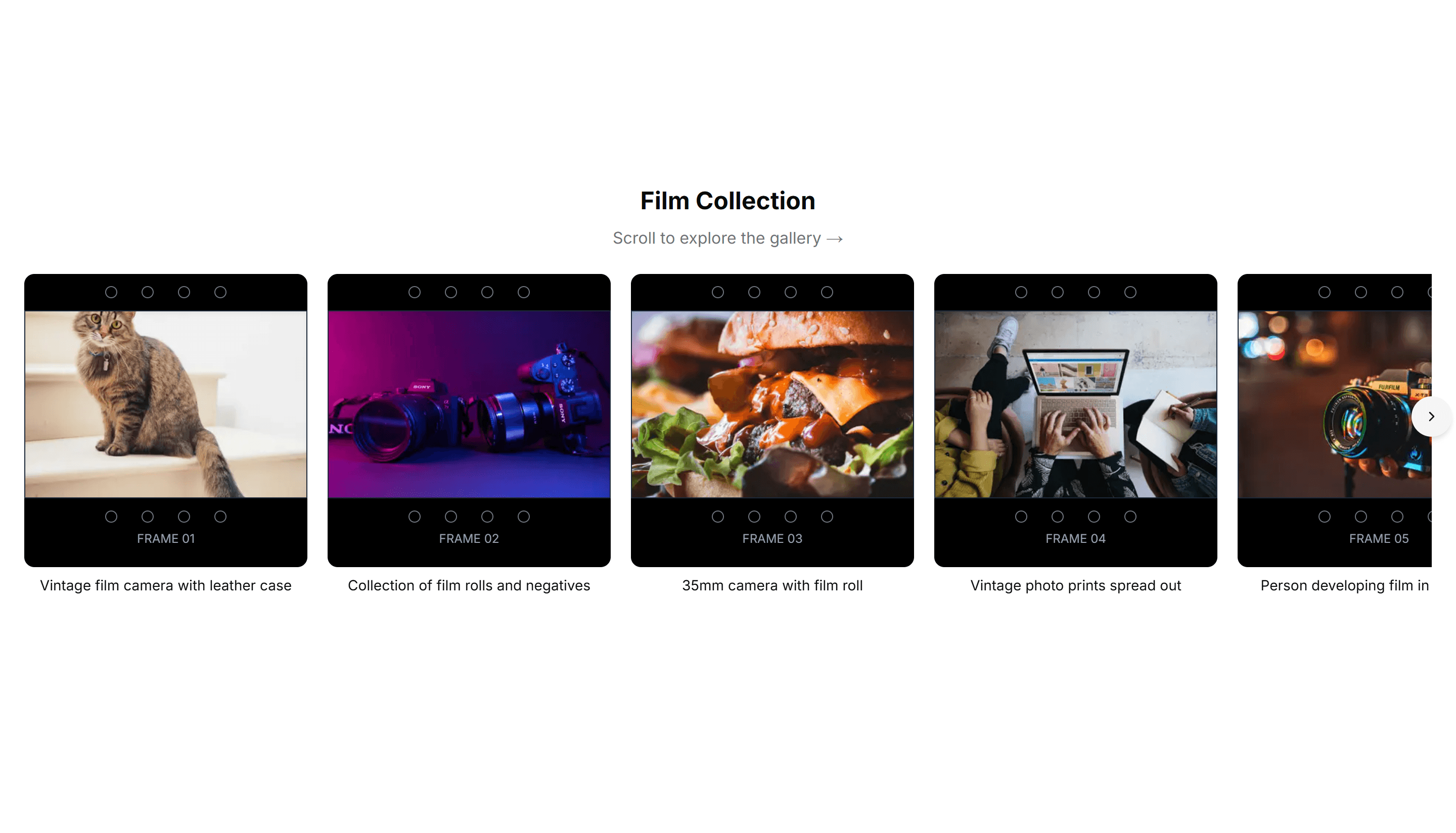
Marketing (Legacy) Gallery: Filmstrip Gallery
A horizontal filmstrip of thumbnails with a larger preview above. Ideal for browsing a photo set or product angles while keeping every frame in view.
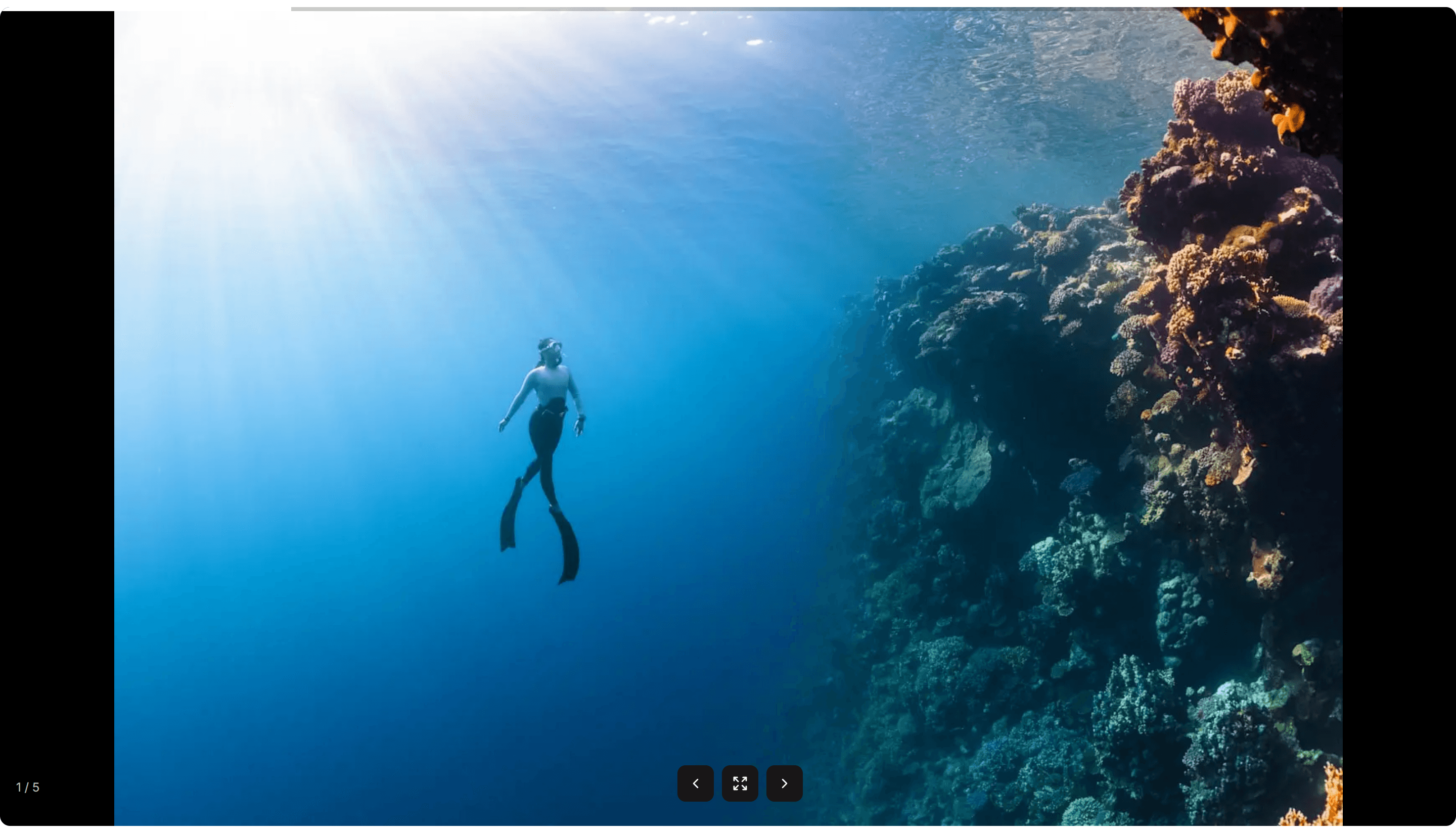
Marketing (Legacy) Gallery: Fullscreen Gallery
A fullscreen gallery that fills the viewport with one image at a time. Good for immersive photo stories, lookbooks, or a striking visual showcase.
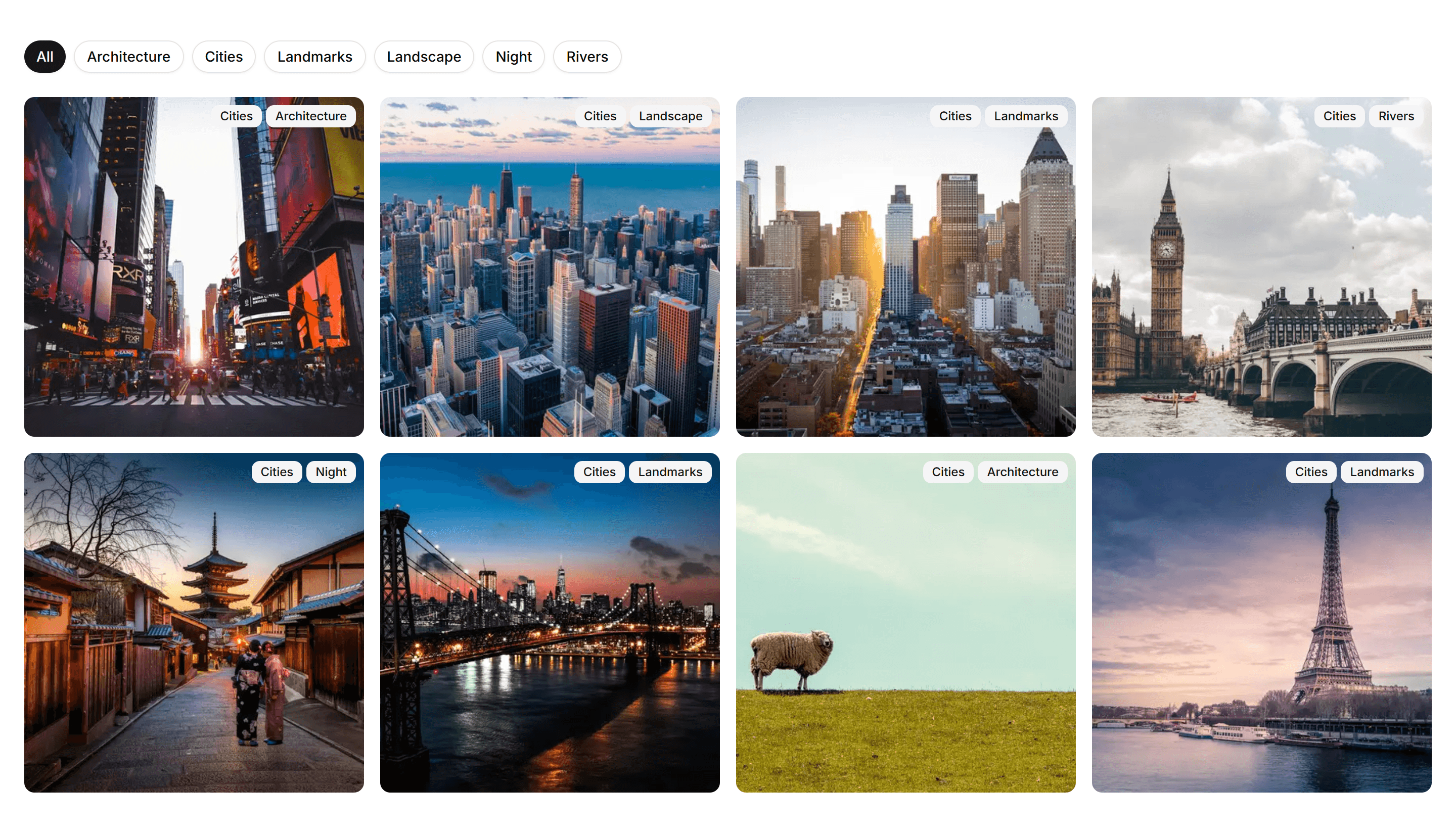
Marketing (Legacy) Gallery: Grid Gallery
A responsive grid of evenly sized image tiles. Use it to display many photos, products, or case studies at once with a clean, scannable layout.
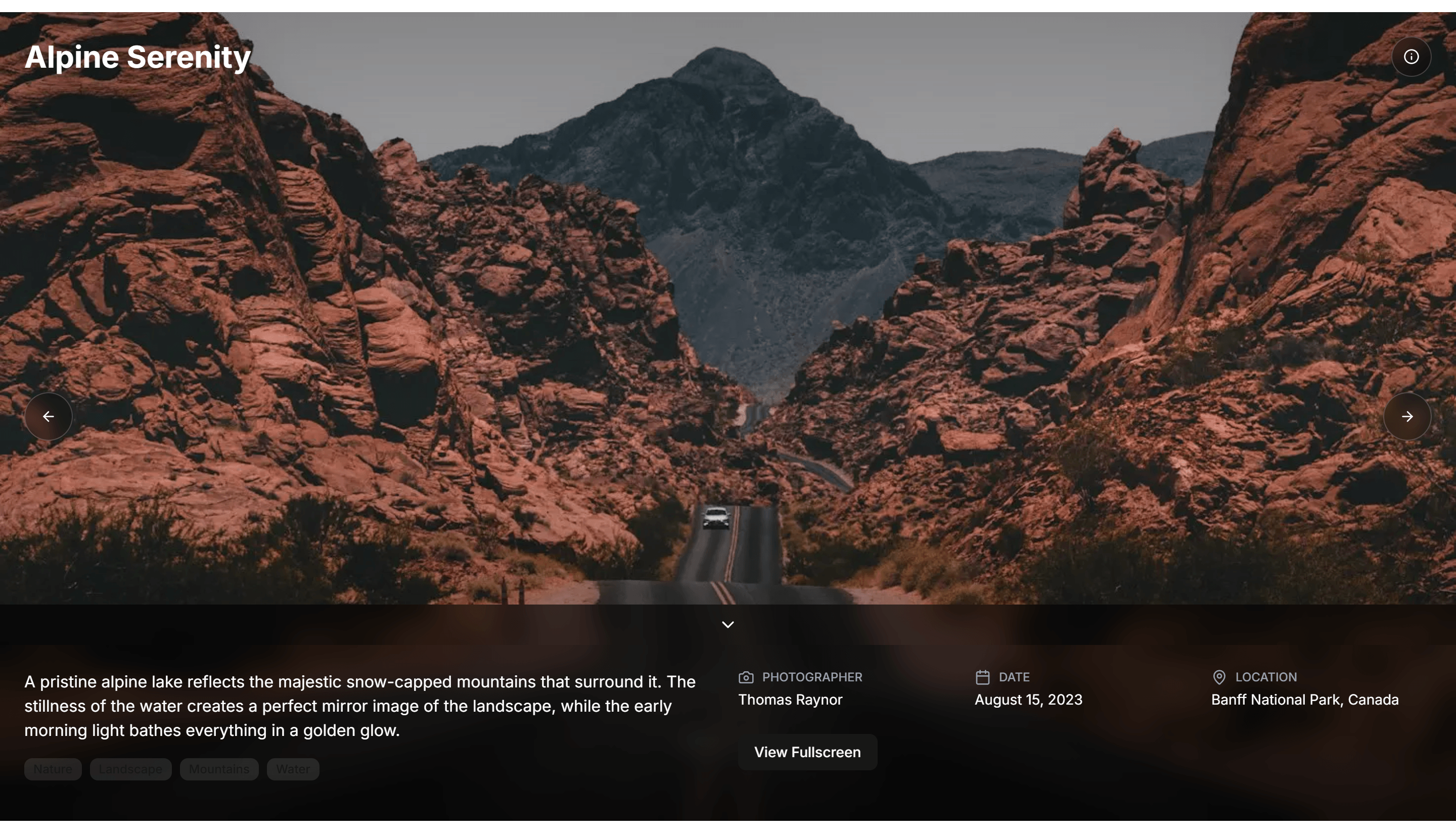
Marketing (Legacy) Gallery: Immersive Gallery
An edge to edge gallery with large visuals and smooth motion. Use it to surround visitors in your photos or brand imagery on a campaign page.
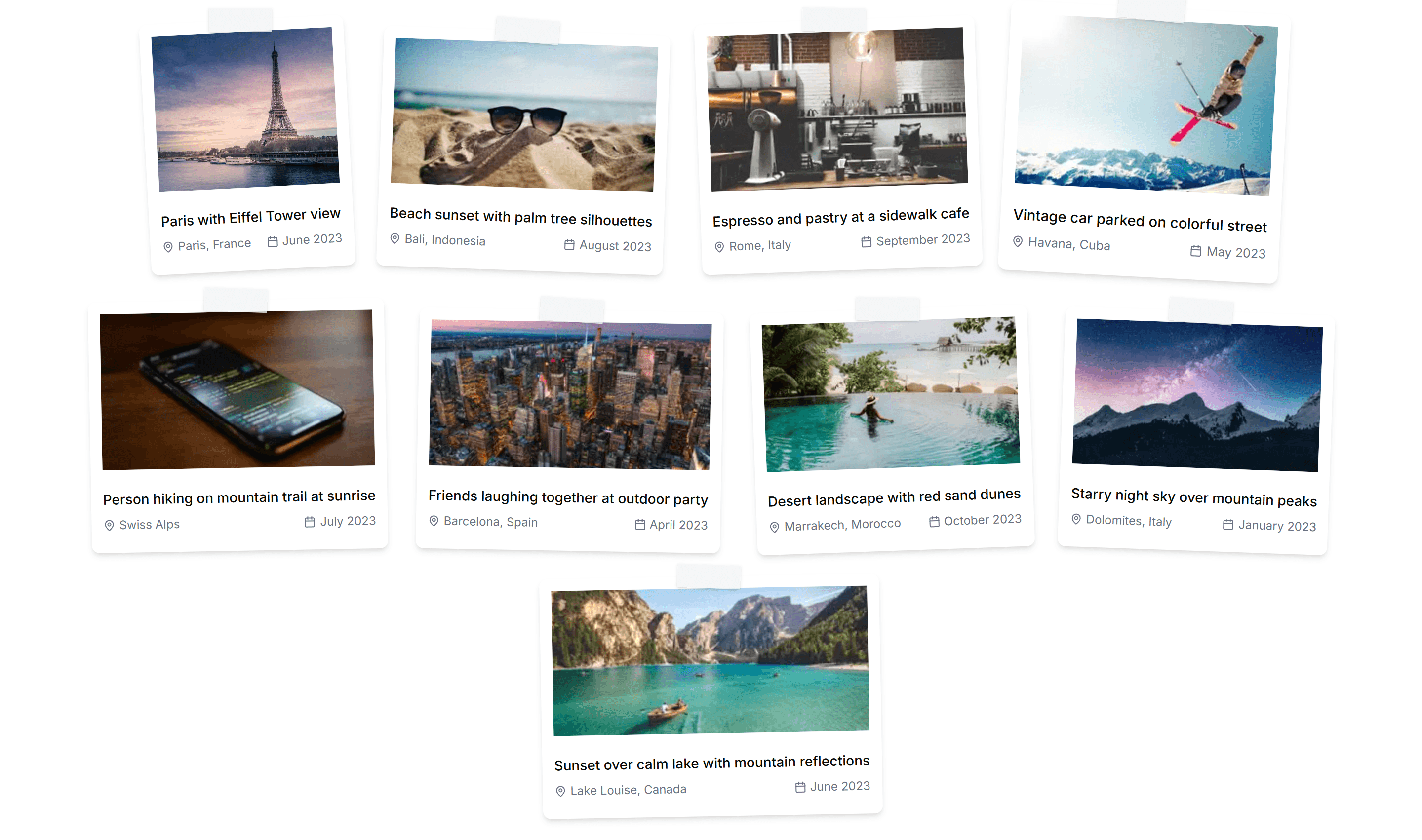
Marketing (Legacy) Gallery: Polaroid Gallery
A scattered set of polaroid style cards with captions and slight tilts. Great for adding a casual, personal feel to an about page or event recap.
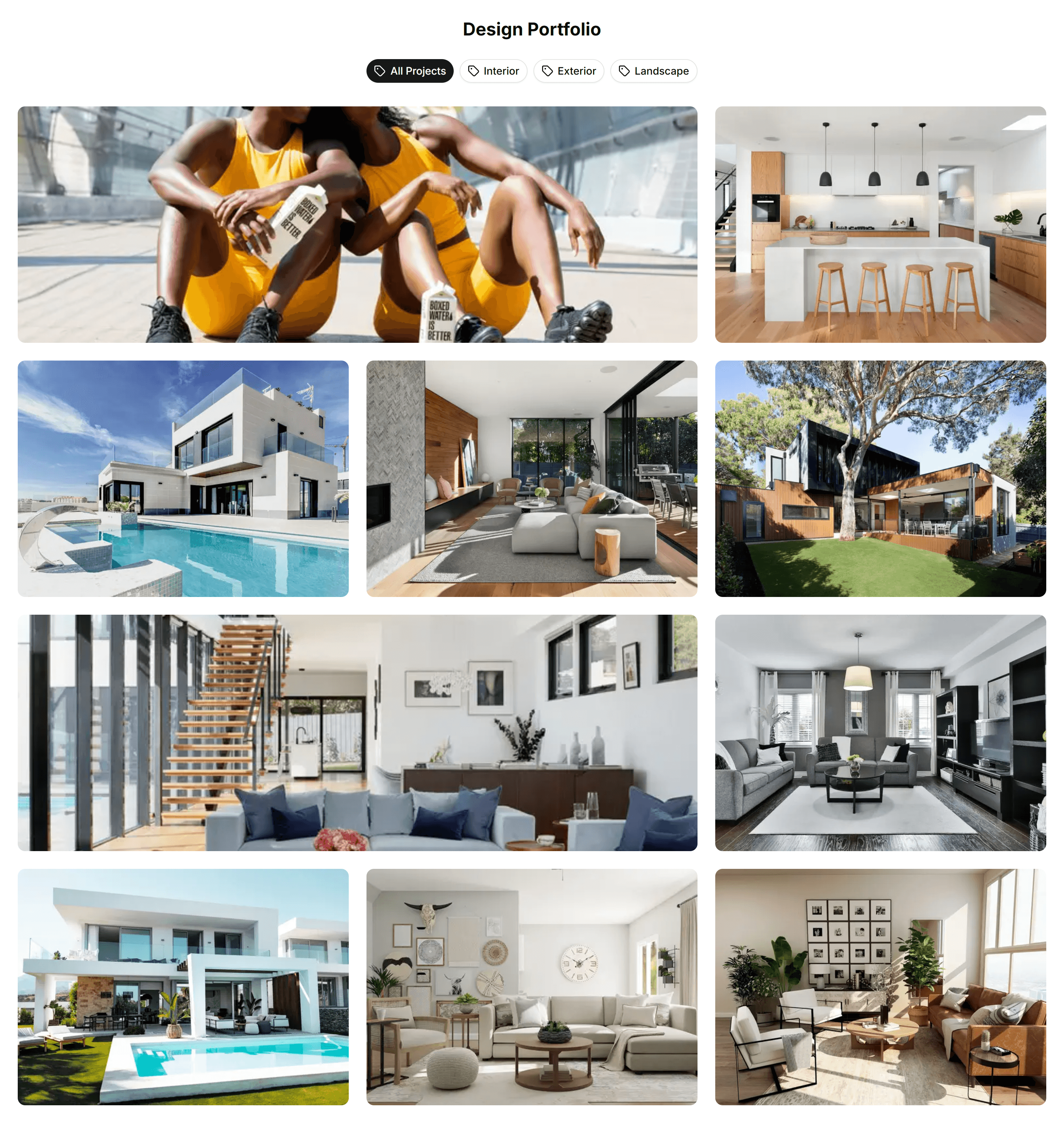
Marketing (Legacy) Gallery: Portfolio Gallery
A portfolio layout that pairs project images with titles and short notes. Use it to present work, case studies, or a creative showcase to clients.
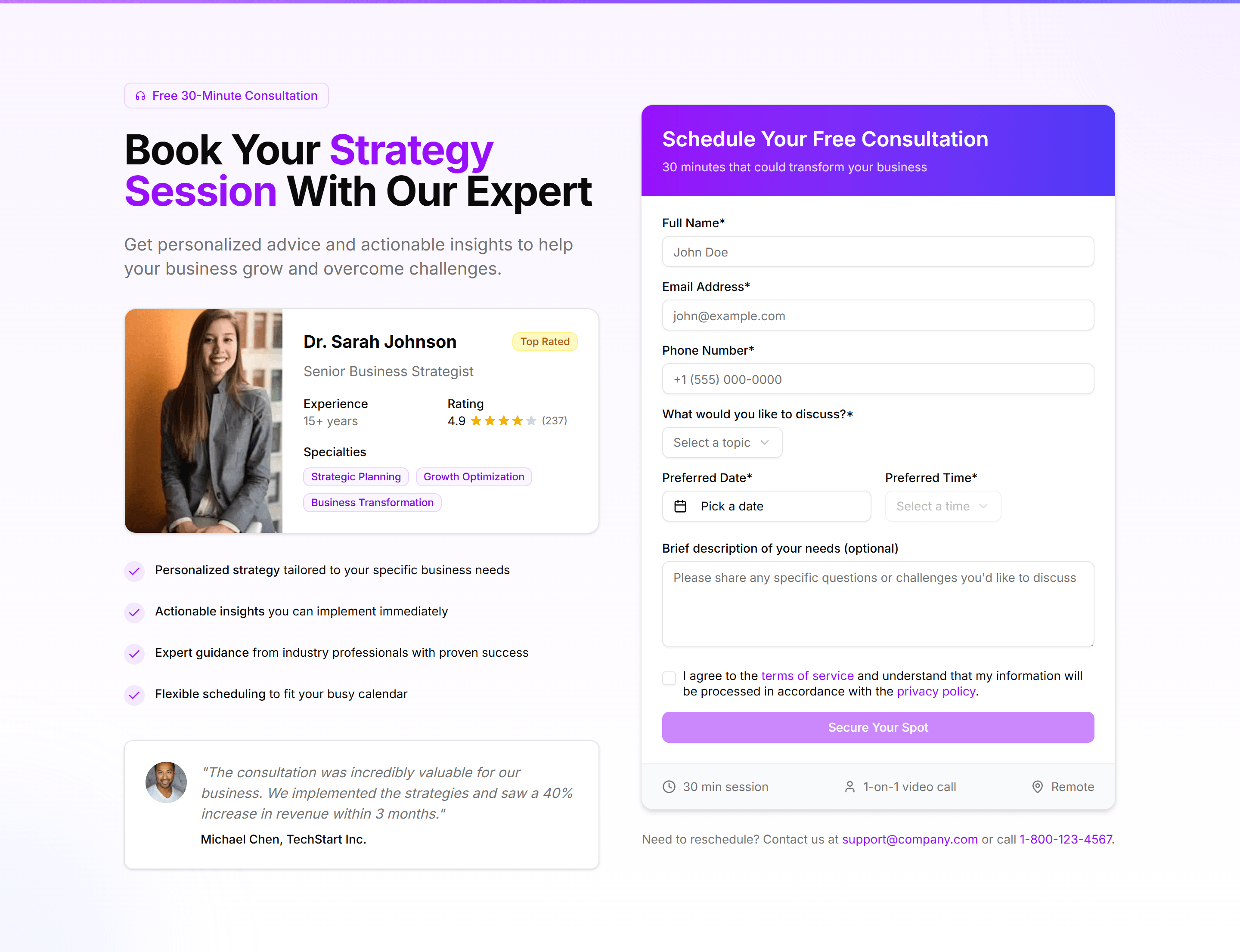
Marketing (Legacy) Hero Form: Booking Form
A hero with a booking form for dates, times, and guest details next to a headline. Lets visitors reserve a slot the moment they land on the page.

Marketing (Legacy) Hero Form: Center Aligned Search With Tags
A centered hero built around a search field with popular tags below it. Helps visitors find what they need fast on a directory or marketplace home.
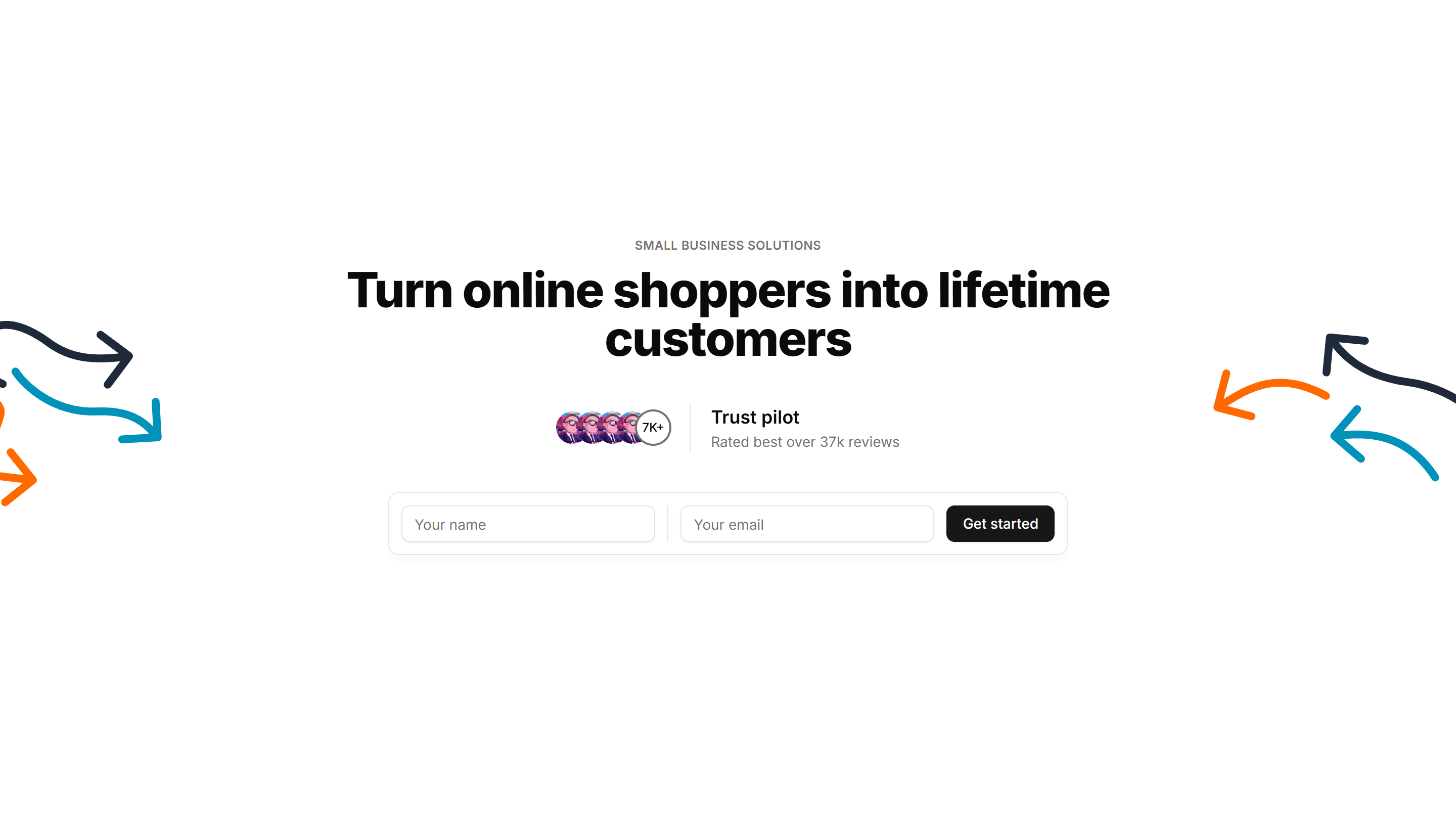
Marketing (Legacy) Hero Form: Center Aligned With A Form
A centered hero pairing a headline and subtext with a short inline form. Collects an email or signup in one view to start onboarding immediately.
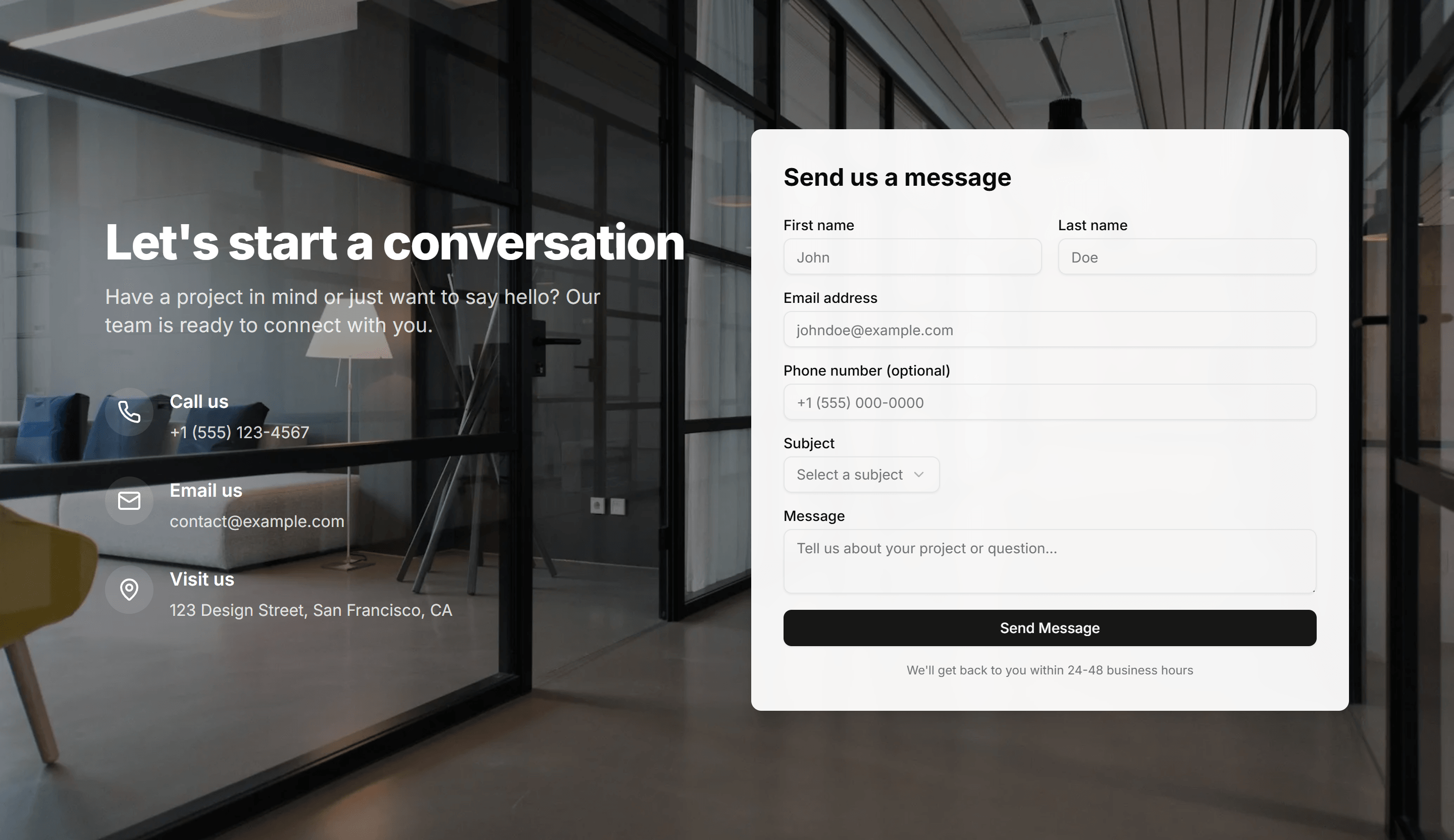
Marketing (Legacy) Hero Form: Contact Form With Background
A hero with a full contact form set over a styled background image. Invites visitors to send a message or request a quote without leaving the top.
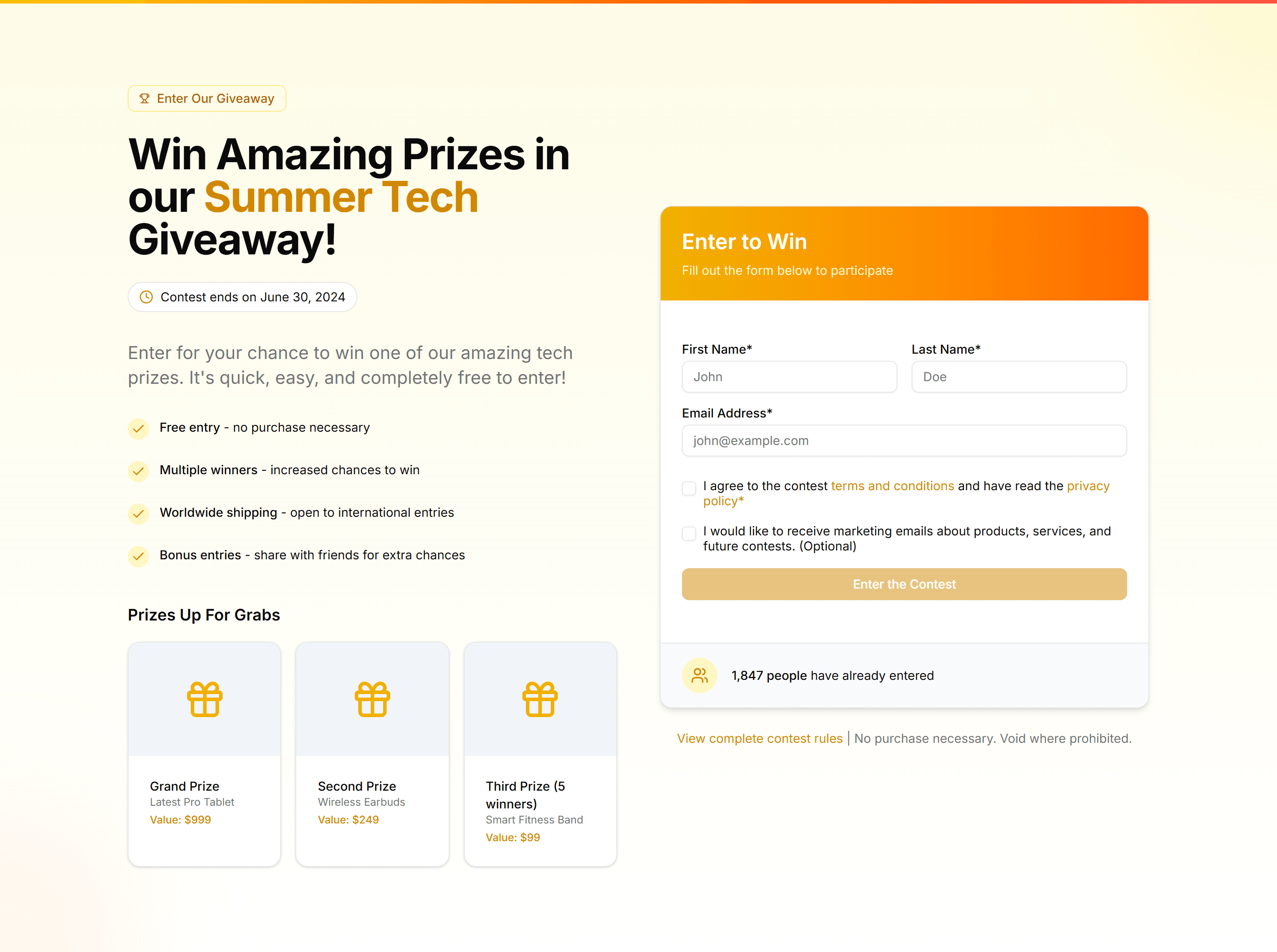
Marketing (Legacy) Hero Form: Contest Entry Form
A hero with a contest entry form for name, email, and answer fields. Drives signups and excitement around a giveaway or promotional campaign.
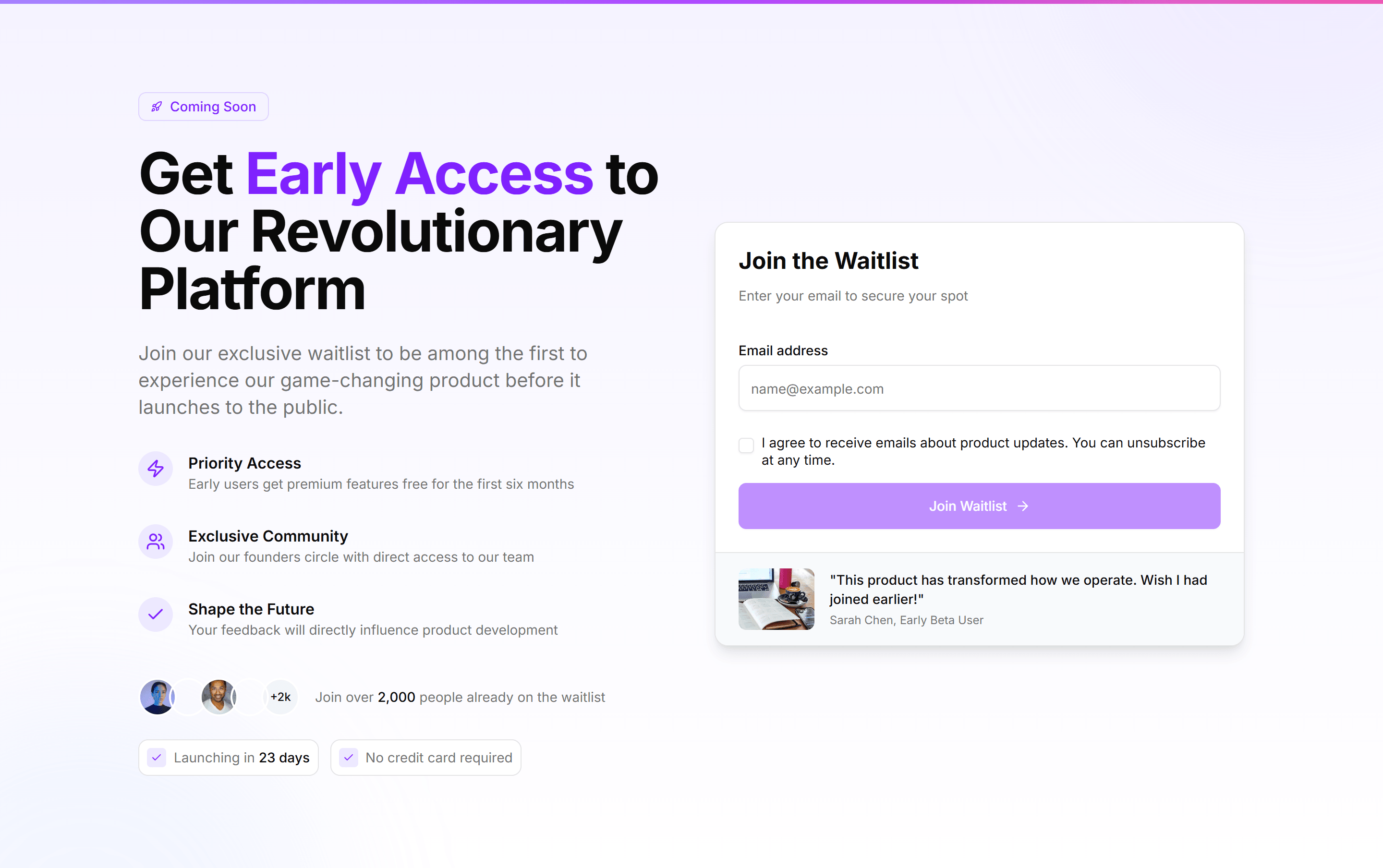
Marketing (Legacy) Hero Form: Early Access Form
A hero with an early access form and a single email field beside the pitch. Builds a waitlist for an upcoming product before the public launch.
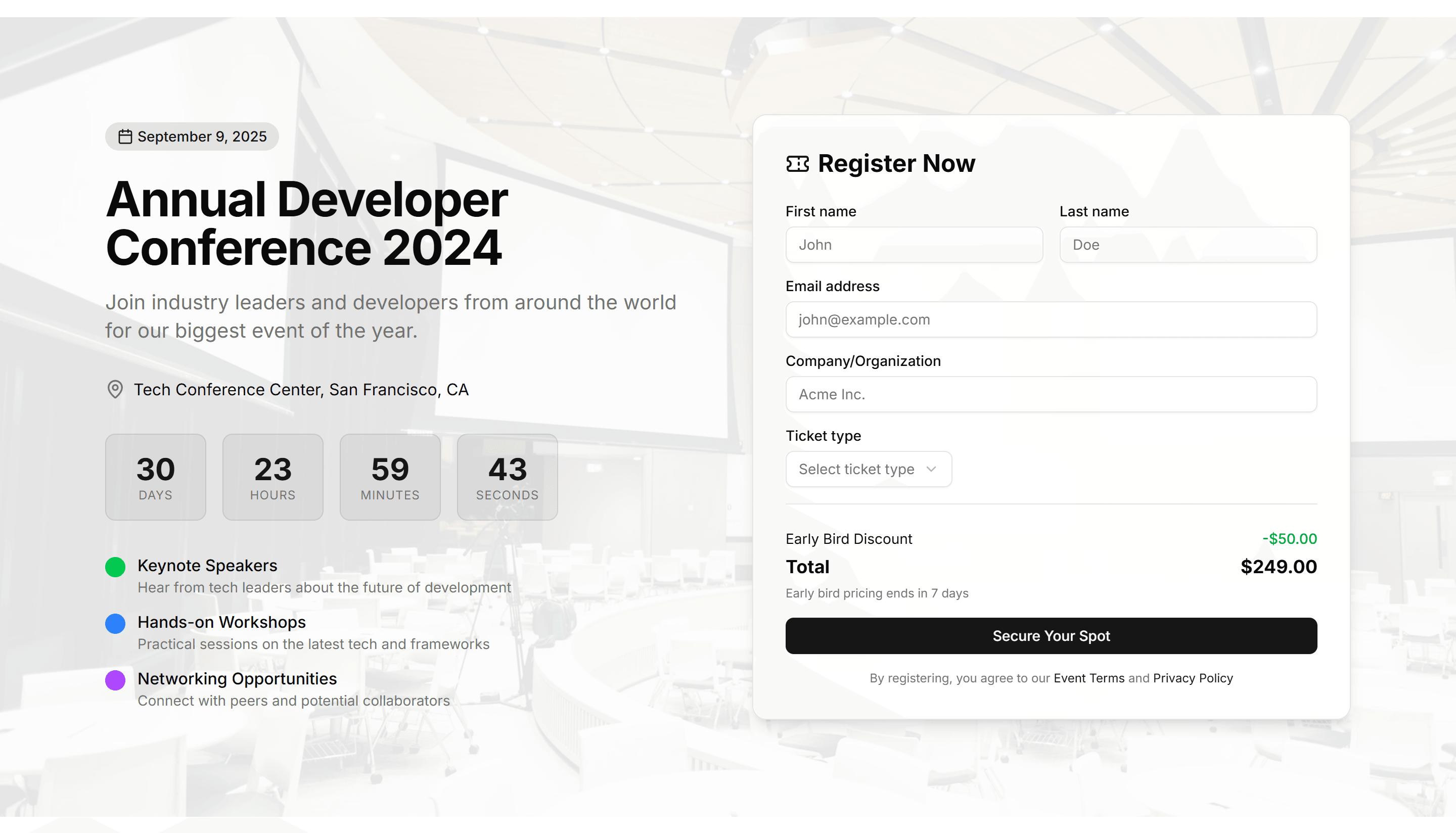
Marketing (Legacy) Hero Form: Event Registration Countdown
A hero combining a registration form with a live countdown timer. Pushes visitors to claim a spot before an event or sale window closes.
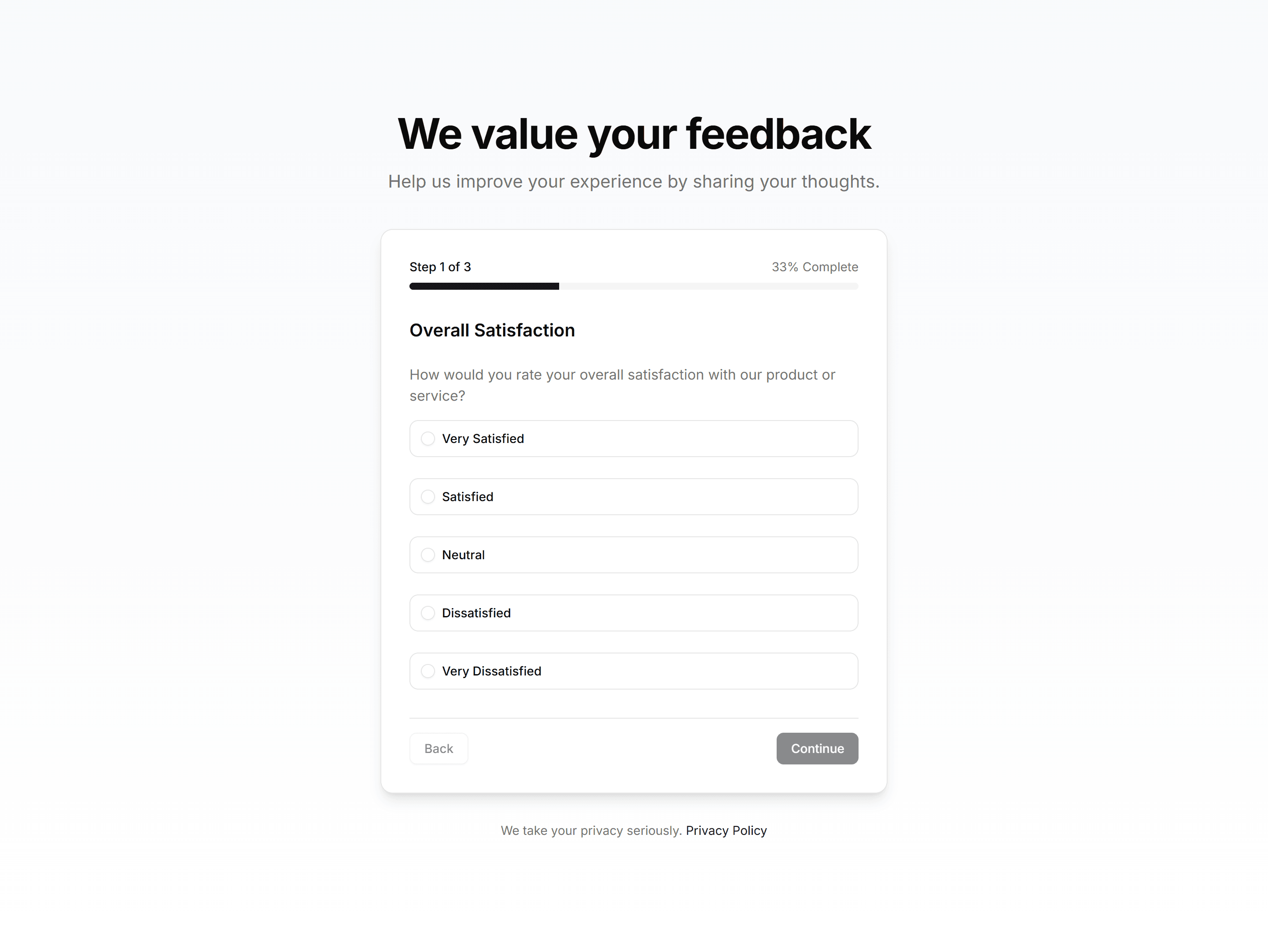
Marketing (Legacy) Hero Form: Feedback Survey Form
A hero with a feedback survey form using ratings and short answers. Gathers visitor opinions on a product or service in a single focused view.
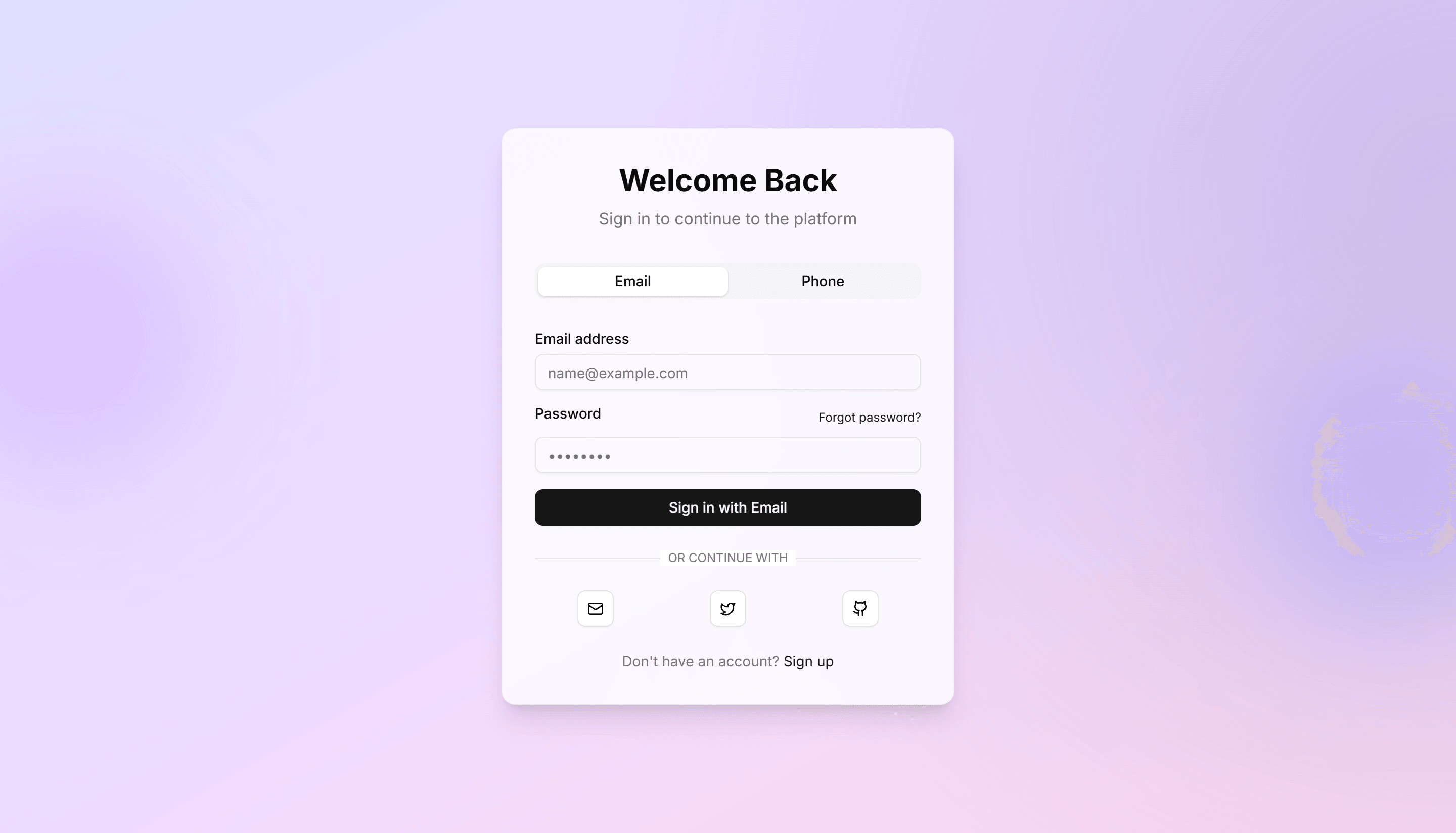
Marketing (Legacy) Hero Form: Floating Card With Gradient
A hero with a floating form card resting over a soft gradient backdrop. Highlights a signup field and pulls the eye to one clear action.
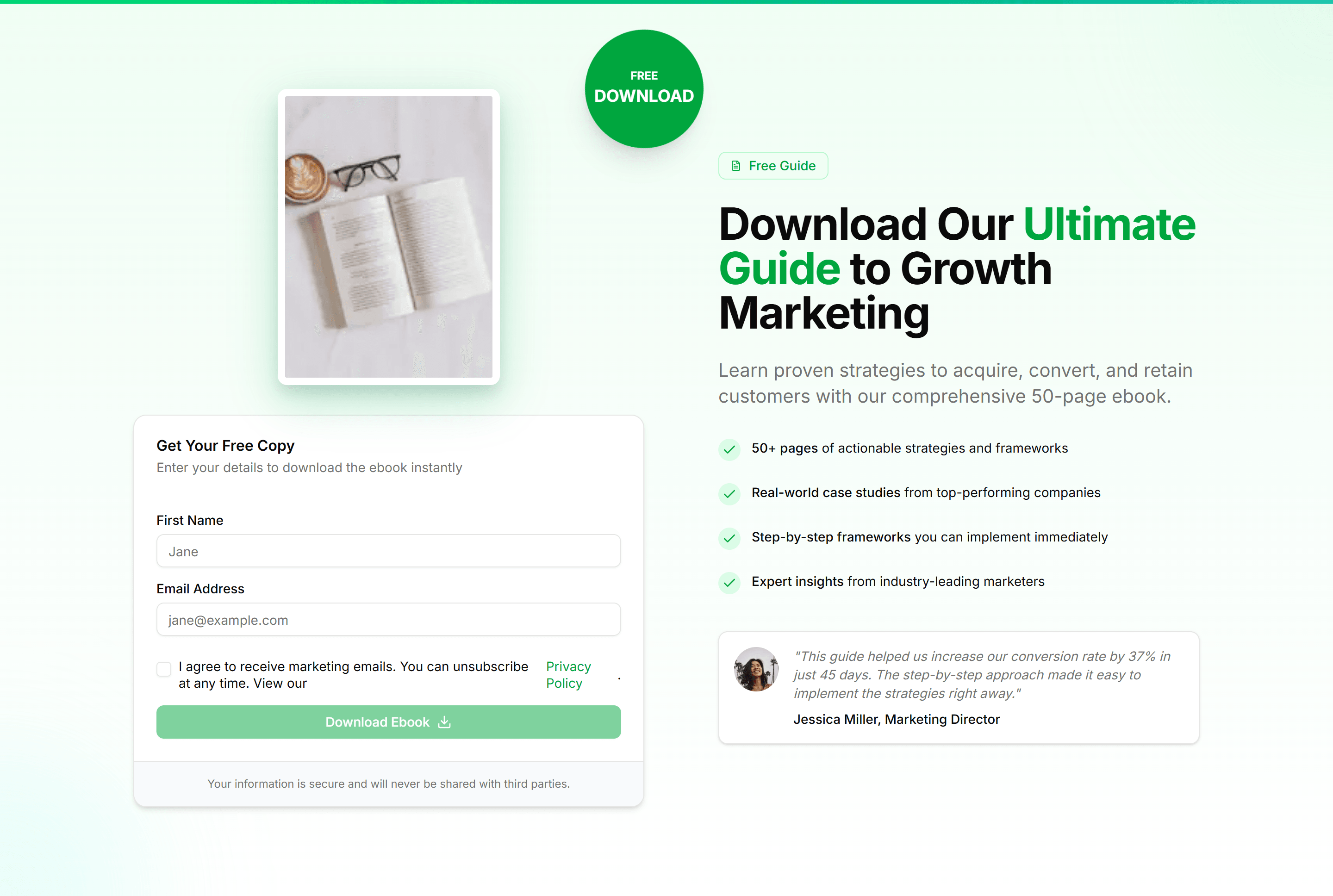
Marketing (Legacy) Hero Form: Free Ebook Form
A hero with a free ebook form that trades an email for a download. Grows a mailing list while offering a guide or report as the incentive.
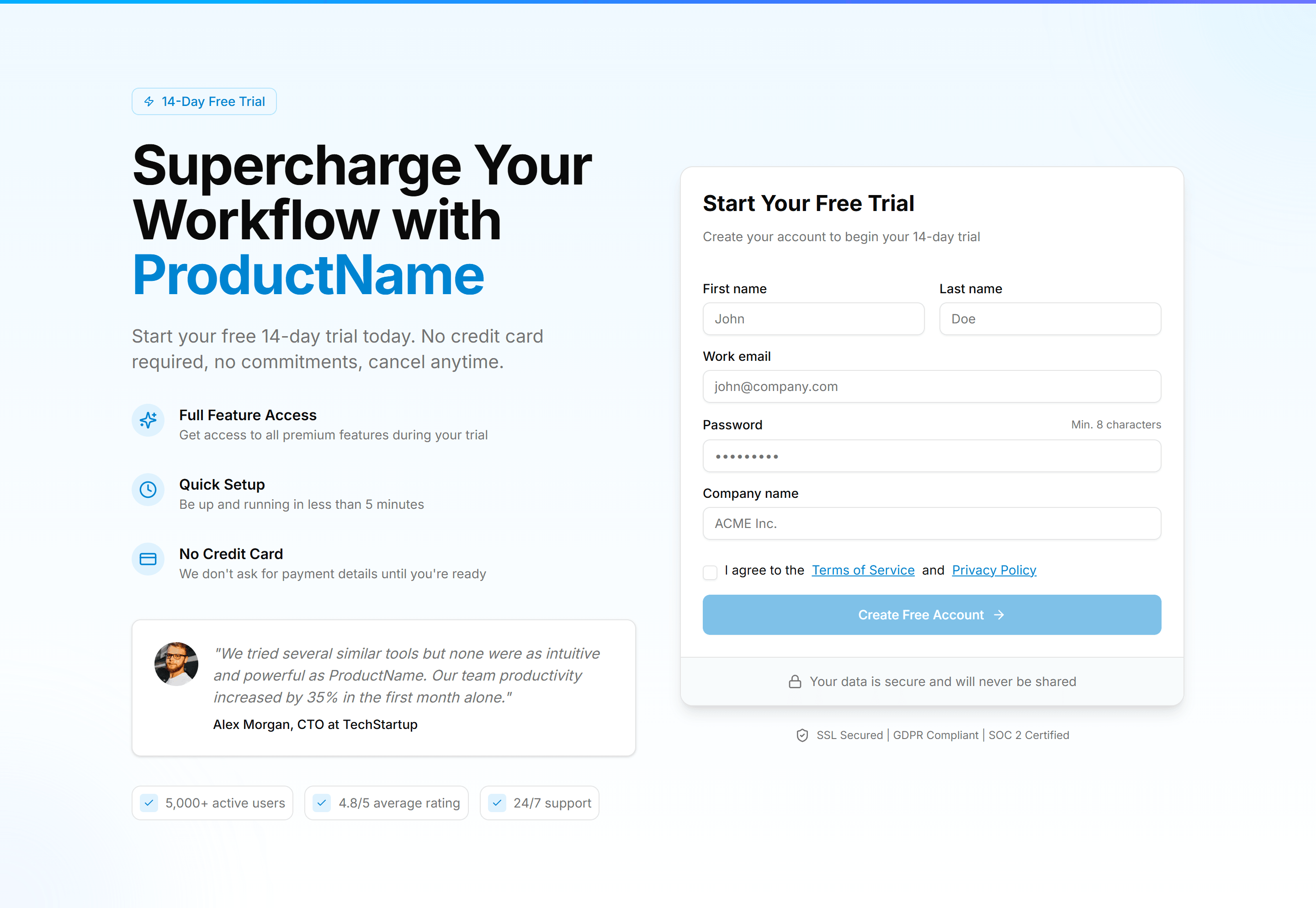
Marketing (Legacy) Hero Form: Free Trial Signup Form
A hero with a free trial signup form for email and password fields. Starts new accounts the moment a visitor decides to try the product.
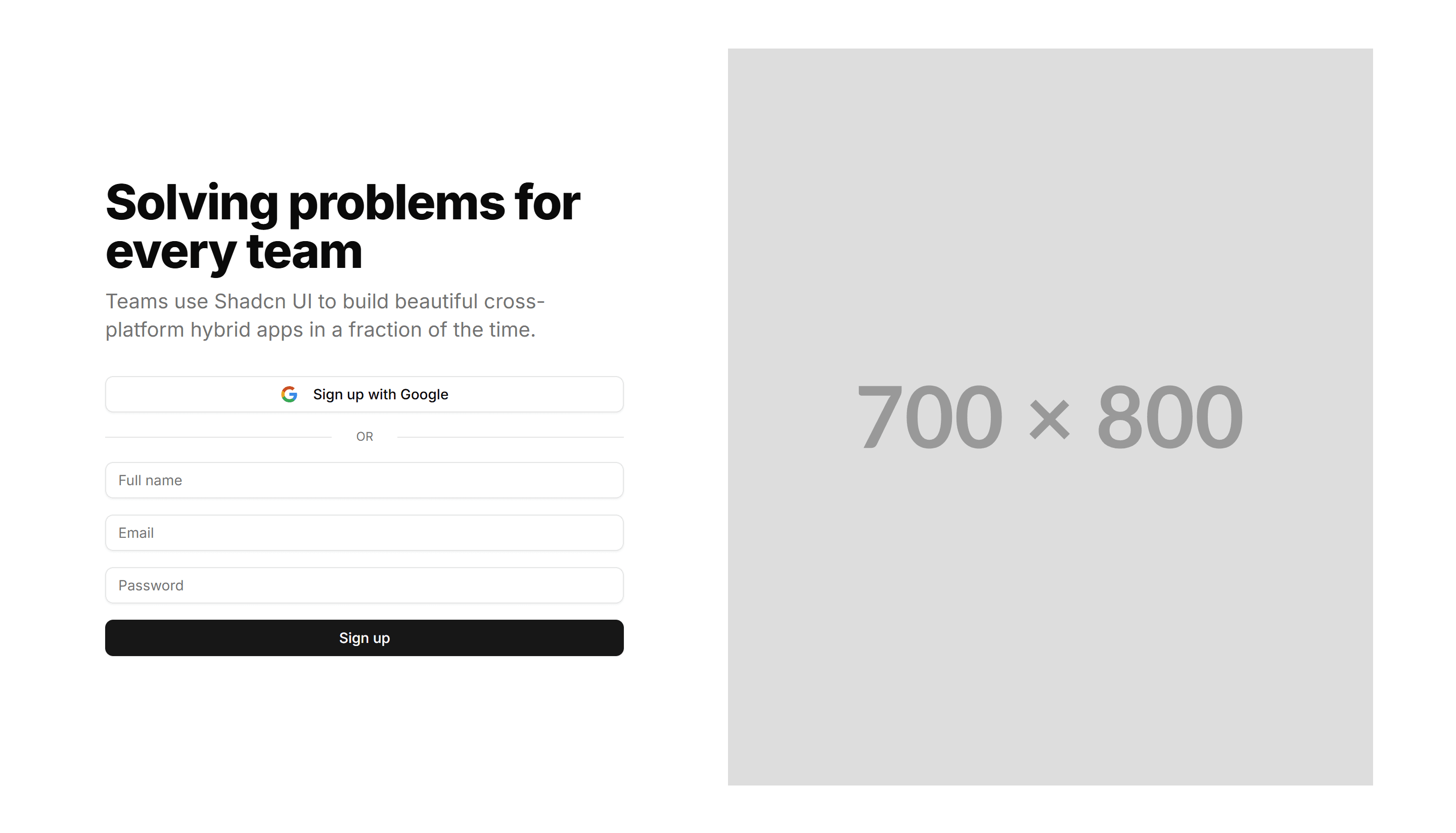
Marketing (Legacy) Hero Form: Image And Form
A split hero with a product image on one side and a signup form on the other. Balances visual proof with a clear path to start using the product.
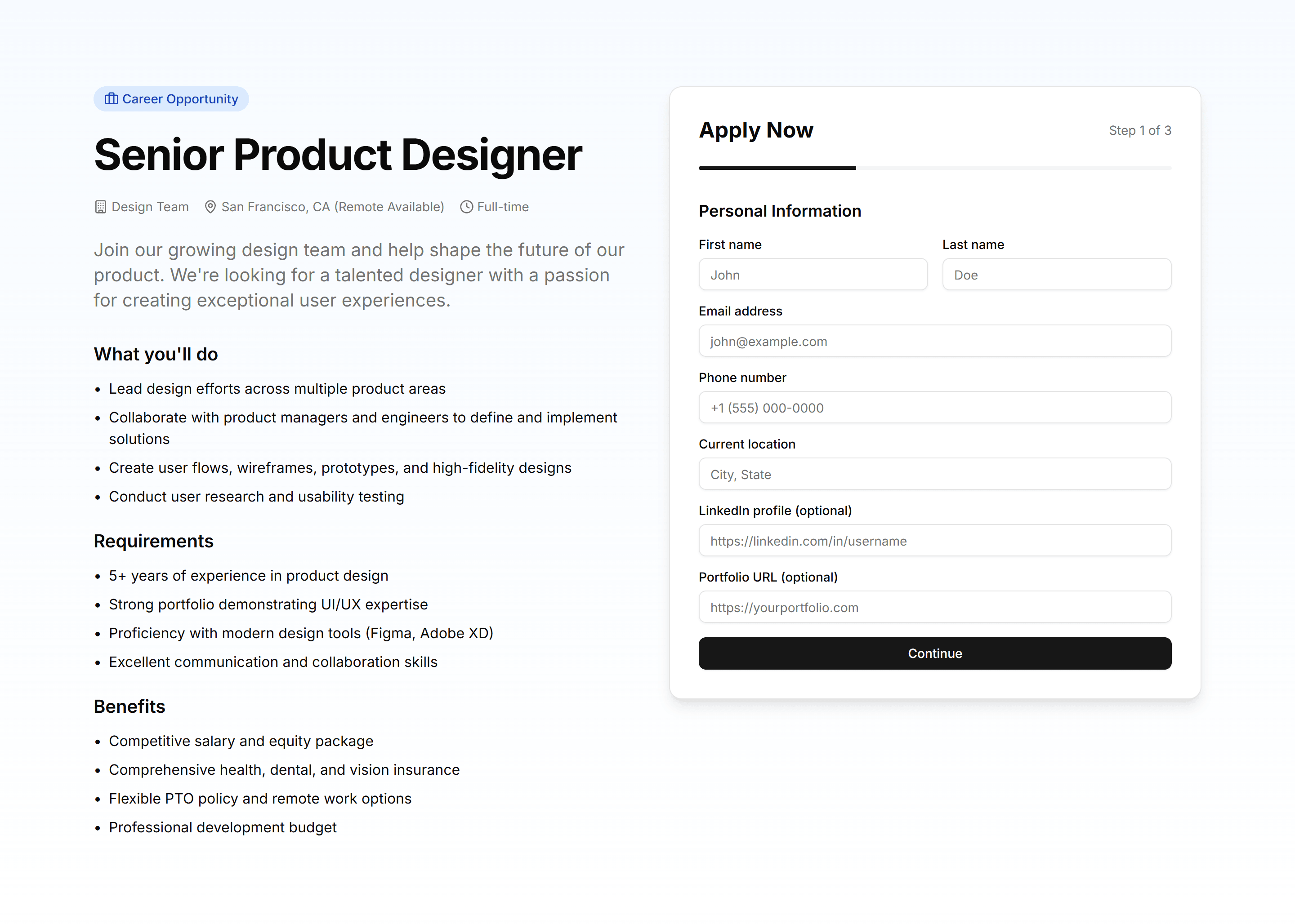
Marketing (Legacy) Hero Form: Job Application Form
A hero with a job application form for contact details and a resume upload. Lets candidates apply right from the top of a careers page.
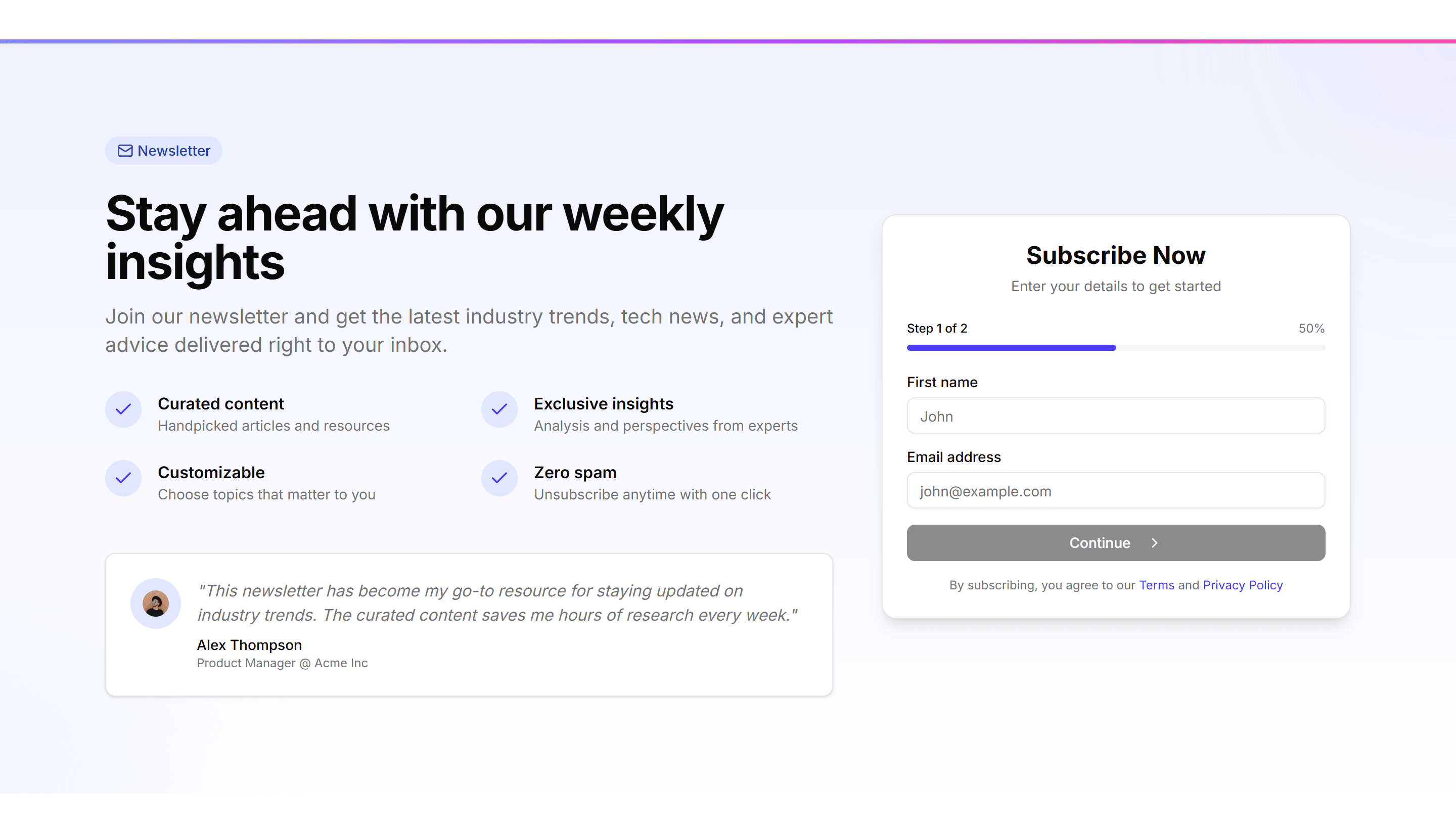
Marketing (Legacy) Hero Form: Newsletter Subscription
A hero with a newsletter subscription field and a short value pitch. Turns first time visitors into subscribers with one quick email entry.
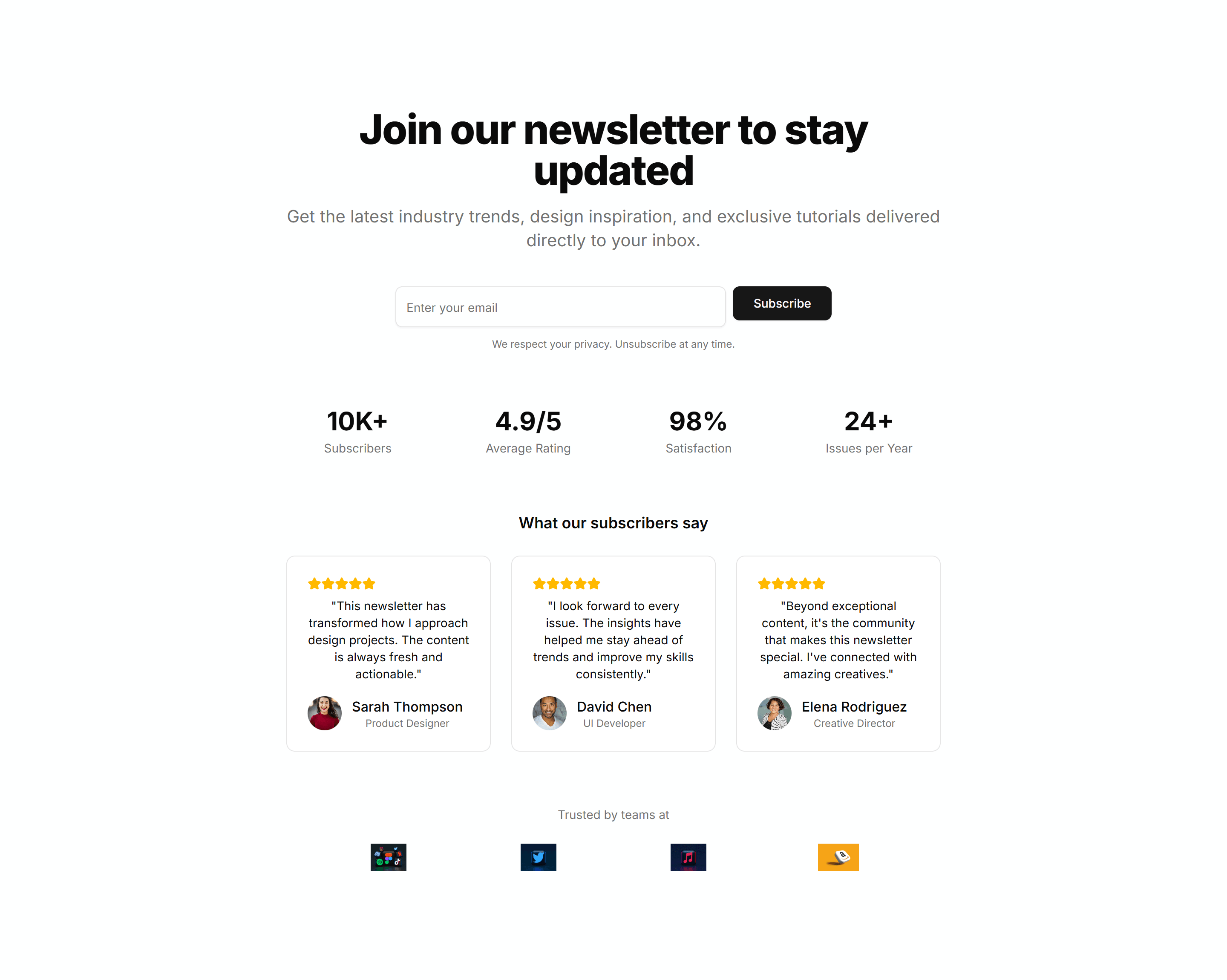
Marketing (Legacy) Hero Form: Newsletter With Social Proof
A hero pairing a newsletter form with subscriber counts and logos. Uses social proof to convince visitors the list is worth joining today.
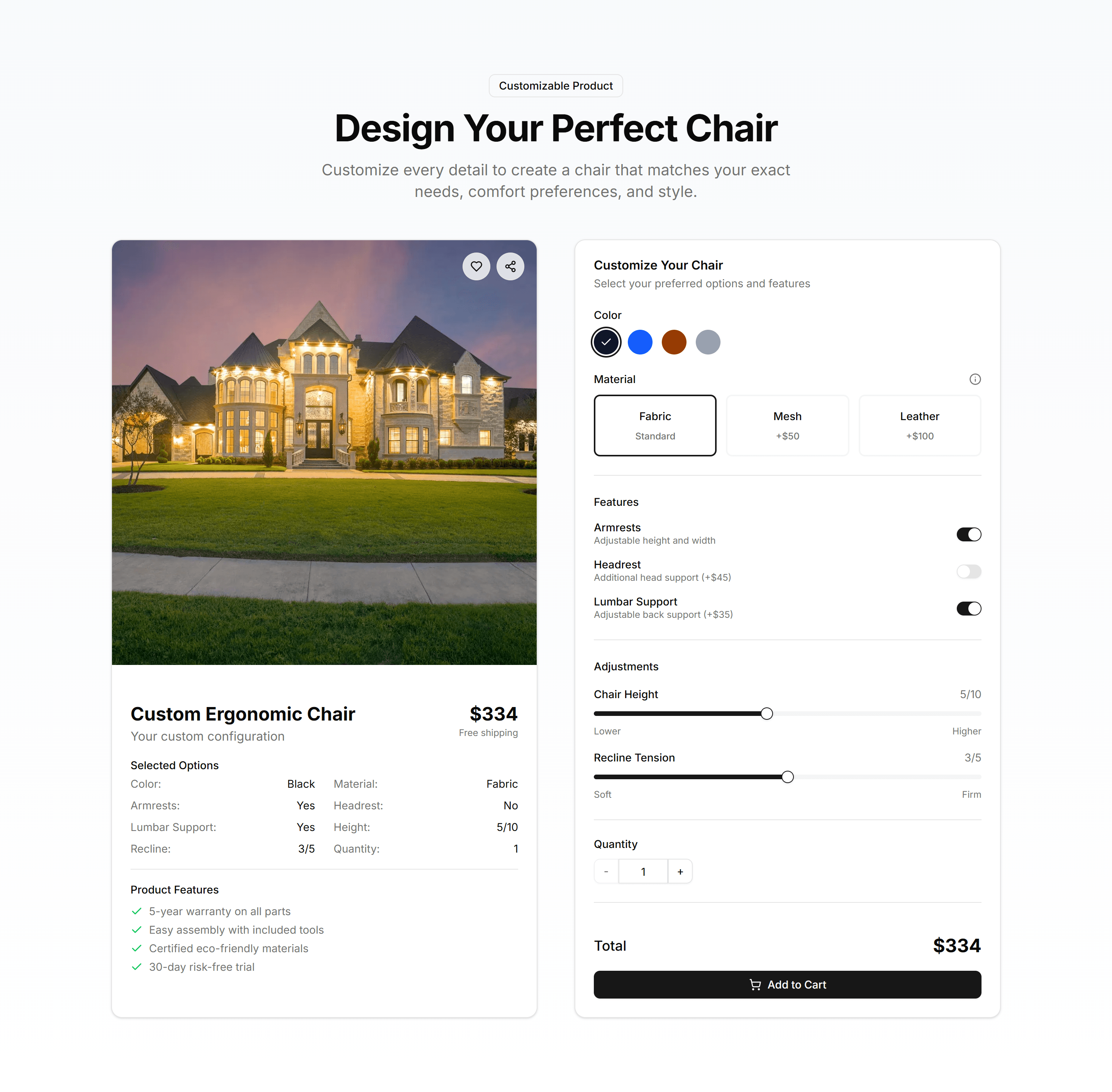
Marketing (Legacy) Hero Form: Product Customizer Form
A hero with a product customizer form for options like size and color. Lets shoppers configure their choice and preview it before checkout.
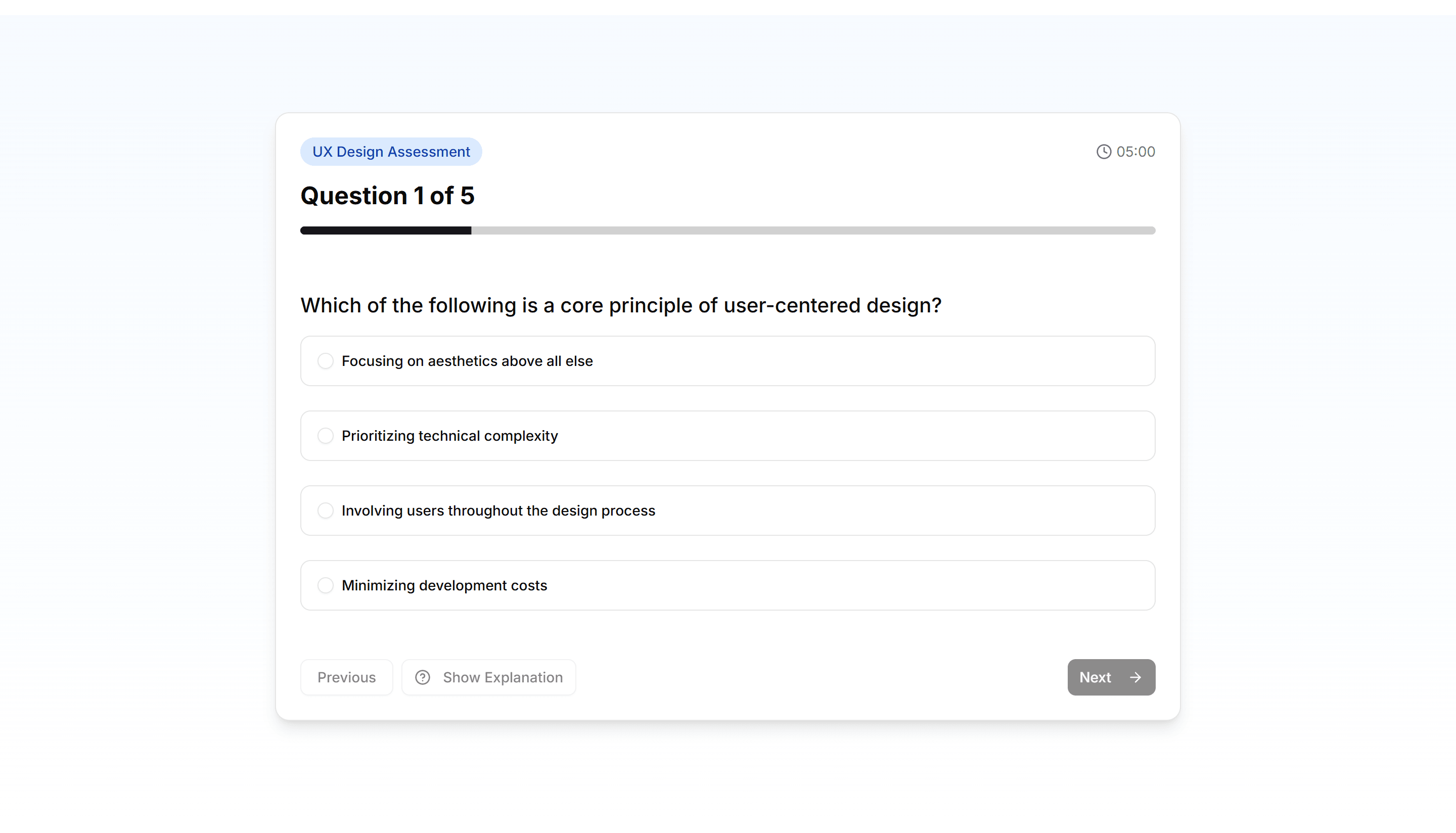
Marketing (Legacy) Hero Form: Quiz Assessment Form
A hero with a quiz or assessment form that walks through scored questions. Engages visitors and routes them toward a tailored recommendation.
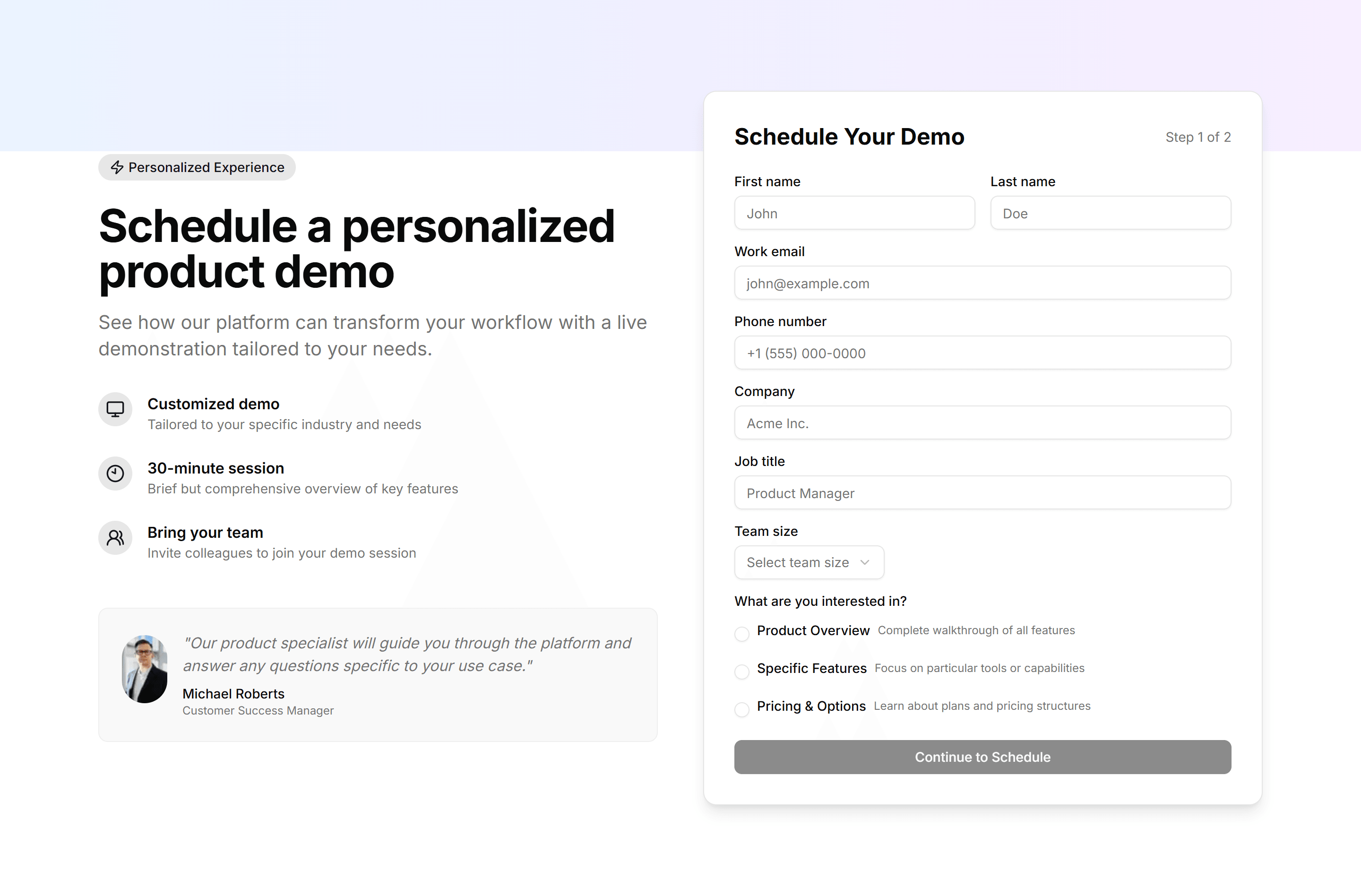
Marketing (Legacy) Hero Form: Schedule Demo Form
A hero with a schedule demo form for name, company, and a time slot. Books sales calls with prospects right where they first arrive.
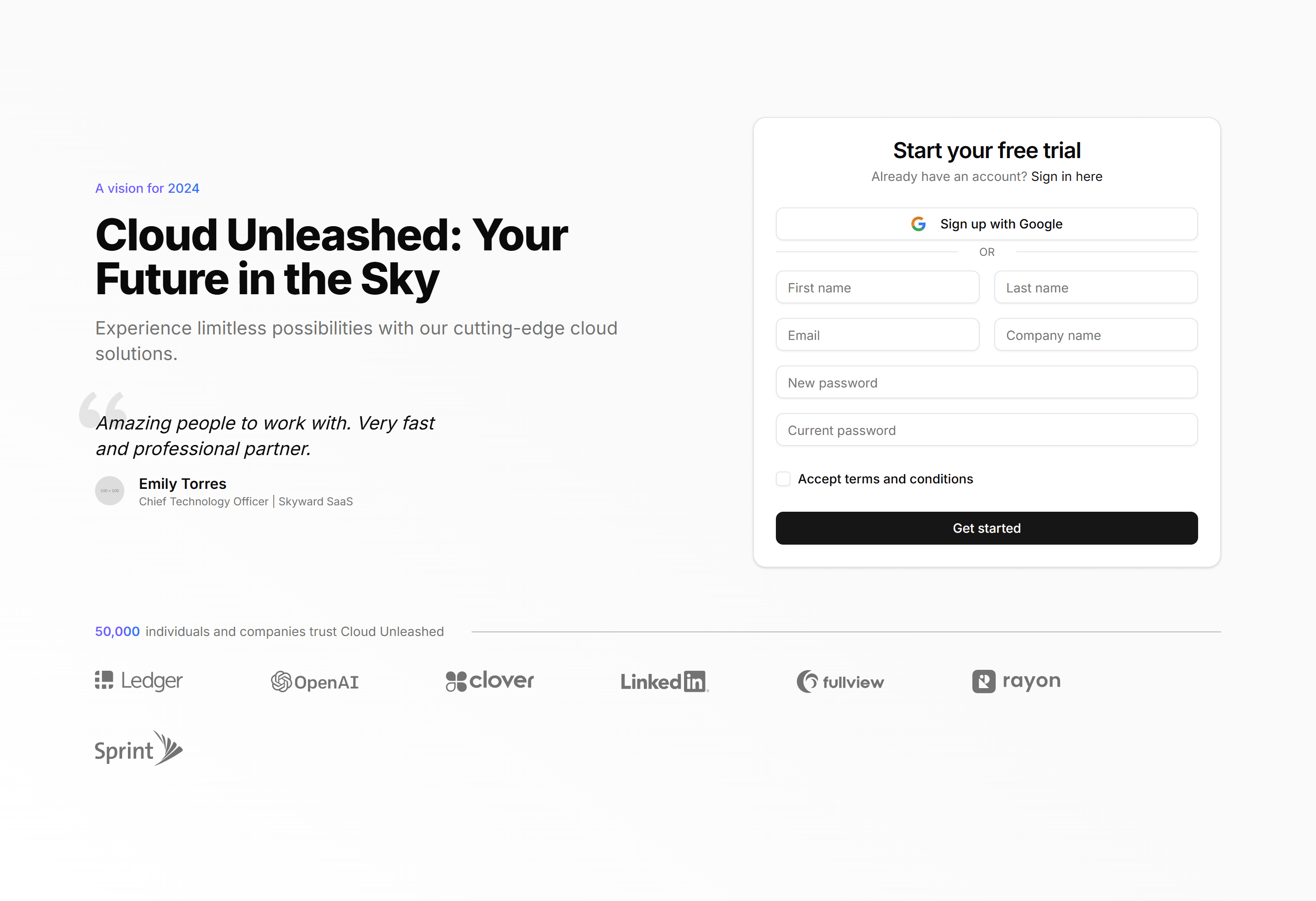
Marketing (Legacy) Hero Form: Sign Up Form
A hero with a sign up form for email and password beside the headline. Opens new accounts fast so visitors can start using the product now.
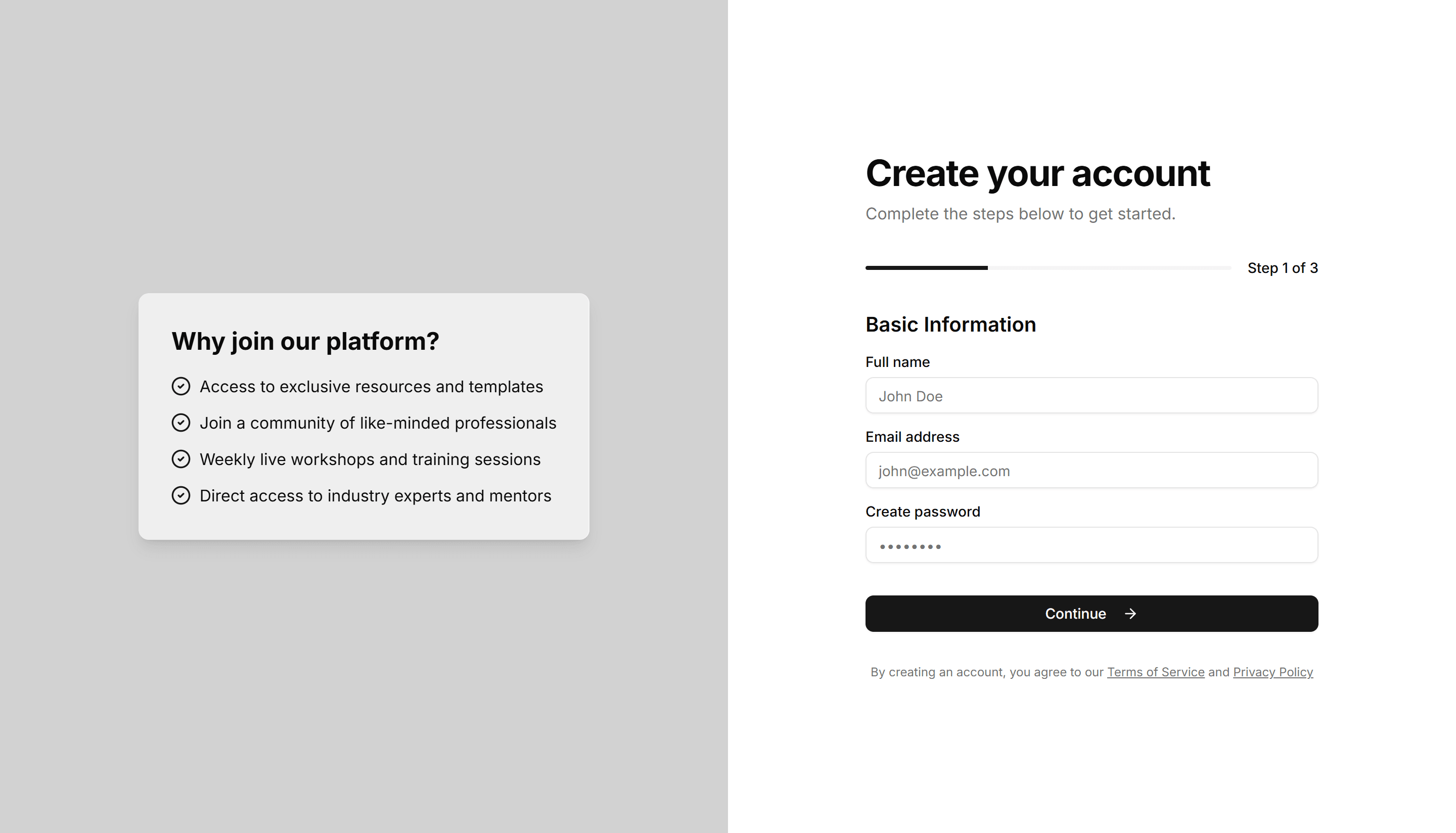
Marketing (Legacy) Hero Form: Split Screen Multi Step
A split screen hero with a multi step form and a progress indicator. Guides visitors through a longer signup without overwhelming them at once.
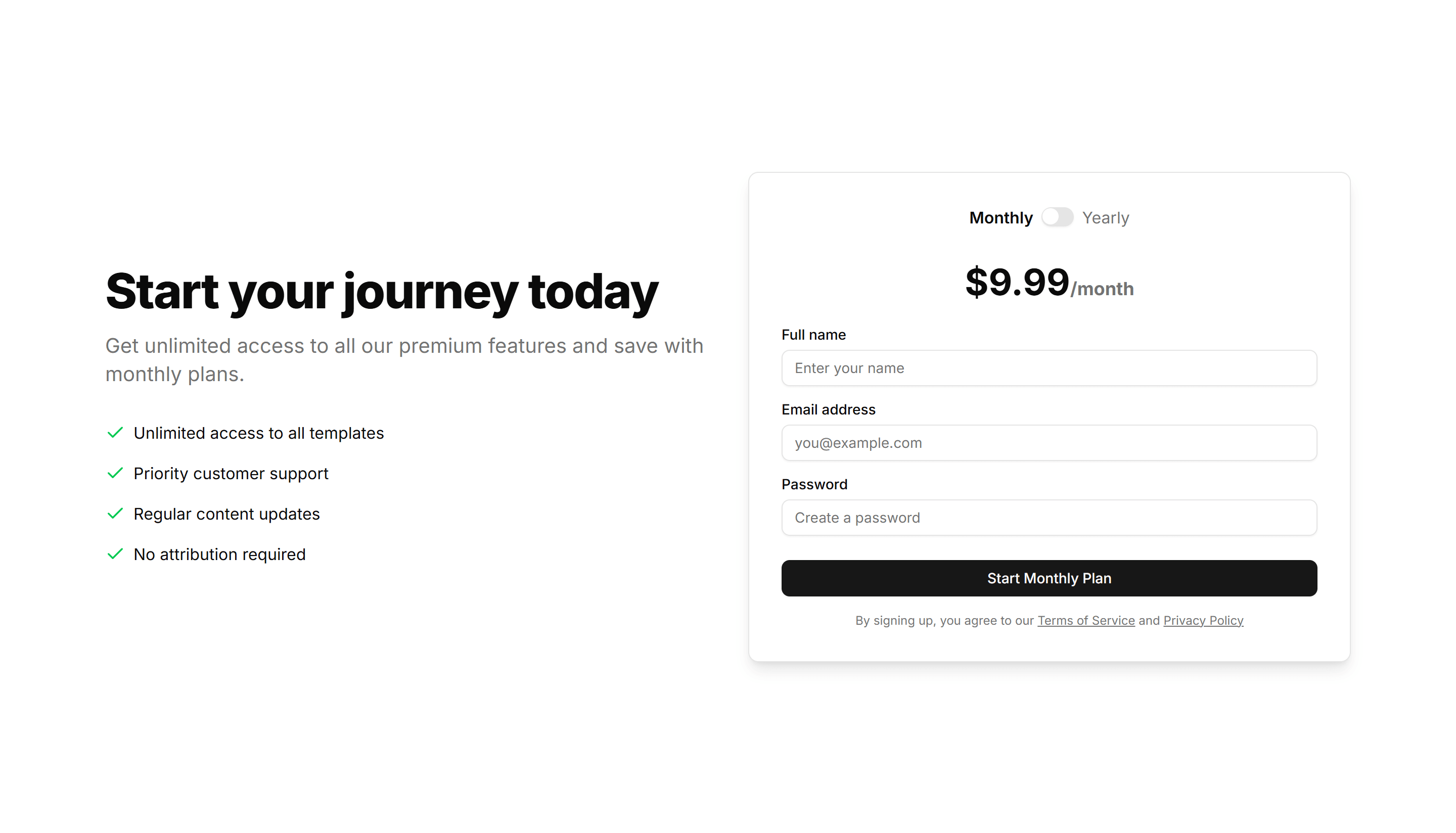
Marketing (Legacy) Hero Form: Subscription Form With Toggle
A hero with a subscription form and a monthly to yearly billing toggle. Lets visitors pick a plan and price before they start a paid signup.
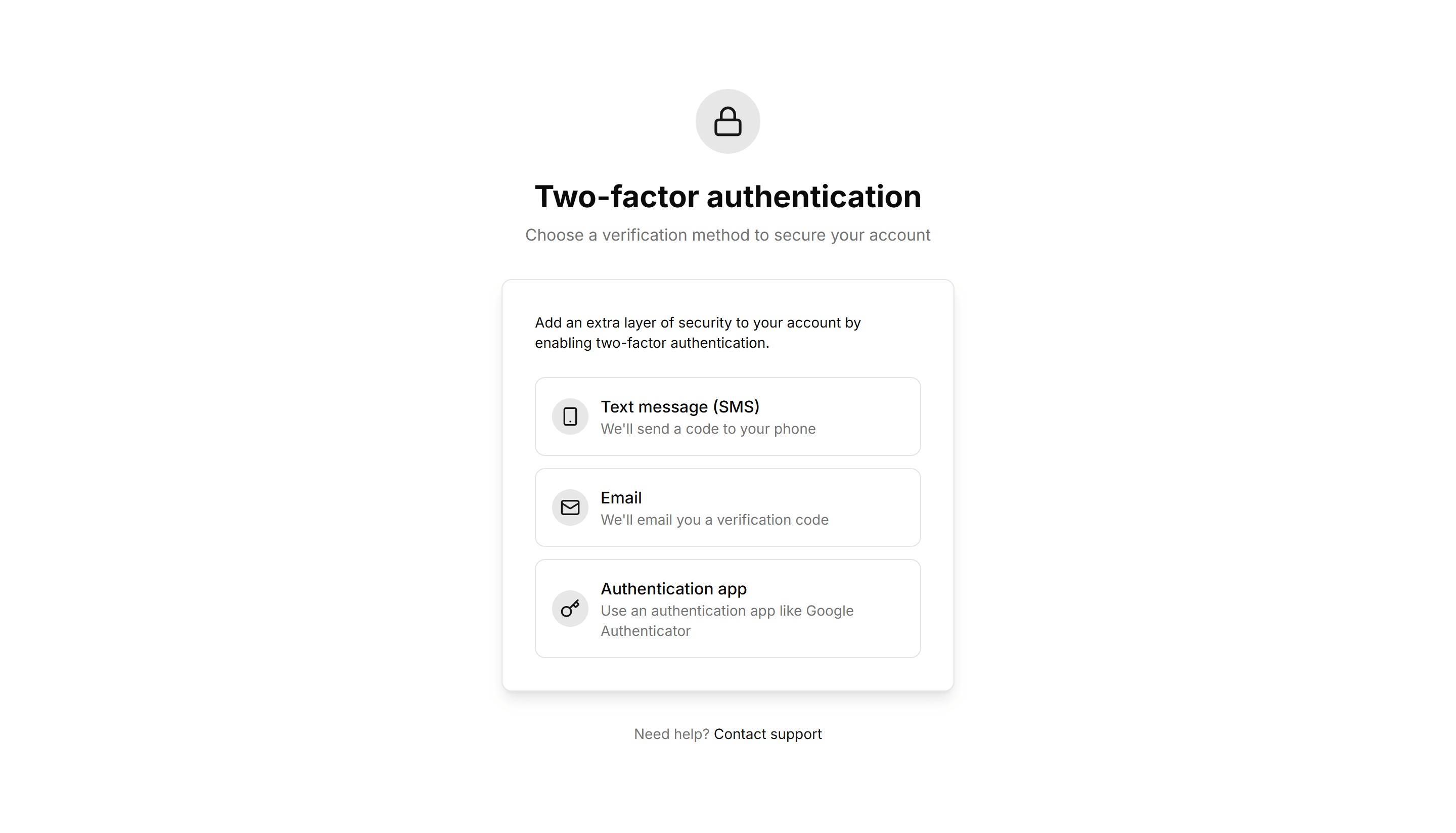
Marketing (Legacy) Hero Form: Two Factor Verification
A hero with a two factor verification form for a one time security code. Confirms identity during signin to keep new accounts safe and secure.
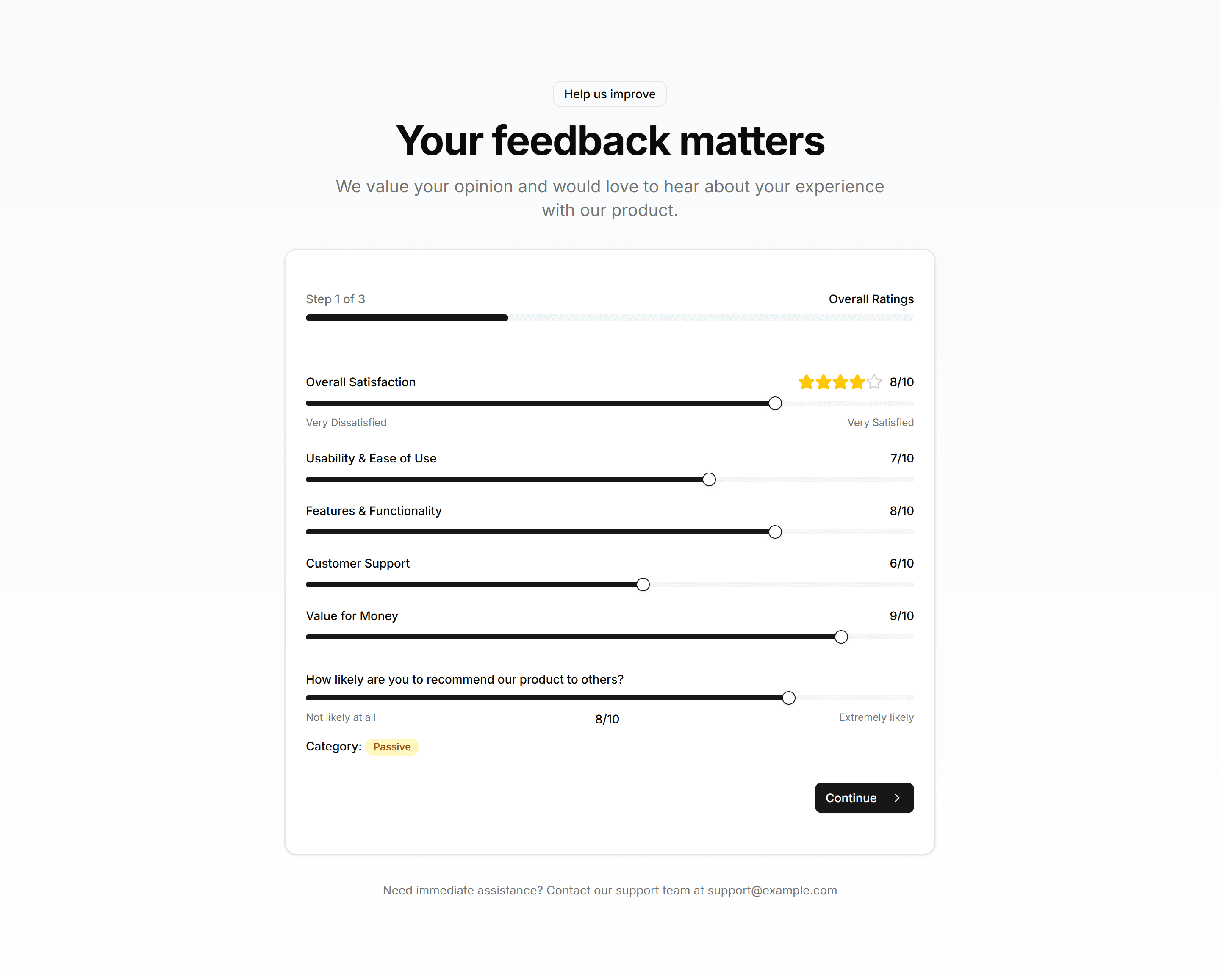
Marketing (Legacy) Hero Form: User Feedback Form
A hero with a user feedback form for comments, ratings, and contact info. Collects honest input from visitors to guide the next product update.
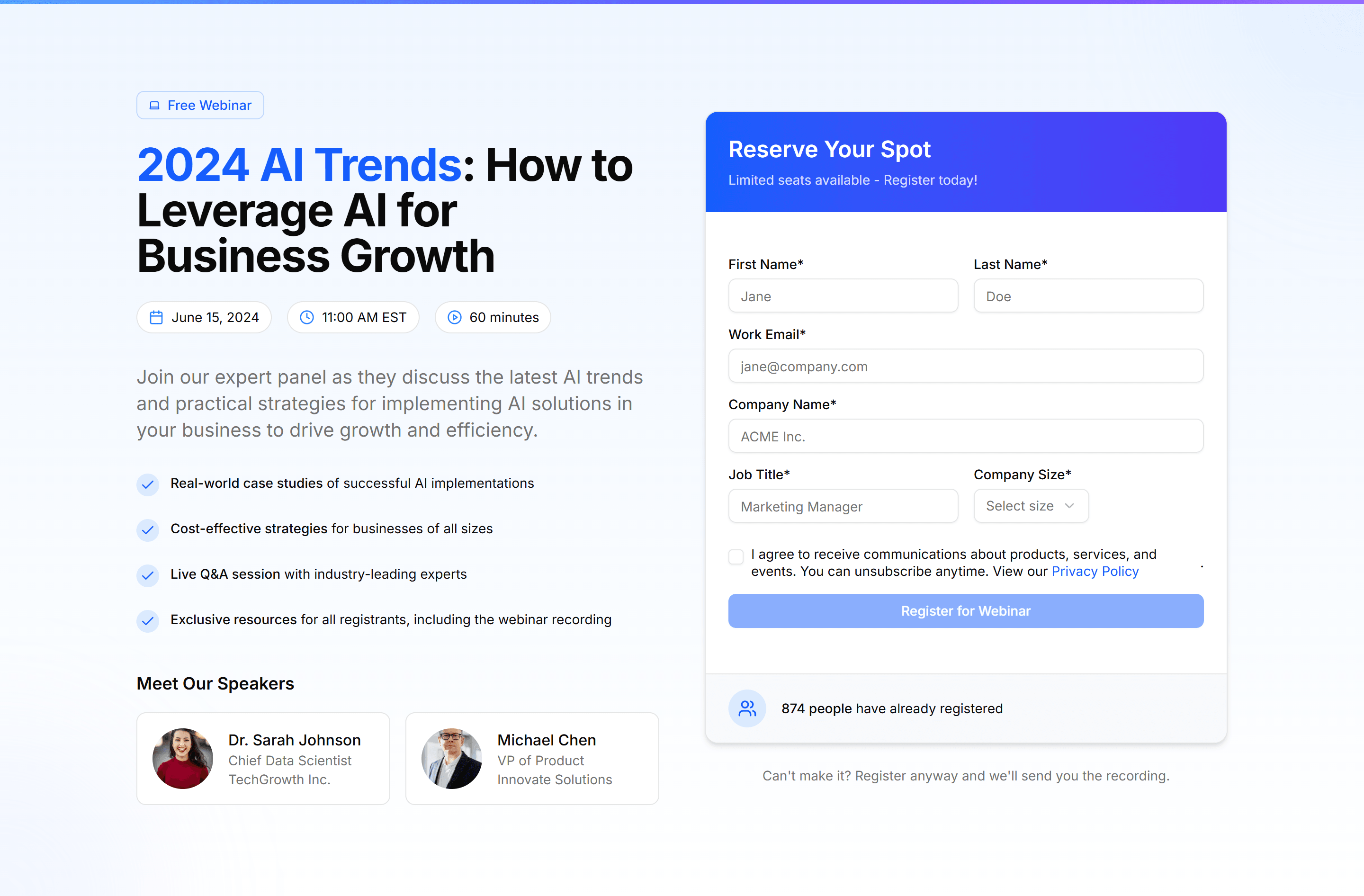
Marketing (Legacy) Hero Form: Webinar Registration Form
A hero with a webinar registration form for name, email, and session time. Fills seats for a live session straight from the landing page top.
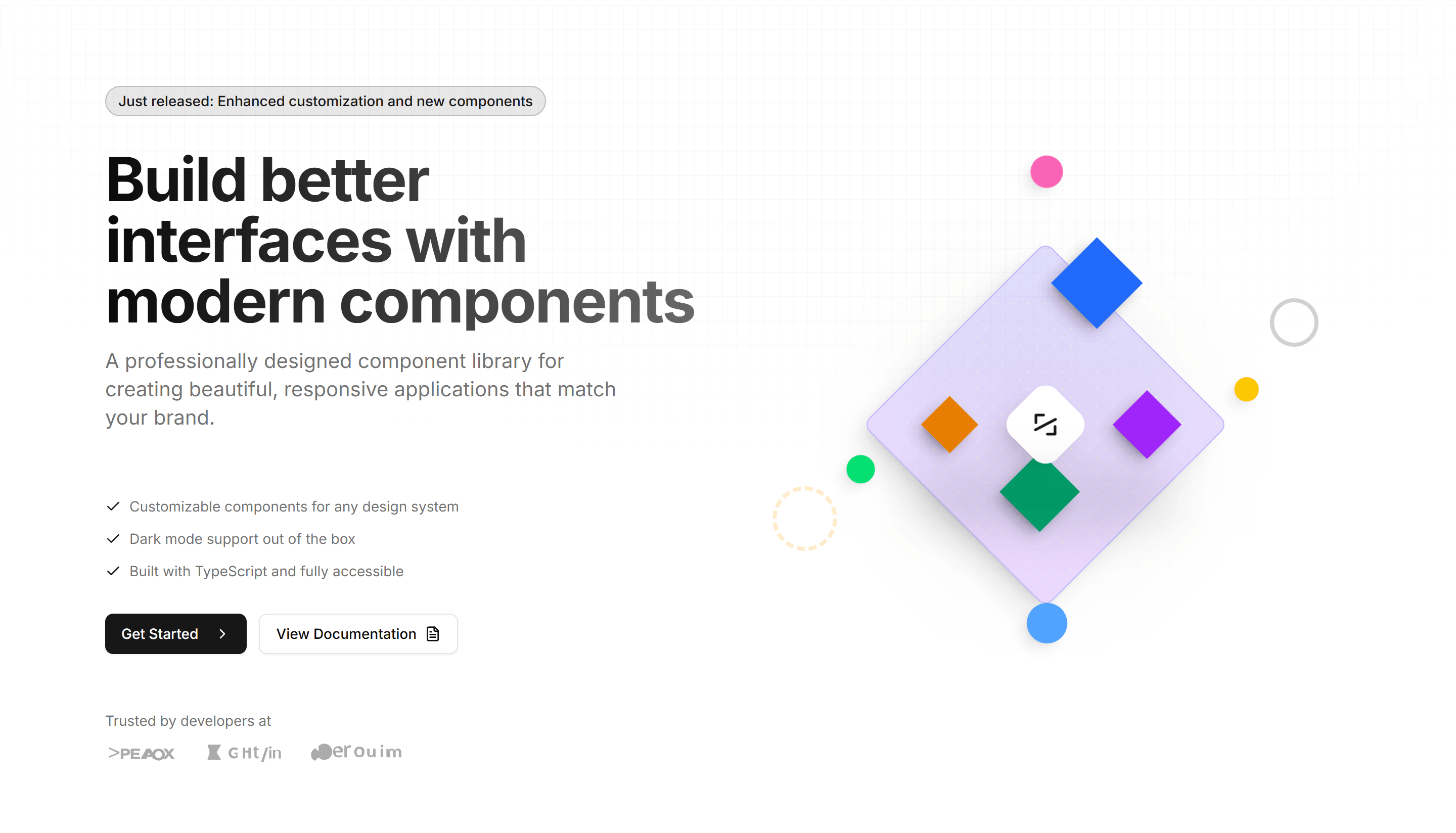
Marketing (Legacy) Hero Section: 3D Isometric Hero
A hero with a 3D isometric illustration beside a headline and call to action. Adds depth and a modern feel to the top of a product landing page.
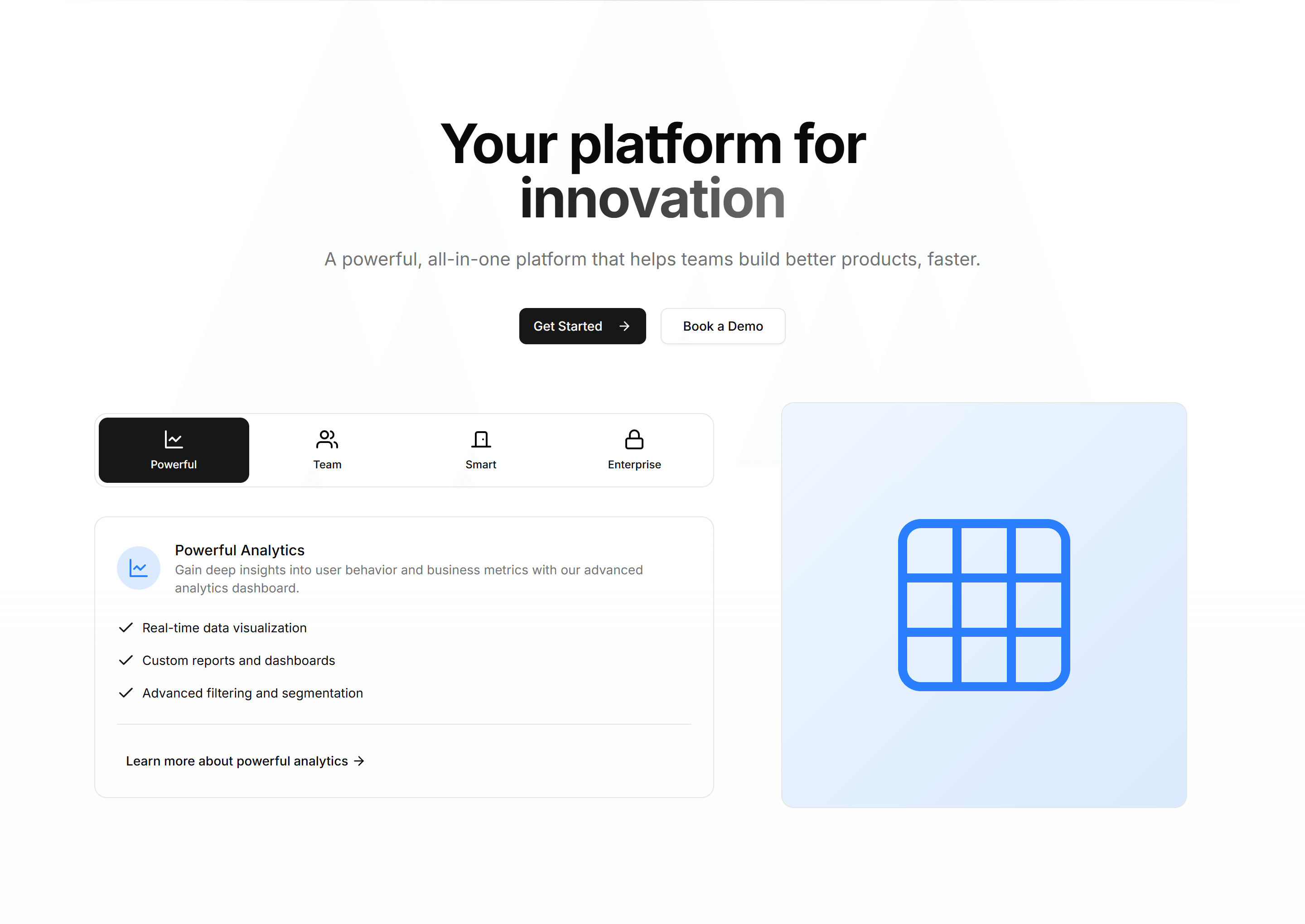
Marketing (Legacy) Hero Section: Animated Features Hero
A hero that cycles through key features with motion next to a headline and CTA. Use it to show what your product does the moment a visitor arrives.
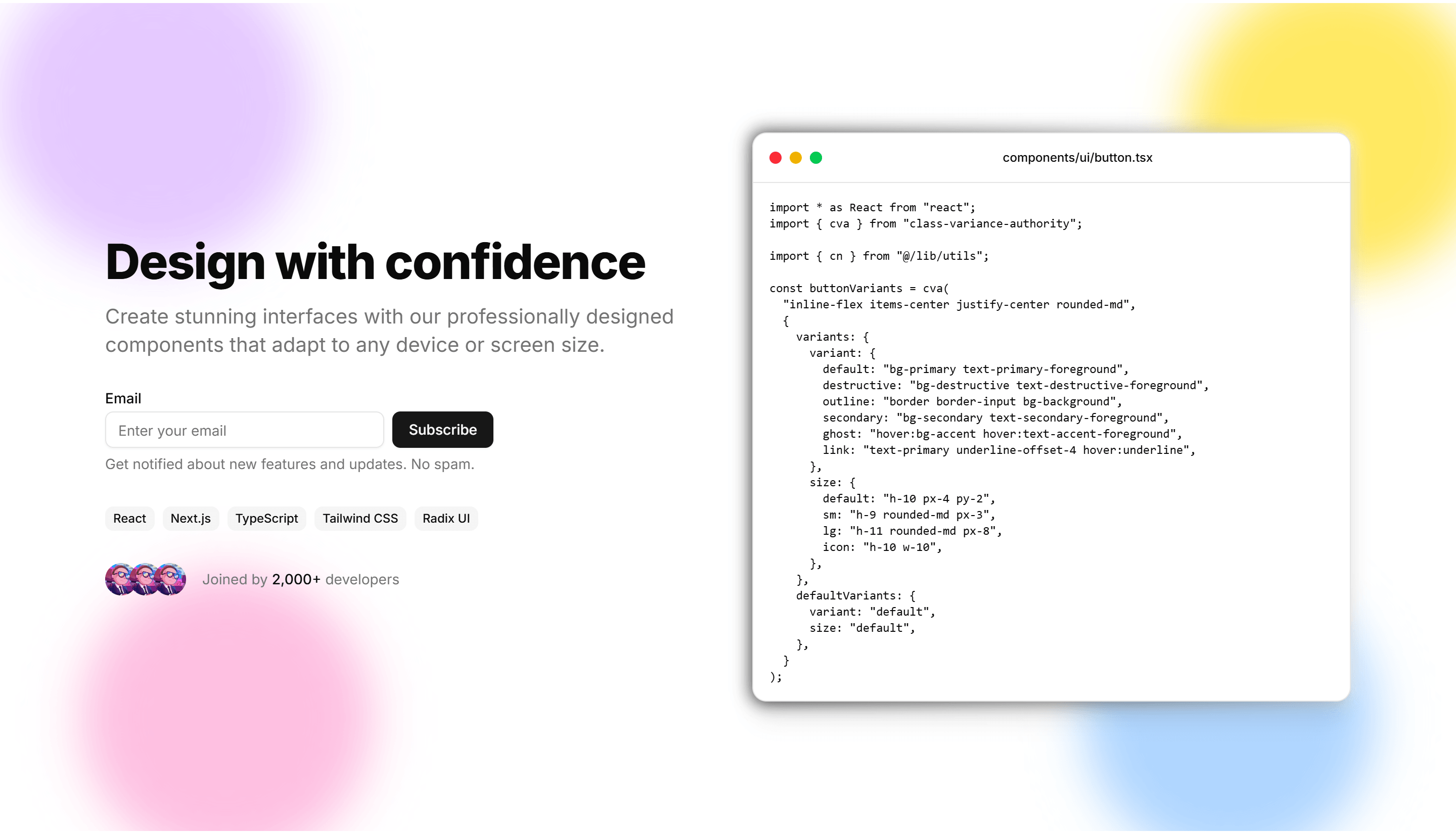
Marketing (Legacy) Hero Section: Animated Gradient
A hero set on a slowly shifting gradient backdrop with a centered headline and CTA. A colorful, lively opener for SaaS and creative product pages.
Marketing (Legacy) Hero Section: Animated Text Hero
A hero where the headline word swaps through phrases with smooth motion. Highlights several value points in one line at the top of a landing page.
Marketing (Legacy) Hero Section: Centred With Image
A centered hero with a headline, subtext, and CTA above a wide product image. A balanced, classic opener for marketing and SaaS landing pages.

Marketing (Legacy) Hero Section: Chat Preview Hero
A hero pairing a headline and CTA with a live chat conversation preview. Ideal for messaging, support, or AI assistant products you want to demo.
Marketing (Legacy) Hero Section: Countdown Hero
A hero with a ticking countdown timer beside a headline and CTA. Builds urgency for launches, sales, webinars, and limited time offer landing pages.
Marketing (Legacy) Hero Section: Gradient Background
A hero on a rich gradient background with a centered headline, subtext, and CTA. A bold, color led opener for product and campaign landing pages.
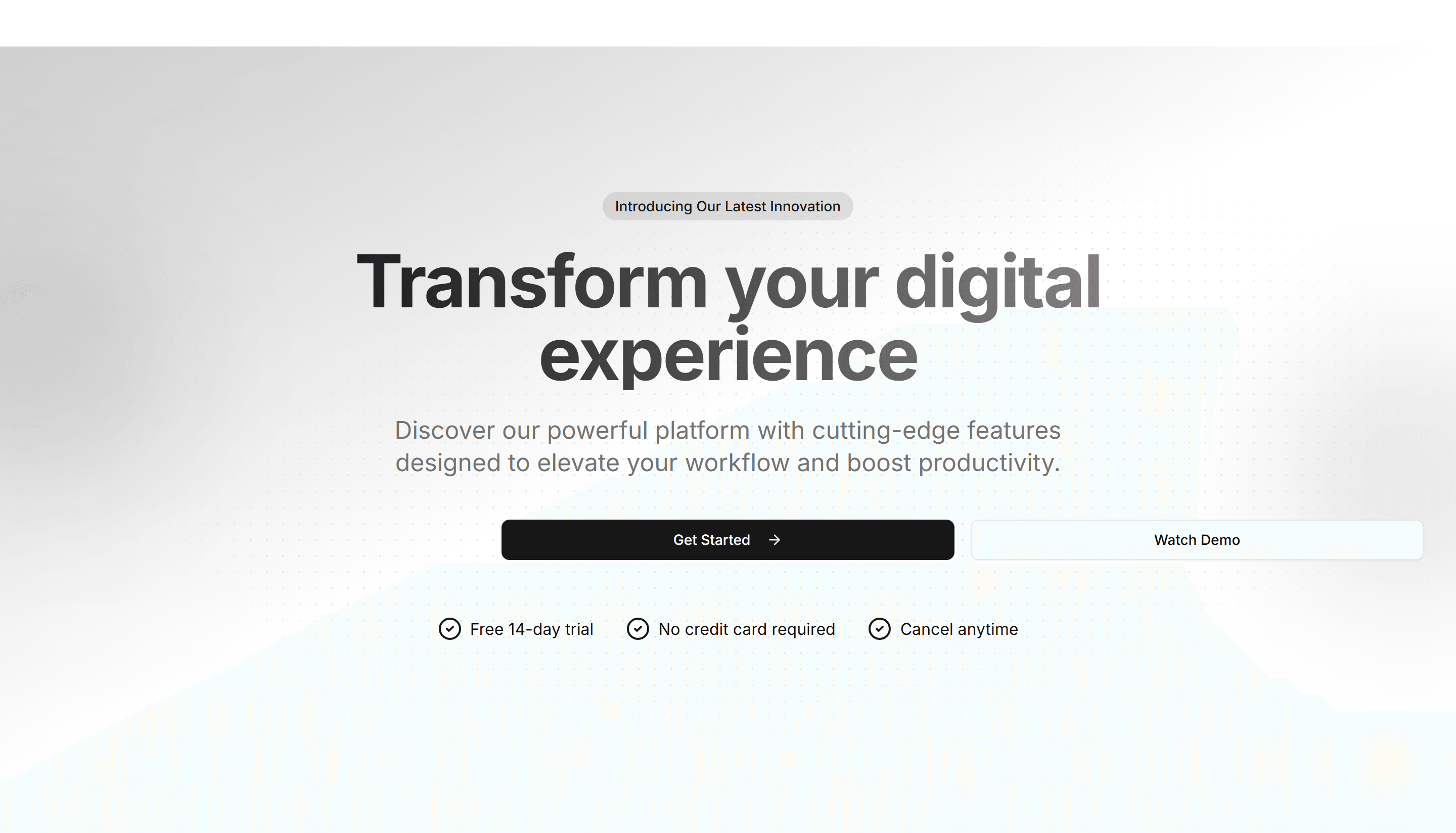
Marketing (Legacy) Hero Section: Gradient Mesh Hero
A hero with a soft mesh gradient behind a centered headline and CTA. Gives a calm, premium backdrop to SaaS, design, and startup landing pages.

Marketing (Legacy) Hero Section: Image Carousel Hero
A hero with a rotating image carousel next to a headline and CTA. Shows several product shots or screens at the top of a landing page in turn.
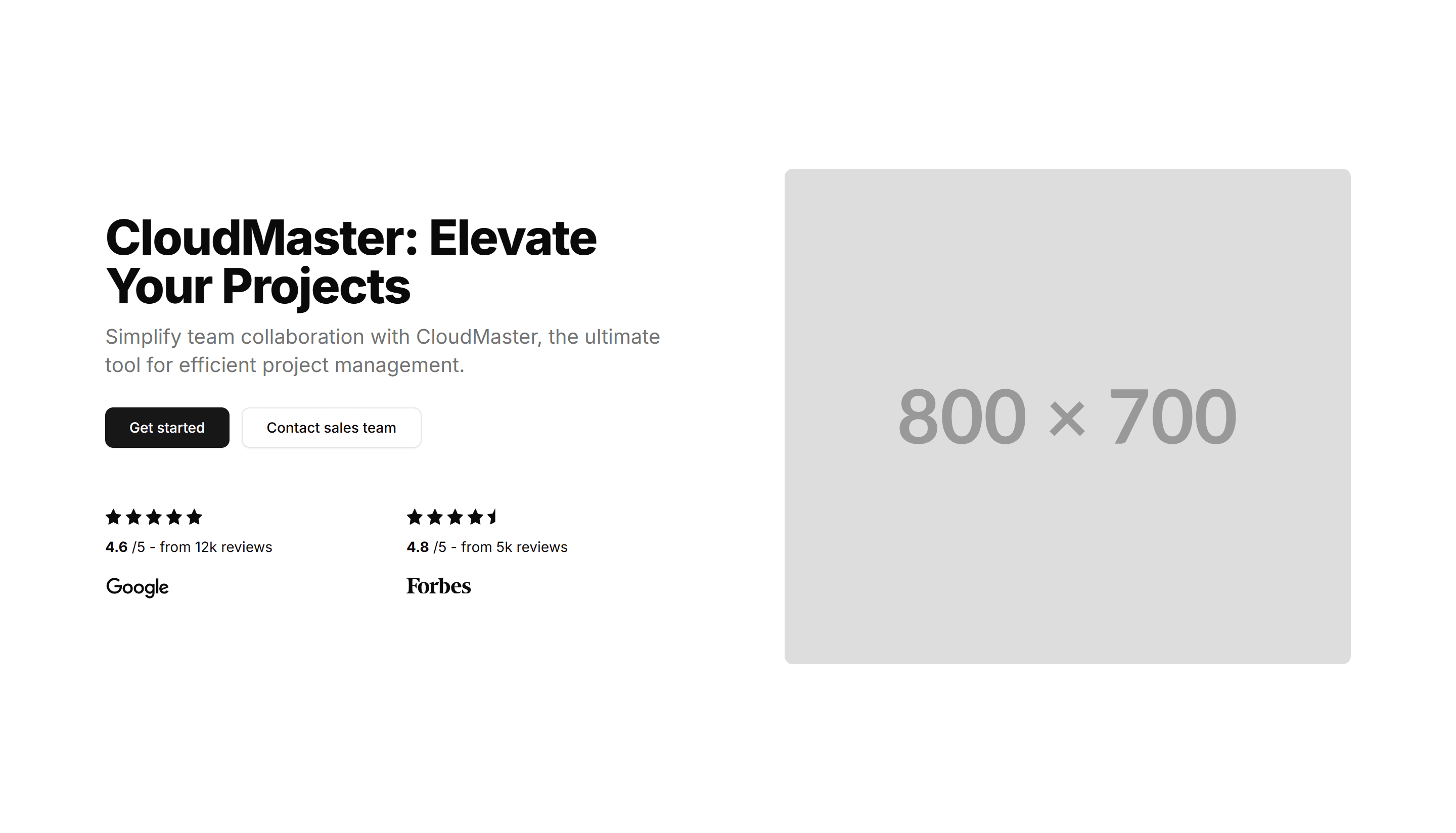
Marketing (Legacy) Hero Section: Image With Reviews
A hero placing a product image alongside short customer reviews and a CTA. Pairs your pitch with proof to win trust on a landing page right away.
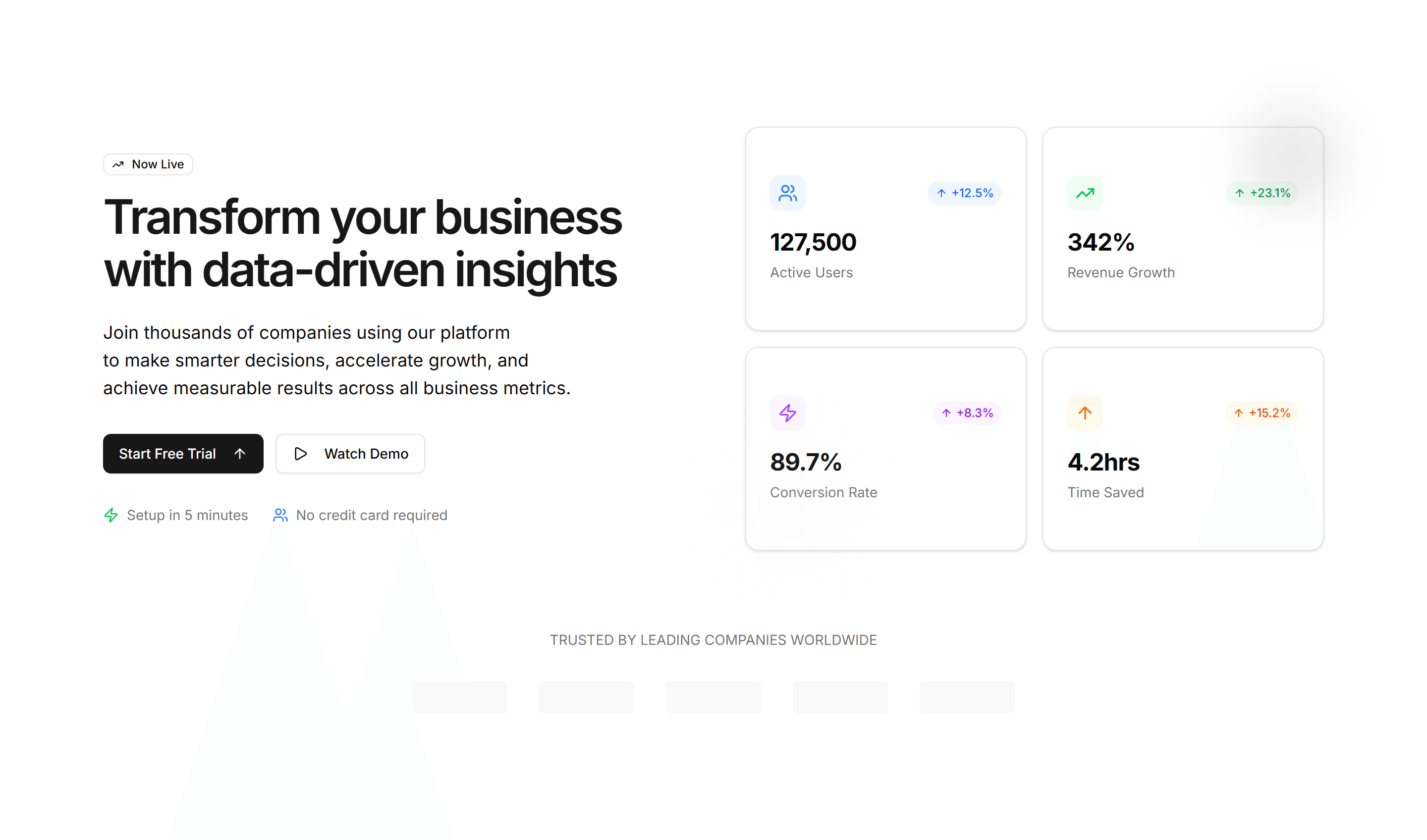
Marketing (Legacy) Hero Section: Interactive Metrics
A hero with live, interactive stat counters beside a headline and CTA. Use it to make growth, usage, or results tangible on a SaaS landing page.
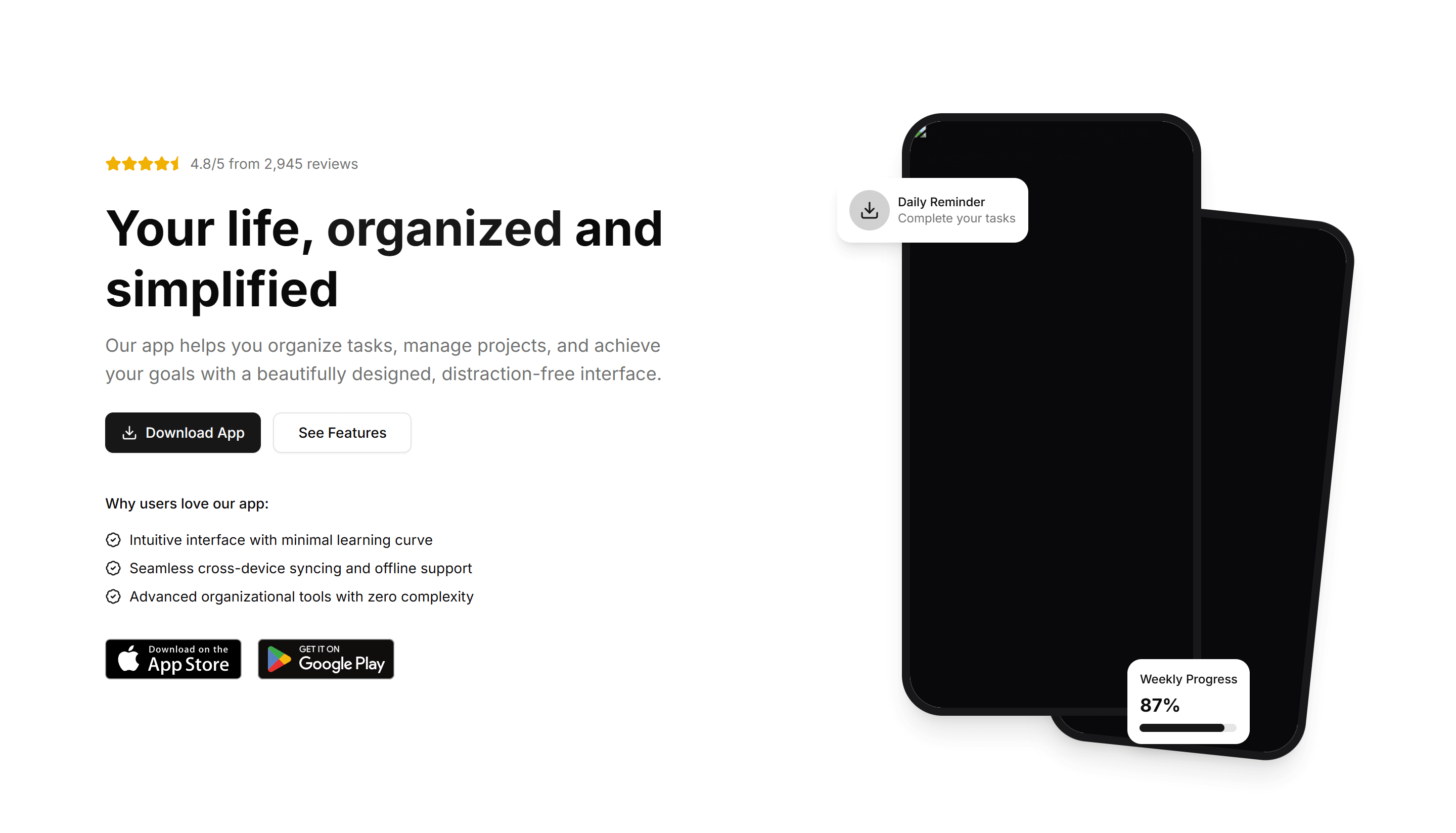
Marketing (Legacy) Hero Section: Mobile App Hero
A hero with a phone mockup, app store badges, and a headline. Built to drive downloads at the top of a mobile app marketing or launch page.
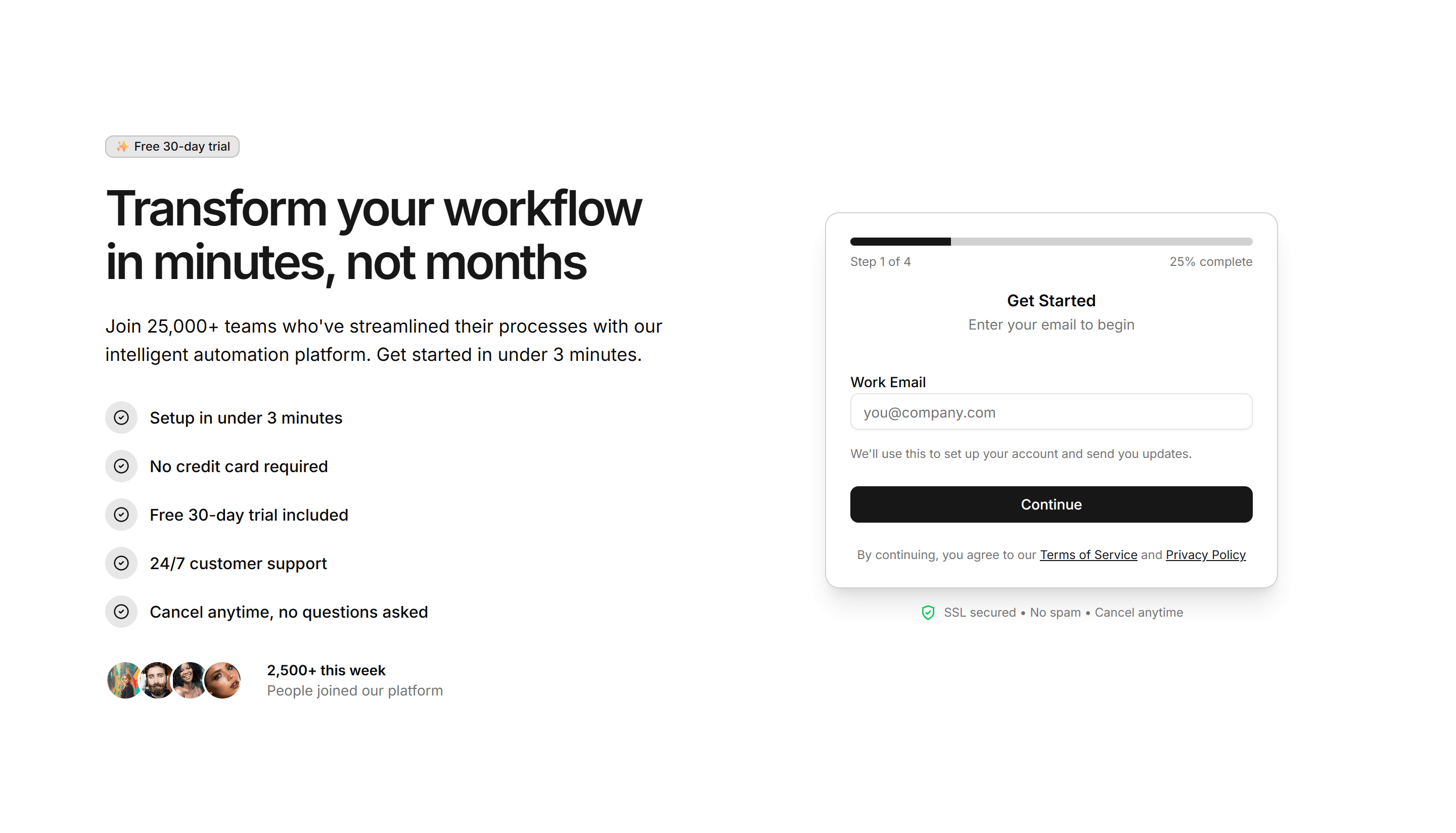
Marketing (Legacy) Hero Section: Multi-Step CTA Hero
A hero that guides visitors through a short multi step call to action. Use it to qualify leads or onboard users right from a landing page header.
Marketing (Legacy) Hero Section: Particles Background Hero
A hero with animated particles drifting behind a centered headline and CTA. A dynamic, tech forward opener for software and startup landing pages.
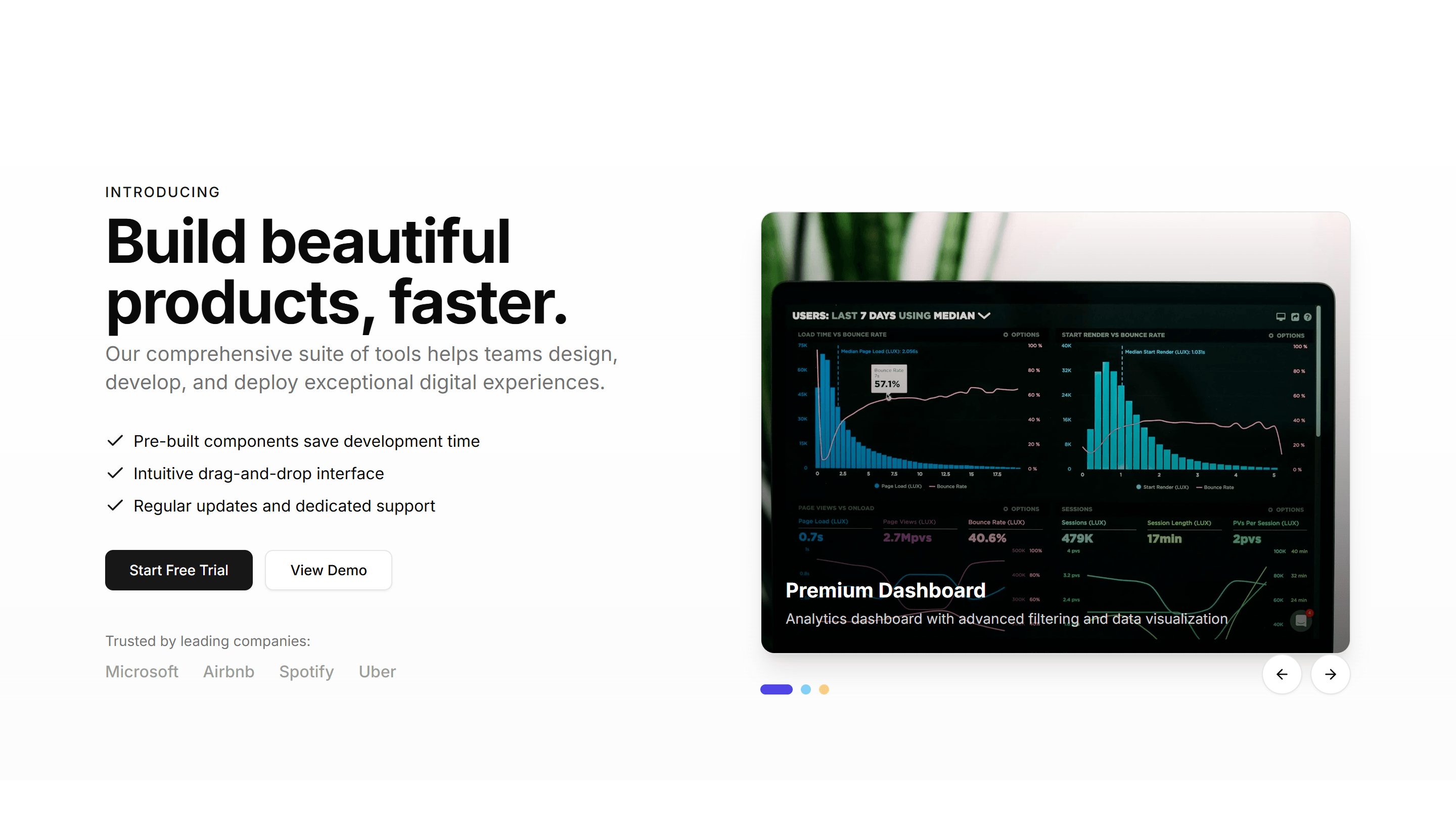
Marketing (Legacy) Hero Section: Product Carousel Hero
A hero with a swipeable product carousel beside a headline and CTA. Showcases a range of items or plans at the top of an ecommerce landing page.

Marketing (Legacy) Hero Section: Progress Tracker Hero
A hero with a step progress tracker next to a headline and CTA. Use it to show a setup flow or journey at the top of an onboarding landing page.
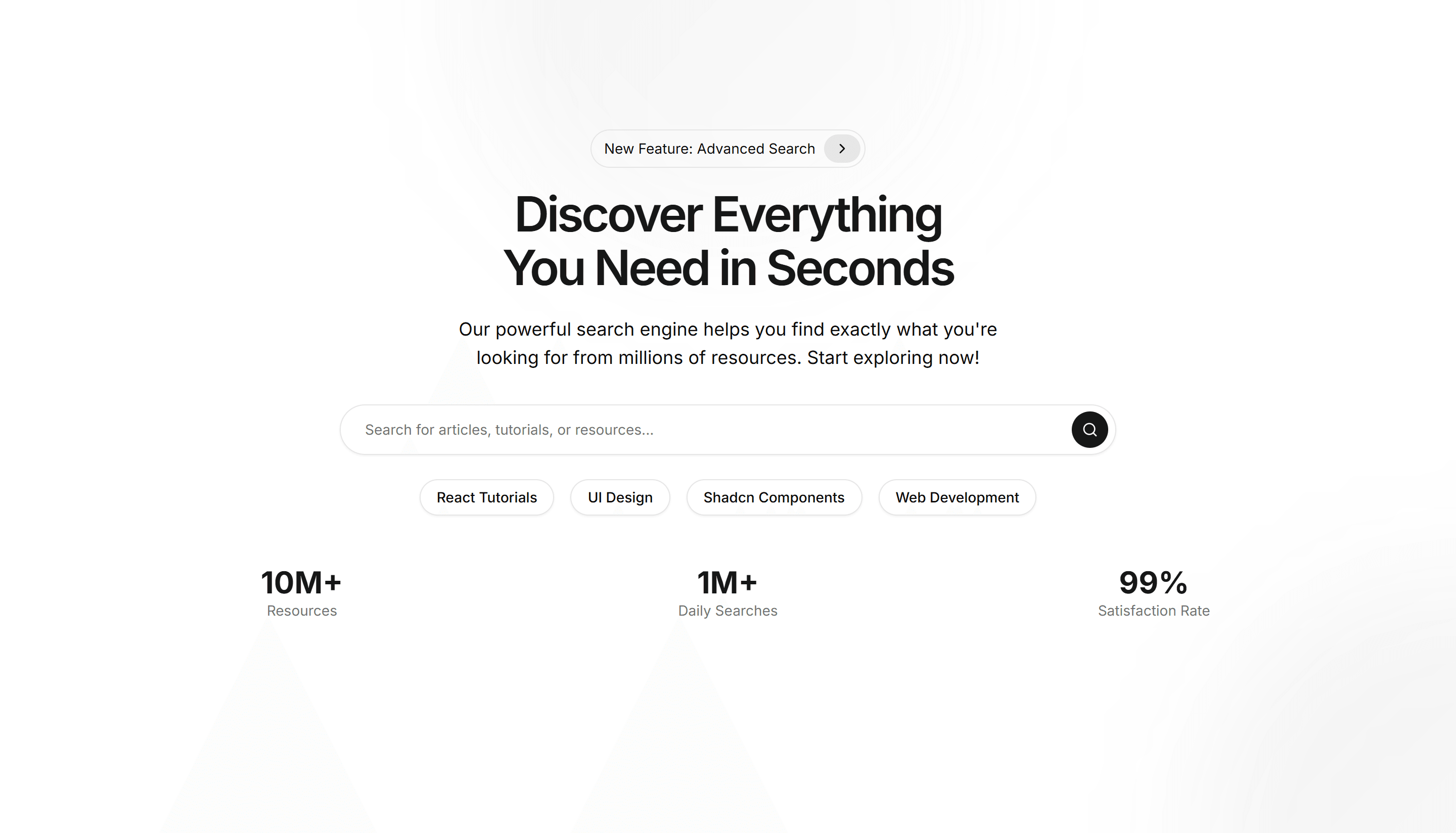
Marketing (Legacy) Hero Section: Search Bar
A hero centered on a prominent search bar below a headline and subtext. Ideal for directories, docs, marketplaces, and content heavy landing pages.
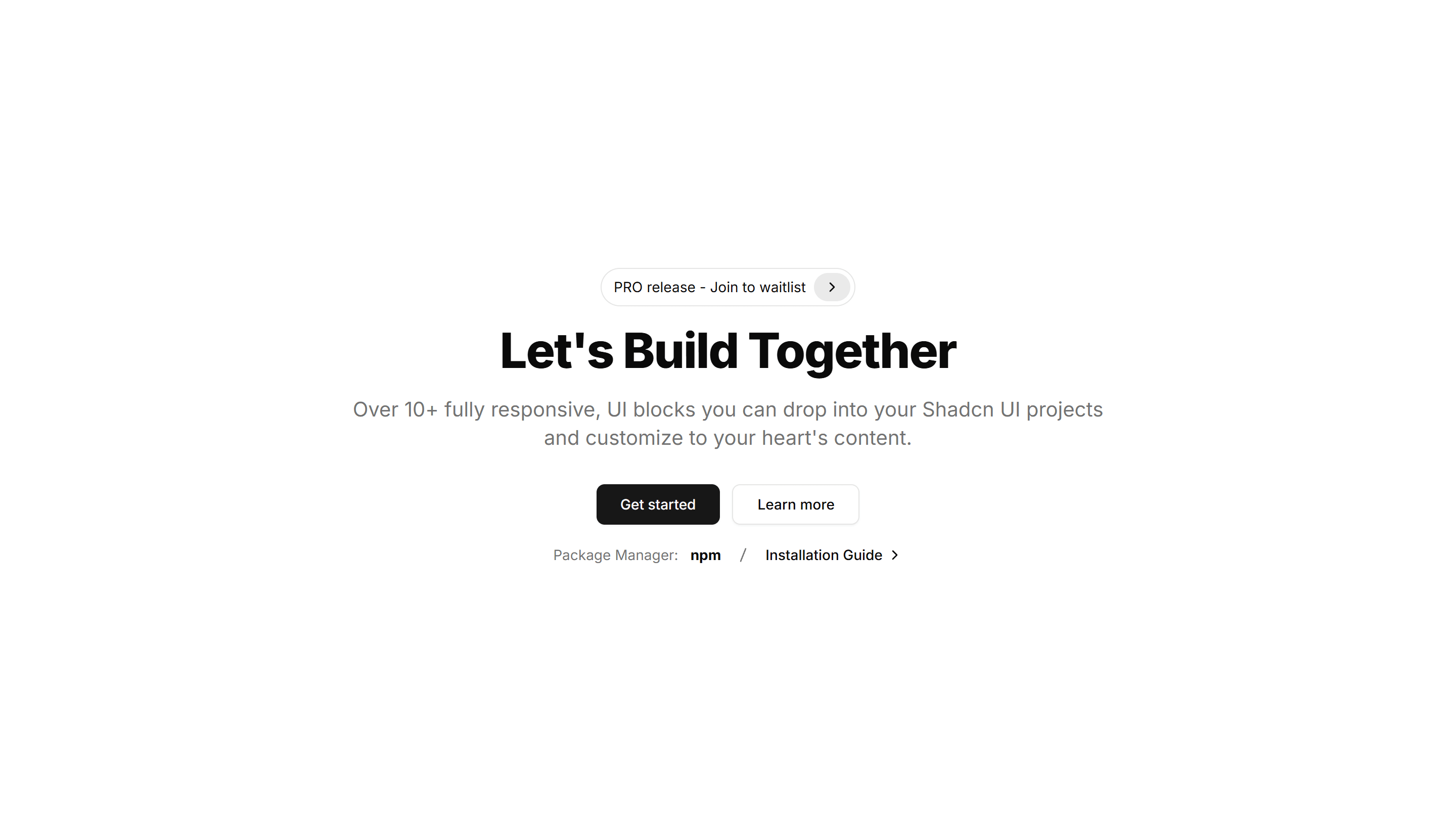
Marketing (Legacy) Hero Section: Simple Centred
A clean centered hero with a headline, short subtext, and a single CTA. A minimal, fast loading opener that suits almost any landing page or product.
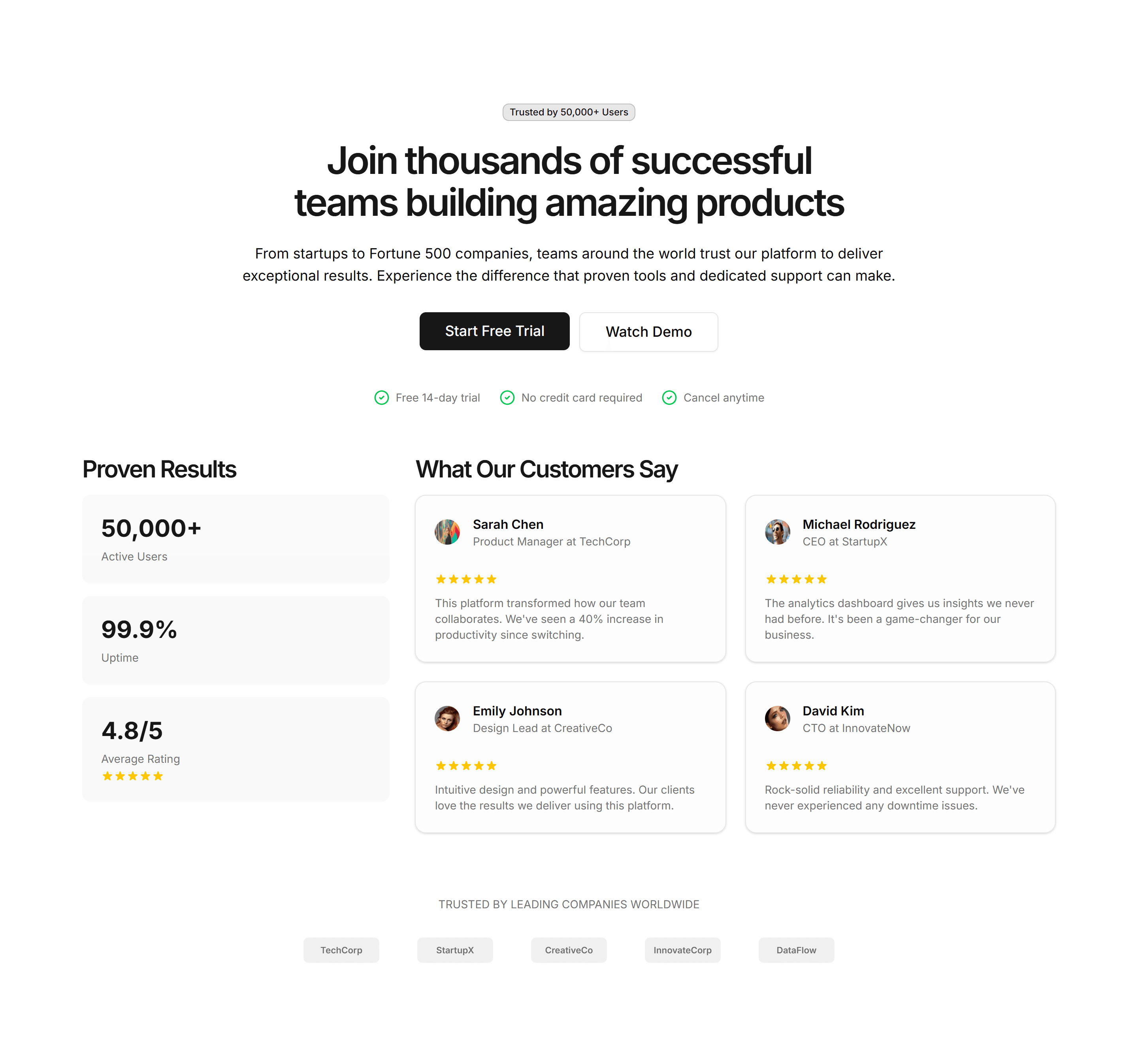
Marketing (Legacy) Hero Section: Social Proof Hero
A hero pairing a headline and CTA with logos, ratings, and user counts. Leads with credibility to reassure visitors at the top of a landing page.
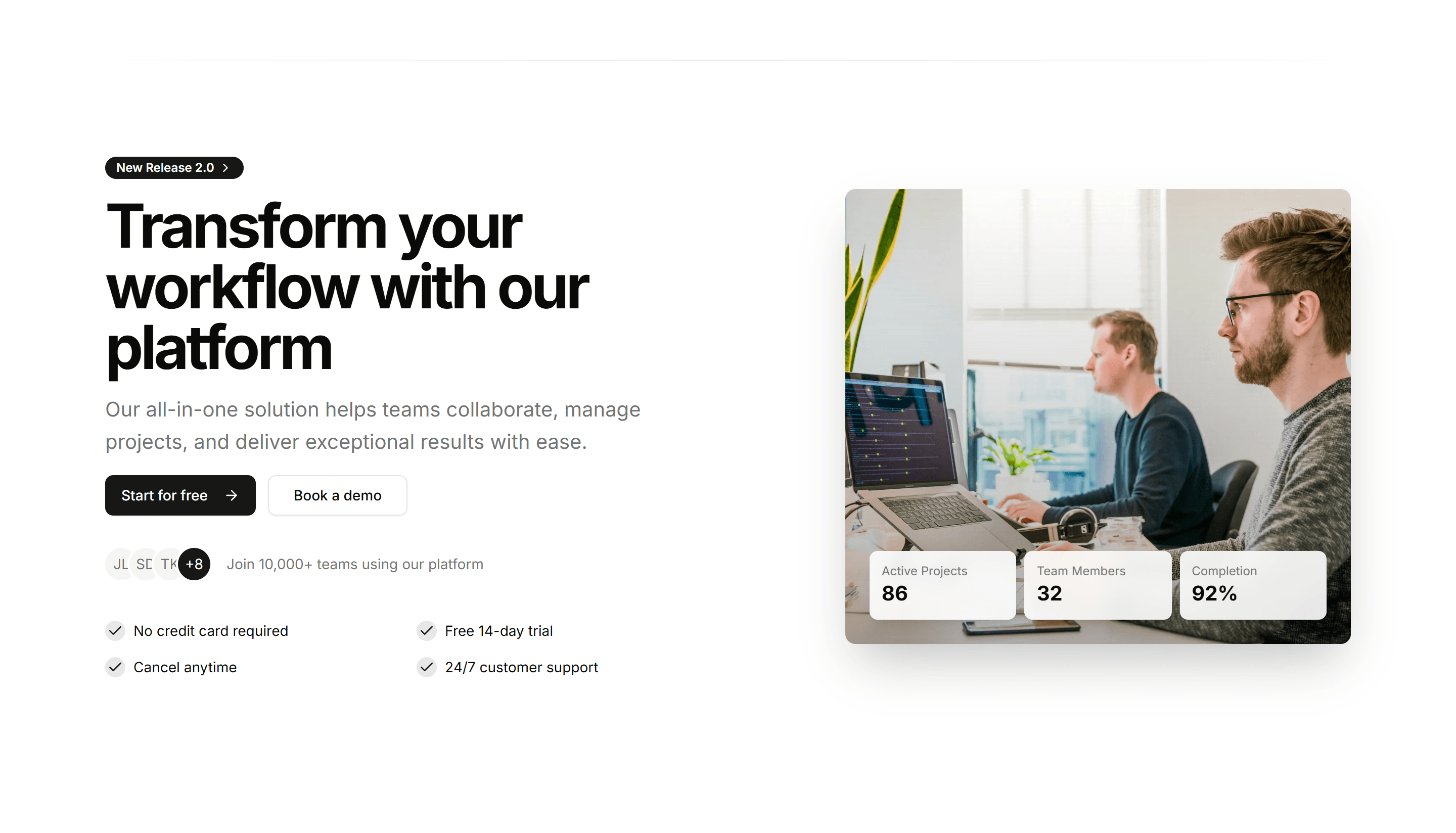
Marketing (Legacy) Hero Section: Split Content Hero
A hero with a two column split, text and CTA on one side, content on the other. A flexible opener that balances your message and a visual cleanly.
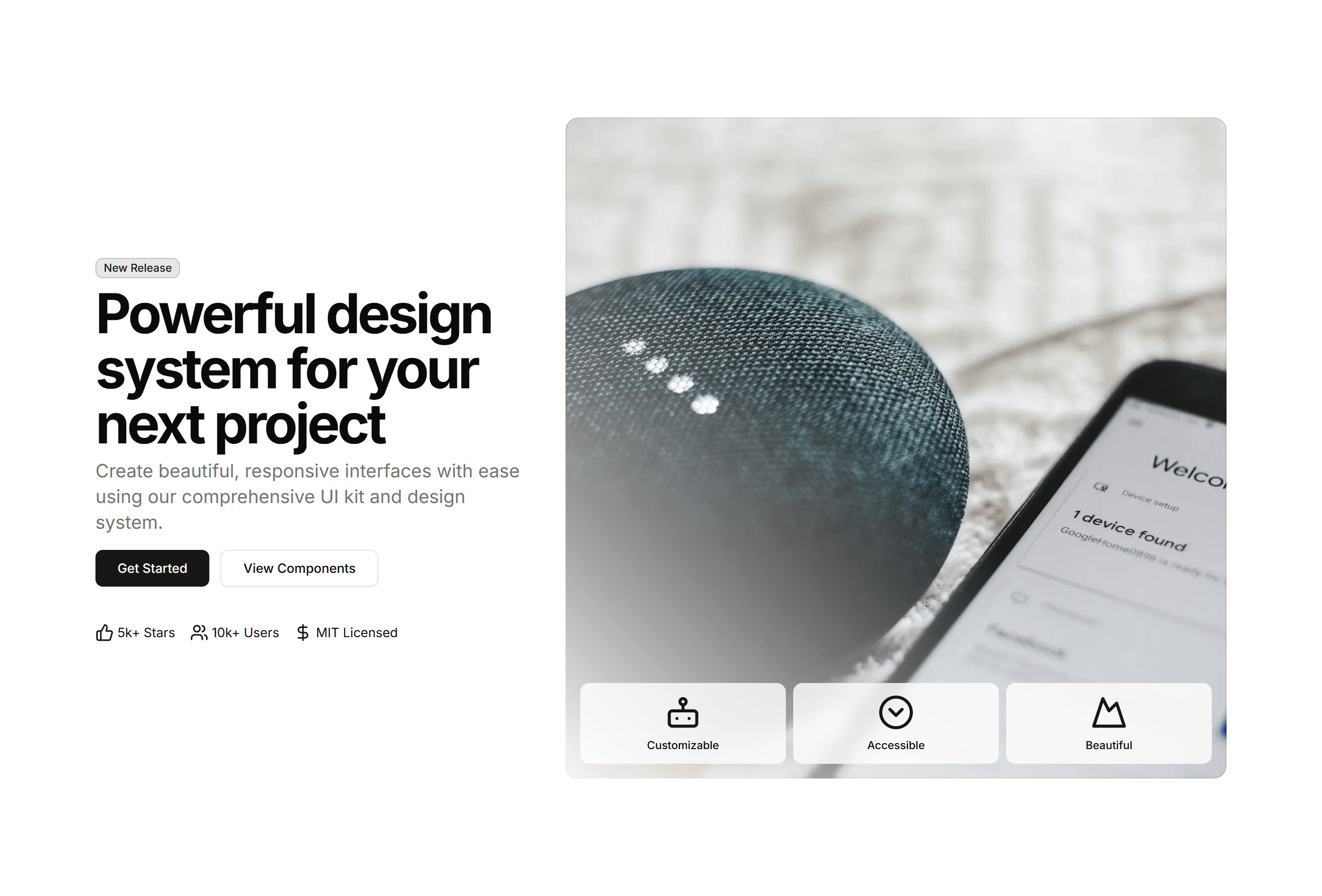
Marketing (Legacy) Hero Section: Split Image Hero
A hero split into a text column and a full height product image. A direct, balanced opener that pairs your pitch with a visual on a landing page.
Marketing (Legacy) Hero Section: Split With Video
A hero split between a headline with CTA and an embedded product video. Use it to show your product in motion at the top of a landing page.
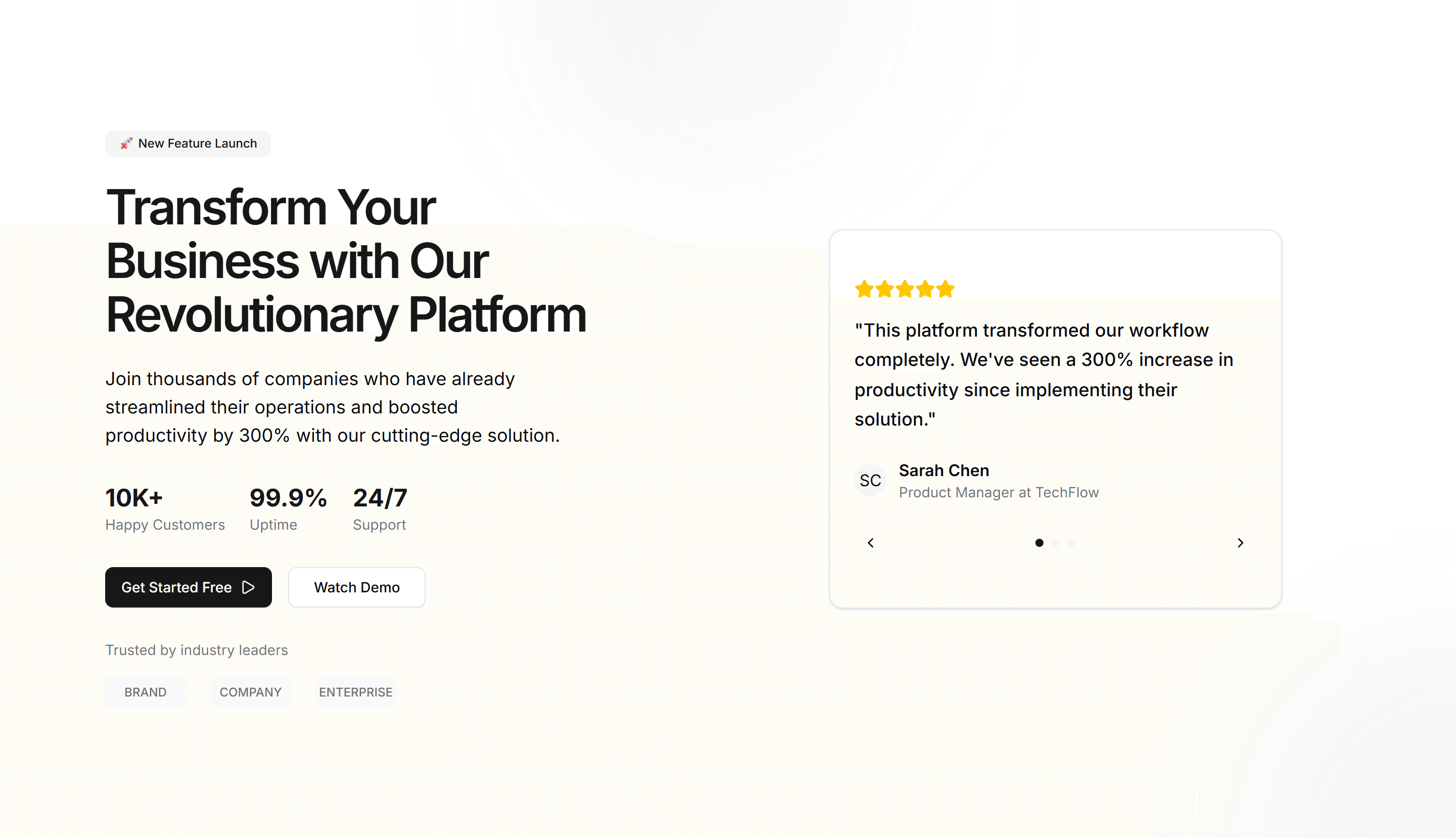
Marketing (Legacy) Hero Section: Testimonial Carousel
A hero with a rotating carousel of customer testimonials and a CTA. Opens a landing page with real quotes to build trust before the pitch lands.

Marketing (Legacy) Hero Section: Trust Indicators
A hero leading with security badges, certifications, and partner logos. Reassures cautious buyers at the top of a landing or enterprise sales page.

Marketing (Legacy) Hero Section: Video Background Hero
A hero with a looping video filling the background behind a headline and CTA. Sets an immersive, cinematic tone at the top of a landing page.
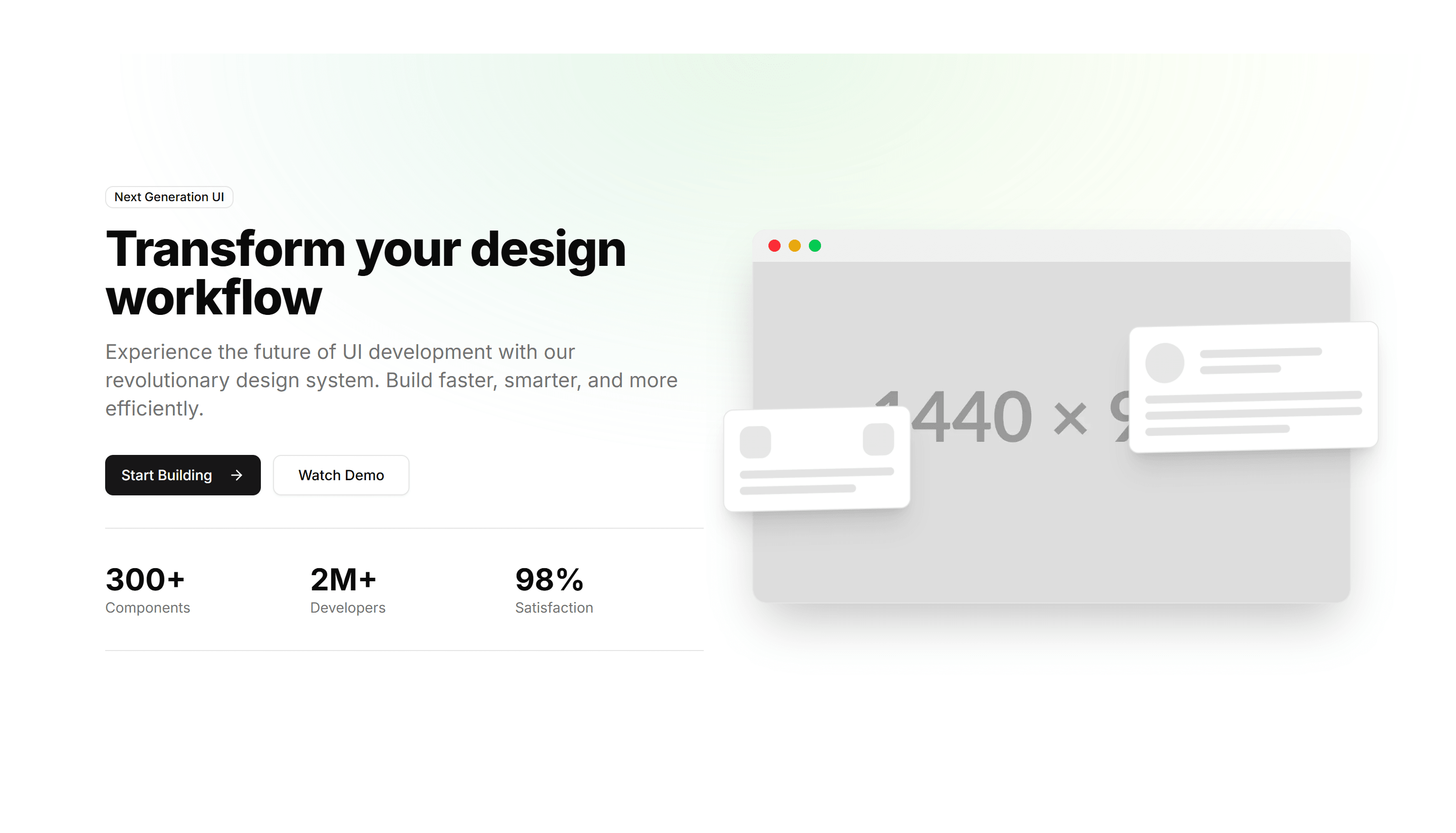
Marketing (Legacy) Hero Section: With 3D Mockup
A hero featuring a rotating 3D device mockup beside a headline and CTA. Presents your app or product with depth on a modern landing page.
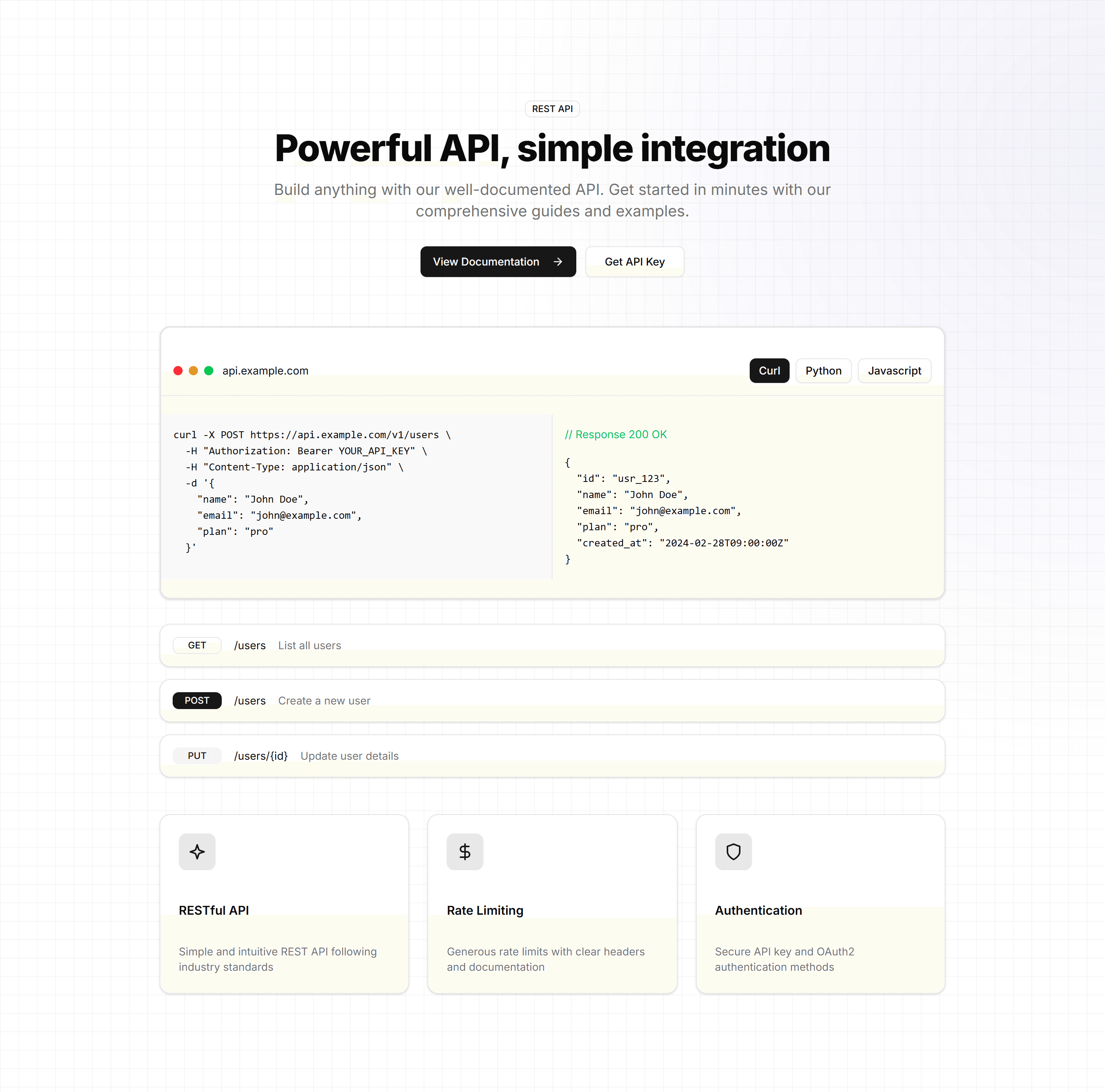
Marketing (Legacy) Hero Section: With API Preview
A hero pairing a headline and CTA with a live API request and response preview. Built for developer tools and platforms aimed at technical buyers.
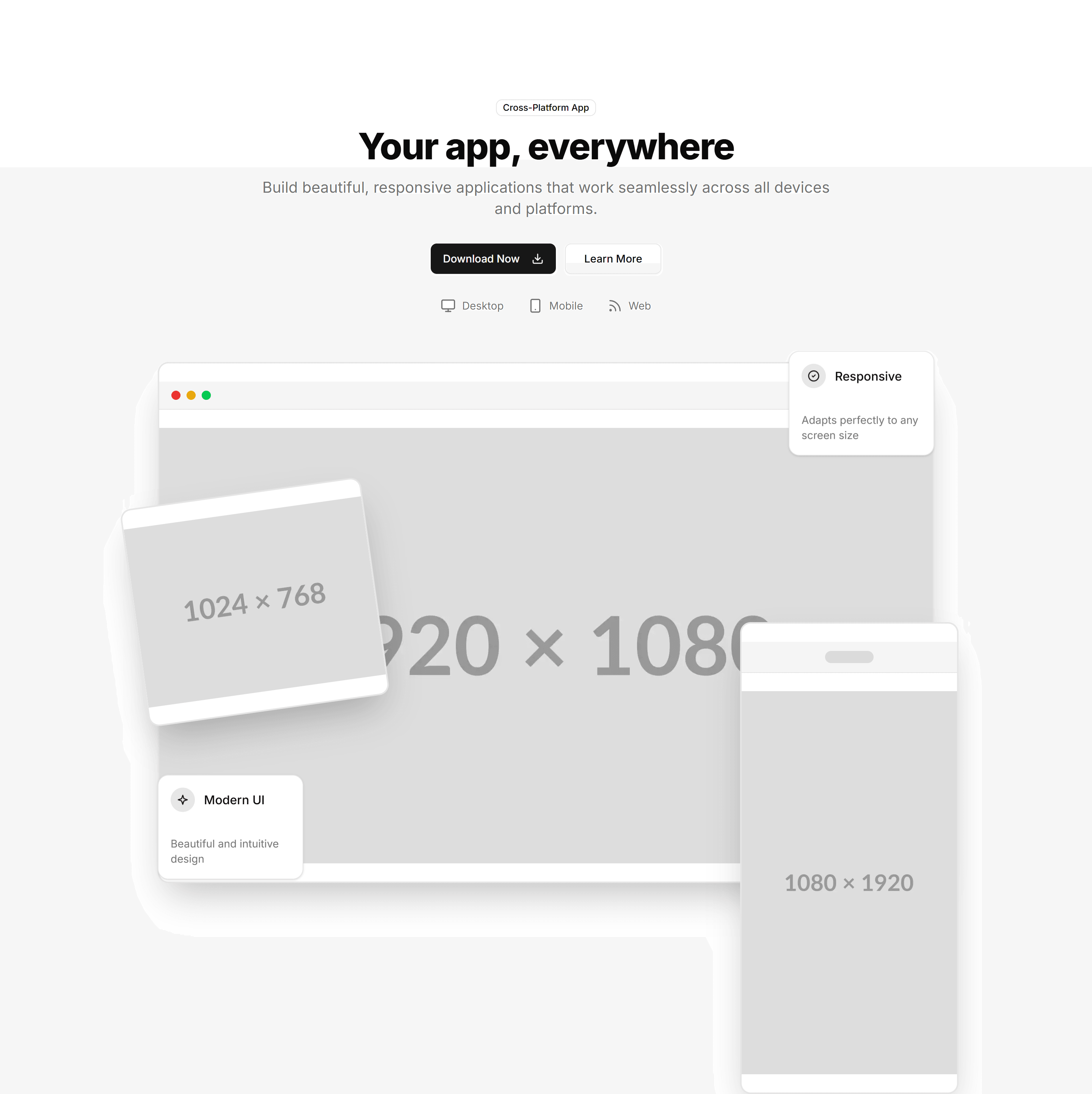
Marketing (Legacy) Hero Section: With App Showcase
A hero showcasing app screens in a layered layout next to a headline and CTA. Use it to highlight the interface on a software product landing page.
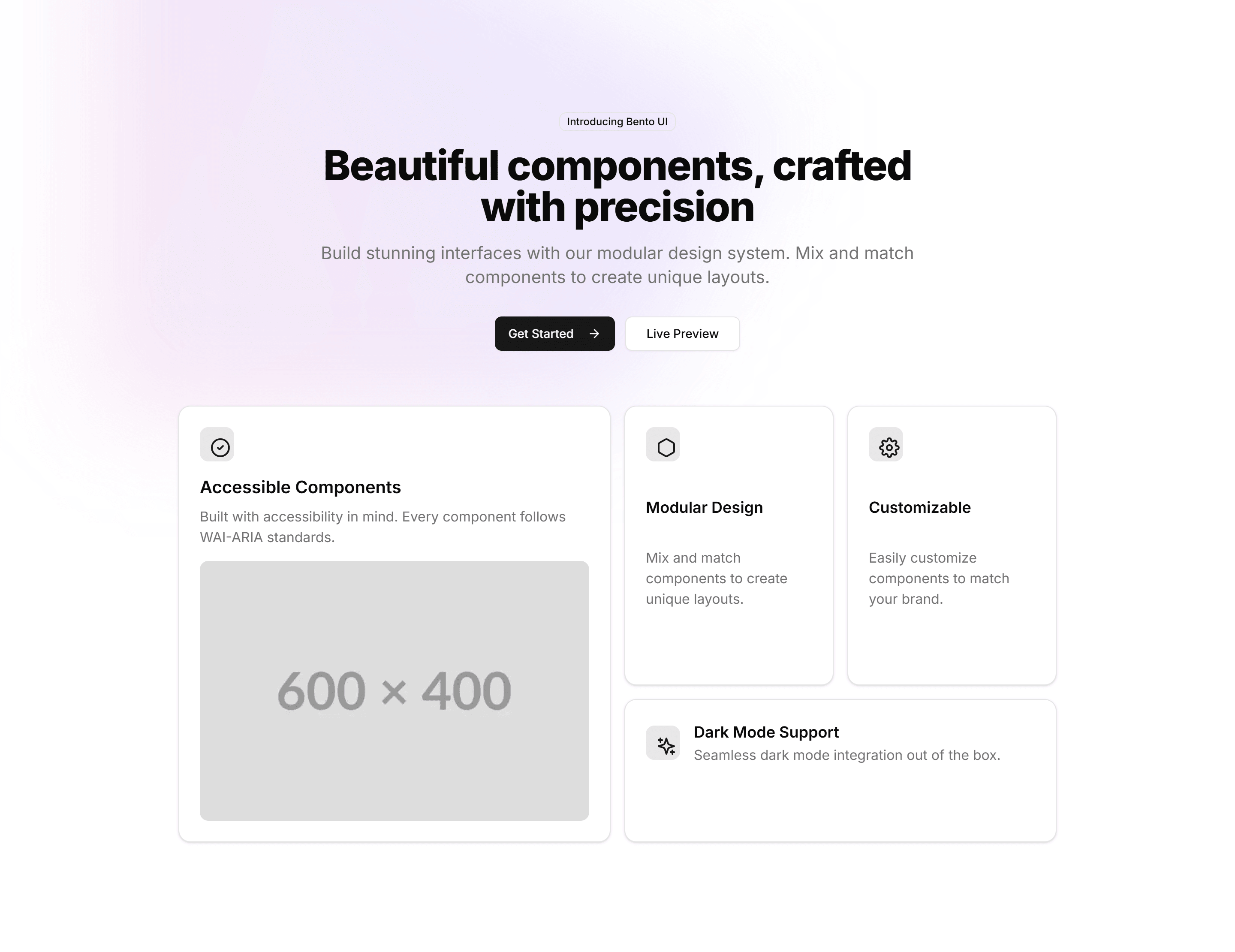
Marketing (Legacy) Hero Section: With Bento Grid
A hero with a bento grid of feature tiles below a headline and CTA. Summarizes several capabilities at a glance on a modern SaaS landing page.
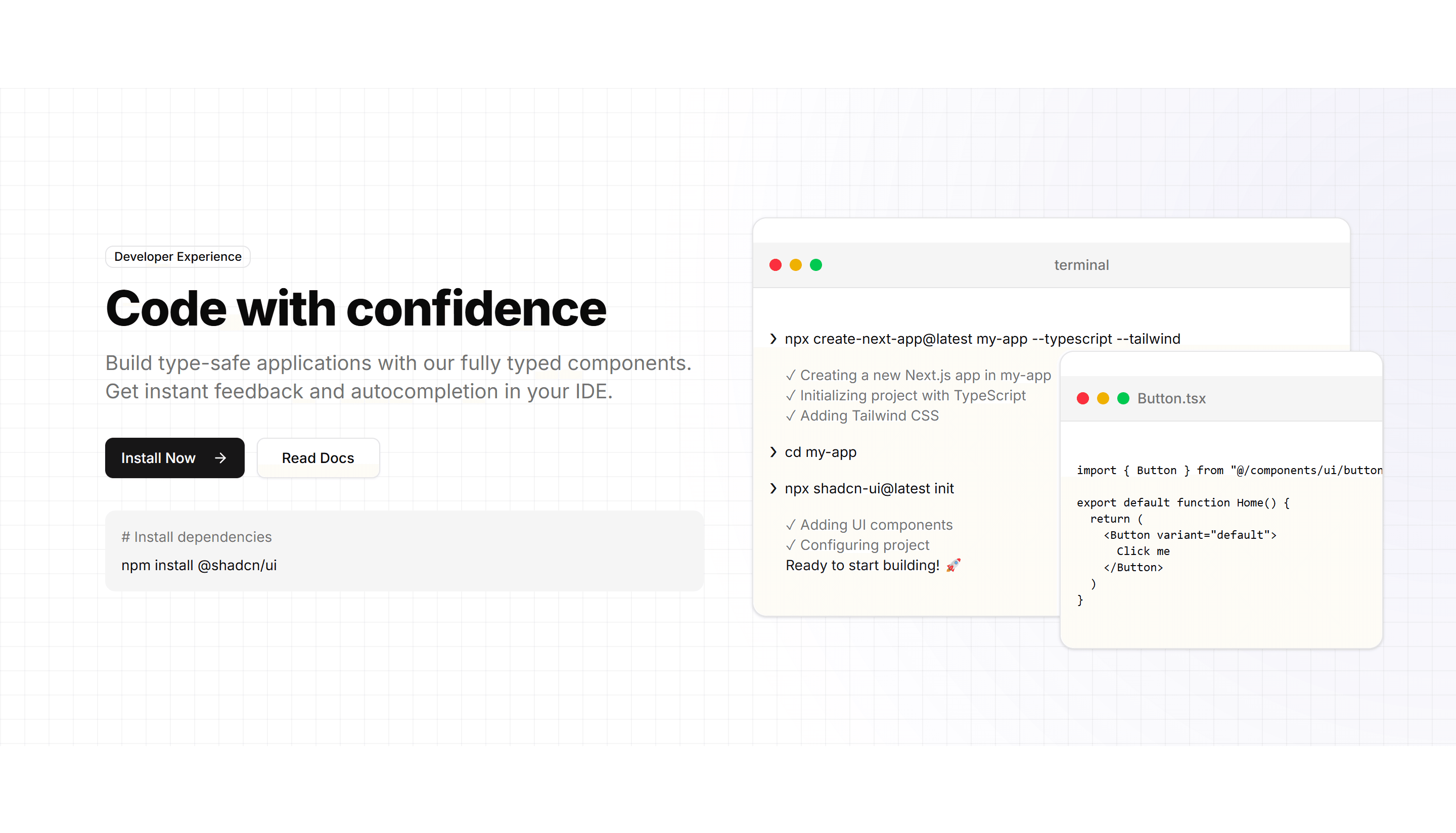
Marketing (Legacy) Hero Section: With Code Preview
A hero pairing a headline and CTA with a syntax highlighted code snippet. Speaks directly to developers at the top of a tool or library landing page.
Marketing (Legacy) Hero Section: With Content Tabs
A hero with tabbed panels that swap content beneath a headline and CTA. Use it to present several use cases or features in one compact area.
Marketing (Legacy) Hero Section: With Dashboard
A hero placing a product dashboard screenshot next to a headline and CTA. Shows your interface and data at the top of a SaaS or analytics page.
Marketing (Legacy) Hero Section: With Email Input
A hero centered on an inline email capture form below a headline and subtext. Ideal for waitlists, newsletters, and early access landing pages.
Marketing (Legacy) Hero Section: With Feature Cards
A hero with a row of feature cards beneath a headline and CTA. Breaks your key benefits into scannable tiles at the top of a landing page.
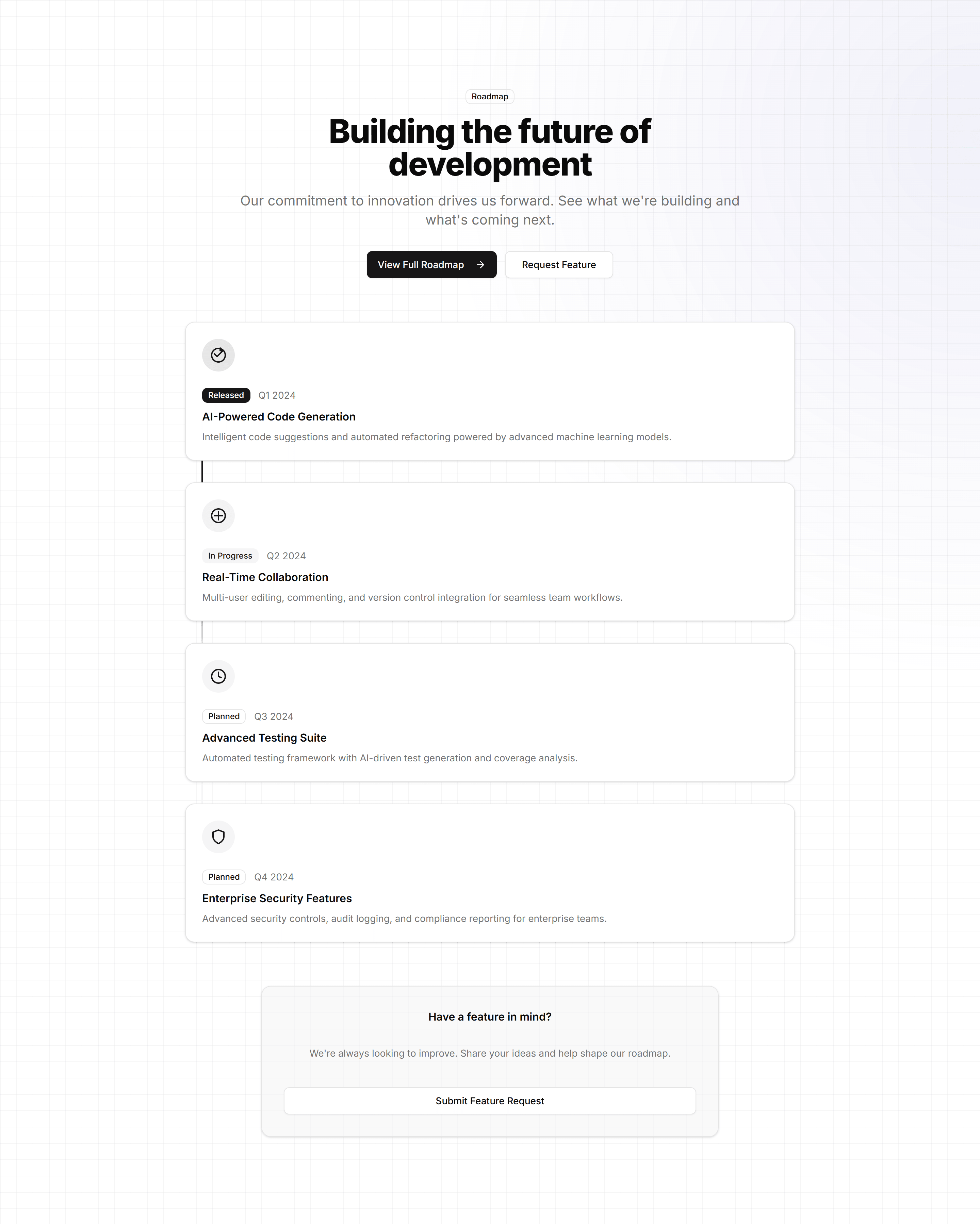
Marketing (Legacy) Hero Section: With Feature Timeline
A hero with a feature timeline beside a headline and CTA. Walks visitors through a workflow or roadmap at the top of a product landing page.
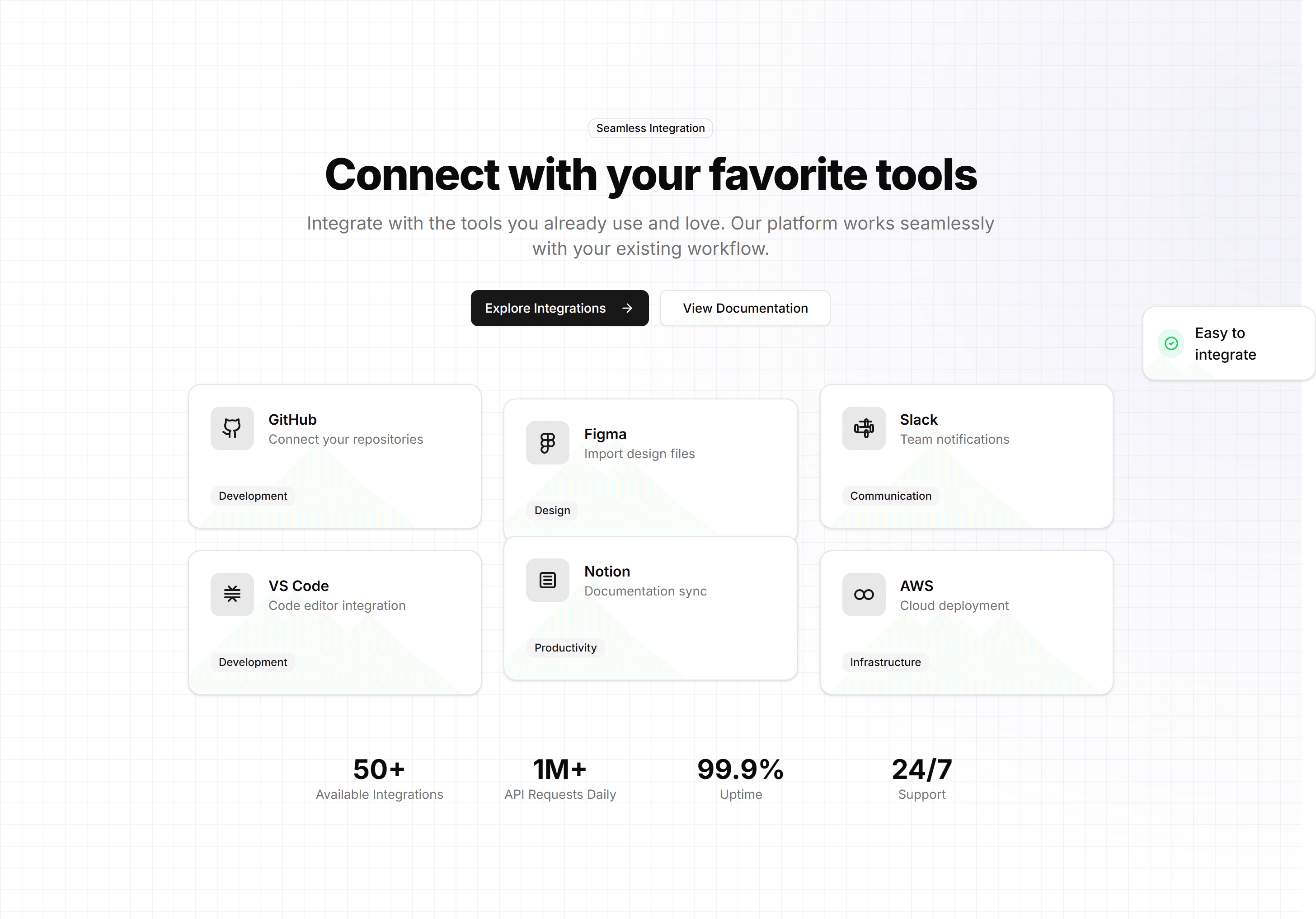
Marketing (Legacy) Hero Section: With Integration Showcase
A hero showing a grid of integration logos beside a headline and CTA. Highlights the tools your product connects to on a platform landing page.
Marketing (Legacy) Hero Section: With Product Screenshots
A hero with framed product screenshots next to a headline and CTA. Shows the real interface at the top of a software or SaaS landing page.
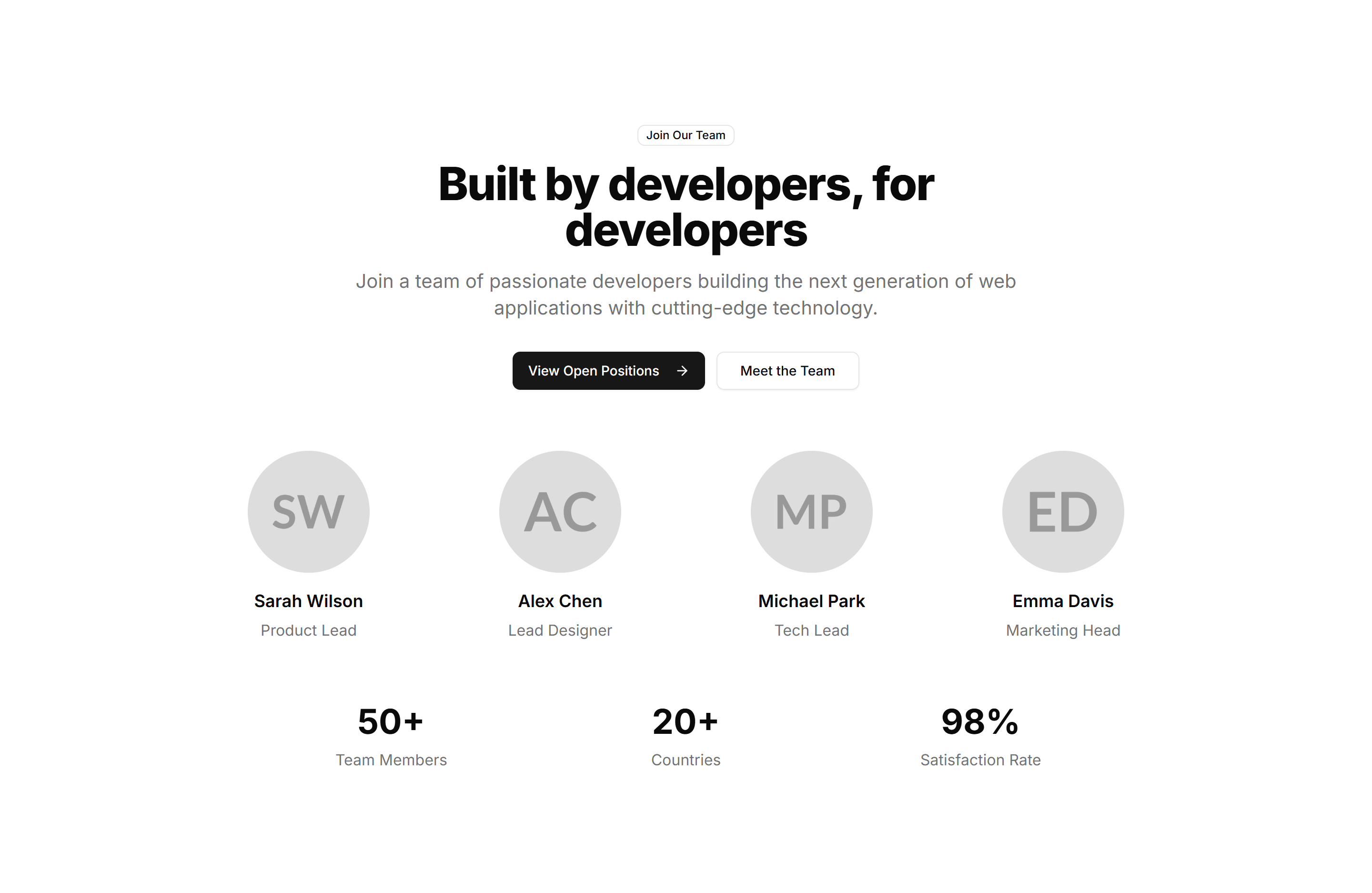
Marketing (Legacy) Hero Section: With Team Grid
A hero pairing a headline and CTA with a grid of team member photos. Adds a human face to about, agency, and company landing pages from the start.
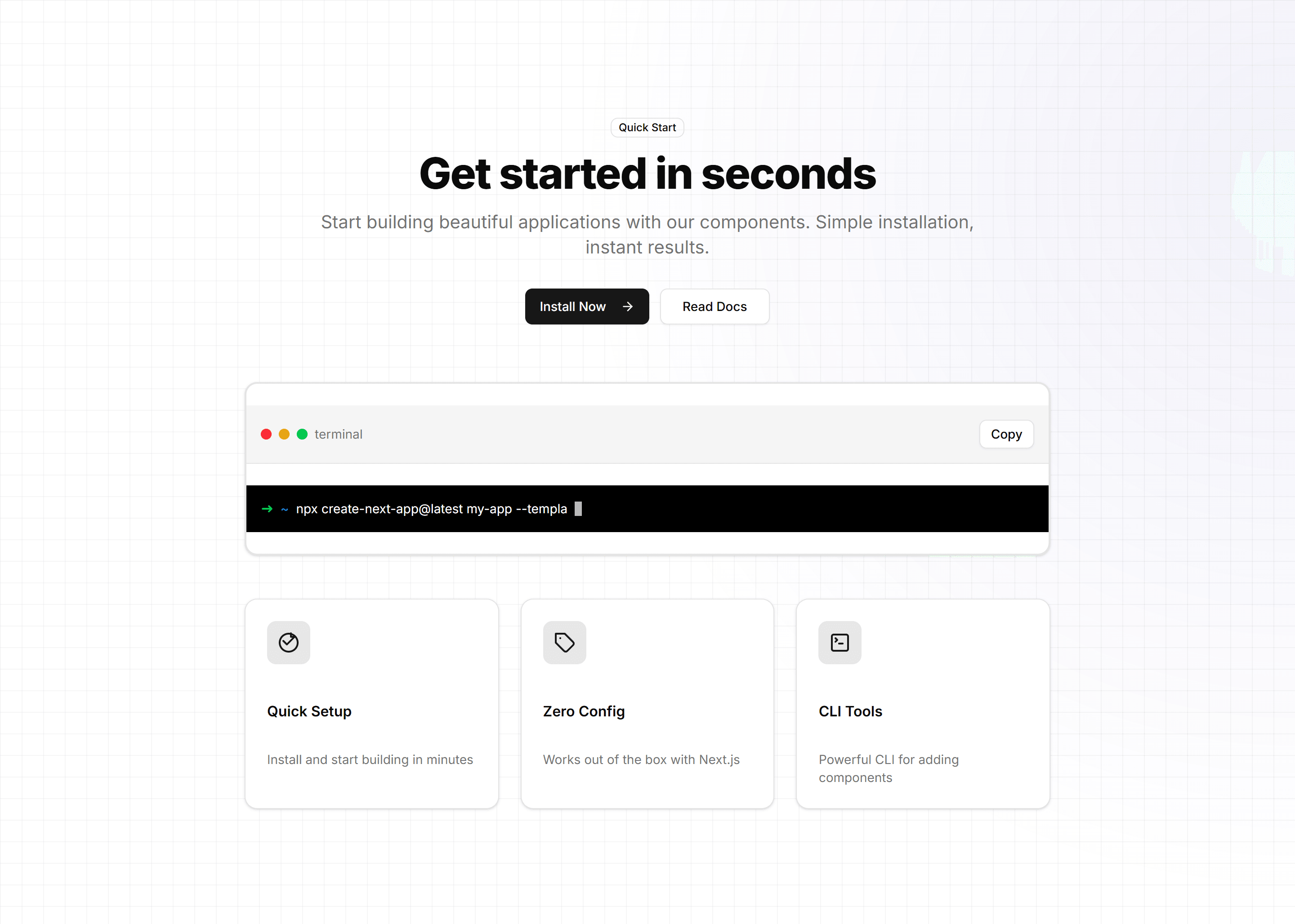
Marketing (Legacy) Hero Section: With Terminal
A hero pairing a headline and CTA with an animated terminal window. Speaks to developers and shows install or usage commands on a tool landing page.

Marketing (Legacy) Icon Section: 2 Cols Grid
A two column grid pairing each icon with a heading and short paragraph. Lays out a handful of product features in a clean, balanced reading layout.

Marketing (Legacy) Icon Section: Animated Icon Grid
A grid of feature icons that animate into view on scroll. Adds motion to a list of capabilities so each benefit catches the eye as users read down.

Marketing (Legacy) Icon Section: Centred Description With Icon Blocks
A centred intro paragraph above a row of icon blocks. Frames a section theme, then lists supporting features in tidy, evenly spaced columns.

Marketing (Legacy) Icon Section: Circle Icons Centre Aligned
Centre aligned icons set in soft circles, each with a title and caption. A friendly way to present three or four core benefits on a landing page.

Marketing (Legacy) Icon Section: Compact Metric List
A tight vertical list pairing icons with numbers and labels. Shows key metrics in a small footprint, ideal for sidebars or dense feature pages.

Marketing (Legacy) Icon Section: Description On Left Icon Blocks On Right
A split layout with a section heading and copy on the left and stacked icon blocks on the right. Pairs a narrative pitch with scannable feature points.

Marketing (Legacy) Icon Section: Expandable Icon Cards
Icon cards that expand on click to reveal more detail. Keeps the section compact while letting curious visitors dig into any feature they choose.

Marketing (Legacy) Icon Section: Feature Icon Tabs
Icon tabs that switch between feature panels in place. Lets visitors explore several capabilities without scrolling, one focused view at a time.

Marketing (Legacy) Icon Section: Horizontal Scrolling Icons
A horizontal strip of icon cards users swipe or scroll through. Fits many features in limited height and reads naturally on mobile screens.

Marketing (Legacy) Icon Section: Icon Feature Carousel
A carousel rotating through icon features one slide at a time. Highlights a long list of capabilities without crowding the page or overwhelming readers.

Marketing (Legacy) Icon Section: Icon Stats Grid
A grid of stat cards pairing an icon with a bold number and label. Surfaces growth figures and key results to build trust on a marketing page.

Marketing (Legacy) Icon Section: Icon Tabs Categories
Category tabs marked with icons that filter the features shown below. Helps visitors jump straight to the feature set that matches their needs.

Marketing (Legacy) Icon Section: Icon Timeline
A vertical timeline with an icon at each step. Walks visitors through a process or product journey in clear order, one milestone after another.

Marketing (Legacy) Icon Section: Icons With Tooltips
A row of icons that reveal a short tooltip on hover. Packs many features into a small space while keeping extra detail one cursor away.

Marketing (Legacy) Icon Section: Interactive Icon Showcase
An interactive panel where hovering an icon updates the description beside it. Invites visitors to explore features at their own pace and stay engaged.

Marketing (Legacy) Icon Section: Metric Cards
A set of cards pairing an icon with a headline metric and caption. Presents results, usage, or savings in confident, easy to scan tiles.

Marketing (Legacy) Icon Section: Minimal Stats Tiles
Clean tiles showing an icon, a number, and a short label. A spare way to display a few key stats without distracting from the surrounding copy.

Marketing (Legacy) Icon Section: Radial Icon Layout
Icons arranged in a circular, radial pattern around a central label. A distinctive way to show how features connect to one core product idea.

Marketing (Legacy) Icon Section: Solid Icon With Hover Effect
Solid filled icons that shift colour or lift on hover. Adds tactile feedback to a feature grid so the section feels responsive as visitors browse.

Marketing (Legacy) Icon Section: Stacked Cards
Vertically stacked icon cards, each with a title and short blurb. Reads top to bottom on any screen and keeps a long feature list easy to follow.
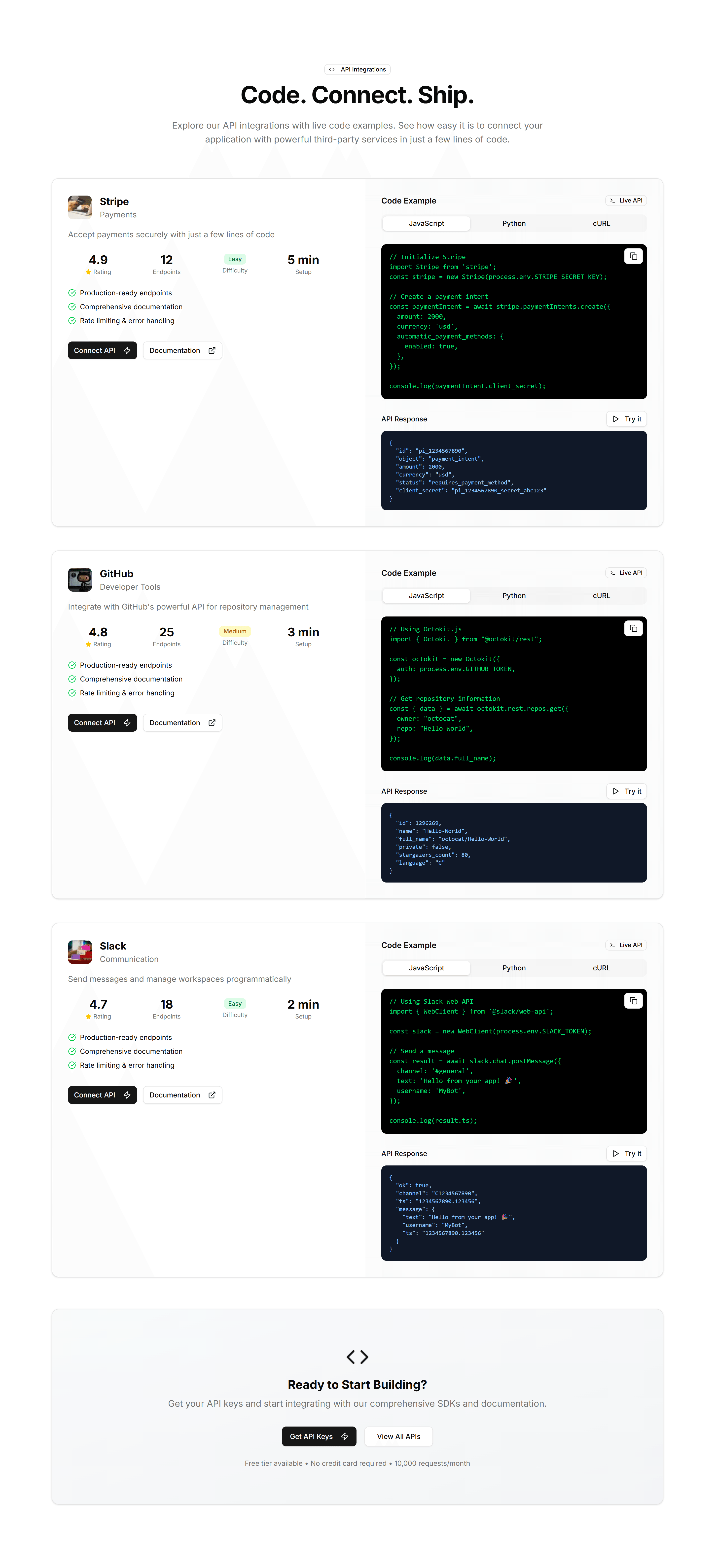
Marketing (Legacy) Integration: API Preview
A code sample panel beside copy that explains your API. Drop it on a developer page to show how integrations connect in only a few short lines.
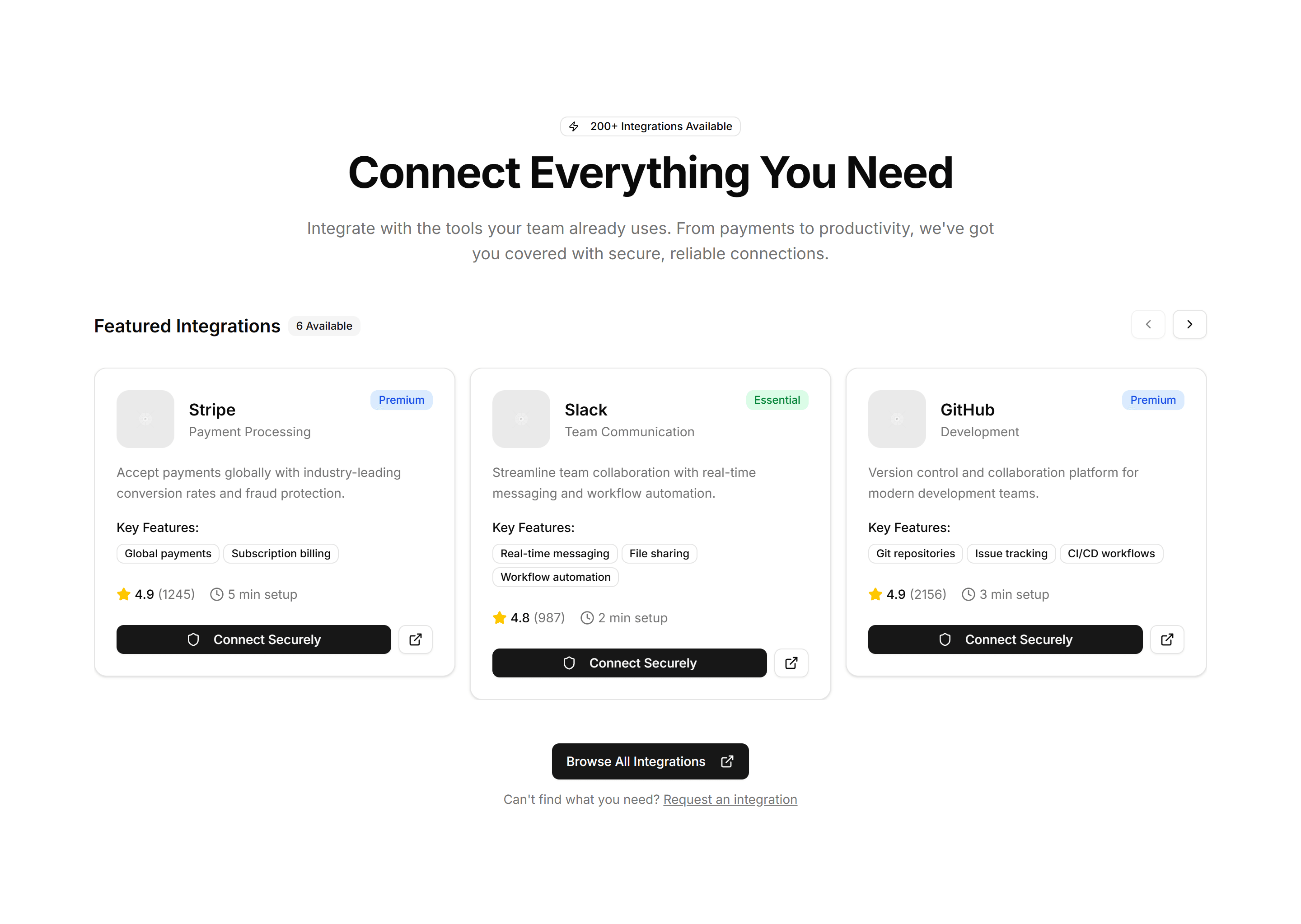
Marketing (Legacy) Integration: Carousel
A scrolling row of partner and app logos that loops as visitors watch. Place it under a hero to prove your product fits neatly into an existing stack.
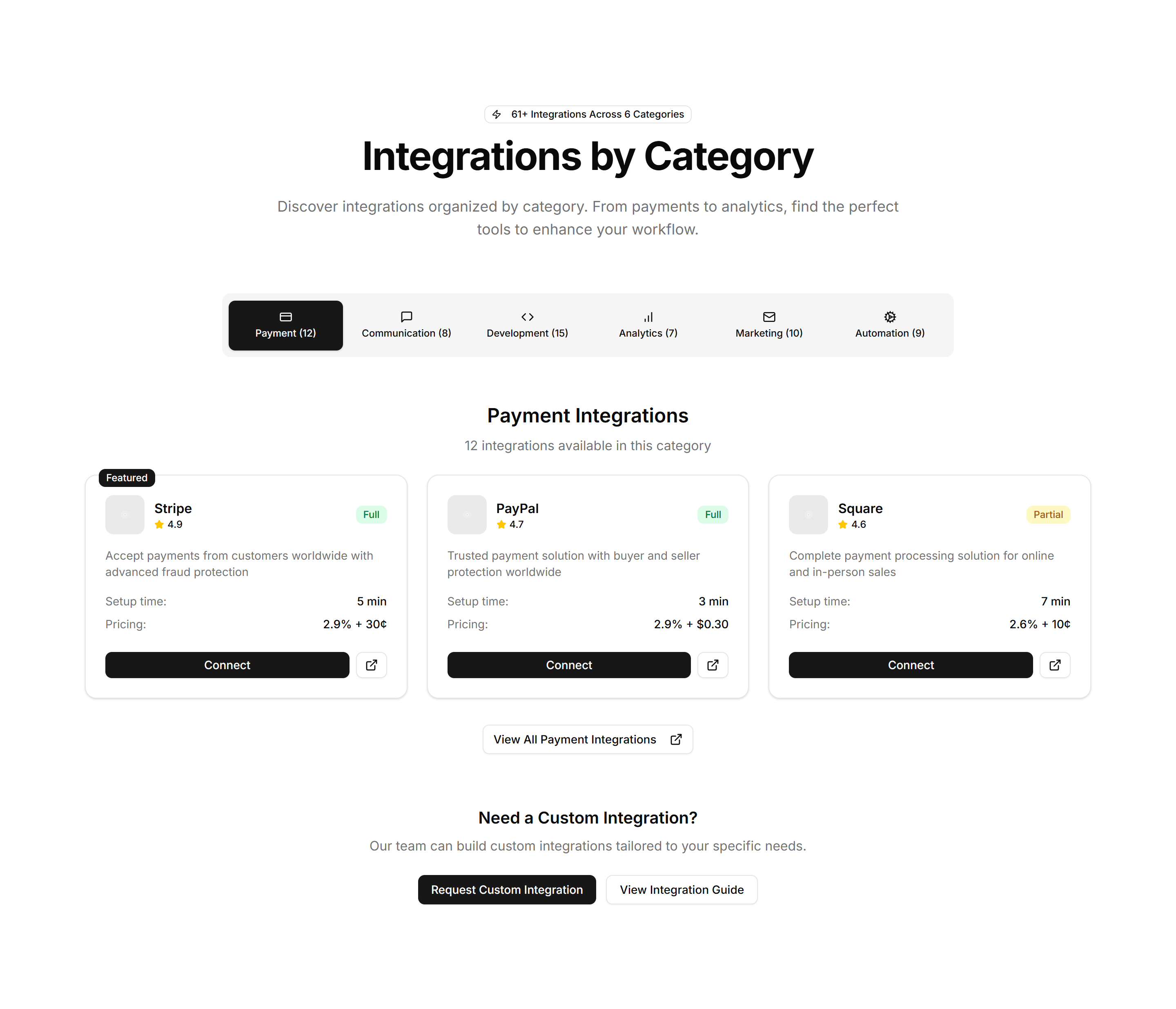
Marketing (Legacy) Integration: Category Tabs
Tabs that sort connected apps by type, so visitors filter integrations to find the one they use. Ideal for a busy marketplace or directory page.
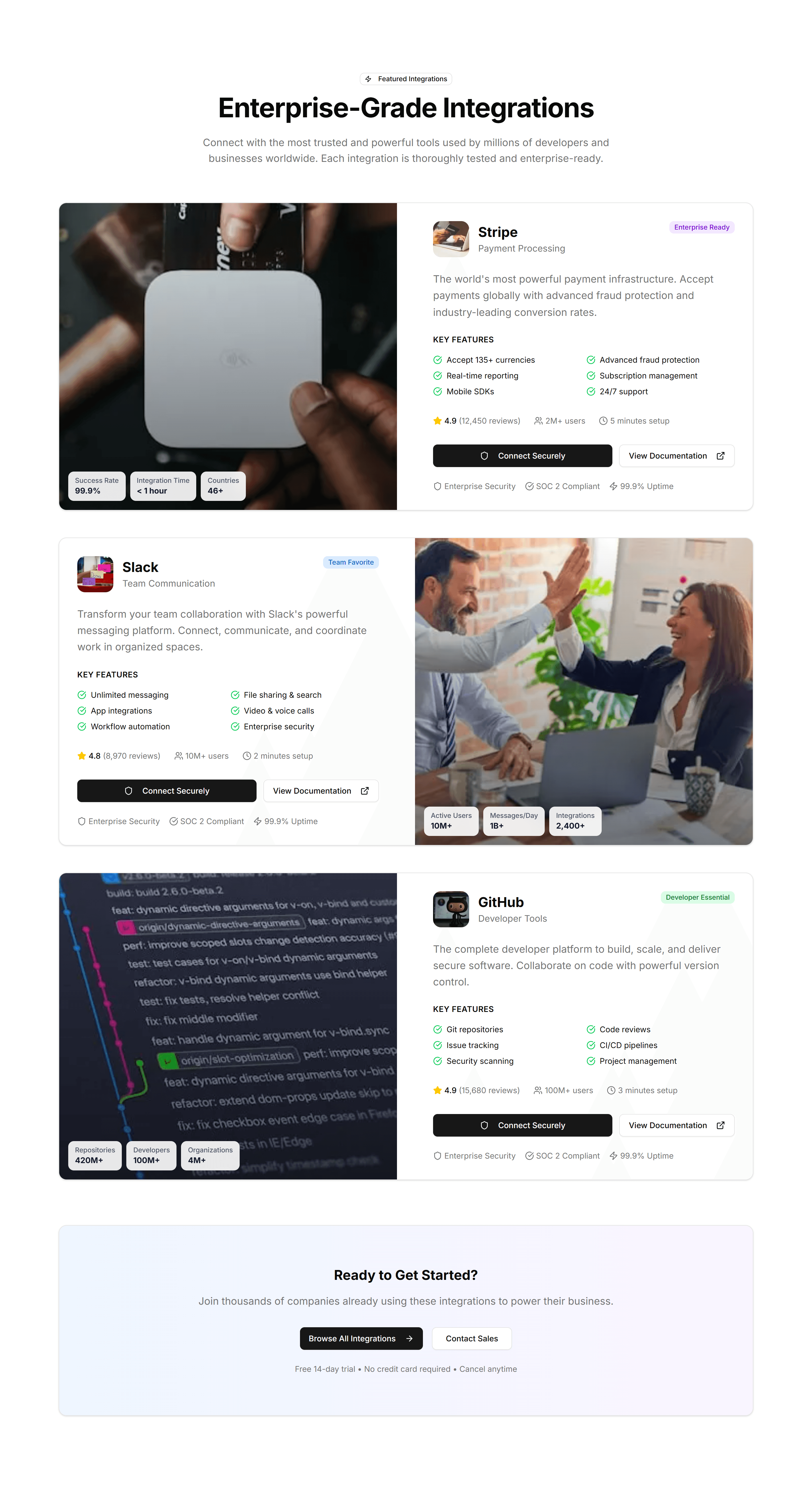
Marketing (Legacy) Integration: Featured Showcase
A large card spotlighting one key integration with its logo, summary, and a link. Use it to highlight a flagship partner above the full list.
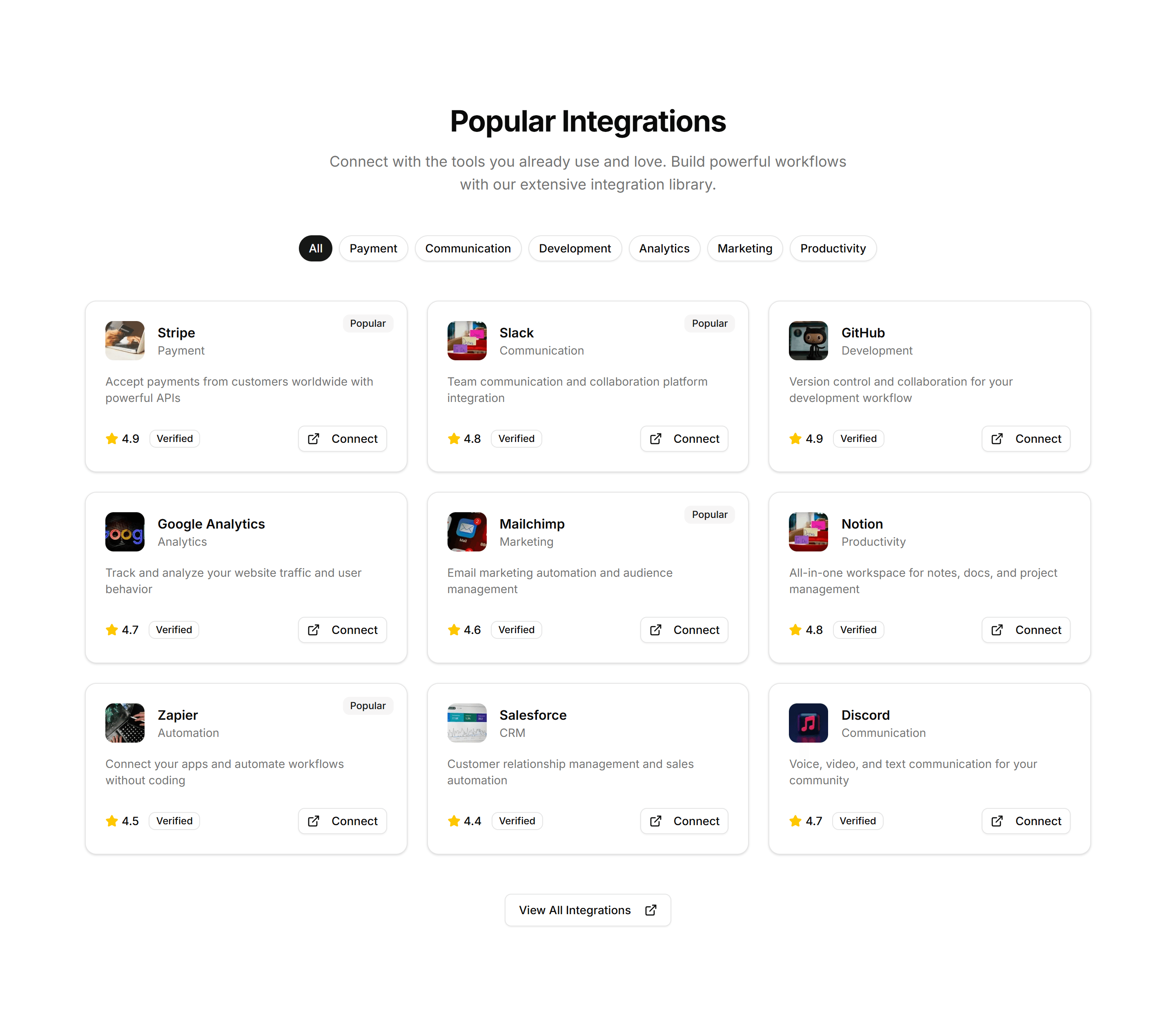
Marketing (Legacy) Integration: Simple Grid
A clean grid of integration logos in even rows and columns. Use it on a connections page to display the apps and services your product supports.
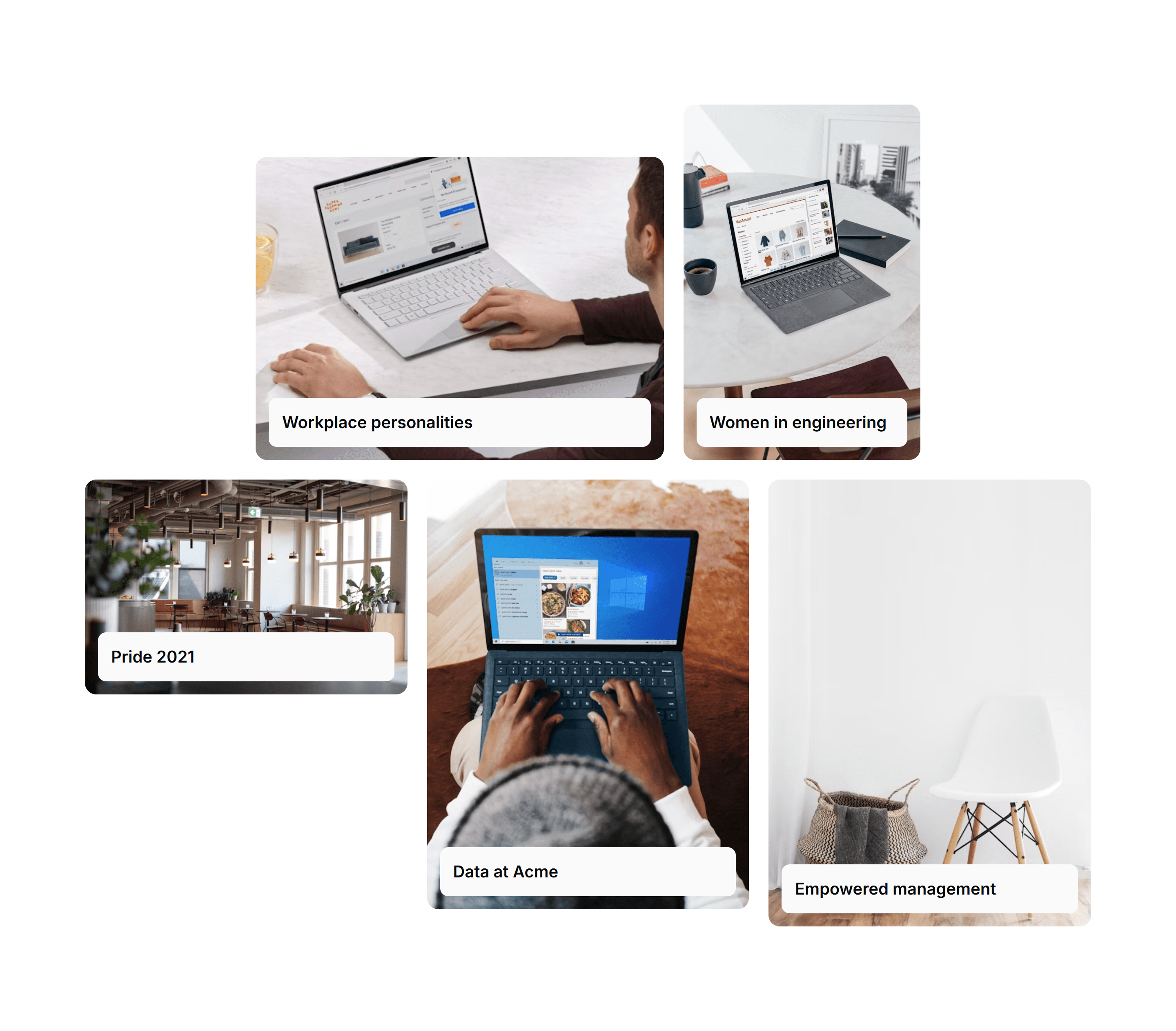
Marketing (Legacy) Masonry Section: Cards On Images
A masonry grid of cards layered over images, each with a heading and short text. Showcases a gallery, portfolio, or product collection on a landing page.
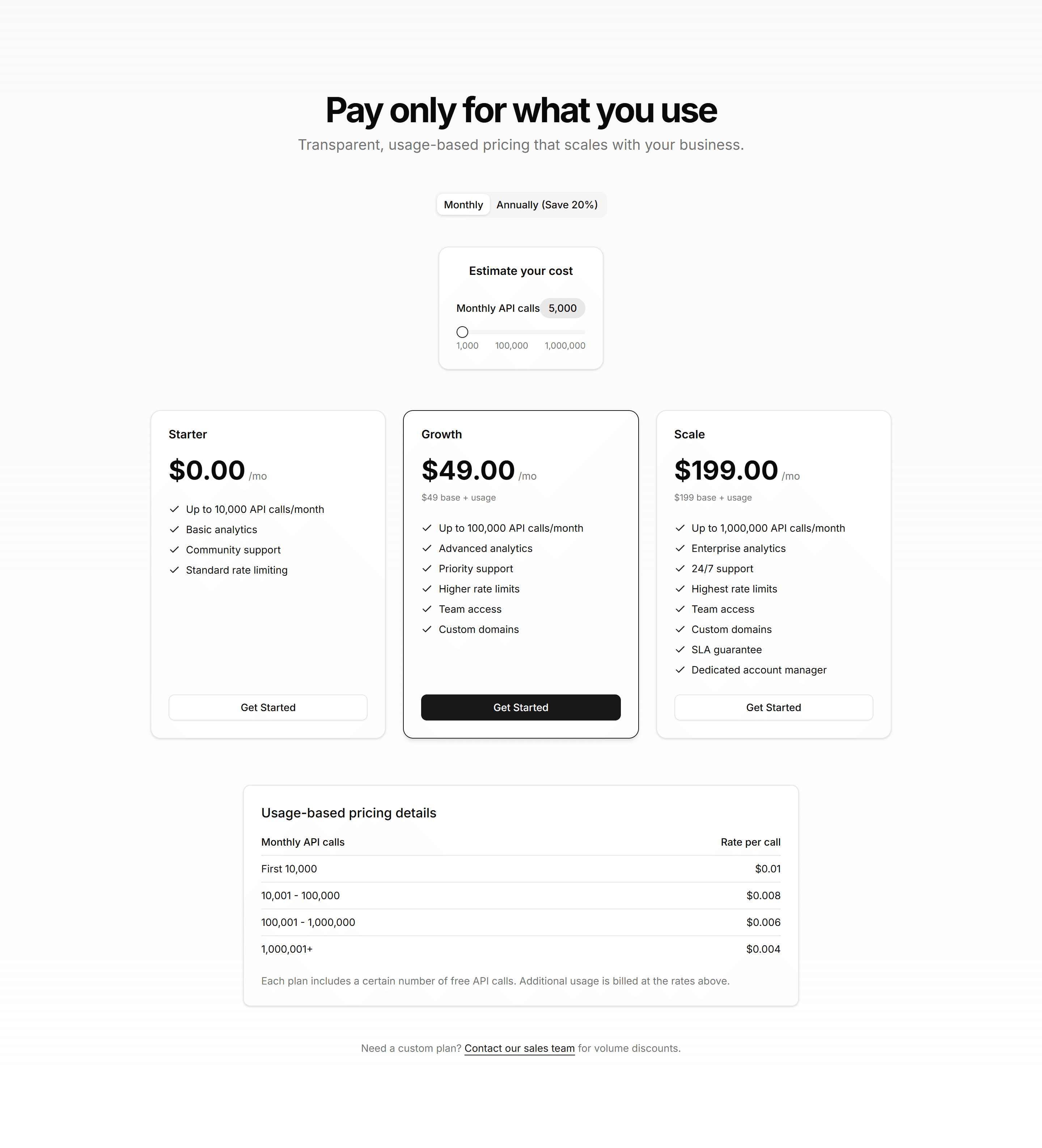
Marketing (Legacy) Pricing Section: Calculator
A pricing calculator with sliders and inputs that estimate cost from usage. Use it when plans scale by seats, requests, or volume so buyers see real numbers.
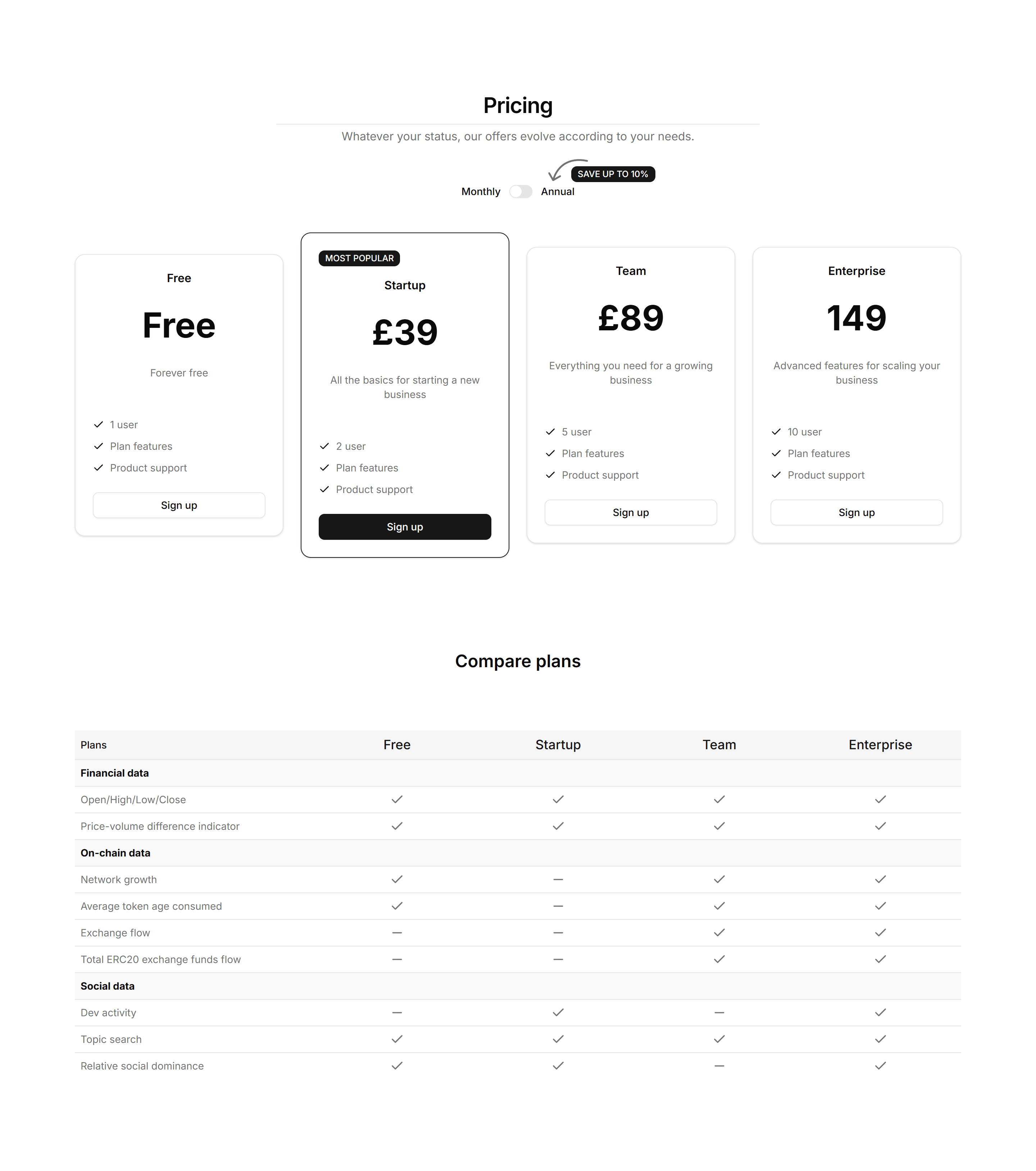
Marketing (Legacy) Pricing Section: Cards
A row of pricing cards listing plan names, prices, and features with a clear call to action. Drop it on a pricing page to compare tiers at a glance.
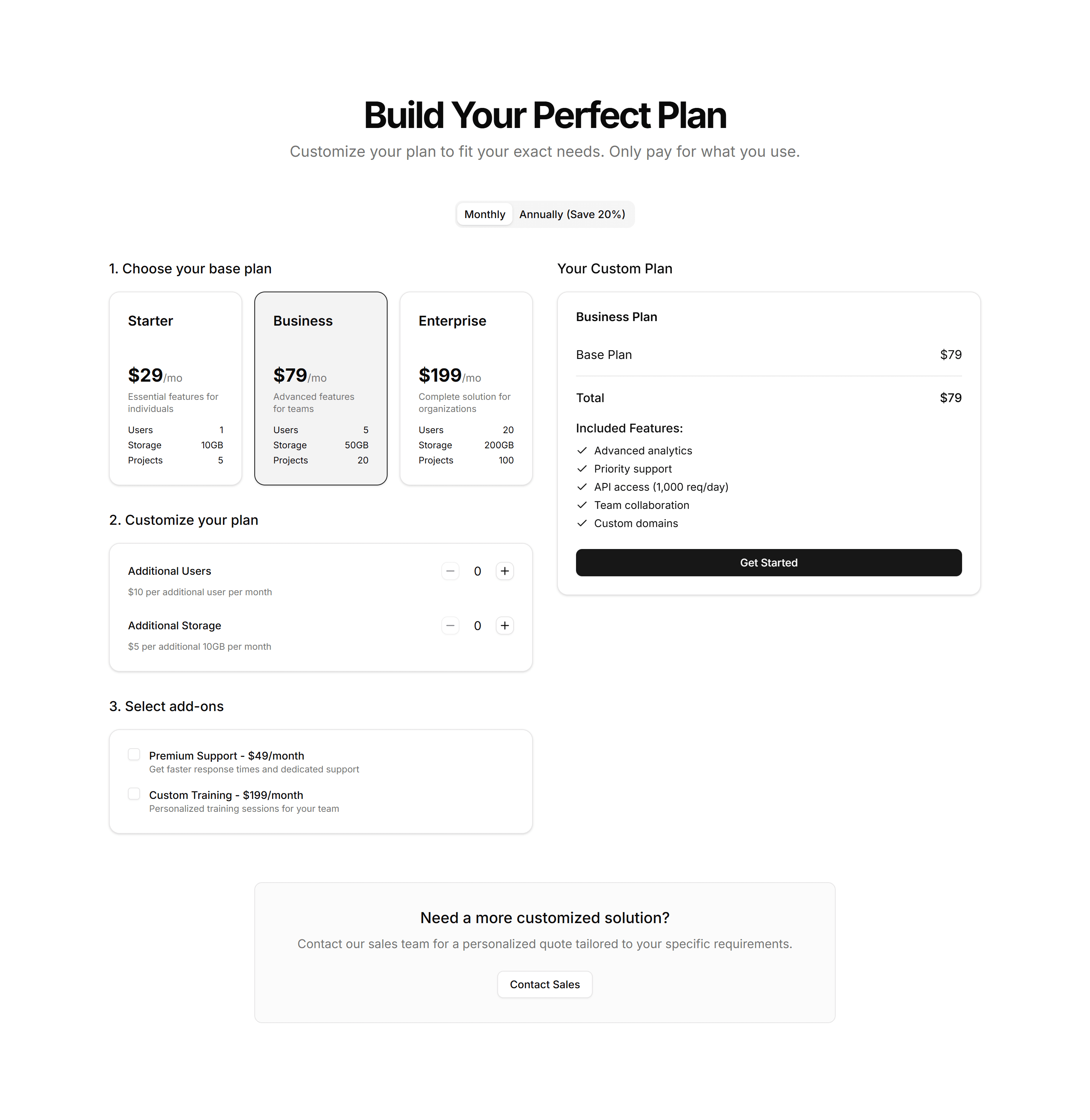
Marketing (Legacy) Pricing Section: Custom Builder
A plan builder where buyers pick features and quantities to assemble a quote. Use it for modular products where every customer needs a different mix.
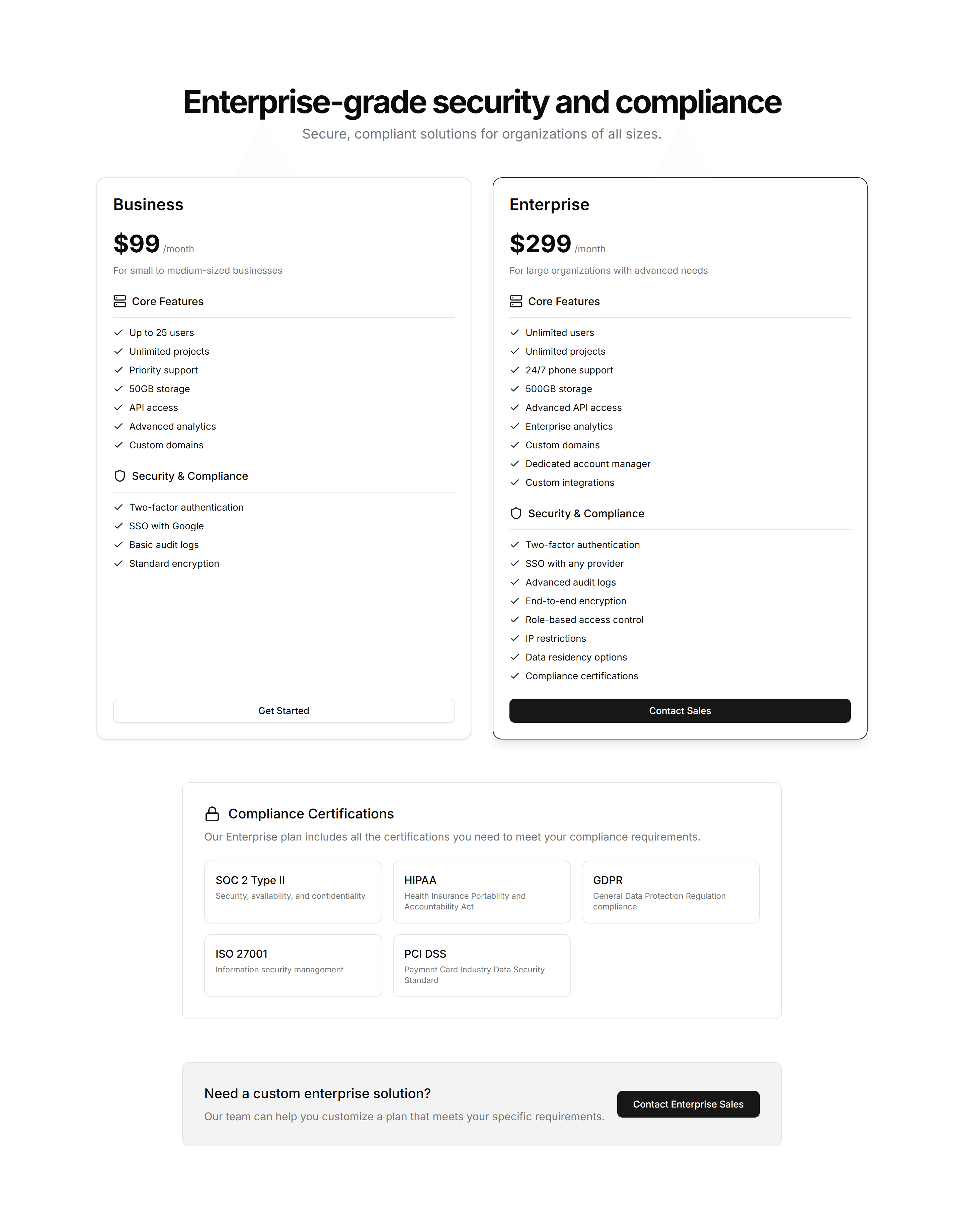
Marketing (Legacy) Pricing Section: Enterprise
A pricing layout pairing standard tiers with a contact sales panel for large accounts. Use it when bigger deals need custom quotes and a human conversation.
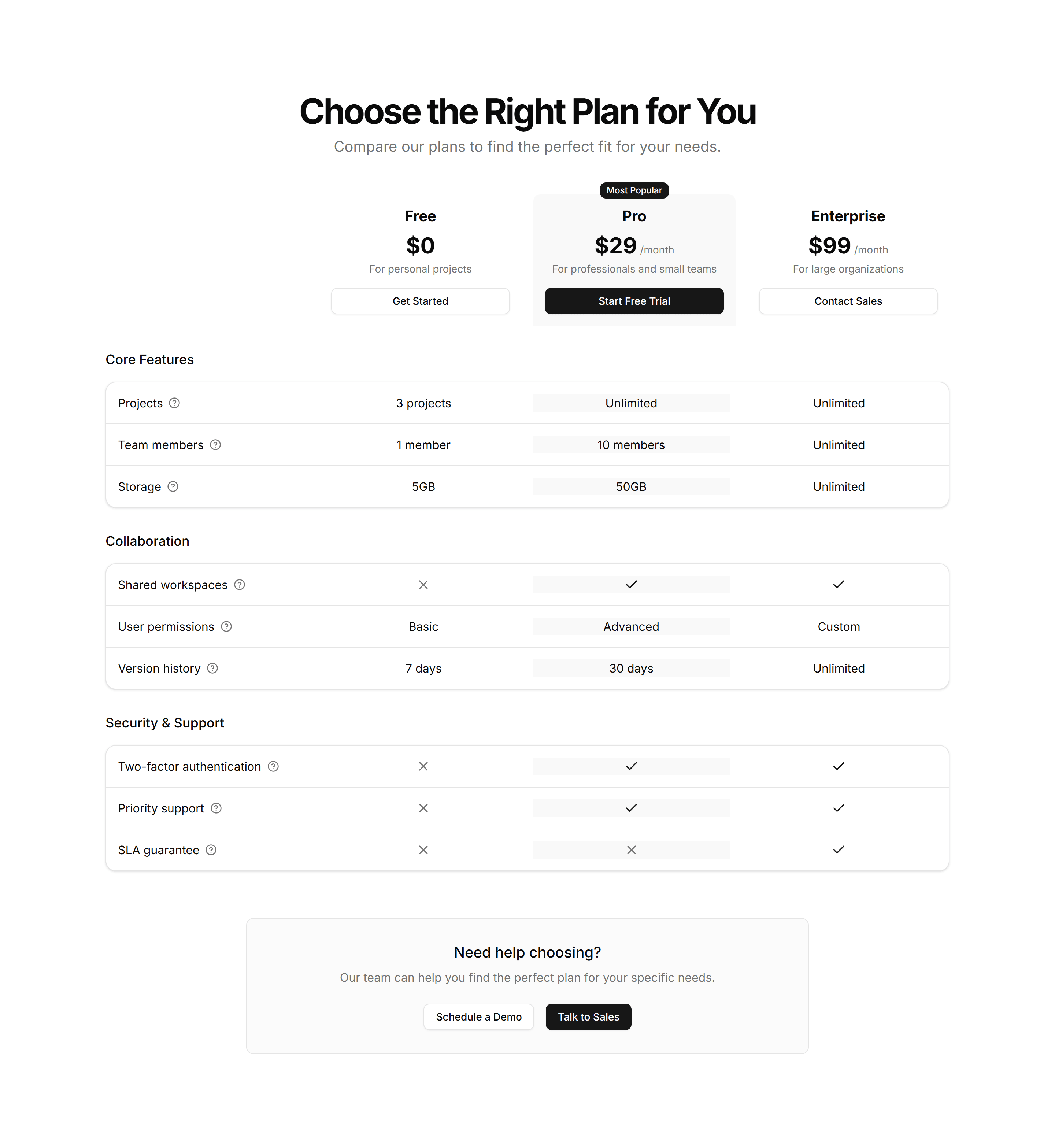
Marketing (Legacy) Pricing Section: Feature Grid
A pricing table mapping every feature to each plan across rows and columns. Use it when buyers want to confirm exactly what each tier includes before paying.
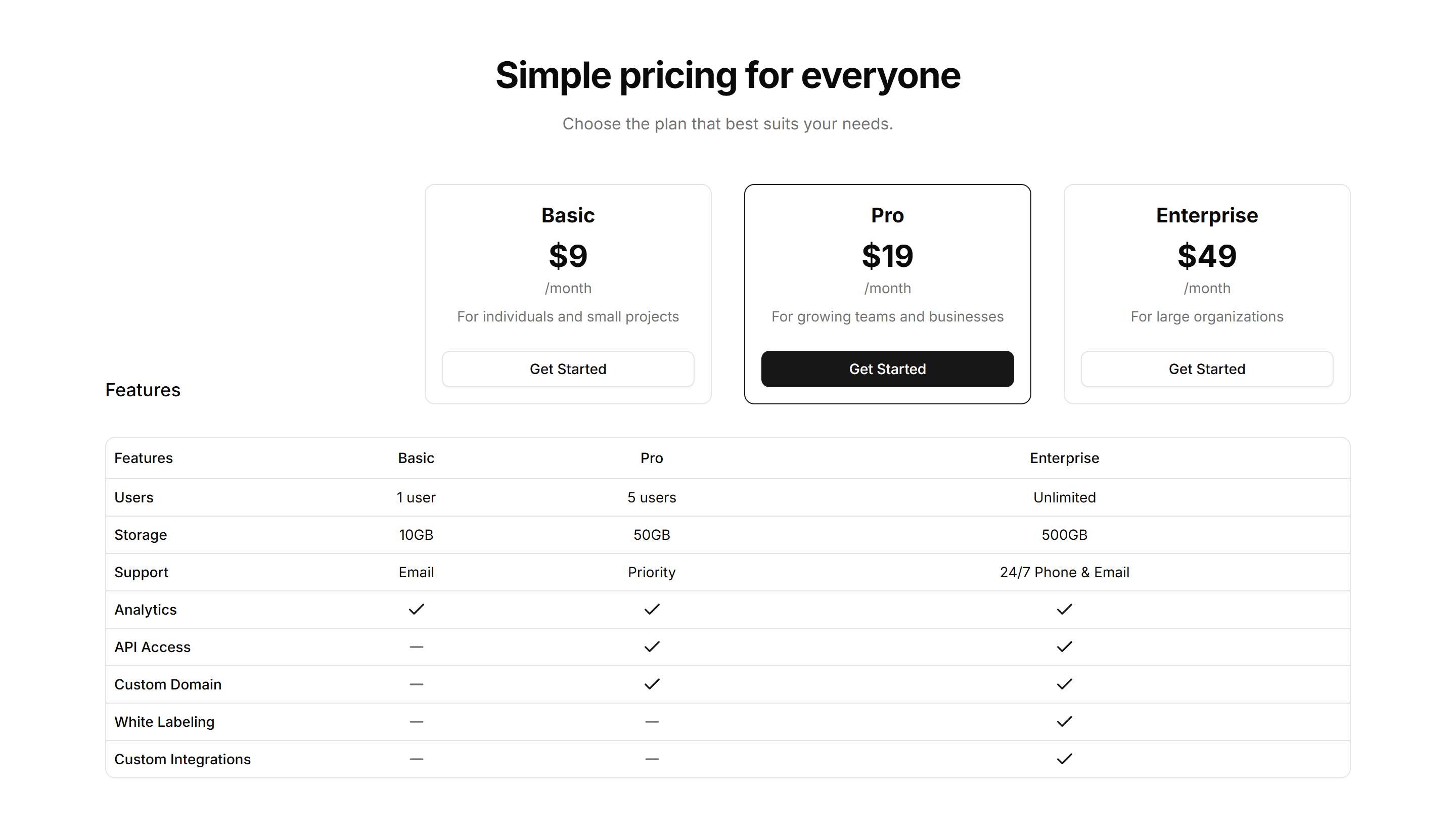
Marketing (Legacy) Pricing Section: Horizontal
A wide pricing row that lays plans side by side in a single band. Fits narrow page slots and pages where you want plans visible without much scrolling.
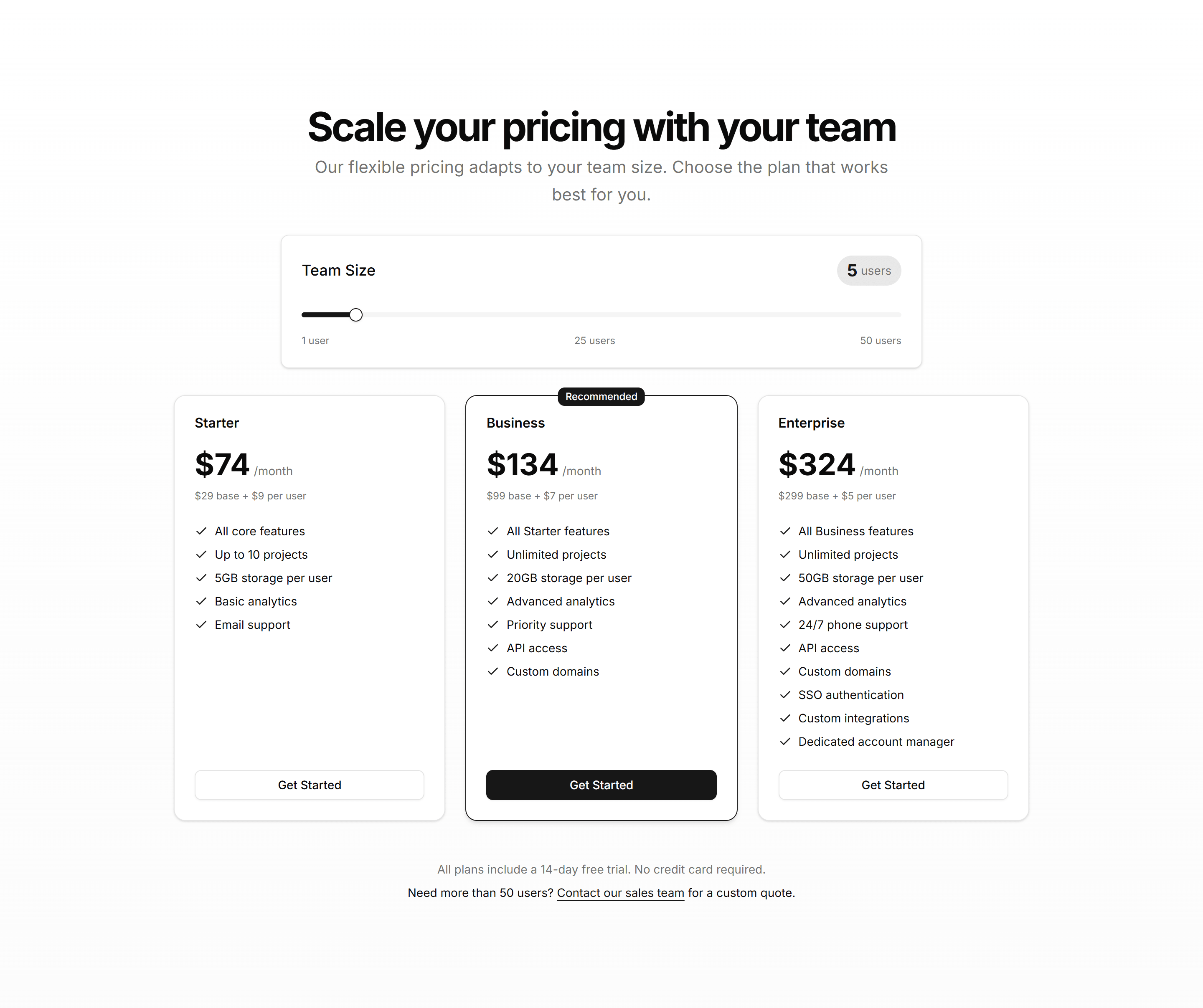
Marketing (Legacy) Pricing Section: Interactive
A pricing section that updates prices and highlights as buyers select options. Use it when choices like seats or add ons should reflect cost instantly.
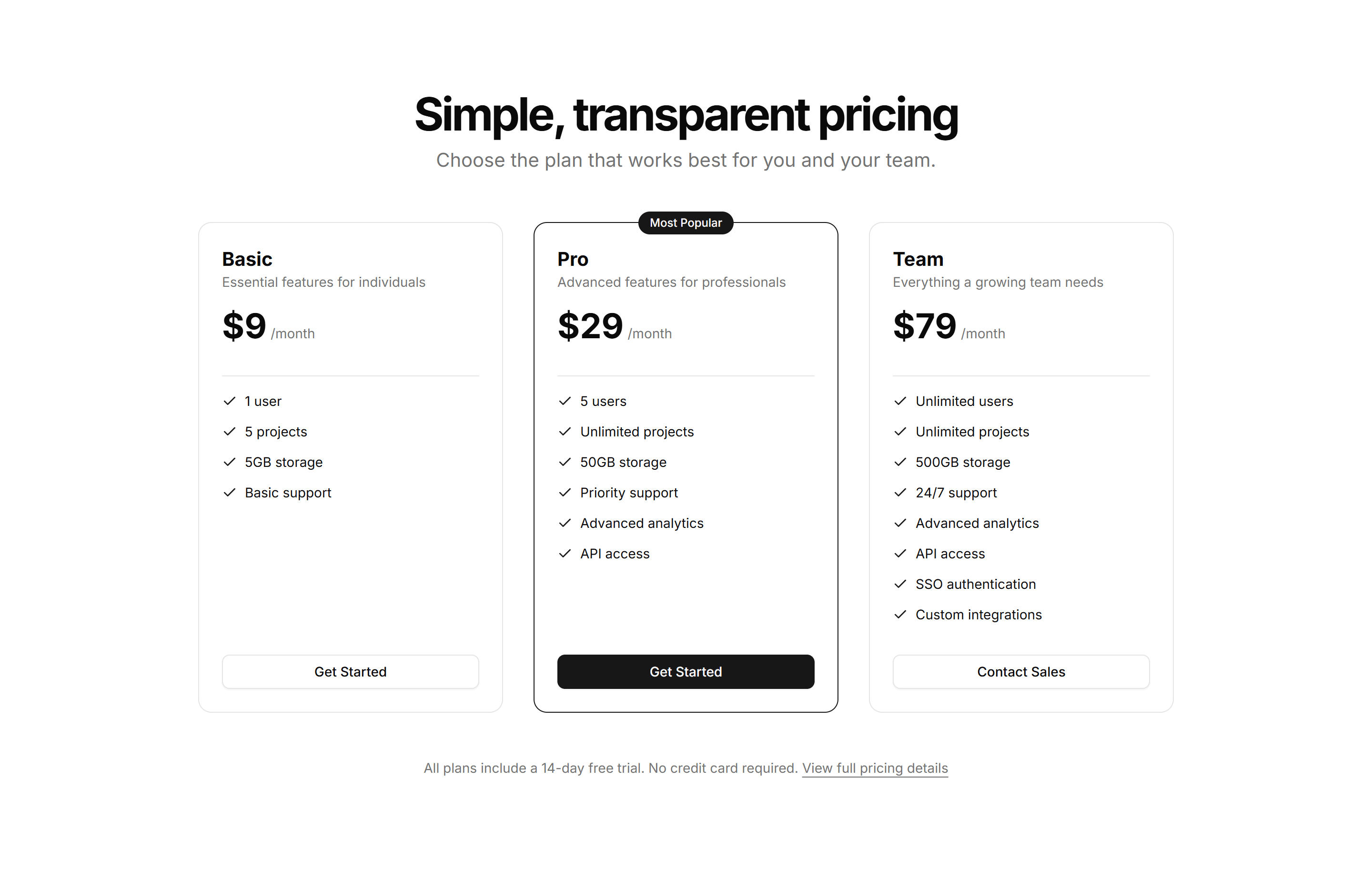
Marketing (Legacy) Pricing Section: Minimalist
A pared back pricing layout with generous spacing, plain type, and one clear price. Use it when a single plan or clean brand needs no visual clutter.
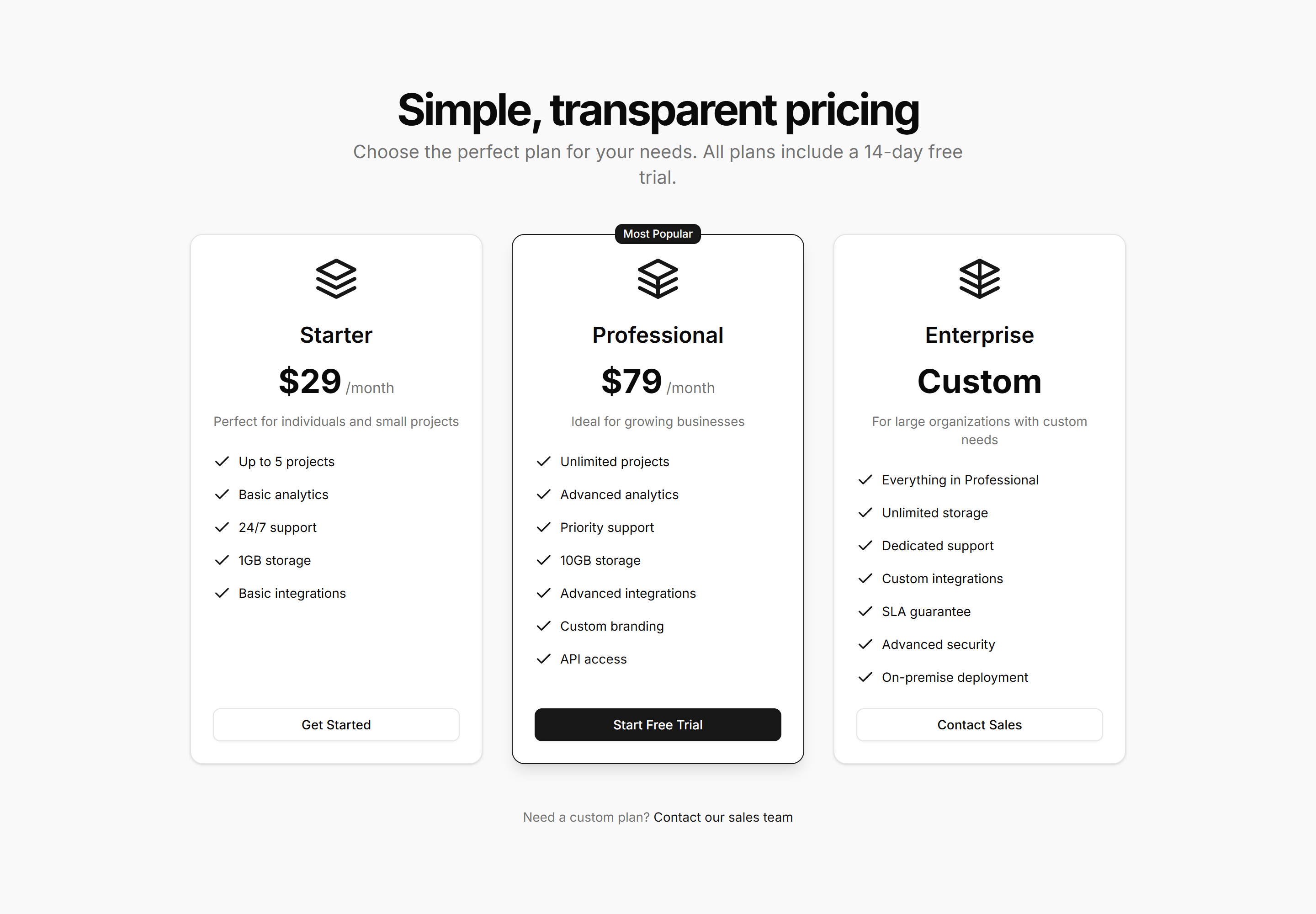
Marketing (Legacy) Pricing Section: Modern
A contemporary pricing section with bold cards, soft shadows, and accent gradients. Use it to give a polished, current feel to a product or SaaS page.
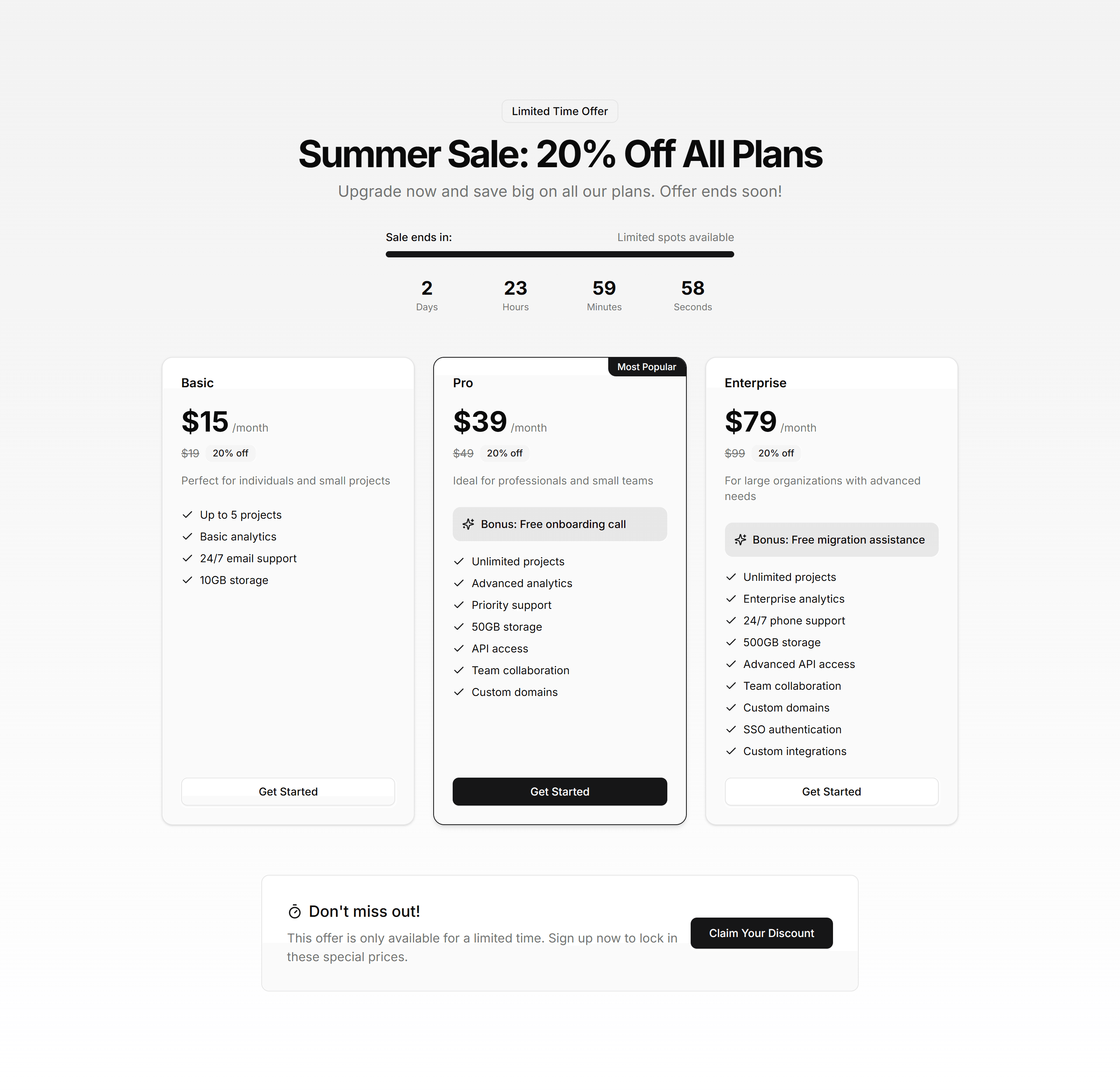
Marketing (Legacy) Pricing Section: Seasonal
A pricing section with promotional banners and limited time discounts on each plan. Use it for holiday sales, launches, and campaigns that push urgency.
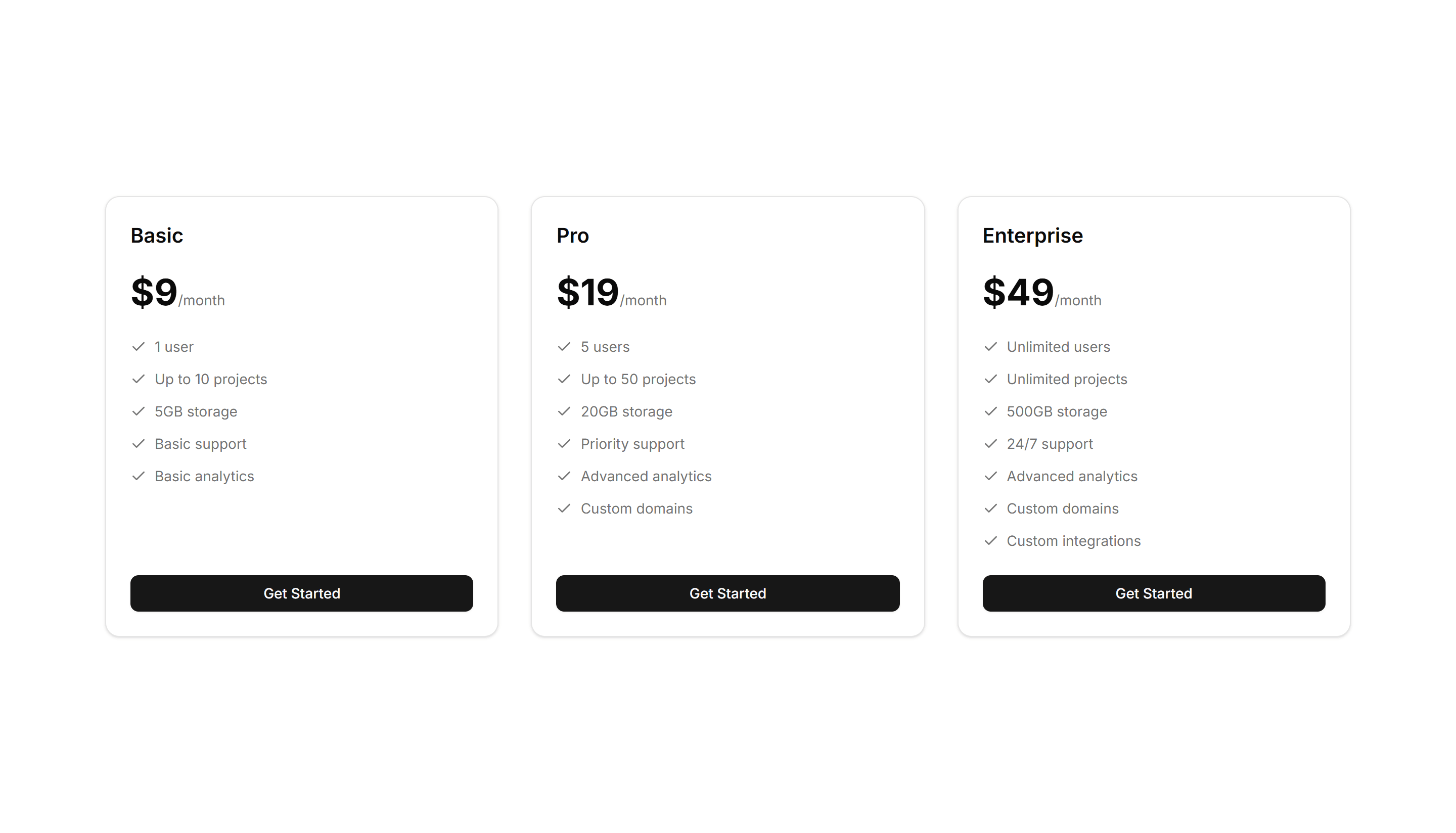
Marketing (Legacy) Pricing Section: Simple
A clean pricing section showing a few plans with price, features, and a button each. Use it when you want fast comprehension without extra decoration.
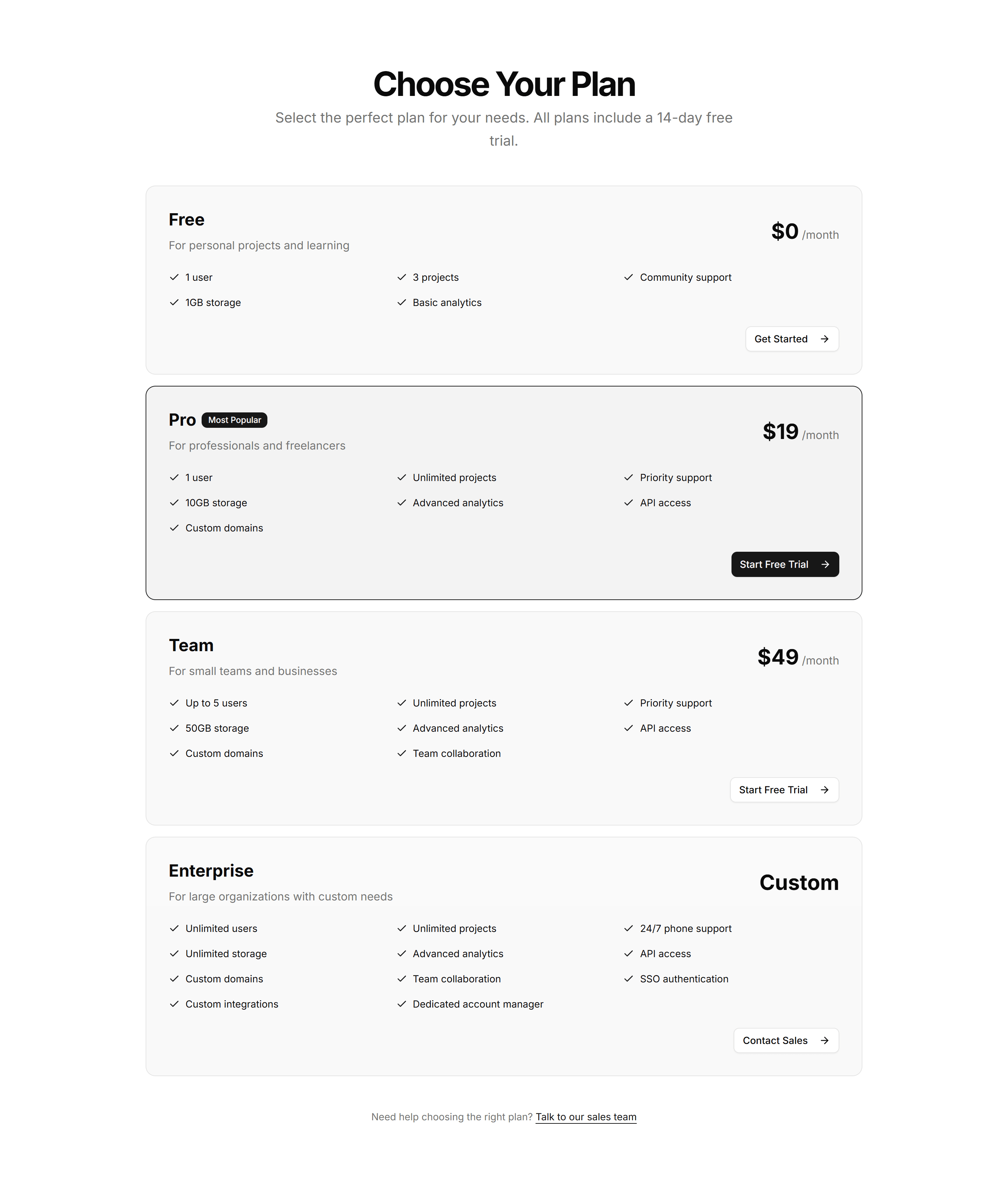
Marketing (Legacy) Pricing Section: Stacked
A pricing layout that stacks plan cards vertically for narrow columns and phones. Use it on mobile first pages or sidebars where width is limited.
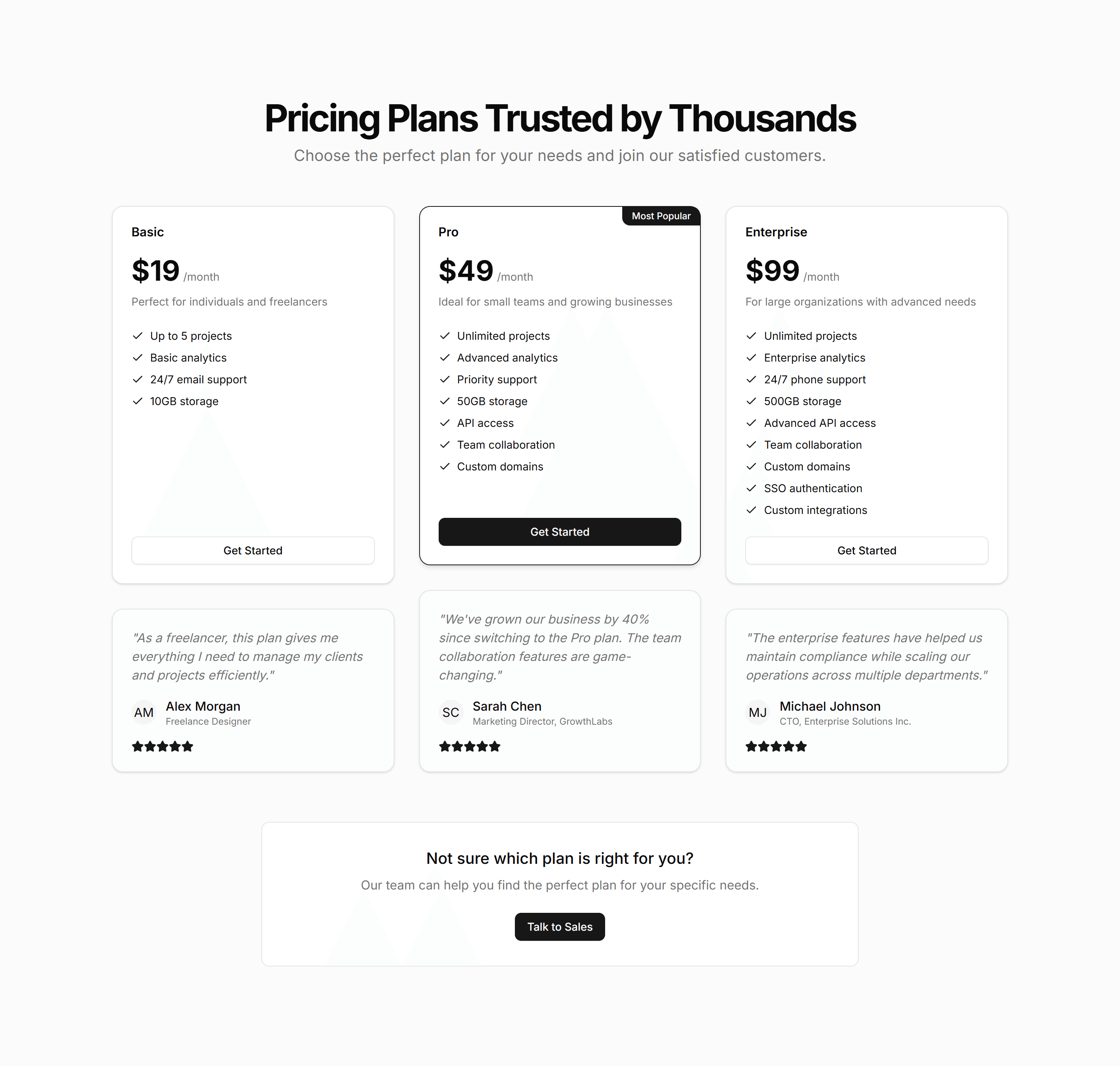
Marketing (Legacy) Pricing Section: Testimonial
A pricing section that pairs plan cards with customer quotes and logos. Use it to add social proof right where buyers weigh price and decide to commit.
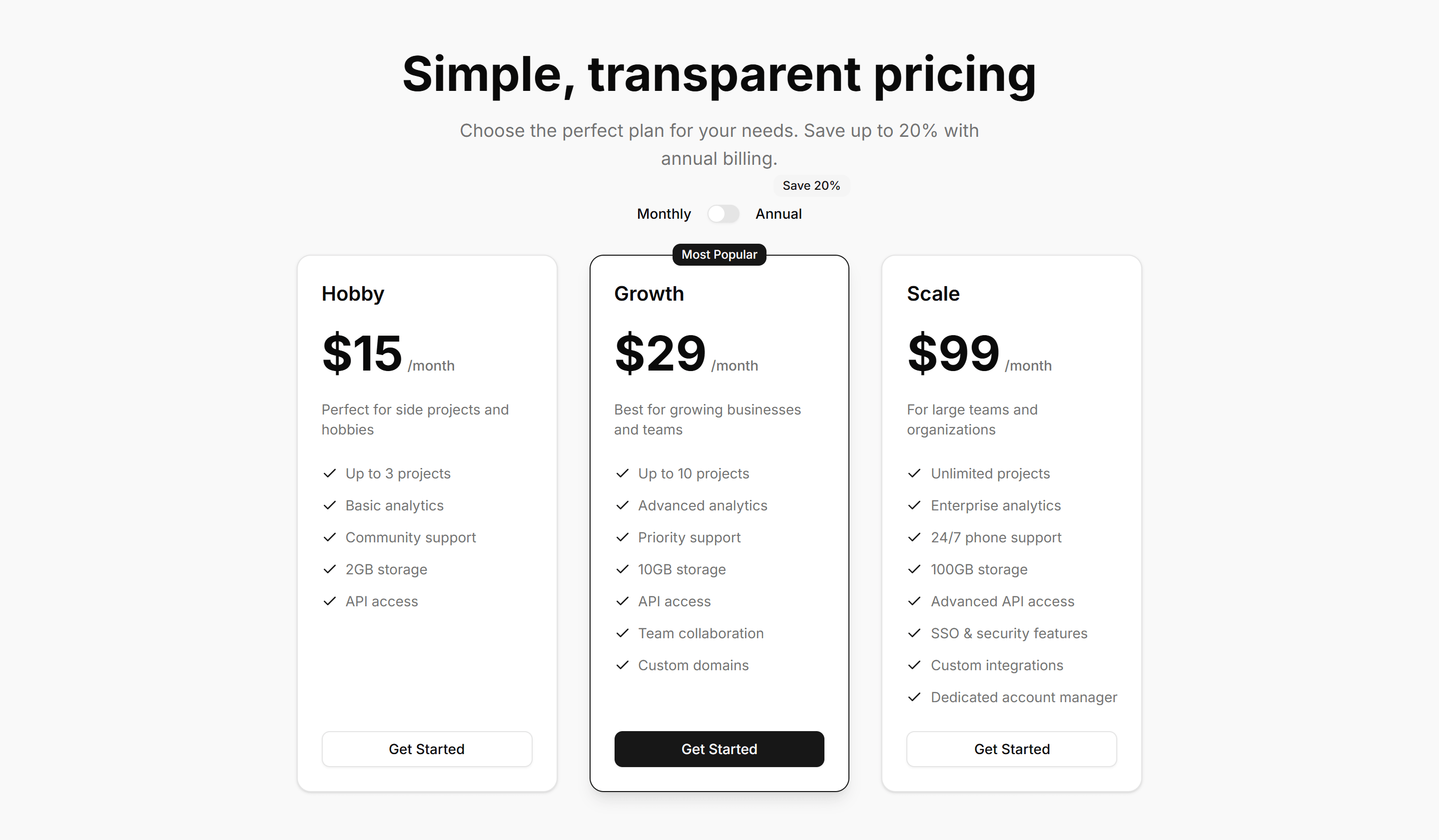
Marketing (Legacy) Pricing Section: Toggle
A pricing section with a monthly and yearly switch that updates every plan price. Use it to show annual savings and let buyers pick a billing cycle fast.
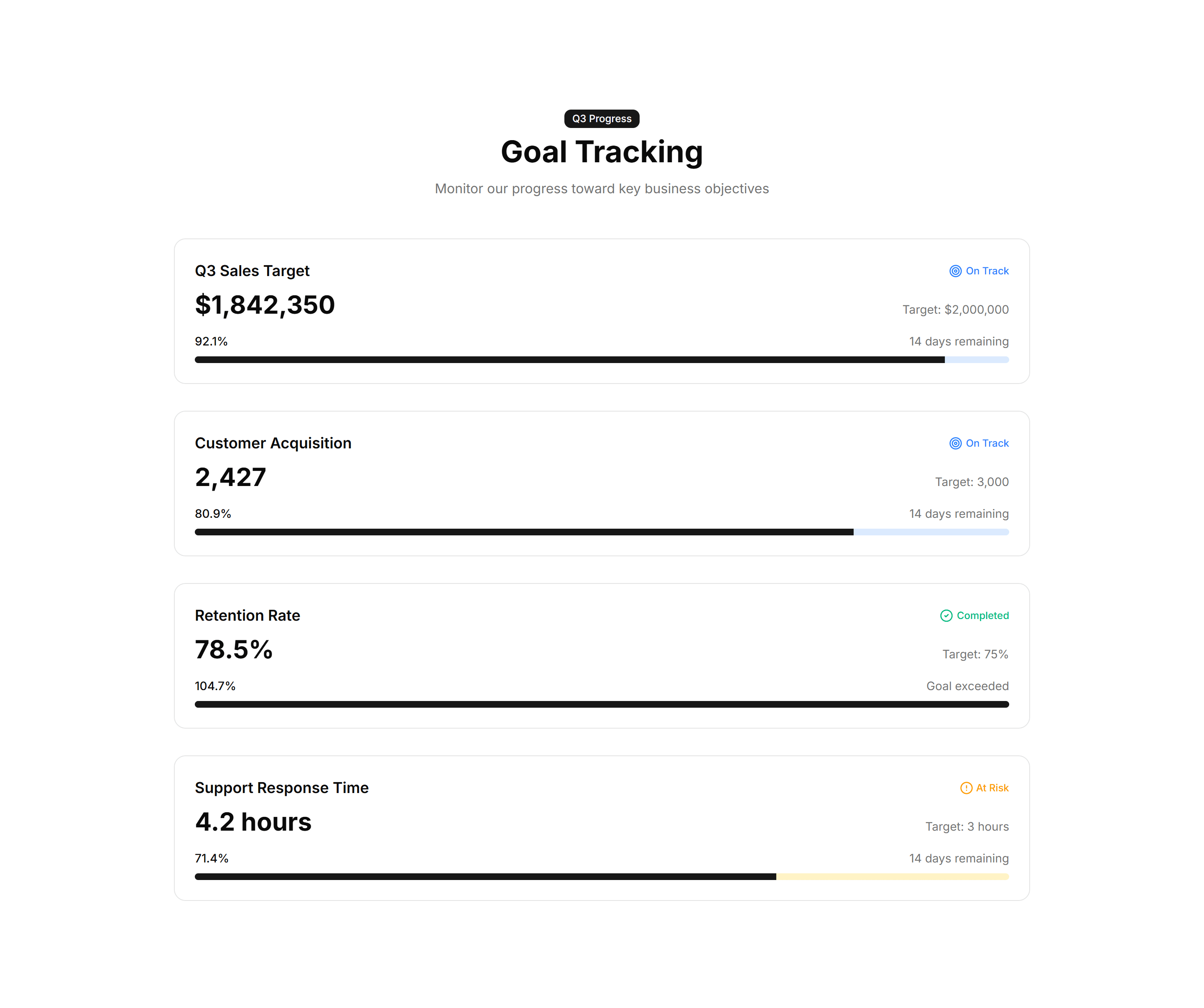
Marketing (Legacy) Stat: Achievement Bars
Horizontal bars that fill to show milestones reached against a target. Drop it on a results page to visualize goals hit and progress toward each one.
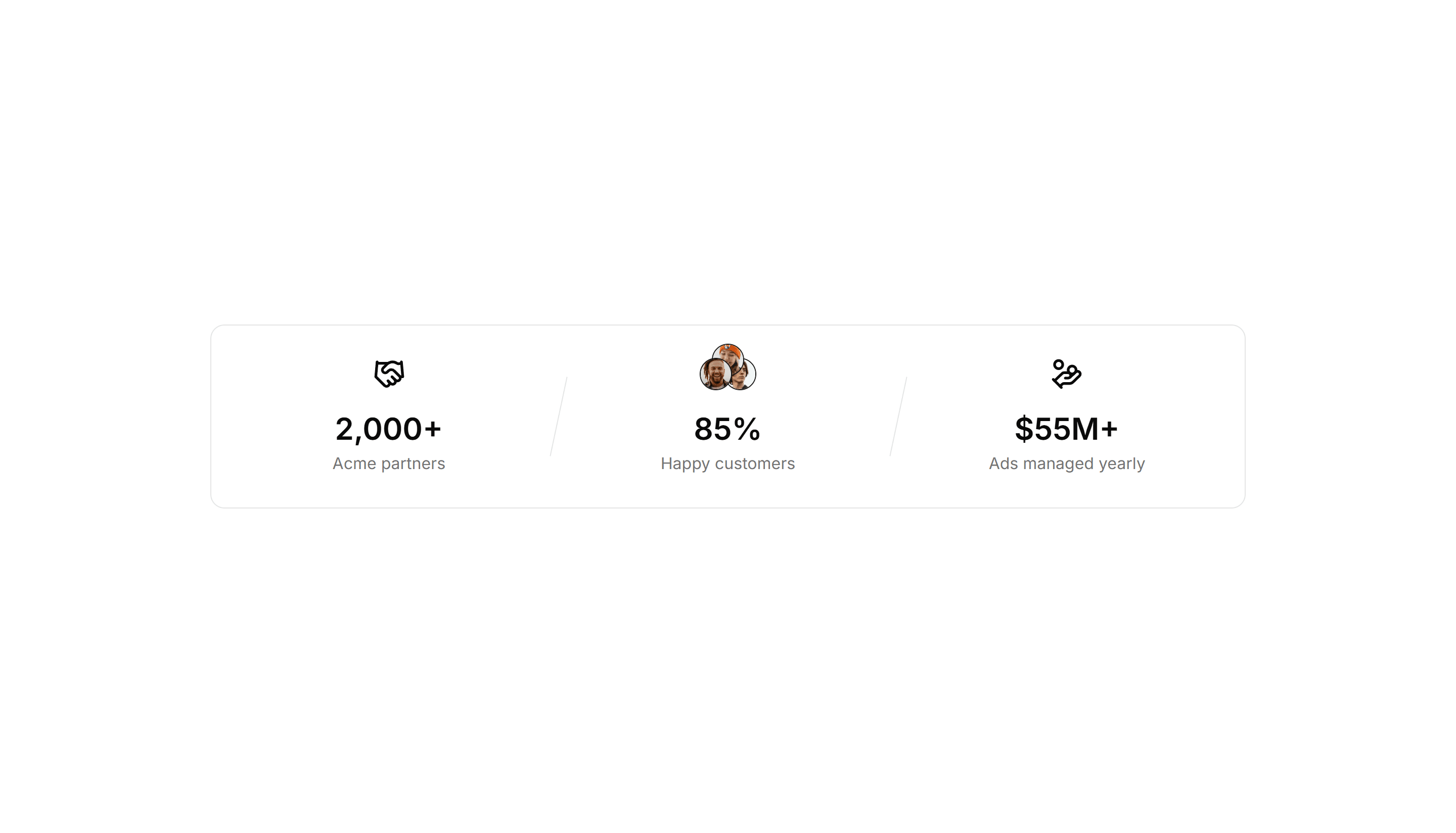
Marketing (Legacy) Stat: Card Group
A cluster of stat cards with a big number, label, and short caption in each. Use it to spotlight key metrics across a landing page in a clean grid.
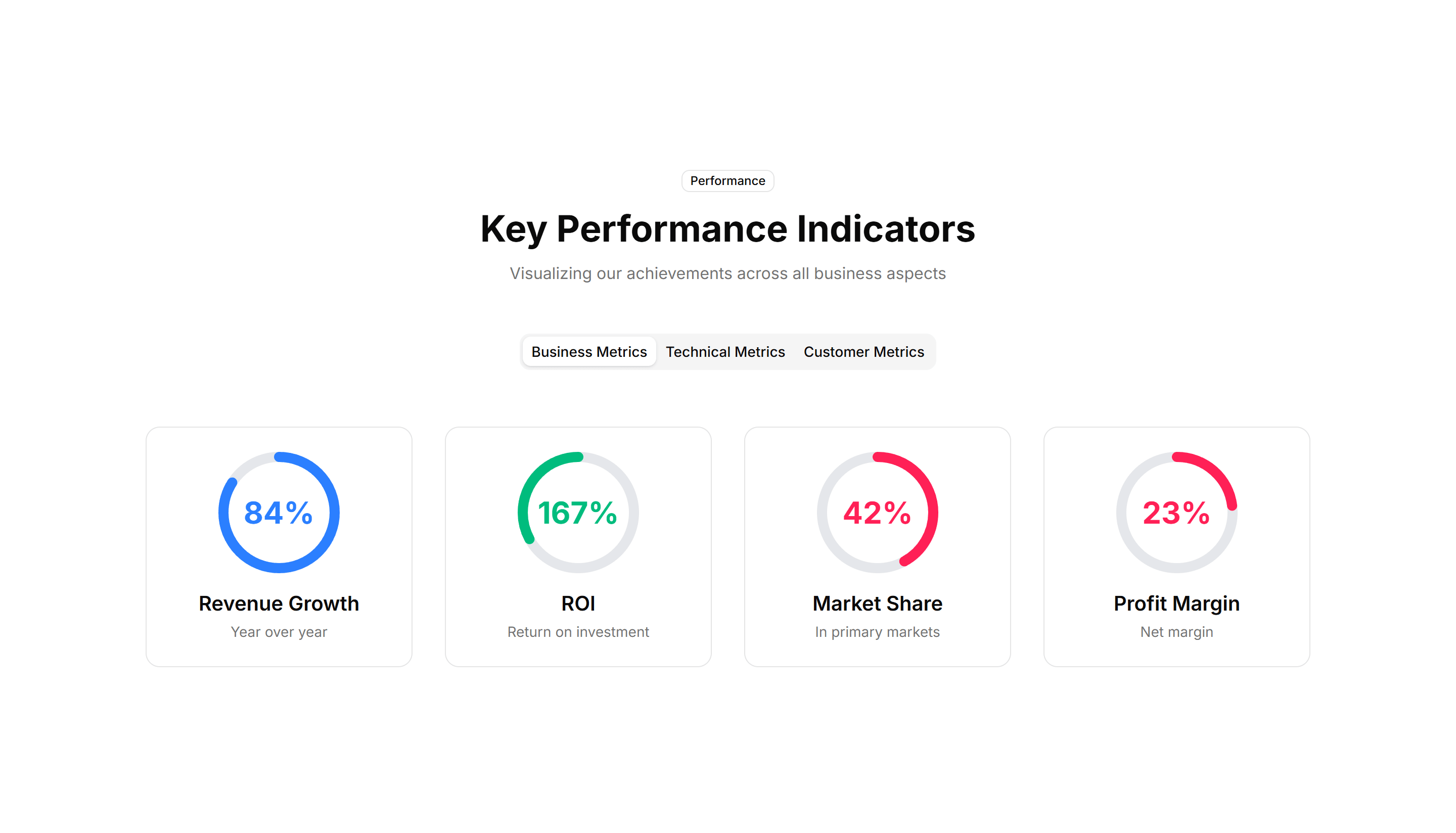
Marketing (Legacy) Stat: Circular Progress
Ring shaped progress dials that animate to a percentage value. Good for dashboards or landing pages that report completion rates and capacity at a glance.
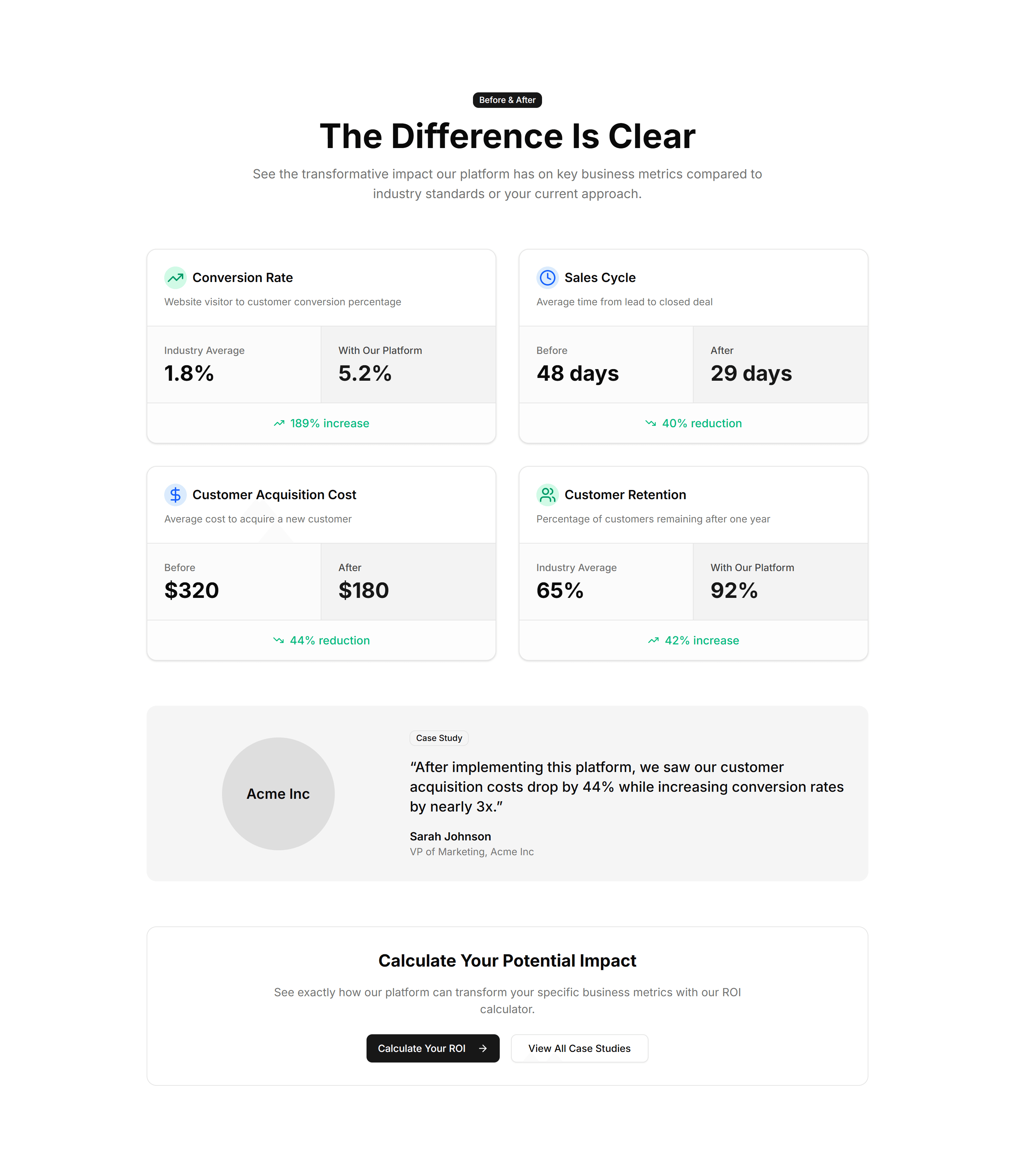
Marketing (Legacy) Stat: Comparison Metrics
Two columns of numbers placed side by side to contrast before and after results. Use it to show the lift your product delivers over the old way.
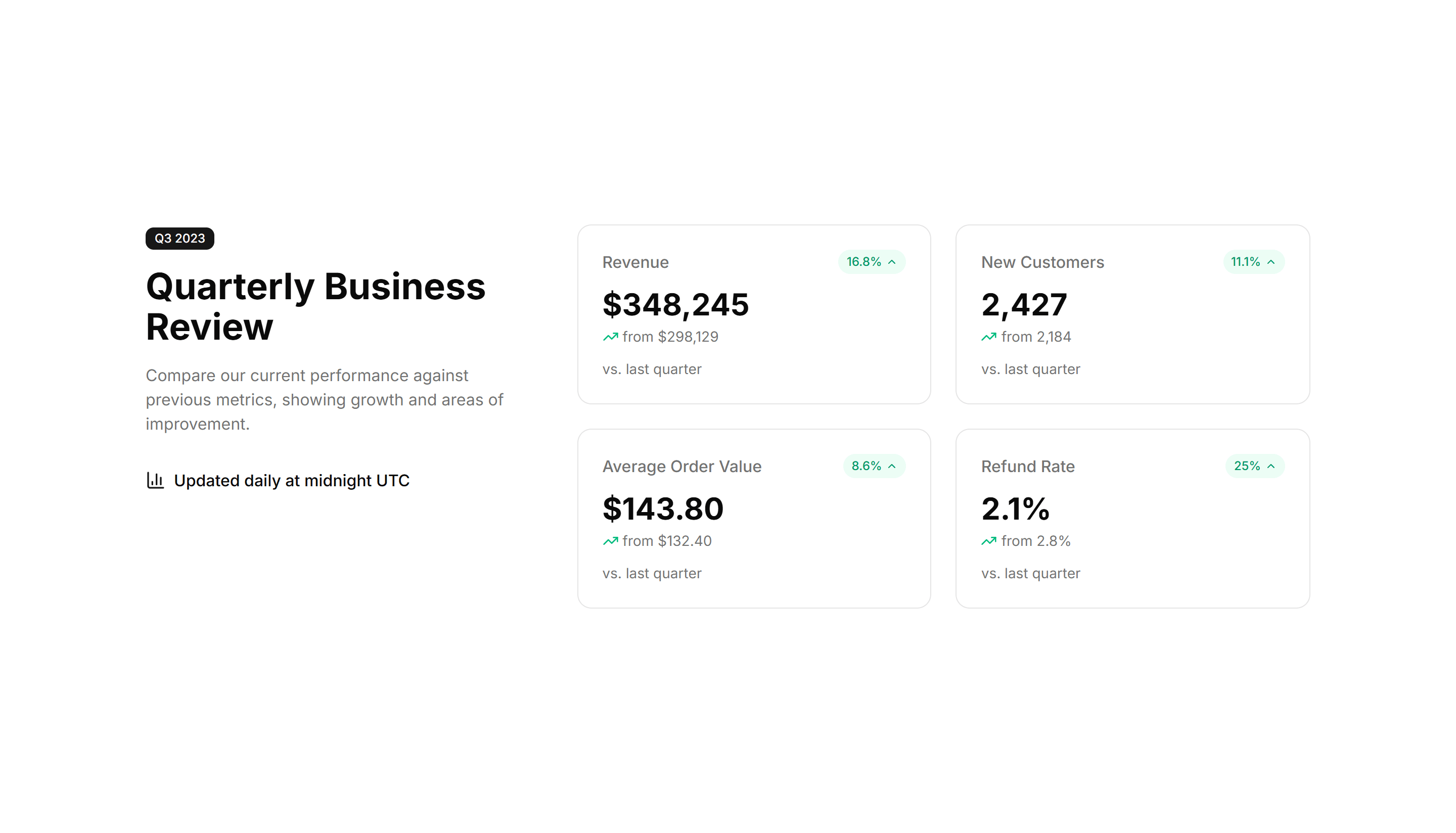
Marketing (Legacy) Stat: Comparison Stats
Paired figures with labels that weigh your offering against a baseline. Great for sales pages that need to make the gain feel concrete and credible.
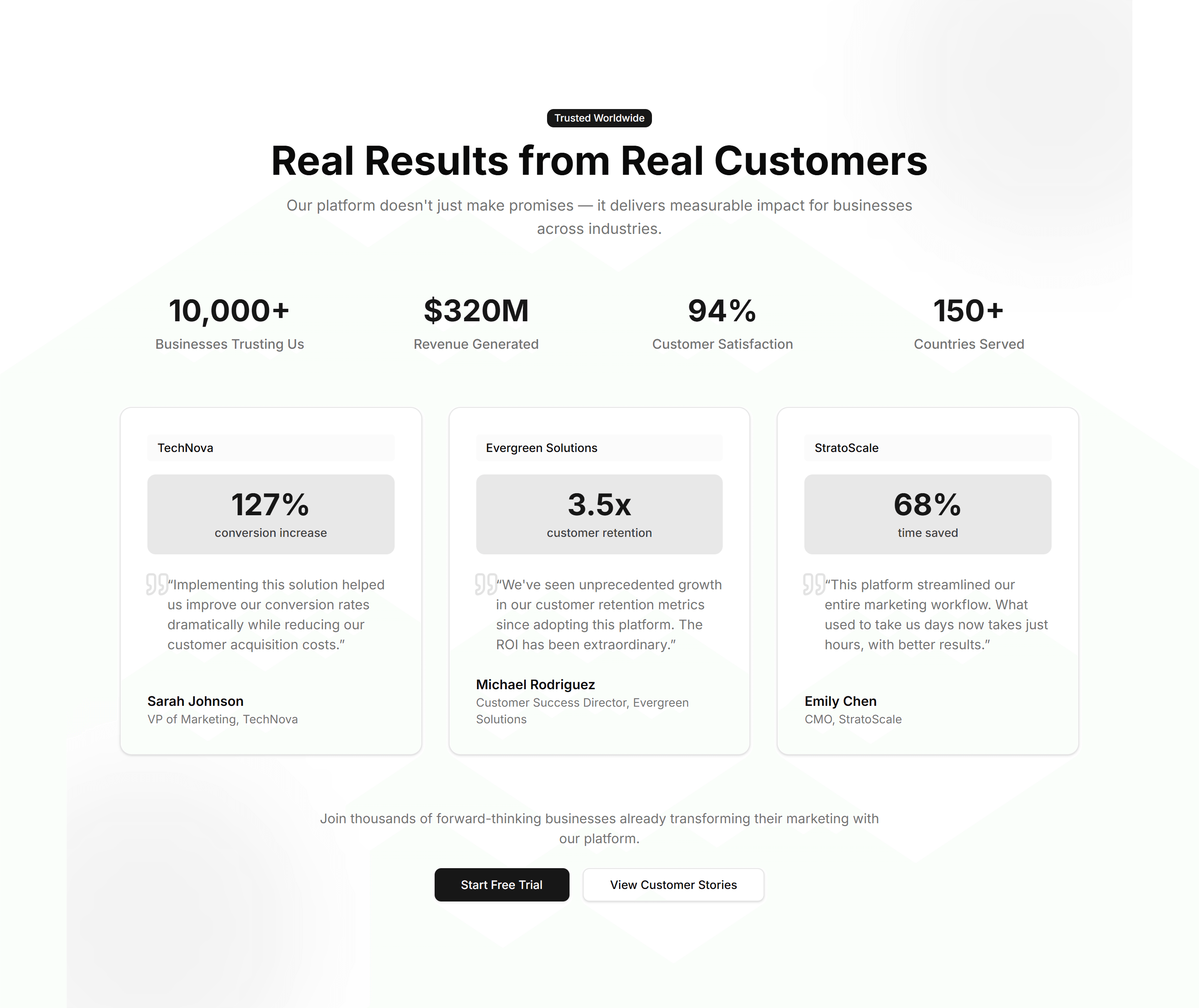
Marketing (Legacy) Stat: Customer Testimonial
A quote from a customer next to the numbers their team reached with you. Use it to pair social proof with hard results on a case study page.
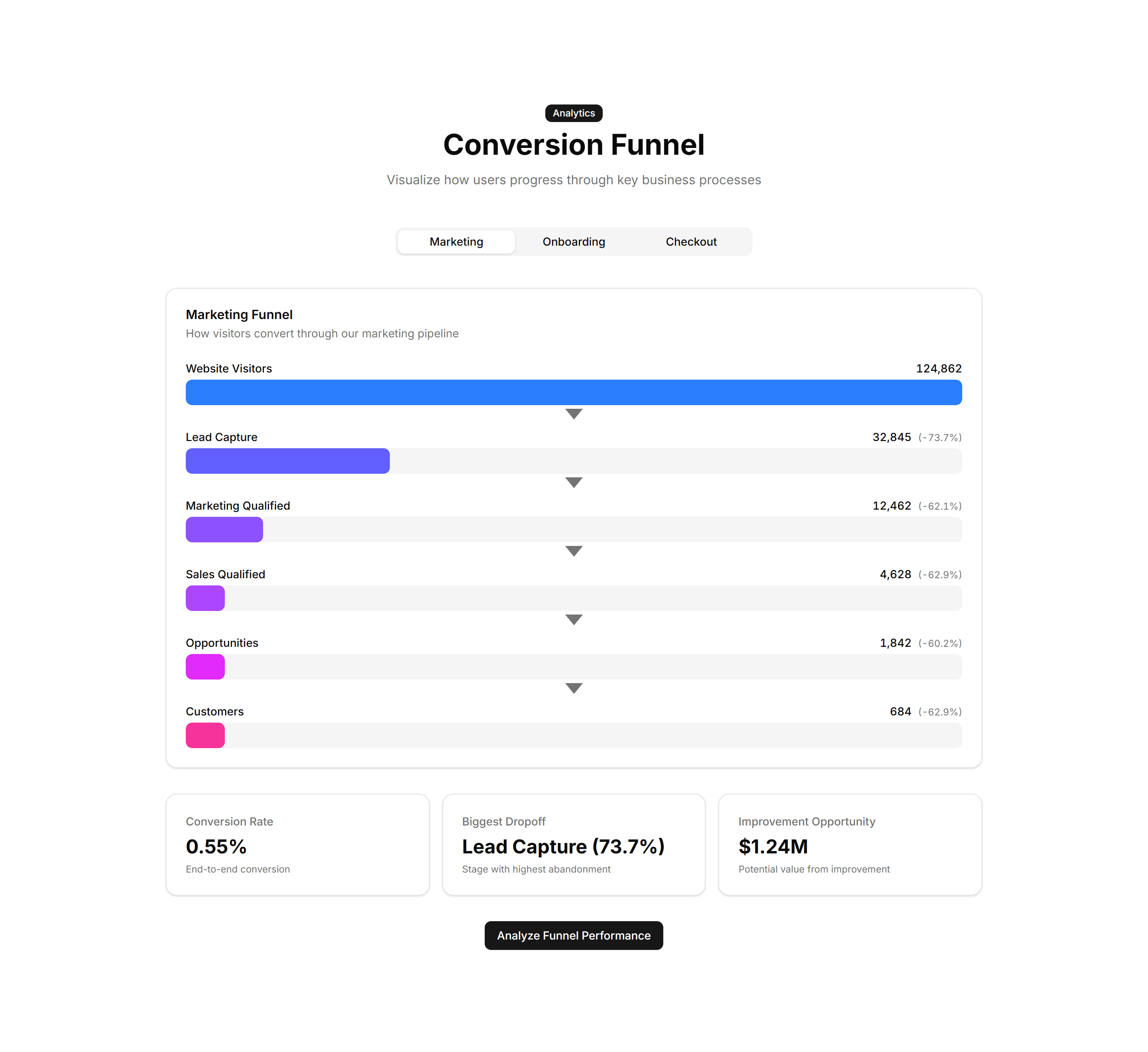
Marketing (Legacy) Stat: Funnel Stats
A stepped funnel showing how many visitors move from view to signup to paid. Use it to explain conversion and where users drop off in your flow.
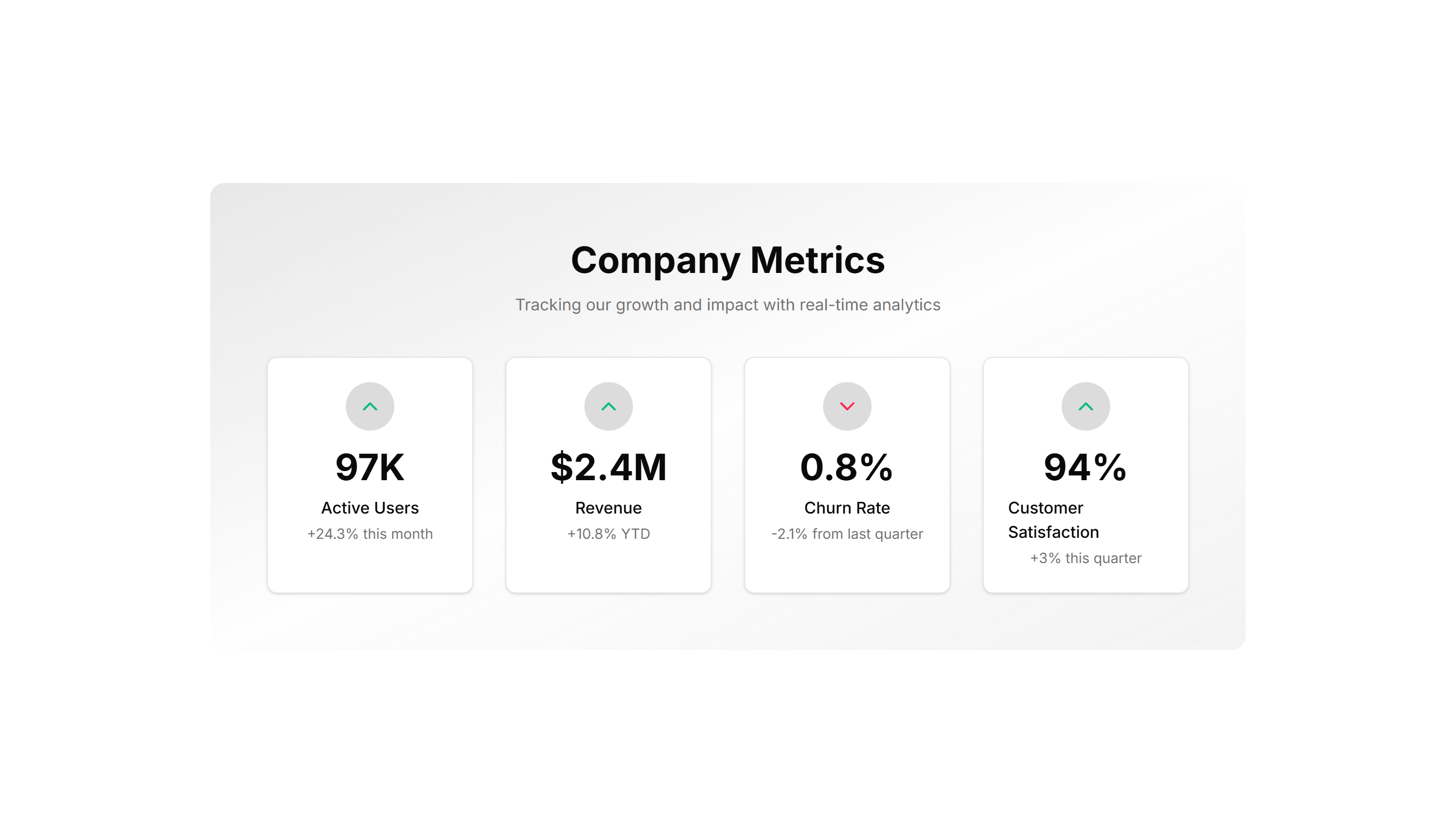
Marketing (Legacy) Stat: Gradient Grid
A grid of stat tiles washed in soft gradients for a vivid, modern look. Use it to display headline metrics when you want the section to feel premium.
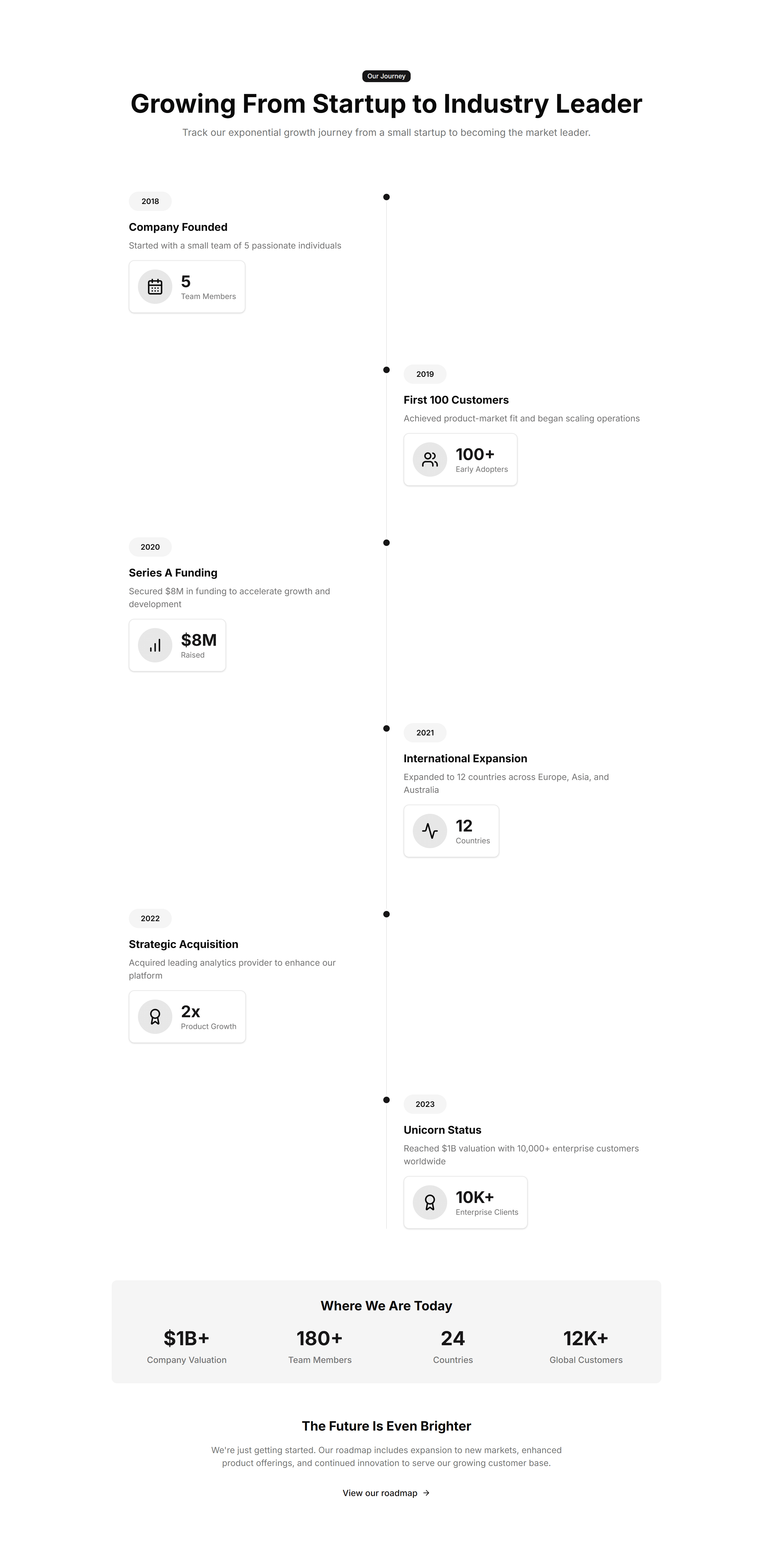
Marketing (Legacy) Stat: Growth Timeline
A vertical timeline pairing dates with the numbers you hit at each stage. Use it to chart company momentum on an about page or investor deck.
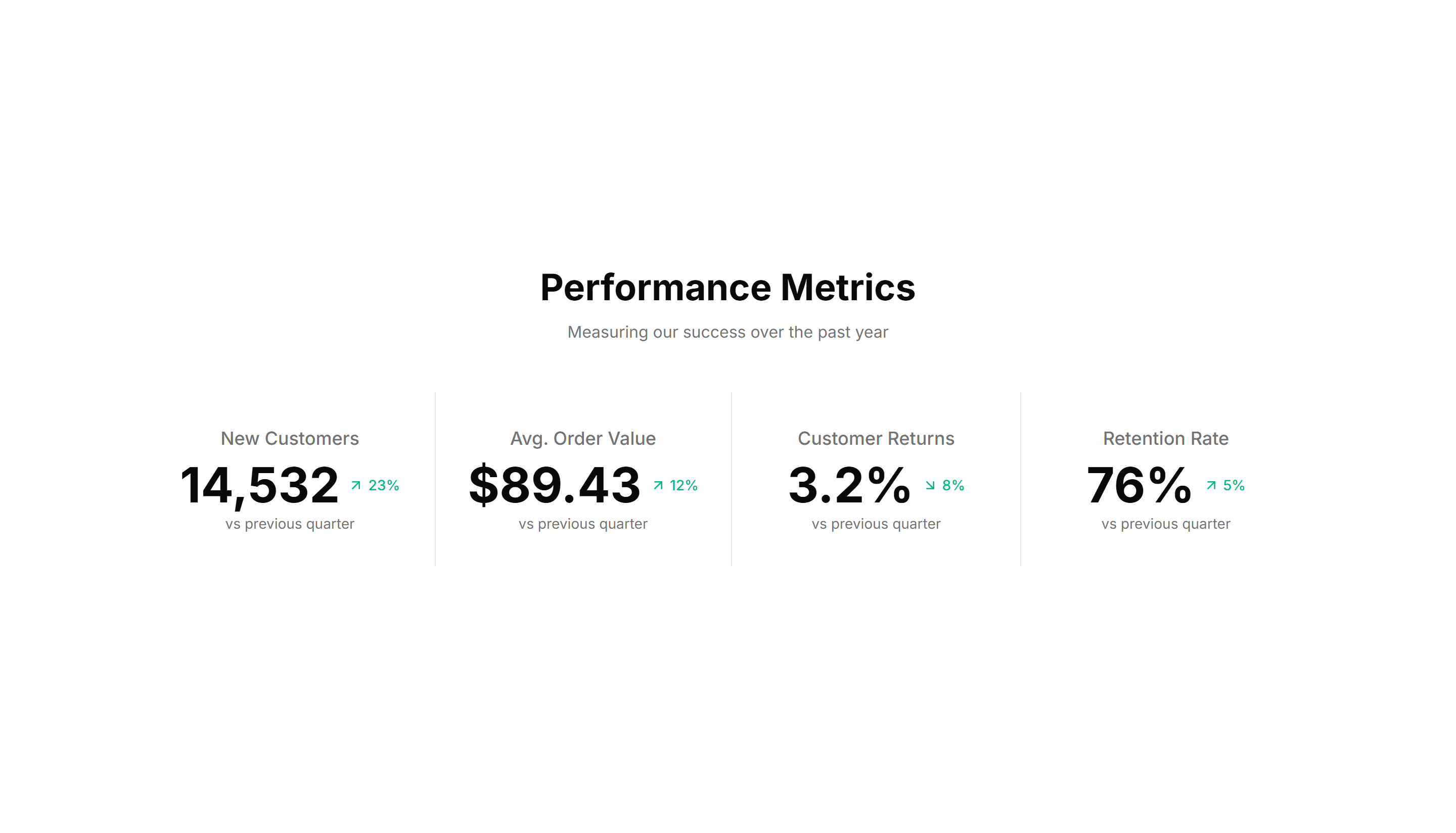
Marketing (Legacy) Stat: Horizontal With Dividers
A single row of figures split by thin vertical dividers for a tidy summary. Use it under a hero to surface three or four headline numbers fast.
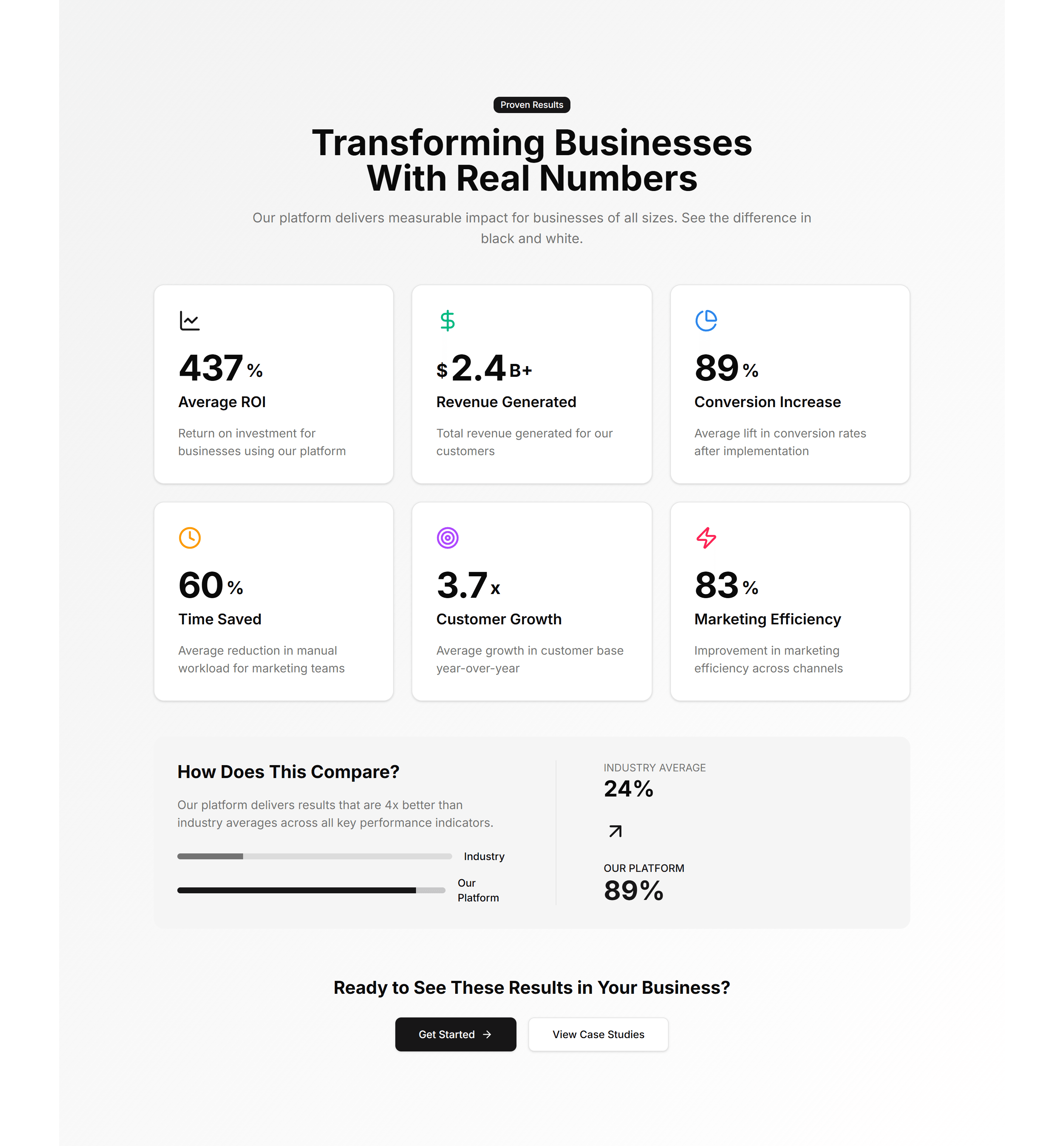
Marketing (Legacy) Stat: Impact Numbers
Oversized counters that animate upward as the section scrolls into view. Use it to make reach, users, or revenue feel bold and immediate to readers.
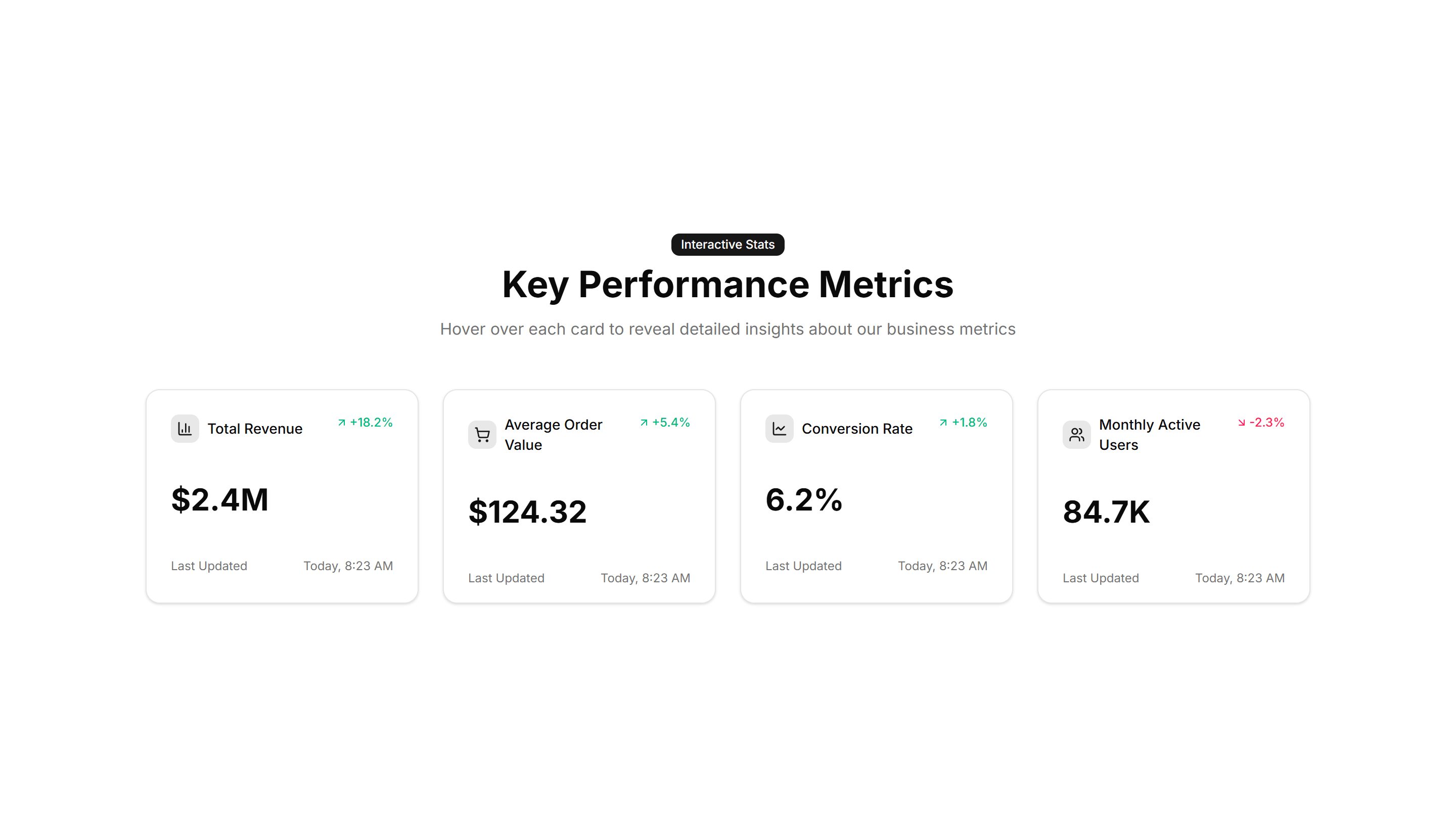
Marketing (Legacy) Stat: Interactive Hover
Stat cards that reveal extra detail or a chart when you hover over them. Use it when you want a number to expand into context on a feature page.
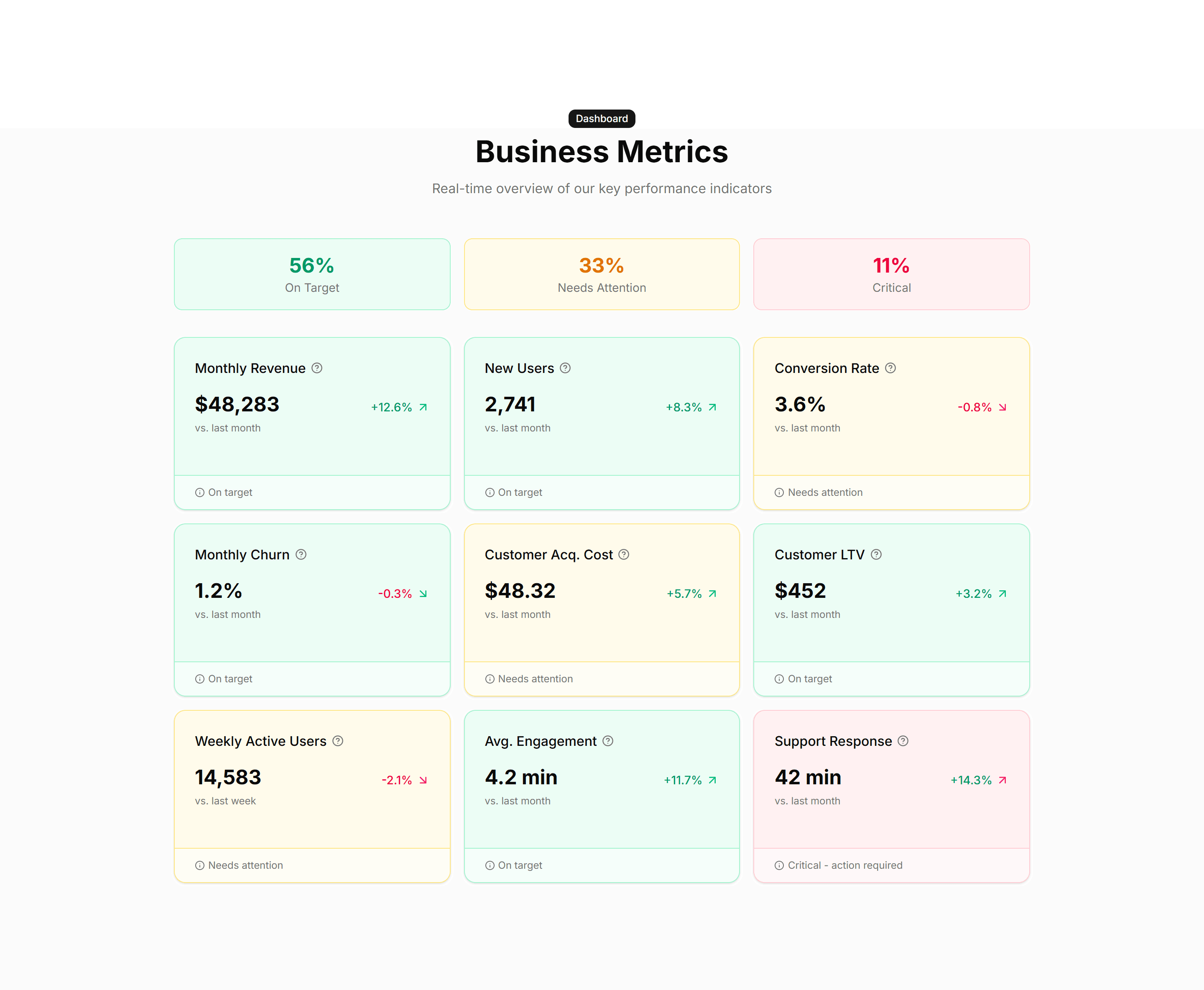
Marketing (Legacy) Stat: Metric Cards
Bordered cards each holding one metric, a label, and a trend note. Use it to report KPIs in a structured layout on a homepage or product page.
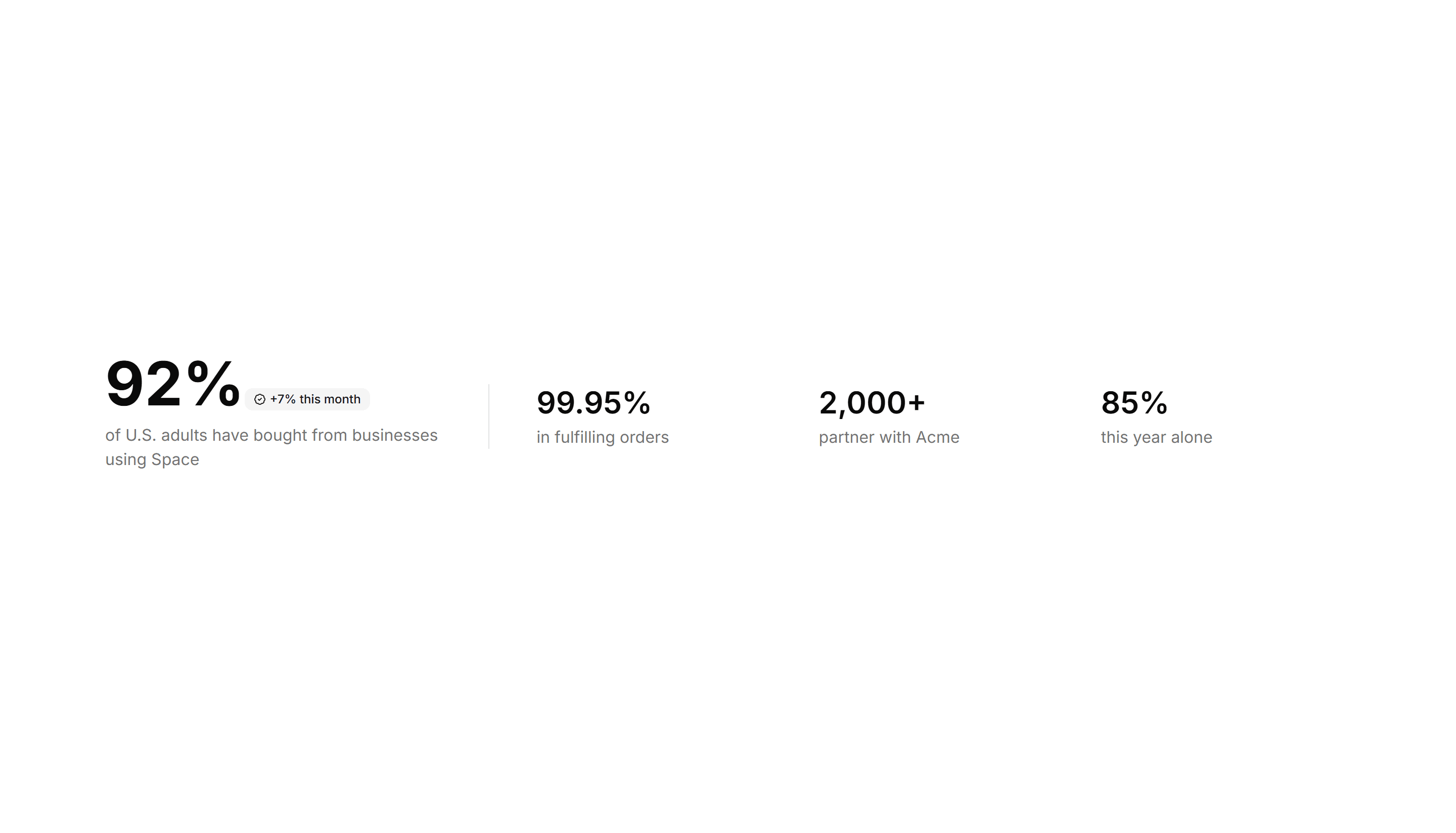
Marketing (Legacy) Stat: One Main With Three Follow Ups
One large headline number anchored by three smaller supporting stats. Use it to lead with your strongest figure and back it with related proof.
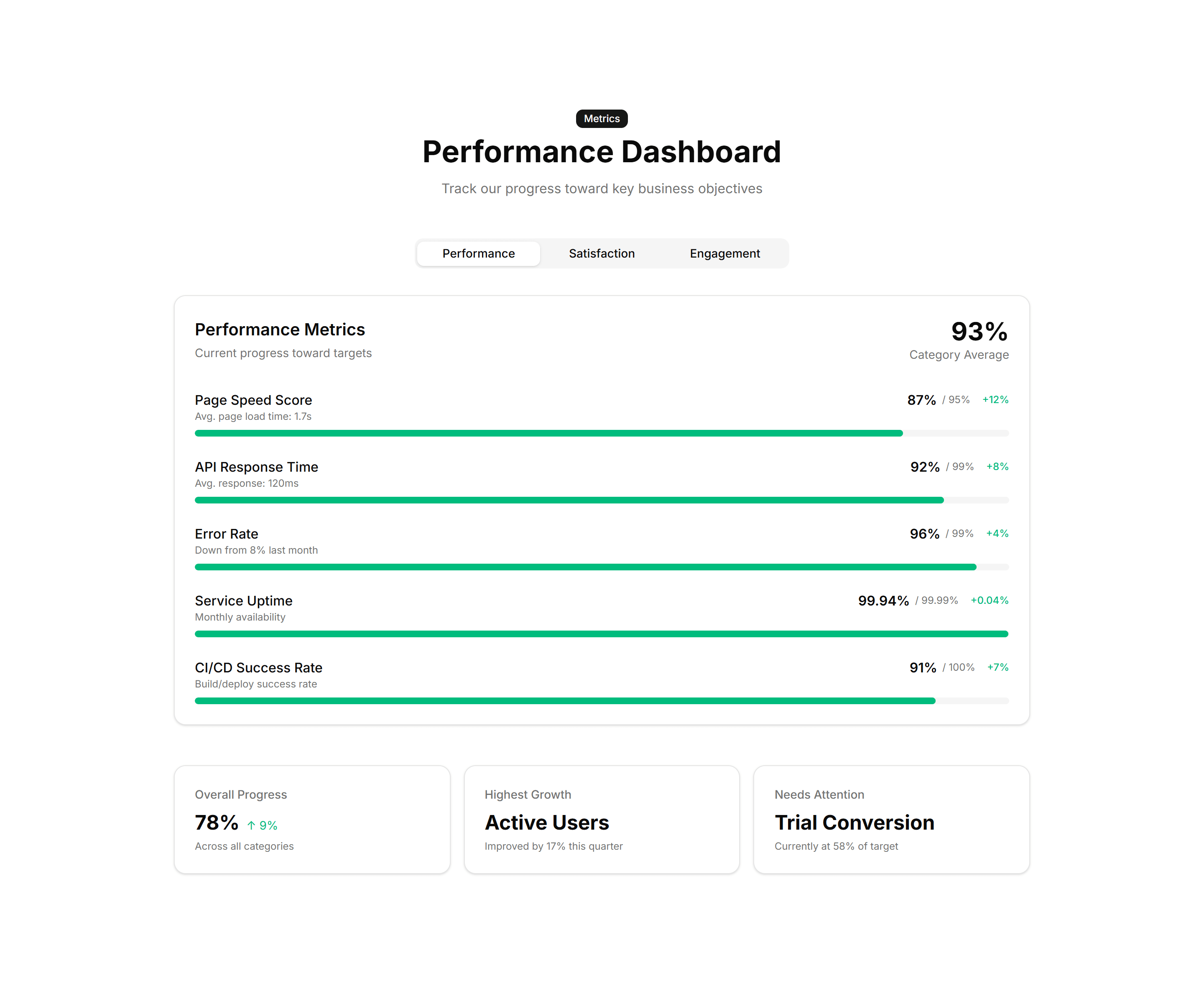
Marketing (Legacy) Stat: Progress Bars
Labeled bars that fill to a percentage to track adoption or completion. Use it on a status page or report to show how far each goal has come.
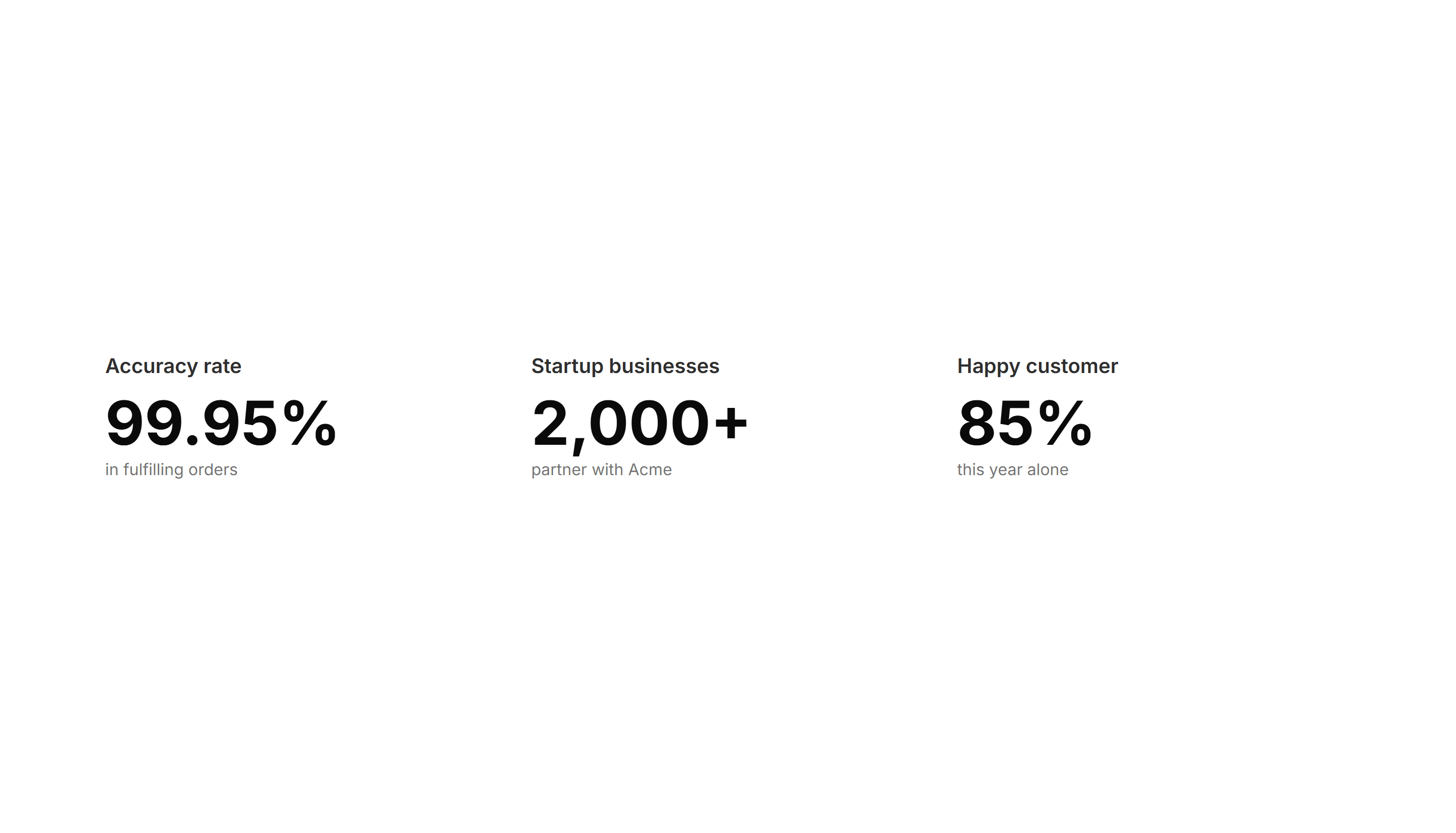
Marketing (Legacy) Stat: Simple 3 Cols
Three evenly spaced columns each with a number and a short label below. Use it for a clean, balanced stats strip on any marketing or about page.
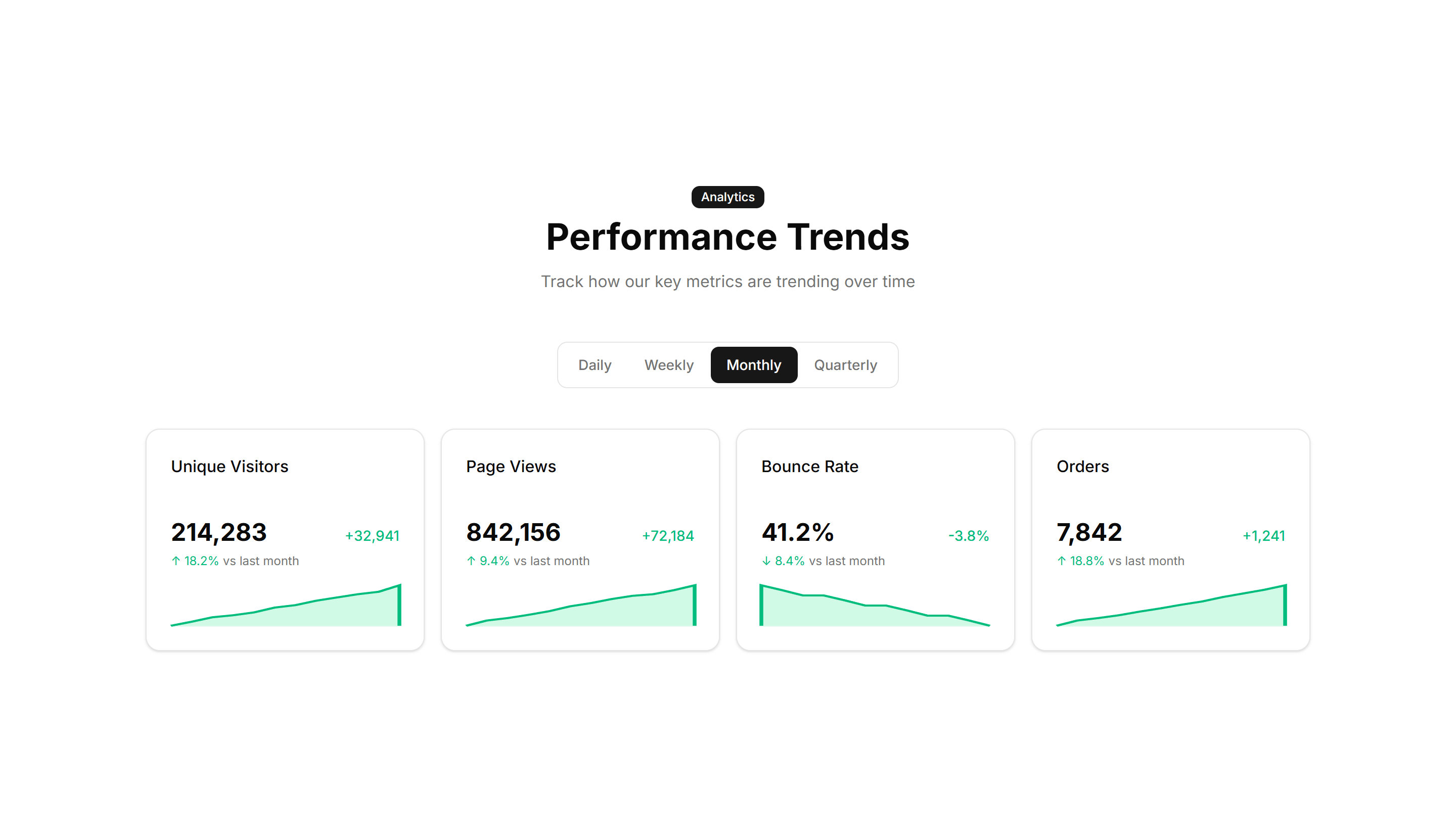
Marketing (Legacy) Stat: Sparkline Stats
Stat cards that pair a current value with a tiny inline trend chart. Use it to show a number and its recent direction together on a dashboard view.

Marketing (Legacy) Stat: Stats With Icons
Each figure sits beside an icon that signals what the number measures. Use it to make a stats row scannable and add visual cues to every metric.
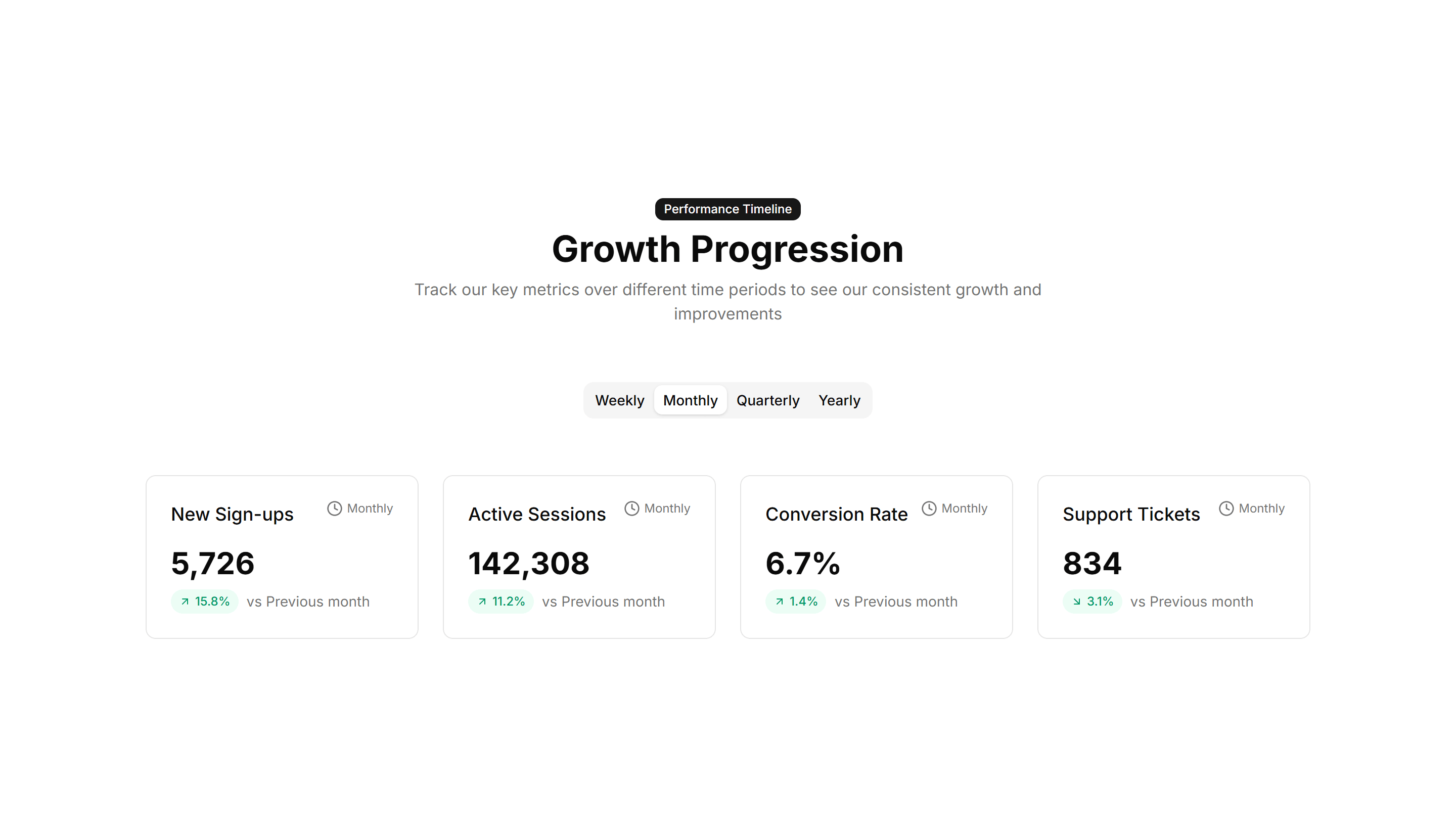
Marketing (Legacy) Stat: Timeline Stats
Key numbers plotted along a horizontal timeline of moments and dates. Use it to tell a growth story across quarters on an about or press page.
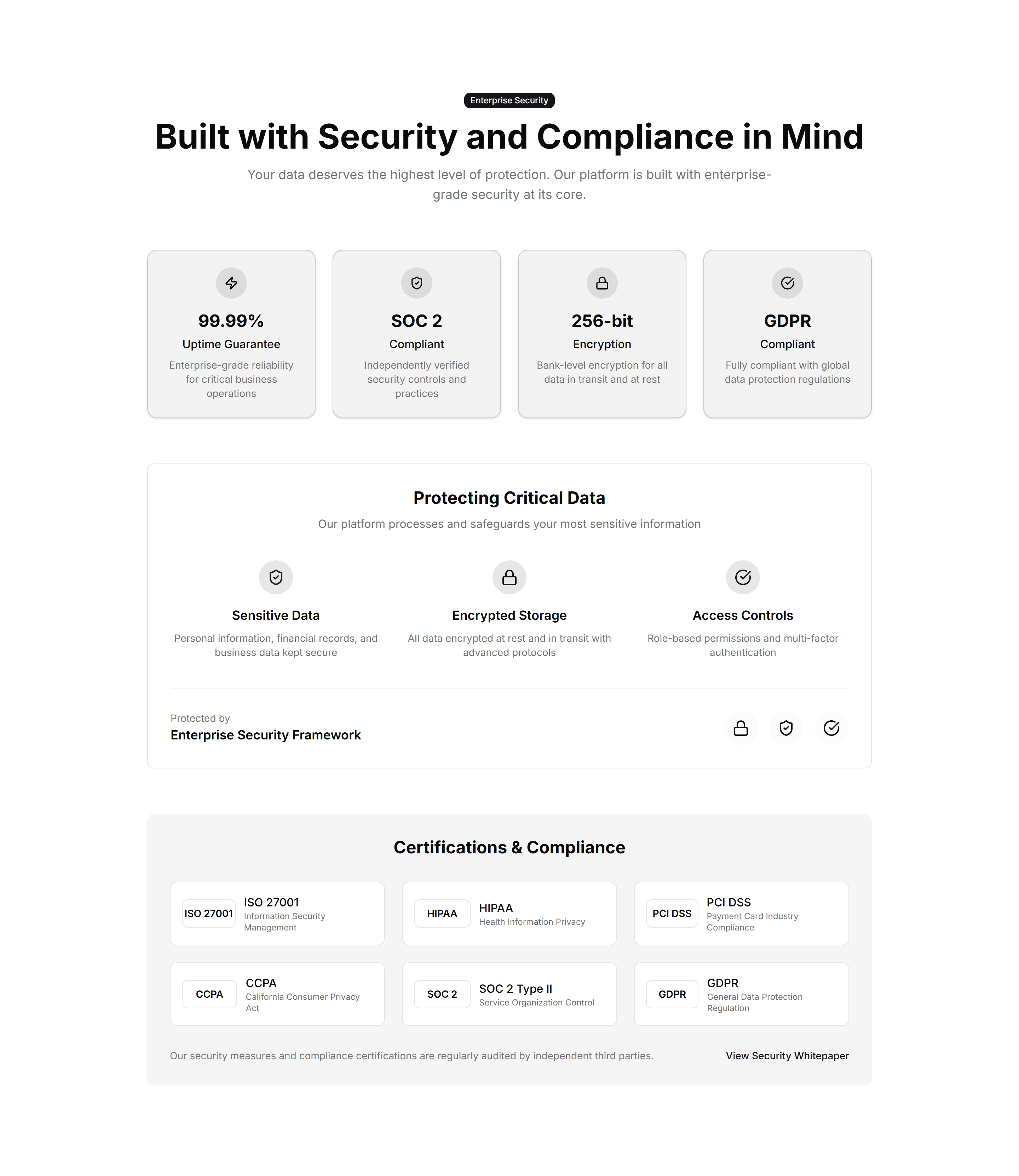
Marketing (Legacy) Stat: Trust Indicators
A band of proof points like uptime, customers, and ratings in one row. Use it near a signup form to reassure visitors and lift their confidence.
Marketing (Legacy) Subscribe: Benefits List
A subscribe form paired with a bulleted list of benefits and an email field. Tells visitors what they get before they sign up to your newsletter.
Marketing (Legacy) Subscribe: Incentive Center Aligned
A centered signup block that offers a clear incentive above the email field. Use it to reward visitors who join your list with a discount or guide.
Marketing (Legacy) Subscribe: Input Style
A compact email input with an inline submit button on one row. Drop it into a footer or banner where space is tight but you still want signups.
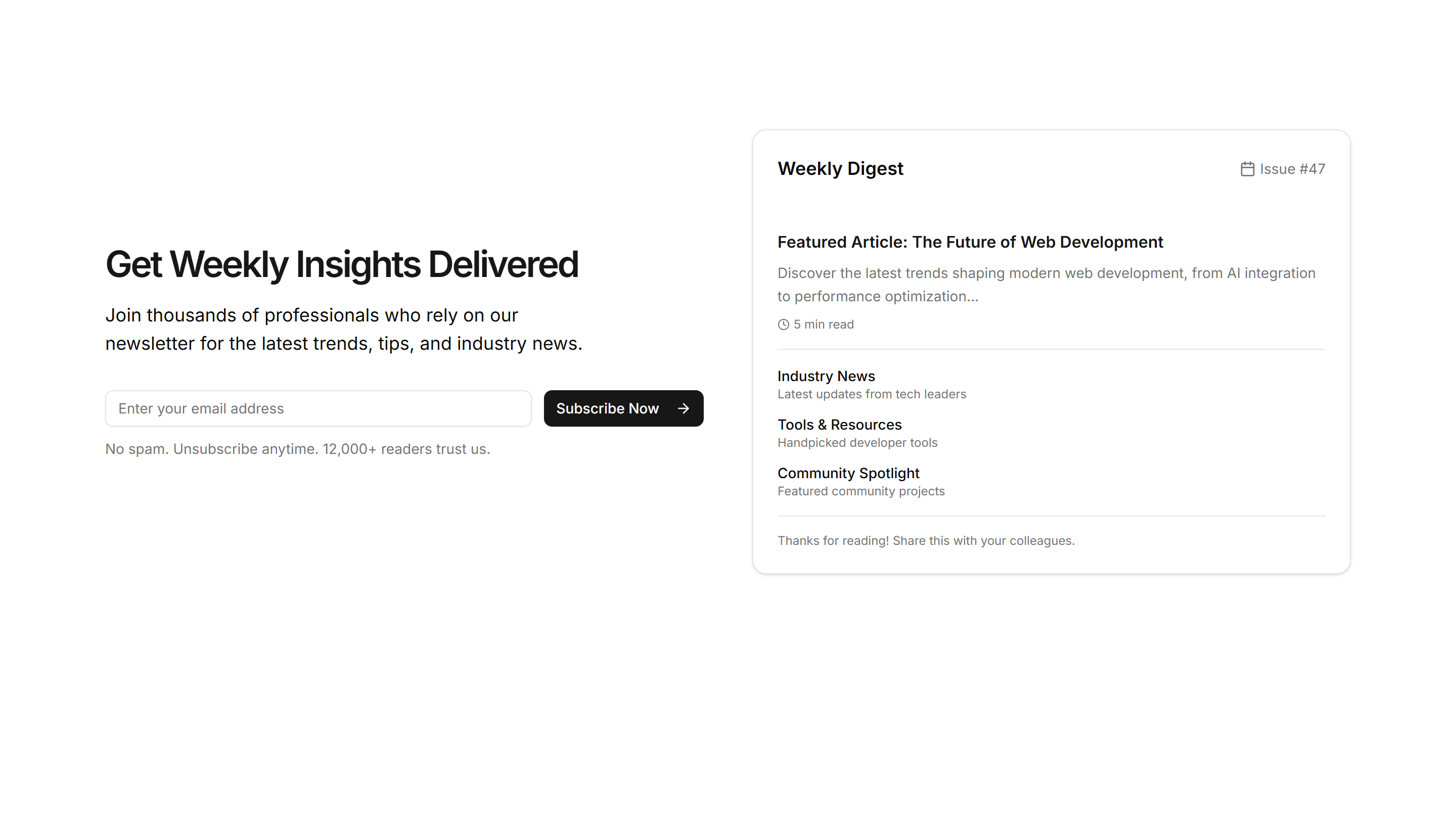
Marketing (Legacy) Subscribe: Newsletter Preview
A signup block showing a small preview of the newsletter content beside the email field. Sets reader expectations before they subscribe to it.
Marketing (Legacy) Subscribe: Simple Center Aligned
A clean centered newsletter signup with a heading, short text, and email field. The reliable default for landing pages and blog footers here.
Marketing (Legacy) Subscribe: Simple Right Aligned
A signup block with text on the left and the email field aligned right. Fits wide sections where you want the form to balance the supporting copy.
Marketing (Legacy) Subscribe: Social Proof Center
A centered subscribe form topped with subscriber counts or avatars as social proof. Use it when trust nudges visitors to join your mailing list.
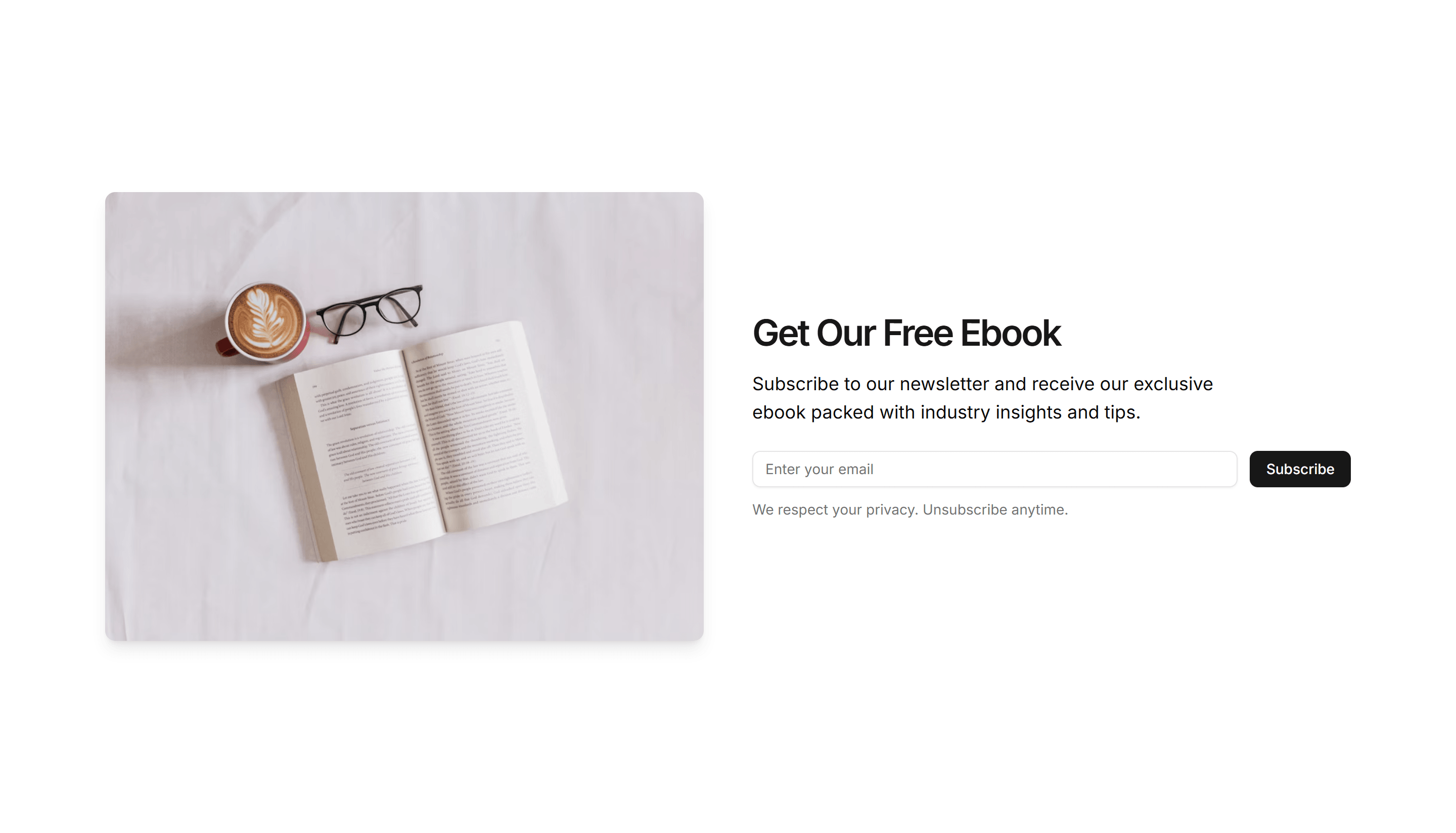
Marketing (Legacy) Subscribe: Split Layout
A two column subscribe block pairing an image or copy on one side with the email form on the other. Adds visual interest to a signup section.
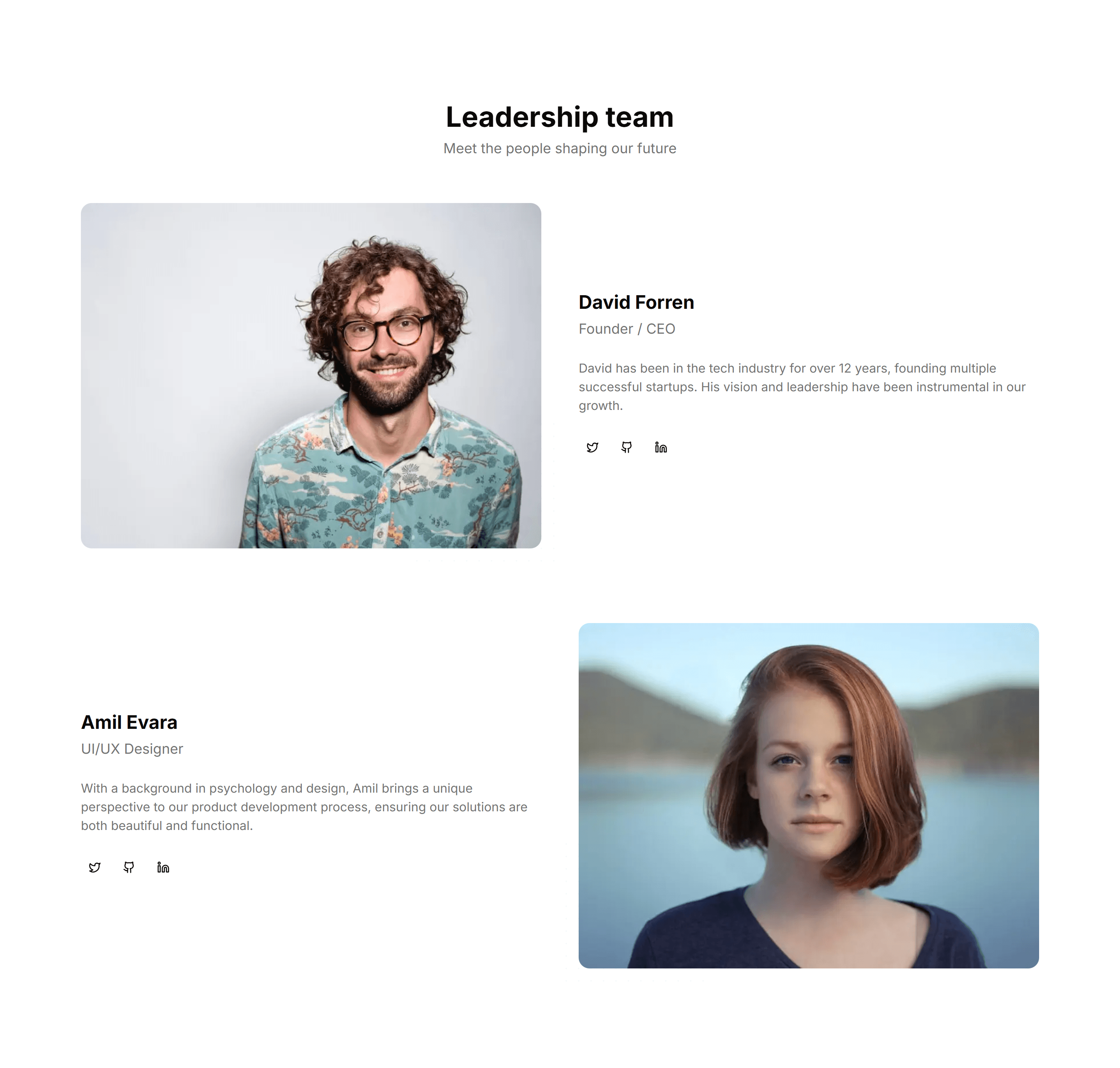
Marketing (Legacy) Team Section: Alternating Sections
A team layout that alternates photos and bios from left to right down the page. Adds rhythm and gives room for longer profiles on an about page.

Marketing (Legacy) Team Section: Masonry Grid
A team showcase in a staggered masonry grid where photos vary in height. Fills the space naturally and suits a large, photo rich company roster.
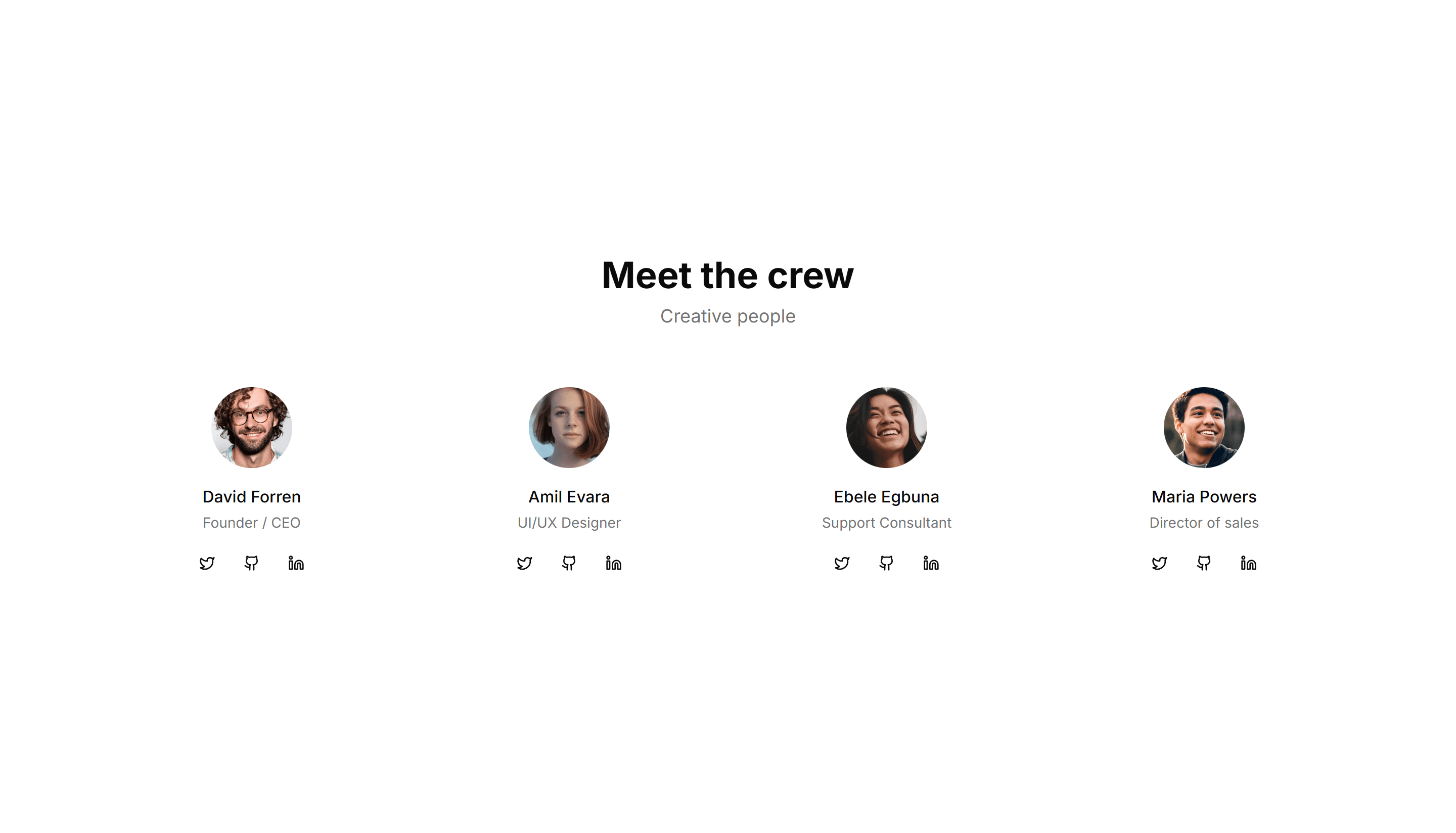
Marketing (Legacy) Team Section: Simple Cards
A clean grid of team member cards, each with a photo, name, and role. The fast, tidy way to introduce a small team on an about or company page.
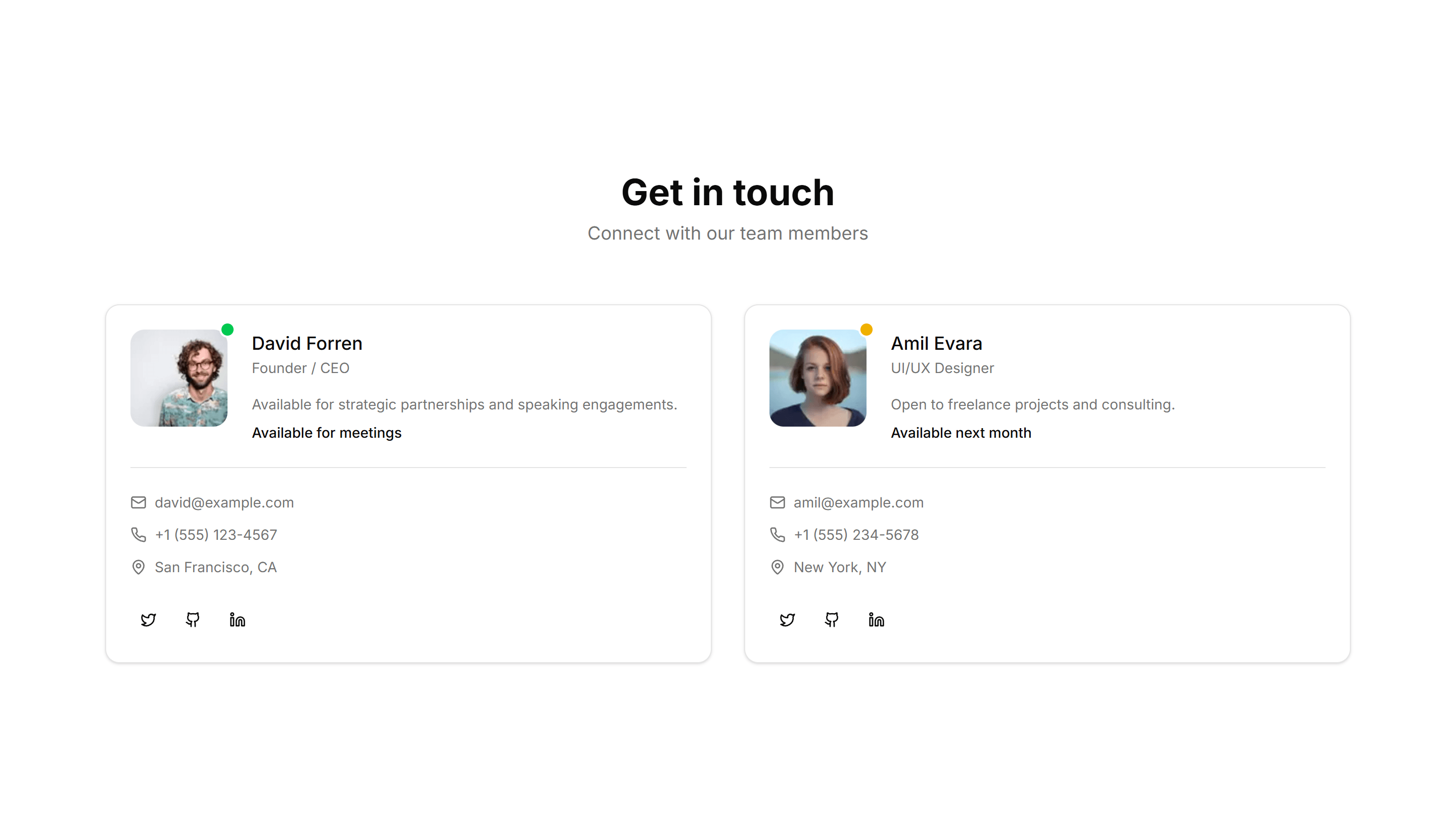
Marketing (Legacy) Team Section: With Contact
Team cards that pair each photo and role with an email or phone link. Lets visitors reach the right person directly from your about or contact page.
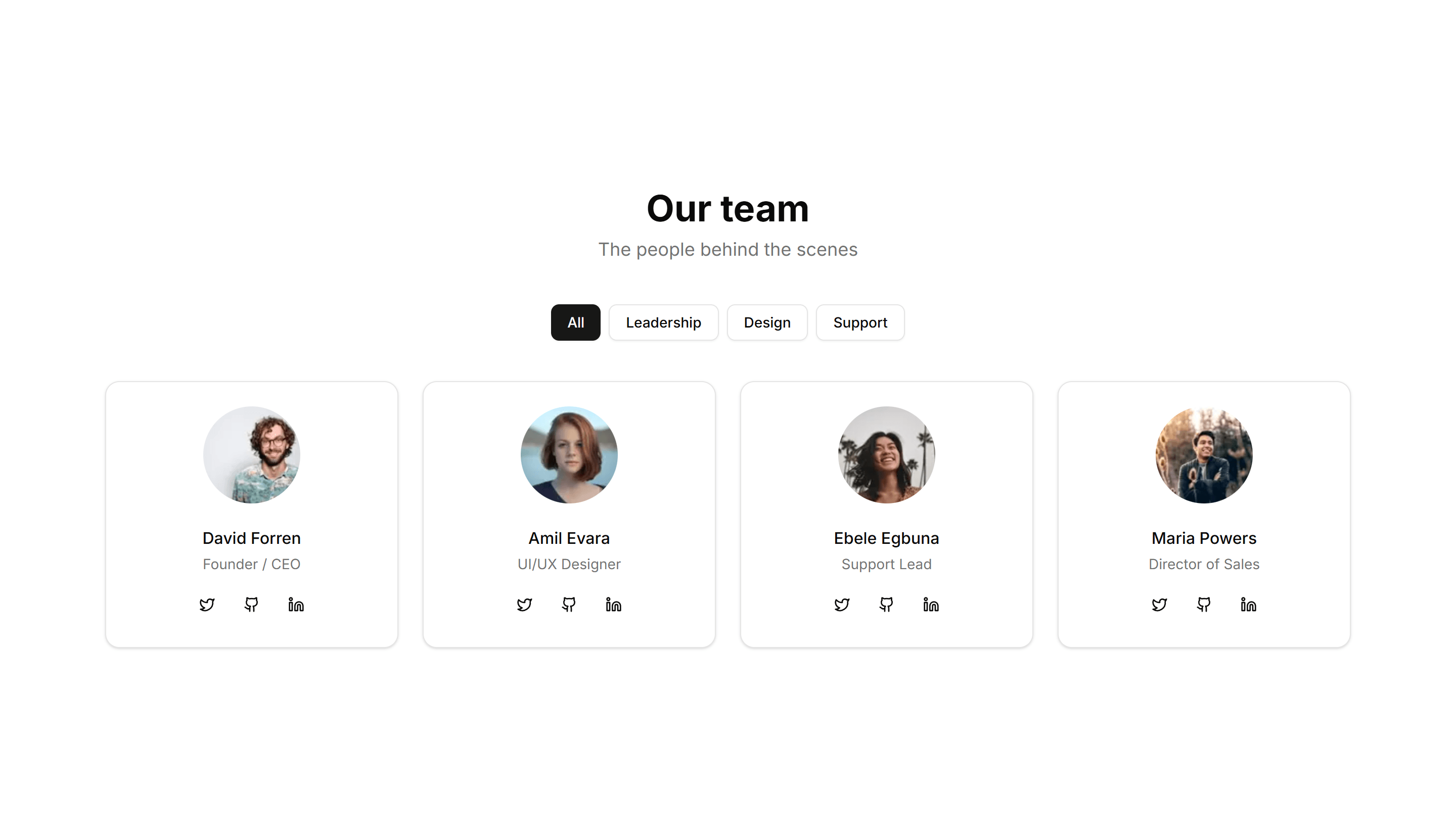
Marketing (Legacy) Team Section: With Filters
A team directory with category filters that sort members by department or location. Helps visitors find the right person inside a large company.
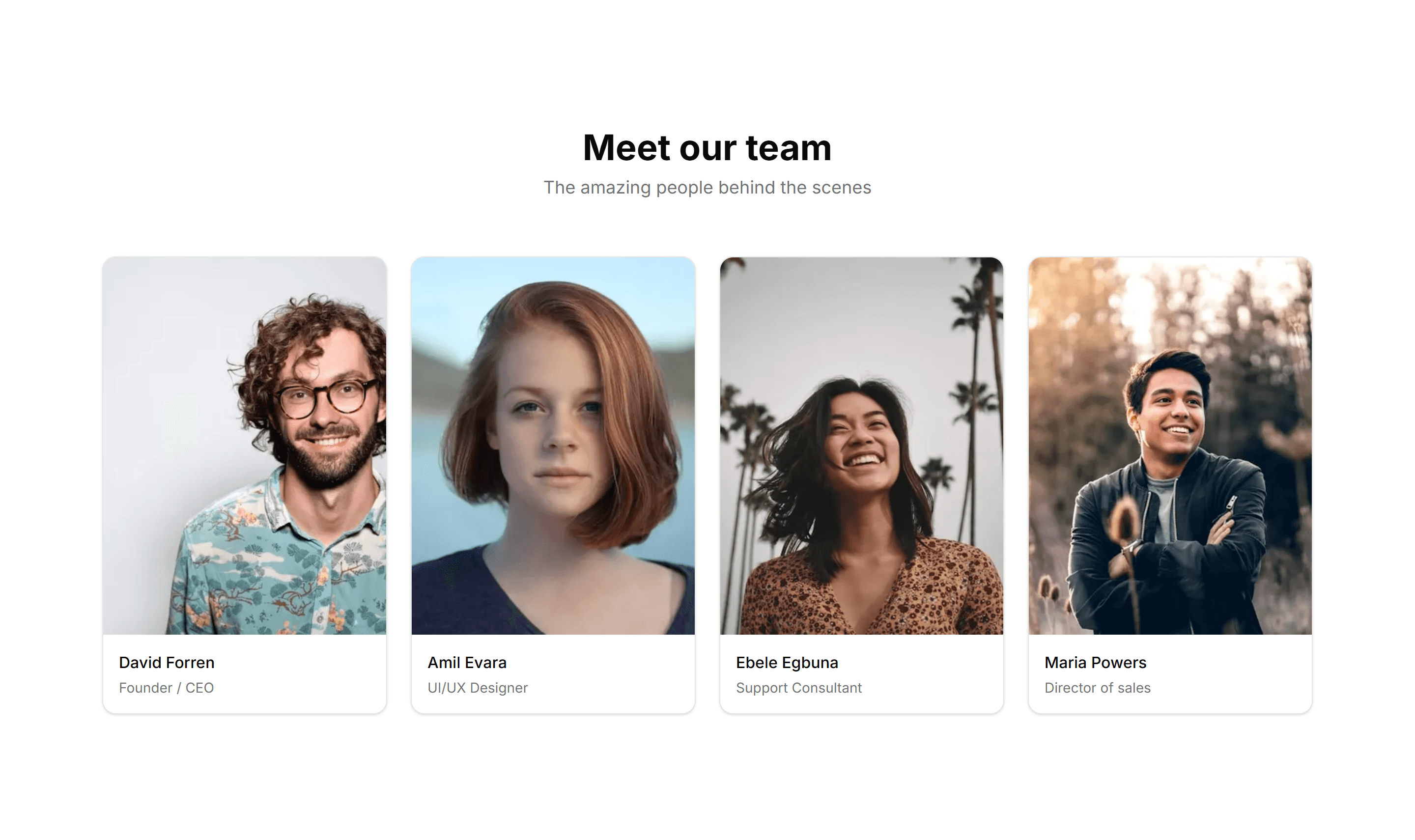
Marketing (Legacy) Team Section: With Hover Cards
A team grid where each photo reveals a short bio and social links on hover. Keeps the layout clean while extra detail stays one mouse move away.
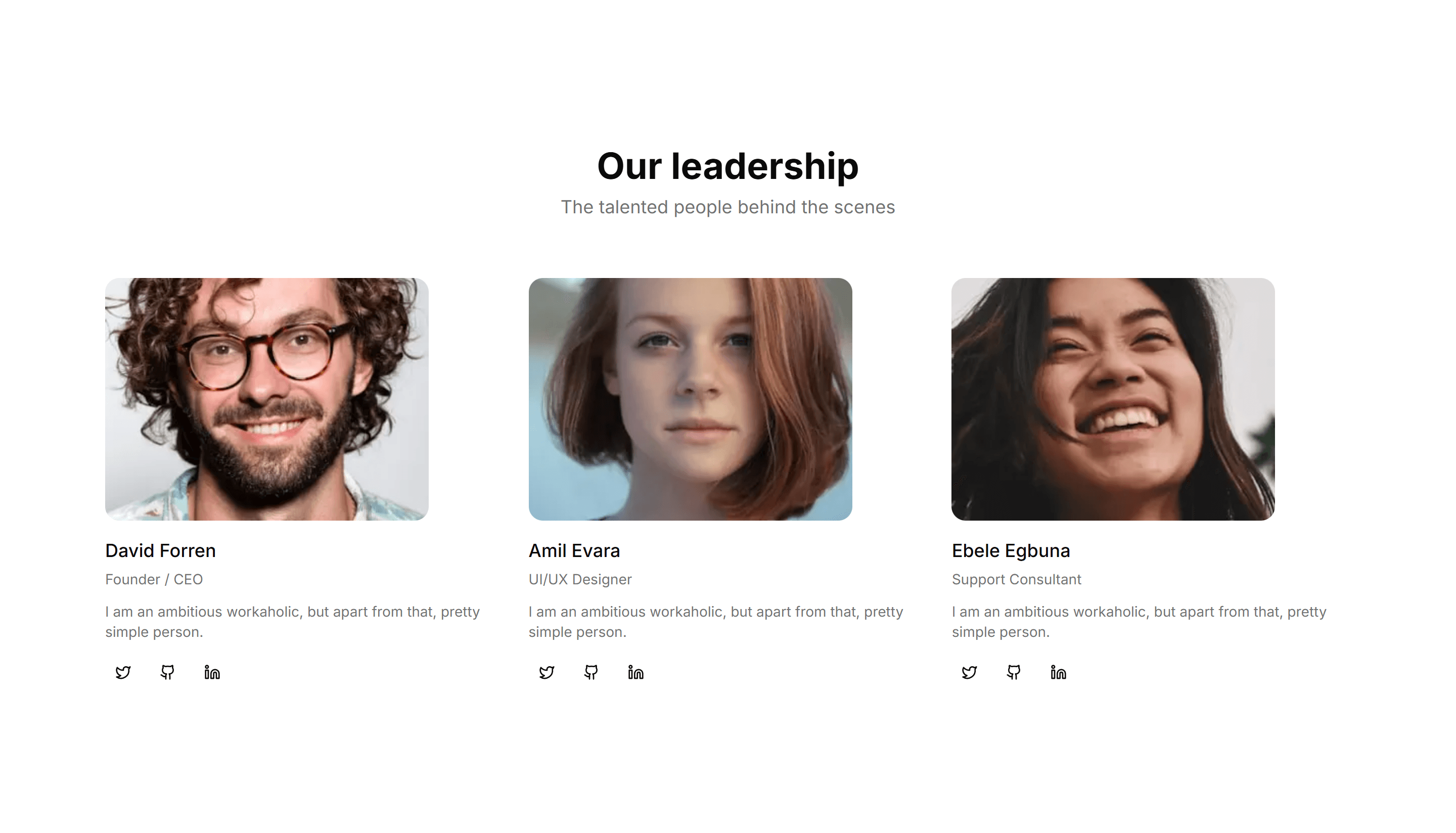
Marketing (Legacy) Team Section: With Large Images
Team profiles built around big, full bleed portraits with name and role. Puts faces front and center for a bold, personal about page that feels human.
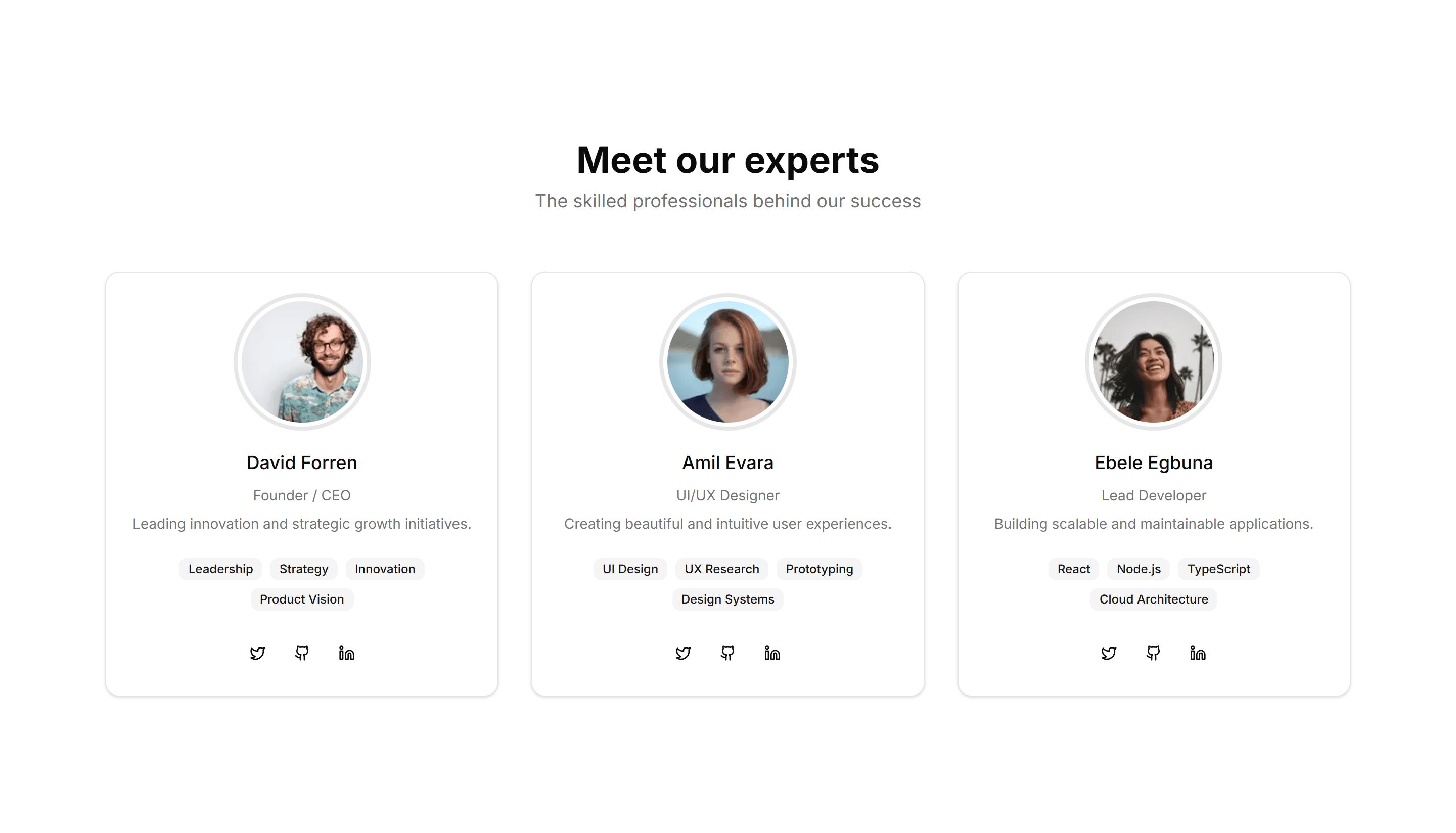
Marketing (Legacy) Team Section: With Skill Badges
Team cards that list each member with badges for their skills and tools. Great for agencies and studios that want to show real expertise at a glance.
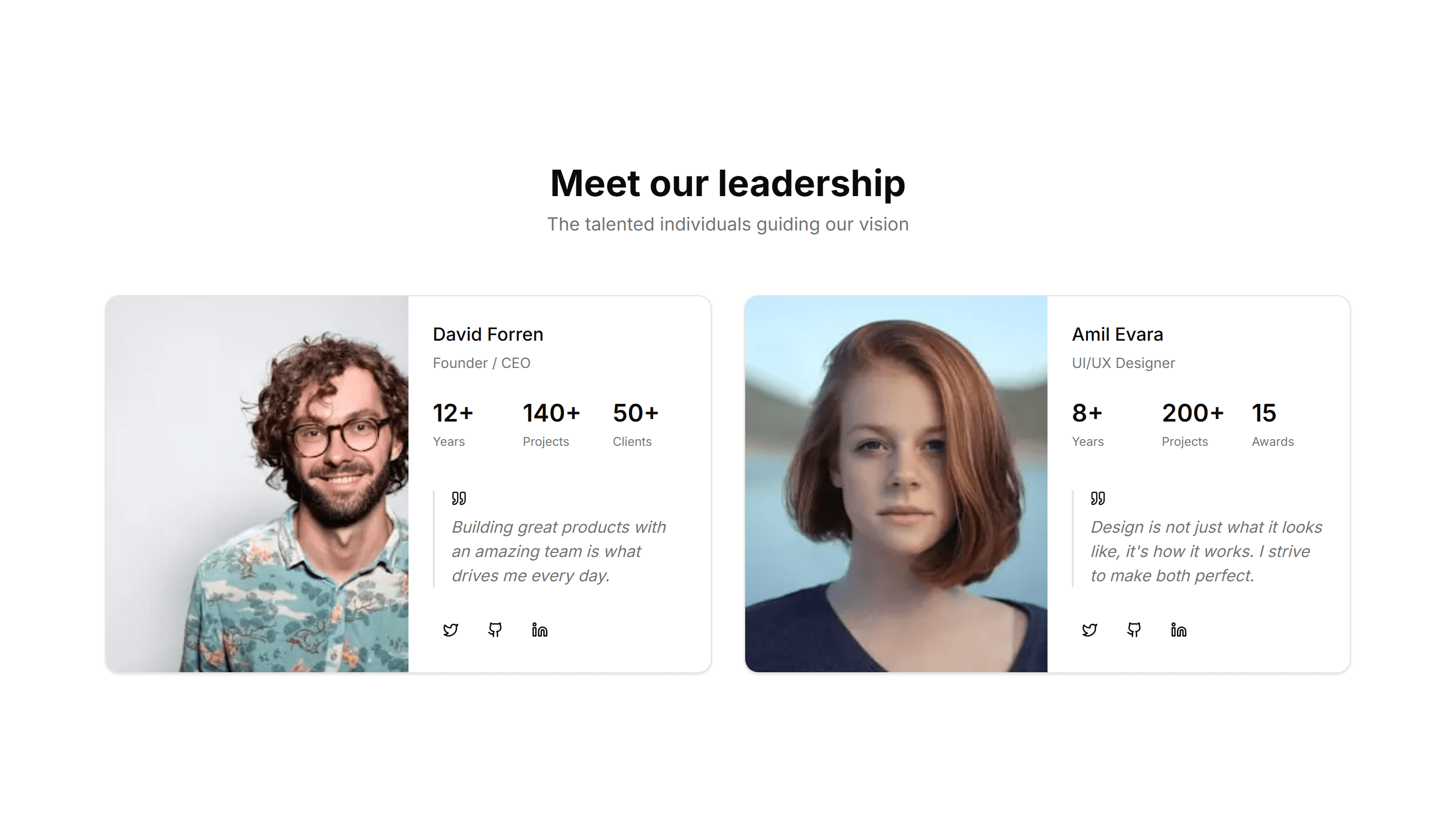
Marketing (Legacy) Team Section: With Testimonials
Team profiles paired with short quotes from each member or their clients. Adds a human voice and social proof to the about page of any company.
Marketing (Legacy) Testimonial: Base
A clean testimonial section with a customer quote, name, role, and avatar. Drop it onto any landing page to add a trusted voice with little effort.
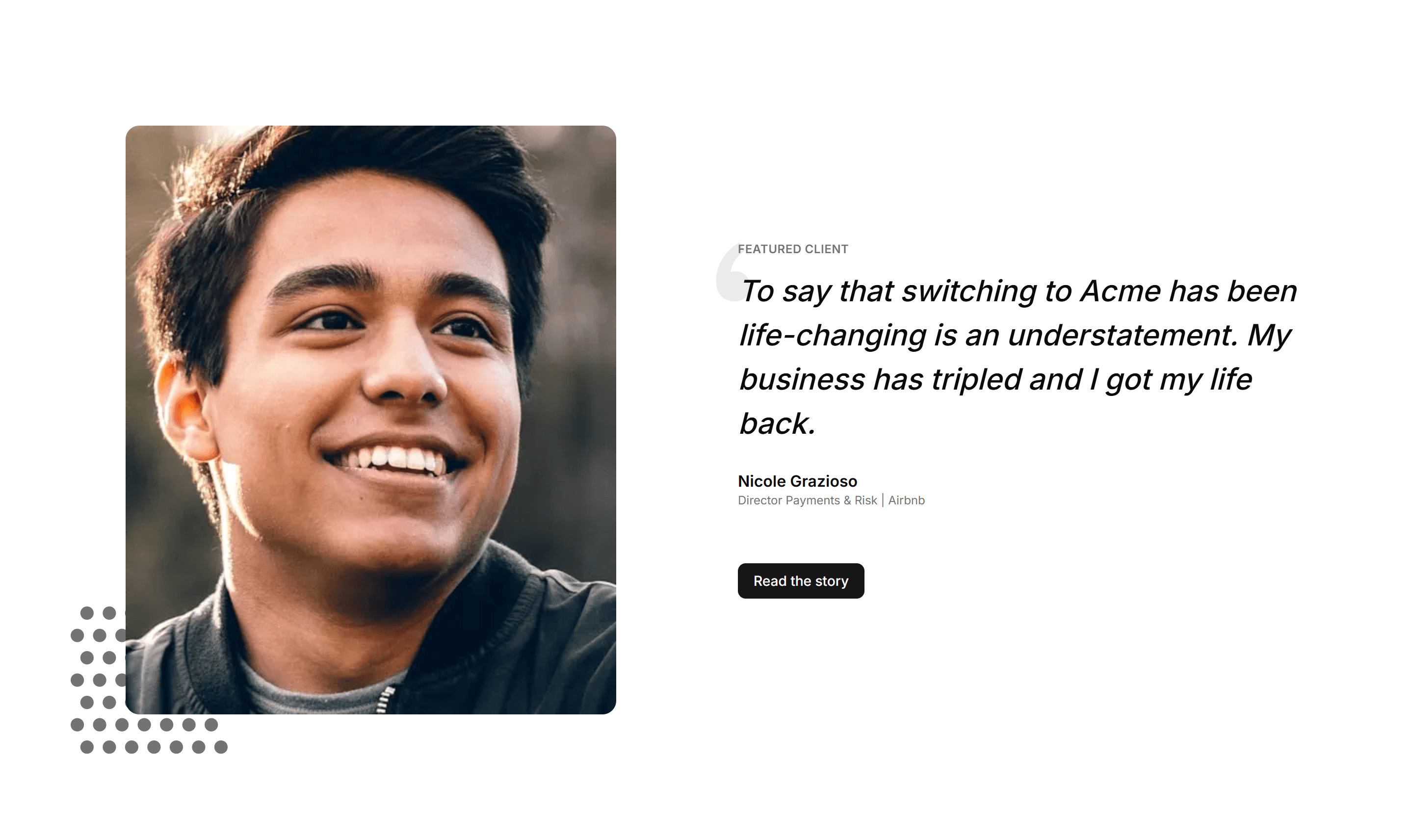
Marketing (Legacy) Testimonial: Big Image
A testimonial paired with a large customer photo beside the quote. Use it when you want a single voice to carry weight and feel personal and real.
Marketing (Legacy) Testimonial: Cards
A grid of testimonial cards, each holding a quote, avatar, name, and title. Show several happy customers at once to build trust across your page.
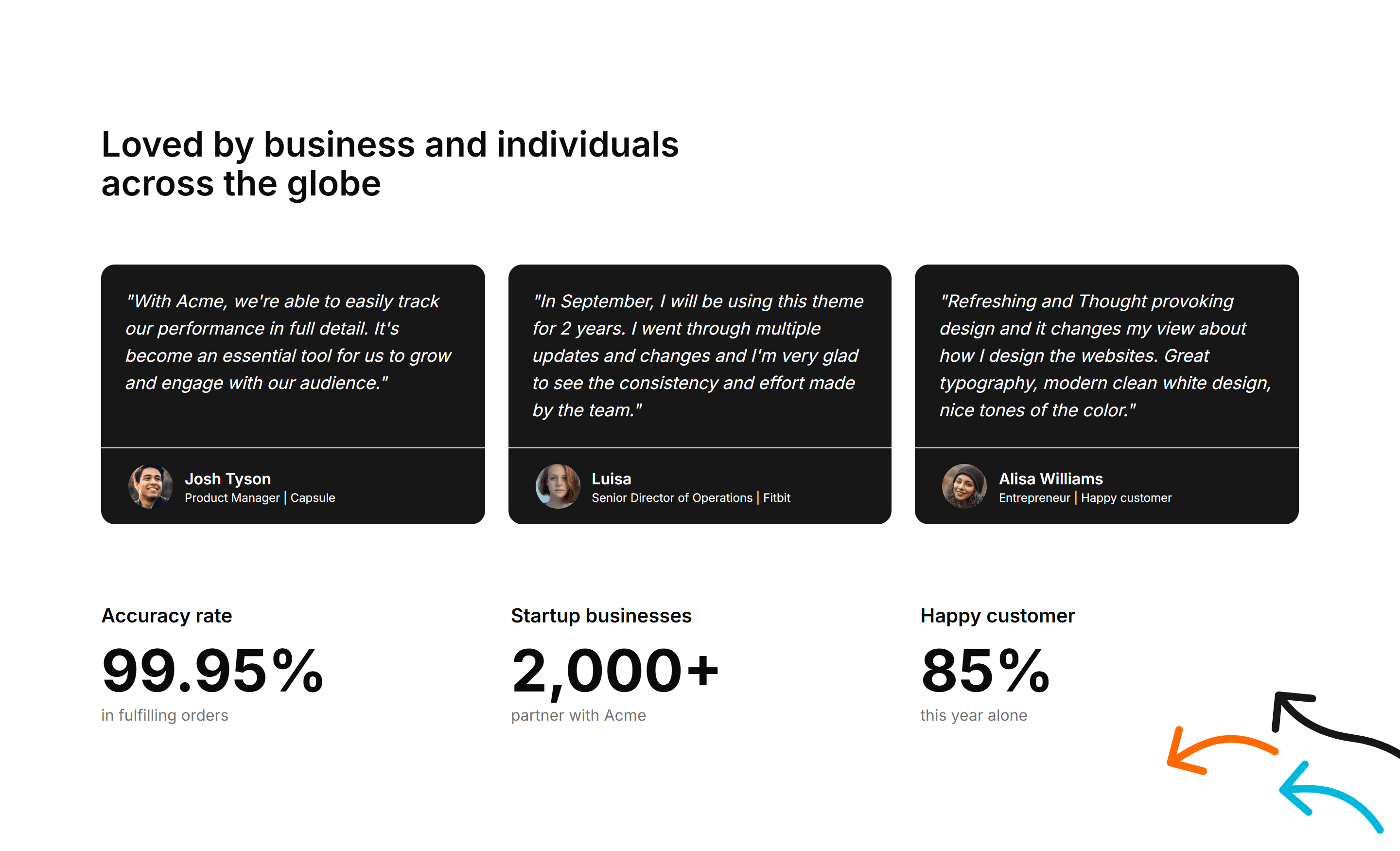
Marketing (Legacy) Testimonial: Cards With Stats
Testimonial cards joined by a row of headline metrics like users and revenue. Pair real quotes with hard numbers to prove your product delivers.

Marketing (Legacy) Testimonial: Customer Story Showcase
A featured customer story with a detailed quote, company logo, and result. Use it as social proof when one account speaks to your ideal buyer.
Marketing (Legacy) Testimonial: Mini With Dividers In Grid
Compact testimonials arranged in a grid with thin dividers between them. Fit many short quotes into a tidy space without crowding the layout.
Marketing (Legacy) Testimonial: Short Review With Logo And Stars
A brief review with a star rating and a company logo for instant credibility. Place it near a pricing table to reassure buyers before they commit.
Marketing (Legacy) Testimonial: Simple Center Aligned With Logo
A single centered quote topped with a company logo and the author below. Keep focus on one strong endorsement on a calm, uncluttered section.
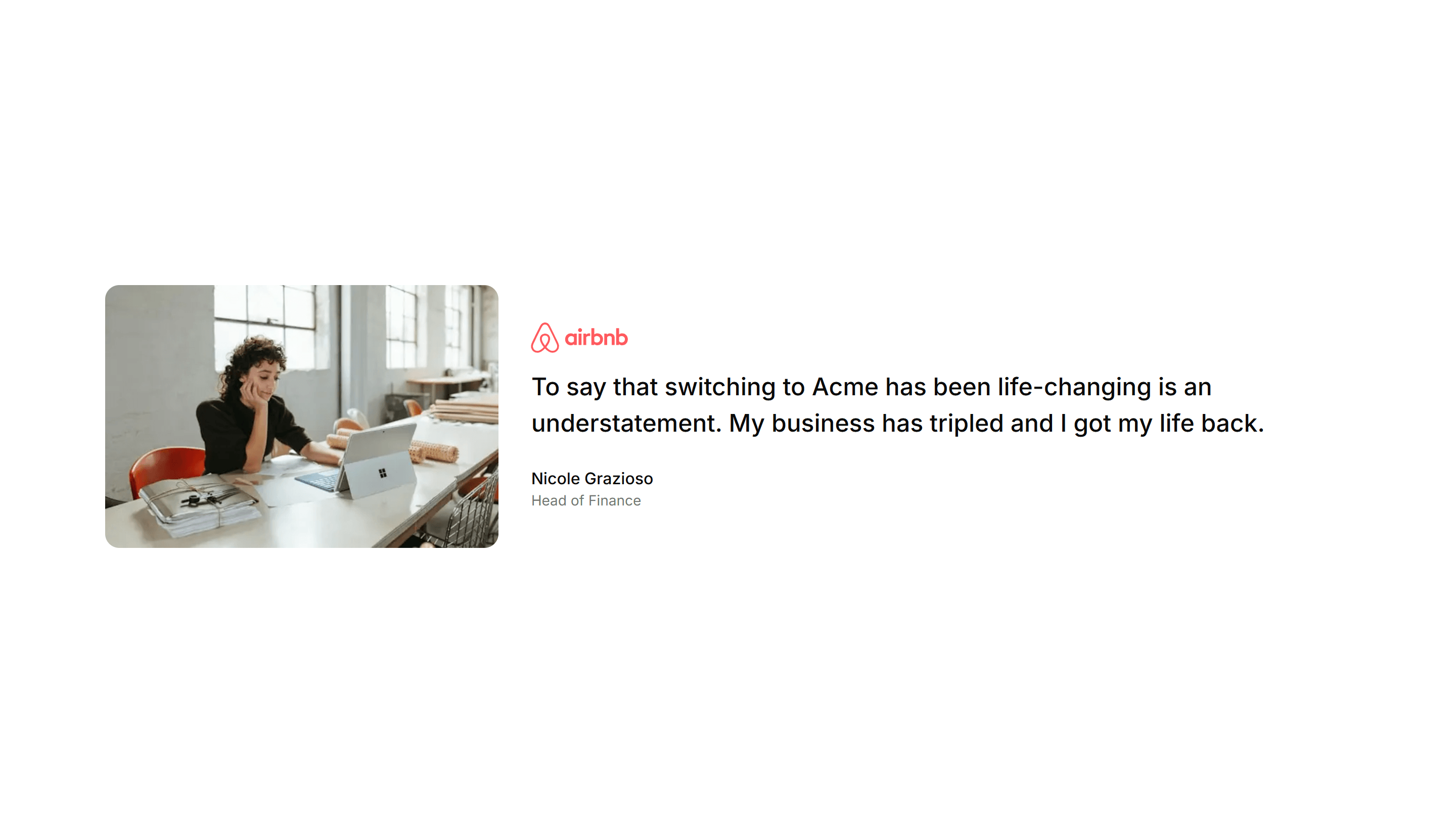
Marketing (Legacy) Testimonial: Small Image
A testimonial with a small rounded avatar set beside a concise quote and name. A friendly, lightweight option for sidebars or quieter page spots.
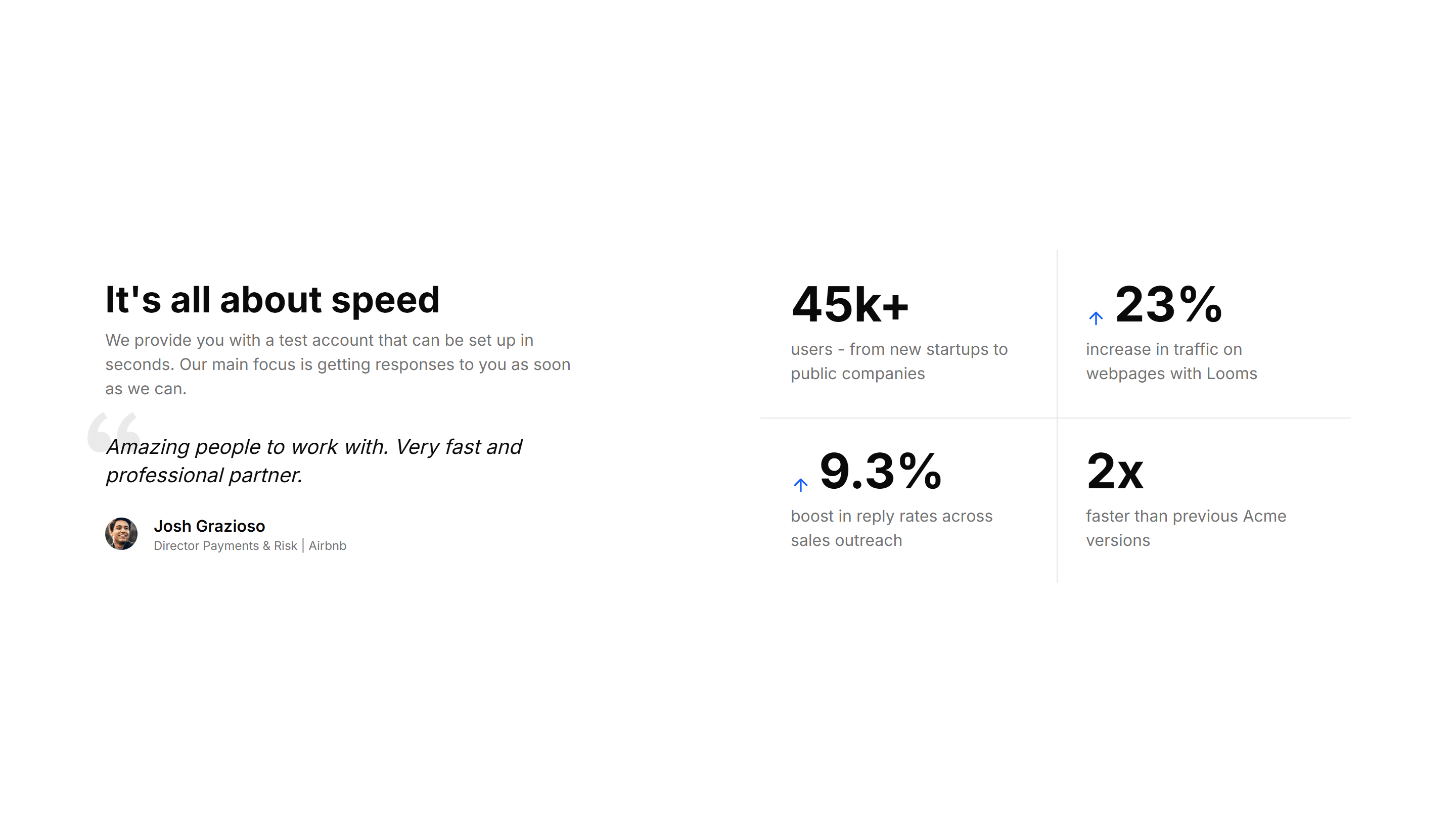
Marketing (Legacy) Testimonial: With Stats
A testimonial section blended with key metrics such as customers served and ratings. Combine a quote with proof points to back your claims with data.
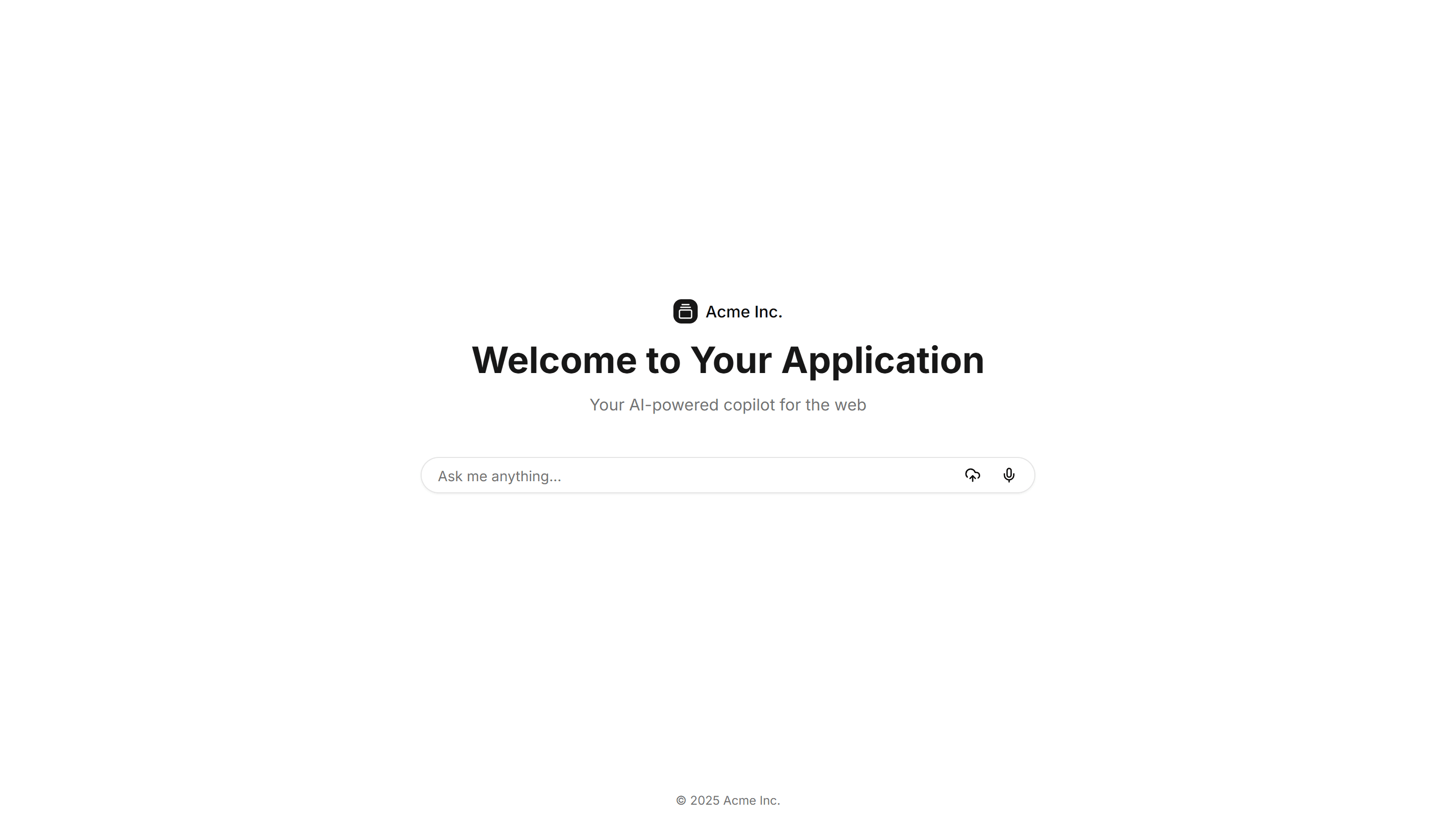
Application AI Prompt: Welcome Page
A welcome screen with a centered prompt field, suggested actions, and a short intro. Greets users and invites the first message in an AI assistant.
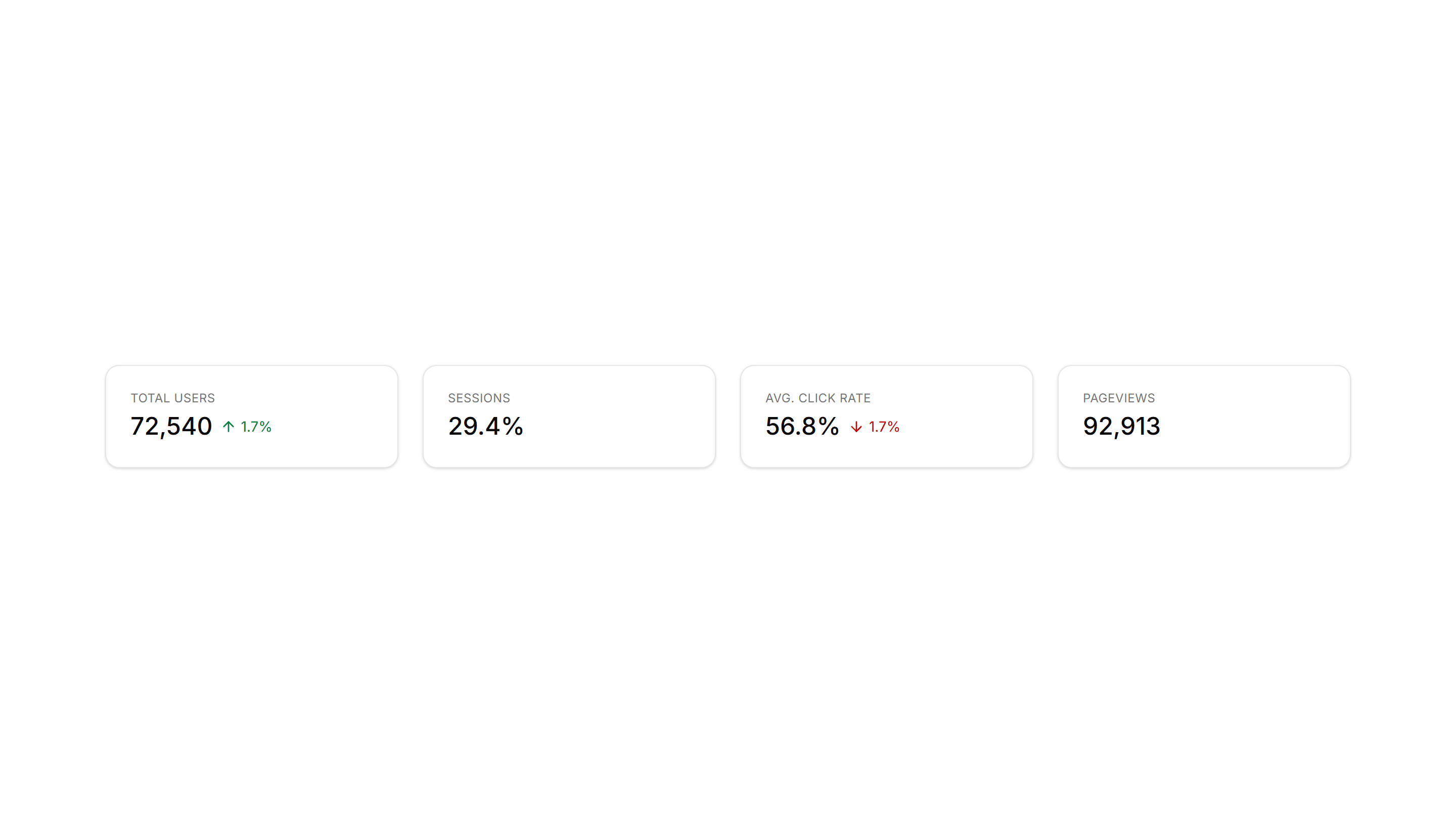
Application Application Stat: Simple Cards
Clean metric cards that display a label and a single number set side by side. Use across a dashboard header to surface key totals at a glance.
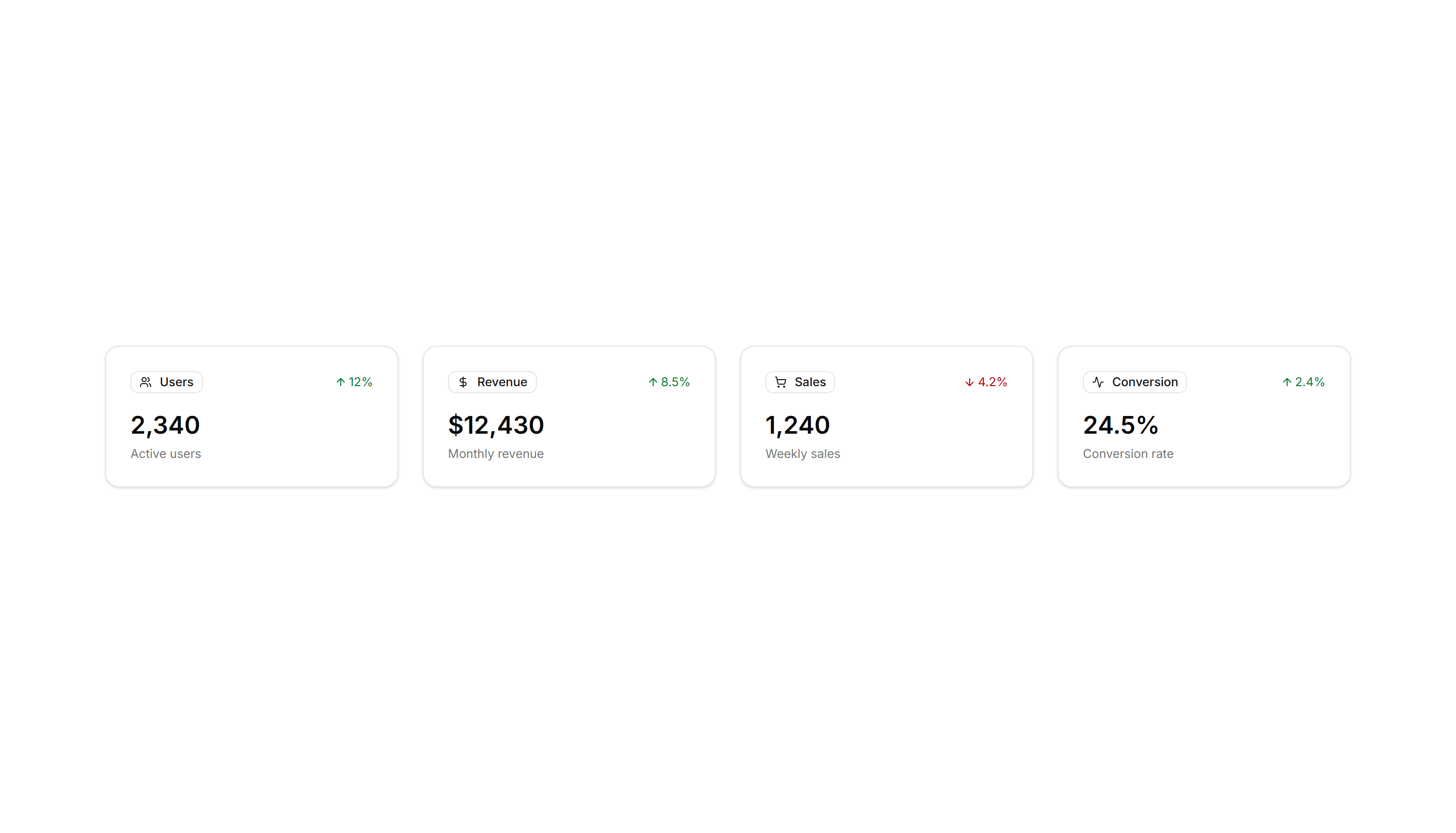
Application Application Stat: With Badges
Stat cards pairing each number with a small badge that shows change or trend. Use to flag growth or decline next to revenue and signup totals.

Application Application Stat: With Colored Icons
Metric cards that pair each figure with a tinted icon set in a colored circle. Use to make categories easy to scan on a busy analytics dashboard.
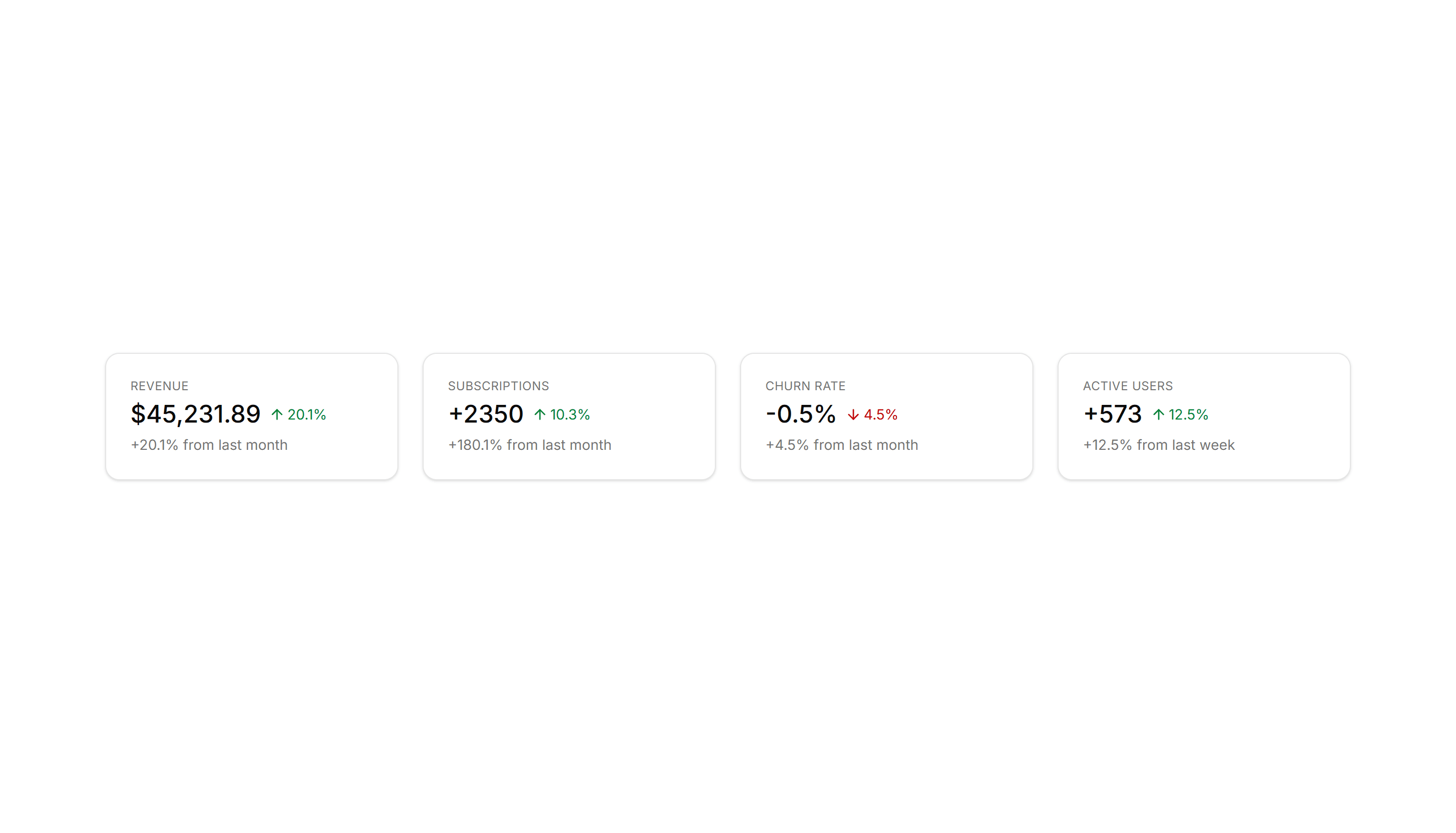
Application Application Stat: With Description
Stat cards that place a short line of context under each number. Use when a raw figure needs explanation, like a comparison to the prior month.

Application Application Stat: With Icons
Metric cards with a small icon beside every value for quick recognition. Use on overview screens where users skim totals by category very fast.
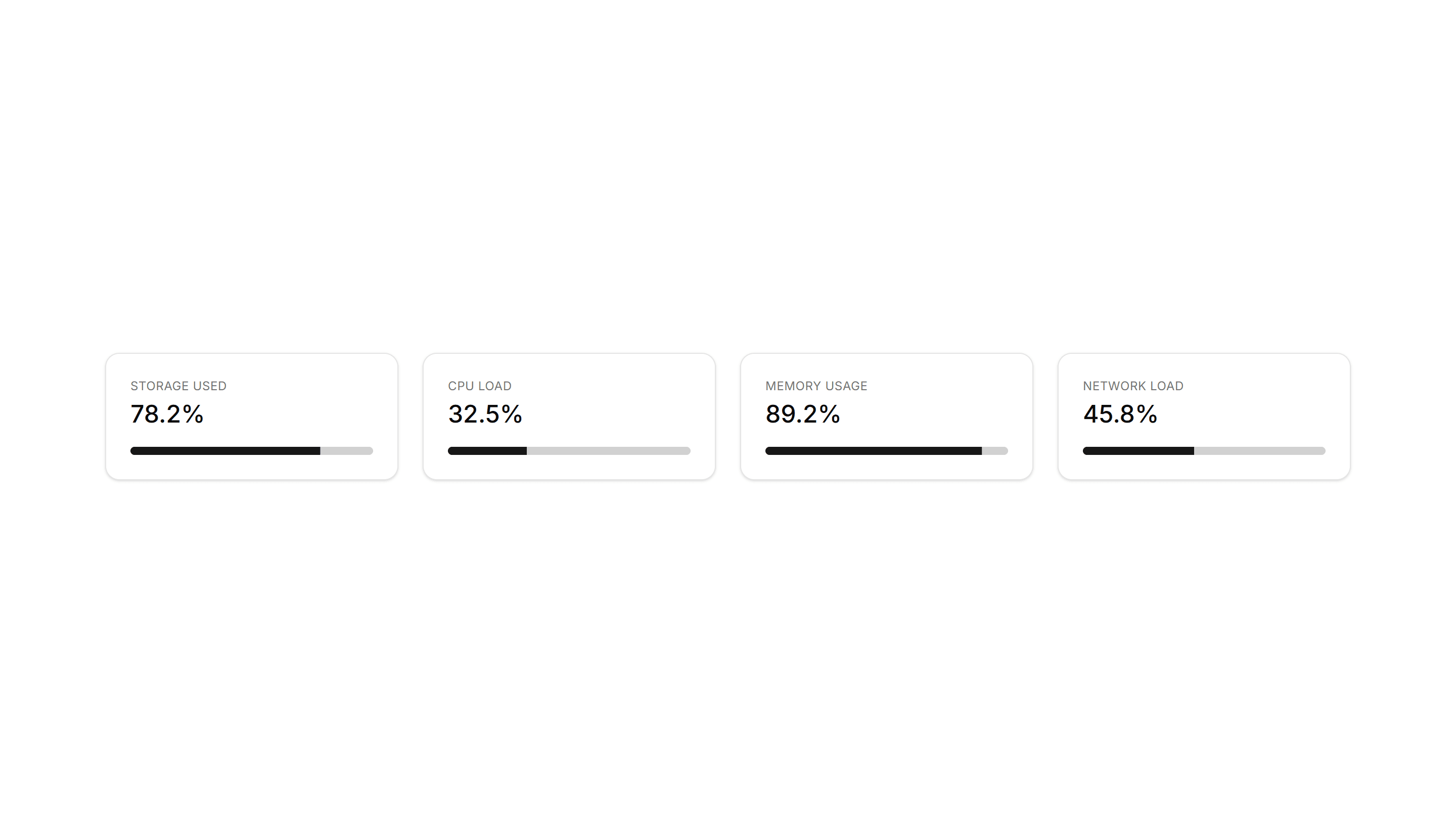
Application Application Stat: With Progress
Stat cards that pair a number with a progress bar moving toward a target. Use to show goal completion for revenue, storage, or active user counts.
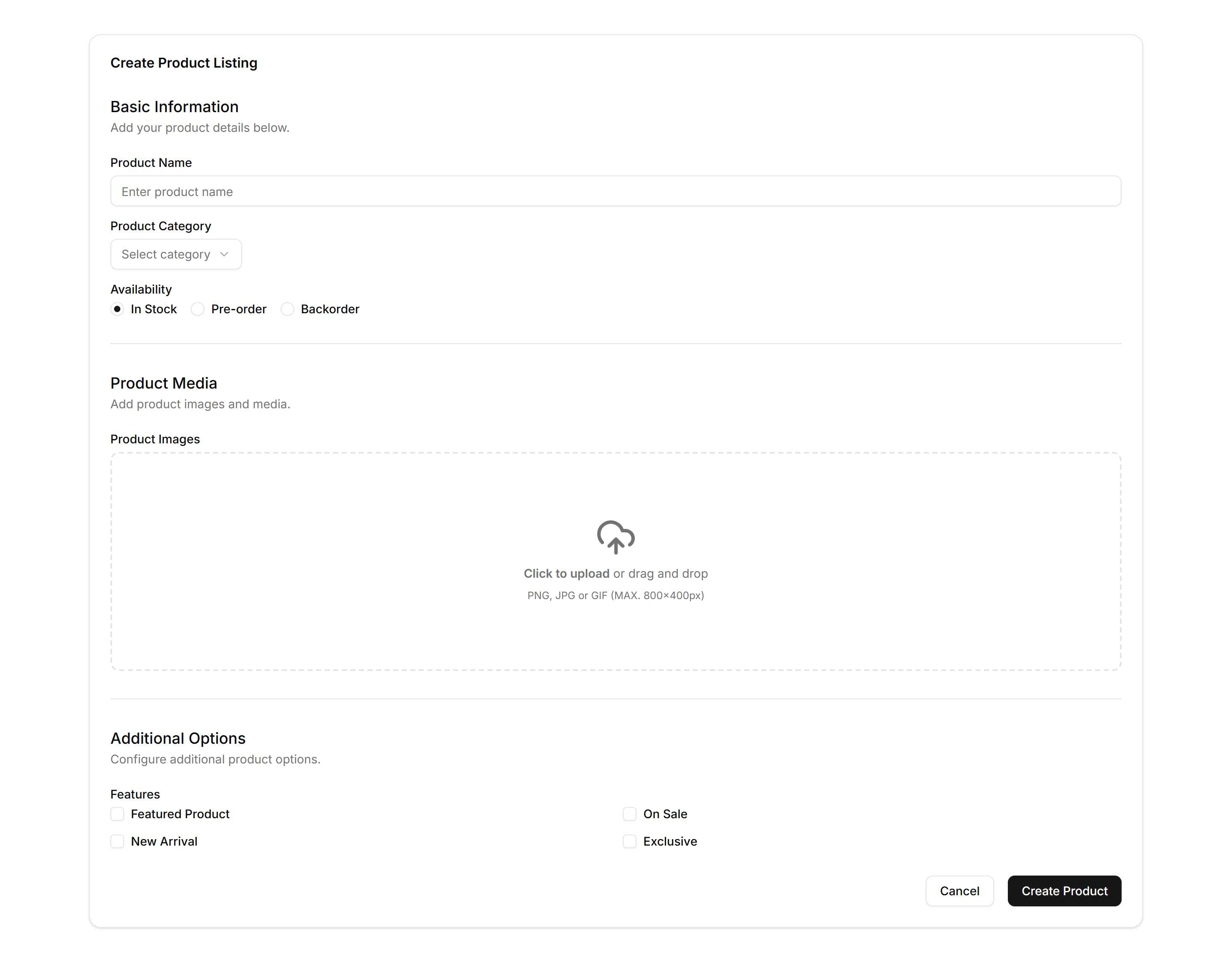
Application Form Layout: Complex Form
A dense form with grouped sections, multiple field types, and a sticky action bar. Use it for detailed settings, account creation, or admin record editing.
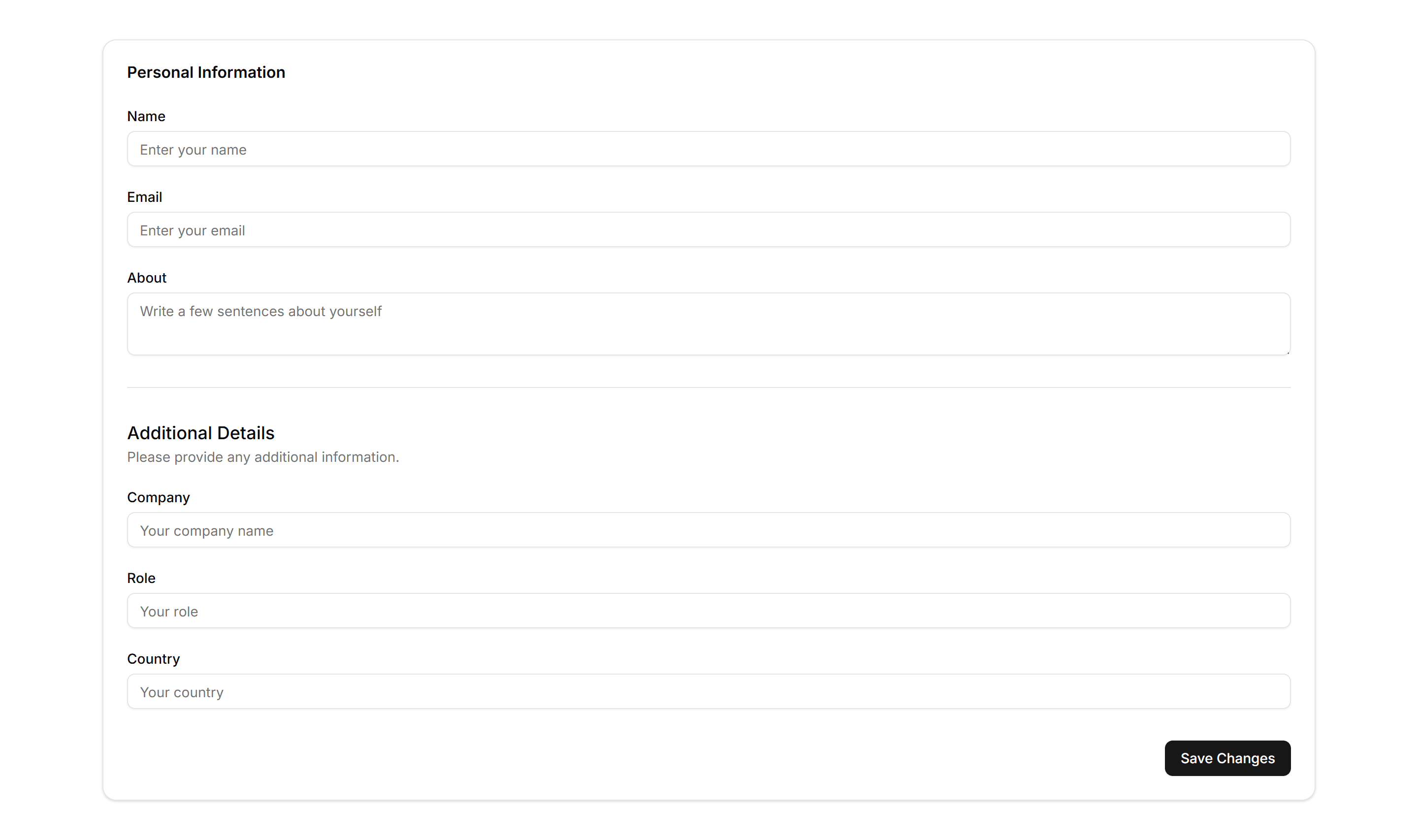
Application Form Layout: Stacked
A single column form with labels stacked above each input and a clear submit action. Ideal for short flows like sign in, contact, or quick profile edits.
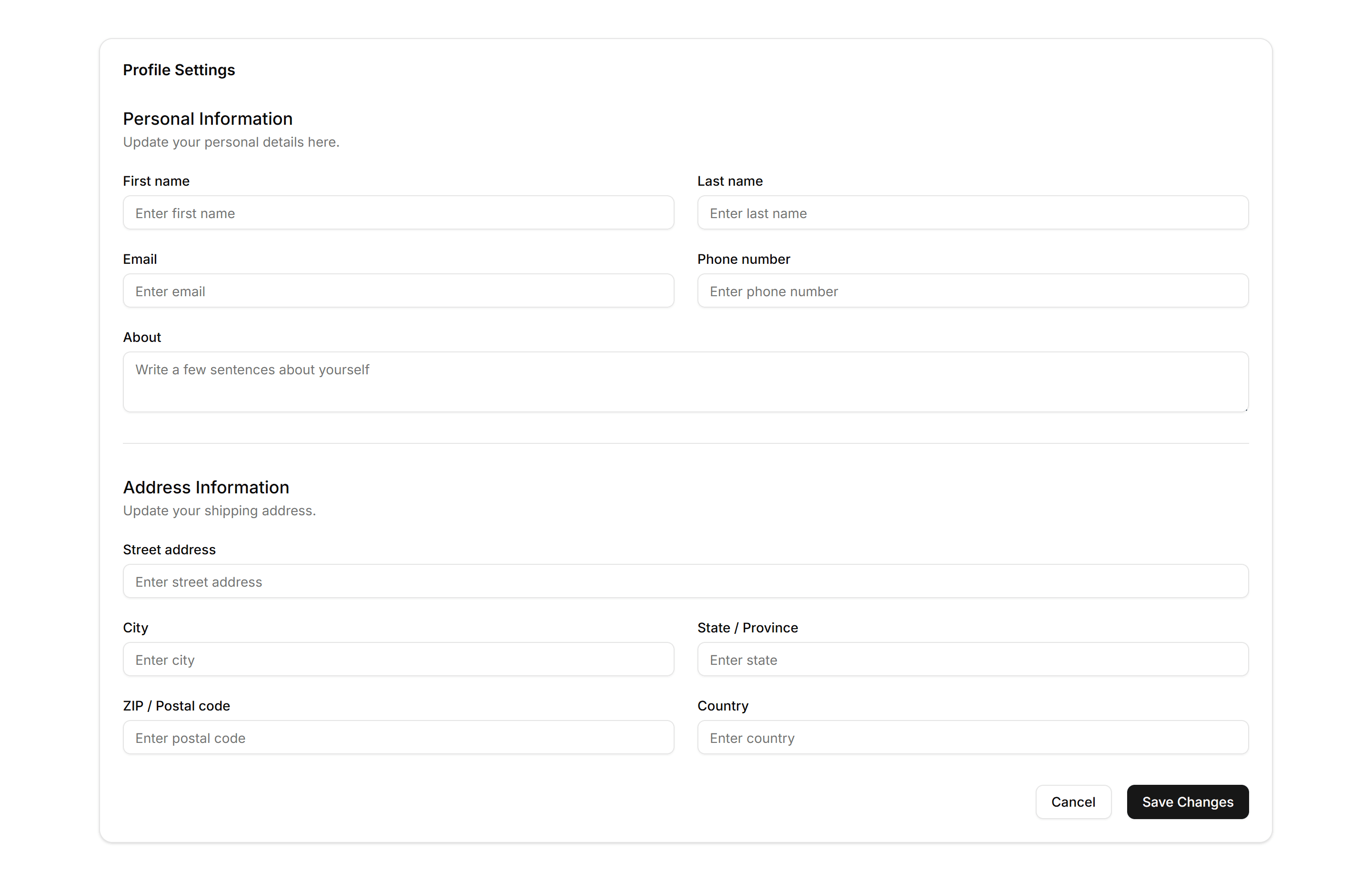
Application Form Layout: Two Column
A form split into two columns of fields with a shared header and footer actions. Use it for longer profiles or billing details that fit a wider screen.
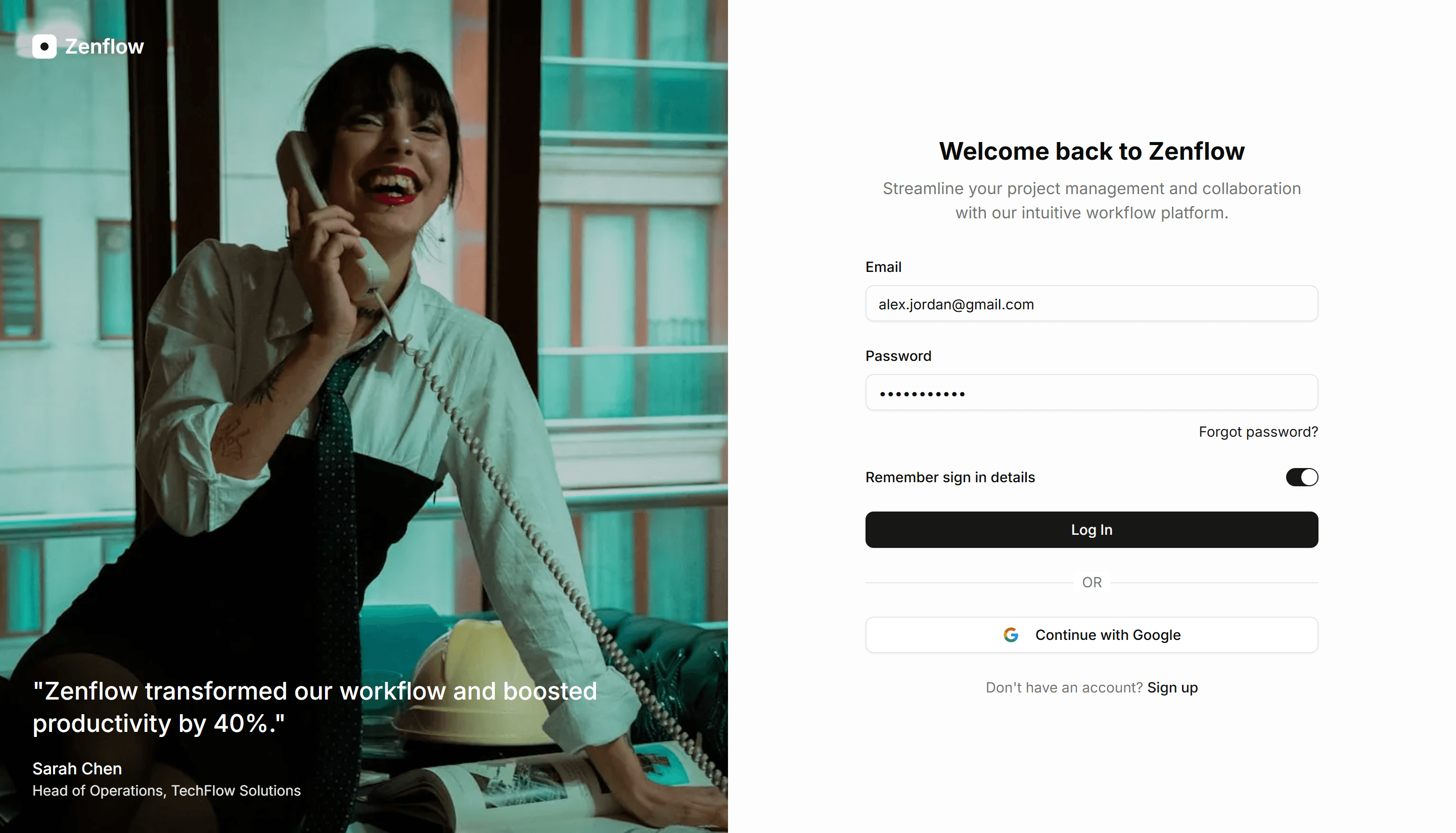
Application Login: Split With Image
A two panel login screen pairing a sign in form with a side image. Use it to add brand personality to authentication on web apps and dashboards.
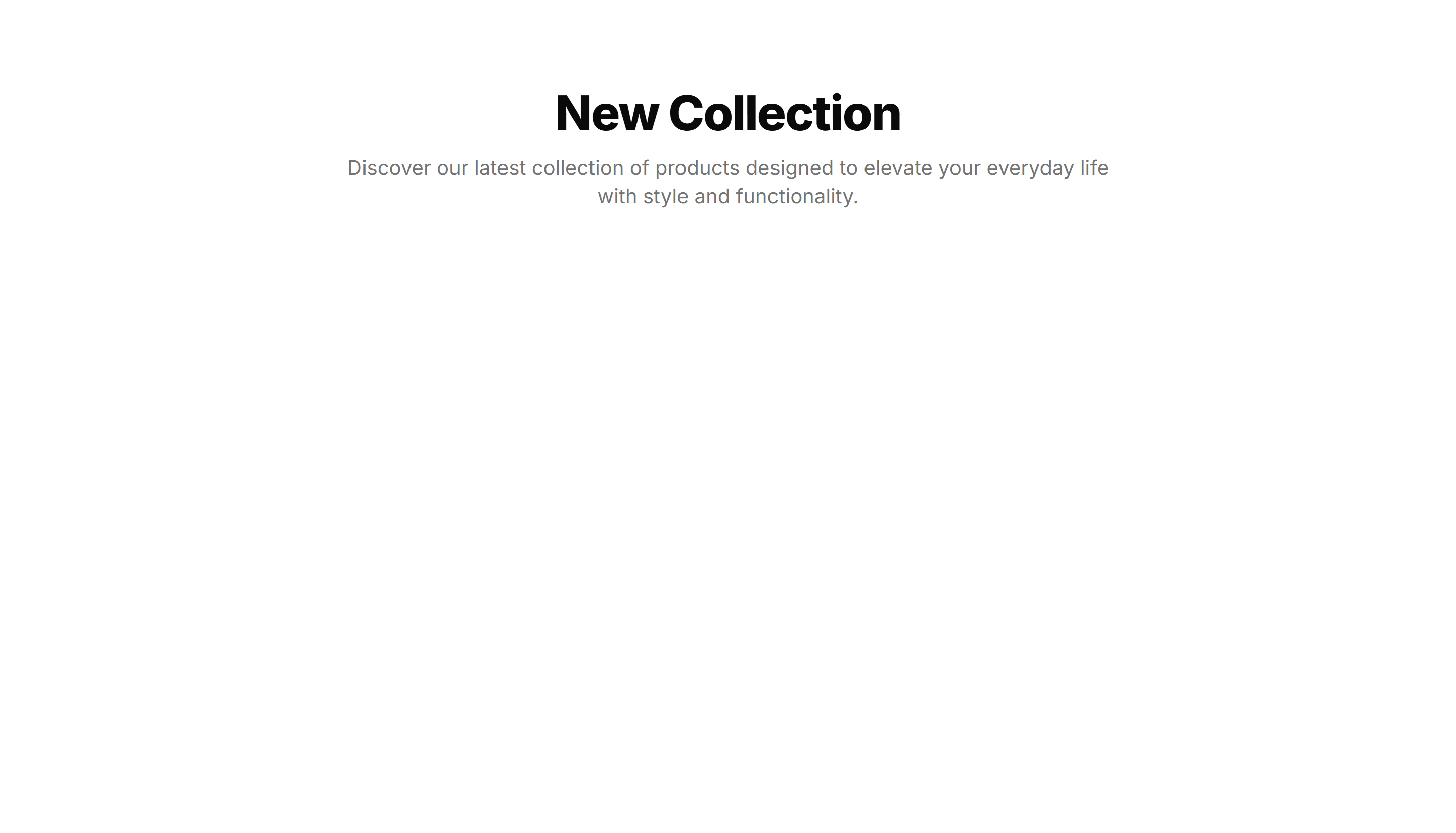
Application Page Heading: Simple Centered
A centered page title with optional description text, balanced on the screen. Use it on focused app views like settings or a single record detail.
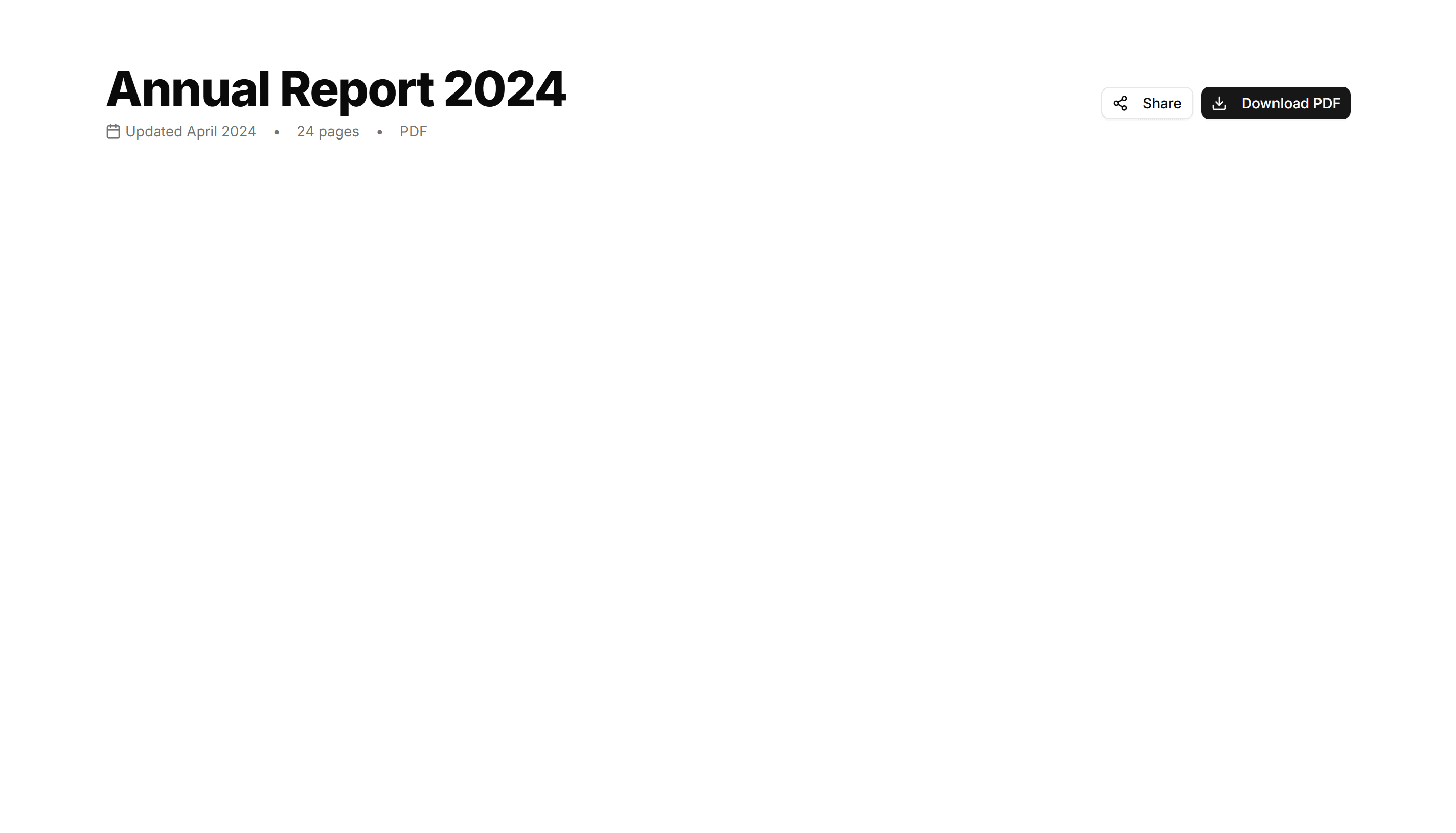
Application Page Heading: With Actions
A page title paired with buttons on the right for primary and secondary actions. Use it atop list or detail views where users create or edit.
Application Page Heading: With Search Filters
A page title with a search field and filter controls sitting below it. Use it on data heavy screens so users narrow long tables and lists fast.
Application Page Heading: With Stats
A page title sitting above a row of key metrics like totals and trends. Use it on dashboards to frame the view and surface numbers at a glance.
Application Page Heading: With Steps
A page title with a numbered step indicator that shows progress. Use it across multi screen flows like onboarding, checkout, or a setup wizard.
Application Page Heading: With Tabs
A page title with a row of tabs beneath it for switching sections. Use it on profile or settings screens that split content across many views.
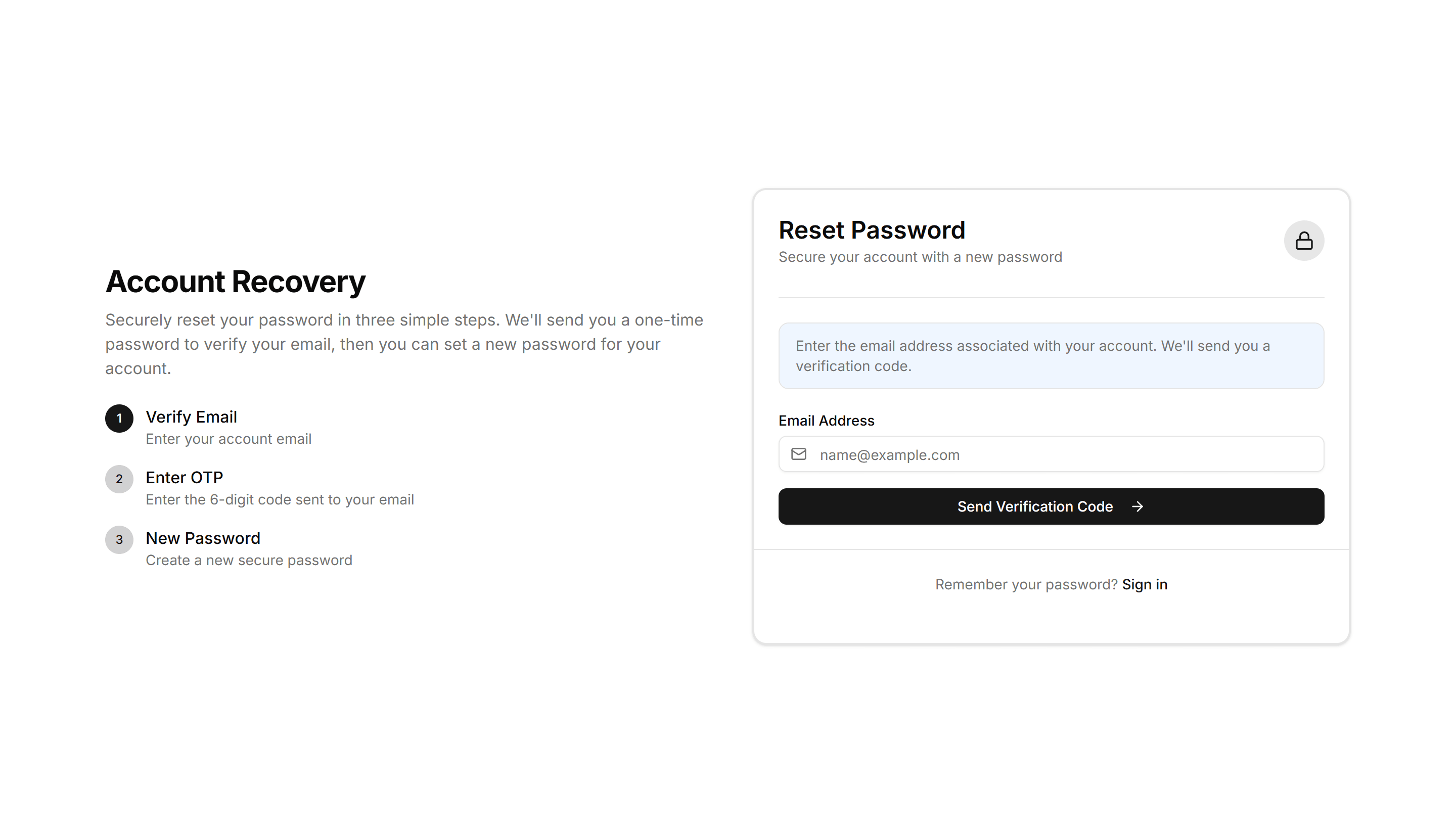
Application Reset Password: Email OTP Reset
A reset password form that emails a one time code, then prompts users to enter the OTP digits before setting a new password. Use for secure email recovery.
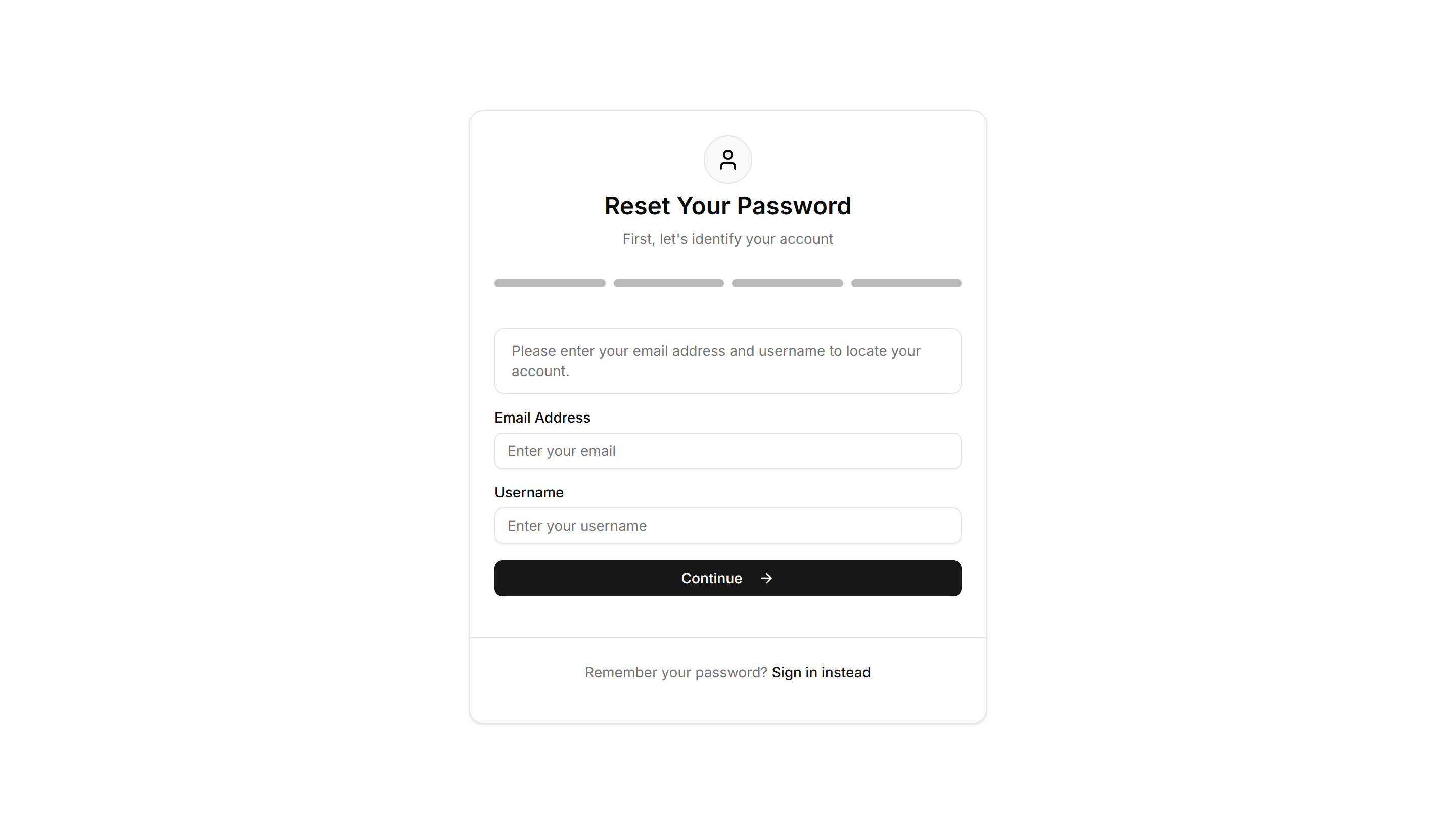
Application Reset Password: Security Question Reset
A reset password form that verifies identity with a saved security question and answer before allowing a new password. Use as a passwordless recovery path.
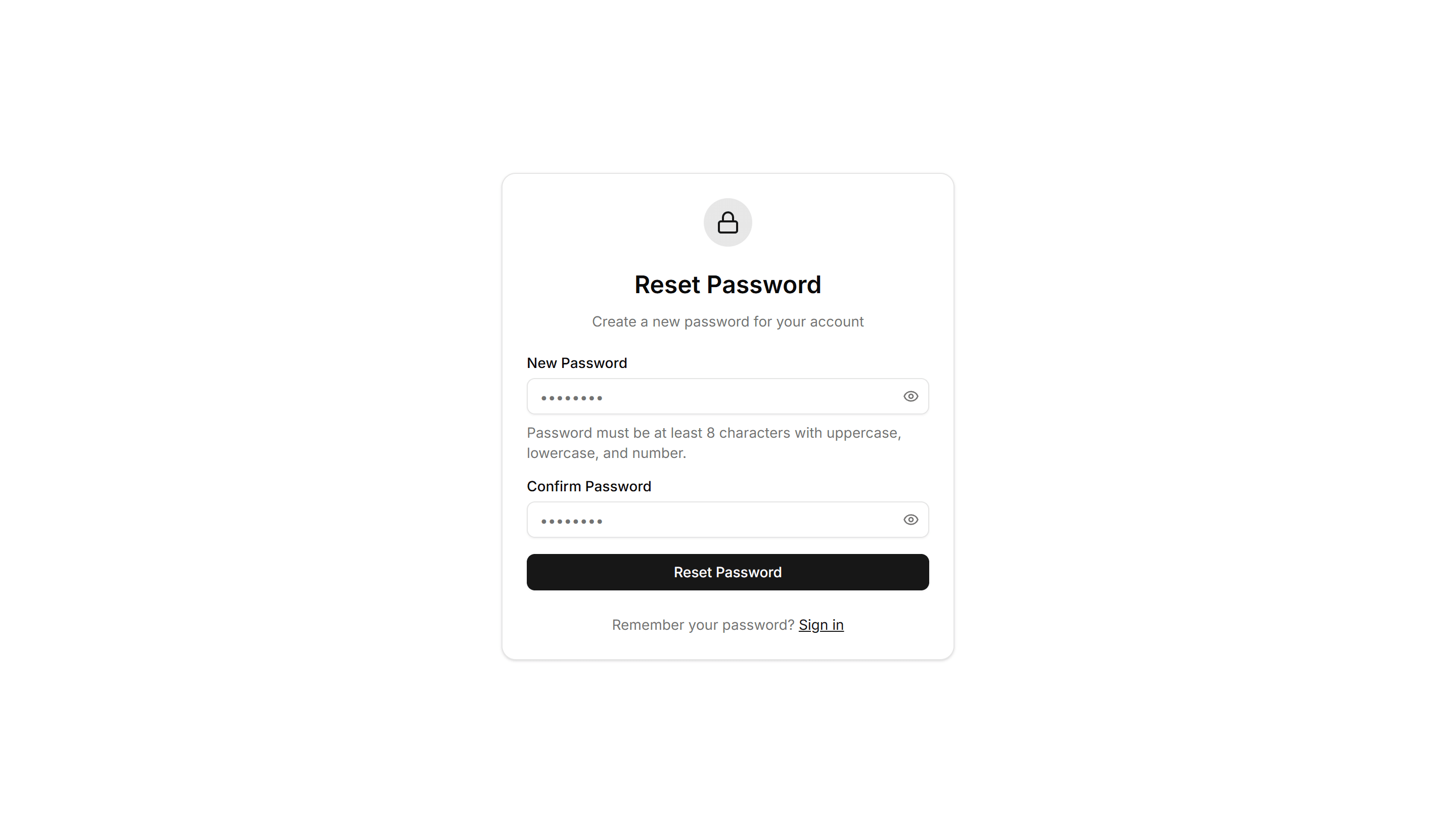
Application Reset Password: Simple Reset
A clean reset password form with new password and confirm fields plus a submit button. Use on the final step after a user clicks a recovery link.
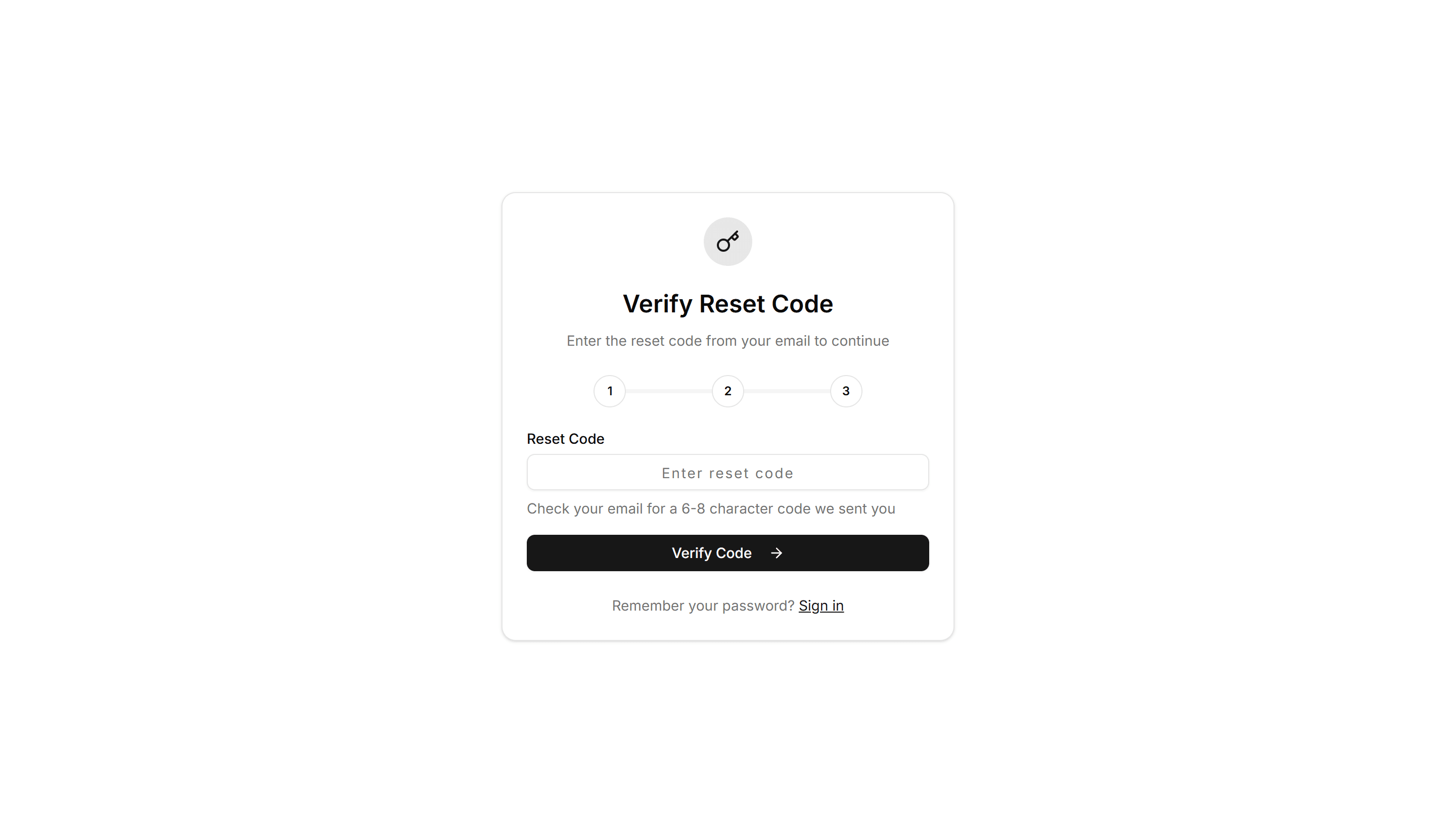
Application Reset Password: Token Reset
A reset password form that reads a token from the recovery link, confirms it, then collects a new password. Use to complete a tokened email reset flow.

Application User Profile: Billing
A profile billing view with current plan, payment method, invoice history, and an upgrade prompt. Use it where members manage subscriptions and receipts.
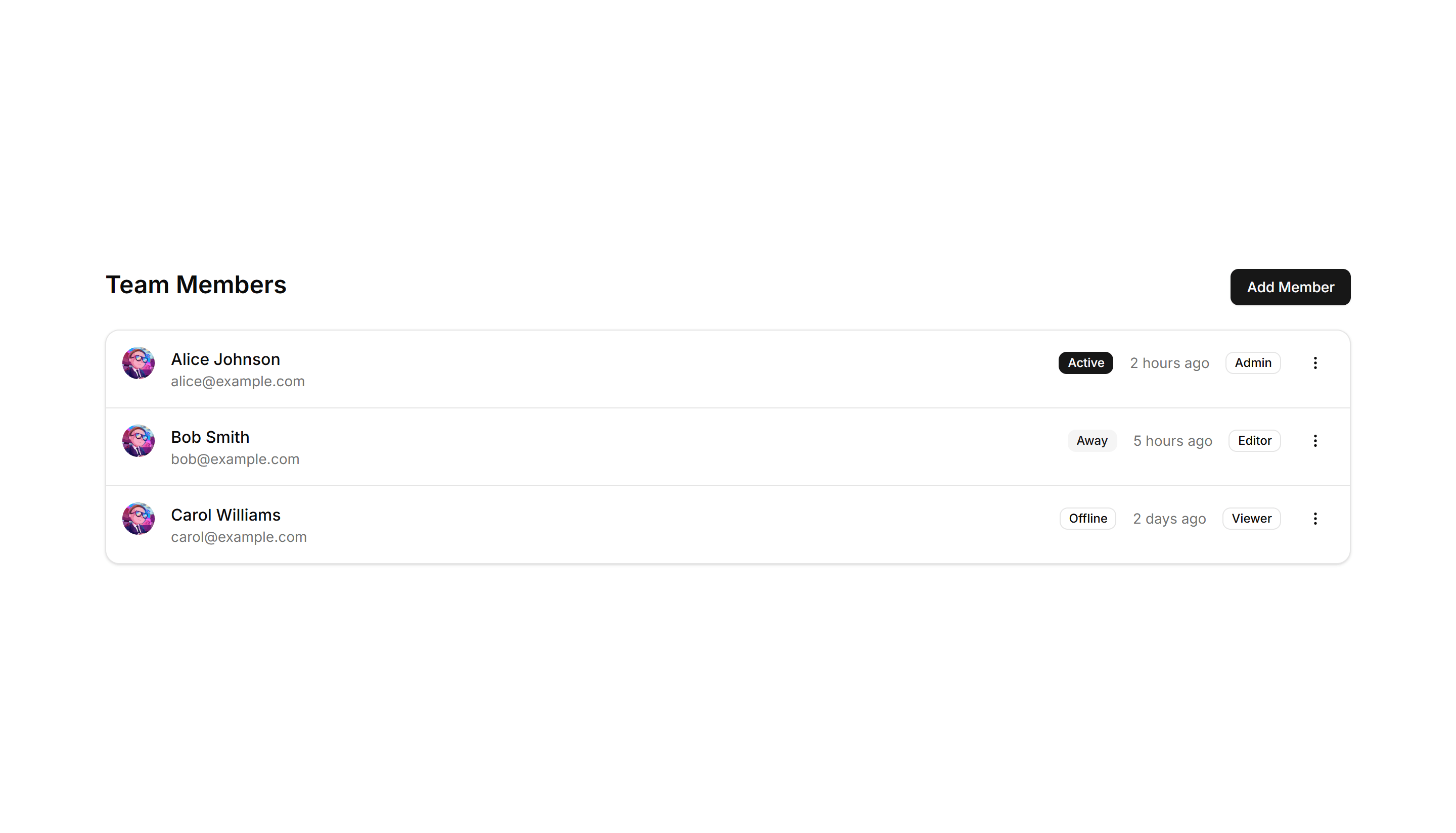
Application User Profile: Compact List
A dense list of user profiles with avatar, name, role, and quick actions per row. Fits admin tables and directories where space stays tight.
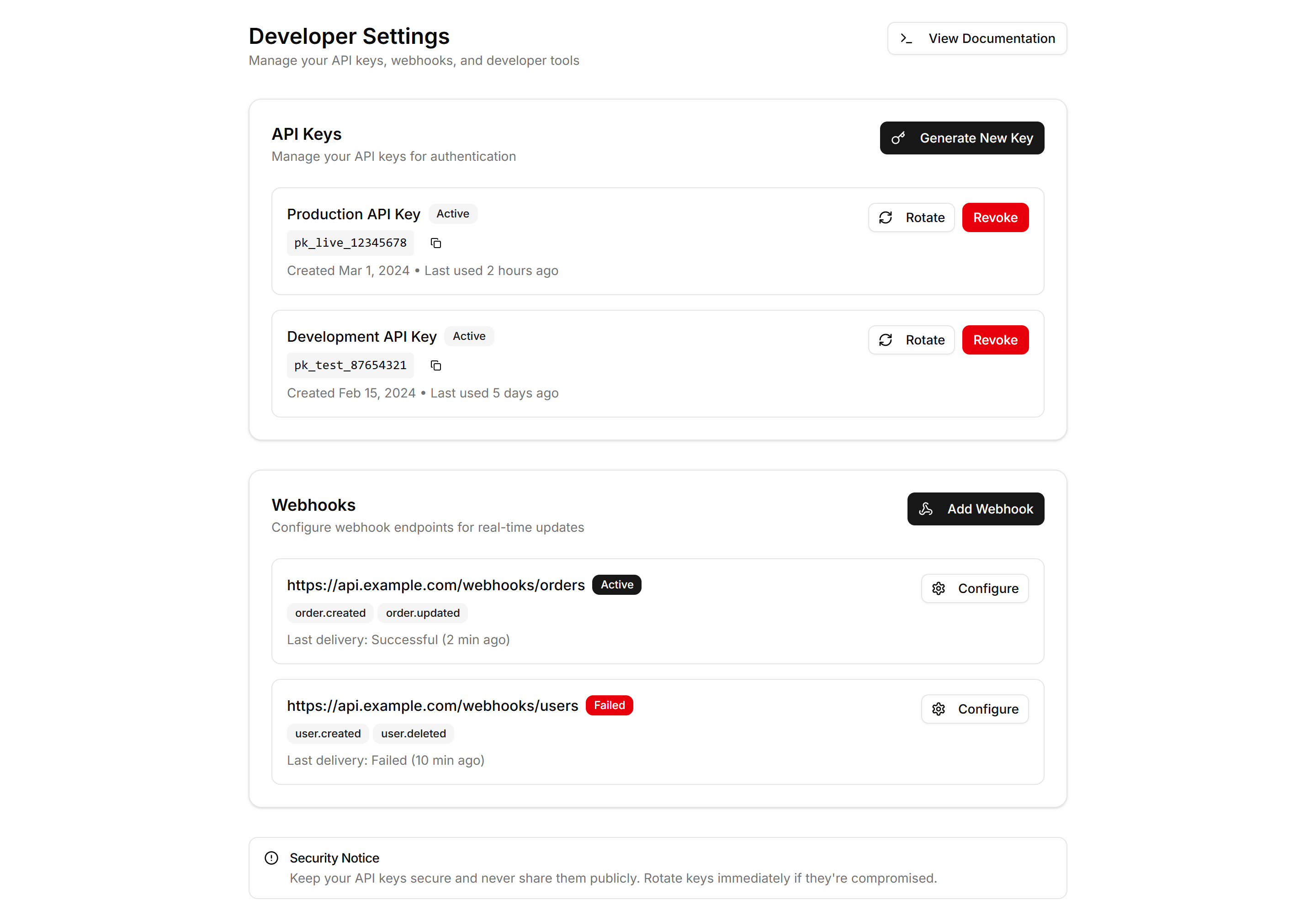
Application User Profile: Developer
A developer profile with API keys, access tokens, connected apps, and usage notes. Use it on settings pages where engineers manage their integrations.
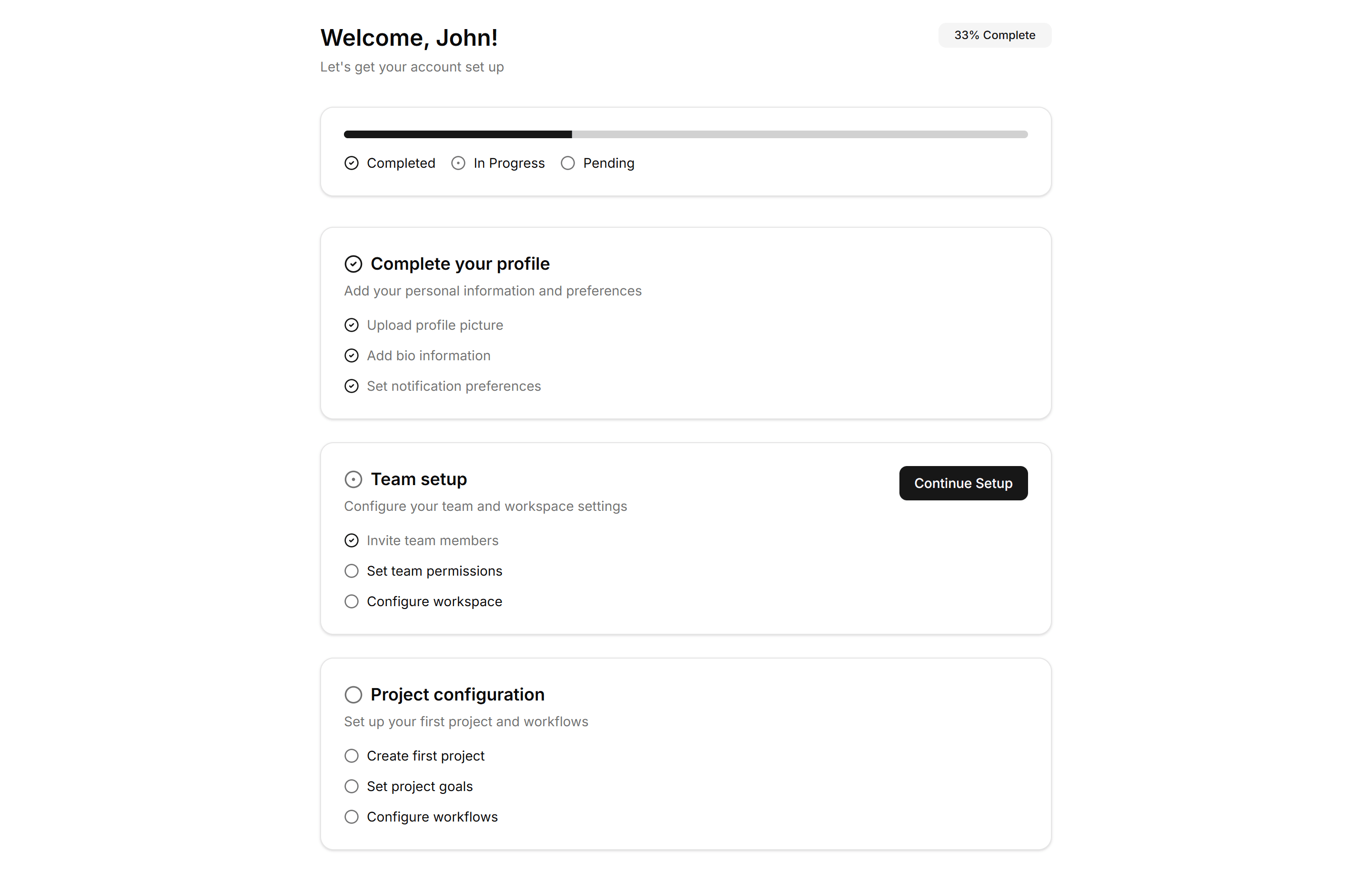
Application User Profile: Onboarding
A guided profile setup with steps for avatar, name, and preferences. Use it right after signup to help new users finish their account quickly.
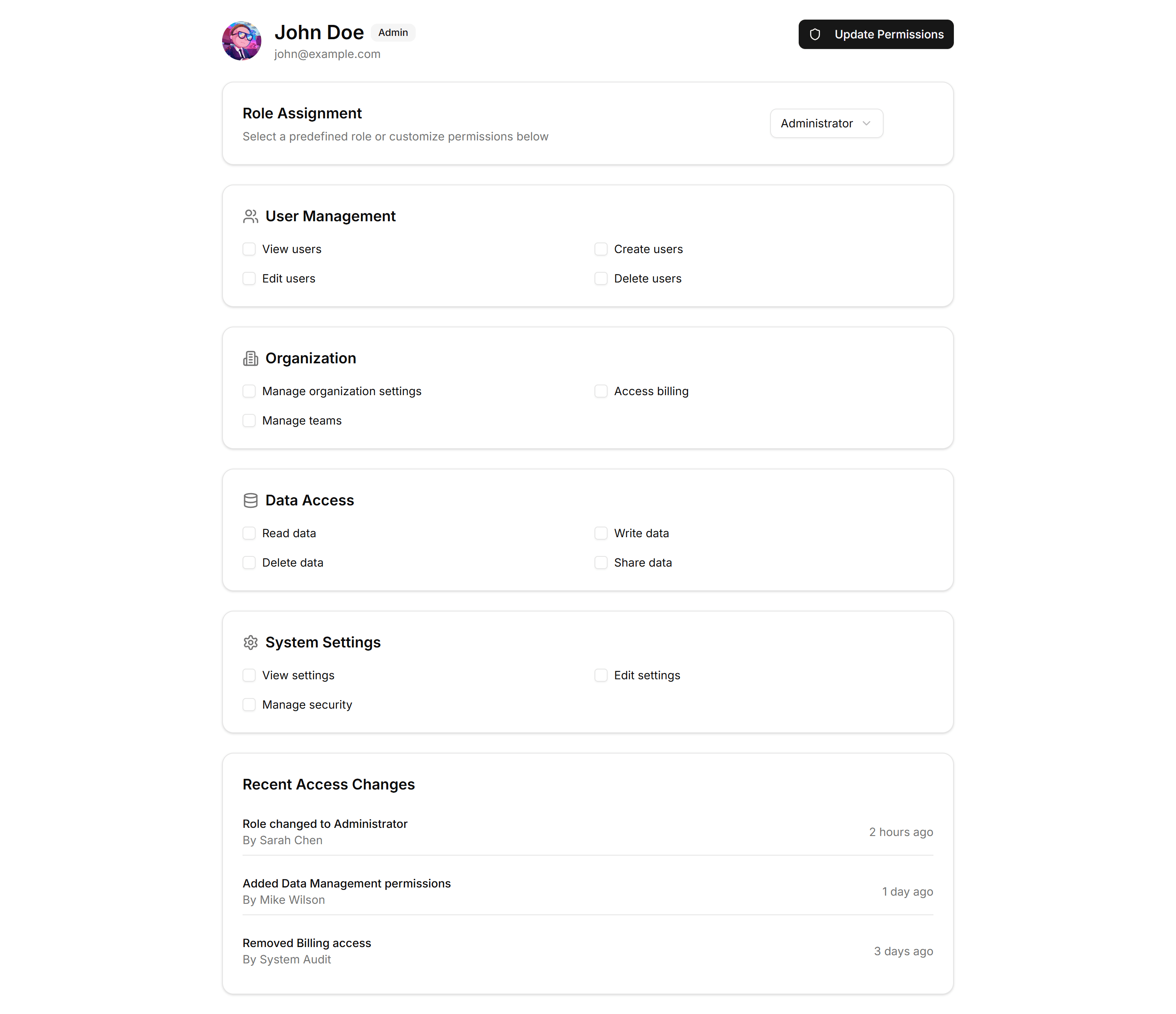
Application User Profile: Permissions
A profile permissions panel listing roles and toggles for what a member can view or edit. Use it where admins grant access across an application.
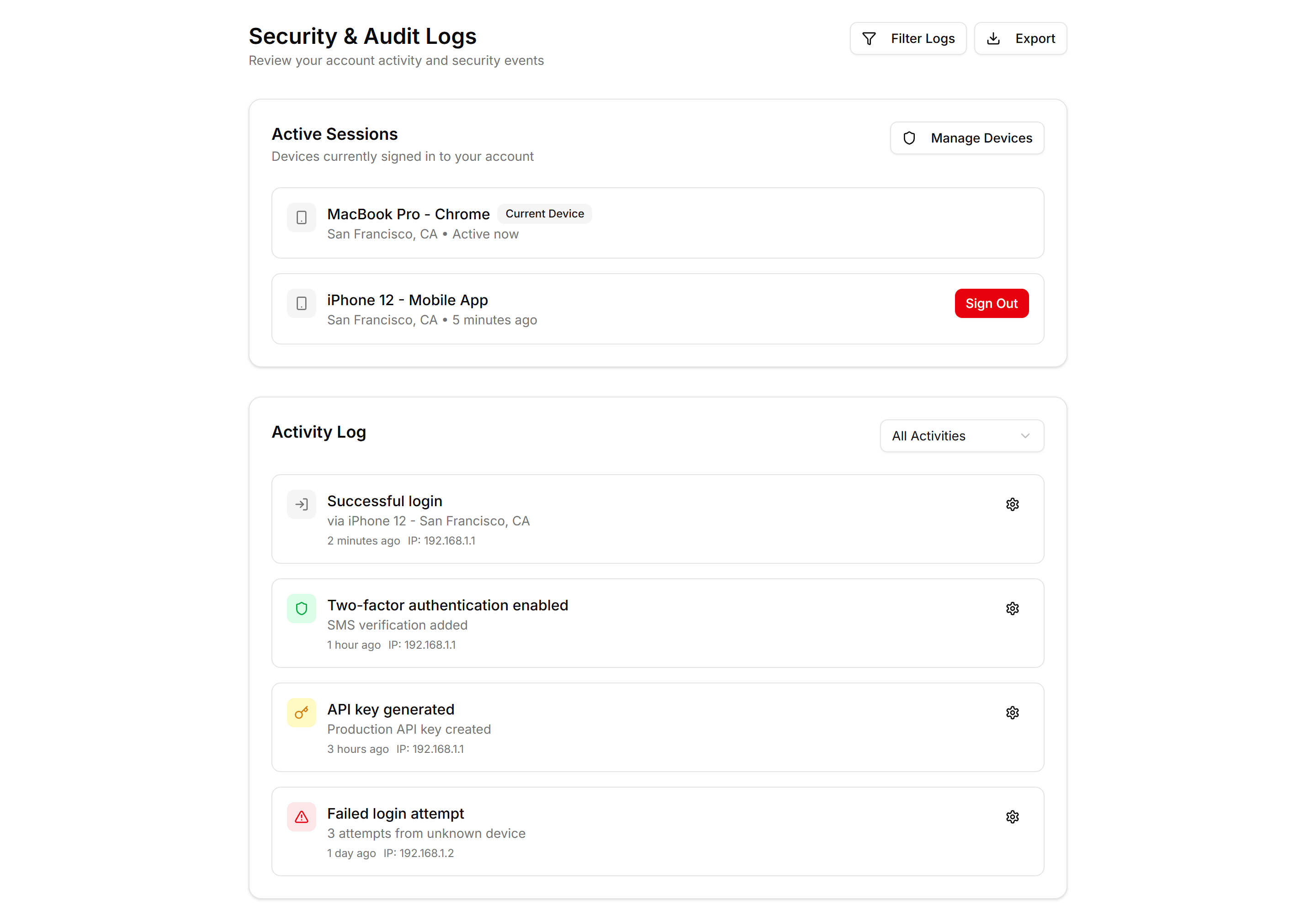
Application User Profile: Security Logs
A profile security view showing recent sign ins, devices, locations, and times. Use it so members can spot odd activity and protect their account.
Application User Profile: Simple
A clean profile card with avatar, name, bio, and a few key details. Use it for a focused account summary on dashboards or member directory pages.
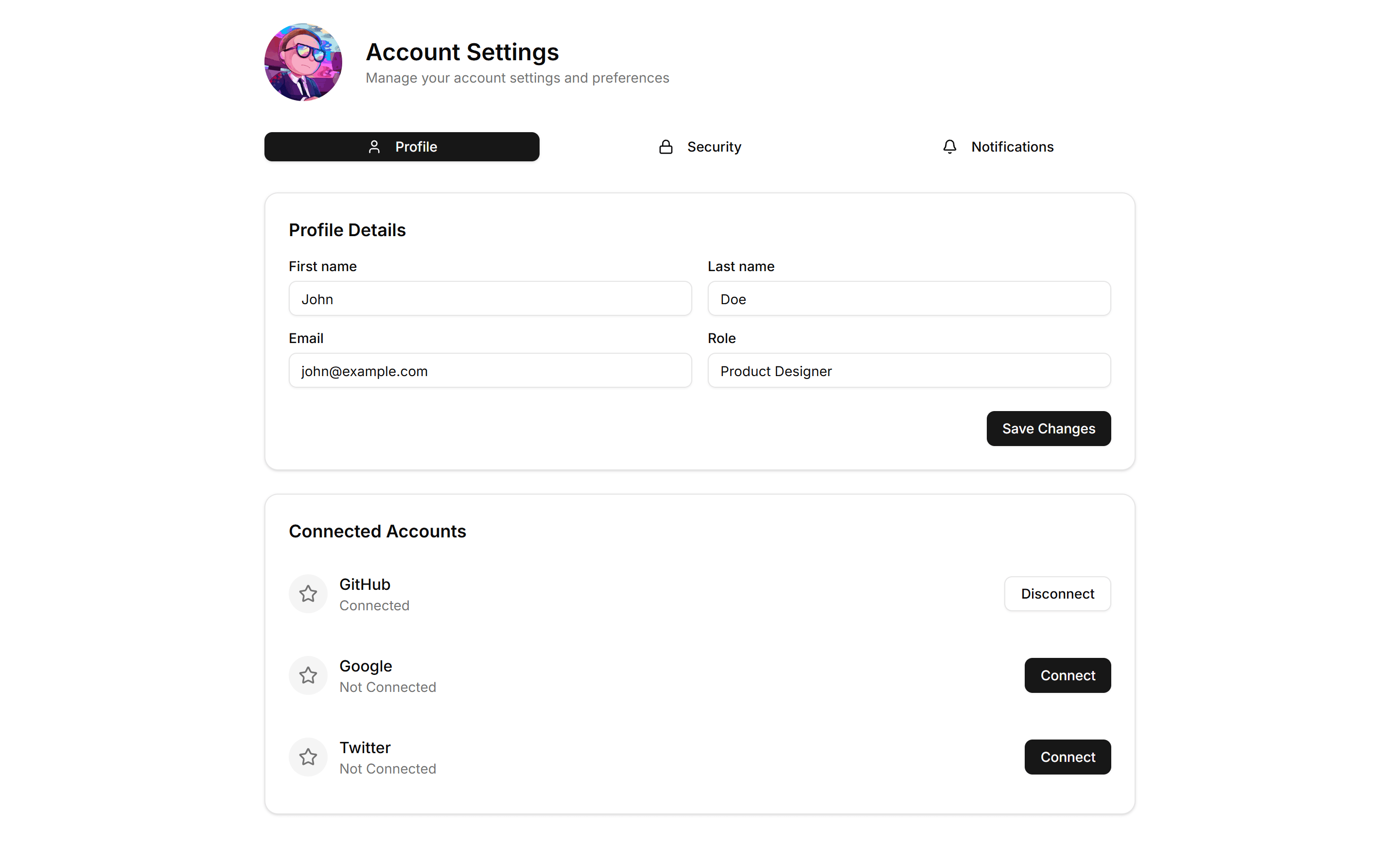
Application User Profile: Tabbed
A profile layout split into tabs for account, security, and notifications. Use it to organize many settings without crowding a single long page.
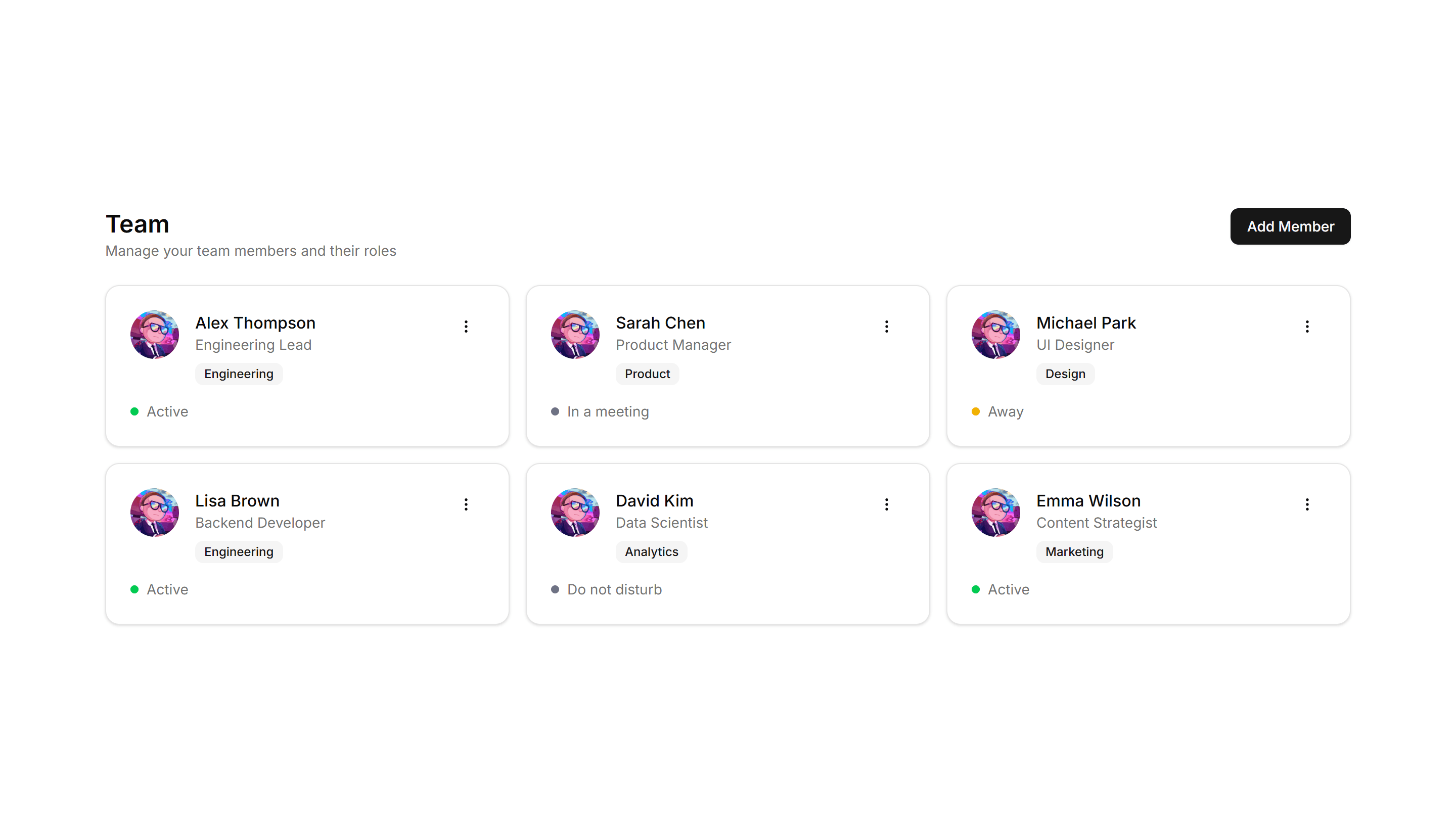
Application User Profile: Team Grid
A grid of teammate profiles with photos, titles, and contact buttons. Use it on an about page or internal directory to introduce the whole team.
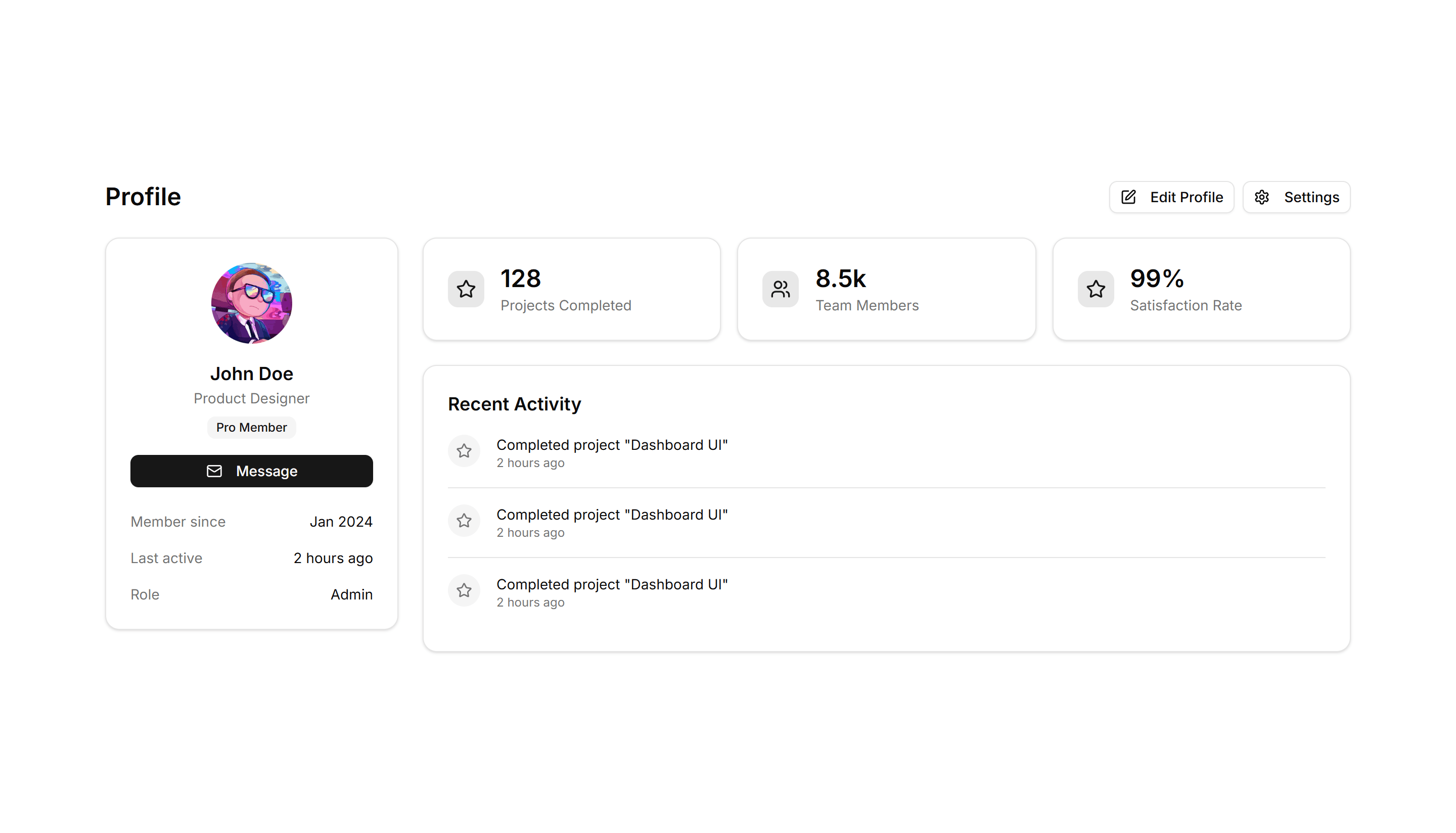
Application User Profile: With Stats
A profile header paired with metrics like followers, posts, and reputation. Use it on social or community pages to show a member at a glance.
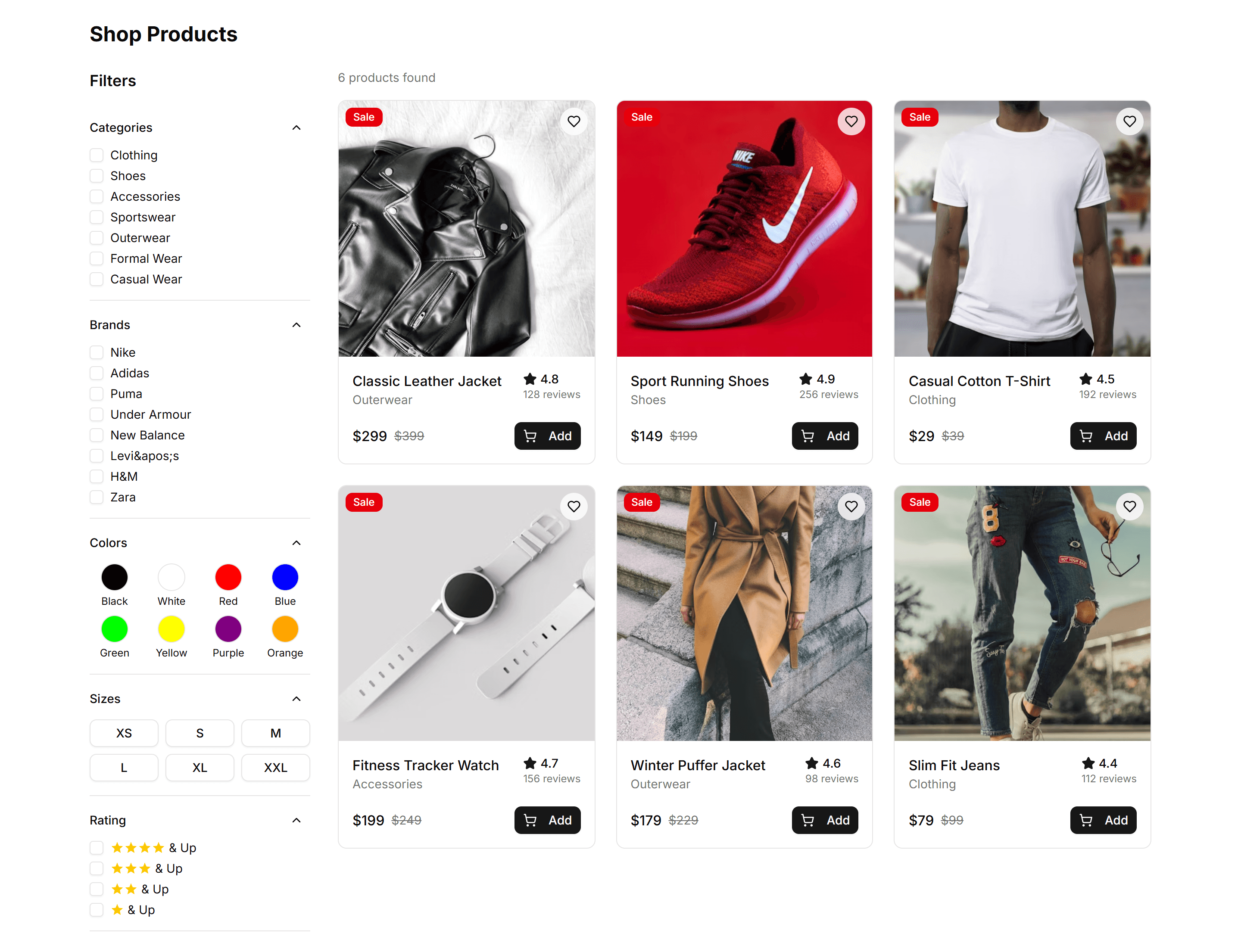
Ecommerce Category Filter: Filter Demo
A sidebar of category filters with checkboxes, price sliders, and color swatches beside a product grid. Refines large catalogs on a shop listing page.
Ecommerce Category Filter: Filter Drawer
A slide in drawer holding category, price, and rating filters for small screens. Keeps the product grid full width until shoppers tap to refine on mobile.
Ecommerce Category Filter: Horizontal Filters
A row of filter dropdowns and chips sitting above the product grid. Lets shoppers narrow by category, price, and brand without giving up vertical space.
Ecommerce Category Preview: Carousel Preview
A category preview that slides products through a horizontal carousel, letting shoppers swipe across a collection without leaving the page on mobile.
Ecommerce Category Preview: Expandable Preview
A category preview where each tile expands to reveal more products on click, keeping the storefront tidy while shoppers dig into one collection at a time.
Ecommerce Category Preview: Grid Preview
A category preview arranging collections in an even grid of image tiles, giving a clean overview of every department on a busy ecommerce home page.
Ecommerce Category Preview: Magazine Preview
A category preview styled like a magazine spread, mixing large feature tiles with smaller ones to spotlight seasonal collections on a storefront landing page.
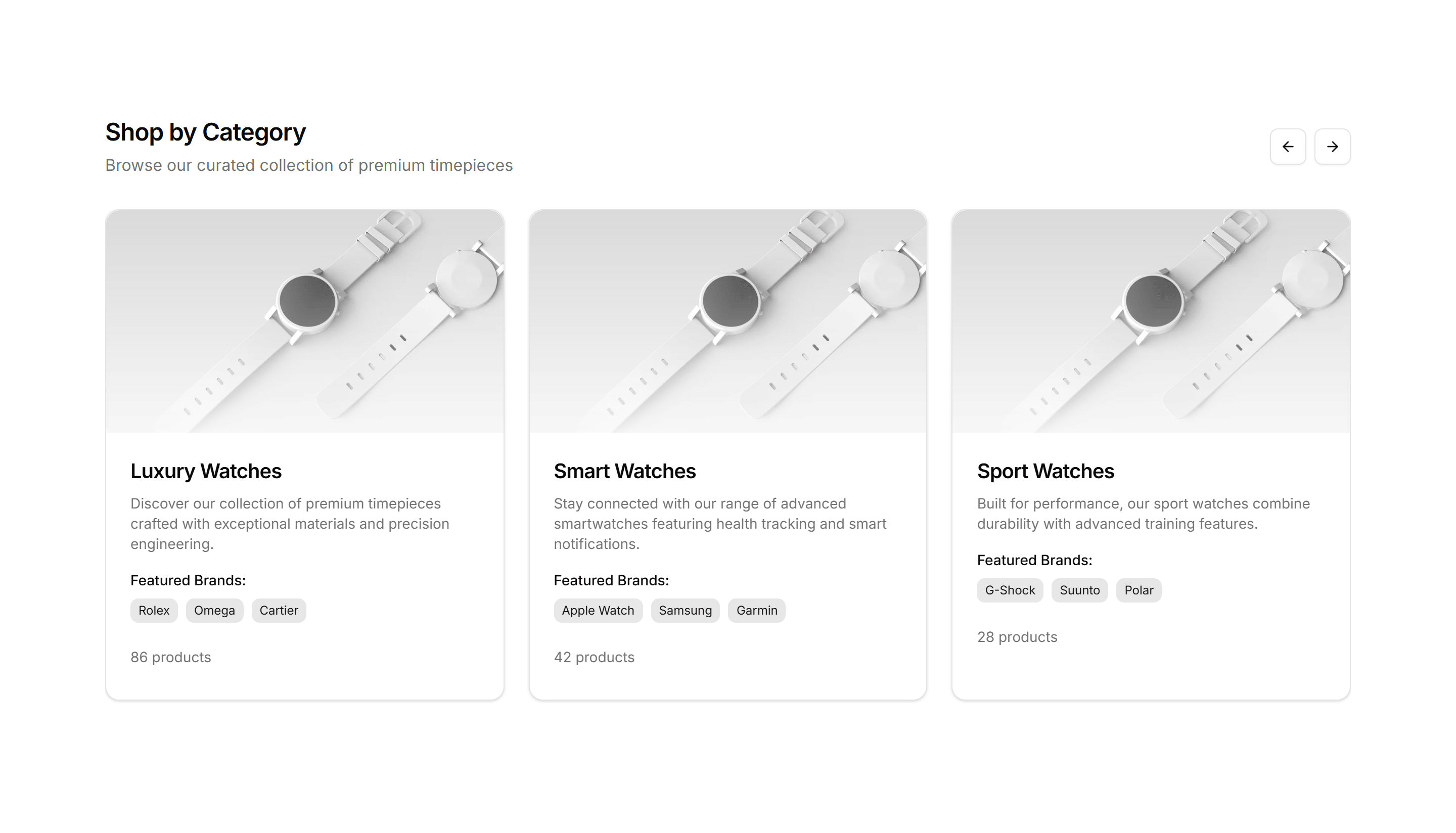
Ecommerce Category Preview: Scrolling Preview
A category preview that scrolls product cards in a continuous strip, ideal for showing many items while keeping a compact footprint on a collection page.
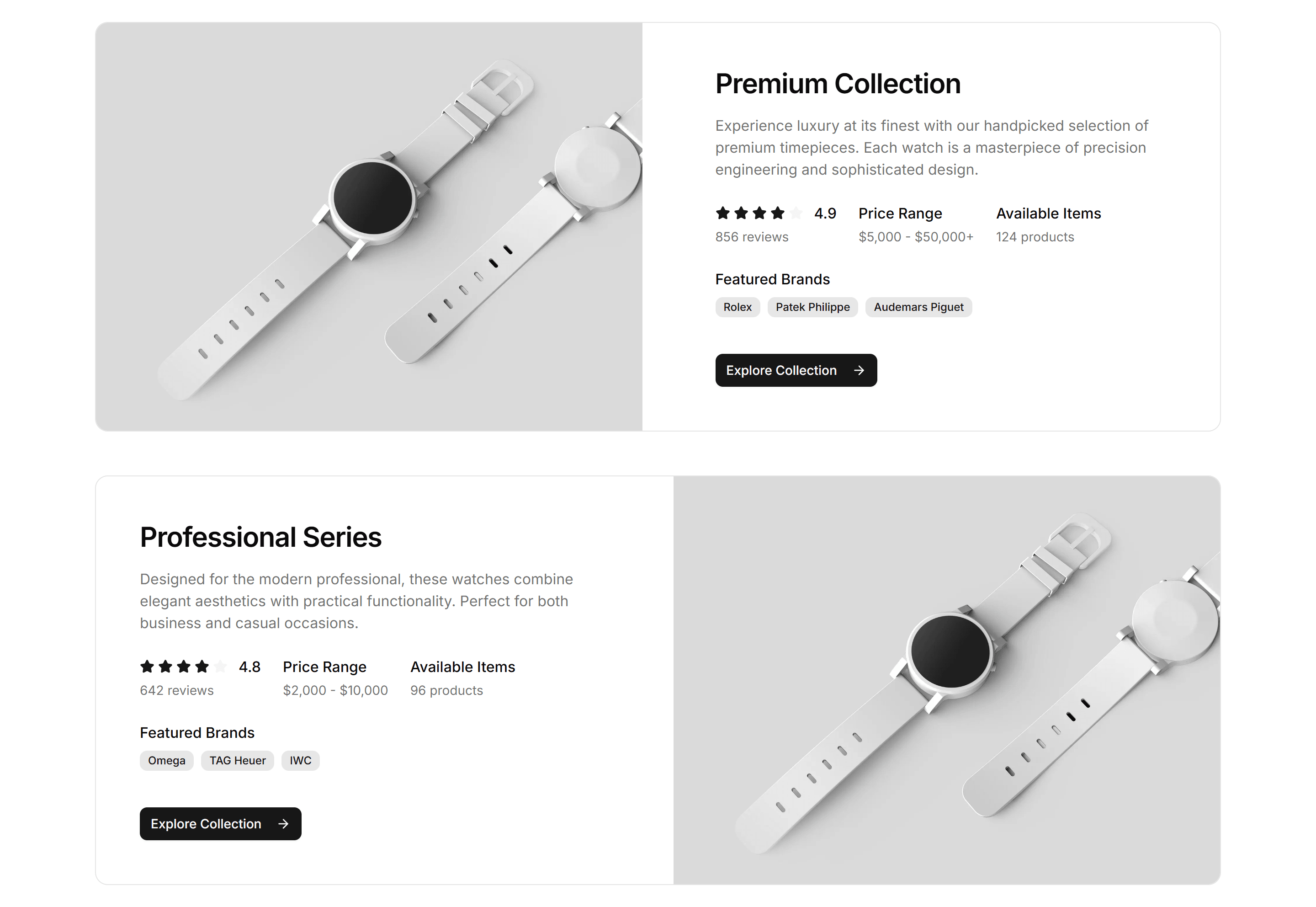
Ecommerce Category Preview: Split Preview
A category preview split between a featured image and a product list, pairing a strong visual with quick picks at the top of a collection page.
Ecommerce Category Preview: Three Column Preview
A category preview laid out in three balanced columns of image tiles, sorting collections into clear groups for a wide ecommerce navigation page.
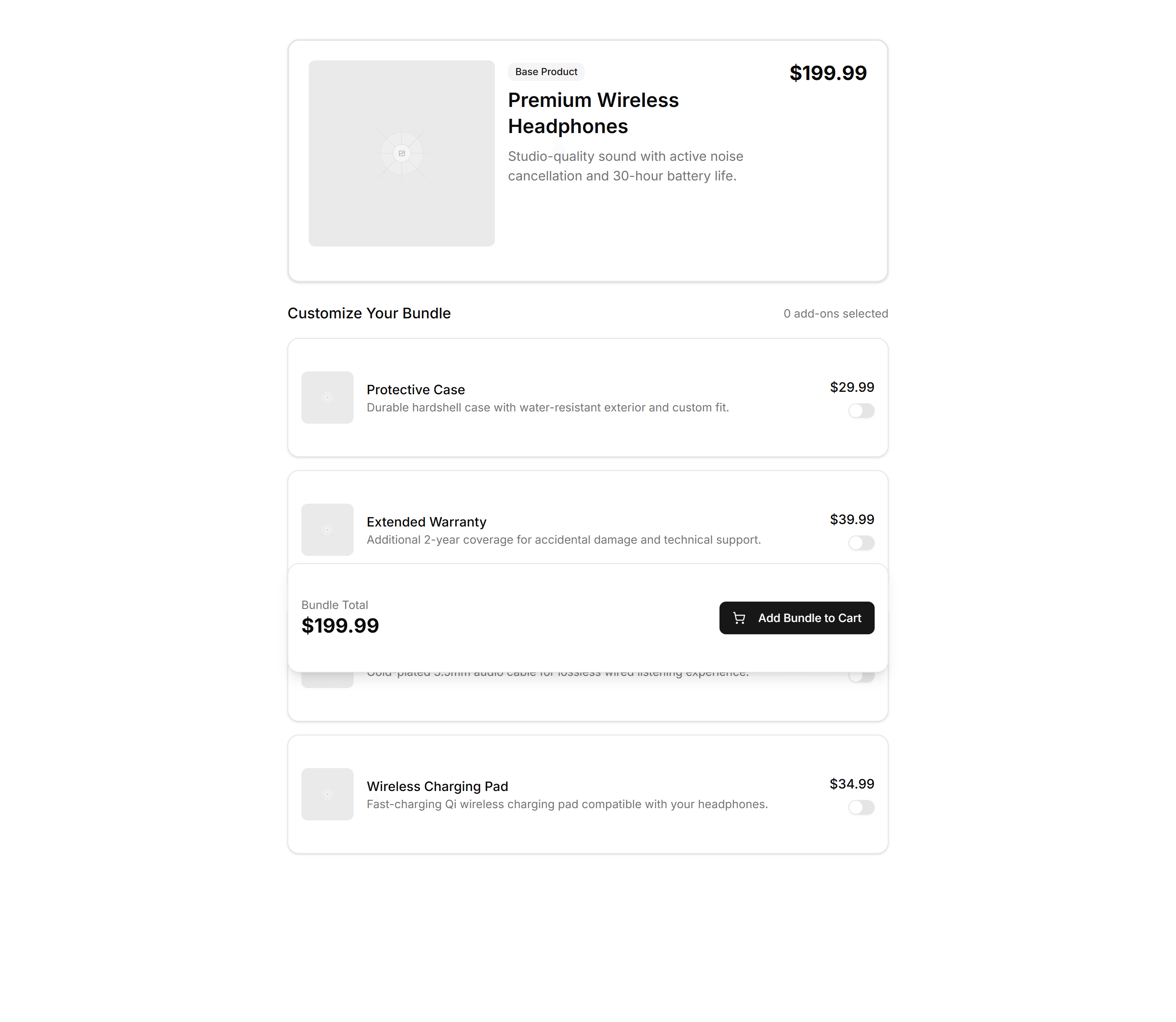
Ecommerce Bundle Upsell: Builder
A bundle builder where shoppers pick add on products and watch the total update live. Use it on product pages to grow order value before checkout.
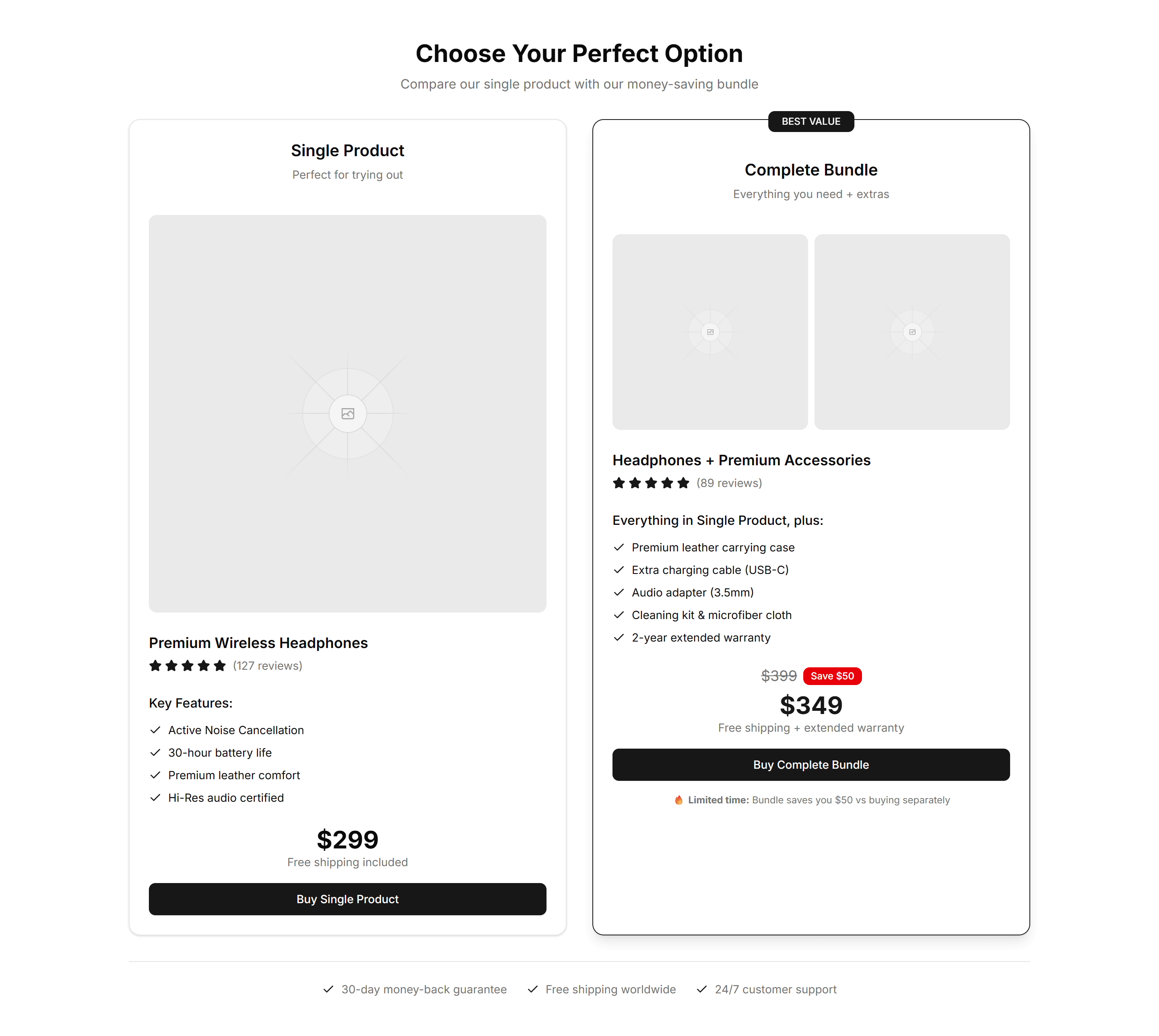
Ecommerce Bundle Upsell: Comparison
A side view comparing a single item against a bundle, with prices and savings shown. Use it to nudge shoppers toward the better value package.
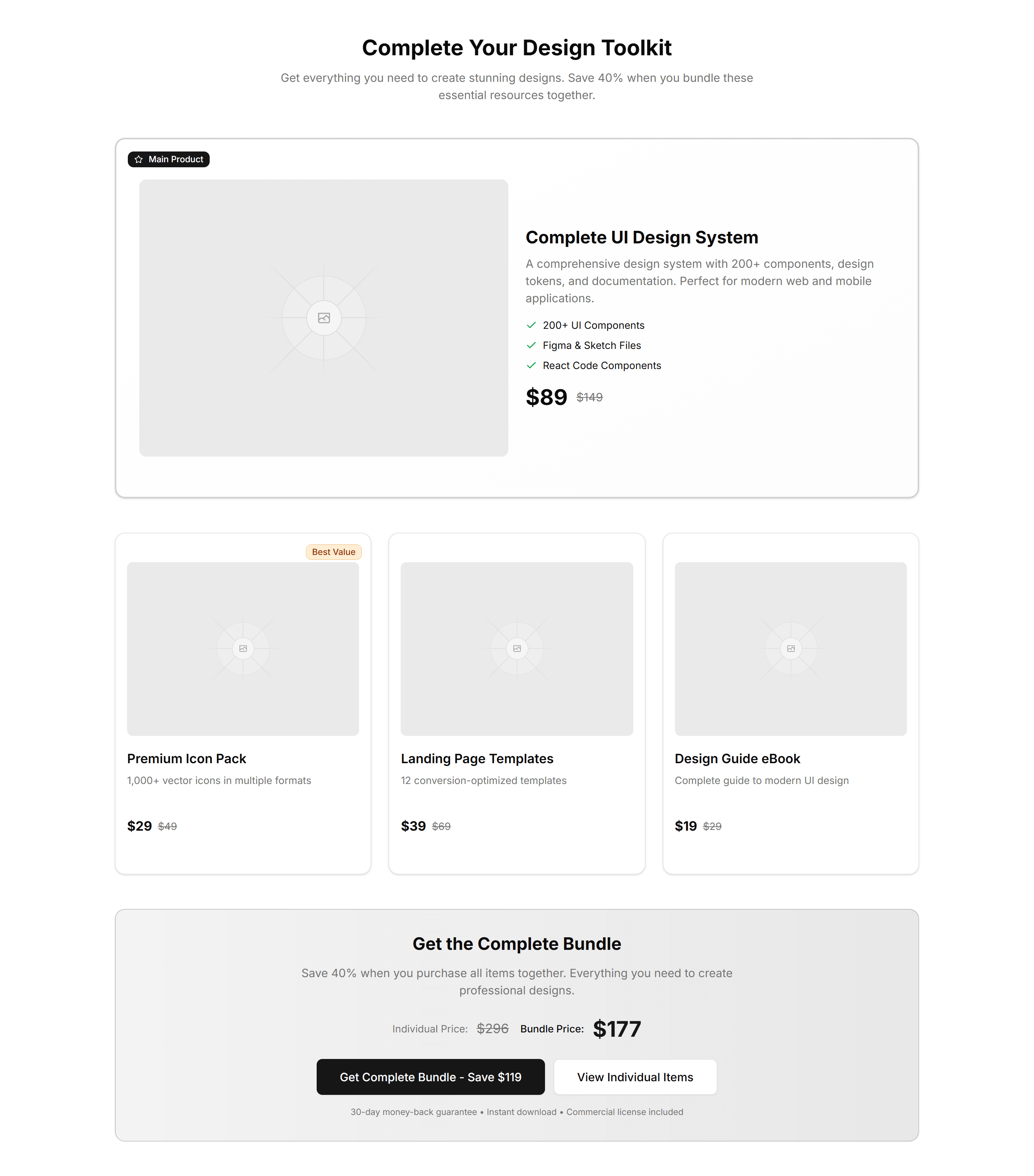
Ecommerce Bundle Upsell: Minimalist Grid
A clean grid of bundle products with images, names, and prices in even cells. Use it to present a curated set of items shoppers add together in one tap.
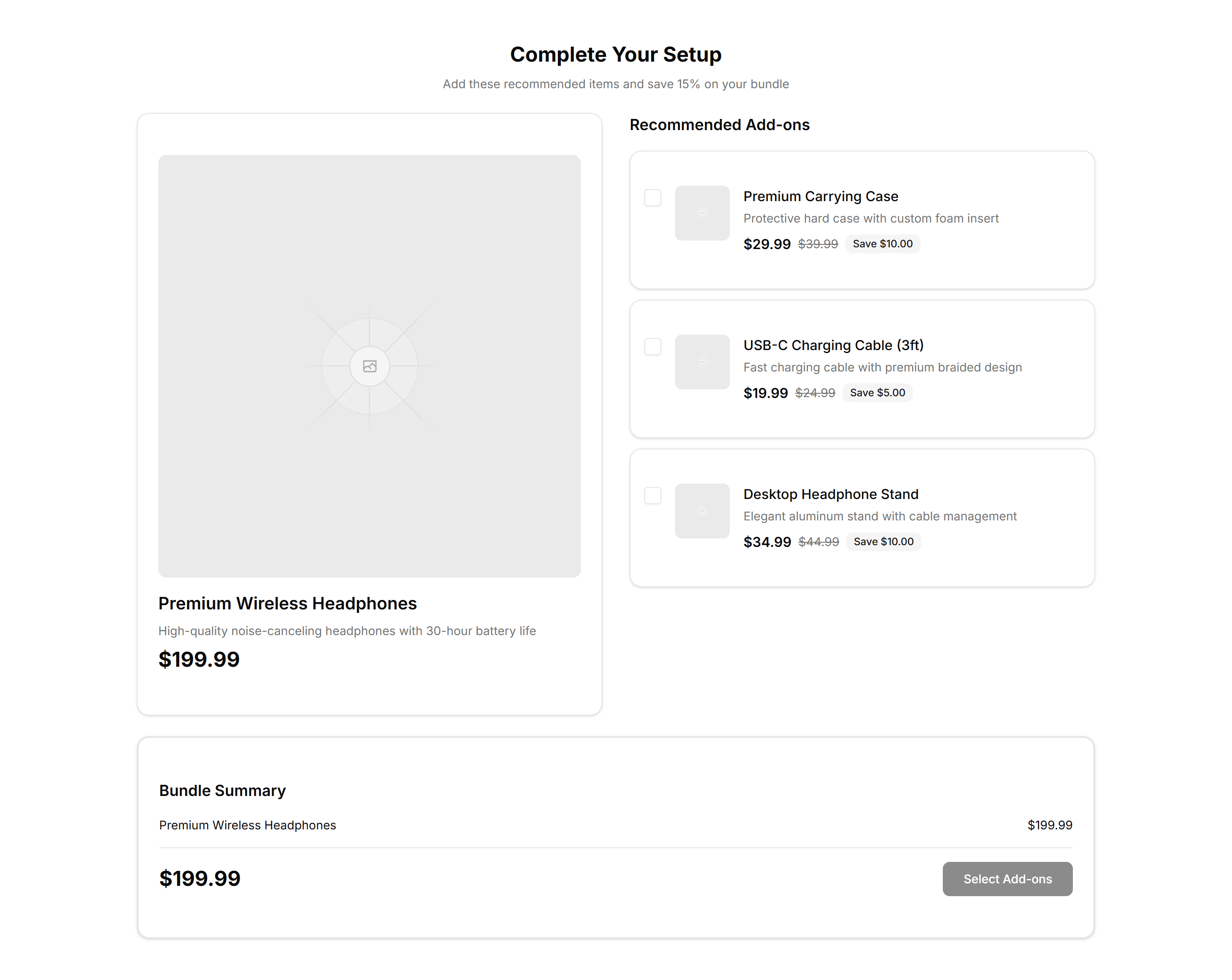
Ecommerce Bundle Upsell: Side By Side
Two product cards placed next to each other with a plus sign and combined price. Use it to pair complementary items and lift the average order total.
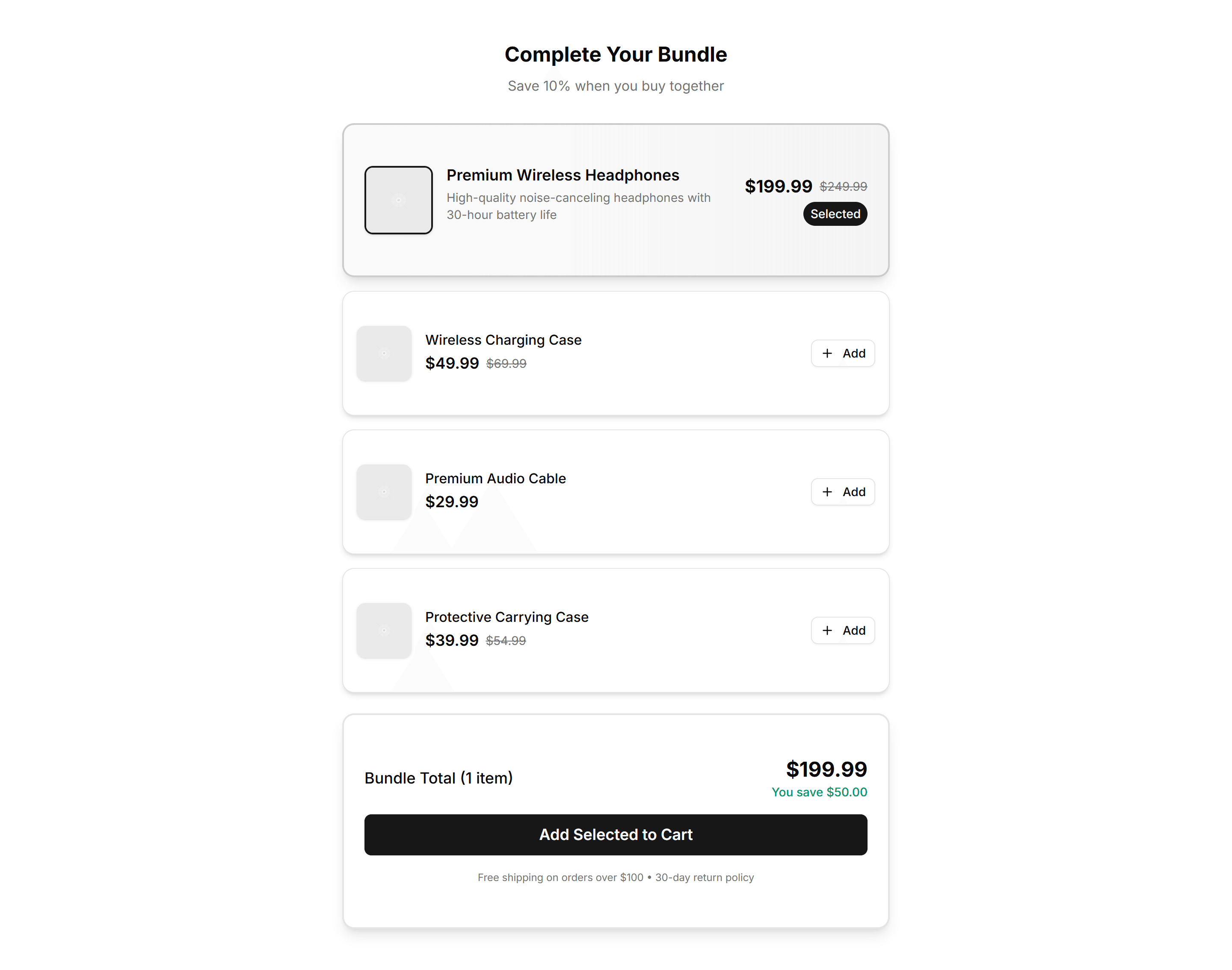
Ecommerce Bundle Upsell: Stack
A vertical stack of bundle items with running totals and one add to cart action. Use it on mobile product pages to offer matching extras as shoppers scroll.

Ecommerce Cross Sell: Feature Icons
Recommended products laid out with an icon, short benefit, and price for each item. Highlights why shoppers should add a related pick to the cart.
Ecommerce Cross Sell: Simple Grid
A clean grid of related products with image, title, and price per card. Drops below the cart or product page to suggest items shoppers may want.
Ecommerce Cross Sell: Stacked List
Suggested products in a vertical stacked list with thumbnail, name, and price. Fits a narrow sidebar or cart drawer to keep cross sells visible.
Ecommerce Cross Sell: With Badges
Related products in a card grid where each item carries a badge for sale, new, or low stock. Adds urgency to nudge shoppers toward another buy.
Ecommerce Cross Sell: With Ratings
Recommended products shown with star ratings and review counts beside each price. Uses social proof to push complementary items into the cart.
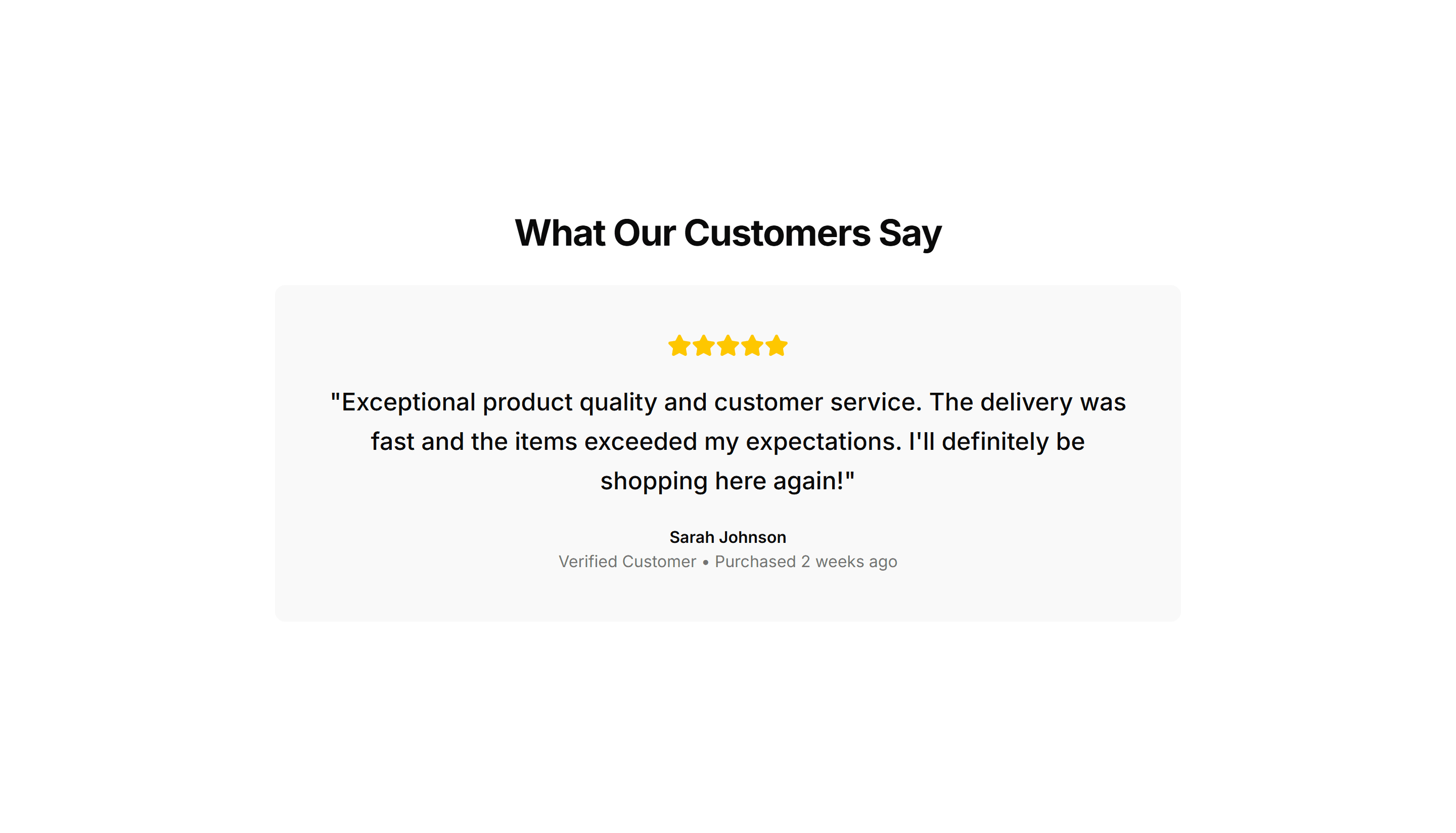
Ecommerce Customer Review: Base
A starter customer review layout with star ratings, reviewer names, and comment text. Drop it onto a product page to show real shopper feedback fast.
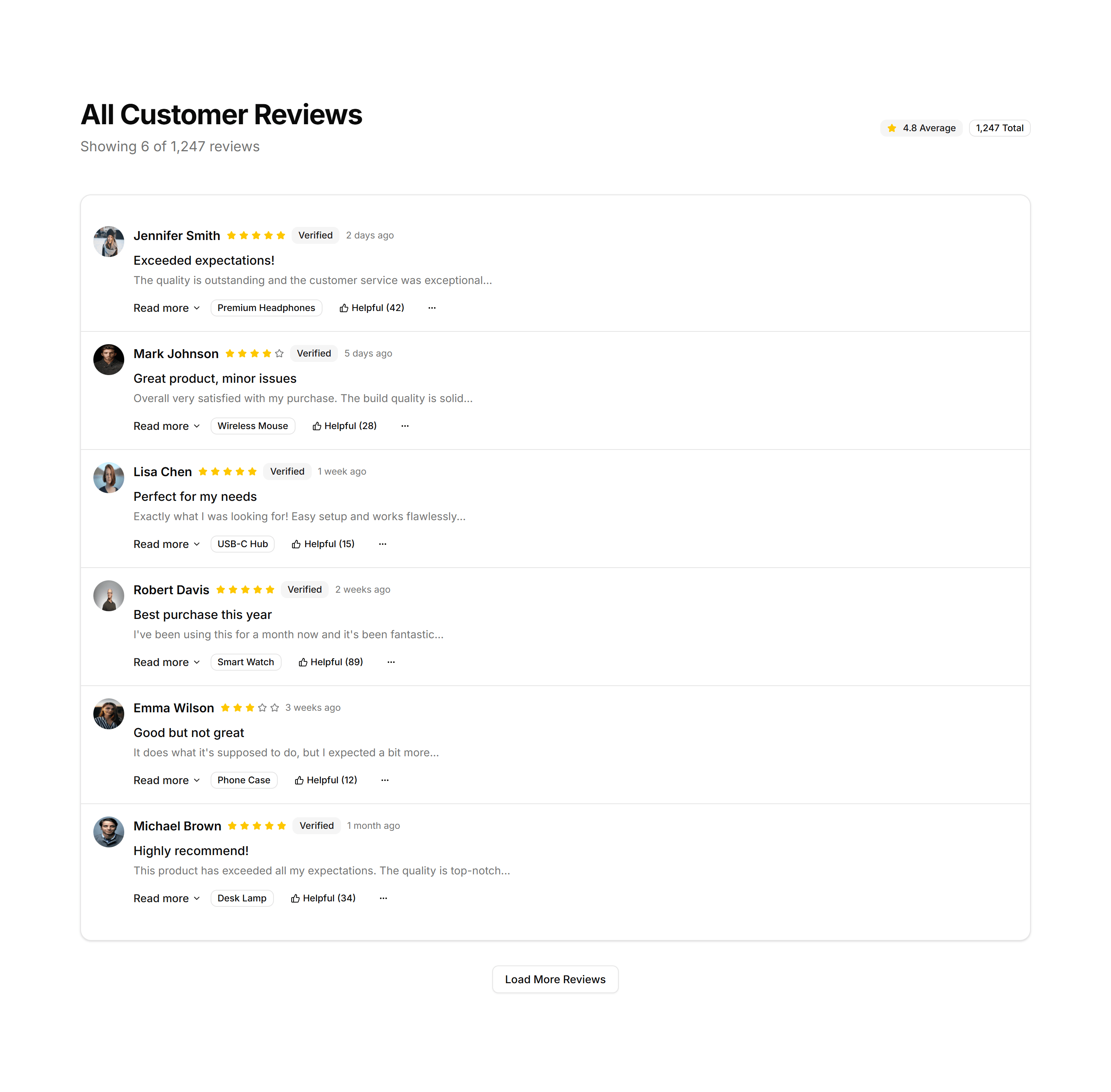
Ecommerce Customer Review: Compact Review List
A tight vertical list of reviews with star ratings and short quotes. Fits narrow sidebars or product pages where space for feedback is limited.
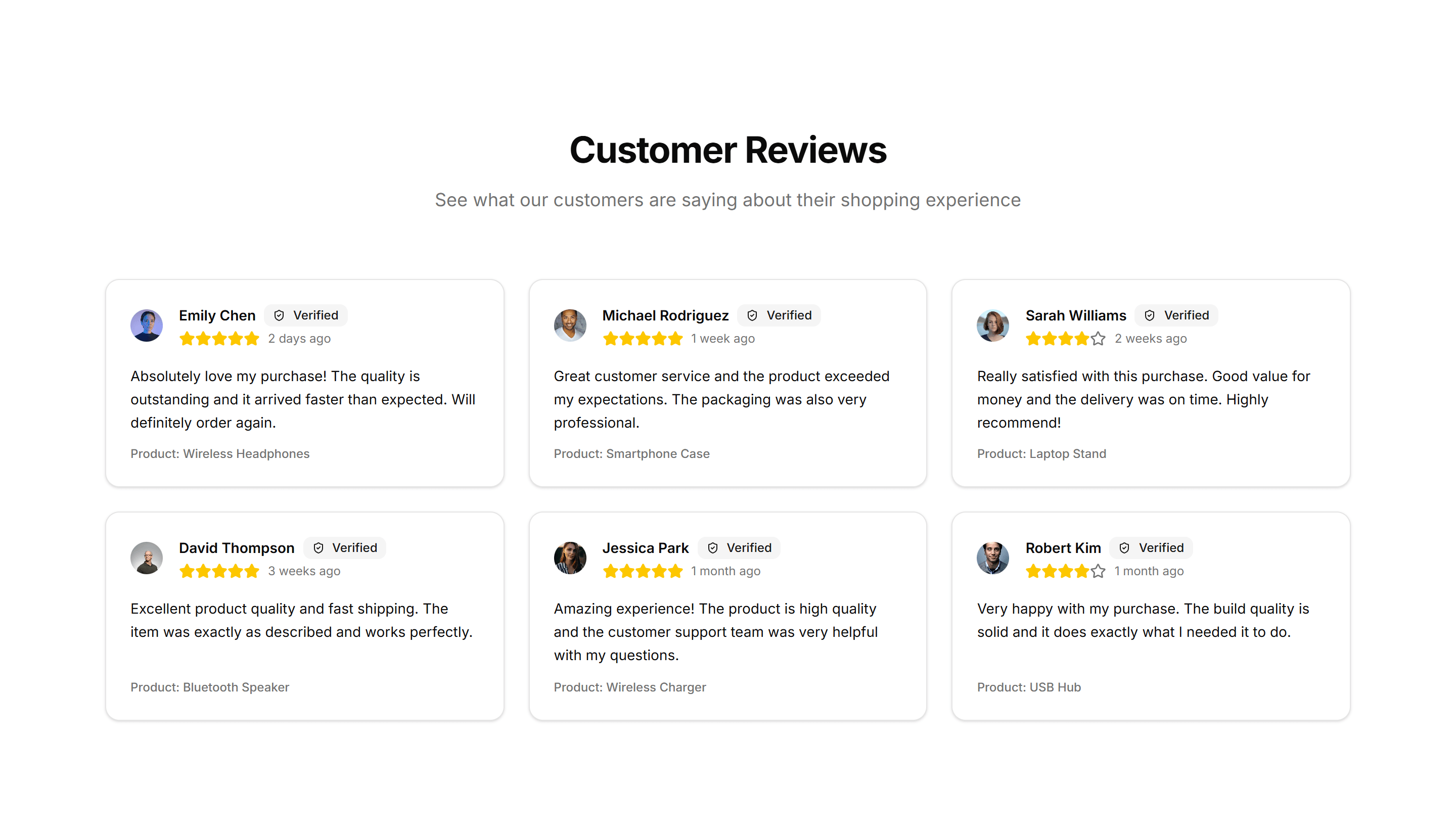
Ecommerce Customer Review: Review Cards Grid
A grid of review cards showing star ratings, avatars, and short quotes. Use it to display many customer opinions at once on a product detail page.
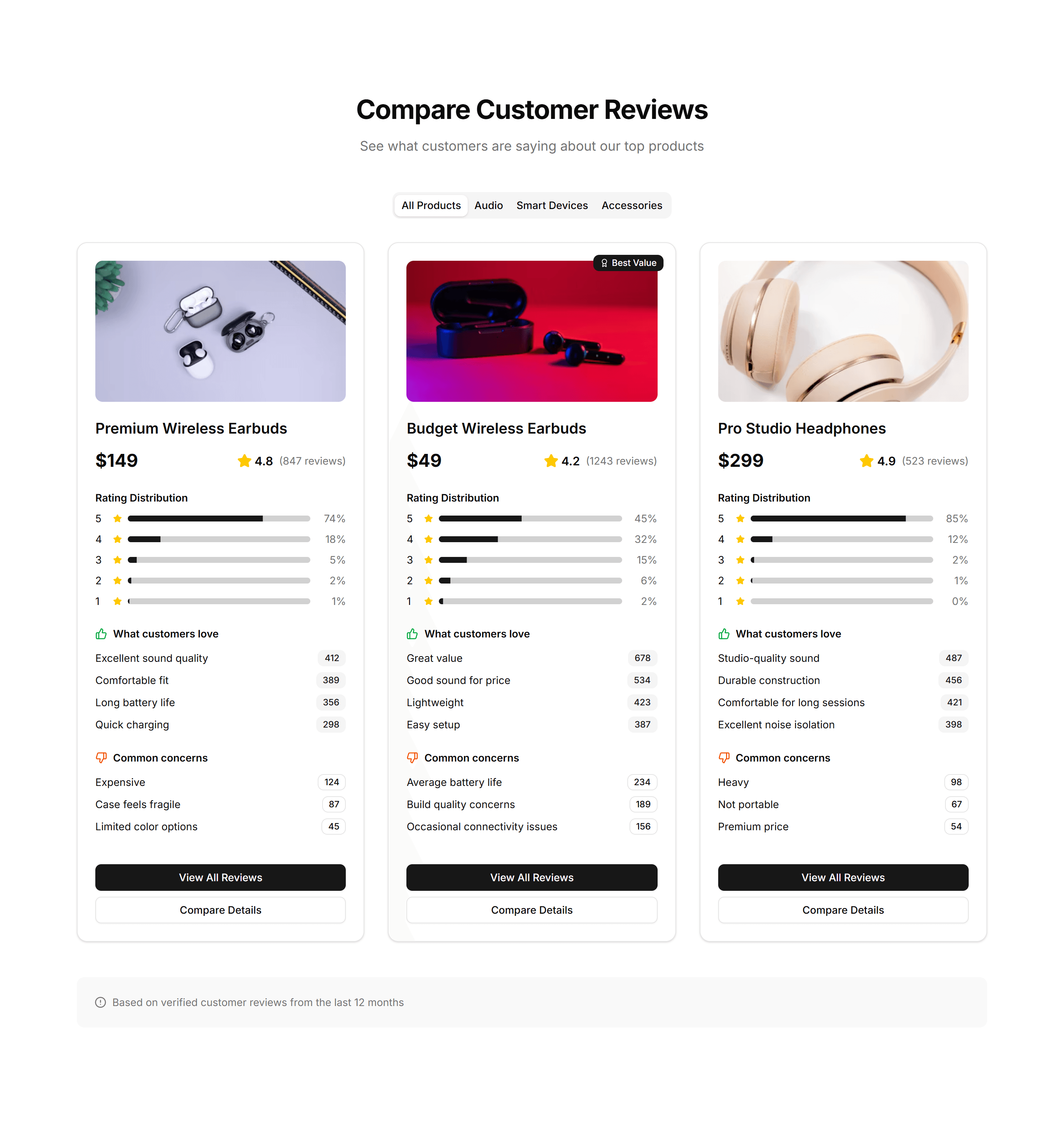
Ecommerce Customer Review: Review Comparison
A side by side view of the highest and lowest rated reviews so shoppers weigh pros and cons. Helps buyers decide quickly on a product detail page.
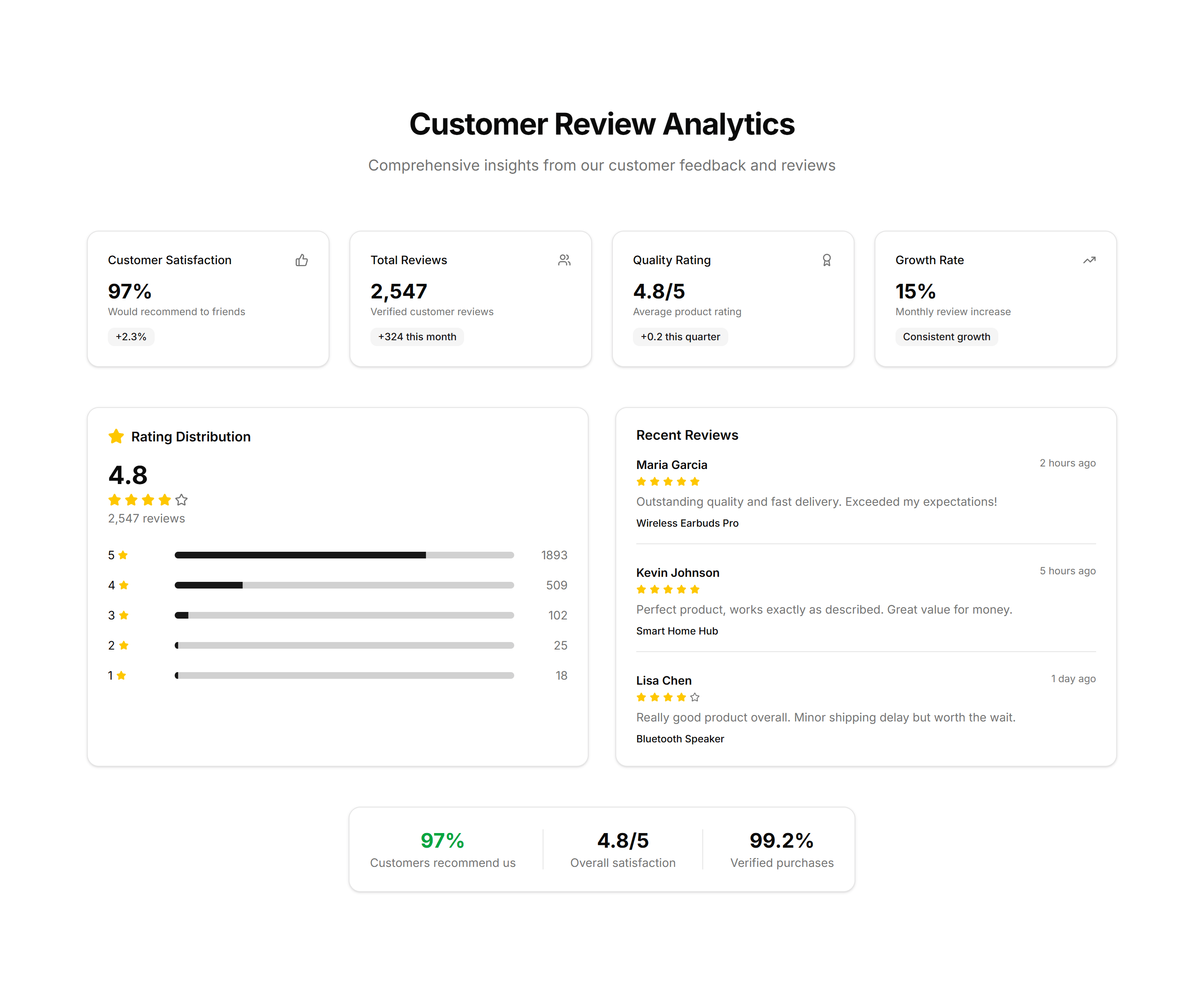
Ecommerce Customer Review: Review Stats Overview
A summary panel with average rating, total count, and a bar chart by star level. Gives shoppers a quick read on overall product quality up front.
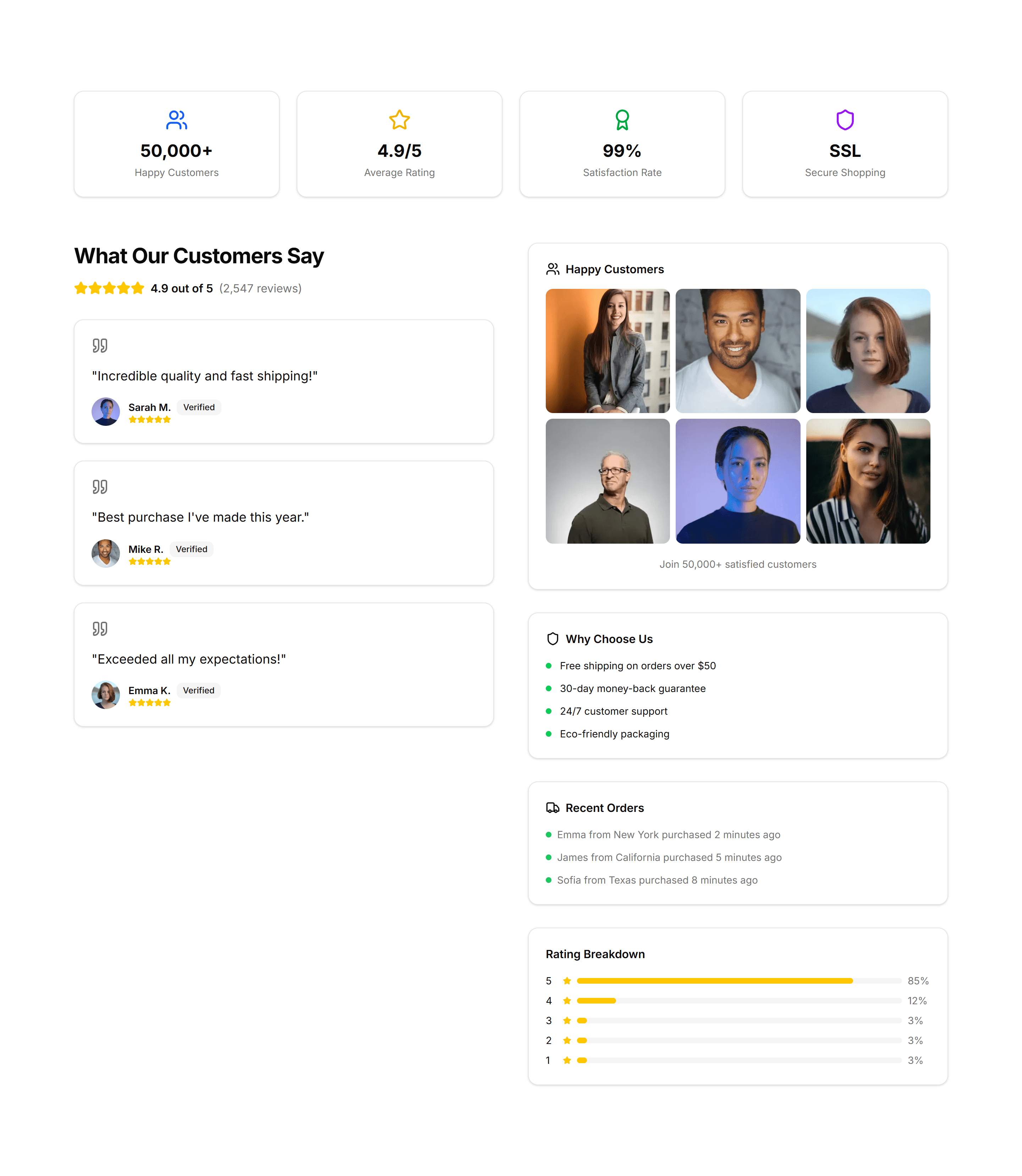
Ecommerce Customer Review: Social Proof Reviews
Featured customer quotes paired with ratings and verified buyer badges. Builds confidence near the buy button to encourage shoppers to checkout.
Ecommerce Footer: Multi Column
A footer with several columns of grouped links for shop, support, company, and legal. Organizes a large storefront so customers find any page fast.
Ecommerce Footer: Simple Links
A compact footer with a single row of essential links and a copyright line. Keeps the bottom of a small store clean, tidy, and quick to scan for shoppers.
Ecommerce Footer: With Newsletter
A footer pairing link columns with an email signup field and button. Captures subscribers for promotions and offers while customers browse your store.
Ecommerce Footer: With Payments
A footer that displays accepted card and wallet badges beside the usual store links. Reassures shoppers about secure checkout right before they buy.
Ecommerce Footer: With Socials
A footer with link columns plus a row of social media icons. Connects shoppers to your brand on Instagram, X, and other channels they already follow.
Ecommerce Shipping Return: Accordion
An accordion that collapses shipping and returns details into expandable rows. Keeps long policy text tidy on a product page until shoppers tap to read.
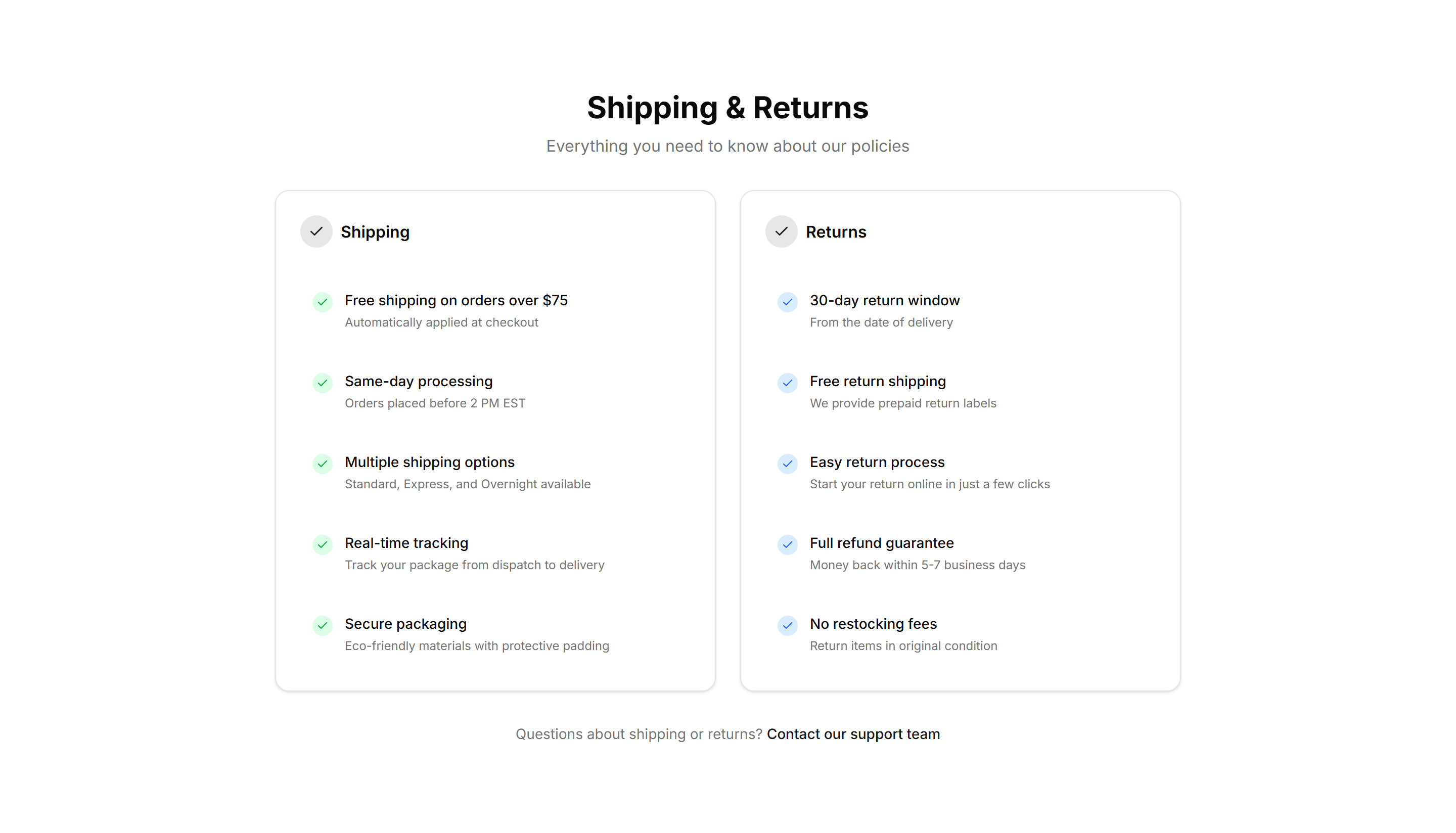
Ecommerce Shipping Return: Checklist
A checklist that lays out shipping steps and return conditions as ticked items. Helps buyers confirm eligibility before they start a refund request.
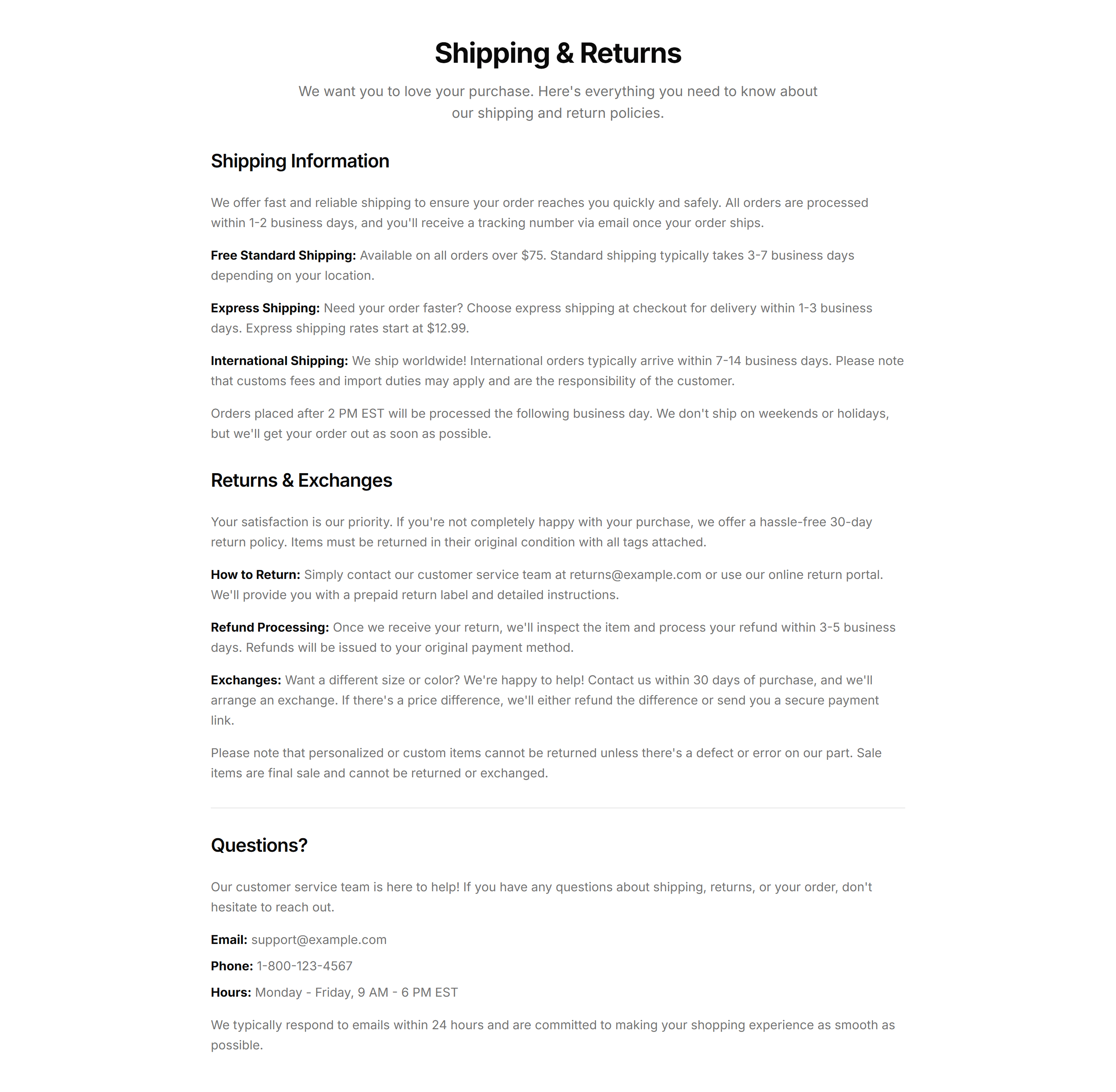
Ecommerce Shipping Return: Full Text
A full text panel covering delivery times, costs, and the returns process in plain prose. Use on a dedicated policy page where shoppers expect complete detail.
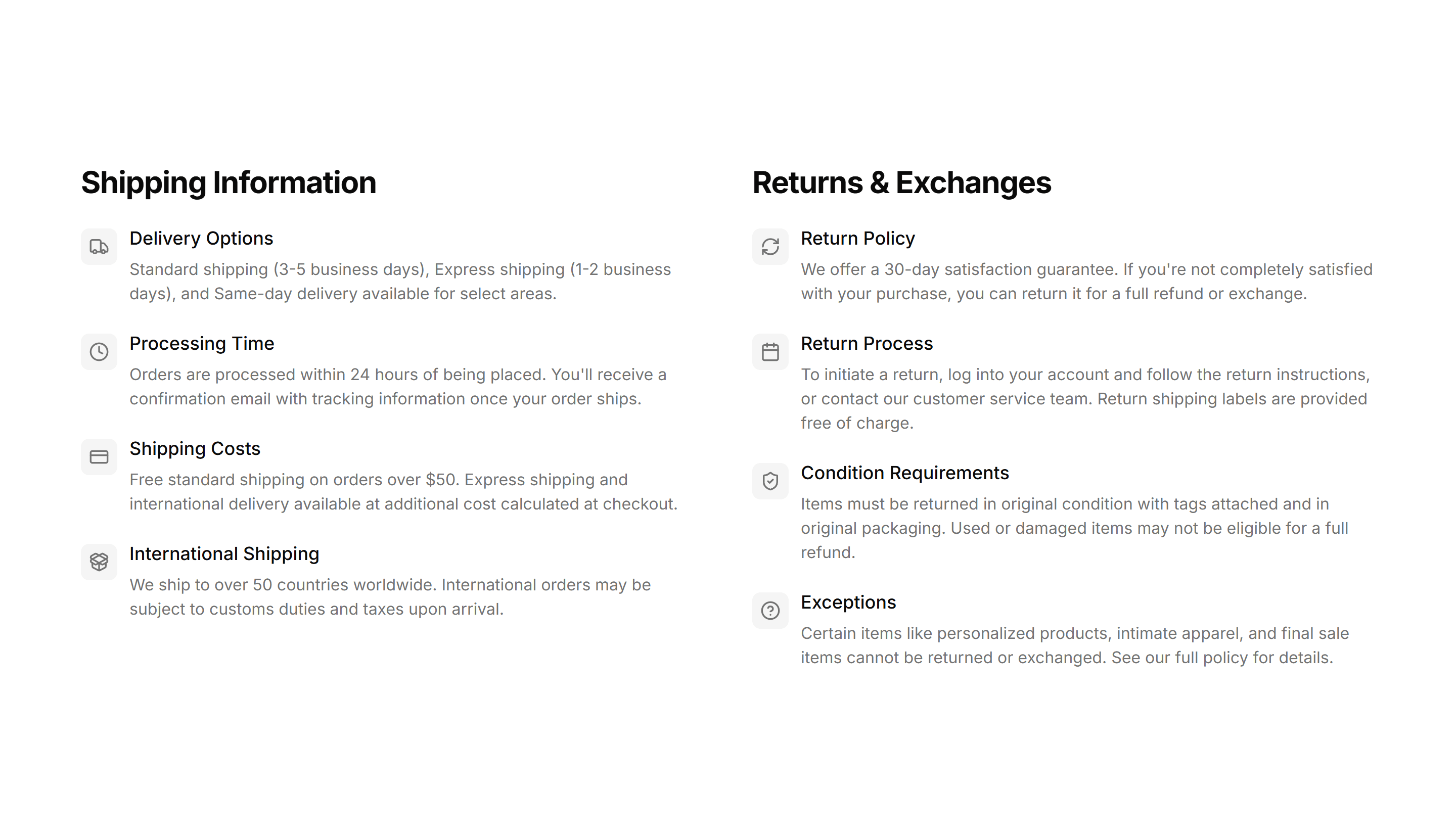
Ecommerce Shipping Return: Split Columns
A split column layout that places shipping on one side and returns on the other. Lets customers compare delivery and refund terms in one quick glance.

Ecommerce Shipping Return: With Icons
An icons layout pairing each shipping and returns point with a small symbol. Makes delivery speed, free returns, and refund windows scannable at a glance.
Ecommerce Trust Guarantee: Badge Row
A horizontal row of trust badges showing secure payment, returns, and warranty icons. Place under an add to cart button to calm buyer worry.
Ecommerce Trust Guarantee: Checklist
A vertical checklist of product promises with check icons and short labels. Use it on a product page to spell out exactly what every order includes.
Ecommerce Trust Guarantee: Highlighted Quote
A large pull quote with author name and star rating that features a happy customer. Drop it near pricing to back your claims with real social proof.

Ecommerce Trust Guarantee: Icon List
A compact list pairing small icons with guarantee statements like free shipping and easy returns. Fits neatly in a sidebar or below the buy section.
Ecommerce Trust Guarantee: Three Pillars
Three equal columns, each with an icon, heading, and a line on quality, security, and support. Builds buyer confidence across the full storefront.
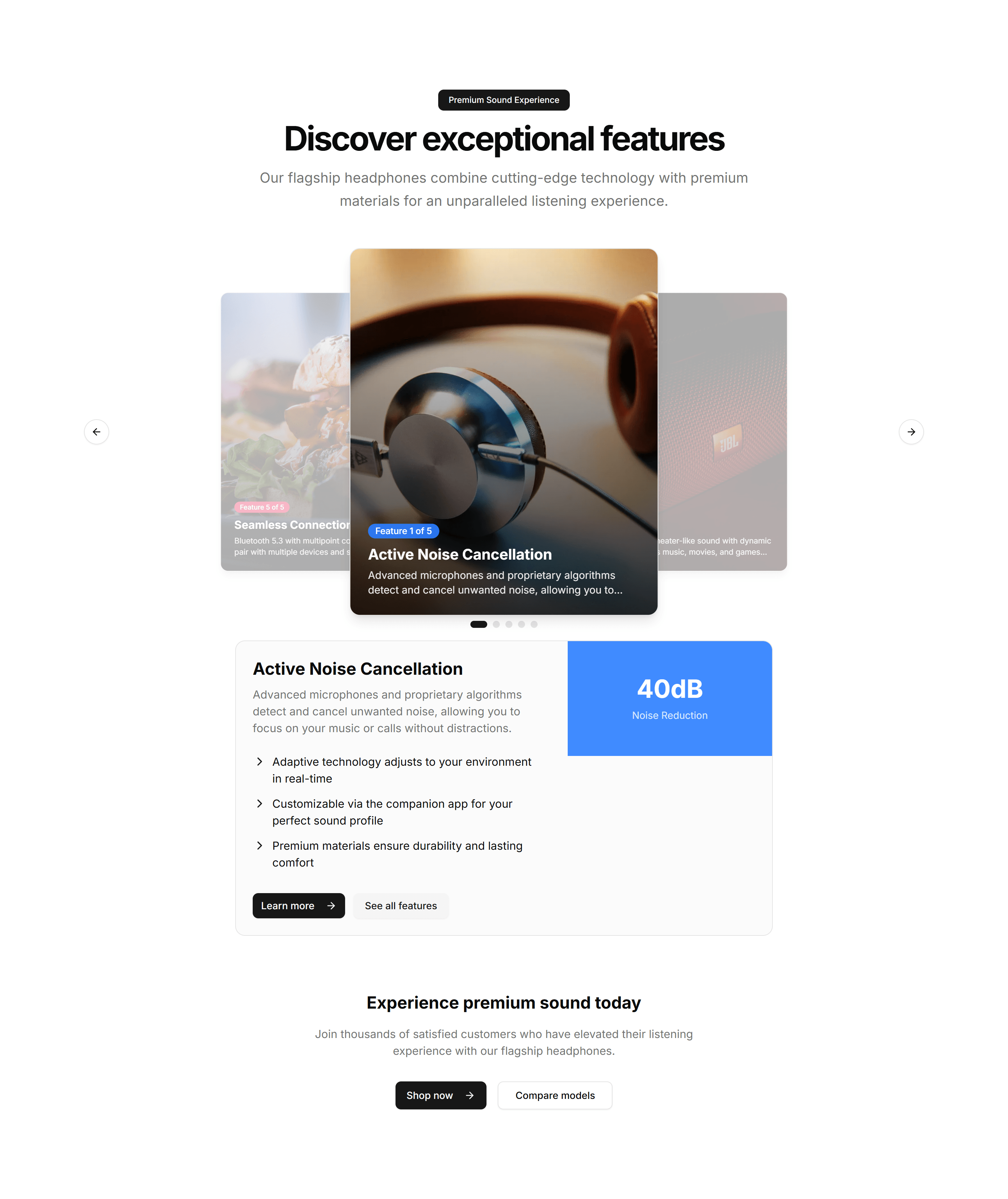
Ecommerce Product Feature: 3D Feature Carousel
A rotating carousel that shows product features on 3D cards with depth and motion. Great for highlighting a few standout capabilities on a landing page.
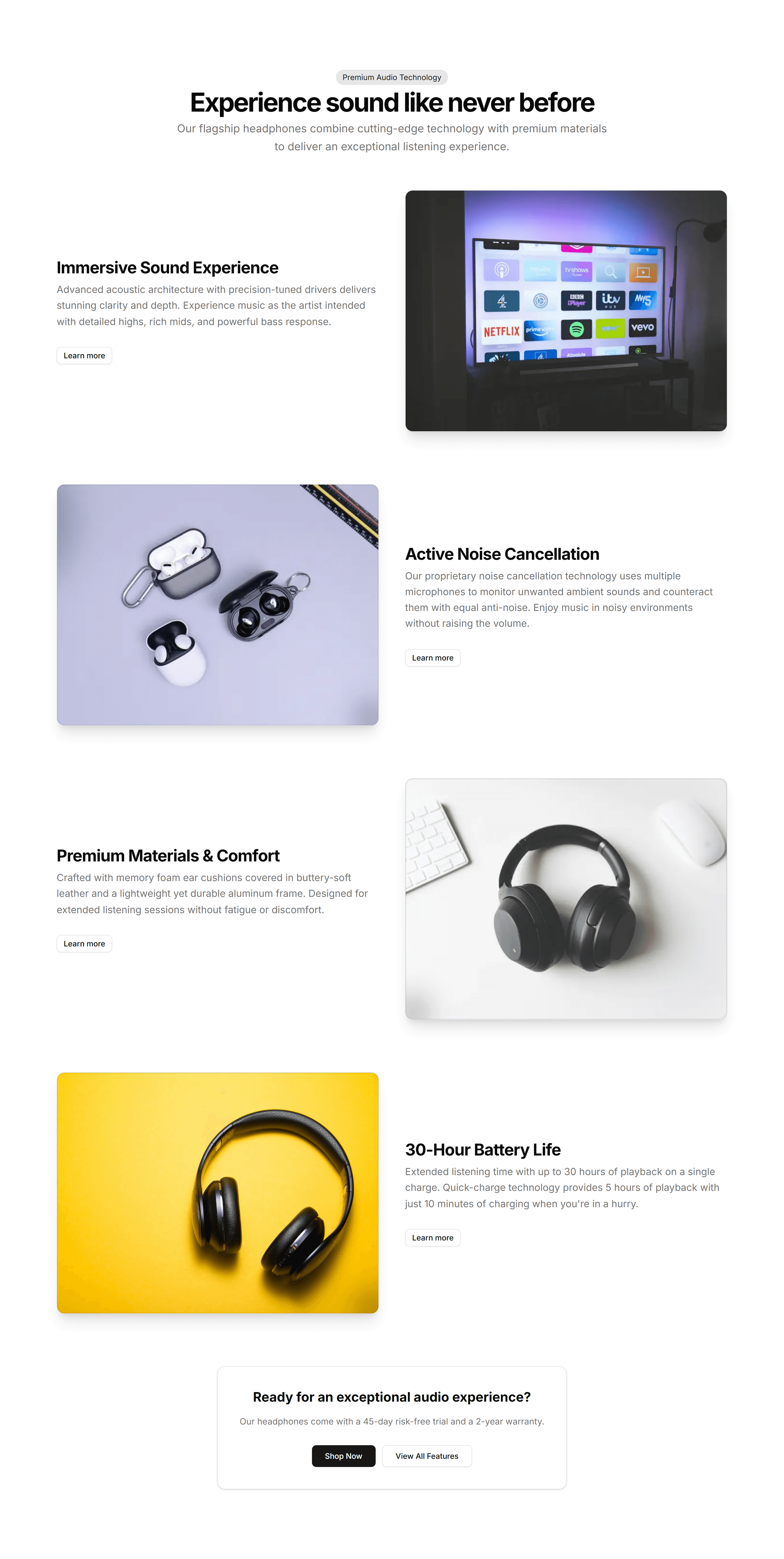
Ecommerce Product Feature: Alternating Features
Stacked rows that flip image and text from left to right as you scroll. Walks shoppers through key product benefits one clear section at a time.
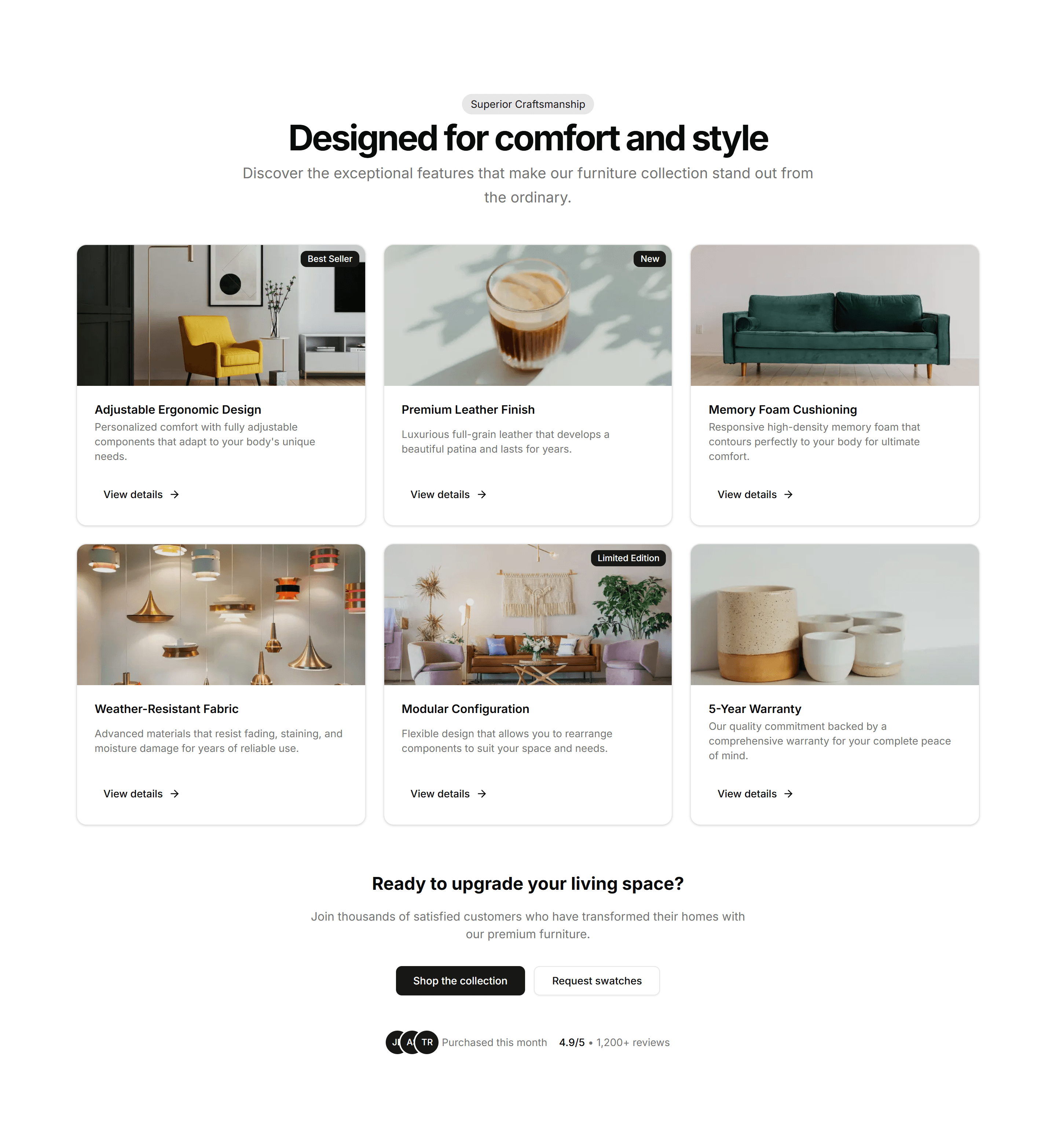
Ecommerce Product Feature: Animated Features Grid
A grid of feature cards with icons and motion that triggers as cards enter view. Adds life to a benefits section without burying the message.
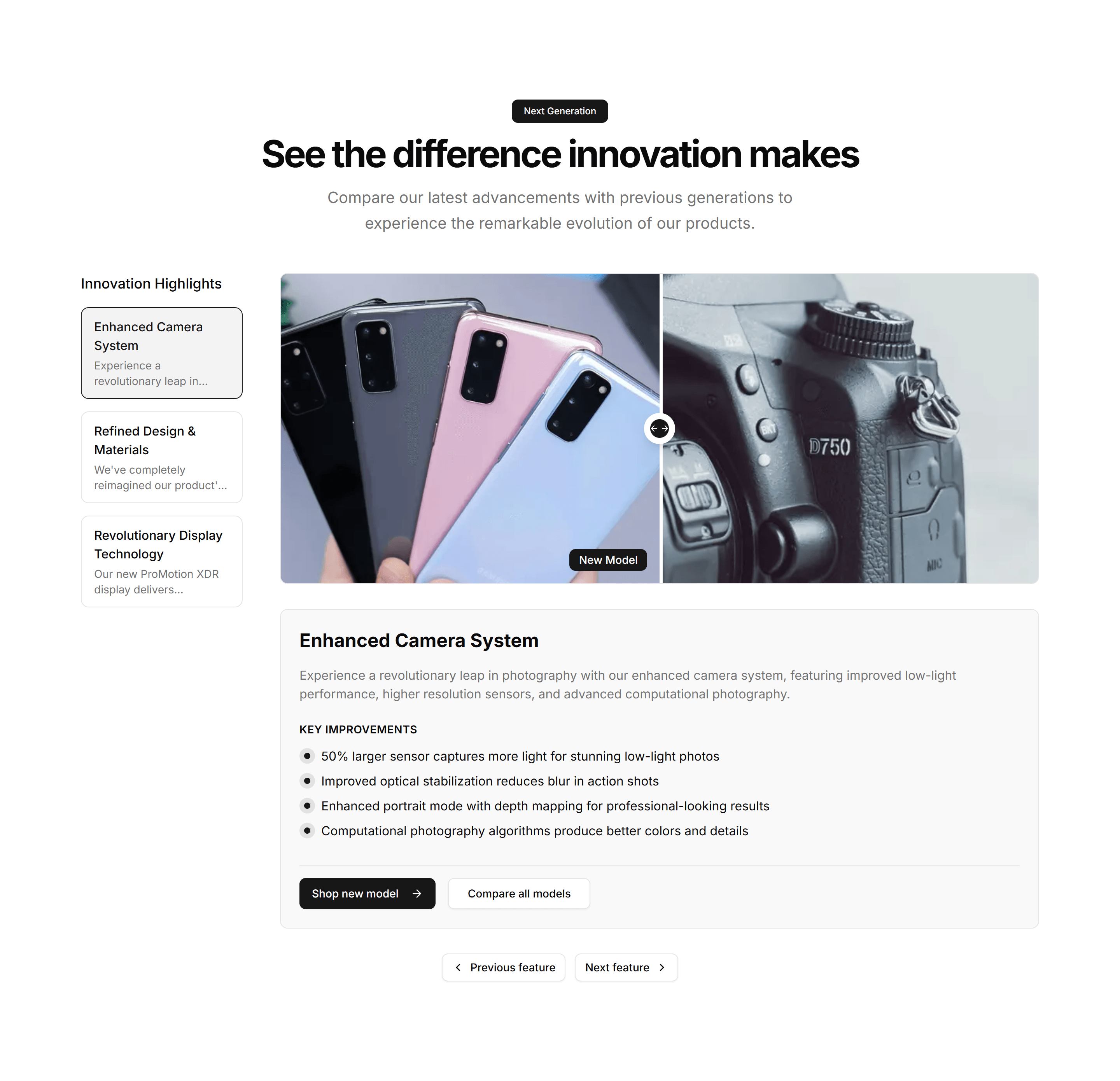
Ecommerce Product Feature: Before After Comparison
A slider that wipes between two product images so buyers see the difference at a glance. Ideal for skincare, editing tools, or cleaning results.
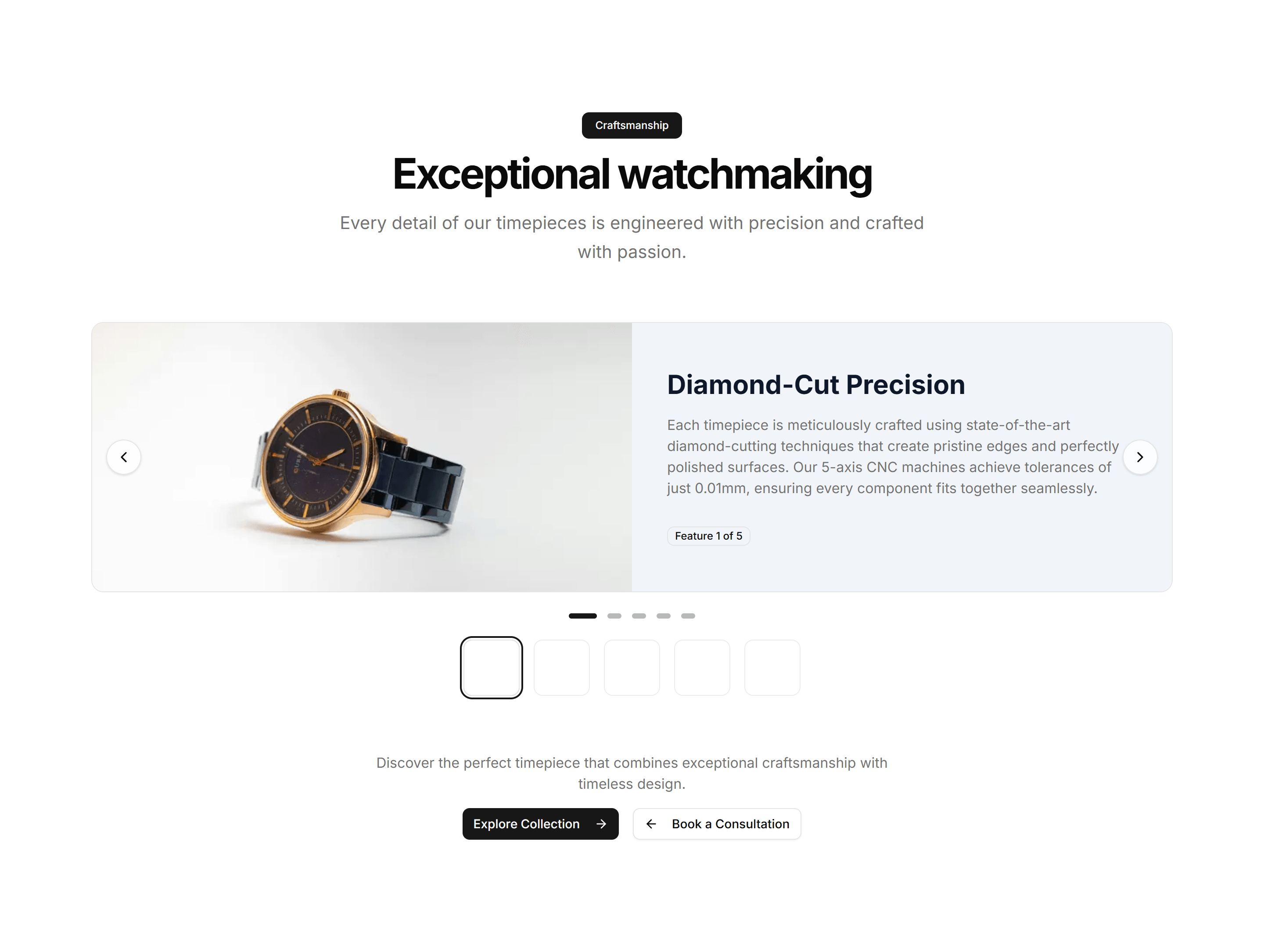
Ecommerce Product Feature: Carousel Feature Showcase
A swipeable carousel that steps through product features with image and copy per slide. Fits compact pages where space for many cards is tight.
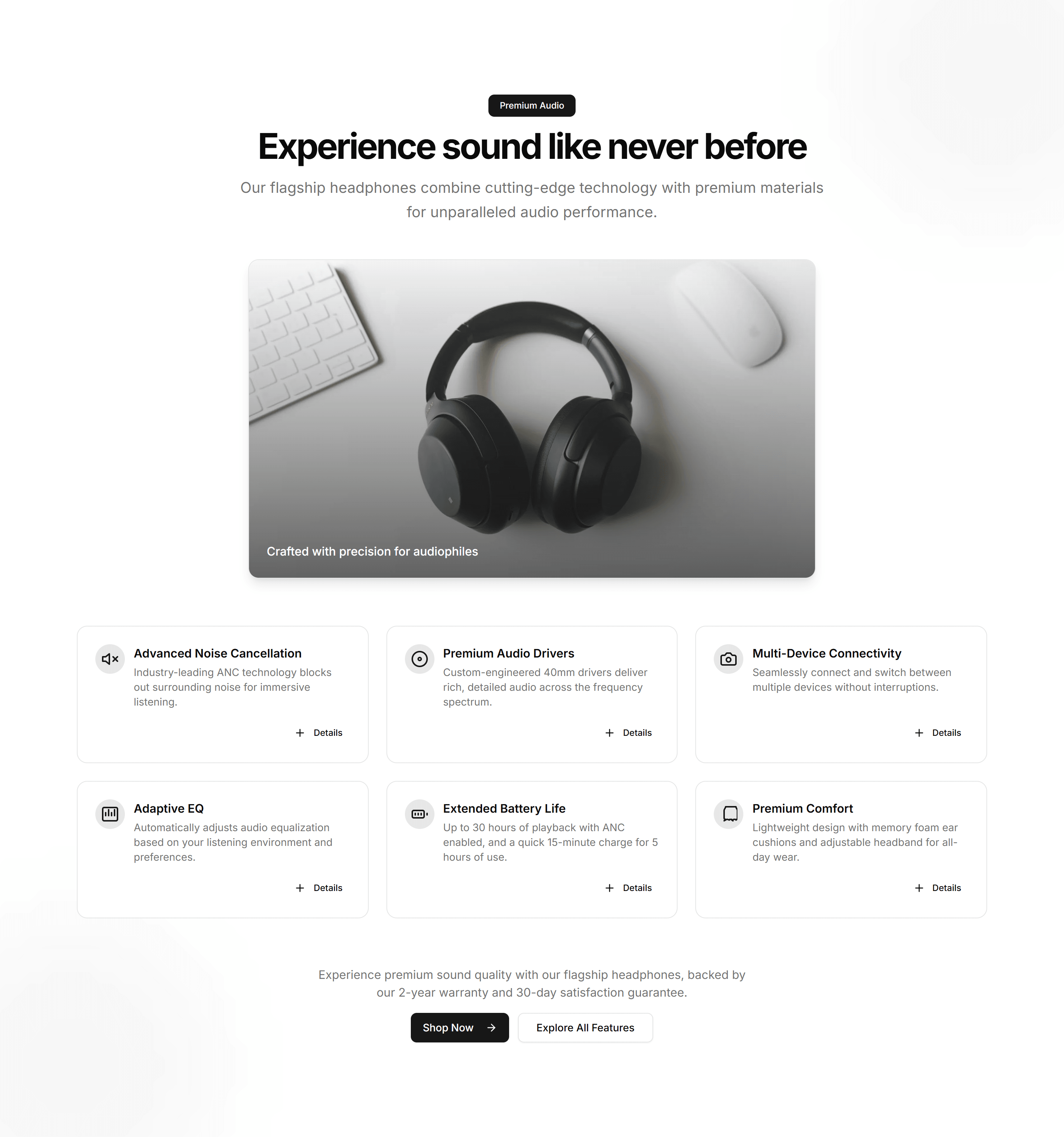
Ecommerce Product Feature: Expandable Features Grid
A grid of feature cards that open to reveal more detail on click. Keeps the overview tidy while letting curious shoppers dig into the specifics.
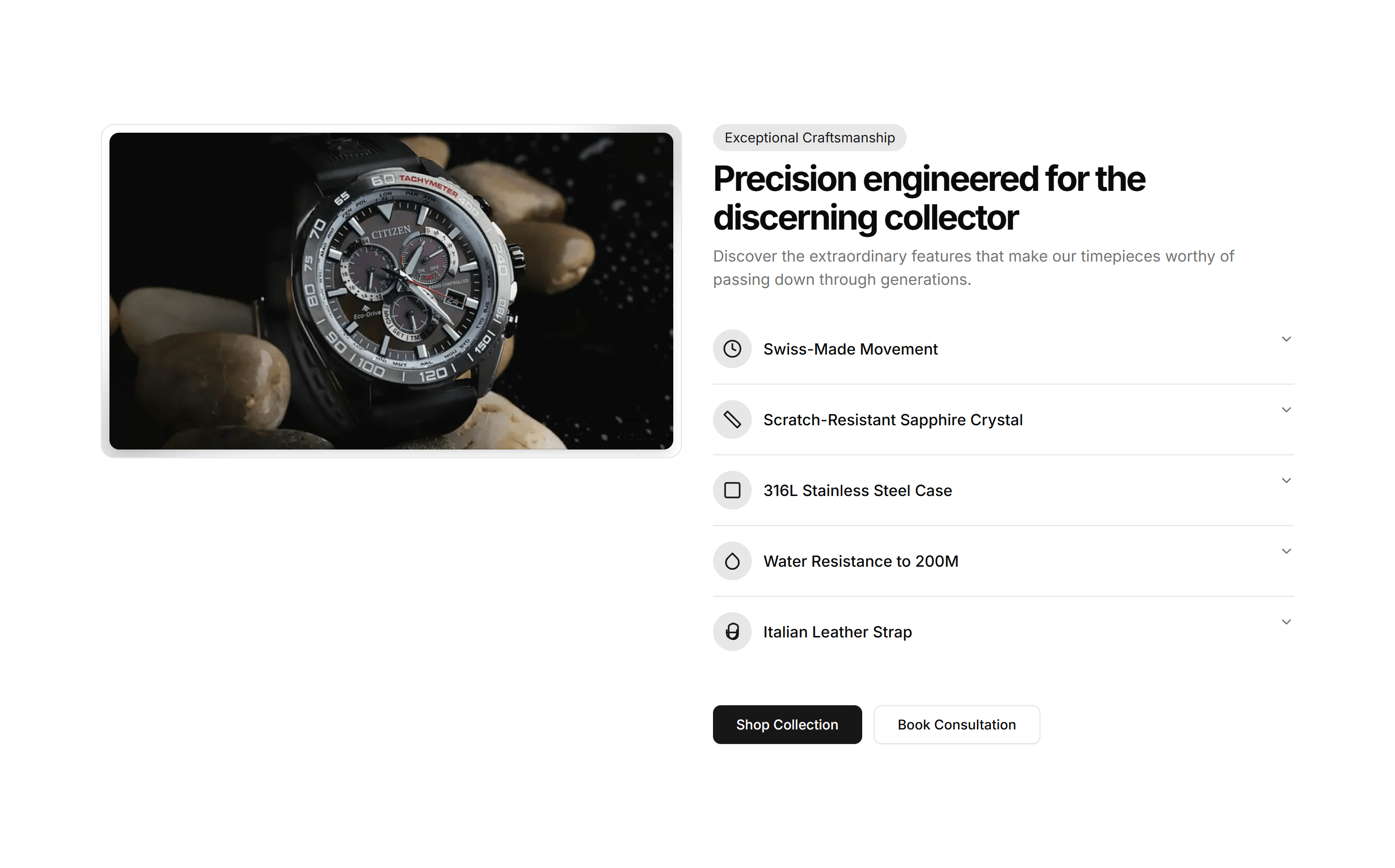
Ecommerce Product Feature: Feature Accordion
Stacked panels that expand one feature at a time so each gets full focus. A clean way to present detailed product benefits without a wall of text.
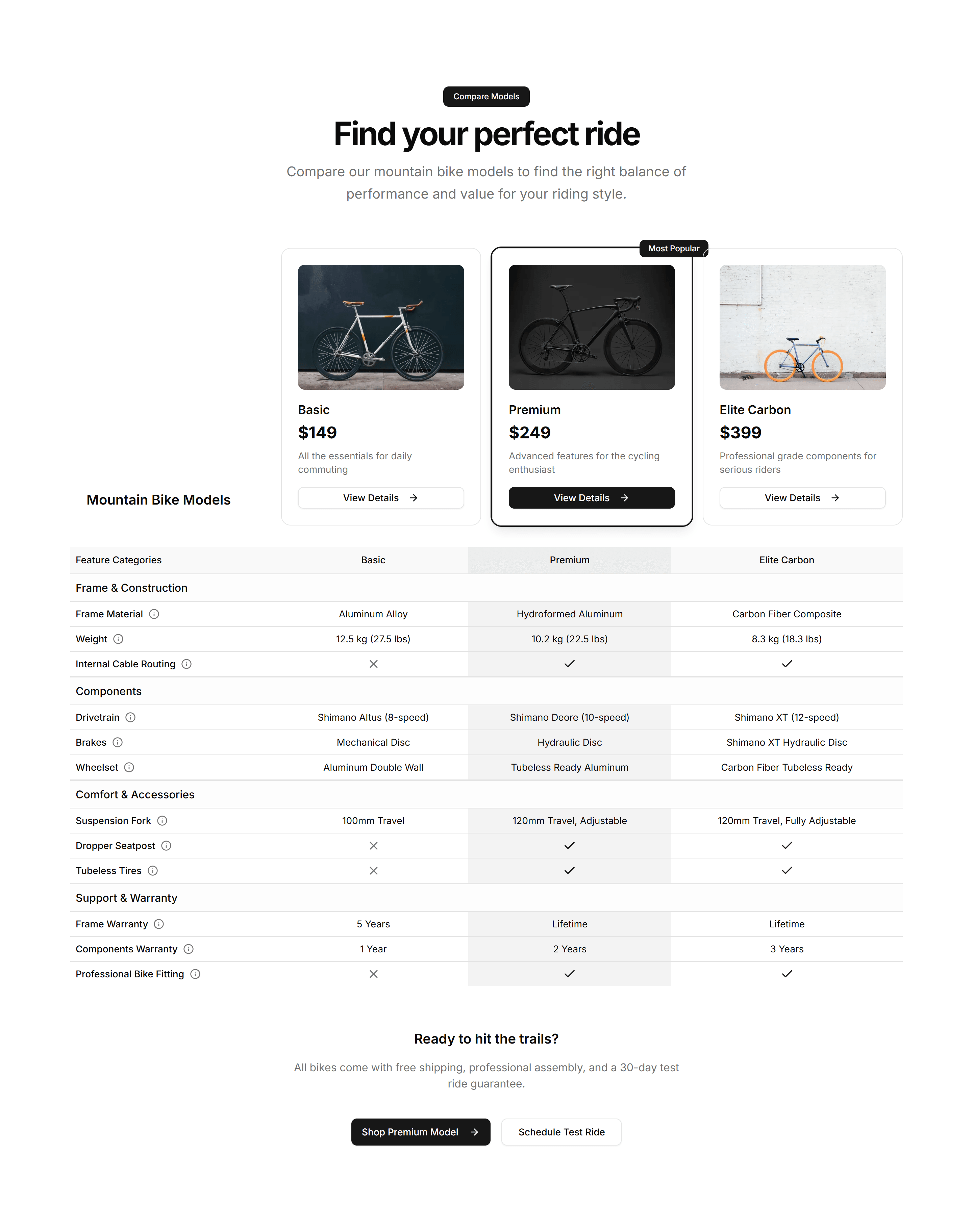
Ecommerce Product Feature: Feature Comparison Table
A table that lines up features across plans or models with clear check marks. Helps shoppers weigh every option and pick the right product fast.
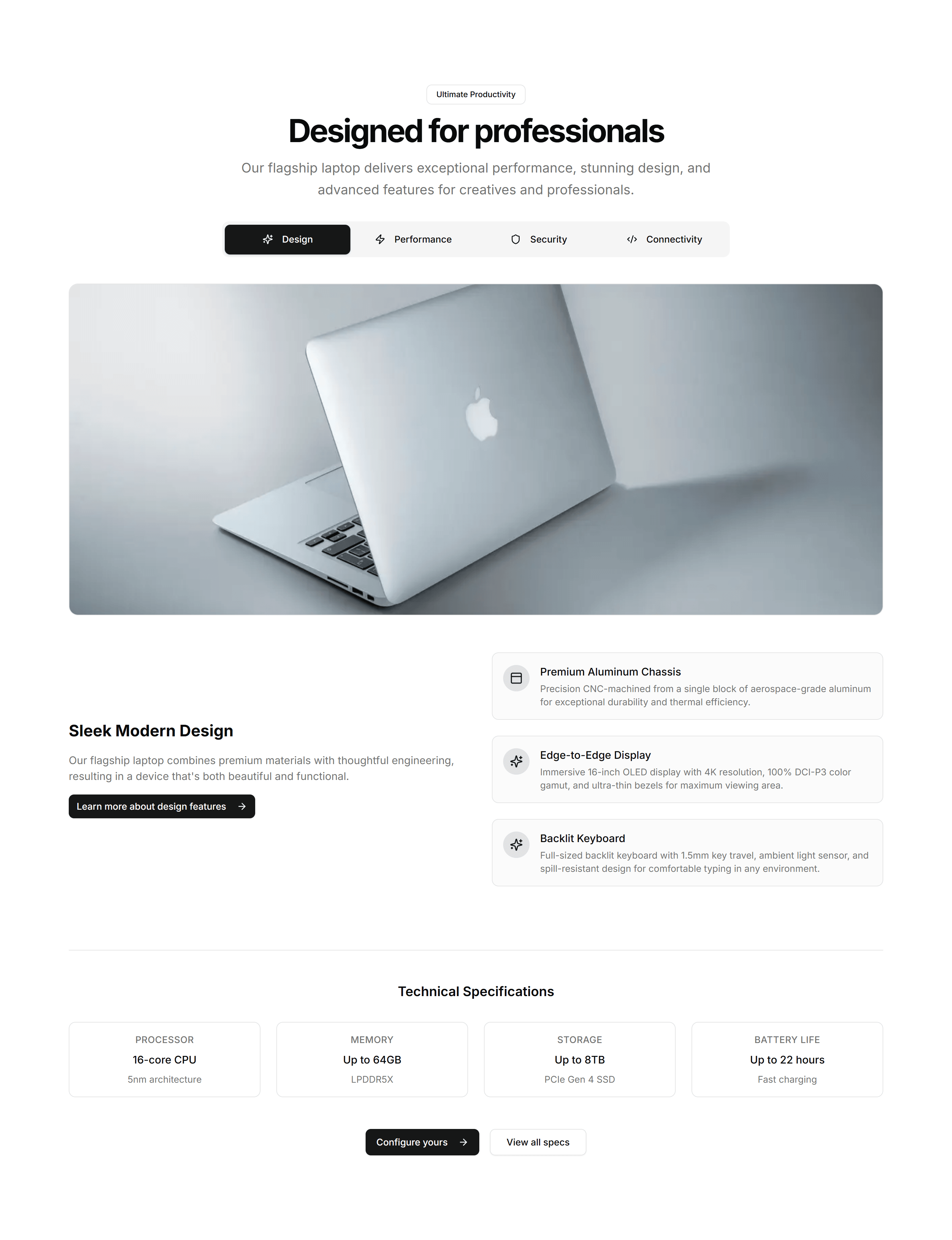
Ecommerce Product Feature: Feature Tabs Navigation
Tabbed sections that swap feature content as buyers click each label. Organizes a deep feature set into bite sized views on one tidy single panel.
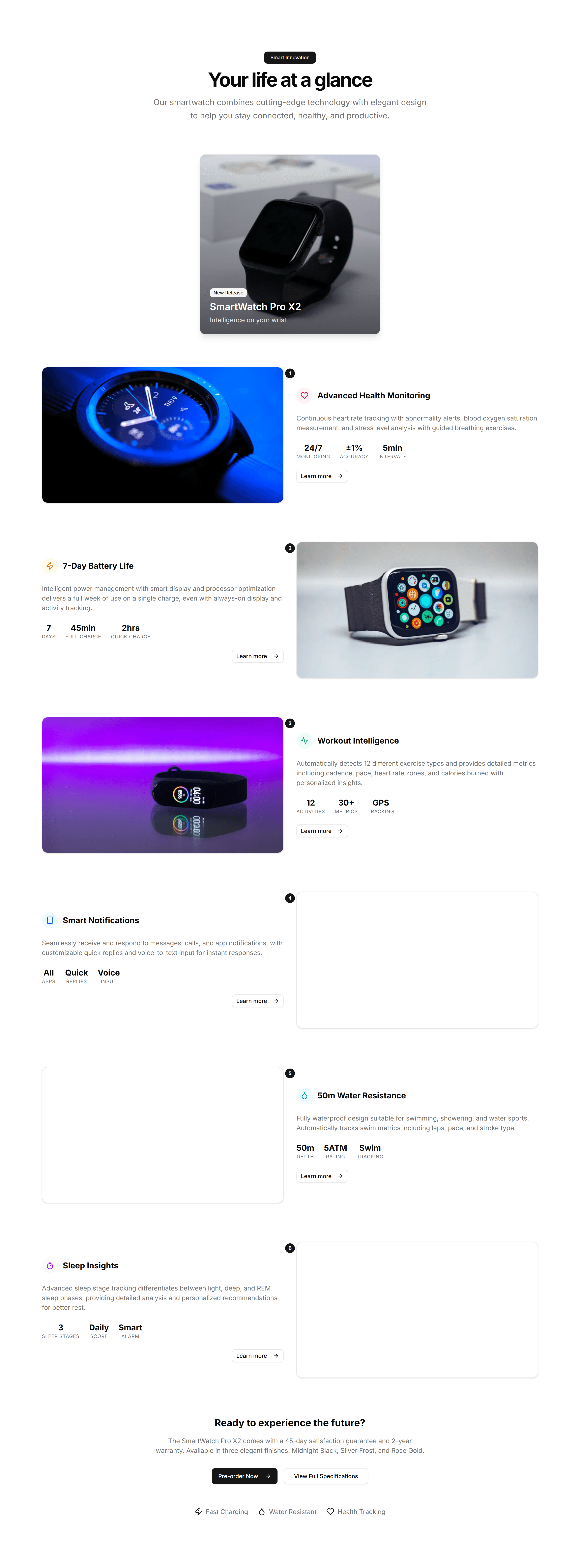
Ecommerce Product Feature: Feature Timeline
A vertical timeline that walks through product features in sequence. Useful for showing a setup flow or how capabilities build on each other.
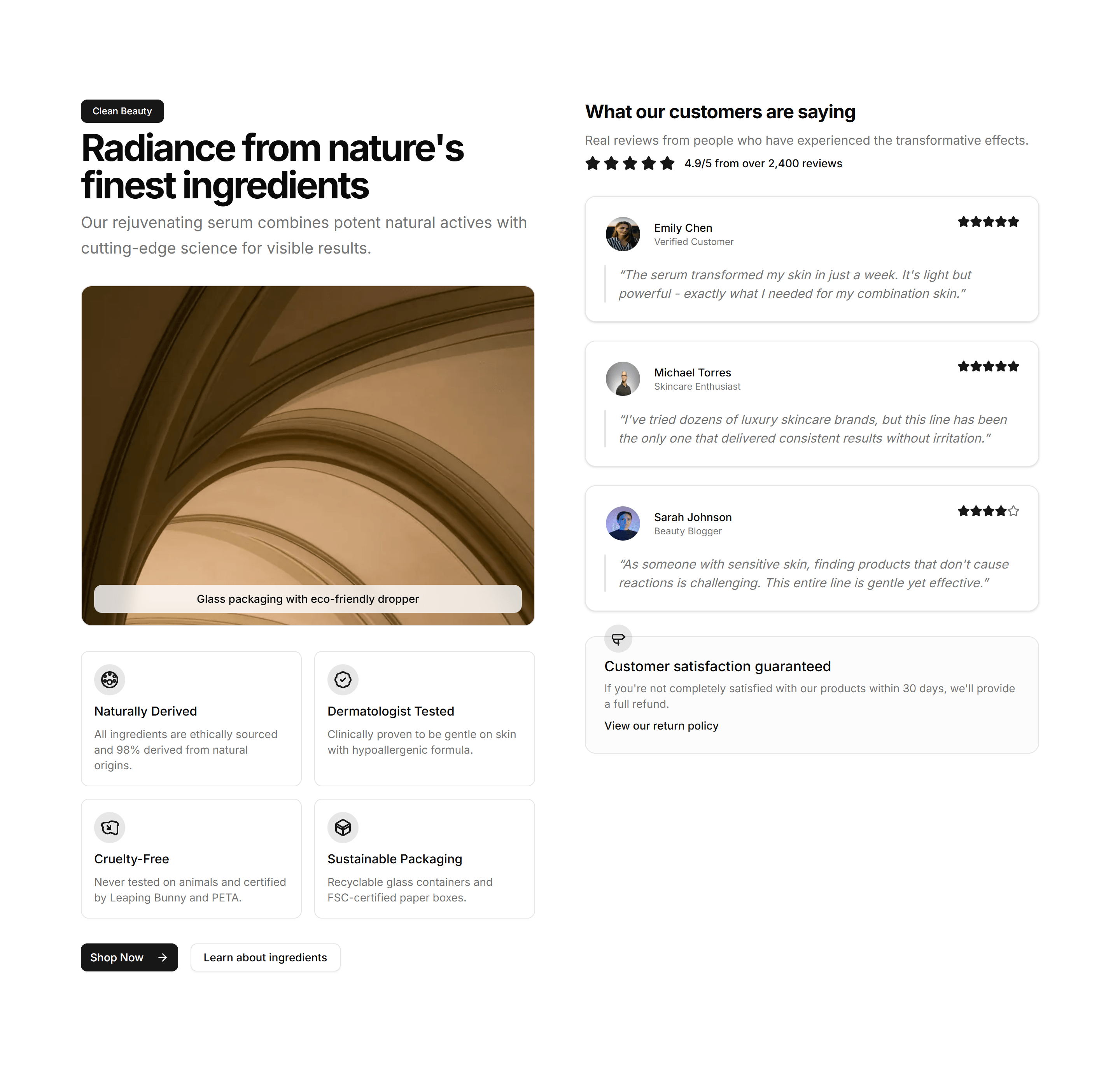
Ecommerce Product Feature: Features Testimonial Combo
A layout that pairs product features with a customer quote beside them. Backs each benefit claim with real proof to win hesitant buyers over.
Ecommerce Product Feature: Horizontal Scrolling Features
A row of feature panels that scroll sideways as the page moves. Shows many product capabilities in a compact, playful strip that invites swiping.
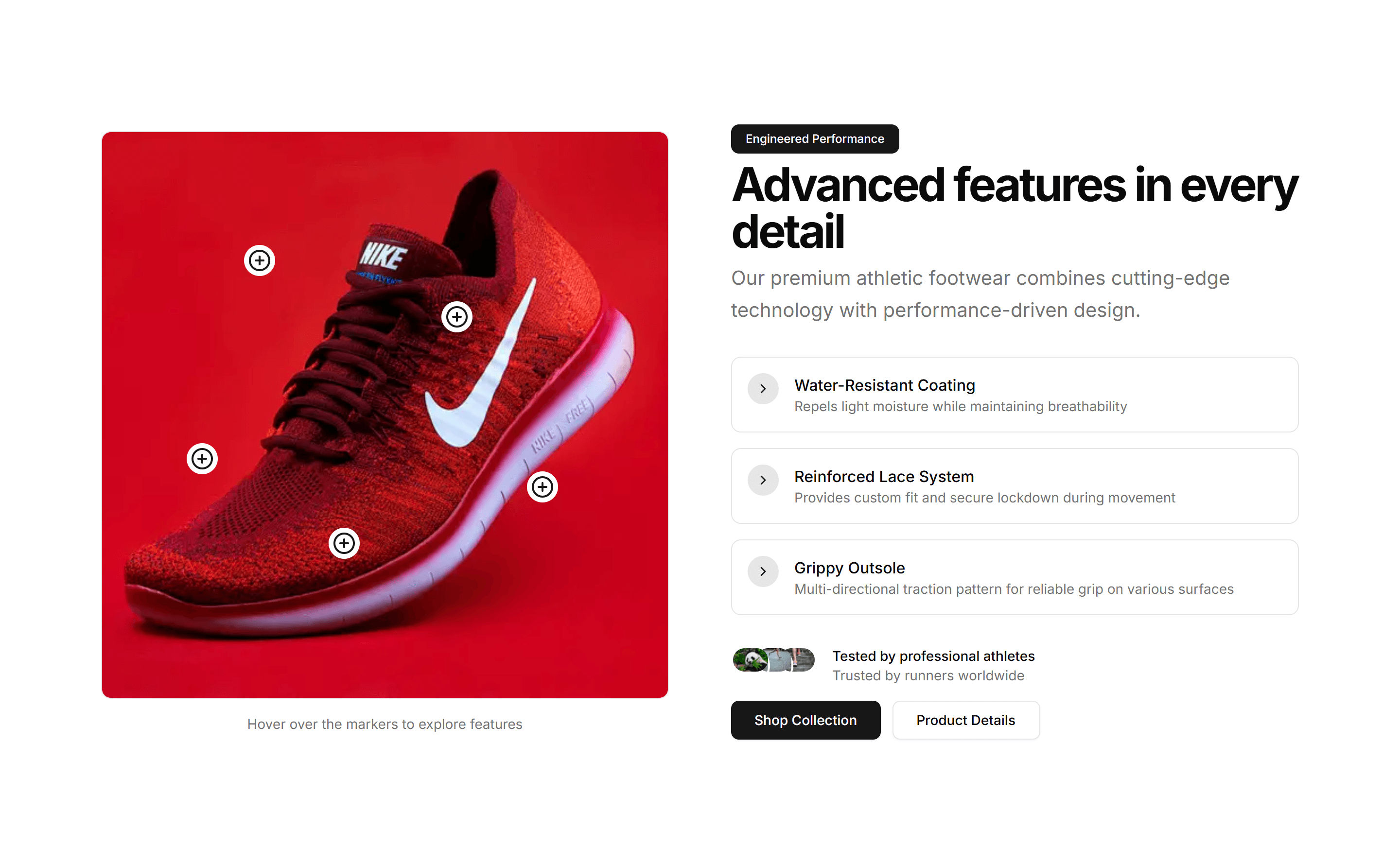
Ecommerce Product Feature: Image Hotspot Features
A product image dotted with clickable hotspots that reveal each feature in place. Perfect for showing exactly where a capability lives on the item.
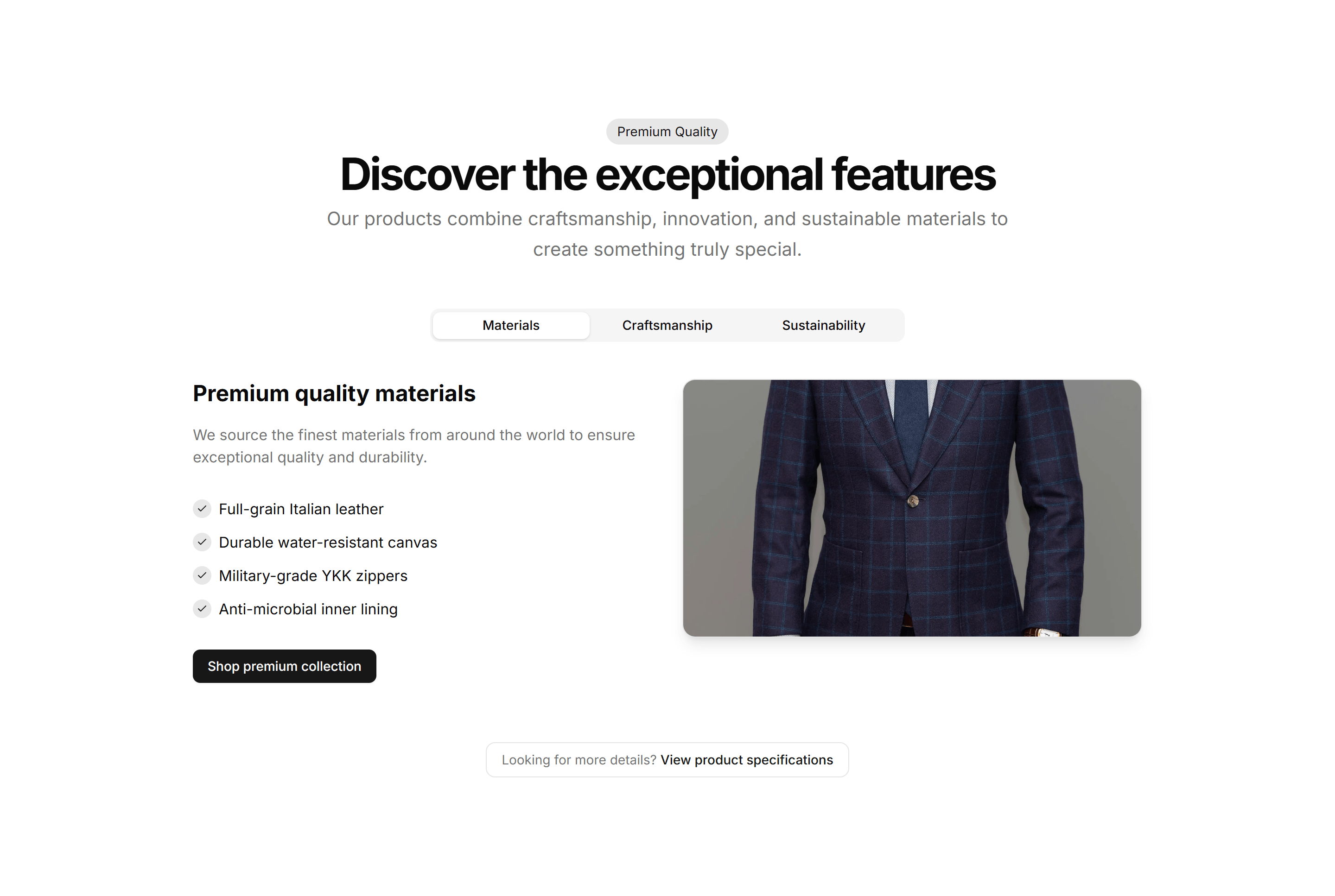
Ecommerce Product Feature: Interactive Feature Tabs
Tabs paired with a live preview that updates as buyers select a feature. Lets shoppers explore what each capability looks like before they buy.
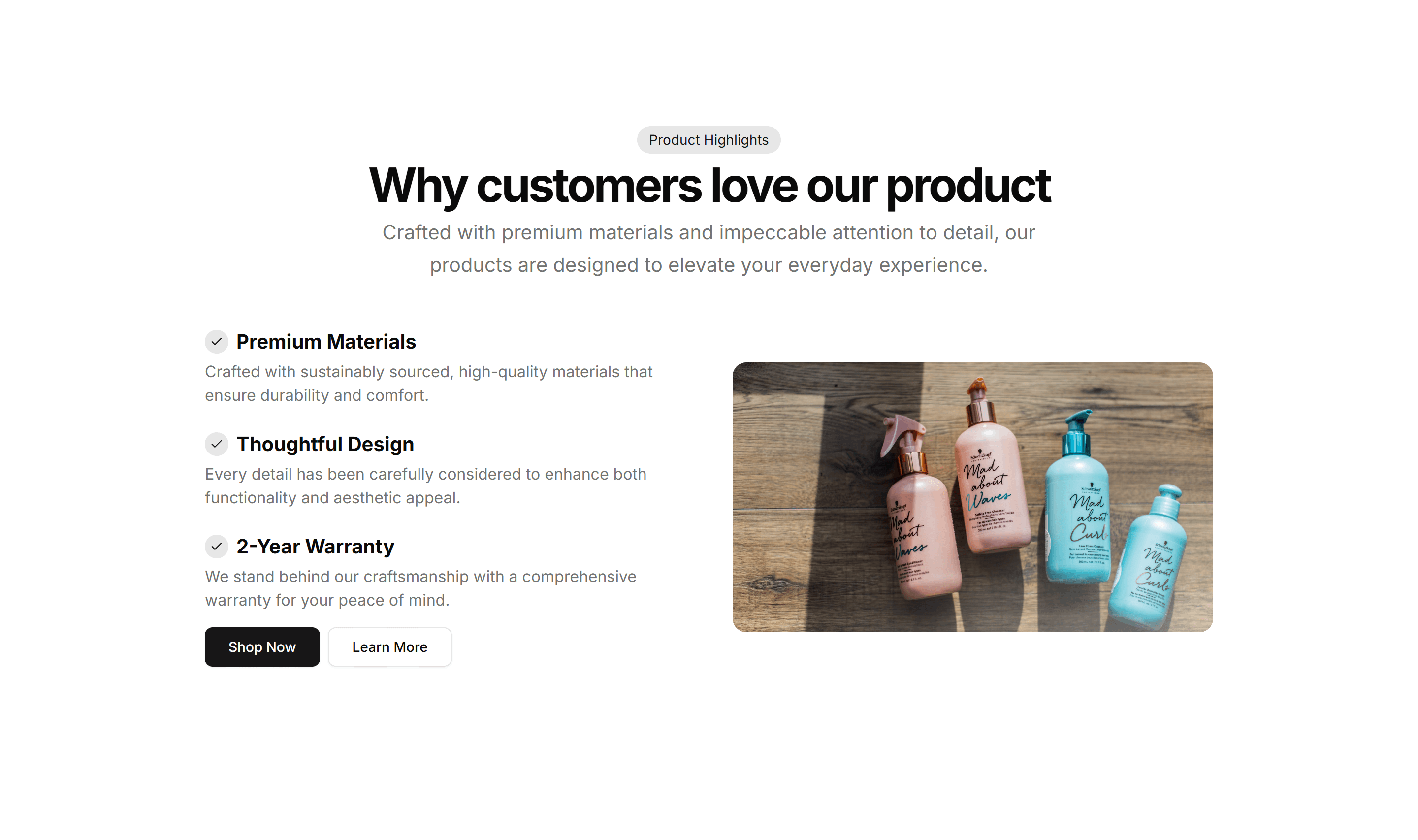
Ecommerce Product Feature: Simple Feature Grid
A clean grid of feature cards with an icon, title, and short blurb each. The reliable choice for listing core product benefits at a quick glance.
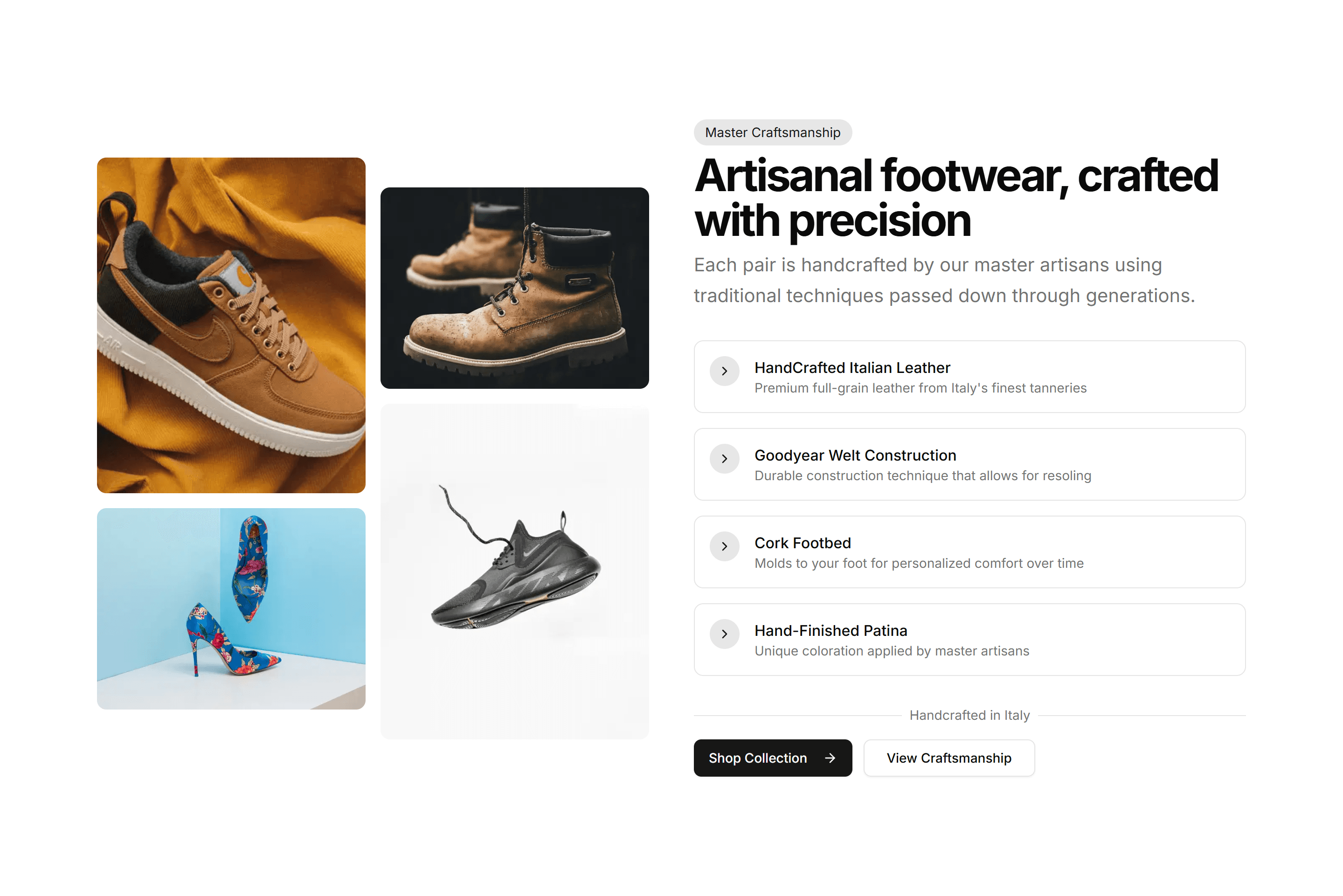
Ecommerce Product Feature: Split Image Features
A two column section with a product photo on one side and feature copy on the other. Balances visual and text to sell a single hero capability.
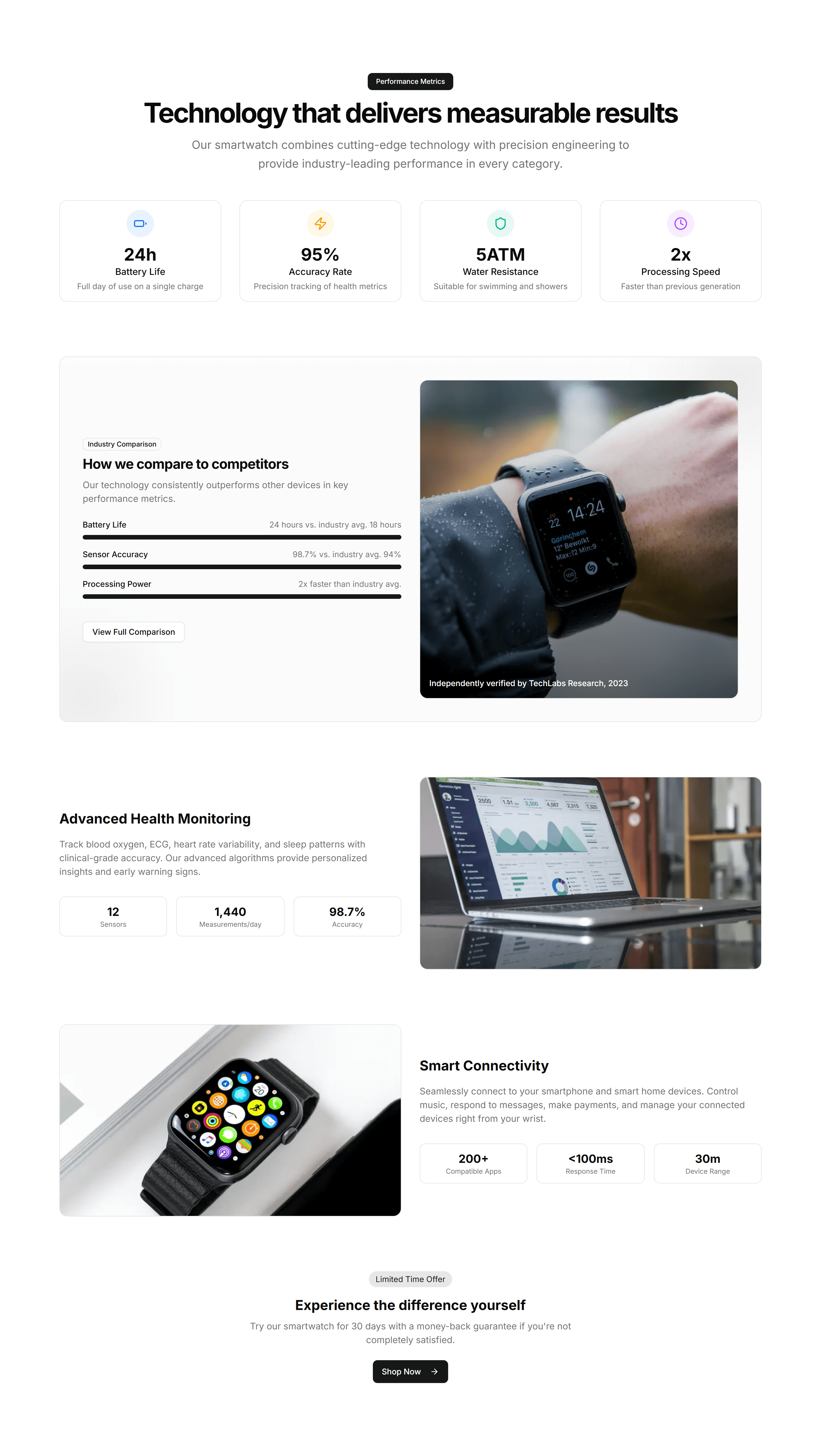
Ecommerce Product Feature: Stats Feature Showcase
A section that pairs product features with hard numbers and metrics. Use it when figures like speed or savings make the strongest case to buy.
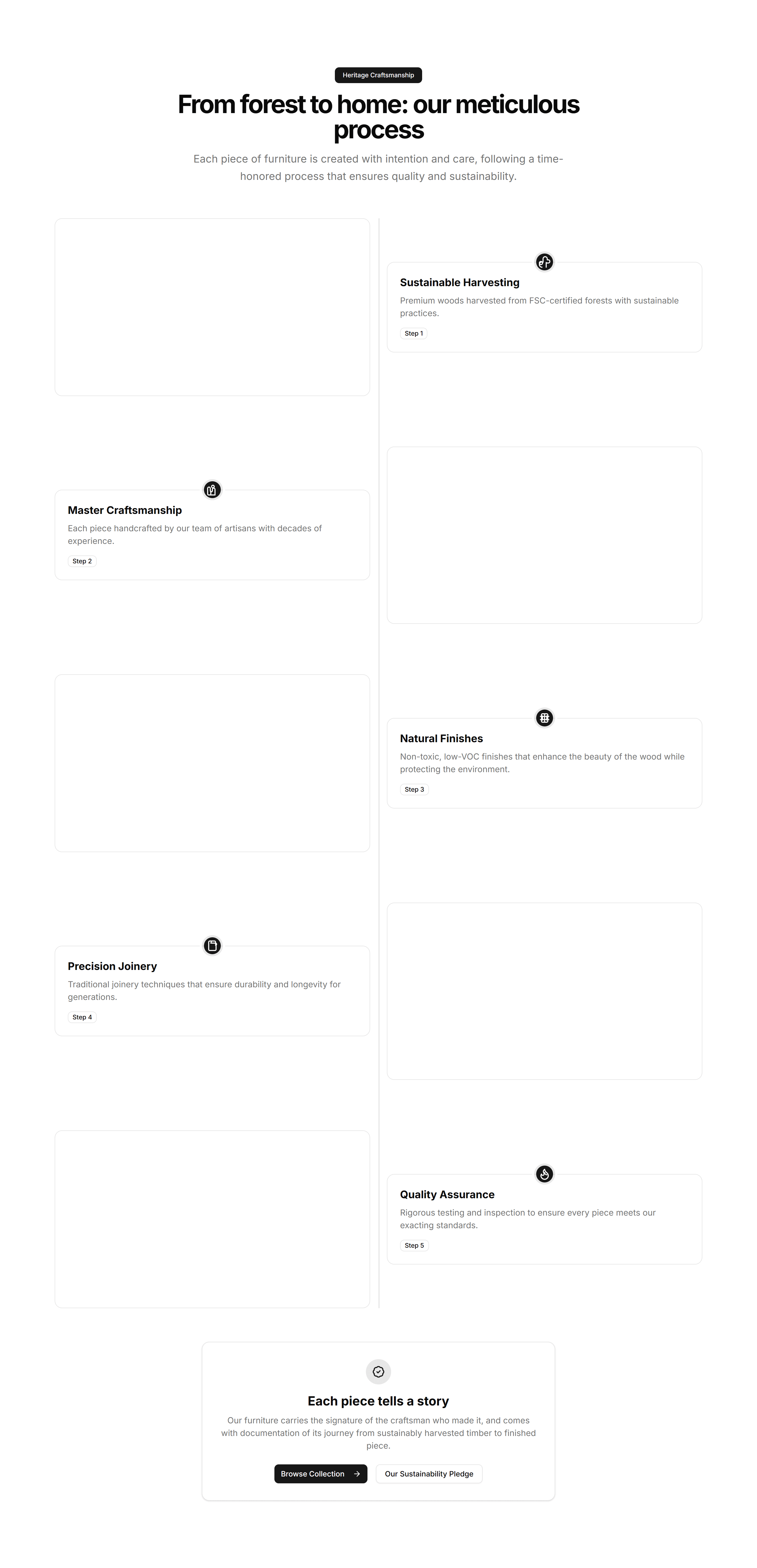
Ecommerce Product Feature: Timeline Feature Showcase
A timeline that reveals product features step by step as buyers scroll. Good for guiding readers through a journey from first use to results.
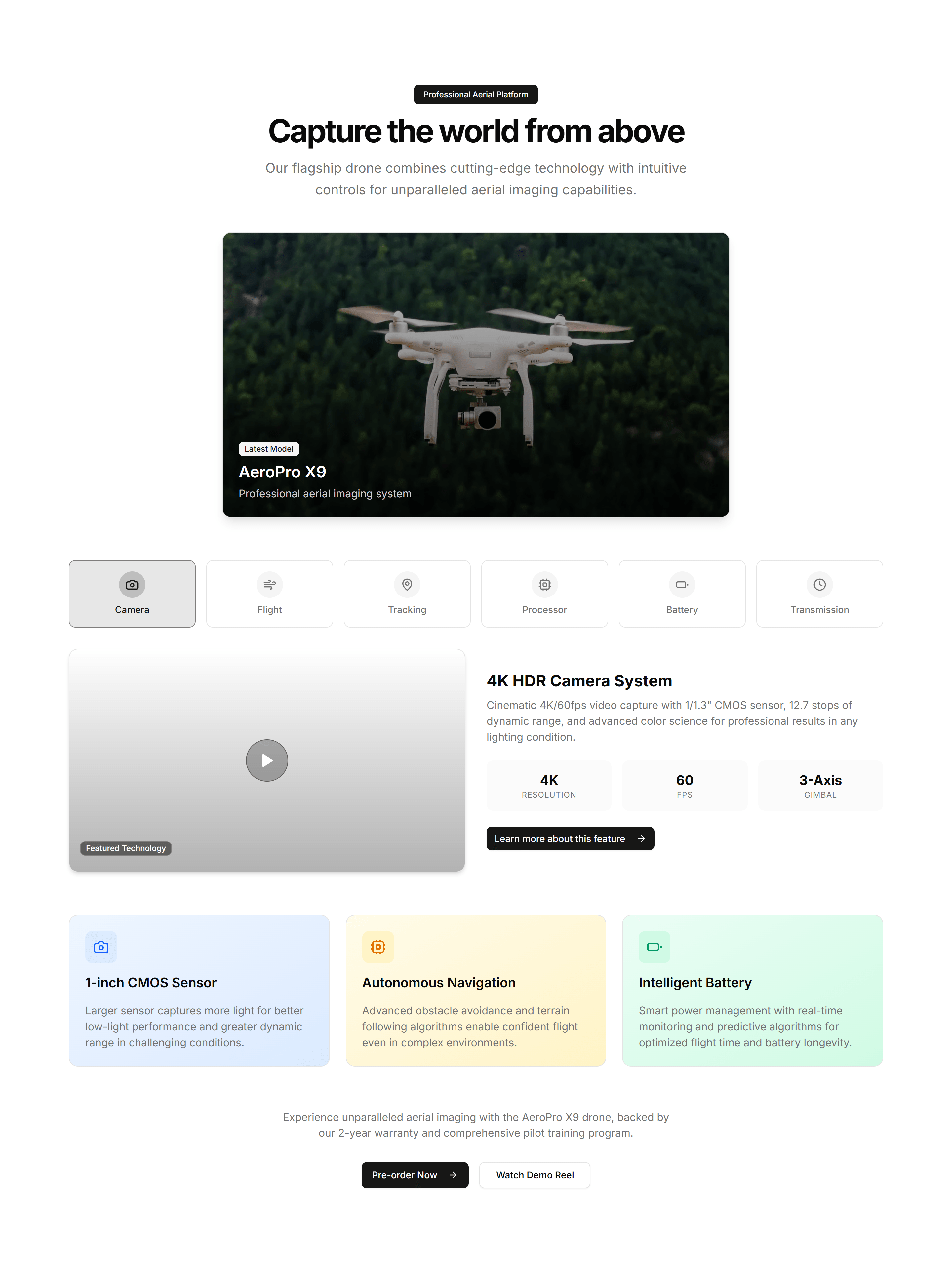
Ecommerce Product Feature: Video Feature Showcase
A section that pairs an embedded product video with supporting feature copy. Shows the item in action when motion sells better than a still.
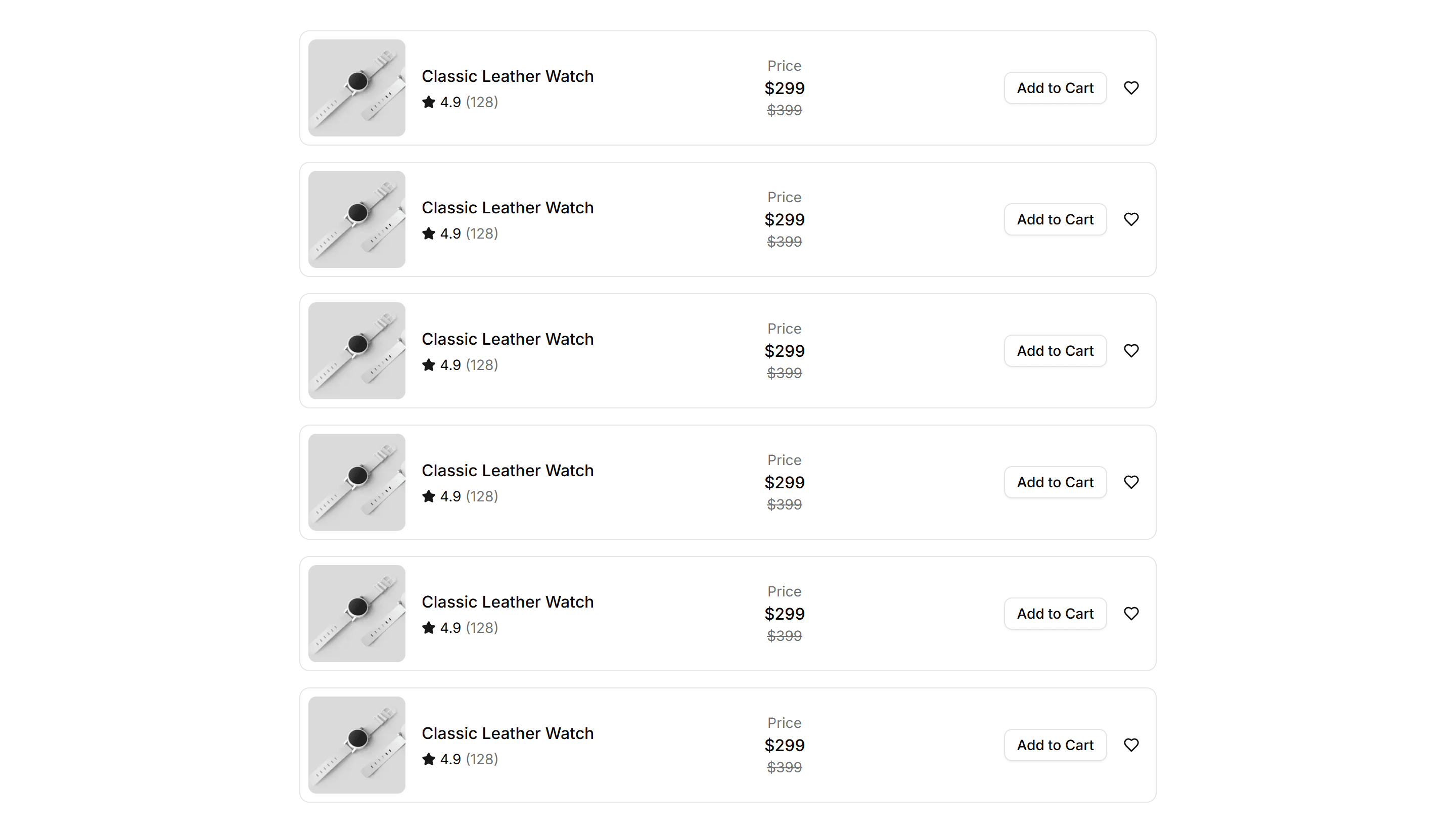
Ecommerce Product List: Compact List
A dense list packing each product into a slim row with thumbnail, name, and price. Fits long catalogs and search results where space is tight.
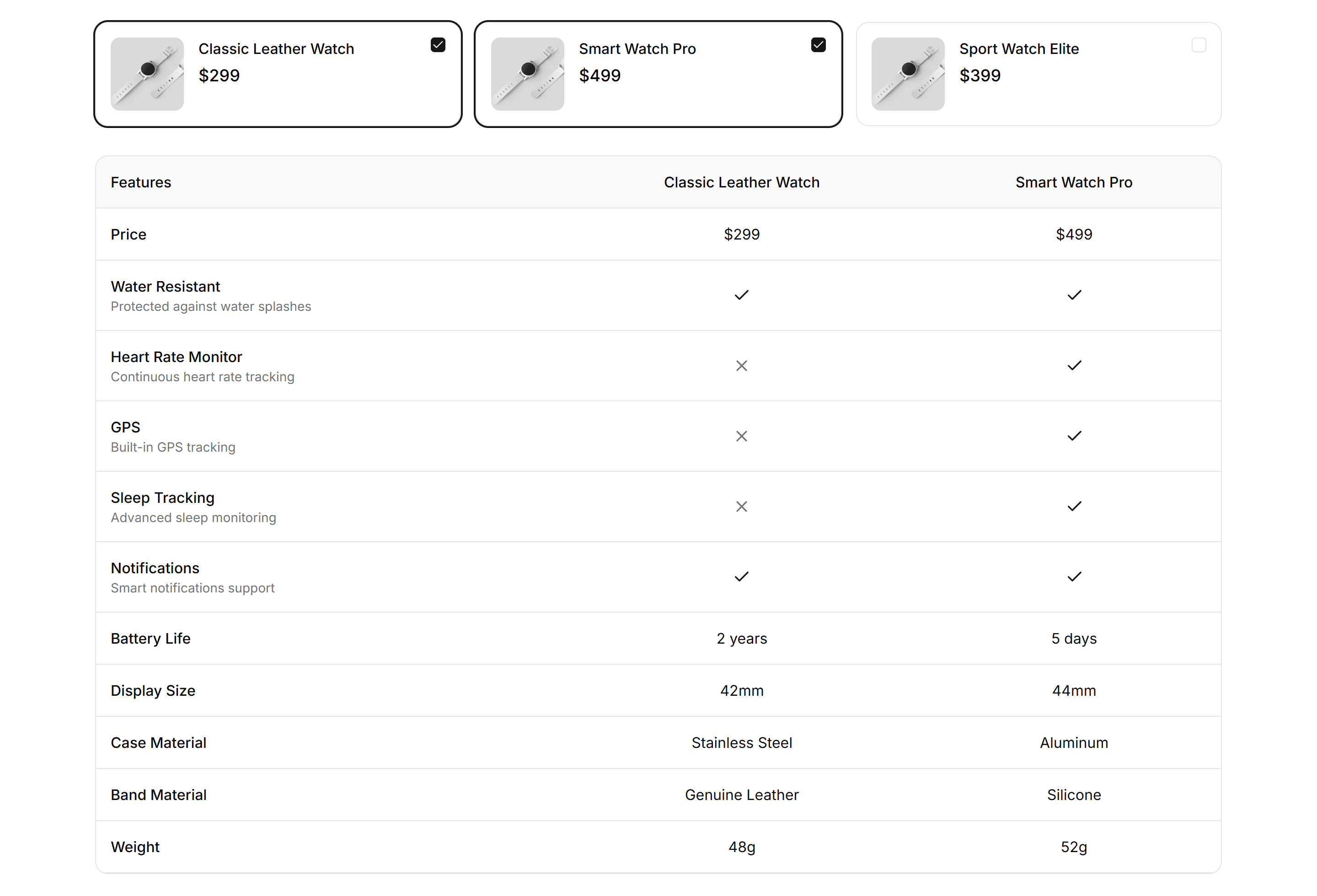
Ecommerce Product List: Comparison List
A side by side list lining up products with specs, prices, and features in columns. Helps shoppers weigh options before they commit to a purchase.
Ecommerce Product List: Featured List
A list spotlighting select products with large imagery, descriptions, and prices. Highlights bestsellers or promotions on a storefront landing page.
Ecommerce Product List: Filter List
A product list paired with category, price, and attribute filters in a sidebar. Lets shoppers narrow large catalogs and find the right item fast.
Ecommerce Product List: Gallery List
An image first list showing products as large photo cards with name and price. Suits visual categories like fashion, home decor, and art prints.
Ecommerce Product List: Grid List
A responsive grid of product cards with images, titles, prices, and buttons. The standard catalog layout for category and search pages in a store.
Ecommerce Product List: Masonry List
A masonry grid fitting product cards of varying heights into tight columns. Works well for mixed imagery in lookbooks and curated collections.
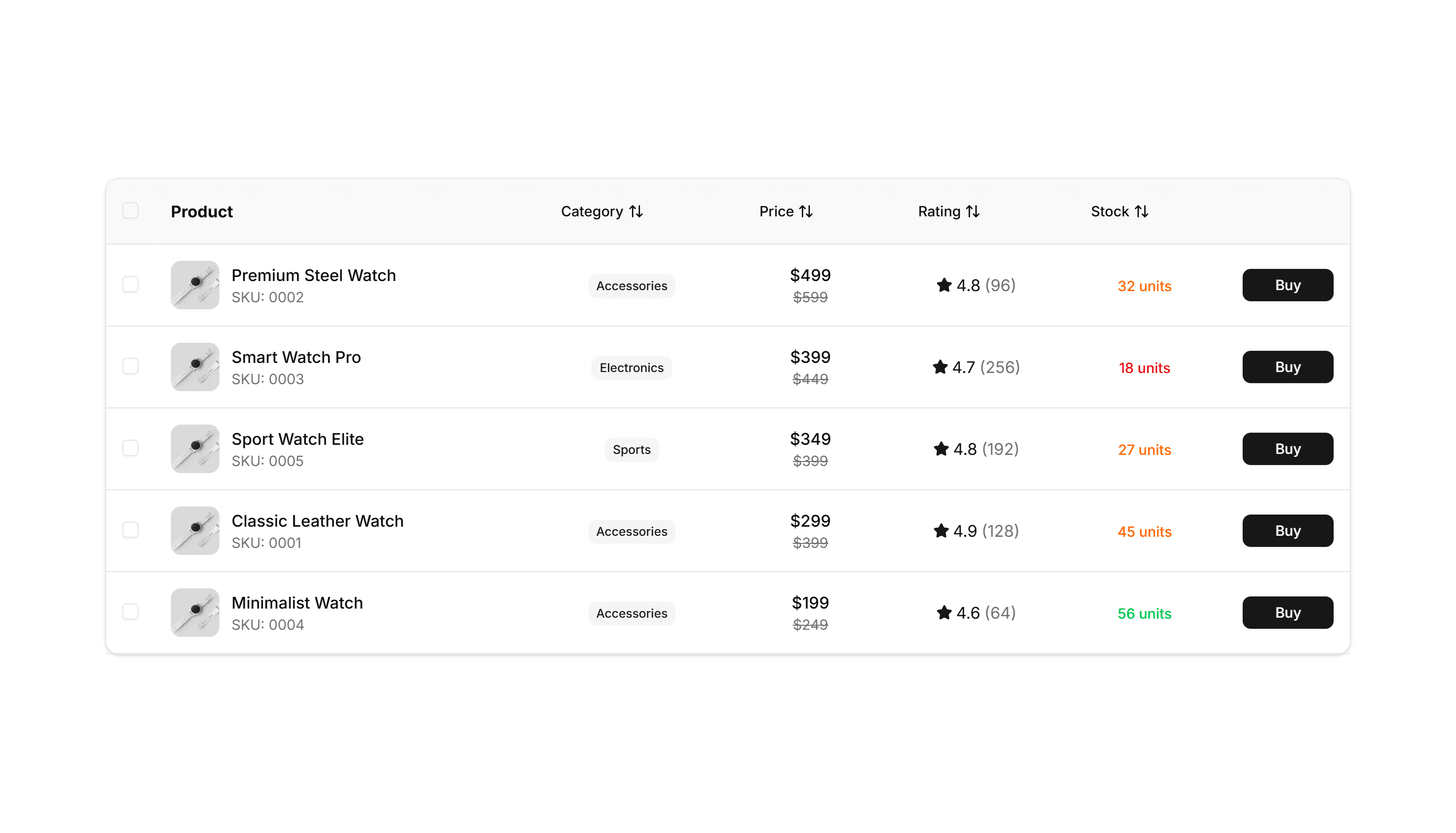
Ecommerce Product List: Table List
A table listing products in rows with columns for image, name, stock, and price. Ideal for dashboards, admin catalogs, and bulk inventory views.
Ecommerce Product List: Timeline List
A vertical timeline arranging products or drops by date with images and prices. Good for release schedules, new arrivals, and limited editions.
Ecommerce Product Overview: Classic Overview
A classic product page with a large image on the left, title, price, variant options, and add to cart on the right. Familiar layout shoppers expect.
Ecommerce Product Overview: Compact Overview
A tight product layout that fits the image, price, options, and buy button above the fold. Built for small screens and quick mobile purchases.
Ecommerce Product Overview: Gallery Overview
A product page led by a multi image gallery with thumbnails beside the details. Lets shoppers study every angle before they add the item to cart.
Ecommerce Product Overview: Immersive Overview
A full bleed product page with edge to edge imagery, floating details, and a sticky buy bar. Best for premium goods that sell on visual impact.
Ecommerce Product Overview: Minimal Overview
A pared back product page with one clean image, title, price, and a single buy button. Keeps focus on the item for simple, low clutter catalogs.
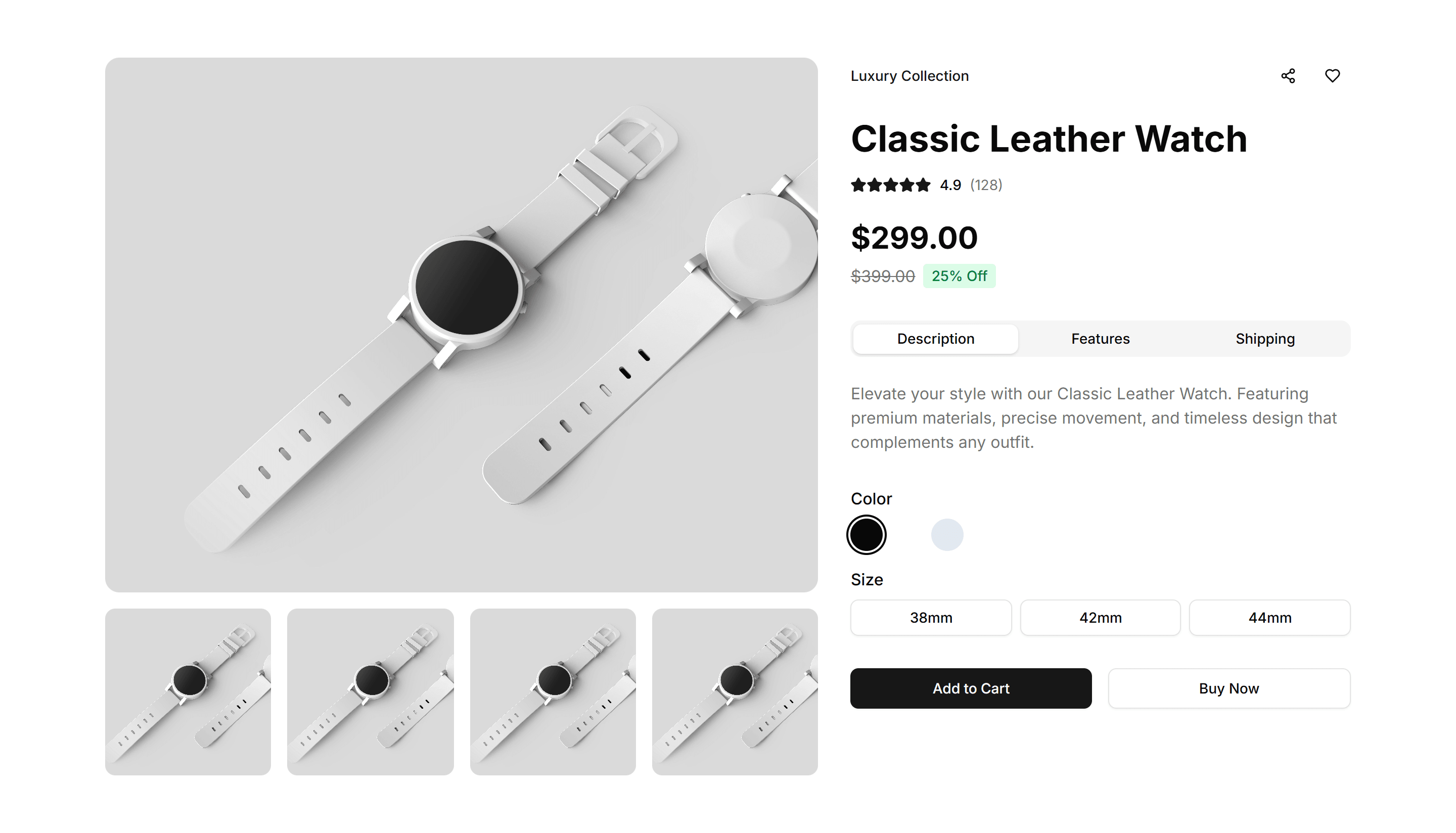
Ecommerce Product Overview: Modern Overview
A contemporary product page mixing a bold image grid, accent typography, and clear pricing. Suits fashion and lifestyle brands that want a fresh look.

Ecommerce Promo Section: Centered Icon Promo
A centered promo with an icon, headline, and supporting copy. Highlights a single offer or shipping perk in the middle of a store landing page.
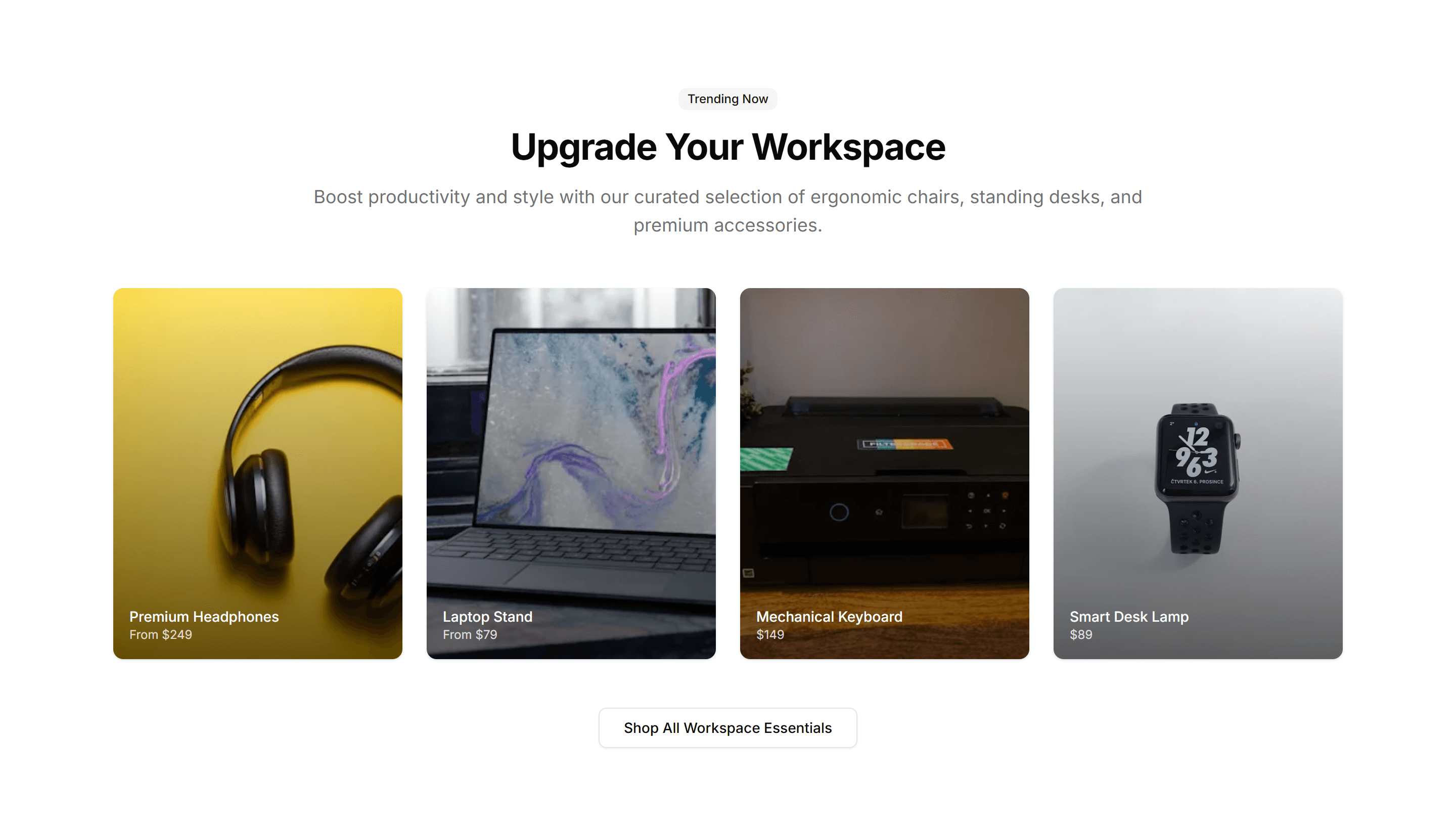
Ecommerce Promo Section: Centered Image Grid
A centered promo paired with a tidy grid of product images. Showcases a curated collection or a seasonal lineup right on your shop homepage.
Ecommerce Promo Section: Centered Simple Promo
A clean centered promo with a headline, short message, and button. Drop it onto any store page to push a sale, a discount code, or a new arrival.
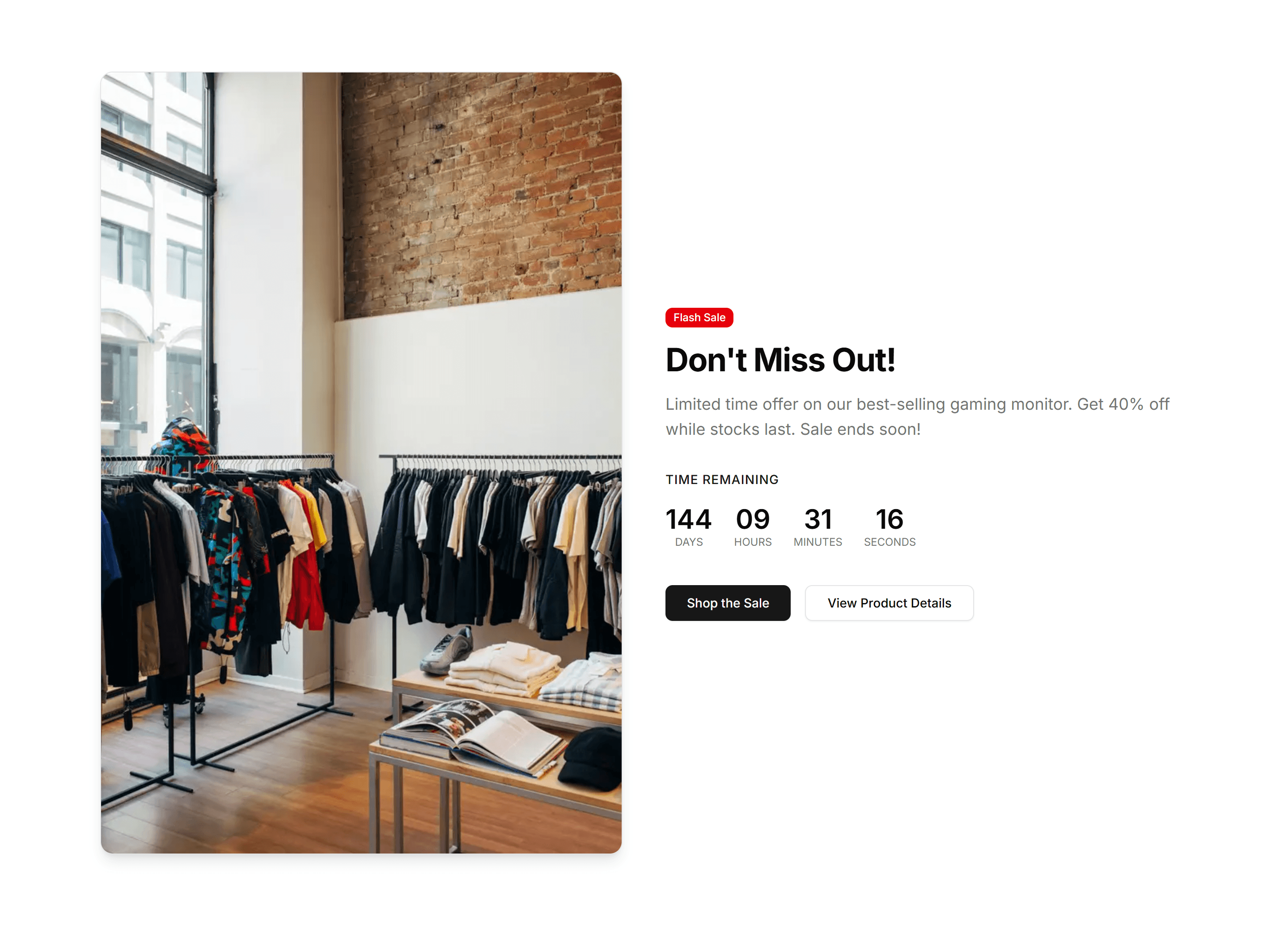
Ecommerce Promo Section: Countdown Timer Promo
A promo block with a live countdown timer, headline, and call to action. Builds urgency around flash sales and limited time offers that expire soon.
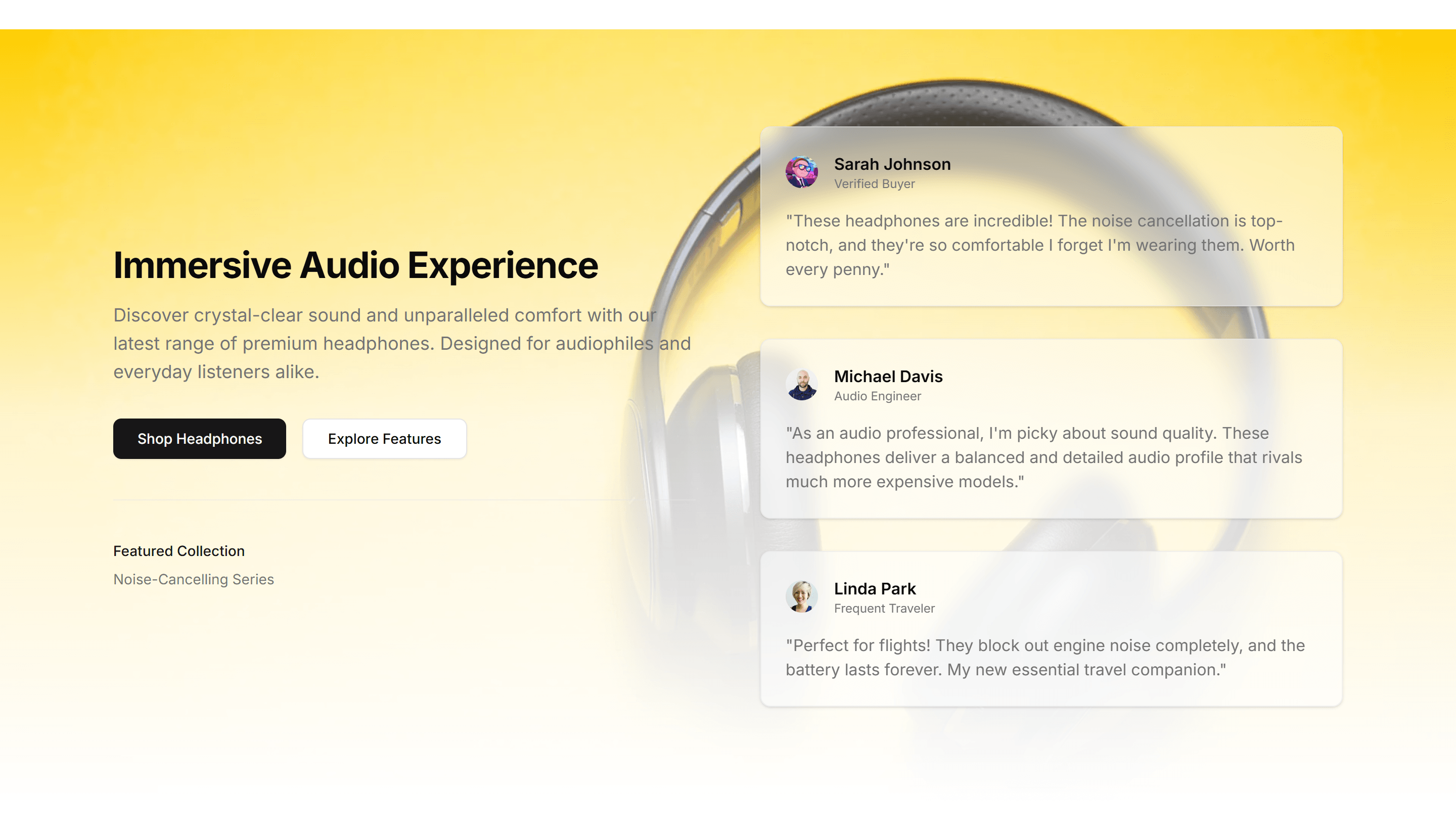
Ecommerce Promo Section: Fading Background Testimonial
A testimonial promo with a soft fading background and a customer quote. Builds trust on a product page while reinforcing the offer you are running.
Ecommerce Promo Section: Full Width Large Content
A full width promo with oversized type and a clear button. Commands attention across the whole page for a headline campaign or a seasonal launch.
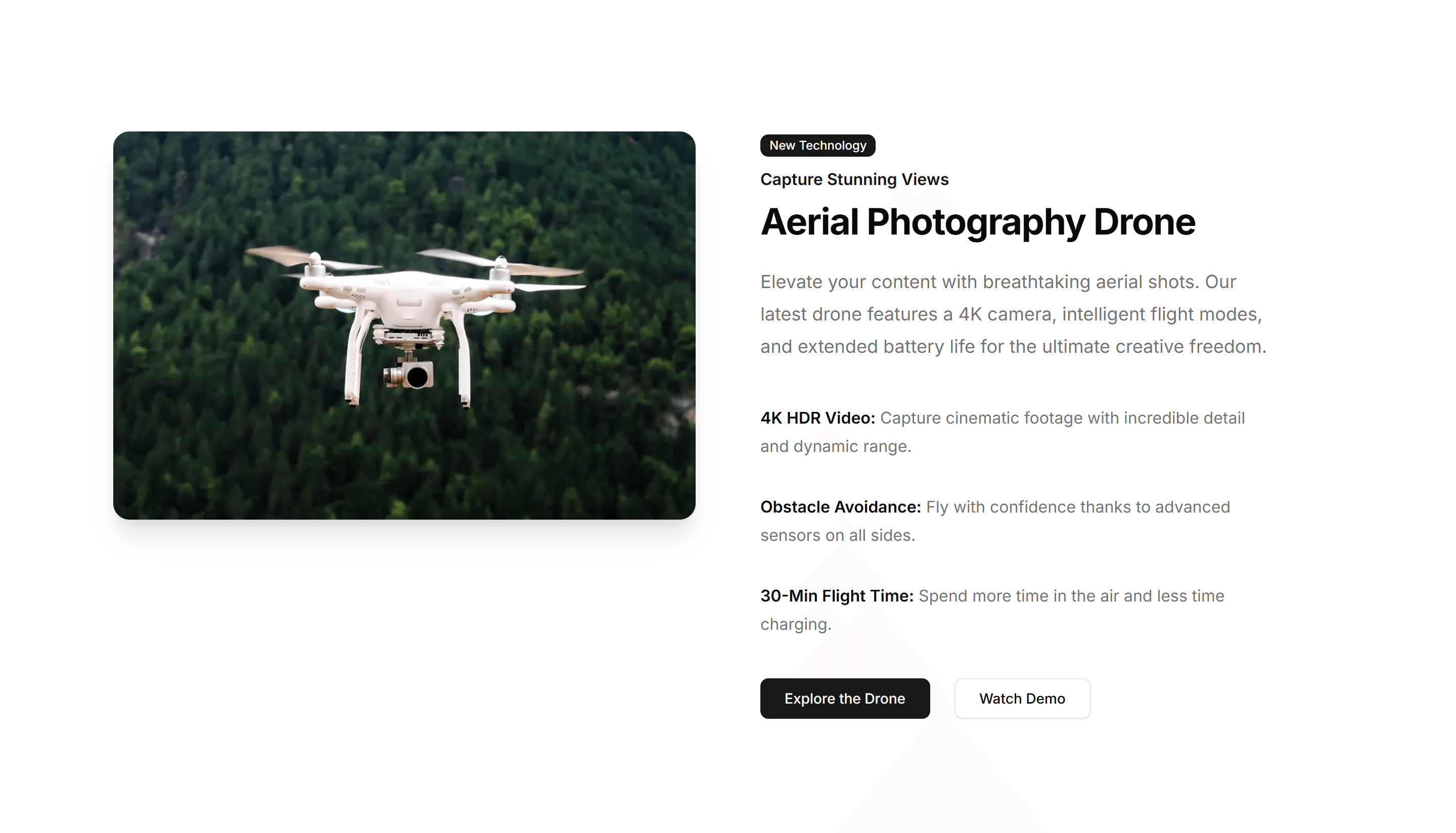
Ecommerce Promo Section: Image Aside
A promo with copy on one side and a product image alongside it. Pairs your offer with a visual so shoppers see exactly what is on sale right now.
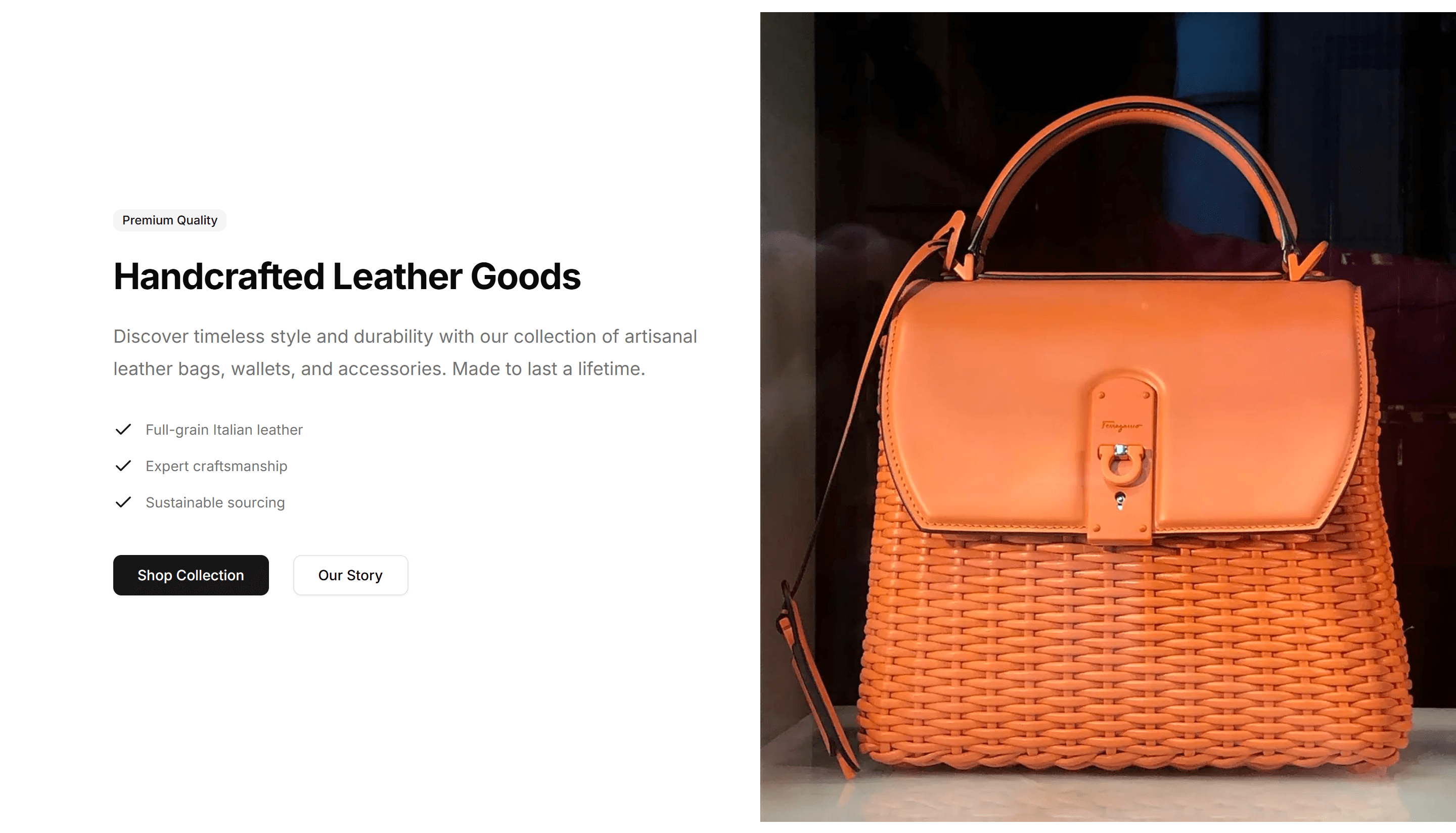
Ecommerce Promo Section: Large Image Split
A split promo with a large image filling one half and an offer on the other. Frames a hero product next to a discount and a clear, single button.
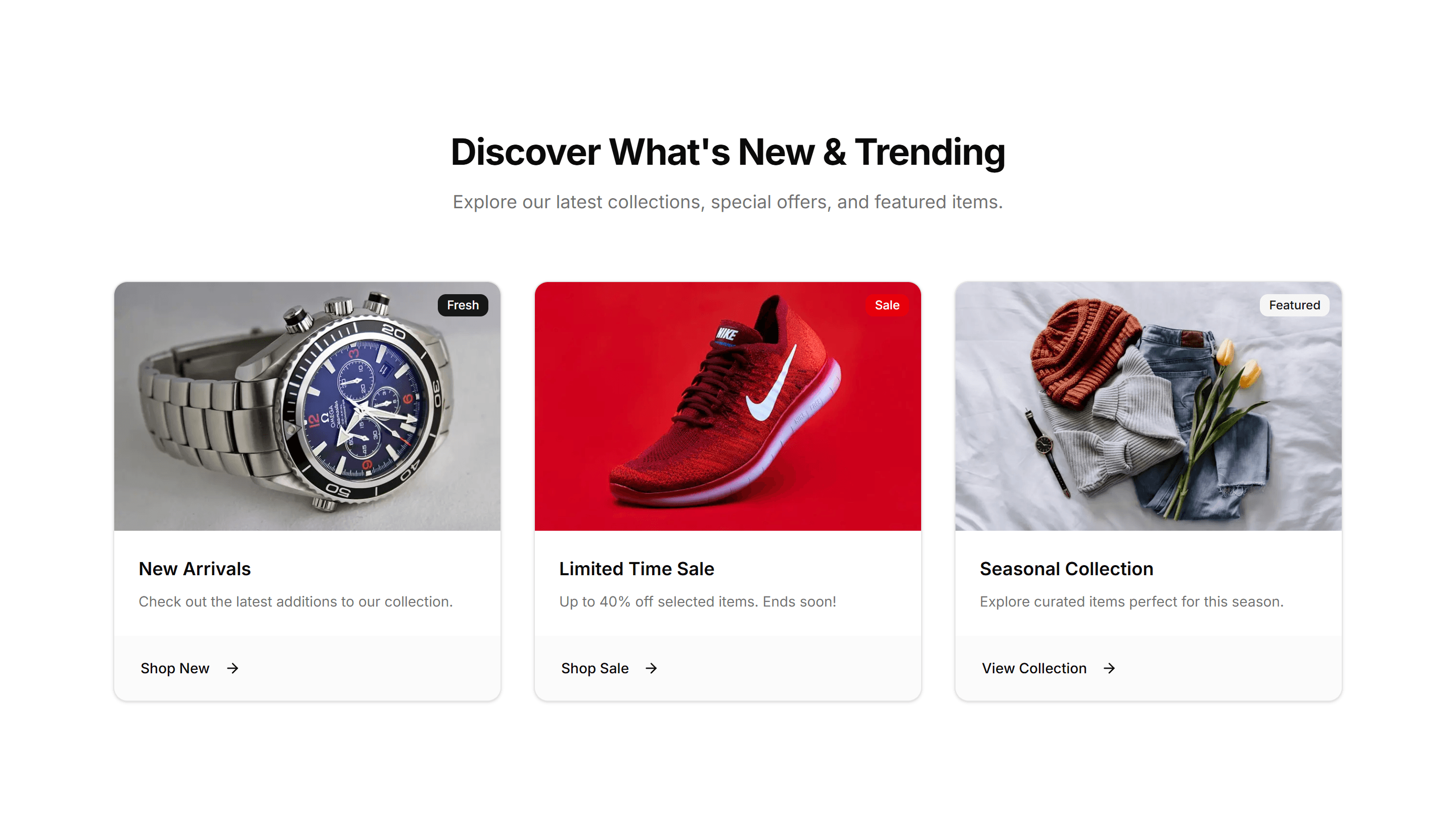
Ecommerce Promo Section: Multi Column Cards
A promo arranged as several cards in columns, each holding its own offer. Presents multiple deals or categories side by side on one store page.
Ecommerce Promo Section: Simple Banner
A slim promo banner with a short message and a link. Sits at the top of a store to announce free shipping, a running sale, or a fresh discount code.
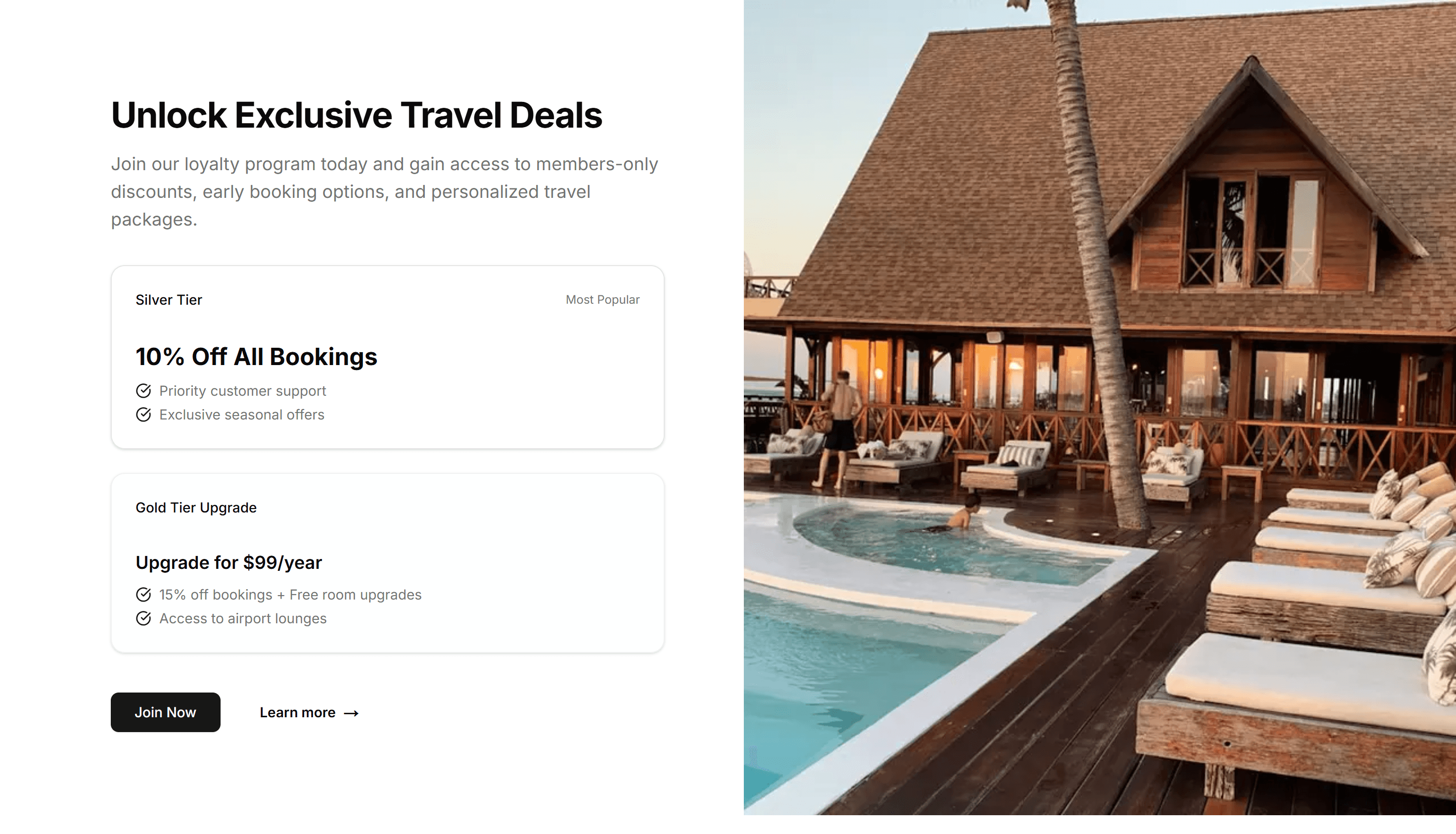
Ecommerce Promo Section: Split Offers
A promo split into two panels, each holding a separate offer and button. Lets shoppers pick between two competing deals within one store section.
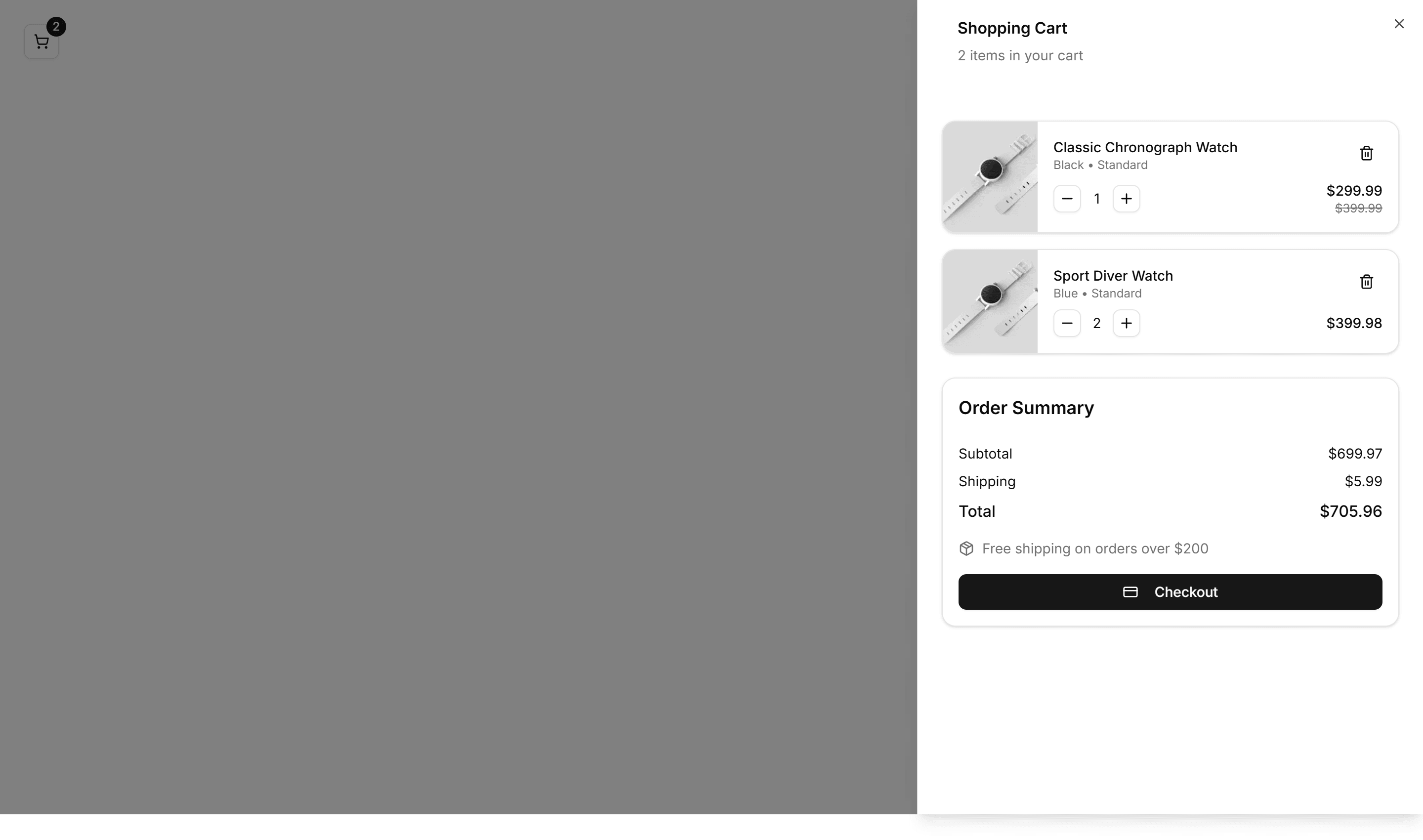
Ecommerce Shopping Cart: Compact Cart
A condensed cart panel listing items, quantities, and a running total in tight space. Fits a header dropdown or a narrow column without crowding the layout.
Ecommerce Shopping Cart: Floating Cart
A cart that floats over the page as a small overlay, showing added items and a subtotal. Lets shoppers review picks without leaving the product they browse.
Ecommerce Shopping Cart: Mini Cart
A small summary cart with thumbnails, prices, and a checkout button. Pops from a cart icon so shoppers confirm contents fast before moving on to pay.
Ecommerce Shopping Cart: Modern Cart
A clean cart layout with product images, quantity steppers, and an order summary. Suits a full cart page where shoppers review items before checkout.
Ecommerce Shopping Cart: Sidebar Cart
A cart that slides in from the side as a panel over the page, listing items and totals. Keeps shopping in view while customers adjust quantities and pay.
Ecommerce Shopping Cart: Sticky Cart
A cart summary pinned to the side as you scroll, holding items, totals, and a checkout button. Keeps payment in reach on long product and listing pages.

Portfolio About And Skill: About Me
An about section pairing a portrait with a short bio, role, and contact links. Tells visitors who you are and why they should hire you on a portfolio page.

Portfolio About And Skill: Education Certifications
A list of degrees, courses, and certifications with issuer, date, and credential. Shows formal training and qualifications on a portfolio or resume page.
Portfolio About And Skill: Resume Download
A compact call to action with a download button and file details for your CV. Lets recruiters grab your resume in one click from a portfolio page.
Portfolio About And Skill: Skills Display
A grid of skill badges grouped by area with optional proficiency levels. Summarizes the tools and languages you know across a portfolio about page.
Portfolio About And Skill: Timeline Category Skills
A vertical timeline of roles and projects with skills tagged per entry. Maps your career history and the abilities you used at each step you took.
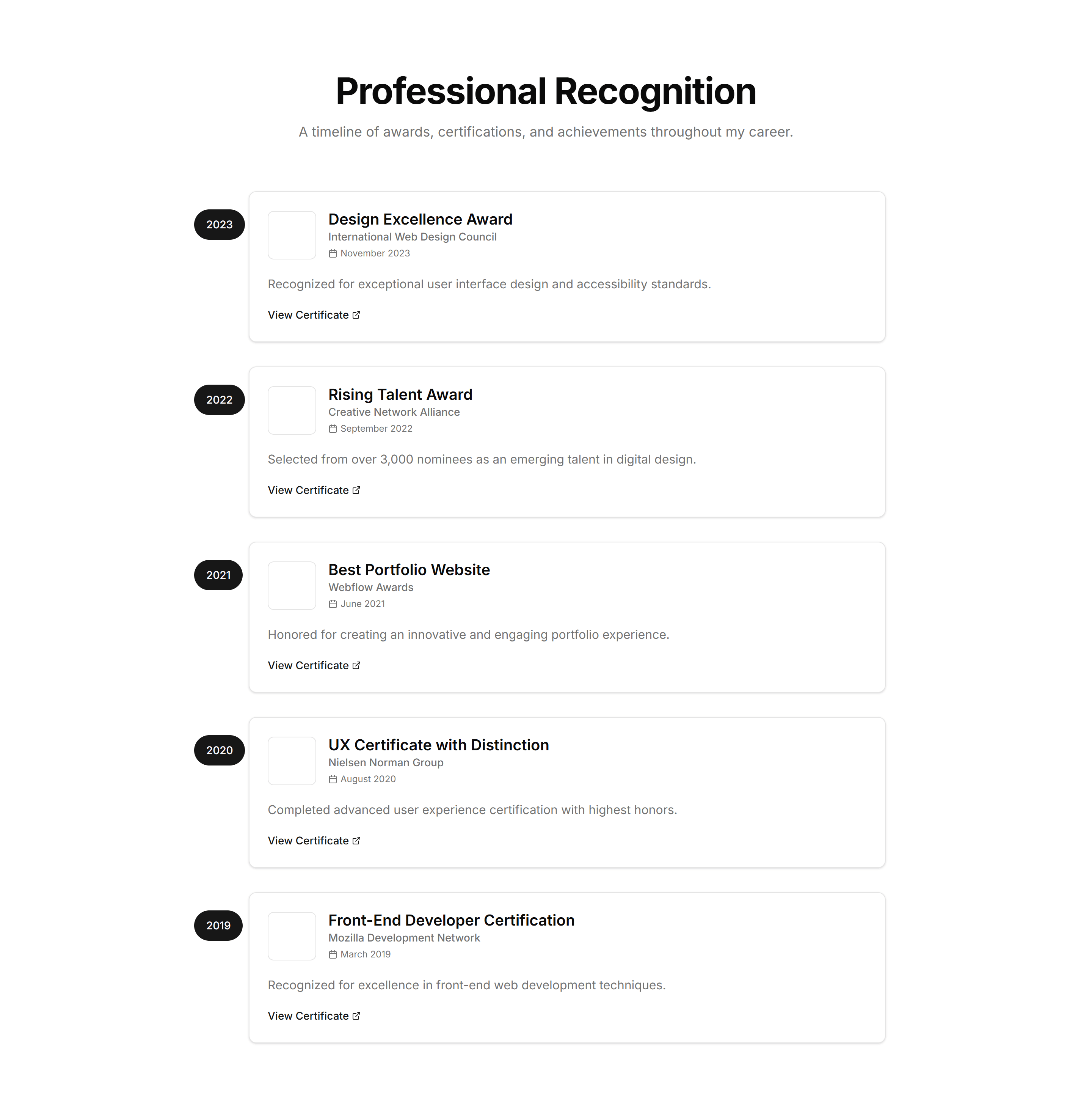
Portfolio Awards And Recognition: Awards Timeline
A vertical timeline listing awards by year with titles and issuers. Use it to walk visitors through your honors in chronological order on a profile.

Portfolio Awards And Recognition: Badge Or Icon Grid
A responsive grid of award badges or icons with short captions. Displays many certifications and honors at a glance on a portfolio about page.

Portfolio Awards And Recognition: Carousel Of Certifications
A sliding carousel that cycles through certification logos and details. Fits a long list of credentials into a compact, scrollable strip here.

Portfolio Awards And Recognition: Featured Award Highlight
A spotlight block centered on a single major award with its name, year, and a short note. Use it to lead with your most impressive recognition.
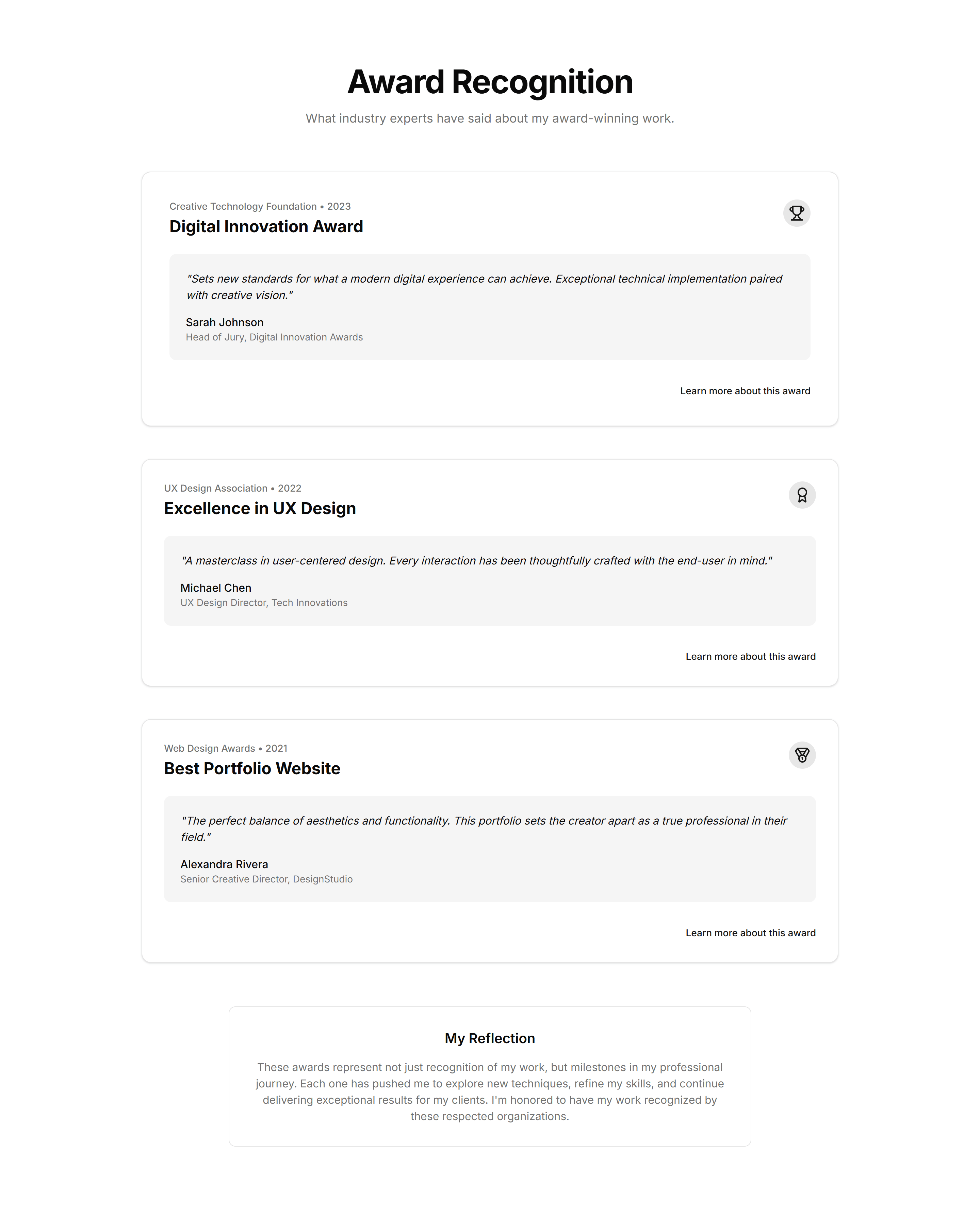
Portfolio Awards And Recognition: Quote Award Combo
A block pairing a testimonial quote with an award badge side by side. Combines praise and recognition to build credibility on a portfolio page.
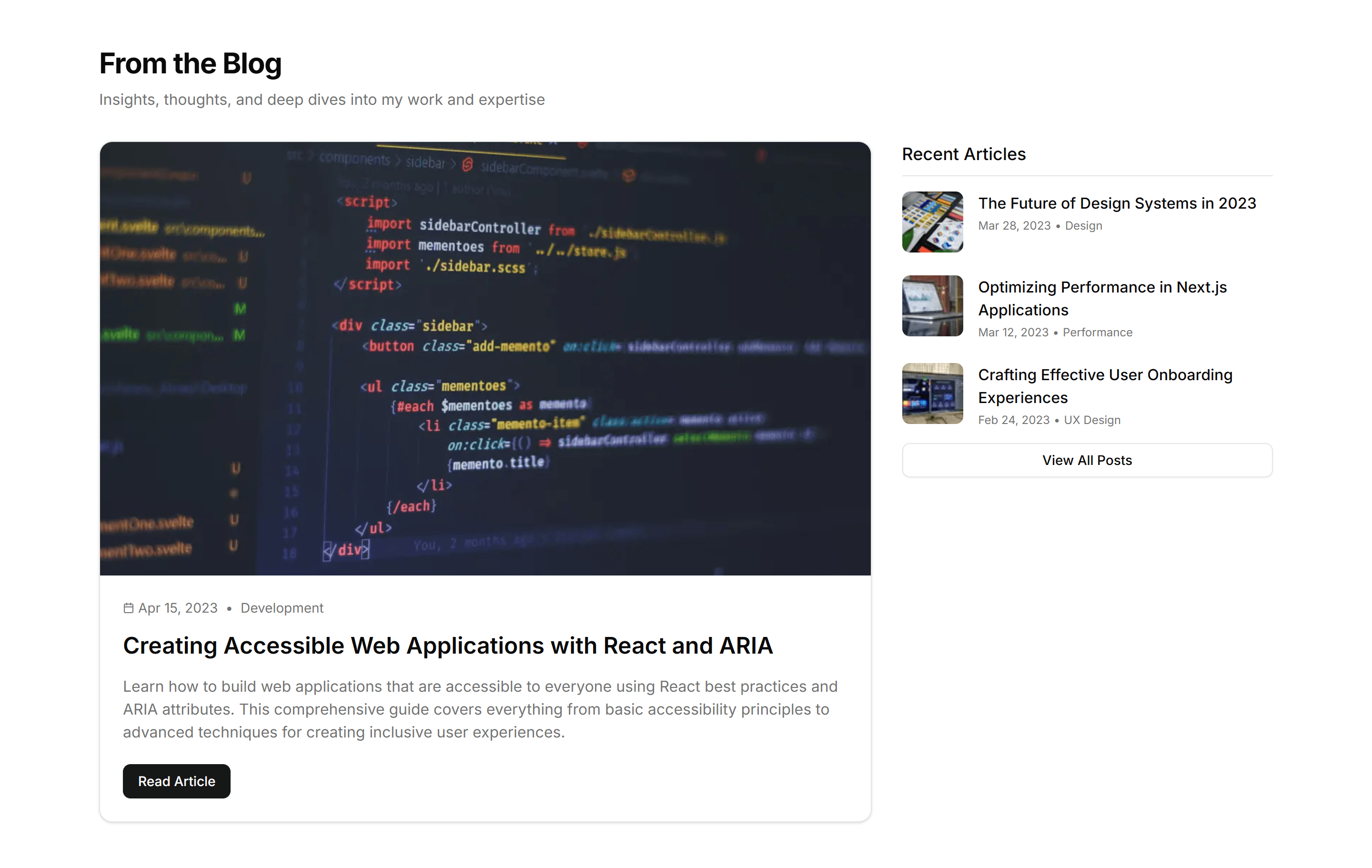
Portfolio Blog Writing And Preview: Featured Article List
A list that leads with one large featured article followed by smaller entries. Use it to spotlight your best post while listing recent writing.
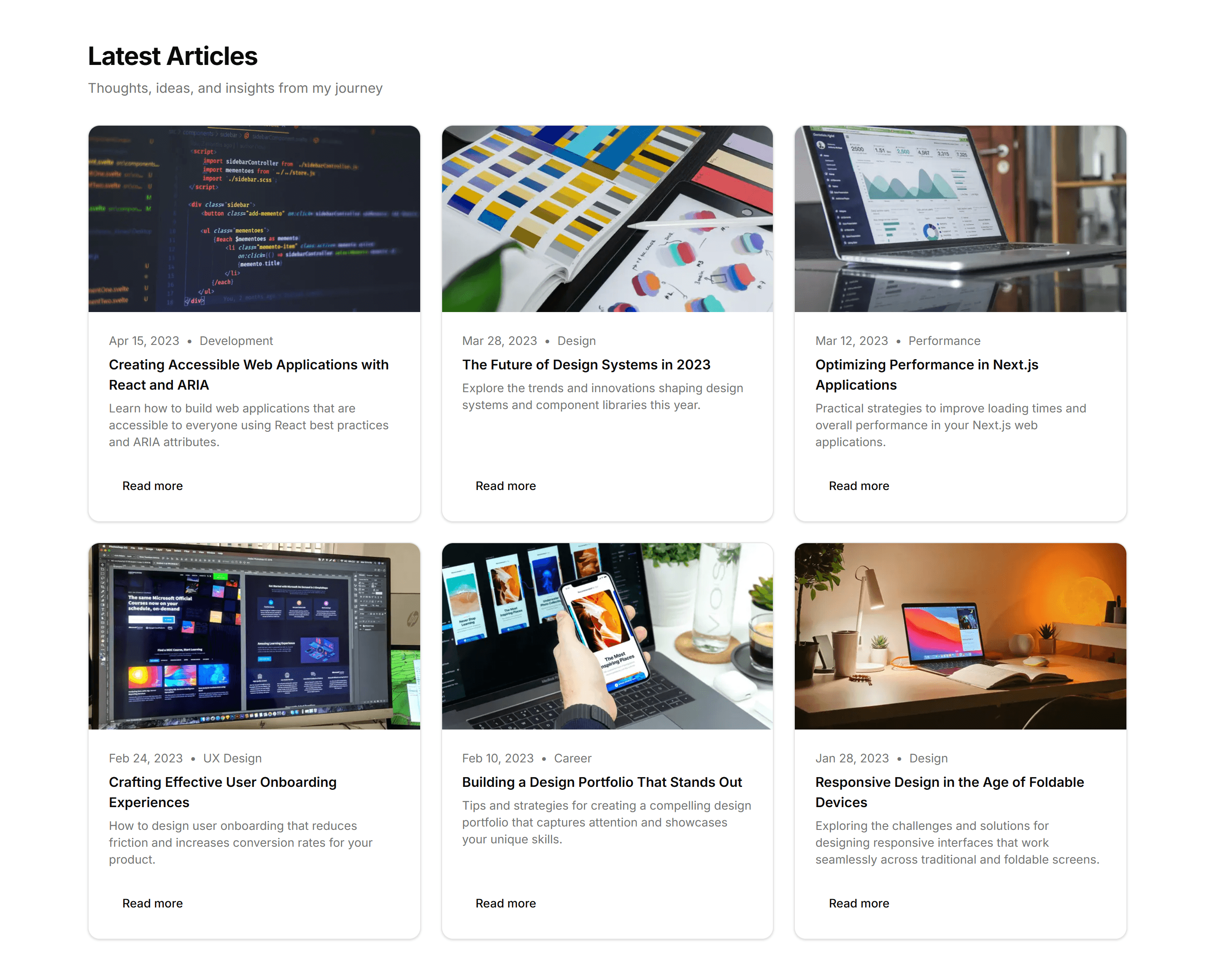
Portfolio Blog Writing And Preview: Grid Blog Cards
A responsive grid of blog cards with cover image, title, and excerpt. The standard layout for browsing many articles on a writing index page.
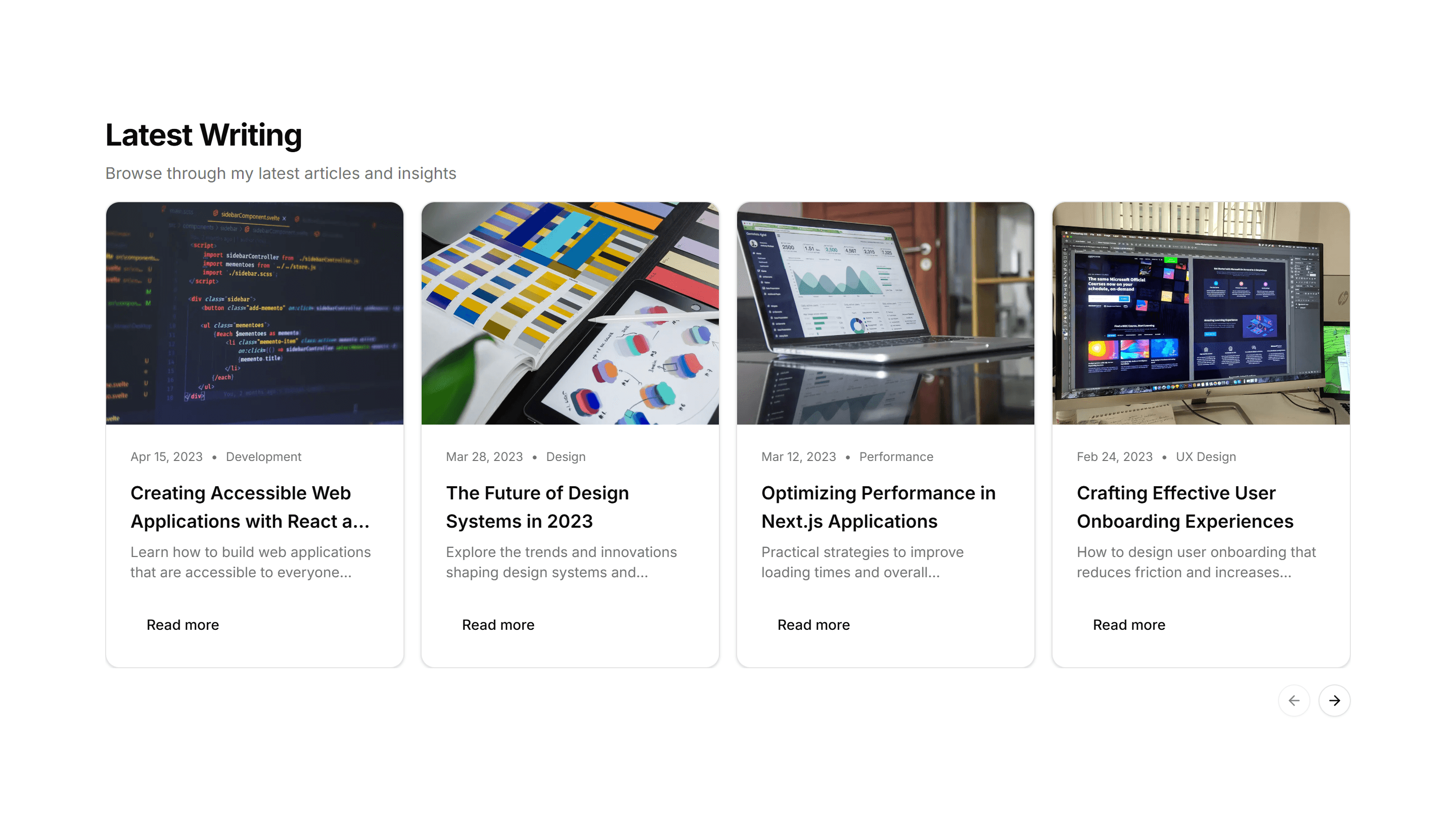
Portfolio Blog Writing And Preview: Horizontal Blog Carousel
A horizontal carousel of blog cards that scrolls sideways. Use it to preview recent posts in a tidy row without taking up much vertical space.
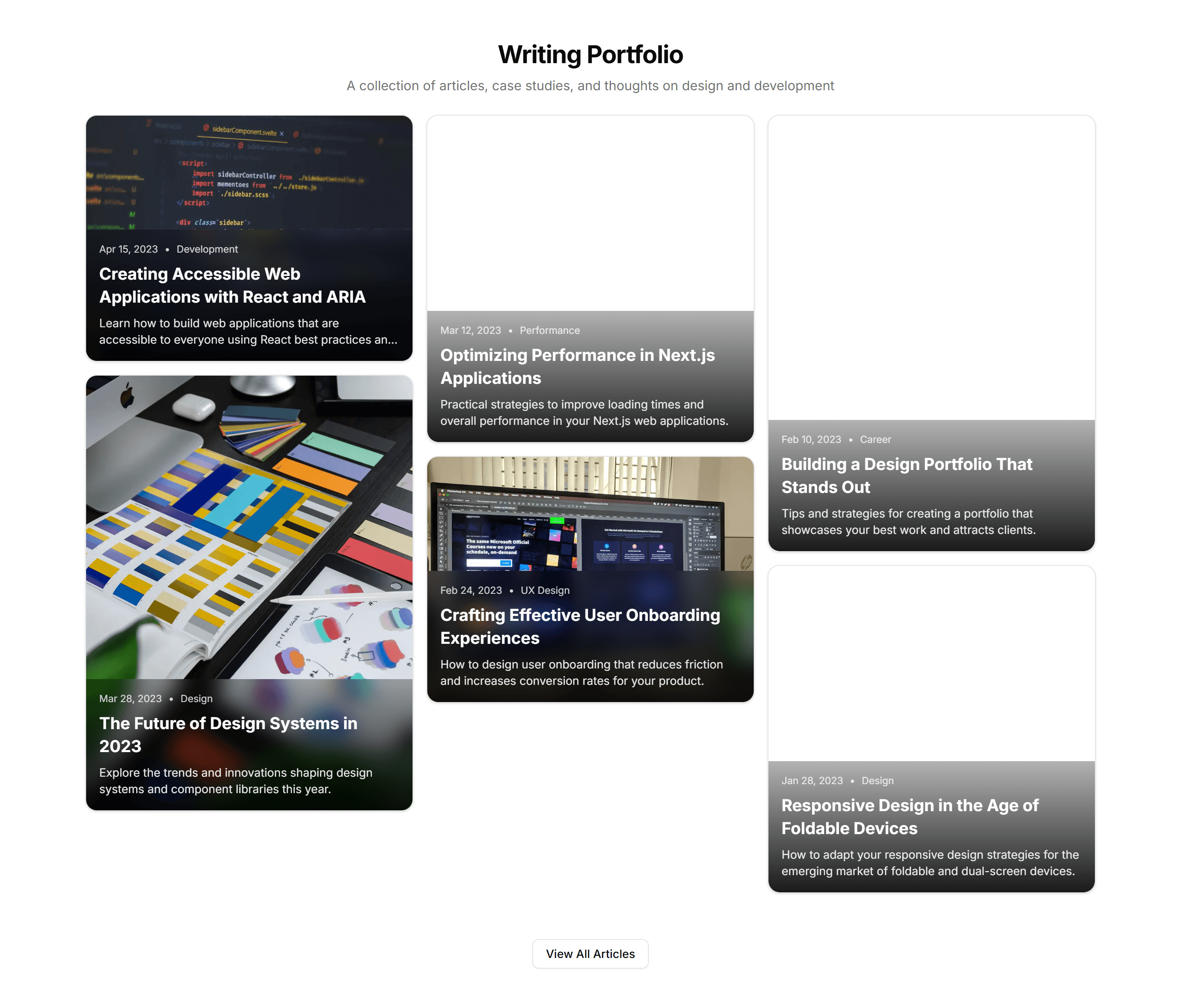
Portfolio Blog Writing And Preview: Masonry Layout Articles
A masonry grid of article cards with varied heights for a dynamic feel. Fits posts that mix tall images with short text on a writing showcase.
Portfolio Blog Writing And Preview: Minimal List Dates
A plain text list of post titles with publish dates beside each one. Use it when you want a fast, distraction free archive of all your writing.
Portfolio Case Study: Accordion Expandable Case Studies
An accordion that expands each case study to reveal the full story. Use it to list many projects while keeping the page compact until one is tapped.
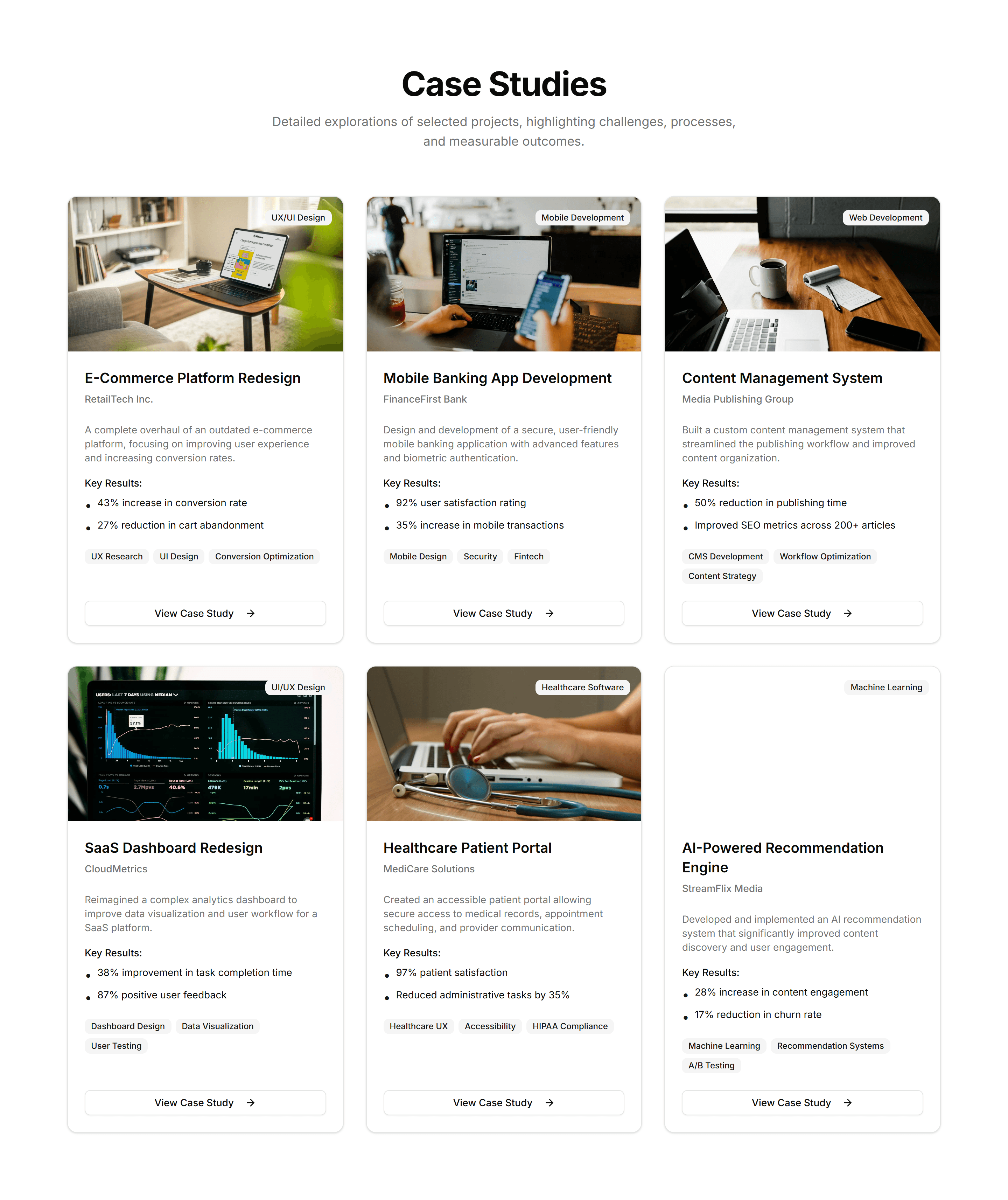
Portfolio Case Study: Grid Case Study Previews
A responsive grid of case study cards with thumbnail, title, and summary. The go to layout for browsing a portfolio of client projects at once.
Portfolio Case Study: Large Visual Focus Case Study
A case study block built around one large hero image with supporting copy. Use it when the visual result of the project tells the story best.
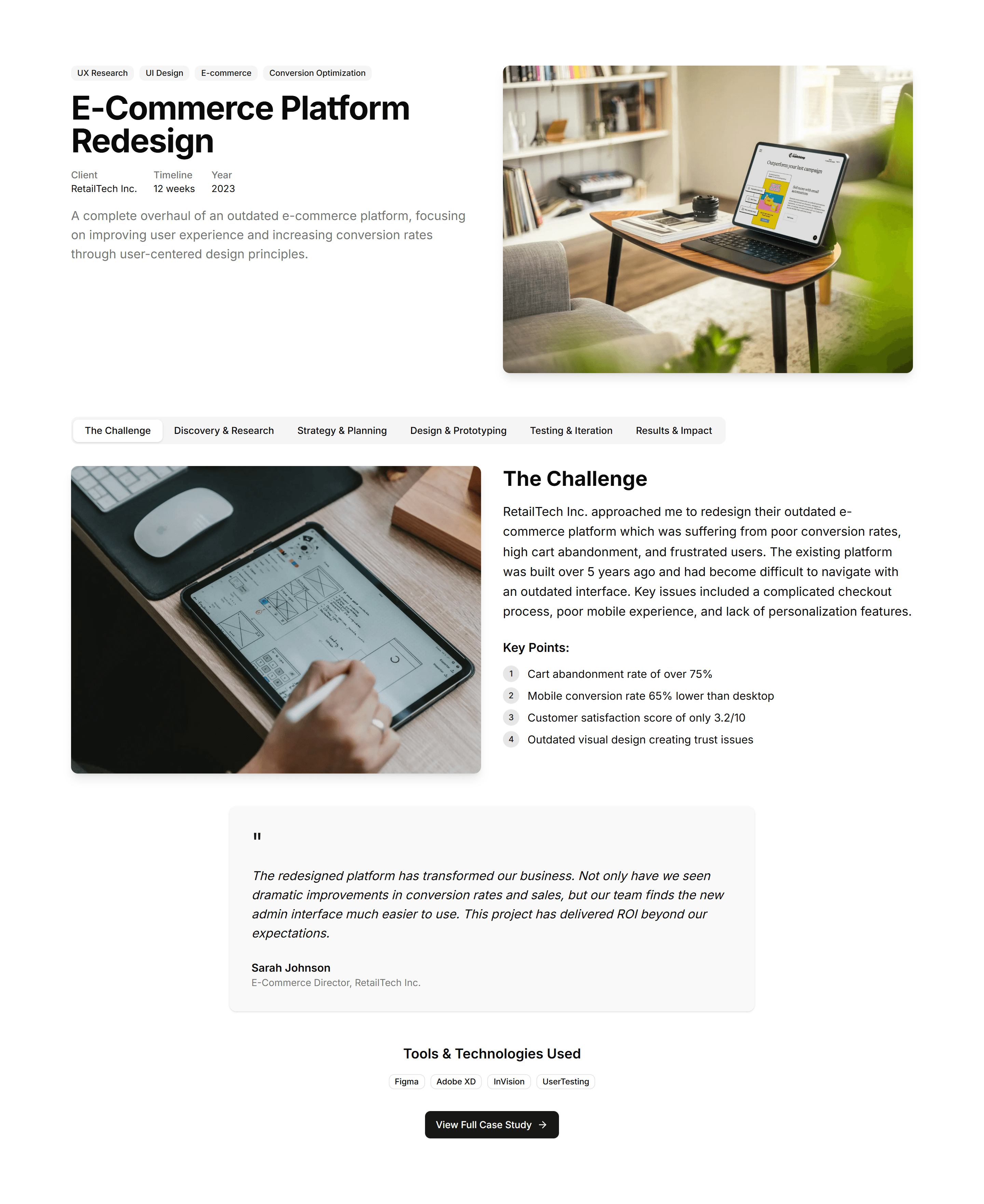
Portfolio Case Study: Side By Side Image Story
A two column block placing a project image beside its written story. Pairs visuals and narrative to walk readers through a single case study.
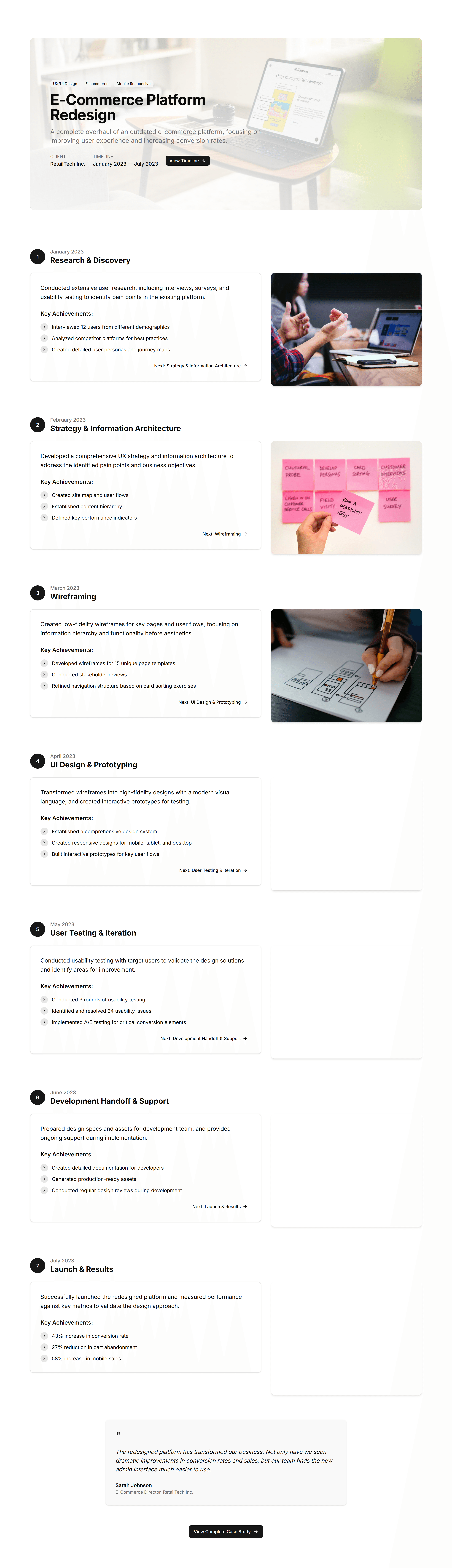
Portfolio Case Study: Timeline Style Case Study
A timeline that maps a project across stages from the first brief to outcome. Use it to show your process and results step by step in one case study.
Portfolio Contact Section: Classic Contact Form
A straightforward contact form with name, email, and message fields plus a submit button. Drop it on a portfolio page so visitors can send a quick note.
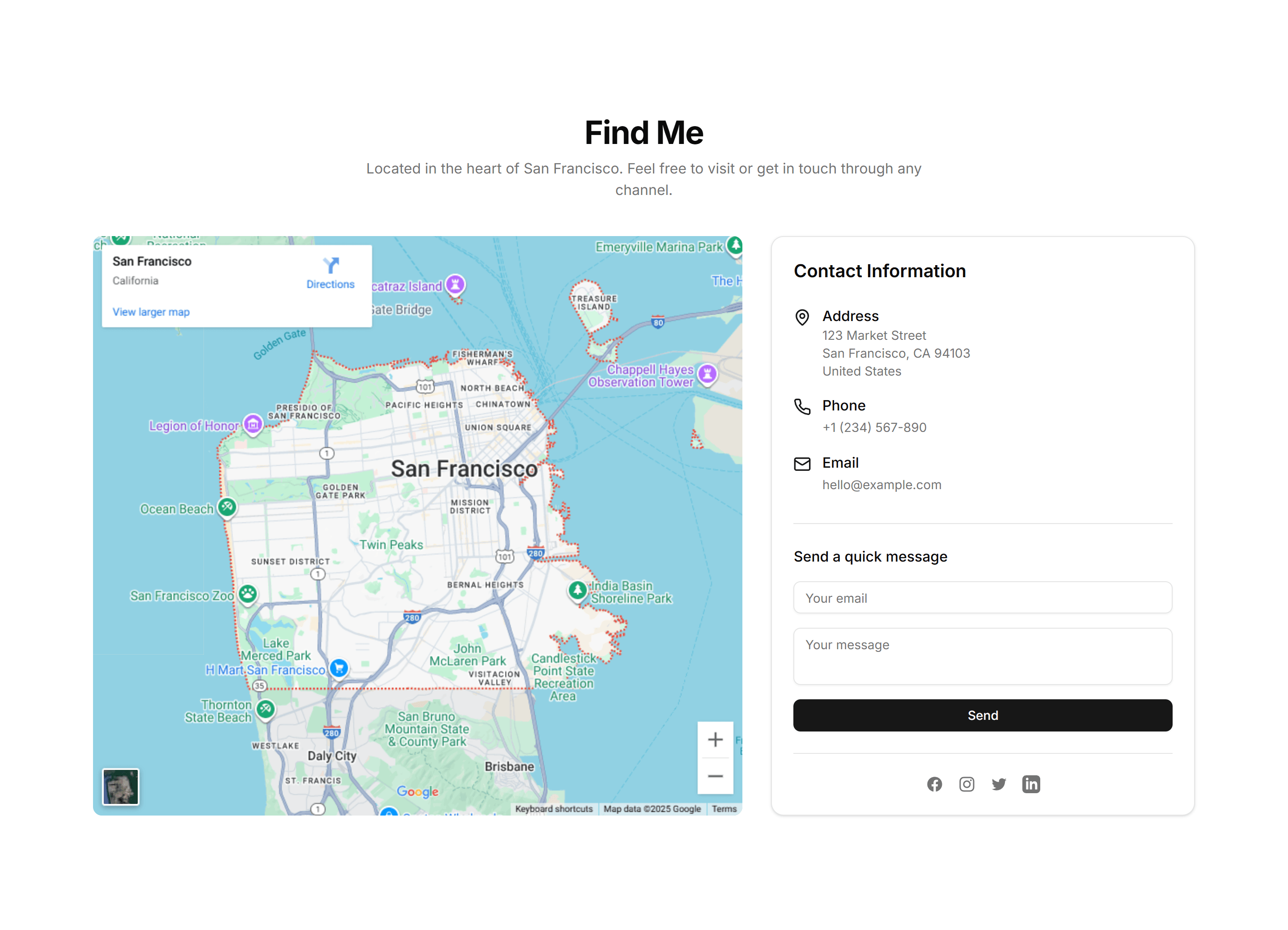
Portfolio Contact Section: Map With Contact Info
Pairs an embedded location map with address, phone, and email details. Use it when clients need to find your studio or office alongside ways to reach you.
Portfolio Contact Section: Minimal Form With Social
A compact contact form sitting beside a row of social media icons. Fits portfolios that want one simple message field and links to your other profiles.
Portfolio Contact Section: Popup Trigger Contact
A button that opens the contact form in a modal dialog, keeping the page clean. Good for portfolios where you want the form hidden until a visitor asks.
Portfolio Contact Section: Split Layout
A two column section with intro copy on one side and the contact form on the other. Balances a personal message with a clear path to get in touch.
Portfolio Core Services Overview: Accordion Services
An accordion that lists each service as an expandable row with a short summary and details inside. Keeps a long offering compact and easy to scan.

Portfolio Core Services Overview: Icon List Overview
A list of services where each row pairs an icon with a title and one line of supporting text. Communicates your capabilities at a quick glance.
Portfolio Core Services Overview: Numbered Process Style Services
A numbered sequence that frames your services as ordered steps with titles and notes. Shows clients how you work and what to expect at each stage.
Portfolio Core Services Overview: Service Cards Grid
A responsive grid of service cards, each with an icon, heading, and short description. Lays out everything you offer in a tidy, balanced overview.
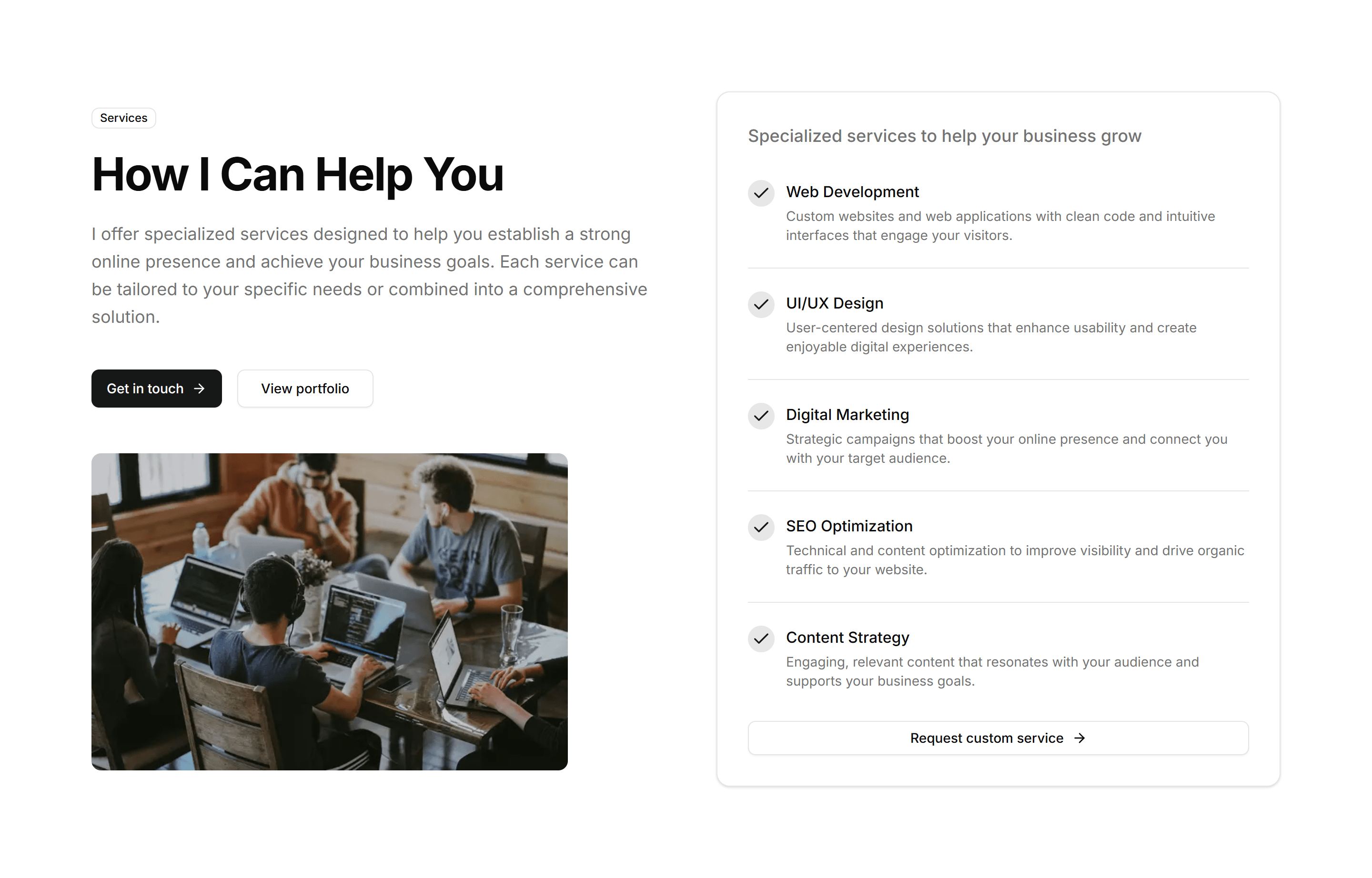
Portfolio Core Services Overview: Split Layout Feature
A split section pairing a single highlighted service with an image on one side and explanatory copy on the other. Spotlights your headline offering.
Portfolio CTA Banner: Full Width Bold Banner
A wide banner with a large heading and a single prominent button. Use it to span the page and push visitors toward hiring you or booking a call.
Portfolio CTA Banner: Inline CTA
A slim call to action that sits within page content, pairing one line of copy with a button. Place it between sections to nudge readers without interrupting.
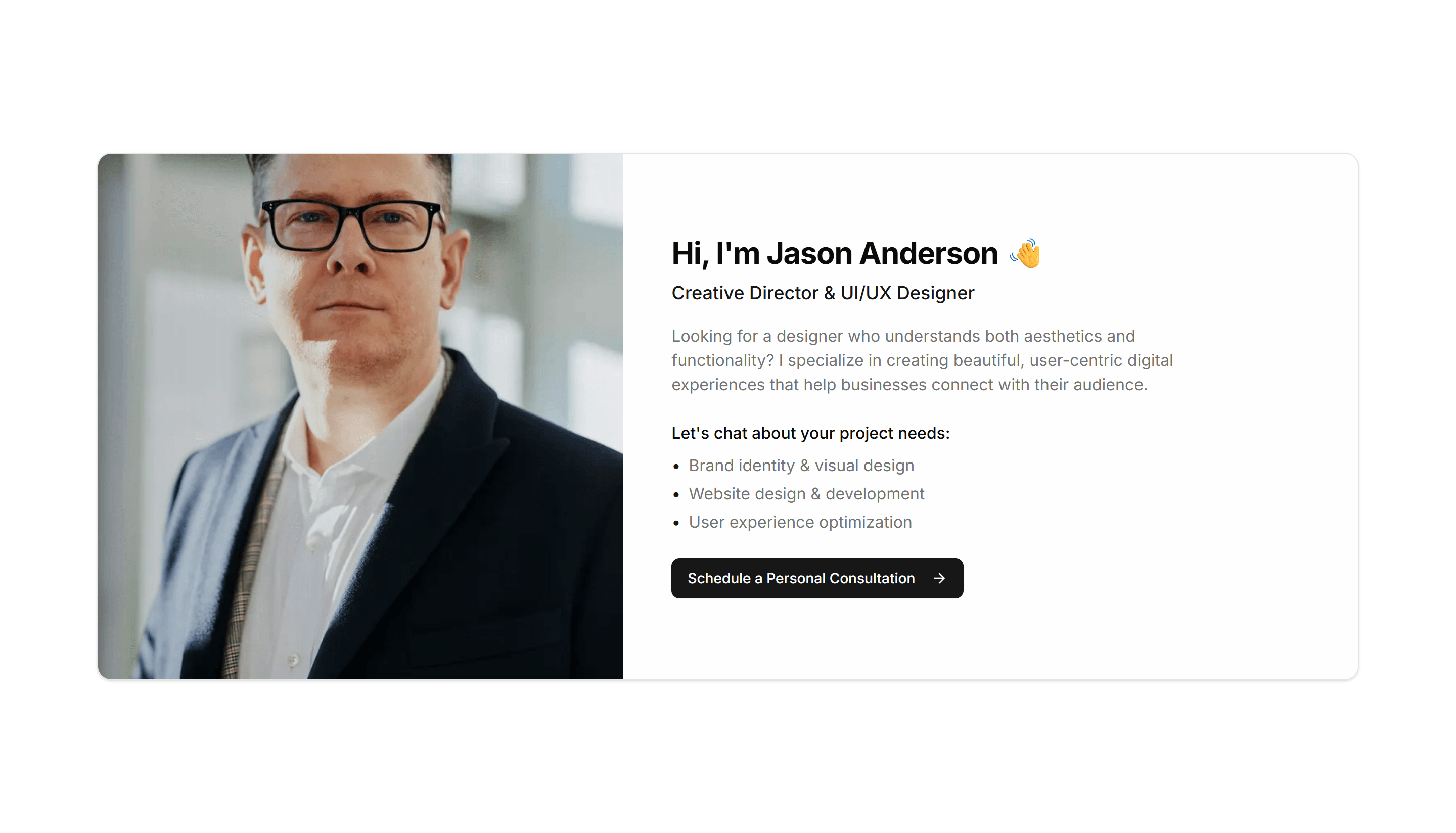
Portfolio CTA Banner: Personal Photo CTA
A banner combining your portrait with a short pitch and a button. Adds a human face to the ask, ideal for freelancers inviting visitors to connect.
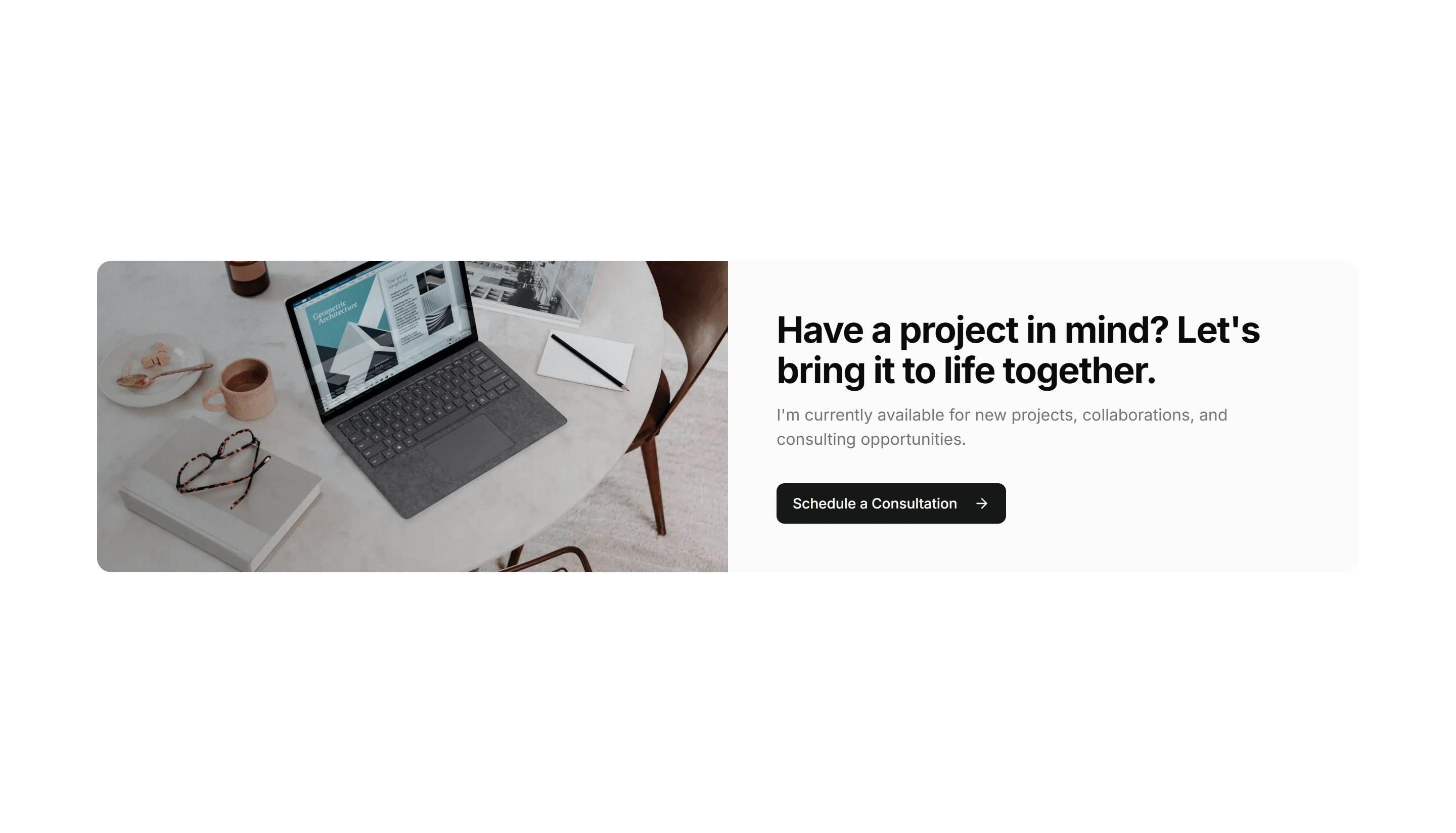
Portfolio CTA Banner: Split CTA
A two column banner with a message on one side and the action button on the other. Keeps the copy and the click target distinct and easy to scan.
Portfolio CTA Banner: Sticky CTA
A banner that stays fixed as the visitor scrolls, keeping a button always in view. Useful for long portfolio pages where the offer should stay reachable.
Portfolio Email Signup And Newsletter: Card Style Signup
A bordered card holding a headline, short pitch, and email field. Use it as a standalone callout inviting visitors to join your mailing list.
Portfolio Email Signup And Newsletter: Footer Integrated Signup
An email field built into the site footer beside links and details. Captures subscribers at the bottom of every page without a dedicated section.
Portfolio Email Signup And Newsletter: Popup Signup Form
A modal that surfaces an email field over the page, often on exit or after a delay. Use it to catch visitors before they leave your portfolio.
Portfolio Email Signup And Newsletter: Simple Inline Form
A single row with an email input and a subscribe button. Slots into any section when you want a quick, low friction way to gather addresses.
Portfolio Email Signup And Newsletter: Split Section Signup
A two column section with descriptive copy beside the signup form. Explains what subscribers get while keeping the email field clearly in view.
Portfolio Event Speaking And Workshop: Event Cards Grid
A grid of cards listing talks and workshops with their title, date, and venue. Use it to present many speaking appearances in one scannable layout.
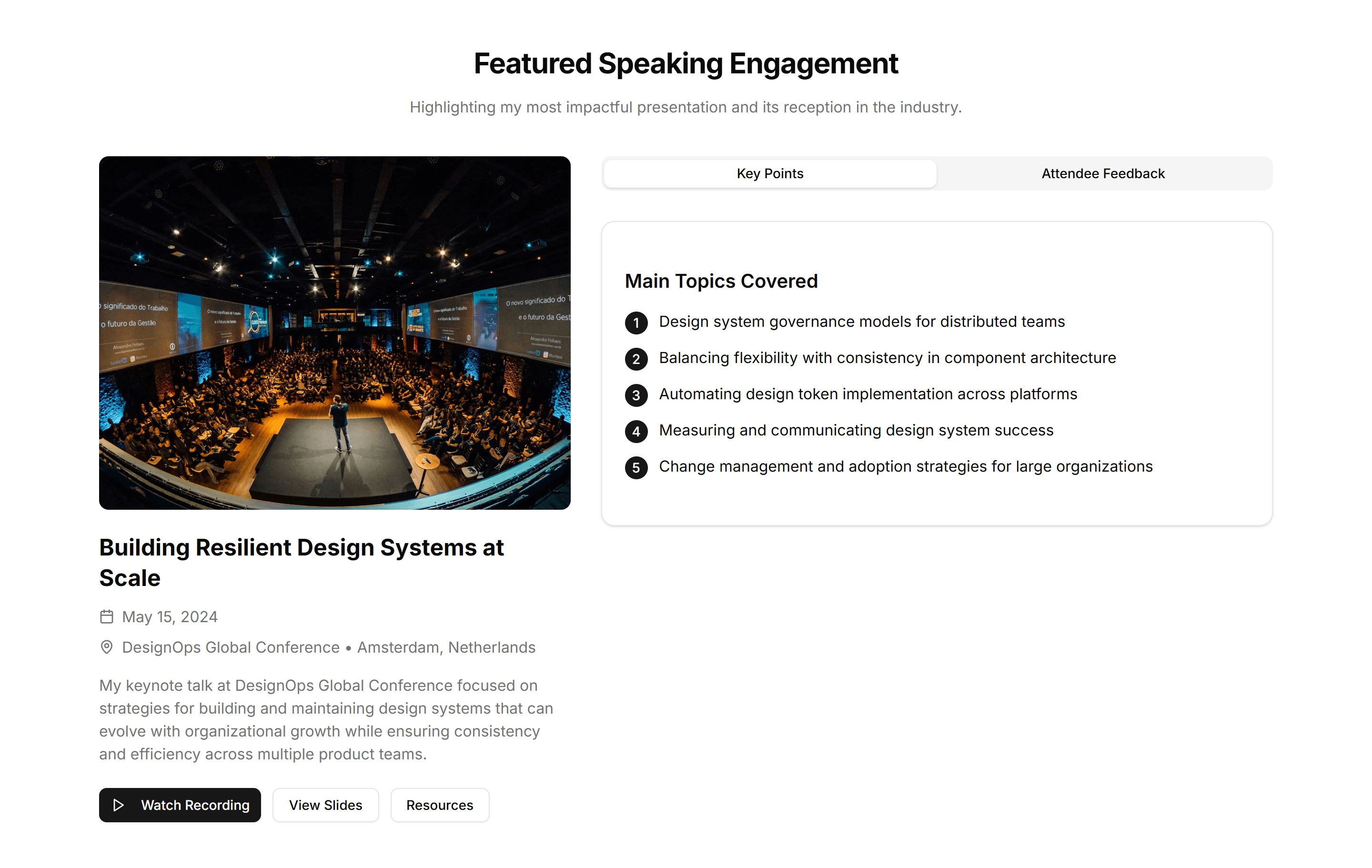
Portfolio Event Speaking And Workshop: Featured Talk
A spotlight section for one talk with its title, summary, and event details. Highlights a signature presentation at the top of a speaking page.
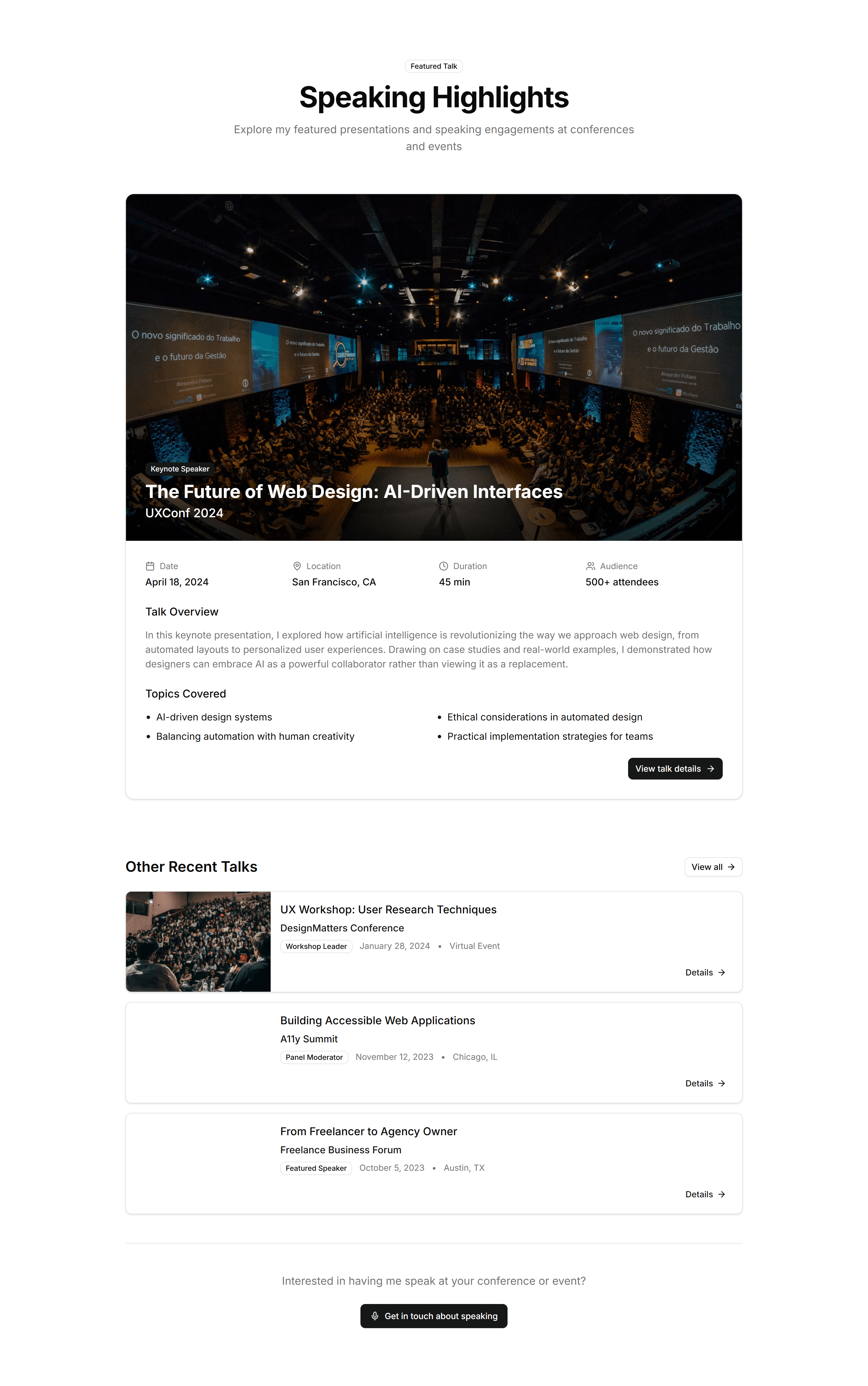
Portfolio Event Speaking And Workshop: Featured Talk Highlight
A bold featured talk layout pairing a large title with imagery and key facts. Draws extra attention to your most notable conference appearance.
Portfolio Event Speaking And Workshop: Timeline Speaking Engagements
A vertical timeline charting talks and workshops in date order. Use it to show how your speaking history has grown across many events over time.
Portfolio Event Speaking And Workshop: Video Recording Embed
A section embedding a recorded talk video alongside its title and context. Lets visitors watch you present without ever leaving your portfolio.
Portfolio Featured Work Highlight: Carousel Of Featured Projects
A carousel that slides through featured projects one at a time, each with a cover image and title. Use it to spotlight your best work on a portfolio home page.
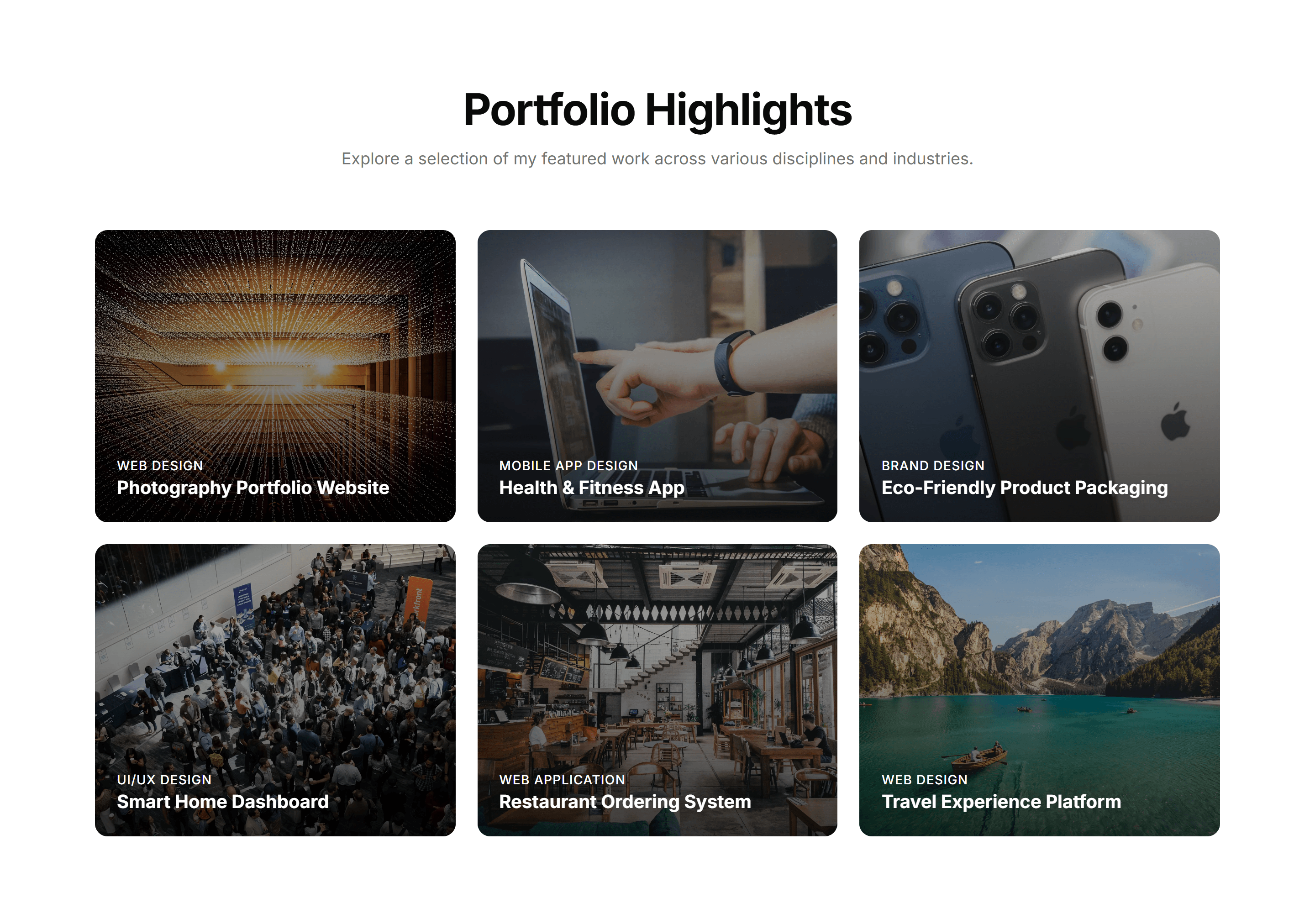
Portfolio Featured Work Highlight: Interactive Hover Reveal
A grid of project thumbnails that reveal a title, role, and link on hover. Use it to keep a portfolio index clean while exposing detail on demand.
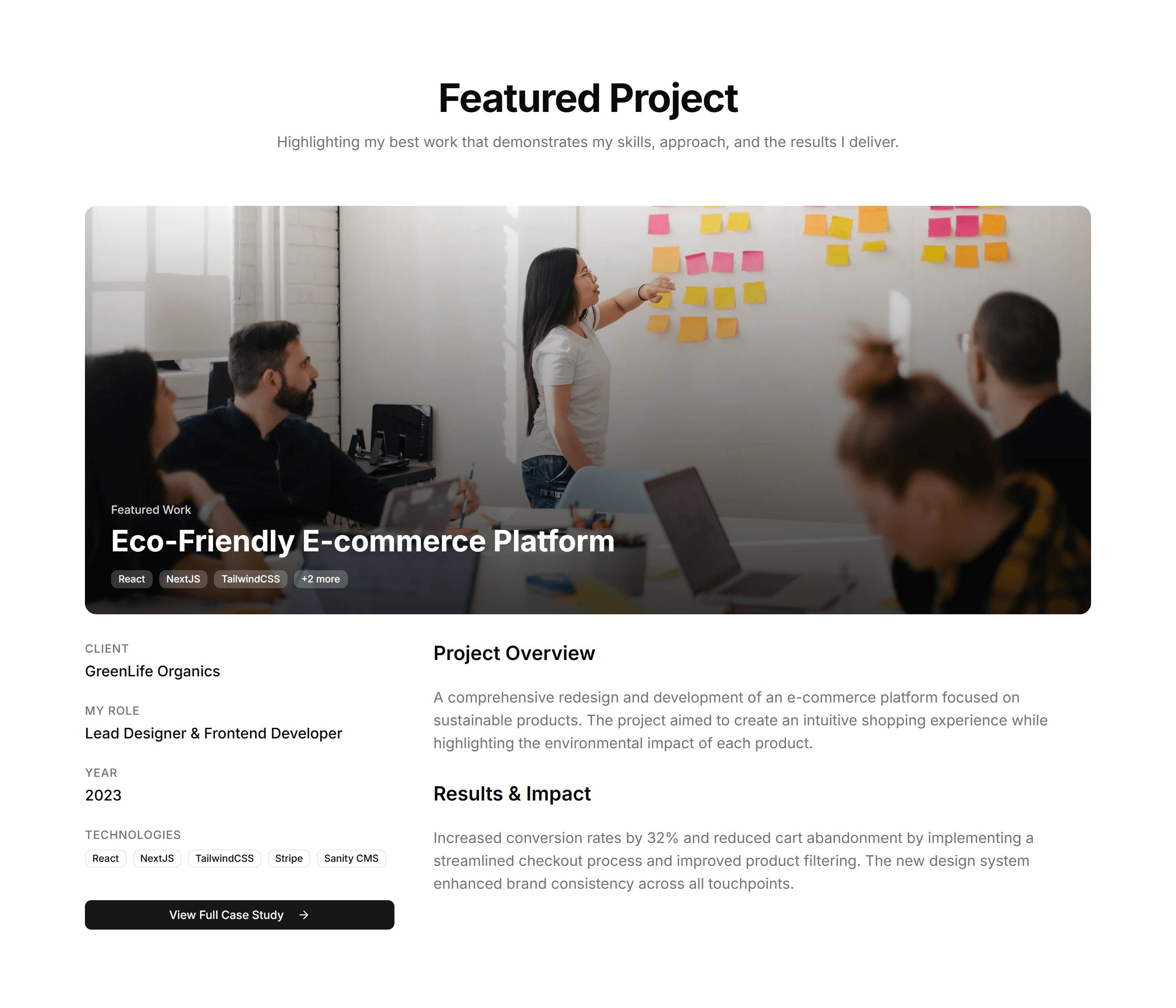
Portfolio Featured Work Highlight: Large Hero Project Display
A full width hero that frames one flagship project with a big image, title, and short summary. Use it to open a case study or anchor a portfolio.
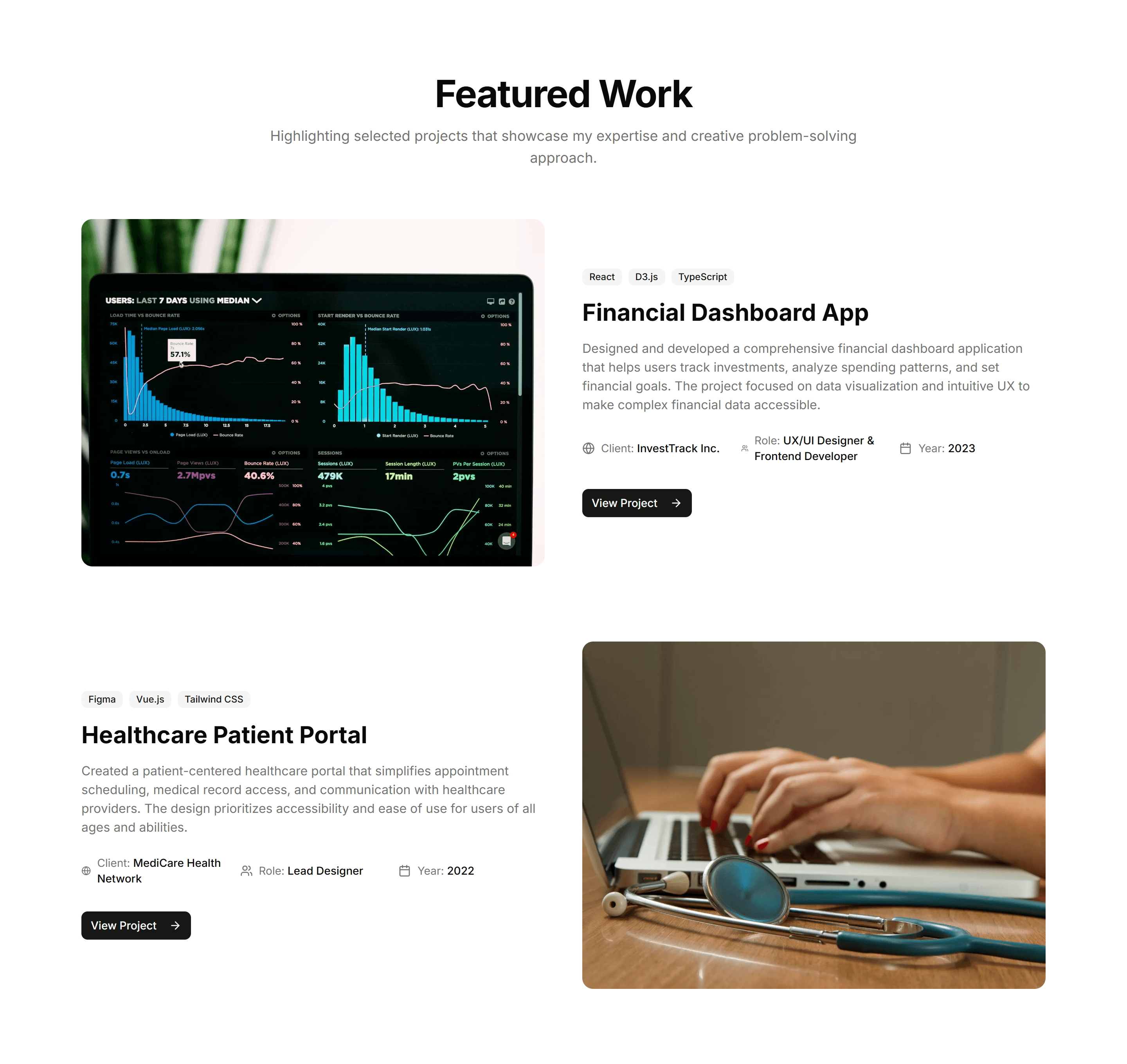
Portfolio Featured Work Highlight: Split Image And Details Layout
A two column layout pairing a project screenshot with details and a link beside it. Use it to present featured work with room for context and notes.
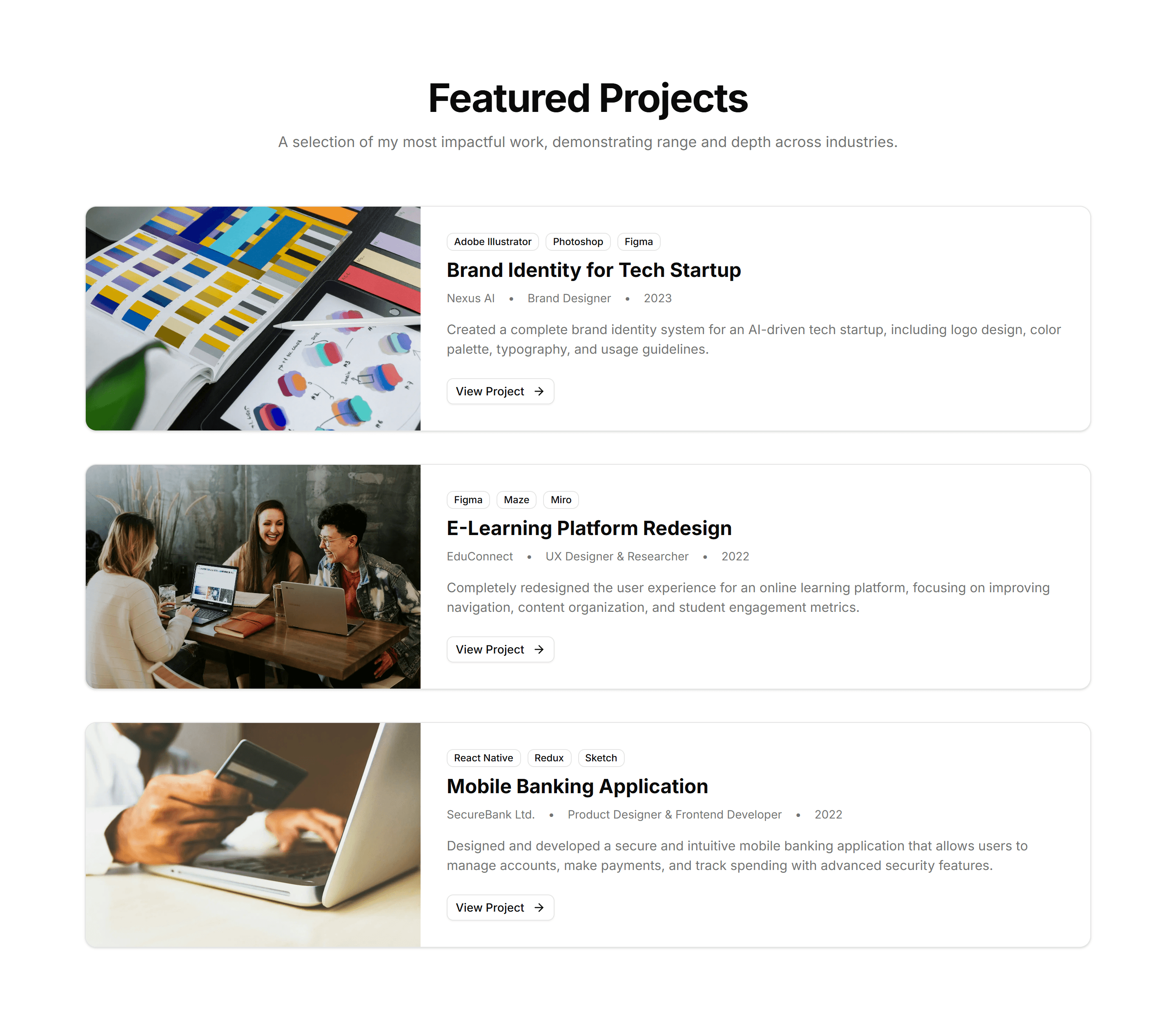
Portfolio Featured Work Highlight: Stacked Highlight Cards
A vertical stack of project cards, each holding an image, title, and tags. Use it to walk visitors through selected highlights in a clear reading order.
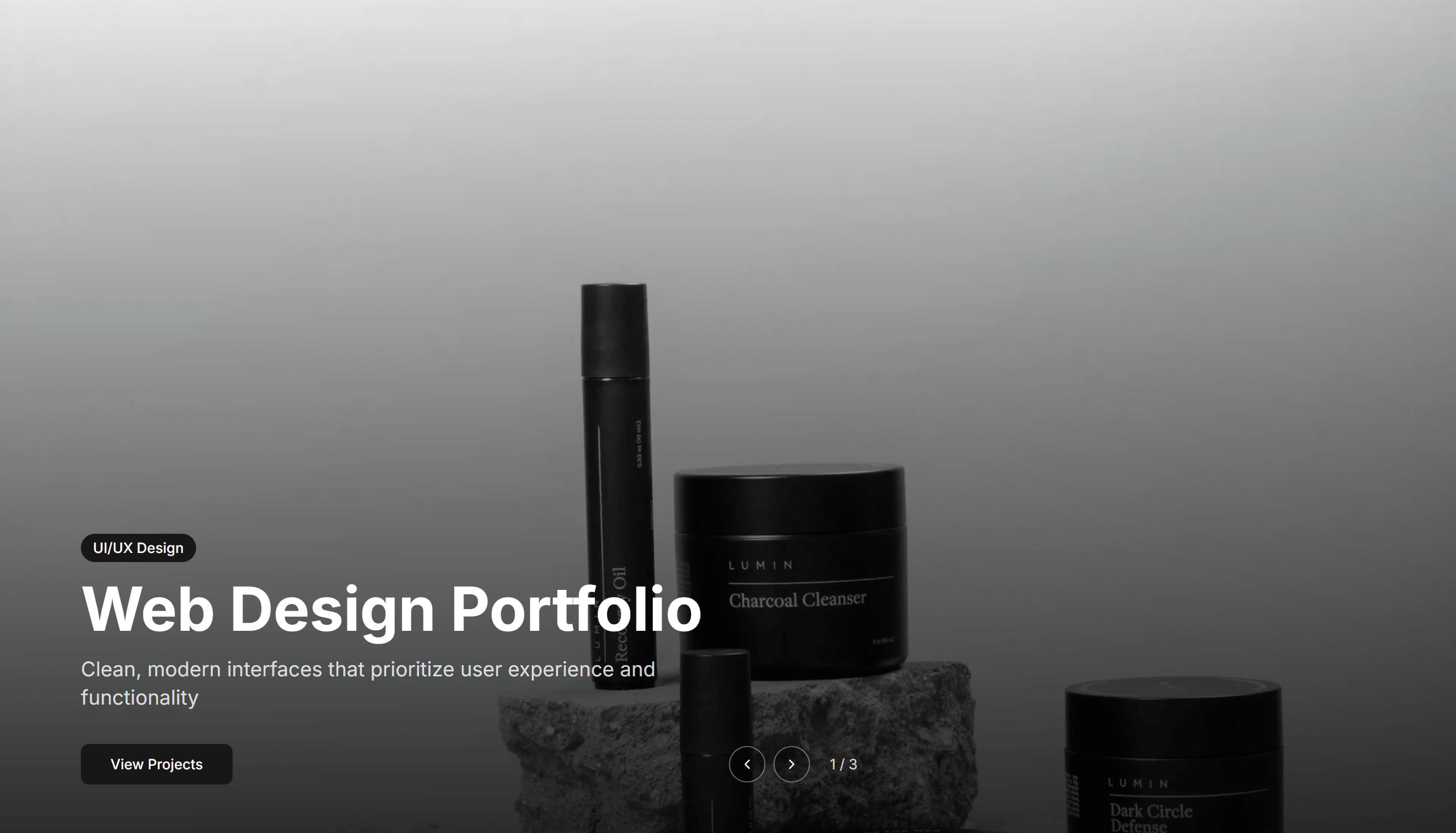
Portfolio Hero Showcase: Carousel Slider
A hero with a sliding carousel of images behind a headline and short intro. Use it to cycle through signature work the moment a portfolio loads.
Portfolio Hero Showcase: Floating Elements
A hero with floating shapes and images drifting around a centered headline. Use it to add motion and personality to a creative portfolio landing.

Portfolio Hero Showcase: Full Screen Centered
A full screen hero with a centered name, role, and tagline over a clean background. Use it to make a strong first statement on a personal site.
Portfolio Hero Showcase: Minimalist CTA
A spare hero with a short headline and one prominent call to action button. Use it when you want visitors to reach your work or contact fast.
Portfolio Hero Showcase: Split Layout
A hero split into a text column and an image column side by side. Use it to pair an introduction with a portrait or featured shot at the top of a page.
Portfolio Mission And Value: Grid Of Core Values
A grid of cards, each naming one core value with an icon and a short line of detail. Use it to lay out the principles behind your work at a glance.
Portfolio Mission And Value: Quote Values Combo
A layout that pairs a featured quote with a list of supporting values beside it. Use it to ground your mission in a memorable statement and proof.
Portfolio Mission And Value: Story First Narrative
A reading focused section that tells your origin story in flowing paragraphs. Use it to explain how a studio or person came to be and what drives it.
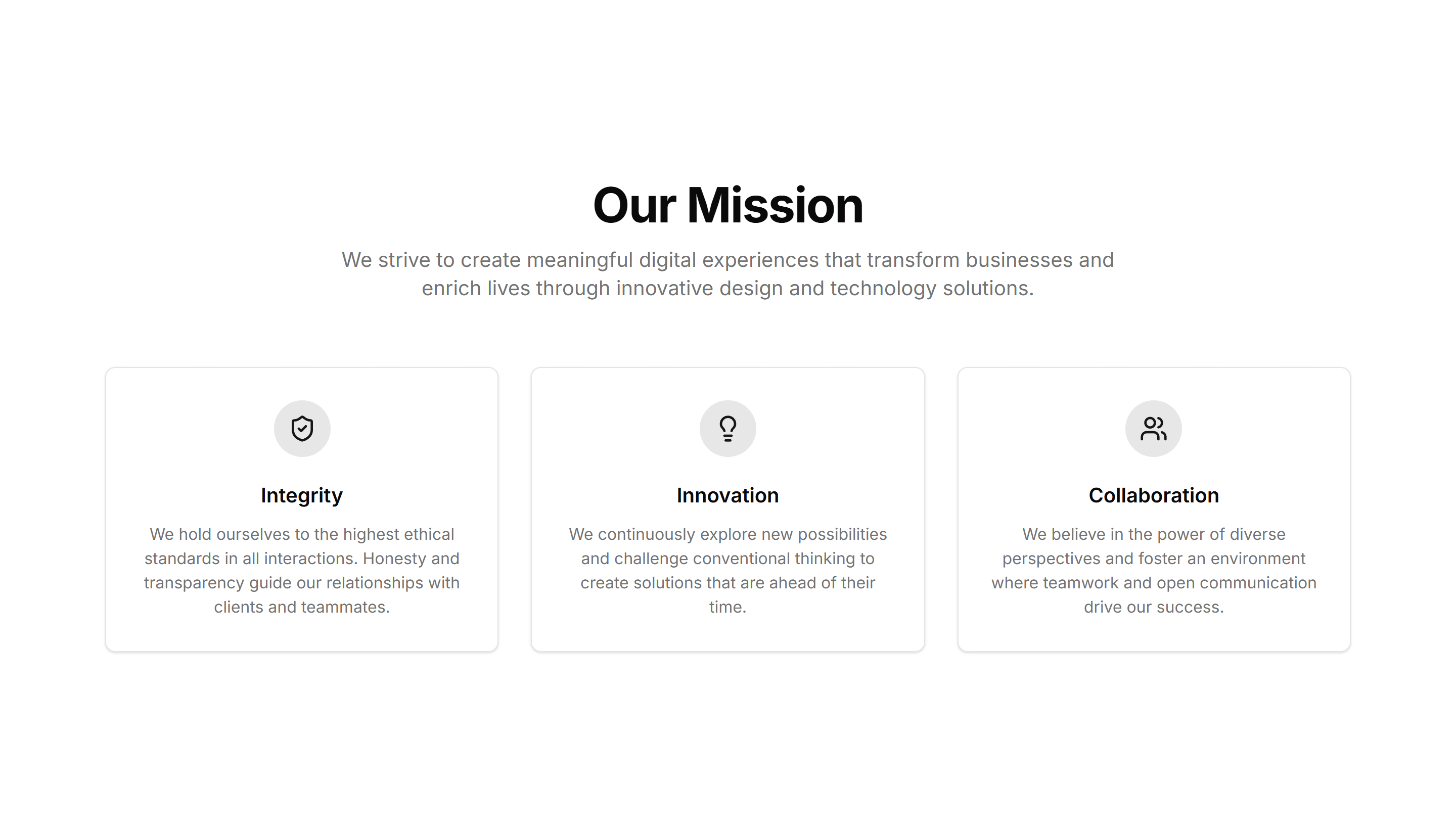
Portfolio Mission And Value: Three Pillars Layout
Three equal columns, each presenting one guiding pillar with a heading and text. Use it to summarize the ideas your practice is built around.
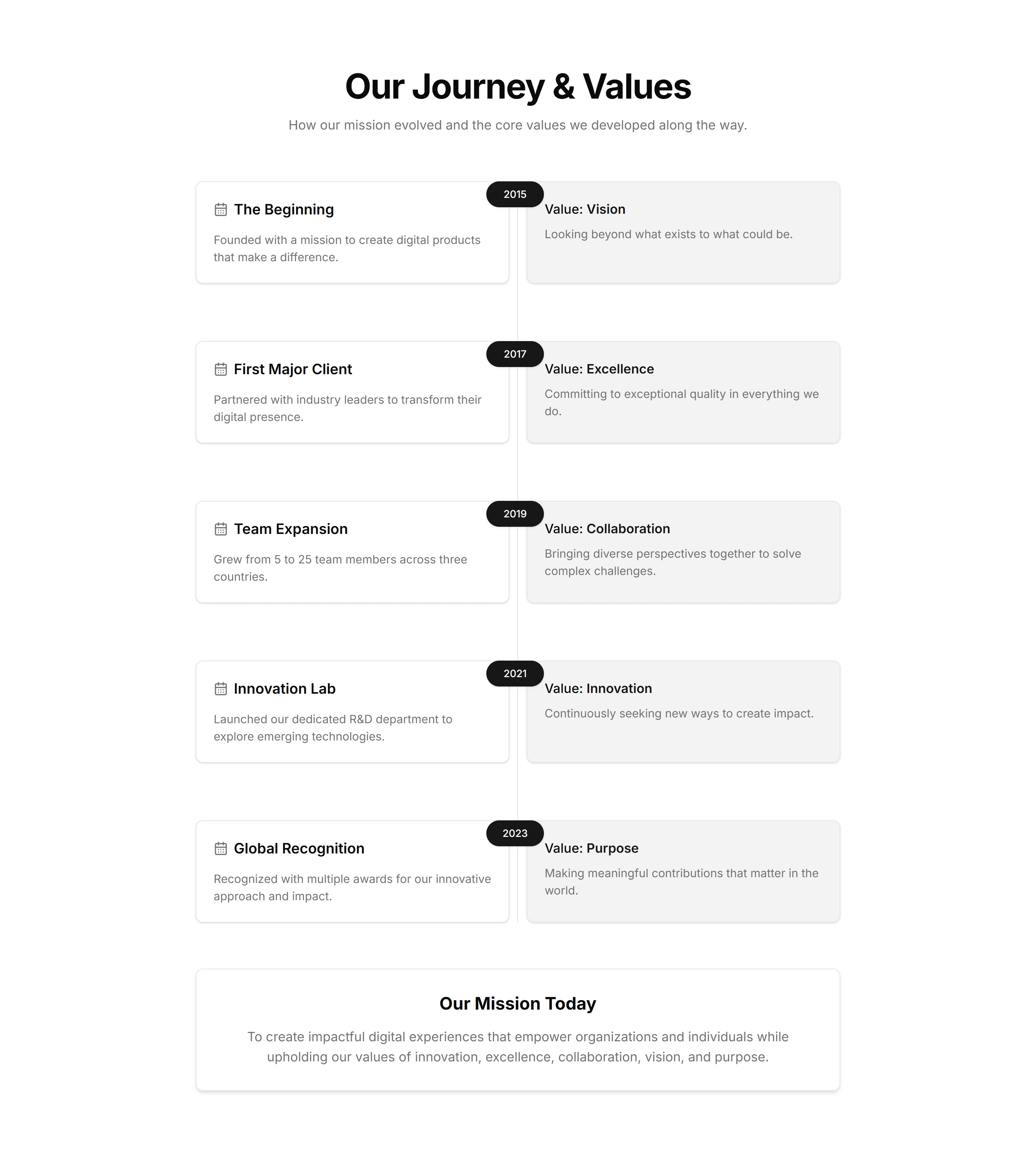
Portfolio Mission And Value: Vertical Step Timeline
A vertical timeline that marks milestones and values down the page in order. Use it to trace how your mission took shape over time for visitors.
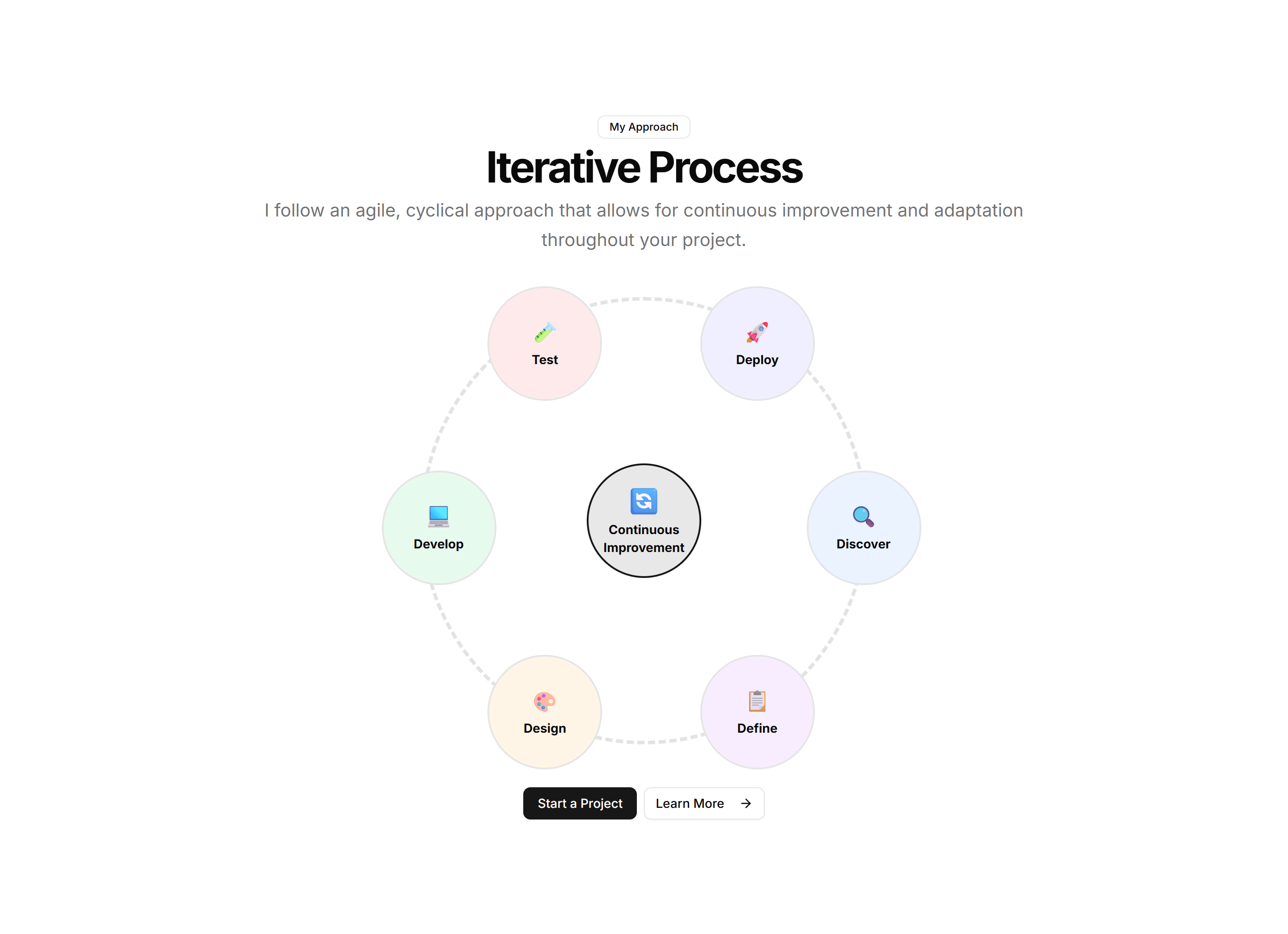
Portfolio Process And Approach: Cycle Diagram
A circular diagram showing the stages of your process as a repeating loop. Use it to convey an iterative way of working where steps feed back in.
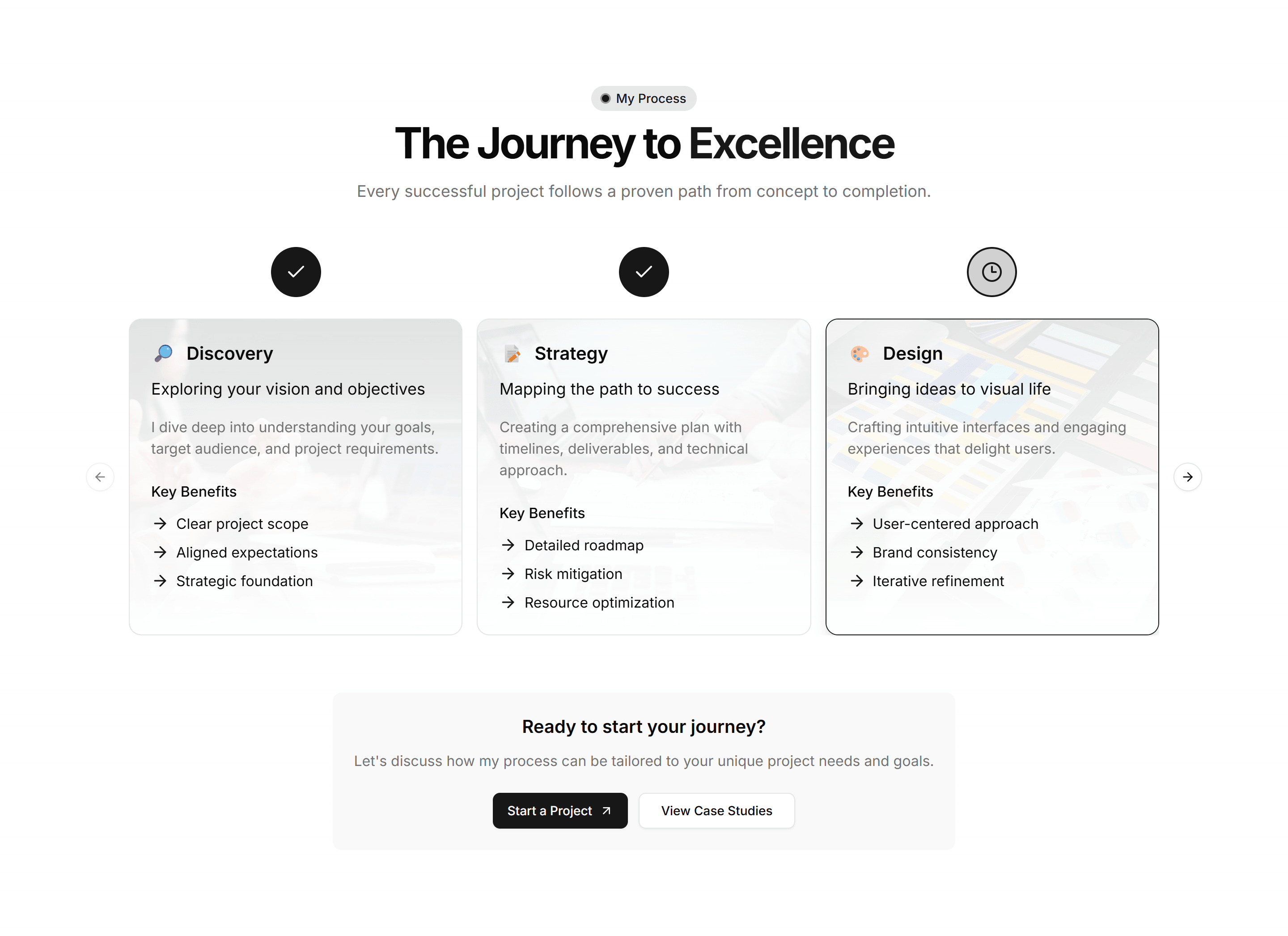
Portfolio Process And Approach: Horizontal Stepper
A horizontal row of numbered steps that lead the eye from start to finish. Use it to lay out a linear workflow across a single line on the page.
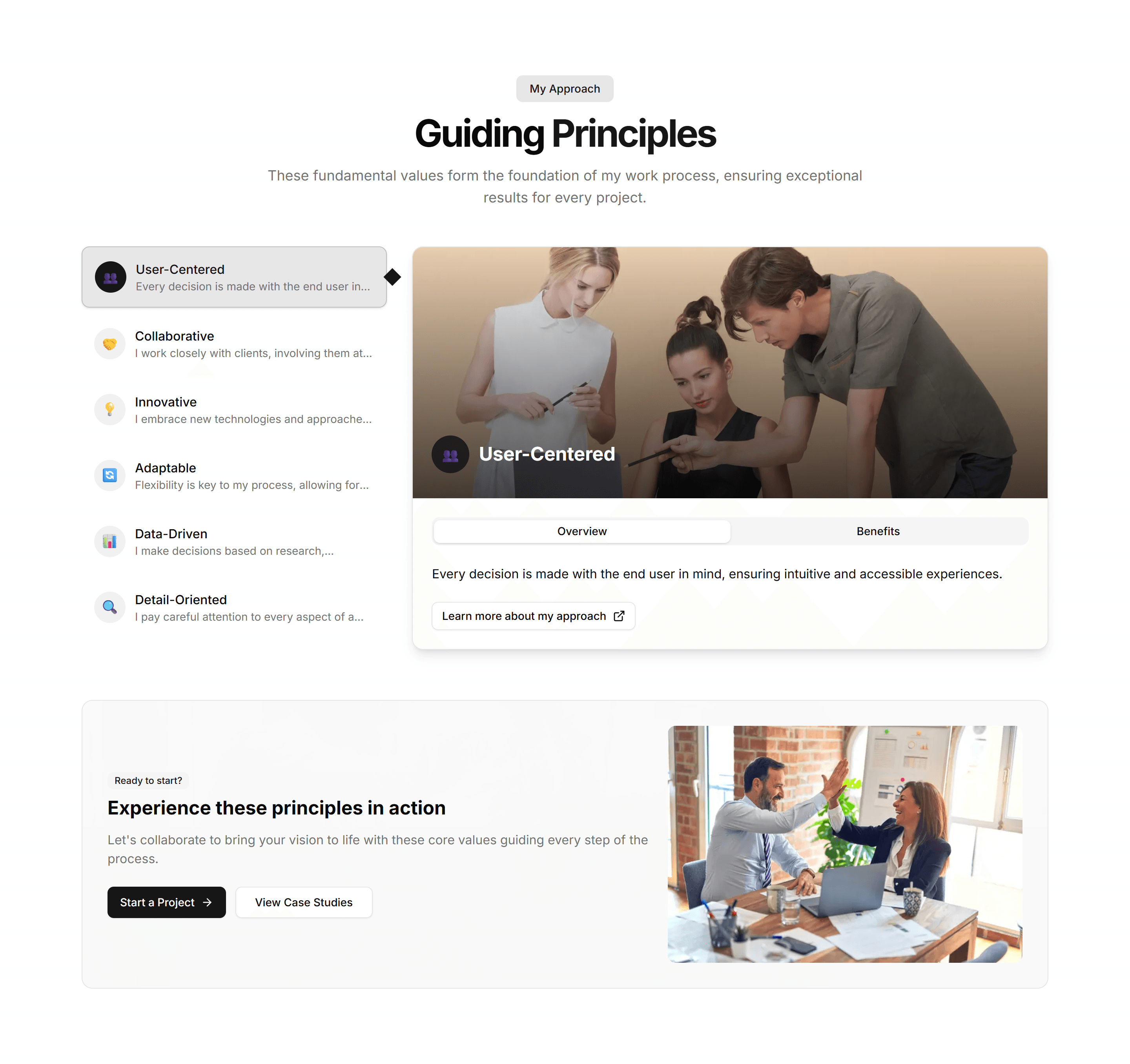
Portfolio Process And Approach: Process Principles
A section that lists the principles guiding how you tackle each project. Use it to state the beliefs behind your method alongside short explanations.
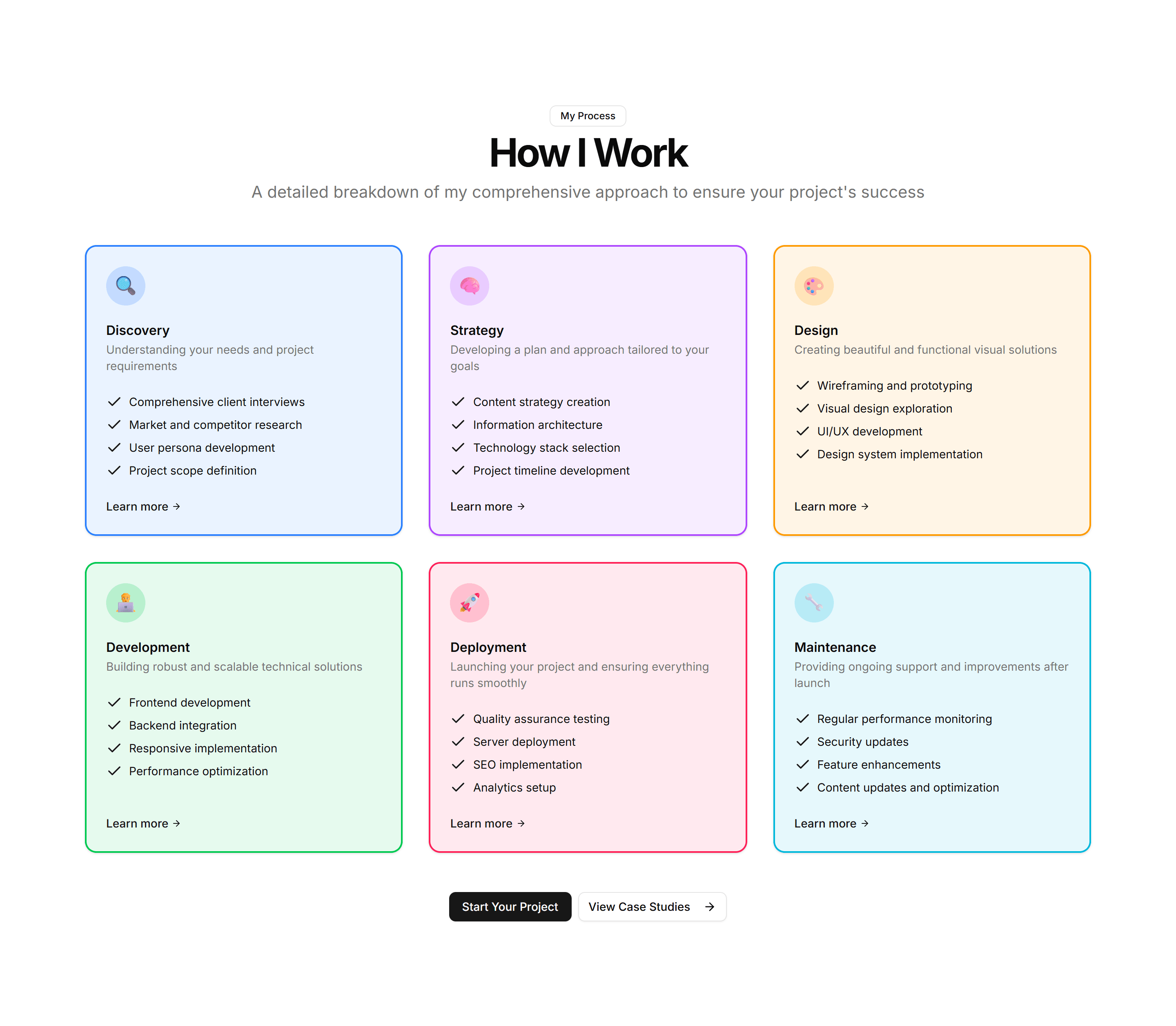
Portfolio Process And Approach: Stacked Cards
A vertical stack of cards, each describing one phase of your process in turn. Use it to walk a client through how an engagement unfolds step by step.
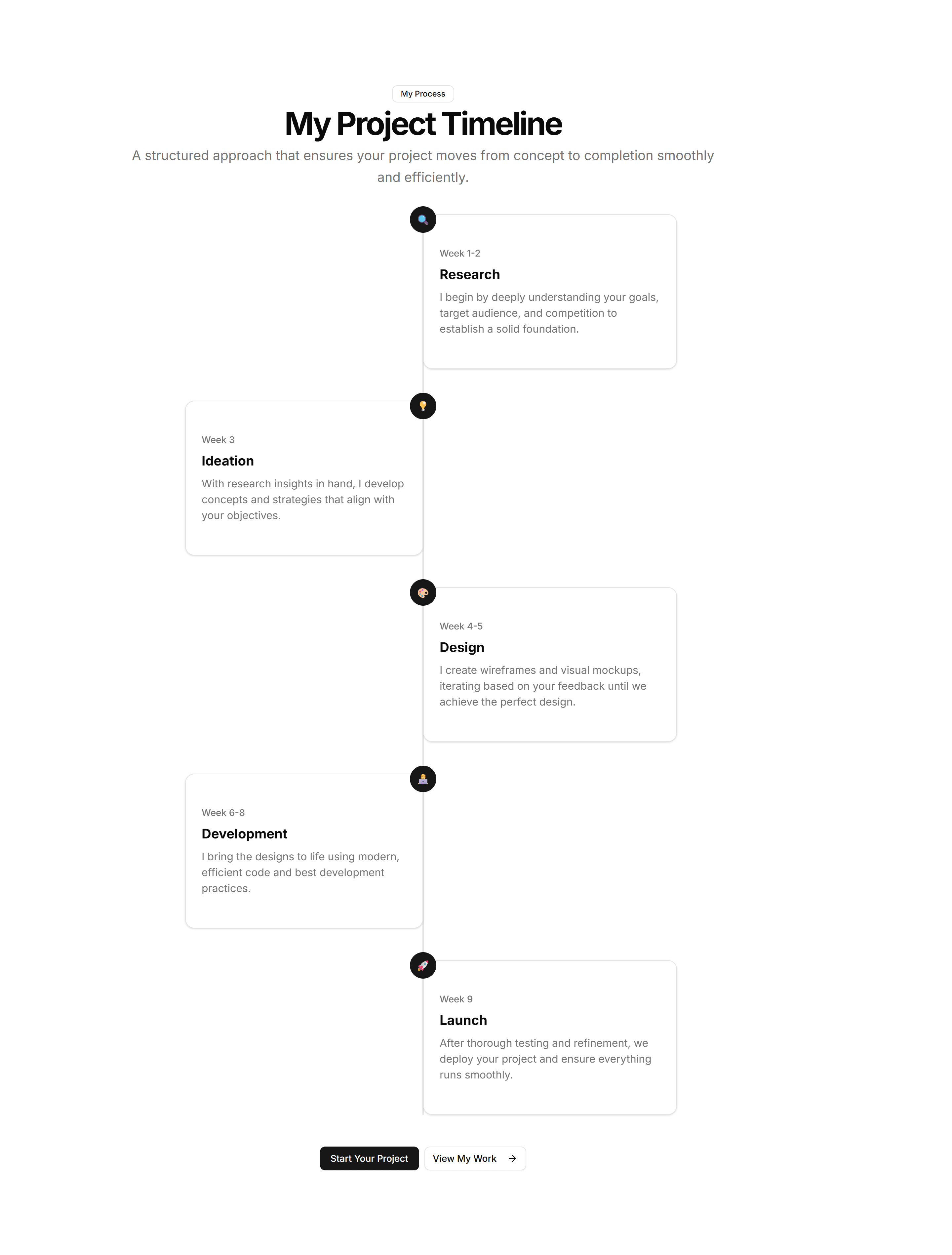
Portfolio Process And Approach: Vertical Timeline
A vertical timeline that maps each process phase down the page in sequence. Use it to show the path a project follows from kickoff through delivery.
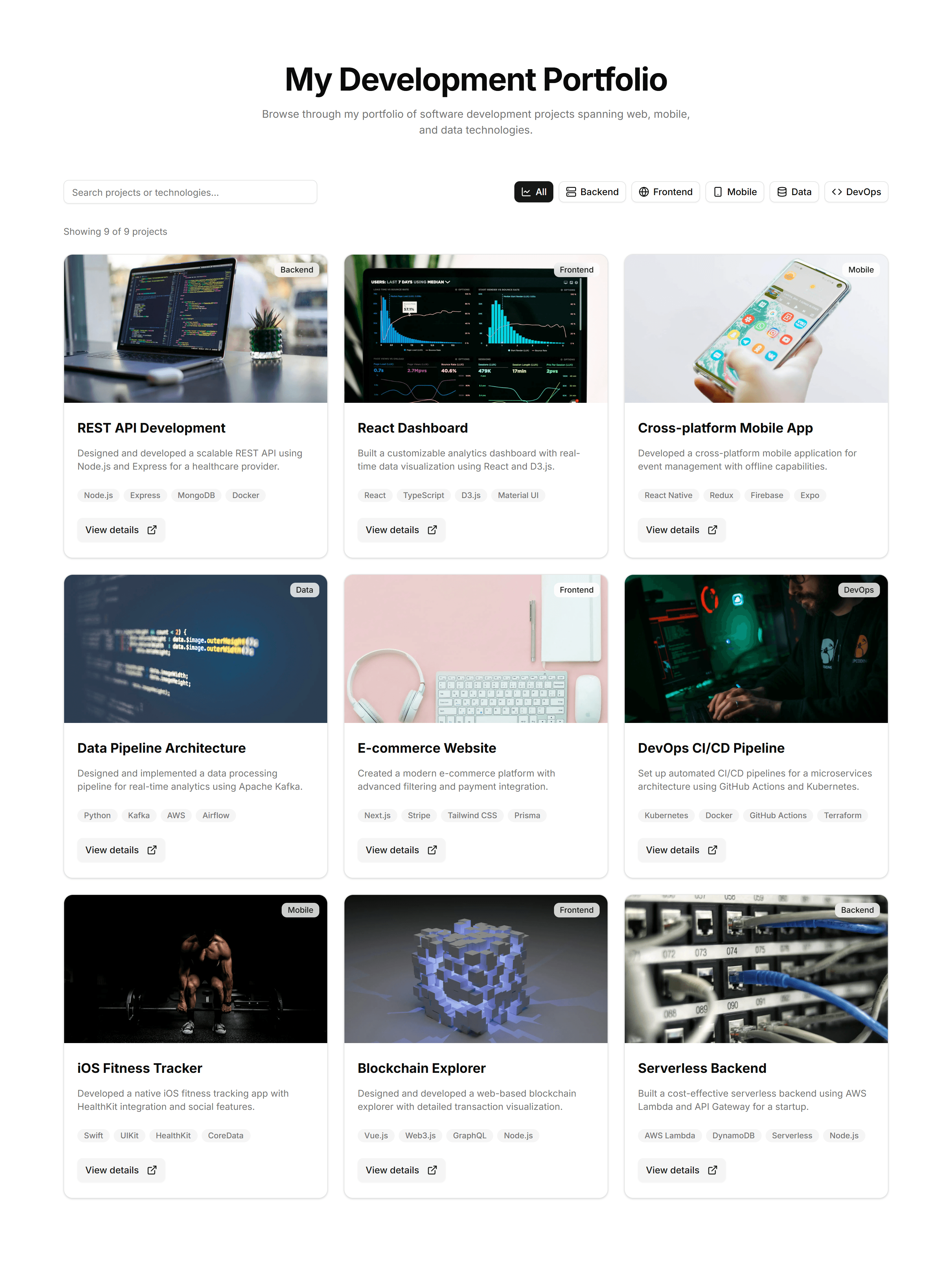
Portfolio Project Display: Filterable Grid
A project grid with category filters across the top so visitors narrow results by tag or type. Use it when a portfolio holds varied work across many fields.
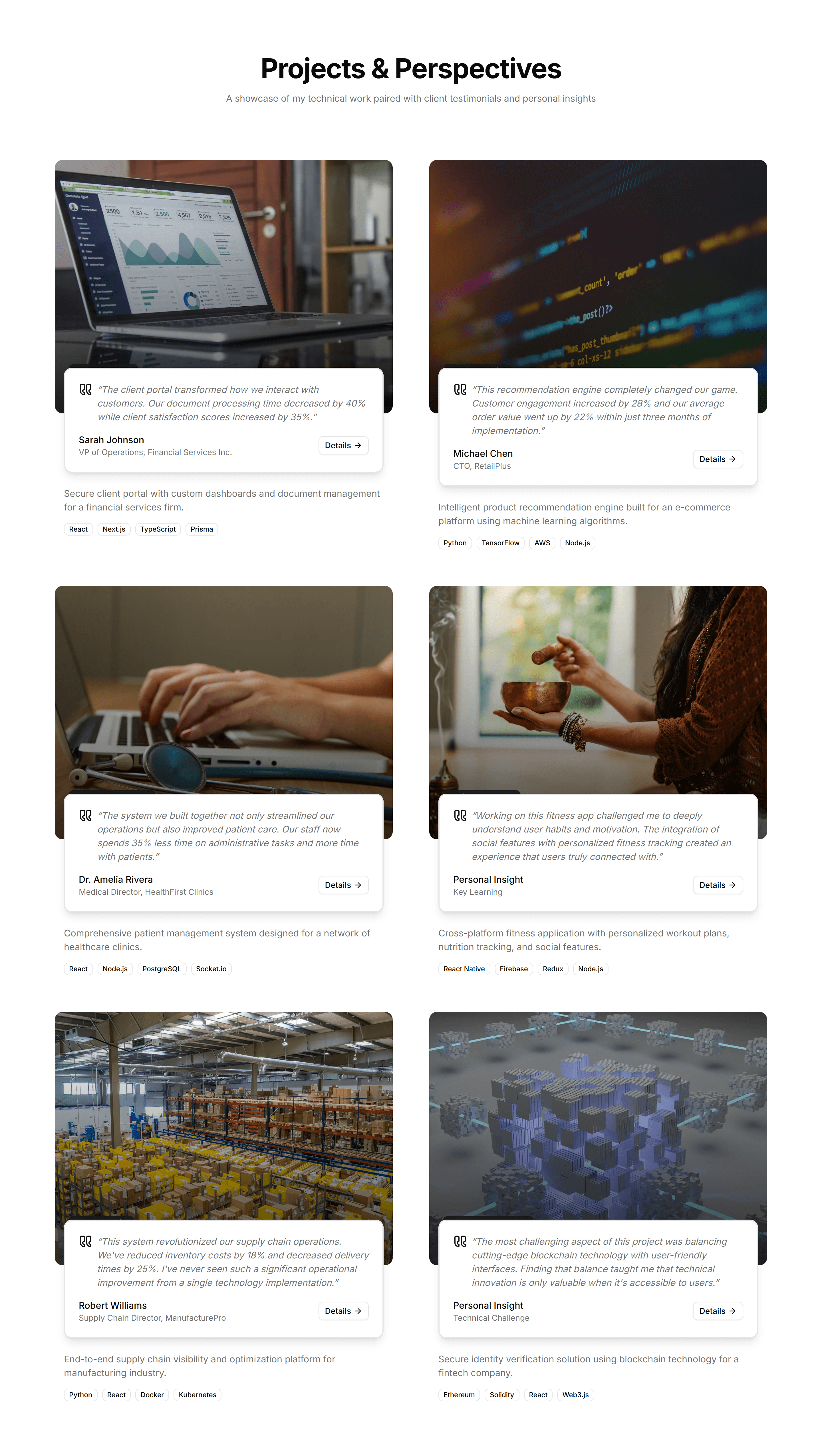
Portfolio Project Display: Quote Stack
A vertical stack of client quotes paired with project names and roles. Use it to weave testimonials into a project page and back up your results with words.
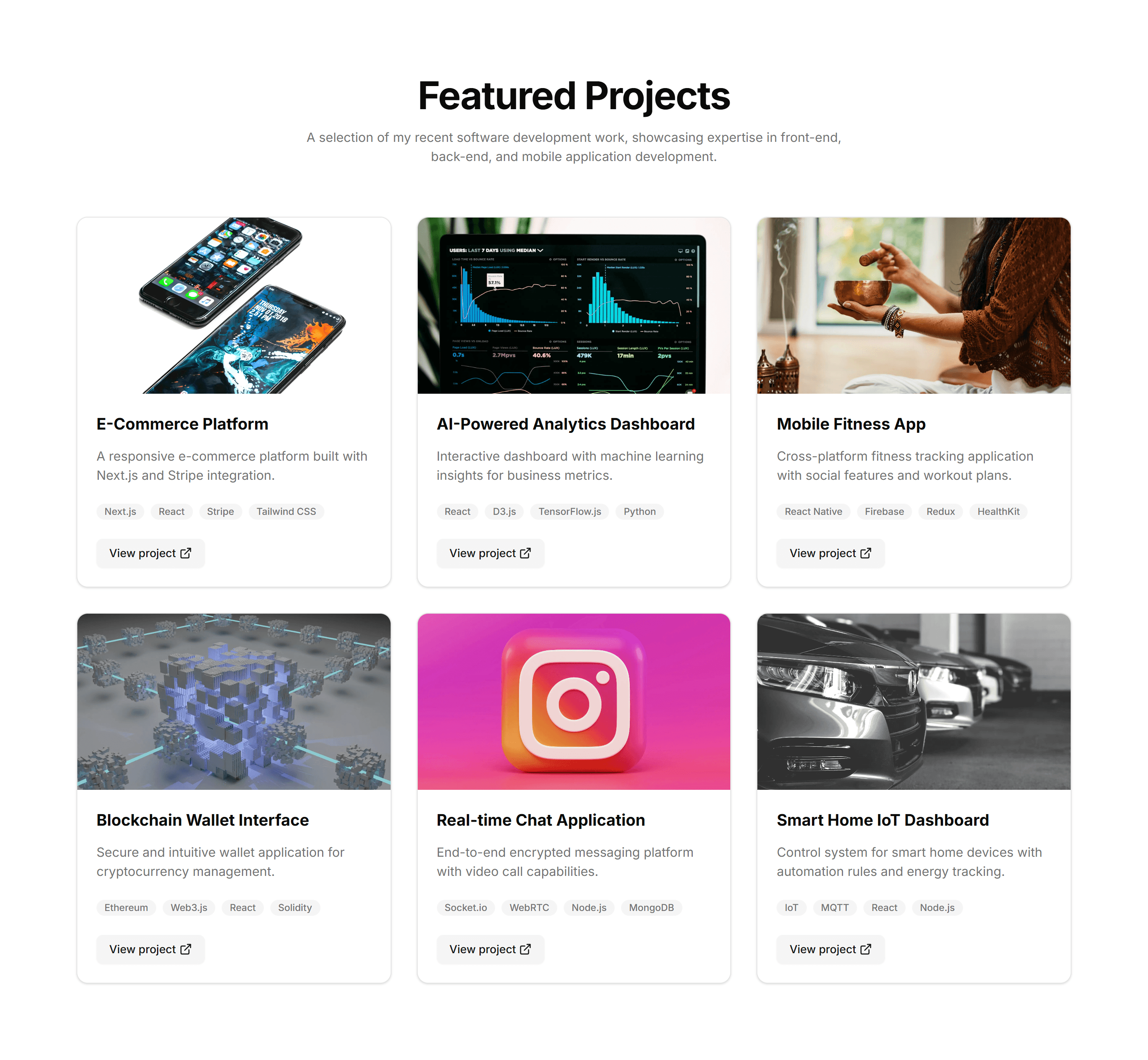
Portfolio Project Display: Standard Grid
An even grid of project cards, each with a cover image, title, and short caption. Use it as the main index for browsing a portfolio at a glance.
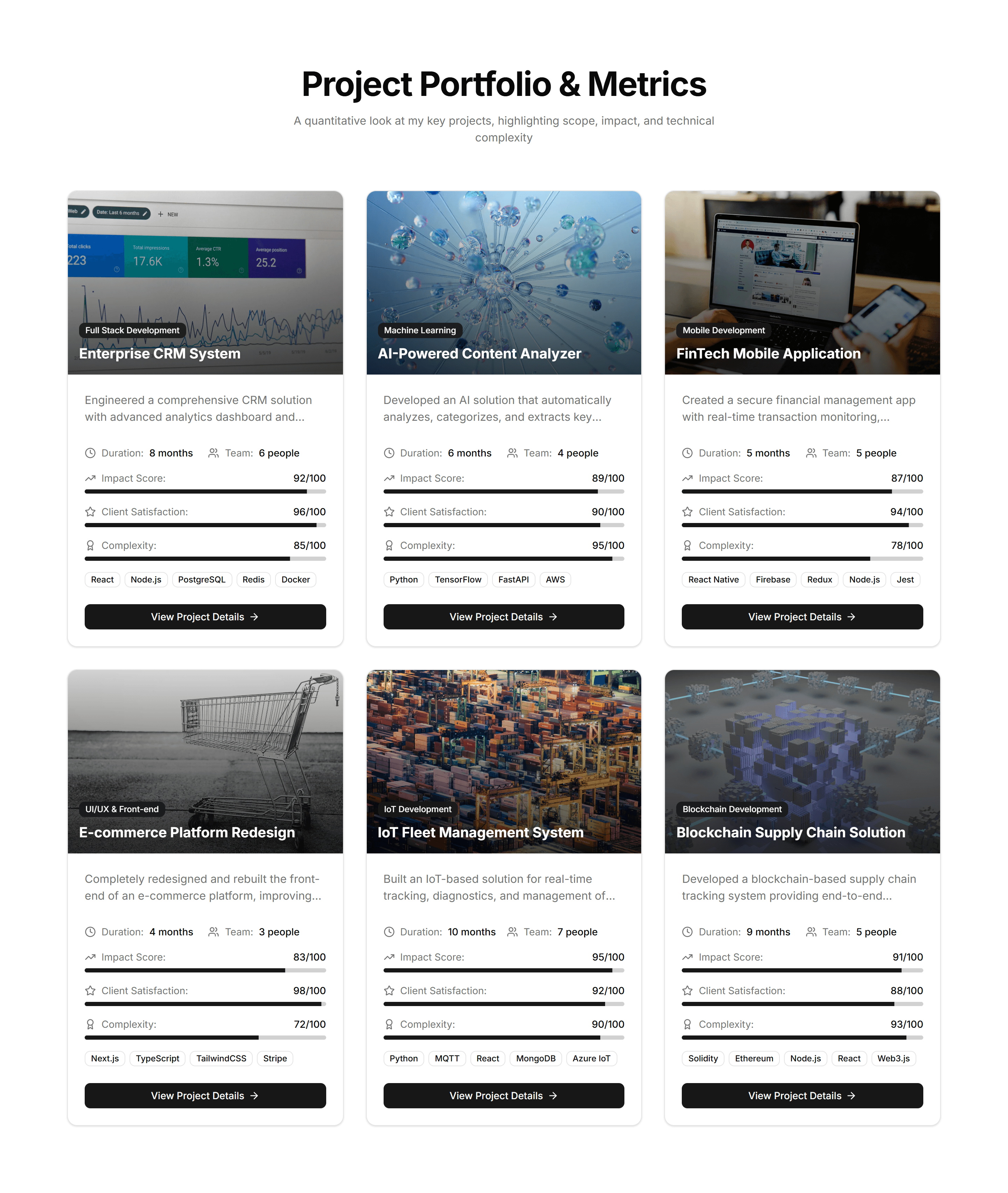
Portfolio Project Display: Stats Cards
A row of cards calling out key numbers like projects shipped, clients, and years active. Use it to quantify your track record near the top of a portfolio.
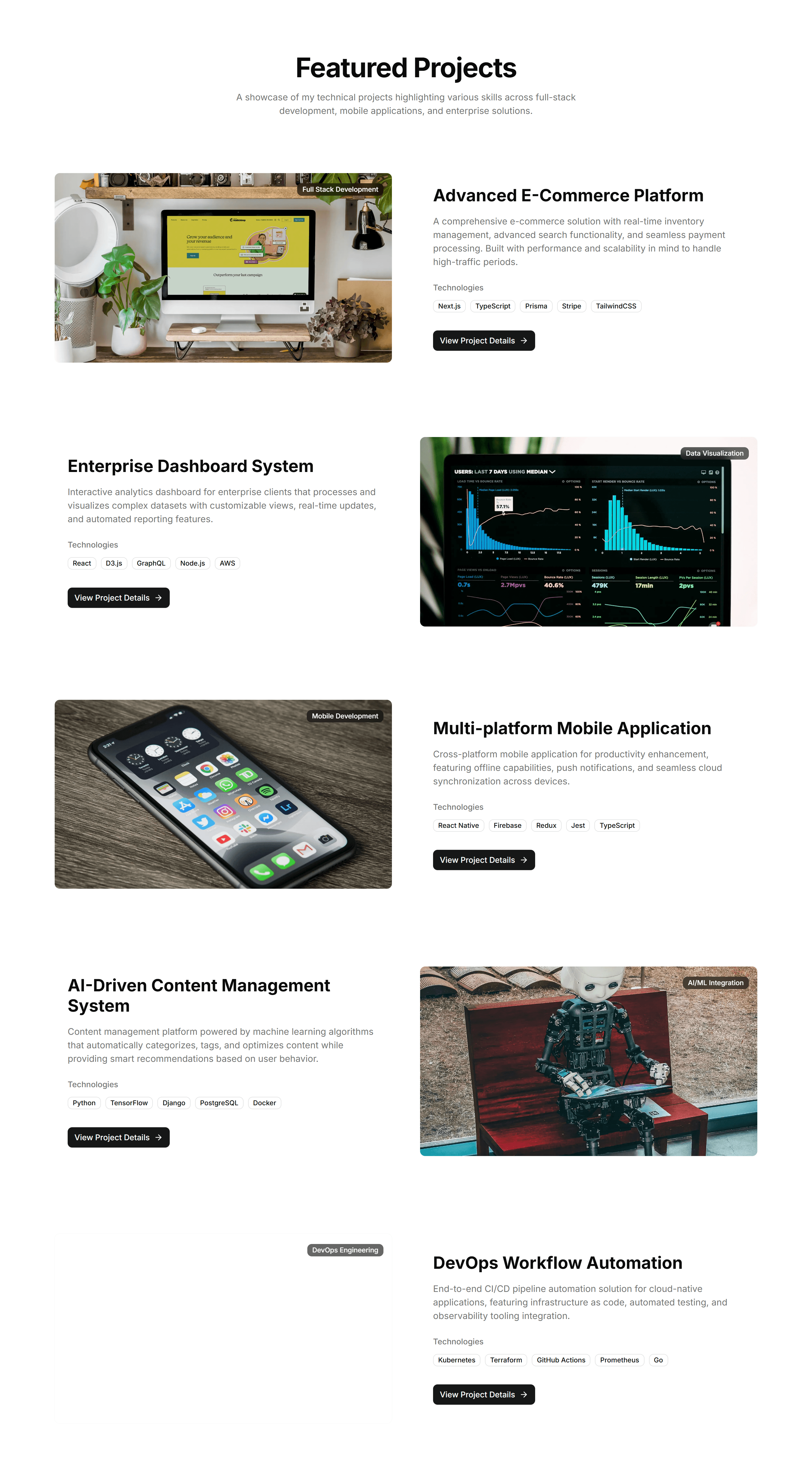
Portfolio Project Display: Zigzag Layout
Alternating rows that flip image and text side to side down the page. Use it to give each project room to breathe with a clear narrative flow.
Portfolio Quote And Feedback: Base
A clean quote block with the testimonial text, author name, and role. Use it as a simple starting point to add one piece of client feedback to any page.
Portfolio Quote And Feedback: Grid Of Quotes
A grid that arranges several short client quotes side by side with names and roles. Use it to gather feedback from many clients in one compact section.
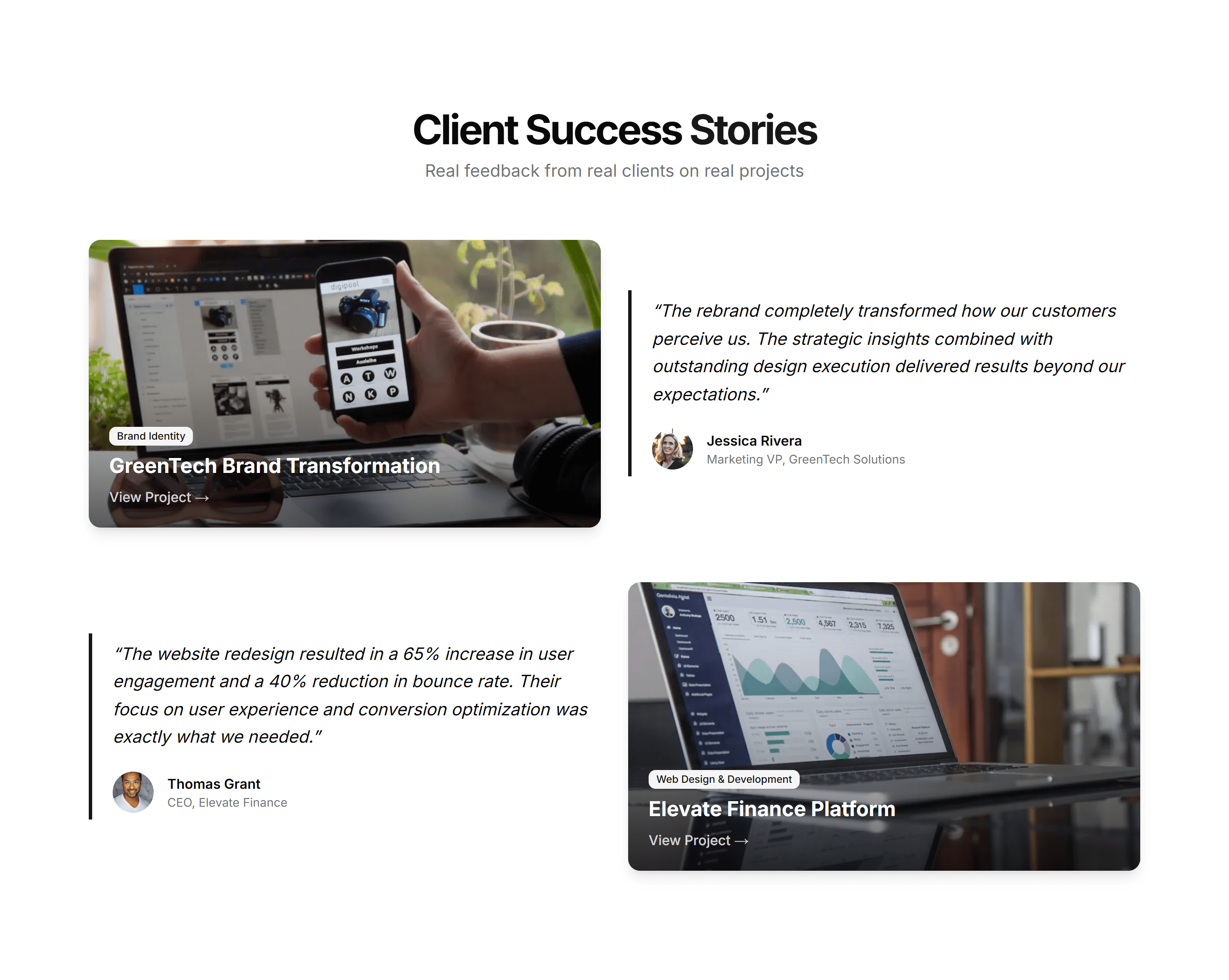
Portfolio Quote And Feedback: Quote With Project Context
A testimonial paired with the project it refers to, including a thumbnail and link. Use it to tie praise directly to the work that earned it on a case study.
Portfolio Quote And Feedback: Scrollable Quote Carousel
A carousel that slides through client quotes one at a time with author details. Use it to rotate testimonials without crowding a portfolio page.
Portfolio Quote And Feedback: Single Quote Highlight
A large single quote set in generous space with the author name and title. Use it to feature one standout endorsement and let it carry real weight.
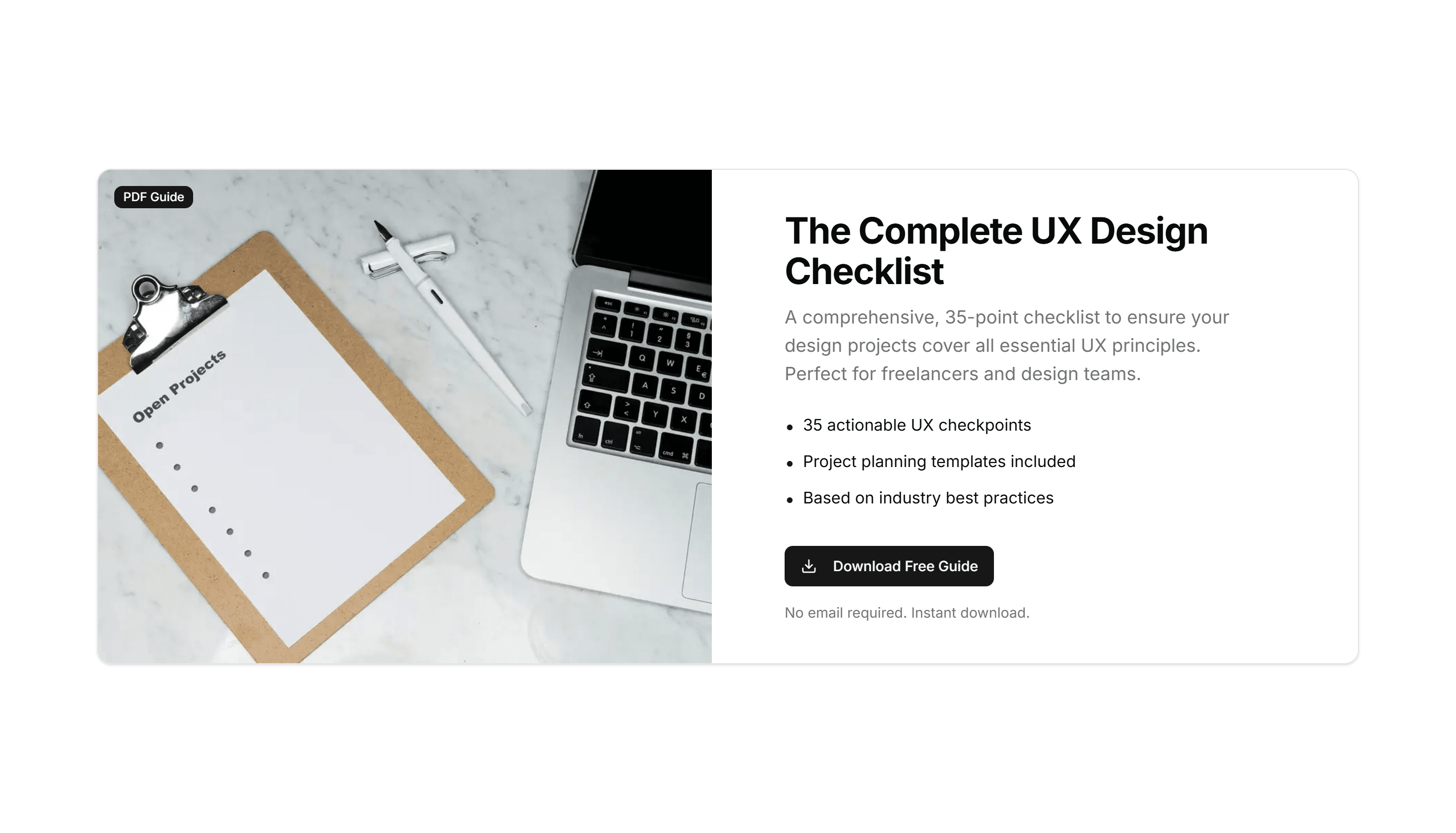
Portfolio Resource Download Section: Featured Resource Card
A prominent card spotlighting one downloadable resource with a cover, summary, and button. Use it to push a flagship guide or template to visitors.
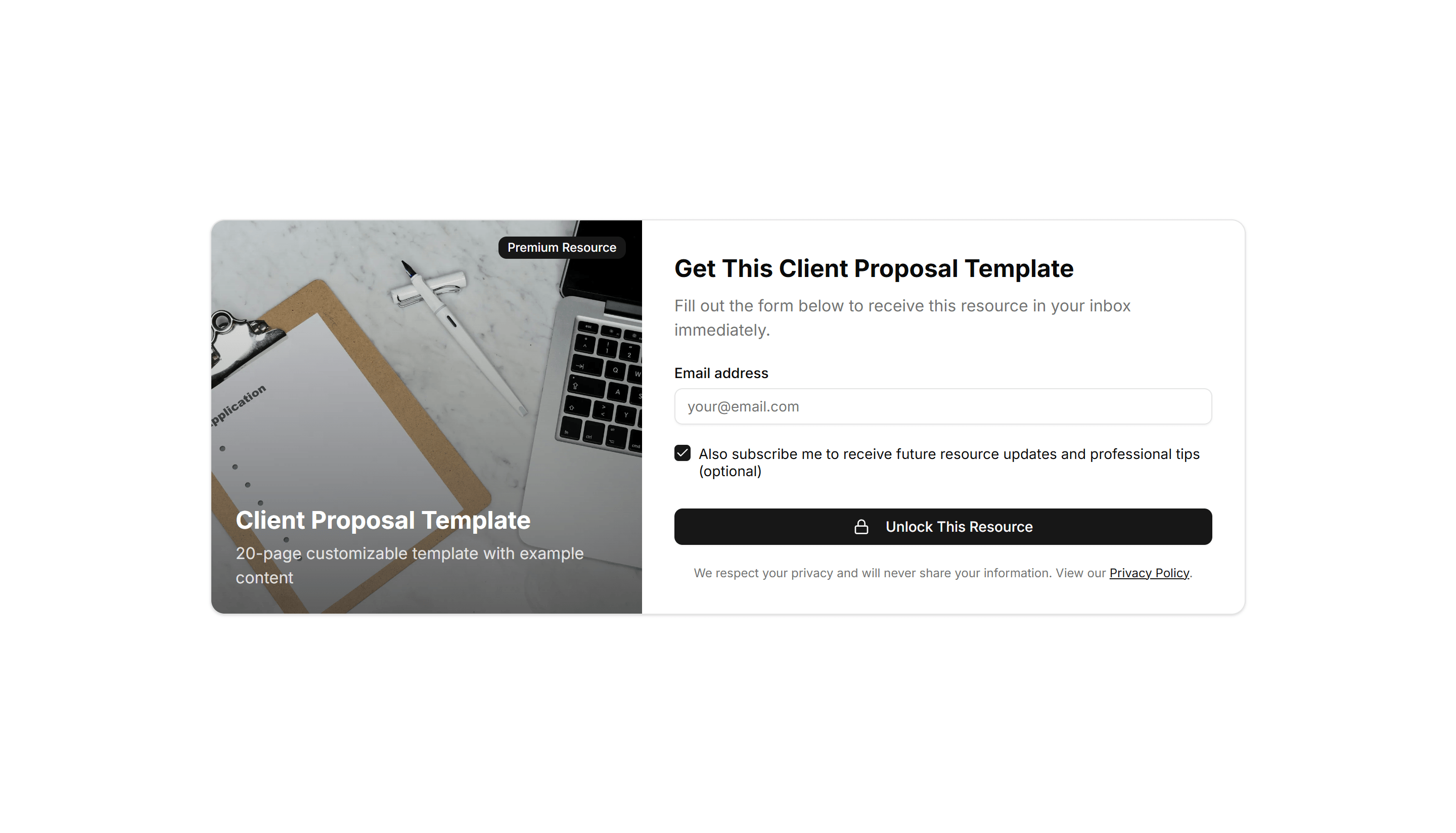
Portfolio Resource Download Section: Gated Download
A download offer behind a short email form so visitors trade contact details for the file. Use it to capture leads while sharing a guide or kit.
Portfolio Resource Download Section: Inline Resource Callout
A compact callout that slots into running text to point readers at a related file. Use it to surface a download right where it stays relevant.
Portfolio Resource Download Section: Minimalist Resource List
A plain vertical list of resources, each a title and a download link. Use it when you want a quiet, fast index of files with no extra clutter.
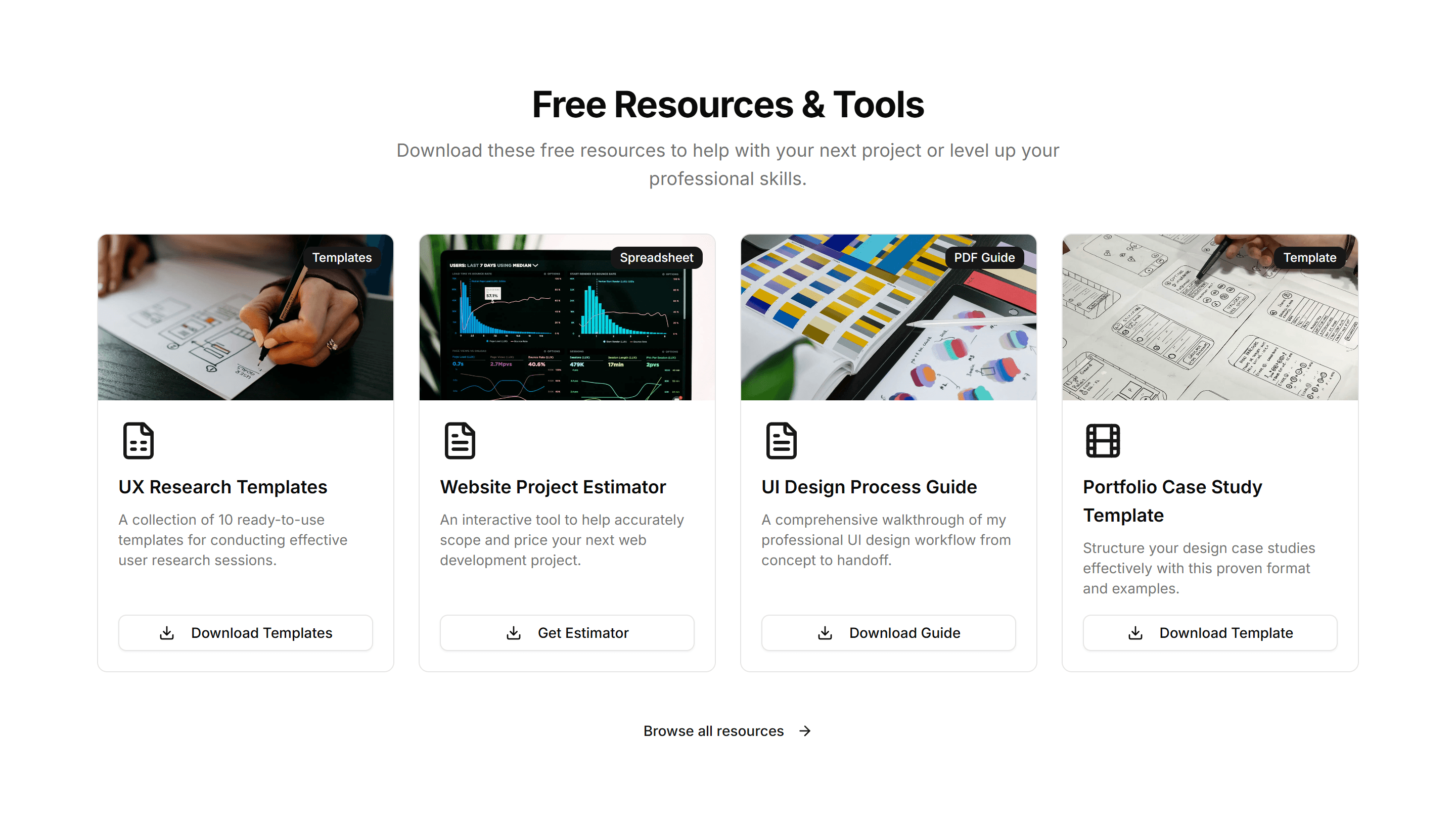
Portfolio Resource Download Section: Resources Grid
A grid of resource cards, each with an icon, title, and download action. Use it to present a full library of guides and templates in one tidy section.

Portfolio Resume And Download: Branded Document Icons Grid
A grid of document icons, each labeled and linked to a file like a resume or portfolio PDF. Use it to offer several downloads in one branded section.
Portfolio Resume And Download: Resume Cover Letter Combo
A paired offer that lets visitors grab both your resume and cover letter together. Use it on a hiring page where both documents matter to recruiters.
Portfolio Resume And Download: Resume With Short Bio CTA
A short bio next to a clear call to action that downloads your resume. Use it to introduce yourself and hand over your CV in one focused block.
Portfolio Resume And Download: Simple Download Button
A single clear button that downloads your resume in one click. Use it when you want the lightest possible way to share a CV on any portfolio page.
Portfolio Resume And Download: Split Layout
A two column block with your intro on one side and resume downloads on the other. Use it to balance a personal pitch with quick access to your files.
Portfolio Social Media Embed: Highlighted Post
A single featured post pinned in a clean card with avatar, caption, and engagement counts. Spotlights your best content when one example carries the message.
Portfolio Social Media Embed: Instagram Grid
A responsive photo grid that mirrors an Instagram profile layout with hover overlays for likes and comments. Use it to preview a visual feed on a portfolio.

Portfolio Social Media Embed: Social Icons Feed
A compact row of platform icons that link out to every profile you maintain. Drop it in a footer or sidebar so visitors can follow you anywhere fast.
Portfolio Social Media Embed: Tweet Carousel
A swipeable carousel of tweet cards with author, timestamp, and text. Rotate through recent posts or testimonials without stacking them down the page.
Portfolio Social Media Embed: YouTube Video Strip
A horizontal strip of YouTube thumbnails with titles and view counts. Place it on a channel page to let visitors scan and open videos in one click.
Portfolio Why Work With Me: Before After Comparison
A split panel that shows a project before and after your work with a draggable divider. Proves your impact visually when results speak louder than text.
Portfolio Why Work With Me: Bulleted Value Proposition
A scannable list of value points, each with an icon and short line. Summarizes what you deliver so visitors grasp your strengths in a few seconds.
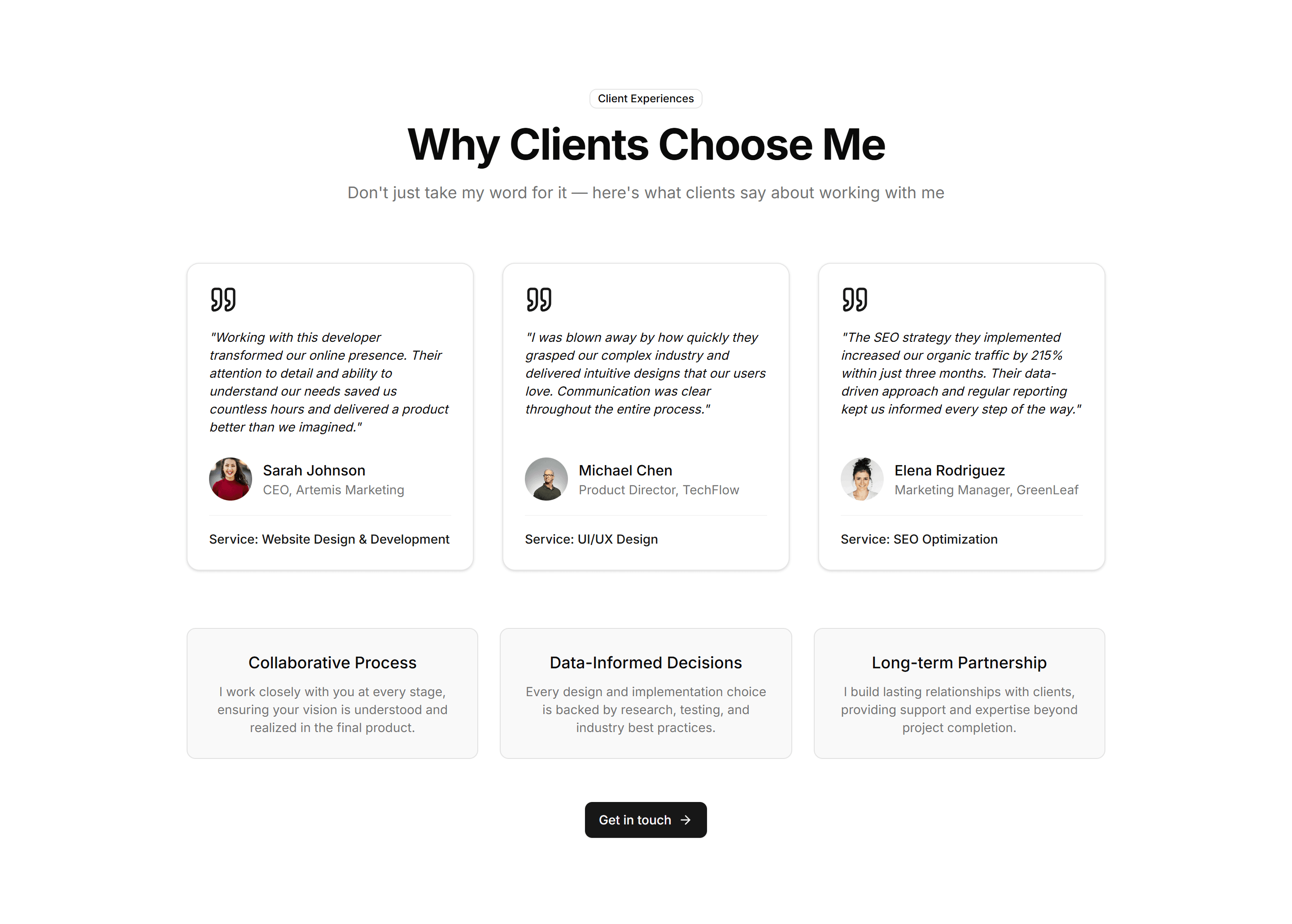
Portfolio Why Work With Me: Client Oriented Testimonials
Stacked testimonial cards framed around client outcomes, with quote, name, and role. Builds trust by letting past clients vouch for your results.
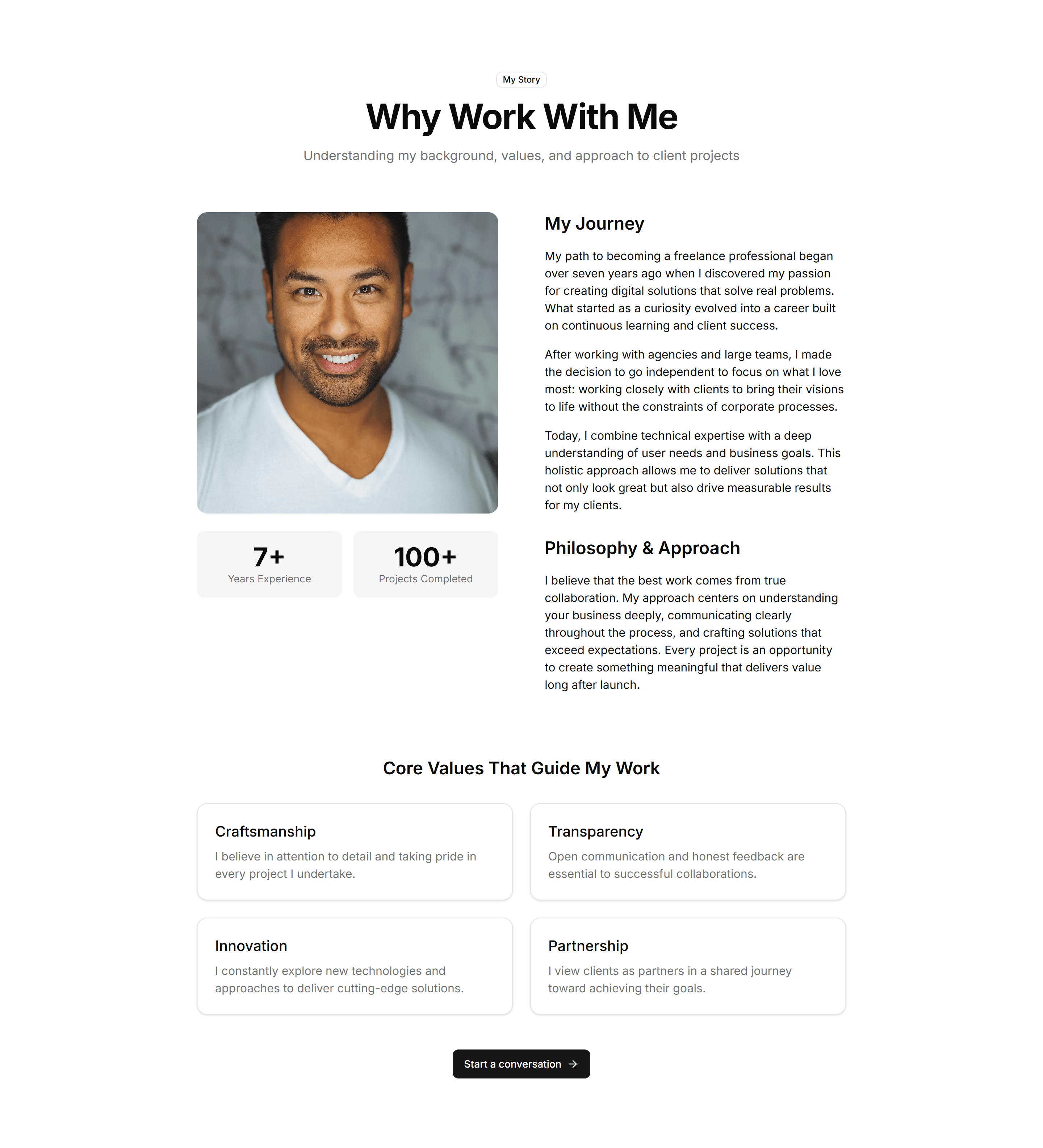
Portfolio Why Work With Me: Storytelling Approach
A narrative section that walks through your process in ordered steps with supporting copy. Use it to explain how you work and win over cautious buyers.
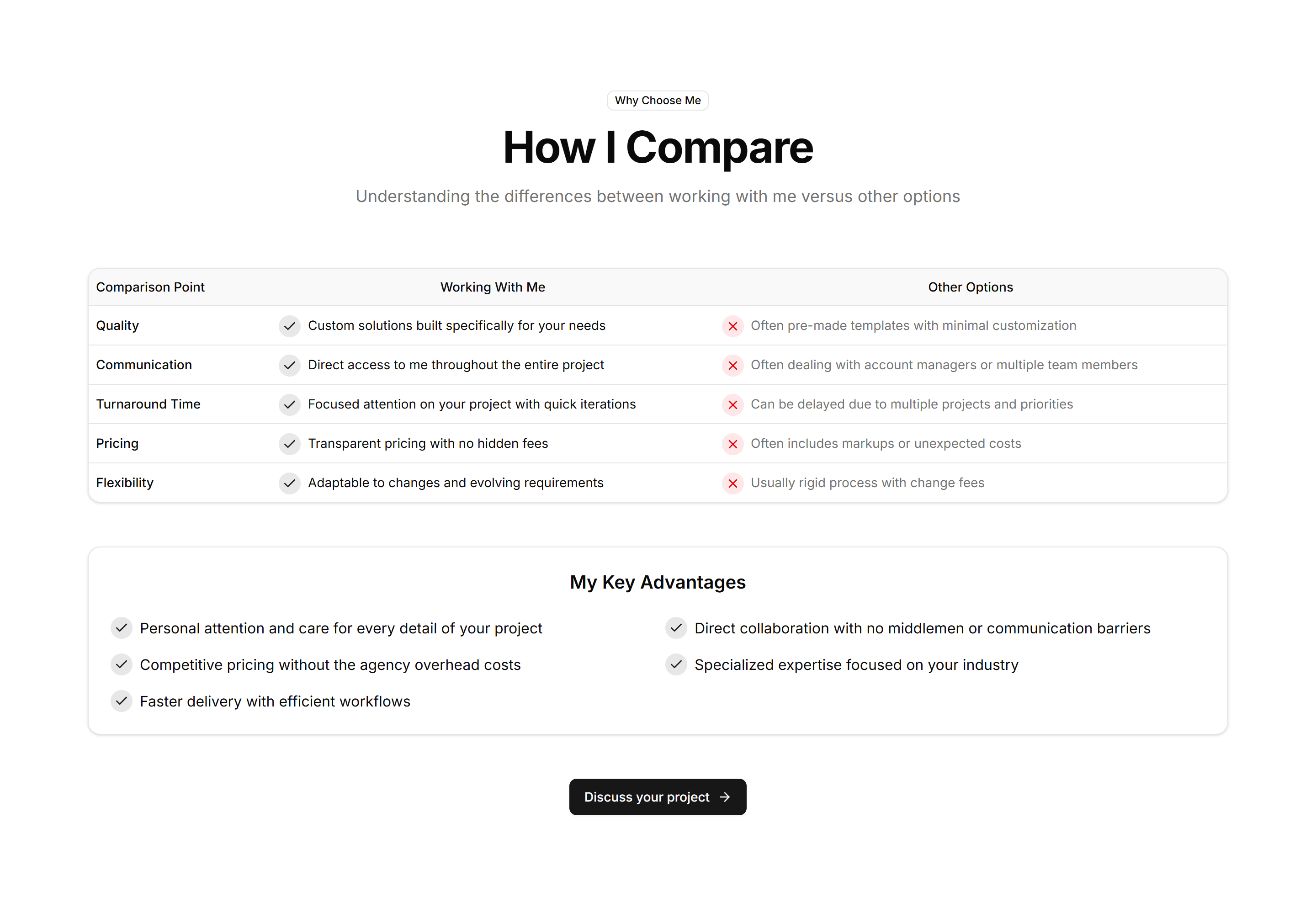
Portfolio Why Work With Me: Why Me Vs Competition
A two column comparison table contrasting your offer against typical alternatives. Helps undecided visitors see why you are the better choice at a glance.
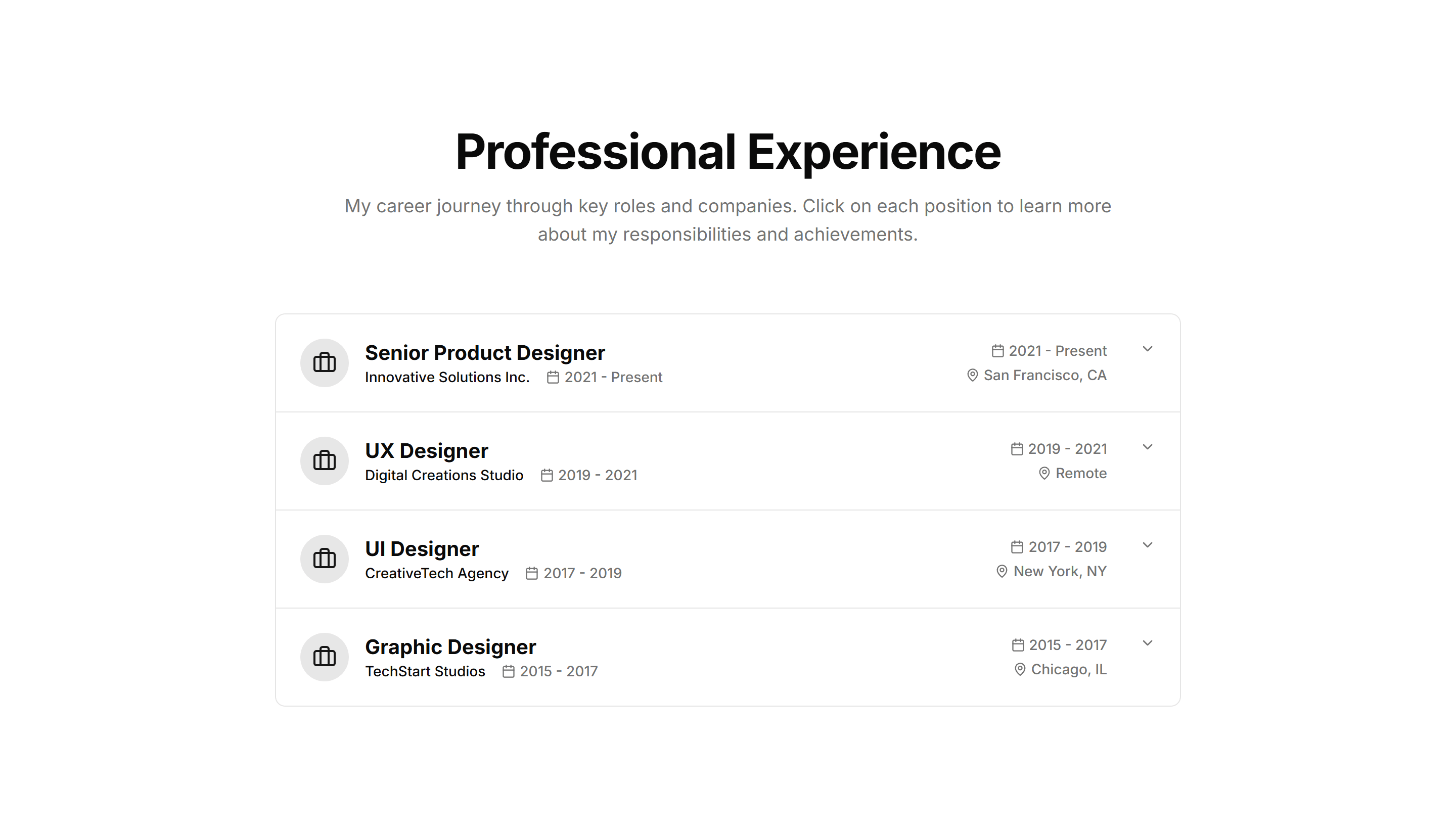
Portfolio Work Experience Card: Accordion Experience Cards
Collapsible role cards that expand to reveal duties and achievements on click. Keeps a long career history tidy while letting readers drill into detail.
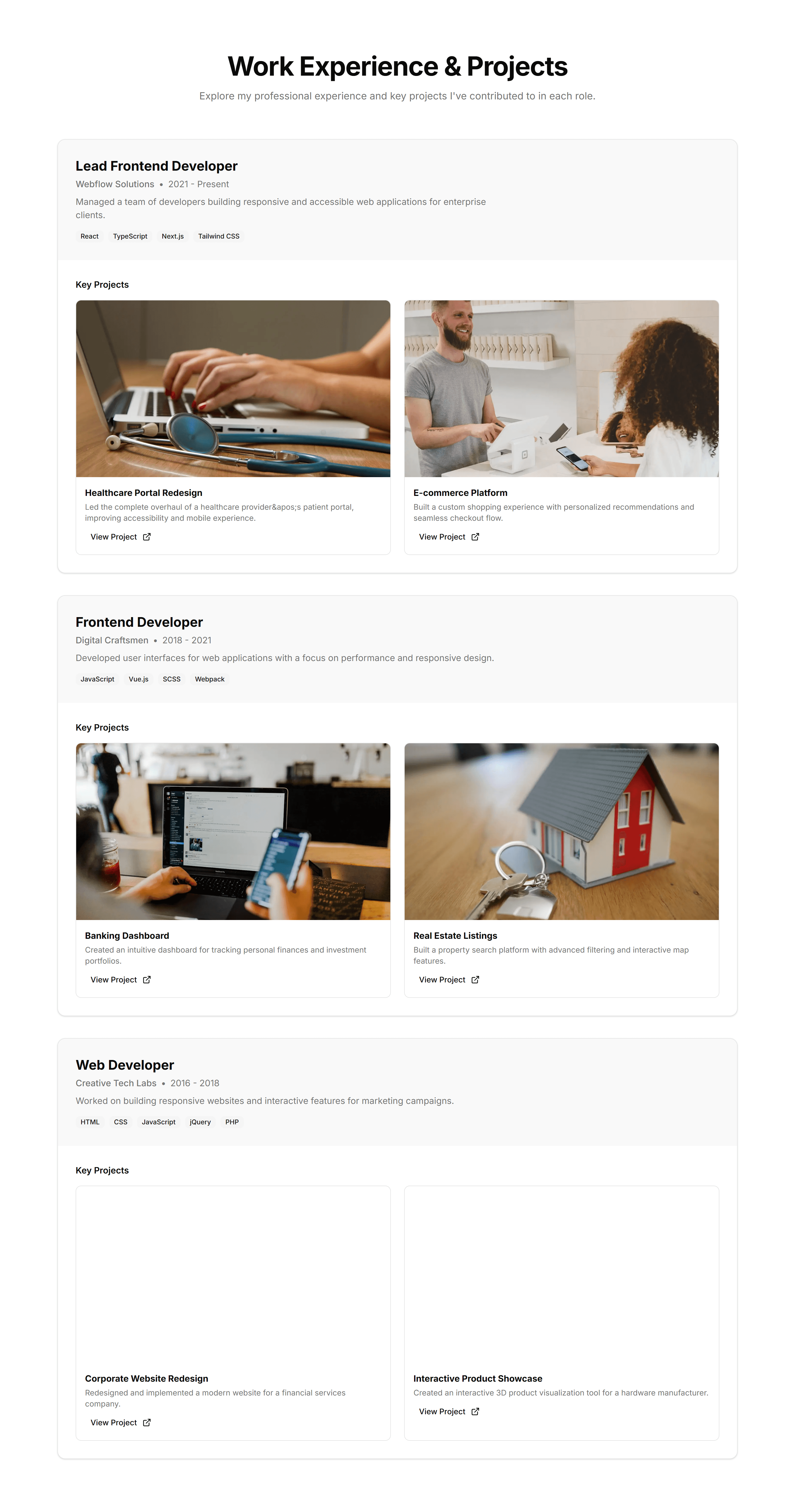
Portfolio Work Experience Card: Card With Project Showcase
A role card paired with a thumbnail of the project you shipped there. Connects each position to concrete work so visitors see outcomes, not just titles.
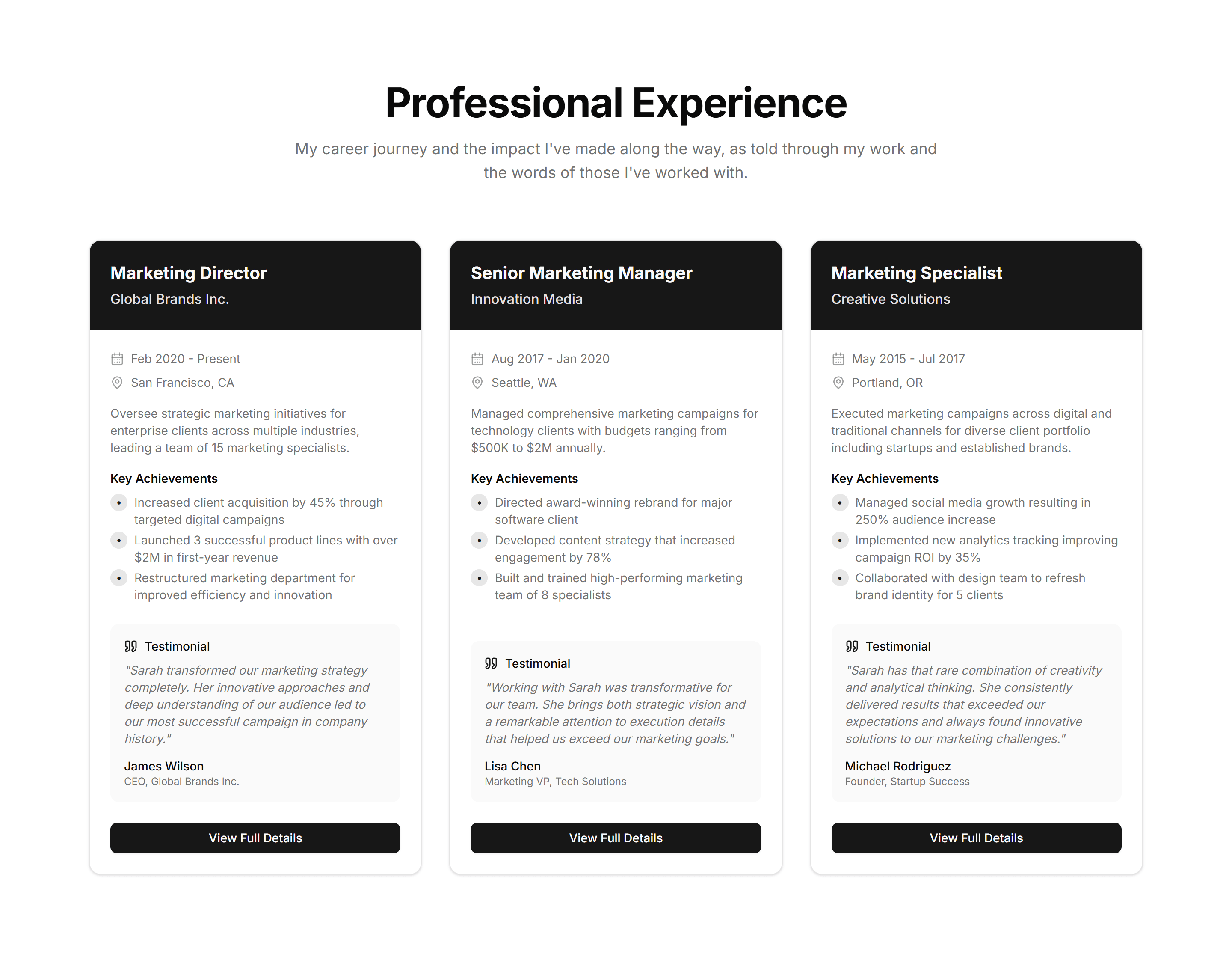
Portfolio Work Experience Card: Experience Quote Combo
A role card joined with a manager or client quote about your impact. Pairs the facts of a position with social proof to strengthen each entry.
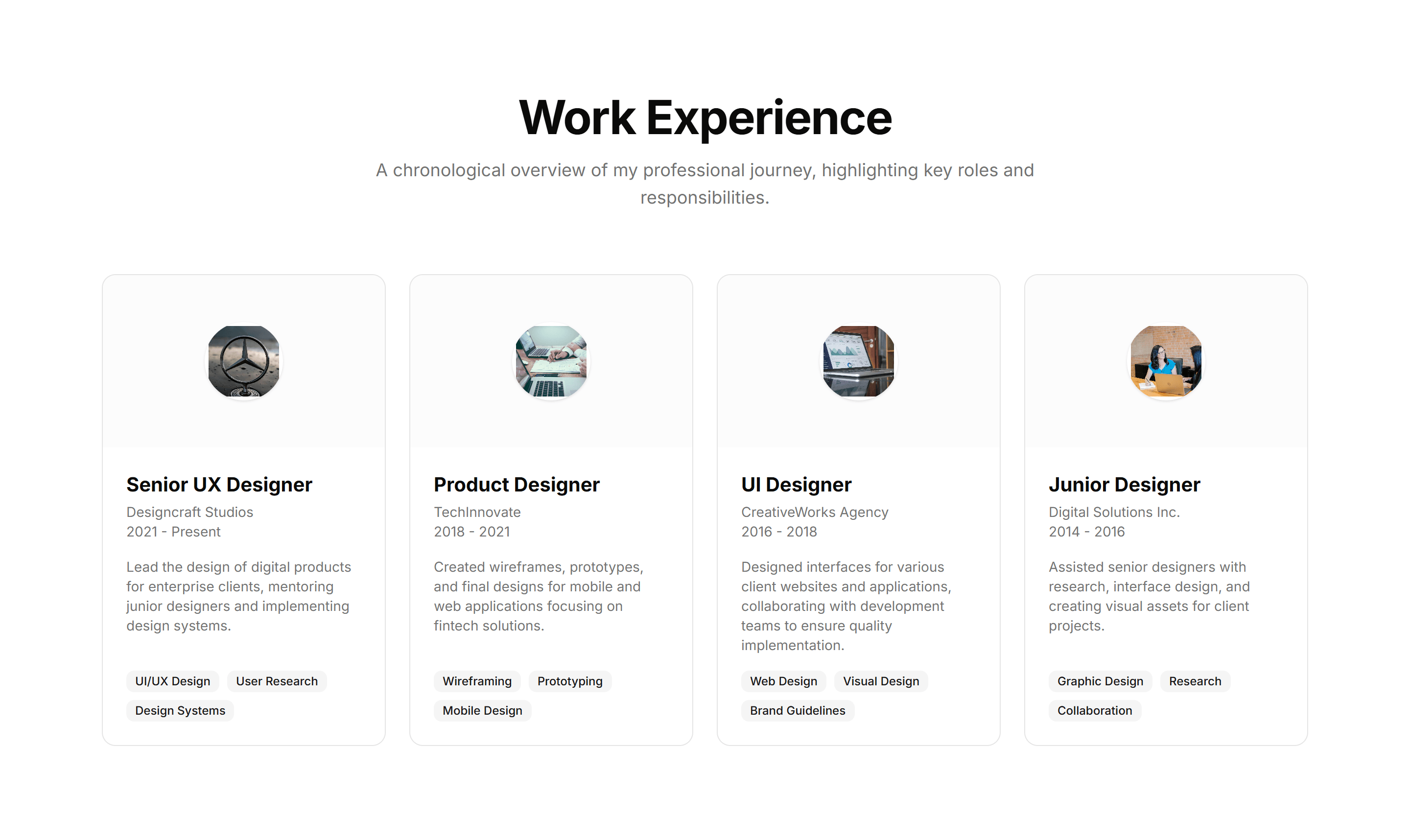
Portfolio Work Experience Card: Logo First Card Layout
A card that leads with the company logo beside your title and dates. Use it when recognizable employers carry weight and you want brands seen first.
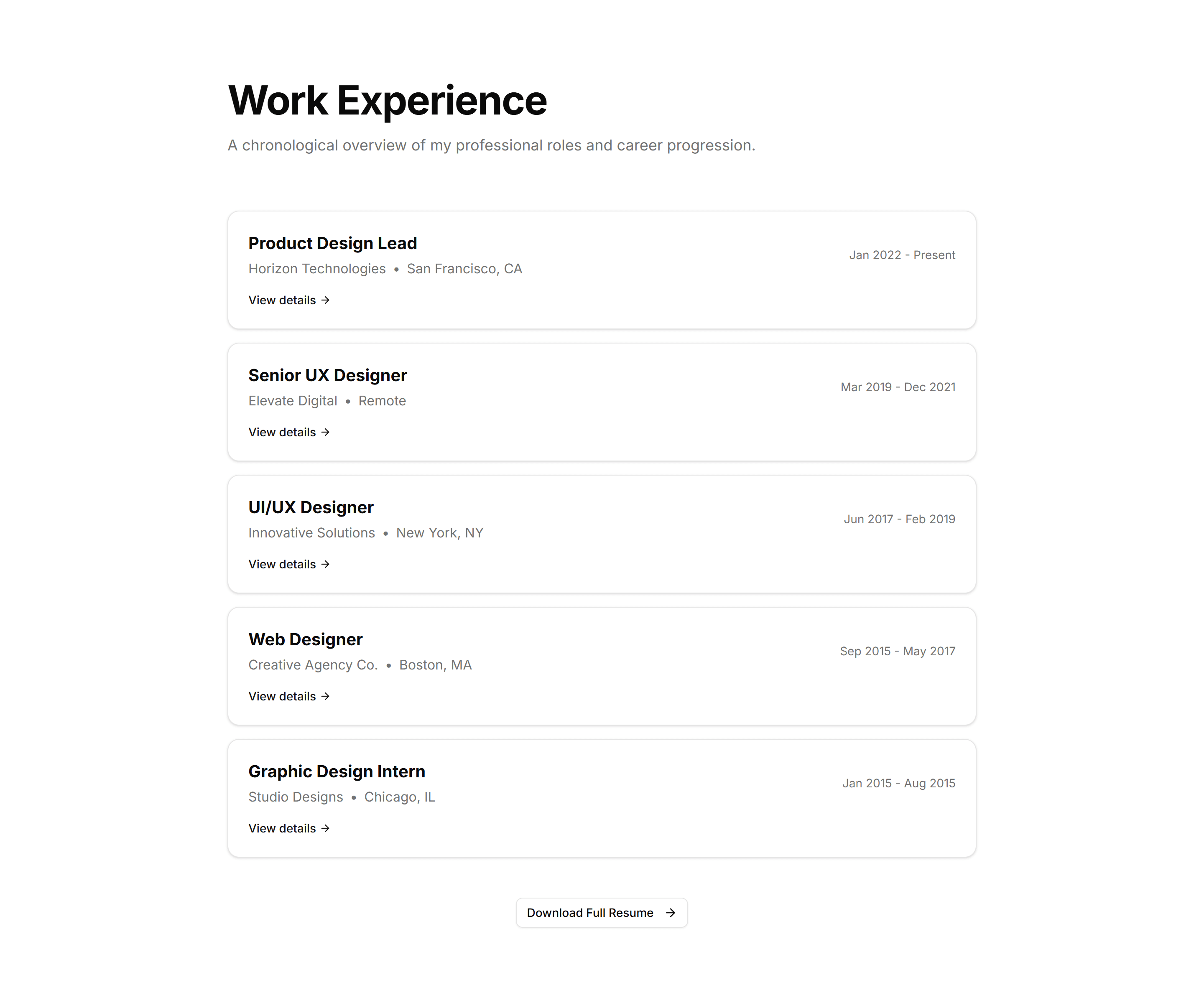
Portfolio Work Experience Card: Minimalist Role Highlight
A pared back card showing title, company, and dates with generous spacing. Ideal for a clean resume page where the focus stays on the roles themselves.

Components Accordion: Border Fade Accordion
An accordion where each item border softly fades on open. Adds a quiet visual cue for active panels in FAQs and settings without loud styling.
Components Accordion: Card Accordion
An accordion built from separated cards, each panel raised on its own surface. Good for FAQs or feature details that need clear visual separation.
Components Accordion: Dash Line Accordion
An accordion divided by dashed lines between items. The light dashed rhythm keeps long FAQ lists readable while staying subtle and unobtrusive.
Components Accordion: Dotted Border Accordion
An accordion framed by a dotted border around each panel. The playful dotted outline suits informal FAQs, help docs, and friendly onboarding tips.
Components Accordion: Double Border Accordion
An accordion with a double line framing every item. The layered borders add clear structure for FAQs and specs where rows need firm definition.
Components Accordion: Fade In Content Accordion
An accordion whose answer text gently fades in as a panel opens. The soft entrance keeps reader focus on the revealed content in FAQs and guides.
Components Accordion: Floating Label Accordion
An accordion where the question label lifts up as the panel opens. The floating title keeps context visible while reading through long FAQ answers.
Components Accordion: Glow Border Accordion
An accordion with a glowing border on the open item. The lit edge draws the eye to the active panel, fitting dark themes and modern product FAQs.
Components Accordion: Highlight Active Accordion
An accordion that tints the background of the open item. The highlighted row keeps your place in long FAQ lists and dense product documentation.

Components Accordion: Minimal Line Accordion
An accordion with thin divider lines and no boxes at all. The stripped back style fits clean FAQs, sidebars, and content heavy marketing pages.
Components Accordion: Nested Border Accordion
An accordion supporting nested items inside bordered panels. Use it for layered FAQs, docs, and settings where topics branch into subtopics.
Components Accordion: Numbered Accordion
An accordion with a number beside every question. The counted order suits step guides, ranked FAQs, and any sequence readers follow in turn.
Components Accordion: Shadow Reveal Accordion
An accordion that lifts each item with a soft shadow on open. The raised panel clearly signals the active answer in FAQs and feature breakdowns.
Components Accordion: Stepped Accordion
An accordion styled as numbered steps with connecting markers. Ideal for setup flows, tutorials, and any process that readers complete in order.
Components Accordion: Thick Side Border Accordion
An accordion with a bold colored bar down the side of each item. The thick accent marks active rows in FAQs and grabs reader attention quickly.
Components Accordion: Underline Accordion
An accordion where each question sits above a single underline. The clean text first look fits editorial FAQs and quiet, tidy help sections.
Components Alert: Accent Border Alerts
Alerts with a colored bar on the left edge that signals tone at a glance. Use for status messages where the color cue matters more than the icon.
Components Alert: All Sides Accent Alerts
Alerts framed by a colored border on every side for strong emphasis. Use when a notice must stand out clearly against a busy page or dashboard.
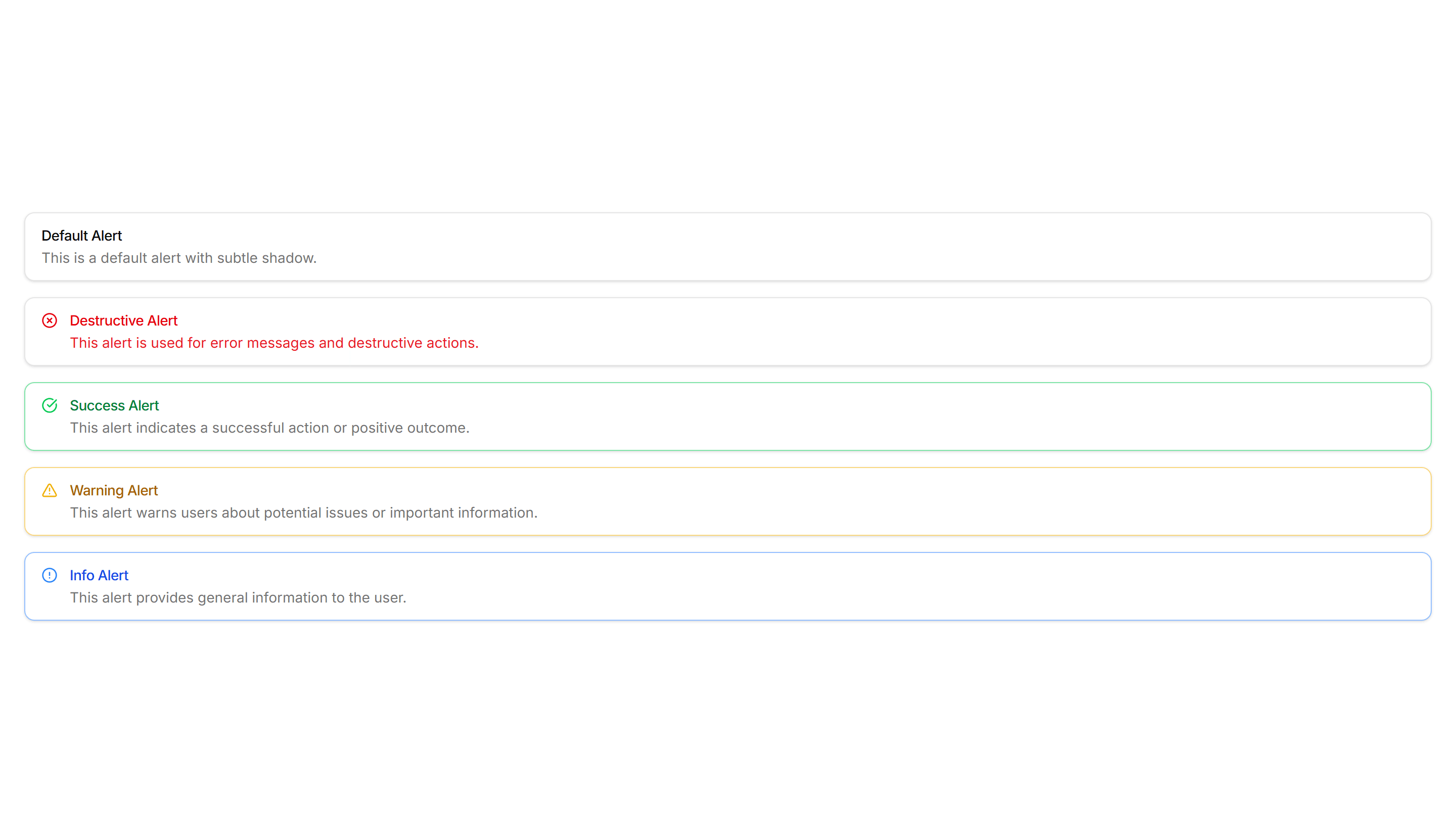
Components Alert: Basic Alerts
Plain alerts with an icon, title, and message in a soft container. Use for everyday notices like saved changes, confirmations, and short tips.
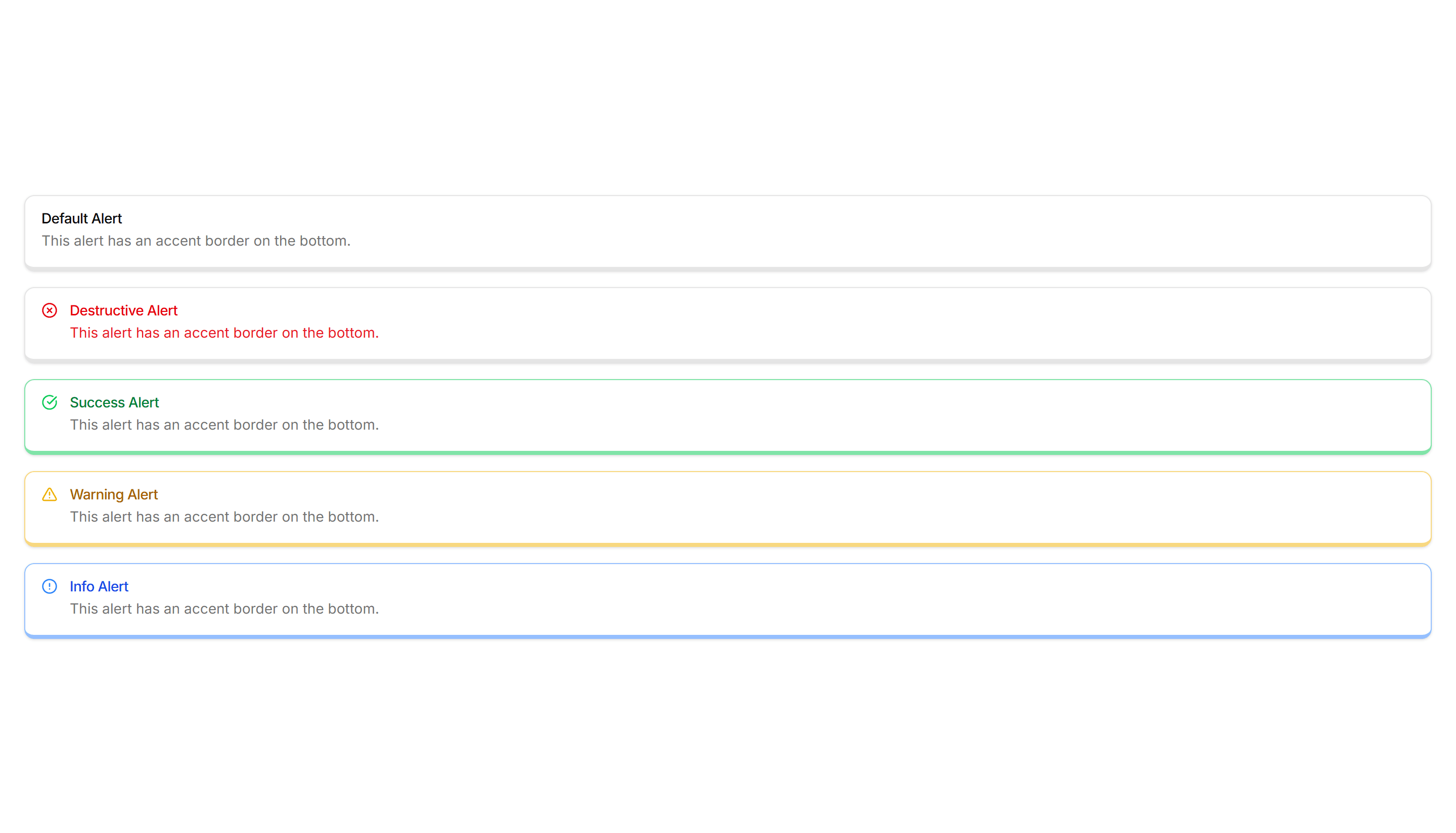
Components Alert: Bottom Accent Alerts
Alerts with a colored underline along the bottom edge for a subtle cue. Use for inline messages in forms or cards that need only light emphasis.
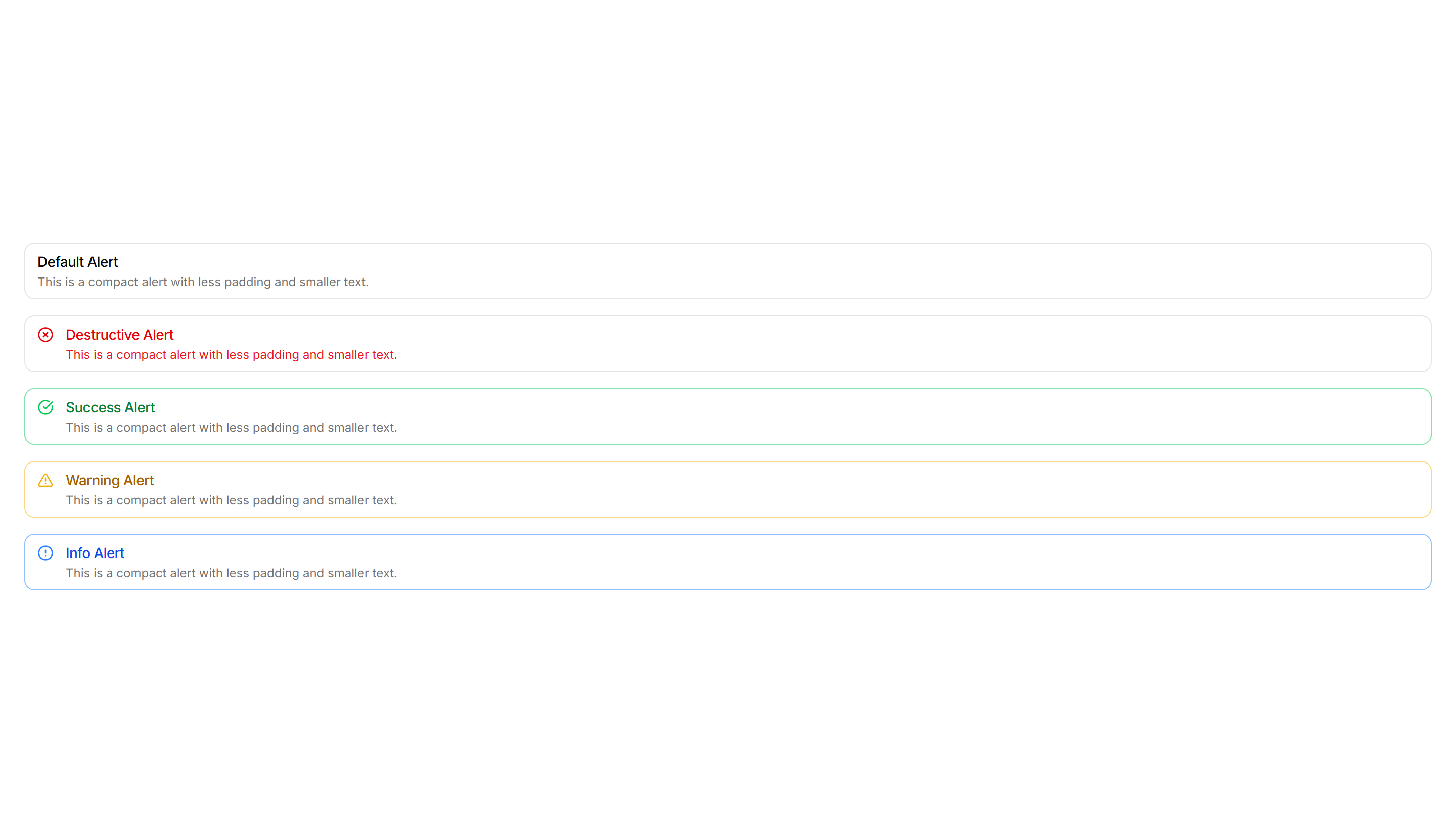
Components Alert: Compact Alerts
Slim alerts with tight padding and a single line of text inside. Use in dense layouts, tables, or sidebars where vertical space stays limited.
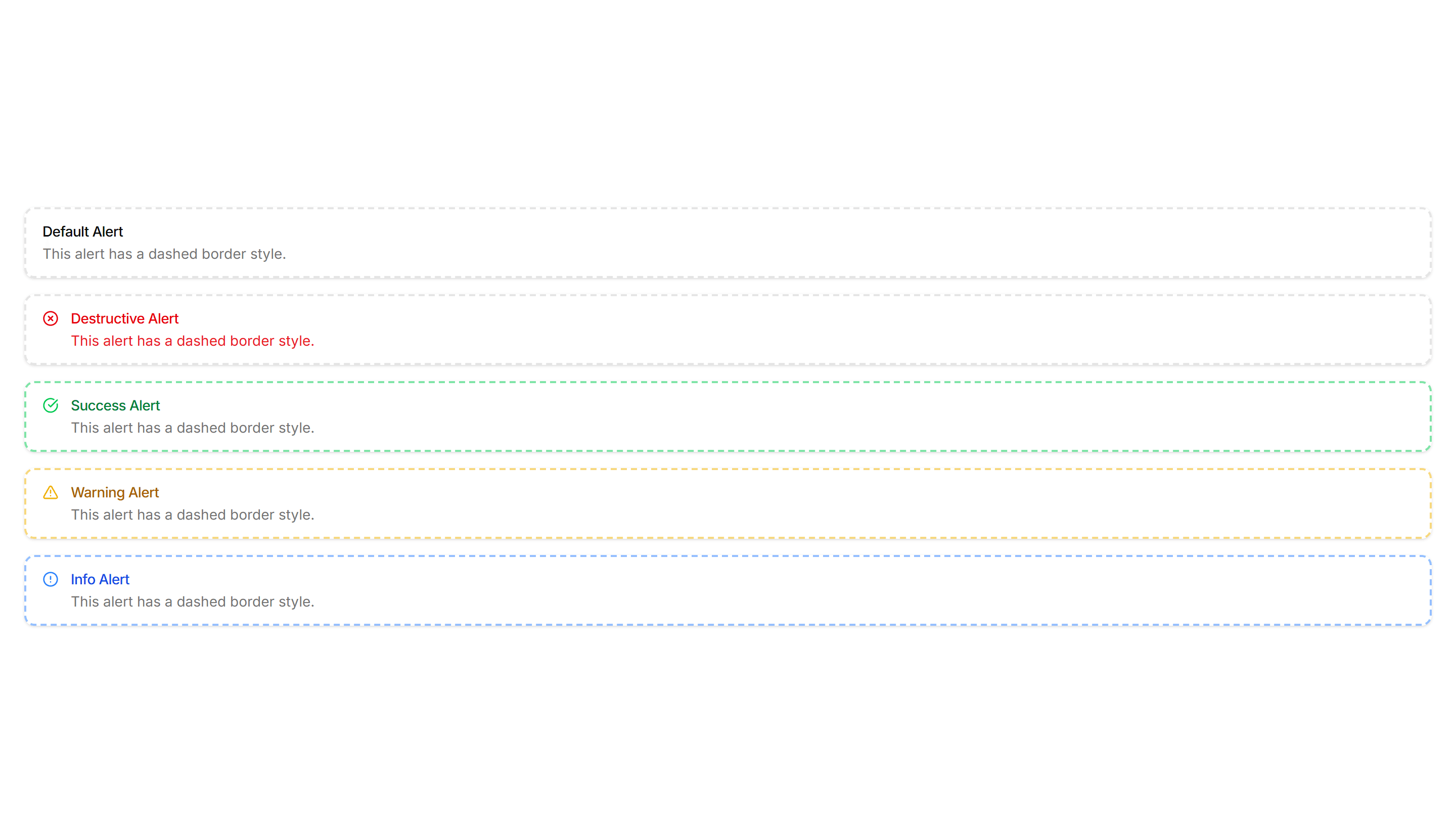
Components Alert: Dashed Border Alerts
Alerts outlined with a dashed border for a lighter, sketch like feel. Use for draft notices, placeholders, or optional tips in a quiet tone.
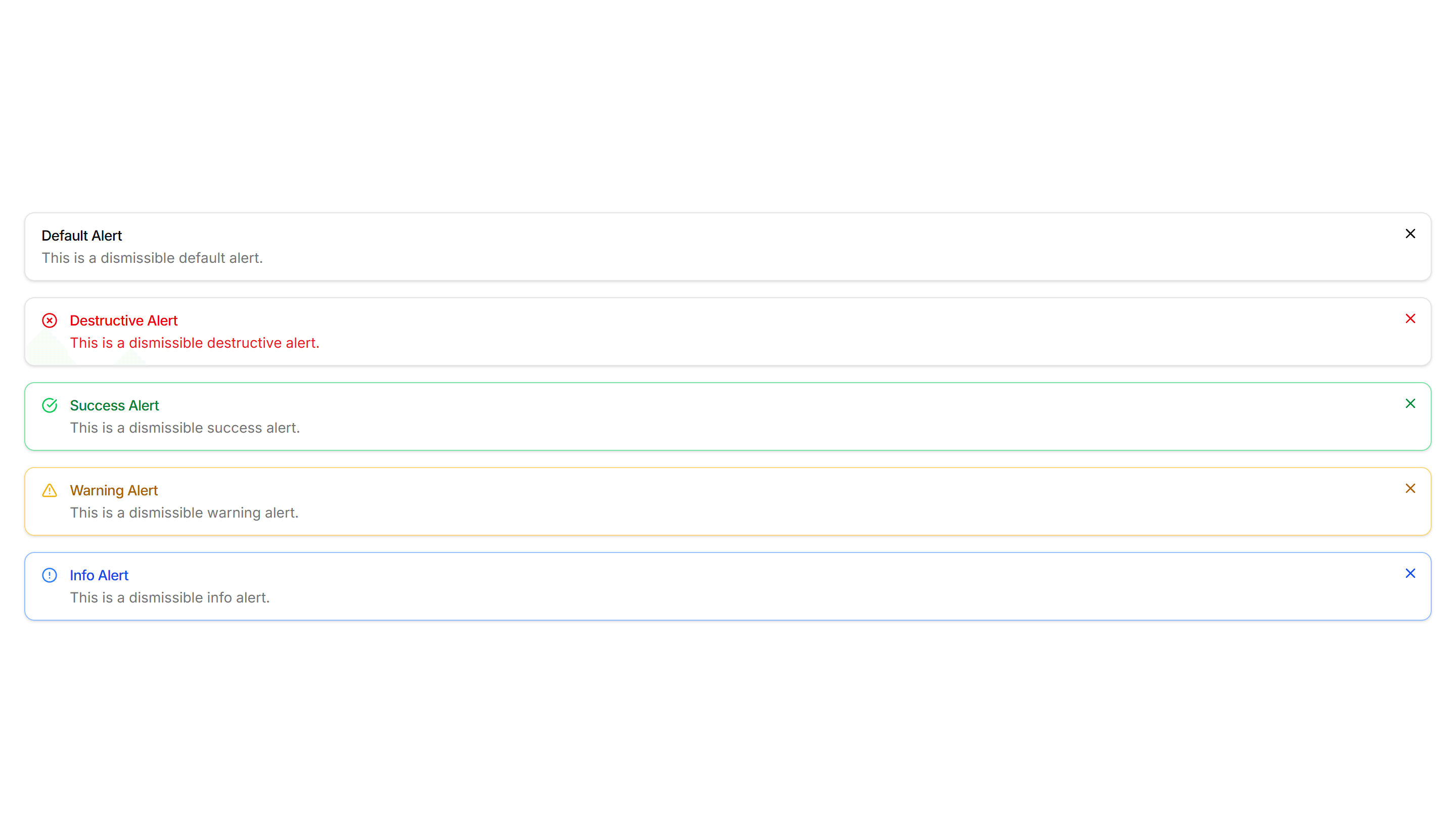
Components Alert: Dismissible Alerts
Alerts with a close button so users can clear a notice once read. Use for cookie banners, promotions, and warnings that should not stay forever.
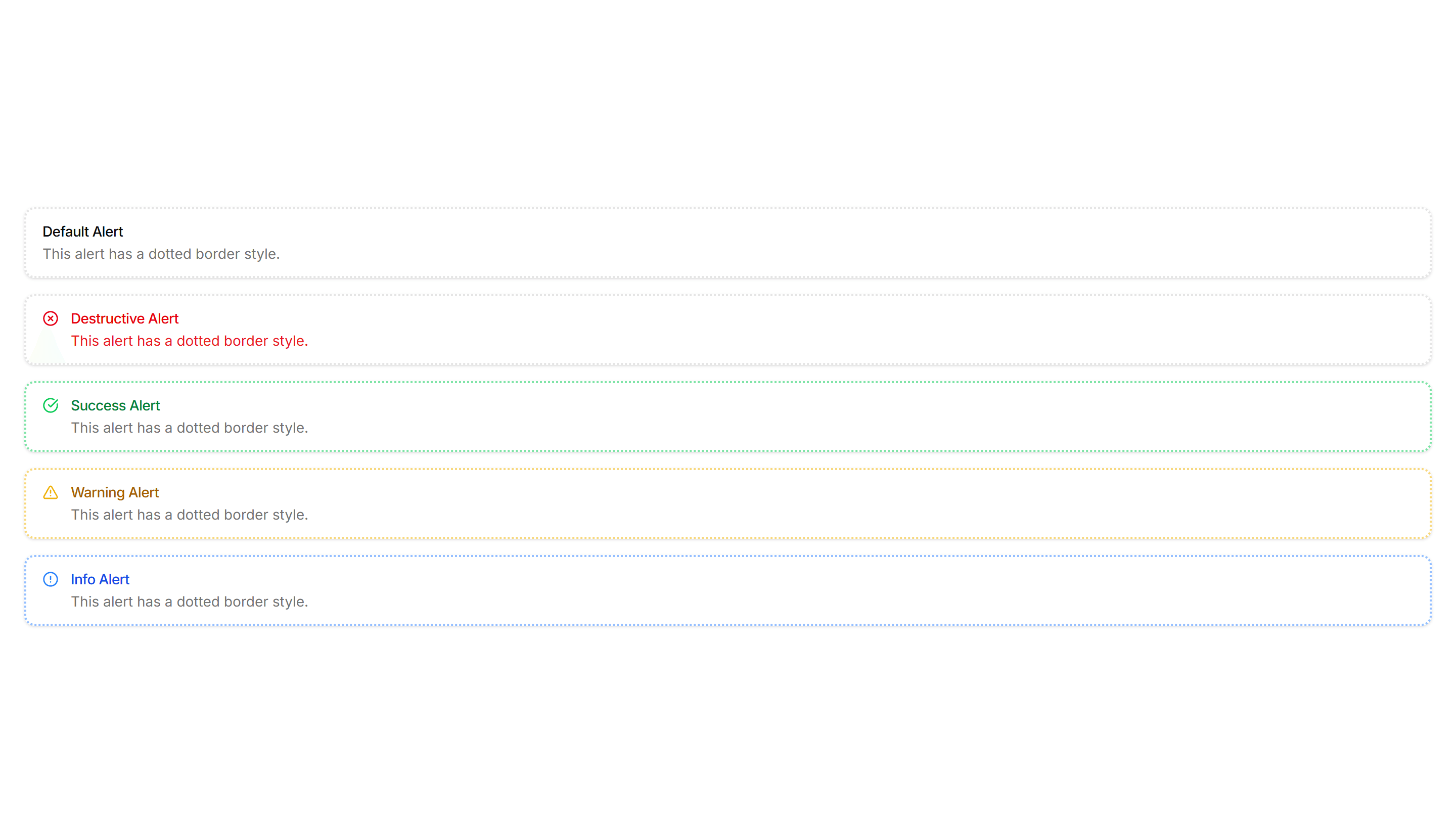
Components Alert: Dotted Border Alerts
Alerts wrapped in a dotted border for a soft, playful outline. Use for casual reminders, tips, or low priority notes in friendly interfaces.
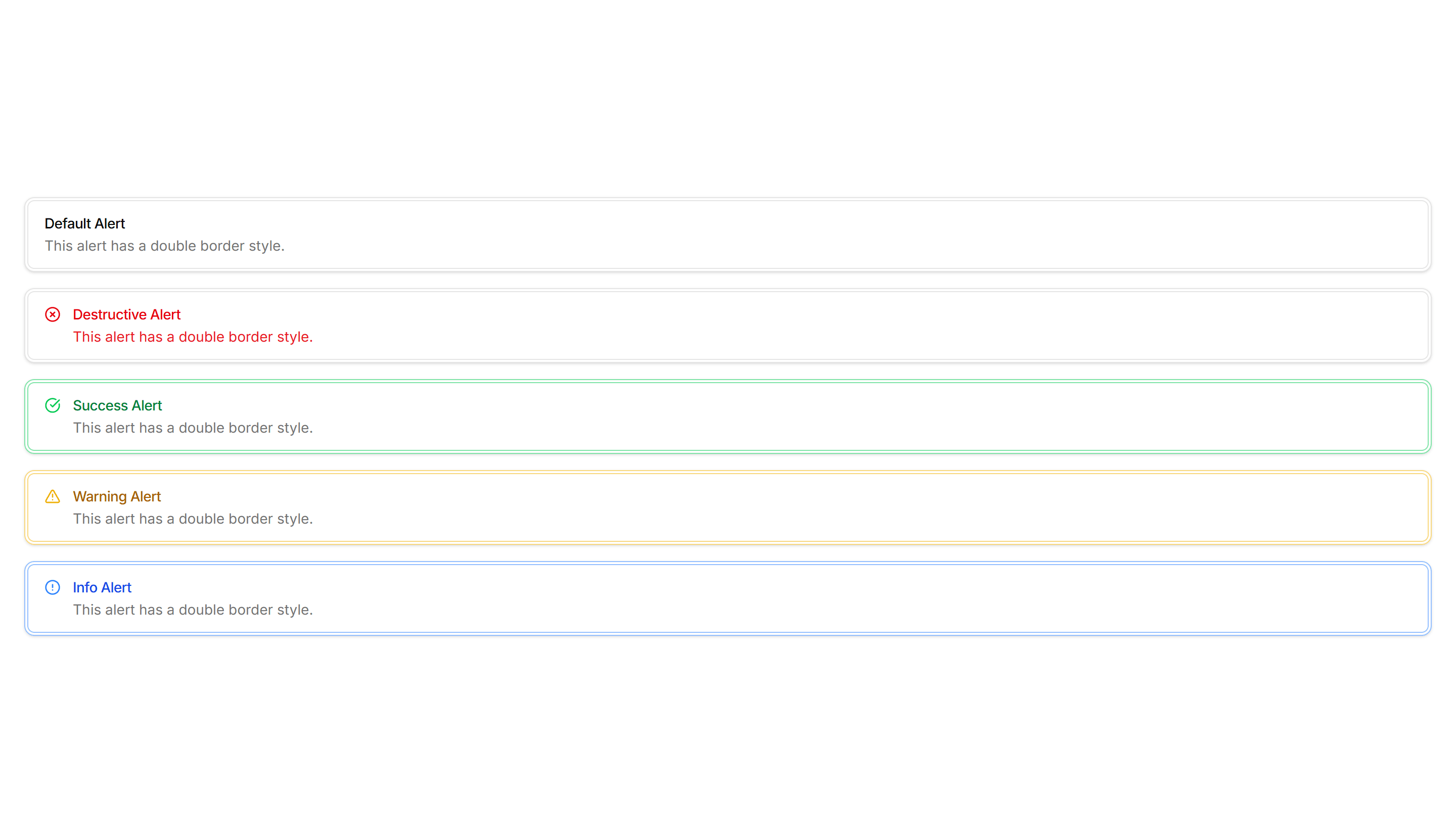
Components Alert: Double Border Alerts
Alerts with a layered double border for a refined, framed look. Use to highlight important notices that deserve extra visual weight on a page.
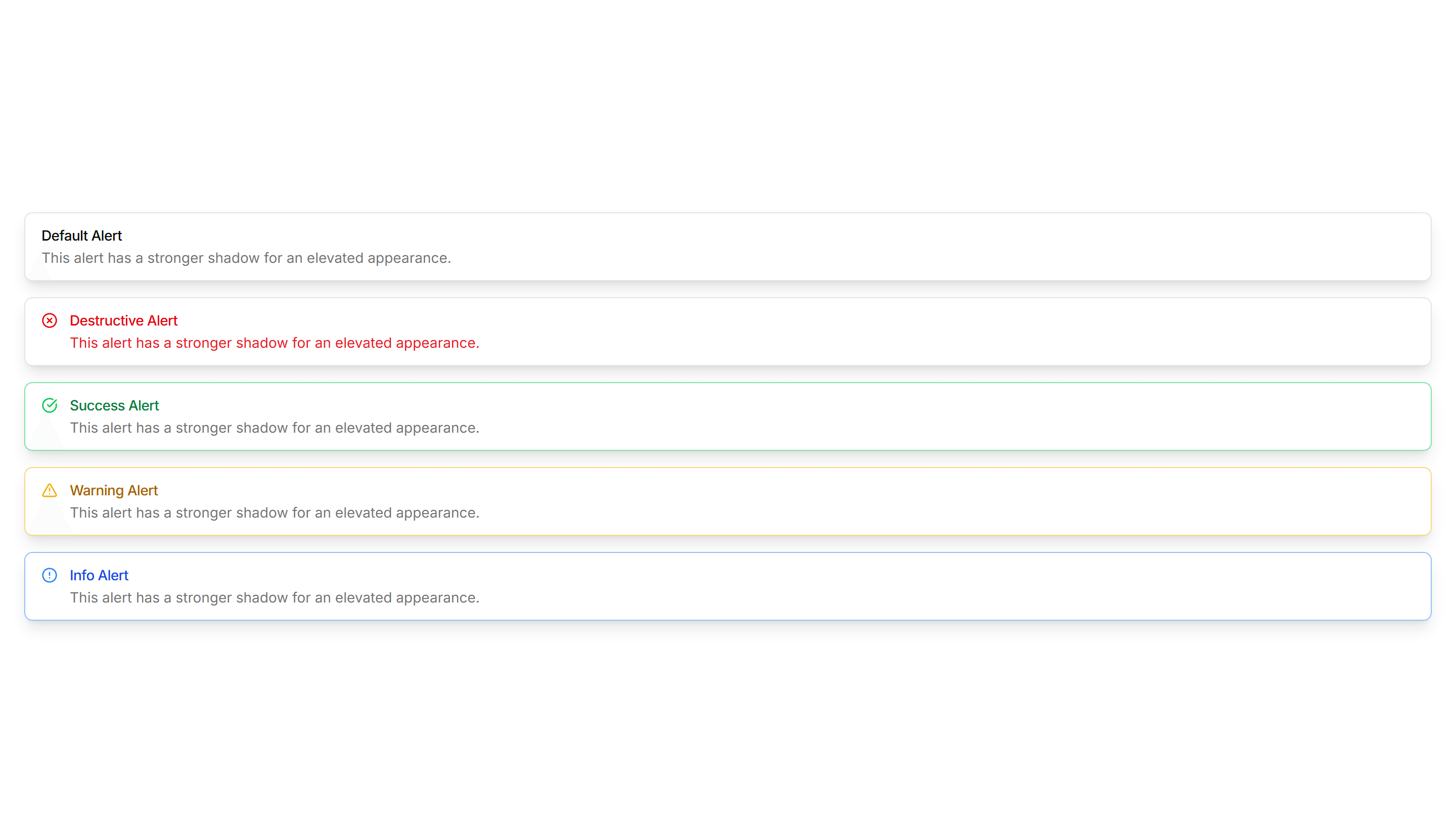
Components Alert: Elevated Alerts
Alerts raised with a soft shadow so they lift off the surface. Use for floating notifications or messages that should feel above the content.
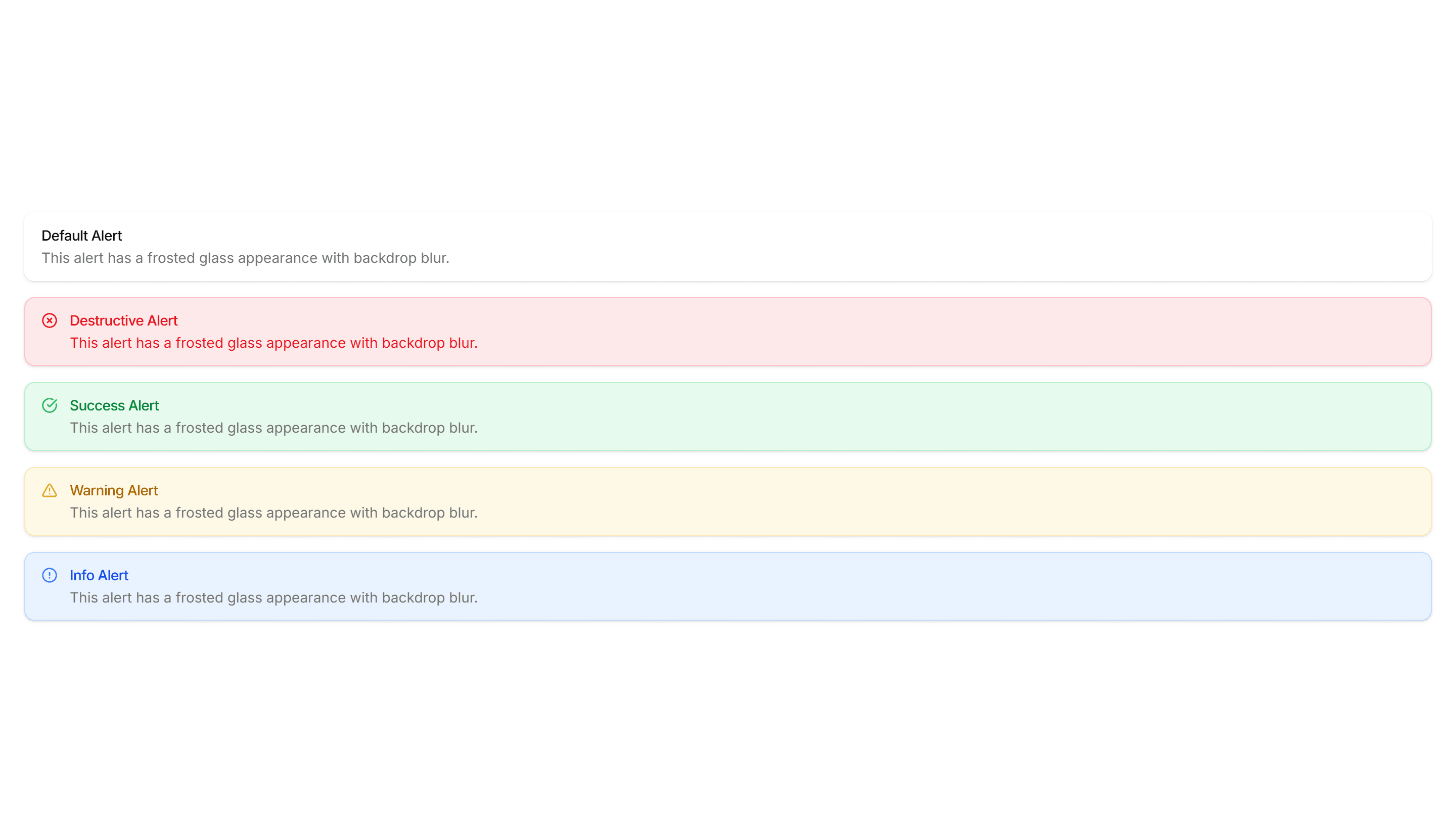
Components Alert: Frosted Glass Alerts
Alerts with a blurred, translucent backdrop that reveals content behind. Use over images or hero sections where a glassy notice fits the design.
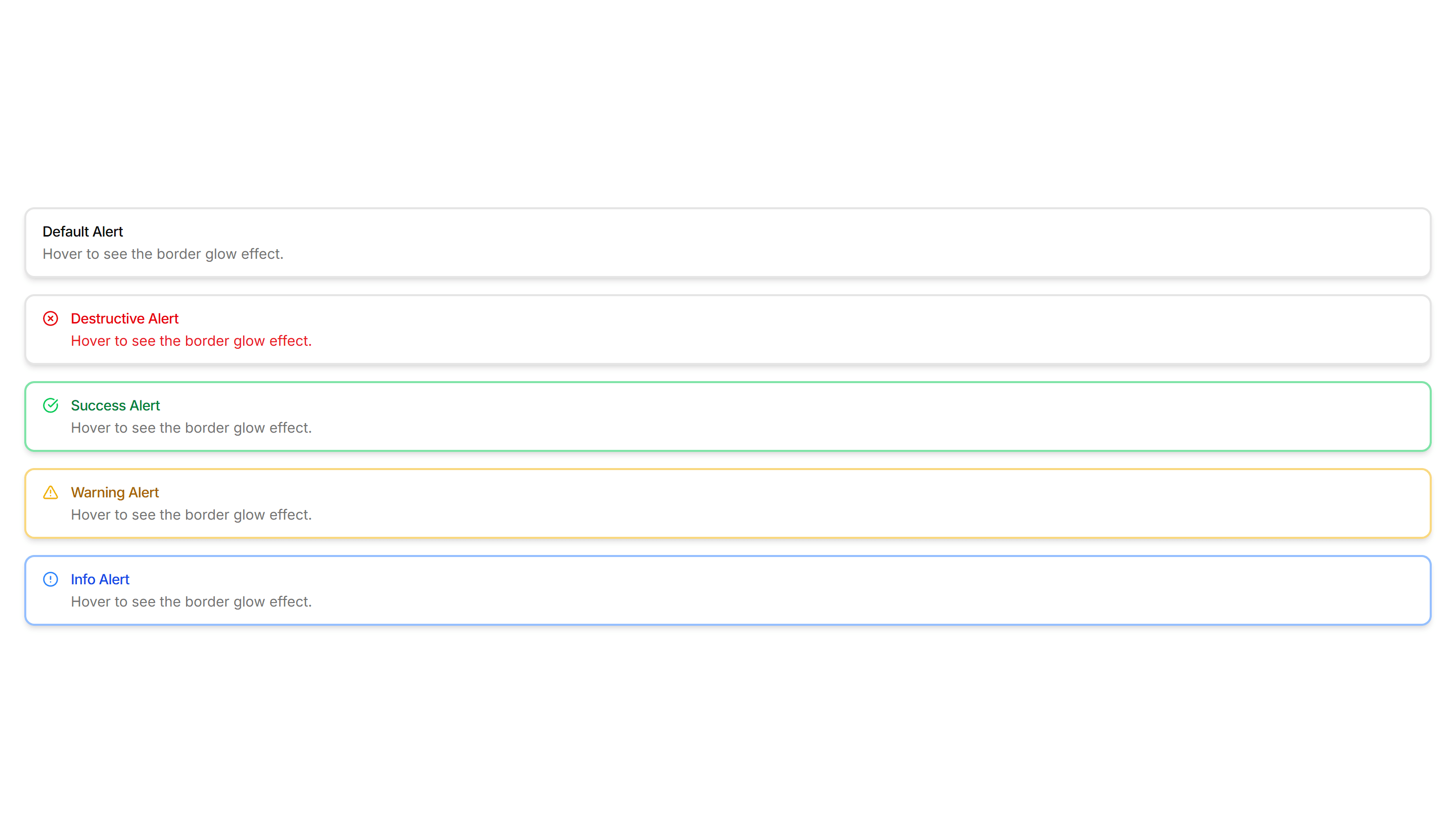
Components Alert: Glow Border Alerts
Alerts ringed by a soft glowing border that draws the eye gently. Use for promotions or new feature notices that need a warm, inviting accent.

Components Alert: Icon Only Alerts
Compact alerts that pair a status icon with a short message and no title. Use for quick inline feedback where space is tight and tone is clear.
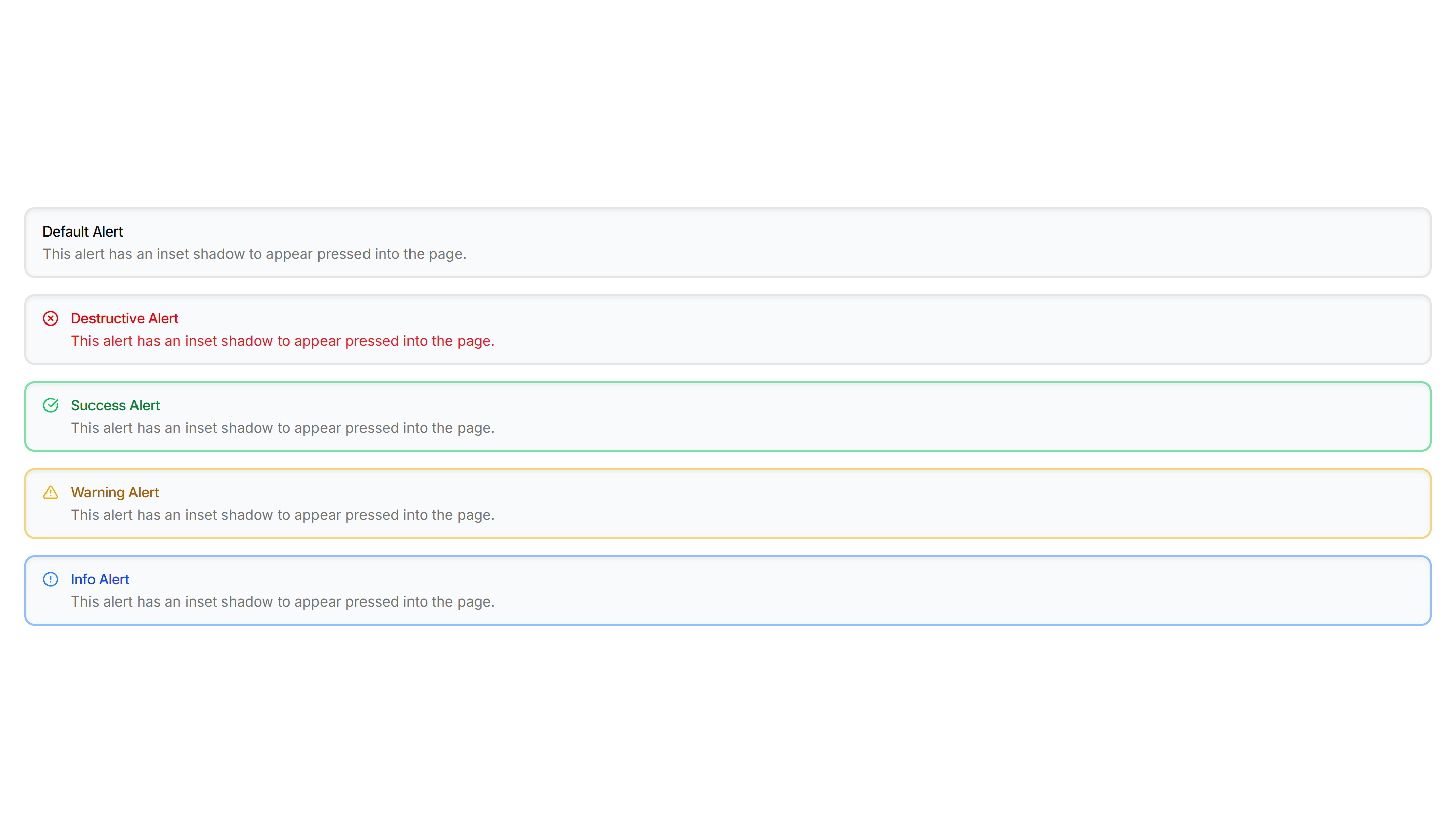
Components Alert: Inset Alerts
Alerts with an inset shadow that sinks slightly into the surface. Use for grouped notices inside cards or panels that feel part of the layout.
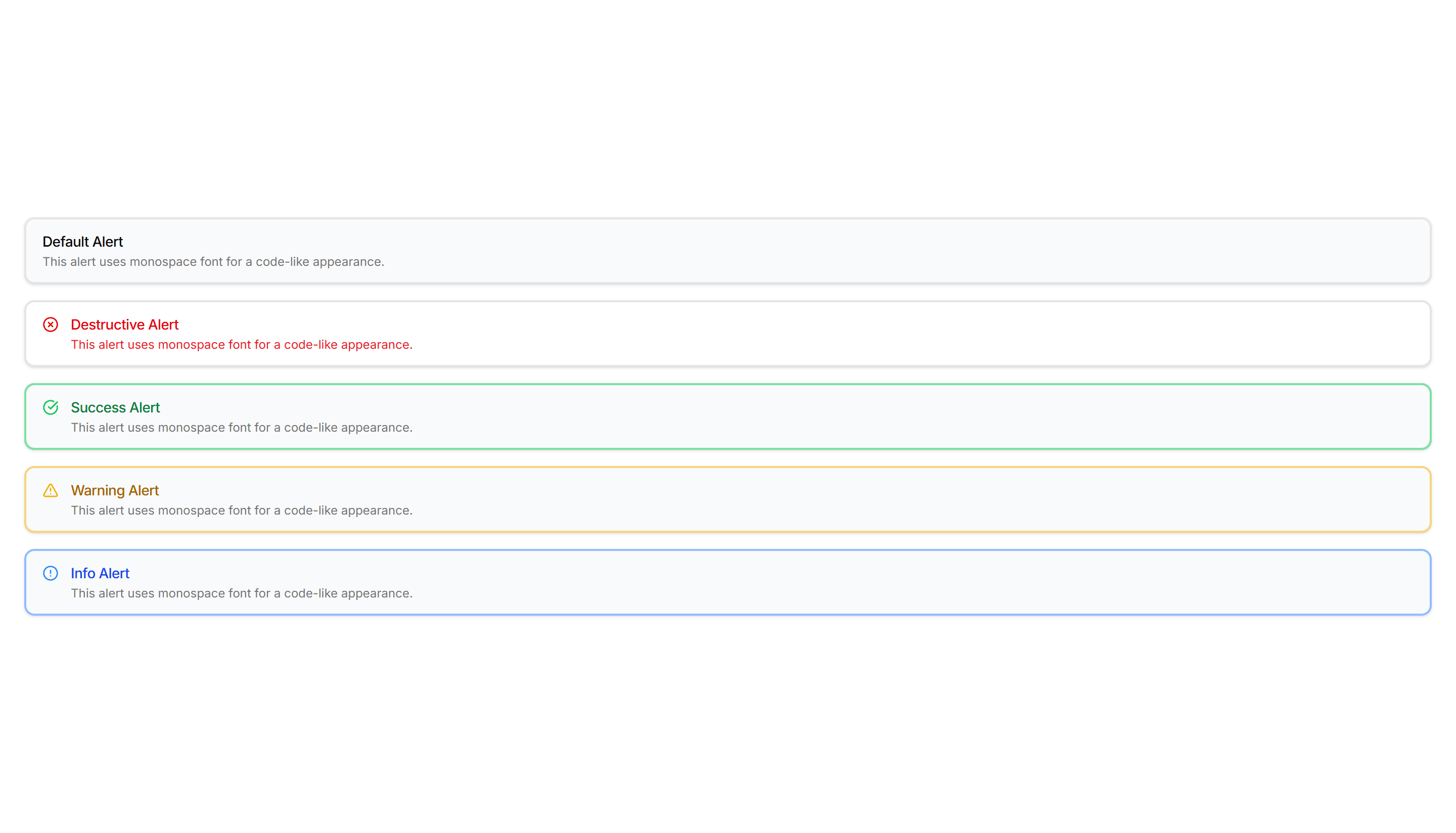
Components Alert: Monospace Alerts
Alerts set in a monospace typeface for a technical, code style tone. Use for build output, terminal messages, or warnings aimed at developers.
Components Alert: Outlined Alerts
Alerts defined only by a clean border with no fill behind the text. Use on colored or busy backgrounds where a solid panel would feel heavy.
Components Alert: Paper Alerts
Alerts styled like a paper card with subtle texture and soft edges. Use for printed style notices, receipts, or warm document driven layouts.
Components Alert: Pulse Border Alerts
Alerts with a border that gently pulses to catch attention over time. Use for live updates, countdowns, or urgent notices that should not be missed.
Components Alert: Right Accent Alerts
Alerts with a colored bar on the right edge for a mirrored accent. Use in right aligned layouts or when the left side already holds an icon.
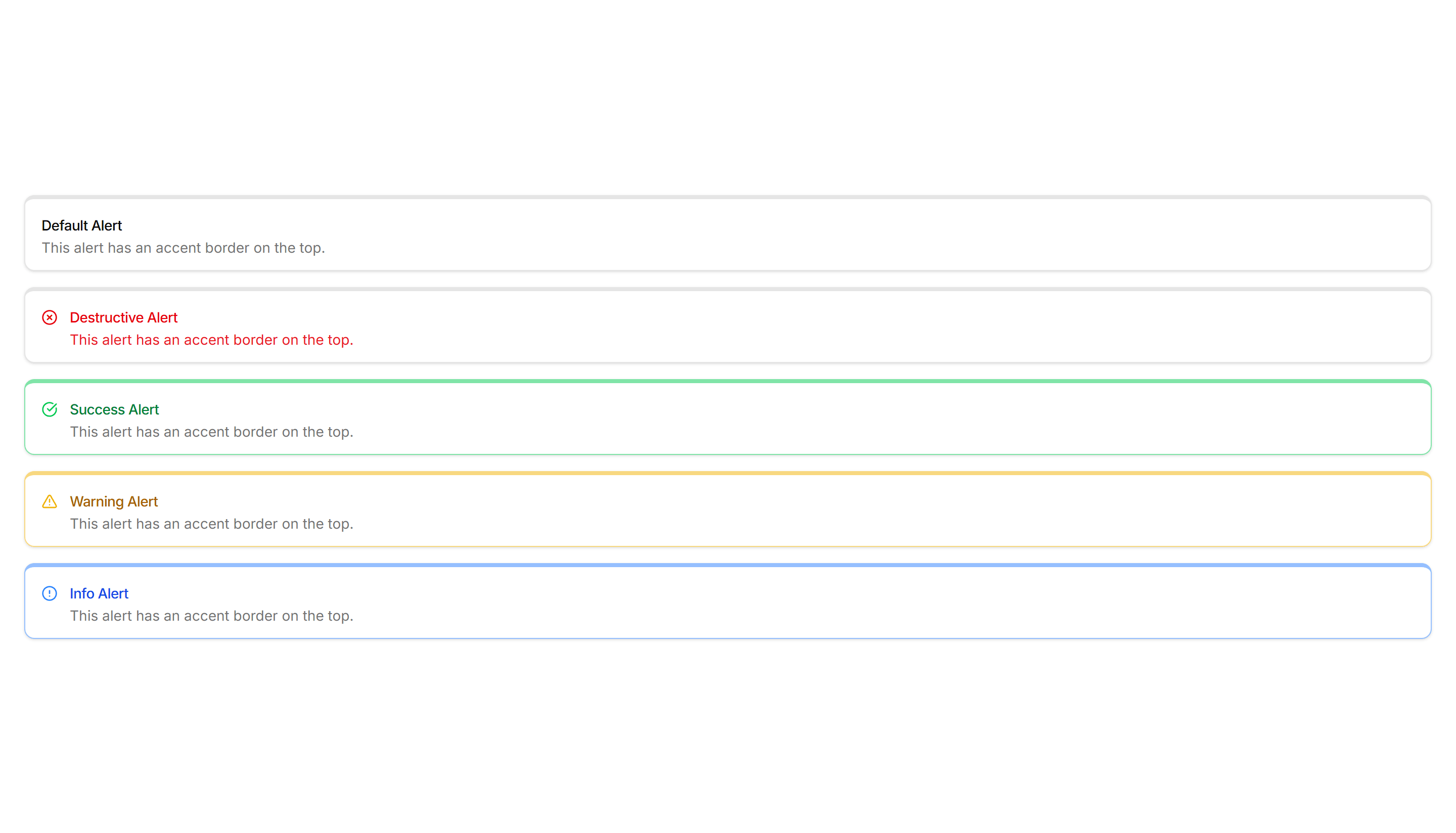
Components Alert: Top Accent Alerts
Alerts topped with a colored bar across the upper edge for a header cue. Use for grouped notices where the accent reads like a small banner.
Components Badge: 3D Badge
A badge with layered shadows and depth that lifts off the surface. Use it to spotlight a featured tag or premium label that needs to stand out.
Components Badge: Bounce Badge
A badge with a springy bounce animation that draws the eye on entry. Use it to flag new arrivals or fresh updates that should grab attention.
Components Badge: Dot Indicator Badge
A badge paired with a small colored dot that shows status at a glance. Use it to show online, busy, or away states next to a name or avatar.
Components Badge: Elevated Badge
A badge raised above the surface with a soft drop shadow. Use it to mark a priority label or count that should read as floating above content.
Components Badge: Extra Large Badge
An oversized badge with generous padding and bold text for high visibility. Use it on hero areas or banners where a tag must read from a distance.
Components Badge: Gradient Border Badge
A badge wrapped in a colorful gradient outline around plain fill. Use it to mark beta, pro, or featured labels that need a vivid accent edge.
Components Badge: Hover Scale Badge
A badge that grows slightly when the pointer rests on it. Use it for interactive tags or filters where a touch of feedback invites a quick click.

Components Badge: Icon Badge
A badge that pairs a small icon with a label for instant meaning. Use it to tag categories, statuses, or actions where text alone reads slowly.
Components Badge: Large Badge
A roomy badge with extra padding and larger text for clear reading. Use it to highlight a plan tier, count, or status across busy interfaces.
Components Badge: Pulse Badge
A badge with a soft pulsing ring that radiates outward on a loop. Use it to signal live activity, unread items, or a recording session in progress.
Components Badge: Ribbon Badge
A badge styled as a corner ribbon that drapes over a card edge. Use it to flag sale, new, or sold out states across product and gallery tiles.
Components Badge: Square Badge
A badge with sharp square corners and a compact footprint. Use it for crisp version tags, counts, or labels that suit a structured grid layout.
Components Breadcrumb: Background Breadcrumb
A breadcrumb trail wrapped in a soft tinted background bar. Anchors the top of a page and keeps navigation links readable above busy content.

Components Breadcrumb: Bordered Breadcrumb
A breadcrumb sitting inside a thin outlined container. Frames the navigation path cleanly on a dashboard header or any content section toolbar.

Components Breadcrumb: Card Breadcrumb
A breadcrumb housed in a rounded card with a subtle shadow. Lifts the navigation path off the page for detail views and account settings screens.

Components Breadcrumb: Compact Breadcrumb
A tight breadcrumb with reduced spacing between its links. Fits crowded toolbars and mobile headers where horizontal room is in short supply.

Components Breadcrumb: Dot Breadcrumb
A breadcrumb that separates each link with a small round dot. Offers a quiet, minimal path indicator for clean app layouts and page headers.

Components Breadcrumb: Icon Breadcrumb
A breadcrumb pairing each link with a leading icon. Helps users scan the path at a glance across sections like home, docs, billing, and settings.

Components Breadcrumb: Numbered Breadcrumb
A breadcrumb that numbers each step in the path. Clarifies order for sequential flows such as checkout, onboarding, or a multi step setup wizard.

Components Breadcrumb: Pill Breadcrumb
A breadcrumb where each link sits inside a rounded pill shape. Adds a friendly, tappable feel to navigation on dashboards and profile pages.
Components Breadcrumb: Progress Breadcrumb
A breadcrumb with a fill that tracks how far a user has moved. Shows completion across multi step forms, checkout, and guided account onboarding.

Components Breadcrumb: Slash Breadcrumb
A breadcrumb that divides its links with a forward slash. Mirrors a file path style for code tools, documentation, and folder browsing screens.
Components Breadcrumb: Sticky Breadcrumb
A breadcrumb that pins to the top of the view as the page scrolls. Keeps the current location visible on long articles and deep settings pages.
Components Breadcrumb: Timeline Breadcrumb
A breadcrumb laid out as a connected timeline of steps. Maps a journey through stages, ideal for order tracking and live project status views.
Components Button: Border Animation Buttons
Buttons with borders that animate and trace around the edge on hover. Draw attention to a primary action without changing the button fill at rest.
Components Button: Cut Corners Buttons
Buttons with angled, clipped corners for a sharp geometric look. Fits gaming, tech, or editorial interfaces that want an edgy call to action.
Components Button: Extra Large Buttons
Oversized buttons with generous padding and large type. Use them as the main hero call to action where one tap should be impossible to miss.
Components Button: Extra Small Buttons
Compact, low height buttons with tight padding and small type. Ideal for dense toolbars, table rows, and inline controls where space is limited.
Components Button: Grow Buttons
Buttons that scale up smoothly on hover to feel responsive. Add a touch of motion feedback to cards, pricing tiers, and primary form actions.
Components Button: Interactive Buttons
Buttons that react to hover and click with motion and state changes. Make signups, downloads, and key actions feel alive and worth clicking.
Components Button: Liquid Buttons
Buttons with a flowing liquid fill that sweeps across the surface on hover. A playful accent for landing pages and creative product sites today.
Components Button: Morphing Buttons
Buttons that morph their shape, size, or label between states. Use for loading, success, and submit flows that confirm progress to the user.

Components Button: Pixel Buttons
Buttons with a blocky pixel art finish and retro styling. Perfect for games, indie projects, and brands that lean on a nostalgic visual theme.
Components Button: Pulse Buttons
Buttons with a soft pulsing glow that draws the eye over time. Highlight a single primary action like start trial or buy now on a busy page.
Components Button: Rotate Buttons
Buttons that rotate an icon or the whole label on hover. Add subtle motion to refresh, settings, and other action icons across your app today.
Components Button: Shadow Buttons
Buttons with layered shadows that lift or shift on hover. Give actions a tactile, raised feel across cards, forms, and toolbars in any layout.
Components Button: Skew Buttons
Buttons with a skewed, slanted shape for a sense of dynamic energy. Suits sports, fitness, and bold marketing pages that want forward momentum.
Components Button: Slide Buttons
Buttons with a color or label that slides in on hover. Reveal a second state to guide users toward the next step in a clear and simple flow.
Components Button: Social Buttons
Buttons branded for Google, GitHub, Apple, and more providers. Drop them into sign in and sign up screens for fast one click authentication.
Components Button: Squeeze Buttons
Buttons that squeeze inward on press for satisfying tactile feedback. Use on mobile flows and forms where every tap should feel confirmed fast.
Components Button: Underline Buttons
Buttons styled with an animated underline that grows in on hover. A clean, minimal accent for text links and quiet secondary actions in any UI.
Components Card: Border Accent Card
A card with a colored accent line along one edge that draws the eye. Use it to group related text and labels while signaling category or status.
Components Card: Border Animation Card
A card whose border traces a moving outline around the edges. Use it to spotlight a featured plan, offer, or item that needs attention on the page.
Components Card: Border Gradient Animation Card
A card framed by a shifting gradient border that flows around the edges. Use it to highlight a premium tier or hero item in a grid of options.
Components Card: Border Highlight Card
A card that brightens its border when focused or hovered. Use it to mark the recommended choice in a pricing grid or a selected option in a form.
Components Card: Corner Ribbon Card
A card with a diagonal ribbon pinned to one corner for a short label. Use it to flag New, Sale, or Featured items in a product or listing grid.
Components Card: Cutout Border Card
A card with a notched border that carves out shape along its edge. Use it for tickets, coupons, or passes where a distinct outline reads as a stub.
Components Card: Dashed Border Card
A card outlined with a dashed border for a light, sketch feel. Use it for empty states, upload zones, or placeholders that invite the user to add content.
Components Card: Double Border Card
A card wrapped in two stacked outlines for a framed, formal look. Use it for certificates, awards, or quotes that deserve emphasis on the page.
Components Card: Expandable Card
A card that grows to reveal more text or controls when opened. Use it for FAQs, settings, or summaries that hide detail until the reader wants it.
Components Card: Gradient Border Card
A card edged with a static gradient outline that adds color without noise. Use it to set apart a key offer or profile in an otherwise plain grid.
Components Card: Hover Effect Card
A card that lifts, scales, or shades when the pointer moves over it. Use it for clickable tiles in a gallery, menu, or dashboard to signal they react.
Components Card: Hover Reveal Card
A card that hides extra text or actions until hover uncovers them. Use it for portfolio tiles or features where the cover stays clean until needed.

Components Card: Icon Card
A card led by a single icon above a short title and blurb. Use it for feature grids, service lists, or steps where a glyph anchors each point made.
Components Card: Magnetic Card
A card that drifts toward the cursor as it nears, with a subtle pull. Use it for playful landing pages or feature tiles that reward a hovering pointer.
Components Card: Neon Border Card
A card ringed by a glowing neon outline that pops on dark backgrounds. Use it for gaming, music, or tech pages where a bright frame fits the mood.
Components Card: Perspective Hover Card
A card that rotates in 3D space as the pointer crosses it for depth. Use it for hero items or showcases where motion makes a tile feel tactile.
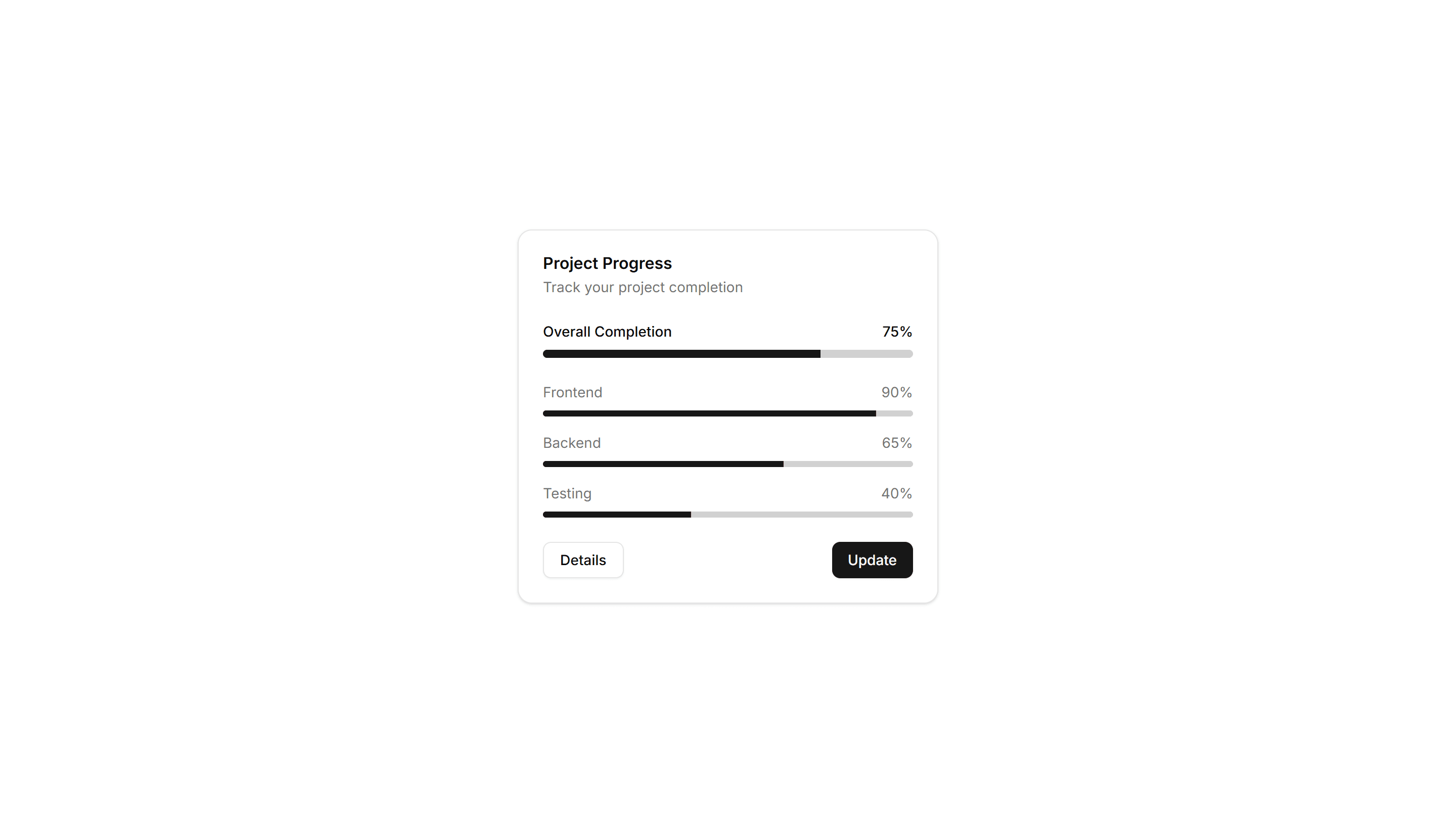
Components Card: Progress Card
A card pairing a progress bar with a label and value reading. Use it to show task completion, goals, or usage limits inside a dashboard or account view.
Components Card: Pulse Border Card
A card with a border that pulses softly to draw a glance over. Use it for live alerts, fresh items, or a call to action that should feel active now.
Components Card: Shimmer Effect Card
A card with a light sweep that glides across its surface. Use it as a loading skeleton or to add gentle motion to a featured tile in a busy grid.
Components Card: Stacked Card
A card layered over offset copies to suggest a deck behind it. Use it for collections, albums, or grouped items where many sit under one cover here.
Components Card: Status Card
A card showing a state badge, label, and short note together. Use it on dashboards to surface health, order, or system status at a quick glance.
Components Card: Tilt Effect Card
A card that tilts under the cursor to follow its position closely. Use it for interactive feature tiles or showcases where slight motion adds polish.
Components Collapsible: Card Collapsible
A card that expands to reveal extra detail when clicked, keeping the summary visible. Use it on dashboards to tuck away long notes inside a tidy tile.
Components Collapsible: Grouped Collapsible
Several collapsible panels stacked together so readers open one section at a time. Good for settings pages where related options sit in separate groups.

Components Collapsible: Icon Collapsible
A collapsible row with a chevron icon that rotates as the panel opens and closes. Use it in menus where a clear visual cue tells readers it expands.
Components Collapsible: Shadowed Collapsible
A collapsible panel with a soft shadow that lifts it off the page. Use it to highlight an expandable block of content inside a busy layout or feed.
Components Collapsible: Side Bordered Collapsible
A collapsible panel with a colored bar down one side to mark its state. Use it for alerts or notes whose details readers can show or hide on demand.
Components Collapsible: Stepped Collapsible
Numbered collapsible steps that reveal instructions one at a time. Use it for onboarding or setup guides where readers work through tasks in order.
Components Pagination: Bordered Pagination
A pagination row where each page number sits inside its own outlined button. The clear borders separate pages cleanly across data tables and search results.
Components Pagination: Card Pagination
Pagination wrapped in a raised card surface with page numbers and prev next controls. Groups navigation neatly below a list or grid of cards.

Components Pagination: Compact Pagination
A tight pagination row that fits page numbers, prev, and next into a small footprint. Good for sidebars, panels, and dense admin tables with limited space.

Components Pagination: Dot Indicator Pagination
Pagination shown as a row of dots, with the active page filled. Ideal for image carousels, onboarding steps, and short sequences where numbers feel heavy.
Components Pagination: Floating Pagination
A pagination bar that hovers above the content with soft elevation. Stays visible while readers scroll through long articles, feeds, or paginated galleries.

Components Pagination: Icon Only Pagination
Pagination built from chevron icons for previous and next, with no page numbers. Keeps mobile toolbars and image viewers clean when only direction matters.

Components Pagination: Mini Pagination
A very small pagination control showing the current page and arrows to step through results. Fits inline next to filters, counts, or table footers.
Components Pagination: Responsive Pagination
Pagination that shows full page numbers on desktop and collapses to arrows on mobile. Keeps navigation usable across phones, tablets, and wide screens.
Components Pagination: Rounded Pagination
A pagination row with fully rounded pill buttons for each page. The soft circular shape suits friendly product pages, blogs, and modern marketing layouts.
Components Pagination: Shadow Pagination
Pagination with subtle drop shadows on each button for depth. The lifted look helps the controls stand out over busy backgrounds and image grids.
Components Pagination: Split Pagination
Pagination with prev and next pushed to opposite edges and page numbers centered. Spreads controls across wide footers and full width content areas.
Components Tab: Card Tabs
Tabs styled as raised cards, where the active panel lifts above the rest. Great for settings pages or dashboards that group related content into sections.
Components Tab: Gradient Tabs
Tabs with a soft color gradient on the active trigger for a vivid accent. Use them on landing pages or feature views where the switcher should draw the eye.

Components Tab: Icon Tabs
Tabs that pair a small icon with each label so options read at a glance. Good for navigation menus and toolbars where space is tight and clarity matters.
Components Tab: Minimal Tabs
Clean tabs with a thin underline marking the active item and no extra borders. Fits content heavy pages where the switcher should stay quiet and unobtrusive.
Components Tab: Outline Tabs
Tabs wrapped in a light border that frames each trigger and the active panel. Suits forms or profile screens that need clear structure between grouped fields.
Components Tab: Pill Tabs
Tabs shaped as rounded pills with a filled background on the active one. Ideal for filter bars and segmented controls that toggle between a few short views.
Components Tab: Shadow Tabs
Tabs where the selected trigger gains a subtle drop shadow for depth and focus. Works well on cards and panels that need a tactile, layered feel to the switch.
Components Tab: Vertical Tabs
Tabs stacked in a sidebar column with panels rendered to the right. Built for settings, account, and documentation pages with many sections to navigate.
Modern SaaS About: Leadership Team
A two part header with a credibility wordmark strip above a five up row of leadership portraits, each with a name and role, to put real faces behind the product.
Modern SaaS About: Our Purpose
An editorial about section with no imagery: an uppercase eyebrow and large headline on the left beside a two paragraph purpose statement on the right.
Modern SaaS Blog: Article Card Grid
A three up grid of blog post cards, each pairing a category badge and date with the post title and a stacked author byline.
Modern SaaS Changelog: Horizontal Timeline
A Linear style changelog: a bold heading above a horizontal rail of recent releases, each with a dot, title, two line summary, and date. The newest entry is highlighted.
Modern SaaS CTA: Centered Callout
A simple, centered closing CTA on a soft bordered panel: a bold headline and short lede over two pill buttons.
Modern SaaS Error Page: Centered Astronaut
A centered 404 screen: a framed astronaut adrift over a soft glow above a bold headline, a short lede, and pill CTAs to head home or go back.
Modern SaaS FAQ: Split With Aside
A two-column FAQ: a sticky heading and help link beside a flat, single-open accordion of answers.
Modern SaaS Feature: Benefits Isometric
Three benefit columns, each with a centered isometric SVG illustration, a FIG tag, label, and short paragraph. A clean, minimal way to frame product principles.
Modern SaaS Feature: Product Showcase
A split header over an app window mockup: a triage inbox where incoming feedback is auto-routed into labeled, assigned issues. Shows the product in action.
Modern SaaS Footer: Simple
A simple footer: a brand mark and tagline beside columns of navigation links, over a bottom bar with a copyright line and social icons.
Modern SaaS Hero: Centered With Product Image
A centered hero with a bold headline, lede, and dual CTAs above a sleek app window mockup, topped by a sticky oval navbar. A clean, modern opener for product launches.
Modern SaaS Logo Cloud: Dual Marquee
A logo cloud with two rows of customer logos scrolling in opposite directions. A seamless, pure CSS marquee for social proof on a landing page.
Modern SaaS Navbar: Centered Oval
A sticky, pill shaped glass navbar with a logo, optically centered links, and dual CTAs. A clean, modern header for a Modern SaaS landing page.
Modern SaaS Pricing: Membership
A single membership plan: a price card with an annual note and refund line beside a checked list of what the plan includes.
Modern SaaS Pricing: Two Plans
Two large plan cards side by side, a light free tier and an inverted paid tier, each with a price and CTA, over a group discounts link.
Modern SaaS Testimonial: Quote Card Grid
A two column grid of testimonial cards, each pairing a customer quote with an avatar, name, and role.
Marketing Pro Case Study: Dark Panel Feature
Featured story in a solid primary panel with inverted wordmark, summary, and three metrics.
Marketing Pro Case Study: Industry Tabs
Industry tabs where each panel shows one story card with metrics and a customer quote.
Marketing Pro Case Study: Metrics Spotlight
Company narrative beside a divided stat rail with a wide customer quote underneath.
Marketing Pro Case Study: Results Table
Clean table of customers, industries, results, and time to value with CTA buttons below.
Marketing Pro Case Study: Story Carousel
Horizontally scrollable snap row of story cards with wordmarks, metrics, and summaries.
Marketing Pro Comparison: Alternative Cards
Three cards positioning the product as the alternative to spreadsheets, email, and suites.
Marketing Pro Comparison: Comparison with Quote
Compact five row comparison table beside a quote card from a customer who switched.
Marketing Pro Comparison: Dimension Rows
Stacked full width rows comparing Them and Us copy across four buying dimensions.
Marketing Pro Comparison: Old Way New Way
Editorial split contrasting a muted old way list with a confident checked new way list.
Marketing Pro Comparison: Switch Banner
Migration banner card with a heading, one call to action, and three checked steps below.
Marketing Pro CTA: Banner With Avatars
Card banner with headline, overlapping avatar row, and a single primary button.
Marketing Pro CTA: Full Bleed Band
Full width primary band with headline, supporting line, and one inverted button.
Marketing Pro CTA: Side By Side Cards
Two matched cards offering free trial and sales paths with checklists and buttons.
Marketing Pro CTA: Split With Quote
CTA copy and buttons beside a customer quote card with a matching avatar.
Marketing Pro CTA: With Guarantee
Centered card CTA with buttons and a money back guarantee reassurance line.
Marketing Pro FAQ: Accordion With Links
Accordion beside a bordered card of documentation, community, and support links.
Marketing Pro FAQ: FAQ Cards Grid
Six bordered cards in a responsive grid, each pairing one question with a short answer.
Marketing Pro FAQ: Sidebar Topics
Static topic list with counts beside a flat divided list of billing questions.
Marketing Pro FAQ: Split Headline Accordion
Sticky heading and lede in the left third with the accordion filling the right two thirds.
Marketing Pro FAQ: Wide Accordion Bold
Full width accordion with oversized question typography for confident scanning.
Marketing Pro Feature: Accordion With Preview
Single open accordion of features paired with an analytics preview window.
Marketing Pro Feature: Cards With Mockups
Three feature cards, each topped with a small chart, list, or form mockup.
Marketing Pro Feature: Compact Two Column
Centered heading over a tight two column list of eight checkmarked essentials.
Marketing Pro Feature: Solid Panel Grid
Solid primary panel holding a heading and a six tile icon feature grid.
Marketing Pro Feature: Stacked Panels
Two stacked split panels pairing copy and checklists with app window mockups.
Marketing Pro Footer: Brand Blurb Columns
Brand blurb and social icons beside three columns of product links.
Marketing Pro Footer: Dark Solid
Solid primary footer with brand blurb, socials, and four link columns.
Marketing Pro Footer: Legal Heavy
Link columns over a dense legal block with disclaimers and compliance badges.
Marketing Pro Footer: Newsletter Centered
Centered newsletter signup above a row of nav links and a copyright line.
Marketing Pro Footer: With Contact Info
Link columns alongside address, email, and phone contact details.
Marketing Pro Hero: Centered Minimal
A typography only hero with a centered headline, lede, single CTA, and a muted trust line.
Marketing Pro Hero: Centered With Search
A docs hero with centered copy above a command bar search mockup with suggestion rows.
Marketing Pro Hero: Split With Code
A split hero with headline, lede, and CTAs beside a token colored code editor window mockup.
Marketing Pro Hero: Split With Mobile App
A split hero with copy and dual CTAs beside a phone mockup of the product mobile app.
Marketing Pro Hero: With Avatar Rating
A centered hero with dual CTAs above overlapping avatars, five stars, and a team count line.
Marketing Pro Pricing: Annual Toggle Two Tier
Two plan cards under a monthly and annual switch that updates prices with a savings badge.
Marketing Pro Pricing: Feature Matrix Compact
Plan headers with CTAs above a compact feature matrix that shades the middle column.
Marketing Pro Pricing: Lifetime Deal
A wide panel with a one time price, three value bullets, a guarantee note, and a strong CTA.
Marketing Pro Pricing: Per Seat Calculator
A seat slider that totals a flat per seat rate beside the included feature list.
Marketing Pro Pricing: Simple Rate Table
A minimal rate table listing each metric, its included allowance, and the overage price.
Marketing Pro How It Work: Day One Timeline
Intro copy beside a first day timeline of product moments keyed by monospaced times.
Marketing Pro How It Work: Numbered Editorial
Four oversized numbered steps in a two column editorial grid with top borders.
Marketing Pro How It Work: Pipeline Flow
Inline SVG flow of four pipeline stages above a three column row explaining them.
Marketing Pro How It Work: Step Tabs
Tabs labeled Step 1 to 3 where each panel pairs step copy with a small app mockup.
Marketing Pro How It Work: Vertical Timeline
Narrow vertical timeline of four numbered steps joined by a line, with buttons below.
Marketing Pro Testimonial: Alternating Quotes
Large quotes with avatars that alternate left and right alignment in a divided stack.
Marketing Pro Testimonial: Dark Panel Quote
One featured quote inside a solid primary panel with avatar attribution at the bottom.
Marketing Pro Testimonial: Pull Quotes Stack
An editorial stack of two big pull quotes with oversized quote marks and attributions.
Marketing Pro Testimonial: Quote With Product Shot
A large quote and attribution beside a launch checklist mockup of the product.
Marketing Pro Testimonial: Social Cards
A grid of six social post style cards with avatars, handles, and casual praise.
Marketing (Legacy) About Section: Achievements
A grid of awards and milestones with icons and short captions. Use it on an about page to prove credibility and show what your team has earned.
Marketing (Legacy) About Section: Brand Values
A row of value cards pairing an icon with a short principle. Use it to spell out what your brand stands for and how the team makes decisions.
Marketing (Legacy) About Section: Company Values
A clean grid of core values, each with an icon, title, and sentence. Use it to explain the beliefs that guide how your company operates daily.
Marketing (Legacy) About Section: Founders
Portrait cards of the founders with names, roles, and a short bio. Use it on an about page to put faces and a personal story behind the company.
Marketing (Legacy) About Section: Press & Recognitions
A strip of publication logos and pull quotes that show where you have been featured. Use it on an about page to borrow trust from known names.
Marketing (Legacy) About Section: Simple
A minimal about block with a heading and a paragraph of company background. Use it when you want to introduce the business without extra clutter.
Marketing (Legacy) About Section: Tabs
Tabbed panels that split your story into mission, team, and history. Use it on an about page to pack a lot of context into one compact space.
Marketing (Legacy) About Section: Timeline
A vertical list of dated milestones marking how the company grew. Use it on an about page to walk visitors through your story, year by year.
Marketing (Legacy) About Section: Values
A set of value cards each holding an icon, title, and one line. Use it on an about page to share the principles your team works by every day.
Marketing (Legacy) Announcement Banner: Floating
A banner that floats above page content with rounded corners and a dismiss button. Announce a promotion or update without pushing the layout down.
Marketing (Legacy) Announcement Banner: With Action
A banner pairing a short message with a button so readers can act at once. Use it to drive signups, trial starts, or a link to a new release.
Marketing (Legacy) Announcement Banner: With Image
A banner that places a thumbnail or icon next to the headline and link. Spotlight a product, event, or article with a visual that draws the eye.
Marketing (Legacy) Blog Section: Author Spotlight
A profile block pairing an author photo, bio, and their latest posts. Use it to build trust on a blog and surface more writing from one voice.
Marketing (Legacy) Blog Section: Case Study Showcase
A grid of case study cards with logos, results, and short summaries. Use it to present customer stories and proof on a results focused blog page.
Marketing (Legacy) Blog Section: Compact List
A dense vertical list of posts with titles, dates, and short excerpts. Use it to show many articles in little space on an index or archive page.
Marketing (Legacy) Blog Section: Featured List
A list led by one large featured article above smaller stacked posts. Use it to spotlight your top story while listing the rest of the feed.
Marketing (Legacy) Blog Section: Hero Focus
A full width hero centered on a single article with a large cover image. Use it to launch a flagship post and pull readers straight into it.
Marketing (Legacy) Blog Section: Magazine Layout
An editorial grid that mixes large and small story cards across columns. Use it to give a content heavy blog the dense feel of a print magazine.
Marketing (Legacy) Blog Section: Newsletter Blog
An article feed combined with an email signup form and short prompt. Use it to grow a subscriber list while showcasing your most recent posts.
Marketing (Legacy) Blog Section: Simple Grid
An even grid of article cards with cover images, titles, and dates. Use it as a clean, flexible blog index that scales to any number of posts.
Marketing (Legacy) Blog Section: Video Blog
A grid of video cards with thumbnails, durations, and titles. Use it to run a video first blog where each card opens a clip or full episode.
Marketing (Legacy) Career: Career Path
A career path layout showing role progression, levels, and growth milestones. Helps applicants picture how they advance after joining your team.
Marketing (Legacy) Career: Department Positions
A list of open positions grouped by department, each with a title and location. Helps candidates find the right team and apply to the matching role.
Marketing (Legacy) Career: Employee Benefits
An employee benefits grid covering insurance, learning budgets, and flexible hours. Shows candidates the full package while they consider applying.
Marketing (Legacy) Career: Interview Process
A step by step interview process timeline running from first application to final offer. Sets expectations so candidates know what each hiring stage involves.
Marketing (Legacy) Career: Job Details
A single job details page with description, responsibilities, and an apply button. Gives candidates everything they need to decide and submit.
Marketing (Legacy) Career: Workplace Culture
A workplace culture section with photos and short stories about daily life. Gives candidates a feel for the team before they decide to apply.
Marketing (Legacy) Changelog: Categorized Changelog
Release notes split into Added, Fixed, and Changed sections under each version. Helps readers scan a busy update and jump to the changes they care about.
Marketing (Legacy) Changelog: Expandable Changelog
Collapsed version entries that open on click to reveal full details. Keeps a long release history short while letting readers drill into any update.
Marketing (Legacy) Changelog: Grouped Changelog
Updates clustered by month or release so related entries sit together. Good for products with frequent shipping where context across versions matters.
Marketing (Legacy) Changelog: Minimalist Changelog
A pared back changelog with just dates, versions, and one line per change. Use it when you want updates to feel quiet and stay out of the way.
Marketing (Legacy) Changelog: Table Changelog
A changelog rendered as a table with columns for version, date, and notes. Use it when readers need to scan and compare many releases quickly.
Marketing (Legacy) Contact Section: Center Aligned
A center aligned contact form with heading, supporting text, and stacked fields. Drops onto a simple contact page so visitors can send a message fast.
Marketing (Legacy) Contact Section: With Map
A contact section that places a form beside an embedded map of your location. Ideal for a storefront or office that wants visitors to find and reach it.
Marketing (Legacy) CTA Section: Banner With Background
A full width banner with a background image, headline, and button. Anchors a campaign message across the top or bottom of any marketing page.
Marketing (Legacy) CTA Section: Countdown Timer
A call to action with a live countdown clock beside a headline and button. Drives urgency for a sale, launch, or webinar registration deadline.
Marketing (Legacy) CTA Section: FAQ CTA
A short FAQ list paired with a closing prompt and button. Answers the last objections and nudges readers to convert at the end of a long page.
Marketing (Legacy) CTA Section: Gradient CTA
A centered call to action set on a vivid gradient panel with a headline and button. A bright closing section for a homepage or feature page.
Marketing (Legacy) CTA Section: Integrations CTA
A call to action surrounded by logos of supported tools and platforms. Reassures teams about compatibility before they sign up and connect apps.
Marketing (Legacy) CTA Section: Quick Contact CTA
A compact contact prompt with a short form or button to reach the team. Drops into a footer or sidebar so visitors can get in touch fast.
Marketing (Legacy) CTA Section: Split With Image
A two column call to action with copy on one side and an image on the other. Balances message and visual to invite a signup or demo request.
Marketing (Legacy) CTA Section: Tab CTA
A call to action with tabbed content that swaps messages by audience or use case. Lets visitors pick a path before clicking the matching button.
Marketing (Legacy) CTA Section: Zigzag CTA
A call to action with alternating text and image rows that lead into a button. Walks readers through benefits before the final closing prompt.
Marketing (Legacy) FAQ Section: Card Grid
A grid of question cards, each holding one query and its answer inline. Lays out frequent questions clearly so visitors find what they need at a glance.
Marketing (Legacy) FAQ Section: Code Snippets
An FAQ layout with formatted code blocks inside answers. Built for developer docs where responses need syntax examples, commands, or configuration shown.
Marketing (Legacy) FAQ Section: Image Illustrated
An FAQ section with a supporting illustration beside the question list. Adds visual context and warmth to a help area while answers stay easy to read.
Marketing (Legacy) FAQ Section: Search Filter
An FAQ section with a search field that filters questions as you type. Helps visitors jump straight to the answer they want across a long question list.
Marketing (Legacy) FAQ Section: Simple 2 Cols Grid
A plain two column grid of questions and answers. A compact way to cover many topics at once, ideal for a quick reference block near a page footer.
Marketing (Legacy) FAQ Section: Tabbed Categories
An FAQ section with tabs that group questions by category. Visitors pick a topic and see only relevant answers, keeping a broad help area uncluttered.
Marketing (Legacy) Feature Section: 3D Cards
Feature cards that tilt in 3D as the cursor moves, each holding an icon, title, and copy. Adds depth to a landing page when you want highlights to feel tactile.
Marketing (Legacy) Feature Section: Feature Accordion
Stacked feature panels that expand on click to reveal detail and a paired visual. Lets visitors drill into one capability at a time without crowding the page.
Marketing (Legacy) Feature Section: Feature Comparison
Sets two options side by side with checkmarks and notes per row. Use it to contrast your product against an alternative and make the better choice obvious.
Marketing (Legacy) Feature Section: Feature Timeline
A vertical timeline that walks through features or milestones in sequence. Ideal for telling how a product flow works or how your story unfolded over time.
Marketing (Legacy) Feature Section: Feature Wizard
A guided, multi step layout that reveals features as the visitor advances. Useful for onboarding copy or walking through a setup flow one screen at a time.
Marketing (Legacy) Feature Section: Simple
A clean feature section with a heading, supporting text, and a short list of points. Reach for it when you want clarity over decoration on a marketing page.
Marketing (Legacy) Feature Section: Terminal
A feature section featuring a mock terminal with typed commands and output. Built for developer tools where showing real CLI usage sells the value fast.
Marketing (Legacy) Feature Section: With Comparison
A feature block that places before and after states next to each other. Use it to show the change your product brings and let the difference speak plainly.
Marketing (Legacy) Feature Section: With Stats
Feature descriptions interleaved with headline numbers and labels. Pairs the what with the proof so visitors trust the results on a product or pricing page.
Marketing (Legacy) Footer: Logo Cloud
A footer with a row of partner and customer logos above the navigation links. Adds social proof and brand trust at the bottom of a landing page.
Marketing (Legacy) Footer: Multi Column
A footer split into grouped link columns for products, company, and resources. Organizes deep site navigation on a large marketing or app homepage.
Marketing (Legacy) Footer: Subscribe
A footer with an email newsletter form beside the usual navigation links. Captures signups while visitors are leaving the bottom of your site.
Marketing (Legacy) Gallery: Filmstrip Gallery
A horizontal filmstrip of thumbnails with a larger preview above. Ideal for browsing a photo set or product angles while keeping every frame in view.
Marketing (Legacy) Gallery: Grid Gallery
A responsive grid of evenly sized image tiles. Use it to display many photos, products, or case studies at once with a clean, scannable layout.
Marketing (Legacy) Gallery: Polaroid Gallery
A scattered set of polaroid style cards with captions and slight tilts. Great for adding a casual, personal feel to an about page or event recap.
Marketing (Legacy) Hero Form: Booking Form
A hero with a booking form for dates, times, and guest details next to a headline. Lets visitors reserve a slot the moment they land on the page.
Marketing (Legacy) Hero Form: Center Aligned With A Form
A centered hero pairing a headline and subtext with a short inline form. Collects an email or signup in one view to start onboarding immediately.
Marketing (Legacy) Hero Form: Contest Entry Form
A hero with a contest entry form for name, email, and answer fields. Drives signups and excitement around a giveaway or promotional campaign.
Marketing (Legacy) Hero Form: Event Registration Countdown
A hero combining a registration form with a live countdown timer. Pushes visitors to claim a spot before an event or sale window closes.
Marketing (Legacy) Hero Form: Floating Card With Gradient
A hero with a floating form card resting over a soft gradient backdrop. Highlights a signup field and pulls the eye to one clear action.
Marketing (Legacy) Hero Form: Free Trial Signup Form
A hero with a free trial signup form for email and password fields. Starts new accounts the moment a visitor decides to try the product.
Marketing (Legacy) Hero Form: Job Application Form
A hero with a job application form for contact details and a resume upload. Lets candidates apply right from the top of a careers page.
Marketing (Legacy) Hero Form: Newsletter With Social Proof
A hero pairing a newsletter form with subscriber counts and logos. Uses social proof to convince visitors the list is worth joining today.
Marketing (Legacy) Hero Form: Quiz Assessment Form
A hero with a quiz or assessment form that walks through scored questions. Engages visitors and routes them toward a tailored recommendation.
Marketing (Legacy) Hero Form: Sign Up Form
A hero with a sign up form for email and password beside the headline. Opens new accounts fast so visitors can start using the product now.
Marketing (Legacy) Hero Form: Subscription Form With Toggle
A hero with a subscription form and a monthly to yearly billing toggle. Lets visitors pick a plan and price before they start a paid signup.
Marketing (Legacy) Hero Form: User Feedback Form
A hero with a user feedback form for comments, ratings, and contact info. Collects honest input from visitors to guide the next product update.
Marketing (Legacy) Hero Section: 3D Isometric Hero
A hero with a 3D isometric illustration beside a headline and call to action. Adds depth and a modern feel to the top of a product landing page.
Marketing (Legacy) Hero Section: Animated Gradient
A hero set on a slowly shifting gradient backdrop with a centered headline and CTA. A colorful, lively opener for SaaS and creative product pages.
Marketing (Legacy) Hero Section: Centred With Image
A centered hero with a headline, subtext, and CTA above a wide product image. A balanced, classic opener for marketing and SaaS landing pages.
Marketing (Legacy) Hero Section: Countdown Hero
A hero with a ticking countdown timer beside a headline and CTA. Builds urgency for launches, sales, webinars, and limited time offer landing pages.
Marketing (Legacy) Hero Section: Gradient Mesh Hero
A hero with a soft mesh gradient behind a centered headline and CTA. Gives a calm, premium backdrop to SaaS, design, and startup landing pages.
Marketing (Legacy) Hero Section: Image With Reviews
A hero placing a product image alongside short customer reviews and a CTA. Pairs your pitch with proof to win trust on a landing page right away.
Marketing (Legacy) Hero Section: Mobile App Hero
A hero with a phone mockup, app store badges, and a headline. Built to drive downloads at the top of a mobile app marketing or launch page.
Marketing (Legacy) Hero Section: Particles Background Hero
A hero with animated particles drifting behind a centered headline and CTA. A dynamic, tech forward opener for software and startup landing pages.
Marketing (Legacy) Hero Section: Progress Tracker Hero
A hero with a step progress tracker next to a headline and CTA. Use it to show a setup flow or journey at the top of an onboarding landing page.
Marketing (Legacy) Hero Section: Simple Centred
A clean centered hero with a headline, short subtext, and a single CTA. A minimal, fast loading opener that suits almost any landing page or product.
Marketing (Legacy) Hero Section: Split Content Hero
A hero with a two column split, text and CTA on one side, content on the other. A flexible opener that balances your message and a visual cleanly.
Marketing (Legacy) Hero Section: Split With Video
A hero split between a headline with CTA and an embedded product video. Use it to show your product in motion at the top of a landing page.
Marketing (Legacy) Hero Section: Trust Indicators
A hero leading with security badges, certifications, and partner logos. Reassures cautious buyers at the top of a landing or enterprise sales page.
Marketing (Legacy) Hero Section: With 3D Mockup
A hero featuring a rotating 3D device mockup beside a headline and CTA. Presents your app or product with depth on a modern landing page.
Marketing (Legacy) Hero Section: With App Showcase
A hero showcasing app screens in a layered layout next to a headline and CTA. Use it to highlight the interface on a software product landing page.
Marketing (Legacy) Hero Section: With Code Preview
A hero pairing a headline and CTA with a syntax highlighted code snippet. Speaks directly to developers at the top of a tool or library landing page.
Marketing (Legacy) Hero Section: With Dashboard
A hero placing a product dashboard screenshot next to a headline and CTA. Shows your interface and data at the top of a SaaS or analytics page.
Marketing (Legacy) Hero Section: With Feature Cards
A hero with a row of feature cards beneath a headline and CTA. Breaks your key benefits into scannable tiles at the top of a landing page.
Marketing (Legacy) Hero Section: With Integration Showcase
A hero showing a grid of integration logos beside a headline and CTA. Highlights the tools your product connects to on a platform landing page.
Marketing (Legacy) Hero Section: With Team Grid
A hero pairing a headline and CTA with a grid of team member photos. Adds a human face to about, agency, and company landing pages from the start.
Marketing (Legacy) Icon Section: 2 Cols Grid
A two column grid pairing each icon with a heading and short paragraph. Lays out a handful of product features in a clean, balanced reading layout.
Marketing (Legacy) Icon Section: Centred Description With Icon Blocks
A centred intro paragraph above a row of icon blocks. Frames a section theme, then lists supporting features in tidy, evenly spaced columns.
Marketing (Legacy) Icon Section: Compact Metric List
A tight vertical list pairing icons with numbers and labels. Shows key metrics in a small footprint, ideal for sidebars or dense feature pages.
Marketing (Legacy) Icon Section: Expandable Icon Cards
Icon cards that expand on click to reveal more detail. Keeps the section compact while letting curious visitors dig into any feature they choose.
Marketing (Legacy) Icon Section: Horizontal Scrolling Icons
A horizontal strip of icon cards users swipe or scroll through. Fits many features in limited height and reads naturally on mobile screens.
Marketing (Legacy) Icon Section: Icon Stats Grid
A grid of stat cards pairing an icon with a bold number and label. Surfaces growth figures and key results to build trust on a marketing page.
Marketing (Legacy) Icon Section: Icon Timeline
A vertical timeline with an icon at each step. Walks visitors through a process or product journey in clear order, one milestone after another.
Marketing (Legacy) Icon Section: Interactive Icon Showcase
An interactive panel where hovering an icon updates the description beside it. Invites visitors to explore features at their own pace and stay engaged.
Marketing (Legacy) Icon Section: Minimal Stats Tiles
Clean tiles showing an icon, a number, and a short label. A spare way to display a few key stats without distracting from the surrounding copy.
Marketing (Legacy) Icon Section: Solid Icon With Hover Effect
Solid filled icons that shift colour or lift on hover. Adds tactile feedback to a feature grid so the section feels responsive as visitors browse.
Marketing (Legacy) Integration: API Preview
A code sample panel beside copy that explains your API. Drop it on a developer page to show how integrations connect in only a few short lines.
Marketing (Legacy) Integration: Category Tabs
Tabs that sort connected apps by type, so visitors filter integrations to find the one they use. Ideal for a busy marketplace or directory page.
Marketing (Legacy) Integration: Simple Grid
A clean grid of integration logos in even rows and columns. Use it on a connections page to display the apps and services your product supports.
Marketing (Legacy) Pricing Section: Calculator
A pricing calculator with sliders and inputs that estimate cost from usage. Use it when plans scale by seats, requests, or volume so buyers see real numbers.
Marketing (Legacy) Pricing Section: Custom Builder
A plan builder where buyers pick features and quantities to assemble a quote. Use it for modular products where every customer needs a different mix.
Marketing (Legacy) Pricing Section: Feature Grid
A pricing table mapping every feature to each plan across rows and columns. Use it when buyers want to confirm exactly what each tier includes before paying.
Marketing (Legacy) Pricing Section: Interactive
A pricing section that updates prices and highlights as buyers select options. Use it when choices like seats or add ons should reflect cost instantly.
Marketing (Legacy) Pricing Section: Modern
A contemporary pricing section with bold cards, soft shadows, and accent gradients. Use it to give a polished, current feel to a product or SaaS page.
Marketing (Legacy) Pricing Section: Simple
A clean pricing section showing a few plans with price, features, and a button each. Use it when you want fast comprehension without extra decoration.
Marketing (Legacy) Pricing Section: Testimonial
A pricing section that pairs plan cards with customer quotes and logos. Use it to add social proof right where buyers weigh price and decide to commit.
Marketing (Legacy) Stat: Achievement Bars
Horizontal bars that fill to show milestones reached against a target. Drop it on a results page to visualize goals hit and progress toward each one.
Marketing (Legacy) Stat: Circular Progress
Ring shaped progress dials that animate to a percentage value. Good for dashboards or landing pages that report completion rates and capacity at a glance.
Marketing (Legacy) Stat: Comparison Stats
Paired figures with labels that weigh your offering against a baseline. Great for sales pages that need to make the gain feel concrete and credible.
Marketing (Legacy) Stat: Funnel Stats
A stepped funnel showing how many visitors move from view to signup to paid. Use it to explain conversion and where users drop off in your flow.
Marketing (Legacy) Stat: Growth Timeline
A vertical timeline pairing dates with the numbers you hit at each stage. Use it to chart company momentum on an about page or investor deck.
Marketing (Legacy) Stat: Impact Numbers
Oversized counters that animate upward as the section scrolls into view. Use it to make reach, users, or revenue feel bold and immediate to readers.
Marketing (Legacy) Stat: Metric Cards
Bordered cards each holding one metric, a label, and a trend note. Use it to report KPIs in a structured layout on a homepage or product page.
Marketing (Legacy) Stat: Progress Bars
Labeled bars that fill to a percentage to track adoption or completion. Use it on a status page or report to show how far each goal has come.
Marketing (Legacy) Stat: Sparkline Stats
Stat cards that pair a current value with a tiny inline trend chart. Use it to show a number and its recent direction together on a dashboard view.
Marketing (Legacy) Stat: Timeline Stats
Key numbers plotted along a horizontal timeline of moments and dates. Use it to tell a growth story across quarters on an about or press page.
Marketing (Legacy) Subscribe: Benefits List
A subscribe form paired with a bulleted list of benefits and an email field. Tells visitors what they get before they sign up to your newsletter.
Marketing (Legacy) Subscribe: Input Style
A compact email input with an inline submit button on one row. Drop it into a footer or banner where space is tight but you still want signups.
Marketing (Legacy) Subscribe: Simple Center Aligned
A clean centered newsletter signup with a heading, short text, and email field. The reliable default for landing pages and blog footers here.
Marketing (Legacy) Subscribe: Social Proof Center
A centered subscribe form topped with subscriber counts or avatars as social proof. Use it when trust nudges visitors to join your mailing list.
Marketing (Legacy) Team Section: Alternating Sections
A team layout that alternates photos and bios from left to right down the page. Adds rhythm and gives room for longer profiles on an about page.
Marketing (Legacy) Team Section: Simple Cards
A clean grid of team member cards, each with a photo, name, and role. The fast, tidy way to introduce a small team on an about or company page.
Marketing (Legacy) Team Section: With Filters
A team directory with category filters that sort members by department or location. Helps visitors find the right person inside a large company.
Marketing (Legacy) Team Section: With Large Images
Team profiles built around big, full bleed portraits with name and role. Puts faces front and center for a bold, personal about page that feels human.
Marketing (Legacy) Team Section: With Testimonials
Team profiles paired with short quotes from each member or their clients. Adds a human voice and social proof to the about page of any company.
Marketing (Legacy) Testimonial: Big Image
A testimonial paired with a large customer photo beside the quote. Use it when you want a single voice to carry weight and feel personal and real.
Marketing (Legacy) Testimonial: Cards With Stats
Testimonial cards joined by a row of headline metrics like users and revenue. Pair real quotes with hard numbers to prove your product delivers.
Marketing (Legacy) Testimonial: Mini With Dividers In Grid
Compact testimonials arranged in a grid with thin dividers between them. Fit many short quotes into a tidy space without crowding the layout.
Marketing (Legacy) Testimonial: Simple Center Aligned With Logo
A single centered quote topped with a company logo and the author below. Keep focus on one strong endorsement on a calm, uncluttered section.
Marketing (Legacy) Testimonial: With Stats
A testimonial section blended with key metrics such as customers served and ratings. Combine a quote with proof points to back your claims with data.
Application Application Stat: Simple Cards
Clean metric cards that display a label and a single number set side by side. Use across a dashboard header to surface key totals at a glance.
Application Application Stat: With Colored Icons
Metric cards that pair each figure with a tinted icon set in a colored circle. Use to make categories easy to scan on a busy analytics dashboard.
Application Application Stat: With Icons
Metric cards with a small icon beside every value for quick recognition. Use on overview screens where users skim totals by category very fast.
Application Form Layout: Complex Form
A dense form with grouped sections, multiple field types, and a sticky action bar. Use it for detailed settings, account creation, or admin record editing.
Application Form Layout: Two Column
A form split into two columns of fields with a shared header and footer actions. Use it for longer profiles or billing details that fit a wider screen.
Application Page Heading: Simple Centered
A centered page title with optional description text, balanced on the screen. Use it on focused app views like settings or a single record detail.
Application Page Heading: With Search Filters
A page title with a search field and filter controls sitting below it. Use it on data heavy screens so users narrow long tables and lists fast.
Application Page Heading: With Steps
A page title with a numbered step indicator that shows progress. Use it across multi screen flows like onboarding, checkout, or a setup wizard.
Application Reset Password: Email OTP Reset
A reset password form that emails a one time code, then prompts users to enter the OTP digits before setting a new password. Use for secure email recovery.
Application Reset Password: Simple Reset
A clean reset password form with new password and confirm fields plus a submit button. Use on the final step after a user clicks a recovery link.
Application User Profile: Billing
A profile billing view with current plan, payment method, invoice history, and an upgrade prompt. Use it where members manage subscriptions and receipts.
Application User Profile: Developer
A developer profile with API keys, access tokens, connected apps, and usage notes. Use it on settings pages where engineers manage their integrations.
Application User Profile: Permissions
A profile permissions panel listing roles and toggles for what a member can view or edit. Use it where admins grant access across an application.
Application User Profile: Simple
A clean profile card with avatar, name, bio, and a few key details. Use it for a focused account summary on dashboards or member directory pages.
Application User Profile: Team Grid
A grid of teammate profiles with photos, titles, and contact buttons. Use it on an about page or internal directory to introduce the whole team.
Ecommerce Category Filter: Filter Demo
A sidebar of category filters with checkboxes, price sliders, and color swatches beside a product grid. Refines large catalogs on a shop listing page.
Ecommerce Category Filter: Horizontal Filters
A row of filter dropdowns and chips sitting above the product grid. Lets shoppers narrow by category, price, and brand without giving up vertical space.
Ecommerce Category Preview: Expandable Preview
A category preview where each tile expands to reveal more products on click, keeping the storefront tidy while shoppers dig into one collection at a time.
Ecommerce Category Preview: Magazine Preview
A category preview styled like a magazine spread, mixing large feature tiles with smaller ones to spotlight seasonal collections on a storefront landing page.
Ecommerce Category Preview: Split Preview
A category preview split between a featured image and a product list, pairing a strong visual with quick picks at the top of a collection page.
Ecommerce Bundle Upsell: Builder
A bundle builder where shoppers pick add on products and watch the total update live. Use it on product pages to grow order value before checkout.
Ecommerce Bundle Upsell: Minimalist Grid
A clean grid of bundle products with images, names, and prices in even cells. Use it to present a curated set of items shoppers add together in one tap.
Ecommerce Bundle Upsell: Stack
A vertical stack of bundle items with running totals and one add to cart action. Use it on mobile product pages to offer matching extras as shoppers scroll.
Ecommerce Cross Sell: Simple Grid
A clean grid of related products with image, title, and price per card. Drops below the cart or product page to suggest items shoppers may want.
Ecommerce Cross Sell: With Badges
Related products in a card grid where each item carries a badge for sale, new, or low stock. Adds urgency to nudge shoppers toward another buy.
Ecommerce Customer Review: Base
A starter customer review layout with star ratings, reviewer names, and comment text. Drop it onto a product page to show real shopper feedback fast.
Ecommerce Customer Review: Review Cards Grid
A grid of review cards showing star ratings, avatars, and short quotes. Use it to display many customer opinions at once on a product detail page.
Ecommerce Customer Review: Review Stats Overview
A summary panel with average rating, total count, and a bar chart by star level. Gives shoppers a quick read on overall product quality up front.
Ecommerce Footer: Multi Column
A footer with several columns of grouped links for shop, support, company, and legal. Organizes a large storefront so customers find any page fast.
Ecommerce Footer: With Newsletter
A footer pairing link columns with an email signup field and button. Captures subscribers for promotions and offers while customers browse your store.
Ecommerce Footer: With Socials
A footer with link columns plus a row of social media icons. Connects shoppers to your brand on Instagram, X, and other channels they already follow.
Ecommerce Shipping Return: Checklist
A checklist that lays out shipping steps and return conditions as ticked items. Helps buyers confirm eligibility before they start a refund request.
Ecommerce Shipping Return: Split Columns
A split column layout that places shipping on one side and returns on the other. Lets customers compare delivery and refund terms in one quick glance.
Ecommerce Trust Guarantee: Badge Row
A horizontal row of trust badges showing secure payment, returns, and warranty icons. Place under an add to cart button to calm buyer worry.
Ecommerce Trust Guarantee: Highlighted Quote
A large pull quote with author name and star rating that features a happy customer. Drop it near pricing to back your claims with real social proof.
Ecommerce Trust Guarantee: Three Pillars
Three equal columns, each with an icon, heading, and a line on quality, security, and support. Builds buyer confidence across the full storefront.
Ecommerce Product Feature: Alternating Features
Stacked rows that flip image and text from left to right as you scroll. Walks shoppers through key product benefits one clear section at a time.
Ecommerce Product Feature: Before After Comparison
A slider that wipes between two product images so buyers see the difference at a glance. Ideal for skincare, editing tools, or cleaning results.
Ecommerce Product Feature: Expandable Features Grid
A grid of feature cards that open to reveal more detail on click. Keeps the overview tidy while letting curious shoppers dig into the specifics.
Ecommerce Product Feature: Feature Comparison Table
A table that lines up features across plans or models with clear check marks. Helps shoppers weigh every option and pick the right product fast.
Ecommerce Product Feature: Feature Timeline
A vertical timeline that walks through product features in sequence. Useful for showing a setup flow or how capabilities build on each other.
Ecommerce Product Feature: Horizontal Scrolling Features
A row of feature panels that scroll sideways as the page moves. Shows many product capabilities in a compact, playful strip that invites swiping.
Ecommerce Product Feature: Interactive Feature Tabs
Tabs paired with a live preview that updates as buyers select a feature. Lets shoppers explore what each capability looks like before they buy.
Ecommerce Product Feature: Split Image Features
A two column section with a product photo on one side and feature copy on the other. Balances visual and text to sell a single hero capability.
Ecommerce Product Feature: Timeline Feature Showcase
A timeline that reveals product features step by step as buyers scroll. Good for guiding readers through a journey from first use to results.
Ecommerce Product List: Compact List
A dense list packing each product into a slim row with thumbnail, name, and price. Fits long catalogs and search results where space is tight.
Ecommerce Product List: Featured List
A list spotlighting select products with large imagery, descriptions, and prices. Highlights bestsellers or promotions on a storefront landing page.
Ecommerce Product List: Gallery List
An image first list showing products as large photo cards with name and price. Suits visual categories like fashion, home decor, and art prints.
Ecommerce Product List: Masonry List
A masonry grid fitting product cards of varying heights into tight columns. Works well for mixed imagery in lookbooks and curated collections.
Ecommerce Product List: Timeline List
A vertical timeline arranging products or drops by date with images and prices. Good for release schedules, new arrivals, and limited editions.
Ecommerce Product Overview: Compact Overview
A tight product layout that fits the image, price, options, and buy button above the fold. Built for small screens and quick mobile purchases.
Ecommerce Product Overview: Immersive Overview
A full bleed product page with edge to edge imagery, floating details, and a sticky buy bar. Best for premium goods that sell on visual impact.
Ecommerce Product Overview: Modern Overview
A contemporary product page mixing a bold image grid, accent typography, and clear pricing. Suits fashion and lifestyle brands that want a fresh look.
Ecommerce Promo Section: Centered Image Grid
A centered promo paired with a tidy grid of product images. Showcases a curated collection or a seasonal lineup right on your shop homepage.
Ecommerce Promo Section: Countdown Timer Promo
A promo block with a live countdown timer, headline, and call to action. Builds urgency around flash sales and limited time offers that expire soon.
Ecommerce Promo Section: Full Width Large Content
A full width promo with oversized type and a clear button. Commands attention across the whole page for a headline campaign or a seasonal launch.
Ecommerce Promo Section: Large Image Split
A split promo with a large image filling one half and an offer on the other. Frames a hero product next to a discount and a clear, single button.
Ecommerce Promo Section: Simple Banner
A slim promo banner with a short message and a link. Sits at the top of a store to announce free shipping, a running sale, or a fresh discount code.
Ecommerce Shopping Cart: Compact Cart
A condensed cart panel listing items, quantities, and a running total in tight space. Fits a header dropdown or a narrow column without crowding the layout.
Ecommerce Shopping Cart: Mini Cart
A small summary cart with thumbnails, prices, and a checkout button. Pops from a cart icon so shoppers confirm contents fast before moving on to pay.
Ecommerce Shopping Cart: Sidebar Cart
A cart that slides in from the side as a panel over the page, listing items and totals. Keeps shopping in view while customers adjust quantities and pay.
Portfolio About And Skill: About Me
An about section pairing a portrait with a short bio, role, and contact links. Tells visitors who you are and why they should hire you on a portfolio page.
Portfolio About And Skill: Resume Download
A compact call to action with a download button and file details for your CV. Lets recruiters grab your resume in one click from a portfolio page.
Portfolio About And Skill: Timeline Category Skills
A vertical timeline of roles and projects with skills tagged per entry. Maps your career history and the abilities you used at each step you took.
Portfolio Awards And Recognition: Badge Or Icon Grid
A responsive grid of award badges or icons with short captions. Displays many certifications and honors at a glance on a portfolio about page.
Portfolio Awards And Recognition: Featured Award Highlight
A spotlight block centered on a single major award with its name, year, and a short note. Use it to lead with your most impressive recognition.
Portfolio Blog Writing And Preview: Featured Article List
A list that leads with one large featured article followed by smaller entries. Use it to spotlight your best post while listing recent writing.
Portfolio Blog Writing And Preview: Horizontal Blog Carousel
A horizontal carousel of blog cards that scrolls sideways. Use it to preview recent posts in a tidy row without taking up much vertical space.
Portfolio Blog Writing And Preview: Minimal List Dates
A plain text list of post titles with publish dates beside each one. Use it when you want a fast, distraction free archive of all your writing.
Portfolio Case Study: Grid Case Study Previews
A responsive grid of case study cards with thumbnail, title, and summary. The go to layout for browsing a portfolio of client projects at once.
Portfolio Case Study: Side By Side Image Story
A two column block placing a project image beside its written story. Pairs visuals and narrative to walk readers through a single case study.
Portfolio Contact Section: Classic Contact Form
A straightforward contact form with name, email, and message fields plus a submit button. Drop it on a portfolio page so visitors can send a quick note.
Portfolio Contact Section: Minimal Form With Social
A compact contact form sitting beside a row of social media icons. Fits portfolios that want one simple message field and links to your other profiles.
Portfolio Contact Section: Split Layout
A two column section with intro copy on one side and the contact form on the other. Balances a personal message with a clear path to get in touch.
Portfolio Core Services Overview: Icon List Overview
A list of services where each row pairs an icon with a title and one line of supporting text. Communicates your capabilities at a quick glance.
Portfolio Core Services Overview: Service Cards Grid
A responsive grid of service cards, each with an icon, heading, and short description. Lays out everything you offer in a tidy, balanced overview.
Portfolio CTA Banner: Full Width Bold Banner
A wide banner with a large heading and a single prominent button. Use it to span the page and push visitors toward hiring you or booking a call.
Portfolio CTA Banner: Personal Photo CTA
A banner combining your portrait with a short pitch and a button. Adds a human face to the ask, ideal for freelancers inviting visitors to connect.
Portfolio CTA Banner: Sticky CTA
A banner that stays fixed as the visitor scrolls, keeping a button always in view. Useful for long portfolio pages where the offer should stay reachable.
Portfolio Email Signup And Newsletter: Footer Integrated Signup
An email field built into the site footer beside links and details. Captures subscribers at the bottom of every page without a dedicated section.
Portfolio Email Signup And Newsletter: Simple Inline Form
A single row with an email input and a subscribe button. Slots into any section when you want a quick, low friction way to gather addresses.
Portfolio Event Speaking And Workshop: Event Cards Grid
A grid of cards listing talks and workshops with their title, date, and venue. Use it to present many speaking appearances in one scannable layout.
Portfolio Event Speaking And Workshop: Featured Talk Highlight
A bold featured talk layout pairing a large title with imagery and key facts. Draws extra attention to your most notable conference appearance.
Portfolio Event Speaking And Workshop: Video Recording Embed
A section embedding a recorded talk video alongside its title and context. Lets visitors watch you present without ever leaving your portfolio.
Portfolio Featured Work Highlight: Interactive Hover Reveal
A grid of project thumbnails that reveal a title, role, and link on hover. Use it to keep a portfolio index clean while exposing detail on demand.
Portfolio Featured Work Highlight: Split Image And Details Layout
A two column layout pairing a project screenshot with details and a link beside it. Use it to present featured work with room for context and notes.
Portfolio Hero Showcase: Carousel Slider
A hero with a sliding carousel of images behind a headline and short intro. Use it to cycle through signature work the moment a portfolio loads.
Portfolio Hero Showcase: Full Screen Centered
A full screen hero with a centered name, role, and tagline over a clean background. Use it to make a strong first statement on a personal site.
Portfolio Hero Showcase: Split Layout
A hero split into a text column and an image column side by side. Use it to pair an introduction with a portrait or featured shot at the top of a page.
Portfolio Mission And Value: Quote Values Combo
A layout that pairs a featured quote with a list of supporting values beside it. Use it to ground your mission in a memorable statement and proof.
Portfolio Mission And Value: Three Pillars Layout
Three equal columns, each presenting one guiding pillar with a heading and text. Use it to summarize the ideas your practice is built around.
Portfolio Process And Approach: Cycle Diagram
A circular diagram showing the stages of your process as a repeating loop. Use it to convey an iterative way of working where steps feed back in.
Portfolio Process And Approach: Process Principles
A section that lists the principles guiding how you tackle each project. Use it to state the beliefs behind your method alongside short explanations.
Portfolio Process And Approach: Vertical Timeline
A vertical timeline that maps each process phase down the page in sequence. Use it to show the path a project follows from kickoff through delivery.
Portfolio Project Display: Quote Stack
A vertical stack of client quotes paired with project names and roles. Use it to weave testimonials into a project page and back up your results with words.
Portfolio Project Display: Stats Cards
A row of cards calling out key numbers like projects shipped, clients, and years active. Use it to quantify your track record near the top of a portfolio.
Portfolio Quote And Feedback: Base
A clean quote block with the testimonial text, author name, and role. Use it as a simple starting point to add one piece of client feedback to any page.
Portfolio Quote And Feedback: Quote With Project Context
A testimonial paired with the project it refers to, including a thumbnail and link. Use it to tie praise directly to the work that earned it on a case study.
Portfolio Quote And Feedback: Single Quote Highlight
A large single quote set in generous space with the author name and title. Use it to feature one standout endorsement and let it carry real weight.
Portfolio Resource Download Section: Gated Download
A download offer behind a short email form so visitors trade contact details for the file. Use it to capture leads while sharing a guide or kit.
Portfolio Resource Download Section: Minimalist Resource List
A plain vertical list of resources, each a title and a download link. Use it when you want a quiet, fast index of files with no extra clutter.
Portfolio Resume And Download: Branded Document Icons Grid
A grid of document icons, each labeled and linked to a file like a resume or portfolio PDF. Use it to offer several downloads in one branded section.
Portfolio Resume And Download: Resume With Short Bio CTA
A short bio next to a clear call to action that downloads your resume. Use it to introduce yourself and hand over your CV in one focused block.
Portfolio Resume And Download: Split Layout
A two column block with your intro on one side and resume downloads on the other. Use it to balance a personal pitch with quick access to your files.
Portfolio Social Media Embed: Instagram Grid
A responsive photo grid that mirrors an Instagram profile layout with hover overlays for likes and comments. Use it to preview a visual feed on a portfolio.
Portfolio Social Media Embed: Tweet Carousel
A swipeable carousel of tweet cards with author, timestamp, and text. Rotate through recent posts or testimonials without stacking them down the page.
Portfolio Why Work With Me: Before After Comparison
A split panel that shows a project before and after your work with a draggable divider. Proves your impact visually when results speak louder than text.
Portfolio Why Work With Me: Client Oriented Testimonials
Stacked testimonial cards framed around client outcomes, with quote, name, and role. Builds trust by letting past clients vouch for your results.
Portfolio Why Work With Me: Why Me Vs Competition
A two column comparison table contrasting your offer against typical alternatives. Helps undecided visitors see why you are the better choice at a glance.
Portfolio Work Experience Card: Card With Project Showcase
A role card paired with a thumbnail of the project you shipped there. Connects each position to concrete work so visitors see outcomes, not just titles.
Portfolio Work Experience Card: Logo First Card Layout
A card that leads with the company logo beside your title and dates. Use it when recognizable employers carry weight and you want brands seen first.
Components Accordion: Border Fade Accordion
An accordion where each item border softly fades on open. Adds a quiet visual cue for active panels in FAQs and settings without loud styling.
Components Accordion: Dash Line Accordion
An accordion divided by dashed lines between items. The light dashed rhythm keeps long FAQ lists readable while staying subtle and unobtrusive.
Components Accordion: Double Border Accordion
An accordion with a double line framing every item. The layered borders add clear structure for FAQs and specs where rows need firm definition.
Components Accordion: Floating Label Accordion
An accordion where the question label lifts up as the panel opens. The floating title keeps context visible while reading through long FAQ answers.
Components Accordion: Highlight Active Accordion
An accordion that tints the background of the open item. The highlighted row keeps your place in long FAQ lists and dense product documentation.
Components Accordion: Nested Border Accordion
An accordion supporting nested items inside bordered panels. Use it for layered FAQs, docs, and settings where topics branch into subtopics.
Components Accordion: Shadow Reveal Accordion
An accordion that lifts each item with a soft shadow on open. The raised panel clearly signals the active answer in FAQs and feature breakdowns.
Components Accordion: Thick Side Border Accordion
An accordion with a bold colored bar down the side of each item. The thick accent marks active rows in FAQs and grabs reader attention quickly.
Components Alert: Accent Border Alerts
Alerts with a colored bar on the left edge that signals tone at a glance. Use for status messages where the color cue matters more than the icon.
Components Alert: Basic Alerts
Plain alerts with an icon, title, and message in a soft container. Use for everyday notices like saved changes, confirmations, and short tips.
Components Alert: Compact Alerts
Slim alerts with tight padding and a single line of text inside. Use in dense layouts, tables, or sidebars where vertical space stays limited.
Components Alert: Dismissible Alerts
Alerts with a close button so users can clear a notice once read. Use for cookie banners, promotions, and warnings that should not stay forever.
Components Alert: Double Border Alerts
Alerts with a layered double border for a refined, framed look. Use to highlight important notices that deserve extra visual weight on a page.
Components Alert: Frosted Glass Alerts
Alerts with a blurred, translucent backdrop that reveals content behind. Use over images or hero sections where a glassy notice fits the design.
Components Alert: Icon Only Alerts
Compact alerts that pair a status icon with a short message and no title. Use for quick inline feedback where space is tight and tone is clear.
Components Alert: Monospace Alerts
Alerts set in a monospace typeface for a technical, code style tone. Use for build output, terminal messages, or warnings aimed at developers.
Components Alert: Paper Alerts
Alerts styled like a paper card with subtle texture and soft edges. Use for printed style notices, receipts, or warm document driven layouts.
Components Alert: Right Accent Alerts
Alerts with a colored bar on the right edge for a mirrored accent. Use in right aligned layouts or when the left side already holds an icon.
Components Badge: 3D Badge
A badge with layered shadows and depth that lifts off the surface. Use it to spotlight a featured tag or premium label that needs to stand out.
Components Badge: Dot Indicator Badge
A badge paired with a small colored dot that shows status at a glance. Use it to show online, busy, or away states next to a name or avatar.
Components Badge: Extra Large Badge
An oversized badge with generous padding and bold text for high visibility. Use it on hero areas or banners where a tag must read from a distance.
Components Badge: Hover Scale Badge
A badge that grows slightly when the pointer rests on it. Use it for interactive tags or filters where a touch of feedback invites a quick click.
Components Badge: Large Badge
A roomy badge with extra padding and larger text for clear reading. Use it to highlight a plan tier, count, or status across busy interfaces.
Components Badge: Ribbon Badge
A badge styled as a corner ribbon that drapes over a card edge. Use it to flag sale, new, or sold out states across product and gallery tiles.
Components Breadcrumb: Background Breadcrumb
A breadcrumb trail wrapped in a soft tinted background bar. Anchors the top of a page and keeps navigation links readable above busy content.
Components Breadcrumb: Card Breadcrumb
A breadcrumb housed in a rounded card with a subtle shadow. Lifts the navigation path off the page for detail views and account settings screens.
Components Breadcrumb: Dot Breadcrumb
A breadcrumb that separates each link with a small round dot. Offers a quiet, minimal path indicator for clean app layouts and page headers.
Components Breadcrumb: Numbered Breadcrumb
A breadcrumb that numbers each step in the path. Clarifies order for sequential flows such as checkout, onboarding, or a multi step setup wizard.
Components Breadcrumb: Progress Breadcrumb
A breadcrumb with a fill that tracks how far a user has moved. Shows completion across multi step forms, checkout, and guided account onboarding.
Components Breadcrumb: Sticky Breadcrumb
A breadcrumb that pins to the top of the view as the page scrolls. Keeps the current location visible on long articles and deep settings pages.
Components Button: Border Animation Buttons
Buttons with borders that animate and trace around the edge on hover. Draw attention to a primary action without changing the button fill at rest.
Components Button: Extra Large Buttons
Oversized buttons with generous padding and large type. Use them as the main hero call to action where one tap should be impossible to miss.
Components Button: Grow Buttons
Buttons that scale up smoothly on hover to feel responsive. Add a touch of motion feedback to cards, pricing tiers, and primary form actions.
Components Button: Liquid Buttons
Buttons with a flowing liquid fill that sweeps across the surface on hover. A playful accent for landing pages and creative product sites today.
Components Button: Pixel Buttons
Buttons with a blocky pixel art finish and retro styling. Perfect for games, indie projects, and brands that lean on a nostalgic visual theme.
Components Button: Rotate Buttons
Buttons that rotate an icon or the whole label on hover. Add subtle motion to refresh, settings, and other action icons across your app today.
Components Button: Skew Buttons
Buttons with a skewed, slanted shape for a sense of dynamic energy. Suits sports, fitness, and bold marketing pages that want forward momentum.
Components Button: Social Buttons
Buttons branded for Google, GitHub, Apple, and more providers. Drop them into sign in and sign up screens for fast one click authentication.
Components Button: Underline Buttons
Buttons styled with an animated underline that grows in on hover. A clean, minimal accent for text links and quiet secondary actions in any UI.
Components Card: Border Animation Card
A card whose border traces a moving outline around the edges. Use it to spotlight a featured plan, offer, or item that needs attention on the page.
Components Card: Border Highlight Card
A card that brightens its border when focused or hovered. Use it to mark the recommended choice in a pricing grid or a selected option in a form.
Components Card: Cutout Border Card
A card with a notched border that carves out shape along its edge. Use it for tickets, coupons, or passes where a distinct outline reads as a stub.
Components Card: Double Border Card
A card wrapped in two stacked outlines for a framed, formal look. Use it for certificates, awards, or quotes that deserve emphasis on the page.
Components Card: Gradient Border Card
A card edged with a static gradient outline that adds color without noise. Use it to set apart a key offer or profile in an otherwise plain grid.
Components Card: Hover Reveal Card
A card that hides extra text or actions until hover uncovers them. Use it for portfolio tiles or features where the cover stays clean until needed.
Components Card: Magnetic Card
A card that drifts toward the cursor as it nears, with a subtle pull. Use it for playful landing pages or feature tiles that reward a hovering pointer.
Components Card: Perspective Hover Card
A card that rotates in 3D space as the pointer crosses it for depth. Use it for hero items or showcases where motion makes a tile feel tactile.
Components Card: Pulse Border Card
A card with a border that pulses softly to draw a glance over. Use it for live alerts, fresh items, or a call to action that should feel active now.
Components Card: Stacked Card
A card layered over offset copies to suggest a deck behind it. Use it for collections, albums, or grouped items where many sit under one cover here.
Components Card: Tilt Effect Card
A card that tilts under the cursor to follow its position closely. Use it for interactive feature tiles or showcases where slight motion adds polish.
Components Collapsible: Grouped Collapsible
Several collapsible panels stacked together so readers open one section at a time. Good for settings pages where related options sit in separate groups.
Components Collapsible: Shadowed Collapsible
A collapsible panel with a soft shadow that lifts it off the page. Use it to highlight an expandable block of content inside a busy layout or feed.
Components Collapsible: Stepped Collapsible
Numbered collapsible steps that reveal instructions one at a time. Use it for onboarding or setup guides where readers work through tasks in order.
Components Pagination: Card Pagination
Pagination wrapped in a raised card surface with page numbers and prev next controls. Groups navigation neatly below a list or grid of cards.
Components Pagination: Dot Indicator Pagination
Pagination shown as a row of dots, with the active page filled. Ideal for image carousels, onboarding steps, and short sequences where numbers feel heavy.
Components Pagination: Icon Only Pagination
Pagination built from chevron icons for previous and next, with no page numbers. Keeps mobile toolbars and image viewers clean when only direction matters.
Components Pagination: Responsive Pagination
Pagination that shows full page numbers on desktop and collapses to arrows on mobile. Keeps navigation usable across phones, tablets, and wide screens.
Components Pagination: Shadow Pagination
Pagination with subtle drop shadows on each button for depth. The lifted look helps the controls stand out over busy backgrounds and image grids.
Components Tab: Card Tabs
Tabs styled as raised cards, where the active panel lifts above the rest. Great for settings pages or dashboards that group related content into sections.
Components Tab: Icon Tabs
Tabs that pair a small icon with each label so options read at a glance. Good for navigation menus and toolbars where space is tight and clarity matters.
Components Tab: Outline Tabs
Tabs wrapped in a light border that frames each trigger and the active panel. Suits forms or profile screens that need clear structure between grouped fields.
Components Tab: Shadow Tabs
Tabs where the selected trigger gains a subtle drop shadow for depth and focus. Works well on cards and panels that need a tactile, layered feel to the switch.
Modern SaaS About: Meet the Team
A swipeable carousel of team profile cards with names, roles, and portraits, each opening a short bio in a dialog.
Modern SaaS About: Story Timeline
A vertical 'Our story' timeline of company milestones, alternating a photo with the year and a short paragraph beside a center rail, with the most recent year highlighted.
Modern SaaS Blog: Card Carousel
A swipeable carousel of blog post cards, each pairing a cover image with a category, date, two line title, and read time.
Modern SaaS Changelog: Vertical Timeline
A vertical changelog feed: a single rail of releases, each with a dot, date, title, summary, and a bulleted list of what changed. The newest release is highlighted.
Modern SaaS CTA: Split Signup
A split CTA on a soft bordered panel: a headline and pill button beside a newsletter signup with an email field, submit button, and privacy note.
Modern SaaS Error Page: Split With Links
A 404 page with a split header, a giant outlined number over a dotted grid, and a row of helpful link cards to get visitors back on track.
Modern SaaS FAQ: Tabbed Categories
A categorized FAQ: a centered headline and pill CTA above category tabs, then the active category and its count beside a single-open accordion of answers.
Modern SaaS Feature: Bento Grid
An asymmetric bento feature grid with a custom SVG illustration in every cell: analytics, collaboration, automation, security, and integrations. A clean, minimal overview.
Modern SaaS Footer: Brand Watermark
A full width footer with a brand line, social buttons, and link columns, over a giant outlined brand wordmark above a legal bottom bar.
Modern SaaS Hero: Centered With Backdrop
A minimal centered hero, headline, lede, and two CTAs, set over a full bleed backdrop with matching light and dark images and a sticky oval navbar.
Modern SaaS Integration: Connect Your Stack
A copy rail beside a constellation graph that fans connector lines from a central product node out to a ring of integration nodes over a fading dotted grid.
Modern SaaS Logo Cloud: Simple Grid
A simple, static logo cloud: an eyebrow line above a centered, wrapping row of customer logos. Clean, no motion social proof for a Modern SaaS landing page.
Modern SaaS Navbar: Standard Sticky
A full width sticky header with a bottom border, logo, inline links, and CTAs. Links collapse into a mobile sheet menu. A clean, dependable Modern SaaS header.
Modern SaaS Pricing: Three Tier
A three tier pricing section with a featured plan, per card annual billing toggles, icon feature lists, and an enterprise banner.
Modern SaaS Process Flow: Numbered Steps
A horizontal row of numbered steps, each pinning a label to the top and dropping a two line heading and a learn more link to the foot. A quiet, editorial flow.
Modern SaaS Testimonial: Spotlight With Stats
A customer logo bar, one oversized pull quote with its attribution, and three metric cards that back the quote with hard numbers. A focused proof point for a landing page.
Marketing Pro Case Study: Featured Story
Centered heading over a story card pairing narrative and quote with a rail of three metrics.
Marketing Pro Case Study: Logo Rows With Results
Stacked divided rows pairing a wordmark and outcome with a bold metric and story link.
Marketing Pro Case Study: Quote Led Story
Oversized opening quote above a three stat row and two short narrative paragraphs.
Marketing Pro Case Study: Split With Quote
Two paragraph story beside a right rail holding a quote card and two key stats.
Marketing Pro Case Study: Story Grid
Three story cards each showing a wordmark, a bold result, a summary, and a read link.
Marketing Pro Comparison: Before and After
Before and after cards listing the same workflow as crossed off pains and checked wins.
Marketing Pro Comparison: Competitor Table
Feature table comparing the product against two competitors with check, partial, and no marks.
Marketing Pro Comparison: Feature Checklist Table
Two column checklist table comparing features and pricing against a single competitor.
Marketing Pro Comparison: Side by Side Mockups
Two window mockups contrasting a cluttered generic tool with the calm product, captioned.
Marketing Pro Comparison: Us vs Them Split
Divided two column list pairing checked product strengths with crossed out competitor gaps.
Marketing Pro CTA: Bordered Inset
Centered headline and buttons inside a large rounded border inset.
Marketing Pro CTA: Minimal Inline
Slim ruled strip pairing a short headline with a single arrow text link.
Marketing Pro CTA: Split With Mockup
Card split pairing CTA copy and buttons with a metrics dashboard mockup.
Marketing Pro CTA: With App Badges
Centered mobile pitch with App Store and Google Play download buttons.
Marketing Pro CTA: With Stats
Centered CTA copy and buttons above a divided grid of three proof stats.
Marketing Pro FAQ: Category Columns
Three topic columns for billing, product, and security with short plain text answers.
Marketing Pro FAQ: Numbered List
Editorial Q&A list with large muted numerals beside each question and hairline dividers.
Marketing Pro FAQ: Single Column Prose
Narrow centered column of stacked Q&As in calm prose separated by hairlines.
Marketing Pro FAQ: Top Questions Plus All
Three featured question cards above an accordion holding the remaining answers.
Marketing Pro FAQ: With CTA Banner
Centered accordion above a slim bordered contact band with an outline support button.
Marketing Pro Feature: Bento Grid
Centered intro above a bento of one large dashboard card and five smaller icon tiles.
Marketing Pro Feature: Centered Rows
Narrow centered column of four icon feature rows separated by dividers.
Marketing Pro Feature: Icon Grid Six
Centered heading over a three column grid of six icon led feature blurbs.
Marketing Pro Feature: Split With App Window
Heading and checklist beside a campaign window mockup with live progress bars.
Marketing Pro Feature: With Stat Band
Icon feature grid capped by a divided band of three headline stats.
Marketing Pro Footer: Centered Logo Links
Centered logo over a single row of links, social icons, and a copyright line.
Marketing Pro Footer: Five Column With Tagline
Brand name and tagline beside four link columns above a legal bar.
Marketing Pro Footer: Minimal Inline Links
One slim row with copyright, inline nav links, and small social icons.
Marketing Pro Footer: With App Badges
Three link columns plus iOS and Android download buttons above a brand bar.
Marketing Pro Footer: With Status And Locale
Four link columns with a bottom bar showing system status and a language picker.
Marketing Pro Hero: Centered With Feature Pills
A centered headline, lede, and dual CTAs above a wrapped row of bordered icon feature pills.
Marketing Pro Hero: Left Aligned With Checklist
A left aligned headline, lede, three check items, and dual CTAs that own the left edge.
Marketing Pro Hero: Split With Metrics
A split hero with copy and dual CTAs beside a divided panel of four large KPI tiles.
Marketing Pro Hero: Split With Testimonial
A split hero with headline, lede, and dual CTAs beside a single customer quote card.
Marketing Pro Hero: With Kanban Preview
A centered hero with copy and CTAs above a wide kanban board mockup of campaign tasks.
Marketing Pro Pricing: Dark Featured Tier
Three pricing tiers where the featured middle plan sits on a solid primary panel.
Marketing Pro Pricing: Free vs Pro
Free and Pro columns with their own feature lists and CTAs, with Pro framed by a primary ring.
Marketing Pro Pricing: Open Source vs Cloud
A free self hosted panel with an install command beside a paid managed cloud plan.
Marketing Pro Pricing: Pricing With Testimonial
Two plan cards beside a customer quote card that endorses the upgrade.
Marketing Pro Pricing: Single Plan With FAQ
A single full plan price card beside a divided list of three short pricing questions.
Marketing Pro How It Work: Horizontal Connected
Three steps in a row joined by a thin connector line with a dot marking each step.
Marketing Pro How It Work: Onboarding Checklist
Copy about a one afternoon setup beside a bordered checklist card with a progress bar.
Marketing Pro How It Work: Split Steps With Mockup
Three numbered steps beside an app window mockup showing live metrics and a chart.
Marketing Pro How It Work: Three Step Cards
Centered heading above three step cards, each pairing an icon and number with short copy.
Marketing Pro How It Work: Zigzag Steps
Alternating rows of step copy and app mockups, each tagged with a bordered step badge.
Marketing Pro Testimonial: Avatar Strip With Quote
A centered row of ten overlapping avatars above one quote, five stars, and a review count.
Marketing Pro Testimonial: Logos And Quotes Grid
A grid that alternates customer quote cards with company wordmark tiles under a heading.
Marketing Pro Testimonial: Quote With Metrics
A featured customer quote card beside a divided grid of two big result numbers.
Marketing Pro Testimonial: Single Quote Banner
One large centered quote with an avatar, name, and role stacked beneath it.
Marketing Pro Testimonial: Three Column Quotes
Three customer quotes in divided columns under a centered heading and lede.
Marketing (Legacy) About Section: Animated Stats
Headline metrics that count up as they scroll into view. Drop it on an about page to make growth, users, and revenue feel alive and concrete.
Marketing (Legacy) About Section: Company Culture
Photos and short blurbs that show how the team works and what daily life feels like. Use it on a careers or about page to attract good people.
Marketing (Legacy) About Section: Diversity & Inclusion
A section pairing a statement on belonging with supporting stats and imagery. Use it to show how your company invests in people and fairness.
Marketing (Legacy) About Section: Mission Statement
A bold single statement of purpose framed as a centered headline. Use it at the top of an about page to anchor everything in one clear idea.
Marketing (Legacy) About Section: Process
Numbered steps that walk through how you work, from first contact to final delivery. Use it on an about or services page to set expectations.
Marketing (Legacy) About Section: Stats Grid
A tidy grid of key numbers with labels for users, revenue, or reach. Use it on an about page to back up your story with solid figures, fast.
Marketing (Legacy) About Section: Team Grid
A responsive grid of headshots with names, titles, and social links. Use it on an about page to introduce the real people behind your product.
Marketing (Legacy) About Section: Two Column
A split layout with company text on one side and an image on the other. Use it on an about page to balance a short story with a clear visual.
Marketing (Legacy) About Section: With Image
An about block pairing a paragraph of background with a large photo. Use it to introduce the company while a real image builds warmth and trust.
Marketing (Legacy) Announcement Banner: Simple Centered
A slim bar with centered text and a single dismiss control. Share a short notice like free shipping or a new feature across the top of any page.
Marketing (Legacy) Announcement Banner: With Countdown
A banner with a live countdown timer beside the message. Build urgency for a sale, webinar, or deadline and prompt visitors to act before time runs out.
Marketing (Legacy) Announcement Banner: With Social Proof
A banner showing user counts, ratings, or avatars next to the message. Build instant trust at the top of a page and nudge new visitors to convert.
Marketing (Legacy) Blog Section: Carousel
A horizontal slider of article cards with cover images and titles. Use it to feature recent or popular posts in a compact strip readers can swipe.
Marketing (Legacy) Blog Section: Category Filter
A post grid paired with category tabs that filter the visible articles. Use it to help readers narrow a busy blog down to the topics they want.
Marketing (Legacy) Blog Section: Expert Roundup
A grid collecting quotes and headshots from several contributors. Use it to package an opinion roundup or panel feature into one shareable post.
Marketing (Legacy) Blog Section: Featured With Sidebar
A two column layout with a main article feed beside a sidebar of links. Use it for a blog home that mixes posts with categories and promos here.
Marketing (Legacy) Blog Section: Interview Format
A question and answer layout with a guest portrait and intro. Use it to publish interviews in a clear, readable format on an editorial blog.
Marketing (Legacy) Blog Section: Minimal Blog
A clean list of post titles, dates, and excerpts set in plenty of space. Use it for a writing focused blog where the words carry the whole page.
Marketing (Legacy) Blog Section: Podcast List
A list of episode cards with cover art, titles, and play controls. Use it to publish a podcast feed where listeners browse and start episodes.
Marketing (Legacy) Blog Section: Timeline Blog
A vertical timeline that orders posts by date with markers and dots. Use it for a changelog, release notes, or a chronological story archive.
Marketing (Legacy) Career: Application Form
A job application form with fields for contact details, resume upload, and a cover letter. Lets candidates apply directly from your careers page.
Marketing (Legacy) Career: Company Benefits
A company benefits section with icons and short blurbs for perks like health, time off, and remote work. Reassures candidates as they read open roles.
Marketing (Legacy) Career: Department Showcase
A department showcase with cards describing each team, its focus, and people. Helps candidates understand where they fit before browsing open roles.
Marketing (Legacy) Career: Featured Job Slider
A horizontal slider of featured job cards with title, team, and location. Spotlights priority roles you want candidates to notice on the careers page.
Marketing (Legacy) Career: Job Board
A searchable job board with filters for team, location, and type. Lets candidates scan every open role and apply to the one that fits them best.
Marketing (Legacy) Career: Job Listings
A clean list of job listings with title, location, and a quick apply link. Helps candidates skim available roles and pick one to pursue today.
Marketing (Legacy) Changelog: Basic Changelog
A straightforward changelog list with version numbers, dates, and bullet points. Use it to post release notes when you want clarity over visual flourish.
Marketing (Legacy) Changelog: Compact Changelog
A dense changelog that packs many versions into a tight column. Ideal when you ship often and want the full history visible without heavy scrolling.
Marketing (Legacy) Changelog: Grid Changelog
Release entries laid out as cards in a responsive grid. Use it to show recent updates side by side with badges, dates, and short summaries at a glance.
Marketing (Legacy) Changelog: Interactive Changelog
A changelog with filters and clickable entries that reveal more detail. Lets visitors explore updates by type and focus on the releases that matter.
Marketing (Legacy) Changelog: Tabbed Changelog
Release notes organized into tabs by version or category. Lets readers switch between updates without scrolling, keeping each release neatly contained.
Marketing (Legacy) Changelog: Timeline Changelog
A vertical timeline that plots releases in order with dates and notes. Use it to tell the story of a product as it grows version over version.
Marketing (Legacy) Contact Section: Split With Details
A split layout pairing a contact form with a column of details like email, phone, and hours. Use it when people need a quick way to reach the right team.
Marketing (Legacy) CTA Section: Awards CTA
A call to action that pairs award badges and recognition logos with a signup prompt. Builds trust before the click on a landing or pricing page.
Marketing (Legacy) CTA Section: Case Study CTA
A call to action framed around a customer story with a headline result and link. Use it after proof points to push readers toward booking a demo.
Marketing (Legacy) CTA Section: CTA With Testimonial
A call to action that places a customer quote and avatar right next to a signup button. Reinforces social proof at the moment a visitor decides.
Marketing (Legacy) CTA Section: Feature Grid
A call to action backed by a grid of feature highlights with icons. Recaps the value of a product before inviting visitors to start a free trial.
Marketing (Legacy) CTA Section: Image With Text
A call to action that sets an image beside a headline, body copy, and button. Use it to show a product shot while inviting the visitor to act.
Marketing (Legacy) CTA Section: Newsletter Form
A signup section with an email input and subscribe button under a short pitch. Collects leads for a newsletter, waitlist, or product updates.
Marketing (Legacy) CTA Section: Simple Centered
A centered call to action with a headline, supporting line, and button. A clean closing section to end a landing page and prompt the next step.
Marketing (Legacy) CTA Section: Stats CTA
A call to action that leads with key metrics like users or uptime, then a button. Uses hard numbers to convince visitors before they commit.
Marketing (Legacy) CTA Section: Video CTA
A call to action built around an embedded video with a headline and button. Plays a quick demo or pitch, then invites the viewer to start now.
Marketing (Legacy) FAQ Section: Accordion With Background
An accordion FAQ set against a tinted background panel. Each question expands to reveal its answer, keeping long lists of details tidy and easy to scan.
Marketing (Legacy) FAQ Section: Center Aligned
A centered FAQ column with a heading and stacked accordion items. Keeps focus on the questions and works well as a standalone support section on any page.
Marketing (Legacy) FAQ Section: Contact Form
An FAQ section paired with a contact form, so visitors read common answers and reach out when their question is not covered, all within one tidy section.
Marketing (Legacy) FAQ Section: Right Aligned
A two column FAQ with the heading and intro on the left and accordion items on the right. Balances explanation and detail across a wide support section.
Marketing (Legacy) FAQ Section: Sidebar Navigation
An FAQ layout with a sidebar of categories beside the answers. Lets visitors switch topics quickly and keeps large help sections organized and navigable.
Marketing (Legacy) FAQ Section: Simple With Divider And Icon
A clean FAQ list with an icon by each question and dividers between rows. Keeps a long set of answers readable and clearly separated on any support page.
Marketing (Legacy) FAQ Section: Timeline FAQ
An FAQ laid out as a vertical timeline, walking visitors through questions in order. Suited to onboarding or step by step guides where sequence matters.
Marketing (Legacy) Feature Section: Card Grid
A tidy grid of feature cards, each with an icon, heading, and short description. Lays out several product capabilities at once for a clean overview section.
Marketing (Legacy) Feature Section: Feature Chat
A feature section styled as a chat thread, pairing message bubbles with copy. Built to show a messaging or support product talking in real conversation.
Marketing (Legacy) Feature Section: Feature Stats
Feature copy paired with bold metrics like uptime, users, or speed. Backs your claims with numbers and builds trust on a homepage or product overview.
Marketing (Legacy) Feature Section: Feature Videos
A feature layout built around short video clips, each captioned with a benefit. Best when a moving demo explains the value faster than text alone could.
Marketing (Legacy) Feature Section: Grid Hover
A feature grid where each cell reveals more copy and a glow on hover. Keeps the section compact at rest, then rewards visitors who explore each capability.
Marketing (Legacy) Feature Section: Steps
Numbered steps that lay out how your product works from start to finish. Drop it on a homepage to turn a process into an easy three or four part story.
Marketing (Legacy) Feature Section: With Carousel
Feature highlights in a swipeable carousel, one slide per capability with copy and a visual. Fits many features into a small space without a long scroll.
Marketing (Legacy) Feature Section: With Images
Alternating rows of feature copy beside supporting images. A reliable pattern for explaining several capabilities while keeping the page lively and balanced.
Marketing (Legacy) Feature Section: With Tabs
Tabbed feature panels that swap content and visuals as visitors switch tabs. Organizes many capabilities into one compact, tidy section that stays readable.
Marketing (Legacy) Footer: Minimal
A compact footer with a single line of copyright text and a few essential links. Keeps the bottom of an app or docs page quiet and out of the way.
Marketing (Legacy) Footer: Simple
A footer pairing a logo and short tagline with a tidy row of page links. Rounds off a small business or portfolio site without crowding the layout.
Marketing (Legacy) Gallery: Carousel Gallery
A swipeable carousel that steps through images one at a time. Use it to feature product shots or photos in a compact space on any landing page.
Marketing (Legacy) Gallery: Fullscreen Gallery
A fullscreen gallery that fills the viewport with one image at a time. Good for immersive photo stories, lookbooks, or a striking visual showcase.
Marketing (Legacy) Gallery: Immersive Gallery
An edge to edge gallery with large visuals and smooth motion. Use it to surround visitors in your photos or brand imagery on a campaign page.
Marketing (Legacy) Gallery: Portfolio Gallery
A portfolio layout that pairs project images with titles and short notes. Use it to present work, case studies, or a creative showcase to clients.
Marketing (Legacy) Hero Form: Center Aligned Search With Tags
A centered hero built around a search field with popular tags below it. Helps visitors find what they need fast on a directory or marketplace home.
Marketing (Legacy) Hero Form: Contact Form With Background
A hero with a full contact form set over a styled background image. Invites visitors to send a message or request a quote without leaving the top.
Marketing (Legacy) Hero Form: Early Access Form
A hero with an early access form and a single email field beside the pitch. Builds a waitlist for an upcoming product before the public launch.
Marketing (Legacy) Hero Form: Feedback Survey Form
A hero with a feedback survey form using ratings and short answers. Gathers visitor opinions on a product or service in a single focused view.
Marketing (Legacy) Hero Form: Free Ebook Form
A hero with a free ebook form that trades an email for a download. Grows a mailing list while offering a guide or report as the incentive.
Marketing (Legacy) Hero Form: Image And Form
A split hero with a product image on one side and a signup form on the other. Balances visual proof with a clear path to start using the product.
Marketing (Legacy) Hero Form: Newsletter Subscription
A hero with a newsletter subscription field and a short value pitch. Turns first time visitors into subscribers with one quick email entry.
Marketing (Legacy) Hero Form: Product Customizer Form
A hero with a product customizer form for options like size and color. Lets shoppers configure their choice and preview it before checkout.
Marketing (Legacy) Hero Form: Schedule Demo Form
A hero with a schedule demo form for name, company, and a time slot. Books sales calls with prospects right where they first arrive.
Marketing (Legacy) Hero Form: Split Screen Multi Step
A split screen hero with a multi step form and a progress indicator. Guides visitors through a longer signup without overwhelming them at once.
Marketing (Legacy) Hero Form: Two Factor Verification
A hero with a two factor verification form for a one time security code. Confirms identity during signin to keep new accounts safe and secure.
Marketing (Legacy) Hero Form: Webinar Registration Form
A hero with a webinar registration form for name, email, and session time. Fills seats for a live session straight from the landing page top.
Marketing (Legacy) Hero Section: Animated Features Hero
A hero that cycles through key features with motion next to a headline and CTA. Use it to show what your product does the moment a visitor arrives.
Marketing (Legacy) Hero Section: Animated Text Hero
A hero where the headline word swaps through phrases with smooth motion. Highlights several value points in one line at the top of a landing page.
Marketing (Legacy) Hero Section: Chat Preview Hero
A hero pairing a headline and CTA with a live chat conversation preview. Ideal for messaging, support, or AI assistant products you want to demo.
Marketing (Legacy) Hero Section: Gradient Background
A hero on a rich gradient background with a centered headline, subtext, and CTA. A bold, color led opener for product and campaign landing pages.
Marketing (Legacy) Hero Section: Image Carousel Hero
A hero with a rotating image carousel next to a headline and CTA. Shows several product shots or screens at the top of a landing page in turn.
Marketing (Legacy) Hero Section: Interactive Metrics
A hero with live, interactive stat counters beside a headline and CTA. Use it to make growth, usage, or results tangible on a SaaS landing page.
Marketing (Legacy) Hero Section: Multi-Step CTA Hero
A hero that guides visitors through a short multi step call to action. Use it to qualify leads or onboard users right from a landing page header.
Marketing (Legacy) Hero Section: Product Carousel Hero
A hero with a swipeable product carousel beside a headline and CTA. Showcases a range of items or plans at the top of an ecommerce landing page.
Marketing (Legacy) Hero Section: Search Bar
A hero centered on a prominent search bar below a headline and subtext. Ideal for directories, docs, marketplaces, and content heavy landing pages.
Marketing (Legacy) Hero Section: Social Proof Hero
A hero pairing a headline and CTA with logos, ratings, and user counts. Leads with credibility to reassure visitors at the top of a landing page.
Marketing (Legacy) Hero Section: Split Image Hero
A hero split into a text column and a full height product image. A direct, balanced opener that pairs your pitch with a visual on a landing page.
Marketing (Legacy) Hero Section: Testimonial Carousel
A hero with a rotating carousel of customer testimonials and a CTA. Opens a landing page with real quotes to build trust before the pitch lands.
Marketing (Legacy) Hero Section: Video Background Hero
A hero with a looping video filling the background behind a headline and CTA. Sets an immersive, cinematic tone at the top of a landing page.
Marketing (Legacy) Hero Section: With API Preview
A hero pairing a headline and CTA with a live API request and response preview. Built for developer tools and platforms aimed at technical buyers.
Marketing (Legacy) Hero Section: With Bento Grid
A hero with a bento grid of feature tiles below a headline and CTA. Summarizes several capabilities at a glance on a modern SaaS landing page.
Marketing (Legacy) Hero Section: With Content Tabs
A hero with tabbed panels that swap content beneath a headline and CTA. Use it to present several use cases or features in one compact area.
Marketing (Legacy) Hero Section: With Email Input
A hero centered on an inline email capture form below a headline and subtext. Ideal for waitlists, newsletters, and early access landing pages.
Marketing (Legacy) Hero Section: With Feature Timeline
A hero with a feature timeline beside a headline and CTA. Walks visitors through a workflow or roadmap at the top of a product landing page.
Marketing (Legacy) Hero Section: With Product Screenshots
A hero with framed product screenshots next to a headline and CTA. Shows the real interface at the top of a software or SaaS landing page.
Marketing (Legacy) Hero Section: With Terminal
A hero pairing a headline and CTA with an animated terminal window. Speaks to developers and shows install or usage commands on a tool landing page.
Marketing (Legacy) Icon Section: Animated Icon Grid
A grid of feature icons that animate into view on scroll. Adds motion to a list of capabilities so each benefit catches the eye as users read down.
Marketing (Legacy) Icon Section: Circle Icons Centre Aligned
Centre aligned icons set in soft circles, each with a title and caption. A friendly way to present three or four core benefits on a landing page.
Marketing (Legacy) Icon Section: Description On Left Icon Blocks On Right
A split layout with a section heading and copy on the left and stacked icon blocks on the right. Pairs a narrative pitch with scannable feature points.
Marketing (Legacy) Icon Section: Feature Icon Tabs
Icon tabs that switch between feature panels in place. Lets visitors explore several capabilities without scrolling, one focused view at a time.
Marketing (Legacy) Icon Section: Icon Feature Carousel
A carousel rotating through icon features one slide at a time. Highlights a long list of capabilities without crowding the page or overwhelming readers.
Marketing (Legacy) Icon Section: Icon Tabs Categories
Category tabs marked with icons that filter the features shown below. Helps visitors jump straight to the feature set that matches their needs.
Marketing (Legacy) Icon Section: Icons With Tooltips
A row of icons that reveal a short tooltip on hover. Packs many features into a small space while keeping extra detail one cursor away.
Marketing (Legacy) Icon Section: Metric Cards
A set of cards pairing an icon with a headline metric and caption. Presents results, usage, or savings in confident, easy to scan tiles.
Marketing (Legacy) Icon Section: Radial Icon Layout
Icons arranged in a circular, radial pattern around a central label. A distinctive way to show how features connect to one core product idea.
Marketing (Legacy) Icon Section: Stacked Cards
Vertically stacked icon cards, each with a title and short blurb. Reads top to bottom on any screen and keeps a long feature list easy to follow.
Marketing (Legacy) Integration: Carousel
A scrolling row of partner and app logos that loops as visitors watch. Place it under a hero to prove your product fits neatly into an existing stack.
Marketing (Legacy) Integration: Featured Showcase
A large card spotlighting one key integration with its logo, summary, and a link. Use it to highlight a flagship partner above the full list.
Marketing (Legacy) Masonry Section: Cards On Images
A masonry grid of cards layered over images, each with a heading and short text. Showcases a gallery, portfolio, or product collection on a landing page.
Marketing (Legacy) Pricing Section: Cards
A row of pricing cards listing plan names, prices, and features with a clear call to action. Drop it on a pricing page to compare tiers at a glance.
Marketing (Legacy) Pricing Section: Enterprise
A pricing layout pairing standard tiers with a contact sales panel for large accounts. Use it when bigger deals need custom quotes and a human conversation.
Marketing (Legacy) Pricing Section: Horizontal
A wide pricing row that lays plans side by side in a single band. Fits narrow page slots and pages where you want plans visible without much scrolling.
Marketing (Legacy) Pricing Section: Minimalist
A pared back pricing layout with generous spacing, plain type, and one clear price. Use it when a single plan or clean brand needs no visual clutter.
Marketing (Legacy) Pricing Section: Seasonal
A pricing section with promotional banners and limited time discounts on each plan. Use it for holiday sales, launches, and campaigns that push urgency.
Marketing (Legacy) Pricing Section: Stacked
A pricing layout that stacks plan cards vertically for narrow columns and phones. Use it on mobile first pages or sidebars where width is limited.
Marketing (Legacy) Pricing Section: Toggle
A pricing section with a monthly and yearly switch that updates every plan price. Use it to show annual savings and let buyers pick a billing cycle fast.
Marketing (Legacy) Stat: Card Group
A cluster of stat cards with a big number, label, and short caption in each. Use it to spotlight key metrics across a landing page in a clean grid.
Marketing (Legacy) Stat: Comparison Metrics
Two columns of numbers placed side by side to contrast before and after results. Use it to show the lift your product delivers over the old way.
Marketing (Legacy) Stat: Customer Testimonial
A quote from a customer next to the numbers their team reached with you. Use it to pair social proof with hard results on a case study page.
Marketing (Legacy) Stat: Gradient Grid
A grid of stat tiles washed in soft gradients for a vivid, modern look. Use it to display headline metrics when you want the section to feel premium.
Marketing (Legacy) Stat: Horizontal With Dividers
A single row of figures split by thin vertical dividers for a tidy summary. Use it under a hero to surface three or four headline numbers fast.
Marketing (Legacy) Stat: Interactive Hover
Stat cards that reveal extra detail or a chart when you hover over them. Use it when you want a number to expand into context on a feature page.
Marketing (Legacy) Stat: One Main With Three Follow Ups
One large headline number anchored by three smaller supporting stats. Use it to lead with your strongest figure and back it with related proof.
Marketing (Legacy) Stat: Simple 3 Cols
Three evenly spaced columns each with a number and a short label below. Use it for a clean, balanced stats strip on any marketing or about page.
Marketing (Legacy) Stat: Stats With Icons
Each figure sits beside an icon that signals what the number measures. Use it to make a stats row scannable and add visual cues to every metric.
Marketing (Legacy) Stat: Trust Indicators
A band of proof points like uptime, customers, and ratings in one row. Use it near a signup form to reassure visitors and lift their confidence.
Marketing (Legacy) Subscribe: Incentive Center Aligned
A centered signup block that offers a clear incentive above the email field. Use it to reward visitors who join your list with a discount or guide.
Marketing (Legacy) Subscribe: Newsletter Preview
A signup block showing a small preview of the newsletter content beside the email field. Sets reader expectations before they subscribe to it.
Marketing (Legacy) Subscribe: Simple Right Aligned
A signup block with text on the left and the email field aligned right. Fits wide sections where you want the form to balance the supporting copy.
Marketing (Legacy) Subscribe: Split Layout
A two column subscribe block pairing an image or copy on one side with the email form on the other. Adds visual interest to a signup section.
Marketing (Legacy) Team Section: Masonry Grid
A team showcase in a staggered masonry grid where photos vary in height. Fills the space naturally and suits a large, photo rich company roster.
Marketing (Legacy) Team Section: With Contact
Team cards that pair each photo and role with an email or phone link. Lets visitors reach the right person directly from your about or contact page.
Marketing (Legacy) Team Section: With Hover Cards
A team grid where each photo reveals a short bio and social links on hover. Keeps the layout clean while extra detail stays one mouse move away.
Marketing (Legacy) Team Section: With Skill Badges
Team cards that list each member with badges for their skills and tools. Great for agencies and studios that want to show real expertise at a glance.
Marketing (Legacy) Testimonial: Base
A clean testimonial section with a customer quote, name, role, and avatar. Drop it onto any landing page to add a trusted voice with little effort.
Marketing (Legacy) Testimonial: Cards
A grid of testimonial cards, each holding a quote, avatar, name, and title. Show several happy customers at once to build trust across your page.
Marketing (Legacy) Testimonial: Customer Story Showcase
A featured customer story with a detailed quote, company logo, and result. Use it as social proof when one account speaks to your ideal buyer.
Marketing (Legacy) Testimonial: Short Review With Logo And Stars
A brief review with a star rating and a company logo for instant credibility. Place it near a pricing table to reassure buyers before they commit.
Marketing (Legacy) Testimonial: Small Image
A testimonial with a small rounded avatar set beside a concise quote and name. A friendly, lightweight option for sidebars or quieter page spots.
Application AI Prompt: Welcome Page
A welcome screen with a centered prompt field, suggested actions, and a short intro. Greets users and invites the first message in an AI assistant.
Application Application Stat: With Badges
Stat cards pairing each number with a small badge that shows change or trend. Use to flag growth or decline next to revenue and signup totals.
Application Application Stat: With Description
Stat cards that place a short line of context under each number. Use when a raw figure needs explanation, like a comparison to the prior month.
Application Application Stat: With Progress
Stat cards that pair a number with a progress bar moving toward a target. Use to show goal completion for revenue, storage, or active user counts.
Application Form Layout: Stacked
A single column form with labels stacked above each input and a clear submit action. Ideal for short flows like sign in, contact, or quick profile edits.
Application Login: Split With Image
A two panel login screen pairing a sign in form with a side image. Use it to add brand personality to authentication on web apps and dashboards.
Application Page Heading: With Actions
A page title paired with buttons on the right for primary and secondary actions. Use it atop list or detail views where users create or edit.
Application Page Heading: With Stats
A page title sitting above a row of key metrics like totals and trends. Use it on dashboards to frame the view and surface numbers at a glance.
Application Page Heading: With Tabs
A page title with a row of tabs beneath it for switching sections. Use it on profile or settings screens that split content across many views.
Application Reset Password: Security Question Reset
A reset password form that verifies identity with a saved security question and answer before allowing a new password. Use as a passwordless recovery path.
Application Reset Password: Token Reset
A reset password form that reads a token from the recovery link, confirms it, then collects a new password. Use to complete a tokened email reset flow.
Application User Profile: Compact List
A dense list of user profiles with avatar, name, role, and quick actions per row. Fits admin tables and directories where space stays tight.
Application User Profile: Onboarding
A guided profile setup with steps for avatar, name, and preferences. Use it right after signup to help new users finish their account quickly.
Application User Profile: Security Logs
A profile security view showing recent sign ins, devices, locations, and times. Use it so members can spot odd activity and protect their account.
Application User Profile: Tabbed
A profile layout split into tabs for account, security, and notifications. Use it to organize many settings without crowding a single long page.
Application User Profile: With Stats
A profile header paired with metrics like followers, posts, and reputation. Use it on social or community pages to show a member at a glance.
Ecommerce Category Filter: Filter Drawer
A slide in drawer holding category, price, and rating filters for small screens. Keeps the product grid full width until shoppers tap to refine on mobile.
Ecommerce Category Preview: Carousel Preview
A category preview that slides products through a horizontal carousel, letting shoppers swipe across a collection without leaving the page on mobile.
Ecommerce Category Preview: Grid Preview
A category preview arranging collections in an even grid of image tiles, giving a clean overview of every department on a busy ecommerce home page.
Ecommerce Category Preview: Scrolling Preview
A category preview that scrolls product cards in a continuous strip, ideal for showing many items while keeping a compact footprint on a collection page.
Ecommerce Category Preview: Three Column Preview
A category preview laid out in three balanced columns of image tiles, sorting collections into clear groups for a wide ecommerce navigation page.
Ecommerce Bundle Upsell: Comparison
A side view comparing a single item against a bundle, with prices and savings shown. Use it to nudge shoppers toward the better value package.
Ecommerce Bundle Upsell: Side By Side
Two product cards placed next to each other with a plus sign and combined price. Use it to pair complementary items and lift the average order total.
Ecommerce Cross Sell: Feature Icons
Recommended products laid out with an icon, short benefit, and price for each item. Highlights why shoppers should add a related pick to the cart.
Ecommerce Cross Sell: Stacked List
Suggested products in a vertical stacked list with thumbnail, name, and price. Fits a narrow sidebar or cart drawer to keep cross sells visible.
Ecommerce Cross Sell: With Ratings
Recommended products shown with star ratings and review counts beside each price. Uses social proof to push complementary items into the cart.
Ecommerce Customer Review: Compact Review List
A tight vertical list of reviews with star ratings and short quotes. Fits narrow sidebars or product pages where space for feedback is limited.
Ecommerce Customer Review: Review Comparison
A side by side view of the highest and lowest rated reviews so shoppers weigh pros and cons. Helps buyers decide quickly on a product detail page.
Ecommerce Customer Review: Social Proof Reviews
Featured customer quotes paired with ratings and verified buyer badges. Builds confidence near the buy button to encourage shoppers to checkout.
Ecommerce Footer: Simple Links
A compact footer with a single row of essential links and a copyright line. Keeps the bottom of a small store clean, tidy, and quick to scan for shoppers.
Ecommerce Footer: With Payments
A footer that displays accepted card and wallet badges beside the usual store links. Reassures shoppers about secure checkout right before they buy.
Ecommerce Shipping Return: Accordion
An accordion that collapses shipping and returns details into expandable rows. Keeps long policy text tidy on a product page until shoppers tap to read.
Ecommerce Shipping Return: Full Text
A full text panel covering delivery times, costs, and the returns process in plain prose. Use on a dedicated policy page where shoppers expect complete detail.
Ecommerce Shipping Return: With Icons
An icons layout pairing each shipping and returns point with a small symbol. Makes delivery speed, free returns, and refund windows scannable at a glance.
Ecommerce Trust Guarantee: Checklist
A vertical checklist of product promises with check icons and short labels. Use it on a product page to spell out exactly what every order includes.
Ecommerce Trust Guarantee: Icon List
A compact list pairing small icons with guarantee statements like free shipping and easy returns. Fits neatly in a sidebar or below the buy section.
Ecommerce Product Feature: 3D Feature Carousel
A rotating carousel that shows product features on 3D cards with depth and motion. Great for highlighting a few standout capabilities on a landing page.
Ecommerce Product Feature: Animated Features Grid
A grid of feature cards with icons and motion that triggers as cards enter view. Adds life to a benefits section without burying the message.
Ecommerce Product Feature: Carousel Feature Showcase
A swipeable carousel that steps through product features with image and copy per slide. Fits compact pages where space for many cards is tight.
Ecommerce Product Feature: Feature Accordion
Stacked panels that expand one feature at a time so each gets full focus. A clean way to present detailed product benefits without a wall of text.
Ecommerce Product Feature: Feature Tabs Navigation
Tabbed sections that swap feature content as buyers click each label. Organizes a deep feature set into bite sized views on one tidy single panel.
Ecommerce Product Feature: Features Testimonial Combo
A layout that pairs product features with a customer quote beside them. Backs each benefit claim with real proof to win hesitant buyers over.
Ecommerce Product Feature: Image Hotspot Features
A product image dotted with clickable hotspots that reveal each feature in place. Perfect for showing exactly where a capability lives on the item.
Ecommerce Product Feature: Simple Feature Grid
A clean grid of feature cards with an icon, title, and short blurb each. The reliable choice for listing core product benefits at a quick glance.
Ecommerce Product Feature: Stats Feature Showcase
A section that pairs product features with hard numbers and metrics. Use it when figures like speed or savings make the strongest case to buy.
Ecommerce Product Feature: Video Feature Showcase
A section that pairs an embedded product video with supporting feature copy. Shows the item in action when motion sells better than a still.
Ecommerce Product List: Comparison List
A side by side list lining up products with specs, prices, and features in columns. Helps shoppers weigh options before they commit to a purchase.
Ecommerce Product List: Filter List
A product list paired with category, price, and attribute filters in a sidebar. Lets shoppers narrow large catalogs and find the right item fast.
Ecommerce Product List: Grid List
A responsive grid of product cards with images, titles, prices, and buttons. The standard catalog layout for category and search pages in a store.
Ecommerce Product List: Table List
A table listing products in rows with columns for image, name, stock, and price. Ideal for dashboards, admin catalogs, and bulk inventory views.
Ecommerce Product Overview: Classic Overview
A classic product page with a large image on the left, title, price, variant options, and add to cart on the right. Familiar layout shoppers expect.
Ecommerce Product Overview: Gallery Overview
A product page led by a multi image gallery with thumbnails beside the details. Lets shoppers study every angle before they add the item to cart.
Ecommerce Product Overview: Minimal Overview
A pared back product page with one clean image, title, price, and a single buy button. Keeps focus on the item for simple, low clutter catalogs.
Ecommerce Promo Section: Centered Icon Promo
A centered promo with an icon, headline, and supporting copy. Highlights a single offer or shipping perk in the middle of a store landing page.
Ecommerce Promo Section: Centered Simple Promo
A clean centered promo with a headline, short message, and button. Drop it onto any store page to push a sale, a discount code, or a new arrival.
Ecommerce Promo Section: Fading Background Testimonial
A testimonial promo with a soft fading background and a customer quote. Builds trust on a product page while reinforcing the offer you are running.
Ecommerce Promo Section: Image Aside
A promo with copy on one side and a product image alongside it. Pairs your offer with a visual so shoppers see exactly what is on sale right now.
Ecommerce Promo Section: Multi Column Cards
A promo arranged as several cards in columns, each holding its own offer. Presents multiple deals or categories side by side on one store page.
Ecommerce Promo Section: Split Offers
A promo split into two panels, each holding a separate offer and button. Lets shoppers pick between two competing deals within one store section.
Ecommerce Shopping Cart: Floating Cart
A cart that floats over the page as a small overlay, showing added items and a subtotal. Lets shoppers review picks without leaving the product they browse.
Ecommerce Shopping Cart: Modern Cart
A clean cart layout with product images, quantity steppers, and an order summary. Suits a full cart page where shoppers review items before checkout.
Ecommerce Shopping Cart: Sticky Cart
A cart summary pinned to the side as you scroll, holding items, totals, and a checkout button. Keeps payment in reach on long product and listing pages.
Portfolio About And Skill: Education Certifications
A list of degrees, courses, and certifications with issuer, date, and credential. Shows formal training and qualifications on a portfolio or resume page.
Portfolio About And Skill: Skills Display
A grid of skill badges grouped by area with optional proficiency levels. Summarizes the tools and languages you know across a portfolio about page.
Portfolio Awards And Recognition: Awards Timeline
A vertical timeline listing awards by year with titles and issuers. Use it to walk visitors through your honors in chronological order on a profile.
Portfolio Awards And Recognition: Carousel Of Certifications
A sliding carousel that cycles through certification logos and details. Fits a long list of credentials into a compact, scrollable strip here.
Portfolio Awards And Recognition: Quote Award Combo
A block pairing a testimonial quote with an award badge side by side. Combines praise and recognition to build credibility on a portfolio page.
Portfolio Blog Writing And Preview: Grid Blog Cards
A responsive grid of blog cards with cover image, title, and excerpt. The standard layout for browsing many articles on a writing index page.
Portfolio Blog Writing And Preview: Masonry Layout Articles
A masonry grid of article cards with varied heights for a dynamic feel. Fits posts that mix tall images with short text on a writing showcase.
Portfolio Case Study: Accordion Expandable Case Studies
An accordion that expands each case study to reveal the full story. Use it to list many projects while keeping the page compact until one is tapped.
Portfolio Case Study: Large Visual Focus Case Study
A case study block built around one large hero image with supporting copy. Use it when the visual result of the project tells the story best.
Portfolio Case Study: Timeline Style Case Study
A timeline that maps a project across stages from the first brief to outcome. Use it to show your process and results step by step in one case study.
Portfolio Contact Section: Map With Contact Info
Pairs an embedded location map with address, phone, and email details. Use it when clients need to find your studio or office alongside ways to reach you.
Portfolio Contact Section: Popup Trigger Contact
A button that opens the contact form in a modal dialog, keeping the page clean. Good for portfolios where you want the form hidden until a visitor asks.
Portfolio Core Services Overview: Accordion Services
An accordion that lists each service as an expandable row with a short summary and details inside. Keeps a long offering compact and easy to scan.
Portfolio Core Services Overview: Numbered Process Style Services
A numbered sequence that frames your services as ordered steps with titles and notes. Shows clients how you work and what to expect at each stage.
Portfolio Core Services Overview: Split Layout Feature
A split section pairing a single highlighted service with an image on one side and explanatory copy on the other. Spotlights your headline offering.
Portfolio CTA Banner: Inline CTA
A slim call to action that sits within page content, pairing one line of copy with a button. Place it between sections to nudge readers without interrupting.
Portfolio CTA Banner: Split CTA
A two column banner with a message on one side and the action button on the other. Keeps the copy and the click target distinct and easy to scan.
Portfolio Email Signup And Newsletter: Card Style Signup
A bordered card holding a headline, short pitch, and email field. Use it as a standalone callout inviting visitors to join your mailing list.
Portfolio Email Signup And Newsletter: Popup Signup Form
A modal that surfaces an email field over the page, often on exit or after a delay. Use it to catch visitors before they leave your portfolio.
Portfolio Email Signup And Newsletter: Split Section Signup
A two column section with descriptive copy beside the signup form. Explains what subscribers get while keeping the email field clearly in view.
Portfolio Event Speaking And Workshop: Featured Talk
A spotlight section for one talk with its title, summary, and event details. Highlights a signature presentation at the top of a speaking page.
Portfolio Event Speaking And Workshop: Timeline Speaking Engagements
A vertical timeline charting talks and workshops in date order. Use it to show how your speaking history has grown across many events over time.
Portfolio Featured Work Highlight: Carousel Of Featured Projects
A carousel that slides through featured projects one at a time, each with a cover image and title. Use it to spotlight your best work on a portfolio home page.
Portfolio Featured Work Highlight: Large Hero Project Display
A full width hero that frames one flagship project with a big image, title, and short summary. Use it to open a case study or anchor a portfolio.
Portfolio Featured Work Highlight: Stacked Highlight Cards
A vertical stack of project cards, each holding an image, title, and tags. Use it to walk visitors through selected highlights in a clear reading order.
Portfolio Hero Showcase: Floating Elements
A hero with floating shapes and images drifting around a centered headline. Use it to add motion and personality to a creative portfolio landing.
Portfolio Hero Showcase: Minimalist CTA
A spare hero with a short headline and one prominent call to action button. Use it when you want visitors to reach your work or contact fast.
Portfolio Mission And Value: Grid Of Core Values
A grid of cards, each naming one core value with an icon and a short line of detail. Use it to lay out the principles behind your work at a glance.
Portfolio Mission And Value: Story First Narrative
A reading focused section that tells your origin story in flowing paragraphs. Use it to explain how a studio or person came to be and what drives it.
Portfolio Mission And Value: Vertical Step Timeline
A vertical timeline that marks milestones and values down the page in order. Use it to trace how your mission took shape over time for visitors.
Portfolio Process And Approach: Horizontal Stepper
A horizontal row of numbered steps that lead the eye from start to finish. Use it to lay out a linear workflow across a single line on the page.
Portfolio Process And Approach: Stacked Cards
A vertical stack of cards, each describing one phase of your process in turn. Use it to walk a client through how an engagement unfolds step by step.
Portfolio Project Display: Filterable Grid
A project grid with category filters across the top so visitors narrow results by tag or type. Use it when a portfolio holds varied work across many fields.
Portfolio Project Display: Standard Grid
An even grid of project cards, each with a cover image, title, and short caption. Use it as the main index for browsing a portfolio at a glance.
Portfolio Project Display: Zigzag Layout
Alternating rows that flip image and text side to side down the page. Use it to give each project room to breathe with a clear narrative flow.
Portfolio Quote And Feedback: Grid Of Quotes
A grid that arranges several short client quotes side by side with names and roles. Use it to gather feedback from many clients in one compact section.
Portfolio Quote And Feedback: Scrollable Quote Carousel
A carousel that slides through client quotes one at a time with author details. Use it to rotate testimonials without crowding a portfolio page.
Portfolio Resource Download Section: Featured Resource Card
A prominent card spotlighting one downloadable resource with a cover, summary, and button. Use it to push a flagship guide or template to visitors.
Portfolio Resource Download Section: Inline Resource Callout
A compact callout that slots into running text to point readers at a related file. Use it to surface a download right where it stays relevant.
Portfolio Resource Download Section: Resources Grid
A grid of resource cards, each with an icon, title, and download action. Use it to present a full library of guides and templates in one tidy section.
Portfolio Resume And Download: Resume Cover Letter Combo
A paired offer that lets visitors grab both your resume and cover letter together. Use it on a hiring page where both documents matter to recruiters.
Portfolio Resume And Download: Simple Download Button
A single clear button that downloads your resume in one click. Use it when you want the lightest possible way to share a CV on any portfolio page.
Portfolio Social Media Embed: Highlighted Post
A single featured post pinned in a clean card with avatar, caption, and engagement counts. Spotlights your best content when one example carries the message.
Portfolio Social Media Embed: Social Icons Feed
A compact row of platform icons that link out to every profile you maintain. Drop it in a footer or sidebar so visitors can follow you anywhere fast.
Portfolio Social Media Embed: YouTube Video Strip
A horizontal strip of YouTube thumbnails with titles and view counts. Place it on a channel page to let visitors scan and open videos in one click.
Portfolio Why Work With Me: Bulleted Value Proposition
A scannable list of value points, each with an icon and short line. Summarizes what you deliver so visitors grasp your strengths in a few seconds.
Portfolio Why Work With Me: Storytelling Approach
A narrative section that walks through your process in ordered steps with supporting copy. Use it to explain how you work and win over cautious buyers.
Portfolio Work Experience Card: Accordion Experience Cards
Collapsible role cards that expand to reveal duties and achievements on click. Keeps a long career history tidy while letting readers drill into detail.
Portfolio Work Experience Card: Experience Quote Combo
A role card joined with a manager or client quote about your impact. Pairs the facts of a position with social proof to strengthen each entry.
Portfolio Work Experience Card: Minimalist Role Highlight
A pared back card showing title, company, and dates with generous spacing. Ideal for a clean resume page where the focus stays on the roles themselves.
Components Accordion: Card Accordion
An accordion built from separated cards, each panel raised on its own surface. Good for FAQs or feature details that need clear visual separation.
Components Accordion: Dotted Border Accordion
An accordion framed by a dotted border around each panel. The playful dotted outline suits informal FAQs, help docs, and friendly onboarding tips.
Components Accordion: Fade In Content Accordion
An accordion whose answer text gently fades in as a panel opens. The soft entrance keeps reader focus on the revealed content in FAQs and guides.
Components Accordion: Glow Border Accordion
An accordion with a glowing border on the open item. The lit edge draws the eye to the active panel, fitting dark themes and modern product FAQs.
Components Accordion: Minimal Line Accordion
An accordion with thin divider lines and no boxes at all. The stripped back style fits clean FAQs, sidebars, and content heavy marketing pages.
Components Accordion: Numbered Accordion
An accordion with a number beside every question. The counted order suits step guides, ranked FAQs, and any sequence readers follow in turn.
Components Accordion: Stepped Accordion
An accordion styled as numbered steps with connecting markers. Ideal for setup flows, tutorials, and any process that readers complete in order.
Components Accordion: Underline Accordion
An accordion where each question sits above a single underline. The clean text first look fits editorial FAQs and quiet, tidy help sections.
Components Alert: All Sides Accent Alerts
Alerts framed by a colored border on every side for strong emphasis. Use when a notice must stand out clearly against a busy page or dashboard.
Components Alert: Bottom Accent Alerts
Alerts with a colored underline along the bottom edge for a subtle cue. Use for inline messages in forms or cards that need only light emphasis.
Components Alert: Dashed Border Alerts
Alerts outlined with a dashed border for a lighter, sketch like feel. Use for draft notices, placeholders, or optional tips in a quiet tone.
Components Alert: Dotted Border Alerts
Alerts wrapped in a dotted border for a soft, playful outline. Use for casual reminders, tips, or low priority notes in friendly interfaces.
Components Alert: Elevated Alerts
Alerts raised with a soft shadow so they lift off the surface. Use for floating notifications or messages that should feel above the content.
Components Alert: Glow Border Alerts
Alerts ringed by a soft glowing border that draws the eye gently. Use for promotions or new feature notices that need a warm, inviting accent.
Components Alert: Inset Alerts
Alerts with an inset shadow that sinks slightly into the surface. Use for grouped notices inside cards or panels that feel part of the layout.
Components Alert: Outlined Alerts
Alerts defined only by a clean border with no fill behind the text. Use on colored or busy backgrounds where a solid panel would feel heavy.
Components Alert: Pulse Border Alerts
Alerts with a border that gently pulses to catch attention over time. Use for live updates, countdowns, or urgent notices that should not be missed.
Components Alert: Top Accent Alerts
Alerts topped with a colored bar across the upper edge for a header cue. Use for grouped notices where the accent reads like a small banner.
Components Badge: Bounce Badge
A badge with a springy bounce animation that draws the eye on entry. Use it to flag new arrivals or fresh updates that should grab attention.
Components Badge: Elevated Badge
A badge raised above the surface with a soft drop shadow. Use it to mark a priority label or count that should read as floating above content.
Components Badge: Gradient Border Badge
A badge wrapped in a colorful gradient outline around plain fill. Use it to mark beta, pro, or featured labels that need a vivid accent edge.
Components Badge: Icon Badge
A badge that pairs a small icon with a label for instant meaning. Use it to tag categories, statuses, or actions where text alone reads slowly.
Components Badge: Pulse Badge
A badge with a soft pulsing ring that radiates outward on a loop. Use it to signal live activity, unread items, or a recording session in progress.
Components Badge: Square Badge
A badge with sharp square corners and a compact footprint. Use it for crisp version tags, counts, or labels that suit a structured grid layout.
Components Breadcrumb: Bordered Breadcrumb
A breadcrumb sitting inside a thin outlined container. Frames the navigation path cleanly on a dashboard header or any content section toolbar.
Components Breadcrumb: Compact Breadcrumb
A tight breadcrumb with reduced spacing between its links. Fits crowded toolbars and mobile headers where horizontal room is in short supply.
Components Breadcrumb: Icon Breadcrumb
A breadcrumb pairing each link with a leading icon. Helps users scan the path at a glance across sections like home, docs, billing, and settings.
Components Breadcrumb: Pill Breadcrumb
A breadcrumb where each link sits inside a rounded pill shape. Adds a friendly, tappable feel to navigation on dashboards and profile pages.
Components Breadcrumb: Slash Breadcrumb
A breadcrumb that divides its links with a forward slash. Mirrors a file path style for code tools, documentation, and folder browsing screens.
Components Breadcrumb: Timeline Breadcrumb
A breadcrumb laid out as a connected timeline of steps. Maps a journey through stages, ideal for order tracking and live project status views.
Components Button: Cut Corners Buttons
Buttons with angled, clipped corners for a sharp geometric look. Fits gaming, tech, or editorial interfaces that want an edgy call to action.
Components Button: Extra Small Buttons
Compact, low height buttons with tight padding and small type. Ideal for dense toolbars, table rows, and inline controls where space is limited.
Components Button: Interactive Buttons
Buttons that react to hover and click with motion and state changes. Make signups, downloads, and key actions feel alive and worth clicking.
Components Button: Morphing Buttons
Buttons that morph their shape, size, or label between states. Use for loading, success, and submit flows that confirm progress to the user.
Components Button: Pulse Buttons
Buttons with a soft pulsing glow that draws the eye over time. Highlight a single primary action like start trial or buy now on a busy page.
Components Button: Shadow Buttons
Buttons with layered shadows that lift or shift on hover. Give actions a tactile, raised feel across cards, forms, and toolbars in any layout.
Components Button: Slide Buttons
Buttons with a color or label that slides in on hover. Reveal a second state to guide users toward the next step in a clear and simple flow.
Components Button: Squeeze Buttons
Buttons that squeeze inward on press for satisfying tactile feedback. Use on mobile flows and forms where every tap should feel confirmed fast.
Components Card: Border Accent Card
A card with a colored accent line along one edge that draws the eye. Use it to group related text and labels while signaling category or status.
Components Card: Border Gradient Animation Card
A card framed by a shifting gradient border that flows around the edges. Use it to highlight a premium tier or hero item in a grid of options.
Components Card: Corner Ribbon Card
A card with a diagonal ribbon pinned to one corner for a short label. Use it to flag New, Sale, or Featured items in a product or listing grid.
Components Card: Dashed Border Card
A card outlined with a dashed border for a light, sketch feel. Use it for empty states, upload zones, or placeholders that invite the user to add content.
Components Card: Expandable Card
A card that grows to reveal more text or controls when opened. Use it for FAQs, settings, or summaries that hide detail until the reader wants it.
Components Card: Hover Effect Card
A card that lifts, scales, or shades when the pointer moves over it. Use it for clickable tiles in a gallery, menu, or dashboard to signal they react.
Components Card: Icon Card
A card led by a single icon above a short title and blurb. Use it for feature grids, service lists, or steps where a glyph anchors each point made.
Components Card: Neon Border Card
A card ringed by a glowing neon outline that pops on dark backgrounds. Use it for gaming, music, or tech pages where a bright frame fits the mood.
Components Card: Progress Card
A card pairing a progress bar with a label and value reading. Use it to show task completion, goals, or usage limits inside a dashboard or account view.
Components Card: Shimmer Effect Card
A card with a light sweep that glides across its surface. Use it as a loading skeleton or to add gentle motion to a featured tile in a busy grid.
Components Card: Status Card
A card showing a state badge, label, and short note together. Use it on dashboards to surface health, order, or system status at a quick glance.
Components Collapsible: Card Collapsible
A card that expands to reveal extra detail when clicked, keeping the summary visible. Use it on dashboards to tuck away long notes inside a tidy tile.
Components Collapsible: Icon Collapsible
A collapsible row with a chevron icon that rotates as the panel opens and closes. Use it in menus where a clear visual cue tells readers it expands.
Components Collapsible: Side Bordered Collapsible
A collapsible panel with a colored bar down one side to mark its state. Use it for alerts or notes whose details readers can show or hide on demand.
Components Pagination: Bordered Pagination
A pagination row where each page number sits inside its own outlined button. The clear borders separate pages cleanly across data tables and search results.
Components Pagination: Compact Pagination
A tight pagination row that fits page numbers, prev, and next into a small footprint. Good for sidebars, panels, and dense admin tables with limited space.
Components Pagination: Floating Pagination
A pagination bar that hovers above the content with soft elevation. Stays visible while readers scroll through long articles, feeds, or paginated galleries.
Components Pagination: Mini Pagination
A very small pagination control showing the current page and arrows to step through results. Fits inline next to filters, counts, or table footers.
Components Pagination: Rounded Pagination
A pagination row with fully rounded pill buttons for each page. The soft circular shape suits friendly product pages, blogs, and modern marketing layouts.
Components Pagination: Split Pagination
Pagination with prev and next pushed to opposite edges and page numbers centered. Spreads controls across wide footers and full width content areas.
Components Tab: Gradient Tabs
Tabs with a soft color gradient on the active trigger for a vivid accent. Use them on landing pages or feature views where the switcher should draw the eye.
Components Tab: Minimal Tabs
Clean tabs with a thin underline marking the active item and no extra borders. Fits content heavy pages where the switcher should stay quiet and unobtrusive.
Components Tab: Pill Tabs
Tabs shaped as rounded pills with a filled background on the active one. Ideal for filter bars and segmented controls that toggle between a few short views.
Components Tab: Vertical Tabs
Tabs stacked in a sidebar column with panels rendered to the right. Built for settings, account, and documentation pages with many sections to navigate.
Modern SaaS About: Leadership Team
A two part header with a credibility wordmark strip above a five up row of leadership portraits, each with a name and role, to put real faces behind the product.
Modern SaaS About: Story Timeline
A vertical 'Our story' timeline of company milestones, alternating a photo with the year and a short paragraph beside a center rail, with the most recent year highlighted.
Modern SaaS Changelog: Horizontal Timeline
A Linear style changelog: a bold heading above a horizontal rail of recent releases, each with a dot, title, two line summary, and date. The newest entry is highlighted.
Modern SaaS CTA: Split Signup
A split CTA on a soft bordered panel: a headline and pill button beside a newsletter signup with an email field, submit button, and privacy note.
Modern SaaS FAQ: Split With Aside
A two-column FAQ: a sticky heading and help link beside a flat, single-open accordion of answers.
Modern SaaS Feature: Bento Grid
An asymmetric bento feature grid with a custom SVG illustration in every cell: analytics, collaboration, automation, security, and integrations. A clean, minimal overview.
Modern SaaS Footer: Simple
A simple footer: a brand mark and tagline beside columns of navigation links, over a bottom bar with a copyright line and social icons.
Modern SaaS Integration: Connect Your Stack
A copy rail beside a constellation graph that fans connector lines from a central product node out to a ring of integration nodes over a fading dotted grid.
Modern SaaS Navbar: Centered Oval
A sticky, pill shaped glass navbar with a logo, optically centered links, and dual CTAs. A clean, modern header for a Modern SaaS landing page.
Modern SaaS Pricing: Three Tier
A three tier pricing section with a featured plan, per card annual billing toggles, icon feature lists, and an enterprise banner.
Modern SaaS Testimonial: Quote Card Grid
A two column grid of testimonial cards, each pairing a customer quote with an avatar, name, and role.
Marketing Pro Case Study: Featured Story
Centered heading over a story card pairing narrative and quote with a rail of three metrics.
Marketing Pro Case Study: Metrics Spotlight
Company narrative beside a divided stat rail with a wide customer quote underneath.
Marketing Pro Case Study: Split With Quote
Two paragraph story beside a right rail holding a quote card and two key stats.
Marketing Pro Comparison: Alternative Cards
Three cards positioning the product as the alternative to spreadsheets, email, and suites.
Marketing Pro Comparison: Competitor Table
Feature table comparing the product against two competitors with check, partial, and no marks.
Marketing Pro Comparison: Old Way New Way
Editorial split contrasting a muted old way list with a confident checked new way list.
Marketing Pro Comparison: Us vs Them Split
Divided two column list pairing checked product strengths with crossed out competitor gaps.
Marketing Pro CTA: Full Bleed Band
Full width primary band with headline, supporting line, and one inverted button.
Marketing Pro CTA: Split With Mockup
Card split pairing CTA copy and buttons with a metrics dashboard mockup.
Marketing Pro CTA: With Guarantee
Centered card CTA with buttons and a money back guarantee reassurance line.
Marketing Pro FAQ: Category Columns
Three topic columns for billing, product, and security with short plain text answers.
Marketing Pro FAQ: Sidebar Topics
Static topic list with counts beside a flat divided list of billing questions.
Marketing Pro FAQ: Top Questions Plus All
Three featured question cards above an accordion holding the remaining answers.
Marketing Pro Feature: Accordion With Preview
Single open accordion of features paired with an analytics preview window.
Marketing Pro Feature: Centered Rows
Narrow centered column of four icon feature rows separated by dividers.
Marketing Pro Feature: Solid Panel Grid
Solid primary panel holding a heading and a six tile icon feature grid.
Marketing Pro Feature: With Stat Band
Icon feature grid capped by a divided band of three headline stats.
Marketing Pro Footer: Dark Solid
Solid primary footer with brand blurb, socials, and four link columns.
Marketing Pro Footer: Minimal Inline Links
One slim row with copyright, inline nav links, and small social icons.
Marketing Pro Footer: With Contact Info
Link columns alongside address, email, and phone contact details.
Marketing Pro Hero: Centered With Feature Pills
A centered headline, lede, and dual CTAs above a wrapped row of bordered icon feature pills.
Marketing Pro Hero: Split With Code
A split hero with headline, lede, and CTAs beside a token colored code editor window mockup.
Marketing Pro Hero: Split With Testimonial
A split hero with headline, lede, and dual CTAs beside a single customer quote card.
Marketing Pro Pricing: Annual Toggle Two Tier
Two plan cards under a monthly and annual switch that updates prices with a savings badge.
Marketing Pro Pricing: Free vs Pro
Free and Pro columns with their own feature lists and CTAs, with Pro framed by a primary ring.
Marketing Pro Pricing: Per Seat Calculator
A seat slider that totals a flat per seat rate beside the included feature list.
Marketing Pro Pricing: Single Plan With FAQ
A single full plan price card beside a divided list of three short pricing questions.
Marketing Pro How It Work: Numbered Editorial
Four oversized numbered steps in a two column editorial grid with top borders.
Marketing Pro How It Work: Split Steps With Mockup
Three numbered steps beside an app window mockup showing live metrics and a chart.
Marketing Pro How It Work: Vertical Timeline
Narrow vertical timeline of four numbered steps joined by a line, with buttons below.
Marketing Pro Testimonial: Avatar Strip With Quote
A centered row of ten overlapping avatars above one quote, five stars, and a review count.
Marketing Pro Testimonial: Pull Quotes Stack
An editorial stack of two big pull quotes with oversized quote marks and attributions.
Marketing Pro Testimonial: Single Quote Banner
One large centered quote with an avatar, name, and role stacked beneath it.
Marketing (Legacy) About Section: Achievements
A grid of awards and milestones with icons and short captions. Use it on an about page to prove credibility and show what your team has earned.
Marketing (Legacy) About Section: Company Culture
Photos and short blurbs that show how the team works and what daily life feels like. Use it on a careers or about page to attract good people.
Marketing (Legacy) About Section: Founders
Portrait cards of the founders with names, roles, and a short bio. Use it on an about page to put faces and a personal story behind the company.
Marketing (Legacy) About Section: Process
Numbered steps that walk through how you work, from first contact to final delivery. Use it on an about or services page to set expectations.
Marketing (Legacy) About Section: Tabs
Tabbed panels that split your story into mission, team, and history. Use it on an about page to pack a lot of context into one compact space.
Marketing (Legacy) About Section: Two Column
A split layout with company text on one side and an image on the other. Use it on an about page to balance a short story with a clear visual.
Marketing (Legacy) Announcement Banner: Floating
A banner that floats above page content with rounded corners and a dismiss button. Announce a promotion or update without pushing the layout down.
Marketing (Legacy) Announcement Banner: With Countdown
A banner with a live countdown timer beside the message. Build urgency for a sale, webinar, or deadline and prompt visitors to act before time runs out.
Marketing (Legacy) Blog Section: Author Spotlight
A profile block pairing an author photo, bio, and their latest posts. Use it to build trust on a blog and surface more writing from one voice.
Marketing (Legacy) Blog Section: Category Filter
A post grid paired with category tabs that filter the visible articles. Use it to help readers narrow a busy blog down to the topics they want.
Marketing (Legacy) Blog Section: Featured List
A list led by one large featured article above smaller stacked posts. Use it to spotlight your top story while listing the rest of the feed.
Marketing (Legacy) Blog Section: Interview Format
A question and answer layout with a guest portrait and intro. Use it to publish interviews in a clear, readable format on an editorial blog.
Marketing (Legacy) Blog Section: Newsletter Blog
An article feed combined with an email signup form and short prompt. Use it to grow a subscriber list while showcasing your most recent posts.
Marketing (Legacy) Blog Section: Timeline Blog
A vertical timeline that orders posts by date with markers and dots. Use it for a changelog, release notes, or a chronological story archive.
Marketing (Legacy) Career: Career Path
A career path layout showing role progression, levels, and growth milestones. Helps applicants picture how they advance after joining your team.
Marketing (Legacy) Career: Department Showcase
A department showcase with cards describing each team, its focus, and people. Helps candidates understand where they fit before browsing open roles.
Marketing (Legacy) Career: Interview Process
A step by step interview process timeline running from first application to final offer. Sets expectations so candidates know what each hiring stage involves.
Marketing (Legacy) Career: Job Listings
A clean list of job listings with title, location, and a quick apply link. Helps candidates skim available roles and pick one to pursue today.
Marketing (Legacy) Changelog: Categorized Changelog
Release notes split into Added, Fixed, and Changed sections under each version. Helps readers scan a busy update and jump to the changes they care about.
Marketing (Legacy) Changelog: Grid Changelog
Release entries laid out as cards in a responsive grid. Use it to show recent updates side by side with badges, dates, and short summaries at a glance.
Marketing (Legacy) Changelog: Minimalist Changelog
A pared back changelog with just dates, versions, and one line per change. Use it when you want updates to feel quiet and stay out of the way.
Marketing (Legacy) Changelog: Timeline Changelog
A vertical timeline that plots releases in order with dates and notes. Use it to tell the story of a product as it grows version over version.
Marketing (Legacy) Contact Section: With Map
A contact section that places a form beside an embedded map of your location. Ideal for a storefront or office that wants visitors to find and reach it.
Marketing (Legacy) CTA Section: Case Study CTA
A call to action framed around a customer story with a headline result and link. Use it after proof points to push readers toward booking a demo.
Marketing (Legacy) CTA Section: FAQ CTA
A short FAQ list paired with a closing prompt and button. Answers the last objections and nudges readers to convert at the end of a long page.
Marketing (Legacy) CTA Section: Image With Text
A call to action that sets an image beside a headline, body copy, and button. Use it to show a product shot while inviting the visitor to act.
Marketing (Legacy) CTA Section: Quick Contact CTA
A compact contact prompt with a short form or button to reach the team. Drops into a footer or sidebar so visitors can get in touch fast.
Marketing (Legacy) CTA Section: Stats CTA
A call to action that leads with key metrics like users or uptime, then a button. Uses hard numbers to convince visitors before they commit.
Marketing (Legacy) CTA Section: Zigzag CTA
A call to action with alternating text and image rows that lead into a button. Walks readers through benefits before the final closing prompt.
Marketing (Legacy) FAQ Section: Center Aligned
A centered FAQ column with a heading and stacked accordion items. Keeps focus on the questions and works well as a standalone support section on any page.
Marketing (Legacy) FAQ Section: Image Illustrated
An FAQ section with a supporting illustration beside the question list. Adds visual context and warmth to a help area while answers stay easy to read.
Marketing (Legacy) FAQ Section: Sidebar Navigation
An FAQ layout with a sidebar of categories beside the answers. Lets visitors switch topics quickly and keeps large help sections organized and navigable.
Marketing (Legacy) FAQ Section: Tabbed Categories
An FAQ section with tabs that group questions by category. Visitors pick a topic and see only relevant answers, keeping a broad help area uncluttered.
Marketing (Legacy) Feature Section: Card Grid
A tidy grid of feature cards, each with an icon, heading, and short description. Lays out several product capabilities at once for a clean overview section.
Marketing (Legacy) Feature Section: Feature Comparison
Sets two options side by side with checkmarks and notes per row. Use it to contrast your product against an alternative and make the better choice obvious.
Marketing (Legacy) Feature Section: Feature Videos
A feature layout built around short video clips, each captioned with a benefit. Best when a moving demo explains the value faster than text alone could.
Marketing (Legacy) Feature Section: Simple
A clean feature section with a heading, supporting text, and a short list of points. Reach for it when you want clarity over decoration on a marketing page.
Marketing (Legacy) Feature Section: With Carousel
Feature highlights in a swipeable carousel, one slide per capability with copy and a visual. Fits many features into a small space without a long scroll.
Marketing (Legacy) Feature Section: With Stats
Feature descriptions interleaved with headline numbers and labels. Pairs the what with the proof so visitors trust the results on a product or pricing page.
Marketing (Legacy) Footer: Minimal
A compact footer with a single line of copyright text and a few essential links. Keeps the bottom of an app or docs page quiet and out of the way.
Marketing (Legacy) Footer: Subscribe
A footer with an email newsletter form beside the usual navigation links. Captures signups while visitors are leaving the bottom of your site.
Marketing (Legacy) Gallery: Fullscreen Gallery
A fullscreen gallery that fills the viewport with one image at a time. Good for immersive photo stories, lookbooks, or a striking visual showcase.
Marketing (Legacy) Gallery: Polaroid Gallery
A scattered set of polaroid style cards with captions and slight tilts. Great for adding a casual, personal feel to an about page or event recap.
Marketing (Legacy) Hero Form: Center Aligned Search With Tags
A centered hero built around a search field with popular tags below it. Helps visitors find what they need fast on a directory or marketplace home.
Marketing (Legacy) Hero Form: Contest Entry Form
A hero with a contest entry form for name, email, and answer fields. Drives signups and excitement around a giveaway or promotional campaign.
Marketing (Legacy) Hero Form: Feedback Survey Form
A hero with a feedback survey form using ratings and short answers. Gathers visitor opinions on a product or service in a single focused view.
Marketing (Legacy) Hero Form: Free Trial Signup Form
A hero with a free trial signup form for email and password fields. Starts new accounts the moment a visitor decides to try the product.
Marketing (Legacy) Hero Form: Newsletter Subscription
A hero with a newsletter subscription field and a short value pitch. Turns first time visitors into subscribers with one quick email entry.
Marketing (Legacy) Hero Form: Quiz Assessment Form
A hero with a quiz or assessment form that walks through scored questions. Engages visitors and routes them toward a tailored recommendation.
Marketing (Legacy) Hero Form: Split Screen Multi Step
A split screen hero with a multi step form and a progress indicator. Guides visitors through a longer signup without overwhelming them at once.
Marketing (Legacy) Hero Form: User Feedback Form
A hero with a user feedback form for comments, ratings, and contact info. Collects honest input from visitors to guide the next product update.
Marketing (Legacy) Hero Section: Animated Features Hero
A hero that cycles through key features with motion next to a headline and CTA. Use it to show what your product does the moment a visitor arrives.
Marketing (Legacy) Hero Section: Centred With Image
A centered hero with a headline, subtext, and CTA above a wide product image. A balanced, classic opener for marketing and SaaS landing pages.
Marketing (Legacy) Hero Section: Gradient Background
A hero on a rich gradient background with a centered headline, subtext, and CTA. A bold, color led opener for product and campaign landing pages.
Marketing (Legacy) Hero Section: Image With Reviews
A hero placing a product image alongside short customer reviews and a CTA. Pairs your pitch with proof to win trust on a landing page right away.
Marketing (Legacy) Hero Section: Multi-Step CTA Hero
A hero that guides visitors through a short multi step call to action. Use it to qualify leads or onboard users right from a landing page header.
Marketing (Legacy) Hero Section: Progress Tracker Hero
A hero with a step progress tracker next to a headline and CTA. Use it to show a setup flow or journey at the top of an onboarding landing page.
Marketing (Legacy) Hero Section: Social Proof Hero
A hero pairing a headline and CTA with logos, ratings, and user counts. Leads with credibility to reassure visitors at the top of a landing page.
Marketing (Legacy) Hero Section: Split With Video
A hero split between a headline with CTA and an embedded product video. Use it to show your product in motion at the top of a landing page.
Marketing (Legacy) Hero Section: Video Background Hero
A hero with a looping video filling the background behind a headline and CTA. Sets an immersive, cinematic tone at the top of a landing page.
Marketing (Legacy) Hero Section: With App Showcase
A hero showcasing app screens in a layered layout next to a headline and CTA. Use it to highlight the interface on a software product landing page.
Marketing (Legacy) Hero Section: With Content Tabs
A hero with tabbed panels that swap content beneath a headline and CTA. Use it to present several use cases or features in one compact area.
Marketing (Legacy) Hero Section: With Feature Cards
A hero with a row of feature cards beneath a headline and CTA. Breaks your key benefits into scannable tiles at the top of a landing page.
Marketing (Legacy) Hero Section: With Product Screenshots
A hero with framed product screenshots next to a headline and CTA. Shows the real interface at the top of a software or SaaS landing page.
Marketing (Legacy) Icon Section: 2 Cols Grid
A two column grid pairing each icon with a heading and short paragraph. Lays out a handful of product features in a clean, balanced reading layout.
Marketing (Legacy) Icon Section: Circle Icons Centre Aligned
Centre aligned icons set in soft circles, each with a title and caption. A friendly way to present three or four core benefits on a landing page.
Marketing (Legacy) Icon Section: Expandable Icon Cards
Icon cards that expand on click to reveal more detail. Keeps the section compact while letting curious visitors dig into any feature they choose.
Marketing (Legacy) Icon Section: Icon Feature Carousel
A carousel rotating through icon features one slide at a time. Highlights a long list of capabilities without crowding the page or overwhelming readers.
Marketing (Legacy) Icon Section: Icon Timeline
A vertical timeline with an icon at each step. Walks visitors through a process or product journey in clear order, one milestone after another.
Marketing (Legacy) Icon Section: Metric Cards
A set of cards pairing an icon with a headline metric and caption. Presents results, usage, or savings in confident, easy to scan tiles.
Marketing (Legacy) Icon Section: Solid Icon With Hover Effect
Solid filled icons that shift colour or lift on hover. Adds tactile feedback to a feature grid so the section feels responsive as visitors browse.
Marketing (Legacy) Integration: Carousel
A scrolling row of partner and app logos that loops as visitors watch. Place it under a hero to prove your product fits neatly into an existing stack.
Marketing (Legacy) Integration: Simple Grid
A clean grid of integration logos in even rows and columns. Use it on a connections page to display the apps and services your product supports.
Marketing (Legacy) Pricing Section: Cards
A row of pricing cards listing plan names, prices, and features with a clear call to action. Drop it on a pricing page to compare tiers at a glance.
Marketing (Legacy) Pricing Section: Feature Grid
A pricing table mapping every feature to each plan across rows and columns. Use it when buyers want to confirm exactly what each tier includes before paying.
Marketing (Legacy) Pricing Section: Minimalist
A pared back pricing layout with generous spacing, plain type, and one clear price. Use it when a single plan or clean brand needs no visual clutter.
Marketing (Legacy) Pricing Section: Simple
A clean pricing section showing a few plans with price, features, and a button each. Use it when you want fast comprehension without extra decoration.
Marketing (Legacy) Pricing Section: Toggle
A pricing section with a monthly and yearly switch that updates every plan price. Use it to show annual savings and let buyers pick a billing cycle fast.
Marketing (Legacy) Stat: Circular Progress
Ring shaped progress dials that animate to a percentage value. Good for dashboards or landing pages that report completion rates and capacity at a glance.
Marketing (Legacy) Stat: Customer Testimonial
A quote from a customer next to the numbers their team reached with you. Use it to pair social proof with hard results on a case study page.
Marketing (Legacy) Stat: Growth Timeline
A vertical timeline pairing dates with the numbers you hit at each stage. Use it to chart company momentum on an about page or investor deck.
Marketing (Legacy) Stat: Interactive Hover
Stat cards that reveal extra detail or a chart when you hover over them. Use it when you want a number to expand into context on a feature page.
Marketing (Legacy) Stat: Progress Bars
Labeled bars that fill to a percentage to track adoption or completion. Use it on a status page or report to show how far each goal has come.
Marketing (Legacy) Stat: Stats With Icons
Each figure sits beside an icon that signals what the number measures. Use it to make a stats row scannable and add visual cues to every metric.
Marketing (Legacy) Subscribe: Benefits List
A subscribe form paired with a bulleted list of benefits and an email field. Tells visitors what they get before they sign up to your newsletter.
Marketing (Legacy) Subscribe: Newsletter Preview
A signup block showing a small preview of the newsletter content beside the email field. Sets reader expectations before they subscribe to it.
Marketing (Legacy) Subscribe: Social Proof Center
A centered subscribe form topped with subscriber counts or avatars as social proof. Use it when trust nudges visitors to join your mailing list.
Marketing (Legacy) Team Section: Masonry Grid
A team showcase in a staggered masonry grid where photos vary in height. Fills the space naturally and suits a large, photo rich company roster.
Marketing (Legacy) Team Section: With Filters
A team directory with category filters that sort members by department or location. Helps visitors find the right person inside a large company.
Marketing (Legacy) Team Section: With Skill Badges
Team cards that list each member with badges for their skills and tools. Great for agencies and studios that want to show real expertise at a glance.
Marketing (Legacy) Testimonial: Big Image
A testimonial paired with a large customer photo beside the quote. Use it when you want a single voice to carry weight and feel personal and real.
Marketing (Legacy) Testimonial: Customer Story Showcase
A featured customer story with a detailed quote, company logo, and result. Use it as social proof when one account speaks to your ideal buyer.
Marketing (Legacy) Testimonial: Simple Center Aligned With Logo
A single centered quote topped with a company logo and the author below. Keep focus on one strong endorsement on a calm, uncluttered section.
Application AI Prompt: Welcome Page
A welcome screen with a centered prompt field, suggested actions, and a short intro. Greets users and invites the first message in an AI assistant.
Application Application Stat: With Colored Icons
Metric cards that pair each figure with a tinted icon set in a colored circle. Use to make categories easy to scan on a busy analytics dashboard.
Application Application Stat: With Progress
Stat cards that pair a number with a progress bar moving toward a target. Use to show goal completion for revenue, storage, or active user counts.
Application Form Layout: Two Column
A form split into two columns of fields with a shared header and footer actions. Use it for longer profiles or billing details that fit a wider screen.
Application Page Heading: With Actions
A page title paired with buttons on the right for primary and secondary actions. Use it atop list or detail views where users create or edit.
Application Page Heading: With Steps
A page title with a numbered step indicator that shows progress. Use it across multi screen flows like onboarding, checkout, or a setup wizard.
Application Reset Password: Security Question Reset
A reset password form that verifies identity with a saved security question and answer before allowing a new password. Use as a passwordless recovery path.
Application User Profile: Billing
A profile billing view with current plan, payment method, invoice history, and an upgrade prompt. Use it where members manage subscriptions and receipts.
Application User Profile: Onboarding
A guided profile setup with steps for avatar, name, and preferences. Use it right after signup to help new users finish their account quickly.
Application User Profile: Simple
A clean profile card with avatar, name, bio, and a few key details. Use it for a focused account summary on dashboards or member directory pages.
Application User Profile: With Stats
A profile header paired with metrics like followers, posts, and reputation. Use it on social or community pages to show a member at a glance.
Ecommerce Category Filter: Horizontal Filters
A row of filter dropdowns and chips sitting above the product grid. Lets shoppers narrow by category, price, and brand without giving up vertical space.
Ecommerce Category Preview: Grid Preview
A category preview arranging collections in an even grid of image tiles, giving a clean overview of every department on a busy ecommerce home page.
Ecommerce Category Preview: Split Preview
A category preview split between a featured image and a product list, pairing a strong visual with quick picks at the top of a collection page.
Ecommerce Bundle Upsell: Comparison
A side view comparing a single item against a bundle, with prices and savings shown. Use it to nudge shoppers toward the better value package.
Ecommerce Bundle Upsell: Stack
A vertical stack of bundle items with running totals and one add to cart action. Use it on mobile product pages to offer matching extras as shoppers scroll.
Ecommerce Cross Sell: Stacked List
Suggested products in a vertical stacked list with thumbnail, name, and price. Fits a narrow sidebar or cart drawer to keep cross sells visible.
Ecommerce Customer Review: Base
A starter customer review layout with star ratings, reviewer names, and comment text. Drop it onto a product page to show real shopper feedback fast.
Ecommerce Customer Review: Review Comparison
A side by side view of the highest and lowest rated reviews so shoppers weigh pros and cons. Helps buyers decide quickly on a product detail page.
Ecommerce Footer: Multi Column
A footer with several columns of grouped links for shop, support, company, and legal. Organizes a large storefront so customers find any page fast.
Ecommerce Footer: With Payments
A footer that displays accepted card and wallet badges beside the usual store links. Reassures shoppers about secure checkout right before they buy.
Ecommerce Shipping Return: Checklist
A checklist that lays out shipping steps and return conditions as ticked items. Helps buyers confirm eligibility before they start a refund request.
Ecommerce Shipping Return: With Icons
An icons layout pairing each shipping and returns point with a small symbol. Makes delivery speed, free returns, and refund windows scannable at a glance.
Ecommerce Trust Guarantee: Highlighted Quote
A large pull quote with author name and star rating that features a happy customer. Drop it near pricing to back your claims with real social proof.
Ecommerce Product Feature: 3D Feature Carousel
A rotating carousel that shows product features on 3D cards with depth and motion. Great for highlighting a few standout capabilities on a landing page.
Ecommerce Product Feature: Before After Comparison
A slider that wipes between two product images so buyers see the difference at a glance. Ideal for skincare, editing tools, or cleaning results.
Ecommerce Product Feature: Feature Accordion
Stacked panels that expand one feature at a time so each gets full focus. A clean way to present detailed product benefits without a wall of text.
Ecommerce Product Feature: Feature Timeline
A vertical timeline that walks through product features in sequence. Useful for showing a setup flow or how capabilities build on each other.
Ecommerce Product Feature: Image Hotspot Features
A product image dotted with clickable hotspots that reveal each feature in place. Perfect for showing exactly where a capability lives on the item.
Ecommerce Product Feature: Split Image Features
A two column section with a product photo on one side and feature copy on the other. Balances visual and text to sell a single hero capability.
Ecommerce Product Feature: Video Feature Showcase
A section that pairs an embedded product video with supporting feature copy. Shows the item in action when motion sells better than a still.
Ecommerce Product List: Featured List
A list spotlighting select products with large imagery, descriptions, and prices. Highlights bestsellers or promotions on a storefront landing page.
Ecommerce Product List: Grid List
A responsive grid of product cards with images, titles, prices, and buttons. The standard catalog layout for category and search pages in a store.
Ecommerce Product List: Timeline List
A vertical timeline arranging products or drops by date with images and prices. Good for release schedules, new arrivals, and limited editions.
Ecommerce Product Overview: Gallery Overview
A product page led by a multi image gallery with thumbnails beside the details. Lets shoppers study every angle before they add the item to cart.
Ecommerce Product Overview: Modern Overview
A contemporary product page mixing a bold image grid, accent typography, and clear pricing. Suits fashion and lifestyle brands that want a fresh look.
Ecommerce Promo Section: Centered Simple Promo
A clean centered promo with a headline, short message, and button. Drop it onto any store page to push a sale, a discount code, or a new arrival.
Ecommerce Promo Section: Full Width Large Content
A full width promo with oversized type and a clear button. Commands attention across the whole page for a headline campaign or a seasonal launch.
Ecommerce Promo Section: Multi Column Cards
A promo arranged as several cards in columns, each holding its own offer. Presents multiple deals or categories side by side on one store page.
Ecommerce Shopping Cart: Compact Cart
A condensed cart panel listing items, quantities, and a running total in tight space. Fits a header dropdown or a narrow column without crowding the layout.
Ecommerce Shopping Cart: Modern Cart
A clean cart layout with product images, quantity steppers, and an order summary. Suits a full cart page where shoppers review items before checkout.
Portfolio About And Skill: About Me
An about section pairing a portrait with a short bio, role, and contact links. Tells visitors who you are and why they should hire you on a portfolio page.
Portfolio About And Skill: Skills Display
A grid of skill badges grouped by area with optional proficiency levels. Summarizes the tools and languages you know across a portfolio about page.
Portfolio Awards And Recognition: Badge Or Icon Grid
A responsive grid of award badges or icons with short captions. Displays many certifications and honors at a glance on a portfolio about page.
Portfolio Awards And Recognition: Quote Award Combo
A block pairing a testimonial quote with an award badge side by side. Combines praise and recognition to build credibility on a portfolio page.
Portfolio Blog Writing And Preview: Horizontal Blog Carousel
A horizontal carousel of blog cards that scrolls sideways. Use it to preview recent posts in a tidy row without taking up much vertical space.
Portfolio Case Study: Accordion Expandable Case Studies
An accordion that expands each case study to reveal the full story. Use it to list many projects while keeping the page compact until one is tapped.
Portfolio Case Study: Side By Side Image Story
A two column block placing a project image beside its written story. Pairs visuals and narrative to walk readers through a single case study.
Portfolio Contact Section: Map With Contact Info
Pairs an embedded location map with address, phone, and email details. Use it when clients need to find your studio or office alongside ways to reach you.
Portfolio Contact Section: Split Layout
A two column section with intro copy on one side and the contact form on the other. Balances a personal message with a clear path to get in touch.
Portfolio Core Services Overview: Numbered Process Style Services
A numbered sequence that frames your services as ordered steps with titles and notes. Shows clients how you work and what to expect at each stage.
Portfolio CTA Banner: Full Width Bold Banner
A wide banner with a large heading and a single prominent button. Use it to span the page and push visitors toward hiring you or booking a call.
Portfolio CTA Banner: Split CTA
A two column banner with a message on one side and the action button on the other. Keeps the copy and the click target distinct and easy to scan.
Portfolio Email Signup And Newsletter: Footer Integrated Signup
An email field built into the site footer beside links and details. Captures subscribers at the bottom of every page without a dedicated section.
Portfolio Email Signup And Newsletter: Split Section Signup
A two column section with descriptive copy beside the signup form. Explains what subscribers get while keeping the email field clearly in view.
Portfolio Event Speaking And Workshop: Featured Talk Highlight
A bold featured talk layout pairing a large title with imagery and key facts. Draws extra attention to your most notable conference appearance.
Portfolio Featured Work Highlight: Carousel Of Featured Projects
A carousel that slides through featured projects one at a time, each with a cover image and title. Use it to spotlight your best work on a portfolio home page.
Portfolio Featured Work Highlight: Split Image And Details Layout
A two column layout pairing a project screenshot with details and a link beside it. Use it to present featured work with room for context and notes.
Portfolio Hero Showcase: Floating Elements
A hero with floating shapes and images drifting around a centered headline. Use it to add motion and personality to a creative portfolio landing.
Portfolio Hero Showcase: Split Layout
A hero split into a text column and an image column side by side. Use it to pair an introduction with a portrait or featured shot at the top of a page.
Portfolio Mission And Value: Story First Narrative
A reading focused section that tells your origin story in flowing paragraphs. Use it to explain how a studio or person came to be and what drives it.
Portfolio Process And Approach: Cycle Diagram
A circular diagram showing the stages of your process as a repeating loop. Use it to convey an iterative way of working where steps feed back in.
Portfolio Process And Approach: Stacked Cards
A vertical stack of cards, each describing one phase of your process in turn. Use it to walk a client through how an engagement unfolds step by step.
Portfolio Project Display: Quote Stack
A vertical stack of client quotes paired with project names and roles. Use it to weave testimonials into a project page and back up your results with words.
Portfolio Project Display: Zigzag Layout
Alternating rows that flip image and text side to side down the page. Use it to give each project room to breathe with a clear narrative flow.
Portfolio Quote And Feedback: Quote With Project Context
A testimonial paired with the project it refers to, including a thumbnail and link. Use it to tie praise directly to the work that earned it on a case study.
Portfolio Resource Download Section: Featured Resource Card
A prominent card spotlighting one downloadable resource with a cover, summary, and button. Use it to push a flagship guide or template to visitors.
Portfolio Resource Download Section: Minimalist Resource List
A plain vertical list of resources, each a title and a download link. Use it when you want a quiet, fast index of files with no extra clutter.
Portfolio Resume And Download: Resume Cover Letter Combo
A paired offer that lets visitors grab both your resume and cover letter together. Use it on a hiring page where both documents matter to recruiters.
Portfolio Resume And Download: Split Layout
A two column block with your intro on one side and resume downloads on the other. Use it to balance a personal pitch with quick access to your files.
Portfolio Social Media Embed: Social Icons Feed
A compact row of platform icons that link out to every profile you maintain. Drop it in a footer or sidebar so visitors can follow you anywhere fast.
Portfolio Why Work With Me: Before After Comparison
A split panel that shows a project before and after your work with a draggable divider. Proves your impact visually when results speak louder than text.
Portfolio Why Work With Me: Storytelling Approach
A narrative section that walks through your process in ordered steps with supporting copy. Use it to explain how you work and win over cautious buyers.
Portfolio Work Experience Card: Card With Project Showcase
A role card paired with a thumbnail of the project you shipped there. Connects each position to concrete work so visitors see outcomes, not just titles.
Portfolio Work Experience Card: Minimalist Role Highlight
A pared back card showing title, company, and dates with generous spacing. Ideal for a clean resume page where the focus stays on the roles themselves.
Components Accordion: Dash Line Accordion
An accordion divided by dashed lines between items. The light dashed rhythm keeps long FAQ lists readable while staying subtle and unobtrusive.
Components Accordion: Fade In Content Accordion
An accordion whose answer text gently fades in as a panel opens. The soft entrance keeps reader focus on the revealed content in FAQs and guides.
Components Accordion: Highlight Active Accordion
An accordion that tints the background of the open item. The highlighted row keeps your place in long FAQ lists and dense product documentation.
Components Accordion: Numbered Accordion
An accordion with a number beside every question. The counted order suits step guides, ranked FAQs, and any sequence readers follow in turn.
Components Accordion: Thick Side Border Accordion
An accordion with a bold colored bar down the side of each item. The thick accent marks active rows in FAQs and grabs reader attention quickly.
Components Alert: All Sides Accent Alerts
Alerts framed by a colored border on every side for strong emphasis. Use when a notice must stand out clearly against a busy page or dashboard.
Components Alert: Compact Alerts
Slim alerts with tight padding and a single line of text inside. Use in dense layouts, tables, or sidebars where vertical space stays limited.
Components Alert: Dotted Border Alerts
Alerts wrapped in a dotted border for a soft, playful outline. Use for casual reminders, tips, or low priority notes in friendly interfaces.
Components Alert: Frosted Glass Alerts
Alerts with a blurred, translucent backdrop that reveals content behind. Use over images or hero sections where a glassy notice fits the design.
Components Alert: Inset Alerts
Alerts with an inset shadow that sinks slightly into the surface. Use for grouped notices inside cards or panels that feel part of the layout.
Components Alert: Paper Alerts
Alerts styled like a paper card with subtle texture and soft edges. Use for printed style notices, receipts, or warm document driven layouts.
Components Alert: Top Accent Alerts
Alerts topped with a colored bar across the upper edge for a header cue. Use for grouped notices where the accent reads like a small banner.
Components Badge: Dot Indicator Badge
A badge paired with a small colored dot that shows status at a glance. Use it to show online, busy, or away states next to a name or avatar.
Components Badge: Gradient Border Badge
A badge wrapped in a colorful gradient outline around plain fill. Use it to mark beta, pro, or featured labels that need a vivid accent edge.
Components Badge: Large Badge
A roomy badge with extra padding and larger text for clear reading. Use it to highlight a plan tier, count, or status across busy interfaces.
Components Badge: Square Badge
A badge with sharp square corners and a compact footprint. Use it for crisp version tags, counts, or labels that suit a structured grid layout.
Components Breadcrumb: Card Breadcrumb
A breadcrumb housed in a rounded card with a subtle shadow. Lifts the navigation path off the page for detail views and account settings screens.
Components Breadcrumb: Icon Breadcrumb
A breadcrumb pairing each link with a leading icon. Helps users scan the path at a glance across sections like home, docs, billing, and settings.
Components Breadcrumb: Progress Breadcrumb
A breadcrumb with a fill that tracks how far a user has moved. Shows completion across multi step forms, checkout, and guided account onboarding.
Components Breadcrumb: Timeline Breadcrumb
A breadcrumb laid out as a connected timeline of steps. Maps a journey through stages, ideal for order tracking and live project status views.
Components Button: Extra Large Buttons
Oversized buttons with generous padding and large type. Use them as the main hero call to action where one tap should be impossible to miss.
Components Button: Interactive Buttons
Buttons that react to hover and click with motion and state changes. Make signups, downloads, and key actions feel alive and worth clicking.
Components Button: Pixel Buttons
Buttons with a blocky pixel art finish and retro styling. Perfect for games, indie projects, and brands that lean on a nostalgic visual theme.
Components Button: Shadow Buttons
Buttons with layered shadows that lift or shift on hover. Give actions a tactile, raised feel across cards, forms, and toolbars in any layout.
Components Button: Social Buttons
Buttons branded for Google, GitHub, Apple, and more providers. Drop them into sign in and sign up screens for fast one click authentication.
Components Card: Border Accent Card
A card with a colored accent line along one edge that draws the eye. Use it to group related text and labels while signaling category or status.
Components Card: Border Highlight Card
A card that brightens its border when focused or hovered. Use it to mark the recommended choice in a pricing grid or a selected option in a form.
Components Card: Dashed Border Card
A card outlined with a dashed border for a light, sketch feel. Use it for empty states, upload zones, or placeholders that invite the user to add content.
Components Card: Gradient Border Card
A card edged with a static gradient outline that adds color without noise. Use it to set apart a key offer or profile in an otherwise plain grid.
Components Card: Icon Card
A card led by a single icon above a short title and blurb. Use it for feature grids, service lists, or steps where a glyph anchors each point made.
Components Card: Perspective Hover Card
A card that rotates in 3D space as the pointer crosses it for depth. Use it for hero items or showcases where motion makes a tile feel tactile.
Components Card: Shimmer Effect Card
A card with a light sweep that glides across its surface. Use it as a loading skeleton or to add gentle motion to a featured tile in a busy grid.
Components Card: Tilt Effect Card
A card that tilts under the cursor to follow its position closely. Use it for interactive feature tiles or showcases where slight motion adds polish.
Components Collapsible: Icon Collapsible
A collapsible row with a chevron icon that rotates as the panel opens and closes. Use it in menus where a clear visual cue tells readers it expands.
Components Collapsible: Stepped Collapsible
Numbered collapsible steps that reveal instructions one at a time. Use it for onboarding or setup guides where readers work through tasks in order.
Components Pagination: Compact Pagination
A tight pagination row that fits page numbers, prev, and next into a small footprint. Good for sidebars, panels, and dense admin tables with limited space.
Components Pagination: Icon Only Pagination
Pagination built from chevron icons for previous and next, with no page numbers. Keeps mobile toolbars and image viewers clean when only direction matters.
Components Pagination: Rounded Pagination
A pagination row with fully rounded pill buttons for each page. The soft circular shape suits friendly product pages, blogs, and modern marketing layouts.
Components Tab: Card Tabs
Tabs styled as raised cards, where the active panel lifts above the rest. Great for settings pages or dashboards that group related content into sections.
Components Tab: Minimal Tabs
Clean tabs with a thin underline marking the active item and no extra borders. Fits content heavy pages where the switcher should stay quiet and unobtrusive.
Components Tab: Shadow Tabs
Tabs where the selected trigger gains a subtle drop shadow for depth and focus. Works well on cards and panels that need a tactile, layered feel to the switch.
Modern SaaS About: Meet the Team
A swipeable carousel of team profile cards with names, roles, and portraits, each opening a short bio in a dialog.
Modern SaaS Blog: Article Card Grid
A three up grid of blog post cards, each pairing a category badge and date with the post title and a stacked author byline.
Modern SaaS Changelog: Vertical Timeline
A vertical changelog feed: a single rail of releases, each with a dot, date, title, summary, and a bulleted list of what changed. The newest release is highlighted.
Modern SaaS Error Page: Centered Astronaut
A centered 404 screen: a framed astronaut adrift over a soft glow above a bold headline, a short lede, and pill CTAs to head home or go back.
Modern SaaS FAQ: Tabbed Categories
A categorized FAQ: a centered headline and pill CTA above category tabs, then the active category and its count beside a single-open accordion of answers.
Modern SaaS Feature: Product Showcase
A split header over an app window mockup: a triage inbox where incoming feedback is auto-routed into labeled, assigned issues. Shows the product in action.
Modern SaaS Hero: Centered With Backdrop
A minimal centered hero, headline, lede, and two CTAs, set over a full bleed backdrop with matching light and dark images and a sticky oval navbar.
Modern SaaS Logo Cloud: Dual Marquee
A logo cloud with two rows of customer logos scrolling in opposite directions. A seamless, pure CSS marquee for social proof on a landing page.
Modern SaaS Navbar: Standard Sticky
A full width sticky header with a bottom border, logo, inline links, and CTAs. Links collapse into a mobile sheet menu. A clean, dependable Modern SaaS header.
Modern SaaS Pricing: Two Plans
Two large plan cards side by side, a light free tier and an inverted paid tier, each with a price and CTA, over a group discounts link.
Modern SaaS Testimonial: Spotlight With Stats
A customer logo bar, one oversized pull quote with its attribution, and three metric cards that back the quote with hard numbers. A focused proof point for a landing page.
Marketing Pro Case Study: Industry Tabs
Industry tabs where each panel shows one story card with metrics and a customer quote.
Marketing Pro Case Study: Quote Led Story
Oversized opening quote above a three stat row and two short narrative paragraphs.
Marketing Pro Case Study: Story Carousel
Horizontally scrollable snap row of story cards with wordmarks, metrics, and summaries.
Marketing Pro Comparison: Before and After
Before and after cards listing the same workflow as crossed off pains and checked wins.
Marketing Pro Comparison: Dimension Rows
Stacked full width rows comparing Them and Us copy across four buying dimensions.
Marketing Pro Comparison: Side by Side Mockups
Two window mockups contrasting a cluttered generic tool with the calm product, captioned.
Marketing Pro CTA: Banner With Avatars
Card banner with headline, overlapping avatar row, and a single primary button.
Marketing Pro CTA: Minimal Inline
Slim ruled strip pairing a short headline with a single arrow text link.
Marketing Pro CTA: Split With Quote
CTA copy and buttons beside a customer quote card with a matching avatar.
Marketing Pro CTA: With Stats
Centered CTA copy and buttons above a divided grid of three proof stats.
Marketing Pro FAQ: FAQ Cards Grid
Six bordered cards in a responsive grid, each pairing one question with a short answer.
Marketing Pro FAQ: Single Column Prose
Narrow centered column of stacked Q&As in calm prose separated by hairlines.
Marketing Pro FAQ: Wide Accordion Bold
Full width accordion with oversized question typography for confident scanning.
Marketing Pro Feature: Bento Grid
Centered intro above a bento of one large dashboard card and five smaller icon tiles.
Marketing Pro Feature: Compact Two Column
Centered heading over a tight two column list of eight checkmarked essentials.
Marketing Pro Feature: Split With App Window
Heading and checklist beside a campaign window mockup with live progress bars.
Marketing Pro Footer: Brand Blurb Columns
Brand blurb and social icons beside three columns of product links.
Marketing Pro Footer: Five Column With Tagline
Brand name and tagline beside four link columns above a legal bar.
Marketing Pro Footer: Newsletter Centered
Centered newsletter signup above a row of nav links and a copyright line.
Marketing Pro Footer: With Status And Locale
Four link columns with a bottom bar showing system status and a language picker.
Marketing Pro Hero: Centered With Search
A docs hero with centered copy above a command bar search mockup with suggestion rows.
Marketing Pro Hero: Split With Metrics
A split hero with copy and dual CTAs beside a divided panel of four large KPI tiles.
Marketing Pro Hero: With Avatar Rating
A centered hero with dual CTAs above overlapping avatars, five stars, and a team count line.
Marketing Pro Pricing: Dark Featured Tier
Three pricing tiers where the featured middle plan sits on a solid primary panel.
Marketing Pro Pricing: Lifetime Deal
A wide panel with a one time price, three value bullets, a guarantee note, and a strong CTA.
Marketing Pro Pricing: Pricing With Testimonial
Two plan cards beside a customer quote card that endorses the upgrade.
Marketing Pro How It Work: Day One Timeline
Intro copy beside a first day timeline of product moments keyed by monospaced times.
Marketing Pro How It Work: Onboarding Checklist
Copy about a one afternoon setup beside a bordered checklist card with a progress bar.
Marketing Pro How It Work: Step Tabs
Tabs labeled Step 1 to 3 where each panel pairs step copy with a small app mockup.
Marketing Pro How It Work: Zigzag Steps
Alternating rows of step copy and app mockups, each tagged with a bordered step badge.
Marketing Pro Testimonial: Dark Panel Quote
One featured quote inside a solid primary panel with avatar attribution at the bottom.
Marketing Pro Testimonial: Quote With Metrics
A featured customer quote card beside a divided grid of two big result numbers.
Marketing Pro Testimonial: Social Cards
A grid of six social post style cards with avatars, handles, and casual praise.
Marketing (Legacy) About Section: Animated Stats
Headline metrics that count up as they scroll into view. Drop it on an about page to make growth, users, and revenue feel alive and concrete.
Marketing (Legacy) About Section: Company Values
A clean grid of core values, each with an icon, title, and sentence. Use it to explain the beliefs that guide how your company operates daily.
Marketing (Legacy) About Section: Mission Statement
A bold single statement of purpose framed as a centered headline. Use it at the top of an about page to anchor everything in one clear idea.
Marketing (Legacy) About Section: Simple
A minimal about block with a heading and a paragraph of company background. Use it when you want to introduce the business without extra clutter.
Marketing (Legacy) About Section: Team Grid
A responsive grid of headshots with names, titles, and social links. Use it on an about page to introduce the real people behind your product.
Marketing (Legacy) About Section: Values
A set of value cards each holding an icon, title, and one line. Use it on an about page to share the principles your team works by every day.
Marketing (Legacy) Announcement Banner: Simple Centered
A slim bar with centered text and a single dismiss control. Share a short notice like free shipping or a new feature across the top of any page.
Marketing (Legacy) Announcement Banner: With Image
A banner that places a thumbnail or icon next to the headline and link. Spotlight a product, event, or article with a visual that draws the eye.
Marketing (Legacy) Blog Section: Carousel
A horizontal slider of article cards with cover images and titles. Use it to feature recent or popular posts in a compact strip readers can swipe.
Marketing (Legacy) Blog Section: Compact List
A dense vertical list of posts with titles, dates, and short excerpts. Use it to show many articles in little space on an index or archive page.
Marketing (Legacy) Blog Section: Featured With Sidebar
A two column layout with a main article feed beside a sidebar of links. Use it for a blog home that mixes posts with categories and promos here.
Marketing (Legacy) Blog Section: Magazine Layout
An editorial grid that mixes large and small story cards across columns. Use it to give a content heavy blog the dense feel of a print magazine.
Marketing (Legacy) Blog Section: Podcast List
A list of episode cards with cover art, titles, and play controls. Use it to publish a podcast feed where listeners browse and start episodes.
Marketing (Legacy) Blog Section: Video Blog
A grid of video cards with thumbnails, durations, and titles. Use it to run a video first blog where each card opens a clip or full episode.
Marketing (Legacy) Career: Company Benefits
A company benefits section with icons and short blurbs for perks like health, time off, and remote work. Reassures candidates as they read open roles.
Marketing (Legacy) Career: Employee Benefits
An employee benefits grid covering insurance, learning budgets, and flexible hours. Shows candidates the full package while they consider applying.
Marketing (Legacy) Career: Job Board
A searchable job board with filters for team, location, and type. Lets candidates scan every open role and apply to the one that fits them best.
Marketing (Legacy) Career: Workplace Culture
A workplace culture section with photos and short stories about daily life. Gives candidates a feel for the team before they decide to apply.
Marketing (Legacy) Changelog: Compact Changelog
A dense changelog that packs many versions into a tight column. Ideal when you ship often and want the full history visible without heavy scrolling.
Marketing (Legacy) Changelog: Grouped Changelog
Updates clustered by month or release so related entries sit together. Good for products with frequent shipping where context across versions matters.
Marketing (Legacy) Changelog: Tabbed Changelog
Release notes organized into tabs by version or category. Lets readers switch between updates without scrolling, keeping each release neatly contained.
Marketing (Legacy) Contact Section: Center Aligned
A center aligned contact form with heading, supporting text, and stacked fields. Drops onto a simple contact page so visitors can send a message fast.
Marketing (Legacy) CTA Section: Awards CTA
A call to action that pairs award badges and recognition logos with a signup prompt. Builds trust before the click on a landing or pricing page.
Marketing (Legacy) CTA Section: Countdown Timer
A call to action with a live countdown clock beside a headline and button. Drives urgency for a sale, launch, or webinar registration deadline.
Marketing (Legacy) CTA Section: Feature Grid
A call to action backed by a grid of feature highlights with icons. Recaps the value of a product before inviting visitors to start a free trial.
Marketing (Legacy) CTA Section: Integrations CTA
A call to action surrounded by logos of supported tools and platforms. Reassures teams about compatibility before they sign up and connect apps.
Marketing (Legacy) CTA Section: Simple Centered
A centered call to action with a headline, supporting line, and button. A clean closing section to end a landing page and prompt the next step.
Marketing (Legacy) CTA Section: Tab CTA
A call to action with tabbed content that swaps messages by audience or use case. Lets visitors pick a path before clicking the matching button.
Marketing (Legacy) FAQ Section: Accordion With Background
An accordion FAQ set against a tinted background panel. Each question expands to reveal its answer, keeping long lists of details tidy and easy to scan.
Marketing (Legacy) FAQ Section: Code Snippets
An FAQ layout with formatted code blocks inside answers. Built for developer docs where responses need syntax examples, commands, or configuration shown.
Marketing (Legacy) FAQ Section: Right Aligned
A two column FAQ with the heading and intro on the left and accordion items on the right. Balances explanation and detail across a wide support section.
Marketing (Legacy) FAQ Section: Simple 2 Cols Grid
A plain two column grid of questions and answers. A compact way to cover many topics at once, ideal for a quick reference block near a page footer.
Marketing (Legacy) FAQ Section: Timeline FAQ
An FAQ laid out as a vertical timeline, walking visitors through questions in order. Suited to onboarding or step by step guides where sequence matters.
Marketing (Legacy) Feature Section: Feature Accordion
Stacked feature panels that expand on click to reveal detail and a paired visual. Lets visitors drill into one capability at a time without crowding the page.
Marketing (Legacy) Feature Section: Feature Stats
Feature copy paired with bold metrics like uptime, users, or speed. Backs your claims with numbers and builds trust on a homepage or product overview.
Marketing (Legacy) Feature Section: Feature Wizard
A guided, multi step layout that reveals features as the visitor advances. Useful for onboarding copy or walking through a setup flow one screen at a time.
Marketing (Legacy) Feature Section: Steps
Numbered steps that lay out how your product works from start to finish. Drop it on a homepage to turn a process into an easy three or four part story.
Marketing (Legacy) Feature Section: With Comparison
A feature block that places before and after states next to each other. Use it to show the change your product brings and let the difference speak plainly.
Marketing (Legacy) Feature Section: With Tabs
Tabbed feature panels that swap content and visuals as visitors switch tabs. Organizes many capabilities into one compact, tidy section that stays readable.
Marketing (Legacy) Footer: Multi Column
A footer split into grouped link columns for products, company, and resources. Organizes deep site navigation on a large marketing or app homepage.
Marketing (Legacy) Gallery: Carousel Gallery
A swipeable carousel that steps through images one at a time. Use it to feature product shots or photos in a compact space on any landing page.
Marketing (Legacy) Gallery: Grid Gallery
A responsive grid of evenly sized image tiles. Use it to display many photos, products, or case studies at once with a clean, scannable layout.
Marketing (Legacy) Gallery: Portfolio Gallery
A portfolio layout that pairs project images with titles and short notes. Use it to present work, case studies, or a creative showcase to clients.
Marketing (Legacy) Hero Form: Center Aligned With A Form
A centered hero pairing a headline and subtext with a short inline form. Collects an email or signup in one view to start onboarding immediately.
Marketing (Legacy) Hero Form: Early Access Form
A hero with an early access form and a single email field beside the pitch. Builds a waitlist for an upcoming product before the public launch.
Marketing (Legacy) Hero Form: Floating Card With Gradient
A hero with a floating form card resting over a soft gradient backdrop. Highlights a signup field and pulls the eye to one clear action.
Marketing (Legacy) Hero Form: Image And Form
A split hero with a product image on one side and a signup form on the other. Balances visual proof with a clear path to start using the product.
Marketing (Legacy) Hero Form: Newsletter With Social Proof
A hero pairing a newsletter form with subscriber counts and logos. Uses social proof to convince visitors the list is worth joining today.
Marketing (Legacy) Hero Form: Schedule Demo Form
A hero with a schedule demo form for name, company, and a time slot. Books sales calls with prospects right where they first arrive.
Marketing (Legacy) Hero Form: Subscription Form With Toggle
A hero with a subscription form and a monthly to yearly billing toggle. Lets visitors pick a plan and price before they start a paid signup.
Marketing (Legacy) Hero Form: Webinar Registration Form
A hero with a webinar registration form for name, email, and session time. Fills seats for a live session straight from the landing page top.
Marketing (Legacy) Hero Section: Animated Gradient
A hero set on a slowly shifting gradient backdrop with a centered headline and CTA. A colorful, lively opener for SaaS and creative product pages.
Marketing (Legacy) Hero Section: Chat Preview Hero
A hero pairing a headline and CTA with a live chat conversation preview. Ideal for messaging, support, or AI assistant products you want to demo.
Marketing (Legacy) Hero Section: Gradient Mesh Hero
A hero with a soft mesh gradient behind a centered headline and CTA. Gives a calm, premium backdrop to SaaS, design, and startup landing pages.
Marketing (Legacy) Hero Section: Interactive Metrics
A hero with live, interactive stat counters beside a headline and CTA. Use it to make growth, usage, or results tangible on a SaaS landing page.
Marketing (Legacy) Hero Section: Particles Background Hero
A hero with animated particles drifting behind a centered headline and CTA. A dynamic, tech forward opener for software and startup landing pages.
Marketing (Legacy) Hero Section: Search Bar
A hero centered on a prominent search bar below a headline and subtext. Ideal for directories, docs, marketplaces, and content heavy landing pages.
Marketing (Legacy) Hero Section: Split Content Hero
A hero with a two column split, text and CTA on one side, content on the other. A flexible opener that balances your message and a visual cleanly.
Marketing (Legacy) Hero Section: Testimonial Carousel
A hero with a rotating carousel of customer testimonials and a CTA. Opens a landing page with real quotes to build trust before the pitch lands.
Marketing (Legacy) Hero Section: With 3D Mockup
A hero featuring a rotating 3D device mockup beside a headline and CTA. Presents your app or product with depth on a modern landing page.
Marketing (Legacy) Hero Section: With Bento Grid
A hero with a bento grid of feature tiles below a headline and CTA. Summarizes several capabilities at a glance on a modern SaaS landing page.
Marketing (Legacy) Hero Section: With Dashboard
A hero placing a product dashboard screenshot next to a headline and CTA. Shows your interface and data at the top of a SaaS or analytics page.
Marketing (Legacy) Hero Section: With Feature Timeline
A hero with a feature timeline beside a headline and CTA. Walks visitors through a workflow or roadmap at the top of a product landing page.
Marketing (Legacy) Hero Section: With Team Grid
A hero pairing a headline and CTA with a grid of team member photos. Adds a human face to about, agency, and company landing pages from the start.
Marketing (Legacy) Icon Section: Animated Icon Grid
A grid of feature icons that animate into view on scroll. Adds motion to a list of capabilities so each benefit catches the eye as users read down.
Marketing (Legacy) Icon Section: Compact Metric List
A tight vertical list pairing icons with numbers and labels. Shows key metrics in a small footprint, ideal for sidebars or dense feature pages.
Marketing (Legacy) Icon Section: Feature Icon Tabs
Icon tabs that switch between feature panels in place. Lets visitors explore several capabilities without scrolling, one focused view at a time.
Marketing (Legacy) Icon Section: Icon Stats Grid
A grid of stat cards pairing an icon with a bold number and label. Surfaces growth figures and key results to build trust on a marketing page.
Marketing (Legacy) Icon Section: Icons With Tooltips
A row of icons that reveal a short tooltip on hover. Packs many features into a small space while keeping extra detail one cursor away.
Marketing (Legacy) Icon Section: Minimal Stats Tiles
Clean tiles showing an icon, a number, and a short label. A spare way to display a few key stats without distracting from the surrounding copy.
Marketing (Legacy) Icon Section: Stacked Cards
Vertically stacked icon cards, each with a title and short blurb. Reads top to bottom on any screen and keeps a long feature list easy to follow.
Marketing (Legacy) Integration: Category Tabs
Tabs that sort connected apps by type, so visitors filter integrations to find the one they use. Ideal for a busy marketplace or directory page.
Marketing (Legacy) Masonry Section: Cards On Images
A masonry grid of cards layered over images, each with a heading and short text. Showcases a gallery, portfolio, or product collection on a landing page.
Marketing (Legacy) Pricing Section: Custom Builder
A plan builder where buyers pick features and quantities to assemble a quote. Use it for modular products where every customer needs a different mix.
Marketing (Legacy) Pricing Section: Horizontal
A wide pricing row that lays plans side by side in a single band. Fits narrow page slots and pages where you want plans visible without much scrolling.
Marketing (Legacy) Pricing Section: Modern
A contemporary pricing section with bold cards, soft shadows, and accent gradients. Use it to give a polished, current feel to a product or SaaS page.
Marketing (Legacy) Pricing Section: Stacked
A pricing layout that stacks plan cards vertically for narrow columns and phones. Use it on mobile first pages or sidebars where width is limited.
Marketing (Legacy) Stat: Achievement Bars
Horizontal bars that fill to show milestones reached against a target. Drop it on a results page to visualize goals hit and progress toward each one.
Marketing (Legacy) Stat: Comparison Metrics
Two columns of numbers placed side by side to contrast before and after results. Use it to show the lift your product delivers over the old way.
Marketing (Legacy) Stat: Funnel Stats
A stepped funnel showing how many visitors move from view to signup to paid. Use it to explain conversion and where users drop off in your flow.
Marketing (Legacy) Stat: Horizontal With Dividers
A single row of figures split by thin vertical dividers for a tidy summary. Use it under a hero to surface three or four headline numbers fast.
Marketing (Legacy) Stat: Metric Cards
Bordered cards each holding one metric, a label, and a trend note. Use it to report KPIs in a structured layout on a homepage or product page.
Marketing (Legacy) Stat: Simple 3 Cols
Three evenly spaced columns each with a number and a short label below. Use it for a clean, balanced stats strip on any marketing or about page.
Marketing (Legacy) Stat: Timeline Stats
Key numbers plotted along a horizontal timeline of moments and dates. Use it to tell a growth story across quarters on an about or press page.
Marketing (Legacy) Subscribe: Incentive Center Aligned
A centered signup block that offers a clear incentive above the email field. Use it to reward visitors who join your list with a discount or guide.
Marketing (Legacy) Subscribe: Simple Center Aligned
A clean centered newsletter signup with a heading, short text, and email field. The reliable default for landing pages and blog footers here.
Marketing (Legacy) Subscribe: Split Layout
A two column subscribe block pairing an image or copy on one side with the email form on the other. Adds visual interest to a signup section.
Marketing (Legacy) Team Section: Simple Cards
A clean grid of team member cards, each with a photo, name, and role. The fast, tidy way to introduce a small team on an about or company page.
Marketing (Legacy) Team Section: With Hover Cards
A team grid where each photo reveals a short bio and social links on hover. Keeps the layout clean while extra detail stays one mouse move away.
Marketing (Legacy) Team Section: With Testimonials
Team profiles paired with short quotes from each member or their clients. Adds a human voice and social proof to the about page of any company.
Marketing (Legacy) Testimonial: Cards
A grid of testimonial cards, each holding a quote, avatar, name, and title. Show several happy customers at once to build trust across your page.
Marketing (Legacy) Testimonial: Mini With Dividers In Grid
Compact testimonials arranged in a grid with thin dividers between them. Fit many short quotes into a tidy space without crowding the layout.
Marketing (Legacy) Testimonial: Small Image
A testimonial with a small rounded avatar set beside a concise quote and name. A friendly, lightweight option for sidebars or quieter page spots.
Application Application Stat: Simple Cards
Clean metric cards that display a label and a single number set side by side. Use across a dashboard header to surface key totals at a glance.
Application Application Stat: With Description
Stat cards that place a short line of context under each number. Use when a raw figure needs explanation, like a comparison to the prior month.
Application Form Layout: Complex Form
A dense form with grouped sections, multiple field types, and a sticky action bar. Use it for detailed settings, account creation, or admin record editing.
Application Login: Split With Image
A two panel login screen pairing a sign in form with a side image. Use it to add brand personality to authentication on web apps and dashboards.
Application Page Heading: With Search Filters
A page title with a search field and filter controls sitting below it. Use it on data heavy screens so users narrow long tables and lists fast.
Application Page Heading: With Tabs
A page title with a row of tabs beneath it for switching sections. Use it on profile or settings screens that split content across many views.
Application Reset Password: Simple Reset
A clean reset password form with new password and confirm fields plus a submit button. Use on the final step after a user clicks a recovery link.
Application User Profile: Compact List
A dense list of user profiles with avatar, name, role, and quick actions per row. Fits admin tables and directories where space stays tight.
Application User Profile: Permissions
A profile permissions panel listing roles and toggles for what a member can view or edit. Use it where admins grant access across an application.
Application User Profile: Tabbed
A profile layout split into tabs for account, security, and notifications. Use it to organize many settings without crowding a single long page.
Ecommerce Category Filter: Filter Demo
A sidebar of category filters with checkboxes, price sliders, and color swatches beside a product grid. Refines large catalogs on a shop listing page.
Ecommerce Category Preview: Carousel Preview
A category preview that slides products through a horizontal carousel, letting shoppers swipe across a collection without leaving the page on mobile.
Ecommerce Category Preview: Magazine Preview
A category preview styled like a magazine spread, mixing large feature tiles with smaller ones to spotlight seasonal collections on a storefront landing page.
Ecommerce Category Preview: Three Column Preview
A category preview laid out in three balanced columns of image tiles, sorting collections into clear groups for a wide ecommerce navigation page.
Ecommerce Bundle Upsell: Minimalist Grid
A clean grid of bundle products with images, names, and prices in even cells. Use it to present a curated set of items shoppers add together in one tap.
Ecommerce Cross Sell: Feature Icons
Recommended products laid out with an icon, short benefit, and price for each item. Highlights why shoppers should add a related pick to the cart.
Ecommerce Cross Sell: With Badges
Related products in a card grid where each item carries a badge for sale, new, or low stock. Adds urgency to nudge shoppers toward another buy.
Ecommerce Customer Review: Compact Review List
A tight vertical list of reviews with star ratings and short quotes. Fits narrow sidebars or product pages where space for feedback is limited.
Ecommerce Customer Review: Review Stats Overview
A summary panel with average rating, total count, and a bar chart by star level. Gives shoppers a quick read on overall product quality up front.
Ecommerce Footer: Simple Links
A compact footer with a single row of essential links and a copyright line. Keeps the bottom of a small store clean, tidy, and quick to scan for shoppers.
Ecommerce Footer: With Socials
A footer with link columns plus a row of social media icons. Connects shoppers to your brand on Instagram, X, and other channels they already follow.
Ecommerce Shipping Return: Full Text
A full text panel covering delivery times, costs, and the returns process in plain prose. Use on a dedicated policy page where shoppers expect complete detail.
Ecommerce Trust Guarantee: Badge Row
A horizontal row of trust badges showing secure payment, returns, and warranty icons. Place under an add to cart button to calm buyer worry.
Ecommerce Trust Guarantee: Icon List
A compact list pairing small icons with guarantee statements like free shipping and easy returns. Fits neatly in a sidebar or below the buy section.
Ecommerce Product Feature: Alternating Features
Stacked rows that flip image and text from left to right as you scroll. Walks shoppers through key product benefits one clear section at a time.
Ecommerce Product Feature: Carousel Feature Showcase
A swipeable carousel that steps through product features with image and copy per slide. Fits compact pages where space for many cards is tight.
Ecommerce Product Feature: Feature Comparison Table
A table that lines up features across plans or models with clear check marks. Helps shoppers weigh every option and pick the right product fast.
Ecommerce Product Feature: Features Testimonial Combo
A layout that pairs product features with a customer quote beside them. Backs each benefit claim with real proof to win hesitant buyers over.
Ecommerce Product Feature: Interactive Feature Tabs
Tabs paired with a live preview that updates as buyers select a feature. Lets shoppers explore what each capability looks like before they buy.
Ecommerce Product Feature: Stats Feature Showcase
A section that pairs product features with hard numbers and metrics. Use it when figures like speed or savings make the strongest case to buy.
Ecommerce Product List: Compact List
A dense list packing each product into a slim row with thumbnail, name, and price. Fits long catalogs and search results where space is tight.
Ecommerce Product List: Filter List
A product list paired with category, price, and attribute filters in a sidebar. Lets shoppers narrow large catalogs and find the right item fast.
Ecommerce Product List: Masonry List
A masonry grid fitting product cards of varying heights into tight columns. Works well for mixed imagery in lookbooks and curated collections.
Ecommerce Product Overview: Classic Overview
A classic product page with a large image on the left, title, price, variant options, and add to cart on the right. Familiar layout shoppers expect.
Ecommerce Product Overview: Immersive Overview
A full bleed product page with edge to edge imagery, floating details, and a sticky buy bar. Best for premium goods that sell on visual impact.
Ecommerce Promo Section: Centered Icon Promo
A centered promo with an icon, headline, and supporting copy. Highlights a single offer or shipping perk in the middle of a store landing page.
Ecommerce Promo Section: Countdown Timer Promo
A promo block with a live countdown timer, headline, and call to action. Builds urgency around flash sales and limited time offers that expire soon.
Ecommerce Promo Section: Image Aside
A promo with copy on one side and a product image alongside it. Pairs your offer with a visual so shoppers see exactly what is on sale right now.
Ecommerce Promo Section: Simple Banner
A slim promo banner with a short message and a link. Sits at the top of a store to announce free shipping, a running sale, or a fresh discount code.
Ecommerce Shopping Cart: Floating Cart
A cart that floats over the page as a small overlay, showing added items and a subtotal. Lets shoppers review picks without leaving the product they browse.
Ecommerce Shopping Cart: Sidebar Cart
A cart that slides in from the side as a panel over the page, listing items and totals. Keeps shopping in view while customers adjust quantities and pay.
Portfolio About And Skill: Education Certifications
A list of degrees, courses, and certifications with issuer, date, and credential. Shows formal training and qualifications on a portfolio or resume page.
Portfolio About And Skill: Timeline Category Skills
A vertical timeline of roles and projects with skills tagged per entry. Maps your career history and the abilities you used at each step you took.
Portfolio Awards And Recognition: Carousel Of Certifications
A sliding carousel that cycles through certification logos and details. Fits a long list of credentials into a compact, scrollable strip here.
Portfolio Blog Writing And Preview: Featured Article List
A list that leads with one large featured article followed by smaller entries. Use it to spotlight your best post while listing recent writing.
Portfolio Blog Writing And Preview: Masonry Layout Articles
A masonry grid of article cards with varied heights for a dynamic feel. Fits posts that mix tall images with short text on a writing showcase.
Portfolio Case Study: Grid Case Study Previews
A responsive grid of case study cards with thumbnail, title, and summary. The go to layout for browsing a portfolio of client projects at once.
Portfolio Case Study: Timeline Style Case Study
A timeline that maps a project across stages from the first brief to outcome. Use it to show your process and results step by step in one case study.
Portfolio Contact Section: Minimal Form With Social
A compact contact form sitting beside a row of social media icons. Fits portfolios that want one simple message field and links to your other profiles.
Portfolio Core Services Overview: Accordion Services
An accordion that lists each service as an expandable row with a short summary and details inside. Keeps a long offering compact and easy to scan.
Portfolio Core Services Overview: Service Cards Grid
A responsive grid of service cards, each with an icon, heading, and short description. Lays out everything you offer in a tidy, balanced overview.
Portfolio CTA Banner: Inline CTA
A slim call to action that sits within page content, pairing one line of copy with a button. Place it between sections to nudge readers without interrupting.
Portfolio CTA Banner: Sticky CTA
A banner that stays fixed as the visitor scrolls, keeping a button always in view. Useful for long portfolio pages where the offer should stay reachable.
Portfolio Email Signup And Newsletter: Popup Signup Form
A modal that surfaces an email field over the page, often on exit or after a delay. Use it to catch visitors before they leave your portfolio.
Portfolio Event Speaking And Workshop: Event Cards Grid
A grid of cards listing talks and workshops with their title, date, and venue. Use it to present many speaking appearances in one scannable layout.
Portfolio Event Speaking And Workshop: Timeline Speaking Engagements
A vertical timeline charting talks and workshops in date order. Use it to show how your speaking history has grown across many events over time.
Portfolio Featured Work Highlight: Interactive Hover Reveal
A grid of project thumbnails that reveal a title, role, and link on hover. Use it to keep a portfolio index clean while exposing detail on demand.
Portfolio Featured Work Highlight: Stacked Highlight Cards
A vertical stack of project cards, each holding an image, title, and tags. Use it to walk visitors through selected highlights in a clear reading order.
Portfolio Hero Showcase: Full Screen Centered
A full screen hero with a centered name, role, and tagline over a clean background. Use it to make a strong first statement on a personal site.
Portfolio Mission And Value: Grid Of Core Values
A grid of cards, each naming one core value with an icon and a short line of detail. Use it to lay out the principles behind your work at a glance.
Portfolio Mission And Value: Three Pillars Layout
Three equal columns, each presenting one guiding pillar with a heading and text. Use it to summarize the ideas your practice is built around.
Portfolio Process And Approach: Horizontal Stepper
A horizontal row of numbered steps that lead the eye from start to finish. Use it to lay out a linear workflow across a single line on the page.
Portfolio Process And Approach: Vertical Timeline
A vertical timeline that maps each process phase down the page in sequence. Use it to show the path a project follows from kickoff through delivery.
Portfolio Project Display: Standard Grid
An even grid of project cards, each with a cover image, title, and short caption. Use it as the main index for browsing a portfolio at a glance.
Portfolio Quote And Feedback: Base
A clean quote block with the testimonial text, author name, and role. Use it as a simple starting point to add one piece of client feedback to any page.
Portfolio Quote And Feedback: Scrollable Quote Carousel
A carousel that slides through client quotes one at a time with author details. Use it to rotate testimonials without crowding a portfolio page.
Portfolio Resource Download Section: Gated Download
A download offer behind a short email form so visitors trade contact details for the file. Use it to capture leads while sharing a guide or kit.
Portfolio Resource Download Section: Resources Grid
A grid of resource cards, each with an icon, title, and download action. Use it to present a full library of guides and templates in one tidy section.
Portfolio Resume And Download: Resume With Short Bio CTA
A short bio next to a clear call to action that downloads your resume. Use it to introduce yourself and hand over your CV in one focused block.
Portfolio Social Media Embed: Highlighted Post
A single featured post pinned in a clean card with avatar, caption, and engagement counts. Spotlights your best content when one example carries the message.
Portfolio Social Media Embed: Tweet Carousel
A swipeable carousel of tweet cards with author, timestamp, and text. Rotate through recent posts or testimonials without stacking them down the page.
Portfolio Why Work With Me: Bulleted Value Proposition
A scannable list of value points, each with an icon and short line. Summarizes what you deliver so visitors grasp your strengths in a few seconds.
Portfolio Why Work With Me: Why Me Vs Competition
A two column comparison table contrasting your offer against typical alternatives. Helps undecided visitors see why you are the better choice at a glance.
Portfolio Work Experience Card: Experience Quote Combo
A role card joined with a manager or client quote about your impact. Pairs the facts of a position with social proof to strengthen each entry.
Components Accordion: Border Fade Accordion
An accordion where each item border softly fades on open. Adds a quiet visual cue for active panels in FAQs and settings without loud styling.
Components Accordion: Dotted Border Accordion
An accordion framed by a dotted border around each panel. The playful dotted outline suits informal FAQs, help docs, and friendly onboarding tips.
Components Accordion: Floating Label Accordion
An accordion where the question label lifts up as the panel opens. The floating title keeps context visible while reading through long FAQ answers.
Components Accordion: Minimal Line Accordion
An accordion with thin divider lines and no boxes at all. The stripped back style fits clean FAQs, sidebars, and content heavy marketing pages.
Components Accordion: Shadow Reveal Accordion
An accordion that lifts each item with a soft shadow on open. The raised panel clearly signals the active answer in FAQs and feature breakdowns.
Components Accordion: Underline Accordion
An accordion where each question sits above a single underline. The clean text first look fits editorial FAQs and quiet, tidy help sections.
Components Alert: Basic Alerts
Plain alerts with an icon, title, and message in a soft container. Use for everyday notices like saved changes, confirmations, and short tips.
Components Alert: Dashed Border Alerts
Alerts outlined with a dashed border for a lighter, sketch like feel. Use for draft notices, placeholders, or optional tips in a quiet tone.
Components Alert: Double Border Alerts
Alerts with a layered double border for a refined, framed look. Use to highlight important notices that deserve extra visual weight on a page.
Components Alert: Glow Border Alerts
Alerts ringed by a soft glowing border that draws the eye gently. Use for promotions or new feature notices that need a warm, inviting accent.
Components Alert: Monospace Alerts
Alerts set in a monospace typeface for a technical, code style tone. Use for build output, terminal messages, or warnings aimed at developers.
Components Alert: Pulse Border Alerts
Alerts with a border that gently pulses to catch attention over time. Use for live updates, countdowns, or urgent notices that should not be missed.
Components Badge: 3D Badge
A badge with layered shadows and depth that lifts off the surface. Use it to spotlight a featured tag or premium label that needs to stand out.
Components Badge: Elevated Badge
A badge raised above the surface with a soft drop shadow. Use it to mark a priority label or count that should read as floating above content.
Components Badge: Hover Scale Badge
A badge that grows slightly when the pointer rests on it. Use it for interactive tags or filters where a touch of feedback invites a quick click.
Components Badge: Pulse Badge
A badge with a soft pulsing ring that radiates outward on a loop. Use it to signal live activity, unread items, or a recording session in progress.
Components Breadcrumb: Background Breadcrumb
A breadcrumb trail wrapped in a soft tinted background bar. Anchors the top of a page and keeps navigation links readable above busy content.
Components Breadcrumb: Compact Breadcrumb
A tight breadcrumb with reduced spacing between its links. Fits crowded toolbars and mobile headers where horizontal room is in short supply.
Components Breadcrumb: Numbered Breadcrumb
A breadcrumb that numbers each step in the path. Clarifies order for sequential flows such as checkout, onboarding, or a multi step setup wizard.
Components Breadcrumb: Slash Breadcrumb
A breadcrumb that divides its links with a forward slash. Mirrors a file path style for code tools, documentation, and folder browsing screens.
Components Button: Border Animation Buttons
Buttons with borders that animate and trace around the edge on hover. Draw attention to a primary action without changing the button fill at rest.
Components Button: Extra Small Buttons
Compact, low height buttons with tight padding and small type. Ideal for dense toolbars, table rows, and inline controls where space is limited.
Components Button: Liquid Buttons
Buttons with a flowing liquid fill that sweeps across the surface on hover. A playful accent for landing pages and creative product sites today.
Components Button: Pulse Buttons
Buttons with a soft pulsing glow that draws the eye over time. Highlight a single primary action like start trial or buy now on a busy page.
Components Button: Skew Buttons
Buttons with a skewed, slanted shape for a sense of dynamic energy. Suits sports, fitness, and bold marketing pages that want forward momentum.
Components Button: Squeeze Buttons
Buttons that squeeze inward on press for satisfying tactile feedback. Use on mobile flows and forms where every tap should feel confirmed fast.
Components Card: Border Animation Card
A card whose border traces a moving outline around the edges. Use it to spotlight a featured plan, offer, or item that needs attention on the page.
Components Card: Corner Ribbon Card
A card with a diagonal ribbon pinned to one corner for a short label. Use it to flag New, Sale, or Featured items in a product or listing grid.
Components Card: Double Border Card
A card wrapped in two stacked outlines for a framed, formal look. Use it for certificates, awards, or quotes that deserve emphasis on the page.
Components Card: Hover Effect Card
A card that lifts, scales, or shades when the pointer moves over it. Use it for clickable tiles in a gallery, menu, or dashboard to signal they react.
Components Card: Magnetic Card
A card that drifts toward the cursor as it nears, with a subtle pull. Use it for playful landing pages or feature tiles that reward a hovering pointer.
Components Card: Progress Card
A card pairing a progress bar with a label and value reading. Use it to show task completion, goals, or usage limits inside a dashboard or account view.
Components Card: Stacked Card
A card layered over offset copies to suggest a deck behind it. Use it for collections, albums, or grouped items where many sit under one cover here.
Components Collapsible: Card Collapsible
A card that expands to reveal extra detail when clicked, keeping the summary visible. Use it on dashboards to tuck away long notes inside a tidy tile.
Components Collapsible: Shadowed Collapsible
A collapsible panel with a soft shadow that lifts it off the page. Use it to highlight an expandable block of content inside a busy layout or feed.
Components Pagination: Bordered Pagination
A pagination row where each page number sits inside its own outlined button. The clear borders separate pages cleanly across data tables and search results.
Components Pagination: Dot Indicator Pagination
Pagination shown as a row of dots, with the active page filled. Ideal for image carousels, onboarding steps, and short sequences where numbers feel heavy.
Components Pagination: Mini Pagination
A very small pagination control showing the current page and arrows to step through results. Fits inline next to filters, counts, or table footers.
Components Pagination: Shadow Pagination
Pagination with subtle drop shadows on each button for depth. The lifted look helps the controls stand out over busy backgrounds and image grids.
Components Tab: Gradient Tabs
Tabs with a soft color gradient on the active trigger for a vivid accent. Use them on landing pages or feature views where the switcher should draw the eye.
Components Tab: Outline Tabs
Tabs wrapped in a light border that frames each trigger and the active panel. Suits forms or profile screens that need clear structure between grouped fields.
Components Tab: Vertical Tabs
Tabs stacked in a sidebar column with panels rendered to the right. Built for settings, account, and documentation pages with many sections to navigate.
Modern SaaS About: Our Purpose
An editorial about section with no imagery: an uppercase eyebrow and large headline on the left beside a two paragraph purpose statement on the right.
Modern SaaS Blog: Card Carousel
A swipeable carousel of blog post cards, each pairing a cover image with a category, date, two line title, and read time.
Modern SaaS CTA: Centered Callout
A simple, centered closing CTA on a soft bordered panel: a bold headline and short lede over two pill buttons.
Modern SaaS Error Page: Split With Links
A 404 page with a split header, a giant outlined number over a dotted grid, and a row of helpful link cards to get visitors back on track.
Modern SaaS Feature: Benefits Isometric
Three benefit columns, each with a centered isometric SVG illustration, a FIG tag, label, and short paragraph. A clean, minimal way to frame product principles.
Modern SaaS Footer: Brand Watermark
A full width footer with a brand line, social buttons, and link columns, over a giant outlined brand wordmark above a legal bottom bar.
Modern SaaS Hero: Centered With Product Image
A centered hero with a bold headline, lede, and dual CTAs above a sleek app window mockup, topped by a sticky oval navbar. A clean, modern opener for product launches.
Modern SaaS Logo Cloud: Simple Grid
A simple, static logo cloud: an eyebrow line above a centered, wrapping row of customer logos. Clean, no motion social proof for a Modern SaaS landing page.
Modern SaaS Pricing: Membership
A single membership plan: a price card with an annual note and refund line beside a checked list of what the plan includes.
Modern SaaS Process Flow: Numbered Steps
A horizontal row of numbered steps, each pinning a label to the top and dropping a two line heading and a learn more link to the foot. A quiet, editorial flow.
Marketing Pro Case Study: Dark Panel Feature
Featured story in a solid primary panel with inverted wordmark, summary, and three metrics.
Marketing Pro Case Study: Logo Rows With Results
Stacked divided rows pairing a wordmark and outcome with a bold metric and story link.
Marketing Pro Case Study: Results Table
Clean table of customers, industries, results, and time to value with CTA buttons below.
Marketing Pro Case Study: Story Grid
Three story cards each showing a wordmark, a bold result, a summary, and a read link.
Marketing Pro Comparison: Comparison with Quote
Compact five row comparison table beside a quote card from a customer who switched.
Marketing Pro Comparison: Feature Checklist Table
Two column checklist table comparing features and pricing against a single competitor.
Marketing Pro Comparison: Switch Banner
Migration banner card with a heading, one call to action, and three checked steps below.
Marketing Pro CTA: Bordered Inset
Centered headline and buttons inside a large rounded border inset.
Marketing Pro CTA: Side By Side Cards
Two matched cards offering free trial and sales paths with checklists and buttons.
Marketing Pro CTA: With App Badges
Centered mobile pitch with App Store and Google Play download buttons.
Marketing Pro FAQ: Accordion With Links
Accordion beside a bordered card of documentation, community, and support links.
Marketing Pro FAQ: Numbered List
Editorial Q&A list with large muted numerals beside each question and hairline dividers.
Marketing Pro FAQ: Split Headline Accordion
Sticky heading and lede in the left third with the accordion filling the right two thirds.
Marketing Pro FAQ: With CTA Banner
Centered accordion above a slim bordered contact band with an outline support button.
Marketing Pro Feature: Cards With Mockups
Three feature cards, each topped with a small chart, list, or form mockup.
Marketing Pro Feature: Icon Grid Six
Centered heading over a three column grid of six icon led feature blurbs.
Marketing Pro Feature: Stacked Panels
Two stacked split panels pairing copy and checklists with app window mockups.
Marketing Pro Footer: Centered Logo Links
Centered logo over a single row of links, social icons, and a copyright line.
Marketing Pro Footer: Legal Heavy
Link columns over a dense legal block with disclaimers and compliance badges.
Marketing Pro Footer: With App Badges
Three link columns plus iOS and Android download buttons above a brand bar.
Marketing Pro Hero: Centered Minimal
A typography only hero with a centered headline, lede, single CTA, and a muted trust line.
Marketing Pro Hero: Left Aligned With Checklist
A left aligned headline, lede, three check items, and dual CTAs that own the left edge.
Marketing Pro Hero: Split With Mobile App
A split hero with copy and dual CTAs beside a phone mockup of the product mobile app.
Marketing Pro Hero: With Kanban Preview
A centered hero with copy and CTAs above a wide kanban board mockup of campaign tasks.
Marketing Pro Pricing: Feature Matrix Compact
Plan headers with CTAs above a compact feature matrix that shades the middle column.
Marketing Pro Pricing: Open Source vs Cloud
A free self hosted panel with an install command beside a paid managed cloud plan.
Marketing Pro Pricing: Simple Rate Table
A minimal rate table listing each metric, its included allowance, and the overage price.
Marketing Pro How It Work: Horizontal Connected
Three steps in a row joined by a thin connector line with a dot marking each step.
Marketing Pro How It Work: Pipeline Flow
Inline SVG flow of four pipeline stages above a three column row explaining them.
Marketing Pro How It Work: Three Step Cards
Centered heading above three step cards, each pairing an icon and number with short copy.
Marketing Pro Testimonial: Alternating Quotes
Large quotes with avatars that alternate left and right alignment in a divided stack.
Marketing Pro Testimonial: Logos And Quotes Grid
A grid that alternates customer quote cards with company wordmark tiles under a heading.
Marketing Pro Testimonial: Quote With Product Shot
A large quote and attribution beside a launch checklist mockup of the product.
Marketing Pro Testimonial: Three Column Quotes
Three customer quotes in divided columns under a centered heading and lede.
Marketing (Legacy) About Section: Brand Values
A row of value cards pairing an icon with a short principle. Use it to spell out what your brand stands for and how the team makes decisions.
Marketing (Legacy) About Section: Diversity & Inclusion
A section pairing a statement on belonging with supporting stats and imagery. Use it to show how your company invests in people and fairness.
Marketing (Legacy) About Section: Press & Recognitions
A strip of publication logos and pull quotes that show where you have been featured. Use it on an about page to borrow trust from known names.
Marketing (Legacy) About Section: Stats Grid
A tidy grid of key numbers with labels for users, revenue, or reach. Use it on an about page to back up your story with solid figures, fast.
Marketing (Legacy) About Section: Timeline
A vertical list of dated milestones marking how the company grew. Use it on an about page to walk visitors through your story, year by year.
Marketing (Legacy) About Section: With Image
An about block pairing a paragraph of background with a large photo. Use it to introduce the company while a real image builds warmth and trust.
Marketing (Legacy) Announcement Banner: With Action
A banner pairing a short message with a button so readers can act at once. Use it to drive signups, trial starts, or a link to a new release.
Marketing (Legacy) Announcement Banner: With Social Proof
A banner showing user counts, ratings, or avatars next to the message. Build instant trust at the top of a page and nudge new visitors to convert.
Marketing (Legacy) Blog Section: Case Study Showcase
A grid of case study cards with logos, results, and short summaries. Use it to present customer stories and proof on a results focused blog page.
Marketing (Legacy) Blog Section: Expert Roundup
A grid collecting quotes and headshots from several contributors. Use it to package an opinion roundup or panel feature into one shareable post.
Marketing (Legacy) Blog Section: Hero Focus
A full width hero centered on a single article with a large cover image. Use it to launch a flagship post and pull readers straight into it.
Marketing (Legacy) Blog Section: Minimal Blog
A clean list of post titles, dates, and excerpts set in plenty of space. Use it for a writing focused blog where the words carry the whole page.
Marketing (Legacy) Blog Section: Simple Grid
An even grid of article cards with cover images, titles, and dates. Use it as a clean, flexible blog index that scales to any number of posts.
Marketing (Legacy) Career: Application Form
A job application form with fields for contact details, resume upload, and a cover letter. Lets candidates apply directly from your careers page.
Marketing (Legacy) Career: Department Positions
A list of open positions grouped by department, each with a title and location. Helps candidates find the right team and apply to the matching role.
Marketing (Legacy) Career: Featured Job Slider
A horizontal slider of featured job cards with title, team, and location. Spotlights priority roles you want candidates to notice on the careers page.
Marketing (Legacy) Career: Job Details
A single job details page with description, responsibilities, and an apply button. Gives candidates everything they need to decide and submit.
Marketing (Legacy) Changelog: Basic Changelog
A straightforward changelog list with version numbers, dates, and bullet points. Use it to post release notes when you want clarity over visual flourish.
Marketing (Legacy) Changelog: Expandable Changelog
Collapsed version entries that open on click to reveal full details. Keeps a long release history short while letting readers drill into any update.
Marketing (Legacy) Changelog: Interactive Changelog
A changelog with filters and clickable entries that reveal more detail. Lets visitors explore updates by type and focus on the releases that matter.
Marketing (Legacy) Changelog: Table Changelog
A changelog rendered as a table with columns for version, date, and notes. Use it when readers need to scan and compare many releases quickly.
Marketing (Legacy) Contact Section: Split With Details
A split layout pairing a contact form with a column of details like email, phone, and hours. Use it when people need a quick way to reach the right team.
Marketing (Legacy) CTA Section: Banner With Background
A full width banner with a background image, headline, and button. Anchors a campaign message across the top or bottom of any marketing page.
Marketing (Legacy) CTA Section: CTA With Testimonial
A call to action that places a customer quote and avatar right next to a signup button. Reinforces social proof at the moment a visitor decides.
Marketing (Legacy) CTA Section: Gradient CTA
A centered call to action set on a vivid gradient panel with a headline and button. A bright closing section for a homepage or feature page.
Marketing (Legacy) CTA Section: Newsletter Form
A signup section with an email input and subscribe button under a short pitch. Collects leads for a newsletter, waitlist, or product updates.
Marketing (Legacy) CTA Section: Split With Image
A two column call to action with copy on one side and an image on the other. Balances message and visual to invite a signup or demo request.
Marketing (Legacy) CTA Section: Video CTA
A call to action built around an embedded video with a headline and button. Plays a quick demo or pitch, then invites the viewer to start now.
Marketing (Legacy) FAQ Section: Card Grid
A grid of question cards, each holding one query and its answer inline. Lays out frequent questions clearly so visitors find what they need at a glance.
Marketing (Legacy) FAQ Section: Contact Form
An FAQ section paired with a contact form, so visitors read common answers and reach out when their question is not covered, all within one tidy section.
Marketing (Legacy) FAQ Section: Search Filter
An FAQ section with a search field that filters questions as you type. Helps visitors jump straight to the answer they want across a long question list.
Marketing (Legacy) FAQ Section: Simple With Divider And Icon
A clean FAQ list with an icon by each question and dividers between rows. Keeps a long set of answers readable and clearly separated on any support page.
Marketing (Legacy) Feature Section: 3D Cards
Feature cards that tilt in 3D as the cursor moves, each holding an icon, title, and copy. Adds depth to a landing page when you want highlights to feel tactile.
Marketing (Legacy) Feature Section: Feature Chat
A feature section styled as a chat thread, pairing message bubbles with copy. Built to show a messaging or support product talking in real conversation.
Marketing (Legacy) Feature Section: Feature Timeline
A vertical timeline that walks through features or milestones in sequence. Ideal for telling how a product flow works or how your story unfolded over time.
Marketing (Legacy) Feature Section: Grid Hover
A feature grid where each cell reveals more copy and a glow on hover. Keeps the section compact at rest, then rewards visitors who explore each capability.
Marketing (Legacy) Feature Section: Terminal
A feature section featuring a mock terminal with typed commands and output. Built for developer tools where showing real CLI usage sells the value fast.
Marketing (Legacy) Feature Section: With Images
Alternating rows of feature copy beside supporting images. A reliable pattern for explaining several capabilities while keeping the page lively and balanced.
Marketing (Legacy) Footer: Logo Cloud
A footer with a row of partner and customer logos above the navigation links. Adds social proof and brand trust at the bottom of a landing page.
Marketing (Legacy) Footer: Simple
A footer pairing a logo and short tagline with a tidy row of page links. Rounds off a small business or portfolio site without crowding the layout.
Marketing (Legacy) Gallery: Filmstrip Gallery
A horizontal filmstrip of thumbnails with a larger preview above. Ideal for browsing a photo set or product angles while keeping every frame in view.
Marketing (Legacy) Gallery: Immersive Gallery
An edge to edge gallery with large visuals and smooth motion. Use it to surround visitors in your photos or brand imagery on a campaign page.
Marketing (Legacy) Hero Form: Booking Form
A hero with a booking form for dates, times, and guest details next to a headline. Lets visitors reserve a slot the moment they land on the page.
Marketing (Legacy) Hero Form: Contact Form With Background
A hero with a full contact form set over a styled background image. Invites visitors to send a message or request a quote without leaving the top.
Marketing (Legacy) Hero Form: Event Registration Countdown
A hero combining a registration form with a live countdown timer. Pushes visitors to claim a spot before an event or sale window closes.
Marketing (Legacy) Hero Form: Free Ebook Form
A hero with a free ebook form that trades an email for a download. Grows a mailing list while offering a guide or report as the incentive.
Marketing (Legacy) Hero Form: Job Application Form
A hero with a job application form for contact details and a resume upload. Lets candidates apply right from the top of a careers page.
Marketing (Legacy) Hero Form: Product Customizer Form
A hero with a product customizer form for options like size and color. Lets shoppers configure their choice and preview it before checkout.
Marketing (Legacy) Hero Form: Sign Up Form
A hero with a sign up form for email and password beside the headline. Opens new accounts fast so visitors can start using the product now.
Marketing (Legacy) Hero Form: Two Factor Verification
A hero with a two factor verification form for a one time security code. Confirms identity during signin to keep new accounts safe and secure.
Marketing (Legacy) Hero Section: 3D Isometric Hero
A hero with a 3D isometric illustration beside a headline and call to action. Adds depth and a modern feel to the top of a product landing page.
Marketing (Legacy) Hero Section: Animated Text Hero
A hero where the headline word swaps through phrases with smooth motion. Highlights several value points in one line at the top of a landing page.
Marketing (Legacy) Hero Section: Countdown Hero
A hero with a ticking countdown timer beside a headline and CTA. Builds urgency for launches, sales, webinars, and limited time offer landing pages.
Marketing (Legacy) Hero Section: Image Carousel Hero
A hero with a rotating image carousel next to a headline and CTA. Shows several product shots or screens at the top of a landing page in turn.
Marketing (Legacy) Hero Section: Mobile App Hero
A hero with a phone mockup, app store badges, and a headline. Built to drive downloads at the top of a mobile app marketing or launch page.
Marketing (Legacy) Hero Section: Product Carousel Hero
A hero with a swipeable product carousel beside a headline and CTA. Showcases a range of items or plans at the top of an ecommerce landing page.
Marketing (Legacy) Hero Section: Simple Centred
A clean centered hero with a headline, short subtext, and a single CTA. A minimal, fast loading opener that suits almost any landing page or product.
Marketing (Legacy) Hero Section: Split Image Hero
A hero split into a text column and a full height product image. A direct, balanced opener that pairs your pitch with a visual on a landing page.
Marketing (Legacy) Hero Section: Trust Indicators
A hero leading with security badges, certifications, and partner logos. Reassures cautious buyers at the top of a landing or enterprise sales page.
Marketing (Legacy) Hero Section: With API Preview
A hero pairing a headline and CTA with a live API request and response preview. Built for developer tools and platforms aimed at technical buyers.
Marketing (Legacy) Hero Section: With Code Preview
A hero pairing a headline and CTA with a syntax highlighted code snippet. Speaks directly to developers at the top of a tool or library landing page.
Marketing (Legacy) Hero Section: With Email Input
A hero centered on an inline email capture form below a headline and subtext. Ideal for waitlists, newsletters, and early access landing pages.
Marketing (Legacy) Hero Section: With Integration Showcase
A hero showing a grid of integration logos beside a headline and CTA. Highlights the tools your product connects to on a platform landing page.
Marketing (Legacy) Hero Section: With Terminal
A hero pairing a headline and CTA with an animated terminal window. Speaks to developers and shows install or usage commands on a tool landing page.
Marketing (Legacy) Icon Section: Centred Description With Icon Blocks
A centred intro paragraph above a row of icon blocks. Frames a section theme, then lists supporting features in tidy, evenly spaced columns.
Marketing (Legacy) Icon Section: Description On Left Icon Blocks On Right
A split layout with a section heading and copy on the left and stacked icon blocks on the right. Pairs a narrative pitch with scannable feature points.
Marketing (Legacy) Icon Section: Horizontal Scrolling Icons
A horizontal strip of icon cards users swipe or scroll through. Fits many features in limited height and reads naturally on mobile screens.
Marketing (Legacy) Icon Section: Icon Tabs Categories
Category tabs marked with icons that filter the features shown below. Helps visitors jump straight to the feature set that matches their needs.
Marketing (Legacy) Icon Section: Interactive Icon Showcase
An interactive panel where hovering an icon updates the description beside it. Invites visitors to explore features at their own pace and stay engaged.
Marketing (Legacy) Icon Section: Radial Icon Layout
Icons arranged in a circular, radial pattern around a central label. A distinctive way to show how features connect to one core product idea.
Marketing (Legacy) Integration: API Preview
A code sample panel beside copy that explains your API. Drop it on a developer page to show how integrations connect in only a few short lines.
Marketing (Legacy) Integration: Featured Showcase
A large card spotlighting one key integration with its logo, summary, and a link. Use it to highlight a flagship partner above the full list.
Marketing (Legacy) Pricing Section: Calculator
A pricing calculator with sliders and inputs that estimate cost from usage. Use it when plans scale by seats, requests, or volume so buyers see real numbers.
Marketing (Legacy) Pricing Section: Enterprise
A pricing layout pairing standard tiers with a contact sales panel for large accounts. Use it when bigger deals need custom quotes and a human conversation.
Marketing (Legacy) Pricing Section: Interactive
A pricing section that updates prices and highlights as buyers select options. Use it when choices like seats or add ons should reflect cost instantly.
Marketing (Legacy) Pricing Section: Seasonal
A pricing section with promotional banners and limited time discounts on each plan. Use it for holiday sales, launches, and campaigns that push urgency.
Marketing (Legacy) Pricing Section: Testimonial
A pricing section that pairs plan cards with customer quotes and logos. Use it to add social proof right where buyers weigh price and decide to commit.
Marketing (Legacy) Stat: Card Group
A cluster of stat cards with a big number, label, and short caption in each. Use it to spotlight key metrics across a landing page in a clean grid.
Marketing (Legacy) Stat: Comparison Stats
Paired figures with labels that weigh your offering against a baseline. Great for sales pages that need to make the gain feel concrete and credible.
Marketing (Legacy) Stat: Gradient Grid
A grid of stat tiles washed in soft gradients for a vivid, modern look. Use it to display headline metrics when you want the section to feel premium.
Marketing (Legacy) Stat: Impact Numbers
Oversized counters that animate upward as the section scrolls into view. Use it to make reach, users, or revenue feel bold and immediate to readers.
Marketing (Legacy) Stat: One Main With Three Follow Ups
One large headline number anchored by three smaller supporting stats. Use it to lead with your strongest figure and back it with related proof.
Marketing (Legacy) Stat: Sparkline Stats
Stat cards that pair a current value with a tiny inline trend chart. Use it to show a number and its recent direction together on a dashboard view.
Marketing (Legacy) Stat: Trust Indicators
A band of proof points like uptime, customers, and ratings in one row. Use it near a signup form to reassure visitors and lift their confidence.
Marketing (Legacy) Subscribe: Input Style
A compact email input with an inline submit button on one row. Drop it into a footer or banner where space is tight but you still want signups.
Marketing (Legacy) Subscribe: Simple Right Aligned
A signup block with text on the left and the email field aligned right. Fits wide sections where you want the form to balance the supporting copy.
Marketing (Legacy) Team Section: Alternating Sections
A team layout that alternates photos and bios from left to right down the page. Adds rhythm and gives room for longer profiles on an about page.
Marketing (Legacy) Team Section: With Contact
Team cards that pair each photo and role with an email or phone link. Lets visitors reach the right person directly from your about or contact page.
Marketing (Legacy) Team Section: With Large Images
Team profiles built around big, full bleed portraits with name and role. Puts faces front and center for a bold, personal about page that feels human.
Marketing (Legacy) Testimonial: Base
A clean testimonial section with a customer quote, name, role, and avatar. Drop it onto any landing page to add a trusted voice with little effort.
Marketing (Legacy) Testimonial: Cards With Stats
Testimonial cards joined by a row of headline metrics like users and revenue. Pair real quotes with hard numbers to prove your product delivers.
Marketing (Legacy) Testimonial: Short Review With Logo And Stars
A brief review with a star rating and a company logo for instant credibility. Place it near a pricing table to reassure buyers before they commit.
Marketing (Legacy) Testimonial: With Stats
A testimonial section blended with key metrics such as customers served and ratings. Combine a quote with proof points to back your claims with data.
Application Application Stat: With Badges
Stat cards pairing each number with a small badge that shows change or trend. Use to flag growth or decline next to revenue and signup totals.
Application Application Stat: With Icons
Metric cards with a small icon beside every value for quick recognition. Use on overview screens where users skim totals by category very fast.
Application Form Layout: Stacked
A single column form with labels stacked above each input and a clear submit action. Ideal for short flows like sign in, contact, or quick profile edits.
Application Page Heading: Simple Centered
A centered page title with optional description text, balanced on the screen. Use it on focused app views like settings or a single record detail.
Application Page Heading: With Stats
A page title sitting above a row of key metrics like totals and trends. Use it on dashboards to frame the view and surface numbers at a glance.
Application Reset Password: Email OTP Reset
A reset password form that emails a one time code, then prompts users to enter the OTP digits before setting a new password. Use for secure email recovery.
Application Reset Password: Token Reset
A reset password form that reads a token from the recovery link, confirms it, then collects a new password. Use to complete a tokened email reset flow.
Application User Profile: Developer
A developer profile with API keys, access tokens, connected apps, and usage notes. Use it on settings pages where engineers manage their integrations.
Application User Profile: Security Logs
A profile security view showing recent sign ins, devices, locations, and times. Use it so members can spot odd activity and protect their account.
Application User Profile: Team Grid
A grid of teammate profiles with photos, titles, and contact buttons. Use it on an about page or internal directory to introduce the whole team.
Ecommerce Category Filter: Filter Drawer
A slide in drawer holding category, price, and rating filters for small screens. Keeps the product grid full width until shoppers tap to refine on mobile.
Ecommerce Category Preview: Expandable Preview
A category preview where each tile expands to reveal more products on click, keeping the storefront tidy while shoppers dig into one collection at a time.
Ecommerce Category Preview: Scrolling Preview
A category preview that scrolls product cards in a continuous strip, ideal for showing many items while keeping a compact footprint on a collection page.
Ecommerce Bundle Upsell: Builder
A bundle builder where shoppers pick add on products and watch the total update live. Use it on product pages to grow order value before checkout.
Ecommerce Bundle Upsell: Side By Side
Two product cards placed next to each other with a plus sign and combined price. Use it to pair complementary items and lift the average order total.
Ecommerce Cross Sell: Simple Grid
A clean grid of related products with image, title, and price per card. Drops below the cart or product page to suggest items shoppers may want.
Ecommerce Cross Sell: With Ratings
Recommended products shown with star ratings and review counts beside each price. Uses social proof to push complementary items into the cart.
Ecommerce Customer Review: Review Cards Grid
A grid of review cards showing star ratings, avatars, and short quotes. Use it to display many customer opinions at once on a product detail page.
Ecommerce Customer Review: Social Proof Reviews
Featured customer quotes paired with ratings and verified buyer badges. Builds confidence near the buy button to encourage shoppers to checkout.
Ecommerce Footer: With Newsletter
A footer pairing link columns with an email signup field and button. Captures subscribers for promotions and offers while customers browse your store.
Ecommerce Shipping Return: Accordion
An accordion that collapses shipping and returns details into expandable rows. Keeps long policy text tidy on a product page until shoppers tap to read.
Ecommerce Shipping Return: Split Columns
A split column layout that places shipping on one side and returns on the other. Lets customers compare delivery and refund terms in one quick glance.
Ecommerce Trust Guarantee: Checklist
A vertical checklist of product promises with check icons and short labels. Use it on a product page to spell out exactly what every order includes.
Ecommerce Trust Guarantee: Three Pillars
Three equal columns, each with an icon, heading, and a line on quality, security, and support. Builds buyer confidence across the full storefront.
Ecommerce Product Feature: Animated Features Grid
A grid of feature cards with icons and motion that triggers as cards enter view. Adds life to a benefits section without burying the message.
Ecommerce Product Feature: Expandable Features Grid
A grid of feature cards that open to reveal more detail on click. Keeps the overview tidy while letting curious shoppers dig into the specifics.
Ecommerce Product Feature: Feature Tabs Navigation
Tabbed sections that swap feature content as buyers click each label. Organizes a deep feature set into bite sized views on one tidy single panel.
Ecommerce Product Feature: Horizontal Scrolling Features
A row of feature panels that scroll sideways as the page moves. Shows many product capabilities in a compact, playful strip that invites swiping.
Ecommerce Product Feature: Simple Feature Grid
A clean grid of feature cards with an icon, title, and short blurb each. The reliable choice for listing core product benefits at a quick glance.
Ecommerce Product Feature: Timeline Feature Showcase
A timeline that reveals product features step by step as buyers scroll. Good for guiding readers through a journey from first use to results.
Ecommerce Product List: Comparison List
A side by side list lining up products with specs, prices, and features in columns. Helps shoppers weigh options before they commit to a purchase.
Ecommerce Product List: Gallery List
An image first list showing products as large photo cards with name and price. Suits visual categories like fashion, home decor, and art prints.
Ecommerce Product List: Table List
A table listing products in rows with columns for image, name, stock, and price. Ideal for dashboards, admin catalogs, and bulk inventory views.
Ecommerce Product Overview: Compact Overview
A tight product layout that fits the image, price, options, and buy button above the fold. Built for small screens and quick mobile purchases.
Ecommerce Product Overview: Minimal Overview
A pared back product page with one clean image, title, price, and a single buy button. Keeps focus on the item for simple, low clutter catalogs.
Ecommerce Promo Section: Centered Image Grid
A centered promo paired with a tidy grid of product images. Showcases a curated collection or a seasonal lineup right on your shop homepage.
Ecommerce Promo Section: Fading Background Testimonial
A testimonial promo with a soft fading background and a customer quote. Builds trust on a product page while reinforcing the offer you are running.
Ecommerce Promo Section: Large Image Split
A split promo with a large image filling one half and an offer on the other. Frames a hero product next to a discount and a clear, single button.
Ecommerce Promo Section: Split Offers
A promo split into two panels, each holding a separate offer and button. Lets shoppers pick between two competing deals within one store section.
Ecommerce Shopping Cart: Mini Cart
A small summary cart with thumbnails, prices, and a checkout button. Pops from a cart icon so shoppers confirm contents fast before moving on to pay.
Ecommerce Shopping Cart: Sticky Cart
A cart summary pinned to the side as you scroll, holding items, totals, and a checkout button. Keeps payment in reach on long product and listing pages.
Portfolio About And Skill: Resume Download
A compact call to action with a download button and file details for your CV. Lets recruiters grab your resume in one click from a portfolio page.
Portfolio Awards And Recognition: Awards Timeline
A vertical timeline listing awards by year with titles and issuers. Use it to walk visitors through your honors in chronological order on a profile.
Portfolio Awards And Recognition: Featured Award Highlight
A spotlight block centered on a single major award with its name, year, and a short note. Use it to lead with your most impressive recognition.
Portfolio Blog Writing And Preview: Grid Blog Cards
A responsive grid of blog cards with cover image, title, and excerpt. The standard layout for browsing many articles on a writing index page.
Portfolio Blog Writing And Preview: Minimal List Dates
A plain text list of post titles with publish dates beside each one. Use it when you want a fast, distraction free archive of all your writing.
Portfolio Case Study: Large Visual Focus Case Study
A case study block built around one large hero image with supporting copy. Use it when the visual result of the project tells the story best.
Portfolio Contact Section: Classic Contact Form
A straightforward contact form with name, email, and message fields plus a submit button. Drop it on a portfolio page so visitors can send a quick note.
Portfolio Contact Section: Popup Trigger Contact
A button that opens the contact form in a modal dialog, keeping the page clean. Good for portfolios where you want the form hidden until a visitor asks.
Portfolio Core Services Overview: Icon List Overview
A list of services where each row pairs an icon with a title and one line of supporting text. Communicates your capabilities at a quick glance.
Portfolio Core Services Overview: Split Layout Feature
A split section pairing a single highlighted service with an image on one side and explanatory copy on the other. Spotlights your headline offering.
Portfolio CTA Banner: Personal Photo CTA
A banner combining your portrait with a short pitch and a button. Adds a human face to the ask, ideal for freelancers inviting visitors to connect.
Portfolio Email Signup And Newsletter: Card Style Signup
A bordered card holding a headline, short pitch, and email field. Use it as a standalone callout inviting visitors to join your mailing list.
Portfolio Email Signup And Newsletter: Simple Inline Form
A single row with an email input and a subscribe button. Slots into any section when you want a quick, low friction way to gather addresses.
Portfolio Event Speaking And Workshop: Featured Talk
A spotlight section for one talk with its title, summary, and event details. Highlights a signature presentation at the top of a speaking page.
Portfolio Event Speaking And Workshop: Video Recording Embed
A section embedding a recorded talk video alongside its title and context. Lets visitors watch you present without ever leaving your portfolio.
Portfolio Featured Work Highlight: Large Hero Project Display
A full width hero that frames one flagship project with a big image, title, and short summary. Use it to open a case study or anchor a portfolio.
Portfolio Hero Showcase: Carousel Slider
A hero with a sliding carousel of images behind a headline and short intro. Use it to cycle through signature work the moment a portfolio loads.
Portfolio Hero Showcase: Minimalist CTA
A spare hero with a short headline and one prominent call to action button. Use it when you want visitors to reach your work or contact fast.
Portfolio Mission And Value: Quote Values Combo
A layout that pairs a featured quote with a list of supporting values beside it. Use it to ground your mission in a memorable statement and proof.
Portfolio Mission And Value: Vertical Step Timeline
A vertical timeline that marks milestones and values down the page in order. Use it to trace how your mission took shape over time for visitors.
Portfolio Process And Approach: Process Principles
A section that lists the principles guiding how you tackle each project. Use it to state the beliefs behind your method alongside short explanations.
Portfolio Project Display: Filterable Grid
A project grid with category filters across the top so visitors narrow results by tag or type. Use it when a portfolio holds varied work across many fields.
Portfolio Project Display: Stats Cards
A row of cards calling out key numbers like projects shipped, clients, and years active. Use it to quantify your track record near the top of a portfolio.
Portfolio Quote And Feedback: Grid Of Quotes
A grid that arranges several short client quotes side by side with names and roles. Use it to gather feedback from many clients in one compact section.
Portfolio Quote And Feedback: Single Quote Highlight
A large single quote set in generous space with the author name and title. Use it to feature one standout endorsement and let it carry real weight.
Portfolio Resource Download Section: Inline Resource Callout
A compact callout that slots into running text to point readers at a related file. Use it to surface a download right where it stays relevant.
Portfolio Resume And Download: Branded Document Icons Grid
A grid of document icons, each labeled and linked to a file like a resume or portfolio PDF. Use it to offer several downloads in one branded section.
Portfolio Resume And Download: Simple Download Button
A single clear button that downloads your resume in one click. Use it when you want the lightest possible way to share a CV on any portfolio page.
Portfolio Social Media Embed: Instagram Grid
A responsive photo grid that mirrors an Instagram profile layout with hover overlays for likes and comments. Use it to preview a visual feed on a portfolio.
Portfolio Social Media Embed: YouTube Video Strip
A horizontal strip of YouTube thumbnails with titles and view counts. Place it on a channel page to let visitors scan and open videos in one click.
Portfolio Why Work With Me: Client Oriented Testimonials
Stacked testimonial cards framed around client outcomes, with quote, name, and role. Builds trust by letting past clients vouch for your results.
Portfolio Work Experience Card: Accordion Experience Cards
Collapsible role cards that expand to reveal duties and achievements on click. Keeps a long career history tidy while letting readers drill into detail.
Portfolio Work Experience Card: Logo First Card Layout
A card that leads with the company logo beside your title and dates. Use it when recognizable employers carry weight and you want brands seen first.
Components Accordion: Card Accordion
An accordion built from separated cards, each panel raised on its own surface. Good for FAQs or feature details that need clear visual separation.
Components Accordion: Double Border Accordion
An accordion with a double line framing every item. The layered borders add clear structure for FAQs and specs where rows need firm definition.
Components Accordion: Glow Border Accordion
An accordion with a glowing border on the open item. The lit edge draws the eye to the active panel, fitting dark themes and modern product FAQs.
Components Accordion: Nested Border Accordion
An accordion supporting nested items inside bordered panels. Use it for layered FAQs, docs, and settings where topics branch into subtopics.
Components Accordion: Stepped Accordion
An accordion styled as numbered steps with connecting markers. Ideal for setup flows, tutorials, and any process that readers complete in order.
Components Alert: Accent Border Alerts
Alerts with a colored bar on the left edge that signals tone at a glance. Use for status messages where the color cue matters more than the icon.
Components Alert: Bottom Accent Alerts
Alerts with a colored underline along the bottom edge for a subtle cue. Use for inline messages in forms or cards that need only light emphasis.
Components Alert: Dismissible Alerts
Alerts with a close button so users can clear a notice once read. Use for cookie banners, promotions, and warnings that should not stay forever.
Components Alert: Elevated Alerts
Alerts raised with a soft shadow so they lift off the surface. Use for floating notifications or messages that should feel above the content.
Components Alert: Icon Only Alerts
Compact alerts that pair a status icon with a short message and no title. Use for quick inline feedback where space is tight and tone is clear.
Components Alert: Outlined Alerts
Alerts defined only by a clean border with no fill behind the text. Use on colored or busy backgrounds where a solid panel would feel heavy.
Components Alert: Right Accent Alerts
Alerts with a colored bar on the right edge for a mirrored accent. Use in right aligned layouts or when the left side already holds an icon.
Components Badge: Bounce Badge
A badge with a springy bounce animation that draws the eye on entry. Use it to flag new arrivals or fresh updates that should grab attention.
Components Badge: Extra Large Badge
An oversized badge with generous padding and bold text for high visibility. Use it on hero areas or banners where a tag must read from a distance.
Components Badge: Icon Badge
A badge that pairs a small icon with a label for instant meaning. Use it to tag categories, statuses, or actions where text alone reads slowly.
Components Badge: Ribbon Badge
A badge styled as a corner ribbon that drapes over a card edge. Use it to flag sale, new, or sold out states across product and gallery tiles.
Components Breadcrumb: Bordered Breadcrumb
A breadcrumb sitting inside a thin outlined container. Frames the navigation path cleanly on a dashboard header or any content section toolbar.
Components Breadcrumb: Dot Breadcrumb
A breadcrumb that separates each link with a small round dot. Offers a quiet, minimal path indicator for clean app layouts and page headers.
Components Breadcrumb: Pill Breadcrumb
A breadcrumb where each link sits inside a rounded pill shape. Adds a friendly, tappable feel to navigation on dashboards and profile pages.
Components Breadcrumb: Sticky Breadcrumb
A breadcrumb that pins to the top of the view as the page scrolls. Keeps the current location visible on long articles and deep settings pages.
Components Button: Cut Corners Buttons
Buttons with angled, clipped corners for a sharp geometric look. Fits gaming, tech, or editorial interfaces that want an edgy call to action.
Components Button: Grow Buttons
Buttons that scale up smoothly on hover to feel responsive. Add a touch of motion feedback to cards, pricing tiers, and primary form actions.
Components Button: Morphing Buttons
Buttons that morph their shape, size, or label between states. Use for loading, success, and submit flows that confirm progress to the user.
Components Button: Rotate Buttons
Buttons that rotate an icon or the whole label on hover. Add subtle motion to refresh, settings, and other action icons across your app today.
Components Button: Slide Buttons
Buttons with a color or label that slides in on hover. Reveal a second state to guide users toward the next step in a clear and simple flow.
Components Button: Underline Buttons
Buttons styled with an animated underline that grows in on hover. A clean, minimal accent for text links and quiet secondary actions in any UI.
Components Card: Border Gradient Animation Card
A card framed by a shifting gradient border that flows around the edges. Use it to highlight a premium tier or hero item in a grid of options.
Components Card: Cutout Border Card
A card with a notched border that carves out shape along its edge. Use it for tickets, coupons, or passes where a distinct outline reads as a stub.
Components Card: Expandable Card
A card that grows to reveal more text or controls when opened. Use it for FAQs, settings, or summaries that hide detail until the reader wants it.
Components Card: Hover Reveal Card
A card that hides extra text or actions until hover uncovers them. Use it for portfolio tiles or features where the cover stays clean until needed.
Components Card: Neon Border Card
A card ringed by a glowing neon outline that pops on dark backgrounds. Use it for gaming, music, or tech pages where a bright frame fits the mood.
Components Card: Pulse Border Card
A card with a border that pulses softly to draw a glance over. Use it for live alerts, fresh items, or a call to action that should feel active now.
Components Card: Status Card
A card showing a state badge, label, and short note together. Use it on dashboards to surface health, order, or system status at a quick glance.
Components Collapsible: Grouped Collapsible
Several collapsible panels stacked together so readers open one section at a time. Good for settings pages where related options sit in separate groups.
Components Collapsible: Side Bordered Collapsible
A collapsible panel with a colored bar down one side to mark its state. Use it for alerts or notes whose details readers can show or hide on demand.
Components Pagination: Card Pagination
Pagination wrapped in a raised card surface with page numbers and prev next controls. Groups navigation neatly below a list or grid of cards.
Components Pagination: Floating Pagination
A pagination bar that hovers above the content with soft elevation. Stays visible while readers scroll through long articles, feeds, or paginated galleries.
Components Pagination: Responsive Pagination
Pagination that shows full page numbers on desktop and collapses to arrows on mobile. Keeps navigation usable across phones, tablets, and wide screens.
Components Pagination: Split Pagination
Pagination with prev and next pushed to opposite edges and page numbers centered. Spreads controls across wide footers and full width content areas.
Components Tab: Icon Tabs
Tabs that pair a small icon with each label so options read at a glance. Good for navigation menus and toolbars where space is tight and clarity matters.
Components Tab: Pill Tabs
Tabs shaped as rounded pills with a filled background on the active one. Ideal for filter bars and segmented controls that toggle between a few short views.